Moving your household to a rural location often means trading unlimited broadband for metered fixed wireless internet. That sudden change exposes you to severe data caps and aggressive overage penalties.
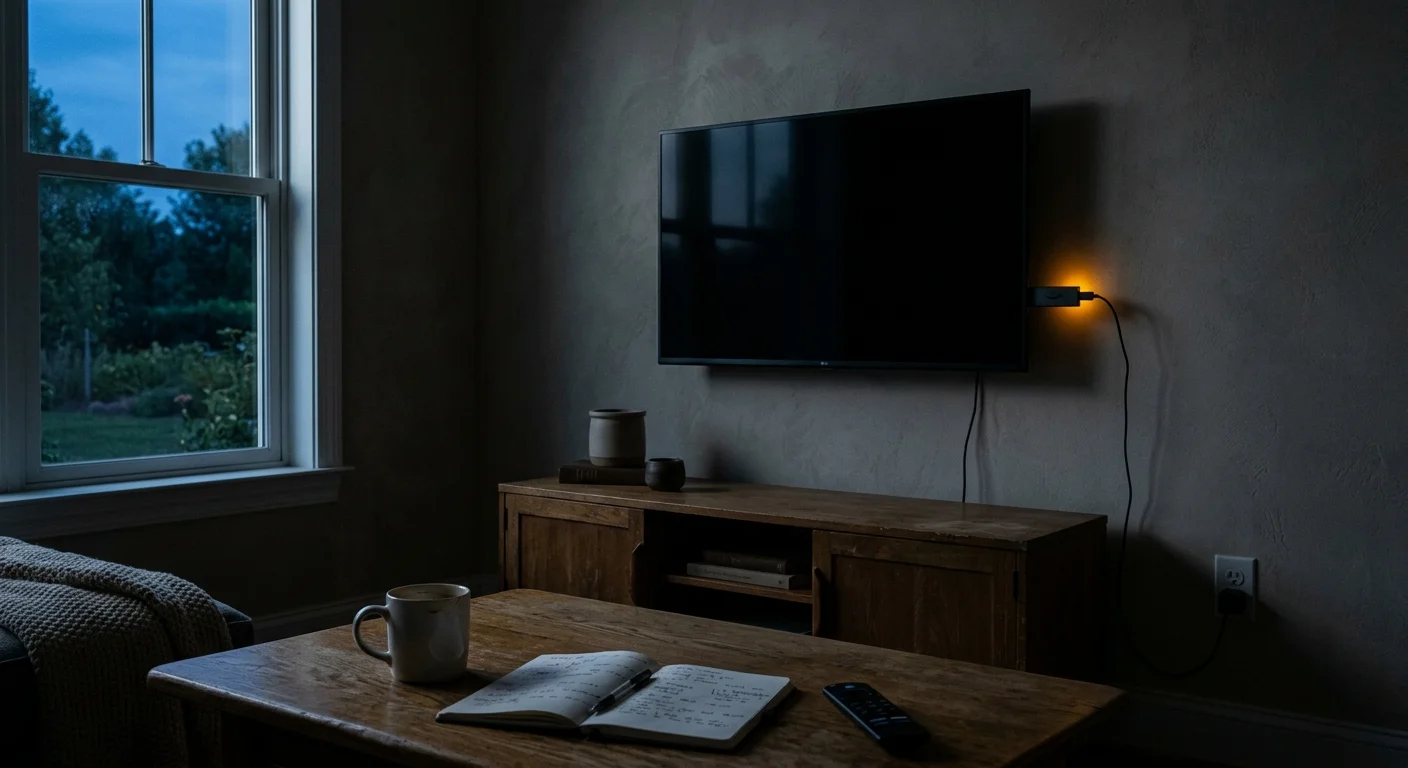
Turning off your television screen does not stop wall-powered streaming sticks from playing video in the background. This unrecognized hardware loop silently downloads gigabytes of content while your display sits completely black.
Unchecked streaming stick idle data usage triggers early throttling penalties within days. You can reclaim dozens of gigabytes each billing cycle by eliminating automated background caching and fixing dormant network connections.
The HDMI-CEC Zombie Stream: Why Blank Screens Burn Bandwidth
Cord-cutting—canceling traditional cable or satellite TV in favor of streaming services—promises significant monthly entertainment savings. However, streaming, which means watching video content over the internet instead of cable, introduces strict data management challenges.
Before assuming hardware failure, it helps to isolate connection quirks by troubleshooting internet vs streaming service issues across your local network.
Whether you watch via a smart TV—a television with built-in internet connection and apps—or a separate streaming device like a Roku, power architecture dictates data consumption.
Most modern streaming players draw continuous power from an electrical wall outlet rather than a low-voltage television USB port. This constant power feed keeps the device processor fully active even when you shut off the screen.
When you press the power button on your television remote, you often turn off only the physical display panel. The attached streaming player remains completely unaware that you left the room.
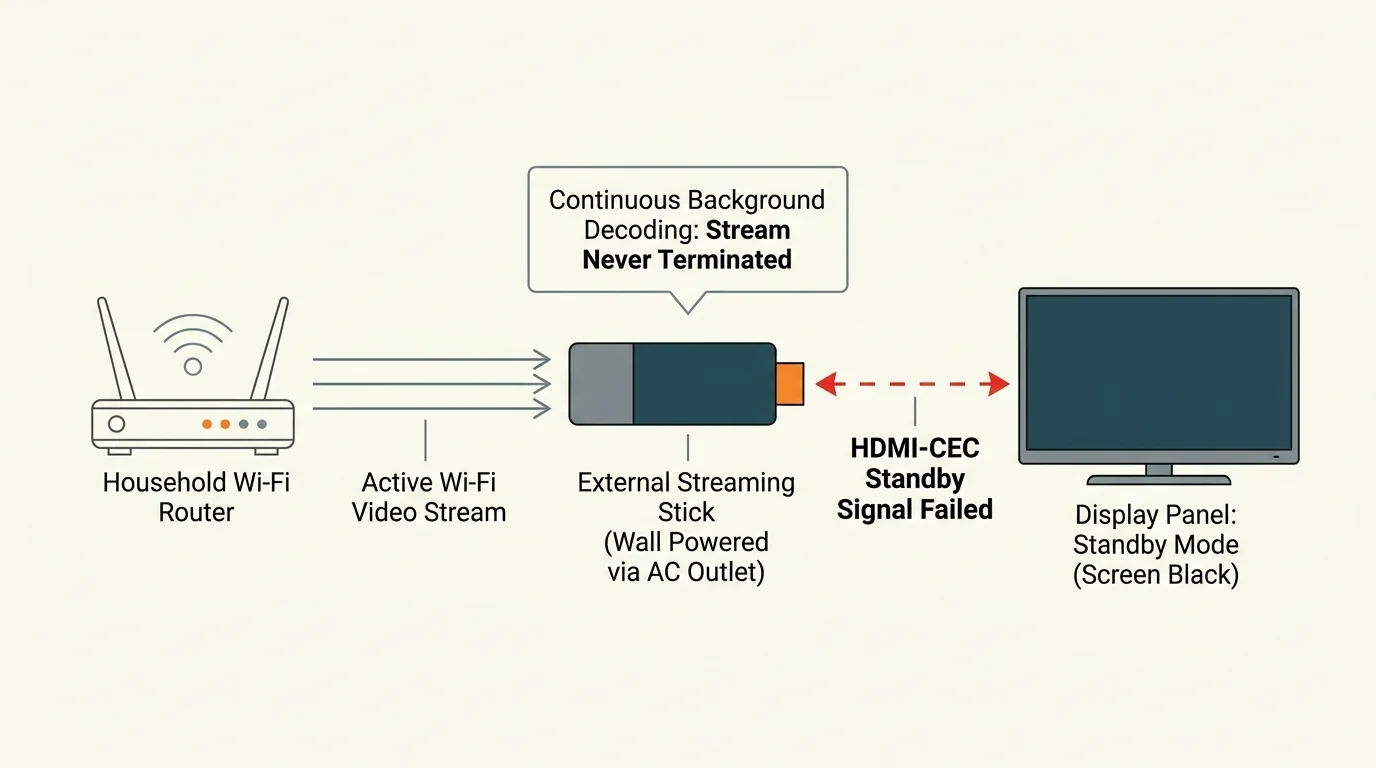
This disconnect happens because HDMI Consumer Electronics Control (HDMI-CEC) protocols frequently fail between mismatched hardware brands. If the TV fails to send an official standby signal through the HDMI cable, the media player continues decoding its stream.
The resulting “zombie stream” silently downloads high-definition video into an unmonitored room for hours. You waste valuable gigabytes on empty air while your television looks completely dark.
“A television display switched into standby mode does not sever an active media stream on an external player plugged into AC wall power.”
Fixed Wireless Streaming Data Limits and Metered Traps
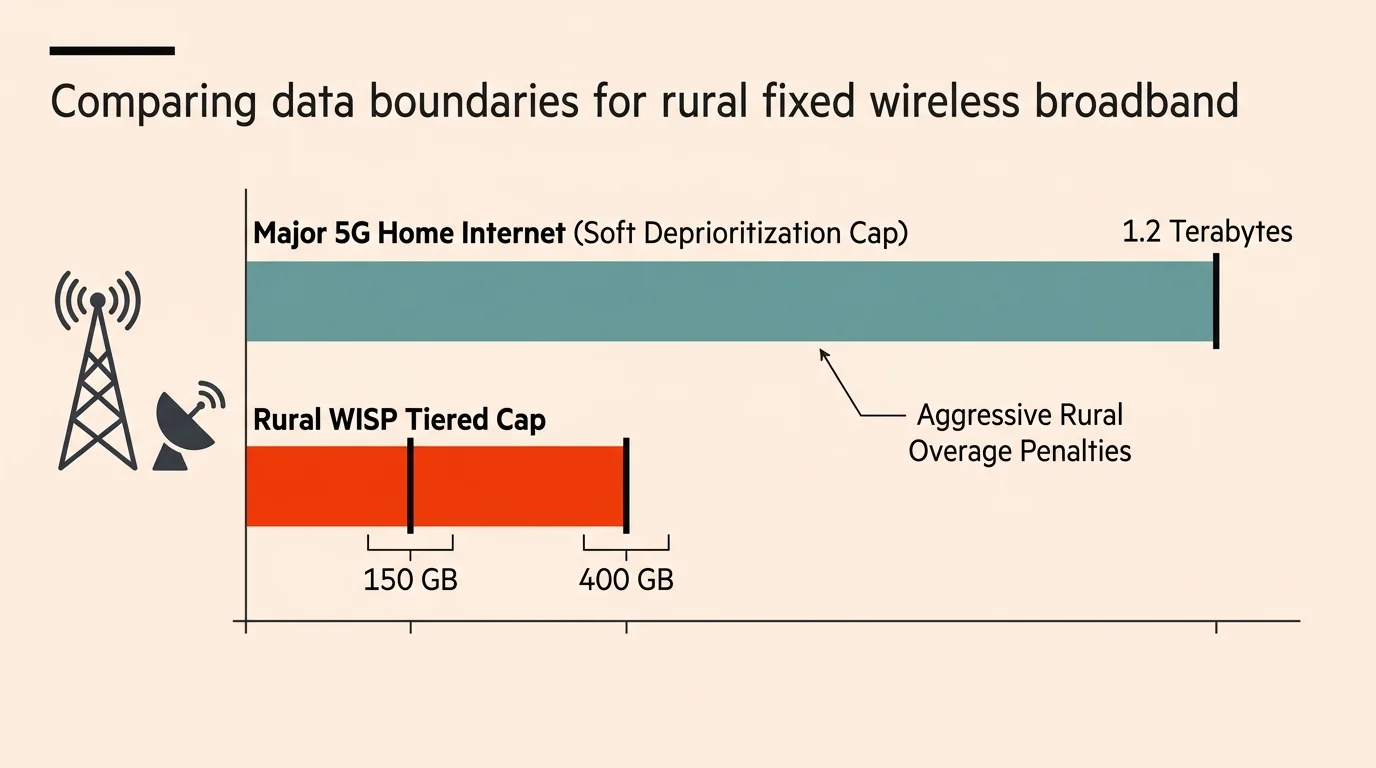
Rural households relying on fixed wireless access face harsh operational boundaries compared to urban fiber subscribers. Understanding fixed wireless streaming data limits protects your family from sudden throttles and expensive penalty bills.
Major 5G home internet providers enforce soft thresholds that deprioritize connections after heavy consumption. For example, T-Mobile 5G Home Internet deprioritizes accounts that exceed 1.2 terabytes during times of local network congestion.
Independent rural Wireless Internet Service Providers (WISPs) enforce much stricter limits. Many cap monthly data between 150 and 400 gigabytes, charging steep overage penalties averaging $10 to $15 per 50-gigabyte block.
Federal Communications Commission regulations now mandate Broadband Consumer Labels at the point of sale. According to Consumer Reports, these nutrition-style labels require providers to disclose exact overage fees and throttling thresholds before purchase.
When your monthly allowance sits at 350 gigabytes, unmonitored background usage quickly threatens essential remote work and school tasks. Even basic on-demand viewing—watching whatever you want, whenever you want—requires strict bandwidth accounting.
Selecting ad-supported tiers that show commercials or ad-free plans that cost more also alters data demand. Commercial-supported tiers frequently load dynamic video advertisements that consume extra caching bandwidth compared to uninterrupted streams.
Furthermore, cloud DVR services that let you record and watch shows later download fresh catalog assets continuously. Those automated sync operations erode metered allowances without your direct knowledge.
Platform Breakdown: How Fire TV, Roku, and Apple TV Leak Data
Every streaming operating system handles standby tasks differently, creating unique opportunities for hidden data consumption. Understanding your platform helps you identify where background megabytes disappear.
Amazon Fire TV devices remain notorious for active home-screen video rendering. By default, Fire OS automatically buffers and autoplays high-definition video previews across the top navigation banner.
If you leave your input sitting on the Fire TV home screen, the system cycles through promotional video loops endlessly. Knowing how to stop firestick using data when tv is off is vital for metered households.
Roku devices behave more conservatively with video, but they consume steady background data through dynamic interface updates. Roku OS regularly refreshes sponsored ad blocks, home screen wallpaper themes, and automated content recognition telemetry.
As CNET reports, streaming players constantly maintain network handshakes for cloud analytics and standby app updates. Those invisible maintenance transmissions accumulate into gigabytes over thirty days.
Apple TV hardware introduces a unique bandwidth consumer through its stunning Aerial screensavers. The device automatically downloads uncompressed 4K video files over your connection, quietly consuming up to a gigabyte per week.
Google TV devices also burn background bandwidth through their Ambient Mode screensavers and curated discovery feeds. The system pre-caches recommended high-definition trailers directly to local storage to ensure instantaneous playback when clicked.
Measuring Idle Drain: Device Comparison and Specifications
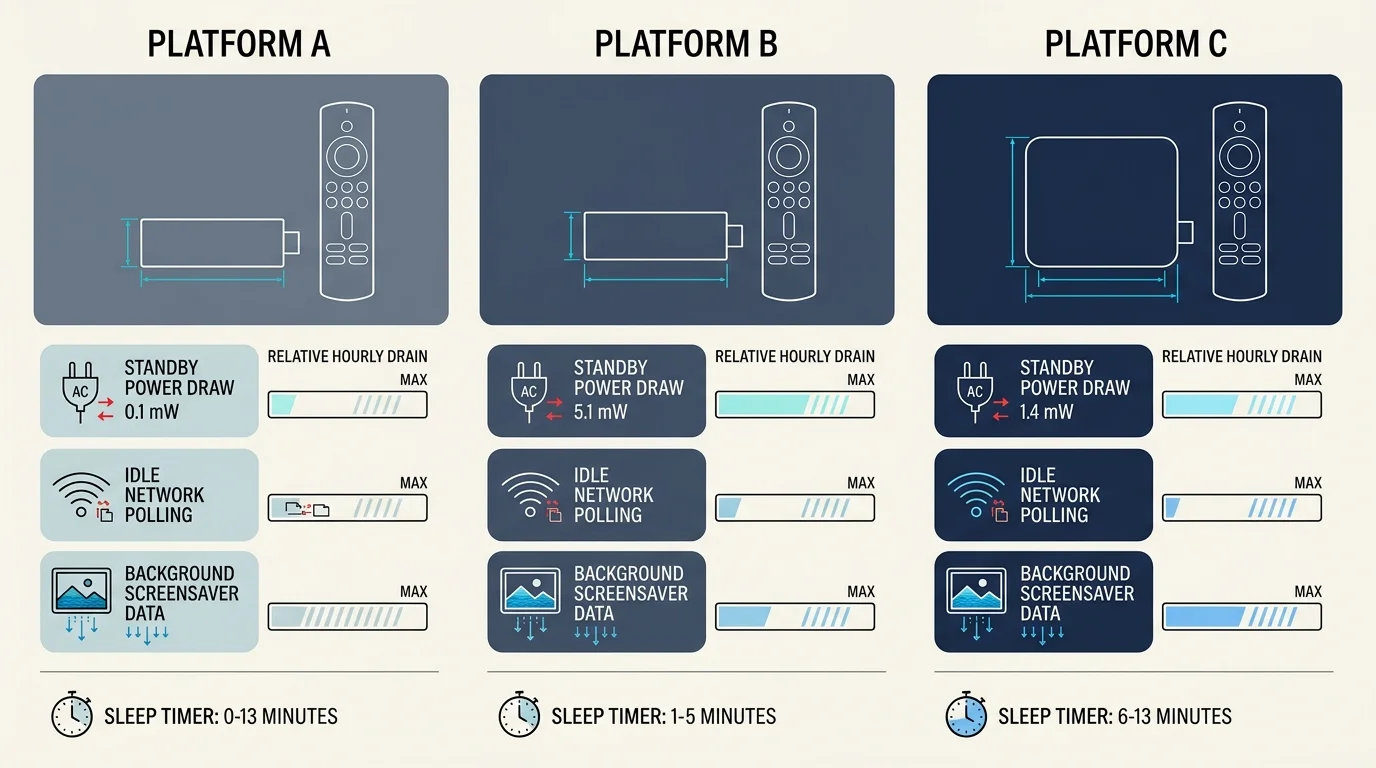
The following table outlines measurable data consumption metrics across leading streaming devices based on factory configurations. The figures reflect baseline standby draws and active background streaming rates.
| Streaming Device Model | Standby Data (GB / Month) | Active Idle Burn (GB / Hour, 4K) | Default Factory Sleep Timer | Primary Background Bandwidth Driver |
|---|---|---|---|---|
| Amazon Fire TV Stick 4K Max | 3.5 to 6.0 GB | 6.5 to 7.5 GB | 20 Minutes | Home-screen autoplay video banners and ad telemetry |
| Roku Streaming Stick 4K | 1.2 to 2.8 GB | 5.5 to 7.0 GB | 4 Hours (Bandwidth Saver) | Dynamic ad tiles, theme updates, and ACR telemetry |
| Apple TV 4K (3rd Gen) | 4.0 to 9.5 GB | 7.0 to 14.0 GB | 15 Minutes | Uncompressed 4K Aerial screensaver downloads |
| Google TV Streamer (4K) | 2.5 to 5.0 GB | 6.0 to 7.5 GB | 20 Minutes (Ambient Mode) | Ambient photo caching and trailer pre-loading |
Standby data represents usage when no video plays and the device sits dormant. Active idle burn occurs when an app plays video unnoticed after you power off the display.
Notice the massive disparity between standby telemetry and runaway active video playback. A single runaway session wastes more data in an afternoon than standard background operations consume all month.
Worked Example: The Financial Cost of Ghost Data on a Rural Cap
Consider a practical household scenario to see how unchecked background streaming impacts a monthly budget. A family moves to rural Missouri, subscribing to a regional WISP offering a 350-gigabyte cap for $75 monthly.
The provider bills overages at $15 for every 50-gigabyte block used past the limit. The family connects an Amazon Fire TV Stick 4K Max to an older television lacking reliable HDMI-CEC communication.
The household deliberately watches three hours of high-definition on-demand programming each evening at 2.0 gigabytes per hour. That intentional viewing totals 6.0 gigabytes daily, or 180 gigabytes across a 30-day billing cycle.
However, three nights per week, a family member turns off the TV screen while a 4K stream runs. Because the TV cannot signal the stick, the device continues playing for three hours before app timeouts activate.
At 6.5 gigabytes per hour, each runaway incident burns 19.5 gigabytes of phantom data. Across twelve weekly occurrences in a month, that ghost streaming consumes 234 gigabytes of unviewed bandwidth.
Adding the 180 gigabytes of actual viewing, the 234 gigabytes of ghost streaming, and 4 gigabytes of standby caching totals 418 gigabytes. The family exceeds their 350-gigabyte allowance by 68 gigabytes.
The WISP bills two 50-gigabyte overage blocks, adding $30 in penalties to their base subscription. Over a single year, that undetected communication flaw costs the household $360 in wasted utility fees.
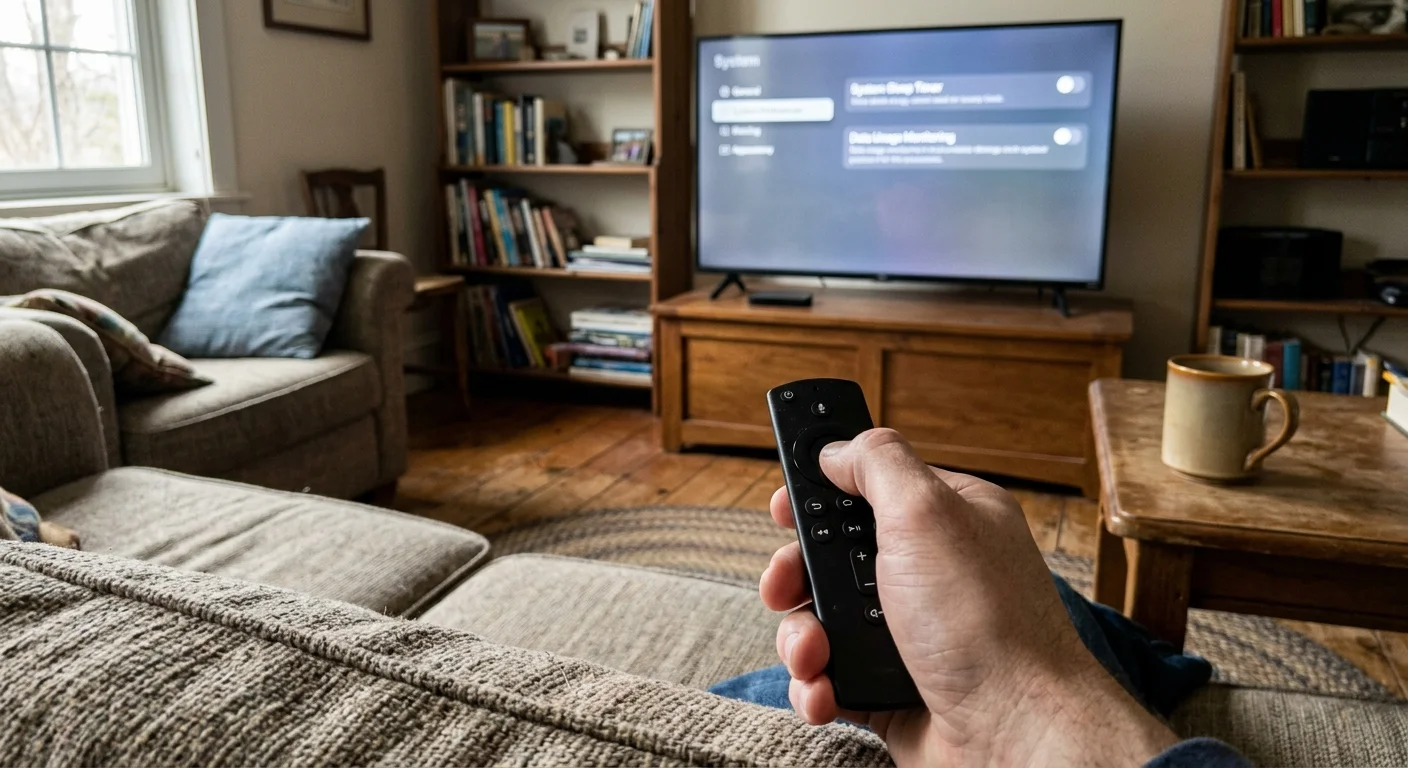
System Adjustments: How to Stop Firestick and Roku Idle Draw
You can eliminate phantom data consumption immediately by changing specific operating system settings on your streaming devices. Applying these targeted adjustments halts autoplay cycles and forces aggressive sleep states.
On Amazon Fire TV devices, open Settings and select Preferences. Click Featured Content, then turn off both “Allow Video Autoplay” and “Allow Audio Autoplay.”
Next, navigate to Preferences and select Data Monitoring. Turn Data Monitoring on, select Set Video Quality, and change the profile from Best to Better or Good to restrict video bitrates.
Verify that your Fire TV can power down with your display by visiting Settings, then Display & Sounds. Select HDMI CEC Device Control and verify the setting shows as Active.
For Roku hardware, open Settings and click Network. Select Bandwidth Saver and verify that the checkmark indicates On, ensuring streams halt after four hours of remote inactivity.
Navigate to Settings, select System, and click Power. Choose Auto Power Savings and verify that “Reduce power after 20 minutes” remains checked.
According to configuration guides from Tom’s Guide, lowering screensaver download activity also prevents unexpected spikes. Select Theme, click Screensavers, and pick a static digital clock rather than dynamic photo feeds.
If you use an Apple TV, open Settings and click General. Select Screensaver, click “Download New Video,” and change the download schedule to Never.
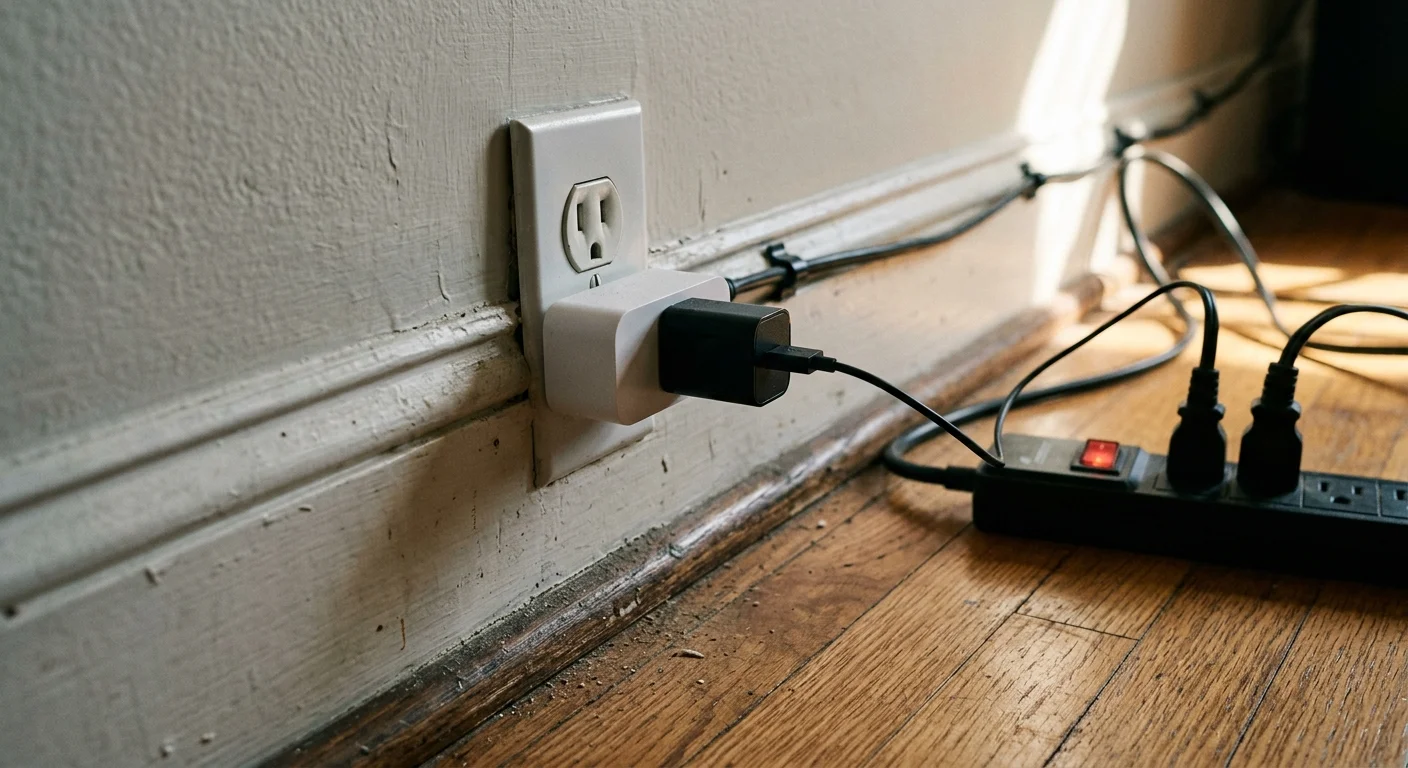
Hardware Solutions: Smart Plugs and Physical Cutoff Switches
Software settings solve most problems, but hardware failures require physical interventions. If your TV firmware fails to communicate with your streaming player via HDMI-CEC, external cutoffs provide absolute security.
Smart Wi-Fi plugs offer a reliable automation method for metered rural households. You can schedule a smart plug to sever AC power to your streaming stick at 11:30 PM every night.
This automated cut eliminates midnight ghost streaming even if someone falls asleep with the remote control in hand. The smart plug restores power early the next morning without disrupting routine television use.
Alternatively, consider powering your streaming stick directly through the television panel’s USB service port if the device supports it. Unlike wall outlets, television USB ports drop electrical output to zero watts the exact moment you turn off the screen.
Powering via USB forces an immediate, total device shutdown that stops network transfers completely. However, older or high-performance 4K streaming sticks may display low-voltage warnings on underpowered 0.5-amp television USB ports.
If your device restarts during high-action scenes, return to the AC wall adapter and rely on smart plug timers instead. A ten-dollar smart switch pays for itself immediately by preventing a single fifty-gigabyte data penalty.
“Physically cutting AC power to a streaming player remains the only foolproof method to guarantee zero idle network communication.”
Frequently Asked Questions
Does turning off my TV always stop a streaming stick from downloading data?
No, turning off your display panel does not reliably stop an external streaming player. Unless HDMI-CEC commands communicate successfully, wall-powered players keep decoding active video streams until internal software timers stop them.
How much data does a streaming stick use in standby mode over a month?
Standard streaming sticks consume between 1 and 6 gigabytes per month in pure standby mode. This bandwidth feeds automatic firmware updates, dynamic home screen advertisements, telemetry reporting, and cached screensaver media.
Will plugging my streaming stick into the TV USB port stop phantom data usage?
Yes, connecting to a TV USB port that cuts electrical output when powered off completely stops phantom data usage. The streaming stick shuts down entirely, preventing any background caching or accidental runaway playback.
Does the Roku Bandwidth Saver feature completely prevent overage fees?
Roku Bandwidth Saver helps by prompting after four hours of inactivity, but it does not eliminate all risk. A four-hour runaway 4K stream can still waste up to 28 gigabytes before automatically halting.
Disclaimer: Streaming service terms and pricing change frequently. Always review current terms of service before implementing any money-saving strategies. Some tips may not work with all services or in all regions.