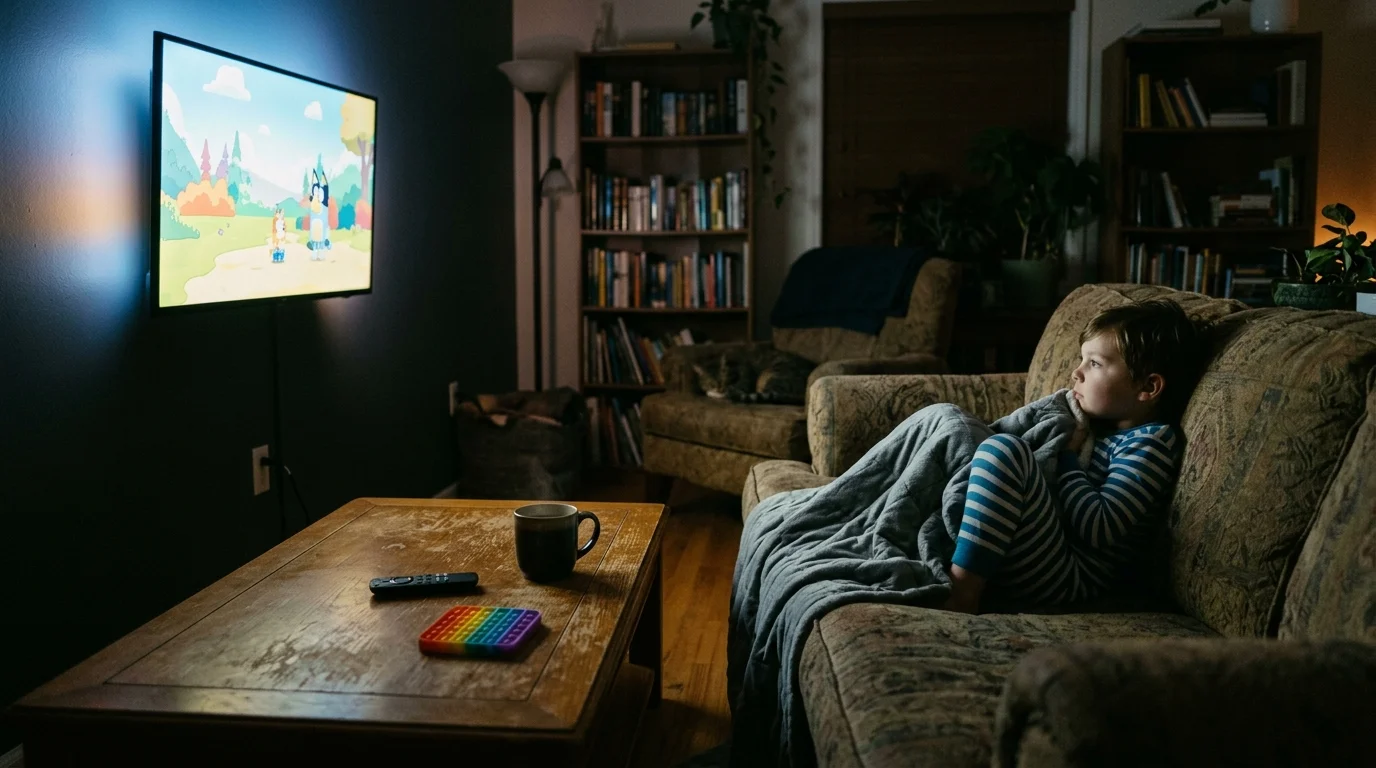
When your neurodivergent child relies on a specific show for sensory regulation, an abrupt video freeze can trigger immediate distress. Standard entertainment platforms pause your video stream after ninety minutes of inactivity.
While standard troubleshooting guides suggest pressing a remote button, you can permanently eliminate these pauses by combining hardware-level automation with modified device power profiles.
This technical guide explains how to bypass built-in timeout thresholds across major platforms; you will secure uninterrupted playback that protects your family’s daily sensory routine.
The Sensory Impact of Streaming Inactivity Prompts
For children on the autism spectrum or those with sensory processing sensitivities, familiar media serves as an emotional anchor. Predictable sounds and visuals create a calm, manageable auditory environment.
Much like building a fail-safe streaming setup for seniors, creating an interruption-free viewing routine requires stripping away system-level friction.
Pairing continuous playback with tailored subtitle and accessibility settings can further stabilize the viewing space by preventing jarring sensory shifts.
We define streaming as watching video content over the internet instead of through cable or satellite providers. This delivery model relies on servers tracking your viewing habits in real time.
Most platforms deliver on-demand content, which allows you to watch whatever you want whenever you choose. However, providers deliberately limit passive playback to conserve their server bandwidth.
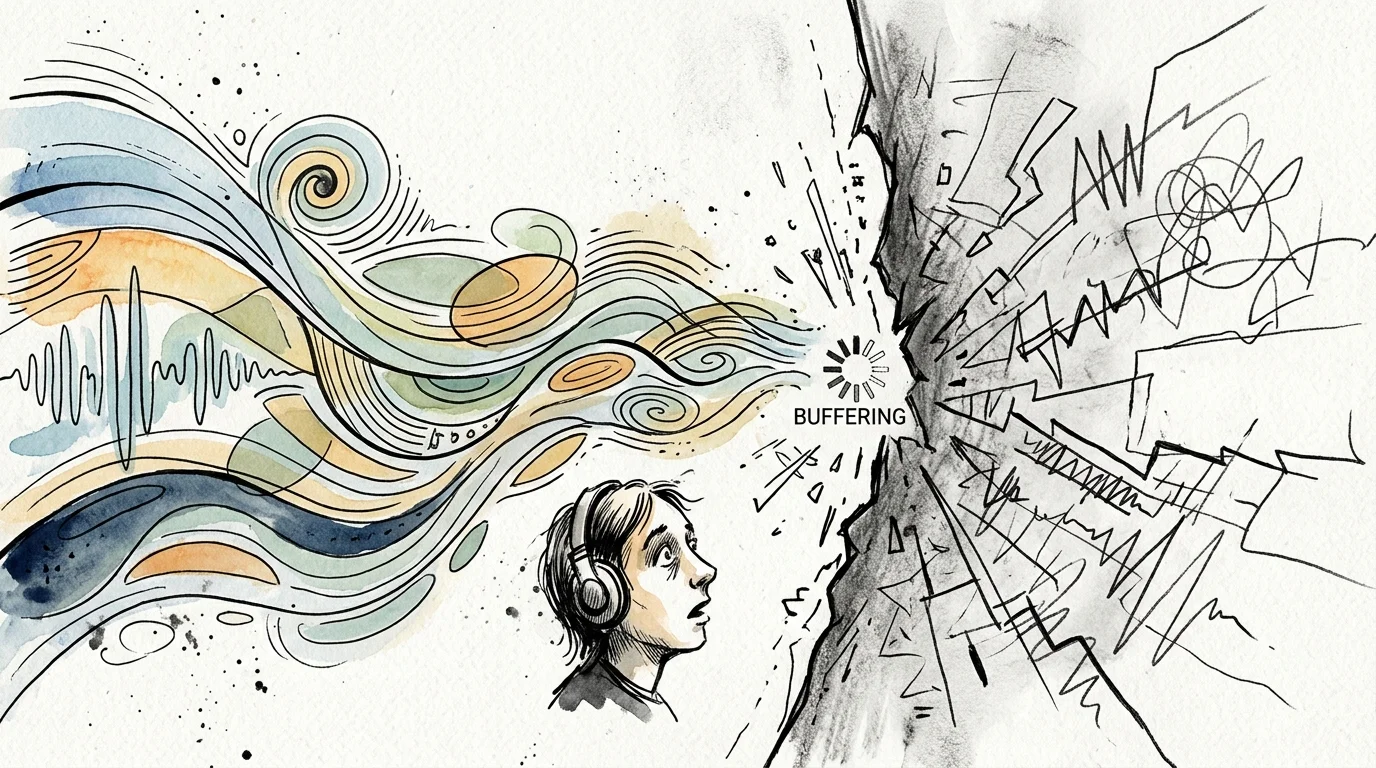
When a sudden dialogue prompt silences the audio, the abrupt shift in background noise can shock a sensitive nervous system. The resulting silence often sparks a preventable meltdown.
“For sensory-dependent children, media continuity provides crucial ambient regulation; an unannounced pause operates like a sudden power outage in a dark room.”
Preventing these interruptions requires you to take direct control over your playback environment. You must systematically address both app-level timers and hardware sleep cycles.
Platform Timeout Limits and Continuous Play Benchmarks
Streaming companies configure timeout limits to prevent continuous streaming to empty living rooms. These limits vary significantly depending on the platform, device type, and account settings.
Implementing clever streaming setup hacks can help circumvent these arbitrary limits across multiple platforms.
Remember that running long video loops every day can quickly consume hundreds of gigabytes, making it critical to monitor your home internet data cap.
Streaming services offer ad-supported plans, which cost less money but display commercials throughout the show. Alternatively, ad-free plans cost more money each month but remove commercial disruptions entirely.
Ad-supported tiers enforce aggressive timeout thresholds because advertisers demand verified user engagement. Ad-free accounts allow longer uninterrupted intervals before displaying a verification dialog.
The table below outlines real-world continuous play limits based on standard default settings across the major entertainment applications.
| Streaming Service | Default Inactivity Threshold | Native Continuous Play Toggle | Ad-Supported Timeout Behavior | Max Uninterrupted Window |
|---|---|---|---|---|
| Netflix | 3 episodes or 90 minutes | Autoplay Next Episode only | Pauses after 2 episodes | 90 minutes |
| Disney+ | 4 hours or 4 episodes | Autoplay toggle present | Pauses after 3 episodes | 240 minutes |
| Hulu | 6 episodes or 180 minutes | Autoplay toggle present | Prompts every 3 episodes | 180 minutes |
| Prime Video | 3 episodes or 120 minutes | Auto-Play toggle present | Pauses after 2 episodes | 120 minutes |
| Max | 3 episodes or 150 minutes | Autoplay toggle present | Prompts every 90 minutes | 150 minutes |
| YouTube Kids | 45 to 60 minutes | Autoplay with Timer limits | Not applicable (paid tier available) | 60 minutes |
Netflix enforces the strictest continuous playback limit among major services. Without user interaction, Netflix pauses playback after three short episodes—or roughly ninety minutes of runtime.
Disney+ offers the most generous native window, extending playback up to four continuous hours under specific conditions. Hulu falls in the middle, permitting roughly three hours of sequential episodes.
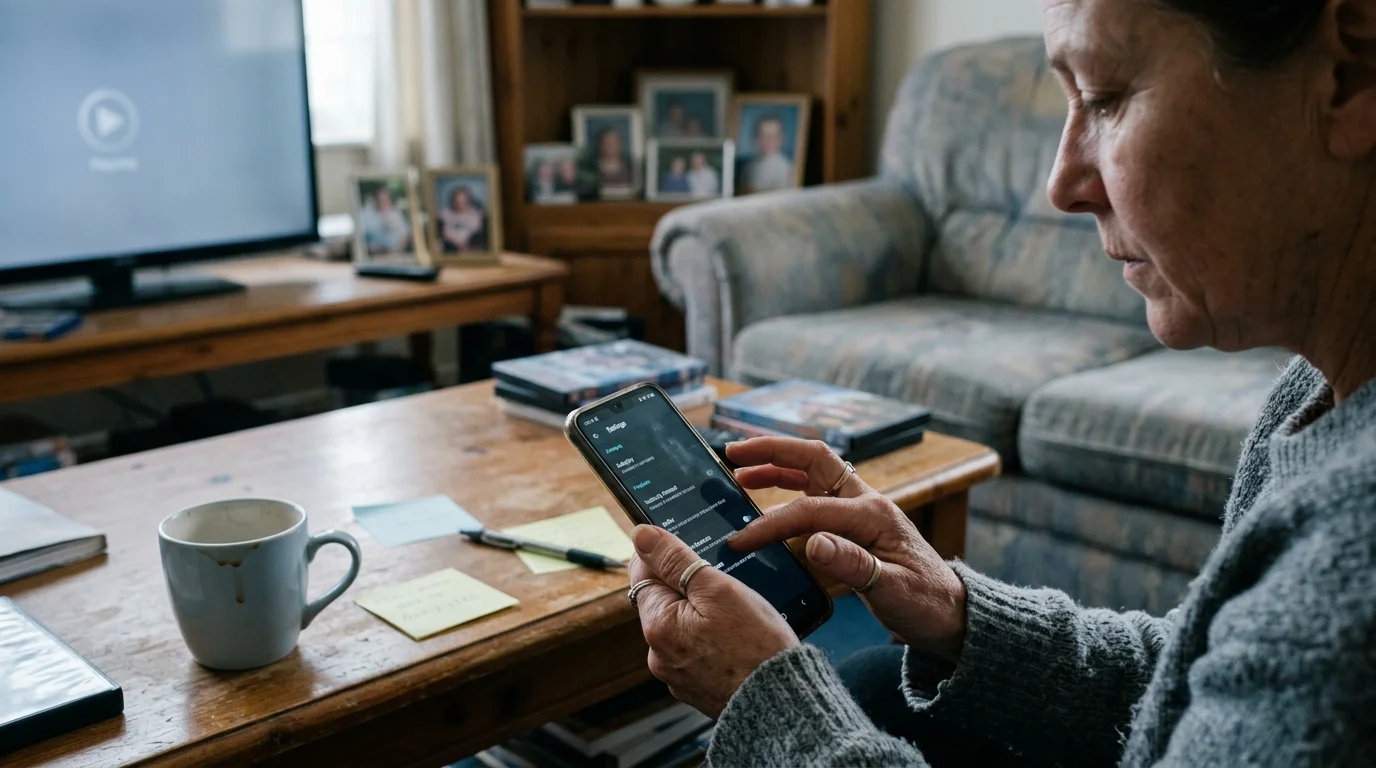
App-Level Configurations to Stop Streaming Pauses
To reduce disruptions, adjust each platform’s internal playback preferences across every profile your child uses. These adjustments extend continuous playback but rarely eliminate prompts permanently.
While modifying profile playback, reviewing parental controls across each streaming service ensures your child remains safely contained within their familiar comfort shows.
To disable are you still watching netflix prompts as much as possible natively, sign in to Netflix through a web browser. Native mobile and TV apps do not expose these controls.
Navigate to Account Settings, locate your child’s profile, and select Playback Settings. Check the box labeled “Autoplay next episode in a series on all devices.”
This setting prevents the app from stopping after a single episode concludes. However, the system will still interrupt the broadcast once the ninety-minute threshold arrives.
For Disney+, open the app on your television, navigate to Edit Profiles, and toggle the Autoplay feature to On. This ensures episodes loop continuously until reaching the platform’s four-hour ceiling.
Prime Video organizes continuous playback under Player Settings. Enable the Auto-Play switch on each physical device, as Prime Video does not synchronize this preference across hardware.
While native settings provide a baseline, they do not deliver true continuous play loop streaming. Platform designers intentionally prevent users from permanently disabling timeout warnings inside their apps.
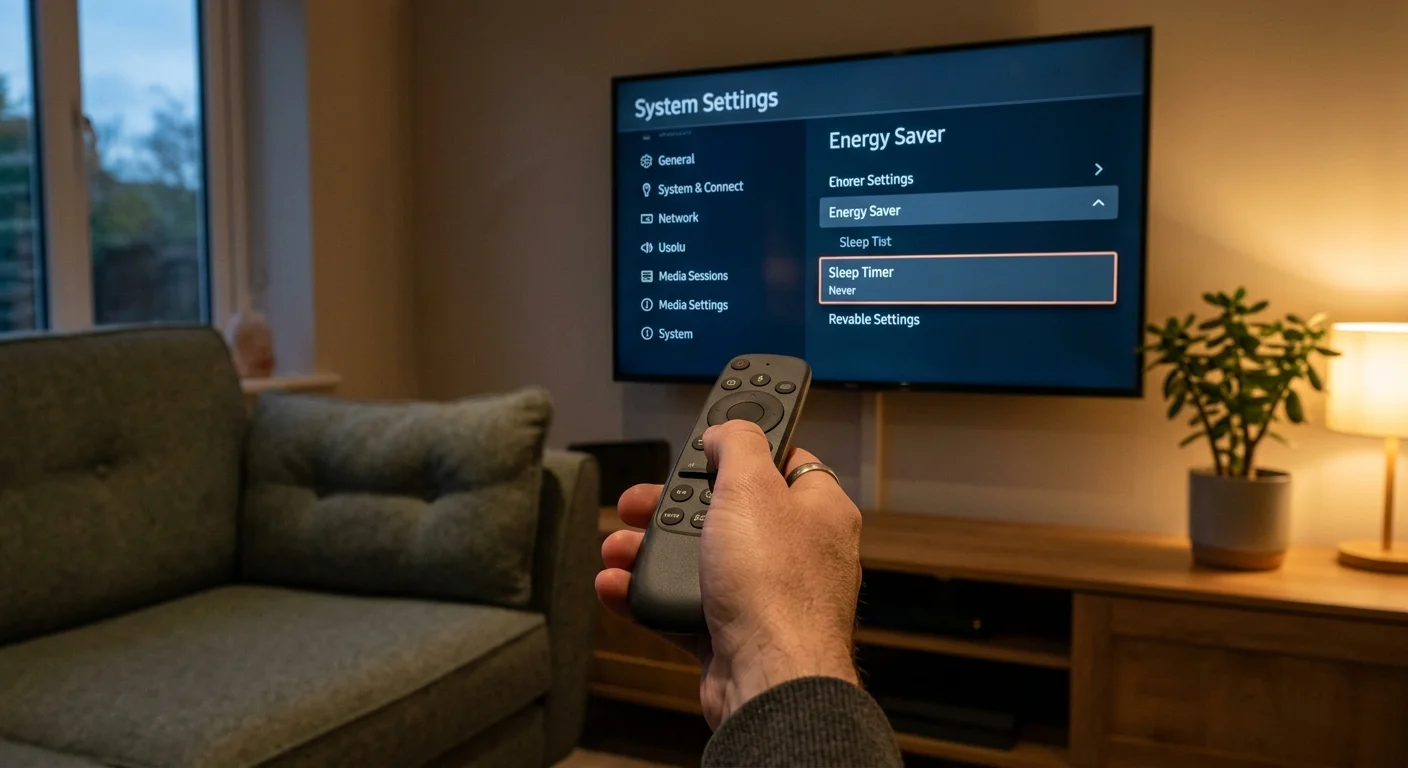
Operating System and Streaming Box Sleep Overrides
App timeouts represent only half the problem; television operating systems also contain aggressive energy-saving algorithms. A streaming device—a small external stick or box that connects to your TV—often goes to sleep independently.
While configuring device power profiles, you can also establish remote PIN protection on Roku and Fire TV to prevent unintended purchases during unattended playback.
Keep in mind that overriding sleep timers leaves equipment permanently awake, which can dramatically increase ghost bandwidth on streaming sticks and smart TVs.
Similarly, a smart TV features built-in internet access and internal apps that manage power usage. If your television enters standby mode, the show terminates regardless of your streaming app settings.
According to Consumer Reports’ streaming device evaluations, dedicated hardware streamers provide far better power-management controls than smart televisions. Investing in an external streaming box gives you greater control over system sleep settings.
On Apple TV 4K, open Settings, choose General, and click Sleep After. Change this parameter to Never to ensure the hardware never initiates sleep mode automatically.
For Roku players, navigate to Settings, select Network, and locate the Bandwidth Saver option. Turn Bandwidth Saver Off immediately; this feature intentionally kills video streams after four hours of remote inactivity.
Next, access Settings on Roku, select System, click Power, and disable Auto Power Savings. This prevents the Roku device from shutting down its HDMI connection during extended sensory routines.
Amazon Fire TV devices hide sleep timers within deeper menus. You can disable sleep mode by enabling Developer Options and setting the Deep Sleep timeout value to Off.
On Google TV and Chromecast devices, access Settings, click System, and choose Power & Energy. Set the Energy Saver slider to Never to keep video rendering continuously.
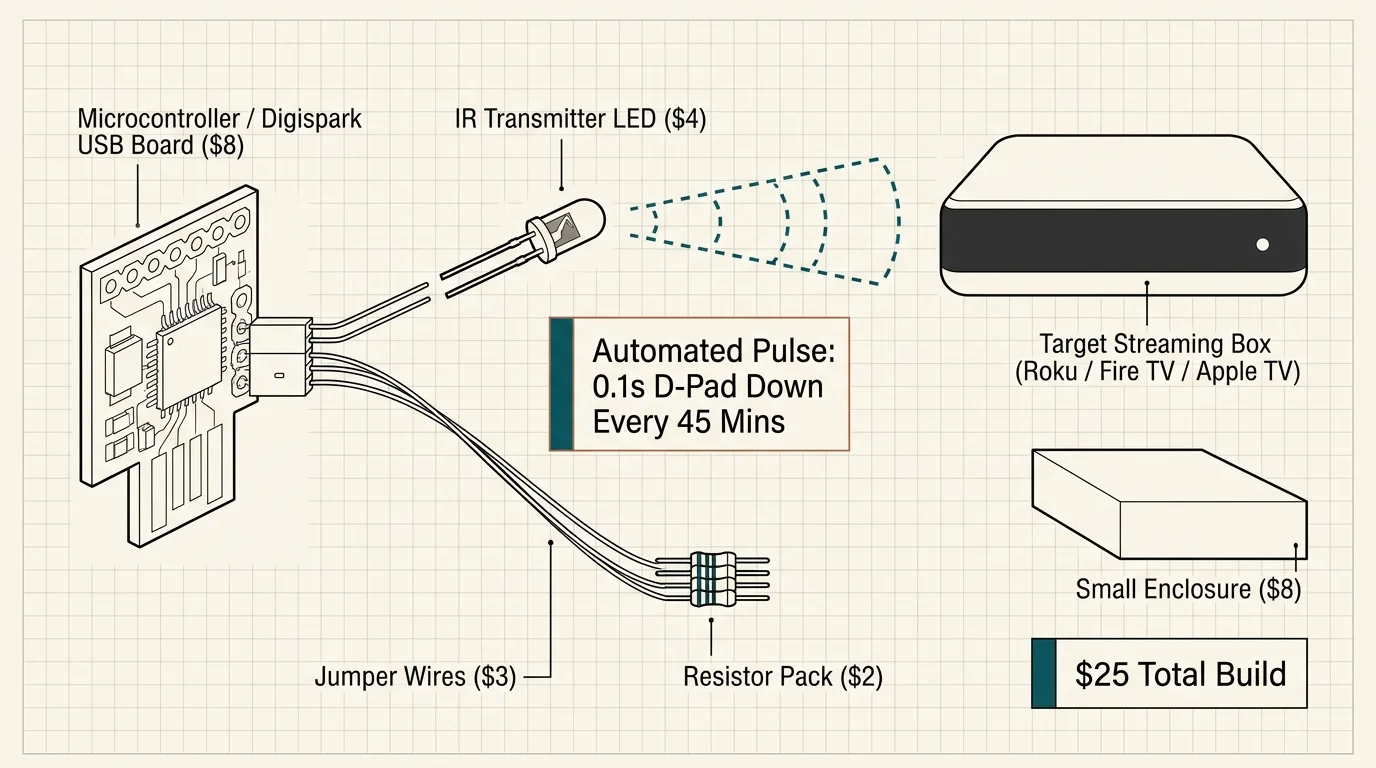
Worked Example: Building a $25 Hardware Keep-Alive System
Software settings cannot stop netflix timeout dialogs completely because the app requires physical remote input. You can solve this problem permanently using a simple, automated hardware bridge.
If your stream still freezes despite an active keep-alive pulse, confirm whether home network drops rather than app timeouts are halting your connection.
Consider this concrete deployment scenario designed for an eight-hour continuous sensory routine. The system uses a Broadlink RM4 Mini infrared blaster, which costs $24.99, linked to a basic home automation hub.
The streaming platform pauses video after ninety minutes of inactivity. To defeat this timer, our system sends a harmless navigation pulse to the television every forty-five minutes.
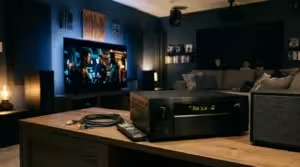
The hardware transmitter sits four feet away on a bedside shelf, aimed directly at an Apple TV and television receiver. We configure the system to execute a specific remote macro at set intervals.
The automation triggers at minute forty-five, minute ninety, minute one-hundred-thirty-five, and continues for eight full hours. The transmitter issues two commands separated by two hundred milliseconds.
First, the transmitter emits the Volume Up infrared command. Immediately following, the transmitter emits the Volume Down command; this cancels the volume change while resetting the streaming app’s idle timer.
Because the app registers authentic remote control input, the internal inactivity clock resets to zero. The streaming application never triggers the confirmation dialog.
Over an eight-hour sensory period, this configuration executes ten total automated pulses. The entire installation requires $24.99 in hardware, zero recurring subscriptions, and fifteen minutes of initial setup time.
Browser Extensions and Local Media Workarounds
If you connect a computer directly to your television, web browsers provide the most reliable continuous playback environment. Desktop web browsers allow you to modify streaming interfaces using targeted scripts.
Automating player scripts is only one of several clever streaming hacks that give power users full command over their playback setup.
The open-source extension Never Ending Netflix automatically clicks the confirmation prompt the instant it appears. The software runs silently in the background without user intervention.
This extension also automatically skips show intros, recaps, and closing credits. Eliminating these visual disruptions provides a smoother, less jarring viewing experience for your child.
For YouTube and YouTube Kids, use the Enhancer for YouTube extension. This tool lets you configure an endless looping script for hyper-specific comfort videos.
To loop any video natively inside desktop Google Chrome, right-click the video player twice to reveal the browser’s context menu. Select the Loop option to replay the media file indefinitely.
Desktop setups also support physical USB mouse jigglers, which cost roughly $9.00 online. These devices simulate subtle cursor movement, preventing your operating system from engaging screensavers or sleep cycles.

Streaming Economics: Ad-Free Tiers and Sensory Value
Cord-cutting means canceling traditional cable subscriptions in favor of flexible online streaming services. When building a sensory-friendly entertainment setup, choosing the right subscription tier directly impacts continuous playback success.
Ad-supported plans generate unpredictable volume spikes during commercial breaks. For a child with sound sensitivity, these abrupt volume increases can cause physical discomfort and emotional distress.
According to Wirecutter’s streaming video analysis, ad-free streaming tiers offer substantially greater viewing stability for families. Eliminating advertisements protects your child from sudden disruptions to their audio environment.
A DVR, or digital video recorder, lets you record television programs to watch whenever you want. Some live TV streaming plans include cloud DVR features, but these interfaces rarely support reliable continuous looping.
Review the economic and operational breakdown below to determine which platforms best accommodate your child’s continuous sensory needs.
| Platform | Monthly Ad-Supported | Monthly Ad-Free | Annual Cost Difference | Simultaneous Stream Limit | Sensory Continuity Rating |
|---|---|---|---|---|---|
| Disney+ | $9.99 | $15.99 | $72.00 | 4 devices | Excellent (4-hour limit) |
| Netflix Standard | $6.99 | $15.49 | $102.00 | 2 devices | Moderate (Strict 90-min limit) |
| Hulu | $9.99 | $18.99 | $108.00 | 2 devices | Good (180-min limit) |
| Max | $9.99 | $16.99 | $84.00 | 2 devices | Moderate (Aggressive pauses) |
| Prime Video | $8.99 | $11.98 | $35.88 | 3 devices | Fair (Short idle timer) |
| Paramount+ | $7.99 | $12.99 | $60.00 | 3 devices | Poor (Frequent disconnects) |
As documented by PCMag’s streaming industry testing, platform interfaces update frequently. Always verify that your preferred subscription tier supports your required device limit.
Disney+ represents the best value for sensory maintenance routines. The platform features an extensive catalog of gentle children’s programming and permits four hours of unattended playback on ad-free tiers.
While Netflix features popular sensory staples like CoComelon and Daniel Tiger, its strict ninety-minute cutoff requires an active keep-alive workaround. Upgrading to the ad-free plan is essential to remove loud commercial interruptions.
If your budget requires tough choices, prioritize an ad-free tier for your child’s primary comfort app over subscribing to multiple platforms. Maintaining a calm, commercial-free environment outweighs having access to a wider catalog.
Local Media Playback: The Fail-Safe Alternative
Online streaming providers change their licensing agreements regularly, which means comfort shows can vanish without warning. Furthermore, home broadband outages can instantly break your child’s daily routine.
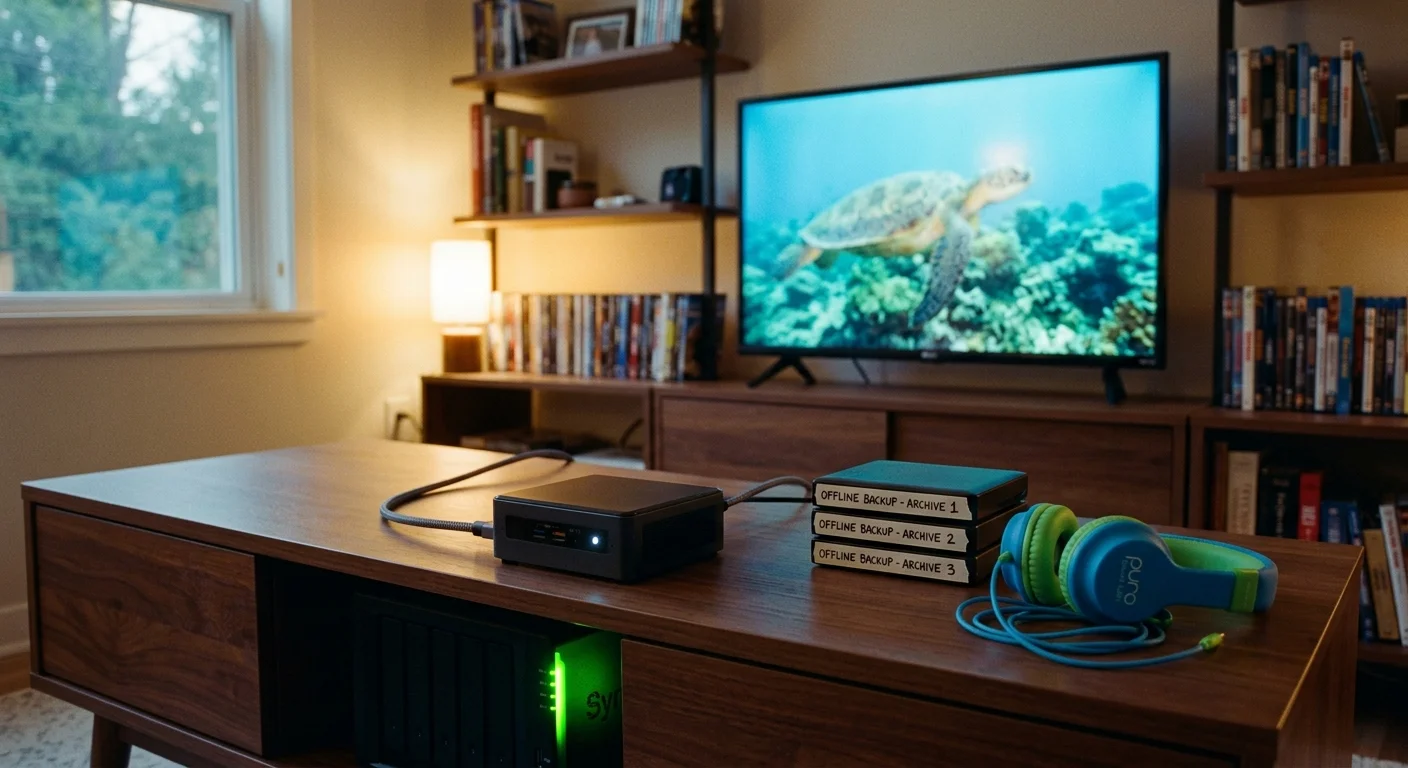
Creating a local media library using a USB thumb drive plugged into your smart TV bypasses streaming timeouts entirely. Local video files run directly from the television’s hardware decoder.
Purchase a standard 128-gigabyte flash drive for approximately $15.00 from any major electronics retailer. Format the storage drive to exFAT to ensure compatibility across all television operating systems.
Transfer digital copies of your child’s favorite comfort episodes onto the drive using a computer. Insert the storage drive directly into the USB port on the back of your television.
Open the television’s native media player application, select the episode folder, and choose the Repeat All option. The TV will loop those episodes continuously until you turn the power off.
Local USB playback requires no internet connection, shows zero advertisements, and never triggers an inactivity timeout prompt. This approach provides an affordable, dependable sensory safety net.
Frequently Asked Questions
Can I turn off the inactivity prompt directly inside the Netflix TV app?
No, Netflix does not provide a native menu setting to disable the inactivity prompt on smart TVs or streaming boxes. You must use an external hardware transmitter or run Netflix through a modified desktop web browser to prevent the message.
Why does my television screen turn black even when continuous play is working?
Your television’s internal power-saving features or the streaming box’s sleep timers are engaging. Open your television’s system settings menu and set all Sleep Timers, Energy Saving modes, and Standby options to Off.
Does running a continuous video loop consume excessive internet data?
Yes, continuous high-definition video streaming consumes roughly three gigabytes of data per hour. If your home internet provider enforces a monthly data cap, set your streaming app video quality to Standard Definition to preserve bandwidth.
Are third-party browser extensions safe for continuous streaming?
Reputable, open-source extensions from official browser web stores are generally safe to use. Always read recent user reviews, inspect software permissions, and avoid extensions that request access to your private payment information.
Disclaimer: Streaming service prices, content libraries, and features change frequently. Prices shown were accurate at time of writing but may have changed. Always verify current pricing on the official service website before subscribing.