If your household streams daily, Comcast’s 1.2TB data cap often triggers automated $30 monthly overage penalties. Cord-cutting—canceling traditional cable TV in favor of streaming services—should slash your entertainment bill, not introduce stealth ISP fees.
Streaming—watching video content over the internet instead of cable or satellite—demands vast amounts of data when modern apps default to 4K resolution.
You can stay under xfinity 1.2tb data cap limits simply by reconfiguring your display profiles to 1080p Standard Dynamic Range (SDR). This targeted adjustment saves an estimated 480GB per month across five viewers without reducing family viewing time by a single minute.
The Mechanics of Comcast’s 1.2TB Cap and the $30 Overage Trap
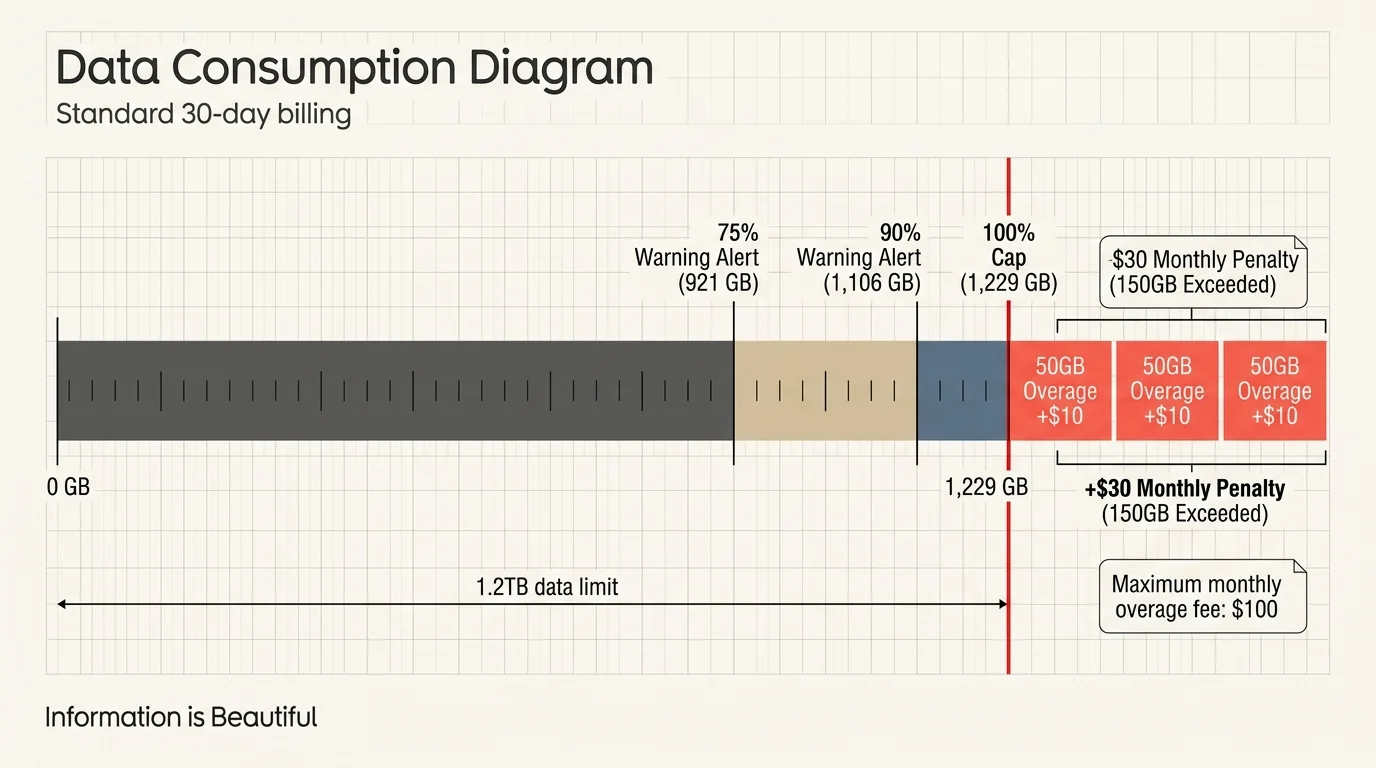
Comcast enforces a monthly data allowance of 1.2 terabytes, which equals exactly 1,229 gigabytes (GB), across applicable home internet markets. Exceeding this boundary triggers immediate financial penalties on your billing statement.
Xfinity bills overages in 50GB blocks priced at $10 each, automatically charging up to a maximum fee of $100 per cycle. A rural family running five concurrent streams can easily surpass the limit by 150GB, creating a recurring $30 surcharge.
According to the FCC Consumer Guide on broadband data, household bandwidth requirements have escalated rapidly as more services shift to cloud delivery. Unmonitored connected devices quietly burn through bandwidth even when your televisions sit idle.
Comcast provides one courtesy month per rolling 12-month period where overage charges are waived automatically. Once you exhaust that grace period, the billing automation applies every single month you cross the 1,229GB mark.
The provider sends automated warning alerts when your household reaches 75%, 90%, and 100% of your allotment. Unfortunately, receiving a warning at 90% gives a large family little time to change habits before triggering fees.
Comcast sells an unlimited data add-on for $30 monthly if you use your own modem. Alternatively, their xFi Complete package costs between $15 and $25 per month depending on promotions.
Paying an extra $360 per year to remove a data cap undermines the original financial goal of cord-cutting. You can solve this problem entirely by controlling the flow of data at the device and profile level.
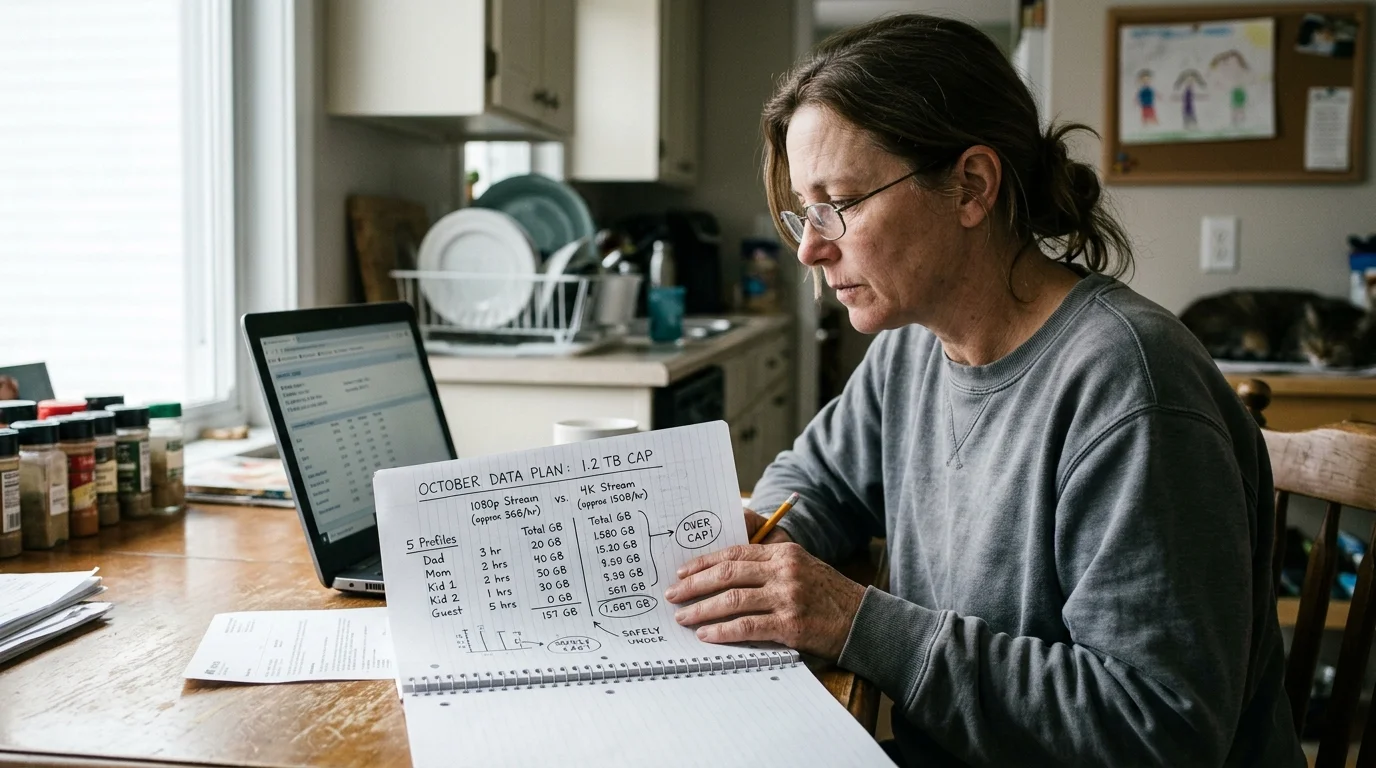
The Math of 1080p vs 4K Data Consumption Across Five Profiles
Understanding stream data usage per month family metrics requires analyzing how resolution directly impacts hourly data burn. Higher visual fidelity requires exponentially higher transmission rates.
A standard 4K Ultra HD stream consumes between 7.0GB and 7.7GB per hour at sustained bitrates of 15 to 25 Mbps. In contrast, a 1080p Full HD stream consumes only 2.0GB to 3.0GB per hour.
The difference in 1080p vs 4k data consumption becomes staggering when multiplied across several active displays. A single two-hour movie in 4K burns 15GB, whereas the identical film in 1080p uses just 5GB.
A monthly allowance of 1,229GB provides your home with a daily data budget of approximately 40GB. If your family streams exclusively in 4K, that 40GB daily budget disappears after just 5.8 hours of total screen time.
When five family members watch content on separate displays, 5.8 hours of collective screen time vanishes before dinner. Restricting streams to 1080p expands that same 40GB allowance to roughly 16 hours of daily family viewing.
| Streaming Resolution | Sustained Bitrate | Data Usage per Hour | Monthly Streaming Hours (1.2TB Cap) | Daily Family Allotment (5 Profiles) |
|---|---|---|---|---|
| 4K Ultra HD (2160p) | 15–25 Mbps | 7.0–7.7 GB | ~165–175 hours | ~1.1 hours per person |
| Full HD (1080p SDR) | 5–8 Mbps | 2.0–3.0 GB | ~410–490 hours | ~3.2 hours per person |
| Standard HD (720p) | 2.5–4 Mbps | 1.0–1.5 GB | ~820–1,000 hours | ~6.6 hours per person |
| Standard Def (480p) | 0.8–1.5 Mbps | 0.3–0.7 GB | ~1,750–2,500 hours | ~14.0 hours per person |
Dropping secondary devices like tablets and bedroom screens to 720p reduces data consumption to just 1.2GB per hour. This tactical distribution lets you allocate bandwidth where screen size actually justifies the visual detail.
“Controlling stream resolution at the hardware source is the most reliable way to enforce an unyielding household data ceiling without policing family viewing hours.”
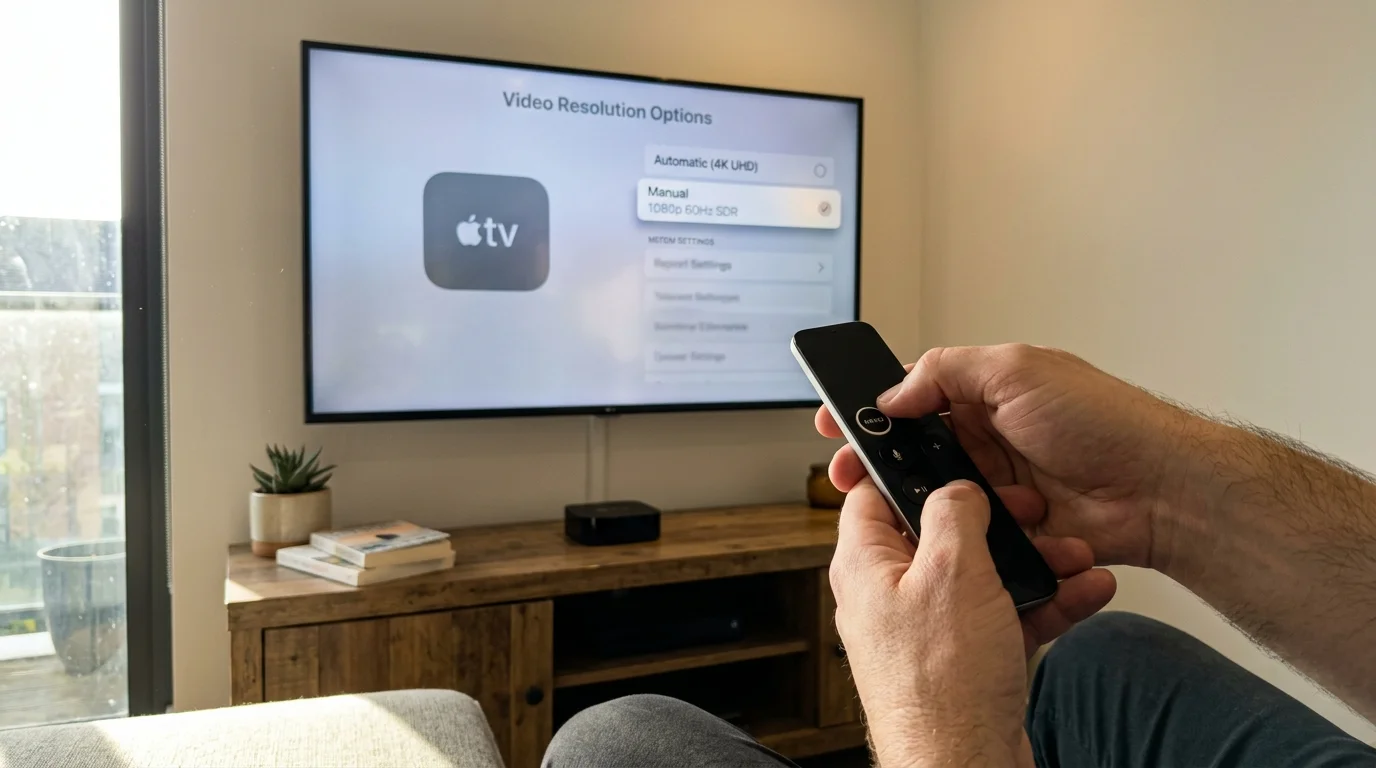
Configuring Bitrate and Resolution on Roku, Fire TV, and Apple TV
A streaming device is a dedicated hardware unit, such as a Roku box or Fire TV stick, that connects to your television to run digital media apps. A smart TV contains these internet-connected capabilities directly inside the television itself.
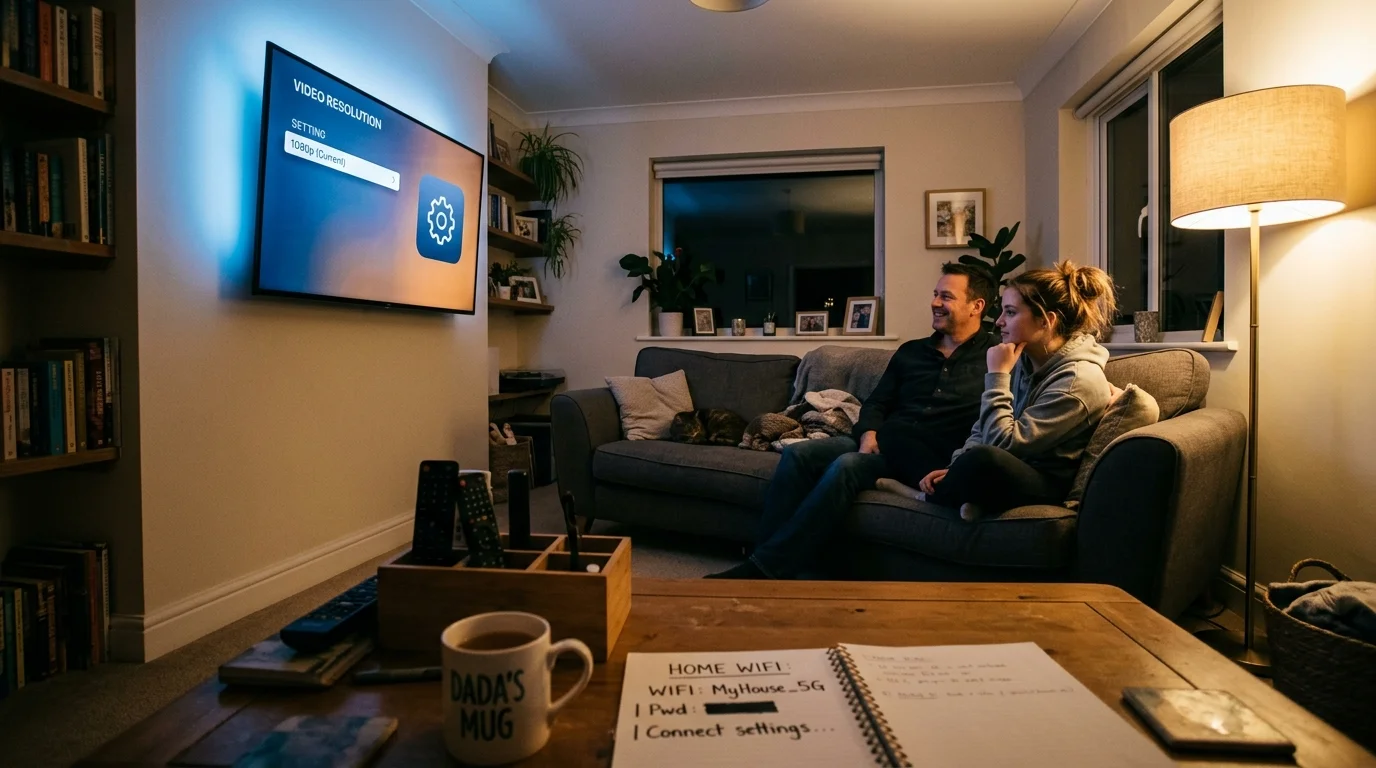
Most modern streaming players default to an automatic display setting that negotiates the highest possible resolution your screen supports. By overriding this automatic handshake, you force the device to request only 1080p streams from content servers.
As noted by Wirecutter, display downsampling directly at the hardware layer overrides application defaults that attempt to pull maximum bitrates. Enforcing this cap at the system menu guarantees compliance across every installed app.
To lock resolution on a Roku Ultra or Roku Streaming Stick 4K, navigate to Settings and select Display type. Change the setting from Auto detect to 1080p TV, then confirm the manual display test.
To configure an Amazon Fire TV Stick 4K Max, open the Settings menu and click Display & Sounds. Select Display, open Video Resolution, and choose 1080p 60Hz instead of the default Auto setting.
For an Apple TV 4K, enter Settings and select Video and Audio. Open the Format menu and manually choose 1080p SDR rather than 4K SDR or 4K HDR.
Selecting Standard Dynamic Range (SDR) on Apple TV prevents the player from maintaining costly HDR metadata overhead. High dynamic range signals increase stream processing and prevent aggressive compression algorithms from saving data.
If you stream using Google TV or Chromecast with Google TV, navigate to Settings, select Display & Sound, and open Advanced display settings. Select Resolution and switch the toggle from Auto to 1080p 60Hz.
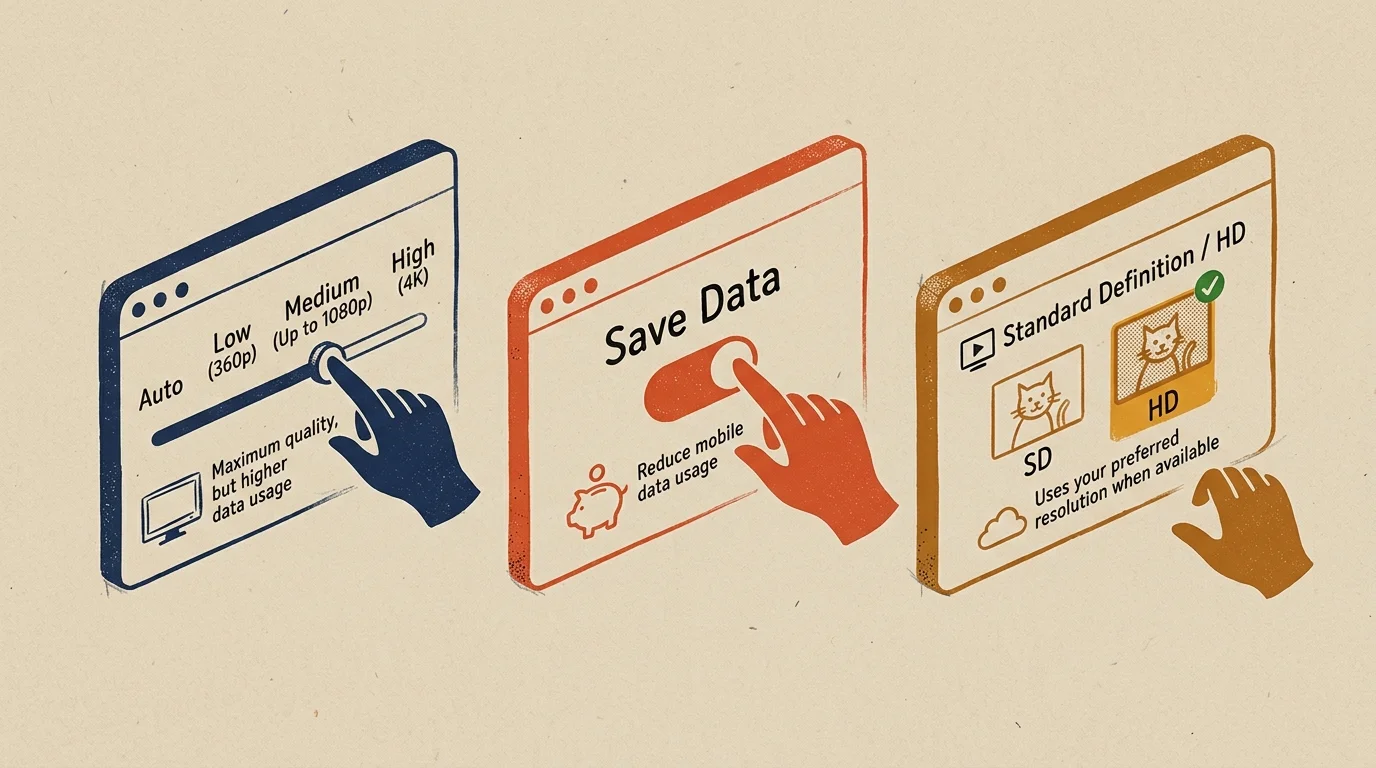
In-App Video Quality Settings: Netflix, Disney+, and Prime Video
Hardware settings solve data consumption on televisions, but mobile devices and web browsers require internal app adjustments. On-demand streaming lets viewers watch whatever titles they want whenever they choose, which often invites unmonitored continuous playback.
Netflix provides dedicated data controls for each user profile under your family subscription. Sign in via a web browser, open Account, select the specific profile, and locate Playback settings.
Change your Netflix profile setting from Auto to Medium or High. The Medium setting limits data use to 0.7GB per hour in standard definition, while High caps consumption at 3.0GB per hour for 1080p.
Repeat this configuration for each teen and child profile on the account. Restricting children’s profiles to Medium ensures animated shows do not quietly consume hundreds of unnecessary gigabytes.
Disney+ offers direct bandwidth sliders inside its mobile and connected television interfaces. Open your profile icon, select App Settings, and enter the Data Usage menu.
Switch Disney+ from Automatic to Save Data or Moderate. The Save Data setting restricts streams to approximately 0.6GB per hour, while Moderate caps bandwidth to 2.0GB per hour.
Amazon Prime Video controls playback quality under its Stream & Download settings tab. You can select between Good, Better, and Best quality tiers across your household hardware.
Selecting Good on Prime Video uses roughly 0.6GB per hour, while Better burns approximately 1.8GB per hour. Avoid the Best preset, which immediately pulls up to 6.8GB per hour.
If you use ad-supported services—free or cheaper plans that display commercials—be aware that commercial breaks frequently stream at uncompressed bitrates. Ad-free services cost more monthly but deliver predictable, uninterrupted stream streams that respect client-side bandwidth restrictions.
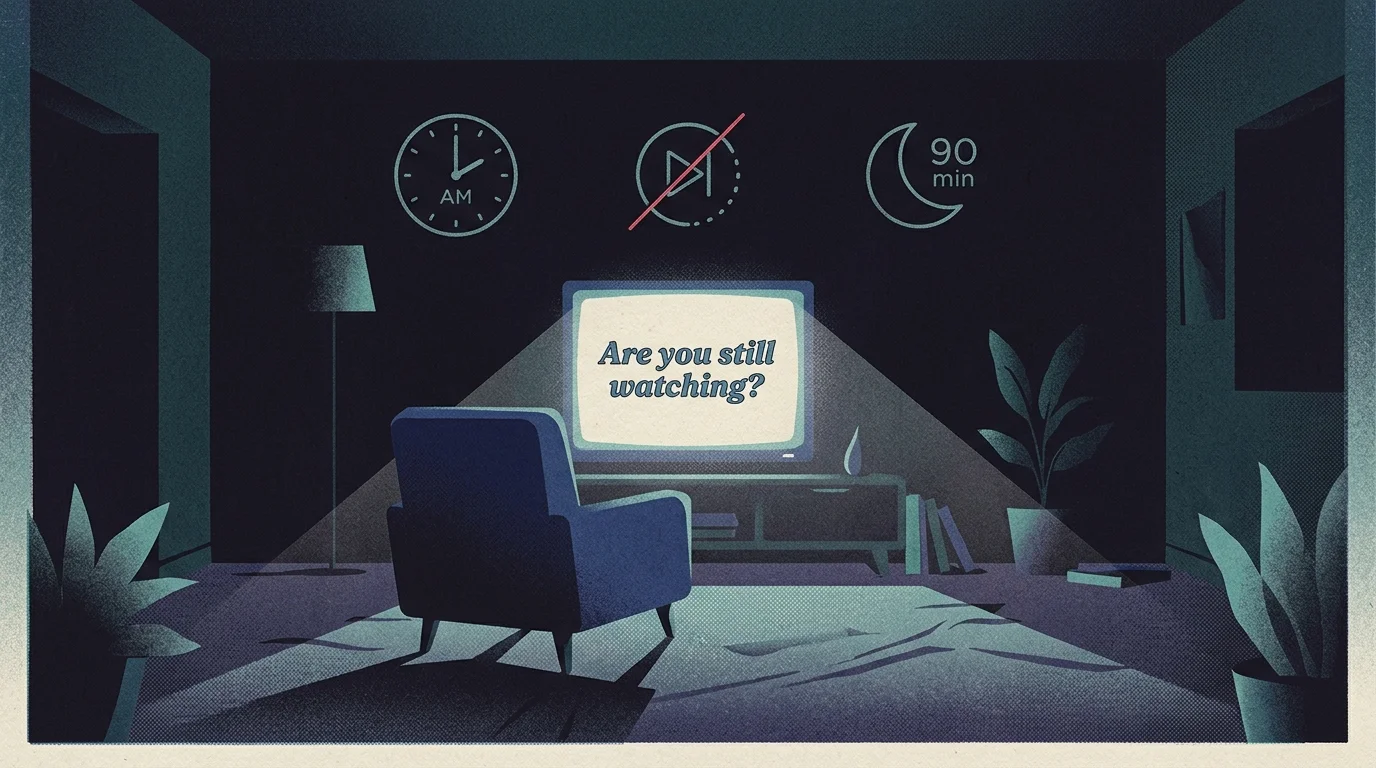
Curbing Silent Background Drain: Autoplay and Sleep Timers
Background video consumption remains one of the primary reasons families unknowingly cross Comcast’s 1.2TB threshold. Televisions left playing unattended while family members sleep or leave the house consume dozens of gigabytes daily.
Research from Consumer Reports highlights that unattended background streaming accounts for a substantial percentage of unexpected household bandwidth spikes. Disabling automatic continuous play stops this drain instantly.
In your Netflix profile settings, uncheck the box labeled Autoplay next episode in a series on all devices. You should also disable Autoplay previews while browsing to prevent background video caching on main menus.
Open YouTube app settings on your streaming devices and toggle the Autoplay feature to the Off position. Left unchecked, YouTube’s algorithm streams high-definition video indefinitely to an empty living room.
Configure the internal sleep timer on every smart TV in your bedrooms. Setting a 90-minute sleep timer ensures that late-night viewing shuts down automatically even if the viewer falls asleep.
Most Roku devices feature a Bandwidth Saver setting found under Network options. Ensure Bandwidth Saver remains turned on, which prompts a confirmation dialog after four hours of uninterrupted playback.
If your streaming setup includes a cloud DVR—a digital video recorder that stores broadcasts on remote servers—ensure recordings finish cleanly. Streaming cloud DVR recordings burns data identically to live video, so avoid leaving recorded loops running.
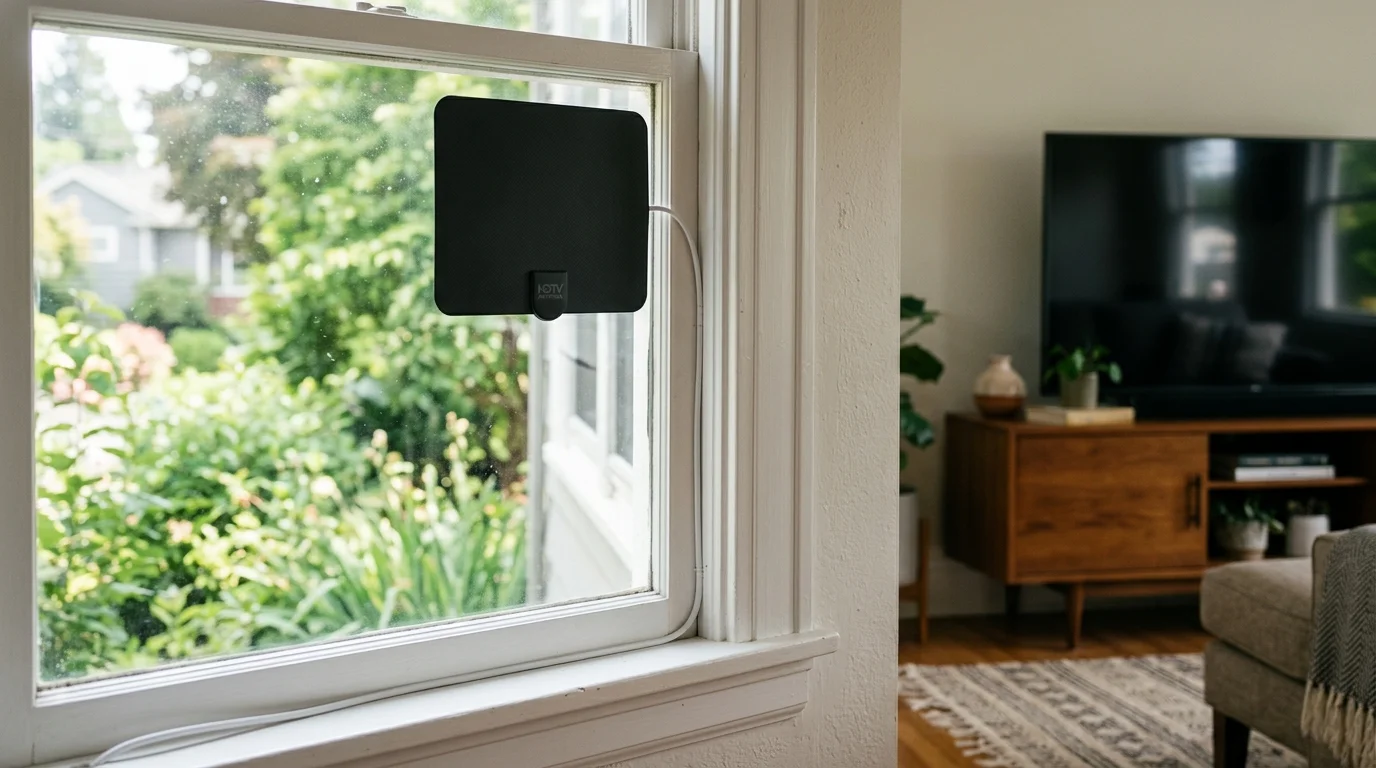
Over-the-Air Antennas and Local Broadcast Data Relief
Live television streaming through apps like YouTube TV, Hulu + Live TV, or Sling TV burns continuous data at peak 60fps bitrates. Live sports broadcasts consume between 3.5GB and 5.0GB per hour in 1080p due to high frame rates.
Setting up an antenna is often recommended in any beginner cord-cutting guide to capture major networks without relying on data-heavy live TV streaming services.
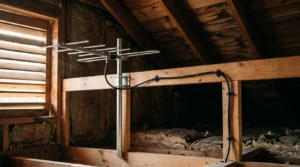
An over-the-air (OTA) television antenna bypasses your home broadband connection entirely. An antenna captures free broadcast signals over radio frequencies, sending pristine digital video directly into your TV tuner.
Coverage from Cord Cutters News demonstrates that broadcast antennas provide pristine uncompressed HD signals without using a single byte of internet data. Major networks including ABC, CBS, NBC, FOX, and PBS broadcast over public airwaves completely free.
Installing an inexpensive indoor or attic antenna removes dozens of viewing hours from your monthly internet calculation. A typical four-hour NFL broadcast on Sunday burns up to 20GB of data over an internet app.
Watching that same Sunday game through an antenna saves 20GB of data per game. Over a four-week month, routing local news and football games through an antenna preserves 80GB to 120GB of your monthly Comcast cap.
Connect a coaxial cable from the antenna to the ANT-IN port on your television. Run an automated channel scan through the TV settings menu to locate your regional broadcast towers.
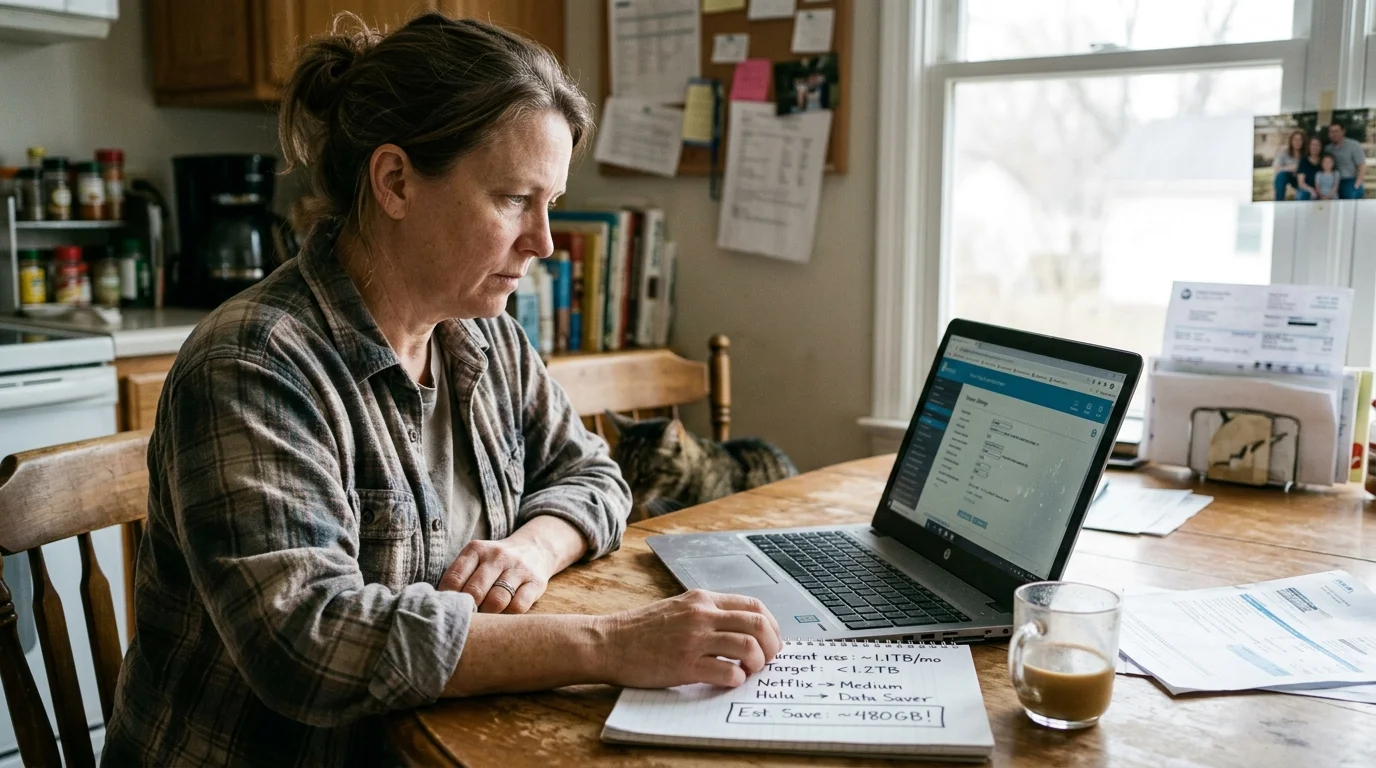
Worked Household Scenario: Saving 480GB per Month
Consider a practical scenario based on a rural family of five: two parents, two teenagers, and an elementary student. In this scenario, the household regularly incurred a $30 monthly overage fee by consuming 1,380GB against Comcast’s 1,229GB limit.
The home operates three televisions and two tablets. Prior to hardware adjustments, all devices ran at default factory settings, pulling 4K HDR streams whenever content libraries supported the format.
The family averaged 100 hours of 4K streaming per month across their living room and basement televisions. At an average 4K data burn of 7.3GB per hour, those 100 hours consumed 730GB of their monthly cap.
The household implemented two specific hardware interventions across their entertainment system:
- They locked the living room Roku Ultra and basement Fire TV Stick to 1080p display output.
- They restricted both teenagers’ Netflix and Disney+ profiles to 1080p and limited the child’s tablet to 720p.
Switching those 100 hours of 4K content to 1080p dropped the hourly data burn from 7.3GB down to 2.5GB. Streaming at 2.5GB per hour across 100 hours consumes exactly 250GB instead of 730GB.
This single resolution adjustment saved the family 480GB of data over a single thirty-day billing cycle (730GB minus 250GB). The family maintained their exact screen time while eliminating 35% of their total data footprint.
Additionally, installing a $25 indoor antenna redirected 16 hours of Sunday sports away from broadband streaming. Bypassing live streaming apps saved an incremental 56GB of data per month.
Disabling autoplay across all active Netflix and YouTube profiles reclaimed an estimated 65GB of unattended overnight streaming. These three adjustments lowered total monthly household usage from 1,380GB down to 779GB.
The family finished the billing cycle 450GB below Comcast’s 1,229GB cap. The recurring $30 overage penalty disappeared permanently, saving the household $360 annually without eliminating a single subscription service.
Frequently Asked Questions
Can you tell the visual difference between 1080p and 4K on normal screens?
On screen sizes below 65 inches viewed from eight feet away, the human eye struggles to discern individual pixel differences between 1080p and 4K. Proper 1080p SDR content delivers sharp, vibrant imagery while slashing data usage by nearly 65%.
Does using an antenna count toward my Comcast data limit?
Over-the-air antennas use broadcast radio waves received directly by your television tuner, entirely bypassing your modem and router. Broadcast signals consume zero internet data, making them the most cost-effective way to watch live sports and news.
Why did Comcast start charging me $30 extra after months of normal bills?
Comcast provides one complimentary grace month per rolling 12-month period for data cap overages. Once your account exhausts that single courtesy waiver, the billing system automatically bills $10 per 50GB overage block on subsequent overages.
Can I cap bandwidth usage directly inside my home router?
Many modern Wi-Fi routers include Quality of Service (QoS) rules or bandwidth limiter features. You can assign specific IP addresses or guest network bands a maximum ceiling, preventing individual streaming sticks from requesting full 4K bitrates.
Disclaimer: Cable and streaming prices vary by location and change frequently. The cost comparisons in this article are estimates based on typical pricing. Your actual savings will depend on your current cable package, internet costs, and which streaming services you choose.