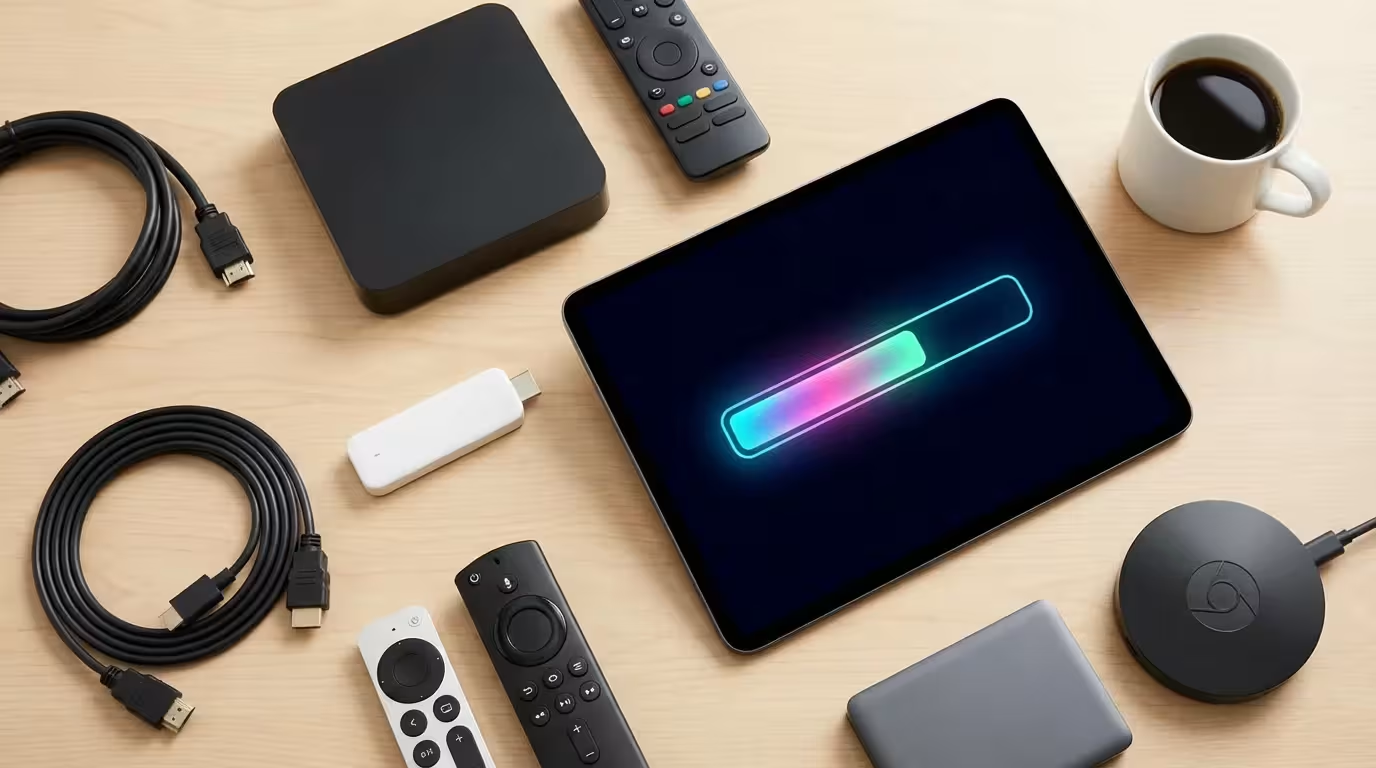
You sit down to watch your favorite show, press the power button, and wait. And wait. The menu loads slowly, the remote feels unresponsive, and when you finally click on Netflix, the app crashes. This scenario is all too common for cord-cutters holding onto aging hardware. In the world of streaming, “updates” refers to two distinct but related actions: installing the latest software patches provided by the manufacturer and physically replacing your old device with a newer model.
Understanding when to perform a software update—and when to give up and buy a new device—can save you frustration and money. A simple software patch might fix a bug, but no amount of coding can make a ten-year-old processor handle modern 4K apps efficiently. This guide walks you through the lifecycle of your streaming equipment, how to manage software updates, and the exact signs that indicate it is time to upgrade your hardware.
Software Updates vs. Hardware Upgrades
Before troubleshooting, you must distinguish between the two types of updates available to you. Mixing these up often leads to unnecessary spending or prolonged annoyance with a slow interface.
Software Updates (Firmware): These are free downloads provided by companies like Roku, Amazon, Google, or Apple. They install automatically or manually over your WiFi. These updates change how the operating system looks, patch security holes, and ensure compatibility with newer versions of apps like Disney+ or Hulu.
Hardware Upgrades: This involves purchasing a new physical device—a stick, dongle, or box—to replace your current one. You do this when the internal components (processor, memory, WiFi antenna) of your current device are too weak to run modern software effectively.
“Think of your streaming device like a smartphone. You can update the iOS or Android software for a few years, but eventually, the phone itself becomes too slow to run the new software, and you have to buy a new model.”
Why Software Updates are Critical
Ignoring a “System Update Available” notification is tempting, especially when you just want to watch a movie. However, delaying these updates can degrade your viewing experience.
Security and Privacy
Streaming devices are computers connected to your home network. Just like your laptop, they are vulnerable to exploits. Manufacturers release patches to close security loopholes that could allow malicious actors to access your network or data. Keeping your device updated is a primary line of defense.
App Compatibility
Streaming services update their apps constantly to add features (like “Skip Intro” or live sports stats) and change how video is compressed. If your device’s operating system (OS) is outdated, the app may stop working entirely. You might see an error message stating, “This app is no longer supported on this version.”
Performance Optimization
While some users fear updates will slow down their device, developers often release code optimizations that make menu navigation snappier and reduce buffering. A specific Roku update or Fire Stick update often targets known glitches, such as audio syncing issues or remote control disconnects.
How to Check for Updates on Your Device
Most devices update automatically in the background, usually at night. However, if your device has been unplugged or is acting glitchy, forcing a manual update is a smart first step in troubleshooting.
Roku Devices
Roku releases software updates frequently to refresh the interface and add channels.
- Press the Home button on your Roku remote.
- Scroll down and select Settings.
- Select System.
- Choose System update.
- Select Check now to manually look for new software.
Amazon Fire TV
If your Fire Stick interface feels cluttered or slow, a Fire Stick update might clear out cached data and install a more efficient version of the OS.
- Go to Settings (the gear icon) on the far right of the menu.
- Select My Fire TV (or Device & Software).
- Select About.
- Scroll down to Check for System Update or Install Update.
Apple TV
Apple supports its hardware for years, but you need the latest tvOS to use features like FaceTime on your TV or Spatial Audio.
- Open the Settings app.
- Go to System.
- Select Software Updates.
- Select Update Software.
Google Chromecast (with Google TV)
- Select your profile picture in the top right corner.
- Select Settings (the gear icon).
- Go to System.
- Select About.
- Select System update.
5 Signs You Need a New Streaming Device
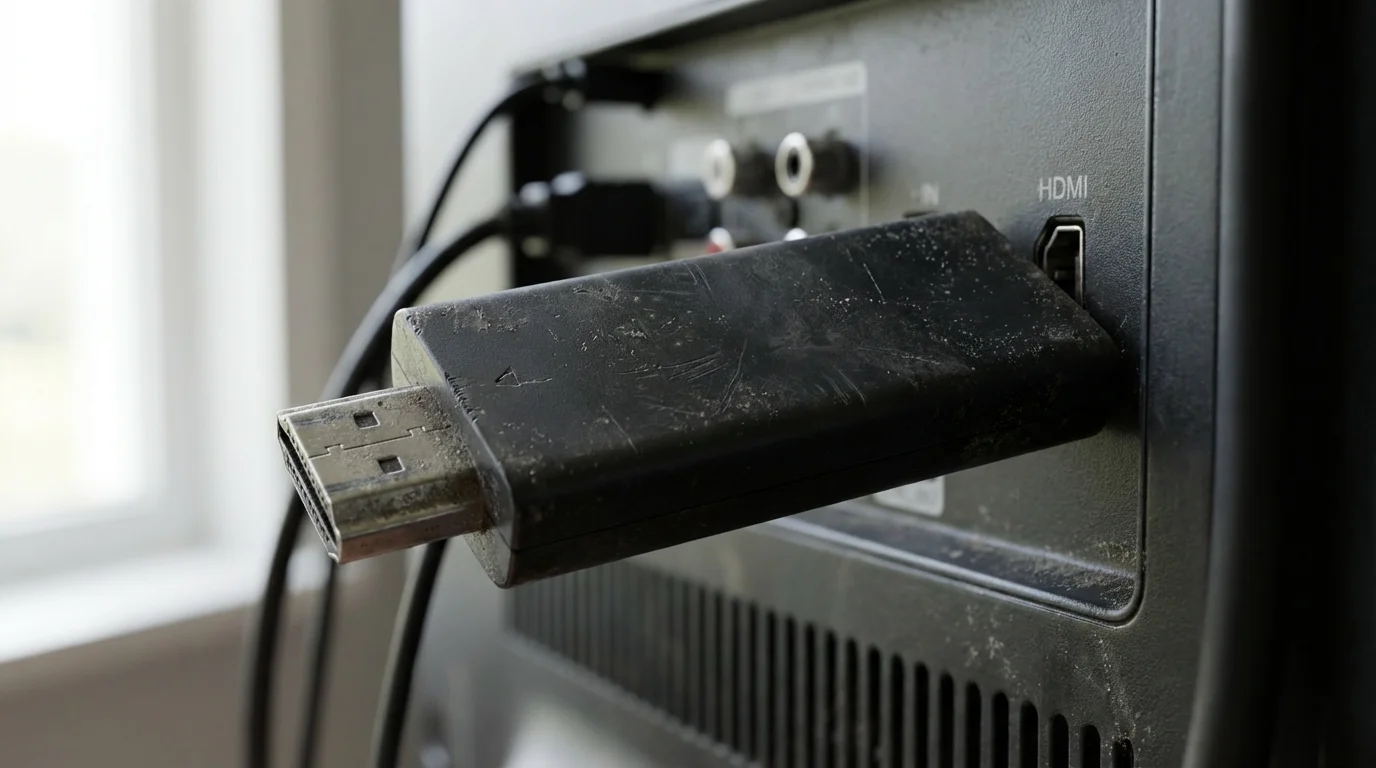
Software updates can only do so much. If you bought your streaming stick in 2018 or earlier, it is likely time to retire it. Hardware ages. Processors get overwhelmed by modern, image-heavy interfaces, and WiFi chips degrade or become obsolete. According to Wirecutter, replacing a streaming device every three to five years is standard maintenance for a smooth entertainment experience.
Keep in mind that while hardware is a common factor, you should also check your network settings to reduce buffering effectively.
Here are the five concrete signs it is time to buy a new device:
1. Persistent Menu Lag
If you press a button on the remote and wait more than one second for the TV to respond, your processor is struggling. Navigating between apps should be fluid. If the interface stutters or freezes while scrolling through movie posters, your hardware lacks the RAM (random access memory) to cache these images properly.
2. Frequent Buffering on High-Speed Internet
You might pay for 500 Mbps internet, but if your streaming device only supports the older WiFi 4 (802.11n) standard, you aren’t getting those speeds. Newer devices support WiFi 6, which handles congestion much better—crucial if you live in an apartment complex or have many smart home devices.
3. “App Not Supported” Messages
Eventually, streaming services stop updating their apps for legacy hardware. If you cannot download the latest version of Hulu, HBO Max, or Peacock, your device has reached its “End of Life” (EOL) support. This poses a security risk and limits your content access.
4. Lack of 4K or HDR Support
If you recently bought a 4K TV but are still using an old 1080p Roku Express or standard Fire TV Stick, you are wasting your TV’s potential. To see the crisp resolution and vibrant colors (HDR/Dolby Vision) your TV is capable of, your streaming device must support those formats.
5. Overheating and Random Reboots
Streaming sticks often sit behind TVs with poor airflow. Over years of use, the thermal paste inside degrades. If your device feels extremely hot to the touch or restarts itself in the middle of a show, the hardware is failing.
Smart TVs vs. Dedicated Devices: The Update Gap
A common question is: “Why buy a device if my Smart TV already has apps?” This is a valid point for the first year or two of TV ownership. However, the update trajectory for Smart TVs is vastly different from dedicated devices.
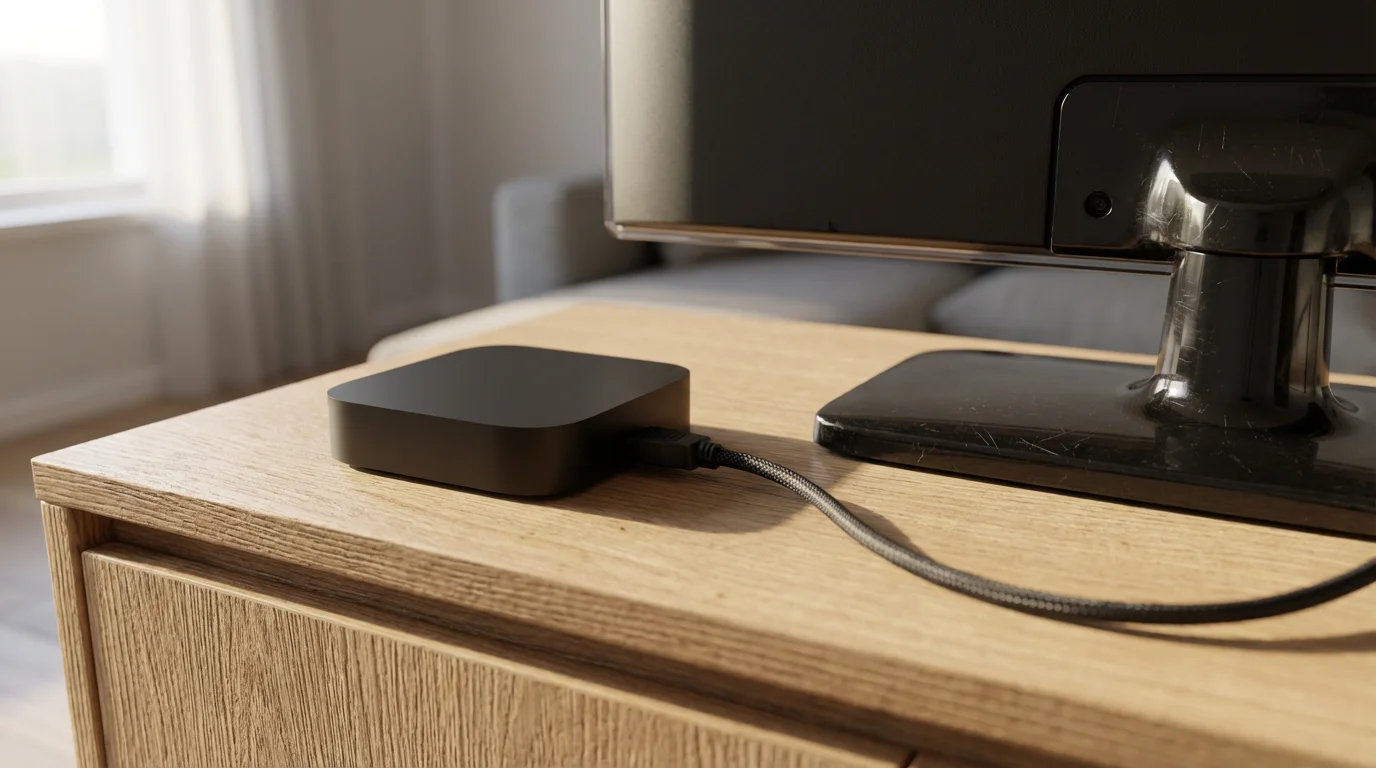
TV manufacturers are in the business of selling display panels, not maintaining software. They often stop updating the built-in smart platform (like WebOS, Tizen, or Vizio SmartCast) within 2-3 years. Conversely, dedicated devices like the Roku Streaming Stick 4K or Apple TV 4K are designed solely for software delivery. They receive updates for 5-7 years.
If your expensive Sony or Samsung TV starts feeling slow, do not replace the TV. Buy a $50 streaming stick, plug it into an HDMI port, and change the input. You instantly bypass the TV’s aging “smart” features while keeping the high-quality screen.
Comparing Feature Sets: What to Look For
If you have decided to upgrade, the market offers excellent options at various price points. You generally get what you pay for in terms of speed and future-proofing. Below is a comparison of what to expect from modern devices versus older legacy models.
| Feature | Legacy Device (2016-2018) | Modern Device (2024+) | Why It Matters |
|---|---|---|---|
| Resolution | 1080p HD | 4K Ultra HD (2160p) | 4x the pixels for sharper images on large screens. |
| HDR | None | Dolby Vision / HDR10+ | Better contrast, brighter whites, and deeper blacks. |
| WiFi | WiFi 4 (802.11n) | WiFi 6 or 6E | Less buffering and better range from your router. |
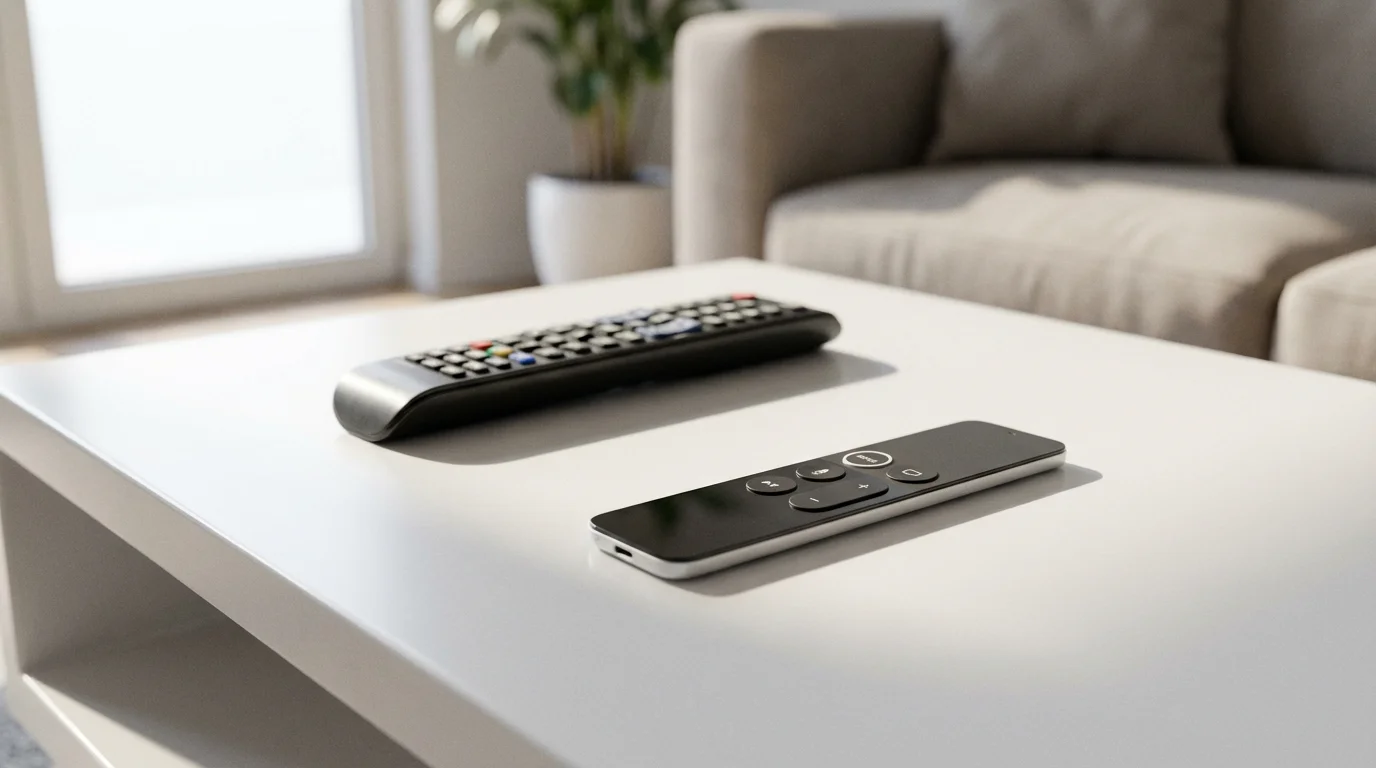
| Remote | IR (Line of sight only) | Bluetooth / Voice Control | Control TV power/volume; hide the device behind the TV. |
| Audio | Stereo / Standard 5.1 | Dolby Atmos | Immersive 3D sound (requires compatible soundbar). |
Best Value Upgrades
For most users, spending between $40 and $50 yields the best return on investment. Devices in this tier, such as the Roku Streaming Stick 4K or the Amazon Fire TV Stick 4K Max, offer snappy performance, WiFi 6 support, and Dolby Vision. According to CNET, these mid-range sticks provide nearly indistinguishable performance from more expensive boxes for the average viewer.
Best Premium Upgrades
If you are heavily invested in the Apple ecosystem or want the absolute fastest performance (e.g., for local media server streaming via Plex), the Apple TV 4K or NVIDIA Shield TV Pro are the top contenders. They cost significantly more ($130-$200) but feature powerful mobile processors that remain fast for years longer than cheaper sticks.
Troubleshooting Stuck or Failed Updates
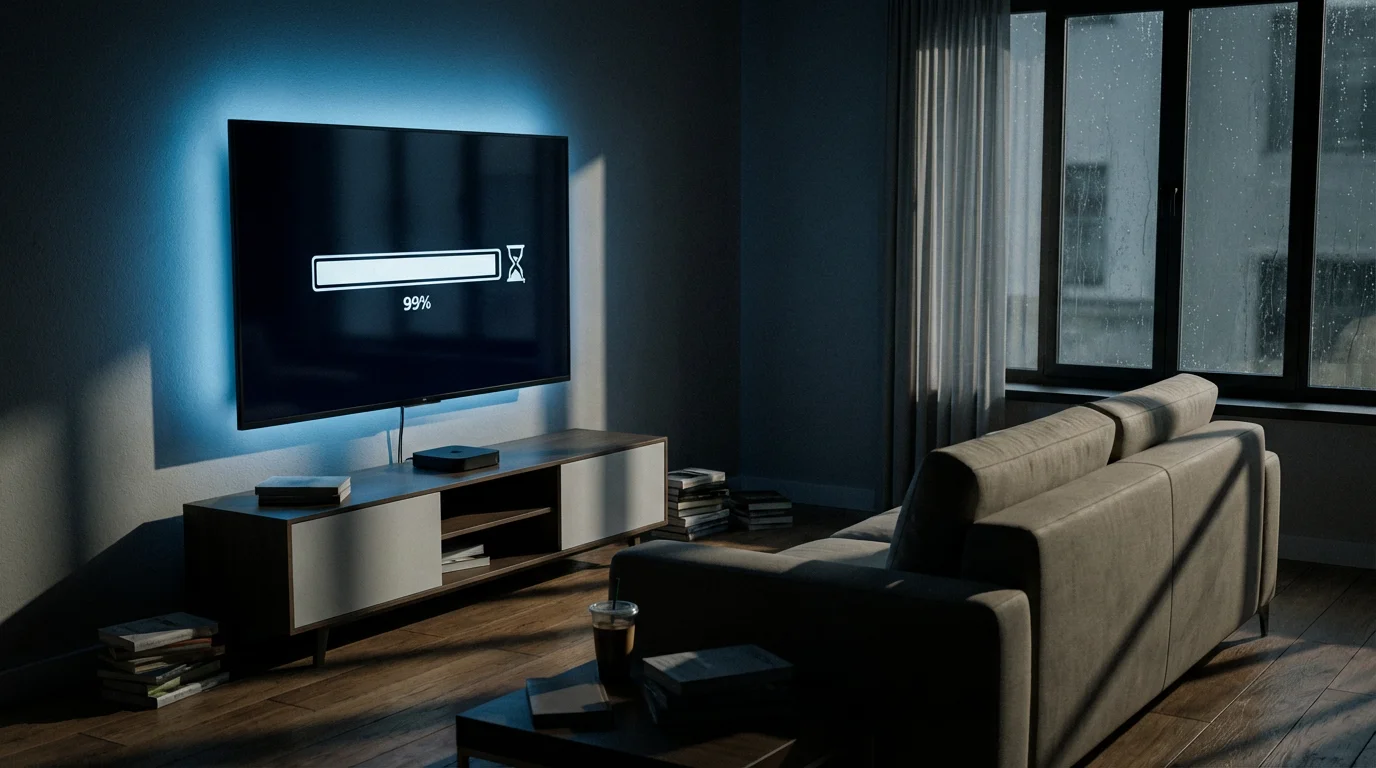
Sometimes, a streaming device update goes wrong. You might find your screen stuck on a loading bar, or the device enters a “boot loop” where it restarts endlessly.
- The Power Cycle: This fixes 90% of issues. Unplug the device from the wall outlet (not just the TV USB port) for at least 60 seconds. Plug it back in. This forces a complete hardware reset.
- Check Storage Space: This is a common issue with Fire TV Sticks. If you have too many apps downloaded, the update cannot install. Go to your settings and delete unused apps to free up at least 500MB of space.
- Network Connection: If an update hangs at a specific percentage, your WiFi might have dropped. Move the device closer to the router temporarily using an HDMI extender cable (often included in the box) to get it out from behind the TV’s metal casing.
- Factory Reset: As a last resort, look for a physical reset button on the device or use the remote combo to factory reset. Note: You will have to sign back into all your apps.
Frequently Asked Questions
Do software updates slow down my streaming device?
This is a common fear, often called “planned obsolescence.” While manufacturers generally intend updates to improve performance, newer software is often more complex and requires more processing power. If you apply a 2024 software update to a device manufactured in 2017, the hardware may struggle to run the new code, resulting in perceived slowness. This is a sign you need a hardware upgrade.
How often should I check for updates?
Most modern devices check for updates automatically during sleep mode. However, if you are experiencing a specific bug or app crash, checking manually is recommended. Generally, major system updates happen 2-3 times a year, while minor bug fixes may happen monthly.
Can I undo a software update if I don’t like the new menu?
Unfortunately, no. Streaming devices rarely allow you to “rollback” to a previous firmware version. Once the update is installed, it is permanent. If a new update breaks your device, you typically have to wait for the manufacturer to issue a patch fix.
What is the average lifespan of a Roku or Fire Stick?
A typical streaming stick (entry-level to mid-range) lasts about 3 to 4 years before it starts showing signs of significant lag or incompatibility. Premium set-top boxes like the Apple TV or Roku Ultra often remain viable for 5 to 7 years due to their more powerful internal components.
Disclaimer: Device prices and features may change. New models are released regularly, so check for the latest versions before purchasing. The “best” device depends on your specific needs, existing ecosystem (Apple, Google, Amazon), and budget.