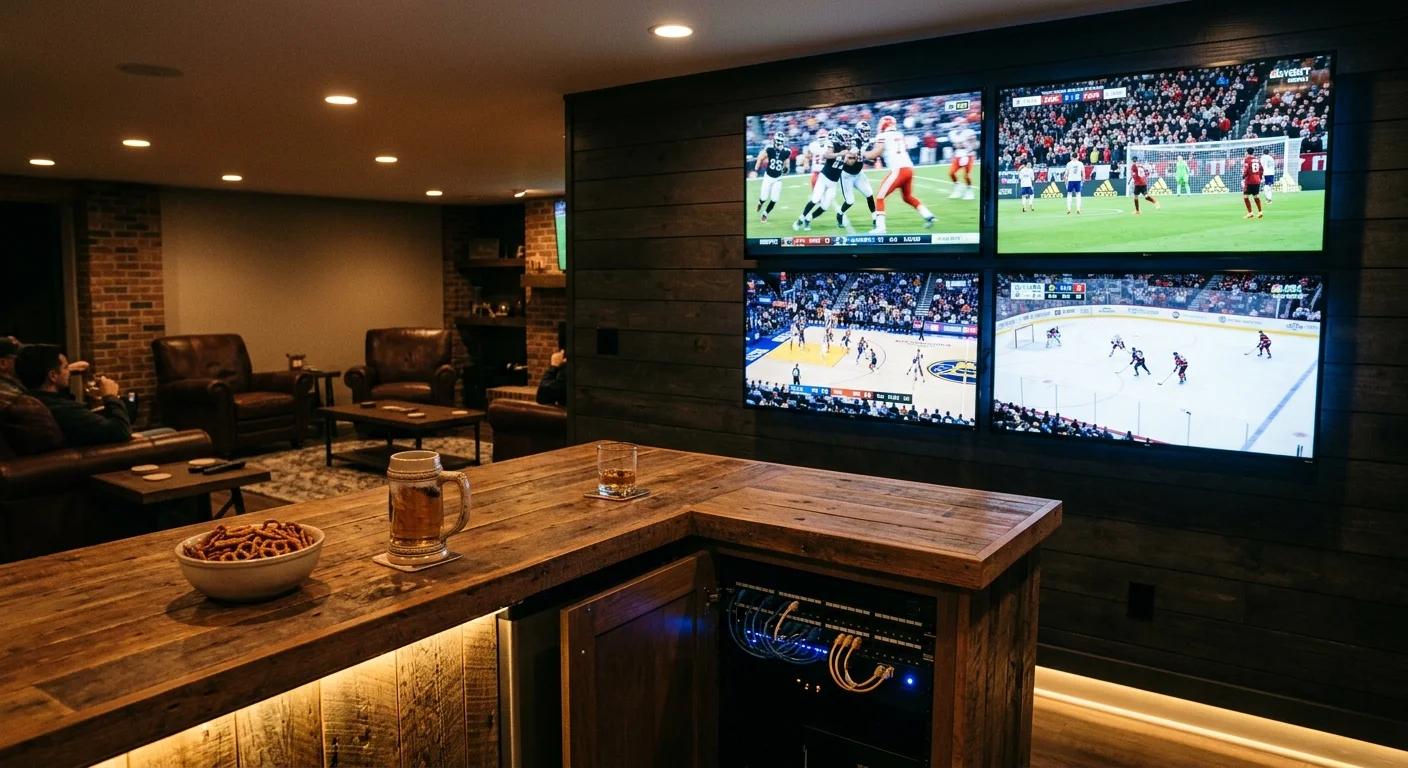
Building a four-screen sports den in your unfinished basement delivers an electric stadium atmosphere without commercial bar tabs. Hardwiring four displays to a single gigabit line requires meticulous planning to prevent stream buffering and crushing data overages.
Most renovators assume four smart TVs simply need Wi-Fi connections and standard app accounts. Discrete four-screen 4K streaming will instantly trigger platform concurrency locks and shatter residential cable data caps without matrix hardware and server-side multiview workarounds.
This guide covers the exact Cat6 wiring, HDMI switcher hardware, audio extraction routing, and streaming subscription rules needed for a reliable, budget-friendly setup.
Calculating Den Bandwidth Demands and ISP Data Caps
Before pulling a single cable, calculate your home network throughput. Cord-cutting—canceling traditional cable or satellite TV in favor of streaming services—shifts your entire television load onto your home internet connection.
If your ISP enforces strict monthly thresholds, you can apply proven strategies to configure your family streaming bitrates so heavy game days do not trigger costly penalties.
Streaming—watching video content over the internet instead of cable or satellite—demands constant, unthrottled downstream bandwidth. Live sports require 60 frames per second (fps) video encoding, which consumes more bandwidth than standard movies.
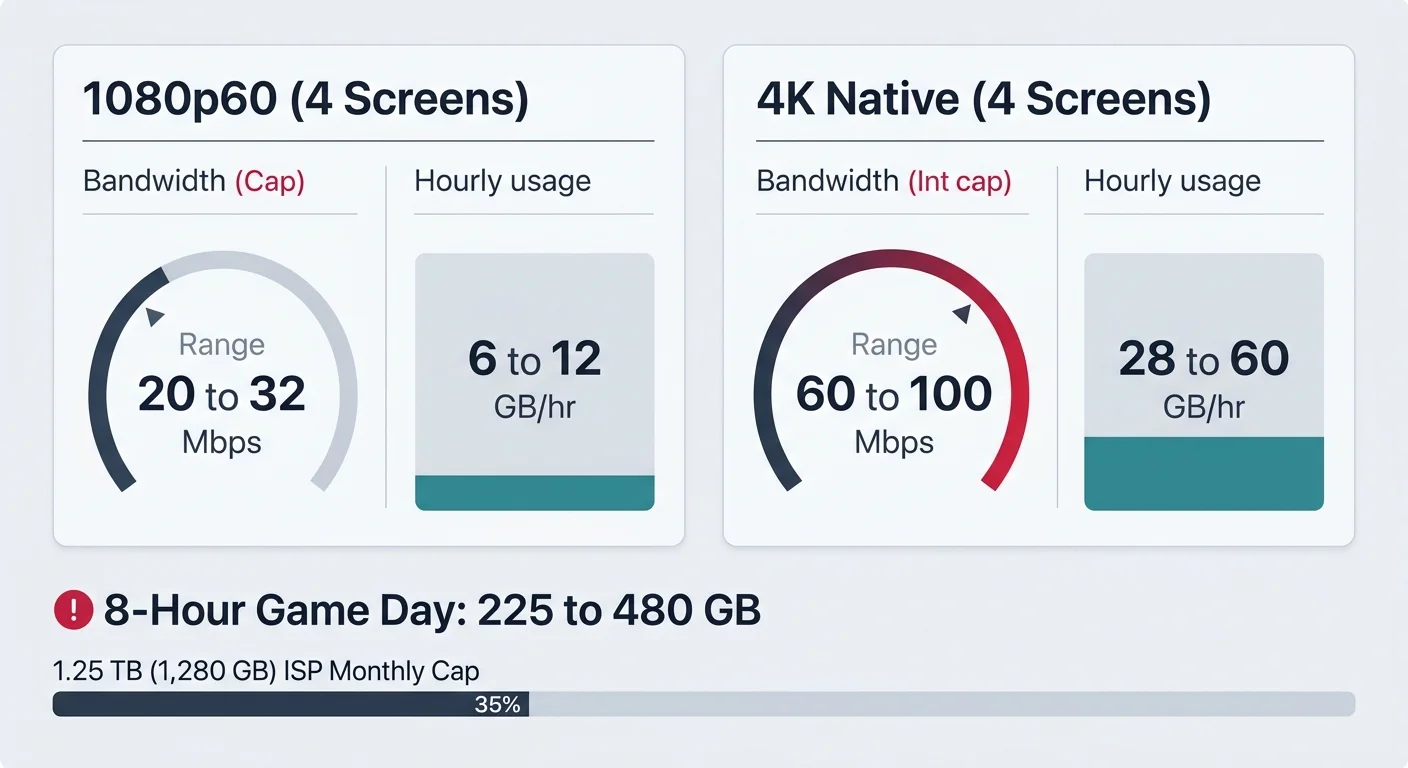
A single 1080p60 sports broadcast requires 5 to 8 Mbps of continuous downstream bandwidth. Running four simultaneous 1080p feeds demands 20 to 32 Mbps of stable throughput across your local network.
Live 4K sports streams demand 15 to 25 Mbps per display. Powering four simultaneous 4K screens requires 60 to 100 Mbps dedicated exclusively to the sports den, excluding other household devices.
As CNET reports, streaming live 4K video consumes significantly more data per hour than standard on-demand video. Those downstream requirements create massive cumulative monthly data totals.
A single 1080p live stream consumes 1.5 to 3 GB per hour. Operating four screens simultaneously in 1080p eats through 6 to 12 GB per hour.
A native 4K broadcast consumes 7 to 15 GB of data per hour per screen. Four concurrent 4K sports feeds burn between 28 and 60 GB per hour.
Consider an eight-hour college football Saturday or NFL Sunday. Running four discrete 4K streams for eight hours consumes 225 to 480 GB of data in a single afternoon.
Major cable internet service providers (ISPs) enforce monthly data ceilings. Cox Communications imposes a standard monthly cap of 1.25 TB (1,280 GB) on residential tiers.
Exceeding that limit triggers automatic $10 billing increments for every 50 GB block used, up to a $100 monthly penalty. Cox also sells an unlimited data add-on for an extra $49.99 per month.
Comcast Xfinity legacy plans enforce a 1.2 TB (1,229 GB) monthly cap. They assess the same $10 per 50 GB overage charge unless you pay for unlimited data or rent an xFi gateway.
Three long sports weekends in 4K will deplete your entire monthly data allocation before factoring in standard household browsing, remote work, or gaming. Symmetrical fiber providers like AT&T Fiber, Google Fiber, and Quantum Fiber do not enforce data caps, making fiber the gold standard for multi-screen homes.
Basement Infrastructure: Conduit, Bulk Cat6, and Wall Drops
Wiring an unfinished basement offers a distinct structural advantage before drywall installation. You have unobstructed access to open floor joists, wall studs, and ceiling pathways to build an enterprise-grade distribution backbone.
For finished basement sections where pulling new network drops is difficult, using existing coax lines with MoCA adapters provides a reliable wired alternative.
If your home network shares bandwidth with heavy downloads or gaming, consider configuring router VLANs and SQM to prioritize real-time sports streams.
Never bury bare HDMI cables directly inside your wall studs or finished ceiling drywall. Passive HDMI standards evolve quickly, connector heads can detach during pulling, and buried cables cannot be replaced without cutting open finished walls.
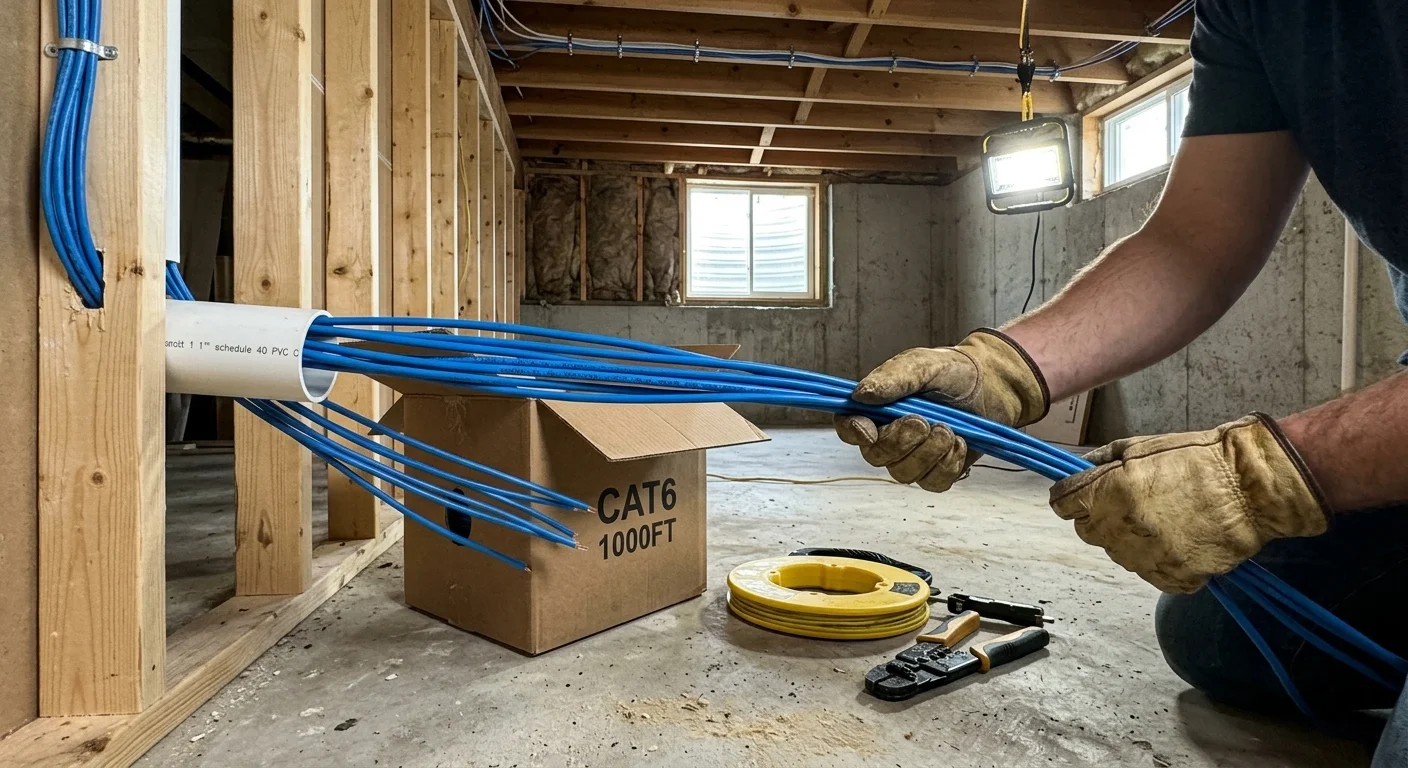
Install 1.5-inch or 2-inch Carlon flexible non-metallic conduit—commonly called smurf tube—from your central equipment location to each television mount. Conduit provides a dedicated raceway, allowing you to pull new fiber cables or replacement lines in minutes.
Select your networking cable carefully. Purchase 1,000-foot spools of solid bare copper Cat6 or Cat6a cable with 23 AWG conductors and a CMR (riser) flame rating.
Avoid copper-clad aluminum (CCA) cabling entirely. CCA wire has brittle conductors that increase electrical resistance, break easily during tight pulls, and cause severe signal dropouts on video baluns.
Pull two dedicated Cat6 home runs to each display location from your central equipment closet. Label each line clearly at both ends using heat-shrink wire markers or commercial cable label tape.
The primary Cat6 line carries high-definition video and control signals from your central matrix switch. The secondary line connects your smart TV—a television with a built-in internet connection and apps—directly to your local gigabit network switch.
Terminate all bulk network cables into RJ45 keystone jacks mounted in low-voltage mounting brackets behind each television. Use the T568B wiring standard across all patch panels and wall plates to maintain consistent pinouts throughout the house.
House your central equipment inside an open-frame AV rack or a structured media enclosure mounted in an unfinished utility room. Position the rack near a dedicated 15-amp or 20-amp electrical circuit to prevent power fluctuations from disrupting your switches.
Keep your Cat6 data runs at least 12 inches away from parallel 120-volt Romex electrical lines. If your network cables must cross high-voltage wiring, cross them at a strict 90-degree angle to eliminate electromagnetic interference.
HDMI Matrix Hardware: Direct HDMI 2.0 vs. HDBaseT Extenders
A multi-screen sports wall requires centralized video switching. A 4×4 HDMI matrix switch allows you to route any of four input sources to any combination of four output screens independently.
Reviewing a beginner’s step-by-step cord-cutting guide can help ensure you select input hardware that integrates smoothly with your home setup.
A streaming device—a small box or stick like Roku, Apple TV, or Fire TV that adds streaming to any TV—serves as an input. With a matrix switch, you can display one input across all four TVs or watch four distinct games at once.
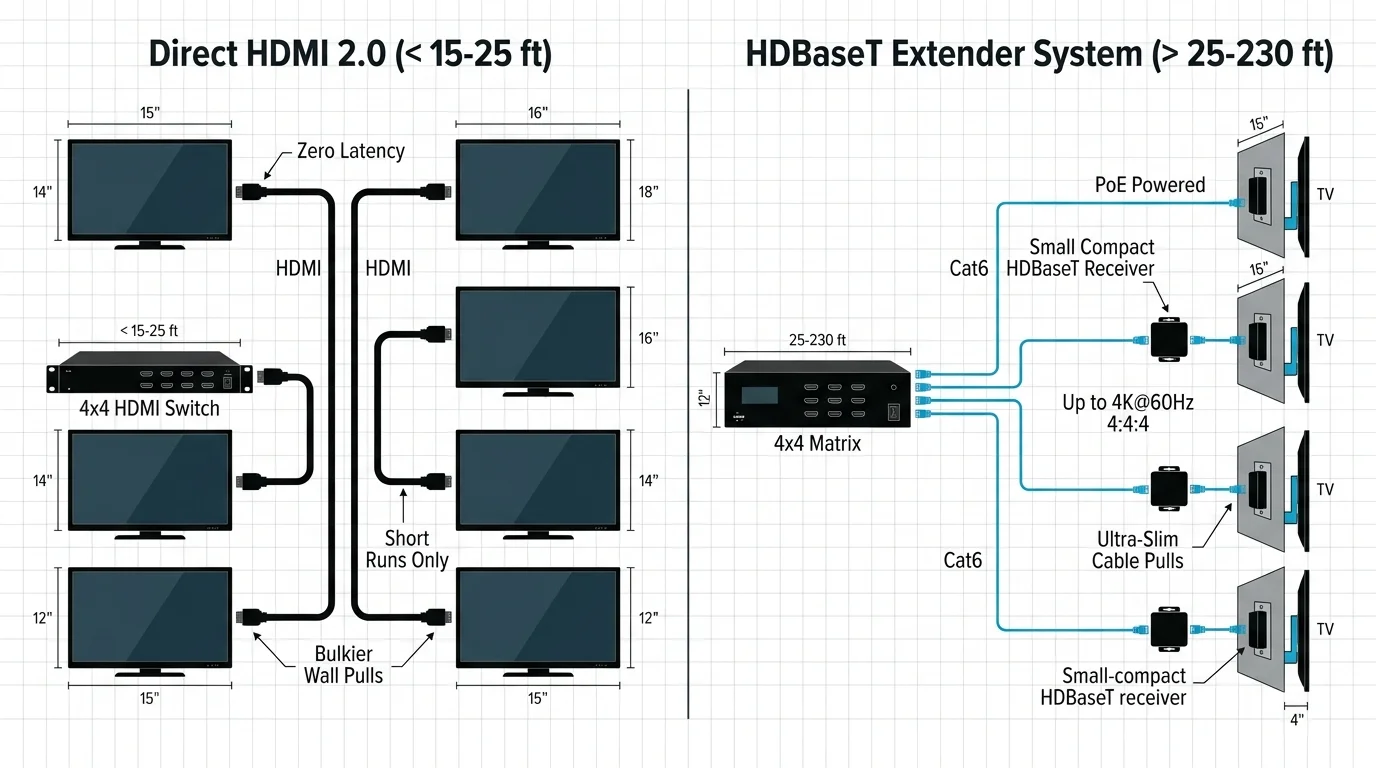
Direct HDMI matrix switchers use standard HDMI 2.0 ports for both inputs and outputs. These units support 18 Gbps total bandwidth, 4K resolution at 60Hz with 4:4:4 chroma subsampling, and HDCP 2.2 content protection.
Direct HDMI matrix units from brands like Monoprice, OREI, and J-Tech Digital cost between $150 and $350. However, direct HDMI setups operate reliably only when your equipment rack sits within 15 to 20 feet of your displays.
Standard passive HDMI cables suffer extreme signal attenuation over long distances. Running a standard HDMI cable longer than 25 feet results in handshake failures, audio drops, and blinking black screens.
According to Wirecutter, high-speed passive HDMI cables fail consistently at distances beyond 25 feet without active fiber cores or specialized extension hardware. For longer runs across basement framing, install an HDBaseT matrix system.
HDBaseT technology packetizes uncompressed 4K video, multichannel audio, bidirectional infrared (IR) control, and RS-232 signals across a single Cat6 network cable. HDBaseT maintains signal integrity up to 130 feet for 4K video and up to 230 feet for 1080p feeds.
HDBaseT switchers feature Power-over-Cable (PoC) circuitry. The central matrix sends direct direct-current power over the Cat6 wire to compact receiver boxes mounted discreetly behind each television.
PoC eliminates the need for separate wall warts behind your wall-mounted displays. Complete 4×4 HDBaseT matrix kits cost between $500 and $1,200, making them more expensive but essential for distributed basement floor plans.
Configure the matrix switch EDID (Extended Display Identification Data) management settings before mounting your hardware. Set the global EDID profile to match the capabilities of your lowest-resolution display to prevent intermittent video flashing.
Audio Routing: Extracting Sound to Soundbars and AVRs
Visual presentation is only half the design equation. Operating four live sporting events simultaneously without an audio management plan creates a chaotic, unlistenable wall of competing crowd noise.
For an audiophile-grade basement theater, you can also consider building a hybrid streaming and Plex server to enjoy lossless surround sound alongside live sports feeds.
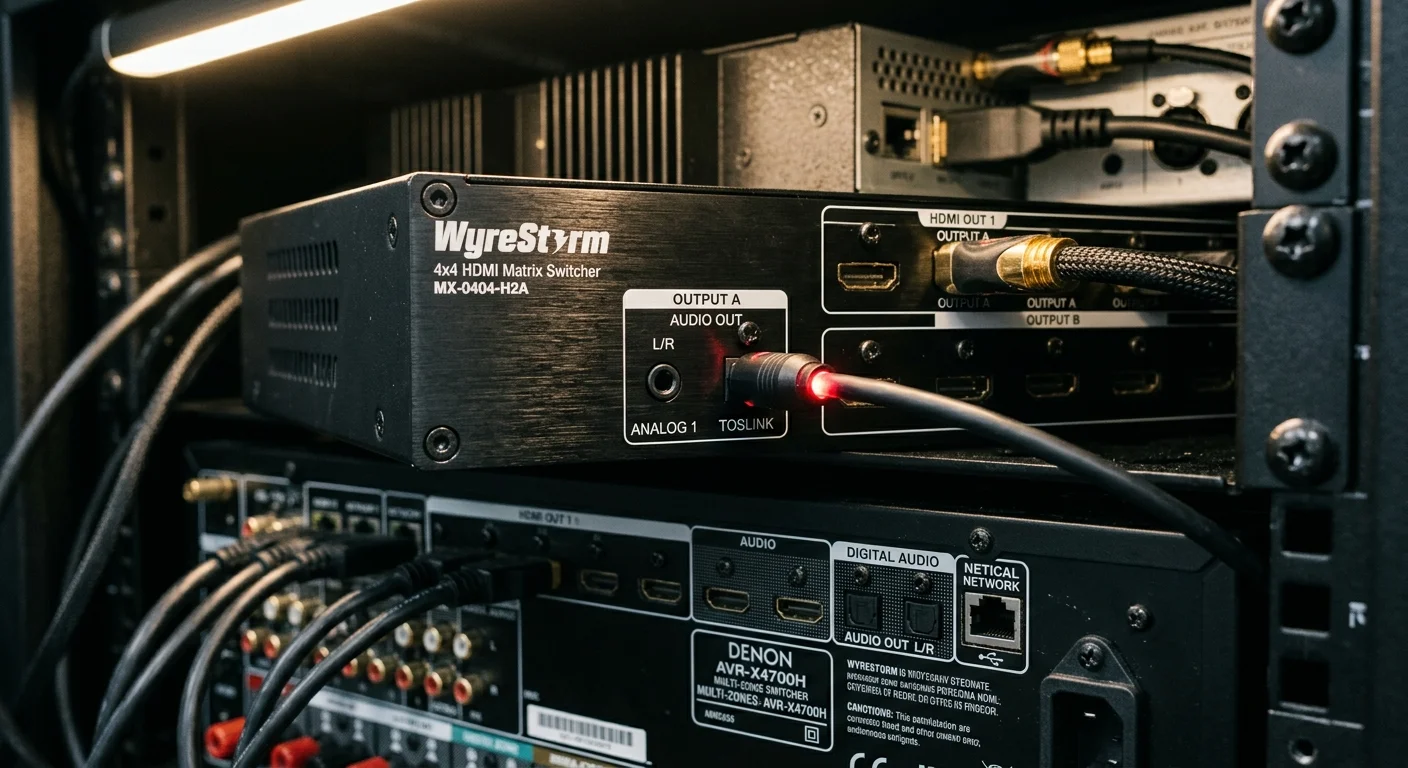
Your HDMI matrix must include dedicated audio de-embedding features. Audio de-embedding strips audio channels from incoming digital HDMI feeds and routes them out through independent optical TOSLink or 3.5mm analog ports.
“In a multi-screen den, video matrixing is only half the battle. Your switching system must extract discrete audio to prevent room echo and give you instant sound toggling.” — AV System Designer
Establish a primary audio zone and a secondary listening zone. Route the digital optical audio output for your primary game into an external audio-video receiver (AVR) or a high-end soundbar located under your center screen.
When an exciting play occurs on an auxiliary screen, use your matrix remote to route that input’s audio to the main soundbar. You swap the room audio instantly without moving your physical video feeds.
Connect the matrix analog 3.5mm audio outputs to a multi-channel wireless radio-frequency (RF) transmitter. Brands like Avantree and Sennheiser manufacture wireless RF headphone stations designed specifically for multi-screen dens.
RF wireless headphones operate over dedicated 2.4 GHz radio bands rather than standard Bluetooth. RF links deliver zero audible latency, preventing the irritating lip-sync delay common with consumer Bluetooth headphones.
Guests sitting at your basement bar can wear lightweight headphones tuned to their specific auxiliary game. Everyone tracks game commentary clearly without competing with the main room soundbar.
Check the audio delay settings on your matrix switch and soundbar. Video processing inside HDMI scalers can take 20 to 50 milliseconds longer than audio passthrough, requiring small delay adjustments in your soundbar menu to maintain perfect lip-sync.
Platform Concurrency Rules: Beating Simultaneous Stream Limits
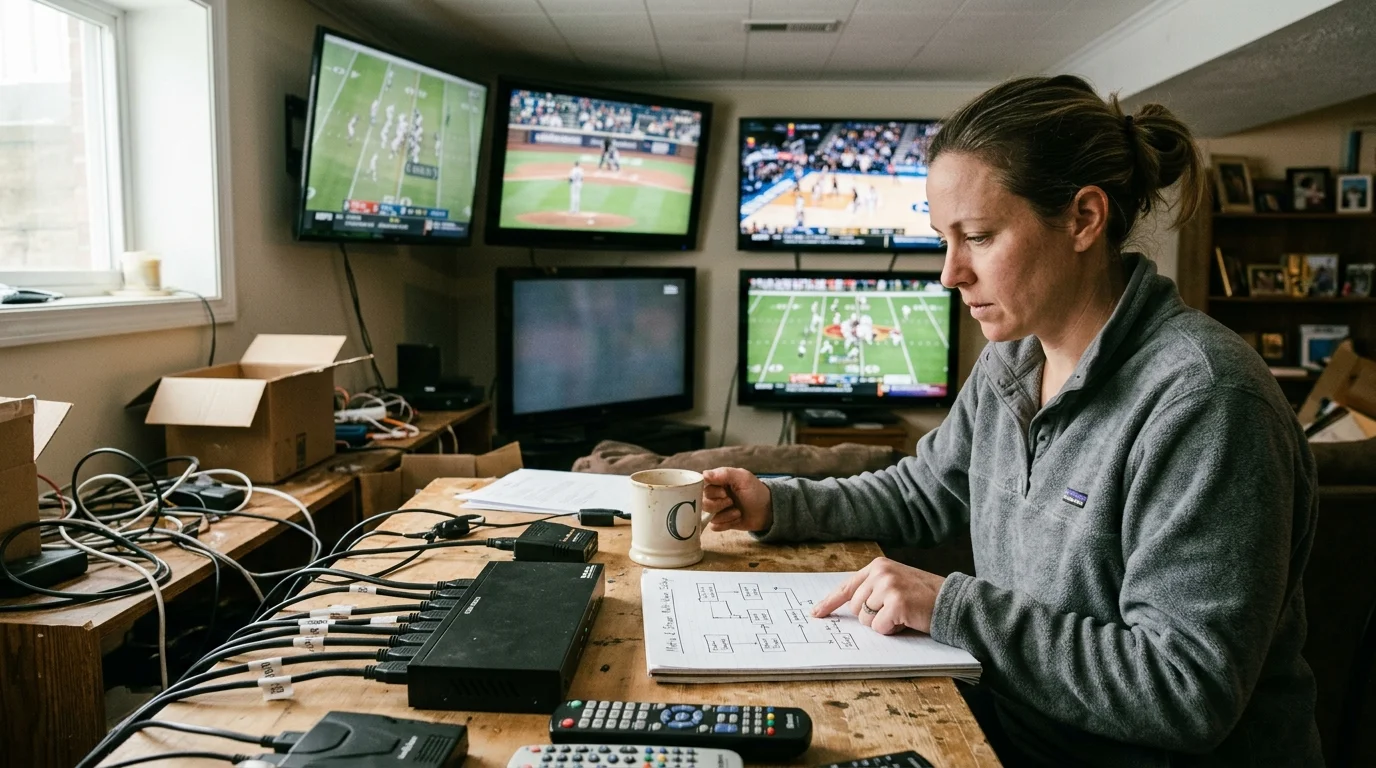
Cord-cutting platforms implement strict digital rights management rules governing simultaneous playback. Connecting four streaming devices to run the same service will quickly lock your accounts.
YouTube TV provides an excellent base channel selection with unlimited DVR—a digital video recorder that lets you record and watch shows later. However, its base subscription permits only three simultaneous streams across your entire household.
Booting a fourth streaming stick inside your den on a base plan immediately triggers an error code. To unlock unlimited simultaneous streams on your home Wi-Fi and wired network, you must add the YouTube TV 4K Plus package for $9.99 to $19.99 per month.
YouTube TV offers a server-side MultiView feature that sidesteps streaming limitations. YouTube stitches up to four live games together on their cloud servers and delivers them as a single pre-rendered 1080p stream.
Server-side MultiView counts as only one active stream against your account limit and consumes just 5 to 8 Mbps of local internet bandwidth. The primary limitation is that you must select from pre-configured game combinations curated by YouTube rather than picking custom matchups.
Fubo caters directly to sports enthusiasts. Standard English base plans (Pro and Elite) include Unlimited Screens and Family Share features, allowing up to 10 simultaneous streams on your home network.
Fubo supports a native quad-split Multiview feature inside its Apple TV 4K app. Unlike YouTube TV, Fubo processes multiview on the local Apple TV hardware, allowing you to select any four live channels you prefer.
Standalone sports apps enforce tighter limits. ESPN+, Peacock, and Paramount+ each restrict simultaneous device streaming to three concurrent screens per account.
As Tom’s Guide highlights in live TV reviews, platform concurrency limits remain one of the biggest hidden stumbling blocks for multi-screen homes. Bypassing these restrictions requires hardware diversity.
Install an over-the-air (OTA) digital antenna in your attic or roofline and pair it with a SiliconDust HDHomeRun network tuner. The HDHomeRun receives free broadcast feeds from local CBS, FOX, NBC, and ABC affiliates and streams them across your local network.
Antenna feeds consume zero internet bandwidth and zero subscription stream slots. Combining two antenna feeds with two streaming feeds gives you four distinct network broadcasts without risking account lockouts.
Hardware Comparison: Matrix Switches for Multi-Screen Dens
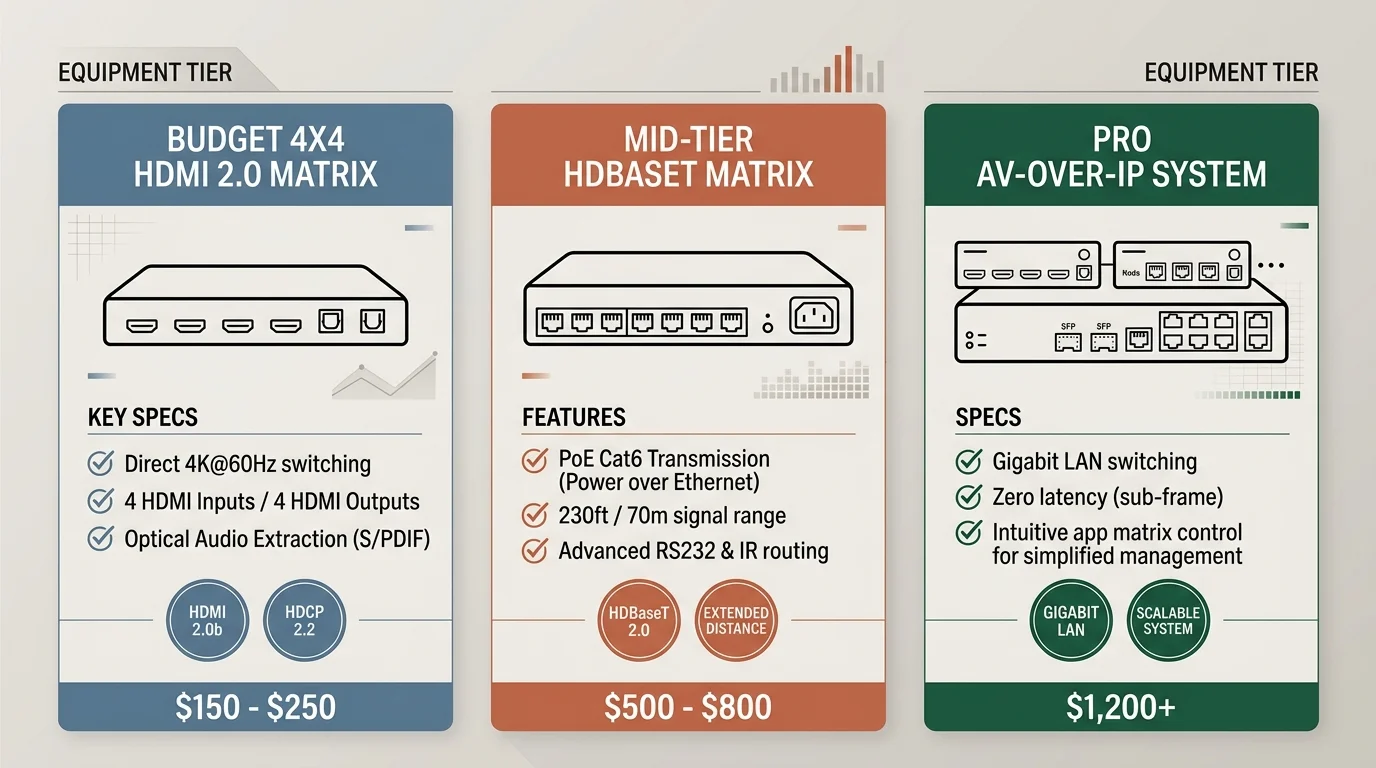
Selecting the right matrix switch depends on the distance between your media rack and your displays. The table below details four proven 4×4 matrix switchers across different price tiers.
| Model | Transmission Architecture | Max 4K Distance | HDCP Support | Audio Extraction | Estimated Price |
|---|---|---|---|---|---|
| Monoprice Blackbird 4×4 (42296) | Direct HDMI 2.0 | 16 feet (5m) | HDCP 2.2 | Optical TOSLink & 3.5mm Analog | $169.99 |
| OREI UltraHD 4×4 (UHD-404) | Direct HDMI 2.0 | 20 feet (6m) | HDCP 2.2 | Optical TOSLink & Coaxial | $249.99 |
| J-Tech Digital 4×4 HDBaseT (JTECH-4K88-EX) | HDBaseT via Cat6 | 130 feet (40m) | HDCP 2.2 / 1.4 | Optical TOSLink & 3.5mm per channel | $699.99 |
| AVPro Edge AC-MX-44HDBT | HDBaseT via Cat6a | 230 feet (70m) | HDCP 2.3 / 2.2 | Balanced Analog & Optical | $1,495.00 |
If your media rack sits directly under your screens inside an open basement console, choose the Monoprice or OREI direct HDMI models. You save significant money while preserving full 4K60 video bandwidth.
If your media rack sits inside a separate mechanical room or under-stair closet more than 25 feet away, choose the J-Tech Digital HDBaseT system. It ensures clean signal transmission without frame loss or video dropouts.

Worked Example: Complete Budget Breakdown for a 4-Screen Setup
To understand the financial investment, examine a practical scenario for an unfinished 14×20-foot basement den. In this plan, an unfinished mechanical room sits 35 feet away from the main display wall.
The layout features one primary 65-inch 4K screen surrounded by three 50-inch secondary displays. Running four identical 65-inch screens creates physical crowding, whereas this layout prioritizes the premier broadcast.
Here is the complete hardware list and pricing breakdown:
- One TCL 65-inch Q6 QLED 4K TV (Primary Display): $449.99
- Three TCL 50-inch Q5 4K TVs (Secondary Displays): $839.97 ($279.99 each)
- Four heavy-duty low-profile tilting wall mounts: $99.96 ($24.99 each)
- J-Tech Digital 4×4 HDBaseT Matrix with 4 PoC Receivers: $699.99
- Four Apple TV 4K 64GB streaming devices: $516.00 ($129.00 each)
- 500-foot spool TrueCable Cat6 CMR Solid Bare Copper: $115.00
- Structured wiring supplies (Keystones, low-voltage brackets, brush plates): $48.50
- Vizio V-Series 5.1 Soundbar System (Primary Audio): $199.99
- Avantree HT4189 Dual Wireless RF Headphones (Auxiliary Audio): $99.99
- Total Hardware Investment: $3,069.39
Now evaluate the operational data costs for this setup. Assume an eight-hour football session every Sunday afternoon.
If you run all four displays in 1080p at 2.5 GB per hour per screen, the den consumes 10 GB per hour. Over an eight-hour day, total data consumption reaches 80 GB.
Across four weekends in a month, the sports den consumes 320 GB of data. Added to standard household internet use of 500 GB, total monthly usage equals 820 GB, fitting safely beneath a 1.25 TB cap.
However, if you stream all four screens in 4K at 12 GB per hour per screen, the den consumes 48 GB per hour. An eight-hour Sunday burns 384 GB in a single afternoon.
Four Sundays in 4K consume 1,536 GB from the sports wall alone. Adding standard household data pushes monthly usage past 2,000 GB, generating $100 in maximum ISP overage fees.
The budget solution is straightforward: stream your primary 65-inch game in 4K while locking the three secondary screens to 1080p. This hybrid strategy caps your four-game Sunday consumption at 144 GB while preserving visual sharpness on the main screen.

Cost-Cutting Strategies: Rotating Live TV Bundles and Student Perks
Managing streaming services carelessly causes subscription creep. Subscription creep happens when recurring monthly charges quietly accumulate until your cord-cutting setup costs more than traditional cable.
Implement a strict subscription rotation strategy. Live football runs from late August through mid-February; paying for live television streaming platforms in spring and summer wastes money.
Pause or cancel your YouTube TV or Fubo subscription every February following the Super Bowl. Pausing a $79.99 monthly plan for six months saves $479.94 annually.
During the off-season, switch to cheaper on-demand services—platforms that let you watch whatever you want, whenever you want. Rotate between Netflix, Max, and Apple TV+ on a single-month basis rather than paying for all simultaneously.
Take advantage of subscription bundles to lower baseline costs. The Disney Bundle pairs Disney+, Hulu, and ESPN+ for $14.99 per month with ads, saving roughly $14 monthly compared to standalone plans.
Decide whether ad-supported plans—cheaper tiers that show commercials—or ad-free plans—higher-cost options without ads—fit your den. Because live sports already broadcast commercial breaks during gameplay, paying extra for ad-free tiers on live streaming services yields no benefit.
Walmart+ includes a Paramount+ subscription at no extra charge for $98 annually. That membership provides access to live NFL on CBS broadcasts while saving over $40 compared to standalone streaming subscriptions.
Verify eligibility for student, military, and corporate perks. Peacock offers an active student verification rate of $1.99 per month, delivering Premier League soccer and Big Ten sports for a $72 annual savings.
Paramount+ provides an ongoing 25% discount for verified college students. Military personnel can secure exclusive discounts through the Exchange online store for various entertainment subscriptions.
Avoid illegal IPTV services advertised across social media promising thousands of premium channels for $50 per year. As the Better Business Bureau warns, unauthorized streaming services frequently expose consumers to credit card theft, identity fraud, and sudden server shutdowns.
Share accounts legally within your household. Modern platforms permit multiple simultaneous streams provided all streaming devices connect through the same residential gateway IP address.
Frequently Asked Questions
Can I use Wi-Fi instead of running Cat6 cables for 4 sports screens?
Wi-Fi is unreliable for four simultaneous live HD or 4K sports streams. Wireless radio interference and physical wall framing cause packet loss, which produces sudden buffering and resolution drops during critical plays. Hardwiring Cat6 guarantees full gigabit speeds with zero latency spikes.
Does an HDMI matrix switch cause input lag when watching live sports?
Direct HDMI and HDBaseT matrix switchers introduce virtually zero transmission latency. Unlike IP-based video streamers that encode and compress video over home routers, hardware matrix switches pass uncompressed signals with delay well under 10 milliseconds, making it imperceptible to viewers.
How do I change audio sources quickly between different games?
Use an HDMI matrix switcher equipped with audio de-embedding and an IR remote or web application interface. By mapping your central soundbar to the matrix optical output, you can press a single number button on your remote to instantly switch the room audio to any of the four games.
Will an over-the-air antenna save data on my ISP monthly cap?
Connecting an over-the-air digital antenna to a network tuner completely bypasses your internet connection. Broadcast channels like CBS, FOX, NBC, and ABC transmit free uncompressed 1080i or 720p signals over the air, saving hundreds of gigabytes of monthly streaming data across four screens.
Disclaimer: Streaming service terms and pricing change frequently. Always review current terms of service before implementing any money-saving strategies. Some tips may not work with all services or in all regions.