If your four-person home triggers Comcast Xfinity data warnings around day twenty each month, 4K video feeds are silently exhausting your monthly allocation. You can stop paying surprise overage penalties without forcing your family to abandon their favorite evening television shows.
You can shave 420GB monthly without dropping perceived picture resolution below crisp 1080p simply by locking your streaming device display outputs and enforcing an 8 Mbps router bandwidth limiter. This single configuration change instantly halts runaway background consumption.
This technical walkthrough provides exact device configurations, network quality controls, and cancellation steps to secure a completely predictable broadband bill.
The 1.2TB Comcast Reality: Budgeting Data for Four Viewers
When transitioning to cord-cutting—canceling traditional cable or satellite TV in favor of streaming services—your internet connection becomes your sole entertainment pipeline. That pipeline is not infinite on Comcast Xfinity legacy internet tiers.
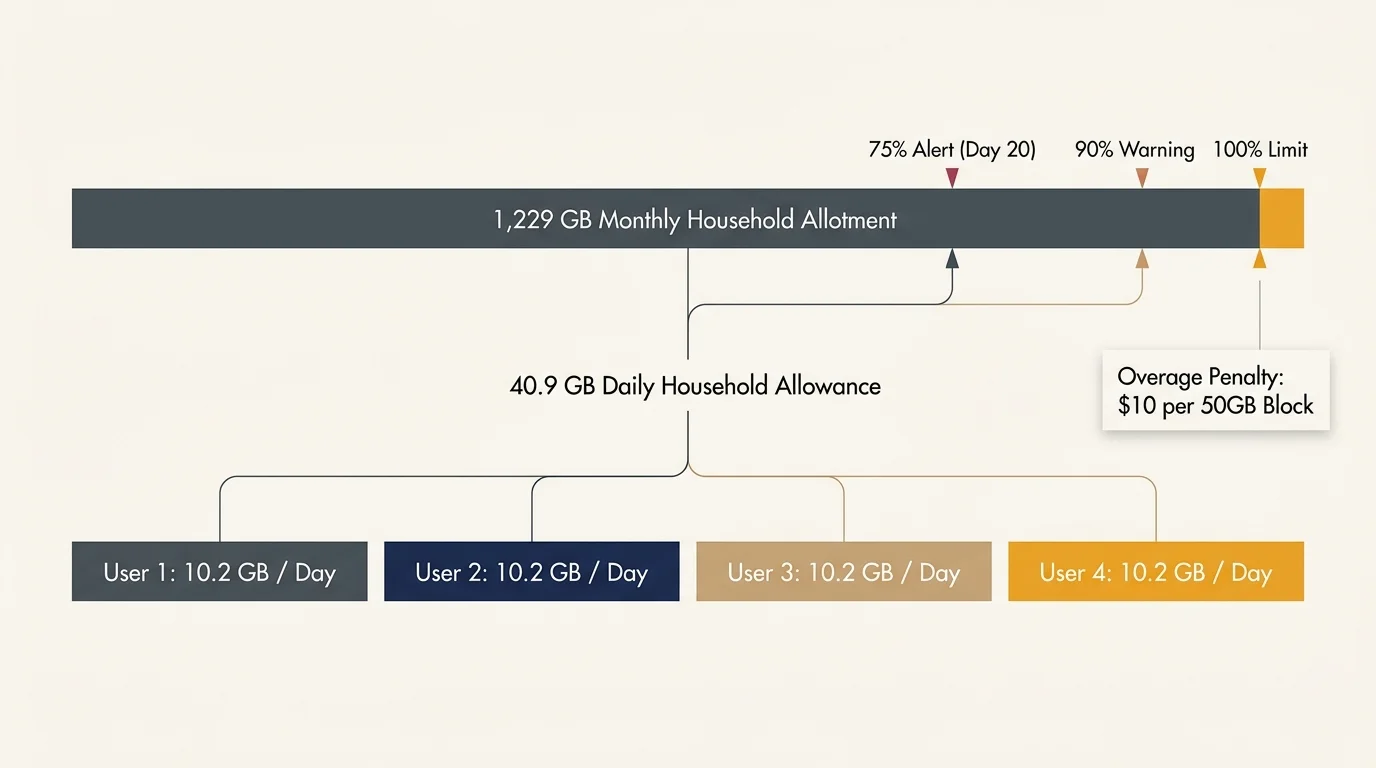
Comcast caps monthly residential usage at 1.2 terabytes, which the provider calculates internally as exactly 1,229 gigabytes (GB). If you exceed that ceiling, Comcast automatically bills you $10 for every 50GB block you consume, up to a maximum penalty of $100 per billing cycle.
Comcast grants subscribers one courtesy month in every rolling twelve-month window to exceed the limit without charge. Once you burn through that buffer, the automated billing system shows no mercy.
The provider sends automated warning alerts when your household reaches 75%, 90%, and 100% of your 1,229GB allotment. In an unmonitored home, the 75% notification routinely lands on your smartphone around day twenty.
Dividing 1,229GB across a thirty-day month yields a strict household allowance of roughly 40.9GB per day. When split equally among four family members, each individual receives an allowance of roughly 10.2GB daily.
According to broadband guidance from the FCC Consumer Guide, typical modern households operate multiple connected devices concurrently, requiring careful bandwidth distribution. Your 10.2GB personal budget must cover mobile phone updates, work-from-home tasks, cloud storage syncs, and video entertainment.
Note that subscribers living in fourteen northeastern jurisdictions—including Connecticut, Massachusetts, New Jersey, New York, and Pennsylvania—remain exempt from Comcast data caps. If you live anywhere else in Comcast service territory, managing your consumption is essential.
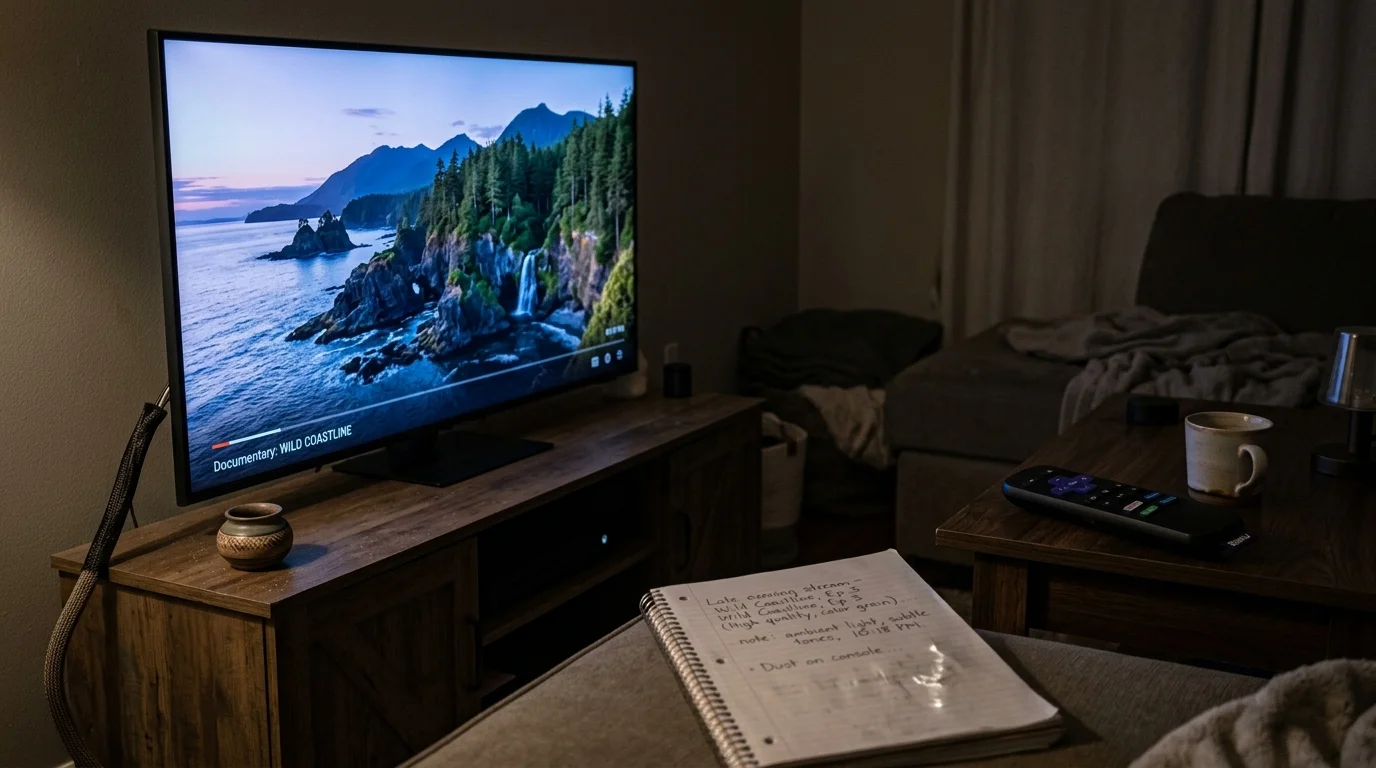
The Data Burn Rate: 4K Ultra HD vs. 1080p High Definition
To control your data consumption, you must master streaming, which means watching video content over the internet instead of cable or satellite. Video resolution dictates the speed at which you deplete your monthly gigabyte allotment.
A smart TV (a television with a built-in internet connection and apps) defaults to the highest resolution available on your broadband connection. When watching Ultra High Definition (4K UHD), video streams consume between 7GB and 10GB per hour.
Uncompressed live sports broadcasts on services like YouTube TV can consume up to 15GB hourly in 4K. If one family member watches two hours of live 4K football, they wipe out the entire daily quota for two people.
High Definition video at 1080p consumes only 1.5GB to 3GB per hour while maintaining exceptional picture clarity. Standard 720p streams consume between 0.9GB and 1.5GB hourly, and standard-definition 480p streams use roughly 0.6GB per hour.
As industry testing from CNET illustrates, the human eye cannot distinguish 4K from 1080p on standard television screens viewed from typical sofa distances. You burn massive quantities of data for extra pixels your eyes cannot actually perceive.
| Video Resolution | Average Bitrate | Data Consumed per Hour | Daily Household Viewing Cap (Under 40.9GB/day) |
|---|---|---|---|
| 4K Ultra HD (2160p) | 15–25 Mbps | 7.0–10.0 GB | 4.1 to 5.8 Hours Total Across All TVs |
| Full High Definition (1080p) | 4–7 Mbps | 1.8–3.0 GB | 13.6 to 22.7 Hours Total Across All TVs |
| Standard HD (720p) | 2.5–4 Mbps | 0.9–1.5 GB | 27.2 to 45.4 Hours Total Across All TVs |
| Standard Definition (480p) | 1–2 Mbps | 0.5–0.7 GB | 58.4 to 81.8 Hours Total Across All TVs |
Switching every screen in your home from 4K to 1080p slashes video data consumption by up to 70% immediately. That change alone protects a four-person family against hitting overage thresholds.
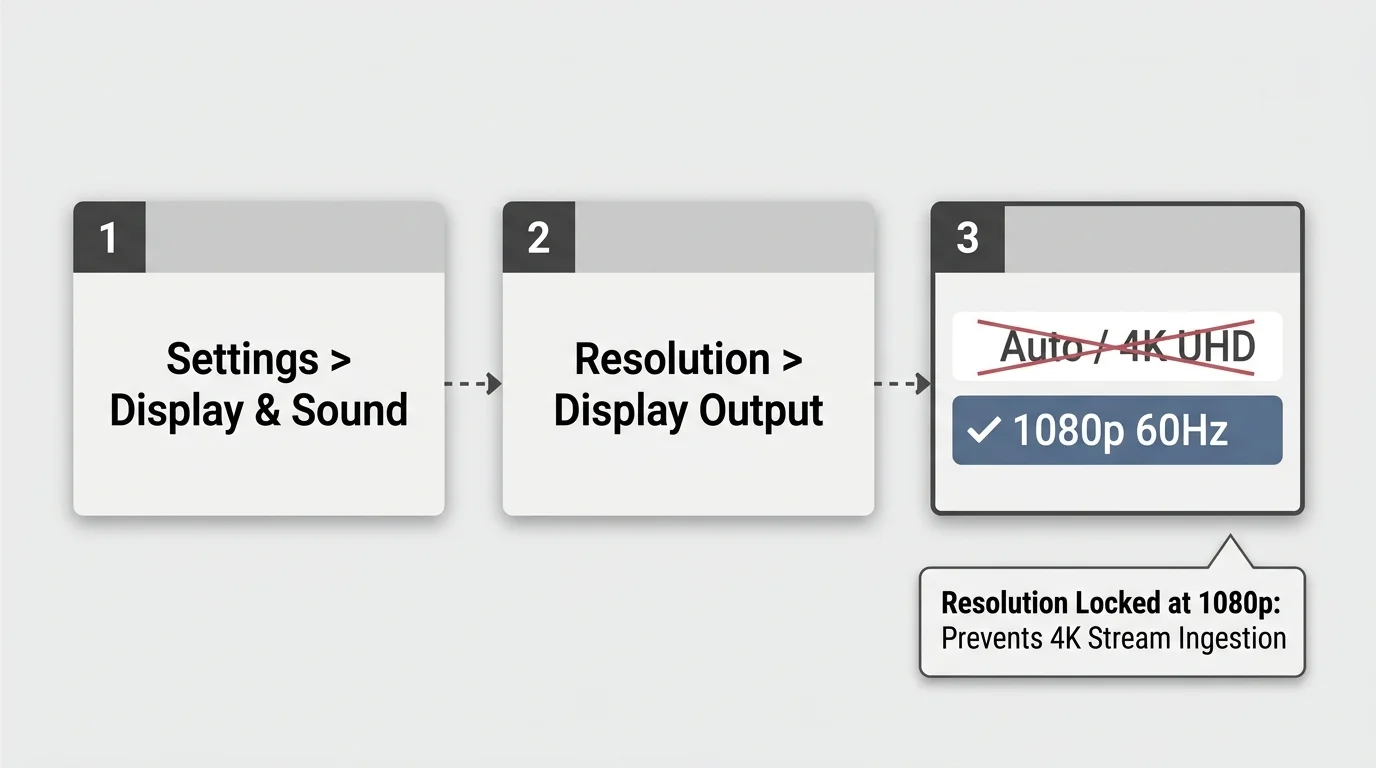
Exact Hardware Adjustments: Locking Streaming Devices to 1080p
A dedicated streaming device—a small box or stick like a Roku or Fire TV that adds streaming to any TV—usually ships with display settings set to “Auto-Detect.” This setting forces the hardware to pull heavy 4K streams whenever it detects a compatible screen.
You must manually change the hardware display setting on every connected television to prevent applications from negotiating 4K video streams. Here is how to configure the three most common hardware platforms.
For a Roku Streaming Stick 4K or Roku Ultra, navigate to Settings, select Display Type, change the setting from “Auto detect” to 1080p TV, and confirm the selection. The Roku interface and all underlying channels will now output standard 1080p.
For an Amazon Fire TV Stick 4K Max, open Settings, choose Display & Sounds, click Display, and open Video Resolution. Select 1080p 60Hz instead of “Auto” to restrict video stream requests.
For an Apple TV 4K, open Settings, enter the Video and Audio menu, select Format, and choose 1080p SDR. Disable the “Match Content” dynamic range toggle to stop high-bitrate HDR metadata downloads.
Taking three minutes to lock each television eliminates unneeded 4K streams at the source. The streaming software can no longer demand maximum bitrates from content provider content delivery networks.

Router QoS Settings: Throttling Bitrates Without Buffering
Hardware settings handle most waste, but modern streaming applications often find ways to ignore device preferences. Implementing a router QoS for streaming limit creates an unbreakable network boundary.
Quality of Service (QoS) is a network feature that prioritizes or restricts internet traffic to specific devices in your home. By configuring your router to throttle streaming television clients, you permanently eliminate data-heavy video spikes.
Modern video streaming services utilize adaptive bitrate algorithms that constantly test your connection speed. If an app detects 100 Mbps of free bandwidth, it aggressively buffers unnecessary 4K video segments ahead of playback.
If the app detects only 8 Mbps to 10 Mbps of available bandwidth, it delivers a clean, smooth 1080p video stream without buffering or stuttering. Capping television bandwidth locks this lightweight stream in place.
According to networking evaluations by Wirecutter, third-party standalone routers offer far superior traffic management controls compared to leased internet service provider gateway hardware. You can establish device limits easily on popular router interfaces like AsusWRT or Netgear Genie.
- Log into your router administrator dashboard via your web browser (typically 192.168.1.1 or 192.168.50.1).
- Navigate to the LAN or DHCP Server menu and assign static IP addresses to all four family streaming devices.
- Open the QoS or Bandwidth Limiter section in your router settings.
- Add a rule for each streaming device IP address, setting the maximum Download Bandwidth to 8,192 Kbps (8 Mbps).
- Set the maximum Upload Bandwidth to 1,024 Kbps (1 Mbps) per streaming device.
- Click Apply and restart the router to enforce the rules across all active connections.
“An 8 Mbps bandwidth ceiling provides pristine 1080p HD playback while physically preventing any streaming device from pulling data-heavy 4K video feeds.”
This exact configuration preserves responsive performance for work laptops and gaming PCs while preventing the family televisions from draining your monthly data allowance.
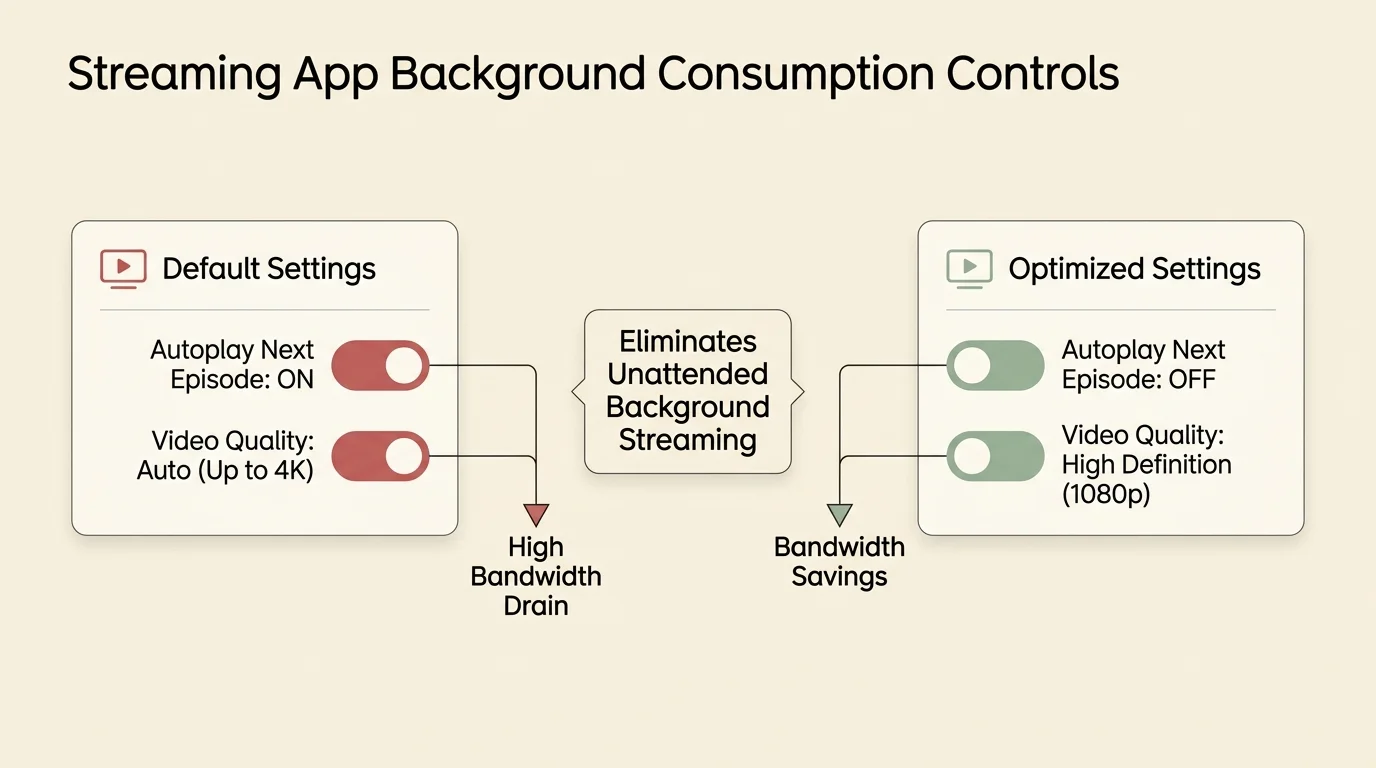
In-App Settings and Background Drain Killers
Leaving a television running in an empty room drains gigabytes of data with zero benefit to your family. Streaming services use continuous autoplay features designed to keep video playing indefinitely.
You can reduce streaming data Comcast bills count against you by turning off autoplay toggles inside your account profiles. This simple adjustment saves immense amounts of wasted data each month.
On Netflix, sign into your account using a desktop web browser and open the Account page. Select your user profile, open Playback Settings, and uncheck both “Autoplay next episode” and “Autoplay previews while browsing.”
Inside the same Netflix playback menu, switch your data usage per screen setting from “Auto” to Medium. Medium setting caps stream quality at 0.7GB per hour without degrading perceived clarity on screens under fifty-five inches.
On YouTube, click the profile avatar on your television application, open Settings, and disable Autoplay. This prevents YouTube from running random video feeds when family members leave the room.
On Prime Video, navigate to Player Preferences in your account settings and disable Auto Play Next Episode. These three service modifications eliminate up to 50GB of unattended background streaming each month.

Offloading Live TV: Antennas and Free Broadcast Channels
Live television broadcasts—especially sporting events and Sunday football games—represent the most dangerous data drains for cord-cutters. A single live football game on a streaming bundle consumes up to 25GB of data.
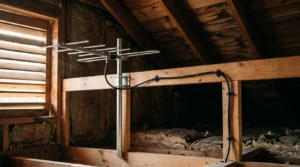
You can bypass Comcast broadband limits entirely by capturing high-definition local broadcast signals over the air. An Over-The-Air (OTA) digital antenna pulls major broadcast networks straight from local transmitters using zero internet data.
Modern digital antennas deliver ABC, CBS, NBC, FOX, PBS, and The CW in uncompressed 1080i or 720p HD. The picture quality is crisper than compressed cable feeds and never registers against your Comcast monthly cap.
You can pair an indoor antenna with an OTA network tuner such as a Tablo or HDHomeRun box. These network tuners distribute the antenna signal over your local home Wi-Fi directly to smart TVs without touching your external internet link.
These devices also offer DVR capabilities. A DVR (digital video recorder, which lets you record and watch shows later) gives you complete control over your viewing schedule.
By moving twenty hours of monthly sports and prime-time viewing from broadband streaming to an antenna, your home preserves roughly 60GB of data. You also secure reliable emergency broadcast reception during severe weather events.
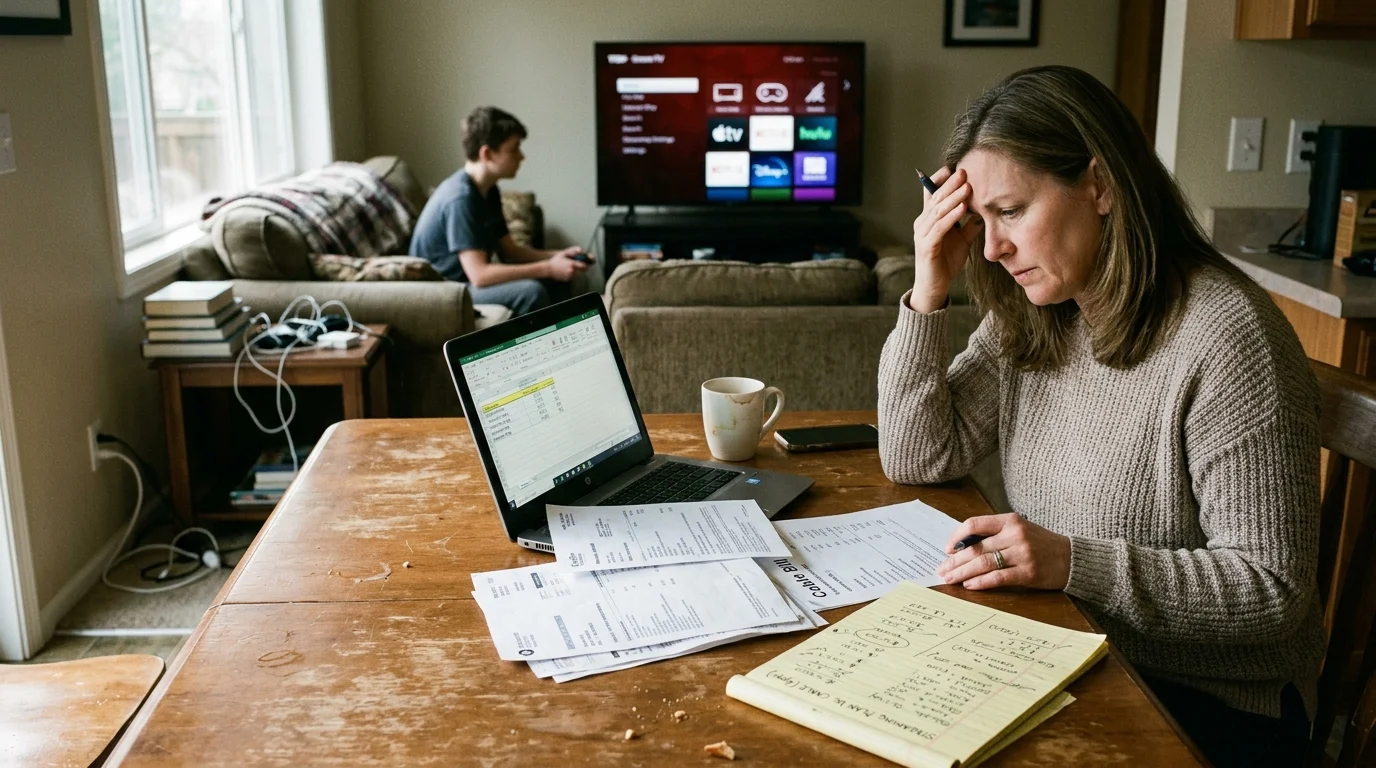
The Cord-Cutting Financial Calculation: Cable Bill vs. Streaming Bundle
Traditional cable television packages pack your monthly statement with hidden equipment fees, regional sports fees, and franchise broadcast fees. Cutting the cord provides clear, transparent savings if you manage your data cap smartly.
According to analysis from Consumer Reports, the average American household pays over $200 per month for bundled cable and internet services once hidden surcharges apply. Shifting to standalone internet paired with selective streaming apps substantially lowers your annual entertainment expenses.
You can choose between ad-supported plans (cheaper tiers that include commercials) and ad-free tiers that cost more to remove commercials. Combining two budget streaming apps with on-demand programming—which allows you to watch whatever you want whenever you want—keeps costs remarkably low.
If you fail to implement the bandwidth controls outlined in this guide, Comcast may push you toward their $30 monthly unlimited data add-on. Managing your bitrates allows you to pocket that $30 every month without lifestyle sacrifices.
| Expense Category | Traditional Comcast Cable Bundle | Unmanaged Cord-Cutting (With Overages) | Optimized Cord-Cutting Setup |
|---|---|---|---|
| Monthly TV/Video Services | $125.00 (Standard Digital Tier) | $79.99 (YouTube TV Base) | $33.98 (Hulu & Disney+ Ad-Free) |
| Internet Service (300 Mbps) | Included in bundle price | $55.00 (Standalone Xfinity tier) | $55.00 (Standalone Xfinity tier) |
| Hardware Rentals & Broadcast Fees | $48.50 (2 TV boxes + Sports fees) | $0.00 (Roku purchased upfront) | $0.00 (Roku purchased upfront) |
| Comcast Data Cap Penalties | $0.00 (Exempt under triple play) | $30.00 (3x 50GB overage blocks) | $0.00 (Usage held under 1.2TB) |
| Total Monthly Out-of-Pocket | $173.50 | $164.99 | $88.98 |
| Net Annual Entertainment Cost | $2,082.00 | $1,979.88 | $1,067.76 |
An optimized cord-cutting setup saves a suburban household over $1,000 every single year compared to traditional cable packages. Avoiding the $10 per 50GB penalty fees ensures those savings stay directly in your family budget.
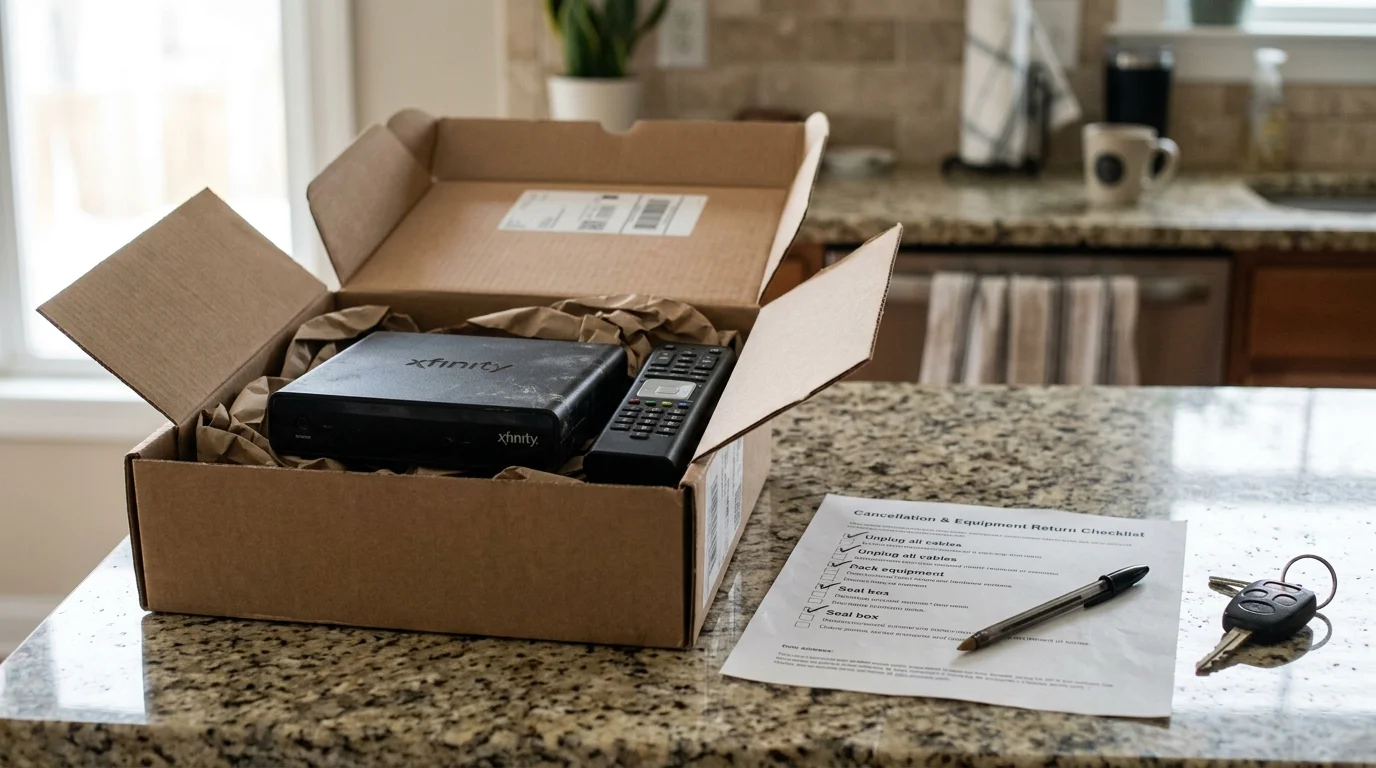
Step-by-Step Comcast Cable Cancellation Checklist
Canceling traditional cable television requires an organized approach to avoid contract penalties and phantom equipment charges. Follow this structured roadmap to execute your transition seamlessly.
- Audit Your Existing Contract: Log into your online Xfinity account to determine whether you have an active term agreement. If you face an Early Termination Fee (ETF), wait out the remaining months or calculate if monthly cord-cutting savings outweigh the fee.
- Acquire Your Streaming Hardware First: Purchase your streaming devices (such as a Roku Streaming Stick 4K at roughly $40 each) and your indoor antenna before contacting Comcast. Install the hardware and verify your family is comfortable operating the software apps.
- Transition to Standalone Internet: Call Comcast customer service and state clearly: “I want to downgrade my service to standalone internet only.” Decline promotional bundle sales pitches politely and firmly.
- Select an Appropriate Speed Tier: Choose an internet tier delivering between 200 Mbps and 400 Mbps. A four-person family does not require gigabit speeds to stream multiple simultaneous 1080p feeds smoothly.
- Inventory and Return Leased Cable Boxes: Gather every television set-top box, power brick, and remote control provided by Comcast. Bring them directly to an official Xfinity retail store and demand a printed equipment return receipt containing serial numbers.
- File the Return Documentation: Take a photo of the printed return receipt with your phone and store it safely in your cloud files. Unreturned equipment charges routinely surface months later without proper documentation.
“Always obtain and retain a printed, serialized equipment return receipt from the physical Xfinity store to safeguard your account against automated unreturned hardware charges.”
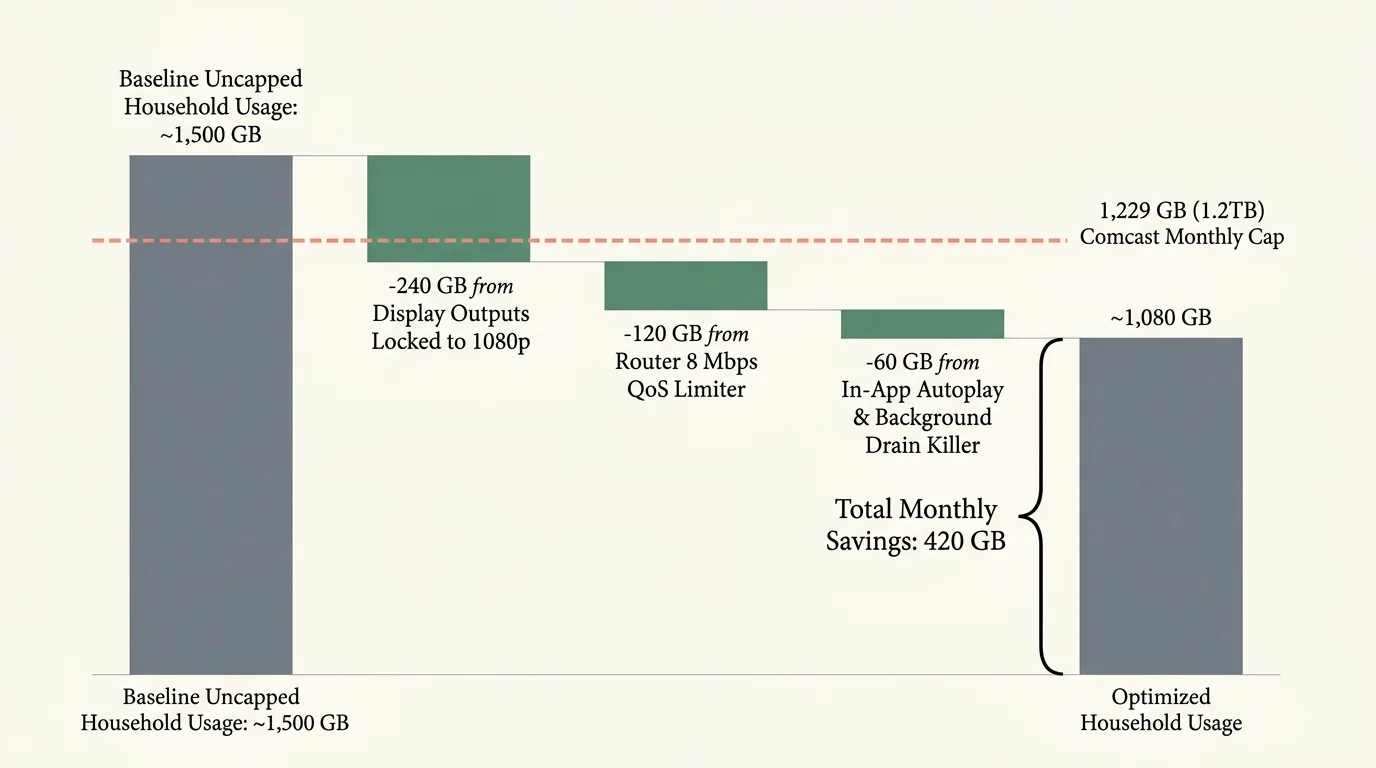
The 420GB Monthly Savings: A Fully Worked Household Example
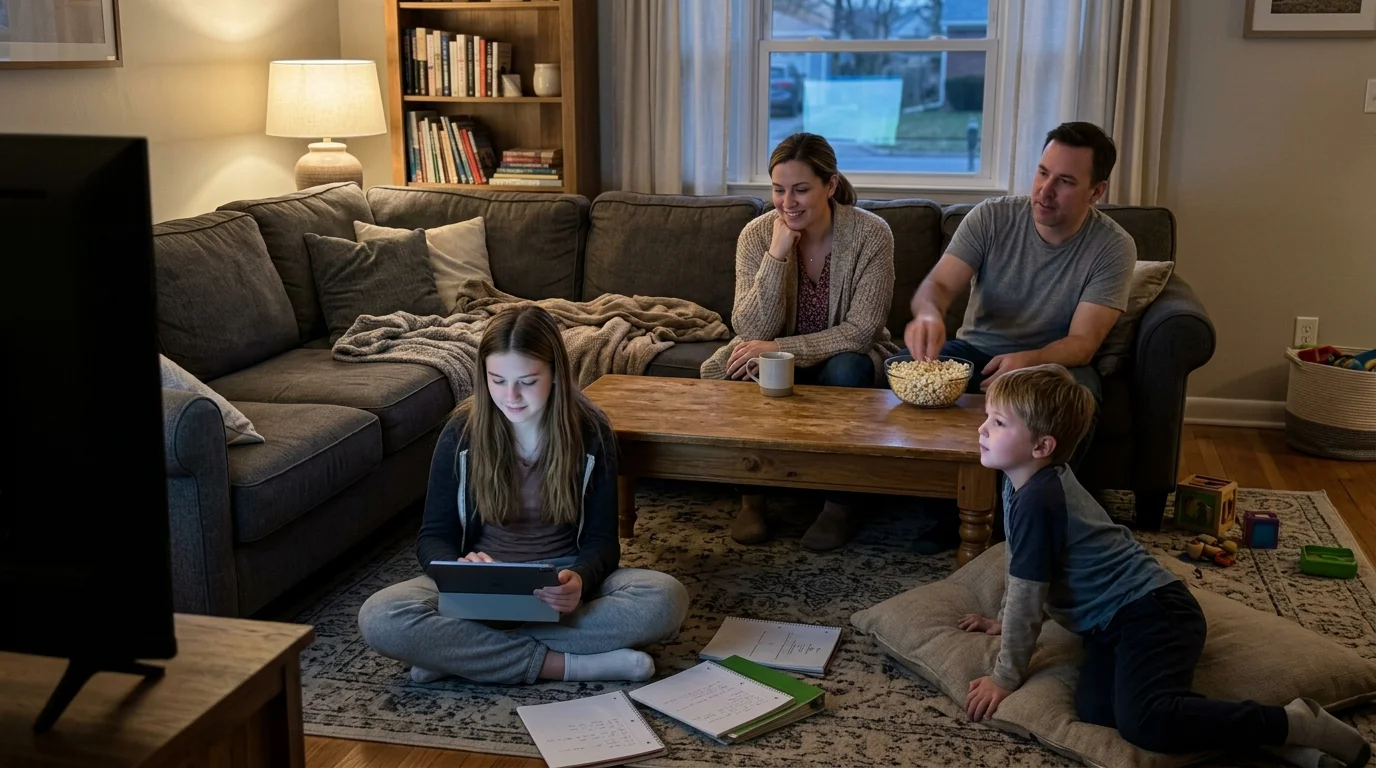
Consider the typical suburban household of four: two parents and two school-aged children, operating three televisions and four smartphones. In a baseline scenario, the family operates without streaming throttles on their Comcast 1.2TB plan.
Under unmanaged conditions, the living room TV and playroom TV stream 4K content for three hours each day. At 8GB per hour, those two screens burn 48GB daily, generating 1,440GB of data per month on video alone.
When combined with 200GB of routine web browsing, game patches, and smartphone backups, their monthly usage hits 1,640GB. They exceed the 1,229GB cap on day twenty-two, incurring $90 in automated overage charges.
The family then implements the technical optimization plan outlined below to systematically reduce consumption.
- They lock all three Roku sticks to 1080p output, reducing hourly consumption from 8GB to 2.2GB per screen.
- They apply an 8 Mbps QoS bandwidth limit on their home router for all streaming media hardware.
- They disable autoplay previews across Netflix and YouTube, saving roughly 40GB monthly of neglected background streaming.
- They install a $35 indoor antenna for weekend sports broadcasts, offloading 45GB of high-bitrate live network data.
Under the optimized setup, six daily hours of television consumption across the household burn only 13.2GB per day (396GB monthly). Adding the family’s 200GB of general background computing brings total monthly usage to 596GB.
The family slashes their consumption by 1,044GB compared to their worst month, and easily clears the 420GB savings goal required to avoid penalties. They finish each thirty-day billing cycle using under half of their 1,229GB Comcast limit.
Frequently Asked Questions
Does Comcast notify you before charging data overage fees?
Comcast sends automated notifications via email, text message, and account pop-ups when your household reaches 75%, 90%, and 100% of the 1,229GB limit. If you exceed the cap, Comcast notifies you each time an automatic $10 block of 50GB gets billed to your statement.
Can I get truly unlimited data on Comcast Xfinity?
You can add unlimited data to your Comcast account by paying an extra $30 per month if you utilize your own customer-owned modem and router. Alternatively, you can lease an xFi Gateway with the xFi Complete bundle for an additional $15 to $25 monthly depending on current promotions.
Does setting my streaming device to 1080p affect gaming or PC monitors?
Locking your streaming device to 1080p only restricts the specific television port to which that streaming stick connects. Your home office PC monitors, video gaming consoles, and work laptops maintain full resolution access unless you explicitly restrict them in router settings.
Will streaming live sports in 1080p look blurry on a 65-inch television?
A high-bitrate 1080p stream at sixty frames per second delivers crisp motion and clear player details on large screens. Modern 4K televisions feature built-in hardware upscalers that cleanly sharpen incoming 1080p video feeds without requiring massive broadband data overhead.
Disclaimer: Cable and streaming prices vary by location and change frequently. The cost comparisons in this article are estimates based on typical pricing. Your actual savings will depend on your current cable package, internet costs, and which streaming services you choose.