
You finally did it. You canceled your expensive cable package, subscribed to a few select streaming services, and sat back to enjoy the savings. But then, a different kind of bill arrived—a notice from your Internet Service Provider (ISP) claiming you exceeded your monthly data cap, accompanied by a steep overage fee. For many cord-cutters, this scenario is a frustrating reality that turns a money-saving strategy into a budgeting nightmare.
Beyond the immediate financial relief, there are many long-term benefits of ditching cable that make mastering your data usage worthwhile.
Selecting one of the best internet providers for streaming that offers unlimited data is often the simplest long-term fix for heavy users.
Streaming video over the internet is the single largest consumer of bandwidth for most modern households. As video quality increases to 4K Ultra HD and High Dynamic Range (HDR), the amount of data required to deliver that crisp picture skyrockets. If you are not careful, a weekend binge-watching session can consume a significant portion of your monthly allowance.
Fortunately, you do not need to stop watching your favorite shows to keep your internet bill in check. By adjusting a few hidden settings, optimizing your hardware, and changing how you consume content, you can drastically reduce your data footprint. This guide walks you through actionable steps to optimize your streaming setup, helping you stay within your data cap without sacrificing your entertainment experience.
Understanding Data Caps and the Cost of Streaming
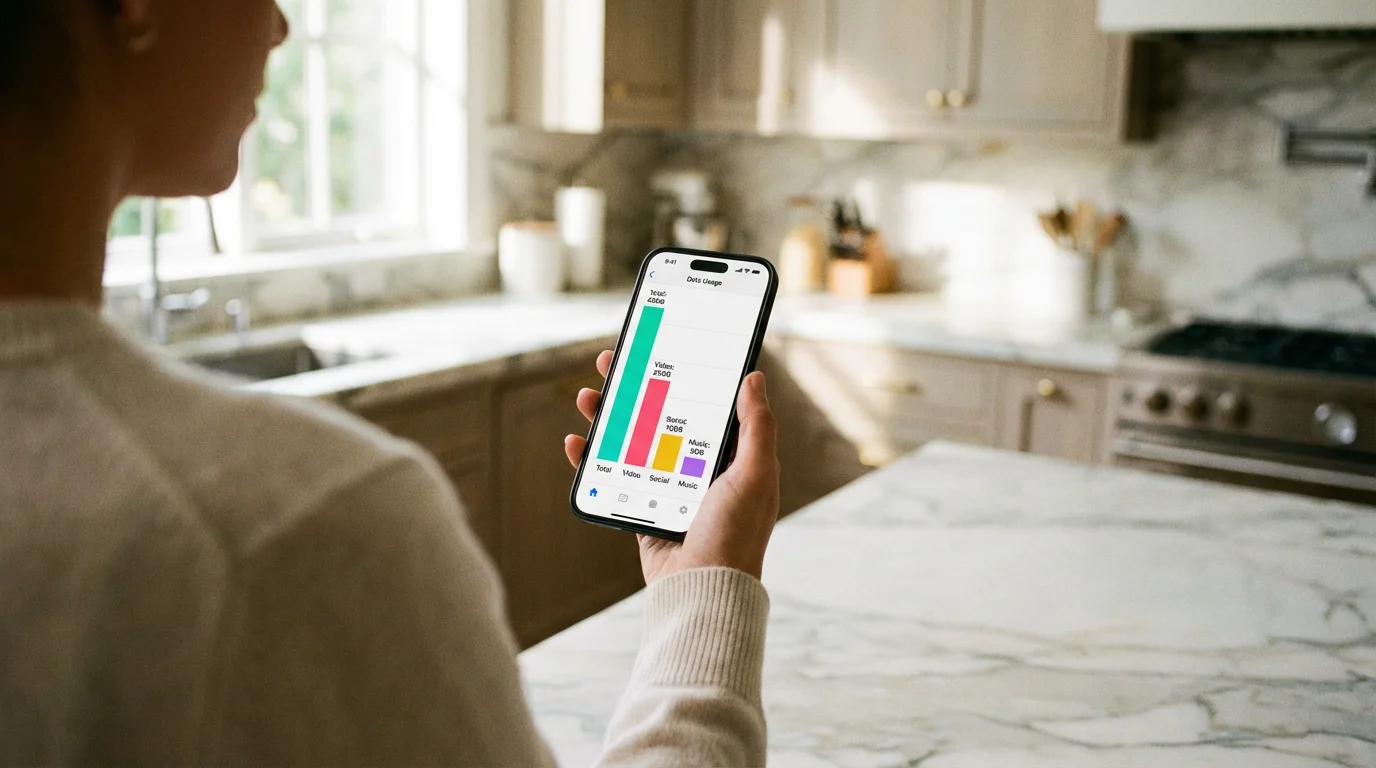
Before diving into the technical fixes, it is essential to understand exactly what you are paying for. Many ISPs in the United States enforce a data cap—typically around 1.2 terabytes (TB) per month. While this sounds like a massive amount of data, a household of three or four people streaming 4K content, attending Zoom meetings, and gaming can hit this limit faster than you might expect.
If your usage remains high, you can also learn how to negotiate a lower internet bill to help cover the cost of a higher data tier.
Understanding these potential overages is a vital part of calculating the true cost of cord cutting for your household budget.
When you exceed this cap, ISPs often charge overage fees, which usually come in blocks. For example, you might be charged $10 for every additional 50GB of data you use. These fees can quickly accumulate, sometimes exceeding the cost of the original internet plan itself.
The primary culprit is video resolution. Streaming (watching video content over the internet) requires a continuous flow of data. The higher the picture quality, the more data is required to render the image on your screen.
Data Usage Estimates by Resolution
To control your costs, you must quantify your consumption. The table below outlines approximately how much data different video qualities consume.
| Video Quality | Resolution | Data Usage Per Hour (Approx.) | Hours to Hit 1TB Cap |
|---|---|---|---|
| Low / Data Saver | 480p (SD) | 0.3 GB – 0.7 GB | ~2,000 Hours |
| Medium / Standard Definition | 720p (HD) | 0.9 GB – 1.5 GB | ~800 Hours |
| High / Full HD | 1080p (FHD) | 3.0 GB | ~330 Hours |
| Ultra High Definition | 4K / UHD | 7.0 GB – 10.0 GB | ~120 Hours |
As the data shows, streaming in 4K uses roughly five to ten times more data than streaming in Standard Definition. If you leave your television on as background noise, ensure you are not doing so in 4K.
“The difference between 1080p and 4K is noticeable on large screens, but for casual viewing or background noise, the massive increase in data usage is rarely worth the cost.” — Streaming Optimization Specialist
Adjusting Video Quality Settings by Platform
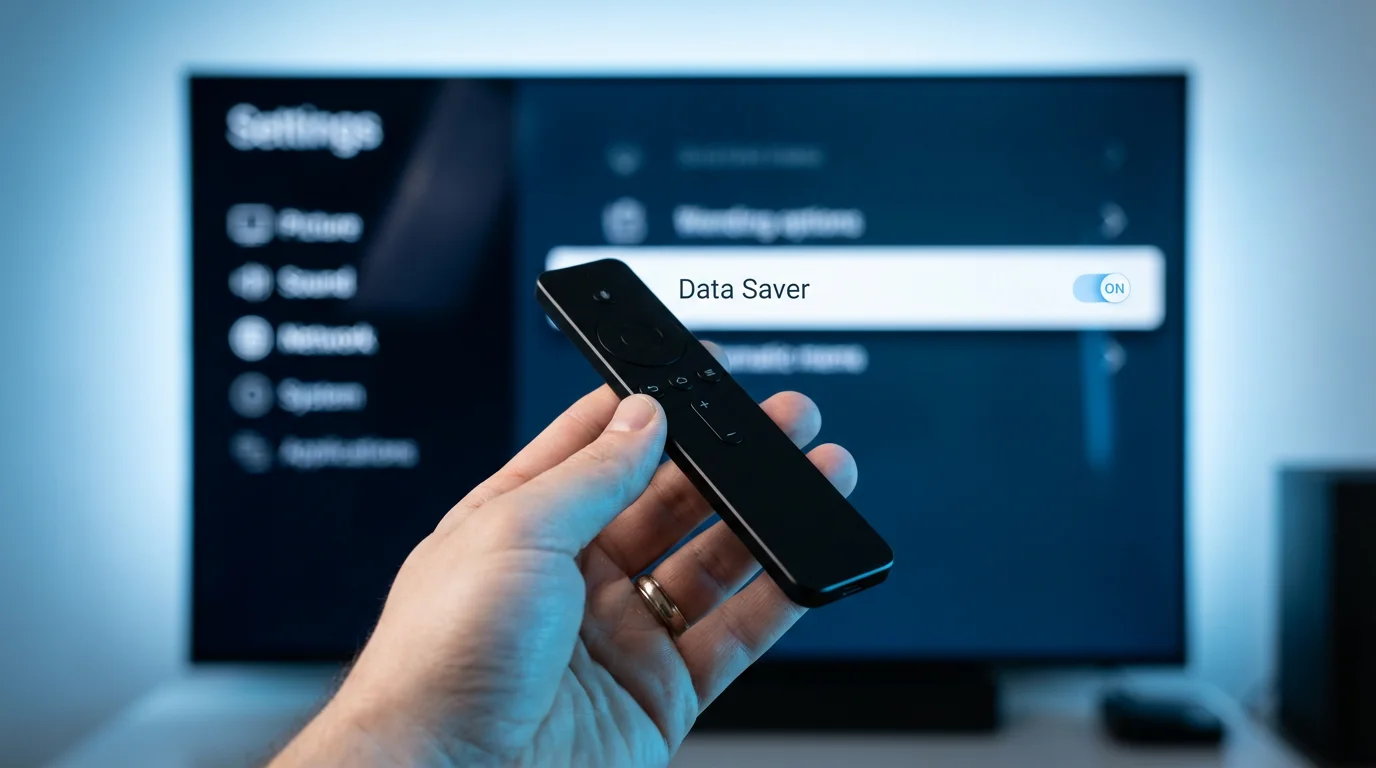
The most effective way to lower your data usage is to manually adjust the video quality settings within your streaming apps. Most services default to “Auto,” which attempts to provide the highest quality your internet speed can handle. If you have a fast connection, the app will default to 4K or 1080p, regardless of your data cap concerns.
Knowing how to manage multiple streaming subscriptions makes it easier to keep track of these individual app settings across your devices.
Here is how to take control of the most popular services. Note that “Smart TV” generally refers to televisions with built-in internet capabilities, and “streaming devices” are external hardware like Roku or Fire TV Sticks.
Netflix
Netflix offers robust controls, but they are often tucked away in the web browser settings rather than the app itself. Changes you make here affect your profile across all devices.
- Log in to Netflix.com in a web browser.
- Select your profile and go to Account.
- Scroll down to Profile & Parental Controls and click the arrow next to the profile you want to edit.
- Change Playback Settings from “Auto” to “Medium” (standard video quality) or “High” (if you want HD but not 4K, though Netflix often groups these).
Pro Tip: If you are on the Premium Ultra HD plan but rarely watch 4K content, consider downgrading your subscription tier. This saves you money on the subscription and naturally caps your data usage at 1080p.
YouTube
YouTube is aggressive about pushing higher resolutions. You can adjust this on a video-by-video basis, or change your global preferences on mobile devices.
- Per Video: Click the gear icon (settings) on the video player, select Quality, and choose Data Saver or a specific resolution like 480p or 720p.
- Global Setting (Mobile): Go to Settings > Video quality preferences. Set “On mobile networks” and “On Wi-Fi” to Data Saver.
Amazon Prime Video
Amazon allows you to set streaming quality specifically to manage data. On many devices, when you start a video, you can access the “Options” menu to change quality. However, setting a default is easier via the settings menu.
- Go to Settings within the Prime Video app.
- Select Streaming & Downloading.
- Select Streaming Quality.
- Choose “Good” (uses about 0.6GB/hour) instead of “Best” (uses nearly 6GB/hour on some devices).
Hulu
Hulu simplifies their options. In the account settings on a web browser or the mobile app, look for Cellular Data Usage or Video Quality. You can toggle “Data Saver” on, which limits the stream to roughly 1.5 Mbps, effectively capping usage at standard definition levels.

Optimizing Your Streaming Device and TV Settings
Sometimes the issue isn’t the resolution of the show you are watching, but the behavior of the device itself. Streaming devices are designed to keep you watching, often employing features that consume data even when you aren’t paying attention.
In addition to saving data, you can use these streaming hacks to get more out of your home theater setup and improve convenience.
Disable Autoplay
Autoplay is the enemy of data caps. If you fall asleep while watching a series, services like Netflix or YouTube will continue playing episode after episode—sometimes for hours—consuming gigabytes of data while you dream. By turning this feature off, the stream stops after the current episode concludes.
- Roku: Go to Settings > Network > Bandwidth Saver. This feature stops streaming after four hours if no remote button is pressed.
- Fire TV: Go to Settings > Preferences > Data Monitoring. Here you can set video quality and configure alerts.
- Apple TV: Go to Settings > Video and Audio. You can adjust the resolution output of the entire box here. If you set the Apple TV output to 1080p SDR, it will not request 4K streams from apps, creating a hard cap on quality.
Utilize Sleep Timers
If you rely on the TV to fall asleep, use the sleep timer on your television set. However, be aware that turning off the TV screen does not always stop the streaming device (like a Roku or Fire Stick) connected to it. These devices may continue running in the background.
To solve this, ensure your streaming device is powered by the TV’s USB port (if compatible) rather than a wall outlet. When the TV turns off via the sleep timer, it cuts power to the USB port, physically shutting down the streaming stick and halting data usage immediately.

The Download Strategy: Watching Offline to Save Data
One of the most underutilized features for saving data is the “Download” option available on mobile versions of Netflix, Disney+, Prime Video, and others. This strategy requires a bit of planning but yields 100% data savings on your home network.
If you have access to unmetered Wi-Fi at your workplace, a university, a local library, or a café, use that connection to download content to your tablet or smartphone. Once you are home, you can watch these shows offline without using a single megabyte of your home internet allowance.
You can also cast this content to your TV using AirPlay or Chromecast, provided your phone and TV can communicate locally (though this sometimes requires a minimal internet “handshake,” the heavy video data comes from the phone’s storage).
According to CNET, utilizing offline downloads is one of the most effective ways to manage entertainment costs, especially for users who frequently travel or have restrictive home data caps.

Managing Background Data and Smart Home Usage
Streaming video is the main offender, but “subscription creep” and smart home devices contribute to the overall load. Identifying “vampire data” sources can save you several gigabytes a month.
Cloud Cameras and Security Systems
Smart security cameras (like Ring or Nest) that record to the cloud 24/7 can use a staggering amount of upload bandwidth. While download caps are the usual concern, some ISPs count upload and download data toward the same total cap.
Check your camera settings. If you do not need 24/7 recording, switch to “motion-activated” recording. Additionally, lower the recording quality from 1080p/4K to 720p if the camera is simply monitoring a general area like a backyard.
Game Console Updates
Modern video games are massive. A single update for a game like Call of Duty can be over 100GB—nearly 10% of a standard data cap. If you have automatic updates enabled on your PlayStation or Xbox, these downloads might happen while you sleep.
To mitigate this, turn off automatic updates for games you do not play regularly. Alternatively, if your router allows it, schedule these heavy downloads for the very end of your billing cycle so you can use up any “leftover” data without fear of hitting the cap early in the month.

How to Monitor Your Bandwidth in Real-Time
You cannot manage what you do not measure. Most major ISPs provide an app or a web portal where you can check your current data usage. Do not wait for the warning email that says you have used 90% of your data.
Actionable Steps:
- Download your ISP’s App: Apps from Xfinity, AT&T, Cox, and Spectrum usually have a usage meter front and center.
- Check your Router: Many modern mesh routers (like Eero, Google Nest Wifi, or Netgear Orbi) provide detailed breakdowns of which device is using the most data. If you see your teenager’s iPad using 500GB a month, you know exactly where to apply the quality settings discussed earlier.
- Set Third-Party Alerts: If your ISP’s alerts are delayed (which they often are), use your router’s software to set a limit. For example, if your cap is 1.2TB, set a router alert at 900GB. This gives you a few days to adjust your habits before the billing cycle ends.
According to Consumer Reports, keeping a close eye on your usage through router-based monitoring is often more accurate and timely than relying solely on ISP notifications, which can lag by up to 24 hours.
Frequently Asked Questions
Does lowering video quality affect audio quality?
In most cases, lowering video quality from 4K to 1080p or even 720p has a negligible effect on audio quality. Streaming services typically compress audio and video separately. You can usually enjoy high-quality surround sound even if you are watching a standard high-definition video stream, protecting your data cap without ruining the sonic experience.
Do commercials on ad-supported plans use my data?
Yes, commercials stream over the internet just like the show itself. In fact, because ads are often served from different servers and may not be as optimized as the main content, they can sometimes buffer or use data inefficiently. However, the data usage of a 30-second ad is minimal compared to the show itself. The bigger concern with ad-supported tiers is the time added to your viewing session.
Is it better to switch to an unlimited data plan?
This depends on the math. If your ISP charges $10 for every 50GB overage and you consistently go 100GB over, you are paying an extra $20 monthly. If an “unlimited data” add-on costs $30 per month, it might be worth paying the extra $10 premium for peace of mind. However, before upgrading, try the optimization tips in this guide for one month to see if you can stay under the cap for free.
Do VPNs hide my data usage from my ISP?
No. A Virtual Private Network (VPN) encrypts your data so the ISP cannot see what you are watching, but they can still see how much data is flowing through the connection. If you stream a 5GB movie through a VPN, your ISP still counts that 5GB toward your monthly cap.
Disclaimer: Streaming service terms and pricing change frequently. Always review current terms of service before implementing any money-saving strategies. Some tips may not work with all services or in all regions.