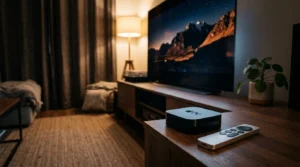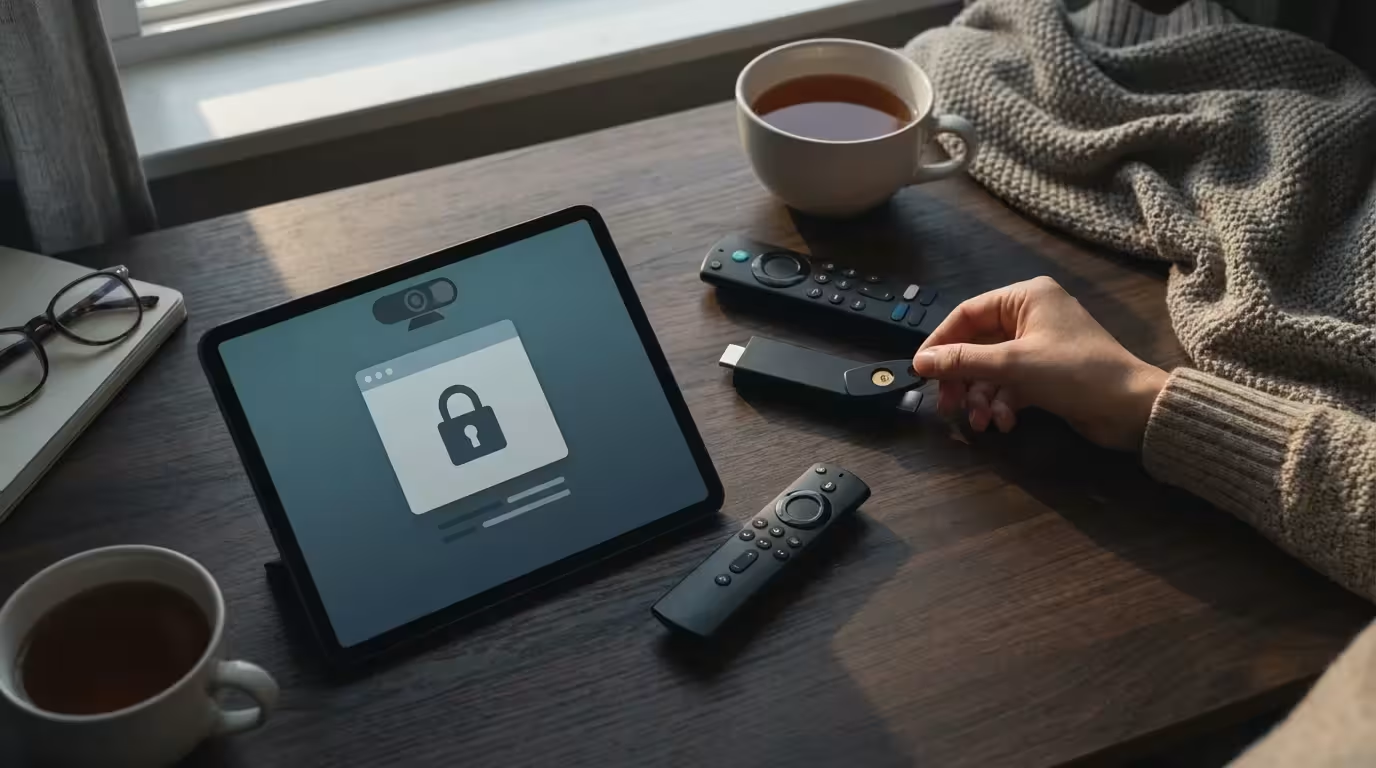
When you secure your digital life, you probably think about your laptop, your smartphone, and maybe your banking apps. But there is another gateway to the internet sitting right in your living room: your streaming device. Whether you use a Roku, Amazon Fire TV, Chromecast, or Apple TV, that small box is a powerful computer that collects data, tracks your viewing habits, and connects to your home network.
Securing your hardware is just one of many streaming hacks that can help you optimize your viewing experience.
For many cost-conscious viewers engaging in cord-cutting (canceling traditional cable for internet streaming), the trade-off for cheaper entertainment is often personal data. Manufacturers subsidize the low cost of these devices by selling ads and viewing insights. However, you don’t have to surrender all your privacy just to watch your favorite shows.
You can tighten security and limit data collection without ruining your viewing experience. This guide will walk you through exactly how your device tracks you, which devices offer the best privacy out of the box, and the specific settings you need to change right now to secure your digital home.
The Business Model: Why Your Device Tracks You
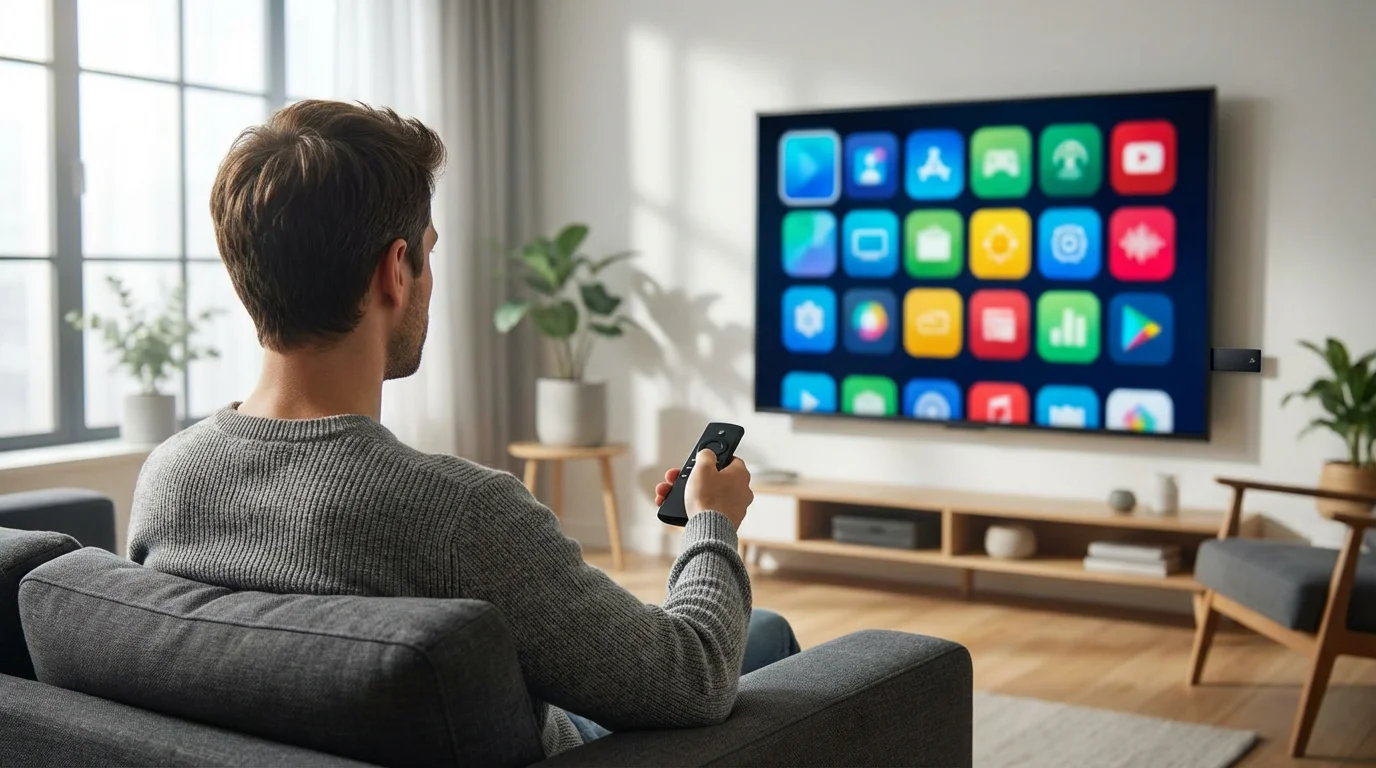
To understand how to protect yourself, you first need to understand the motivation behind the tracking. Many streaming devices (small hardware tools that add internet apps to your TV) are sold at or near cost. For example, when you buy a 4K streaming stick for $30 during a sale, the manufacturer isn’t making much profit on the hardware itself. The real value lies in the platform.
These companies make money through two primary data channels:
- Automatic Content Recognition (ACR): This technology identifies the content playing on your screen, including movies, TV shows, and even commercials. It creates a fingerprint of your viewing habits.
- Targeted Advertising: By combining your viewing history with your IP address and account details, platforms build a profile to serve you targeted ads on the home screen and within ad-supported apps (free services that show commercials).
“If you aren’t paying for the product, you are the product.” — Digital Privacy Adage
While this sounds alarming, it is the standard operating procedure for the modern internet. The goal of this guide isn’t to scare you into throwing away your TV, but to help you make informed choices about how much data you are willing to share in exchange for convenience.
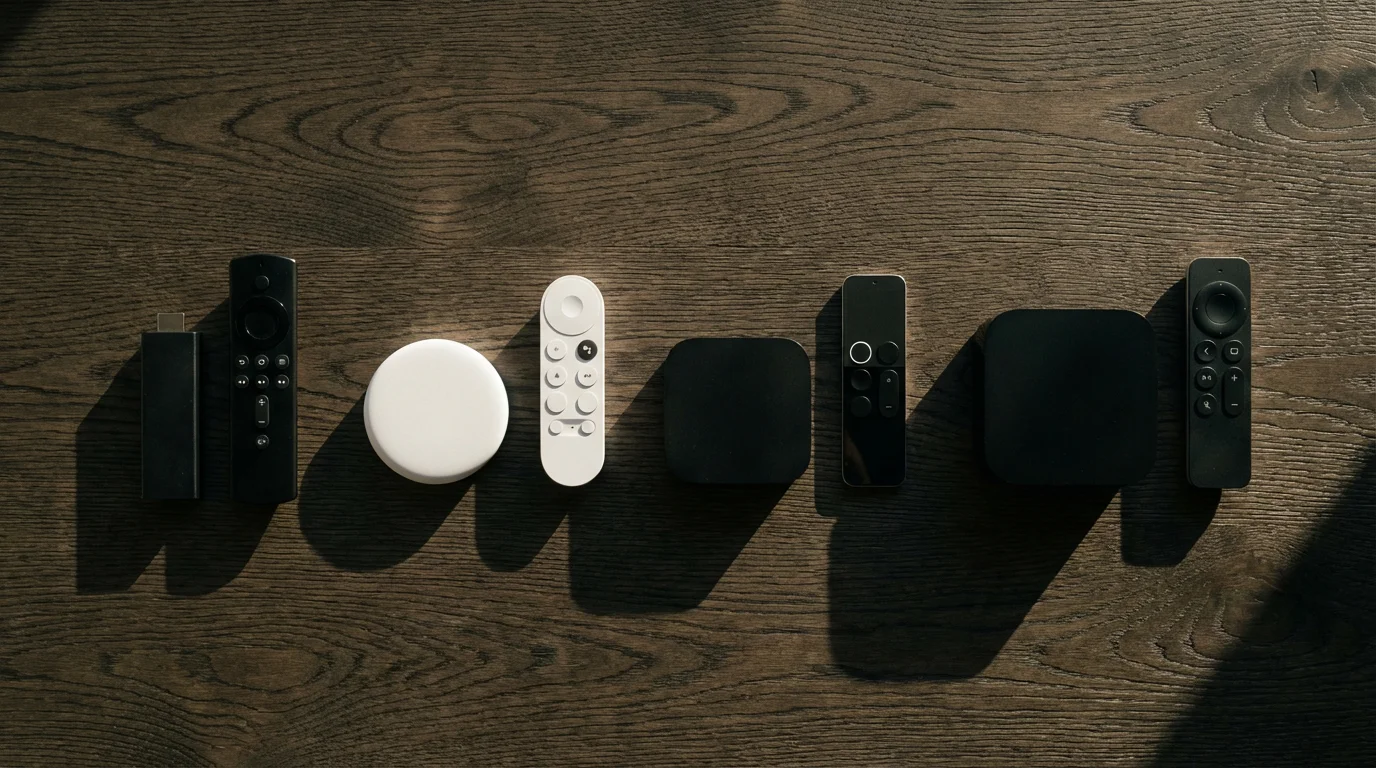
Privacy Showdown: Roku vs. Fire TV vs. Google vs. Apple
Not all devices are created equal when it comes to privacy. The company behind your device dictates how your data is handled. Here is a breakdown of how the major players approach your privacy.
A matrix comparison titled “Privacy & Data Collection by Platform.”
Columns: Business Model, Default Tracking Status, Voice Recording Retention, Ease of Opt-Out.
Rows: Apple TV (Hardware profit, strict privacy), Roku (Ad profit, high tracking), Amazon Fire TV (Retail/Ad profit, high tracking), Google TV (Ad profit, high tracking).
Visual cues (green checks for privacy, red flags for data collection).
The following table details the privacy stance of the four major streaming ecosystems:
| Platform | Primary Business Model | Privacy Stance | Best For |
|---|---|---|---|
| Apple TV | Hardware Sales & Services | High Privacy. Apple makes money selling the box, not your data. | Privacy-conscious users willing to pay a premium. |
| Roku | Advertising & Platform Licensing | Low Privacy (Default). Aggressive ad targeting and tracking. | Budget buyers who don’t mind ads for a cheaper device. |
| Amazon Fire TV | Retail & Advertising | Low Privacy. Ties viewing habits to Amazon shopping data. | Prime members deep in the Amazon ecosystem. |
| Chromecast (Google) | Advertising & Data | Medium/Low Privacy. Heavily integrated with Google account data. | Users who trust Google’s security infrastructure. |
According to Wirecutter, while Roku and Amazon offer incredible value and performance for the price, Apple TV remains the outlier that prioritizes user privacy, largely because its higher price tag reduces the need to monetize user data.
Securing the Gateway: Your Wi-Fi Network
Before you even touch the settings on your streaming device, you need to look at your router. Your streaming device is a bridge between the internet and your home network. If a device has weak security protocols, it could theoretically be used as an entry point for bad actors.
Use a Guest Network
Most modern routers allow you to create a “Guest Network.” This is a separate Wi-Fi access point that connects to the internet but is walled off from your other devices, like your personal computer or network-attached storage (NAS).
- Why do it? If your cheap streaming stick or smart TV gets compromised, the attacker cannot hop from the TV to your laptop where you keep banking files.
- How to do it: Log into your router’s admin panel (usually via a mobile app or a web browser), find “Guest Network,” turn it on, and give it a unique password. Connect all your smart home devices and streaming sticks to this network.
Change Default Passwords
Ensure your router and your streaming accounts use strong, unique passwords. Never leave your router set to the default “admin/password” credentials.
Step-by-Step: Adjusting Privacy Settings on Major Devices
You can significantly reduce tracking by diving into the settings menu of your device. Here is how to opt out of the most invasive tracking on the major platforms.
Roku Privacy Settings
Roku’s business relies heavily on ads, but they provide a simple way to limit tracking.
- Go to Settings > Privacy > Advertising.
- Check the box for Limit Ad Tracking. This stops Roku from personalizing ads based on your viewing habits.
- Go to Settings > Privacy > Smart TV Experience (if built into a TV).
- Disable Information from TV Inputs. This stops the TV from analyzing content played via cable boxes or antennas connected to the TV.
Amazon Fire TV Privacy Settings
Amazon collects data to help sell you products, but you can turn off the specific device tracking.
- Go to Settings > Preferences > Privacy Settings.
- Turn OFF “Device Usage Data.”
- Turn OFF “Collect App Usage Data.”
- Turn OFF “Interest-based Ads.”
- Navigate back to Preferences > Data Monitoring and turn it OFF to stop Amazon from monitoring your data consumption for billing purposes (unless you have a data cap).
Google TV / Chromecast Privacy Settings
Google provides granular control, but it is often tied to your broader Google Account.
- Go to Settings > Privacy > Ads.
- Select Delete advertising ID to reset your profile.
- Go to Settings > Apps > App Permissions.
- Review permissions for Microphone and Location. Deny access to apps that don’t need it (a weather app needs location; a video player usually does not).
Apple TV Privacy Settings
Apple tracks the least by default, but you can still tighten it up.
- Go to Settings > General > Privacy.
- Ensure Apple Advertising is set to limit tracking.
- Review Location Services and turn it off for apps that don’t need it.
- Check Bluetooth Sharing to see which apps are scanning for local devices.
Smart TVs vs. Streaming Sticks: Which is Safer?
You might be wondering if you should just use the apps built into your smart TV (a television with internet capabilities) or buy a separate device. From a security standpoint, the separate device is almost always the winner.
Smart TV manufacturers are notorious for infrequent security updates. Once a TV is sold, the manufacturer has little incentive to patch software vulnerabilities three or four years down the line. In contrast, major platforms like Roku, Amazon, and Apple push updates to their devices for many years.
Furthermore, Smart TVs often use ACR technology aggressively to identify what you are watching on any input—even your DVD player or Xbox—to sell that data. As noted by Consumer Reports, using a standalone streaming device and disconnecting your TV from the Wi-Fi entirely is one of the most effective ways to stop your television manufacturer from snooping on you.
The Strategy: Treat your Smart TV as a “dumb” monitor. Do not connect the TV itself to your Wi-Fi. Plug in a Roku, Fire Stick, or Apple TV into the HDMI port and use that for all your streaming. This isolates the data collection to the streaming device, which is easier to manage and secure.
Account Hygiene: Passwords and Payments
Your streaming device is often linked to a credit card for rentals and subscriptions. This makes it a target for theft.
In the event of a streaming service data breach, knowing how to quickly secure your account can prevent identity theft.
Enforce PIN Protection
If you have children or roommates, or if your device is stolen, you don’t want someone racking up bills on your account. Set up a PIN for purchases.
- Roku: Set a PIN in your account settings at my.roku.com. Require it for adding channels and making purchases.
- Amazon: Enable “Parental Controls” to require a PIN for video playback and app purchases.
- Apple: By default, Apple TV requires a password or FaceID (via iPhone) for purchases.
Use Unique Passwords
Do not use the same password for your Netflix, Hulu, and Amazon accounts. If one service suffers a data breach, hackers will try that email/password combination on every other major service. Use a password manager to generate unique, complex credentials for every app you sign into.
Advanced Privacy Moves for Power Users
If you want to take your privacy to the next level, consider these tools.
One of the most effective ways to hide your IP address and physical location from data collectors is by using a VPN with streaming services.
Using a VPN (Virtual Private Network)
A VPN encrypts your internet traffic and hides your IP address. This prevents your Internet Service Provider (ISP) from seeing exactly what you are streaming. It also prevents streaming apps from pinpointing your precise physical location.
- Support: Google TV (Android) and Fire TV have native VPN apps available in their app stores. Apple TV (tvOS 17 and later) now supports native VPN apps as well.
- Limitation: Roku does not support VPN apps directly. To use a VPN with Roku, you must install the VPN on your router.
DNS Filtering
You can configure your router or device to use a private DNS server (like NextDNS or AdGuard). These services can block domains known for ad-tracking and telemetry before they even reach your device. This can speed up your connection and stop background data reporting.

The Security Risks of Old Hardware
Streaming devices are durable; they often work for years without breaking. However, just because a device turns on doesn’t mean it is safe to use. Older devices eventually reach an “End of Life” (EOL) status where they stop receiving security patches.
Updating your firmware is essential for security, but if your device begins to lag, there are ways to speed up a slow streaming device effectively.
Using a 7-year-old Android box or a first-generation streaming stick poses a risk. Unpatched vulnerabilities can allow malware to enter your network. If your device feels sluggish, crashes often, or hasn’t received a system update in over a year, it is likely time to replace it. With modern devices costing as little as $30–$50, upgrading is a cheap insurance policy for your network security.
CNET suggests reviewing your streaming hardware every 3 to 4 years to ensure you are benefiting from the latest Wi-Fi security standards (like WPA3) and processor speeds that can handle modern encryption.
Frequently Asked Questions
Can my streaming device camera or microphone spy on me?
Most dedicated streaming sticks do not have cameras. However, the remote controls often have microphones for voice commands. These microphones generally only activate when you press the microphone button. Smart TVs with built-in cameras usually have a physical slider to cover the lens. If you are concerned, check your device settings to see which apps have permission to access the microphone.
Is it safer to cast from my phone or use the remote?
Casting (using AirPlay or Chromecast from your phone) can be slightly more private because you are not logging into the app on the TV device itself. The authentication stays on your phone. However, both methods still transmit data about what you are watching to the streaming service provider.
Does using “Private Mode” in a browser on my TV work?
If you use a web browser on your TV, “Private” or “Incognito” modes only prevent the browser from saving your history locally on that device. It does not hide your activity from your ISP or the websites you visit.
What is the most secure streaming device for the money?
For pure security and privacy, the Apple TV 4K is the gold standard, though it is expensive ($129+). For a budget-friendly option that balances security with price, the Chromecast with Google TV ($30-$50) is a solid choice, provided you take the time to dig into the settings and delete your advertising ID regularly.
Disclaimer: Device prices and features may change. New models are released regularly, so check for the latest versions before purchasing. The “best” device depends on your specific needs, existing ecosystem (Apple, Google, Amazon), and budget.