
You pull your rig into a truck stop, shut down the engine, and fire up your sleeper cab television. If you rely on a 50GB mobile hotspot, default video settings will drain your entire monthly allotment in less than a week.
Auto-negotiating video players aggressively pull maximum resolution over cellular towers, exhausting data before your route cycle ends. You can defeat this waste by manually locking your playback pipelines to exact resolution thresholds.
By capping consumption at 833 megabytes per hour, you secure two hours of nightly entertainment across 30 days. This guide gives you the precise app-by-app configurations to stream 60 hours without triggering carrier throttle walls.
The Math: Why Auto-Play Burns 50GB in Ten Sleeper Shifts
Cellular video streaming—watching video content over the internet instead of cable or satellite—relies on adaptive bitrate algorithms. These algorithms automatically upgrade your picture quality whenever your sleeper cab picks up a strong cell tower signal.
Managing mobile data boundaries mirrors the restrictions travelers face when dealing with device relocation limits on home-based accounts.
Adopting proven strategies to reduce your streaming data usage is essential when living and working with strict bandwidth constraints.
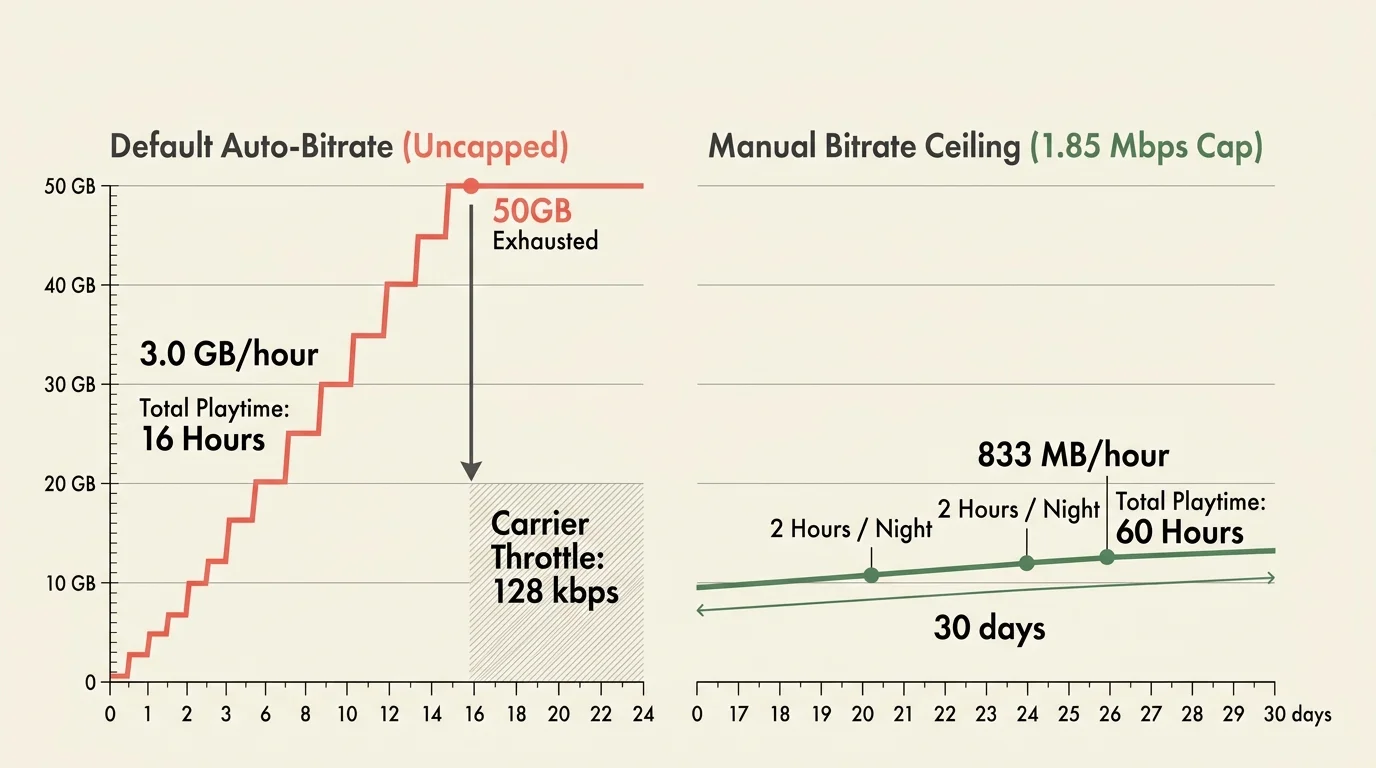
That dynamic quality jump is disastrous when you operate under a rigid 50GB monthly data bucket. High-definition streams consume roughly 3.0 gigabytes (GB) every hour, which exhausts your allotment after just 16 hours of viewing.
To watch two hours of video every evening during a 30-day run, you need 60 total hours of playback. Dividing your 50,000-megabyte (MB) hotspot allowance across 60 hours yields an absolute limit of 833 MB per hour.
In network metrics, an hourly consumption rate of 833 MB requires a combined video and audio bandwidth cap of roughly 1.85 megabits per second (Mbps). Any bitrate above 1.85 Mbps pushes your data burn into dangerous territory.
As reported by CNET, cellular providers slash hotspot speeds down to 128 kbps once you cross high-speed limits. At 128 kbps, modern streaming platforms fail to function and trigger persistent playback errors.
By establishing manual bit-rate ceilings on your streaming applications, you bypass auto-negotiation entirely. You lock your consumption below the 833 MB hourly line, guaranteeing steady entertainment throughout your entire dispatch schedule.
“Auto-negotiating video players default to maximum resolution. If you leave bandwidth settings on automatic, your 50GB allotment will disappear before your work week finishes.” — Mobile Streaming Specialist
Exact Data Consumption Matrix Across 6 Major Platforms
Most major streaming platforms offer distinct resolution modes, yet their default configuration is always set to automatic. You must manually override these defaults inside account preferences or application menus to protect your hotspot.
These same bitrate throttling principles apply when you need to configure streaming bitrates to protect residential broadband accounts from severe overage penalties.
Before adjusting in-app bitrates, drivers can also use offline download storage math to cache dozens of episodes over terminal Wi-Fi without touching cellular data.
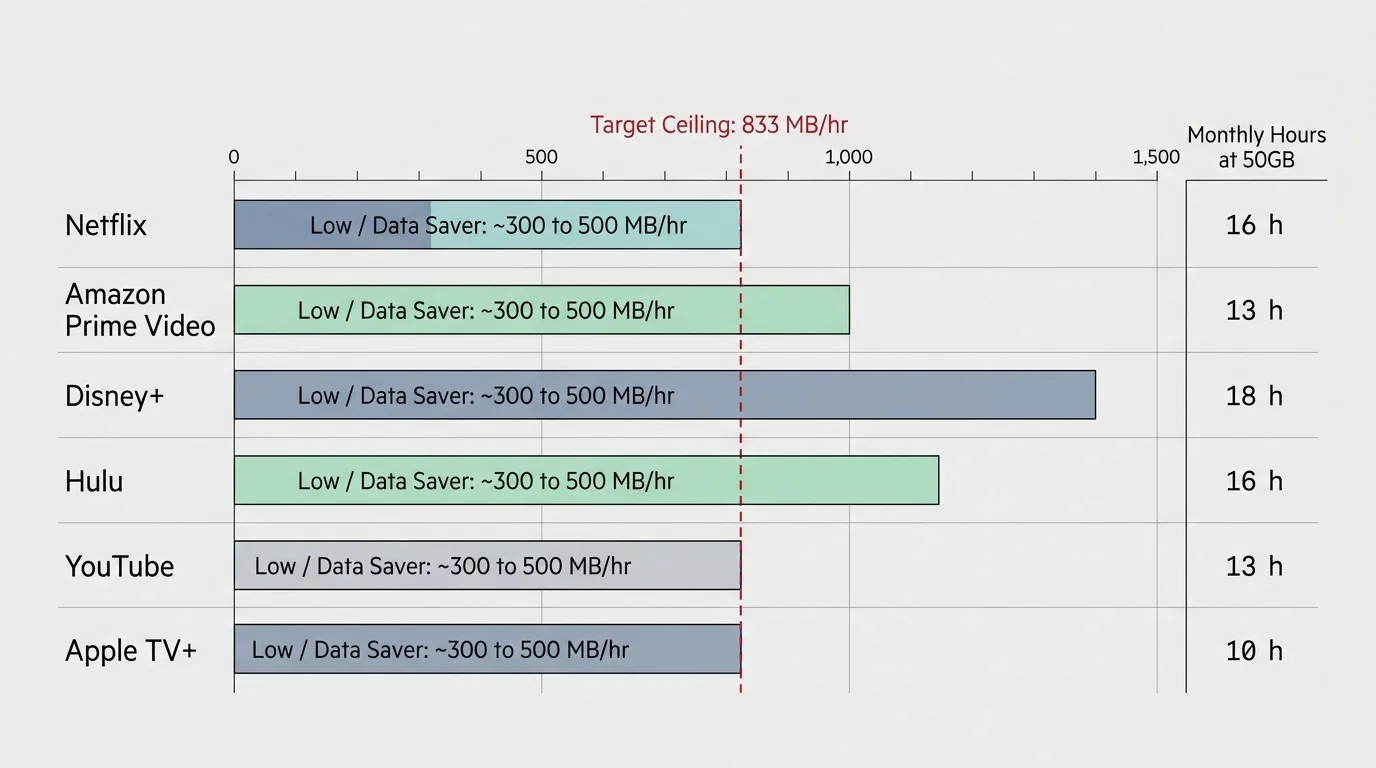
The table below compares the hourly consumption rates and monthly yields of six leading platforms. It highlights the exact tier required to hit the 60-hour streaming target on a 50GB monthly hotspot budget.
| Streaming Platform | Recommended Target Tier | Hourly Data Consumption | 60-Hour Data Footprint | Total Hours on 50GB |
|---|---|---|---|---|
| Netflix | Medium (Standard Definition) | ~700 MB/hr (0.7 GB) | 42.0 GB | ~71 Hours |
| Disney+ | Save Data (SD / 480p) | ~600 MB/hr (0.6 GB) | 36.0 GB | ~83 Hours |
| Amazon Prime Video | Good (Data Saver) | ~600 MB/hr (0.6 GB) | 36.0 GB | ~83 Hours |
| YouTube | 480p Manual Lock | ~550 MB/hr (0.55 GB) | 33.0 GB | ~90 Hours |
| Hulu | Data Saver Setting | ~650 MB/hr (0.65 GB) | 39.0 GB | ~76 Hours |
| Paramount+ | Standard Definition (SD) | ~750 MB/hr (0.75 GB) | 45.0 GB | ~66 Hours |
Every configuration listed above keeps your data consumption comfortably below the 833 MB hourly maximum. This deliberate constraint leaves an 8GB to 14GB safety margin for general web browsing and navigation updates.
If you allow any of these apps to stream in 1080p high definition, usage spikes between 2.0 GB and 3.3 GB per hour. Under those conditions, your hotspot quota will collapse in less than 20 hours.
Step-by-Step Bitrate Locks for Netflix and Disney+
Netflix buries its most effective data-saving controls deep within its account management architecture. You cannot access these specific controls inside smart TV apps or streaming stick interfaces.
Open a web browser on your phone or laptop and sign into your Netflix account. Navigate to the Account page, scroll down to Profile & Parental Controls, and select your specific viewing profile.
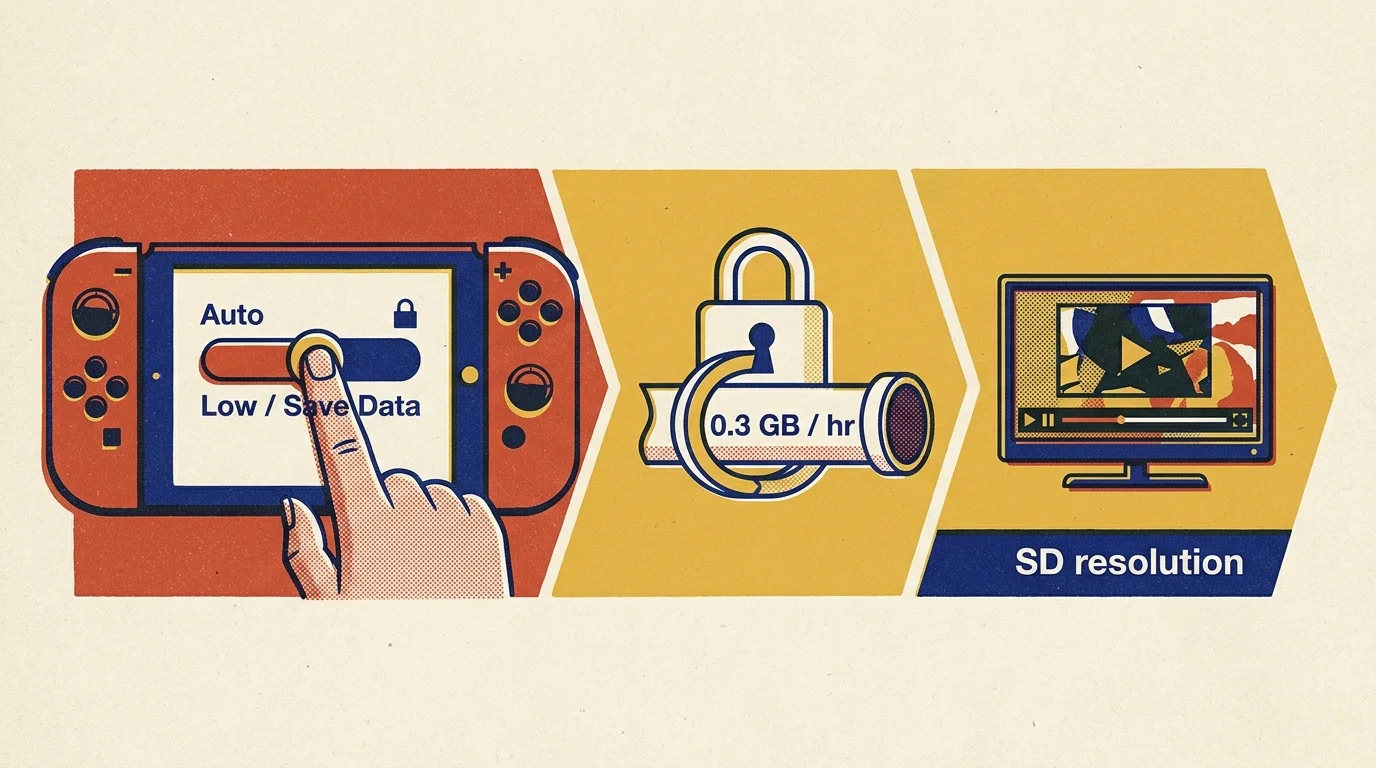
Locate Playback Settings and click Change. Under Data usage per screen, change the default Auto option to Medium.
The Medium setting enforces standard definition playback at roughly 700 MB per hour. This change instantly caps consumption across every television or device linked to that specific Netflix profile.
Avoid the High setting, which consumes up to 3 GB per hour in standard HD and 7 GB in 4K. If your monthly data runs critically low, switch to Low to draw only 300 MB hourly.
For Disney+, configuring data consumption is significantly simpler because you can manage it directly inside the mobile application. Launch the Disney+ app and tap your profile icon in the lower right corner.
Select App Settings, then tap Wi-Fi & Cellular Data Usage. Toggle the setting from Automatic to Save Data to force 480p standard definition streaming.
The Save Data mode caps Disney+ data consumption at approximately 600 MB per hour. This configuration delivers roughly 83 hours of content, easily satisfying your monthly sleeper cab entertainment goals.

Manual Resolution Capping on Prime Video and YouTube
Amazon Prime Video provides explicit, named quality options directly within its user settings menu. Open the Prime Video app on your mobile phone or tablet and select the My Stuff or profile icon.
Tap the gear icon to open Settings, then select Stream & Download followed by Streaming Quality. Choose the Good option to cap data use at approximately 600 MB per hour.
Avoid selecting Better or Best on Prime Video when connected to a cellular hotspot. The Better setting burns 1.4 GB per hour, while Best demands 2.3 GB to 5.8 GB per hour.
YouTube presents unique challenges because its mobile app continuously attempts to renegotiate quality based on current cellular throughput. Leaving YouTube on Auto guarantees rapid data depletion when parked near strong 5G towers.
To restrict YouTube, tap the gear icon during playback, select Quality, and tap Advanced. Manually lock the stream to 480p to maintain a safe burn rate between 480 MB and 660 MB per hour.
You can also set default video preferences inside YouTube settings under Video Quality Preferences. Set the Mobile Networks category to Data Saver to prevent the app from launching videos in 1080p HD.
According to Tom’s Guide, locking video players to 480p preserves sharp text and legible graphics on screens under 32 inches. Sleeper cab televisions rarely reveal quality differences between 480p and 720p at standard viewing distances.

Streamlining Hulu and Paramount+ on Mobile Networks
Both Hulu and Paramount+ are popular for drivers seeking on-demand video—watching whatever you want, whenever you want. However, both services default to aggressive adaptive bitrates that rapidly deplete cellular allocations.
Frequent cross-country drivers should also learn about beating geolocation lockouts when attempting to access regional live TV feeds away from home.
If lowering app bitrates causes navigation lag on low-power sticks, you can speed up a slow streaming device by clearing cached video files.
To configure Hulu on a mobile device, tap Account, select Settings, and open Cellular Data Usage. Select Data Saver to restrict video streams to standard definition at approximately 650 MB per hour.
If you use Hulu on a television via a mobile hotspot, lock the output resolution inside your streaming device. Setting your streaming stick display output to 720p or 480p limits incoming application data streams.
A streaming device—a small box or stick (like Roku or Fire TV) that adds streaming to any TV—allows you to enforce universal resolution caps. We will configure device-level resolution caps later in this guide.
For Paramount+, open the mobile app settings and locate the Video Quality submenu. Switch the default High setting to Standard to keep consumption at approximately 750 MB per hour.
If you stream Paramount+ via a web browser, click the gear icon on the video player control bar. Switch the resolution from Auto to 480p to prevent bandwidth spikes during high-action scenes.
Be careful with live feeds on Paramount+ or Hulu, including local CBS affiliates or live sports. Live broadcasts carry uncompressed audio and higher baseline bitrates that draw significantly more data than prerecorded shows.
Subscription Rotation and Sleeper Cab Cord-Cutting Bundles
Practicing cord-cutting—canceling traditional cable or satellite TV in favor of streaming services—saves money, but subscription creep can ruin your budget. Many truck drivers subscribe to four or five services simultaneously while only watching one.
Timing your cyclical sign-ups around the best time to subscribe and cancel lets you binge seasonal releases for a fraction of the cost.
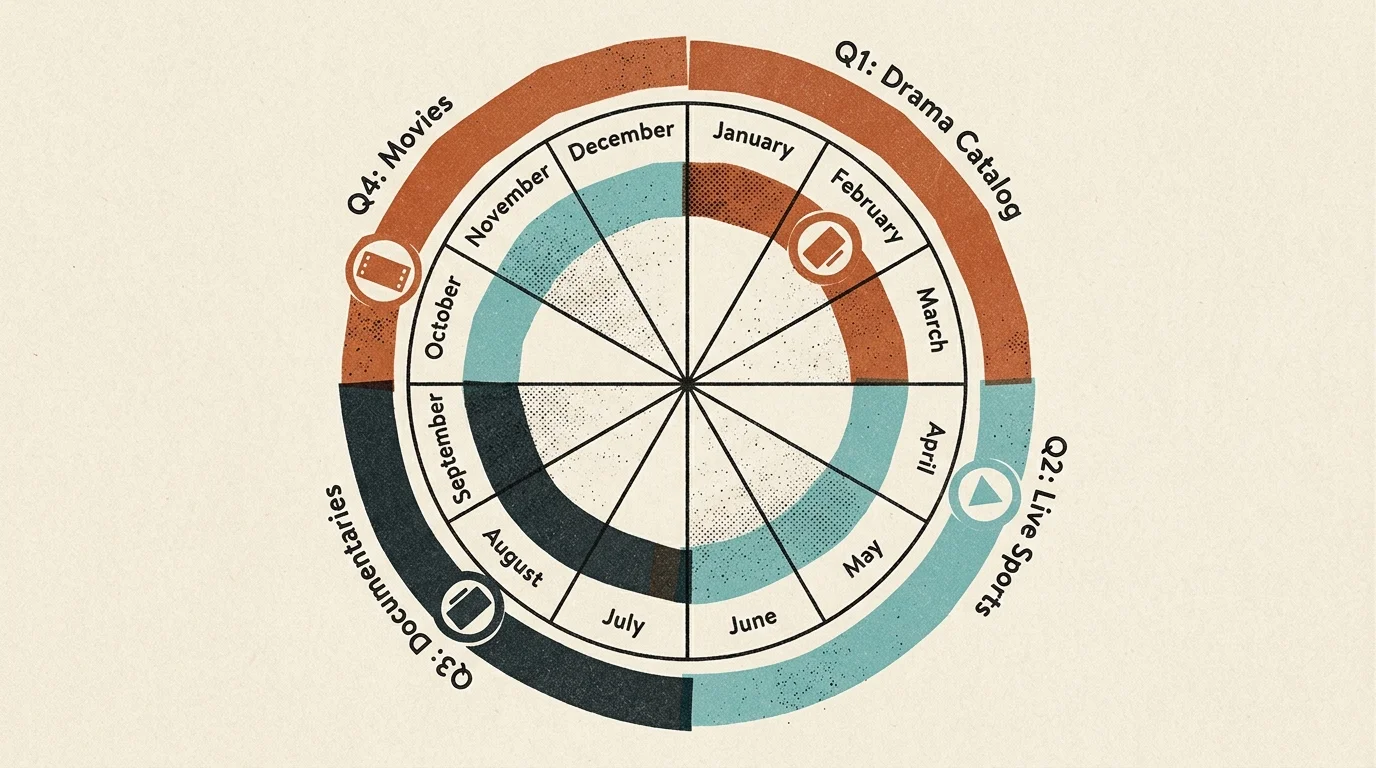
Subscription rotation is an effective strategy for managing both entertainment costs and hotspot limits. You pay for one service per month, watch its entire catalog, cancel before renewal, and subscribe to another.
Rotating through single platforms drops your monthly entertainment budget to just $8 to $15. Over a twelve-month hauling season, rotation saves between $360 and $500 compared to paying for multiple simultaneous accounts.
Pairing services through retail bundles provides substantial savings. For instance, a Walmart+ membership costs $12.95 per month or $98 annually and includes Paramount+ at no extra charge.
That package provides an ad-supported plan—a cheaper plan that shows commercials—without requiring a separate entertainment charge. Walmart+ also offers fuel discounts at participating travel plazas, directly benefiting long-haul drivers.
When choosing subscriptions, evaluate ad-supported versus ad-free plans, which cost more but don’t show commercials. Ad-supported plans save $5 to $10 monthly per service without increasing your hourly cellular data burn.
Check for professional and military discounts before subscribing. For example, Paramount+ offers a 25 percent military discount on its monthly plans, and Apple TV+ provides student rates.
If you know you will watch a specific platform year-round, choose an annual subscription over monthly billing. Annual commitments typically reduce the total cost by 15 to 20 percent compared to month-to-month renewals.
According to Consumer Reports, tracking subscription expiration dates prevents unwanted auto-renewals from eroding your monthly savings. Set calendar reminders on your smartphone two days before each trial or billing cycle concludes.
Beware of online scams advertising “jailbroken” streaming devices or lifetime subscription logins. These unauthorized services often harvest credit card data, compromise device security, and stop working within weeks.
Keep password-sharing crackdowns in mind when watching away from home. Netflix and Disney+ now require mobile streaming devices to check in periodically with your primary home Wi-Fi network.
Finally, manage your cloud DVR—a digital video recorder that lets you record and watch shows later. Cloud recordings stream data over your hotspot identical to live feeds, so enforce standard-definition caps on all recordings.
“Streaming rotation eliminates subscription waste. Pay for only one service at a time, watch the season you want, and cancel before the next billing cycle begins.” — Cord-Cutting Analyst
Optimizing Sleeper Cab Hardware and Pre-Trip Downloads
Your physical hardware setup determines how much cellular bandwidth your apps actually require. Running apps on a smart TV—a television with built-in internet connection and apps—can pull unneeded background data.
To preserve battery health during overnight rest stops, consider powering your setup on 12V instead of running an inverter continuously.
If your sleeper cab features a smart TV, navigate to the display settings menu. Lock the display output resolution to 720p or 1080p rather than allowing the panel to request 4K assets.
Using an external streaming device, such as a Roku Express or Fire TV Stick Lite, gives you tighter bandwidth control. These entry-level sticks hardware-limit incoming streams to standard HD, preventing runaway 4K data spikes.
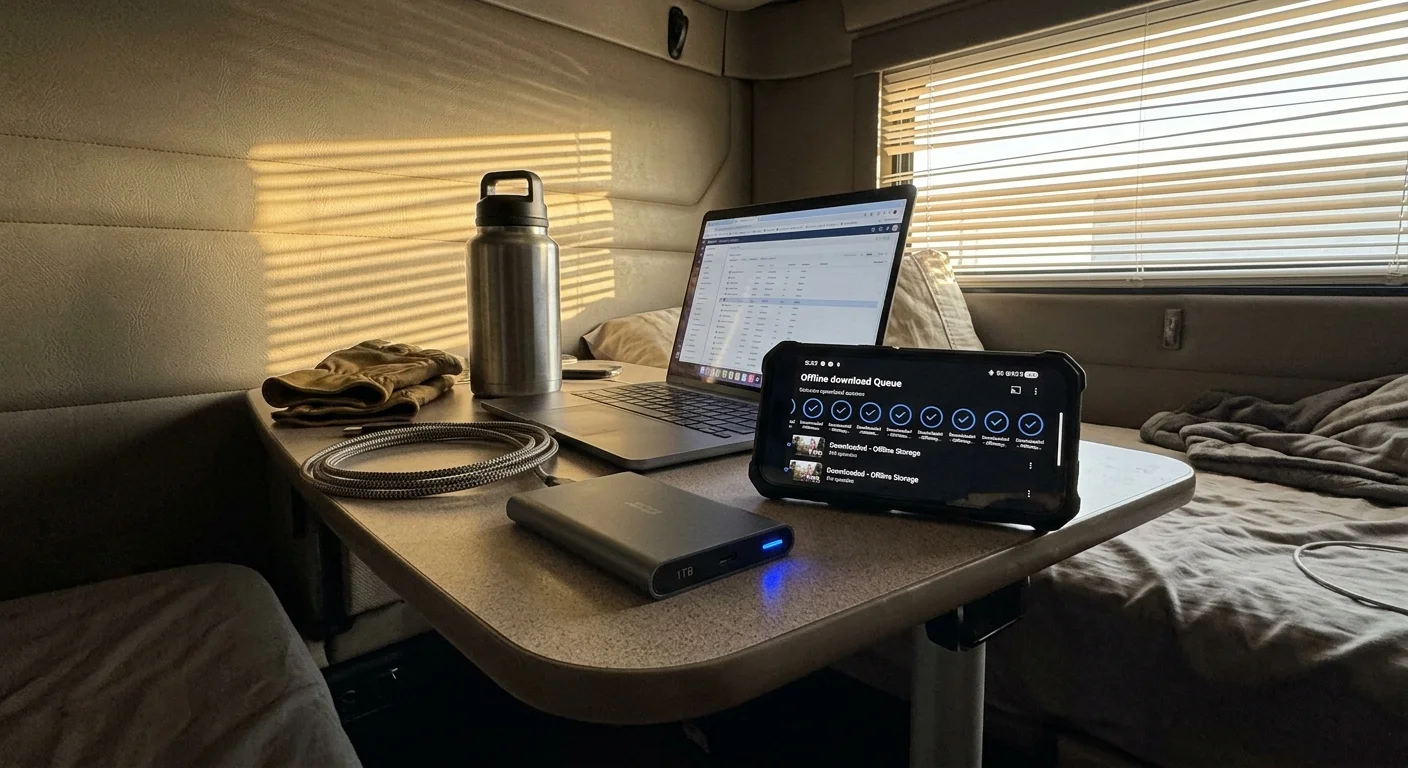
The single most effective strategy to preserve hotspot data is pre-downloading video over terminal Wi-Fi. Every major streaming platform allows offline downloads to mobile devices and tablets.
Before leaving your home terminal or visiting a freight depot with high-speed internet, download complete seasons to your tablet. Offline playback consumes zero bytes from your monthly 50GB hotspot allowance.
Connect your tablet or smartphone directly to your sleeper cab television using an HDMI-to-USB-C adapter. This direct wired setup delivers downloaded content to your TV without firing up your cellular hotspot.

Locking Down Sleeper Cab Devices Against Ghost Data Leaks
Silent background data drains represent a major threat to your monthly 50GB allowance. Many drivers exhaust their high-speed hotspot caps without realizing their hardware downloaded massive software patches in the background.
Understanding the mechanics of ghost bandwidth consumption prevents connected media players from quietly downloading system updates while you sleep.
If you tether a Windows laptop to your hotspot, immediately mark the Wi-Fi network as a metered connection. This setting blocks Windows from downloading large multi-gigabyte operating system updates across your cellular link.
Disable automatic app updates on your streaming device or smart television. Configure your hardware to download software updates only when connected to terminal or home broadband networks.
Turn off auto-playing previews inside Netflix and Amazon Prime Video account settings. Video trailers that launch while you browse menus can burn 300 MB before you pick a movie.
Set sleep timers on both your streaming hardware and your television set. If you fall asleep during playback, an active stream will exhaust 10GB to 15GB of data before sunrise.
Check that your phone or tablet does not sync cloud photo libraries over your hotspot. Disable iCloud and Google Photos cellular backups to preserve every megabyte for evening entertainment.
Frequently Asked Questions
Can I stream video in 720p HD and still hit 60 hours on 50GB?
No, 720p HD consumes between 1.2 GB and 1.8 GB per hour. At that rate, your 50GB monthly cap will expire in roughly 27 to 41 hours.
Does watching shows with commercials use more hotspot data than ad-free plans?
Commercial breaks do not consume extra data because ads stream at the same resolution as the program. You consume the same hourly megabytes whether viewing ad-supported or ad-free content.
Why does my mobile hotspot slow down to 128 kbps before the month ends?
Carriers throttle your connection speed to 128 kbps once you cross your 50GB high-speed hotspot limit. At that reduced speed, video apps will fail to load or buffer continuously.
How do I prevent my streaming stick from updating apps over my hotspot?
Navigate to your streaming stick system settings and disable automatic app updates. Only trigger downloads when you connect to public truck stop Wi-Fi or home internet.
Disclaimer: Streaming service terms and pricing change frequently, so always review current terms of service before implementing any strategies. Some tips may not work with all services or in all regions.