
You can fit twenty hours of offline entertainment on your 64GB iPad Mini without exhausting your 15GB cellular cap. Most mobile streaming apps default to high-definition presets that drain a 15GB mobile data bucket in under ten hours.
Fitting twenty hours of video under cellular limits requires configuring specific standard-definition bitrates across your streaming apps. This guide calculates exact megabytes consumed per hour so you can enjoy your underground transit commute without extra fees.
By calculating operating system overhead and offline download limits, you will keep your iPad stocked with shows without risking cellular overage charges.
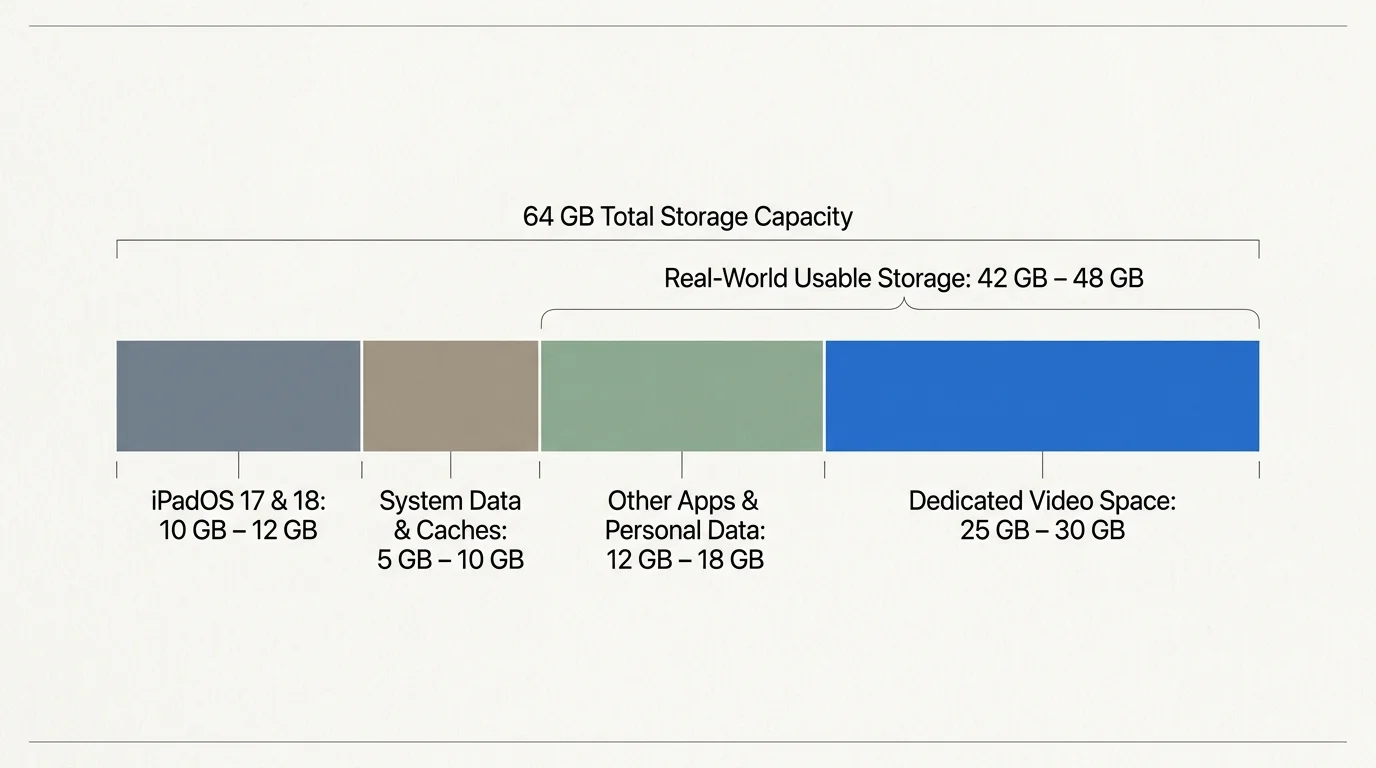
The Real Usable Storage on a 64GB iPad Mini
Buying a 64GB iPad Mini does not mean you have 64 gigabytes of actual space for entertainment media.
Operating systems demand substantial physical storage before you install a single app or download an episode.
On iPadOS 17 and iPadOS 18, the system installation consumes between 10 GB and 12 GB of flash storage.
Dynamic System Data caches routinely claim another 5 GB to 10 GB for font libraries, runtime logs, and background sync files.
Consequently, your factory-fresh 64GB tablet provides only 42 GB to 48 GB of real-world usable storage.
If you keep productivity apps, offline music, or photo libraries on the device, available space shrinks even further.
Practically speaking, you should allocate no more than 25 GB to 30 GB exclusively to offline video files.
Traditional cord-cutting—canceling traditional cable or satellite TV in favor of streaming services—often shifts viewing to mobile screens.
Unlike standard streaming—watching video content over the internet instead of cable or satellite—offline viewing requires local drive capacity.
Understanding this physical ceiling prevents download errors right when you are about to board your train.
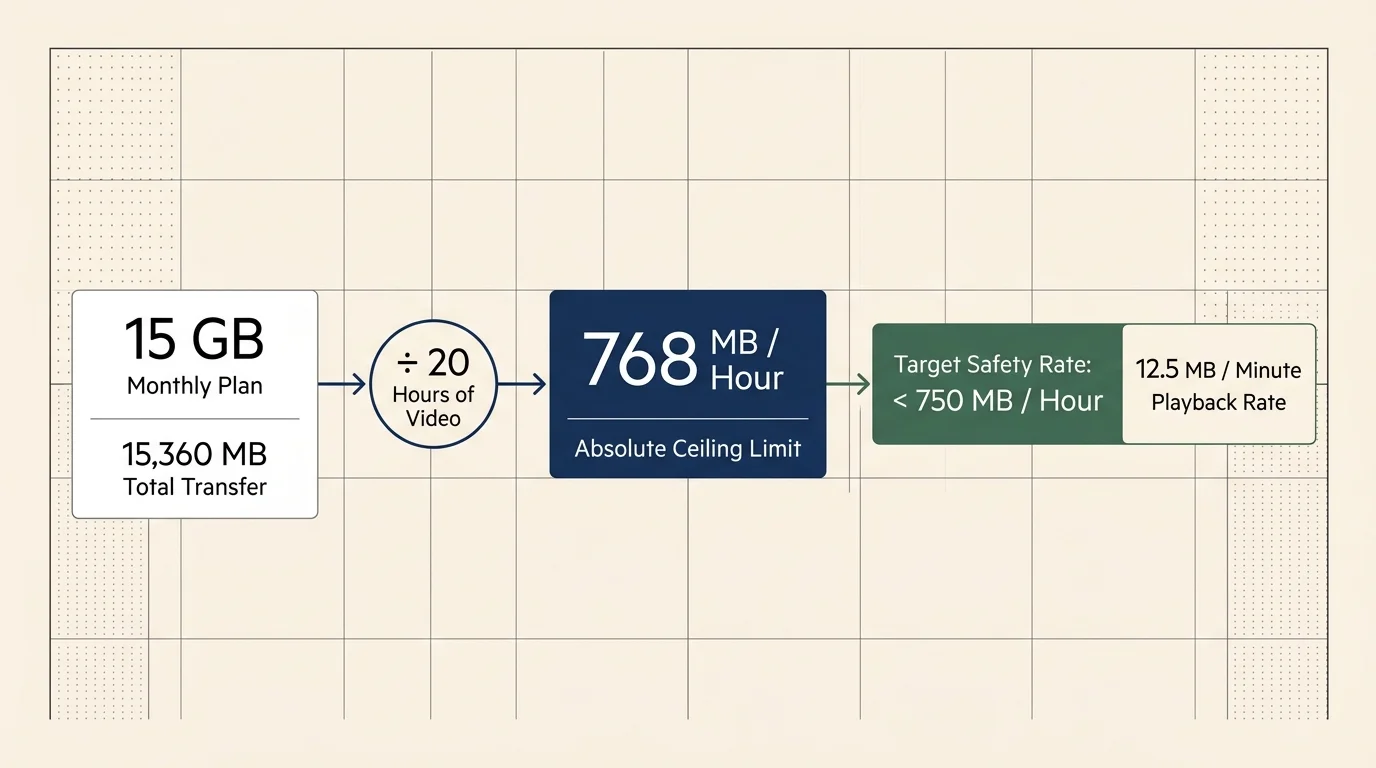
The 15GB Cellular Data Budget: Target Megabytes Per Hour
A 15GB monthly mobile plan provides exactly 15,360 megabytes of cellular data transfer.
If you download twenty hours of video over mobile data, your mathematical bitrate ceiling is strict.
Dividing 15,360 megabytes by twenty hours establishes an absolute ceiling of 768 megabytes per hour of downloaded content.
To preserve mobile data for email, maps, and routine web browsing, you cannot spend your full allowance on video.
You must target an average consumption below 750 MB per hour—or approximately 12.5 megabytes per minute of playback.
“Configuring video bitrates below high-definition defaults is the only reliable way to prevent mobile overage charges on commuter tablets.”
According to PCMag’s streaming service evaluations, unmonitored HD mobile downloads frequently exceed 1.5 gigabytes per broadcast hour.
Downloading twenty hours at that high-definition rate burns 30 gigabytes of data; double your entire monthly limit.
Staying under your threshold demands manual intervention within the settings menu of each streaming application.
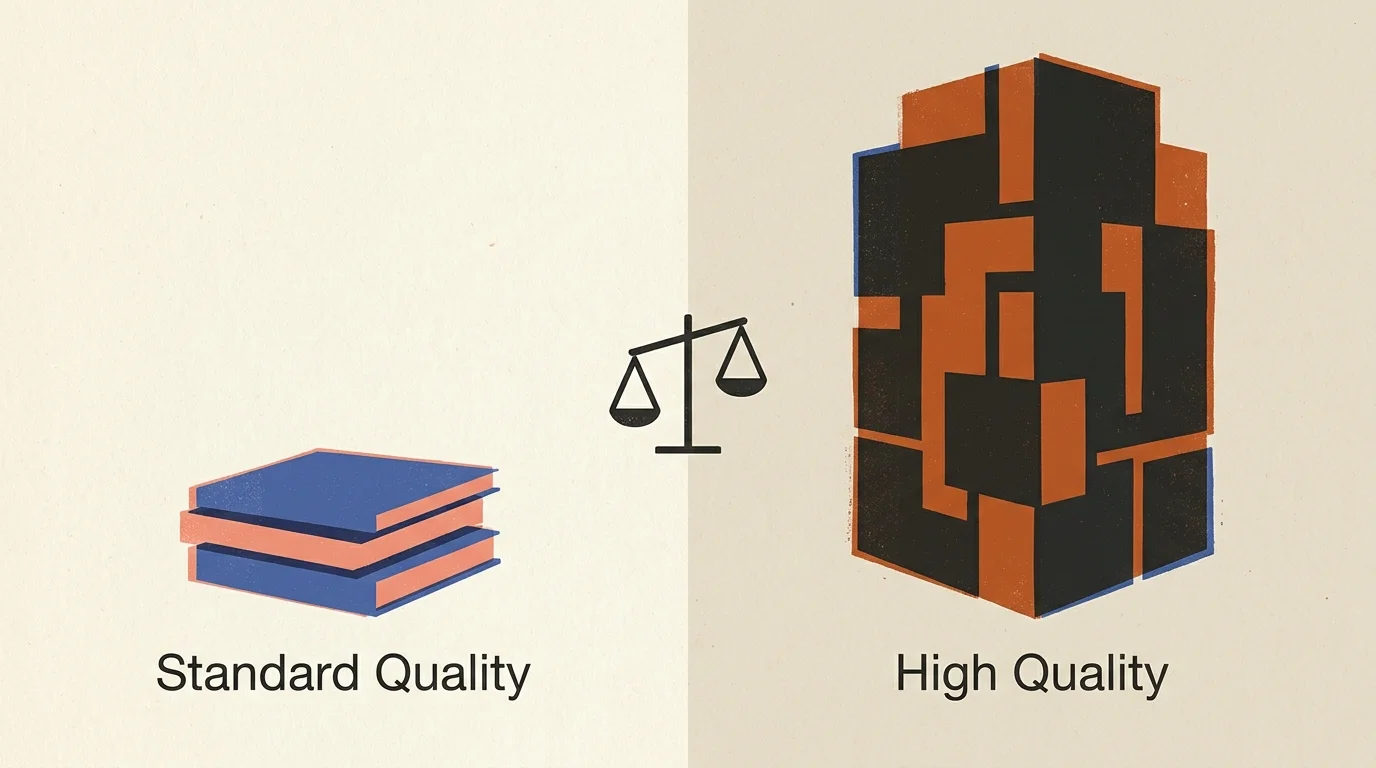
Netflix Offline Storage: Standard Versus High Bitrate Math
Netflix provides two distinct offline download quality presets inside its iPadOS application: Standard and High.
The Standard setting delivers standard-definition resolution (~480p) using an optimized H.264 or AV1 video compression profile.
Standard quality uses between 250 MB and 300 MB of storage per hour of content.
At standard quality, twenty hours of content requires only 5 GB to 6 GB of netflix download file sizes.
That twenty-hour haul consumes just 33% to 40% of your 15GB cellular allowance.
It also takes up less than 15% of your iPad Mini’s available physical drive space.
Conversely, switching to High quality pushes resolution to 1080p and drives file sizes to 1.0 GB to 1.5 GB per hour.
Twenty hours of High-quality Netflix video devours 20 GB to 30 GB of transfer, exceeding your cellular allotment immediately.
Subscription tiers introduce an additional administrative roadblock for mobile commuters.
Many viewers choose an ad-supported plan—a cheaper subscription tier that shows commercials—to save money on monthly bills.
The Netflix “Standard with Ads” plan imposes a strict cap of 15 total downloads per device per calendar month.
If you commute twenty days per month and download one 45-minute show daily, this ad tier cuts you off on day fifteen.
To store twenty separate episodes simultaneously, you must upgrade to an ad-free plan—a tier that costs more but eliminates commercial interruptions.
Ad-free Netflix tiers permit up to 100 active downloads per device, easily accommodating your full twenty-hour queue.
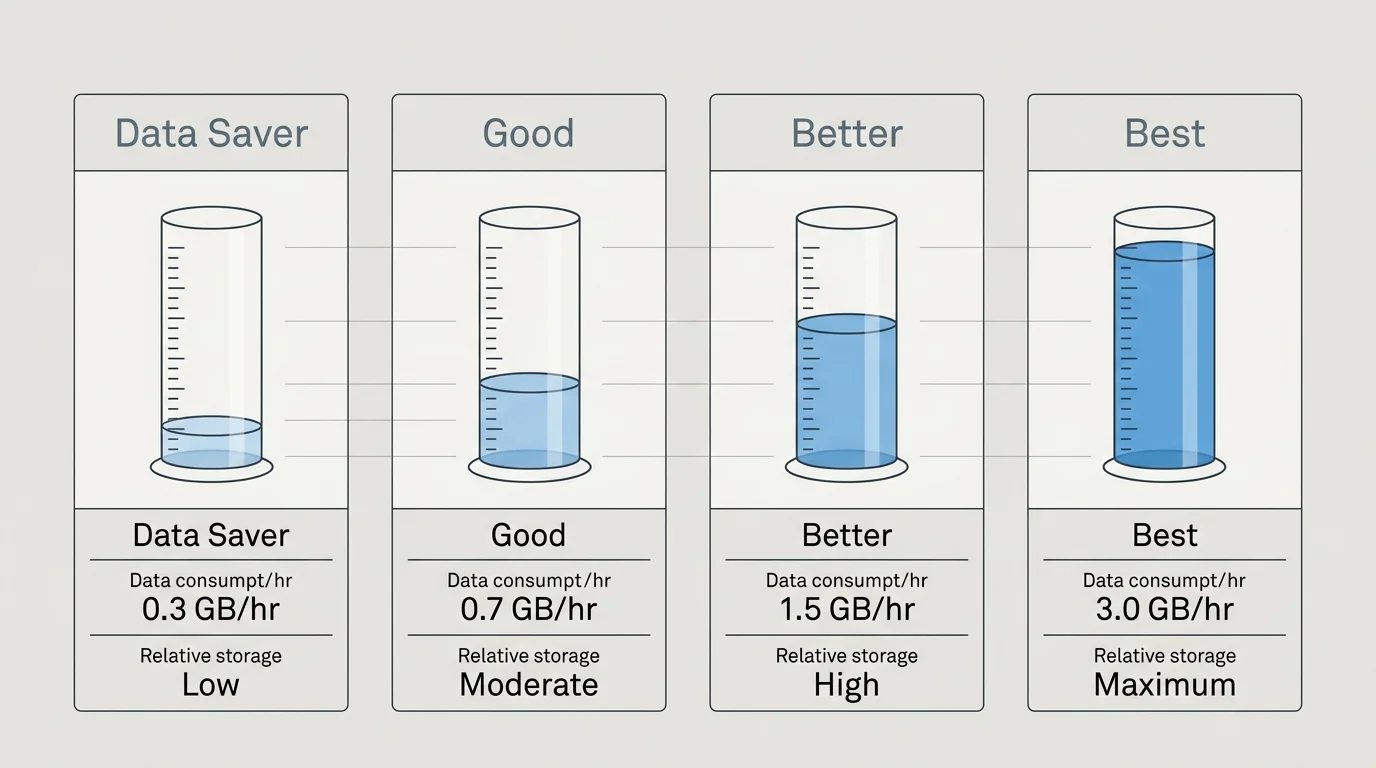
Amazon Prime Video: Dialing In the Four Quality Tiers
Amazon Prime Video provides four granular download quality presets inside its iPad application.
These tiers are Data Saver, Good, Better, and Best.
Data Saver uses approximately 0.14 GB per hour, requiring just 2.8 GB for twenty hours of playback.
While extremely data-efficient, Data Saver introduces visible compression artifacts that can distract on an iPad Retina display.
The Good preset uses between 0.23 GB and 0.38 GB per hour of content.
Twenty hours on the Good preset consumes between 4.6 GB and 7.6 GB of streaming offline download storage.
This Good preset represents the ideal commuter balance between crisp visual clarity and conservative cellular consumption.
In contrast, the Better preset consumes 0.98 GB to 1.4 GB per hour of playback.
Twenty hours at Better consumes 19.6 GB to 28 GB, blowing past your 15GB cellular cap.
The Best preset demands up to 2.54 GB per hour, consuming over 50 GB for twenty hours of video.
Selecting Best would completely fill your 64GB iPad Mini and trigger hefty cellular data penalty fees.
Always manually lock Prime Video downloads to Good to guarantee predictable storage and data usage.

Disney+ and Additional Platforms: Rules and Storage Footprints
Disney+ offers three download configurations on mobile devices: Standard, Medium, and High.
Standard quality consumes roughly 400 MB to 600 MB per hour of streaming content.
Twenty hours of Standard Disney+ programming consumes 8 GB to 12 GB of storage.
While this fits inside a 15GB cellular bucket, it leaves little room for other daily network tasks.
Disney+ Medium quality consumes 900 MB to 1.2 GB per hour, which exceeds your monthly cellular allotment.
According to Tom’s Guide streaming testing, Disney+ also restricts offline downloads strictly to ad-free Premium subscribers.
Subscribers on the cheaper Disney+ Basic ad tier cannot save video files for offline train viewing.
Disney+ enforces an account-wide cap of 25 downloaded titles distributed across up to ten registered devices.
Downloaded titles also expire if your iPad Mini does not reconnect to the internet every 30 days.
Other services, such as Apple TV+, do not provide manual bitrate selectors inside their iPadOS settings.
Apple TV+ downloads content at high bitrates, averaging 1.5 GB to 2.0 GB per hour.
Downloading Apple TV+ content over cellular will exhaust your 15GB data allowance after just eight to ten episodes.

Streaming Services Comparison: Offline Limits and Storage Metrics
Selecting the right service requires balancing monthly subscription costs against offline device allowances.
The table below compares offline technical specifications across primary on-demand streaming providers.
On-demand platforms let you select and watch content whenever you want rather than following a rigid broadcast schedule.
| Streaming Service | Monthly Cost (Ad-Supported vs Ad-Free) | Safe Cellular Preset | Hourly Storage Footprint | 20-Hour Cellular Data Consumed | Download Rules and Limits |
|---|---|---|---|---|---|
| Netflix | $6.99 (Ads) / $15.49 (Ad-Free) | Standard | 250 MB – 300 MB | 5.0 GB – 6.0 GB | 15 titles/month on Ads; 100 active on Ad-Free |
| Amazon Prime Video | $8.99 (Ads) / $11.98 (Ad-Free) | Good | 230 MB – 380 MB | 4.6 GB – 7.6 GB | 15 to 25 titles depending on licensing agreements |
| Disney+ | $9.99 (Ads) / $15.99 (Ad-Free) | Standard | 400 MB – 600 MB | 8.0 GB – 12.0 GB | Ad-Free only; 25 titles total across 10 devices |
| Max | $9.99 (Ads) / $16.99 (Ad-Free) | Speed | 400 MB – 500 MB | 8.0 GB – 10.0 GB | Ad-Free only; 30 downloads per device limit |
| Paramount+ | $7.99 (Ads) / $12.99 (Showtime) | Standard | 350 MB – 450 MB | 7.0 GB – 9.0 GB | Showtime plan only; 25 download limit per account |
Note that free trials have become rare across the industry; only Prime Video still regularly offers a 30-day promotional trial.
For budget-focused commuters, Netflix Ad-Free or standalone Prime Video offer the most reliable storage-to-cost ratios.
Fully Worked Example: The 90-Minute Daily Commute Plan
Let us map out an authentic underground transit scenario to prove the mathematics in daily practice.
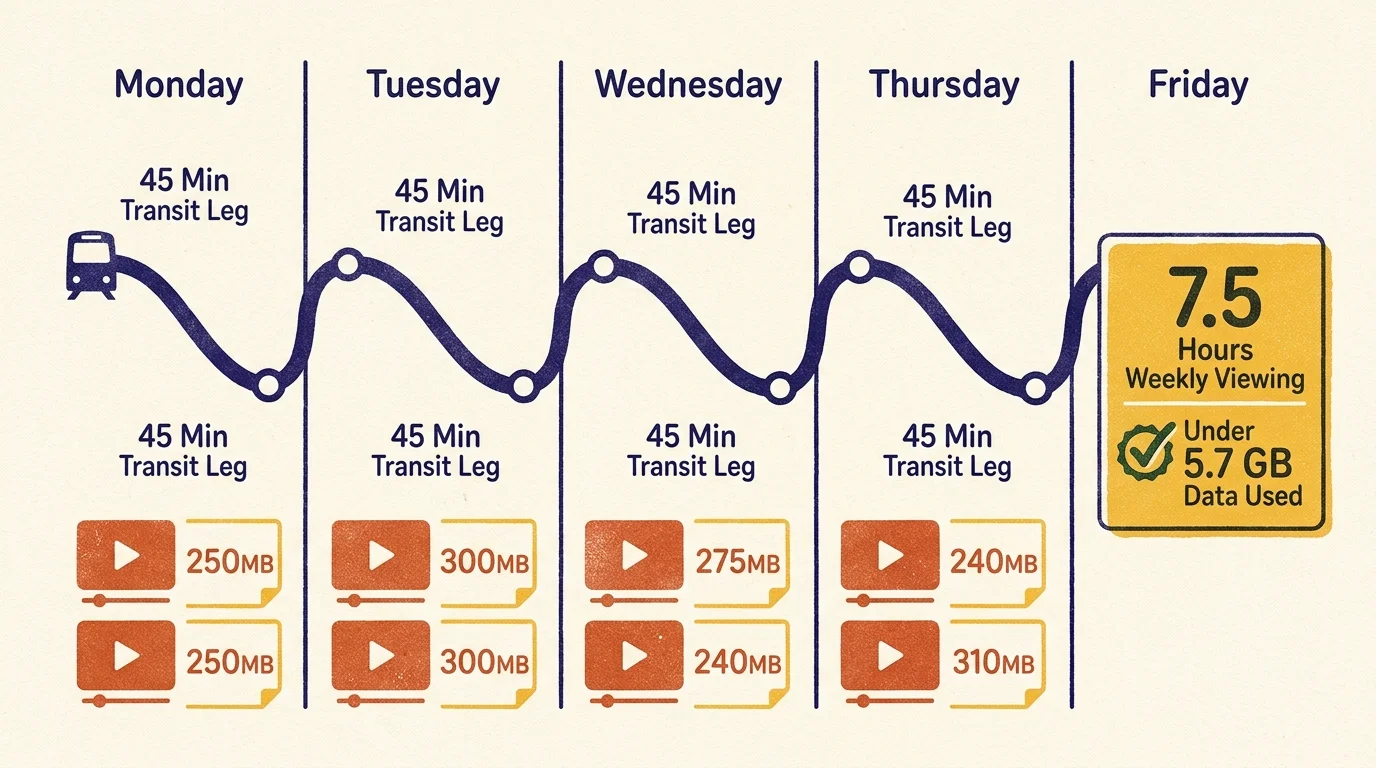
Assume your daily subway transit requires 90 minutes of round-trip travel: 45 minutes morning and 45 minutes evening.
Over two work weeks (ten business days), you spend exactly 15 hours riding in underground tunnels with zero mobile reception.
Adding five hours of weekend travel creates a target quota of twenty hours of total offline viewing.
Our commuter carries an iPad Mini (64GB) with 44 GB of real usable space and a 15GB cellular hotspot limit.
To maintain variety, our commuter curates a mixed playlist across Netflix and Prime Video using conservative bitrate tiers.
- Eight 60-minute episodes of a Netflix drama set to Standard quality: 2,240 MB (2.24 GB).
- Six 30-minute episodes of an Amazon Prime comedy set to Good quality: 960 MB (0.96 GB).
- Four 60-minute documentary episodes on Netflix set to Standard quality: 1,120 MB (1.12 GB).
- Two 120-minute feature films on Prime Video set to Good quality: 1,280 MB (1.28 GB).
Summing these files yields exactly twenty hours of video content stored locally on the tablet.
The total storage consumed on the iPad Mini is 5.60 gigabytes; barely 13% of available device capacity.
The total cellular data consumed to download this queue over mobile broadband is also 5.60 gigabytes.
This leaves 9.40 gigabytes remaining in your monthly cellular bucket for email, emergency navigation, and everyday browsing.
Your ipad offline streaming commute remains completely insulated against connection drops and unexpected bill spikes.
Essential Device Settings to Prevent Accidental Cellular Bleed
A single misconfigured toggle can override your download rules and exhaust your cellular data plan in an afternoon.
You must configure iPadOS system controls and in-app settings before initiating your first commute queue.
While you might stream on a smart TV—a television with a built-in internet connection and apps—or a streaming device—a small box or stick like Roku or Fire TV that adds streaming to any TV—at home, mobile management requires active attention.
Home hardware often leverages digital DVR capabilities—a digital video recorder that lets you record and watch shows later—without bandwidth worries.
On mobile tablets, follow these concrete steps to protect your data allotment:
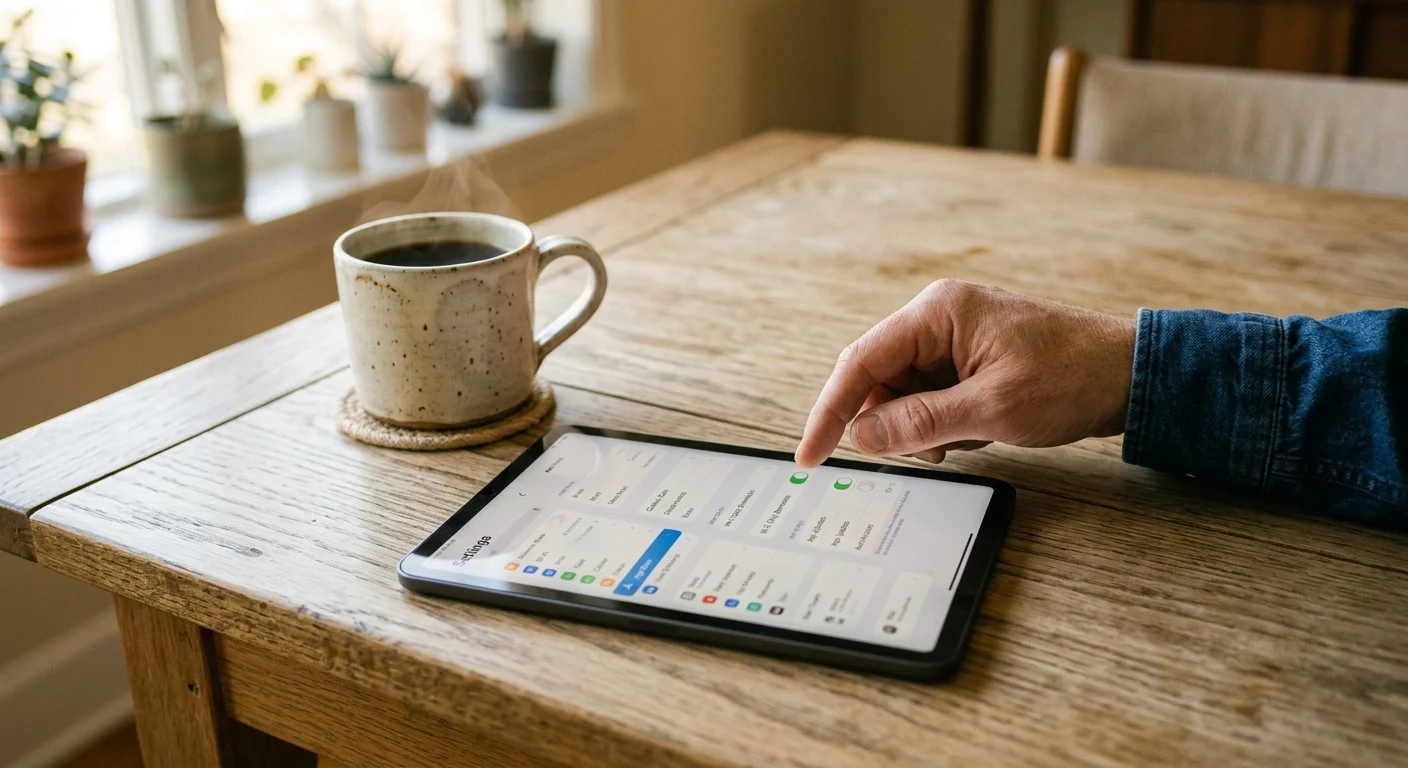
- Open iPadOS Settings, tap Cellular Data, scroll to your streaming apps, and verify background app refresh remains disabled.
- Launch the Netflix app, navigate to My Netflix, select App Settings, and switch Video Quality from Higher to Standard.
- Within the same Netflix menu, locate the Downloads heading and toggle Download on Wi-Fi Only to the On position.
- Open Amazon Prime Video, tap the profile icon, select Settings, and enter the Stream & Download submenu.
- Set Download Quality to Good, and toggle Download on Wi-Fi only to active.
- Enable Smart Downloads across all platforms; this utility automatically purges completed episodes when you finish watching them.
“Automated smart downloads remove watched video files immediately, preserving iPad storage without requiring daily manual file cleanups.”
According to Wirecutter’s streaming analysis, caching errors occur most often when users start downloads over weak cellular signals.
Restricting your device strictly to Wi-Fi downloads at home protects your 15GB cellular allowance from high-bitrate accidental leaks.
Frequently Asked Questions
Can I download Netflix shows on the ad-supported tier for my commute?
Yes, but Netflix caps your downloads at 15 total titles per device each calendar month. For twenty hours of weekly viewing, you must upgrade to an ad-free plan to bypass this ceiling.
How many movies can I store on a 64GB iPad Mini?
With 44 GB of usable space, you can comfortably store roughly 30 two-hour movies at Standard quality. If you configure downloads to High quality, you can fit only eight to ten feature films.
Why does my iPad show less than 64GB of free storage before downloading anything?
iPadOS operating system files and System Data caches automatically occupy 16 GB to 22 GB of physical storage. That overhead leaves roughly 42 GB to 48 GB for personal apps and offline video files.
Will downloading video over cellular use my phone hotspot data?
Yes, connecting your iPad to your phone’s personal hotspot counts directly against your mobile hotspot allowance. Ensure your streaming download settings are set to Standard or Good before tethering.
Disclaimer: Streaming service prices, content libraries, and features change frequently. Prices shown were accurate at time of writing but may have changed. Always verify current pricing on the official service website before subscribing.