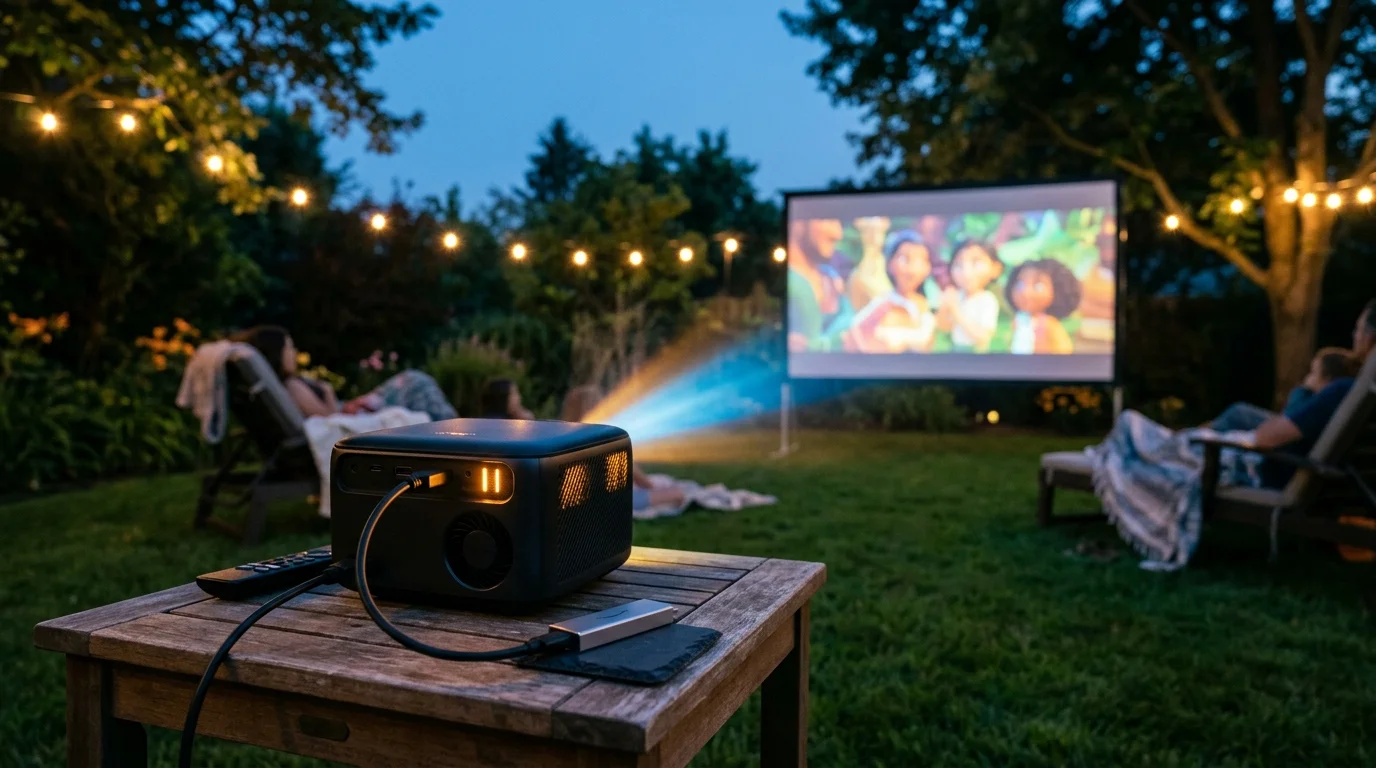
You can host an outdoor movie night in 85-degree weather without watching your screen freeze halfway through the film. Thermal crashes happen when projector exhaust superheats your streaming stick, not just from summer humidity.
Standard guides blame warm summer air for black screens and stuttering frames. In reality, projector exhaust ports blast high-temperature air directly across adjacent HDMI ports, pushing compact media players far past their factory limits.
This guide documents the thermal thresholds of popular streaming hardware and provides practical physical decoupling methods. You will learn how to stabilize your setup and maintain continuous video playback throughout summer screenings.
Thermal Breakdown: Why Streaming Sticks Crash Outdoors
Backyard entertainment relies on streaming, which means watching video content over the internet instead of cable or satellite. When you take entertainment outside, hardware management changes dramatically.
You likely plug a compact streaming device—a small box or stick (like Roku or Fire TV) that adds streaming to any TV or projector—directly into the chassis. This direct connection creates an immediate thermal vulnerability.
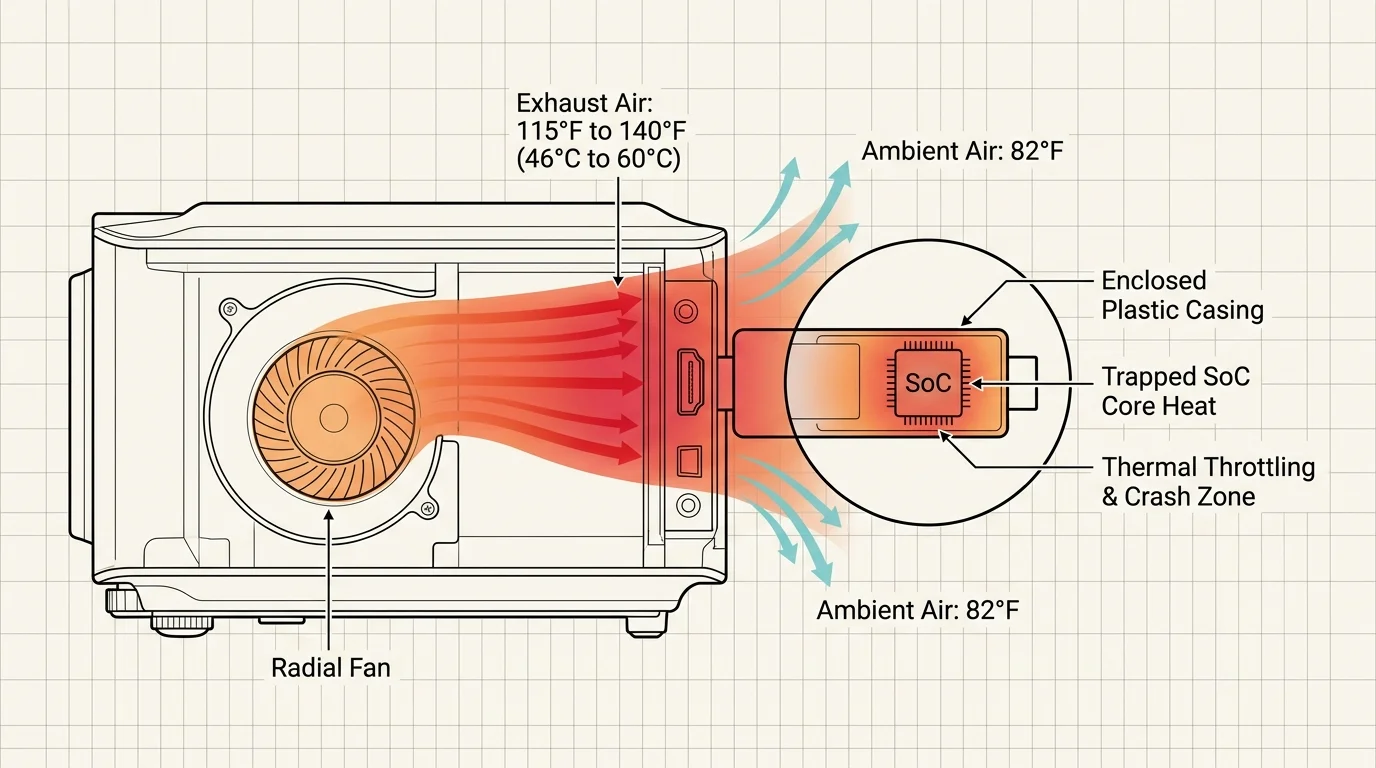
Outdoor projectors produce substantial internal heat during operation. Halogen and high-output metal-halide lamps generating 2,500 to 4,000 lumens vent exhaust air measuring between 115°F and 140°F (46°C to 60°C).
Projector manufacturers position cooling exhaust fans directly adjacent to rear and side input panels. This layout expels concentrated hot air directly over the connected dongle.
A plastic streaming stick acts as an thermal sponge under this continuous draft. The enclosed system-on-a-chip (SoC) cannot radiate its own processing heat into the surrounding air.
According to research highlighted by Consumer Reports, electronics degrade faster and fail unexpectedly when exposed to sustained operating temperatures above manufacturer ceilings.
Placing a passively cooled streaming dongle directly in a projector’s hot exhaust stream can accelerate thermal throttling, especially in warm ambient environments; use a short HDMI extender to keep the stick away from exhaust vents.
When the internal processor reaches critical limits, the device initiates self-preservation routines. It throttles processing cycles, resulting in dropped frames, buffering loops, or sudden hardware shutdowns.
Understanding this microclimate explains why an 82°F summer evening can still cause an immediate crash. The problem is the 130°F exhaust plume washing over your hardware.
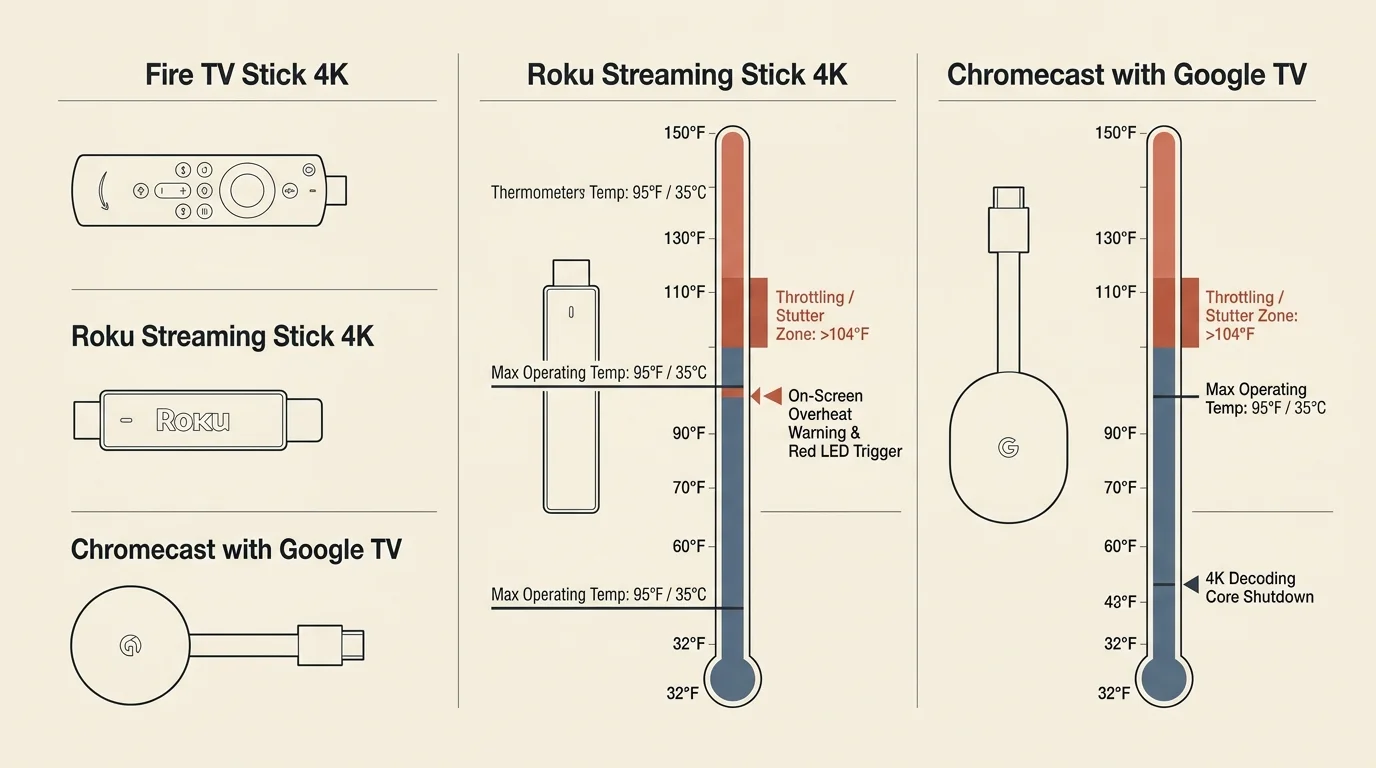
Thermal Throttling Specs: Fire TV vs Roku vs Chromecast
Every major media stick operates under strictly defined environmental tolerances. Exceeding these limits forces the operating system to protect the silicone from permanent structural damage.
Before hosting a screening, review what to expect during streaming device updates to prevent an unexpected OS installation from stalling playback outdoors.
An Amazon Fire TV Stick features an official ambient operating limit between 32°F and 95°F (0°C to 35°C). When decoding high-bitrate 4K content, its internal SoC routinely climbs toward 90°C to 100°C.
Once internal components cross that 100°C barrier, you will need a firestick thermal throttle fix. The device drops clock speeds before restarting into a protective reboot loop.
Roku designs its hardware with slightly wider environmental margins. Roku Streaming Sticks carry an ambient operating ceiling of 104°F (40°C).
When a Roku stick overheats, it displays a solid red light on the enclosure. It also presents an on-screen warning stating, “Your device is overheating: For help, visit: go.roku.com/tempcheck.”
Roku enforces a mandatory cool-down cycle once this warning appears. You must unplug the stick and let it cool for at least ten minutes before normal operation resumes.
Google discontinued its traditional hanging Chromecast dongle in favor of the Google TV Streamer (4K). The new desktop form factor dissipates thermal energy significantly better than older suspended dongles.
Streaming hardware reviews at TechRadar illustrate how larger enclosures allow superior passive airflow compared to ultra-compact HDMI dongles.
The following comparison details the operational limits and protective behaviors of current market hardware.
| Device Model | Retail Price | Ambient Limit | Critical SoC Threshold | Overheat Warning System | Required Power |
|---|---|---|---|---|---|
| Amazon Fire TV Stick 4K Max (2nd Gen) | $59.99 | 95°F (35°C) | 95°C–100°C | Frame drops, silent freeze, forced reboot | 5V / 1.5A (7.5W) |
| Roku Streaming Stick 4K | $49.99 | 104°F (40°C) | 105°C | Solid red hardware LED, on-screen warning | 5V / 1.0A (5.0W) |
| Google TV Streamer (4K) | $149.99 | 104°F (40°C) | 90°C | System dialog pop-up, severe UI stutter | 5V / 2.0A (10.0W) |
Notice the narrow buffer between an 85°F outdoor ambient temperature and the 95°F ceiling on Fire TV hardware. A slight draft from a projector exhaust bridge closes this gap in seconds.
Selecting the best streaming device outdoor movie setups require depends heavily on how these safety cutoffs handle real-world heat.
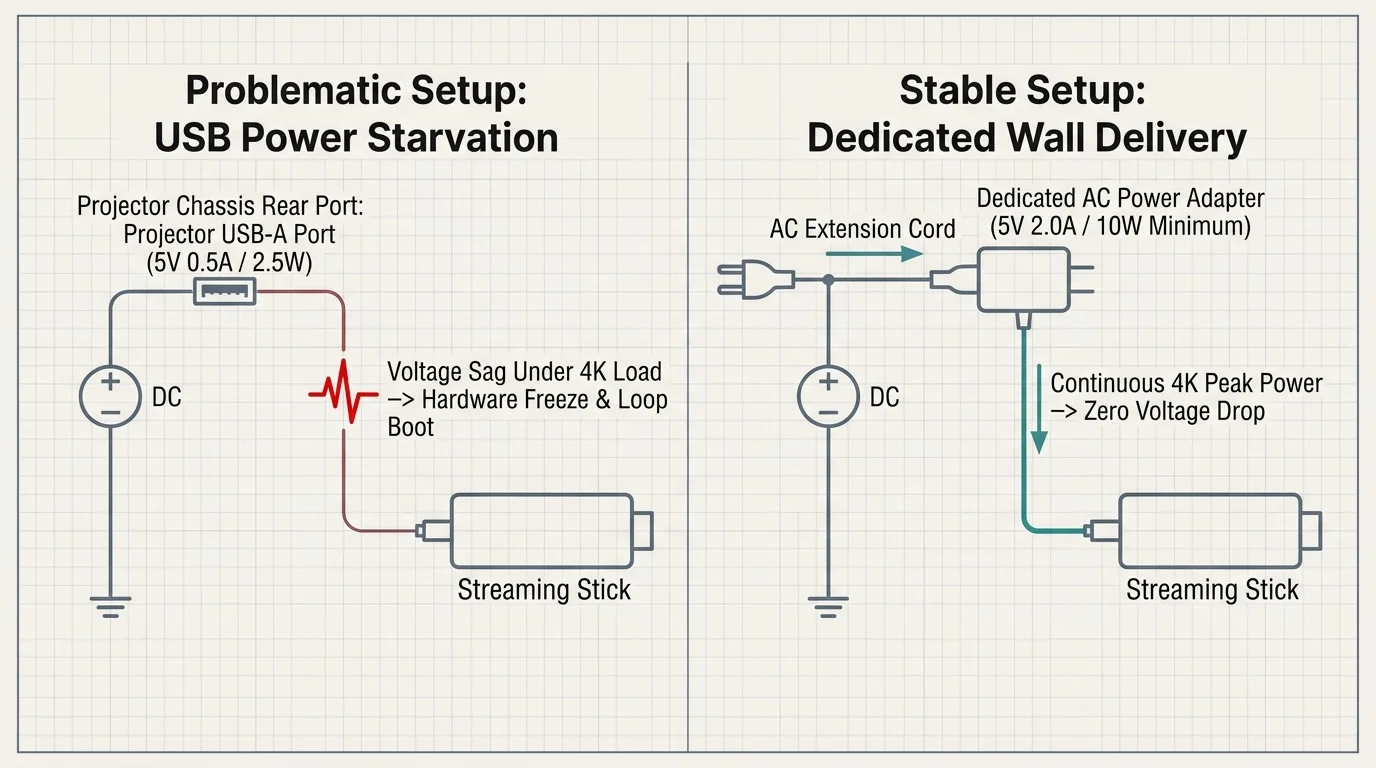
The Hidden Culprit: Projector USB Power Starvation
Many backyard hosts misdiagnose power brownouts as streaming stick overheating outdoor projector failures. The symptoms appear identical: stuttering, crashing, and sudden reboots.
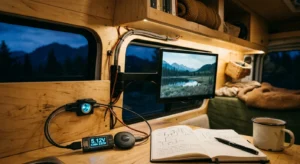
If you run your screening off battery packs or portable generators, check our streaming sticks on 12V power benchmarks to ensure your power bank meets real-world current draw.
Decoding 4K HDR video files stresses Wi-Fi radios and hardware decoders simultaneously. Under load, a modern 4K streaming stick draws between 1.0A and 1.5A at 5V (5W to 7.5W).
Most budget and midrange outdoor projectors provide convenience USB ports intended solely for firmware updates or thumb drives. These legacy ports often deliver only 500mA (0.5A at 5V, or 2.5W).
When the streaming stick encounters a complex, high-bitrate movie sequence, current demand spikes instantly. The inadequate USB port suffers an immediate voltage drop.
This power drop causes the processor to brown out and restart. The issue looks identical to a thermal shutdown, leading users to chase thermal fixes needlessly.
Furthermore, running digital components on starved, fluctuating voltage increases internal electrical resistance. This additional resistance generates excess heat within the power regulator circuitry.
Always connect your streaming stick to its bundled AC wall adapter using a grounded outdoor extension cord. Bypassing the projector’s USB port eliminates voltage sags and lowers operating temperatures.
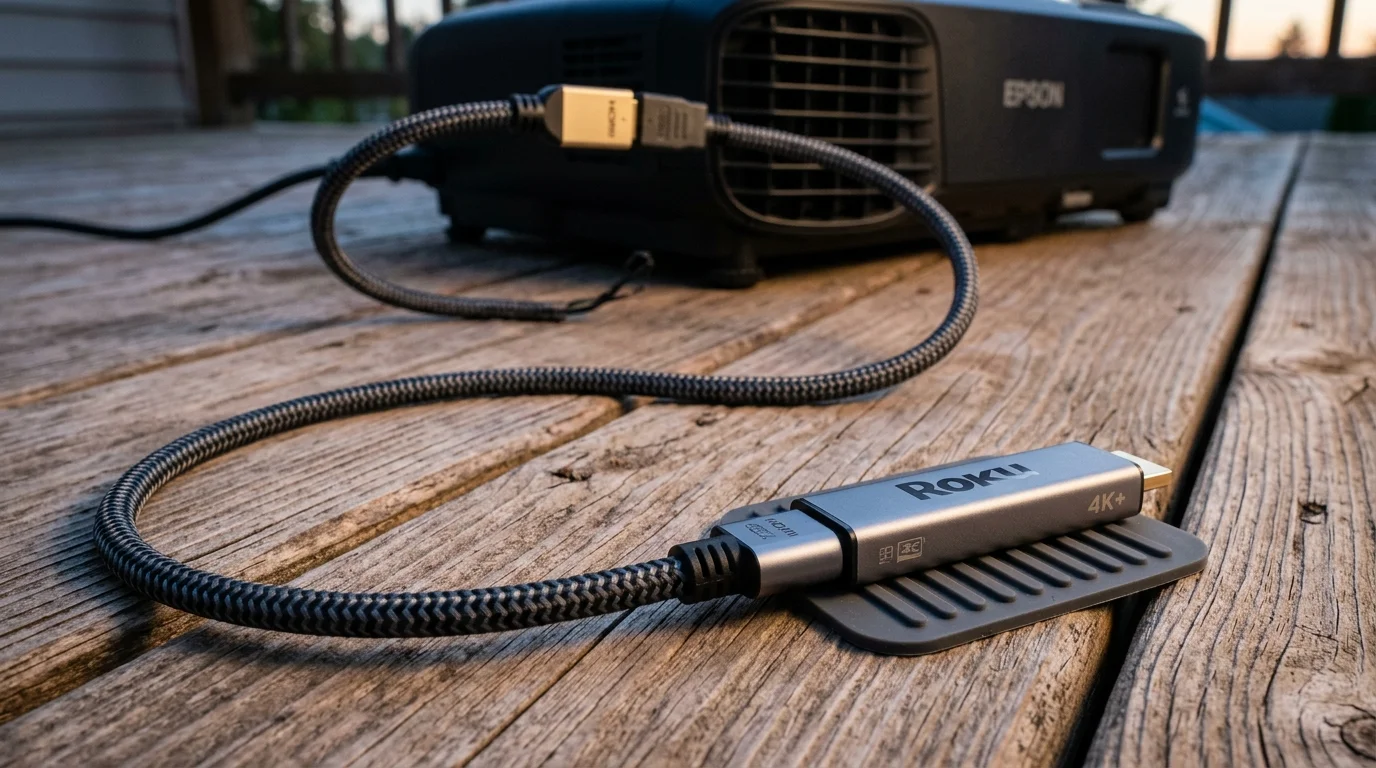
Physical Decoupling: The Role of Heat-Dissipating HDMI Extenders
Plugging a streaming stick straight into your projector creates a direct thermal bridge. Heat transfers directly into the stick’s HDMI connector via mechanical conduction.
Both Amazon and Roku include short two-inch HDMI extenders in their packaging. These flexible stubs help avoid port crowding, but they keep the stick trapped within the exhaust airflow.
To eliminate thermal transfer, use a dedicated 3-foot to 6-foot high-speed HDMI extension cable costing between $6 and $12. This simple cord isolates the stick from the projector body.
An extended cable allows you to drop the media stick below the projector stand, into cooler ambient air. Temperatures beneath the projector table can measure 30°F cooler than the exhaust zone.
Evaluations by Wirecutter consistently show that maintaining adequate physical airflow prevents thermal throttling across portable streaming sticks.
Choose an HDMI 2.0 or HDMI 2.1 rated extension cable with molded aluminum connector housings. Aluminum dissipates heat conducted along the ground shielding wire far better than molded plastic.
Secure the extension cable away from the exhaust louvers using a reusable hook-and-loop strap. Position the stick in free air where breezes can circulate around its plastic body.
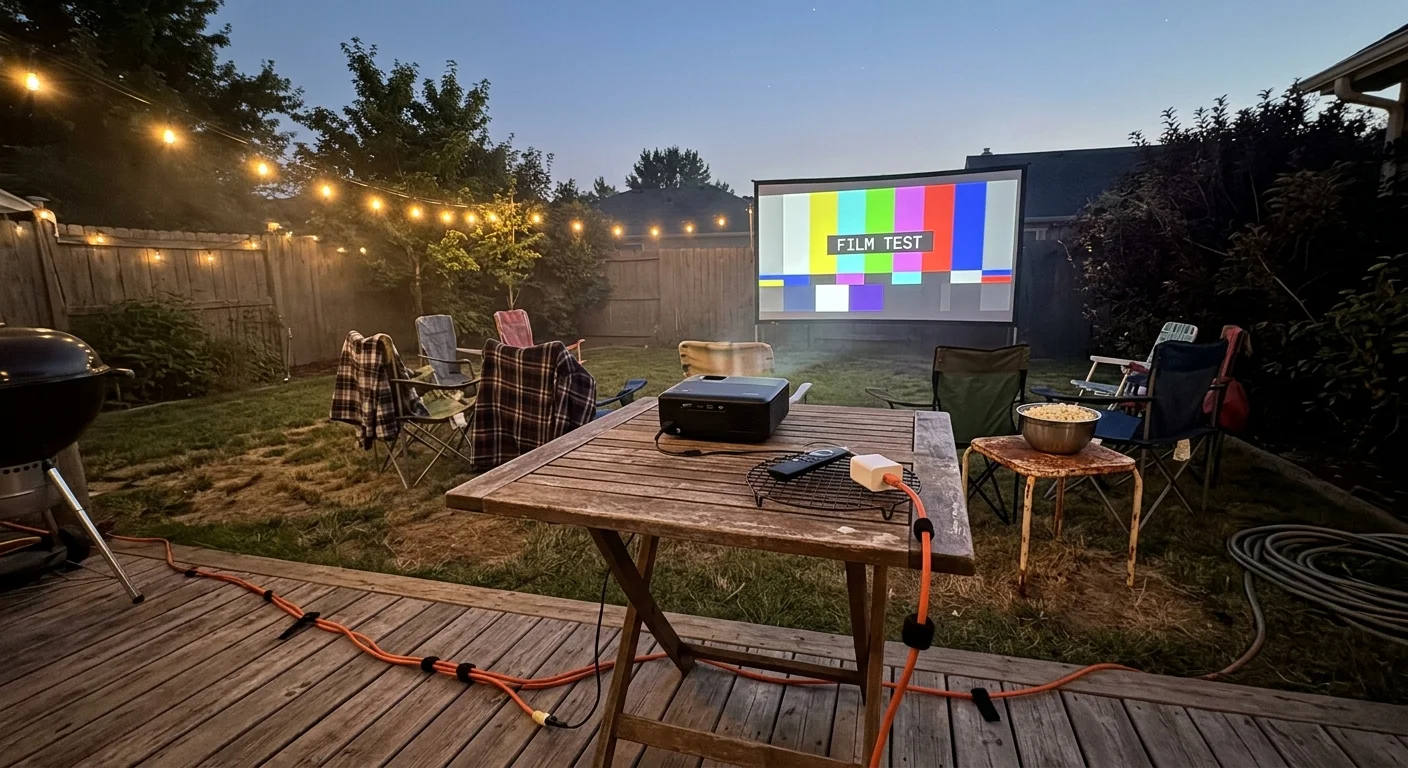
Worked Scenario: A Backyard 4K Movie Night Setup
Review this example scenario illustrating backyard operating conditions. The setup shows how small hardware adjustments solve continuous thermal crashes.
For more ways to tune display formats across different projection setups, refer to our guide on the best streaming device output settings for projectors operating under demanding lighting conditions.
Consider a backyard screening using a 3,000-lumen lamp projector outdoors on a warm summer evening.
If a streaming stick is plugged directly into the projector’s HDMI 1 input and powered from the projector’s 500mA USB port via a short cable, thermal and power issues can quickly occur.
When the projector exhaust vent sits close to the HDMI ports, hot exhaust air washes over the stick during a 4K stream, causing the picture to stutter and the device to reboot.
To fix this, replace the short connection with a 6-foot 4K-rated HDMI extension cable and place the streaming stick on a lower shelf well away from the exhaust port.
Next, disconnect the projector USB cable and plug the stick’s factory 5V/1.5A power adapter into a multi-outlet surge protector on the ground.
Finally, access the streaming device’s display settings and switch output resolution from Auto/4K to 1080p 60Hz and set dynamic range to Adaptive SDR if needed.
Lowering the video output format from 4K to 1080p reduces decoding workloads and internal SoC heat substantially.
With these adjustments, a full-length movie screening can continue without frame drops, buffering freezes, or system shutdowns.
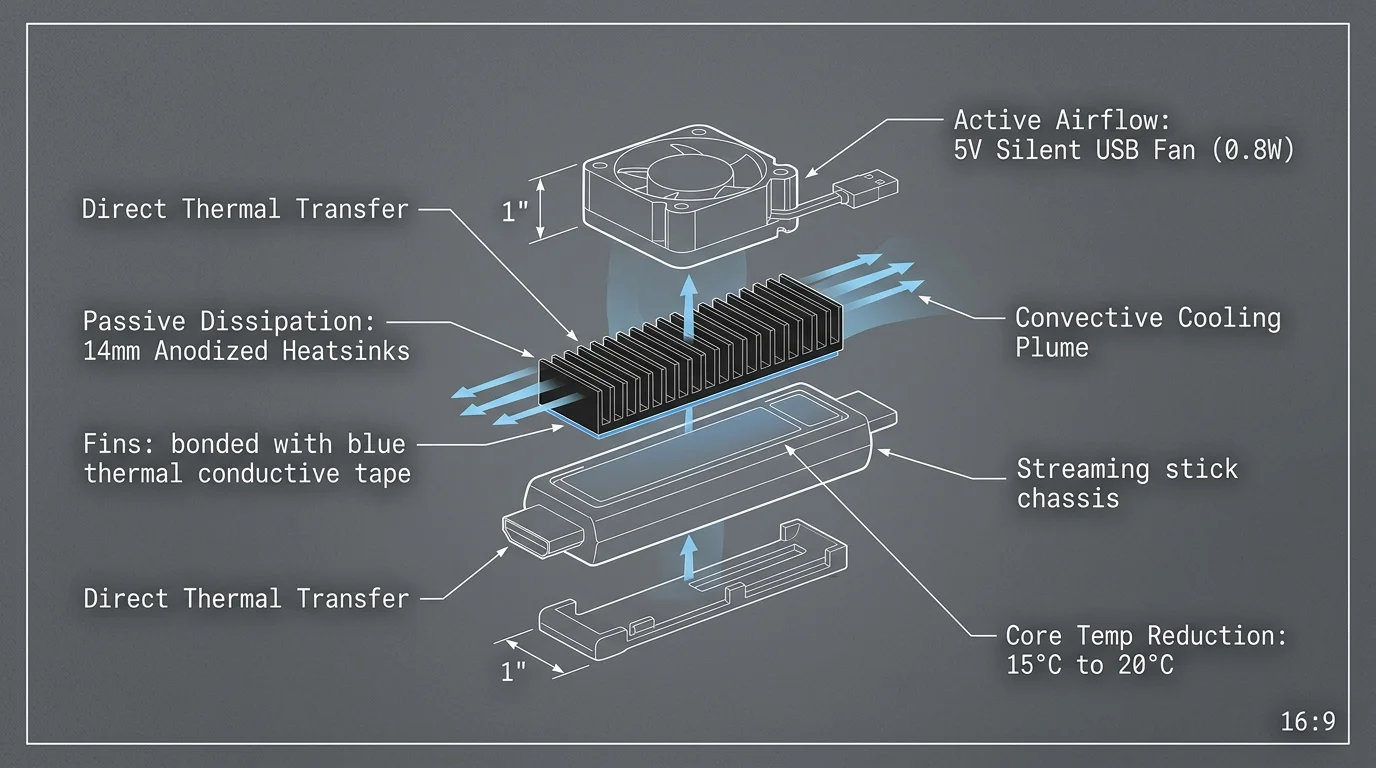
Active and Passive Cooling Solutions for Extreme Heat
When high ambient temperatures persist past dusk, passive airflow alone might not keep temperatures low enough. You can implement low-cost cooling modifications to protect your playback setup.
Affix miniature adhesive copper or aluminum heatsinks to the plastic chassis of your streaming stick. These heatsinks, commonly sold for Raspberry Pi boards, cost roughly $5 for a multi-pack.
Attach the heatsink fins directly over the hottest section of the plastic case. The fins expand the surface area, radiating internal heat away from the board.
For high-heat situations above 90°F, introduce active cooling using a portable 5V USB-powered 120mm quiet fan. These quiet fans cost $10 to $15 and feature integrated speed controllers.
Direct the low-noise fan toward your suspended streaming stick from twelve inches away. Continuous airflow sweeps away the stagnant thermal boundary layer surrounding the plastic stick casing.
Position your entire projection table out of direct heat paths. If you store the projector inside a warm house before screening, bring it outside early to acclimate before powering the lamp.
Keep your projection gear off asphalt driveways or dark stone patios. Dark masonry materials absorb solar heat throughout the day, radiating temperatures above 110°F long after sunset.
Set up your gear over grass or a light-colored outdoor rug instead. Turf surfaces stay significantly cooler at night, providing a better environment for sensitive electronics.
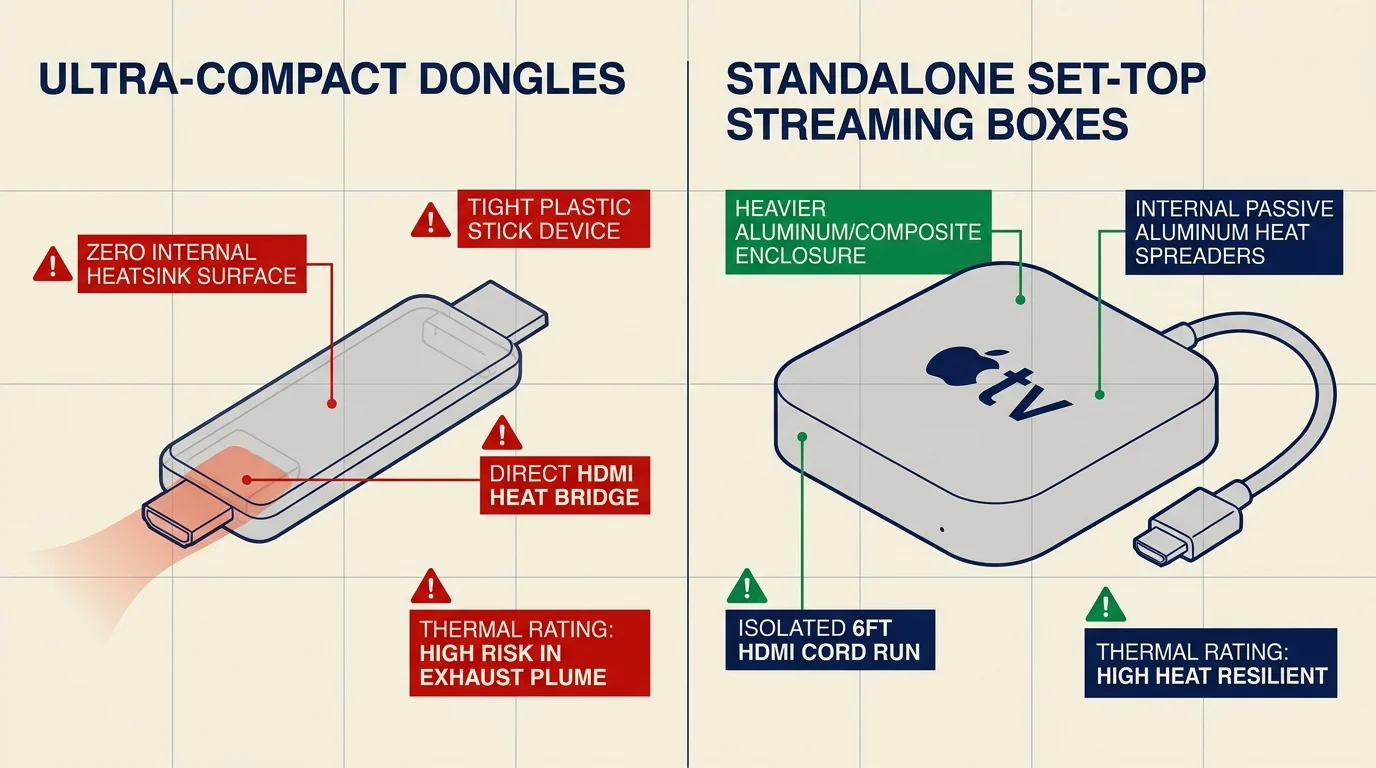
Choosing the Best Streaming Device for Outdoor Movie Nights
Choosing the right outdoor hardware often means moving beyond compact dongle designs. Dedicated streaming boxes handle elevated summer temperatures with greater stability.
Many consumers transition away from traditional viewing via cord-cutting, which means canceling traditional cable or satellite TV in favor of streaming services. This shift makes reliable streaming hardware essential.
While you might rely on a smart TV (a television with built-in internet connection and apps) indoors, projectors demand separate video sources. Dongles pack dense silicon into unvented enclosures.
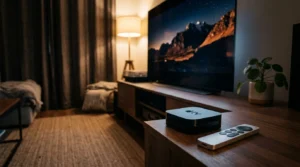
In contrast, full-sized streaming boxes like the Apple TV 4K or Roku Ultra use larger internal heat spreaders. The Apple TV 4K incorporates an internal thermal channel that dissipates heat efficiently.
Hardware testing from CNET demonstrates that desktop-style streaming boxes maintain peak clock speeds under heavy workloads without thermal throttling.
The Google TV Streamer ($149.99 list) provides a middle ground. Its wide, low-profile wedge sits flat on a projector cart, exposing broad surface area to open air.
If you use streaming apps offering ad-supported plans (cheaper plans that show commercials) or ad-free plans (costlier plans without commercials), performance demands remain identical during video playback.
Live television services with cloud DVR (a digital video recorder to capture shows) or on-demand libraries (watch whatever you want, whenever you want) push video engines hard during navigation.
Desktop streaming boxes manage these interactive platform transitions smoothly. Their larger frames handle extended outdoor use much better than thumb-sized sticks.
If your budget requires sticking with an existing HDMI dongle, keep it isolated on an extension cord. Upgrading to a standalone media console remains the permanent fix for chronic overheating.
Frequently Asked Questions
Why does my Fire TV Stick restart repeatedly during an outdoor movie?
Repeated restarts indicate thermal shutdown or power starvation. The stick reboots to protect its processor when temperatures exceed 95°F, or when an underpowered 500mA projector USB port experiences voltage brownouts.
Can I cool my streaming stick with an ice pack during screenings?
Never place ice packs or chilled gel compresses against your streaming stick. Rapid temperature drops cause internal condensation, producing electrical short circuits that permanently ruin the delicate circuit board.
Does reducing resolution from 4K to 1080p prevent overheating?
Downscaling your output resolution from 4K to 1080p substantially reduces hardware stress. The internal video decoder operates at cooler temperatures, which often stops thermal throttling entirely during hot summer nights.
How long should I let a streaming stick cool down after an overheat warning?
Disconnect power completely and allow the stick to rest in ambient shade for at least ten to fifteen minutes. Reconnecting power prematurely interrupts heat dissipation and causes the warning loop to retrigger immediately.
Disclaimer: Device prices and features may change. New models are released regularly, so check for the latest versions before purchasing. The “best” device depends on your specific needs, existing ecosystem (Apple, Google, Amazon), and budget.