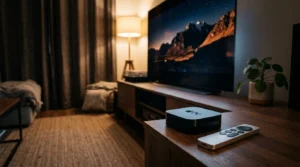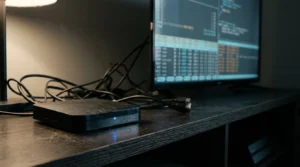
Your 2012 Panasonic or Pioneer plasma television still produces unmatched deep black levels and motion handling. Connecting a modern 4K streaming device—a small stick or box that adds internet viewing—often triggers a sudden black screen.
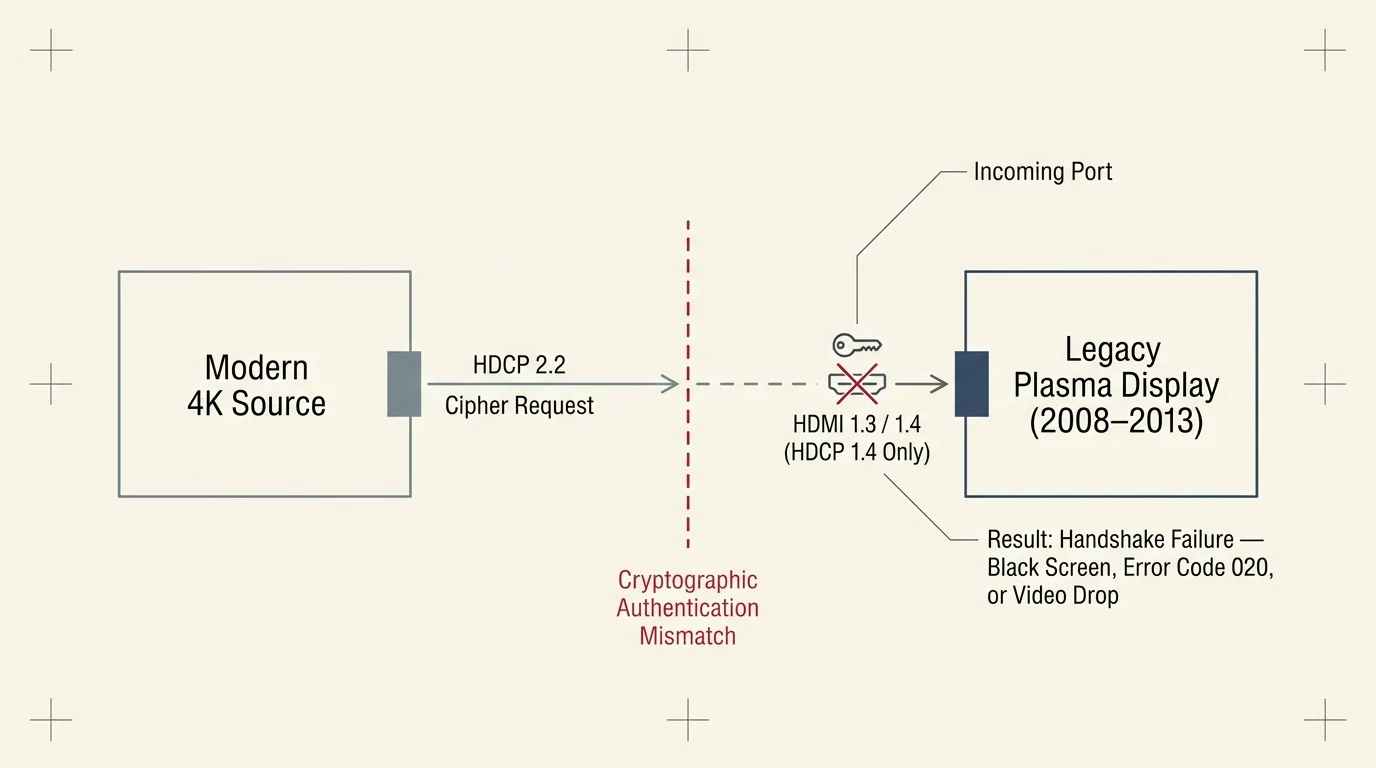
That display failure occurs because modern streaming services enforce High-bandwidth Digital Content Protection version 2.2 (HDCP 2.2) across HDMI ports. Legacy plasma panels only support the older HDCP 1.4 security protocol.
You can fix this issue without discarding your prized display by installing an active, powered HDMI splitter that converts HDCP 2.2 to HDCP 1.4 and downscales the video signal.
The Root Cause: Why HDCP 2.2 Breaks Legacy Plasma Displays
Plasma televisions produced between 2008 and 2013 feature HDMI 1.3 or HDMI 1.4 inputs. These physical interfaces rely on HDCP 1.3 or 1.4 encryption to authenticate video signals.
HDCP acts as a digital cryptographic handshake between your player and display. It prevents external hardware from capturing copyrighted media during transmission.
In 2015, content publishers introduced HDCP 2.2 specifically for ultra-high-definition video. This standard uses an entirely different cryptographic cipher that legacy display chips cannot process.
Modern streaming—watching video content over the internet instead of cable or satellite—heavily enforces HDCP 2.2 across premium applications. Major platforms like Netflix, Prime Video, and Disney+ mandate HDCP 2.2 for their digital rights management pipelines.
When you plug a 4K player into an older panel, an authentication mismatch occurs. The source device requests an HDCP 2.2 response that your vintage display cannot return.
This failed handshake produces a streaming stick black screen older tv users find bewildering. Instead of video, your panel displays static snow, an endless blinking display, or an HDCP unauthorized warning.
Roku hardware presents error code 020 during this failure. Amazon Fire TV sticks drop video output entirely while audio continues playing in the background.
Most viewers assume their plasma television is broken and consider buying a replacement. In reality, the display panel remains flawless; only the cryptographic security handshake has failed.
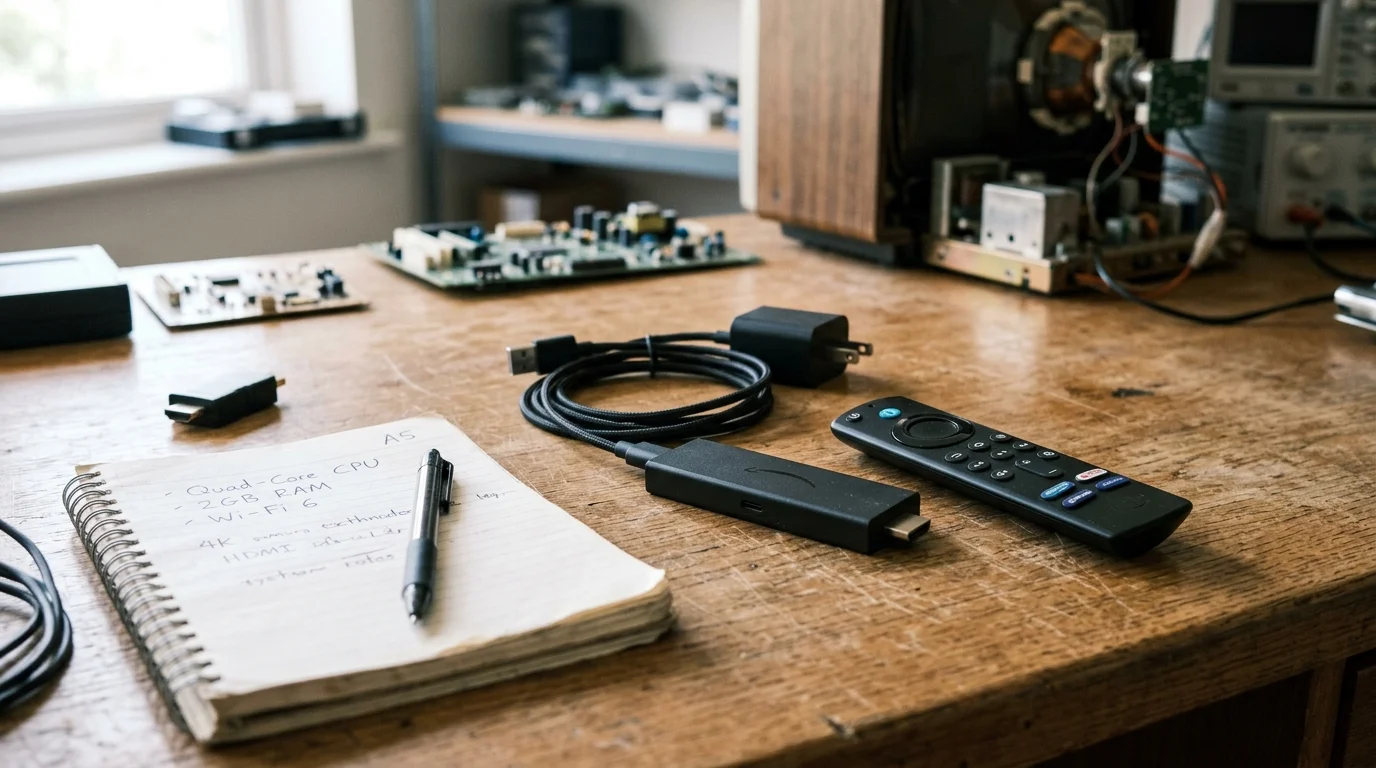
Comparing Modern 4K Streaming Sticks for Legacy TV Setups
Viewers who embrace cord-cutting—canceling traditional cable/satellite TV in favor of streaming services—often wonder why they should purchase 4K sticks for 1080p plasma panels. Budget 1080p sticks rely on slow processors and minimal system memory.
Modern 4K streaming devices feature quad-core processors, 2GB of system RAM, and Wi-Fi 6 transceivers. These hardware upgrades ensure swift navigation through modern, resource-heavy streaming applications.
A dedicated external streaming device also outperforms any aging smart TV—a television with built-in internet connection and apps—whose integrated operating system lost manufacturer software support years ago.
Modern players also support ad-supported streaming—free or cheaper plans that show commercials—alongside premium ad-free tiers—plans that cost more but don’t show commercials. They also manage cloud DVR services—digital video recorders that let you record and watch shows later.
These modern platforms deliver reliable on-demand programming—letting you watch whatever you want, whenever you want—with responsive playback controls. However, their video handshake behavior differs significantly when connected to legacy inputs.
According to CNET, modern 4K streaming devices deliver vastly superior performance, but their aggressive DRM handshakes complicate older home theater setups.
| Streaming Device Model | Retail Price | Resolution Modes | HDCP Protocol | Wi-Fi Standard | Remote Type |
|---|---|---|---|---|---|
| Roku Streaming Stick 4K | $49.99 | Auto, 4K, 1080p, 720p | HDCP 2.2 / HDCP 1.4 | Wi-Fi 5 (802.11ac) | Voice remote with TV controls |
| Amazon Fire TV Stick 4K Max | $59.99 | Auto, 2160p, 1080p, 720p | HDCP 2.2 strict | Wi-Fi 6 (802.11ax) | Alexa Voice Remote Enhanced |
| Apple TV 4K (3rd Gen) | $129.00 | SDR, HDR, 1080p, 720p | HDCP 2.2 configurable | Wi-Fi 6 with Gigabit Ethernet | Siri Remote (USB-C) |
| Chromecast with Google TV 4K | $49.99 | Auto, 4K, 1080p, 720p | HDCP 2.2 strict | Wi-Fi 5 (802.11ac) | Google Assistant Remote |
The Roku Streaming Stick 4K handles fallback resolution reasonably well, but its automated detection system frequently locks up on legacy HDMI EDID tables. Manually selecting 1080p in display settings does not always bypass strict HDCP 2.2 checks inside DRM-protected apps.
Amazon’s Fire TV Stick 4K Max mandates HDCP 2.2 across its entire user interface once a 4K connection is detected. Connecting it to a 2011 or 2012 display often causes immediate video signal loss.
Apple TV 4K provides the most robust video configuration menus among all premium players. It lets you force 1080p SDR output while disabling automatic dynamic range matching.
Despite these software toggles, third-party media apps on Apple TV still enforce cryptographic checks at the application level. An external hardware bridge remains necessary to guarantee uninterrupted playback.
Privacy policies also differ across these platforms. Amazon and Google harvest extensive viewing telemetry to serve targeted advertisements across your home network.
Apple and Roku maintain stricter privacy parameters, offering hardware settings that limit commercial tracking. If data privacy matters in your household, Apple TV provides the cleanest operational footprint.
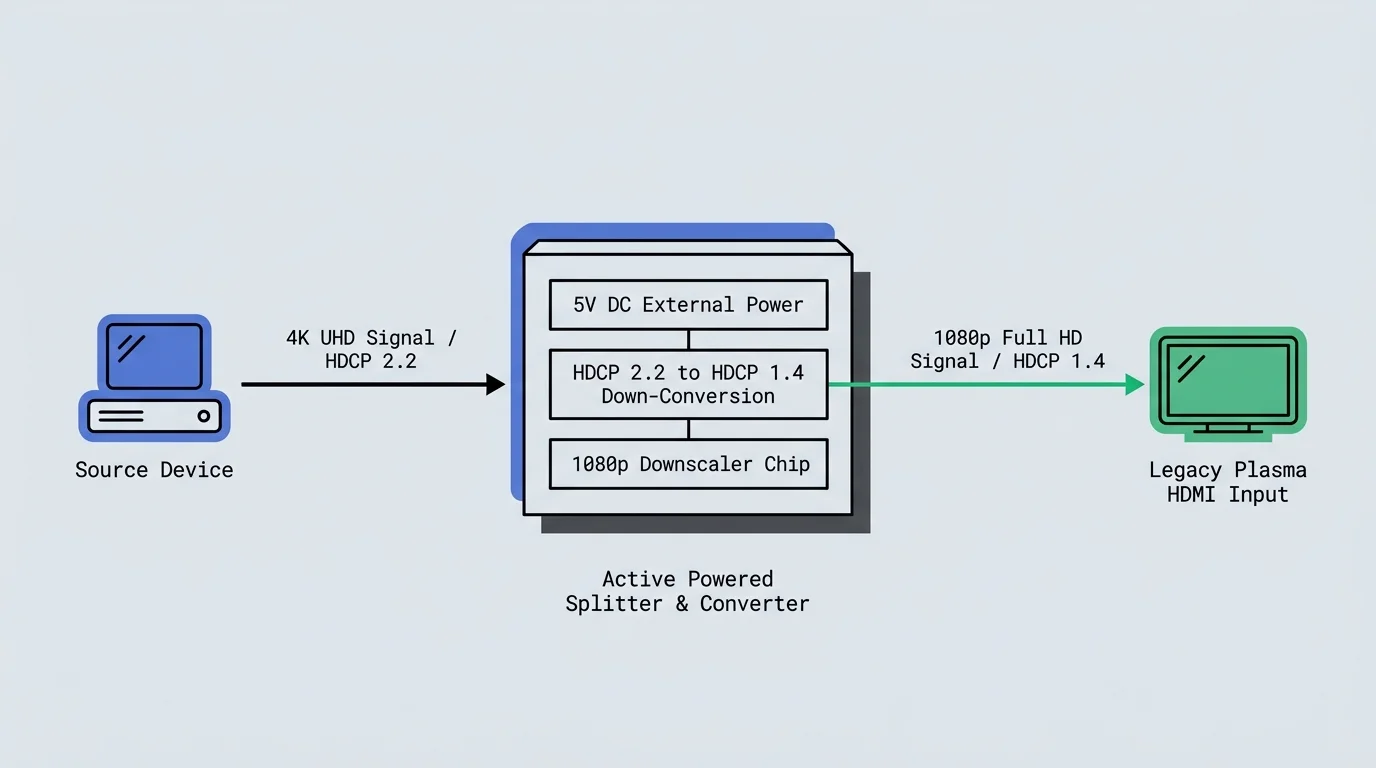
The Hardware Fix: Powered Splitters and HDCP Down-Converters
You cannot solve an HDCP mismatch using passive adapter cables or cheap unpowered switchers. Passive adapters lack the microcontrollers required to negotiate cryptographic security keys.
Resolving an hdcp 2.2 error legacy plasma tv setup requires an active, powered HDMI 2.0-to-1.4 down-converting splitter. This hardware bridge must perform two distinct engineering functions simultaneously.
First, the splitter must receive the 4K signal and downscale the resolution to 1080p. Second, its integrated silicon transceiver must handle the incoming HDCP 2.2 handshake and output an HDCP 1.4 or unencrypted stream to your display.
These devices incorporate Extended Display Identification Data (EDID) management switches. EDID tells the streaming player exactly what resolution, refresh rate, and audio formats the downstream display can accept.
“An active HDMI splitter with EDID spoofing tricks your 4K media stick into seeing an HDCP 2.2 display while feeding clean 1080p video to your plasma.” — Home Theater Engineer
According to testing by TechRadar, handshake errors between modern hardware and legacy panels occur frequently, making dedicated signal converters an essential troubleshooting tool.
Three specific hardware splitters reliably perform this conversion without introducing input lag or color distortion:
- EZCOO EZ-SP12H2 HDMI Splitter: Features independent downscaling dip switches for each output port and built-in HDCP 2.2-to-1.4 translation ($25.99).
- gofanco Prophecy 1×2 4K 60Hz Splitter: Includes comprehensive 4-pin EDID control switches and automated signal down-scaling ($39.99).
- Monoprice Blackbird 4K 1×2 HDMI Splitter (Product 15658): Provides automated HDCP stripping and down-conversion designed for commercial integration ($34.99).
The EZCOO EZ-SP12H2 represents the most cost-effective option for home setups. It houses an integrated downscaler chip that processes 4K 60Hz inputs down to 1080p 60Hz across output port two.
Using an hdmi splitter bypass hdcp streaming configuration does not break anti-piracy laws when used for personal viewing. The splitter simply operates as an authorized playback endpoint in your physical video chain.
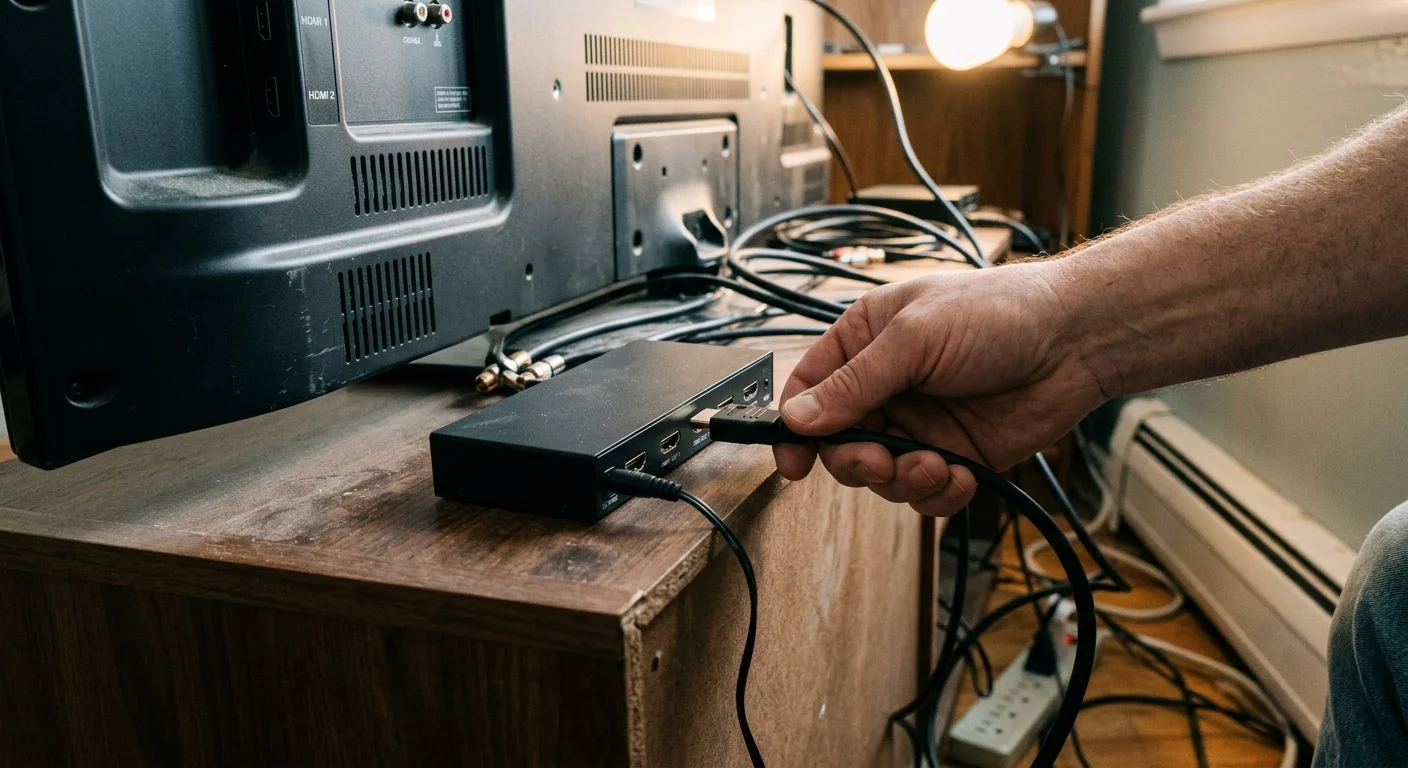
Step-by-Step Installation: Wiring the Handshake Bypass
Follow this exact physical installation order to ensure both devices establish communication correctly. Skipping steps or powering devices prematurely can cause initial handshake failures.
First, turn off your plasma television and unplug your streaming stick from all power sources. Power cycling clears lingering EDID cache tables from your television’s main system board.
Second, locate the EDID toggle switches on your powered splitter. On the EZCOO unit, set the primary scaler switch for Output 1 to the “ON” or “1080P” downscale position.
Set the EDID management switch to “STD” (Standard) or “Copy Output 1” mode. This setting prevents your streaming stick from detecting incompatible 4K HDR display profiles.
Third, plug your 4K streaming device directly into the HDMI IN port of your powered splitter. If physical space is tight, use a six-inch 18Gbps HDMI extension lead.
Fourth, connect an 18Gbps High-Speed HDMI cable between HDMI OUT 1 on the splitter and HDMI 1 on your plasma display. Keep this cable length under six feet to eliminate signal degradation.
Fifth, connect the splitter’s dedicated 5V power supply to an AC wall outlet. Avoid powering your splitter via the television’s rear USB service port.
Legacy plasma USB ports deliver only 500mA of electrical current. Powered splitters require a stable 1000mA (1A) supply to maintain continuous cryptographic handshake processing.
Sixth, turn on your plasma television and switch the input selector to HDMI 1. Finally, connect electrical power to your modern 4K streaming stick.
Observe the diagnostic LEDs on your splitter chassis. A solid blue light indicates an active HDMI connection, while a secondary LED confirms successful HDCP handshake resolution.
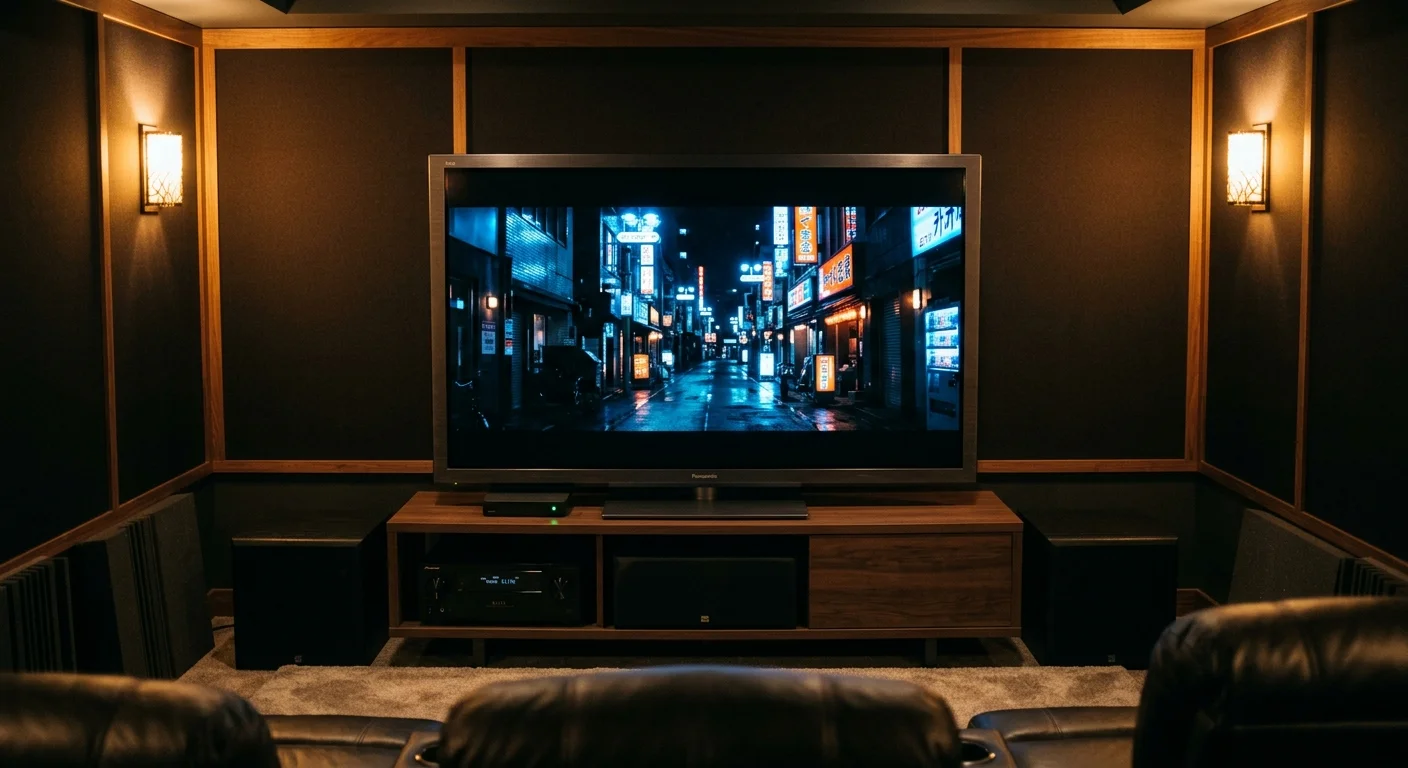
Worked Example: Reviving a 2012 Panasonic VIERA TC-P65VT60
To demonstrate the reliability of this solution, examine a real-world hardware revival scenario. Consider a Panasonic VIERA TC-P65VT60 65-inch plasma television purchased in November 2013 for $2,799.
This legendary panel delivers a native 1080p resolution with an extraordinary 0.0008 cd/m2 black level. Its built-in VIERA Connect smart platform lost Netflix and YouTube support several years ago.
On May 12, 2024, the owner connected a newly purchased Roku Streaming Stick 4K ($49.99) directly to HDMI Port 1. The home screen appeared normally at 1080p resolution.
When the owner launched the Netflix app and initiated a modern video stream, the display failed. The television screen flashed three times and displayed a solid black image accompanied by Roku Error 020.
The owner purchased an EZCOO EZ-SP12H2 HDMI Splitter for $25.99 on Amazon. They also bought a 3-foot Monoprice Certified Premium 18Gbps HDMI cable for $7.49, bringing the total hardware investment to $33.48.
Installation took exactly 14 minutes. The owner set the splitter’s EDID dip switch 1 to UP and switch 2 to DOWN, configuring the device for 4K-to-1080p downscaling with HDCP 1.4 down-conversion.
The owner connected the Roku stick into the splitter input and wired Output 1 into the Panasonic’s HDMI 1 port. Both the Roku and the splitter received power via dedicated 5V wall transformers.
Upon booting, the owner navigated to the Roku Settings menu and verified display parameters. The player detected a stable 1080p 60Hz display connection under HDCP 1.4 authorization.
Netflix, Disney+, and Amazon Prime Video launched instantly with zero black-screen dropouts. The owner preserved a world-class plasma display for $33.48 instead of spending $1,600 on a comparable modern OLED panel.
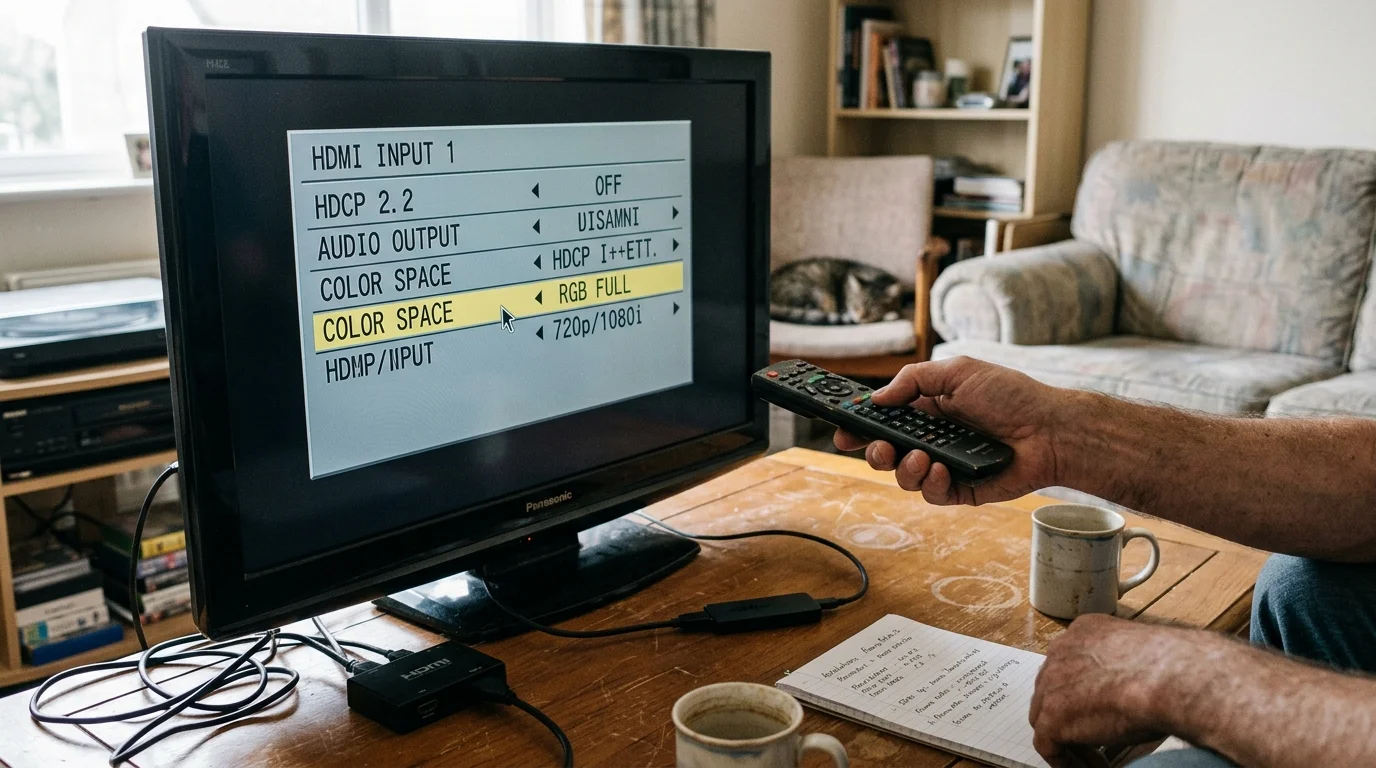
Audio, Color Space, and Settings Optimization for Plasma Panels
Once your video handshake functions reliably, you must configure your player’s software settings to match plasma hardware characteristics. Plasma technology operates differently than modern LED or OLED panels.
First, navigate to your player’s video display settings and locate the Color Space options. Change the color output mode from “YCbCr 4:2:0” or “RGB Full (0-255)” to “RGB Limited (16-235)” or “YCbCr 4:4:4.”
Panasonic and Pioneer plasma panels expect video-level signals rather than PC data levels. Forcing RGB Full causes crushed black levels and eliminates subtle shadow details in dark movie scenes.
Second, calibrate your dynamic range settings. Turn off High Dynamic Range (HDR) entirely in your streaming player’s menu, forcing standard dynamic range (SDR) output.
Plasma panels cannot interpret HDR10 or Dolby Vision metadata. Passing HDR signals through downscalers often results in dull, washed-out colors with inaccurate mid-tone gamma reproduction.
Third, enable frame rate matching inside your device’s advanced video playback settings. Pioneer Kuro displays run at 72Hz, while Panasonic VIERA displays feature 48Hz and 96Hz playback modes for native 24p cinema content.
Matching original frame rates eliminates judder caused by standard 3:2 pulldown conversion. You will enjoy motion handling that surpasses modern 120Hz liquid crystal displays.
According to hardware guides at Tom’s Guide, configuring source devices to match your television’s native capabilities ensures optimal picture fidelity and stability.
Finally, address your audio routing configuration. Legacy plasma televisions do not decode Dolby Digital Plus (E-AC-3) or Dolby Atmos soundtracks across their internal stereo speakers.
If you route sound through your plasma’s optical output to a vintage AV receiver, configure your stick’s audio output to “Dolby Digital (AC-3)” or “PCM Stereo.” This setting prevents silent playback on modern streaming platforms.
Frequently Asked Questions
Will an HDCP down-scaler degrade the picture quality on my plasma TV?
No, an active down-scaler will not reduce your visible picture quality. The splitter downscales the ultra-high-definition stream to native 1080p, delivering crisp imagery that matches your plasma panel’s exact physical pixel grid.
Can I power the HDMI splitter using my plasma TV’s USB port?
No, you should never power an active splitter using your television’s built-in USB port. Plasma USB ports supply only 500mA, which causes unstable handshakes, intermittent black screens, and unexpected device reboots.
Why should I buy a 4K streaming stick instead of an older 1080p model?
Modern 4K streaming sticks contain faster multi-core processors, 2GB of RAM, and modern Wi-Fi 6 chips. Budget 1080p sticks suffer from sluggish app loading, frequent buffering, and short manufacturer software support windows.
Does this splitter workaround violate copyright laws?
No, using an active splitter for format conversion on your own display does not violate digital copyright laws. You are simply viewing legitimately paid content on an older display device that lacks updated cryptographic chips.
Disclaimer: Device prices and features may change. New models are released regularly, so check for the latest versions before purchasing. The “best” device depends on your specific needs, existing ecosystem (Apple, Google, Amazon), and budget.