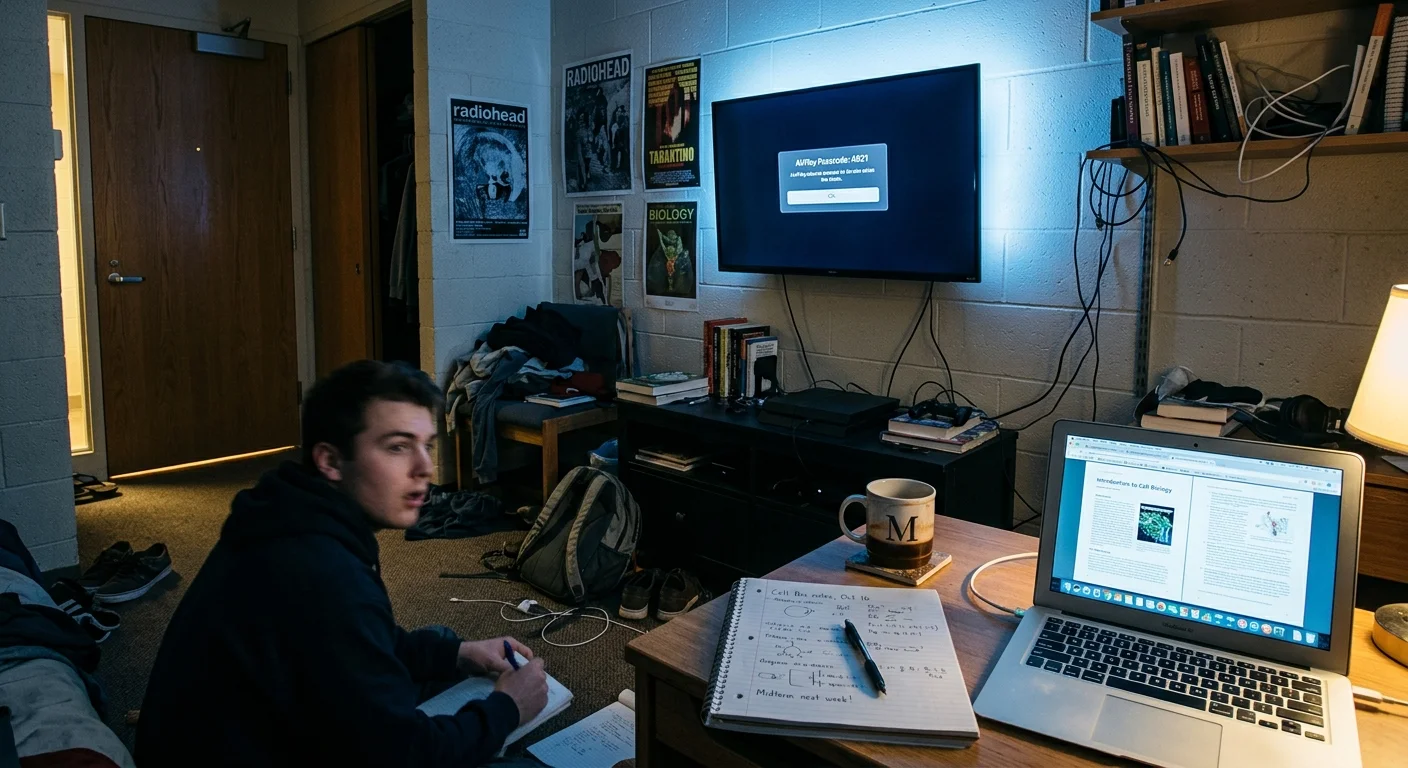
You can instantly stop dorm neighbors from hijacking your screen by locking down local discovery protocols. When you live in a residence hall, accidental YouTube casts and intrusive AirPlay pop-ups interrupt your study sessions and movie nights.
Securing your screen against unwanted casting is one of several practical streaming hacks that make shared-living entertainment far more reliable.
Most guides suggest simply disconnecting your television from the network, but this breaks your entertainment setup entirely. Software toggles alone fail on unsegmented campus subnets; deploying a $39 travel router creates a private local subnet that permanently shields your screen.
Here is how to configure AirPlay PINs, disable Google Cast media controls, and isolate your display on shared campus networks.
Why Campus Wi-Fi Exposes Your TV to the Entire Hall
College dormitories rely on enterprise network equipment configured for massive device counts. You engage in streaming—watching video content over the internet instead of cable or satellite—alongside hundreds of other students on the same shared connection.
Beyond broadcast vulnerabilities, always-on displays also consume noticeable ghost bandwidth through continuous background telemetry on campus networks.
Most home networks isolate your gear behind a personal firewall. In contrast, campus housing networks often disable access point isolation so printers, gaming consoles, and smart TV models can talk to student smartphones.
A smart TV—a television with built-in internet connection and apps—broadcasts its presence constantly. It uses discovery protocols known as multicast DNS (mDNS), Simple Service Discovery Protocol (SSDP), and Apple Bonjour.
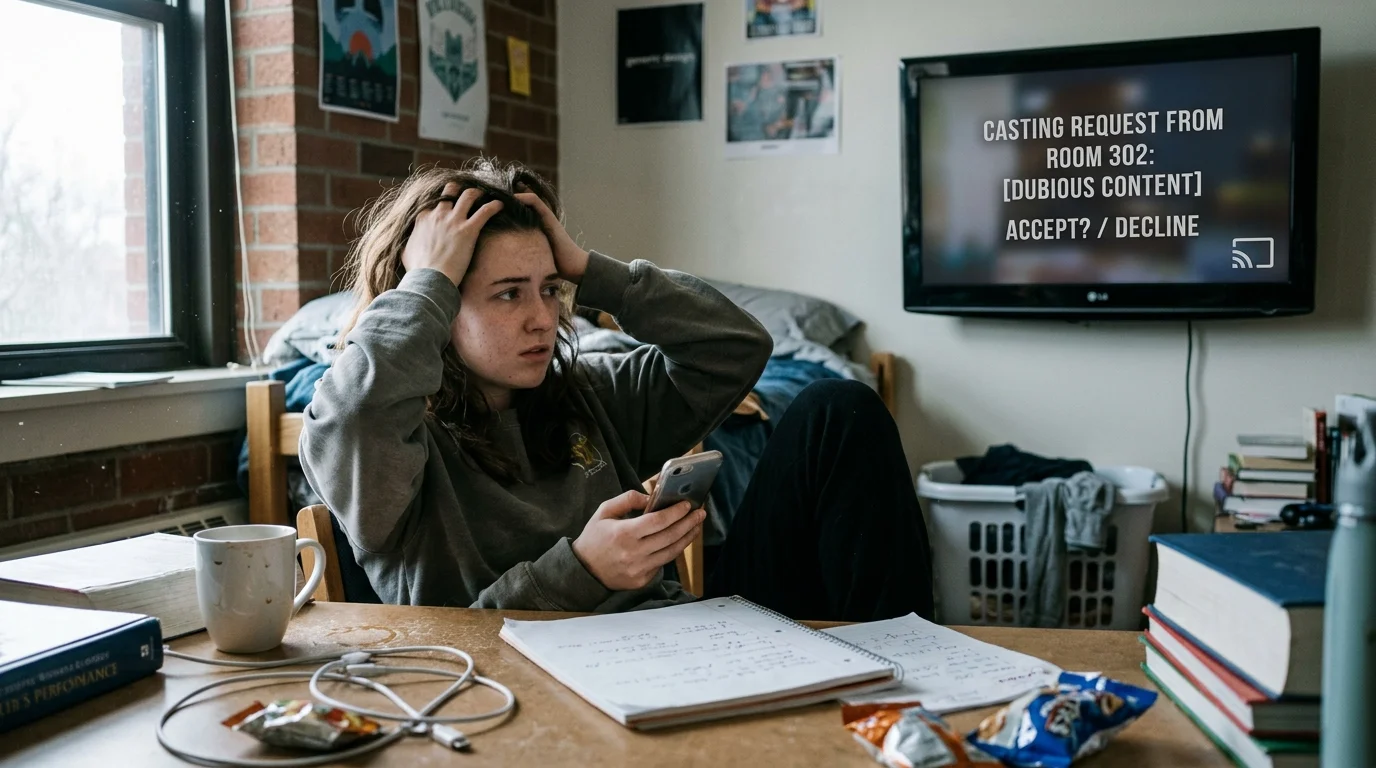
These protocols announce your device name across your entire dorm floor. When your neighbor opens YouTube, Netflix, or Spotify, your television appears in their casting list as an available target.
Most hijacks happen by accident when someone taps the cast icon on their phone without checking the target name. However, pranksters can also exploit this access to blast audio at 3:00 AM.
Campus network subnets frequently group 250 to 1,000 devices under a single broadcast domain. Without strict settings, every student on that subnet possesses direct remote control over your screen.
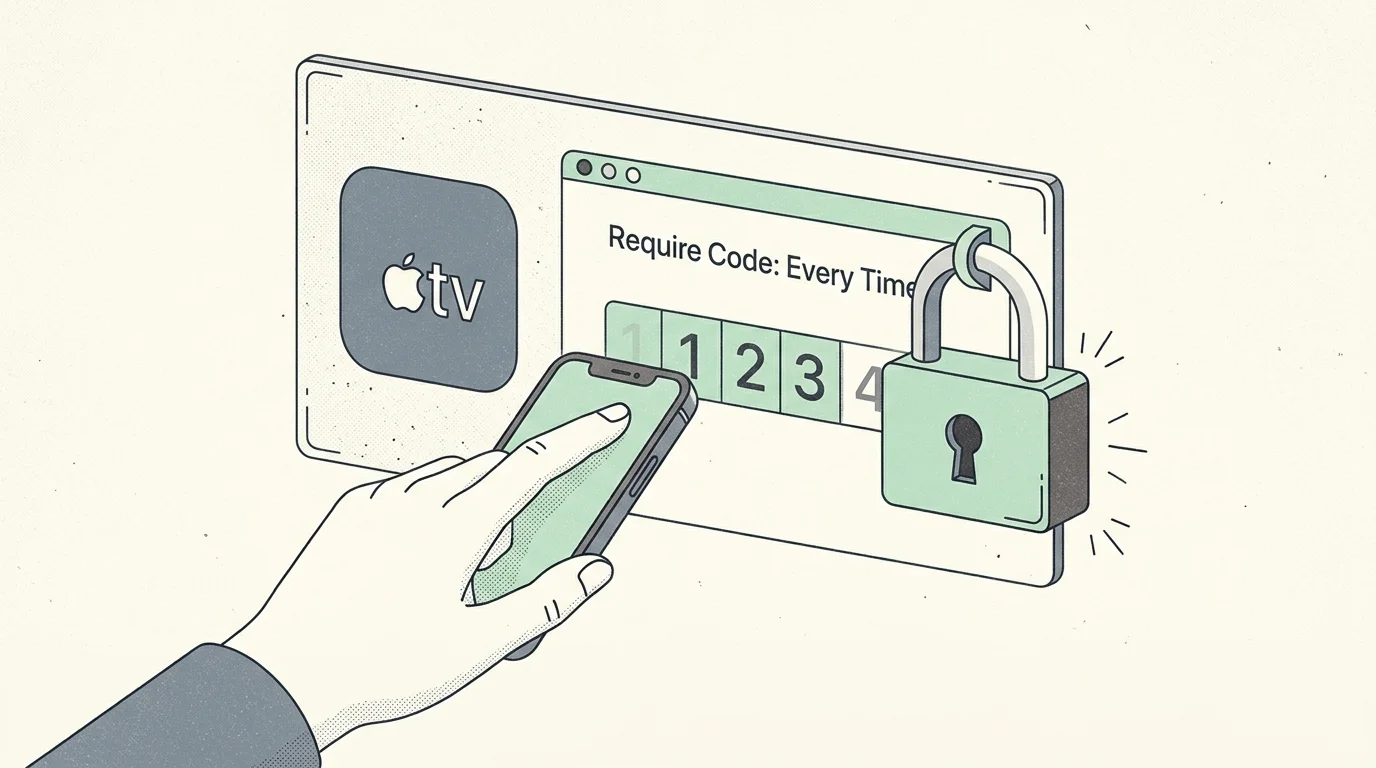
How to Disable AirPlay Guest Access and Require Passwords
Apple AirPlay makes sharing iPhone media seamless, but open default settings invite disaster in dorms. You can disable airplay guest access dorm wide by enforcing strict authentication controls.
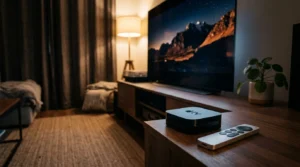
On Apple TV 4K or Apple TV HD, launch Settings and select AirPlay and HomeKit. Look for the “Allow Access” submenu to inspect your active permissions.
Change this setting immediately from “Everyone” to “Anyone on the Same Network.” If you live in an Apple-only household, select “Only People Sharing This Home” for absolute isolation.
Next, scroll down to the “Require Code” toggle and activate it. Select “Every Time” instead of “First Time Only” to block persistent authorization tokens.
This setting forces any attempting device to input a dynamic four-digit on-screen PIN. Your neighbors will see the PIN request on their phone, but cannot transmit video without looking at your physical screen.
For additional security, enable the “Password” field beneath the code requirement. Create an eight-character alphanumeric password that you share only with your roommates.
Third-party televisions from LG, Samsung, Sony, and Vizio also feature integrated AirPlay receivers. On LG webOS, open the Home Dashboard, click the AirPlay tile, and open AirPlay Settings.
Set “Require Code” to “Always” and set “AirPlay” to “On” only when actively using it. On Samsung Tizen sets, navigate to Settings, General, Apple AirPlay Settings, and switch the passcode requirement to “Always.”
Requiring an on-screen PIN for every AirPlay or screen-mirroring session prevents unauthorized or accidental wireless casting from neighboring dorm rooms.
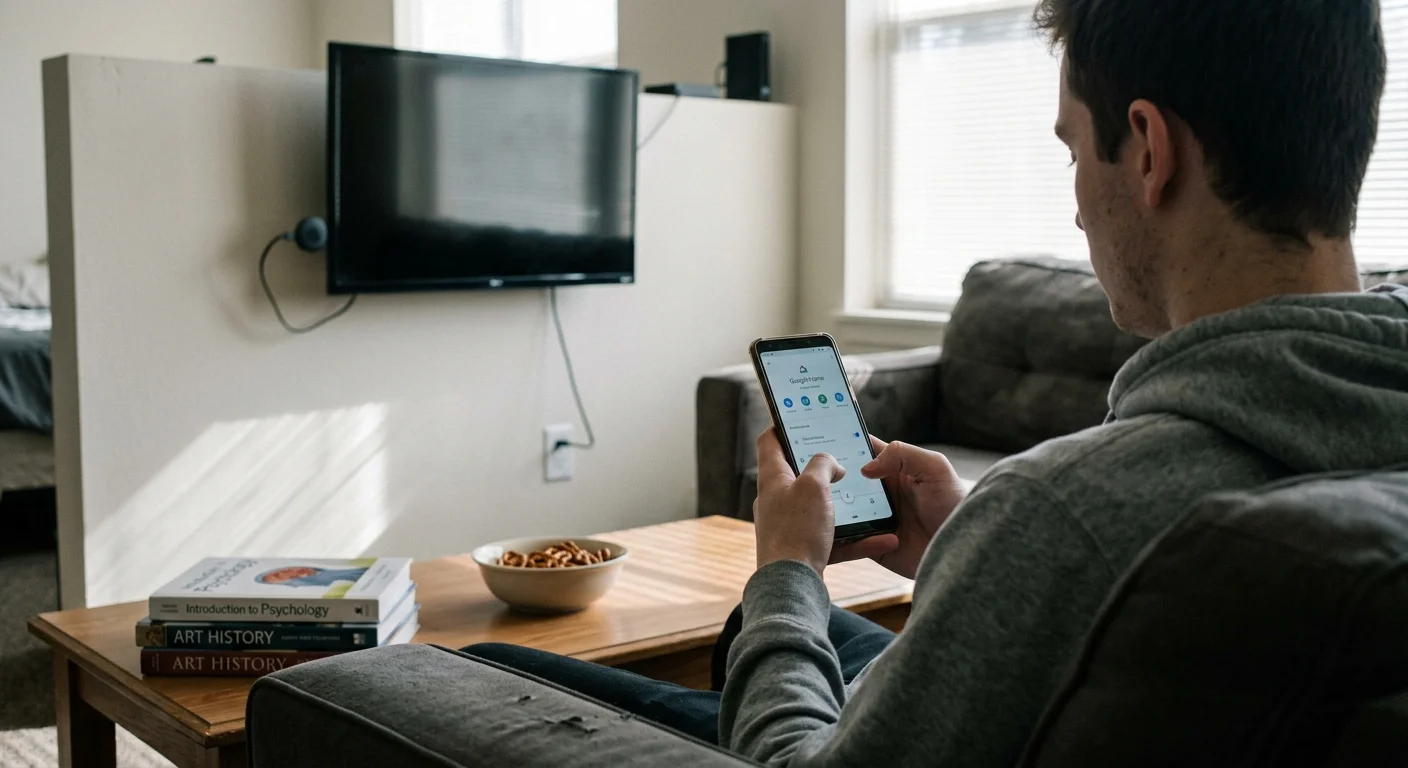
How to Block Neighbors from Casting to Google TV and Chromecast
Google Cast presents a unique vulnerability on shared subnets because it lacks an enforced pairing PIN. You must manually block neighbors casting to tv hardware powered by Google TV or legacy Chromecast software.
If you want mobile playback controls without exposing broadcast permissions to dorm mates, discover how to use your phone as a streaming remote via direct pairing.
On devices running Google TV, open your account profile in the top-right corner and select Settings. Navigate to System, then select Cast, and locate “Let others control your cast media.”
Toggle this setting from “Always” to “Never.” This stops Android phones on your dorm subnet from receiving persistent playback notification controls for your television.
Older standalone Chromecast pucks lack on-screen menus and depend entirely on the Google Home app. To secure chromecast shared dorm wifi connections, open Google Home on your smartphone while connected to the dorm network.
Select your Chromecast tile, tap the gear icon for Device Settings, and tap Recognition & Sharing. Disable the toggle labeled “Let others control your cast media.”
Also confirm that “Guest Mode” remains disabled. Guest mode uses high-frequency ultrasonic audio tones and a fallback four-digit PIN, but open campus Wi-Fi still exposes the receiver to local scans.
According to TechRadar, modern Google TV streamers offer direct remote navigation, making open network casting unnecessary for day-to-day playback.
If persistent pop-ups continue, rename your Chromecast to something deceptive like “Hallway_AP_5G_Test.” Ambiguous hardware labels deter neighbors from tapping your screen by mistake.
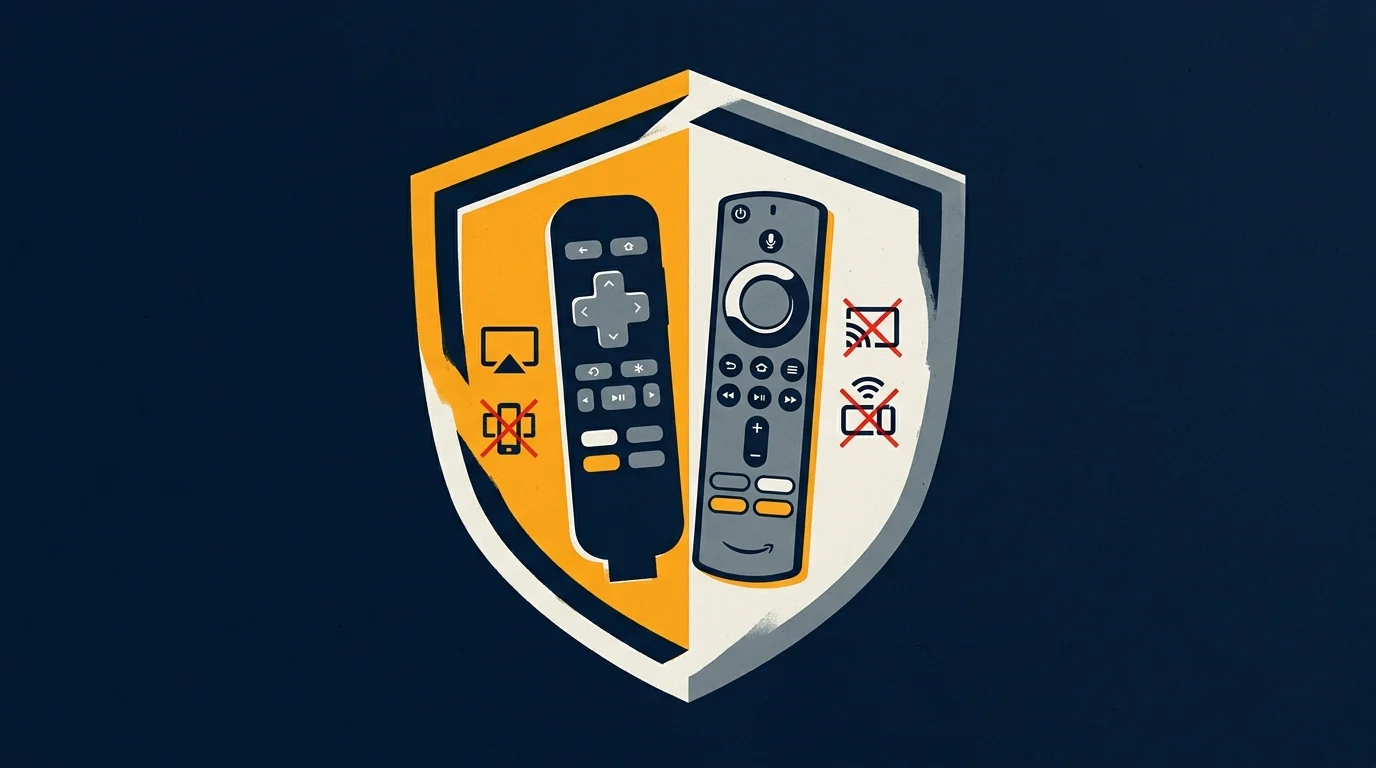
Locking Down Roku and Amazon Fire TV on Dorm Networks
A streaming device—a small box or stick (like Roku or Fire TV) that adds streaming to any TV—requires custom configuration on shared networks. Roku and Fire OS devices handle mirroring requests differently.
Purging unneeded device authorizations and clearing cached data will also help speed up a slow streaming device struggling under heavy residence hall traffic.
Beyond blocking rogue streams, you should also configure purchasing PINs on Fire TV and Roku to prevent guests from accidentally buying movies or add-ons.
Roku utilizes open screen mirroring alongside AirPlay on newer 4K models. To lock down a Roku Streaming Stick, navigate to Settings on your television screen.
Select System, then choose Screen Mirroring. Change the Screen Mirroring Mode from “Always Allow” to “Prompt” or “Never Allow.”
Setting this to “Prompt” displays an on-screen dialog asking for permission whenever a phone attempts connection. If you never mirror your phone, set it to “Never Allow” to close the port completely.
Select “Screen Mirroring Devices” from that same menu. Delete any unauthorized smartphones or laptops stored under the allowed devices list.
Amazon Fire TV devices do not accept open Cast streams natively, but they support Miracast and third-party receiver apps. Open Settings, select Display & Sounds, and scroll down to Enable Display Mirroring.
Fire OS only permits mirroring while this specific screen stays open. Exiting the menu closes the receiver port, preventing dorm neighbors from connecting while you watch shows.
Both platforms support cord-cutting—canceling traditional cable/satellite TV in favor of streaming services. Securing these devices ensures your subscription accounts remain private.
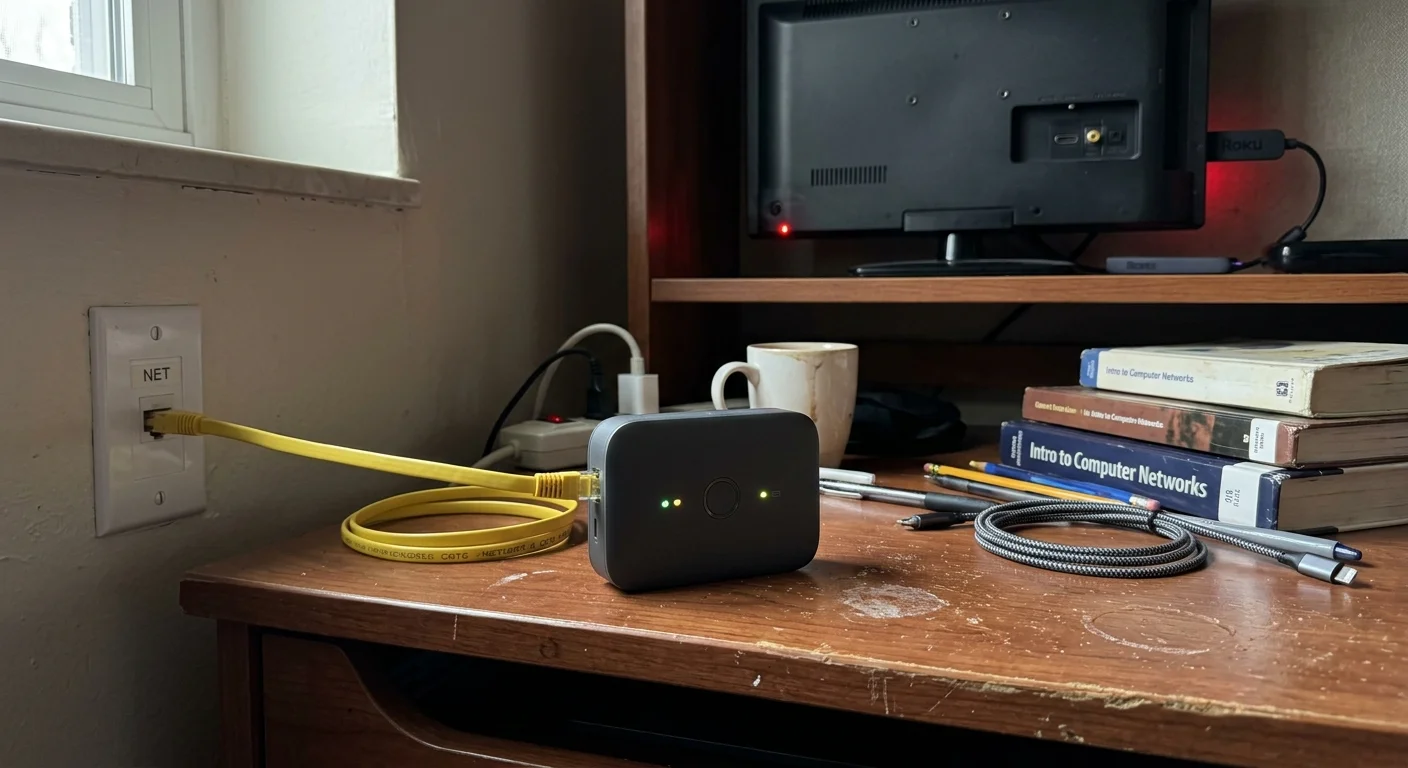
The Hardware Fix: Deploying a Travel Router for Complete Subnet Isolation
Software settings provide a baseline defense, but they do not hide your hardware from network discovery scans. The ultimate solution involves hardware-level network address translation (NAT) isolation.
Many compact routers also allow you to configure a VPN for streaming services at the network level, safeguarding privacy across all your connected media gear.
A compact portable travel router acts as a private security firewall between your dorm room devices and the campus infrastructure. It isolates all discovery protocols inside your four walls.
Consider a real-world scenario using a TP-Link TL-WR902AC ($39.99) or a GL.iNet GL-MT3000 ($45.00). In approximately eight minutes, you can eliminate cross-room casting permanently.
First, plug the travel router into your dorm room’s active RJ45 Ethernet wall jack using a Cat6 cable. If your dorm lacks Ethernet, configure the router in WISP (Wireless Internet Service Provider) client mode.
Second, access the router admin console at 192.168.8.1 on your laptop browser. Assign your private network a unique SSID, such as “Dorm_Suite_Private,” secured with WPA3 encryption.
Third, open the router’s Network settings and locate the MAC Address Cloning menu. Campus networks require portal authentication; clone your registered laptop MAC address so the university network approves the router.
Fourth, connect your television, streaming puck, laptop, and phone to your new private SSID. Your devices now operate within their own isolated 192.168.8.0/24 subnet.
Because mDNS and SSDP broadcast packets cannot traverse NAT firewalls, no student outside your room can detect your TV.
Placing dorm entertainment devices behind a NAT-enabled personal travel router keeps link-local mDNS multicast discovery traffic inside your private LAN rather than exposing it on the campus network.
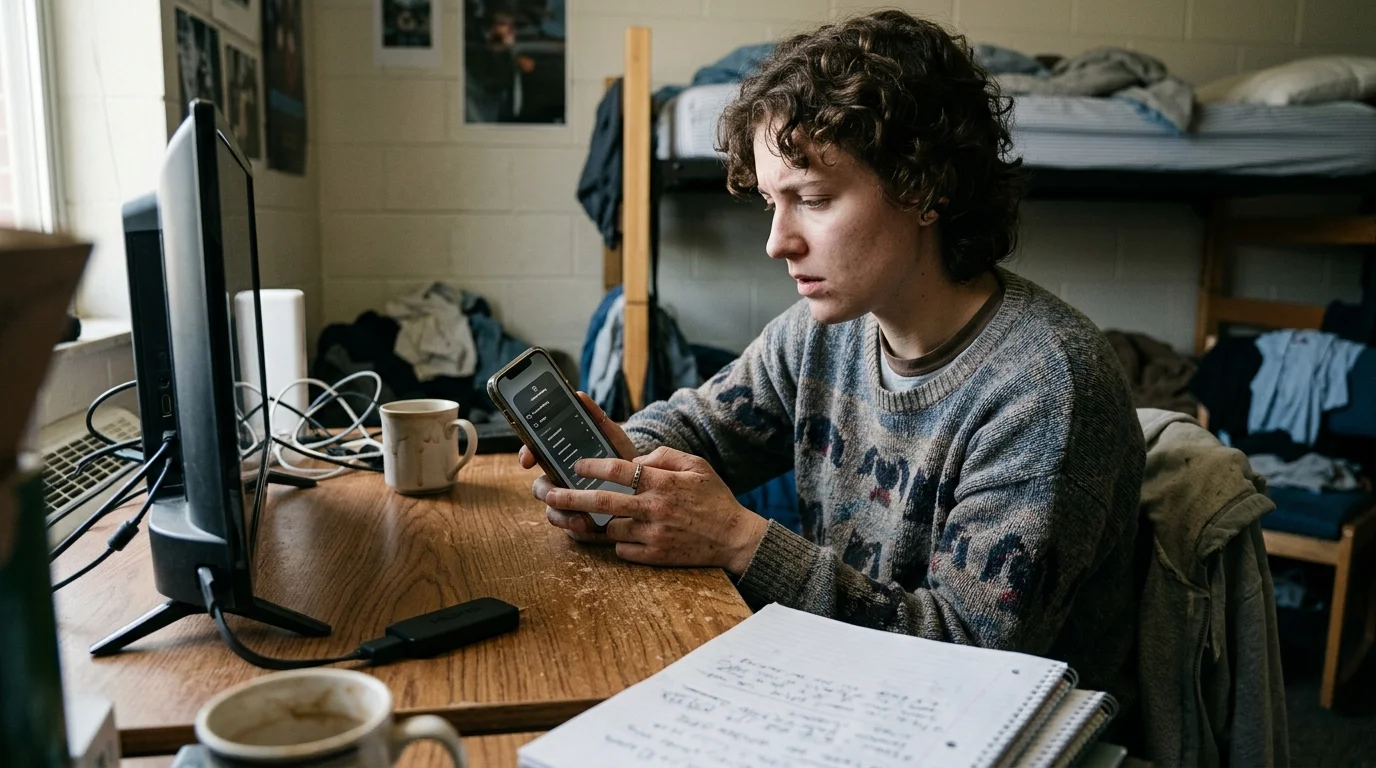
Streaming Device Security and Dorm Network Compatibility
Different streaming hardware platforms offer vastly different levels of built-in network security. Some models let you lock down access completely, while others stay permanently visible.
When selecting hardware for shared dorm living, prioritize devices that provide mandatory PIN pairing and captive portal browser support. Captive portal browsers allow direct login on university landing pages.
The table below compares how leading streaming platforms perform when connected directly to shared campus subnets without a router.
| Streaming Platform | PIN Enforcement Support | Captive Portal Browser | Discovery Lockdown | Vulnerability Level |
|---|---|---|---|---|
| Apple TV 4K | Mandatory (4-digit dynamic) | Yes (via iPhone relay) | Complete (disable AirPlay) | Low |
| Roku Streaming Stick 4K | Prompt / Block Only | Yes (Hotel & Dorm Connect) | Partial (Miracast toggle) | Moderate |
| Amazon Fire TV Stick 4K Max | Manual Mirroring Only | Yes (Integrated Silk Browser) | High (no passive receiver) | Low |
| Chromecast with Google TV | None (account link only) | No (requires phone setup) | Poor (mDNS always active) | High |
As noted in Wirecutter’s media streamer guide, Apple TV provides the strongest overall access controls for networked environments. Its dynamic PIN system ensures zero accidental handoffs.
Amazon Fire TV also offers strong isolation because it does not run an unauthenticated open casting listener in the background. According to Tom’s Guide, Fire TV devices represent the best budget choice for tricky shared network logins.
Standalone Chromecasts present the highest operational risk in student housing. Without a private travel router, locking them down completely via software remains nearly impossible.
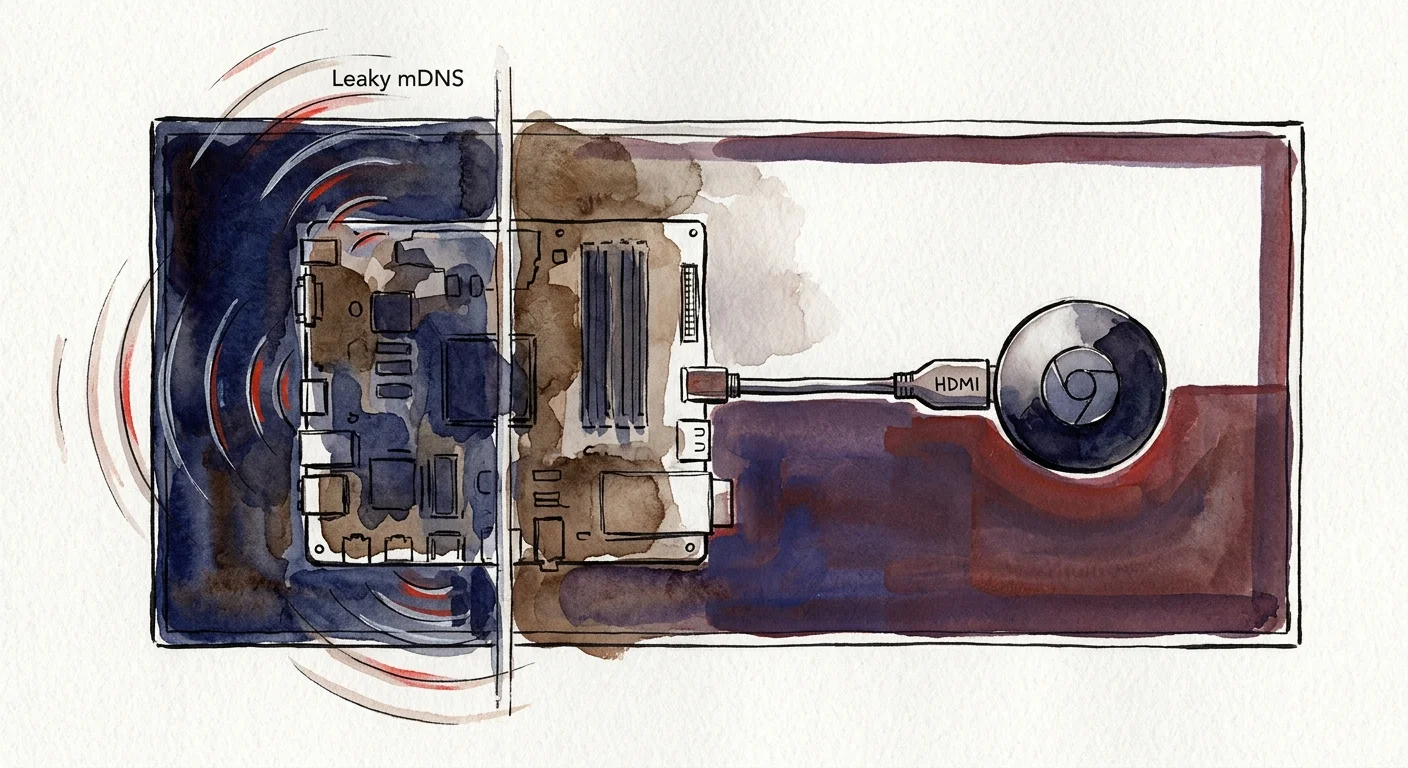
Smart TV Native Apps Versus Dedicated Streaming Hardware
Many college students rely on the native software included with budget televisions from TCL, Hisense, or Insignia. However, cheap integrated televisions feature slower processors and infrequent security patches.
Budget sets support on-demand viewing—letting you watch whatever you want, whenever you want—but they handle protocol security poorly. Many budget TV brands leave discovery ports permanently open to drive advertising analytics.
A $30 to $50 dedicated streaming stick delivers significant performance advantages over built-in smart TV platforms. Standalone sticks receive regular firmware updates that patch network vulnerabilities faster.
Modern streaming devices also deliver superior audio and video standard support. Entry-level units offer 4K resolution (3840 x 2160 pixels) and HDR10 (High Dynamic Range with static metadata).
Premium streamers priced at $100 to $150 add Dolby Vision (dynamic metadata for precise scene-by-scene brightness) and Dolby Atmos (object-based spatial audio). Built-in budget TV processors often drop frames when decoding these heavy bitrates.
If you prefer an ad-free experience—plans that cost more but don’t show commercials—standalone devices load menus faster. Conversely, if you watch ad-supported content—free or cheaper plans that show commercials—dedicated sticks switch video feeds without crashing.
Dedicated hardware also supports cloud DVR functionality—a digital video recorder that lets you record and watch shows later. Cloud DVR interfaces run substantially smoother on standalone streaming hardware.
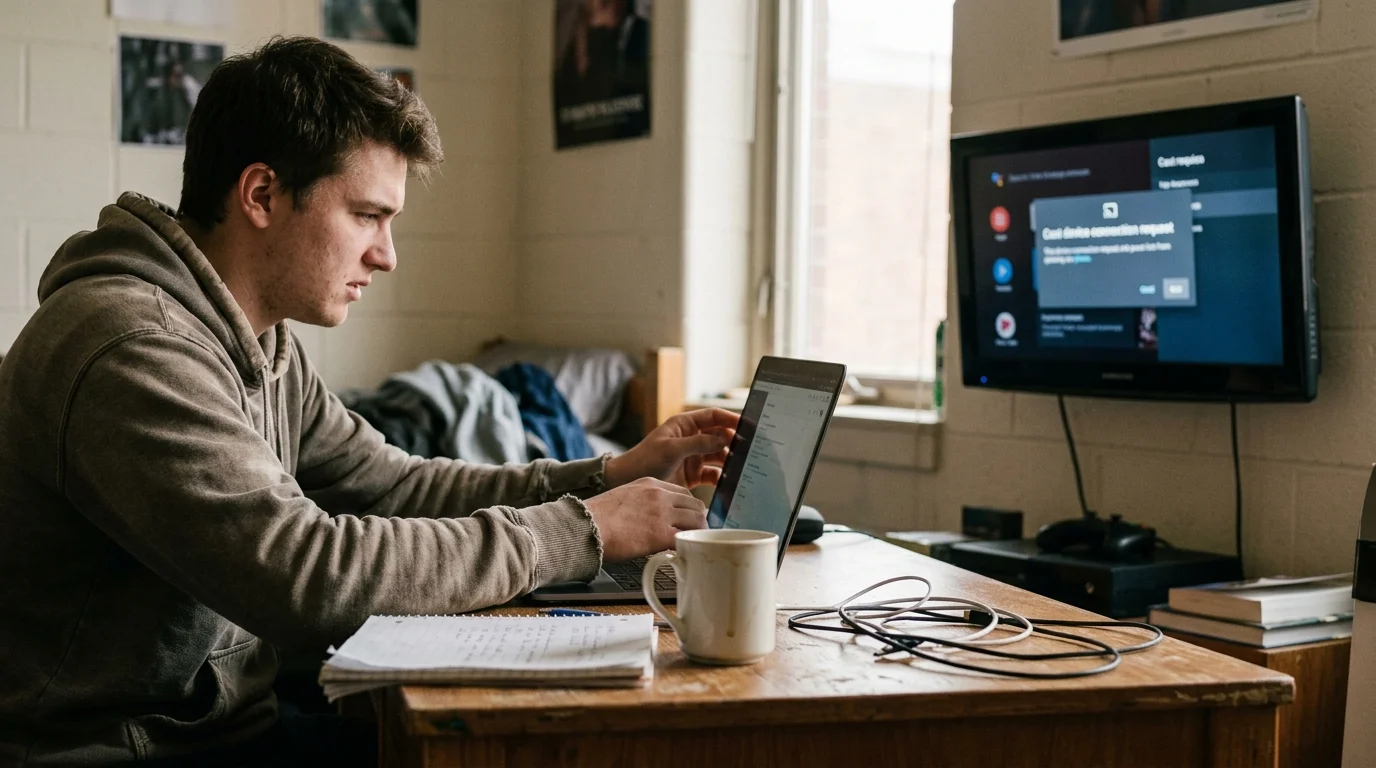
Privacy Settings and Campus Bandwidth Management
Living on a college campus means your streaming traffic shares local bandwidth with university servers and thousands of students. Inefficient streaming protocols congest local access points quickly.
Open casting connections continuously poll the local network using mDNS beacon packets. Disabling background cast listeners reduces unnecessary Wi-Fi chatter on your residence hall channel.
Privacy policies also differ drastically across streaming hardware manufacturers. Amazon and Google monetize viewer behavior by collecting telemetry data across connected devices on your subnet.
Apple and Roku limit ad tracking more strictly within their device privacy settings. On Roku, open Settings, select Privacy, and enable “Limit Ad Tracking” to reduce data transmission across the campus network.
On Apple TV, navigate to Settings, General, Privacy, and disable “Share Apple TV Analytics.” This protects your viewing habits from logging systems operating on campus firewalls.
If your campus enforces strict per-device monthly bandwidth quotas, lower your device resolution from 4K to 1080p within display settings. Streaming 1080p consumes roughly 3 GB per hour compared to 7 GB per hour for 4K video.
Frequently Asked Questions
Can dorm neighbors turn on my TV using Google Cast or AirPlay?
Yes, if your television supports HDMI-CEC (Consumer Electronics Control) and stays connected to open campus Wi-Fi. An accidental cast stream wakes the television from standby and switches the active input automatically.
Why does my TV still show up on other students’ phones after I set an AirPlay PIN?
Setting a PIN prevents unauthorized playback, but it does not stop the television from broadcasting its mDNS discovery beacon. To remove the TV name from their phone screen entirely, you must use a travel router.
Are travel routers allowed on college campus networks?
Most universities permit travel routers if configured as NAT firewalls without broadcasting rogue DHCP servers back into the campus Ethernet ports. Always review your college housing Acceptable Use Policy before connecting network hardware.
Can I turn off Bluetooth to block casting hijacking?
Disabling Bluetooth helps prevent Apple AirPlay peer-to-peer discovery between nearby Apple devices. However, standard Google Cast and networked AirPlay streams route over local Wi-Fi subnets rather than Bluetooth radio connections.
Disclaimer: Device prices and features may change. New models are released regularly, so check for the latest versions before purchasing. The “best” device depends on your specific needs, existing ecosystem (Apple, Google, Amazon), and budget.