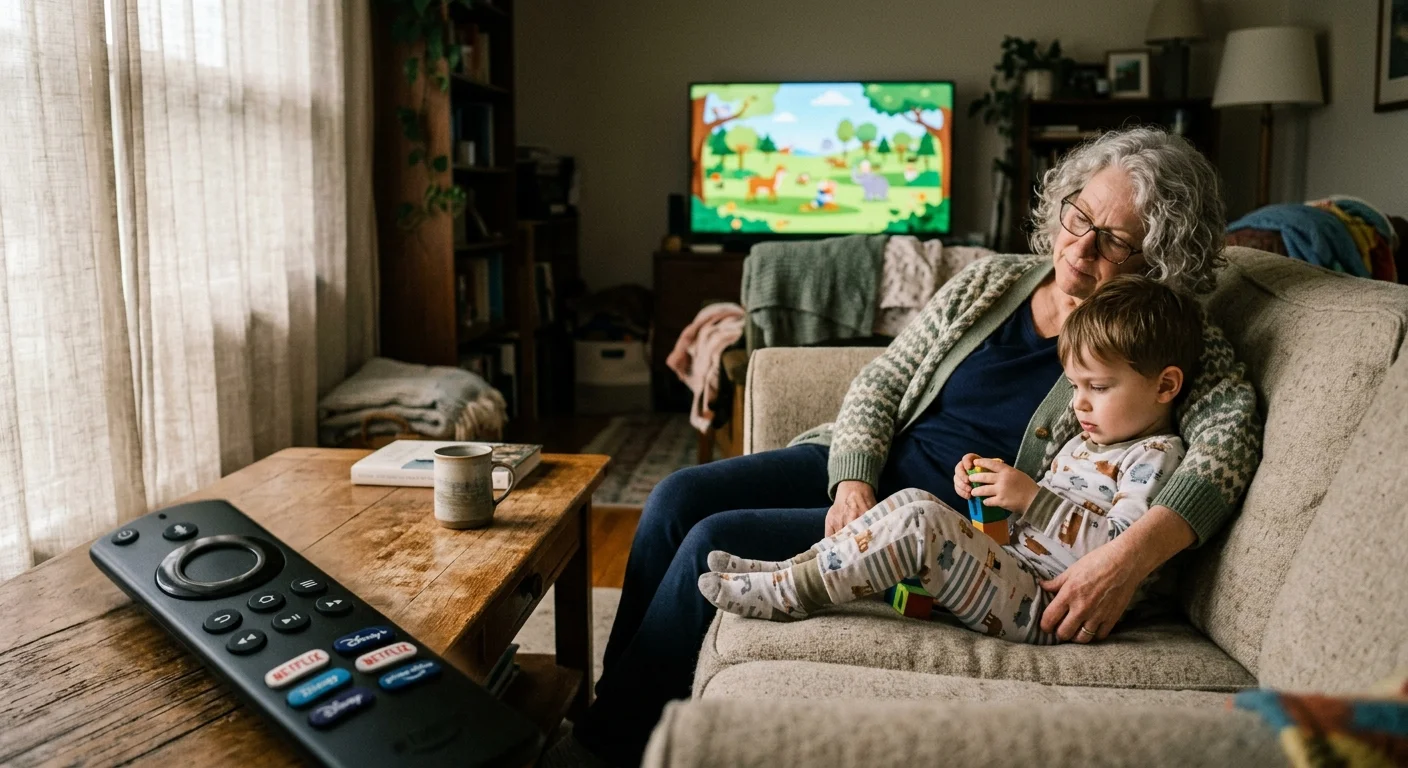
Toddlers love mashing colorful remote buttons, frequently turning an innocent morning cartoon into an accidental $19.99 movie rental within seconds. You can lock down streaming purchases on your living room television before your visiting grandchildren ever touch the controller.
Most setup guides assume a single system passcode protects your credit card. In reality, standard operating system controls fail against third-party billing loopholes unless you configure cross-platform defenses.
This blueprint gives grandparents a step-by-step method to secure Amazon Fire TV, Roku OS, and connected devices against inadvertent toddler clicks.
The Cost of Rogue Clicks: A Worked Toddler Purchase Scenario
Grandchildren navigate modern screens faster than adults anticipate. They treat television remotes as plastic rattle toys, rapidly tapping directional pads and bright confirmation buttons.
Unplanned digital purchases are among the many common cord-cutting mistakes that catch households off guard.
Modern home entertainment relies heavily on streaming, which means watching video content over the internet instead of cable or satellite. Because platforms store payment credentials, a single stray press instantly triggers financial transactions.
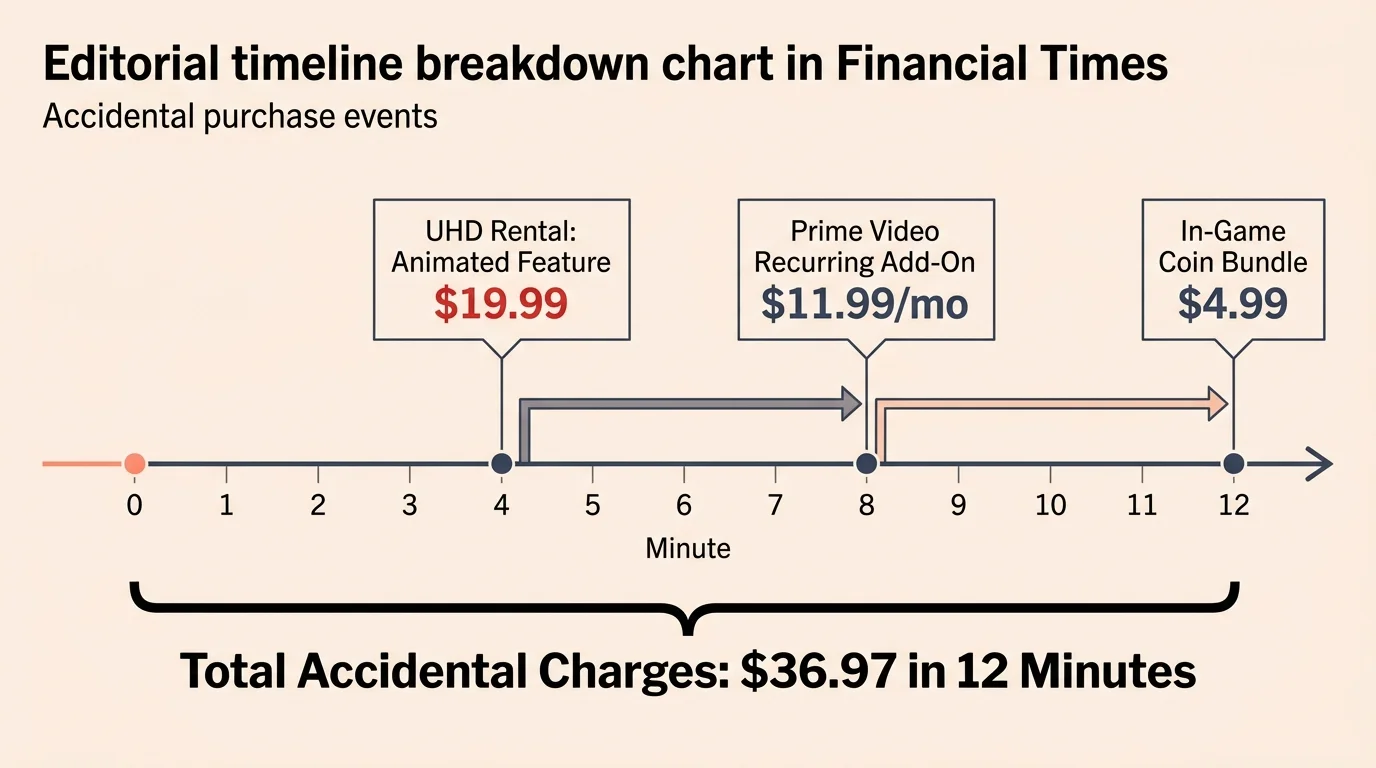
Consider this concrete scenario recorded on a Saturday morning with three-year-old Leo visiting his grandmother’s house. Leo held an Amazon Fire TV Alexa voice remote for 12 uninterrupted minutes while watching animated shorts.
Within those 12 minutes, Leo executed three separate unintended commercial transactions. First, he pressed the center selection button four times on a promotional banner, ordering a $19.99 UHD rental of an animated feature.
Four minutes later, Leo navigated into a premium channel tile. He started a recurring $11.99 monthly channel add-on subscription through Amazon Prime Video with two quick thumb clicks.
Finally, he downloaded a free casual game and authorized a $4.99 bundle of virtual game coins. By the time his grandmother returned from the kitchen with sliced apples, the television had charged $36.97 to her credit card.
A streaming device is a small box or stick (like Roku or Fire TV) that adds streaming to any TV. Without administrative locks, these gadgets process microtransactions instantly without secondary confirmation.
Refunding these charges requires navigating customer service phone trees, waiting on hold, and writing disputation emails. Preventing transactions before little fingers touch the remote saves your budget and your sanity.
Roku OS Protection: How to Configure the 4-Digit Security PIN
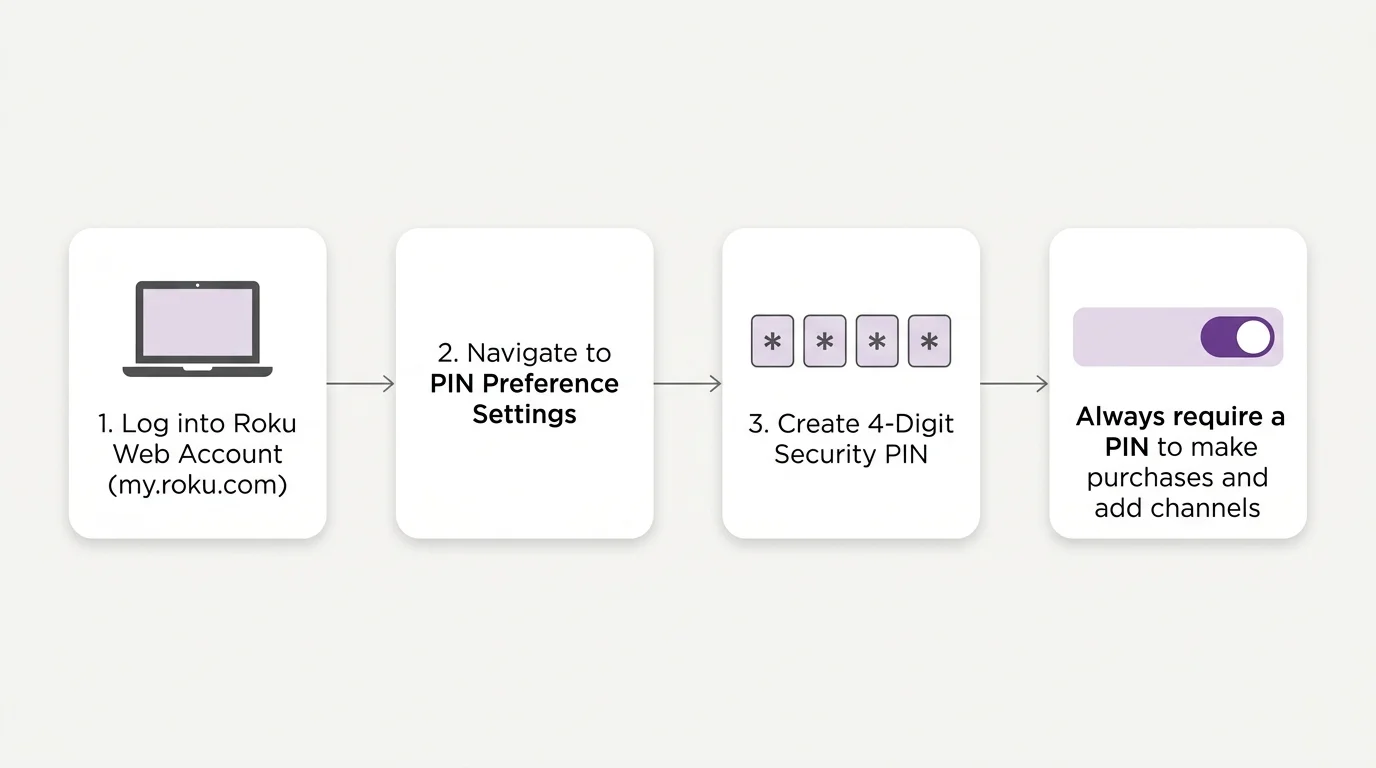
Roku provides a centralized billing control system across its streaming platform. However, you cannot establish your protective purchase code directly through the television screen interface.
Review our top streaming devices for seniors with limited technical skills to find models that make navigating these account menus straightforward.
Roku requires you to manage purchase authorization through their web portal. Grab a tablet, smartphone, or laptop computer to adjust your master profile credentials.
- Open an internet browser and navigate to my.roku.com.
- Sign in using your primary email address and Roku password.
- Locate the PIN Preference section under account settings.
- Click the Update button to open security options.
- Create a memorable 4-digit numerical PIN using the numeric keypad.
- Select Always require a PIN to make purchases and add items from the Channel Store.
- Click Save Changes at the bottom of the webpage.
Roku presents three enforcement tiers within this configuration dashboard. The first tier demands the 4-digit code whenever anyone buys movies, rents shows, or installs paid and free applications.
The second tier requires the code solely for monetary transactions while allowing free application downloads. Grandparents caring for toddlers must avoid this second setting.
Toddlers frequently install free ad-supported software containing unvetted video libraries and confusing promotional menus. Selecting the strictest verification tier prevents grandchildren from altering your home screen layout.
According to Wirecutter’s streaming device guide, Roku OS delivers one of the simplest TV interfaces available. That simplicity makes setup painless for grandparents who want clear menus.
Once you save this online profile change, your physical Roku streaming stick receives the directive automatically within minutes. Any remote press prompting an installation immediately prompts a full-screen numeric entry box.
Never choose obvious codes such as 1-2-3-4 or 0-0-0-0. Older toddlers quickly guess repetitive sequences by watching adult hand movements on the remote control.
Amazon Fire TV Lockdown: 5-Digit PINs and Disabling In-App Billing
Amazon Fire TV devices integrate directly into Amazon retail shopping databases. This deep integration makes Fire TV sticks particularly vulnerable to accidental toddler purchases if left in factory defaults.
If an accidental channel subscription slips through before you configure your PIN, learn how to cancel any streaming service quickly before the next billing cycle.
While securing device-level purchases stops unwanted transactions, you should also configure parental controls across streaming services to shield children from adult content within specific apps.
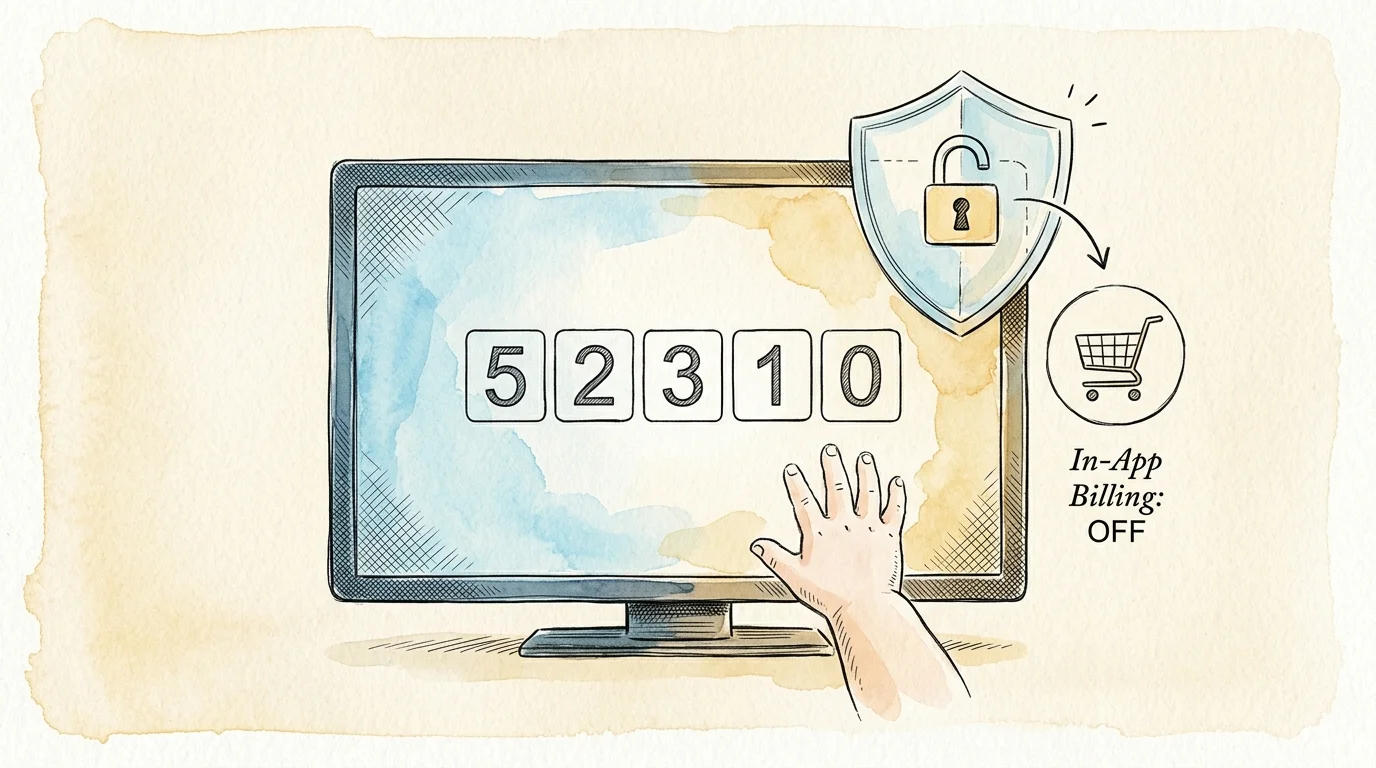
Unlike Roku’s 4-digit system, Amazon relies on a 5-digit numerical PIN to verify parental authorization. You can configure this master security PIN directly through the Fire TV on-screen settings.
- Use your remote to highlight the Settings gear icon on the Fire TV home menu.
- Scroll right and select the Preferences tile.
- Click on Parental Controls, which defaults to an inactive status.
- Toggle Parental Controls to ON.
- Enter your chosen 5-digit PIN twice using the on-screen keypad.
- Ensure the sub-option PIN Protect Purchases displays as ON.
Enabling this master feature safeguards digital video purchases, Prime Video movie rentals, and paid application installations. However, this setting alone leaves one critical loophole wide open.
Toddlers playing casual video games or watching interactive content can trigger purchases inside running applications. You must perform a separate roku purchase pin setup equivalent inside Amazon’s Appstore submenus to lock down streaming purchases.
Navigate back to Settings, select Applications, and choose Appstore. Scroll down to In-App Purchases and toggle the option to OFF.
When you complete this fire stick disable in app purchases adjustment, apps cannot bill your Amazon account. Toddlers tapping upgrade icons inside games hit an impassable digital brick wall.
“Securing a streaming device requires locking the operating system and shutting down secondary internal app billing pipelines.” — Consumer Safety Analyst
Do not forget Amazon’s Alexa voice remote functionality. If your voice service allows spoken ordering, a toddler mimicking dialogue can order physical goods directly to your porch.
Open the Amazon mobile app on your smartphone, tap Settings, then Account Settings, and select Alexa Voice Purchasing. Toggle voice purchases off entirely, or mandate your 5-digit voice security confirmation code.
Google TV and Smart TV Operating Systems: Closing Residual Loopholes
Many modern living rooms rely on a smart TV, which is a television with built-in internet connection and apps. Alternatively, families use Google TV dongles connected to rear HDMI ports.
Pairing OS purchase locks with separate streaming user profiles ensures younger viewers stay locked into kid-friendly content.
Beyond stopping accidental storefront orders, practicing proactive streaming device security keeps stored credentials and personal viewing data safe from wider digital vulnerabilities.
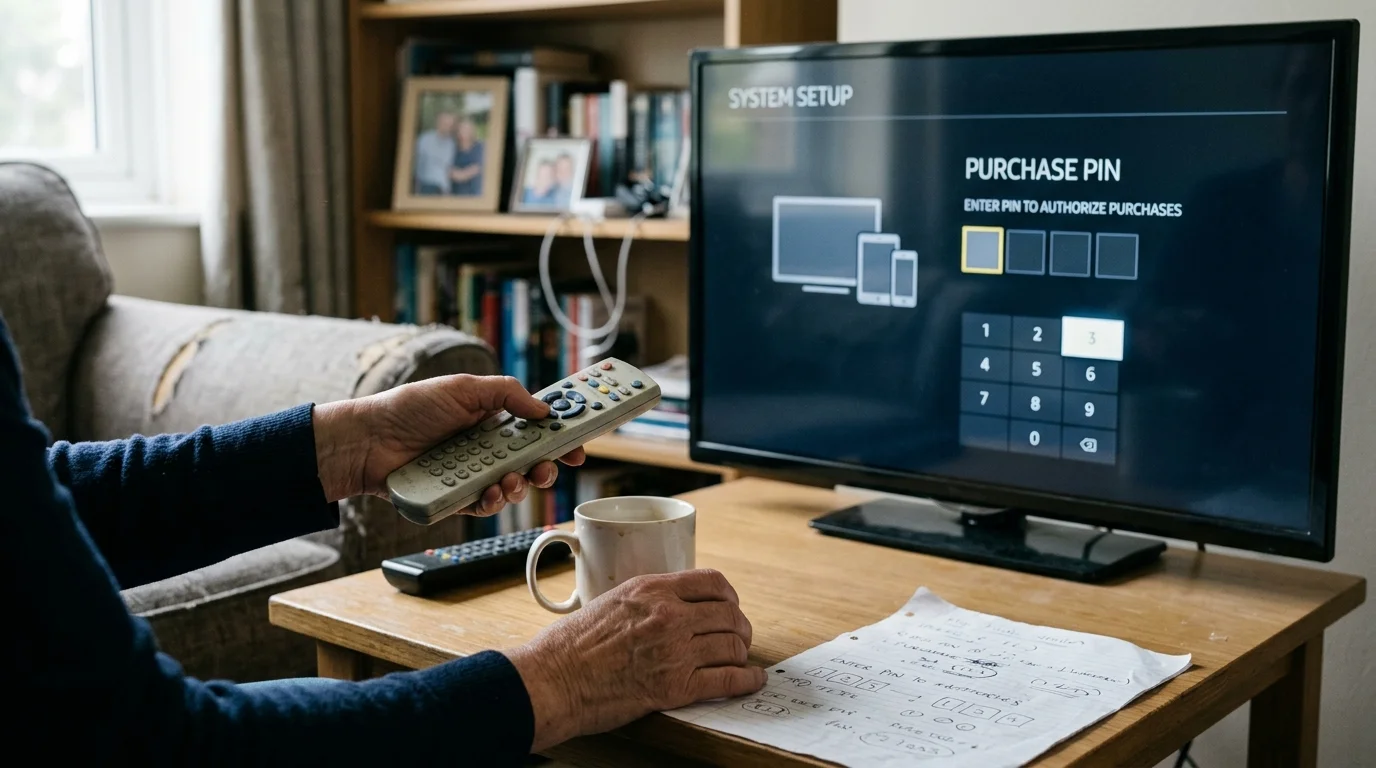
Google TV relies on Google Play Store payment frameworks to process movie rentals and software downloads. Grandparents must tighten these security settings to prevent accidental debit card charges.
Power on your Google TV interface, select your user profile avatar in the upper-right corner, and click Settings. Navigate to Accounts & Sign In, then select your primary Google account profile.
Click on Payment & Purchases, then highlight Purchase Authentication. Change the configuration from “Never” or “Every 30 minutes” to For all purchases through Google Play on this device.
Smart TV platforms like Samsung Tizen and LG webOS feature their own manufacturer app hubs. Built-in television software often prompts you to attach a credit card during initial unboxing.
Open the general system settings on your smart TV and navigate to the Account Management tab. Locate your manufacturer profile, select Payment Methods, and remove any stored credit card records completely.
Smart TV apps are good enough for basic news and weather viewing. However, proprietary smart TV software rarely provides the granular purchase locks found on dedicated streaming devices.
According to research from Consumer Reports, dedicated streaming hardware delivers better long-term software security updates than most smart televisions. Dedicated hardware gives grandparents significantly greater administrative control.
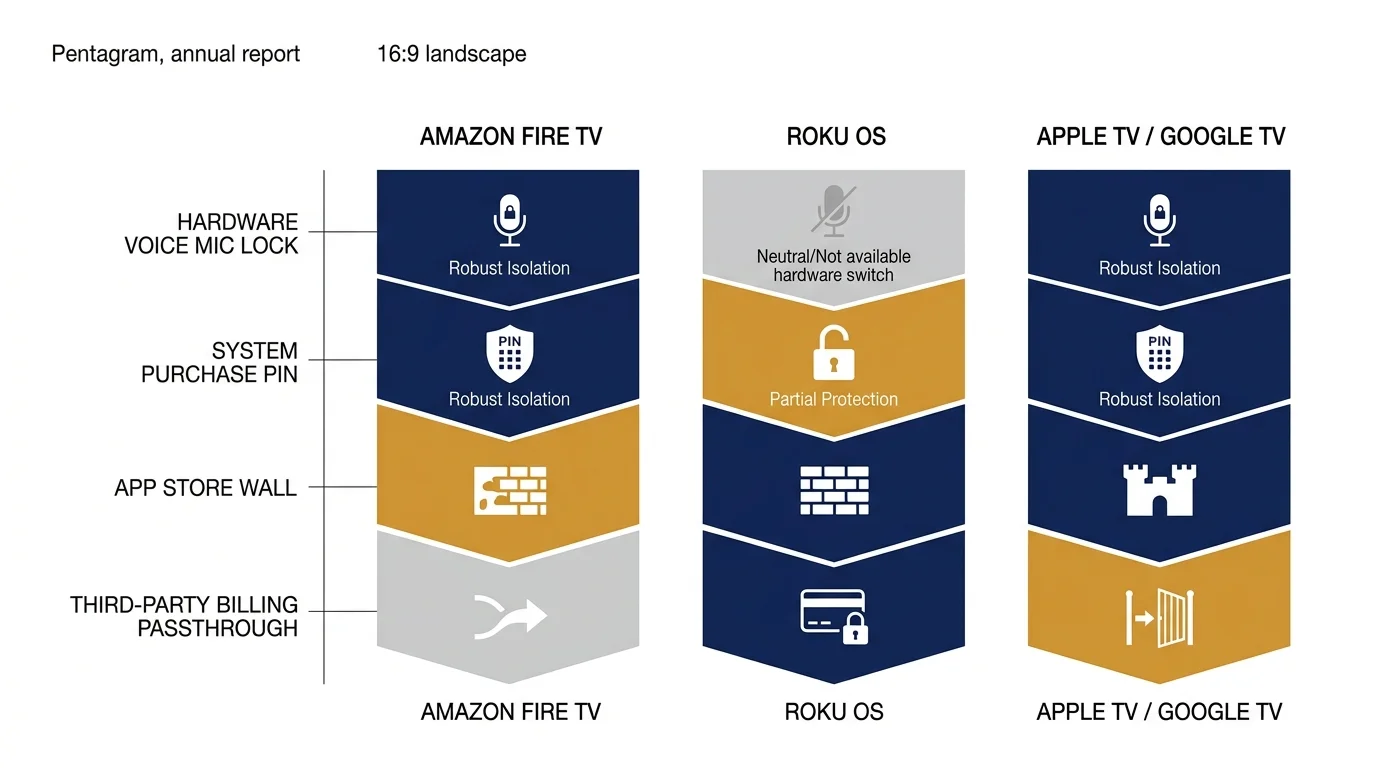
Hardware and Architecture Comparison: Streaming Devices Built for Family Safety
Selecting the right streaming hardware involves balancing picture resolution, audio support, and safety configurations. Grandparents need hardware that delivers excellent performance while minimizing accidental purchase risks.
For older adults transitioning away from traditional cable, check out our stress-free cord cutting guide for seniors to simplify the whole process.
Cord-cutting means canceling traditional cable or satellite TV in favor of streaming services. When cutting the cord, grandparents often upgrade older televisions to modern 4K resolutions.
Resolution standard 4K delivers four times the pixel clarity of standard 1080p high definition. HDR10 represents high dynamic range video, expanding color depth and contrast between bright highlights and deep shadows.
Dolby Vision is an advanced dynamic HDR format that optimizes color frame by frame for compatible televisions. Dolby Atmos provides immersive spatial surround audio, sending sound effects all around your viewing room.
The following comparison table breaks down four leading streaming players across safety, technical specifications, and retail costs.
| Device Model | Purchase PIN Type | Video & Audio Support | WiFi Standard | Retail Price |
|---|---|---|---|---|
| Roku Express 4K+ | 4-Digit Master PIN | 4K, HDR10+, Dolby Atmos Passthrough | WiFi 5 (802.11ac) | $39.99 |
| Roku Streaming Stick 4K | 4-Digit Master PIN | 4K, Dolby Vision, HDR10+, Dolby Atmos | WiFi 5 (Long-Range) | $49.99 |
| Amazon Fire TV Stick 4K Max | 5-Digit Master PIN | 4K, Dolby Vision, HDR10+, Dolby Atmos | WiFi 6E Tri-Band | $59.99 |
| Chromecast with Google TV 4K | Google Account Password / Biometric | 4K, Dolby Vision, HDR10, Dolby Atmos | WiFi 5 (802.11ac) | $49.99 |
Hardware testing published by Tom’s Guide highlights that Roku streaming sticks offer the fastest setup workflows for non-technical users. Their straightforward menus eliminate confusing nested options.
Privacy differences also separate these competing hardware platforms. Amazon and Google actively gather your search habits and viewing history to target retail advertisements across their digital ecosystems.
Roku monetizes through platform advertising on home screens, but maintains fewer retail ties than Amazon. Choosing Roku simplifies safety for grandparents who do not want retail goods pushed to their television screens.
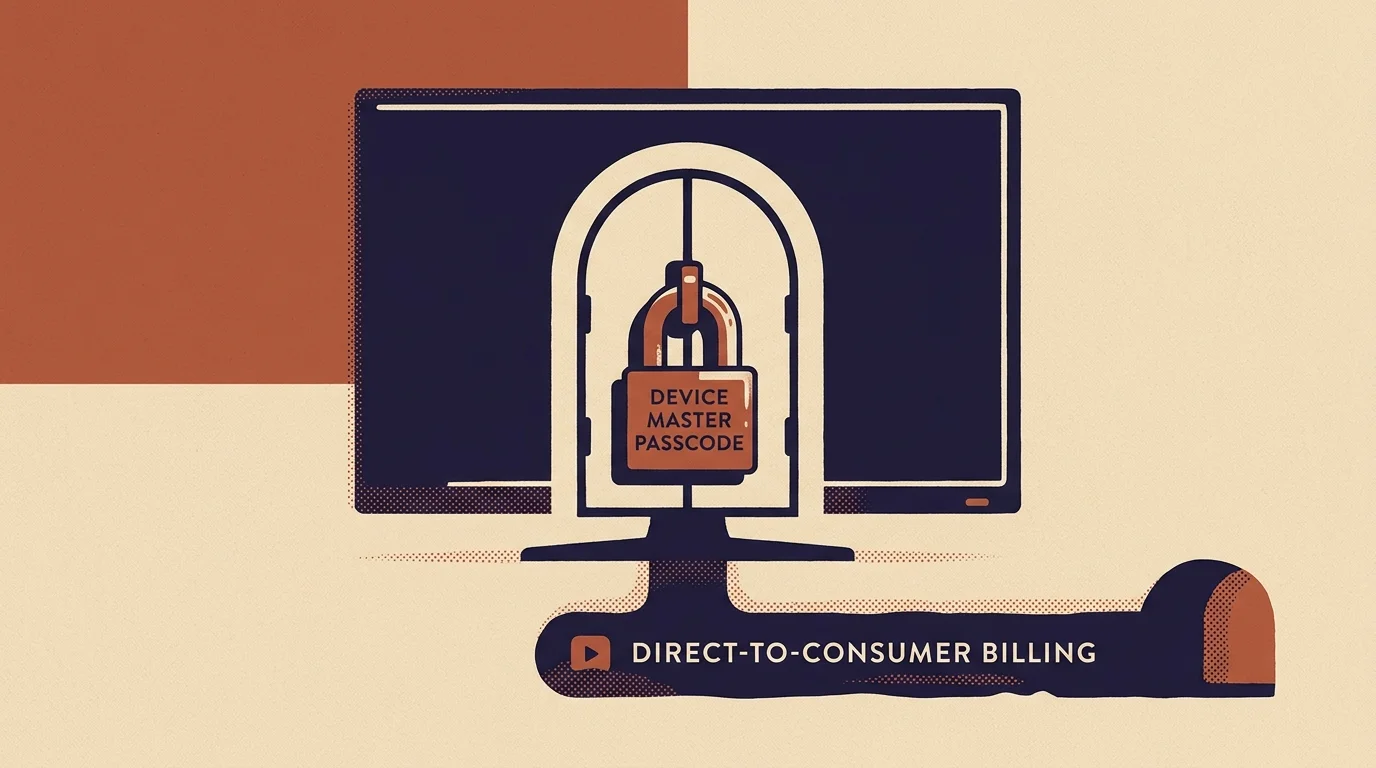
The Third-Party App Blindspot: Protecting Standalone Subscriptions
Activating an operating system PIN on your Fire TV or Roku does not secure every application. This reality catches countless grandparents completely off guard.
Roku’s master PIN only restricts purchases processed through Roku’s internal payment processor. If you run a standalone third-party app with independent payment details, the Roku PIN provides zero protection.
For example, if you open the Apple TV app or Fandango at Home on a Roku, those apps maintain their own billing engines. A toddler can rent an on-demand movie without entering your Roku system passcode.
On-demand means you can watch whatever you want, whenever you want, rather than following a broadcast schedule. Premium on-demand libraries charge immediate card fees for new theatrical releases.
To seal this dangerous loophole, you must configure internal safety PINs within each individual streaming application. Start with your Amazon Prime Video profile if running inside a Roku player.
- Open a computer browser and visit amazon.com/pin.
- Create or confirm your primary account Purchase PIN.
- Scroll down to PIN on Purchase and toggle the option to ON.
- Check the boxes beside each registered television stick in your household.
Next, secure your Apple TV application. Launch the Apple TV channel on your streaming device, click Settings, select Restrictions, and switch purchase confirmation to Always Require.
Pay close attention to your service subscriptions. Many viewers balance ad-supported tiers, which are free or cheaper plans showing commercials, with ad-free packages that eliminate interruptions.
Some subscriptions feature integrated cloud DVR services. A DVR is a digital video recorder that lets you record and watch live broadcasts at your convenience.
Toddlers casually exploring premium sports or live TV tiers can accidentally click plan upgrades. Setting up independent application passcodes keeps subscription plans at their intended billing tiers.
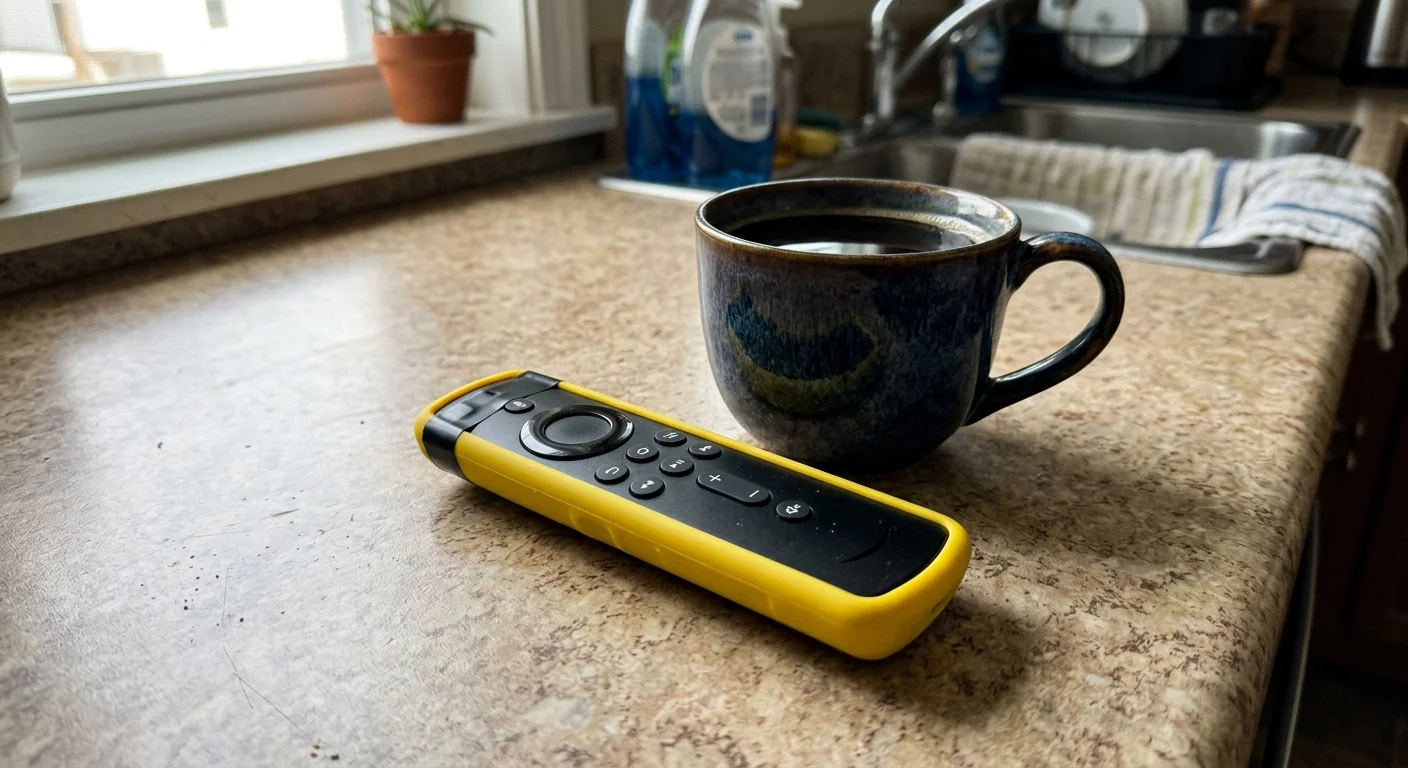
Physical Remote Defense: Hardware Shields and Voice Control Traps
Digital passcodes form your first line of defense, but physical remote modifications prevent accidental button presses entirely. Remote controls feature soft rubber buttons that trigger easily under small feet.
Many modern remotes feature dedicated shortcut buttons for branded streaming services along the bottom edge. Toddlers pressing these buttons instantly launch commercial storefronts.
“Hardware barriers solve what software settings leave behind; blocking access to the physical button stops the toddler purchase loop before it starts.” — Home Tech Specialist
Consider purchasing an inexpensive, thick silicone remote sleeve. These slip-on covers provide impact protection against drops onto hardwood floors while providing enhanced grip for arthritic hands.
More importantly, look for silicone covers featuring raised button guards or port plugs. A sleeve with deep recesses makes it much harder for flat toddler palms to depress selection keys accidentally.
If your grandchildren frequently open battery compartments, secure the rear plastic door. Wrap a small strip of colored electrical tape around the bottom third of the remote casing.
This barrier prevents toddlers from removing lithium or alkaline batteries and swallowing hazardous components. It also protects your remote against saliva damage when teething infants chew on plastic edges.
Voice remotes present another physical vulnerability. Both Roku Voice Remote Pro and Amazon Alexa Voice remotes include active listening microphones triggered by button presses.
On the Roku Voice Remote Pro, locate the physical slider switch along the left side edge. Sliding this toggle displays a green accent mark, disabling the hands-free microphone permanently.
This single physical switch prevents wandering toddlers from speaking commands that launch pay-per-view events. Your remote will only listen when an adult deliberately presses and holds the microphone button.
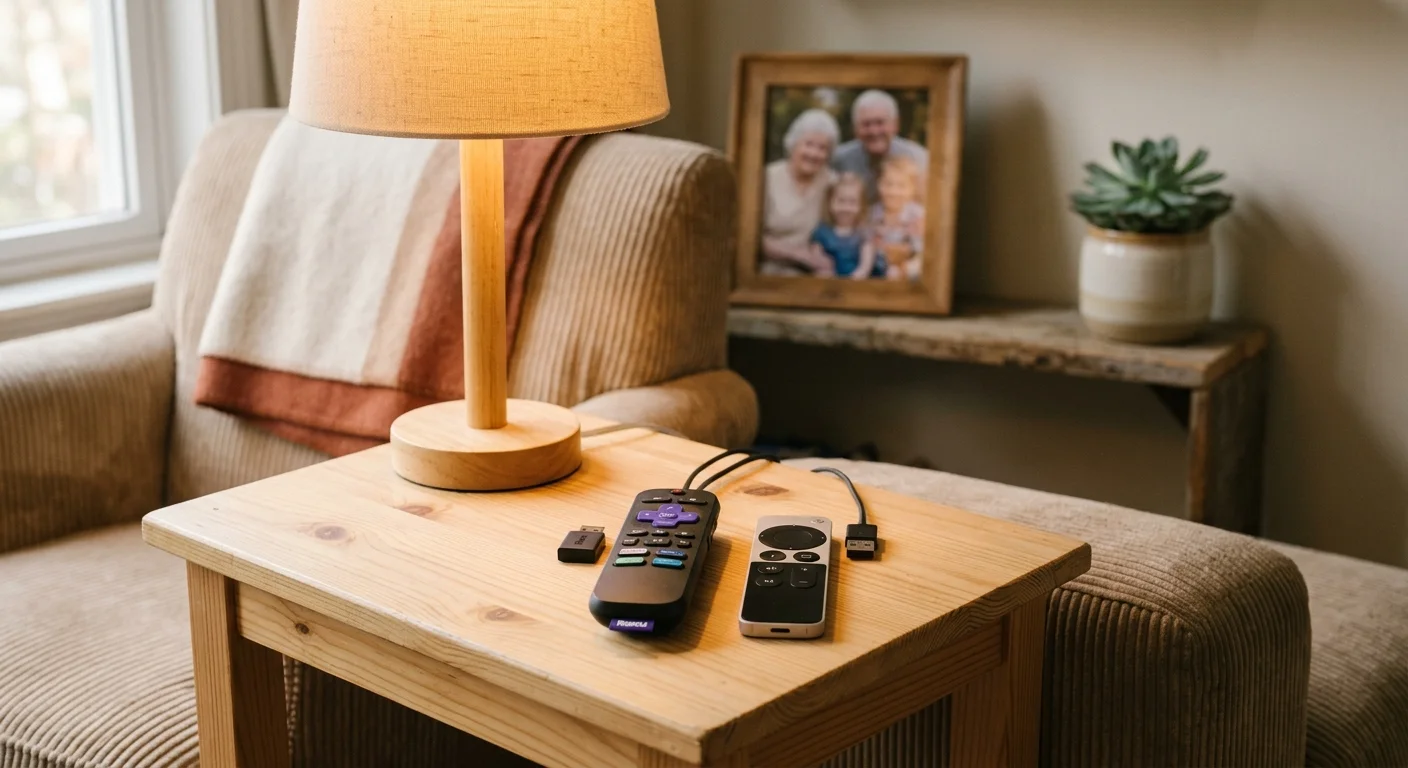
Best Streaming Devices for Grandparents and Multi-Generational Homes
Different family dynamics call for different streaming hardware solutions. Matching the right device tier to your specific technical comfort level saves money while reducing household tech headaches.
Grandparents on tight fixed budgets should consider the $30 to $40 hardware tier. The Roku Express 4K+ ($39.99) delivers exceptional value for everyday living room viewing.
It provides crisp 4K visual playback, fast navigation speeds, and access to all essential streaming apps. Crucially, its setup menu directs all billing security through a single, easy-to-use web interface.
For standard family households seeking the optimal balance of features, choose the $50 tier. The Roku Streaming Stick 4K ($49.99) plugs directly into your television’s rear HDMI port, hiding behind the display.
It includes an enhanced long-range wireless receiver, Dolby Vision support, and an ergonomic voice remote. It keeps cables hidden away from curious toddler hands grasping near television stands.
If your household already utilizes Amazon Prime delivery memberships, consider the Amazon Fire TV Stick 4K Max ($59.99). This stick includes WiFi 6 compatibility for ultra-smooth streaming over busy home internet networks.
However, grandparents choosing Fire TV devices must invest 15 minutes to configure both parental PINs and Appstore locks. Fire TV demands more initial setup time than Roku to achieve comparable child safety.
Families with larger budgets should evaluate the $100 to $150 tier, led by the Apple TV 4K ($129.00). Apple offers zero advertisements on its primary home screen and enforces strict user account separations.
Apple TV allows you to build an isolated child profile that restricts purchases completely. While expensive, it delivers the most robust multi-generational security architecture in the streaming industry.
Frequently Asked Questions
Can I get a refund if my grandchild accidentally bought a movie on Fire TV?
Amazon allows digital video rental refunds if you have not started watching the stream. Open your computer browser, go to Your Orders, find the accidental charge, and click Return for Refund within 48 hours.
Does Roku’s 4-digit PIN stop children from installing free channels?
Yes, provided you choose the strictest verification tier. Set your account preferences to Always require a PIN to make purchases and add items from the Channel Store on the Roku account website.
Why did my credit card get charged inside an app even with a master PIN enabled?
Master operating system PINs do not govern third-party in-app billing engines. Services like Prime Video, Apple TV, and Fandango require independent purchase PINs configured inside their dedicated account menus.
How do I turn off Alexa voice shopping on my living room Fire TV?
Open the Amazon Alexa application on your mobile device. Navigate to More, select Settings, choose Account Settings, tap Voice Purchasing, and toggle the master control to Disabled.
Disclaimer: Device prices and features may change. New models are released regularly, so check for the latest versions before purchasing. The “best” device depends on your specific needs, existing ecosystem (Apple, Google, Amazon), and budget.