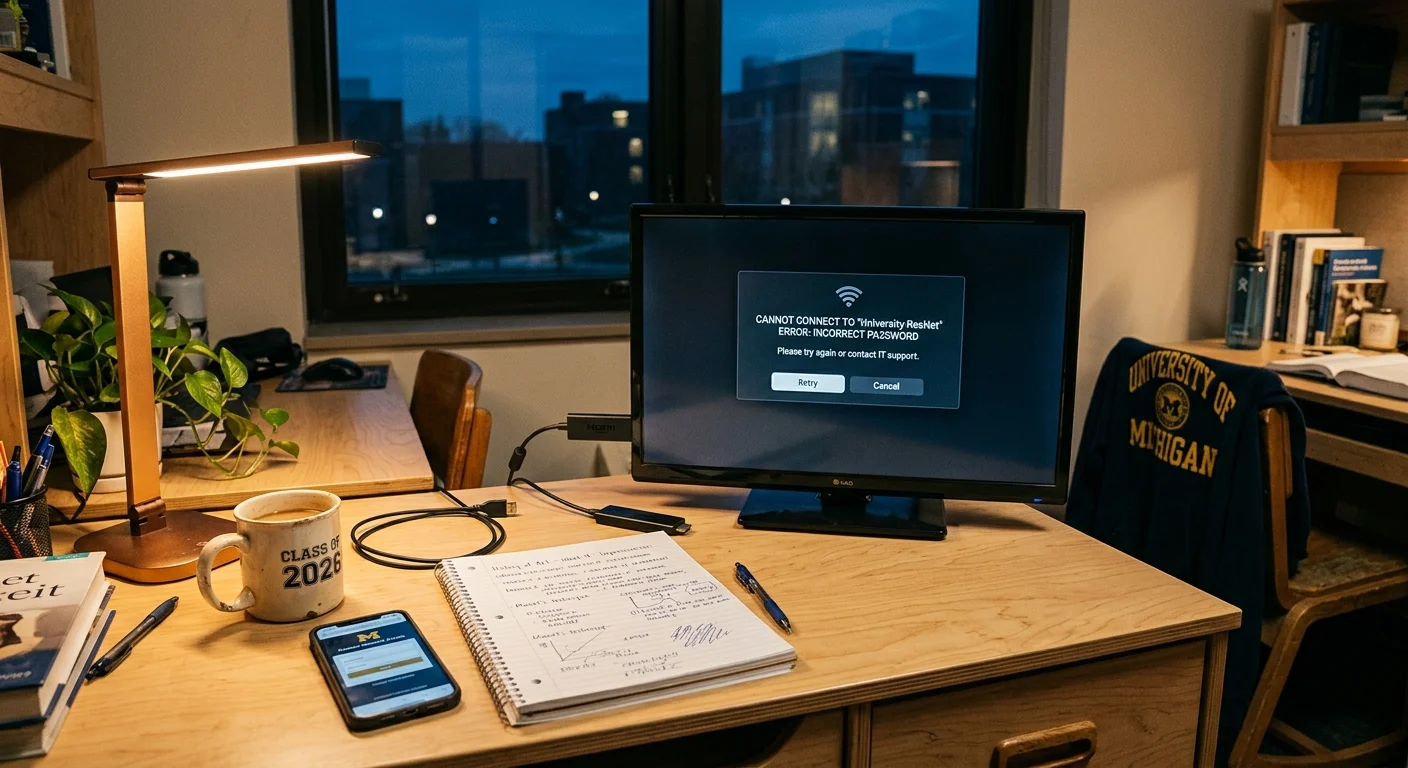
Moving your TV into a residence hall often halts when your streaming device—a small stick or box that adds streaming apps to your television—cannot load the university splash page. You can bypass this digital roadblock within minutes to stream in dorm room environments without waiting on campus IT.
While standard university tech pages instruct students to register hardware manually or give up on browserless streamers, cloning an authenticated laptop’s MAC address through an inexpensive portable router creates an unbreakable private hotspot that bypasses strict captive portals permanently.
Whether you use a Roku or an Amazon Fire Stick, here is how to navigate campus authentication, embrace cord-cutting—canceling traditional cable or satellite TV in favor of streaming services—and start watching your favorite on-demand entertainment immediately.
Understanding Campus Captive Portals and Streaming Hardware
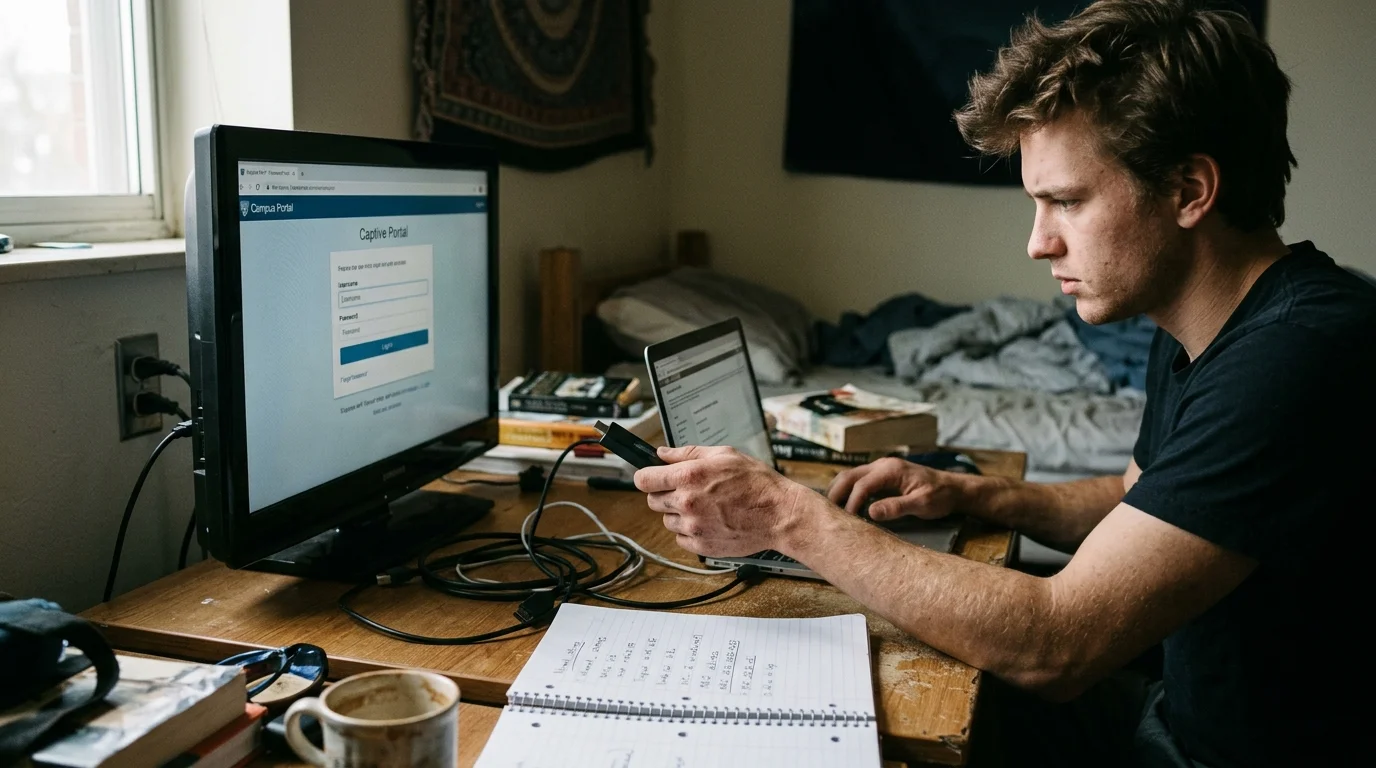
University networks rely on captive portals to control access, track bandwidth, and enforce acceptable use policies across dormitories. A captive portal forces any newly connected web client to view an interactive login page before granting broader internet access.
Personal computers and smartphones launch these authentication screens automatically through native system web views. However, streaming devices rarely include full operating system browsers, causing the connection attempt to time out silently.
Dormitory Wi-Fi networks also frequently operate enterprise-grade 802.1X authentication protocols. These enterprise connections require both an individual student username and password rather than a single pre-shared WPA2 passphrase.
Roku players, budget smart TVs—televisions with built-in internet connections and apps—and standard streaming sticks lack the internal software architecture to process 802.1X enterprise handshakes directly. They expect consumer-grade home network routing.
When you attempt to connect roku college wifi captive portal prompts fail to display because Roku OS cannot render arbitrary web forms without external redirection. The device simply announces an error code indicating no internet connection exists.
According to Consumer Reports, evaluating your home and local network compatibility before purchasing streaming gear prevents persistent setup headaches. Campus dorm networks represent the most restrictive end of that compatibility spectrum.
Method 1: Native Workarounds on Roku and Fire TV
Both Roku and Amazon have engineered software utilities designed to circumvent hospitality and dormitory splash screens. These tools utilize a secondary device, such as your smartphone, to complete authentication on the streaming stick’s behalf.
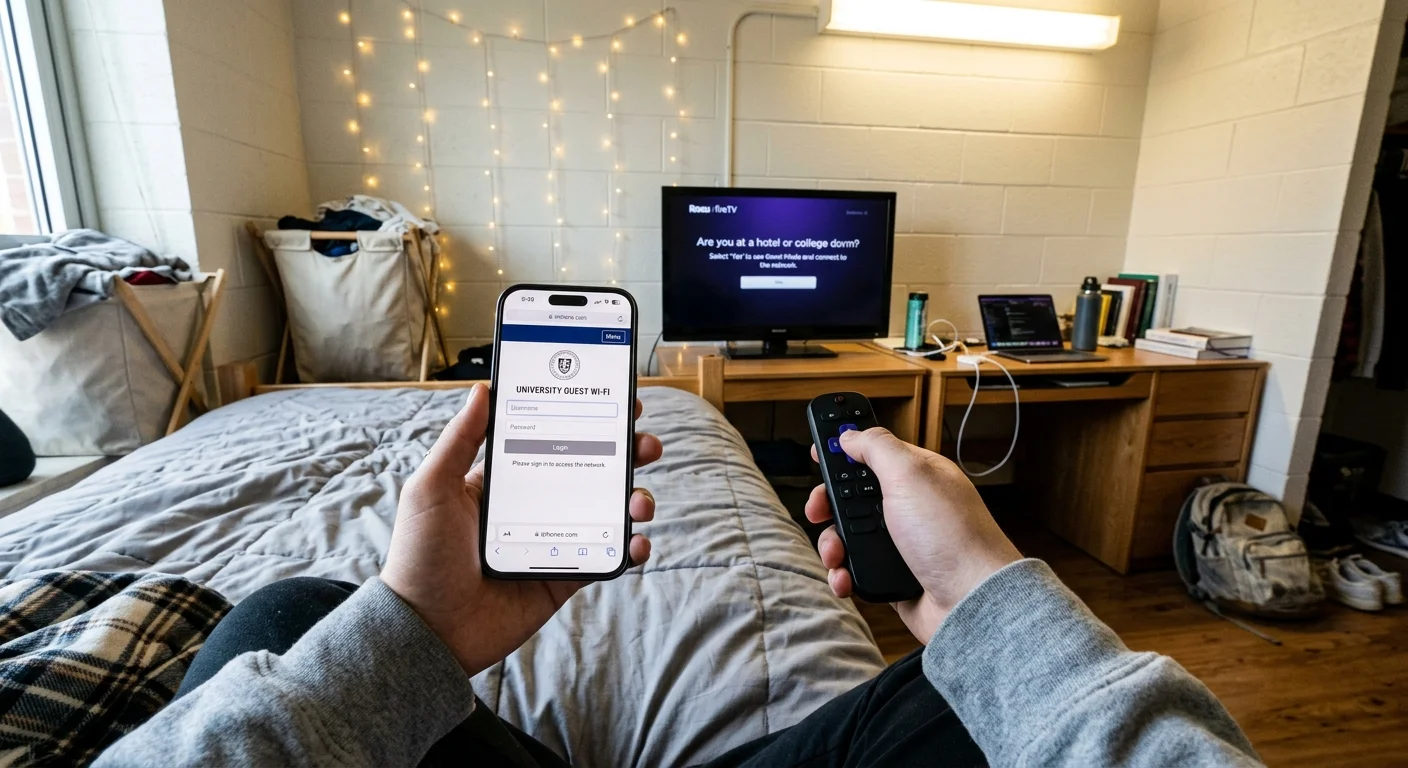
Roku includes a feature called Hotel and Dorm Connect. To use it, connect your Roku to your dorm TV’s HDMI port and open the Settings menu using your physical remote.
Navigate to Network, select Set Up Connection, and choose Wireless. Locate and select your university’s open or guest Wi-Fi network from the scanning list.
Once the Roku detects the captive portal, it displays an on-screen prompt asking: “Are you at a hotel or college dorm?” Select “At a hotel or college dorm” to initiate direct temporary authentication.
The Roku broadcasts a temporary ad-hoc Wi-Fi direct network named after your player model. Connect your smartphone or laptop to this temporary network using the exact password shown on your television screen.
Open Safari or Chrome on your mobile device; the university login page should load automatically. Enter your student credentials or accept the terms of service, and your Roku immediately finishes connecting.
“Bridging a browserless streaming stick through a secondary smartphone browser remains the fastest zero-cost solution for dorm residents facing hospitality splash pages.”
Solving a firestick university wifi login follows a slightly different, internal path. Fire TV OS includes the Amazon Silk web browser, allowing direct on-screen interaction with campus authentication fields.
Power on your Fire TV Stick and navigate to Settings, then Network. Select your campus network from the available list of detected wireless signals.
Instead of failing silently, Fire OS normally launches a mini-browser window containing the splash screen. Use the circular directional pad on your Alexa Voice Remote to move the cursor over the input fields.
Type your campus credentials using the on-screen keyboard, or click the agreement checkbox to proceed. Once submitted, press the remote’s Menu button (three horizontal lines) to confirm internet access and exit the browser.
If the captive portal page fails to trigger automatically, download the Silk browser beforehand using a mobile hotspot. You can then launch Silk manually and enter your university’s default login gateway IP address.
Method 2: MAC Address Registration on Campus Portals
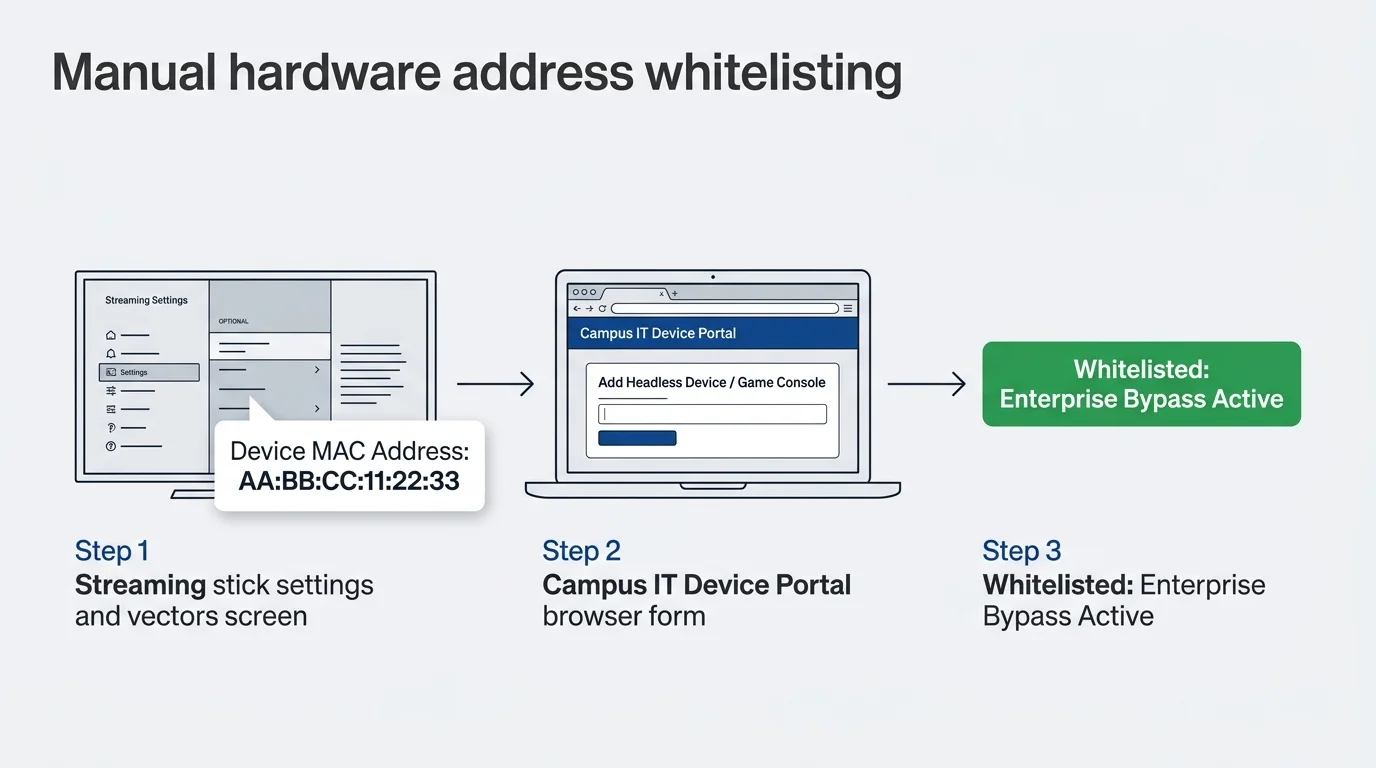
Most campus IT departments run an internal registration portal, often called ResNet, for headless consumer hardware. A Media Access Control (MAC) address is a unique twelve-character physical hardware identifier assigned to every network interface.
Registering your device’s MAC address whitelists the hardware at the network switch level. This bypasses the captive portal entirely because the network router recognizes the authorized hardware ID instantly.
To locate a Roku MAC address, open Settings from the home menu. Scroll down to System, select About, and look for either the “Wireless MAC address” or “Ethernet MAC address.”
The address consists of six pairs of hexadecimal characters separated by colons, such as `b0:a7:37:96:41:5b`. Write this string down accurately, taking care not to confuse zeros with the letter O.
On an Amazon Fire TV Stick, navigate to Settings and select My Fire TV. Click About, scroll down to Network, and identify the “Wi-Fi MAC Address” listed on the right side of the screen.
Log into your university’s ResNet or IT portal using your laptop or smartphone while connected to the campus network. Search the IT dashboard for “Device Registration,” “Manage Devices,” or “Gaming and Media Devices.”
Click “Add Device” and enter your streaming stick’s twelve-digit MAC address into the registration form. Select “Media Player” or “Smart TV” from the device type dropdown menu to ensure proper profile assignment.
Modern mobile phones use randomized MAC addresses by default for privacy, but streaming sticks use static factory addresses. Ensure you submit the permanent physical address to prevent authentication drops after network reboots.
Save the entry and restart your streaming device by unplugging its USB power adapter for ten seconds. When it reboots, reconnect to the campus Wi-Fi network; the device should bypass the portal immediately.
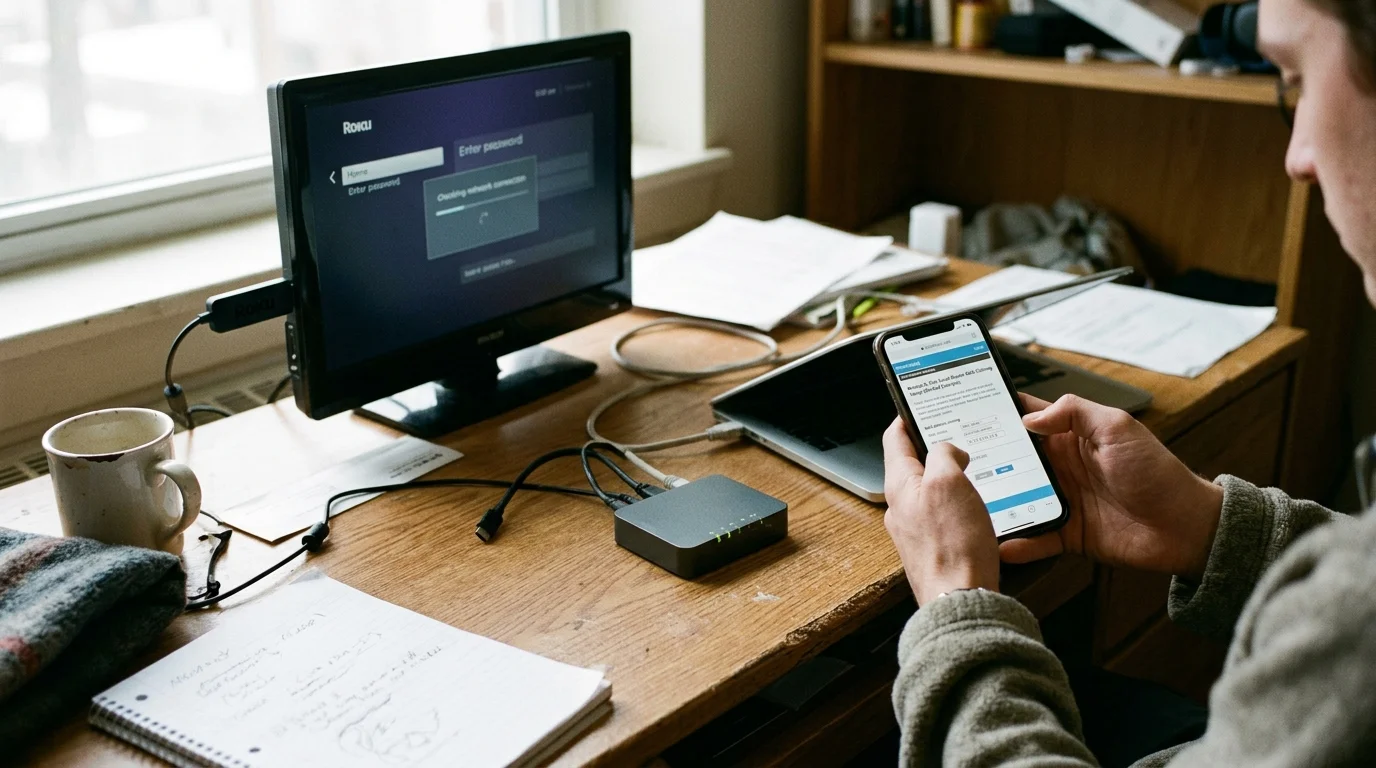
Method 3: The Travel Router MAC-Cloning Setup (Worked Example)
When dorm networks use strict 802.1X protocols or actively block direct media device registration, a dedicated travel router is the definitive solution. A portable travel router creates your own secure, private local network inside your dorm room.
This worked example uses the GL.iNet GL-SFT1200 (Opal) travel router, an ultra-compact device measuring 4.6 x 2.8 x 0.9 inches. This hardware retails for approximately $39.90 and supports dual-band AC1200 wireless speeds.
The strategy involves authenticating an M2 MacBook Air on the campus network, extracting its approved MAC address, and cloning that address onto the travel router. This fools the campus gateway into treating the router as an authorized computer.
First, connect your MacBook Air to the campus Wi-Fi network named “Campus-Guest.” Open your web browser, navigate through the university splash screen, enter your credentials, and verify active internet access.
Next, determine your laptop’s current Wi-Fi MAC address. On macOS, hold the Option key and click the Wi-Fi icon in the top menu bar to view your interface address, recorded here as `3A:8B:2F:9C:4D:11`.
Disconnect your MacBook from the campus network and plug the GL.iNet Opal router into a wall outlet using its included USB-C cable. Connect your laptop to the default GL.iNet Wi-Fi network using the default password printed on the router label.
Open a web browser on your laptop and navigate to the router admin portal at `http://192.168.8.1`. Complete the initial language setup and set an administrative password in under two minutes.
From the left-hand navigation panel, click Network, then select MAC Address. Choose the “Clone” option, manually type your MacBook’s address `3A:8B:2F:9C:4D:11` into the interface field, and click Apply.
Next, click the Wireless menu on the router dashboard and select Repeater (WISP) mode. Click Scan, choose the “Campus-Guest” network from the list, leave the password blank if it uses a splash page, and click Connect.
The entire setup takes under four minutes. Because the travel router broadcasts your authenticated MacBook MAC address to the campus access point, the university firewall routes traffic without showing a captive portal.
Connect your Roku or Fire TV Stick to your new private router Wi-Fi network, named “DormStream-5G.” Running an internet speed test from the streaming stick reveals an 85 Mbps download speed with an 18-millisecond network ping.
This isolated setup delivers a critical secondary benefit: it prevents other dorm residents from accidentally casting YouTube or Spotify streams onto your bedroom television. It completely shields your local devices behind a private firewall.
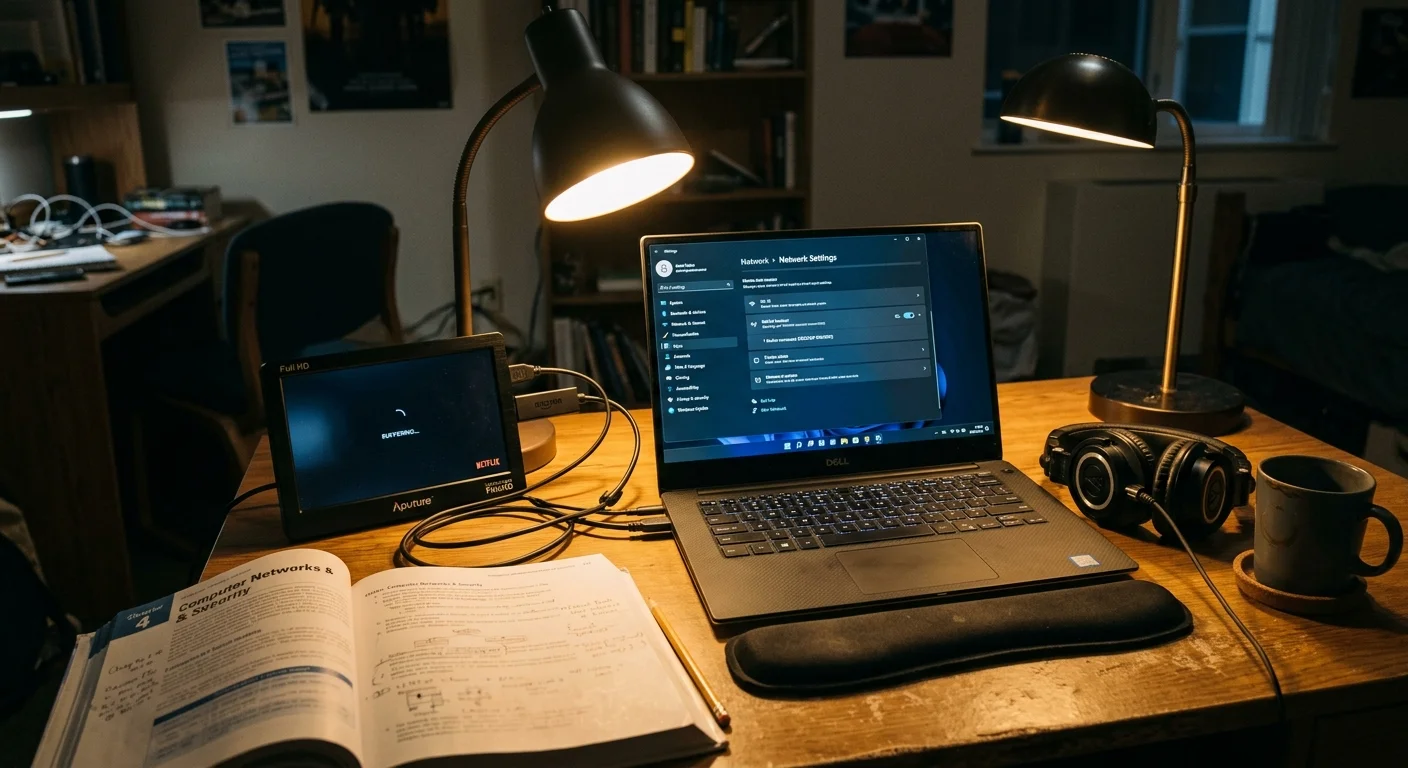
Method 4: Virtual Hotspot Sharing from a PC or Mac
If you lack a travel router and cannot register your device through ResNet, your laptop can function as a virtual wireless bridge. Both Windows and macOS offer software-based routing capabilities to share active internet connections.
On Windows 11, open Settings and click Network & Internet from the sidebar. Select Mobile Hotspot, but keep the toggle disabled while configuring your properties.
Select “Wi-Fi” under the “Share my internet connection from” dropdown menu. In the “Share over” option, choose “Wi-Fi,” then click Edit to set a custom network name and password.
Save your settings and flip the Mobile Hotspot master toggle to On. Windows will establish a virtual network adapter that bridges your authenticated dorm connection onto a fresh local broadcast.
Pick up your streaming remote, open your Wi-Fi settings, and search for the newly broadcasted Windows hotspot SSID. Connect using the network security key you assigned; your streaming stick will access the web seamlessly.
macOS handles virtual hotspots with slightly tighter hardware constraints. A Mac cannot receive and transmit Wi-Fi signals across a single wireless radio interface simultaneously.
To share a connection from macOS, connect your MacBook to the dorm room’s physical Ethernet port using a USB-C to Gigabit Ethernet adapter. Open System Settings and navigate to General, then select Sharing.
Click the information icon next to Internet Sharing. Under “Share your connection from,” select “USB 10/100/1000 LAN,” and under “To devices using,” check the box for “Wi-Fi.”
Click Wi-Fi Options to set your local hotspot network name, security type (WPA2 Personal), and an eight-character password. Enable Internet Sharing from the main menu and confirm the system prompt.
This virtual bridging method works reliably, but requires keeping your laptop powered on and awake while streaming. If your laptop enters sleep mode, your television stream will freeze immediately.
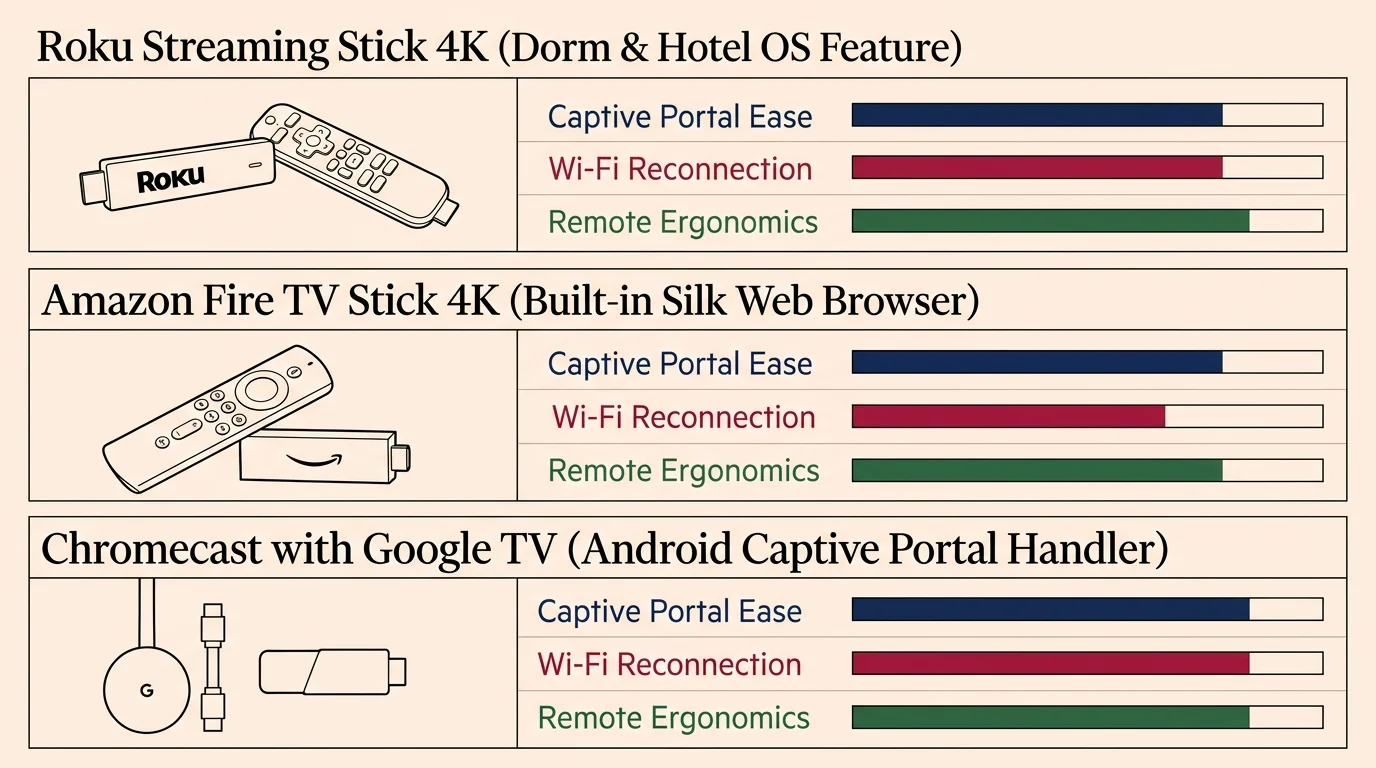
Hardware Comparison: Best Streaming Sticks for Dorm Life
Choosing the correct streaming hardware simplifies living on an enterprise campus network. Some budget players completely lack browser engines, while higher-tier units feature native Wi-Fi 6 antennas and web login interfaces.
Streaming device performance also dictates how cleanly applications buffer on congested dorm access points. Higher memory allocations prevent video apps from crashing during heavy campus bandwidth usage hours.
The table below compares popular streaming hardware models based on dorm-friendly connectivity specs, wireless standards, audio-visual capabilities, and current retail pricing:
| Device Model | MSRP | Captive Portal Support | Wi-Fi Standard | Video Support | Audio Support | Web Browser |
|---|---|---|---|---|---|---|
| Amazon Fire TV Stick 4K Max (2nd Gen) | $59.99 | Native (Silk Browser) | Wi-Fi 6E (Tri-Band) | 4K, Dolby Vision, HDR10+ | Dolby Atmos | Yes (Silk) |
| Roku Streaming Stick 4K | $49.99 | Hotel & Dorm Connect | Wi-Fi 5 (Dual-Band) | 4K, Dolby Vision, HDR10+ | Dolby Atmos Passthrough | No |
| Chromecast with Google TV (4K) | $49.99 | Manual MAC Whitelist Only | Wi-Fi 5 (Dual-Band) | 4K, Dolby Vision, HDR10 | Dolby Atmos | No (Sideload Only) |
| Apple TV 4K (3rd Gen, Wi-Fi) | $129.00 | Captive via iPhone/iPad | Wi-Fi 6 (Dual-Band MIMO) | 4K, Dolby Vision, HDR10+ | Dolby Atmos | No |
According to comprehensive testing by Tom’s Guide, the Fire TV Stick 4K Max provides exceptionally fast navigation and powerful network performance within crowded home setups. That hardware power translates directly to overcoming dorm connectivity limitations.
For dorm residents, the Fire TV Stick 4K Max represents the easiest standalone option because of its integrated Silk browser. You can navigate complex campus splash pages with the remote cursor without needing external laptop configuration.
The Roku Streaming Stick 4K remains an outstanding choice for students who prefer a cleaner, less ad-cluttered home interface. Its Hotel and Dorm Connect protocol reliably offloads captive portal authentication to an iPhone or Android device.
In extensive platform evaluations from TechRadar, Roku OS frequently earns top marks for interface simplicity and straightforward app discovery. However, navigating complex enterprise Wi-Fi environments requires more deliberate preparation on Roku than on Amazon hardware.
If you prefer an Apple hardware ecosystem, the Apple TV 4K offers immense processing power and clean software. When it encounters a captive portal, nearby iOS devices running iOS 15.4 or later will display a pop-up prompt to complete authentication.
Google’s Chromecast with Google TV proves the most frustrating in a dorm room without a travel router. It offers no native captive browser or ad-hoc redirection tool, making manual ResNet registration an absolute requirement.
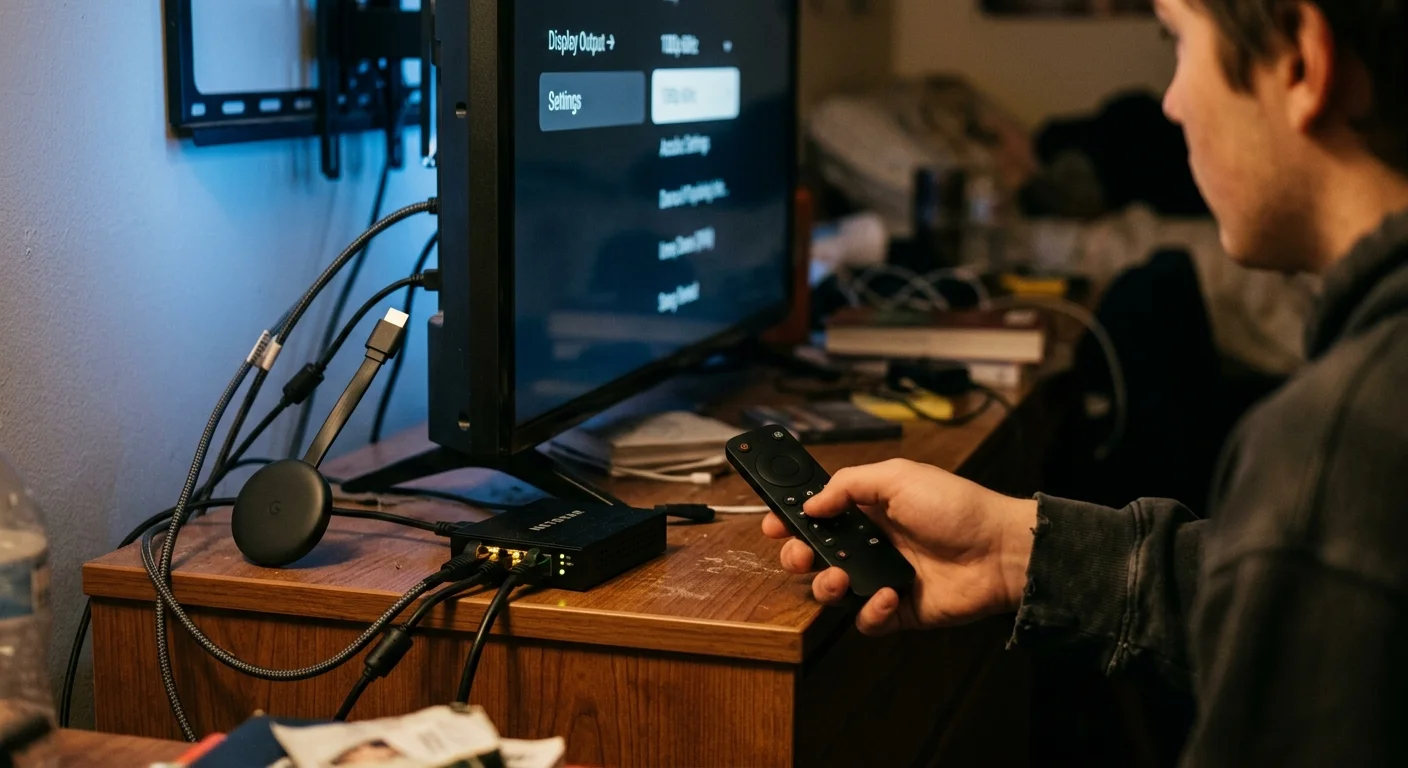
Optimizing Dorm Bandwidth, Network Privacy, and AV Formats
Once connected, dorm room streaming requires active management of video resolution and bandwidth usage. Many universities throttle continuous media streams or enforce bandwidth quotas on individual student accounts.
Understanding screen resolutions helps manage network load. 4K, or ultra-high definition, delivers a pixel resolution of 3840×2160, requiring a sustained connection of at least 25 Mbps per stream.
If your campus network struggles during peak evening hours, drop your streaming playback settings inside individual apps from 4K to 1080p Full HD. This simple adjustment reduces data consumption from roughly 7 GB per hour down to 2.5 GB.
High Dynamic Range (HDR) formats dramatically enhance contrast and color depth on supported television screens. HDR10 represents the base open standard, while Dolby Vision utilizes dynamic metadata to adjust scene brightness frame by frame.
Dolby Atmos delivers spatial, object-based surround sound, placing audio effects dynamically within your listening space. While great for dorm movie nights, high-bandwidth Atmos audio streams can introduce latency over unstable campus Wi-Fi networks.
Remote controls also factor heavily into dorm usability. Amazon’s Alexa Voice Remote uses Bluetooth rather than line-of-sight infrared, meaning you can mount your streaming stick behind a wall-mounted desk display without losing control.
Roku voice remotes on 4K models also use RF wireless technology, offering seamless private listening via a built-in 3.5mm headphone jack or through the Roku mobile app. Private listening is essential for late-night viewing with roommates present.
Network privacy is another critical factor when operating on shared campus enterprise routers. In standard dorm configurations, any user on your subnet can discover network-accessible devices using basic network scanning software.
Amazon Fire TV OS and Google TV collect extensive telemetry, viewing habits, and advertising metrics by default. Roku similarly logs user interactions to serve targeted promotions on your television dashboard.
Apple TV stands out as the most privacy-respecting platform, collecting minimal user telemetry and barring third-party advertising tracking. If platform privacy matters, routing your streaming traffic through a travel router with an encrypted VPN client protects your browsing data.
Most major cord-cutting streaming apps operate seamlessly across all these operating systems. Whether you subscribe to Netflix, Prime Video, Max, or Disney+, you will find dedicated apps available across both Roku and Fire TV platforms.
Your subscription tier dictates whether you receive an ad-supported or an ad-free viewing experience. Ad-supported tiers cost significantly less—ideal for student budgets—but require unskippable commercial breaks during playback.
If you watch live broadcast television or college football, services like YouTube TV and Hulu + Live TV include cloud DVR functionality. Cloud DVR—a digital video recorder hosted in the cloud—lets you record live campus games to stream on-demand later.
On-demand entertainment grants you instant access to catalog libraries whenever your study schedule allows. Maintaining a stable, captive-portal-free connection ensures your recorded programs and movies play without frustrating buffering loops.
According to hardware testing published by Wirecutter, relying on external streaming sticks provides faster interface responses and more frequent security updates than the built-in operating systems on most discount smart TVs. An external stick also travels effortlessly between dorm rooms and home over holiday breaks.
“Smart TV software often slows down after two years of updates; a portable 4K streaming stick remains the cheapest way to guarantee snappy performance and portable network flexibility.”
Frequently Asked Questions
Why does my Roku say it is connected to Wi-Fi but has no internet in my dorm?
Your Roku successfully established a local wireless link with the campus access point, but the university gateway firewall blocks outside web access until a user authenticates through the captive portal. Complete the Hotel and Dorm Connect setup or register your Roku MAC address via your campus IT portal to restore access.
Can I use my smartphone mobile hotspot to stream in a dorm room?
Yes, pairing your streaming stick with a cellular phone hotspot completely bypasses campus captive portals and university firewall restrictions. However, video streaming quickly exhausts cellular data limits, with high-definition video consuming up to 3 GB per hour and 4K ultra-high-definition requiring up to 7 GB per hour.
Is using a travel router against college IT policies?
Most universities permit personal travel routers in client or repeater mode, provided they do not cause RF interference or broadcast overlapping DHCP server assignments on the campus subnet. Always check your university’s Acceptable Use Policy to ensure secondary routing hardware complies with campus network regulations.
How do I find the MAC address on a Roku without Wi-Fi connection?
If you cannot connect to a network during initial setup, look for a printed physical label on the bottom or back of your Roku streaming stick. The twelve-character string labeled “Wireless MAC” or “WLAN MAC” can be registered directly into your campus ResNet portal from another computer.
Disclaimer: Device prices and features may change. New models are released regularly, so check for the latest versions before purchasing. The “best” device depends on your specific needs, existing ecosystem (Apple, Google, Amazon), and budget.