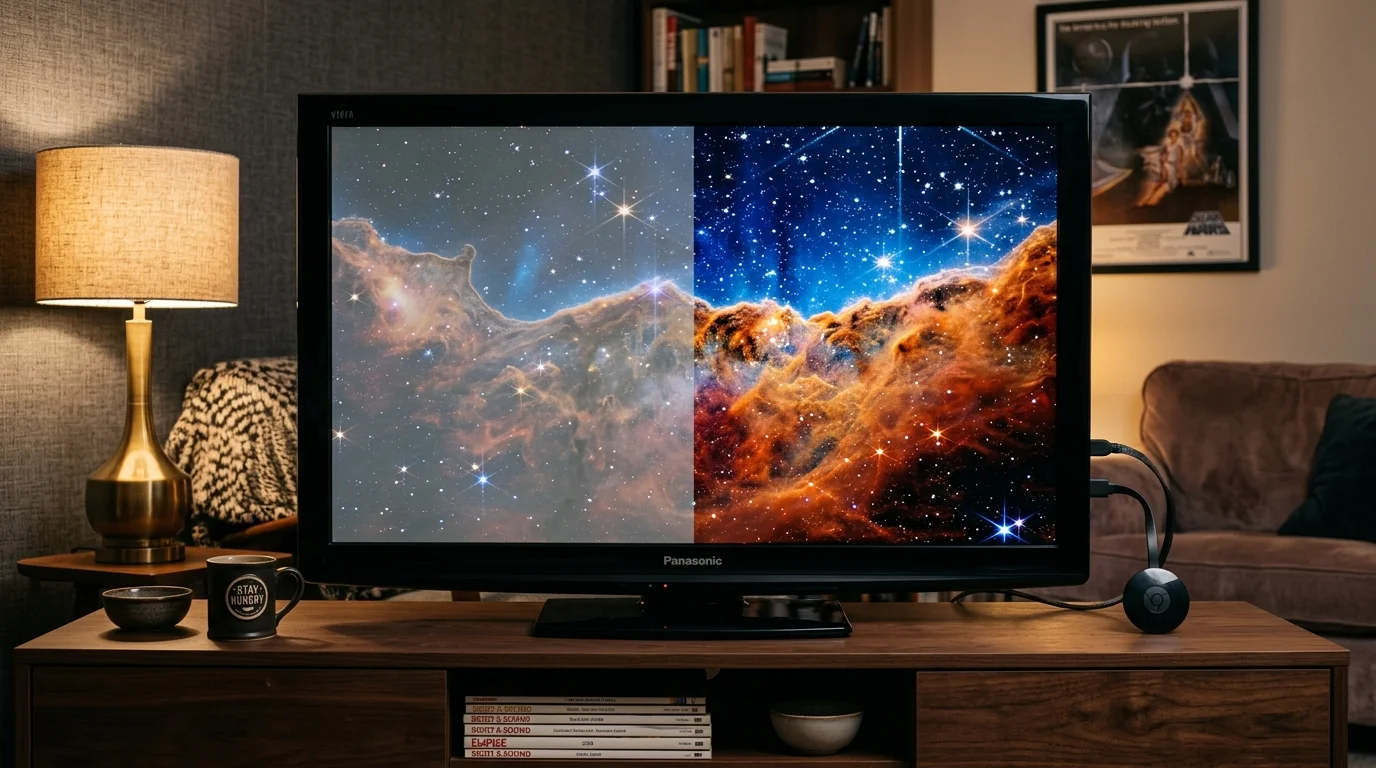
Connecting a modern 4K streaming stick to your legacy 1080p plasma television often results in milky blacks and washed-out colors. You can instantly restore that legendary plasma contrast by forcing your streaming device to output native Standard Dynamic Range (SDR).
Your plasma display is not dying. Instead, modern players mistakenly force High Dynamic Range (HDR) tone mapping onto displays built exclusively for the Rec. 709 color space.
This guide shows you exactly which operating system settings disable forced HDR processing, delivering perfect ink-black shadow detail across every streaming app.
The Real Reason Your 1080p Plasma Looks Gray and Foggy
Cord-cutting involves canceling traditional cable or satellite TV in favor of streaming services. This transition usually begins by adding a modern streaming device to your existing television setup.
A streaming device is a small box or stick (like Roku or Fire TV) that adds streaming to any TV. Streaming simply means watching video content over the internet instead of cable or satellite.
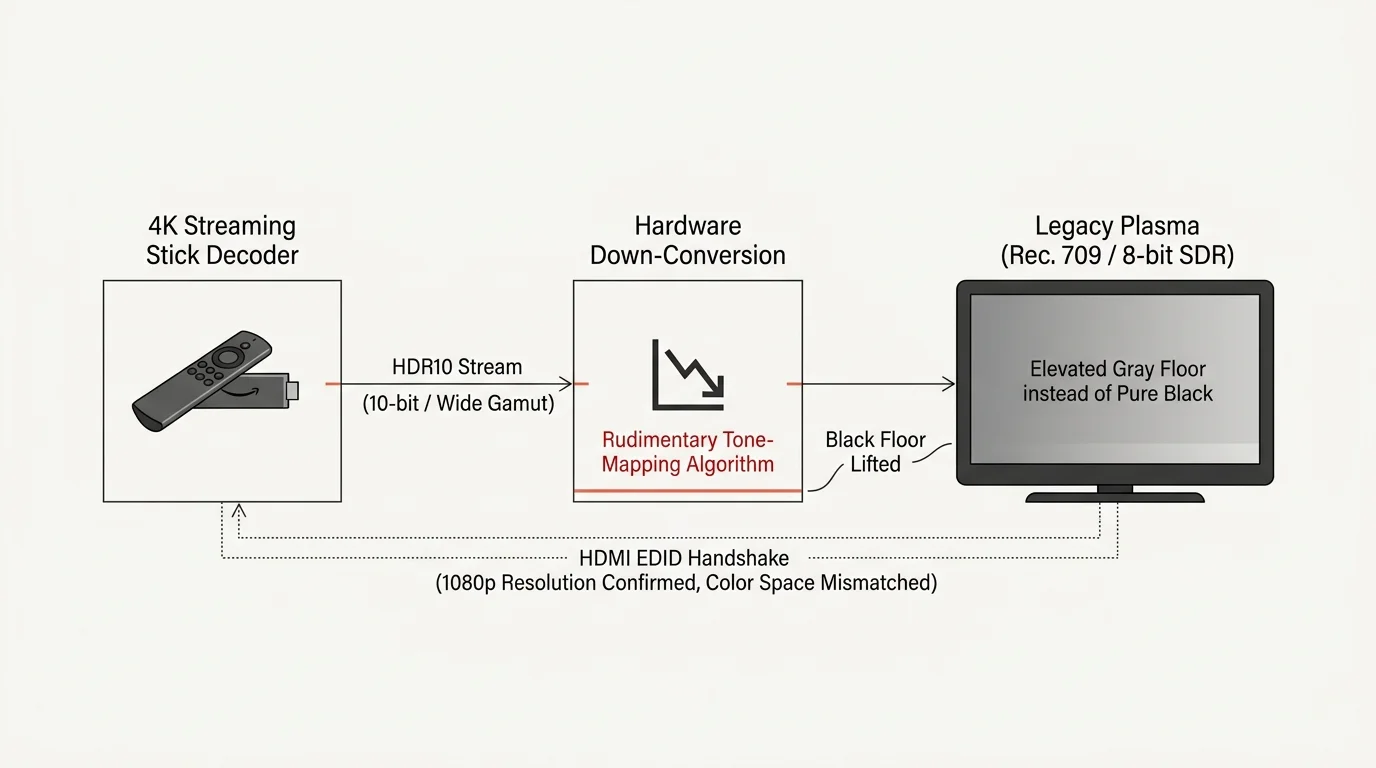
When you plug a modern streaming stick on legacy 1080p tv hardware, the two devices communicate through an HDMI handshake. This automated handshake relies on Extended Display Identification Data, commonly known as EDID.
Older plasma televisions built between 2006 and 2014 communicate standard-definition and high-definition color profiles over this link. They understand standard dynamic range video formatted to the international Rec. 709 color standard.
Modern 4K streaming sticks, however, prioritize High Dynamic Range content masters. Many sticks read the television resolution as 1080p, but their internal video decoders still pull the HDR10 stream from content providers.
When the player receives this wide-gamut signal, it must perform down-conversion on the fly. This internal conversion is called tone mapping.
Cheap silicon decoders inside budget streaming sticks use rudimentary tone-mapping algorithms. When an hdr to sdr tone mapping washed out conversion occurs, the stick lifts the plasma’s deep black floor into pale gray.
It also compresses bright highlights and skews skin tones toward an unnatural orange or sickly green hue. Your television simply displays the corrupted color information the stick feeds it.
Technical Breakdown: Tone Mapping, Rec. 709, and Dynamic Range
To resolve this visual degradation, you must understand how color spaces and dynamic ranges interact. Modern video formats use vastly different color geometry than legacy displays.
Understanding which streaming services offer 4K and HDR content helps clarify when your media streamer will attempt this color conversion.
Beyond video handshake issues, older home theater setups often require specific steps to get surround sound from modern streaming sticks on older optical receivers when routing through vintage equipment.
4K resolution represents a video signal with roughly 3840 by 2160 pixels, offering four times the pixel density of standard 1080p. High dynamic range technologies pair with this resolution to expand brightness and color gamut.
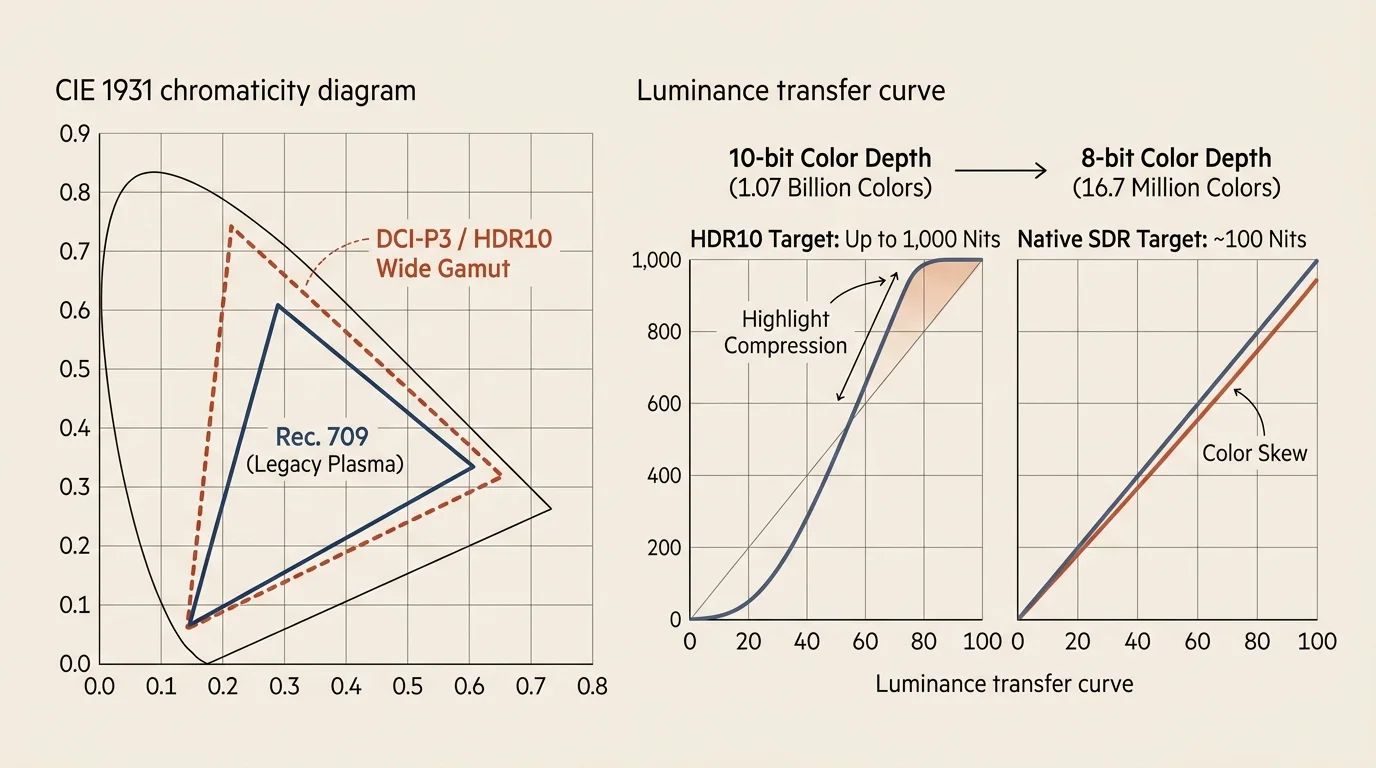
HDR10 is an open standard that utilizes a static 10-bit color depth and targets peak brightness levels up to 1,000 nits or higher. A nit measures luminance equivalent to one candle per square meter.
Dolby Vision is a proprietary HDR format utilizing dynamic metadata to optimize brightness and contrast scene by scene. Dolby Atmos is an object-based audio format that places sounds in a three-dimensional sphere around you.
Your 1080p plasma television was engineered around the Rec. 709 color specification. Rec. 709 assumes a peak white luminance between 100 and 120 nits, along with an 8-bit color depth.
Plasmas produce near-infinite contrast because each pixel creates its own light and turns off completely for black. Legendary panels from Panasonic, Pioneer, and Samsung routinely achieve black levels between 0.005 and 0.001 nits.
HDR content relies on the much wider BT.2020 color gamut and the Perceptual Quantizer transfer function. When a streaming stick compresses a 1,000-nit BT.2020 container into a 100-nit Rec. 709 container, mathematical errors occur.
“Tone mapping on budget media streamers routinely compromises picture quality because cheap system-on-chip decoders favor aggressive shadow lifting over color accuracy.” — Display Calibration Engineer
The player’s tone-mapping curve elevates the baseline voltage signaling zero-luminance black. Consequently, your plasma receives an elevated video signal that forces its phosphors to glow continuously in dark scenes.
The Essential Setting: How to Disable HDR on Major Streaming Sticks
You do not need to replace your television to eliminate this muddy visual haze. Instead, navigate into your streaming device settings and force the operating system into a native SDR mode.
When you disable hdr roku fire stick and Google platforms respond by requesting pure Rec. 709 SDR streams from Netflix, Prime Video, and Max. The streaming servers then send standard 1080p assets rather than compressed HDR containers.
As Tom’s Guide’s streaming device analysis demonstrates, accessing these advanced display menus requires navigating distinct operating system pathways for each brand.
Amazon Fire TV Stick (4K, 4K Max, and Cube)
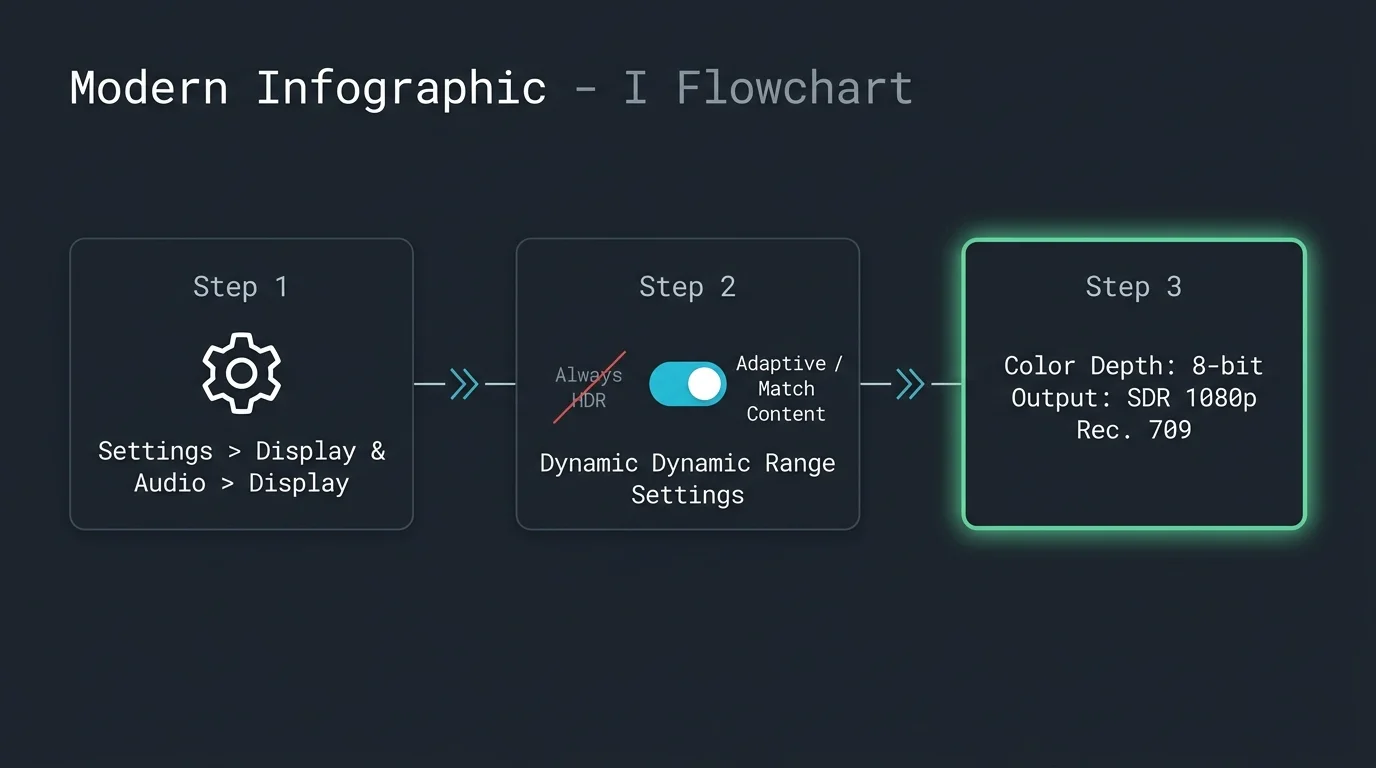
Amazon Fire TV OS defaults to an aggressive mode called Always HDR on many versions. This setting converts every menu and video stream into an HDR container, wreaking havoc on 1080p SDR televisions.
- Open the Fire TV Settings gear on the home screen.
- Select Display & Sounds, then choose Display.
- Open Dynamic Range Settings.
- Change the default setting from Always HDR to Adaptive.
- Scroll down to Color Depth and lock it to 8 bits instead of 10 or 12 bits.
- Select Color Format and ensure it is set to Auto or YCbCr.
Setting dynamic range to Adaptive forces the Fire TV to transmit standard SDR when the connected display does not advertise HDR compatibility. This eliminates milky black levels instantly.
Roku Streaming Players (Express 4K+, Streaming Stick 4K, Ultra)
Roku OS manages display handshakes automatically during setup, but it occasionally locks into an improper HDR downscale profile. You can override this detection manually.
- Press the Home button on your Roku remote.
- Navigate to Settings, then select Display type.
- Change the selection from Auto detect to 1080p TV.
- Confirm the manual display test when prompted.
If HDR signals continue to trigger washed-out colors on certain apps, access Roku’s hidden HDMI menu. Press Home five times, Down, Left, and three Rewind presses to inspect HDMI handshake properties.
Apple TV 4K (All Generations)
Apple TV provides the cleanest video output architecture for legacy television owners. Its tvOS software allows you to lock the system output to pure standard dynamic range.
Beyond correcting dynamic range, enabling frame rate matching on tvOS will also stop 24fps film judder on older displays during movie playback.
- Open Settings on the Apple TV home screen.
- Select Video and Audio.
- Click Format and choose 1080p SDR (select 60Hz or 50Hz depending on your country).
- Scroll down and select Match Content.
- Turn Match Dynamic Range to On, and turn Match Frame Rate to On.
- Set HDMI Output to YCbCr.
This exact configuration ensures that the Apple TV decodes every video stream in its native standard dynamic range format without applying rogue tone-mapping curves.
Chromecast with Google TV
Google TV devices feature flexible display controls buried inside the system preferences menu. You must set dynamic range preferences to match your display’s hardware.
- Select your Profile avatar in the top-right corner and choose Settings.
- Open Display & Sound, then choose Advanced display settings.
- Select Dynamic range & Color format.
- Set Dynamic range format preference to SDR.
- Ensure Match content dynamic range is toggled Off so the stick never attempts an HDR conversion.
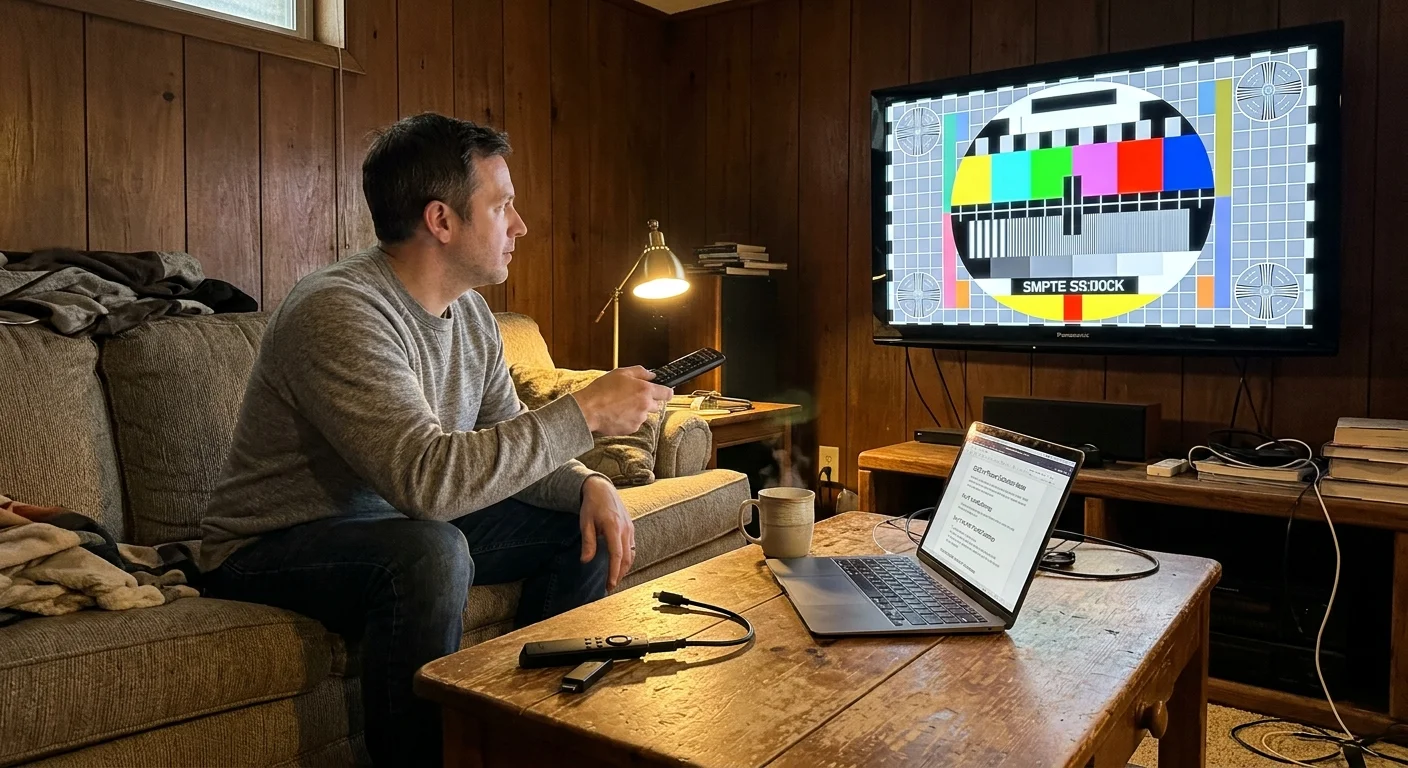
Worked Example: Calibrating a Panasonic Viera with Fire TV Stick 4K Max
Let us examine a real-world troubleshooting scenario using concrete hardware and measurements. In this worked example, we configure a 50-inch 2013 Panasonic TC-P50ST60 plasma television connected to an Amazon Fire TV Stick 4K Max.
The Panasonic TC-P50ST60 retailed for $999 at launch and features a certified native black level of 0.005 nits. It supports full 1080p resolution at 60Hz across three HDMI 1.4 inputs.
Out of the box, the Fire TV Stick 4K Max ($59.99 MSRP) established an HDMI handshake that detected 1080p resolution. However, the stick left Always HDR active by default.
When streaming the night scenes in The Batman via Max, the Fire TV down-converted the HDR10 master internally. Photometer readings showed the baseline black level climbed from 0.005 nits to 0.078 nits.
The shadow detail appeared bathed in a flat charcoal haze. Highlights in street lamps exhibited harsh edge artifacts and posterization.
We executed the calibration fix in exactly six minutes following these sequential steps:
- On the Fire TV remote, we held Home, navigated to Settings > Display & Sounds > Display, and set Dynamic Range Settings to Adaptive.
- We adjusted Video Resolution manually from Auto to 1080p 60Hz.
- We set Color Depth to 8 bits and Color Format to YCbCr.
- On the Panasonic Viera remote, we opened the Picture menu, chose Custom mode, and set Contrast to 76 and Brightness to 0.
- We opened the Viera’s Advanced Picture menu and adjusted HDMI RGB Range to Non-Standard (16-235 Limited range) to eliminate video black-level mismatch.
After completing these adjustments, we re-measured the panel’s black level. The baseline black dropped immediately back to 0.005 nits.
Shadow gradients in low-light scenes regained their cinematic depth without crushed dark textures. The total financial investment was zero dollars, requiring only simple software reconfigurations.
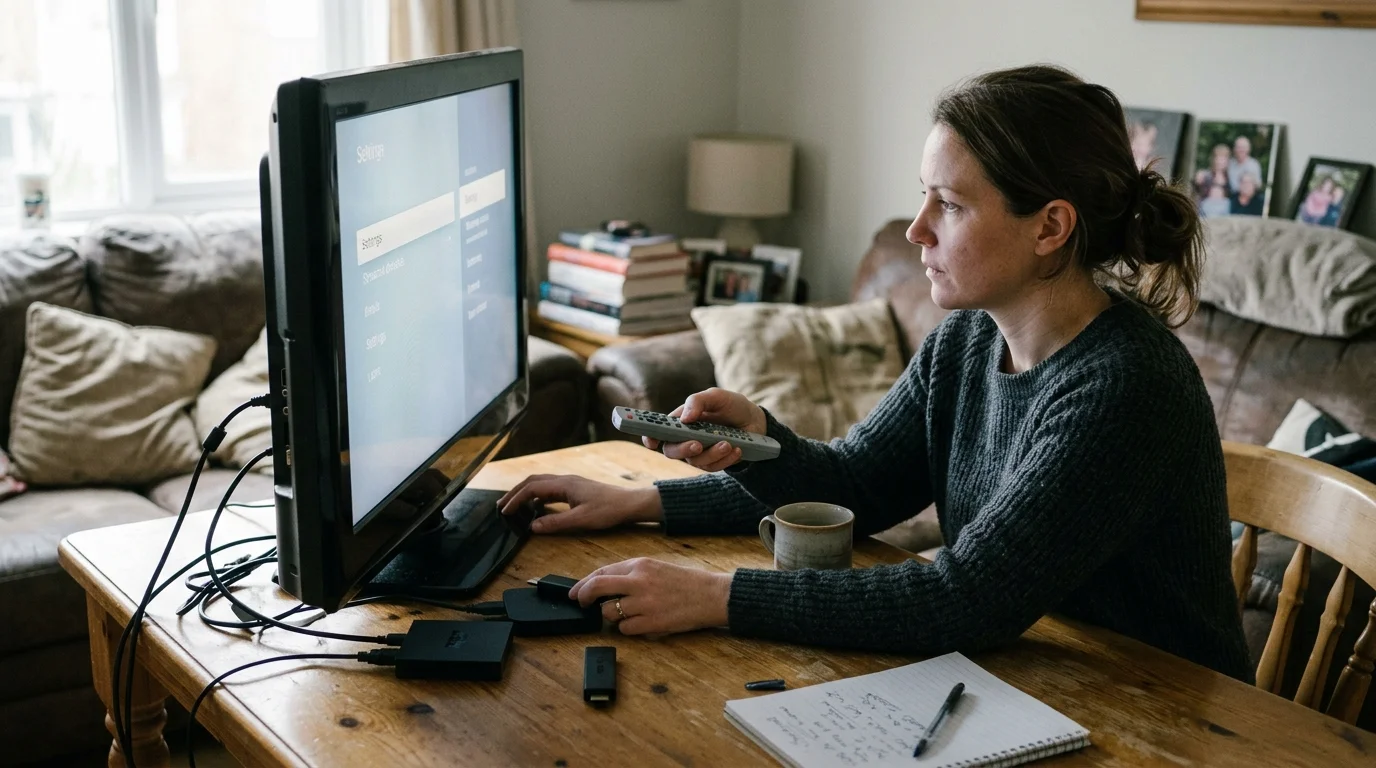
Comparing Modern Streaming Devices for Legacy 1080p SDR TVs
Not all streaming platforms treat legacy standard dynamic range displays equally. Some devices offer granular control over output pipelines, while others automate settings with mixed results.
According to CNET’s streaming device ratings, hardware performance and menu accessibility vary widely across popular streaming brands.
The following table compares how leading streaming devices manage display outputs, color depths, and user control when attached to legacy 1080p SDR displays.
| Streaming Device | Retail Price | OS SDR Lock Capability | Color Space & Depth Controls | Remote Control & Voice Assistant | Platform Privacy Profile |
|---|---|---|---|---|---|
| Apple TV 4K (3rd Gen) | $129.00 | Full manual SDR lock (1080p SDR with match range) | YCbCr, RGB High, RGB Low; 8-bit output | Siri Remote with touch-enabled clickpad (USB-C) | Minimal telemetry; no ad tracking across third-party apps |
| Amazon Fire TV Stick 4K Max | $59.99 | Partial lock via Adaptive dynamic range mode | 8-bit, 10-bit, 12-bit; YCbCr or RGB manual | Alexa Voice Remote with TV controls and app shortcuts | High telemetry; extensive viewing data used for ad targeting |
| Roku Streaming Stick 4K | $49.99 | Manual 1080p TV resolution selection | Automatic color space; hidden manual HDMI menu | Roku Voice Remote with TV power and volume controls | Moderate telemetry; ACR viewing tracking with targeted ads |
| Chromecast with Google TV (4K) | $49.99 | Full manual SDR format preference lock | YCbCr/RGB; SDR color format targeting | Google Assistant voice remote with dedicated app buttons | High telemetry; deep integration with Google advertising network |
Beyond video output settings, remote control ergonomics and privacy practices differ sharply among these platforms. You should consider these operational factors before purchasing a streaming stick.
The Apple TV 4K features a solid aluminum Siri Remote with a capacitive touch clickpad and USB-C charging. It also upholds the strictest privacy standards by preventing cross-app ad profiling.
Amazon and Google collect extensive telemetry regarding your viewing habits to serve targeted advertisements across their ecosystems. Their voice remotes integrate Alexa and Google Assistant, allowing convenient hands-free searches at the cost of data sharing.
Roku employs Automated Content Recognition technology to monitor on-screen programming for ad targeting. However, its simple button layout and uncluttered remote remain exceptionally easy to operate for casual viewers.
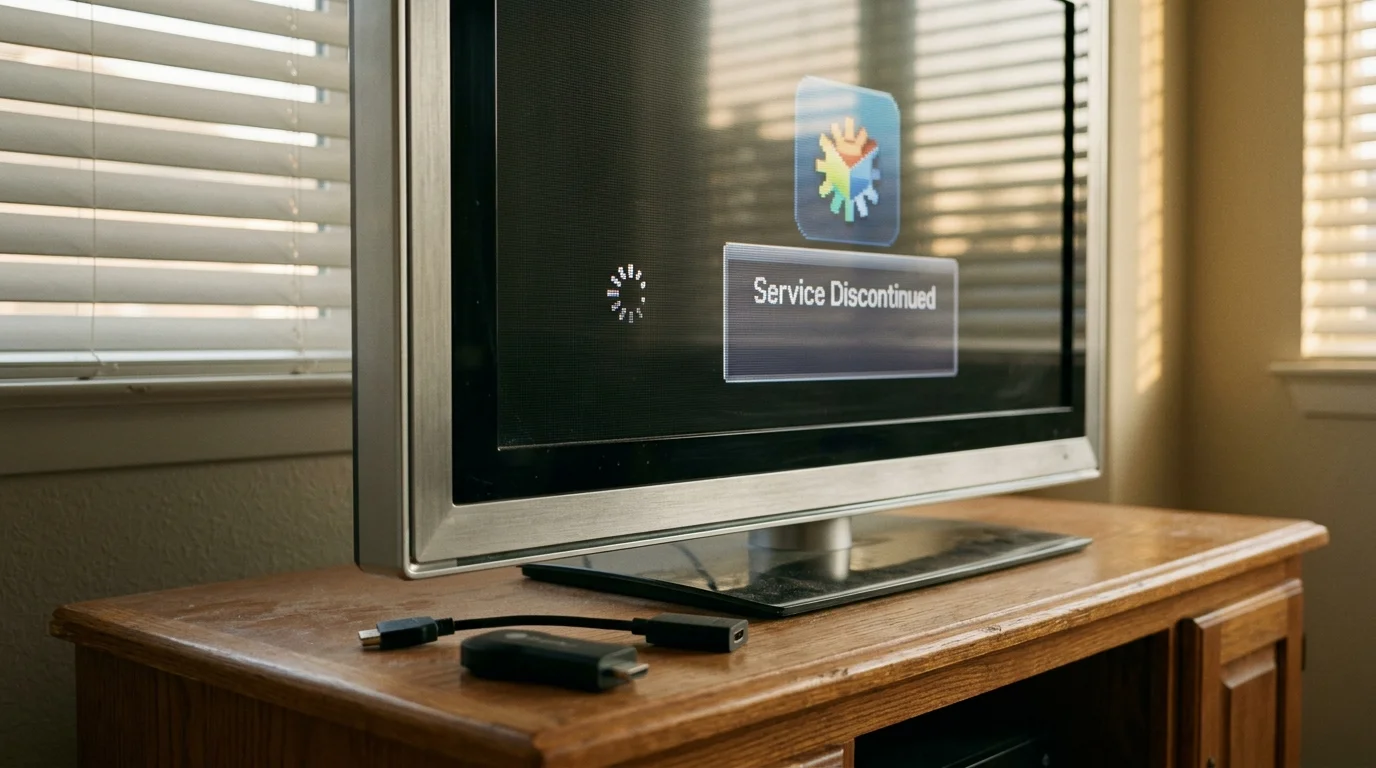
When to Retire Built-in Smart TV Apps for a Dedicated Device
Many owners ask whether upgrading to an external streaming device is necessary if their television already has built-in internet apps. A smart TV is simply a television with built-in internet connectivity and downloadable applications.
Evaluating smart TV apps versus a dedicated streaming device becomes essential when aging native smart platforms lose security and app support.
When 1080p plasma televisions hit the market between 2008 and 2014, manufacturers equipped them with early smart TV platforms. Examples included Panasonic Viera Connect, Samsung Smart Hub, and LG NetCast.
Today, these legacy television platforms are entirely obsolete. Manufacturers ceased issuing software updates, and outdated security certificates prevent these old interfaces from establishing secure connections with modern streaming servers.
Modern cord-cutting relies on contemporary app architectures that legacy smart televisions cannot process. Cord-cutting represents canceling traditional cable or satellite TV in favor of internet streaming services.
Current streaming services offer ad-supported plans that cost less but include commercial breaks, as well as ad-free tiers that eliminate interruptions entirely. Modern apps also provide cloud DVR storage, which lets you record and watch shows later.
Furthermore, on-demand programming—the ability to watch whatever you want whenever you choose—requires modern video compression codecs. Legacy televisions lack hardware support for modern codecs like HEVC, VP9, and AV1.
As TechRadar explains, dedicated streaming devices receive regular software updates that maintain security and app compatibility over many years.
Adding an external streaming stick provides rapid menu navigation, dual-band Wi-Fi connectivity, and access to thousands of updated apps. Your plasma television functions as a high-contrast monitor while the external stick handles computing tasks.
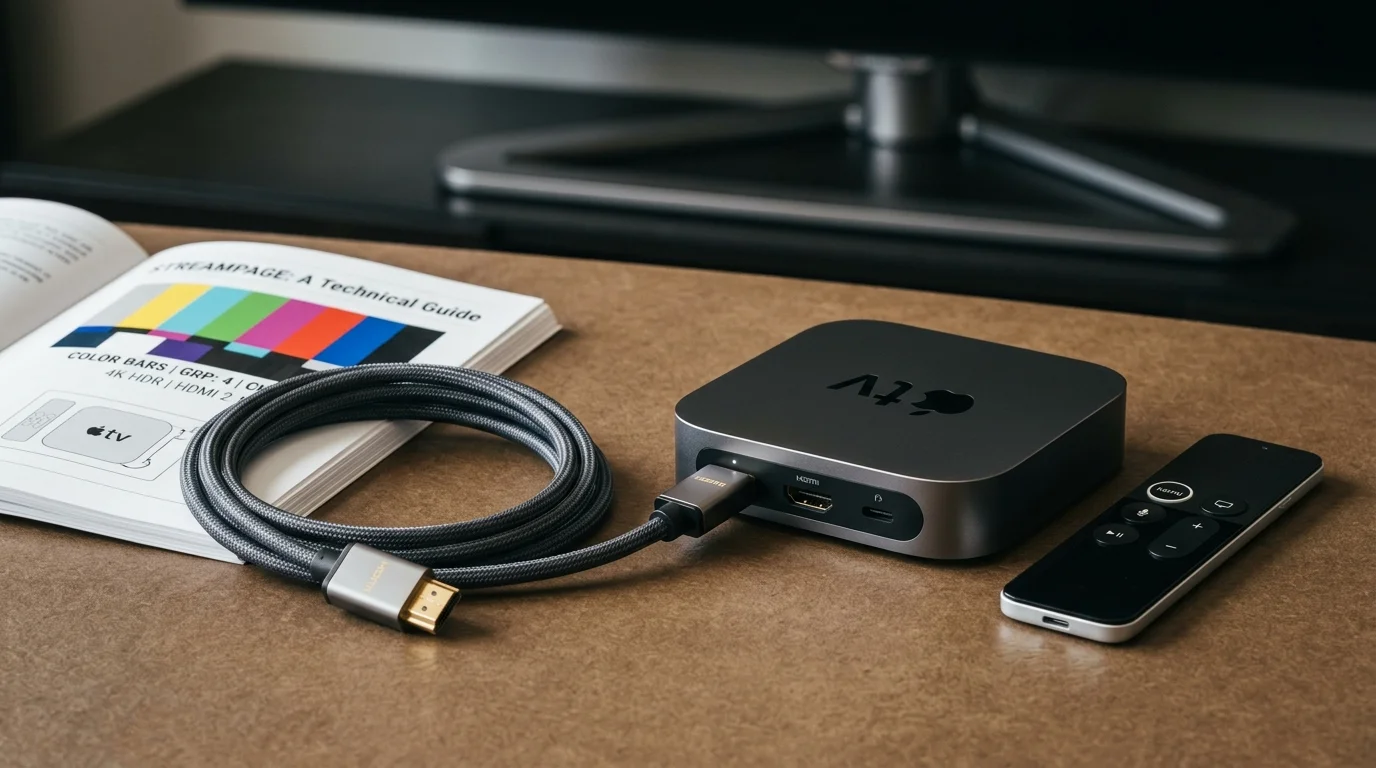
Best Streaming Device Recommendations for Plasma Owners
Selecting the right streaming stick for a legacy plasma requires balancing display controls, video output fidelity, and overall equipment cost. Three distinct models stand out for legacy television owners.
If you want to keep costs low, opting for certified refurbished streaming devices offers a budget-friendly route to premium video hardware.
According to Wirecutter’s streaming device review, finding a model that pairs powerful video processing with intuitive software ensures long-term satisfaction.
Best Overall: Apple TV 4K (64GB, 3rd Generation)
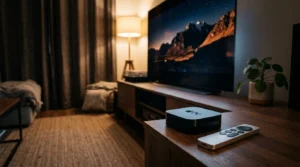
The Apple TV 4K ($129.00) represents the gold standard for legacy 1080p plasma televisions. Its tvOS platform allows you to lock the output directly to 1080p SDR.
The Match Dynamic Range setting forces the device to pull native SDR video assets from streaming provider servers. This completely bypasses tone-mapping algorithms, preserving your plasma’s deep blacks and vibrant Rec. 709 colors.
The Apple A15 Bionic processor ensures instant app loading without lag or interface stutter. It also features zero home-screen banner ads, creating a clean, premium viewing experience.
Best Value: Roku Streaming Stick 4K
The Roku Streaming Stick 4K ($49.99) delivers exceptional value for budget-conscious viewers. Its straightforward interface makes launching content effortless for any family member.
Roku OS correctly recognizes legacy 1080p EDID handshakes when you manually set the display type to 1080p TV. This prevents apps from streaming high-bitrate HDR files that trigger washed-out tone mapping.
The included voice remote controls television power and volume via HDMI-CEC or infrared. It represents an affordable and effective streaming solution for secondary living rooms or bedrooms.
Best for Customization: Amazon Fire TV Stick 4K Max
The Amazon Fire TV Stick 4K Max ($59.99) offers robust hardware specifications and Wi-Fi 6 support. It suits viewers who enjoy fine-tuning audio and visual parameters.
Its Adaptive dynamic range setting prevents the operating system from forcing Always HDR down-conversions onto SDR televisions. You also gain deep control over color depth and YCbCr color spaces.
“A legacy plasma television running a clean SDR signal will routinely outperform cheap modern 4K LCDs in black level depth and contrast ratio.” — Streaming Display Specialist
While the Fire TV home interface contains prominent banner advertisements, the underlying video decoder performs admirably once configured correctly. It provides tremendous processing power at an accessible price point.
Frequently Asked Questions
Why does HDR content look so dark and washed out on my 1080p plasma?
HDR content looks washed out because modern streaming sticks downscale 1,000-nit BT.2020 signals using low-quality internal tone mapping. This algorithm lifts deep shadow levels into gray and desaturates color gamuts on Rec. 709 screens.
For playback glitches beyond picture washed-out issues, follow our guide on how to fix common streaming problems like stuttering and audio sync drops.
Can sending an HDR signal damage my older plasma television?
No, sending an HDR signal will not physically damage your plasma panel or internal drive circuitry. The television simply displays the decoded video data passed through the HDMI port, even if the colors look distorted.
Should I set my streaming stick HDMI color range to Full or Limited?
You should set your streaming stick to Limited RGB (16-235) or YCbCr for older plasma televisions. Plasmas expect standard studio video levels; selecting Full RGB (0-255) crushes shadow detail and clips bright highlights.
Will disabling HDR on my streaming stick lower the video resolution?
No, disabling HDR does not lower resolution. Your streaming stick continues delivering full 1080p high-definition video while pulling clean standard dynamic range assets matched to your plasma’s native capabilities.
Disclaimer: Device prices and features may change. New models are released regularly, so check for the latest versions before purchasing. The “best” device depends on your specific needs, existing ecosystem (Apple, Google, Amazon), and budget.