For years, the Google Chromecast was the go-to recommendation for anyone looking to make a “dumb” TV smart. It was simple, affordable, and let you beam content from your phone directly to the big screen. But the streaming landscape has shifted. Viewers now demand dedicated remote controls, on-screen interfaces, and a standalone experience that doesn’t drain their phone battery.
Whether you are a power user or looking for the best streaming device for every budget, there is an option that outshines the Chromecast.
If you are looking to upgrade your entertainment setup or cut the cord—canceling traditional cable in favor of internet-based services—you have more options than ever. However, the sheer volume of choices between Roku, Amazon Fire TV, and various Android boxes can be overwhelming. The “best” device isn’t necessarily the most expensive one; it is the one that fits your ecosystem and viewing habits.
This guide will help you navigate the confusing market of streaming devices. We will break down the top alternatives to the Chromecast, compare their features, and help you find the best bang for your buck.
Why Look Beyond the Chromecast?
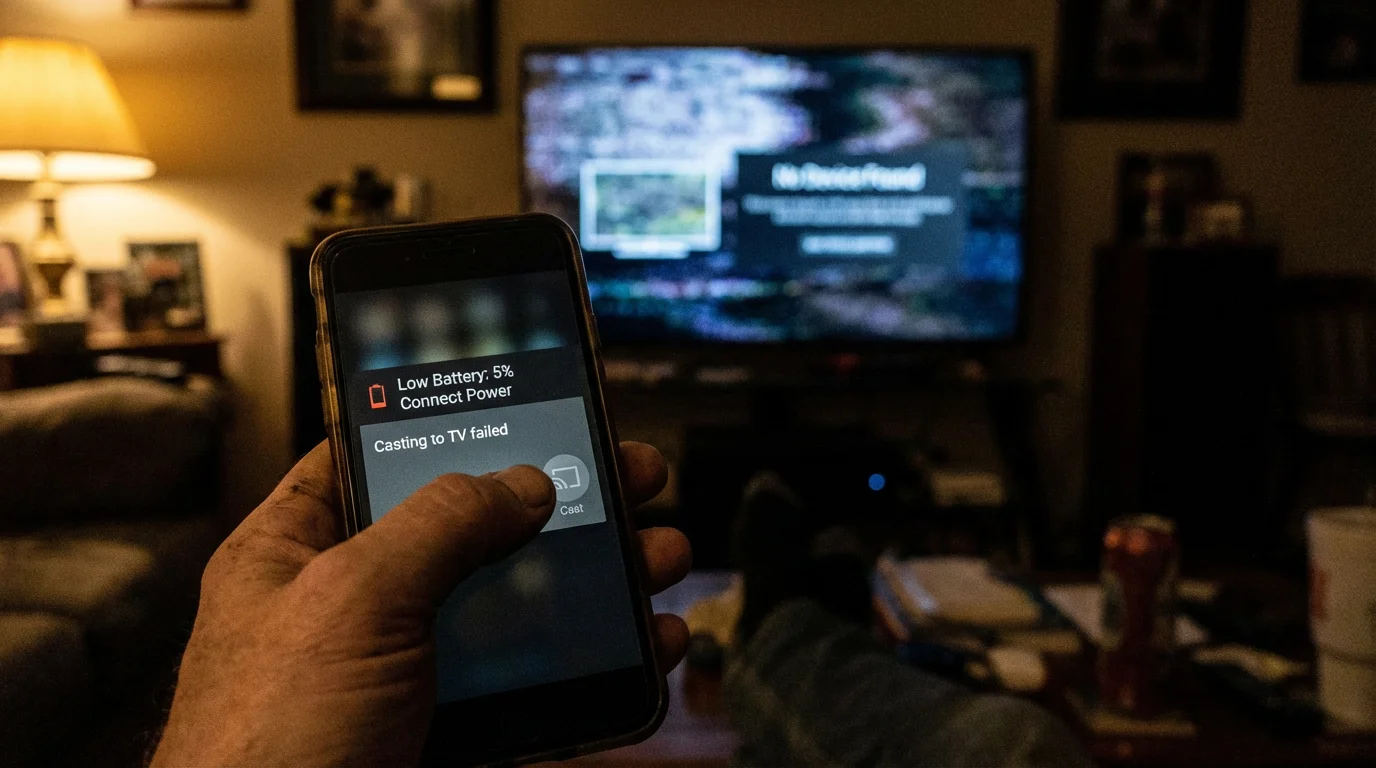
The original Chromecast defined a category, but it had a significant limitation: it required a phone or tablet to function. You had to find the content on a mobile device and “cast” it to the TV. While novel at the time, this method has drawbacks. It drains your phone battery, interrupts playback if you receive a call, and makes it difficult for other household members (like babysitters or guests) to watch TV without your device.
Modern streaming devices—often called “sticks” or “dongles”—plug into your TV’s HDMI port but operate independently. They come with physical remote controls and display a visual menu on your TV screen. This allows you to browse apps like Netflix, Hulu, and Disney+ directly on the television.
“The best streaming device is the one that gets out of your way and lets you watch your show in the fewest clicks possible.” — Streaming Tech Expert
Google eventually recognized this shift and released the “Chromecast with Google TV,” which included a remote and an interface. However, competitors like Roku and Amazon have refined this experience over a decade, often offering faster hardware or better prices. Furthermore, major retailers like Walmart have entered the game with devices that undercut Google’s own pricing while offering the same software.
Roku: The User-Friendly Value King
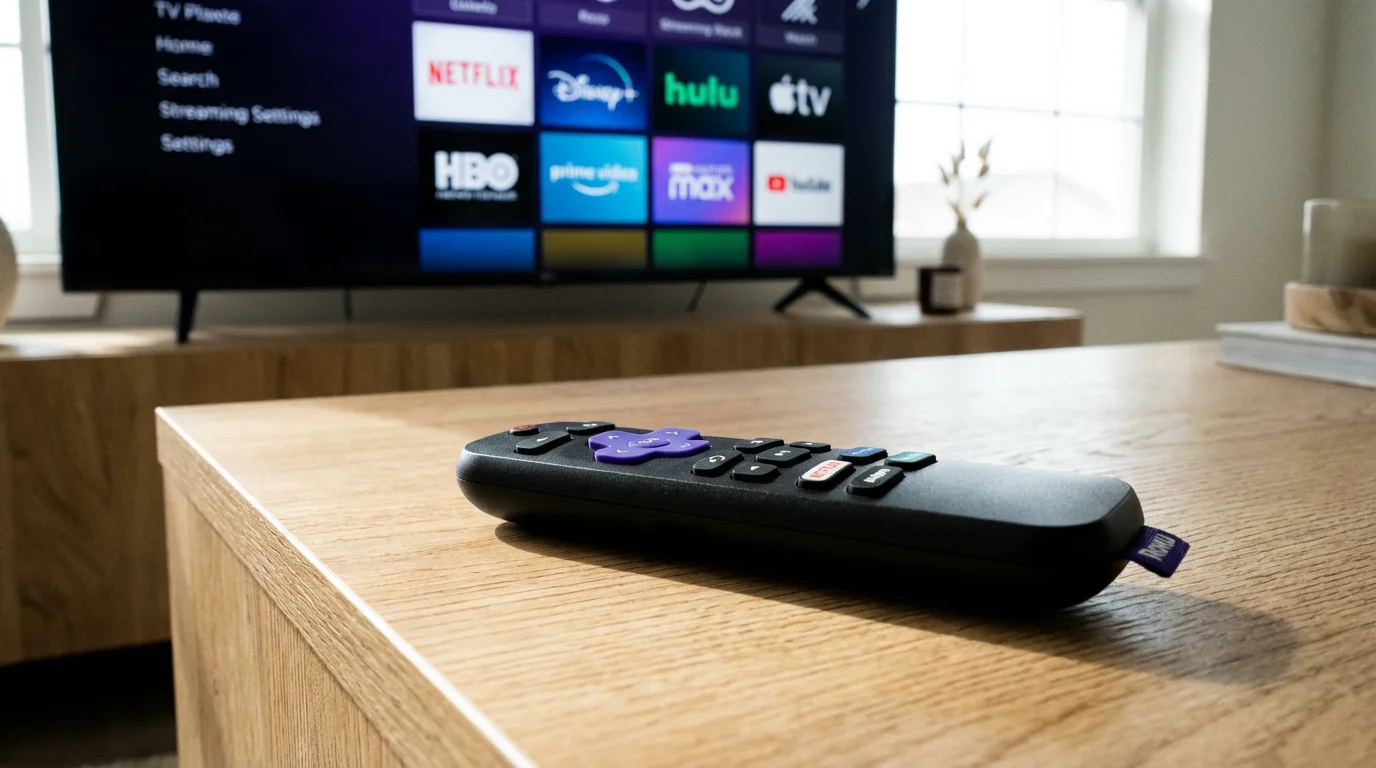
If you want a device that just works, Roku is widely considered the gold standard for simplicity. Unlike Amazon or Google, Roku is a neutral platform. It does not prioritize its own movies or TV shows over other services. The interface is a clean grid of apps (which Roku calls “Channels”), making it incredibly easy for non-tech-savvy users, children, or seniors to navigate.
Roku Streaming Stick 4K ($50 Tier)
This is the sweet spot for most buyers. It hides behind your TV, supports 4K resolution, HDR10, and Dolby Vision. It comes with a high-quality Wi-Fi receiver built into the power cable, which helps maintain a strong connection even if your router is far away.
Roku Express 4K+ ($30-$40 Tier)
If you are on a tighter budget, the Express 4K+ offers almost the same performance as the Stick but sits in a small box below your TV rather than plugging directly into the back. It is an excellent entry point for cord-cutting.
According to Wirecutter, the Roku Streaming Stick 4K is often the top pick for most people because it offers the best balance of features, price, and ease of use. It supports AirPlay, meaning you can still cast content from your iPhone just like you would with an Apple TV.
Pros of Roku
- Neutral Interface: Does not push you to rent movies from a specific store.
- Private Listening: You can plug headphones into the remote (on select models) or use the Roku mobile app to listen to TV audio through your phone.
- “Feed” Feature: Allows you to follow movies and actors to see when they become available for free.
Cons of Roku
- Interface looks dated: The grid style is functional but hasn’t changed much in a decade.
- No Twitch app: The official Twitch app is absent, though unofficial alternatives exist.
Amazon Fire TV: Best for Prime Members
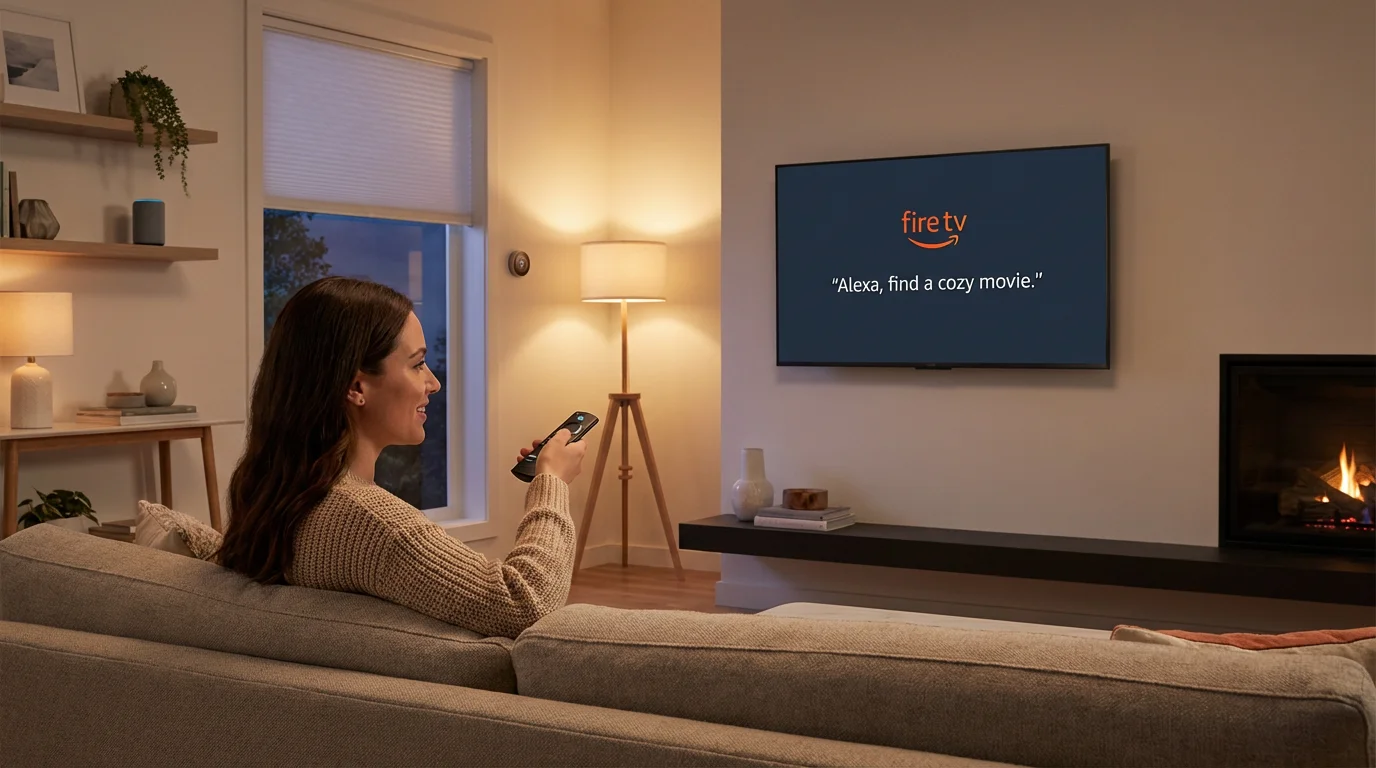
Amazon’s Fire TV devices are aggressive on price and heavy on features. If your household already relies on Alexa for smart home control, or if you are a heavy Amazon Prime Video user, this is a logical alternative to Chromecast.
For a deeper dive into how these two platforms differ, check out our comparison of Fire Stick vs Roku interface and speed.
Fire TV Stick 4K Max ($50-$60 Tier)
This is Amazon’s most powerful stick. It supports Wi-Fi 6E (if you have a compatible router), which makes streaming 4K content smoother with less buffering. It also features the “Ambient Experience,” which turns your TV into a smart display for art and widgets when not in use.
Fire TV Stick Lite ($20-$30 Tier)
This is often the cheapest recognizable brand device on the market. It maxes out at 1080p (High Definition), making it suitable for older TVs in guest rooms or dorms. However, the remote usually lacks TV power and volume buttons, meaning you will still need your TV remote to turn the volume up and down.
The “Ad” Compromise
The biggest criticism of Fire TV is the interface. It is visually busy and allocates a significant portion of the screen to advertisements for movies, shows, and products. While the hardware is often faster than Roku’s at the same price point, you pay for that subsidy by viewing more ads.
As noted by Tom’s Guide, the Fire TV Stick 4K Max is a performance beast, but the user interface is cluttered with promoted content that can feel intrusive compared to Roku’s clean grid.
onn. Google TV: The Budget Disruptor
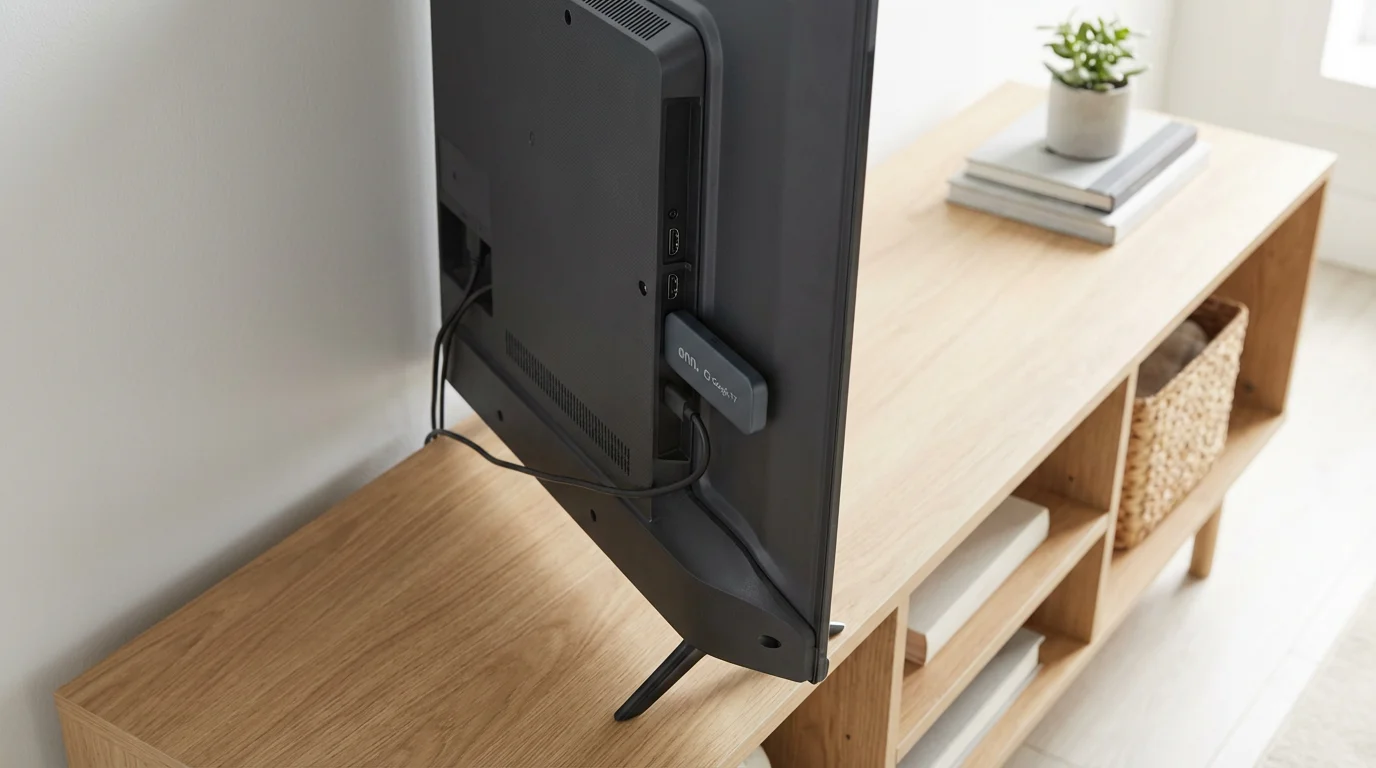
For cost-conscious buyers who love the Google interface but dislike the price of the official Chromecast, Walmart’s in-house brand, “onn.”, has disrupted the market. The onn. Google TV 4K Streaming Box costs roughly $20.
Despite the generic name and low price, this device runs the exact same operating system (Google TV) as the more expensive Chromecast. It supports 4K UHD and includes a voice remote with Google Assistant. It is essentially a Chromecast alternative that beats Google at its own game regarding price-to-value.
Who is this for?
- Budget Hunters: You cannot find a better certified 4K device for $20.
- Android Fans: It integrates perfectly with your Google account, photos, and smart home setup.
- Tinkerers: Because it runs Android TV, it is relatively easy to “sideload” apps that aren’t in the official store.
Apple TV 4K: The Premium Choice
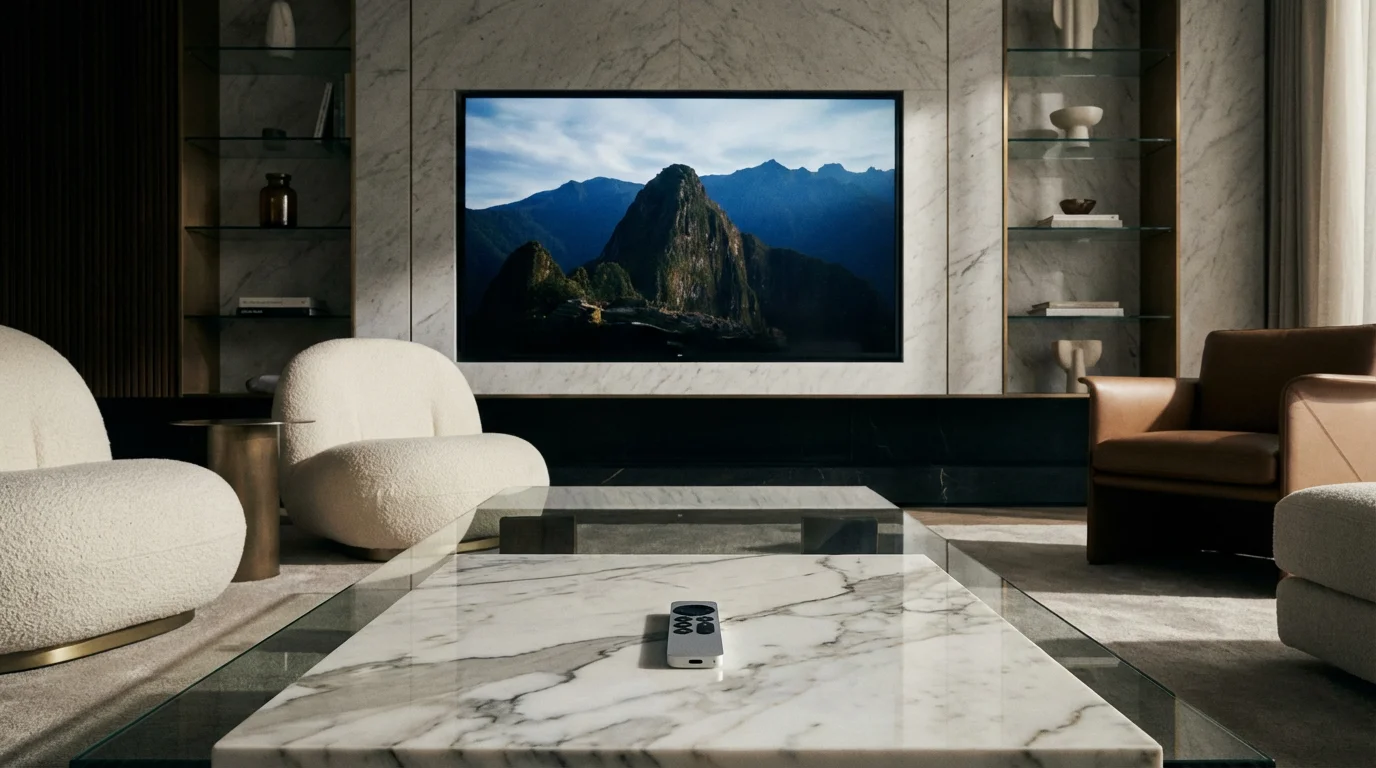
If you are frustrated by laggy menus, slow app loading times, and privacy concerns, the Apple TV 4K is the solution—if you can stomach the price tag ($130+). It is significantly more expensive than the sticks mentioned above, but it occupies a different class of hardware.
Power users and gamers may also want to consider the Nvidia Shield TV, which offers superior AI upscaling and local streaming performance.
The Apple TV 4K uses a processor similar to those found in iPhones. This makes the interface incredibly fluid. Apps open instantly, and scrubbing through a video timeline is smooth. Importantly, the Apple TV interface has zero ads on the home screen. You see your apps and nothing else.
The Privacy Angle
Roku, Amazon, and Google subsidize their cheap hardware by collecting data on your viewing habits and showing you ads. Apple makes its money on hardware sales and services. If you are privacy-conscious, paying the premium for Apple TV ensures that your viewing data isn’t being sold to third-party advertisers to the same extent.
CNET consistently rates the Apple TV 4K as the best streamer overall for its speed, polish, and seamless integration with other Apple devices like AirPods and iPhones.
Smart TV Apps vs. Dedicated Devices
You might be asking, “My TV already has Netflix and Hulu built-in. Why should I spend money on a stick?”
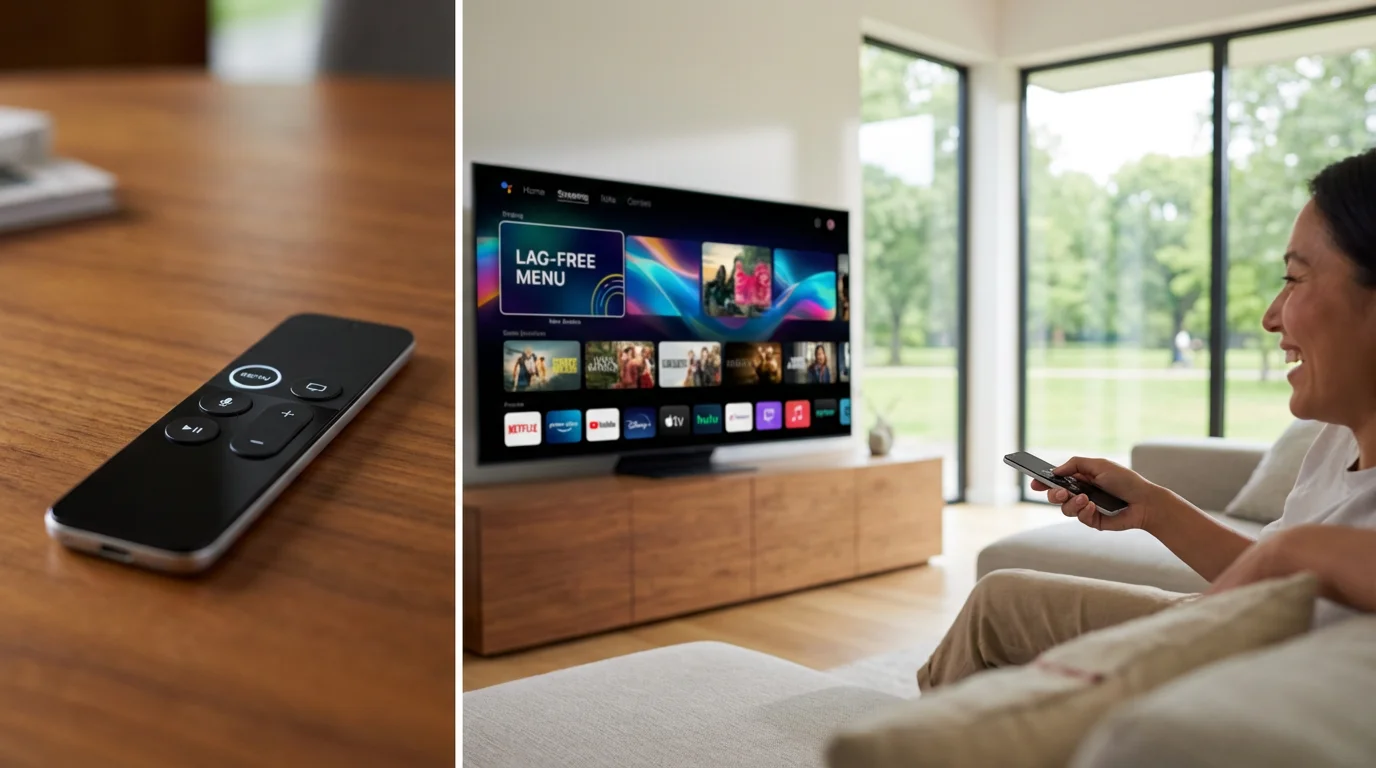
This is a valid question. A “Smart TV” connects to the internet and runs apps natively. However, TV manufacturers are hardware companies, not software companies. Their operating systems are often clunky, slow, and rarely updated.
When to use your Smart TV apps:
- You just bought a high-end TV (Sony, LG, Samsung) in the last 12 months.
- You only use 1 or 2 basic apps like Netflix or YouTube.
- You hate having multiple remotes and your setup doesn’t support HDMI-CEC (which allows one remote to control multiple devices).
When to buy a dedicated device:
- Speed: Your TV interface lags when you press a button.
- Updates: The TV manufacturer stopped updating the apps, and they no longer work correctly.
- Consistency: You want the same interface on every TV in your house, regardless of the TV brand.
- Format Support: Your TV supports Dolby Atmos, but the built-in apps don’t support passing that audio signal to your soundbar (a common issue).
Feature Breakdown: 4K, HDR, and Audio
When shopping for a Chromecast alternative, you will see a lot of acronyms on the box. Here is what they mean for your viewing experience.
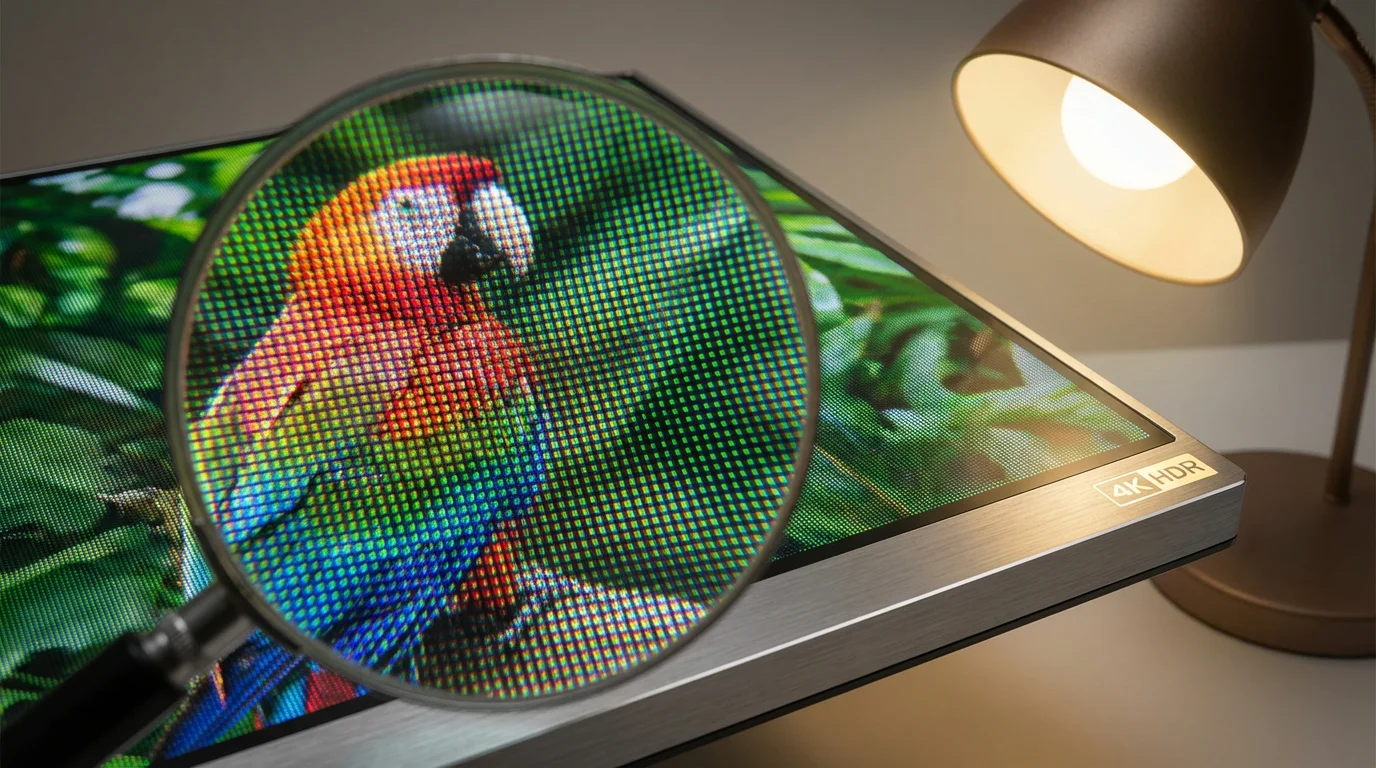
4K (Ultra HD): This refers to resolution—the number of pixels on the screen. 4K is four times sharper than standard HD (1080p). Even if you don’t have a 4K TV yet, buying a 4K streaming stick is smart because they have faster processors than the HD versions.
HDR (High Dynamic Range): While 4K adds more pixels, HDR makes the pixels better. It provides brighter whites, deeper blacks, and a wider range of colors.
Note: There are competing formats. HDR10 is the standard. Dolby Vision is a premium version used by Netflix and Disney+ that adjusts the picture scene-by-scene. If your TV supports Dolby Vision, ensure your streaming stick does too.
Dolby Atmos: This is a surround sound technology that adds height channels, making it sound like rain is falling from above or helicopters are flying overhead. You need a compatible soundbar or speaker system to hear the difference.
Comparison Table: Specs and Pricing
| Device | Approx. Price | Operating System | Best For… | Dolby Vision? |
|---|---|---|---|---|
| Roku Streaming Stick 4K | $50 | Roku OS | Most Users / Simplicity | Yes |
| Amazon Fire TV Stick 4K | $50 | Fire TV OS | Alexa Users / Prime Fans | Yes |
| onn. Google TV 4K Box | $20 | Google TV | Budget / Android Fans | No (HDR10 only) |
| Chromecast with Google TV (4K) | $50 | Google TV | Google Ecosystem | Yes |
| Apple TV 4K | $129+ | tvOS | Performance / Apple Users | Yes |
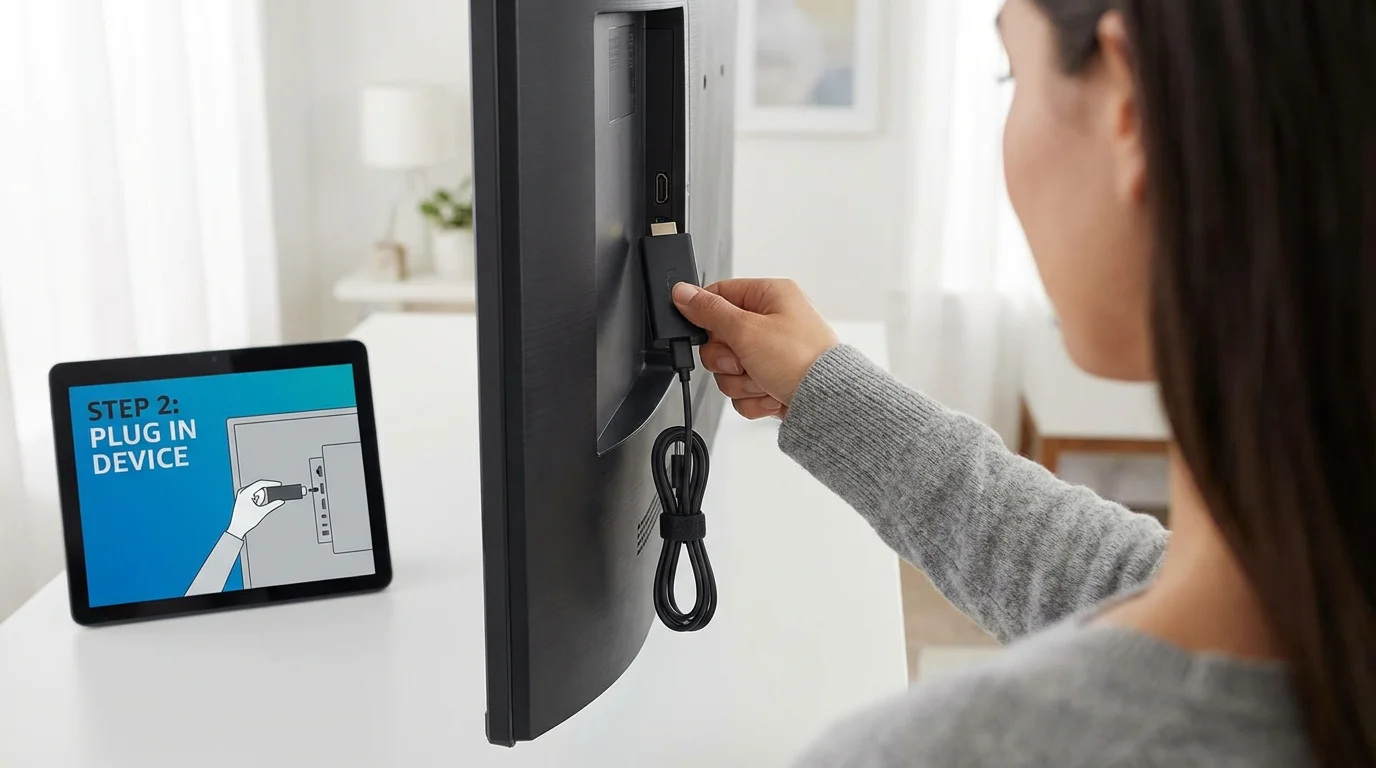
Setup and Troubleshooting
Setting up these devices is generally straightforward, but a few tips can ensure you get the best performance.
Power from the Wall, Not the TV
Most streaming sticks come with a USB power cable. You might be tempted to plug this into the USB port on the back of your TV to save space. Don’t do this. TV USB ports often don’t provide enough consistent power, leading to random reboots or slow performance. Always use the included power adapter and plug it into a wall outlet.
Use the HDMI Extender
If your stick comes with a short HDMI extension cable (a 2-inch flexible dongle), use it. Plugging the stick directly into the TV can sandwich it between the TV panel and the wall, which blocks Wi-Fi signals and causes the device to overheat. The extender moves the device away from the TV’s metal casing, improving Wi-Fi reception.
Enable HDMI-CEC
To avoid juggling remotes, go into your TV settings and enable “CEC” (it might be called Anynet+, Bravia Sync, or SimpLink depending on your TV brand). This allows your streaming remote to control your TV’s power and volume automatically.
Frequently Asked Questions
Can I still “cast” video to these alternatives?
Yes. All the devices listed above support casting to some degree. Roku and Apple TV support Apple AirPlay for iPhones. The onn. box and Fire TV support Google Cast (or Miracast), allowing you to beam content from Android phones and Chrome browsers just like a classic Chromecast.
Do I have to pay a monthly fee for the device?
No. Once you buy the hardware (the stick or box), you own it. There are no monthly rental fees for the device itself. You only pay for the specific subscription services you choose to watch, like Netflix, Hulu, or Sling TV.
Will a 4K stick work on my older non-4K TV?
Yes. A 4K streaming stick will automatically detect your TV’s resolution and adjust accordingly. It is actually smarter to buy a 4K stick for an older HD TV because the 4K sticks have faster processors and more RAM, making the menus feel snappier than the cheaper HD-only versions.
Which device has the best remote?
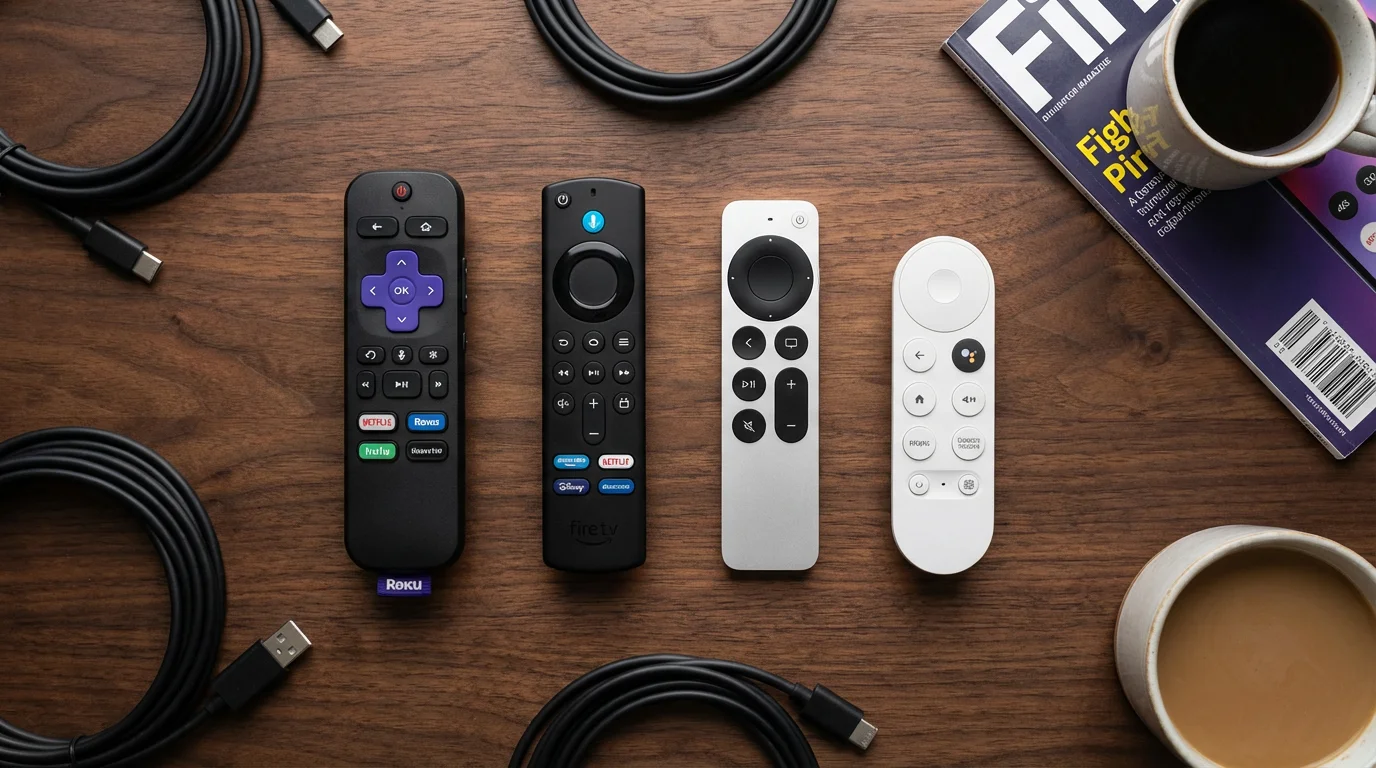
The Roku Voice Remote Pro (sold with higher-end bundles or separately) is excellent because it is rechargeable and has a lost remote finder feature. The Apple TV Siri Remote is premium aluminum but expensive to replace. Amazon’s remotes are functional but feel a bit plastic-heavy.
Disclaimer: Device prices and features may change. New models are released regularly, so check for the latest versions before purchasing. The “best” device depends on your specific needs, existing ecosystem (Apple, Google, Amazon), and budget.