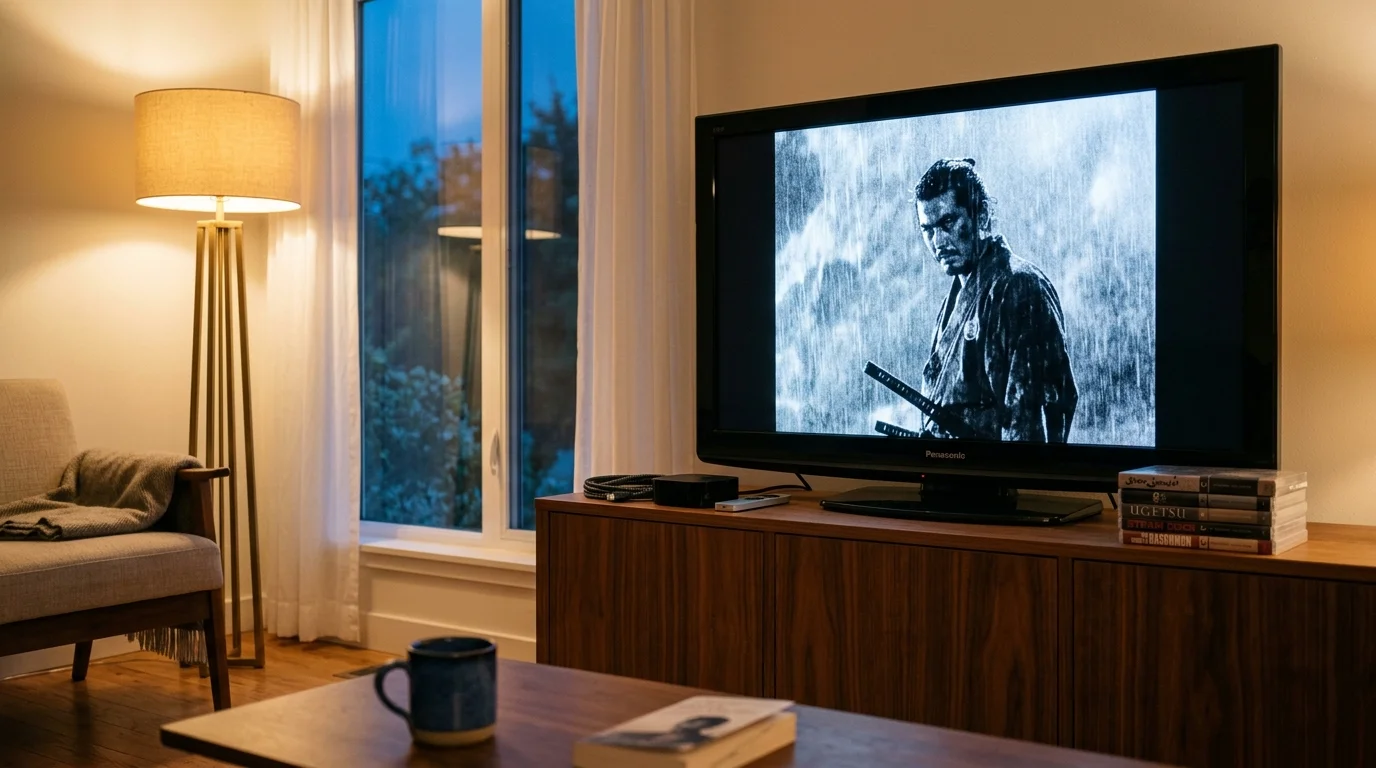
You can eliminate panning judder on classic art-house cinema without sacrificing the deep black levels of your reference display. If you watch Criterion Channel or MUBI on an older 1080p Panasonic plasma TV, standard 60Hz conversion creates distracting motion stutter.
Older displays lack modern smoothing algorithms and require precise source matching to preserve filmmaker intent. Forcing a native 24.000 fps cadence over HDMI resolves 3:2 pulldown micro-stutter while preserving strict Rec. 709 SDR gamma tracking.
This technical guide details how to configure your external player and display settings to lock in true 24p playback without black crush.
The Physics of 3:2 Pulldown and 24fps Cadence
Most theatrical films stream at 24 frames per second, or more specifically, 23.976 frames per second. Video streaming—watching video content over the internet instead of cable or satellite—often transmits this native film rate inside a standard digital container.
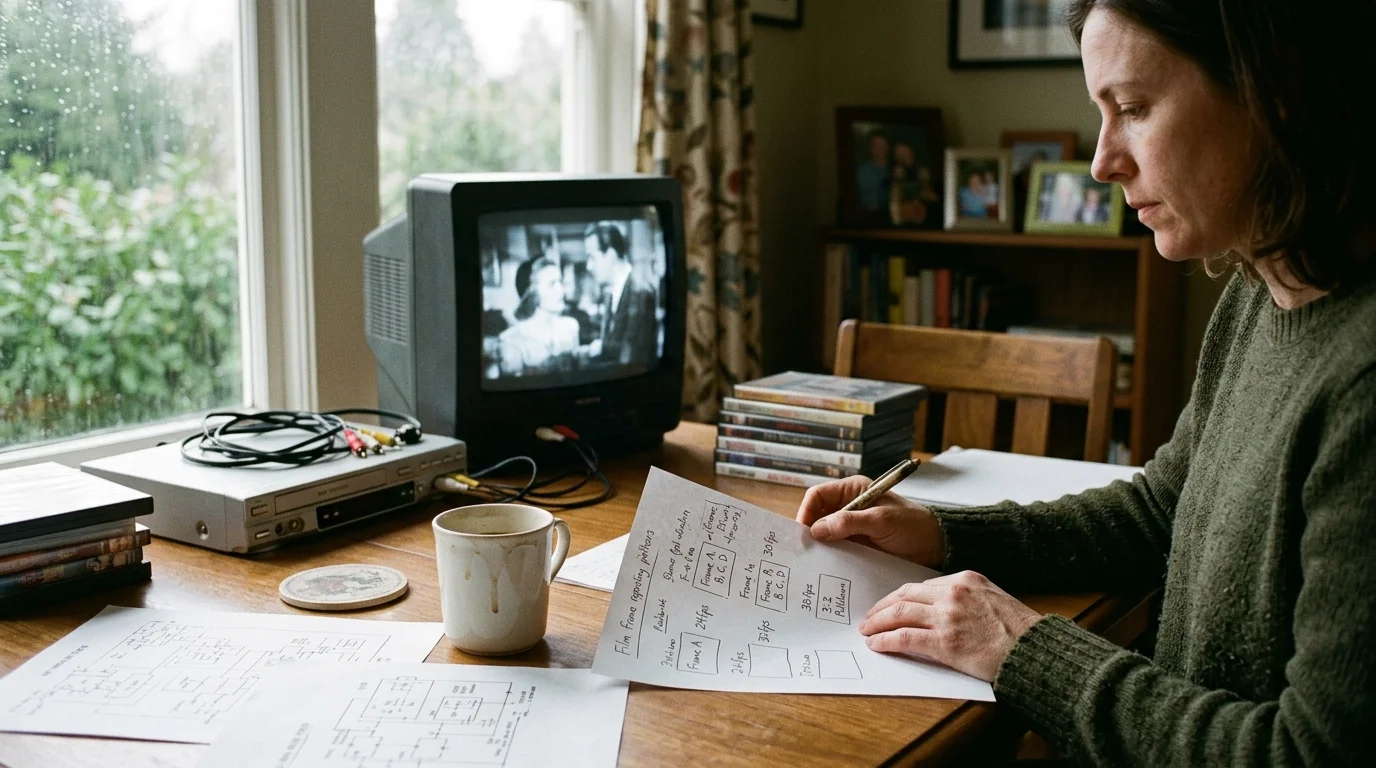
When an older television receives a 60Hz video signal, it cannot divide 24 evenly into 60. The hardware uses telecine conversion, alternating between displaying one film frame for three TV refresh cycles and the next for two.
This alternating sequence is known as 3:2 pulldown. The irregular timing introduces uneven motion during slow camera pans, which cinephiles identify as telecine judder.
In a standard 60Hz telecine broadcast, frame A stays on screen for 50 milliseconds. Frame B follows for only 33.3 milliseconds.
Your brain perceives this 16.7-millisecond timing asymmetry as a rhythmic hitch. This micro-stutter ruins sweeping tracking shots in masterworks from directors like Andrei Tarkovsky or Jean-Luc Godard.
According to testing by CNET, setting streaming devices to match the source frame rate directly cures motion artifacts. Bypassing 60Hz conversion entirely delivers an authentic cinema cadence to your living room.
A true streaming 3:2 pulldown fix requires delivering the uncorrupted 24fps signal directly to the display over HDMI. This handover allows the television panel to refresh at a direct integer multiple of the original film frames.
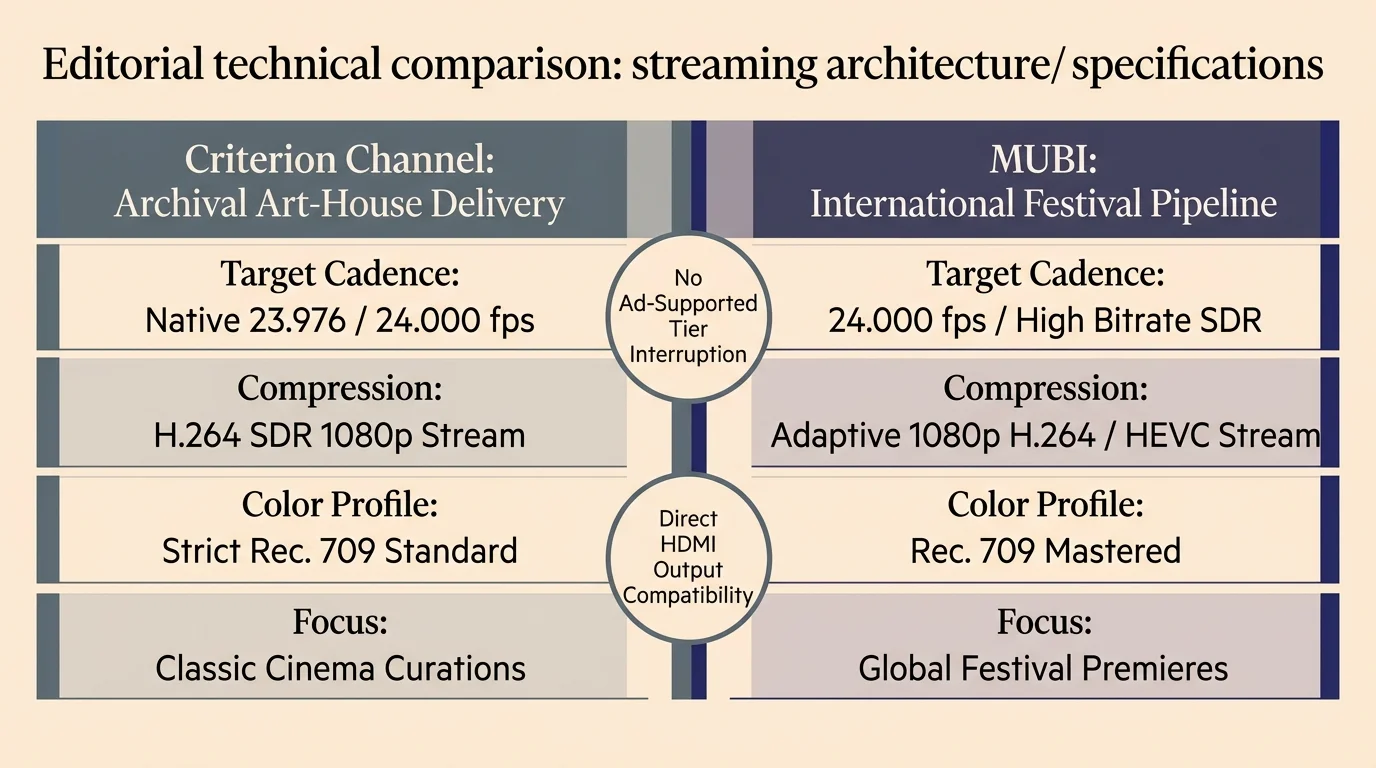
Platform Differences: Criterion Channel vs MUBI Subscription Costs and Specs
Cord-cutting—canceling traditional cable or satellite TV in favor of streaming services—empowers movie purists to access rare global cinema on-demand. An on-demand catalog lets you watch whatever title you want, whenever you want, without broadcast scheduling constraints.
Both Criterion Channel and MUBI focus on prestige cinema, yet their compression backends and technical delivery pipelines differ significantly. Criterion Channel maintains an extensive archive of classic cinema, while MUBI curates festival gems and contemporary international releases.
Neither service relies on an ad-supported tier, which means you avoid cheaper plans that show commercials. Both platforms are exclusively ad-free, charging a flat monthly or annual fee to access uncompressed theatrical masters without corporate interruptions.
Neither provider offers cloud DVR features, which let viewers record live cable feeds for later playback. Instead, every movie remains accessible directly through permanent catalogs or rotating monthly festival programming.
| Platform | Monthly Cost | Annual Cost | Free Trial | Simultaneous Streams | Container Frame Rates | Target SDR Gamma |
|---|---|---|---|---|---|---|
| Criterion Channel | $10.99 | $99.99 | 14 Days | 3 Streams | 23.976 fps / 24.000 fps | Rec. 709 (2.2 / 2.4) |
| MUBI | $14.99 | $119.88 | 7 Days | 2 Streams | 24.000 fps / 25.000 fps | Rec. 709 (2.2 / 2.4) |
| Fandor | $4.99 | $49.99 | 7 Days | 2 Streams | 29.970 fps (Telecined) | Rec. 709 (2.2) |
| Kino Film Collection | $5.99 | $59.99 | 7 Days | 2 Streams | 23.976 fps | Rec. 709 (2.2) |
Criterion Channel outputs the vast majority of its 1080p catalog at 23.976 fps. However, select European restorations stream at an exact 24.000 fps cadence.
MUBI frequently hosts international theatrical transfers and European restorations mastered at a strict 24.000 fps or 25.000 fps. These varying frame rates require flexible playback hardware to prevent dropped frames.
According to streaming evaluations by PCMag, Criterion Channel and MUBI rank among the best niche movie services for cinephiles. You maximize their value only when your hardware reproduces their unique encoding cadences properly.
If you fail to adjust your mubi video settings, an international film mastered at 24.000 fps forced into 60Hz causes frame drops every 41 seconds. That persistent frame repeat shatters visual immersion during delicate camera movements.
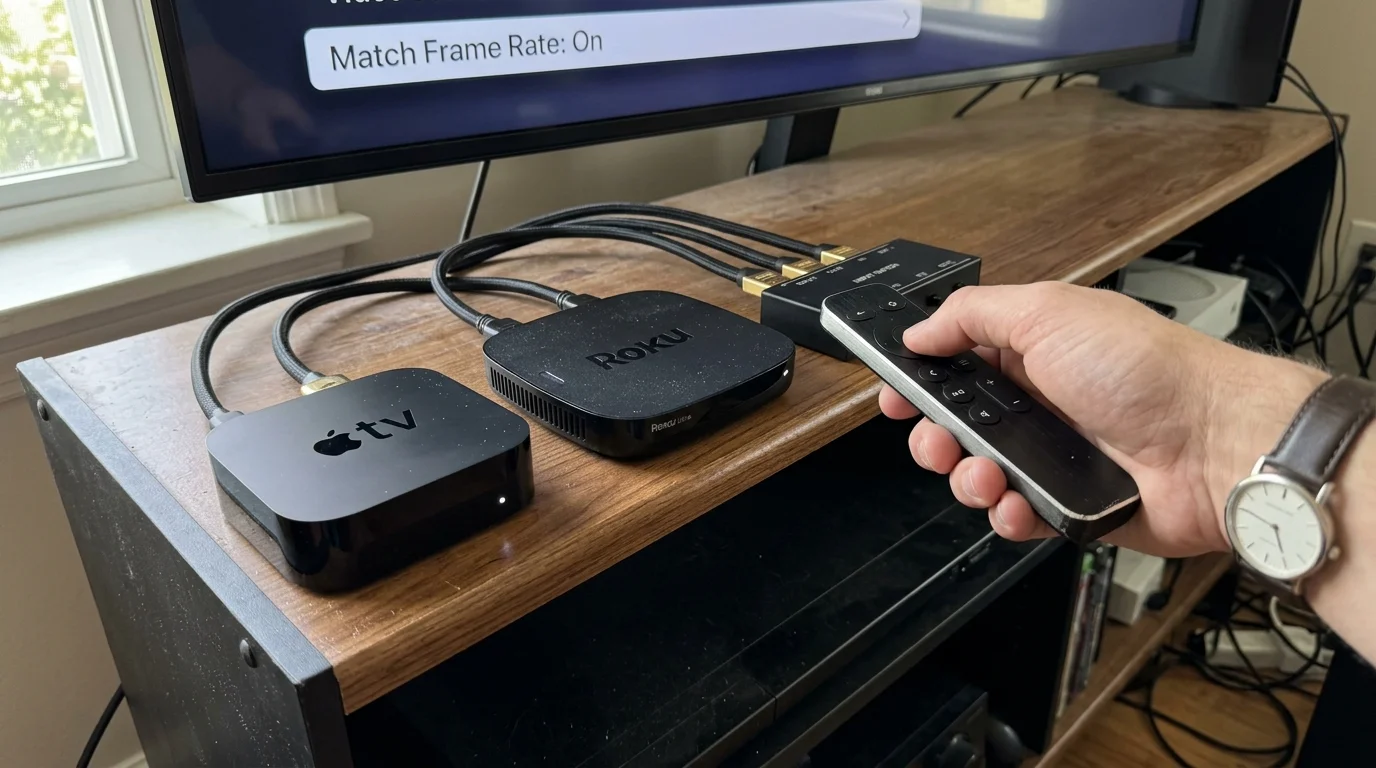
Streaming Device Configuration: Apple TV 4K vs Roku Ultra
An older smart TV—a television manufactured with integrated web software and internal apps—rarely receives firmware maintenance. Legacy internal apps cannot dynamically adapt display refresh rates to match modern art-house streaming streams.
You must pair your legacy display with an external streaming device, which is a dedicated player that supplies streaming capabilities over HDMI. Selecting the correct hardware dictates whether your screen receives native 24p or a compromised 60Hz conversion.
Budget hardware frequently lacks integer refresh-rate switching. As reported by Consumer Reports, premium streaming devices provide superior format compatibility and video output controls.
| Streaming Device | Retail Price | Native 24.000 fps Output | Native 23.976 fps Output | Match Dynamic Range | HDMI YCbCr / RGB Select |
|---|---|---|---|---|---|
| Apple TV 4K (3rd Gen) | $129.00 | Yes | Yes | Yes | Yes (RGB High/Low, YCbCr) |
| Roku Ultra (4802R) | $99.99 | No (Converts to 23.976) | Yes | Yes | No (Auto YCbCr Only) |
| Chromecast with Google TV | $49.99 | Partial (OS Dependent) | Yes | Yes | No (System Managed) |
| Amazon Fire TV Stick 4K Max | $59.99 | No (App Dependent) | Yes | Yes | Limited (Color Depth Only) |
To eliminate Criterion Channel 24fps judder on an Apple TV 4K, navigate to Settings, select Video and Audio, and open Match Content. Switch both Match Dynamic Range and Match Frame Rate to On.
Next, set your default output resolution to 1080p SDR at 60Hz (59.94Hz). This configuration leaves menus snappy while allowing the player to downclock to 24Hz when a film starts.
tvOS handles frame-rate transitions seamlessly. When you launch a film on Criterion Channel, the Apple TV handshake switches the HDMI output clock to 23.976Hz or 24.000Hz automatically.
If you use a Roku Ultra, navigate to Settings, select System, and open Advanced system settings. Enter Advanced display settings and toggle Auto-adjust display refresh rate to Enabled.
Keep in mind that Roku OS often rounds European 24.000 fps streams down to 23.976 fps. For film purists sensitive to dropped frames, Apple TV 4K remains the gold standard.
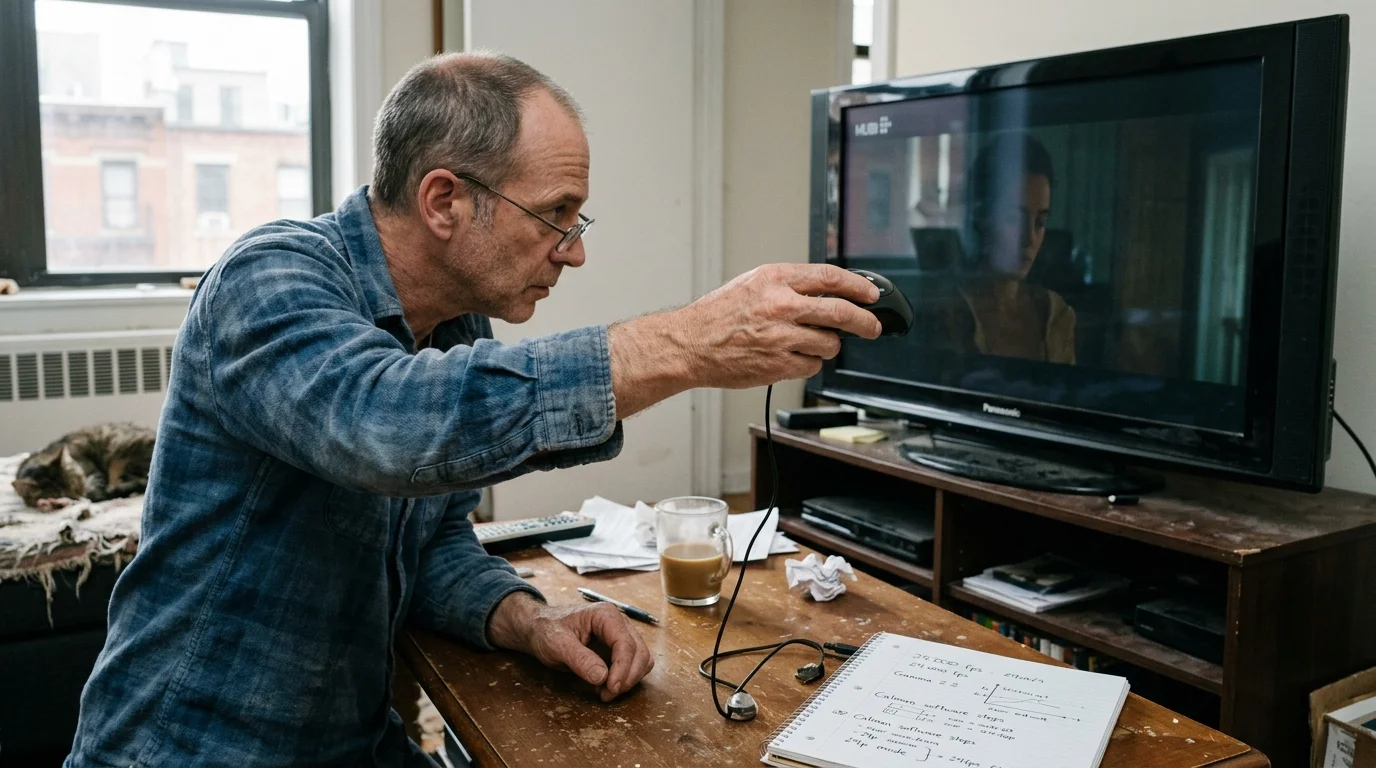
Worked Example: Calibrating a Panasonic Plasma for 24.000 fps and SDR Gamma
Let us examine a concrete setup scenario using a reference Panasonic TC-P60VT60 plasma display. This flagship 1080p panel produces deep black levels rivaling early OLED panels, but it demands precise cadence management.
Connect your Apple TV 4K directly to HDMI Input 1 on the Panasonic panel using a High Speed 18Gbps HDMI cable. Avoid passing through older soundbars that might strip refresh-rate flags or introduce EDID communication errors.
Power on both devices and launch the Criterion Channel application. Begin playing Vittorio De Sica’s Bicycle Thieves to initiate a standard 23.976 fps black-and-white stream.
Grab the Panasonic remote and press the Menu button to access the Picture submenu. Change Picture Mode from Vivid or Standard to Professional1 or Cinema.
Locate the 24p Direct In setting, which becomes selectable only when the TV detects an active 24p HDMI transmission. Toggle the value from 60Hz to 96Hz.
When set to 96Hz, the plasma panel drives each individual frame four full times (4:4 pulldown). 24 frames multiplied by 4 equals a clean 96Hz refresh cycle.
Each film frame remains visible for exactly 41.67 milliseconds. The temporal duration of every frame becomes identical, which entirely abolishes telecine jitter.
“True cinema cadence is not about artificial sharpness; it is about temporal uniformity. When every frame holds the screen for an identical fraction of a second, the display vanishes and only the film remains.”
Never choose the 48Hz option on vintage Panasonic plasmas. While 48Hz represents an even 2:2 cadence, the lower frequency creates intolerable full-field phosphor flicker that causes immediate eye strain.
Leave Motion Picture Setting (Panasonic’s frame interpolation smoothing) switched completely Off. Interpolation introduces the artificial soap opera effect, distorting authentic celluloid motion.
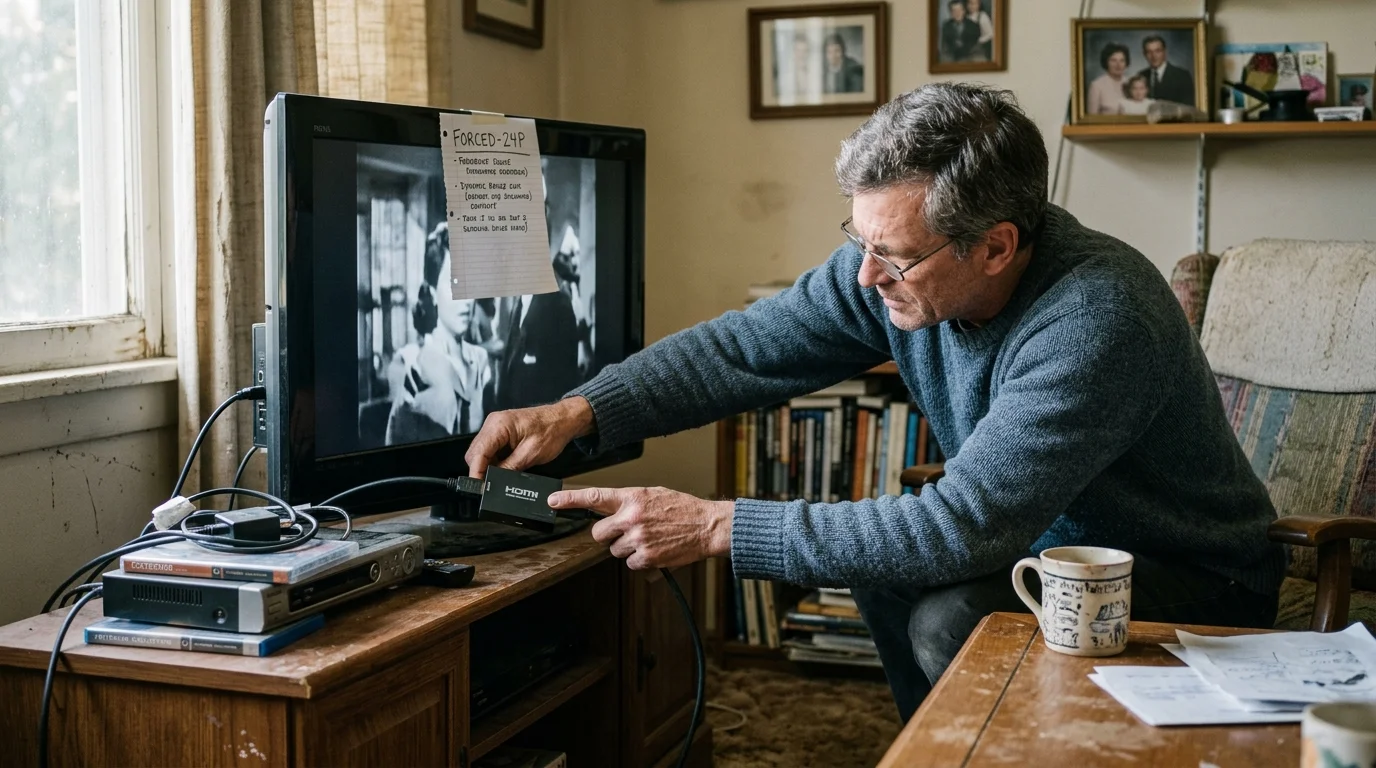
Preventing SDR Gamma Clipping and Black Level Mismatches Over HDMI
Resolving motion cadence solves only half the calibration challenge. Film purists frequently introduce severe gamma clipping or washed-out grays when modifying HDMI display properties.
Digital video uses two primary color range scales: Full RGB (0 to 255) and Limited RGB (16 to 235). Standard dynamic range (SDR) video content adheres strictly to the ITU-R BT.709 broadcast standard using Limited range.
In a Limited RGB system, reference black sits at digital value 16, while reference white sits at 235. Digital values below 16 contain sub-black shadow details, while values above 235 hold specular highlights.
A mismatch occurs when a streaming player outputs Full range while the television expects Limited range. Reference black at level 16 gets remapped to dark gray, washing out the image completely.
Conversely, if your player sends Limited range and your TV expects Full, value 16 is interpreted as absolute dark black. This crushes shadow detail below value 16 into murky, unrecoverable darkness.
On your Apple TV 4K, enter Video and Audio, open HDMI Output, and select RGB Low or YCbCr. Selecting RGB Low locks signal transmission into the standard 16 to 235 digital space.
Next, open the Panasonic Picture menu, select Advanced Picture, and enter HDMI Settings. Set HDMI DVI RGB Range to Standard or Non-Standard depending on the input; confirm that black text against black letterbox bars matches visual reality.
Adjust your Panasonic Gamma setting to 2.4 for dedicated dark-room viewing, or 2.2 if your room retains ambient daytime lighting. A 2.4 gamma curve ensures smooth gradation through dark shadows without crushing film grain.
Verify your work using a low-light scene, such as the nighttime sequences in Akira Kurosawa’s High and Low on Criterion Channel. Actors’ wool suits should reveal fine fabric textures rather than flattening into solid black voids.
Display-Side Motion Processing: 24p Direct In and Cadence Recovery
Modern streaming devices do not always govern the final output behavior. Understanding how legacy television processors handle incoming digital feeds guarantees optimal picture quality.
As documented in home cinema guides from Wirecutter, display-side settings can overwrite source accuracy if left on automated factory defaults. You must actively configure internal picture processing.
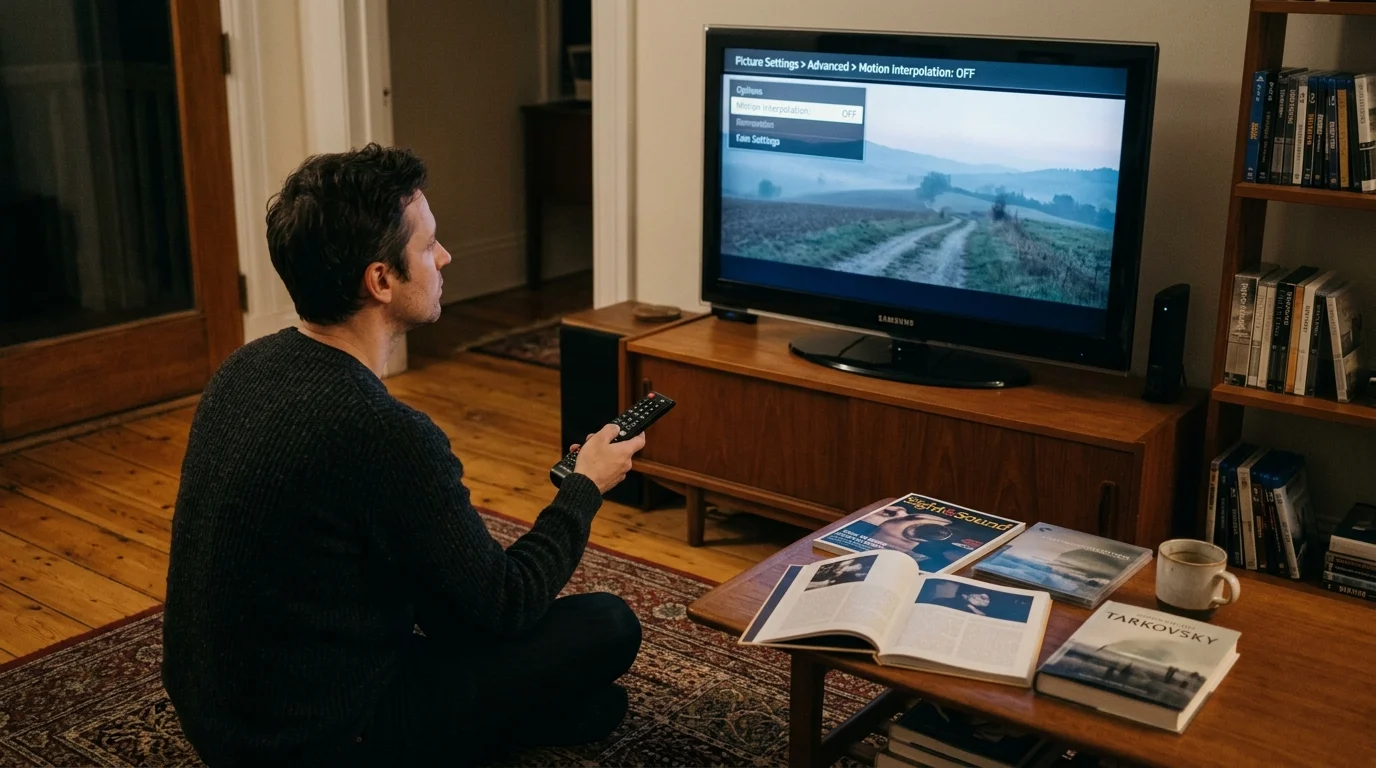
Older televisions feature motion smoothing algorithms marketed under various trade names. Panasonic calls it Intelligent Frame Creation, LG uses TruMotion, Sony utilizes Motionflow, and Samsung labels it Auto Motion Plus.
These systems generate artificial intermediate frames to artificially boost 24fps motion up to 60fps or 120fps. While sports benefit from high temporal clarity, motion interpolation robs film of its organic rhythm.
Ensure that all motion interpolation systems remain completely deactivated in your custom picture profiles. You want the raw frames delivered unaltered from the streaming container directly to your plasma panel cells.
Review the exact setting labels on legacy displays across common television manufacturers:
- Panasonic Viera Plasmas: Picture Menu > Pro Settings > 24p Direct In > Select 96Hz (Avoid 48Hz).
- Pioneer Kuro Plasmas: Picture Menu > PureCinema > Film Mode > Select Advanced (Triggers smooth 72Hz 3:3 pulldown).
- Sony Bravia LCDs: Picture > Motion > CineMotion / Film Mode > Set to Auto or High to trigger 5:5 cadence on 120Hz panels.
- LG Electronics Sets: Picture > Picture Options > Real Cinema > Set to On to extract native 24fps from a 60i/60p wrapper.
- Samsung Displays: Picture > Picture Options > Auto Motion Plus > Custom > Set Judder Reduction to 0.
If you own a Pioneer Kuro instead of a Panasonic, its proprietary 72Hz driving frequency operates identically to Panasonic’s 96Hz system. Pioneer’s Advanced Film Mode triples each 24fps frame, refreshing your screen evenly without introducing judder.
Calibrating these controls bridges the gap between vintage display hardware and modern digital distribution. You preserve the analog-like organic texture of plasma phosphor screens while enjoying world-class streaming libraries.
Frequently Asked Questions
Why does my Panasonic plasma flicker when playing 24fps movies at 48Hz?
The 48Hz mode flashes phosphors too slowly for human visual persistence, creating severe full-screen strobe flicker. Set 24p Direct In to 96Hz instead to refresh each frame four times without perceivable flicker.
Does matching frame rates introduce a black screen when starting a movie?
Yes, your HDMI connection renegotiates its transmission clock whenever frame rates change, causing a momentary one-to-two-second blank screen. This HDMI handshake is entirely normal and confirms that your display successfully locked into native 24p output.
Can I fix 24fps film judder using my smart TV’s built-in Criterion Channel app?
Most legacy smart TV platforms cannot switch native panel refresh rates from internal applications. You must use an external streaming player like an Apple TV 4K or Roku Ultra with Match Frame Rate enabled.
Will forcing 24p output cause audio sync errors on an external sound system?
Adjusting the video frame rate can introduce slight audio desynchronization on legacy AV receivers. If dialogue slips out of sync, adjust the audio delay parameter on your receiver in 10-millisecond increments to realign audio tracks.
Disclaimer: Streaming service prices, content libraries, and features change frequently. Prices shown were accurate at time of writing but may have changed. Always verify current pricing on the official service website before subscribing.