Technology has changed how we watch television, but it hasn’t always made it easier. If you—or a senior loved one—struggle with multiple remotes, confusing menus, and tiny buttons, you are not alone. The transition from traditional cable to streaming offers better content and lower bills, but the learning curve can feel steep.
Before you start, make sure you have everything by checking our complete cord-cutting equipment checklist.
For those using hardware from previous generations, there are specific streaming devices for older TVs that work perfectly with older connections.
Transitioning from cable is much easier when you follow a no-stress guide to cord cutting for seniors to help manage the change.
The good news is that you don’t need a degree in computer science to watch your favorite shows. The right streaming device—a small gadget that plugs into your TV to play video over the internet—can actually make your TV easier to use than a traditional cable box. The key is choosing a device that prioritizes simplicity over fancy features.
In this guide, we break down the best streaming devices specifically for seniors and users with limited technical skills. We focus on simple interfaces, easy-to-hold remotes, and voice features that actually work.
What Makes a Streaming Device “Senior-Friendly”?
Before buying a device, you need to understand what specific features solve the common frustrations seniors face. Marketing materials often highlight technical specs like “Dolby Vision” or “WiFi 6,” but those rarely matter for usability. When evaluating devices for limited technical skills, look for these three pillars:
1. The “Grid” Interface
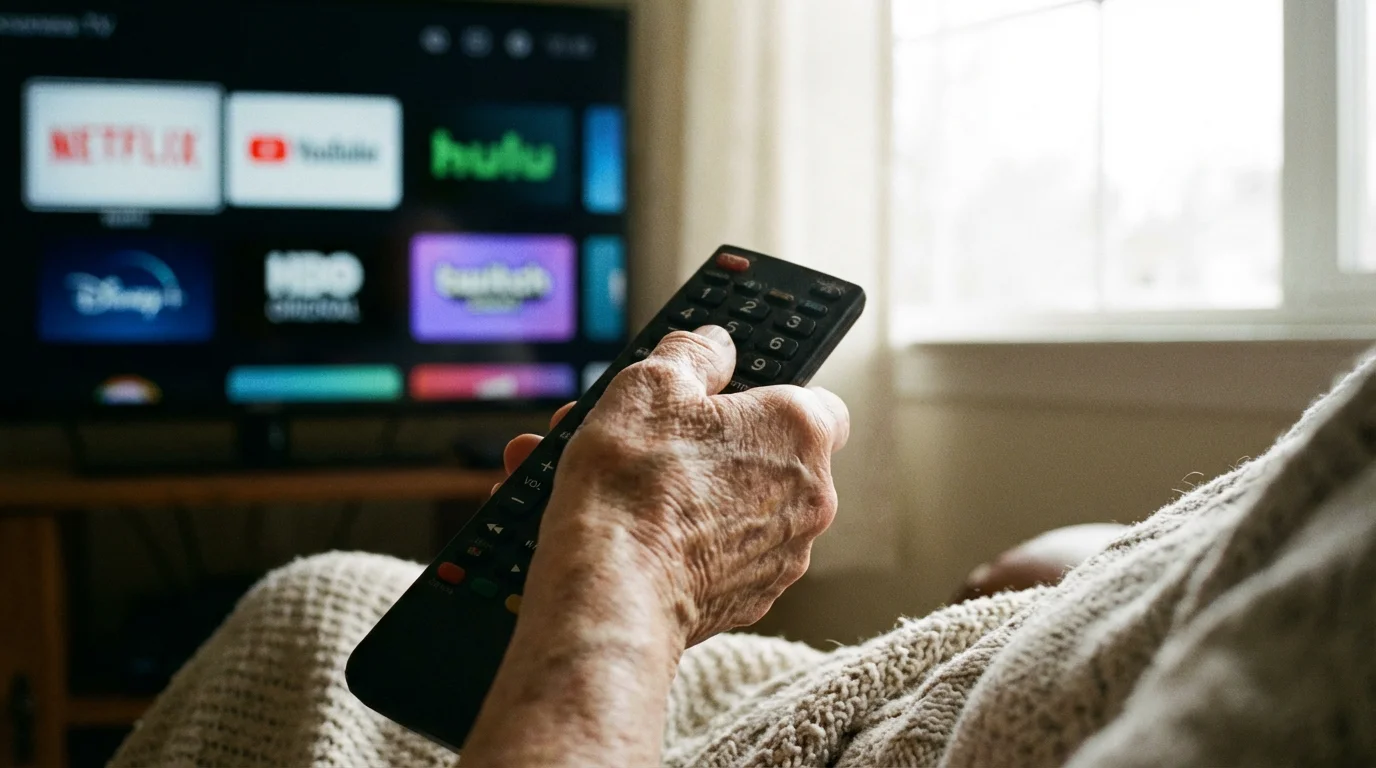
Complexity is the enemy. Some devices use a “carousel” layout where content moves around, and ads for shows you don’t subscribe to pop up constantly. A senior-friendly interface uses a static grid layout. This looks like a smartphone screen: simple square icons for your apps (Netflix, Hulu, YouTube) that stay in the same place every time you turn on the TV.
2. The Tactile Remote
Modern remotes often remove buttons to look sleek, relying on touchpads or on-screen menus. This is a nightmare for users with arthritis or reduced dexterity. You want a remote with:
- Physical, clicky buttons: You should feel when you’ve pressed a button.
- Power and Volume controls: The remote must control the TV’s power and volume so you don’t need a second remote.
- High contrast: Buttons should be clearly labeled and easy to see.
3. Voice Control as a Backup
Typing a movie title using an on-screen keyboard and directional arrows is tedious. A good voice assistant allows you to hold a button and say, “Play Yellowstone on Peacock,” bypassing the menus entirely.
“The best streaming device for a non-tech user is the one that gets them to their show with the fewest number of clicks.”
Top Pick: Roku Streaming Stick 4K
For the vast majority of seniors, Roku is the undisputed champion of simplicity. Unlike competitors that push their own movies and shows, Roku is a neutral platform. It presents your apps in a clean, customizable grid.
If you are unsure which model to pick, compare the Roku Express vs Roku Streaming Stick vs Roku Ultra to find the best fit for your home.
For a deeper dive into how these platforms stack up against one another, read our full comparison of Roku vs Fire TV vs Apple TV.
Why it works for seniors: The interface hasn’t changed much in a decade because it works. On the home screen, “Netflix” is just a big square. You click it, and it opens. There are no complicated “Watch Now” tabs that mix content from different sources, which can be confusing.
The Remote Advantage
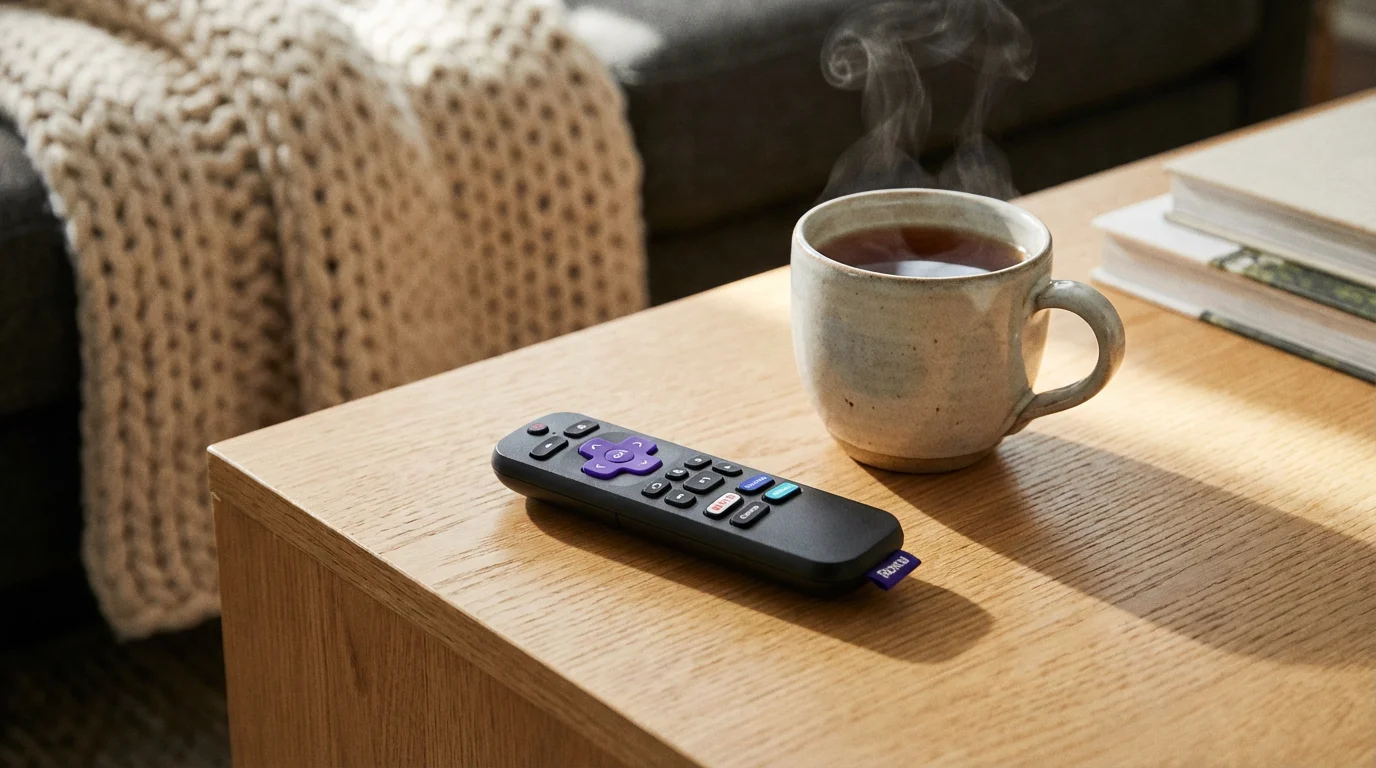
The Roku remote is famous for its simplicity. It has a purple directional pad, a distinct “Home” button, and a “Back” button. Crucially, the volume buttons are on the side of the remote—easy to find by feel. According to Wirecutter, the Roku Streaming Stick 4K is the best option for most people because its interface is the easiest to learn.
Best Model to Buy: We recommend the Roku Streaming Stick 4K (approx. $50). It hides behind the TV, reducing clutter. For those who frequently lose the remote, consider upgrading to the Roku Voice Remote Pro, which has a rechargeable battery and a “find my remote” feature that makes the remote beep when you say, “Hey Roku, where’s my remote?”
- Pros: Simplest interface, dedicated TV power/volume buttons, distinct “Home” button.
- Cons: The interface has one ad on the right side of the screen (though it is static and unobtrusive).
Runner Up: Apple TV 4K
If you have a higher budget and the user already owns an iPhone or iPad, the Apple TV 4K is a fantastic, premium option. While it costs significantly more (starting around $129), it offers the cleanest experience on the market.
The “No-Ad” Experience
Apple TV does not clutter the home screen with ads. It mimics the look of an iPad or iPhone. The icons are large, high-resolution, and easy to read. Accessibility features on Apple TV are industry-leading, including bold text options, high contrast modes, and excellent screen reading for the visually impaired.
The Siri Remote
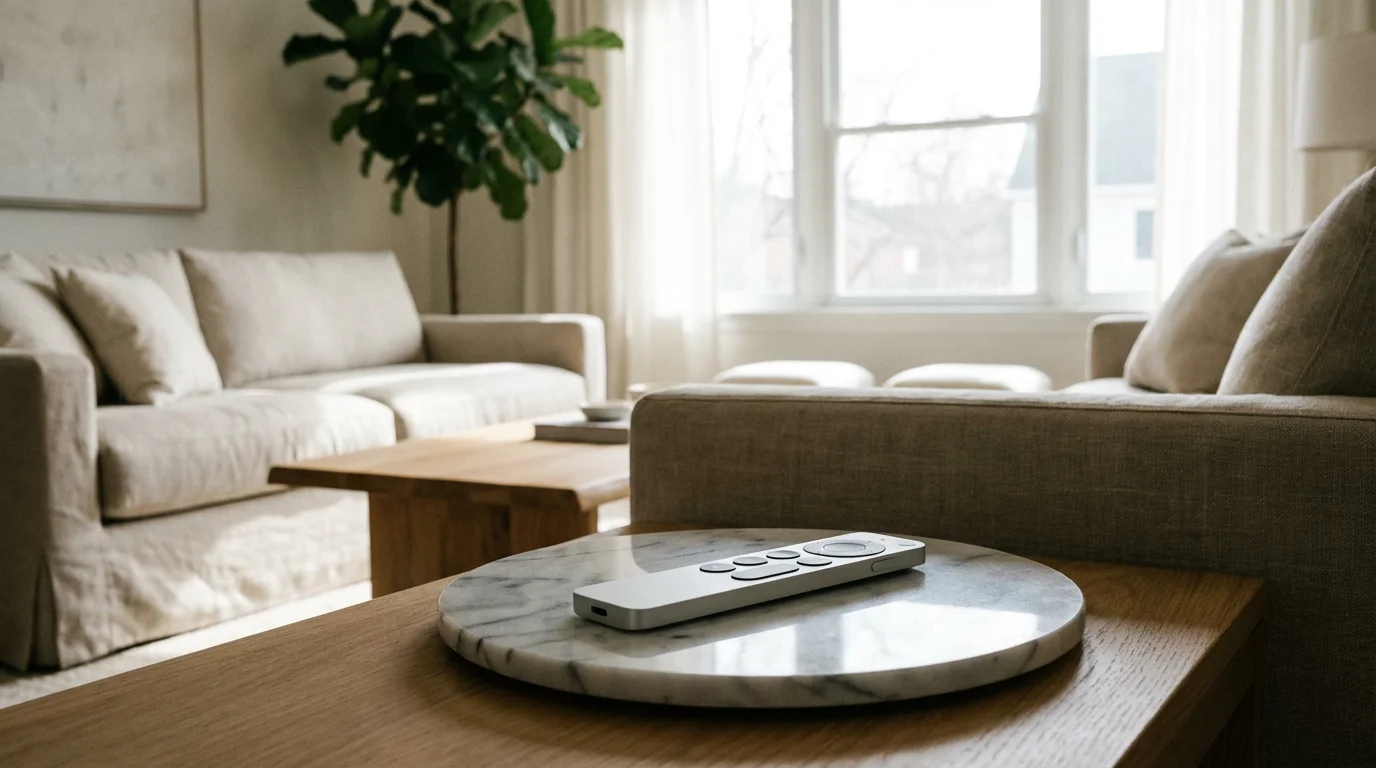
Older versions of the Apple TV remote were difficult to use because they relied on a sensitive glass trackpad. However, the current (2nd and 3rd generation) Siri Remote is excellent. It combines a touch-sensitive pad with a physical click wheel. You can turn off the touch sensitivity in the settings, making it a purely directional button remote, which prevents accidental swipes.
Furthermore, if the user has an iPhone, they can use the phone as a keyboard to type in passwords, which is much easier than using a remote. CNET praises the Apple TV 4K for its speed and polish, noting it’s the best choice for those deeply invested in the Apple ecosystem.
- Pros: Zero ads on the home screen, high-quality durable remote, superior accessibility settings.
- Cons: Expensive ($130+), remote can still be slightly sensitive for some users.
Budget Option: Amazon Fire TV Stick
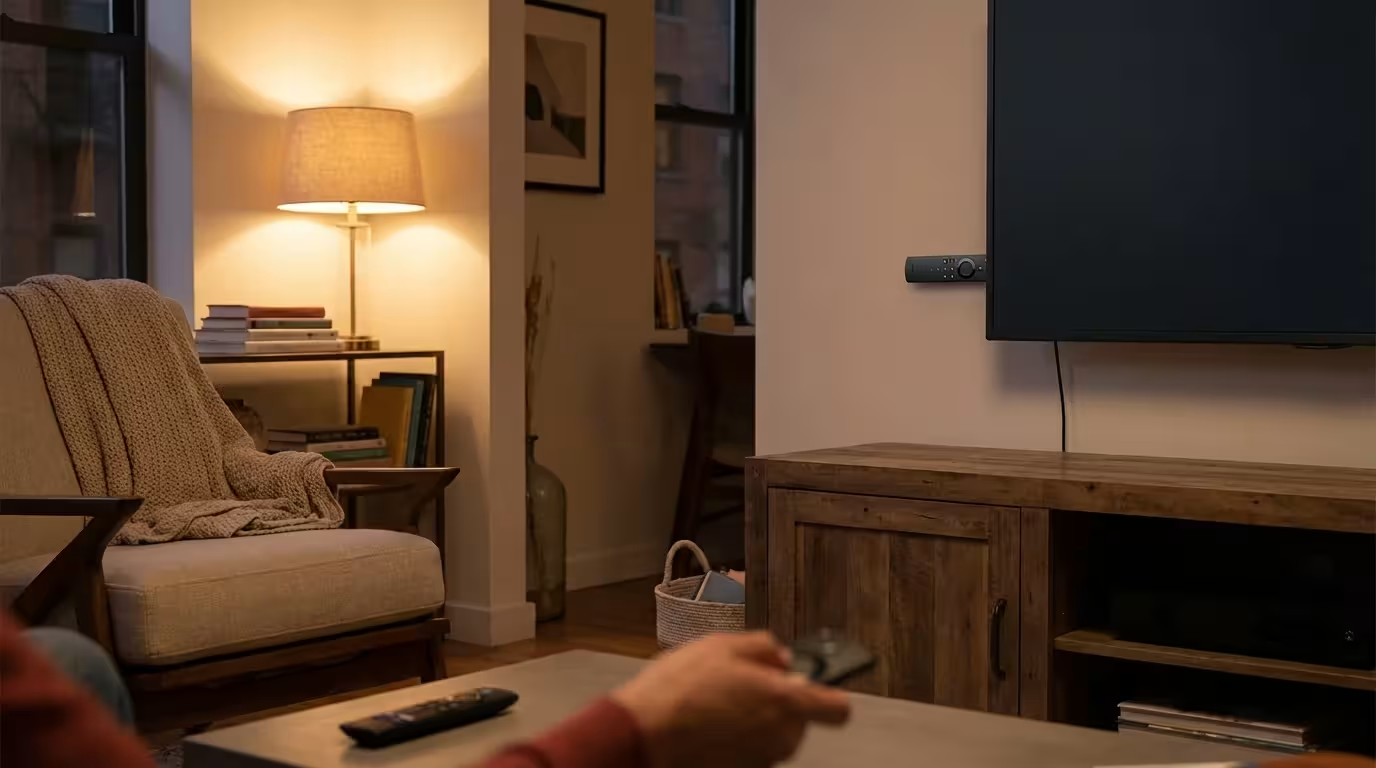
The Amazon Fire TV Stick is popular because it is affordable, often dropping below $30. However, for seniors with limited tech skills, it comes with a caveat: Screen Clutter.
While these are great for home use, frequent travelers may prefer a more portable streaming device for hotel stays.
To save even more money, you might consider looking for refurbished streaming devices that offer high quality at a lower price point.
The Fire TV interface is designed to sell you Amazon content. The home screen is a busy “carousel” of movie posters, many of which start playing trailers automatically. For a senior, it can be difficult to distinguish between a show they already own (via Prime Video) and a show they have to pay extra to rent. This confusion is a common pain point.
When to Choose Fire TV
You should choose this device if the senior user is already comfortable using Alexa. The voice integration is excellent. If the user has mobility issues and relies on voice commands to control lights or check the weather, the Fire TV integrates seamlessly. They can simply press the blue button and say, “Alexa, play Jeopardy,” and it usually works well.
- Pros: Very affordable, excellent voice control with Alexa, easy setup if you have an Amazon account.
- Cons: Cluttered interface (“busy” screen), confusing mix of free vs. paid content, auto-playing video ads.
Devices to Avoid for Non-Tech Users
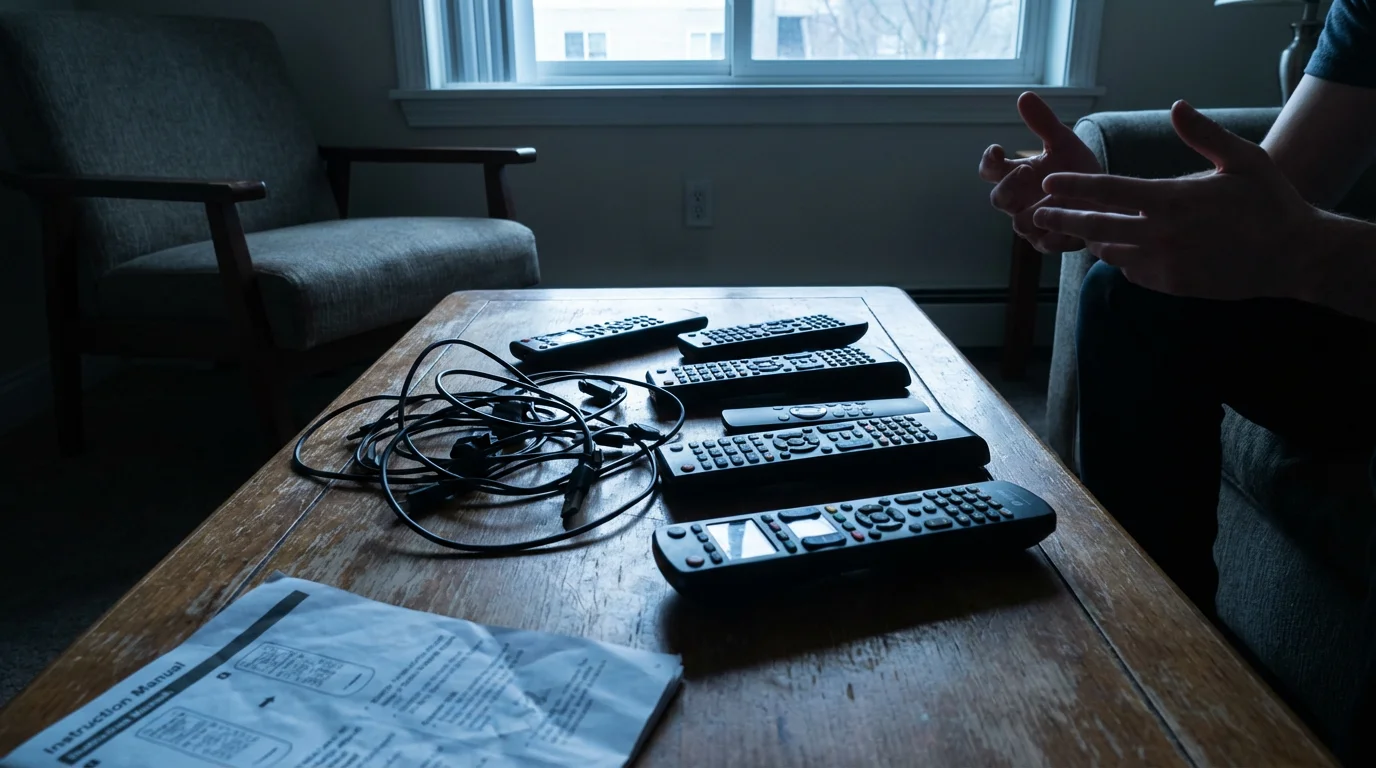
Not all streaming devices are created equal. While the following devices are excellent for tech enthusiasts, they often frustrate seniors.
Once you have chosen a device, follow our complete beginner’s guide to setting up your first streaming device to get started.
1. Chromecast (Older Generations): The classic Chromecast required you to find a video on your phone and “cast” it to the TV. This requires managing two devices and understanding WiFi inputs. It is generally too complex for non-tech users.
2. Chromecast with Google TV (Newer): The newer model comes with a remote, which is an improvement. However, the interface (Google TV) is even more aggressive than Amazon’s about aggregating content. It focuses on “recommendations” rather than a simple list of apps. Finding the simple “Netflix” button can sometimes feel like a treasure hunt.
3. Generic “Android TV” Boxes: You might find cheap streaming boxes on Amazon from unknown brands. Avoid these. They often have complicated remotes, poor software support, and difficult menus.
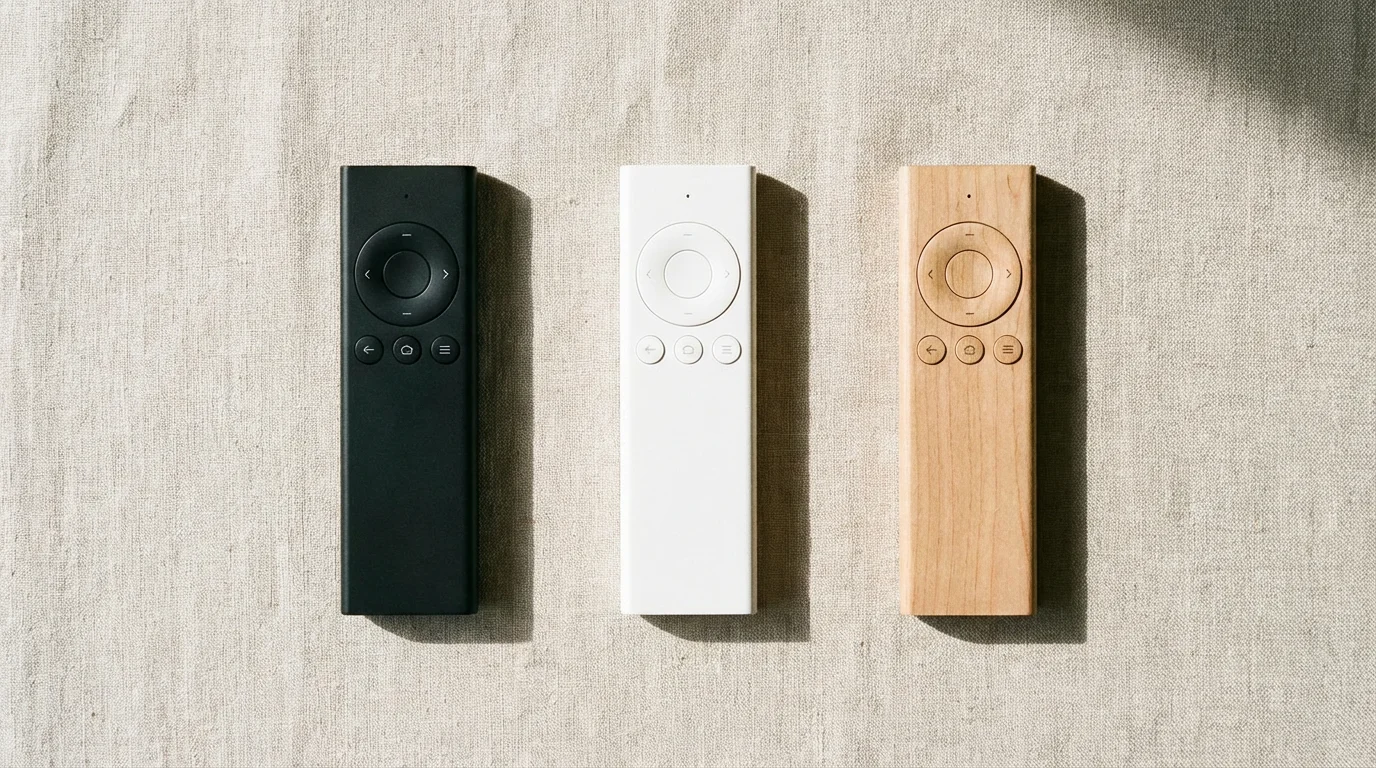
[VISUAL: REMOTE CONTROL DIAGRAM]
Imagine a clean, labeled diagram comparing the Roku Voice Remote vs. the Apple Siri Remote.
- Roku: Highlights the bright purple directional pad, the dedicated “Back” button (curved arrow), and the volume buttons on the side edge.
- Apple TV: Highlights the circular clickpad, the “Mute” button, and the side Siri button.
- Caption: Simplicity wins. The Roku remote’s layout is traditional and intuitive, while Apple’s is sleek but requires learning the click-wheel.
Side-by-Side Feature Comparison
Here is how the top three contenders stack up specifically for senior usability.
| Feature | Roku Streaming Stick 4K | Apple TV 4K | Amazon Fire TV Stick |
|---|---|---|---|
| Approximate Price | $50 | $129 – $149 | $30 – $50 |
| Interface Simplicity | High (Simple Grid) | High (Clean Grid, No Ads) | Low (Busy, Ad-heavy) |
| Remote Buttons | Physical, Distinct | Click-wheel & Touch | Physical, Small |
| Voice Assistant | Good (Roku Voice) | Good (Siri) | Excellent (Alexa) |
| Headphone Jack? | Via Mobile App or “Pro” Remote | Bluetooth Only | Bluetooth Only |
| Best For… | Most Seniors | Apple Users / High Budget | Alexa Power Users |
Why the Remote Control Matters Most
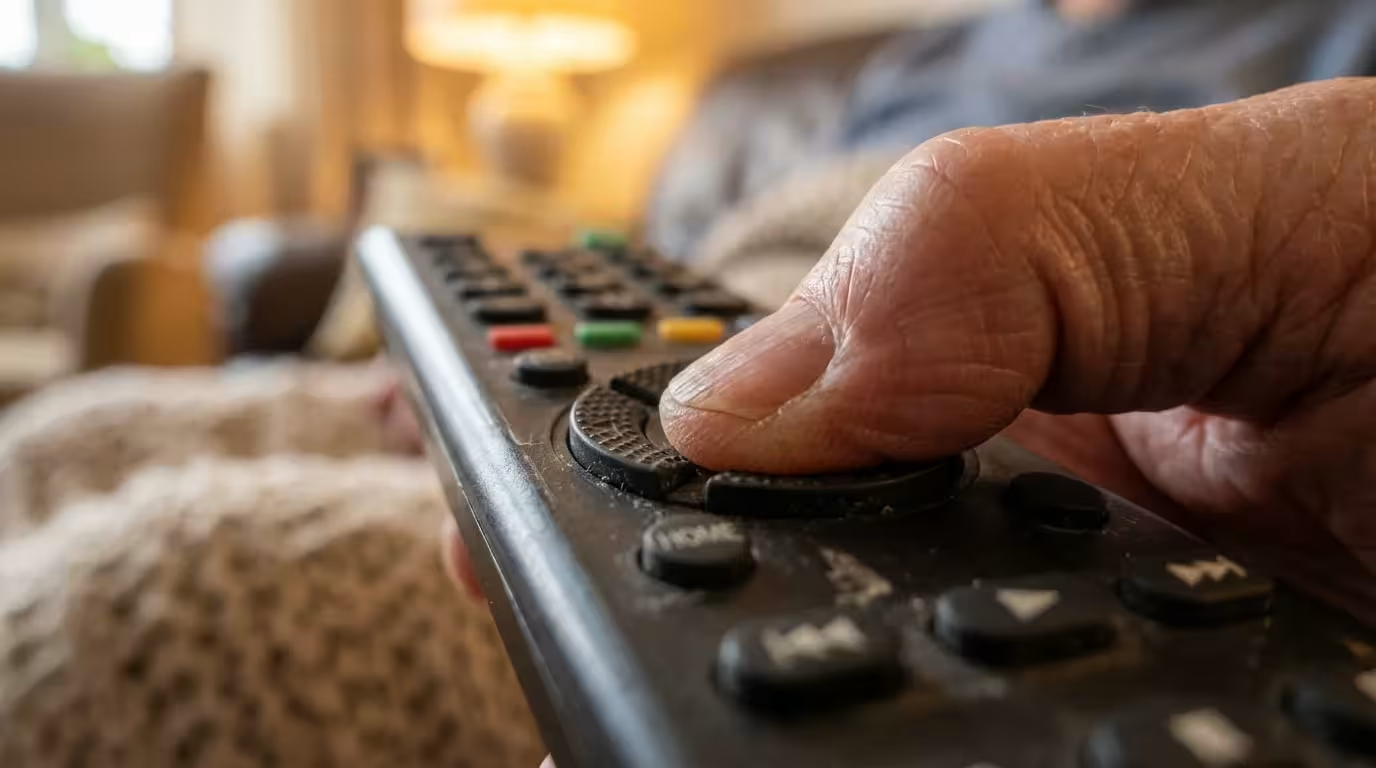
For a user with limited technical skills, the remote control is the only part of the device that exists. If the remote is confusing, the device is “broken.”
Size and Grip: Roku remotes are chunky and easy to grip. Apple TV remotes are slim aluminum—very durable, but they can slip between couch cushions easily. Amazon remotes are small and somewhat slippery.
Shortcut Buttons: Most remotes now come with pre-programmed buttons for Netflix, Disney+, or Hulu. While tech-savvy users might find these annoying, they are a godsend for seniors. Telling a senior, “Just press the button that says Netflix,” is much easier than teaching them how to navigate a menu.
Lost Remote Finder: This is a critical feature. Roku’s “Voice Remote Pro” (sold separately or bundled with high-end models) has a speaker. If you lose it, you press a button on the Roku device itself, and the remote starts chirping. This alone saves countless headaches.

A Setup Guide for Caregivers and Family
If you are setting up a device for a parent or grandparent, do not just plug it in and leave. The initial setup determines whether they will use it or ignore it. Follow this checklist to “senior-proof” the device:
If you are assisting a relative for the first time, our beginner’s guide on how to set up a streaming device provides a clear step-by-step walkthrough.
- Declutter the App List: Immediately delete any app they will not use. If they only watch Netflix and Sling TV, those should be the only two icons on the home screen. Move them to the very top row.
- Log Everything In: Type in all usernames and passwords. Set the apps to “Auto-Login” so they never have to type a password again.
- simplify the Audio: Ensure the remote is programmed to control the TV’s volume. Do not make them use a second remote for sound. If they have a soundbar, try to configure the streaming remote to control that as well (HDMI-ARC is best for this).
- Disable “Menu Sounds”: The clicking noises as you scroll can be annoying or distracting for hearing aid users. You can usually turn these off in Settings > Audio.
- Increase Text Size: Go into the Accessibility settings and increase the font size if the user has vision issues.
- Write a “Cheat Sheet”: Tape a small index card to the coffee table. Keep it simple: “1. Press Home button. 2. Press OK on Netflix. 3. Use arrows to pick show.”
Smart TV Apps vs. Dedicated Device
You might ask, “My TV already has Netflix built-in. Why do I need a Roku?”
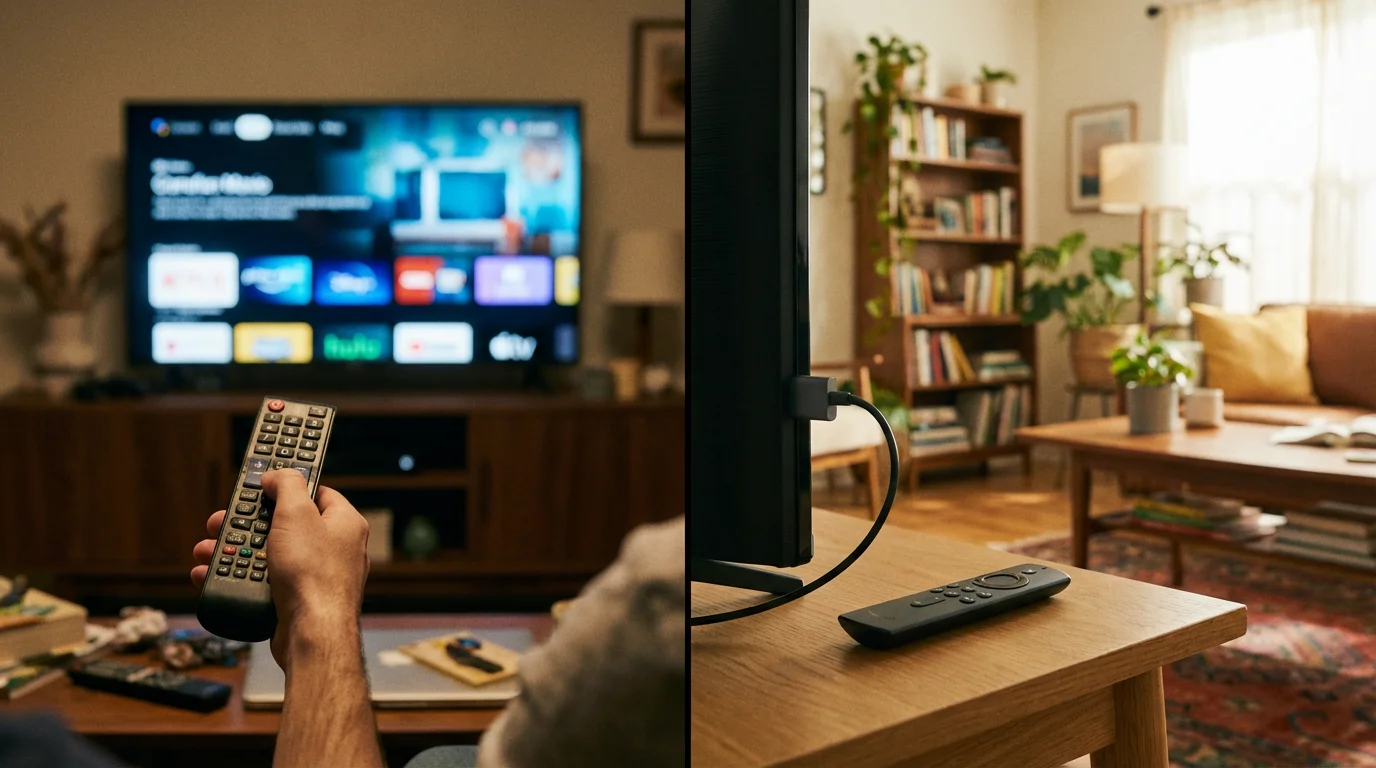
This is a valid question. A Smart TV (a TV with built-in apps) works fine when you first buy it. However, TV manufacturers often stop updating the software after a year or two. The apps become slow, glitchy, and prone to crashing. The interface on Smart TVs is also notoriously cluttered and difficult to navigate.
A dedicated streaming device (like a Roku or Fire Stick) has a faster processor, receives regular updates for years, and offers a consistent experience. If your Smart TV starts acting sluggish or the Netflix app won’t load, buying a $40 Roku is a much cheaper fix than buying a new TV.
Frequently Asked Questions
Do I need a new TV to use these devices?
No, as long as your TV has an HDMI port, these devices will work. HDMI ports look like flat USB slots and have been standard on TVs since around 2005. If you have an extremely old tube TV (box style) with red, white, and yellow cables, you will need a special HDMI-to-Composite converter, or a specific Roku model (Roku Express+) that supports older connections.
Is there a monthly fee for Roku or Fire TV?
There is no monthly fee to use the device itself. Once you buy the hardware, it is yours. However, you still have to pay for the subscription services you watch, like Netflix, Hulu, or Sling TV. There are many free apps available (like Pluto TV or Tubi) that offer movies and shows with commercials at no cost.
Can I watch local news and sports?
Streaming devices do not have built-in antennas. To watch local news, you can use apps like “NewsON” or “Haystack News” which are free. For live network TV (ABC, NBC, CBS), you will either need a subscription service like YouTube TV or Hulu + Live TV, or you can connect an inexpensive digital antenna to your TV for free local channels.
Do I need the internet?
Yes. Streaming requires a high-speed internet connection and WiFi in your home. Without the internet, these devices cannot play movies or shows.
Disclaimer: Device prices and features may change. New models are released regularly, so check for the latest versions before purchasing. The “best” device depends on your specific needs, existing ecosystem (Apple, Google, Amazon), and budget.