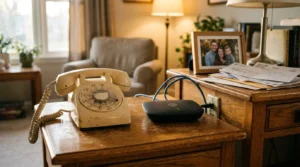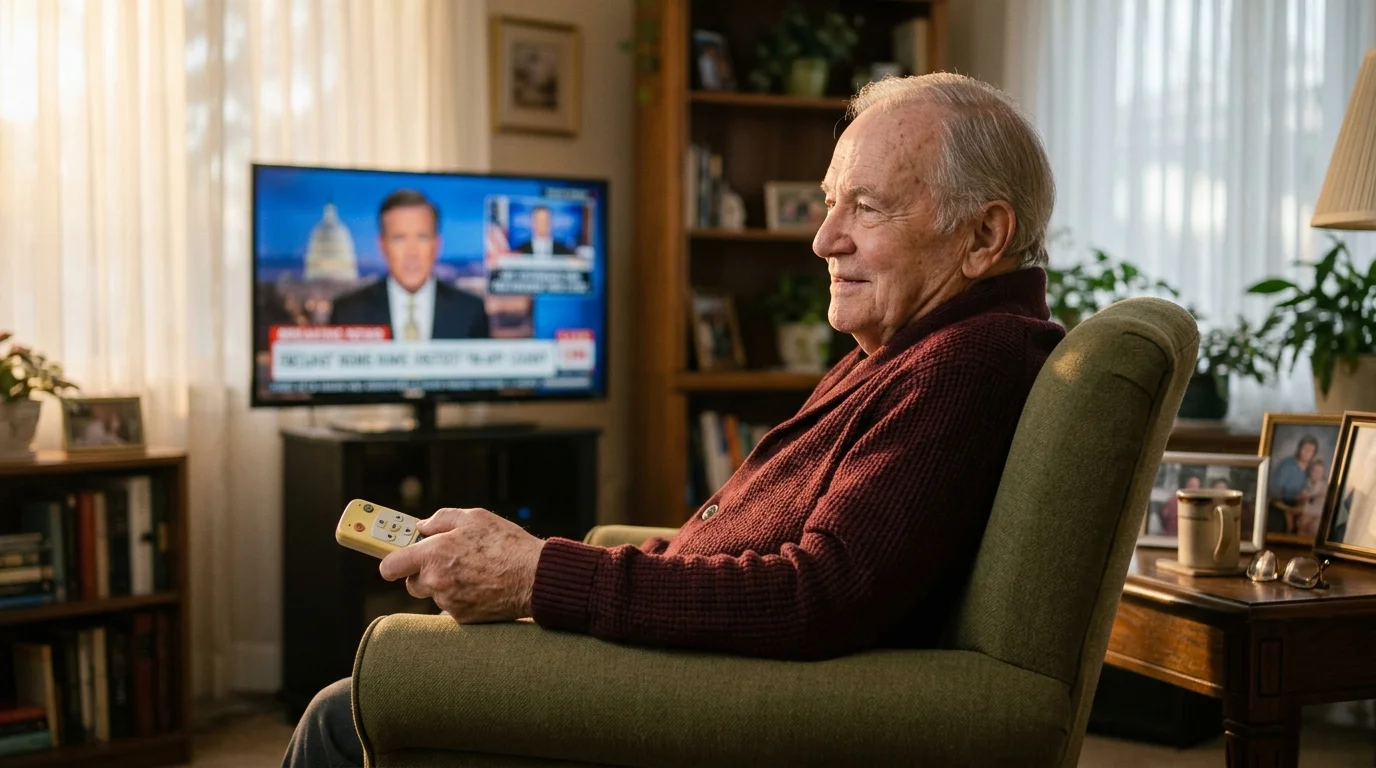
You can eliminate frantic nighttime tech-support calls from your 85-year-old parent by replacing confusing smart interfaces with a locked, frozen television display. This senior friendly streaming configuration boots directly into live programming without pop-ups, software prompts, or unexpected layout shifts.
Traditional cord-cutting advice fails aging adults because operating system updates silently alter home screens and erase muscle memory. A truly update-proof streaming setup for elderly parents requires locking the interface at the operating system level and deploying a simplified hardware barrier.
By pairing a dedicated streaming box with a modified six-button remote and a private sub-network, you create a zero-maintenance entertainment hub. Here is how to configure a dependable television system for independent and assisted living facilities.
Why Traditional Streaming Fails Seniors with Mild Cognitive Impairment
Cord-cutting refers to canceling traditional cable or satellite television in favor of internet-delivered video services. Streaming means watching video programming over an internet connection rather than through coaxial cables or satellite dishes.
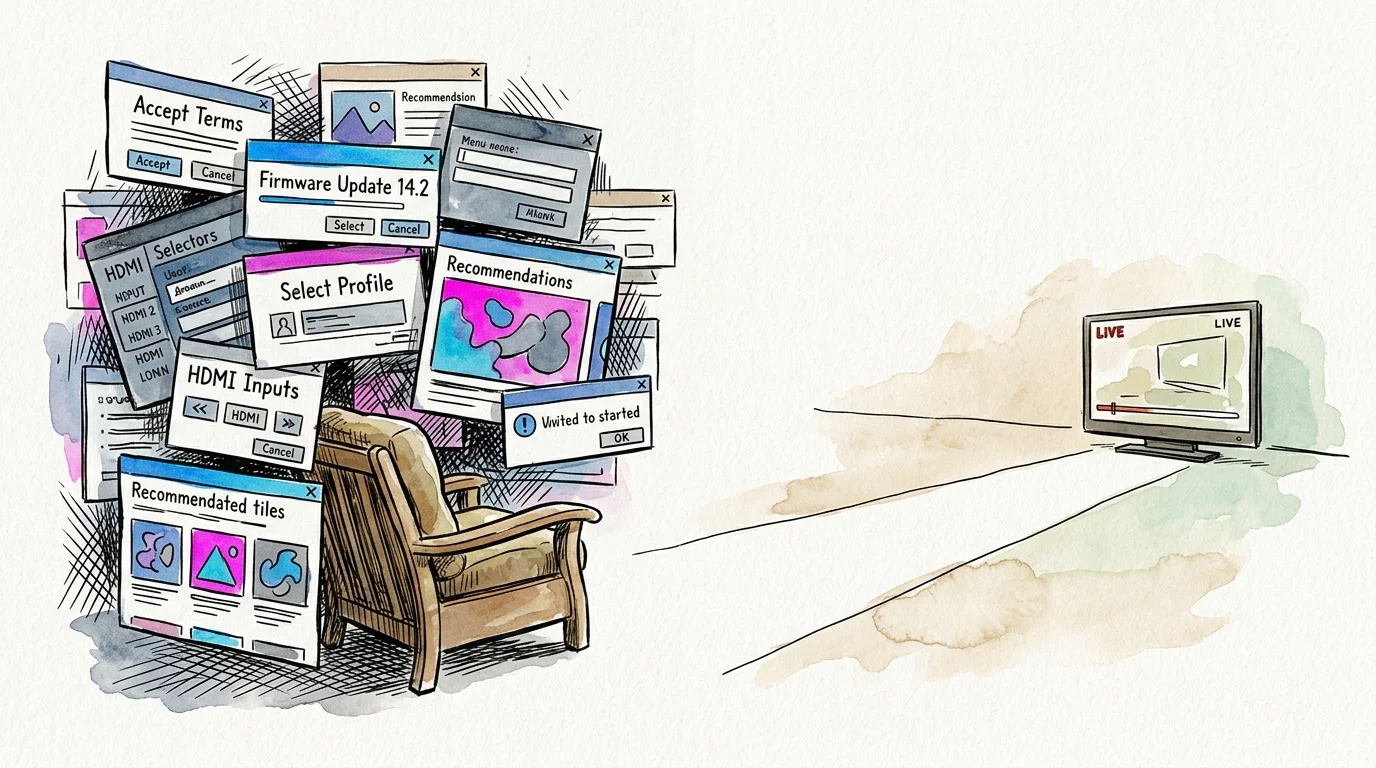
For seniors experiencing mild cognitive impairment, modern entertainment hardware presents severe cognitive hurdles. A standard smart TV—a television containing built-in internet software and downloadable applications—frequently displays algorithmic recommendations that change positions daily.
When software updates launch automatically, they introduce unfamiliar pop-up dialogs asking users to accept new privacy terms. An 85-year-old viewer relying on visual muscle memory cannot navigate these unexpected technical barriers.
Pressing an incorrect button on a manufacturer remote often switches the display input to an empty HDMI channel. The senior sees a black screen, assumes the television is broken, and experiences immediate distress.
According to Consumer Reports, complex remote controls and fragmented smart interfaces remain a primary source of frustration for older media consumers. Eliminating dynamic software elements is essential for sustaining their independence.
Assisted living facilities also present environmental challenges that complicate standard consumer electronics. Frequent communal Wi-Fi reboots, network congestion, and staff turnover make fragile consumer electronics unreliable in these residential settings.
You cannot solve this problem by simply teaching your parent new digital navigation sequences. Instead, you must engineer an automated environment that never deviates from the visual layout they recognize.
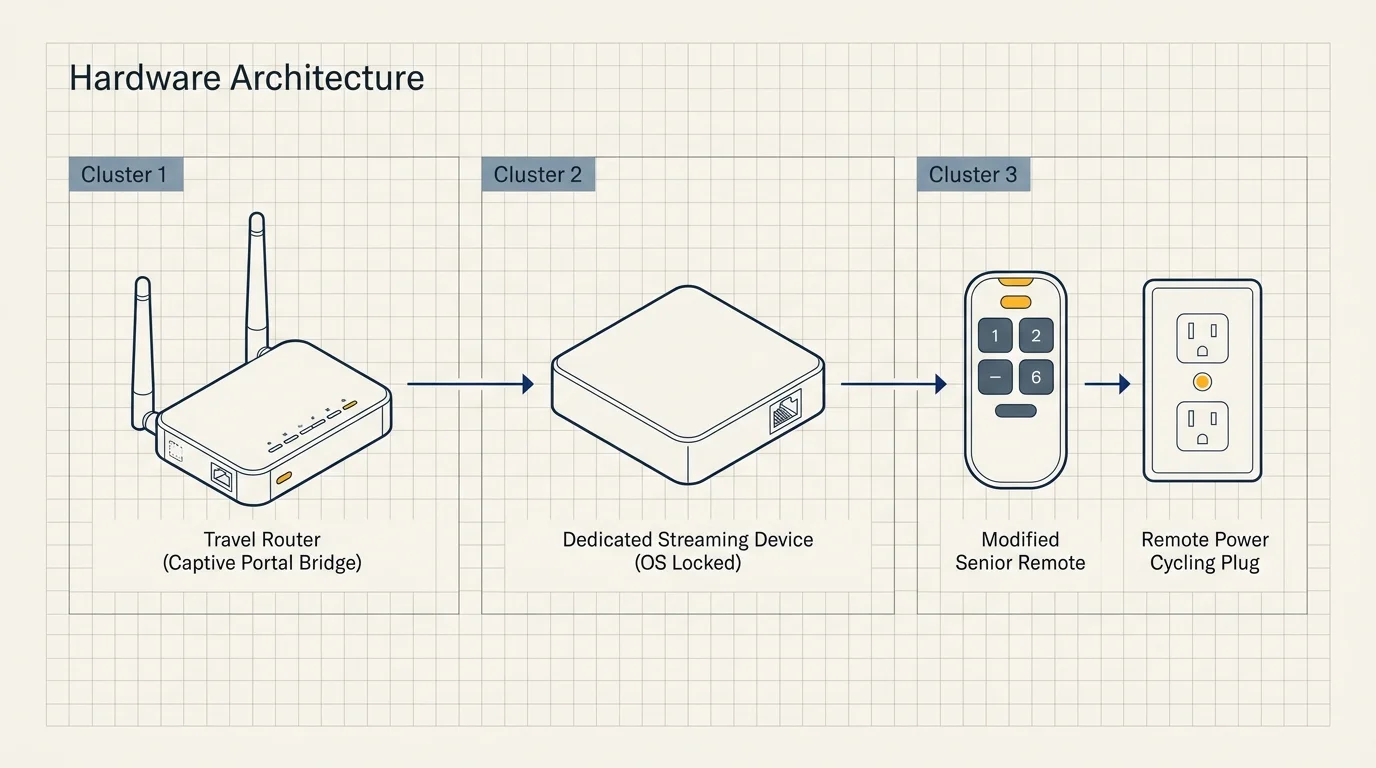
Essential Hardware Checklist and Cost Breakdown
A dedicated streaming device is an external box or stick that connects to a display via HDMI to deliver online video. Using external hardware allows you to bypass the unstable, cluttered operating systems built into modern smart televisions.
To build a resilient senior friendly streaming configuration, you need hardware that supports interface locking, remote power cycling, and network isolation. Investing in the proper components upfront prevents recurring emergency maintenance visits.
| Device / Component | Typical Price | OS Update Freeze | Captive Portal Support | Senior Suitability Rating |
|---|---|---|---|---|
| Apple TV 4K (3rd Gen) | $129.00 – $149.00 | Full MDM / Manual Lockdown | High (via Travel Router) | Excellent (Best Choice) |
| Google TV Streamer 4K | $99.99 | Partial (Apps-Only Mode) | High (via Travel Router) | Moderate (Visual Clutter) |
| Roku Streaming Stick 4K | $49.99 | None (Mandatory Updates) | Native (Hotel & Dorm Connect) | Fair (Updates Shift Tiles) |
| Flipper Big Button Remote | $39.95 – $44.95 | Physical Lock Plate | Not Applicable | Essential (6 Buttons Only) |
| GL.iNet GL-SFT1200 Router | $42.99 | Firmware Lockable | Excellent (Repeater Bridge) | Essential (Zero Drops) |
| Kasa Smart Wi-Fi Plug | $12.99 – $14.99 | Cloud Managed | Not Applicable | Essential (Remote Hard Reboot) |
The Apple TV 4K stands out because it allows administrators to permanently deactivate automatic operating system updates. This single capability protects elderly users from visual layout changes that disrupt established routines.
Cheaper streaming sticks like the Roku Streaming Stick 4K offer simplified navigation menus. However, Roku forces automated operating system updates over network connections, which can unexpectedly shift channel icons without warning.
The Google TV Streamer 4K features a built-in Ethernet port and a remote-finder button on the streaming console. While its Apps-Only mode simplifies display navigation, it still lacks the rigid system-freeze capabilities of Apple tvOS.
You must also replace complex manufacturer remotes with a tactile, low-button alternative. Devices featuring dozens of tiny rubber keys invite accidental button presses that disconnect video streams.
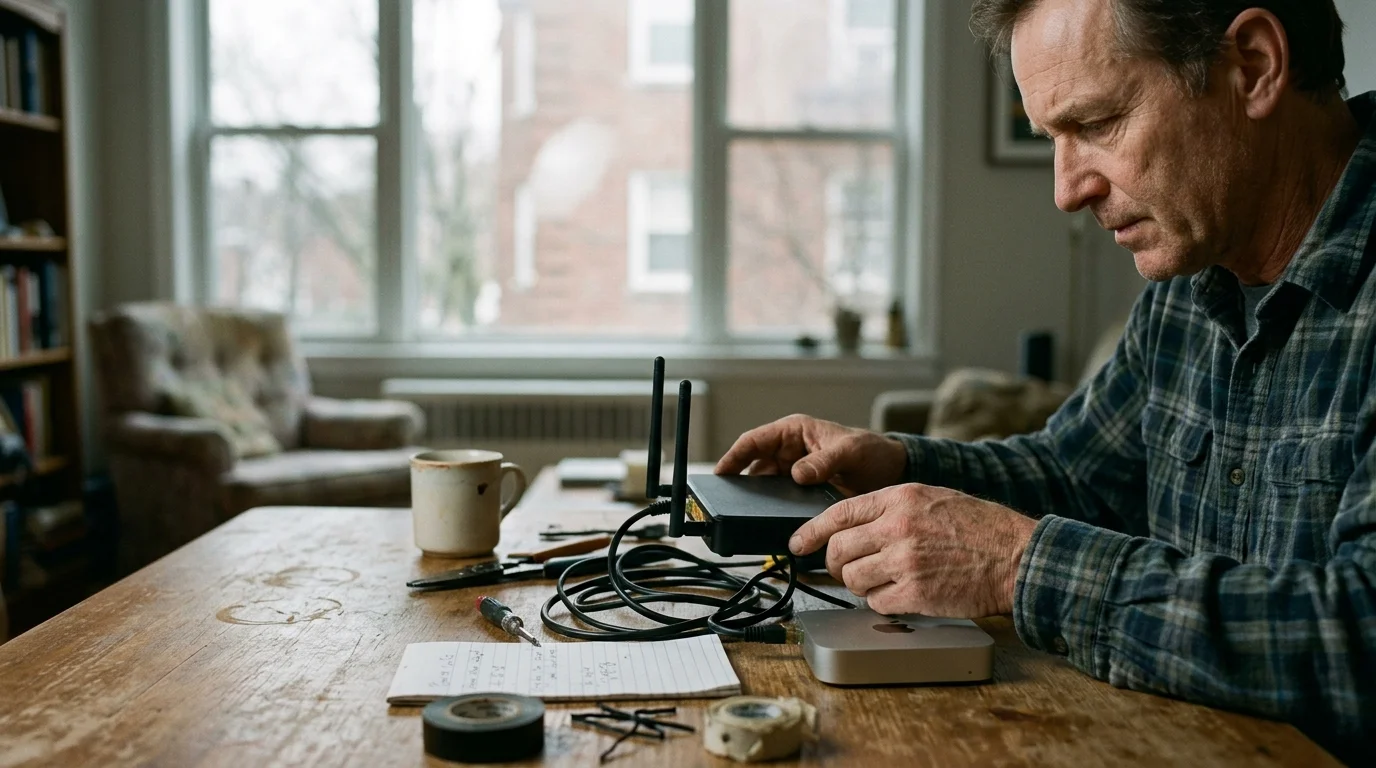
Bypassing Assisted Living Wi-Fi and Captive Portals
Assisted living communities and independent senior facilities rarely provide simple residential internet connections. Instead, they deploy commercial networks featuring captive portals—web-based splash pages requiring users to accept terms or enter apartment numbers periodically.
These splash screens present a major failure point for streaming hardware. When the facility network forces a re-authentication, the streaming box disconnects, displaying a cryptic connection error that confuses elderly residents.
Standard consumer streaming boxes lack full web browsers, making it impossible for a senior to click past authentication screens. The FCC Consumer Guide highlights consumer rights regarding accessible telecommunications, yet institutional network architectures often complicate device connectivity.
The permanent solution is installing a compact travel router, such as the GL.iNet GL-SFT1200, inside the resident’s apartment. This pocket-sized device connects directly to the facility Wi-Fi network using Wireless Internet Service Provider (WISP) repeater mode.
You authenticate the facility portal once using your own smartphone browser connected to the travel router. The router maintains that active authorization and broadcasts a private, password-protected residential Wi-Fi network inside the living unit.
All in-room devices connect exclusively to your private network. When facility administrators reset their public connection, the travel router handles the reconnection without disturbing the streaming hardware.
This private router arrangement also shields your parent’s streaming hardware from other residents sharing the communal network. It prevents neighbors from accidentally casting personal phone videos onto your parent’s television screen.
Position the travel router near a window or apartment doorway where the community Wi-Fi signal registers strongest. Run a short Ethernet cable directly from the router to the streaming box for maximum streaming stability.
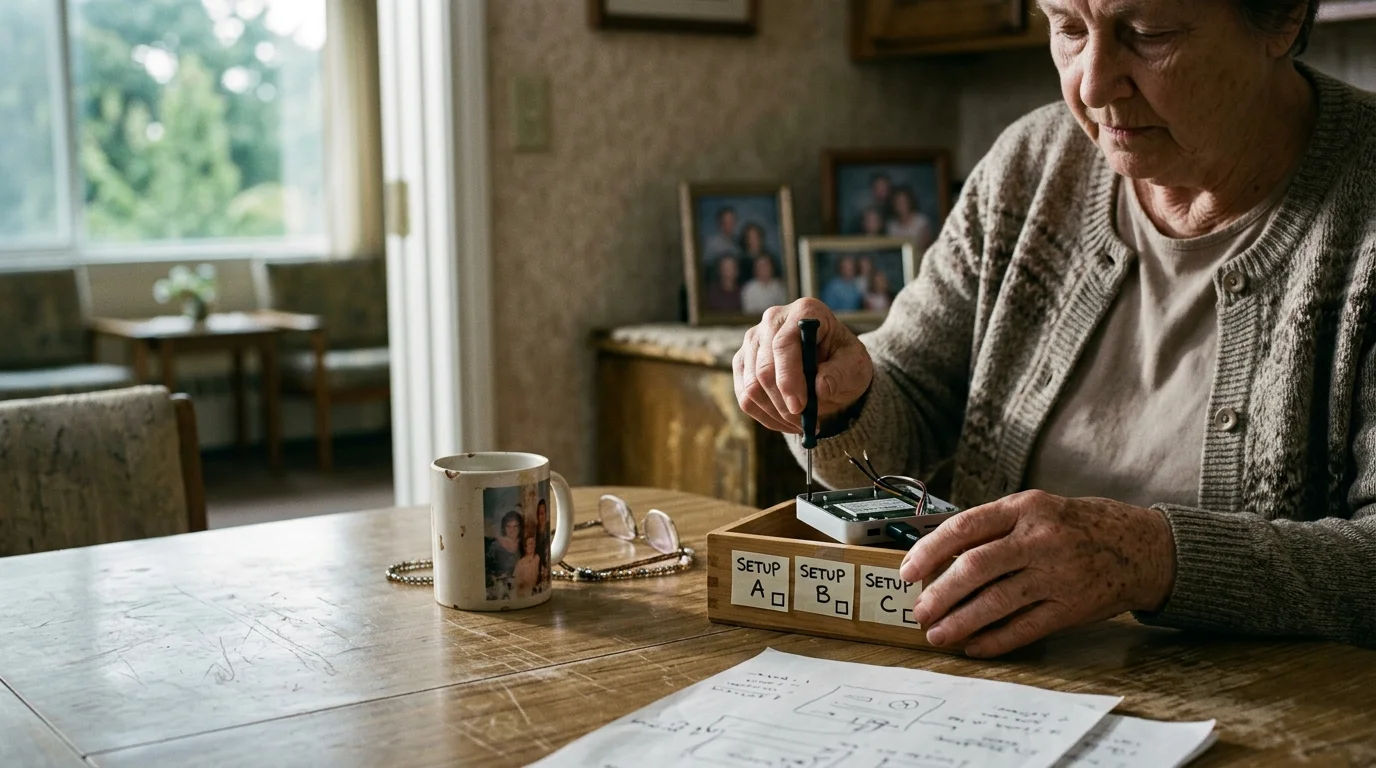
Locking Down the Operating System: Apple TV vs. Google TV vs. Roku
Preventing visual interface alterations requires deliberate configuration of operating system settings before handing the remote to your parent. You must restrict app installations, disable recommendation engines, and freeze software updates permanently.
On the Apple TV 4K, navigate to Settings, select System, and open Software Updates. Toggle the Automatically Update option to Off to prevent tvOS system overhauls.
Next, open Settings, choose Apps, and turn off Automatically Update Apps. This stops streaming services from revising their user interfaces and moving key navigation buttons without your knowledge.
For advanced lockdown, connect the Apple TV to a Mac computer running the free Apple Configurator utility. You can install a Mobile Device Management profile that locks the home screen layout and blocks access to system settings.
If you choose the Google TV Streamer 4K, you can strip algorithmic clutter by activating Apps-Only Mode. Navigate to Settings, select Accounts and Sign-In, highlight the user profile, and toggle Apps-Only Mode on.
This configuration removes promotional banners, movie suggestions, and Google Assistant voice prompts from the display. The television screen displays only a static grid containing the streaming apps you explicitly assign.
According to hardware evaluations by Wirecutter, reducing home screen clutter significantly minimizes navigational mistakes among non-technical users. Clean layouts foster user confidence and eliminate menu navigation anxiety.
On Roku devices, you cannot permanently halt system updates, but you can prune visual clutter. Navigate to Settings, select Home Screen, and hide menu options including What to Watch, Featured Free, Live TV, and Sports.
Delete every unused application from the home screen grid until only one or two essential channel tiles remain. Place the primary live TV application in the very first tile position so pressing Select opens television programming immediately.
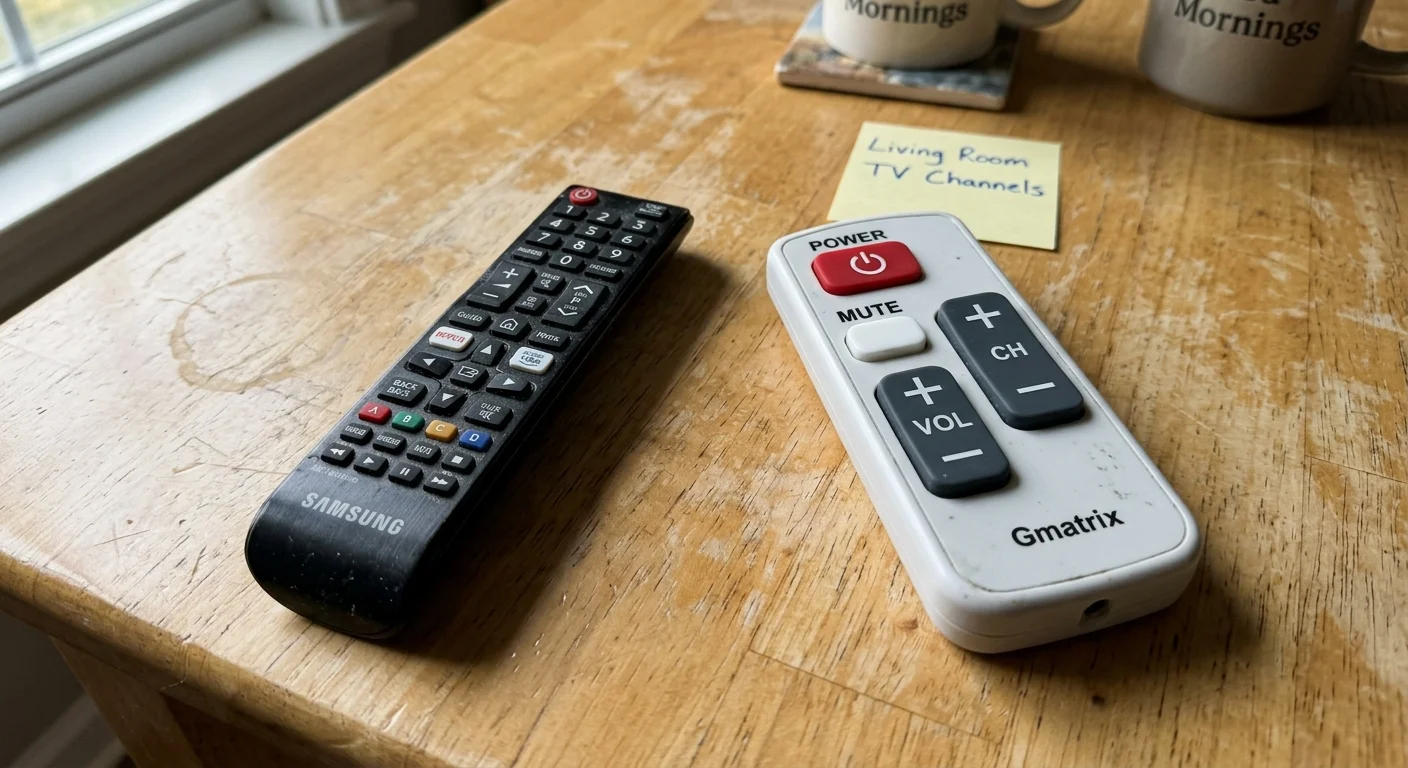
Programming a Simple Remote for Cord Cutting
Modern streaming remotes feature tiny directional pads, delicate touch sensors, and accidental voice-assistant triggers that overwhelm aging hands. A successful simple remote cord cutting setup requires replacing the factory remote with a high-contrast, tactile universal controller.
The Flipper Big Button Remote offers an ideal physical layout for individuals with tremors, arthritis, or cognitive decline. It features exactly six large, color-coded buttons: Power, Channel Up, Channel Down, Volume Up, Volume Down, and Mute.
The remote houses a secondary programming keypad behind a sliding plastic door on its lower body. A small physical locking screw fastens this panel shut, preventing elderly users from accidentally resetting the programming codes.
You can program the Flipper remote using dual-device infrared codes. The Power and Volume buttons control the television set directly, while the Channel Up and Channel Down buttons transmit navigation signals to the streaming hardware.
To ensure the television boots to the proper display port every time, configure HDMI Consumer Electronics Control (HDMI-CEC). Manufacturers label this feature as AnyNet+ on Samsung, BRAVIA Sync on Sony, and SimpLink on LG displays.
When HDMI-CEC is active, pressing the streaming power button automatically powers on the television and forces the correct HDMI input. This completely eliminates the dreaded wrong input display error that leaves seniors stranded without video.
Test the remote extensively from across the living unit before concluding your installation visit. Ensure the infrared signal reaches the receiver even when your parent points the remote at odd angles from their recliner.
Store the original television and streaming remotes in a locked drawer or take them home with you. Leaving manufacturer remotes on the coffee table guarantees someone will accidentally press an input button eventually.
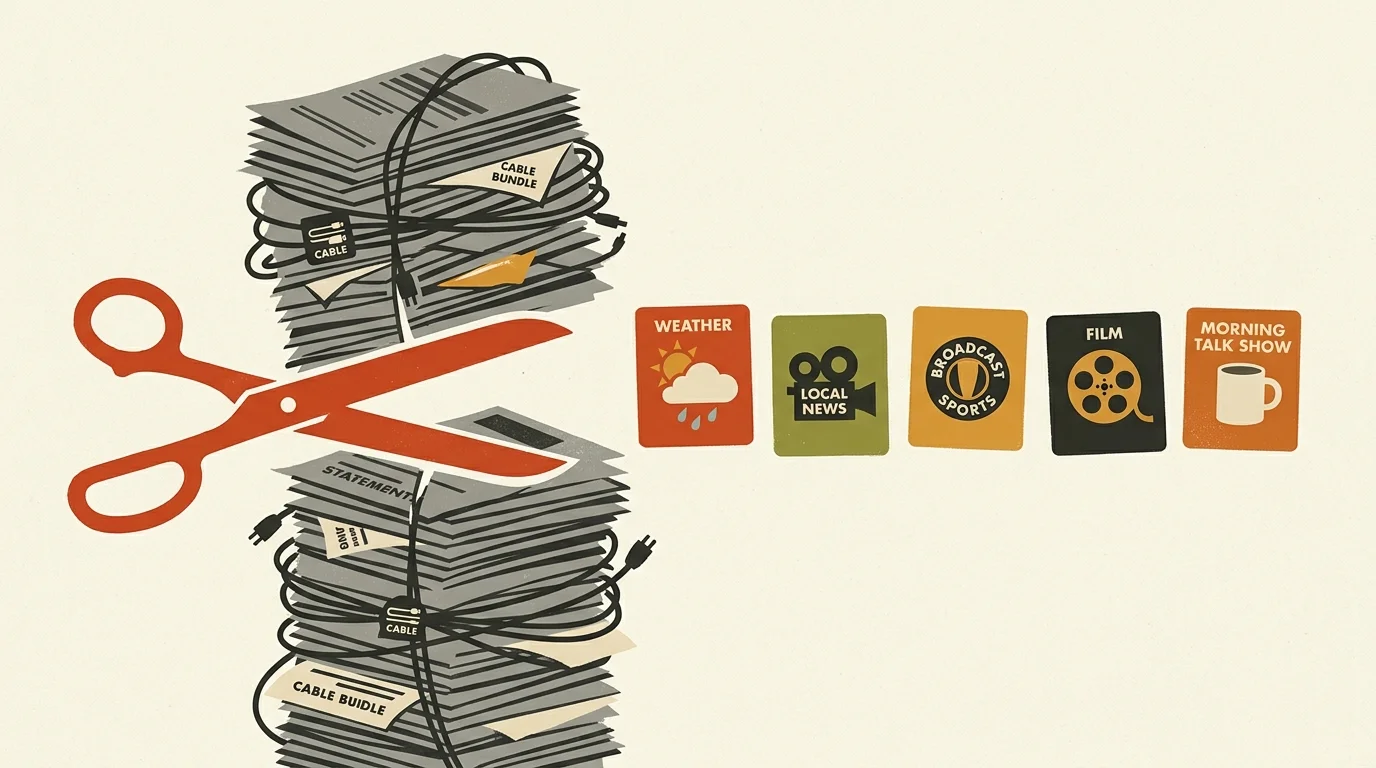
Cable Channel Replacement and Provider Cancellation Strategy
Transitioning an elderly parent away from traditional cable requires matching their exact viewing habits with linear streaming platforms. Most seniors prefer live television grids over on-demand libraries where viewers browse individual titles on their own schedule.
You must decide between ad-supported services that include commercial breaks and ad-free tiers that remove advertising entirely. For live cable channel replication, services like YouTube TV, Hulu + Live TV, and Philo provide authentic live broadcasts.
These virtual multichannel video providers include cloud DVR functionality, which functions as a digital video recorder allowing users to record and review broadcast programs. Cloud DVR preserves familiar habits without requiring complex physical recording machines.
According to pricing reports from Cord Cutters News, the average monthly cable television bill exceeds $150 once hardware rental charges and franchise fees are included. Moving to a dedicated streaming package delivers immediate financial relief.
“The key to cord-cutting success for aging parents is replicating the linear channel-flipping experience while eliminating billing surprises and cryptic equipment rentals.” — Streaming Setup Specialist
When canceling your parent’s existing cable service with providers like Comcast Xfinity or Spectrum, call their customer retention department directly. State firmly that the account holder is relocating to an assisted living environment with shared utilities.
Major providers frequently waive early termination fees (ETFs) when provided with documentation showing a move into residential care. Request written confirmation of account closure and demand a prepaid shipping label for legacy set-top equipment.
Return all rented cable boxes and coaxial modems to a local retail store whenever possible. Obtain a physical, stamped paper receipt detailing serial numbers to avoid wrongful unreturned equipment penalties on final billing statements.
Take high-resolution photographs of the returned equipment showing readable barcodes inside the retail store. Maintain these photographic receipts alongside the stamped return manifest in your financial filing system for at least twelve months.
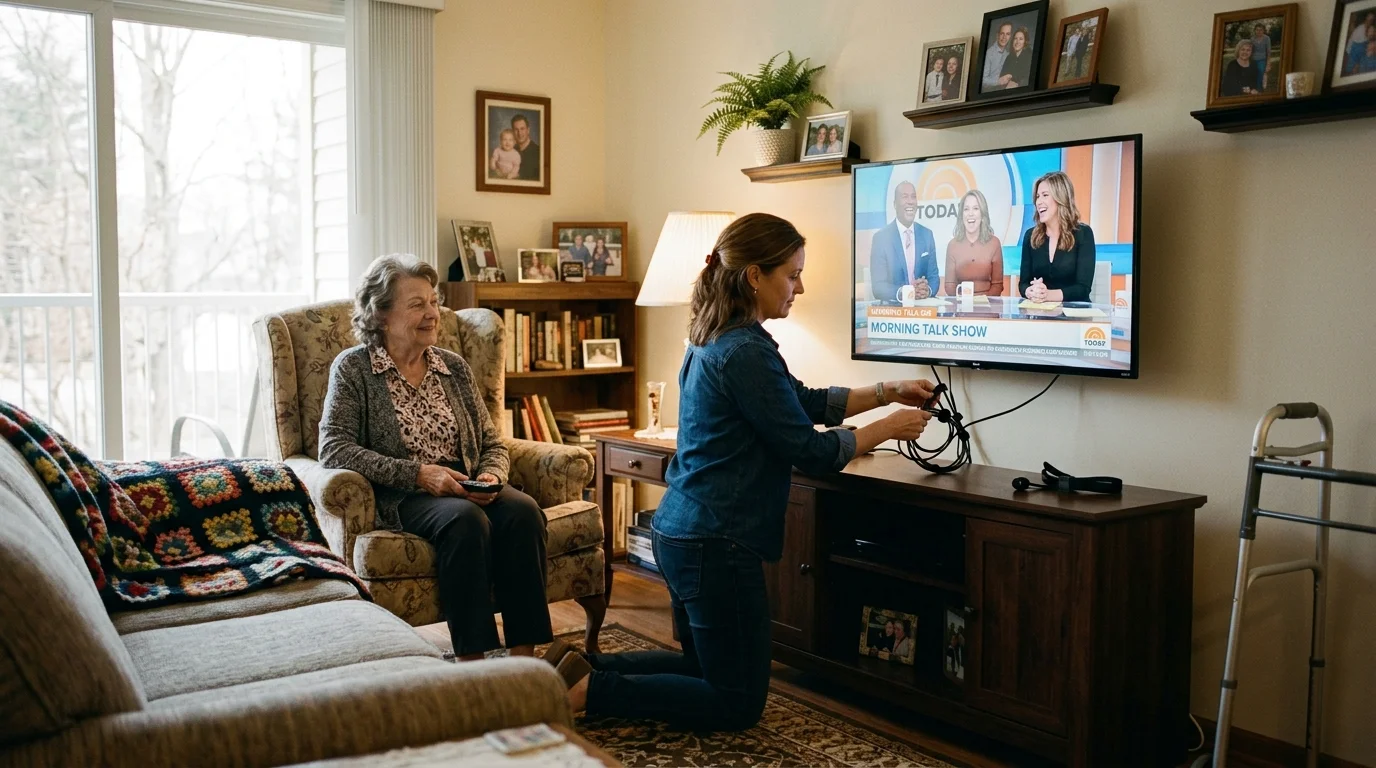
Worked Example: An Assisted Living Conversion Case Study
To demonstrate how this configuration operates in practice, consider a worked scenario involving Margaret, an 85-year-old resident moving into independent living in Columbus, Ohio. Margaret watches local news, the Game Show Network, and afternoon cable dramas daily.
Her previous Spectrum cable invoice totaled $168.50 per month. This cost comprised a $95.00 base channel package, two set-top box rentals at $12.50 each, a $25.75 broadcast TV surcharge, and $22.75 in local franchise taxes.
We replaced her cable setup with an Apple TV 4K 64GB Wi-Fi model costing $129.00. We added a GL.iNet GL-SFT1200 travel router at $42.99, a Flipper Big Button Remote for $39.95, and a Kasa Smart Plug for $14.99.
Her total one-time hardware investment equaled $226.93. For live channel delivery, we enrolled her in YouTube TV at a baseline subscription rate of $72.99 per month, which delivers her local broadcast affiliates and favorite cable networks.
The installation took exactly 110 minutes on a Saturday afternoon. We deployed the travel router, configured the Apple TV to disable all automatic updates, customized YouTube TV’s live guide to display only twelve channels, and programmed the Flipper remote.
Over Margaret’s first twelve months in the facility, her previous cable service would have cost $2,022.00. Her streaming configuration cost $1,102.81 in total, encompassing both upfront hardware purchases and twelve monthly service charges.
This transition yielded a net first-year financial savings of $919.19. More importantly, Margaret registered zero input-error emergencies or frozen-screen support calls across her first 90 days of independent operation.
Her ongoing annual television cost will drop to $875.88 in subsequent years once the hardware has paid for itself. That creates long-term recurring savings exceeding $1,146.00 every single year she resides in the facility.
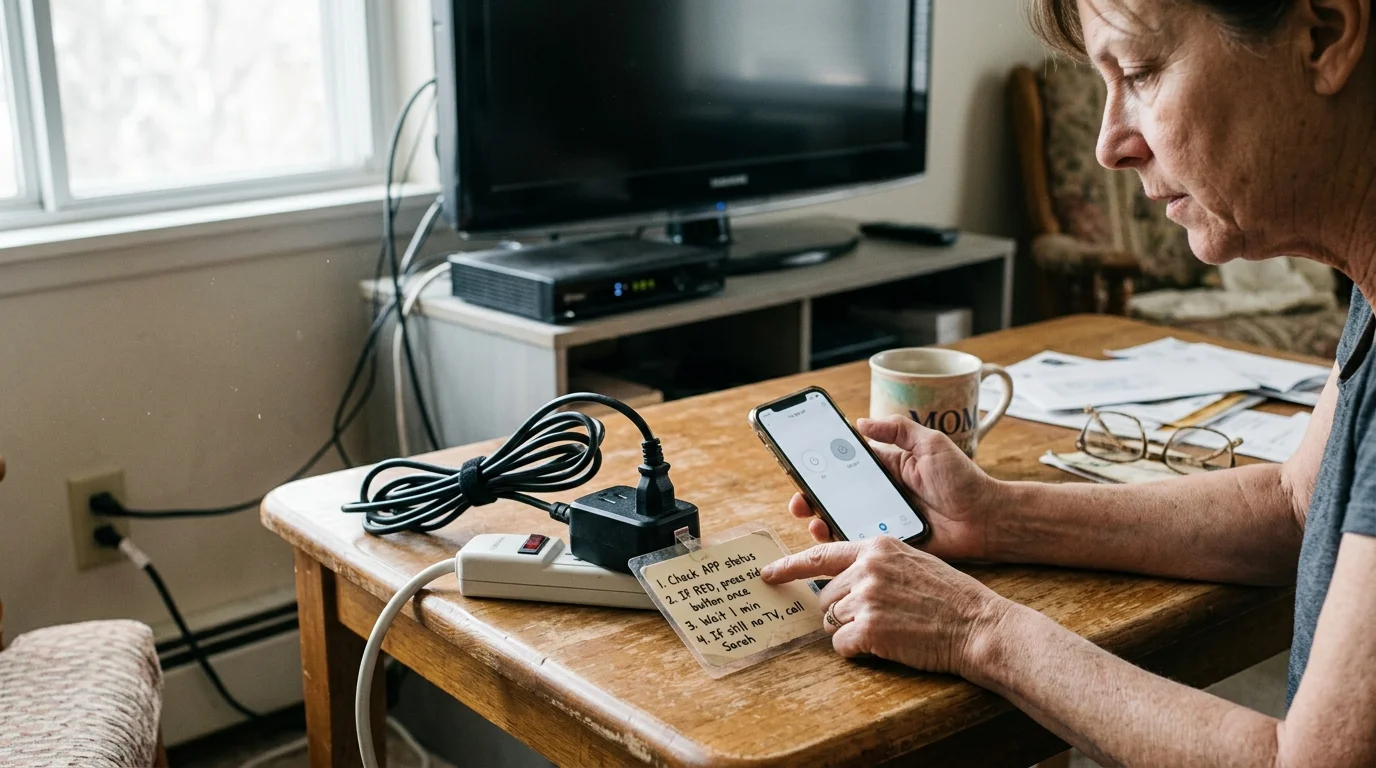
Failsafe Remote Power Cycling and Emergency Troubleshooting
Even an update-proof streaming setup can occasionally experience software lockups or audio sync drift over continuous operation. Providing a fail-safe mechanism allows adult children to resolve technical glitches remotely without driving across town.
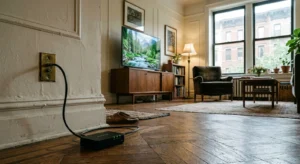
Plug the streaming box power adapter into a cloud-managed Wi-Fi smart plug, such as a TP-Link Kasa or Tapo unit. Connect the smart plug to the private travel router Wi-Fi network rather than the facility public network.
When your parent calls reporting that the television screen has frozen, open the smart plug mobile application on your smartphone. Power cycle the outlet remotely by turning the switch off for ten seconds before restoring electrical power.
This hard reboot clears device system memory and relaunches the streaming operating system automatically. Because HDMI-CEC remains active, the streaming hardware re-establishes its display handshake with the television set upon startup.
You can also establish an automated maintenance schedule inside the smart plug application. Program the outlet to shut off at 3:30 AM every Tuesday morning for two minutes to clear cache memory proactively while your parent sleeps.
In addition, document your setup clearly on an index card taped directly to the back of the television set. Note the travel router Wi-Fi name, password, smart plug account login, and HDMI input port assignments.
Facility maintenance staff or visiting nurses can use these written notes if physical cables are jostled during routine apartment cleaning. This simple precaution prevents well-meaning caregivers from disconnecting critical streaming components accidentally.
Frequently Asked Questions
What is the best streaming device for an elderly parent with cognitive impairment?
The Apple TV 4K is the most reliable option because it allows you to permanently deactivate automatic system and application updates. This stops confusing visual interface revisions that disrupt visual muscle memory.
How do I stop my parent’s TV from switching to the wrong HDMI input?
Enable HDMI-CEC in the television and streaming device system settings menus. This ensures that pressing the streaming remote’s power button automatically switches the display to the active streaming input channel.
Can an elderly parent use a regular antenna in an assisted living facility?
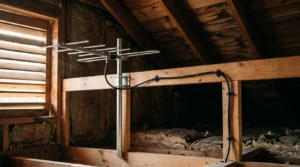
Over-the-air antennas work well if the apartment has an exterior window facing broadcast towers. However, institutional reinforced concrete and metal building construction often block broadcast television frequencies, making streaming a more reliable choice.
What internet speed is necessary for a senior streaming setup?
A consistent broadband download speed of 15 to 25 megabits per second easily supports high-definition live streaming on a single television. High-speed gigabit connections are unnecessary for a single-screen setup in an assisted living apartment.
Will my elderly parent lose access to local news when cutting the cord?
Live streaming services such as YouTube TV and Hulu + Live TV deliver major local broadcast affiliates including CBS, NBC, ABC, and FOX. You can customize the channel lineup so local news stations appear at the top of the guide.
Disclaimer: Cable and streaming prices vary by location and change frequently. The cost comparisons in this article are estimates based on typical pricing. Your actual savings will depend on your current cable package, internet costs, and which streaming services you choose.