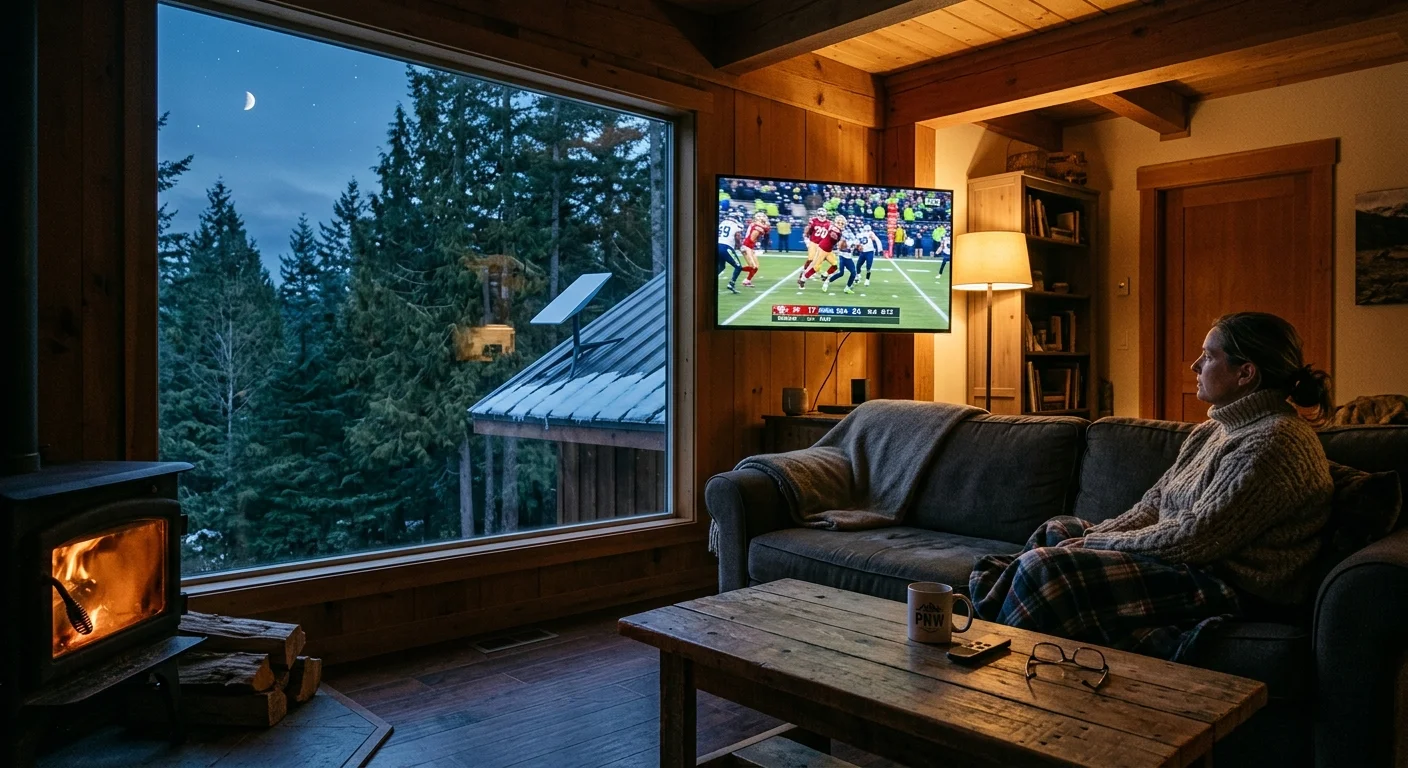
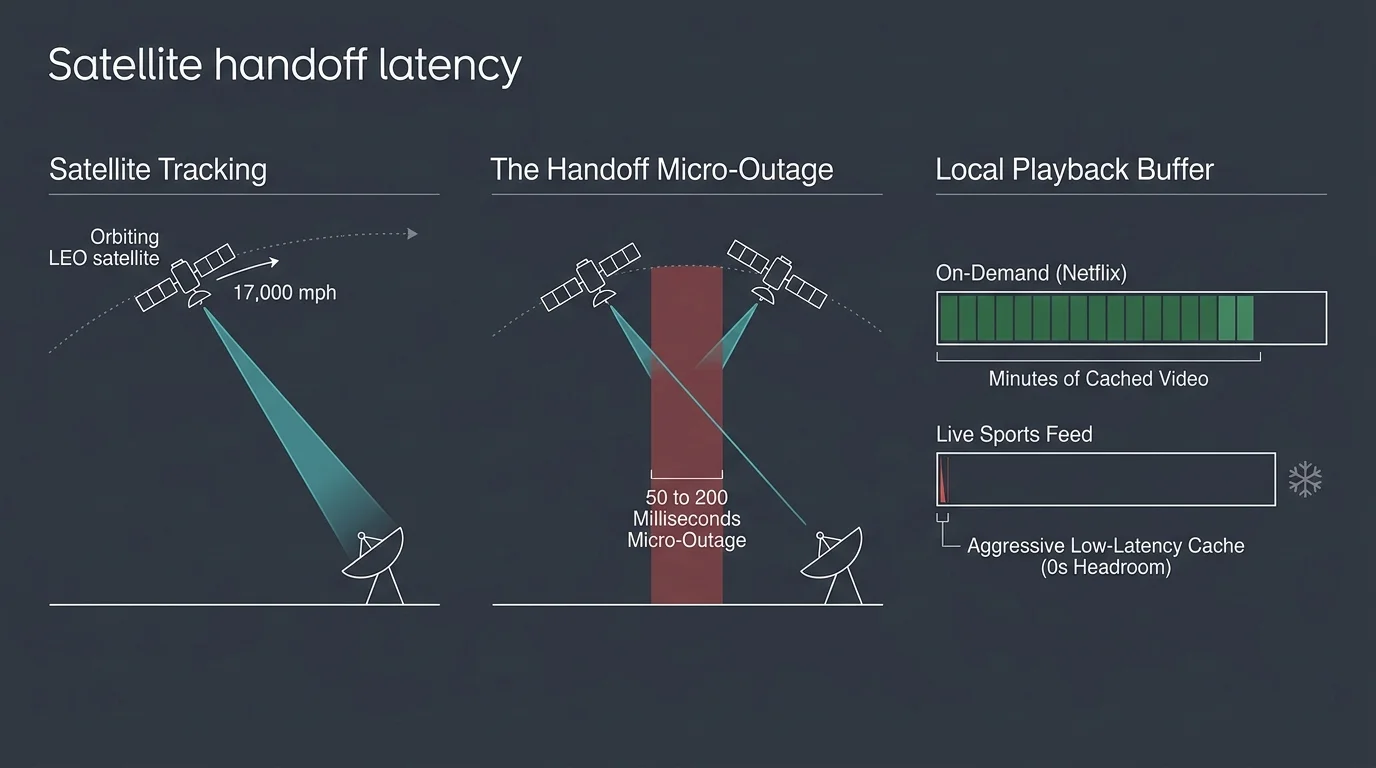
A rural cabin household relying on Starlink often watches live games freeze at the worst possible moment. These halts happen when low-latency player profiles empty shallow video caches during regular 15-second satellite handoffs, not from a lack of raw bandwidth.
Standard Starlink residential speeds between 80 Mbps and 200 Mbps easily exceed the 10 to 15 Mbps required for a high-definition stream. Fixing stutter requires configuring your network hardware, accounts, and playback menus to enforce adequate local buffer depth.
Hardware Setup and Starlink Bypass Activation
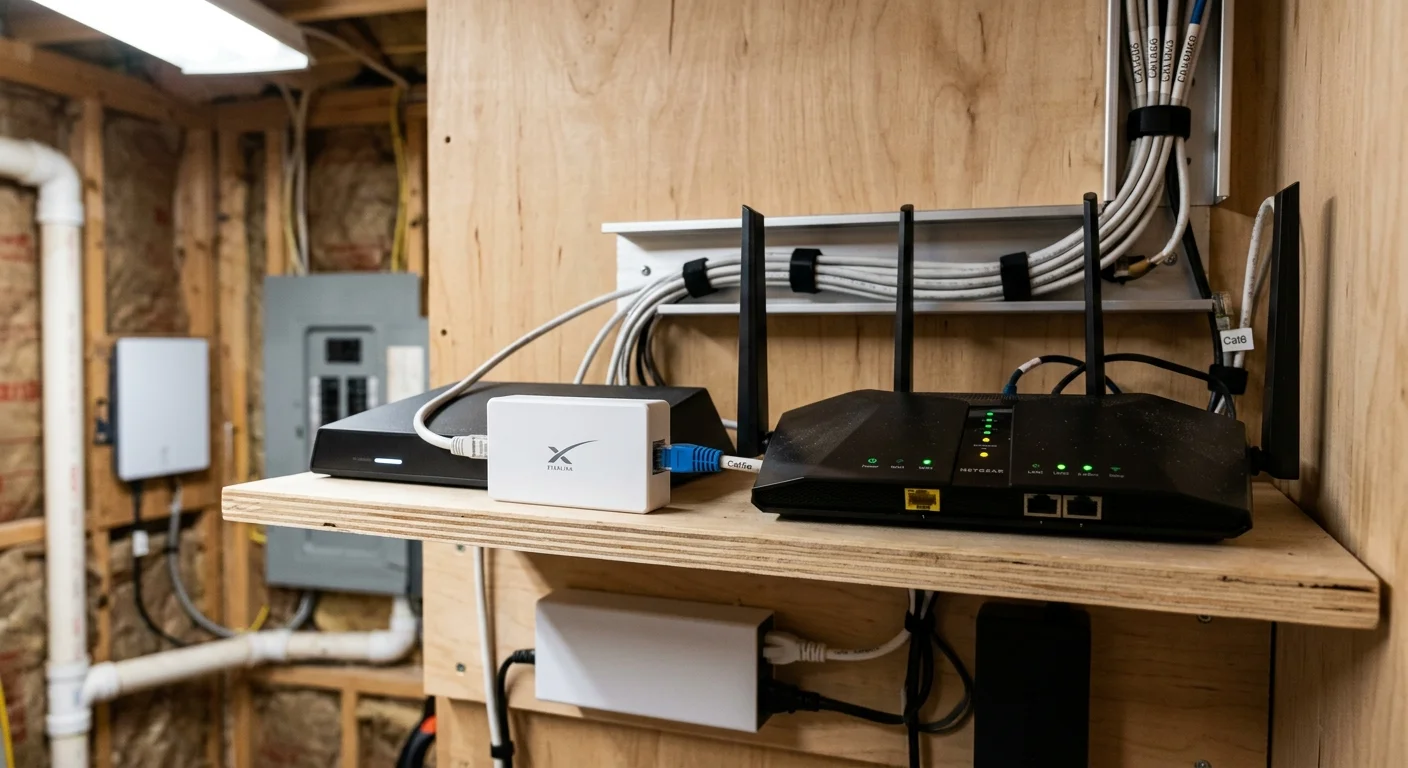
Start by acquiring a third-party router that supports Smart Queue Management (SQM), such as an eero 6+, GL.iNet Flint 2, or Ubiquiti UniFi Express. You also need a physical Cat6 Ethernet cable and the Starlink Ethernet adapter if using Gen 2 hardware.
Thick timber or stone cabin walls degrade wireless signals and introduce packet jitter. Connecting your streaming hardware to your router with a Cat6 Ethernet cable removes local wireless instability entirely.
Open the Starlink mobile app on your phone while connected to the default local network. Navigate to the Settings tab and select the Bypass Mode toggle.
Slide the toggle to enable Bypass Mode, then confirm your selection when prompted. This setting disables the integrated Starlink Wi-Fi radio and turns the base terminal into a pure bridge-mode satellite modem.
Plug the Ethernet cable from your Starlink terminal directly into the primary WAN port of your SQM router. Connect your television or streaming device to one of the router LAN ports using your Cat6 Ethernet cable.
Check the physical link light on your SQM router WAN port and confirm it shows a solid connection. Your Starlink terminal is now running in bridge mode without competing local routing.
Router Queue Management and Latency Stabilization
Open the administrative dashboard or management application for your third-party router. Locate the advanced network settings menu and find the Smart Queue Management configuration panel.
Select either CAKE or FQ-CoDel as your active queueing algorithm. These queue disciplines prioritize small, time-sensitive video packets ahead of massive background downloads and cloud file backups.
Unmanaged networks suffer from bufferbloat, where bursty cabin traffic causes latency to spike from 40 ms to over 300 ms. As noted by Tom’s Guide, consistent connection stability matters far more than theoretical download maximums.
Set your router bandwidth limits to match your typical Starlink connection profile. Confirm your changes and apply the new configuration to initialize traffic shaping across all connected ports.
Check the SQM status indicator on your router dashboard to ensure active queue management is running. Run a quick stream check to ensure your raw speed is rarely the actual bottleneck before configuring streaming accounts.
Account Selection and Geolocation Verification
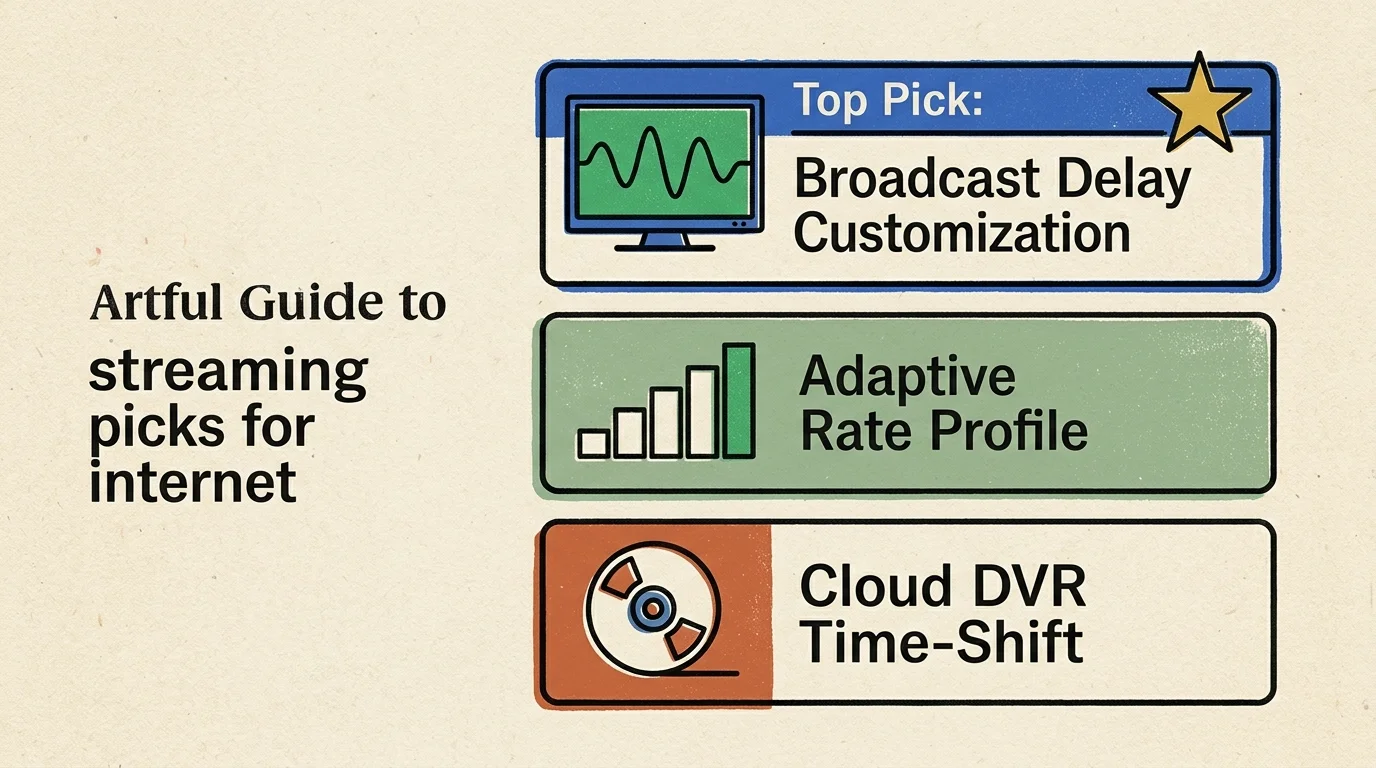
Choose a live streaming service that offers player controls or adjustable connection ceilings. Selecting the right service requires matching software features to satellite transmission realities.
As Cord Cutters News notes, sports fans moving to streaming frequently encounter stutter when satellite feeds dip below necessary buffer thresholds. Picking a provider with adaptable streaming profiles prevents persistent dropouts.
YouTube TV costs $82.99 per month as of current pricing and includes ESPN, FS1, and CBS Sports alongside dedicated buffer settings. Sling TV offers Sling Orange or Sling Blue starting at $45.99 per month as a budget alternative.
Hulu + Live TV runs $99.99 per month, while Fubo and DirecTV Stream start at $79.99 per month. Sling TV Orange + Blue starts at $60.99 per month, and Philo offers an entertainment bundle at $25.00 per month.
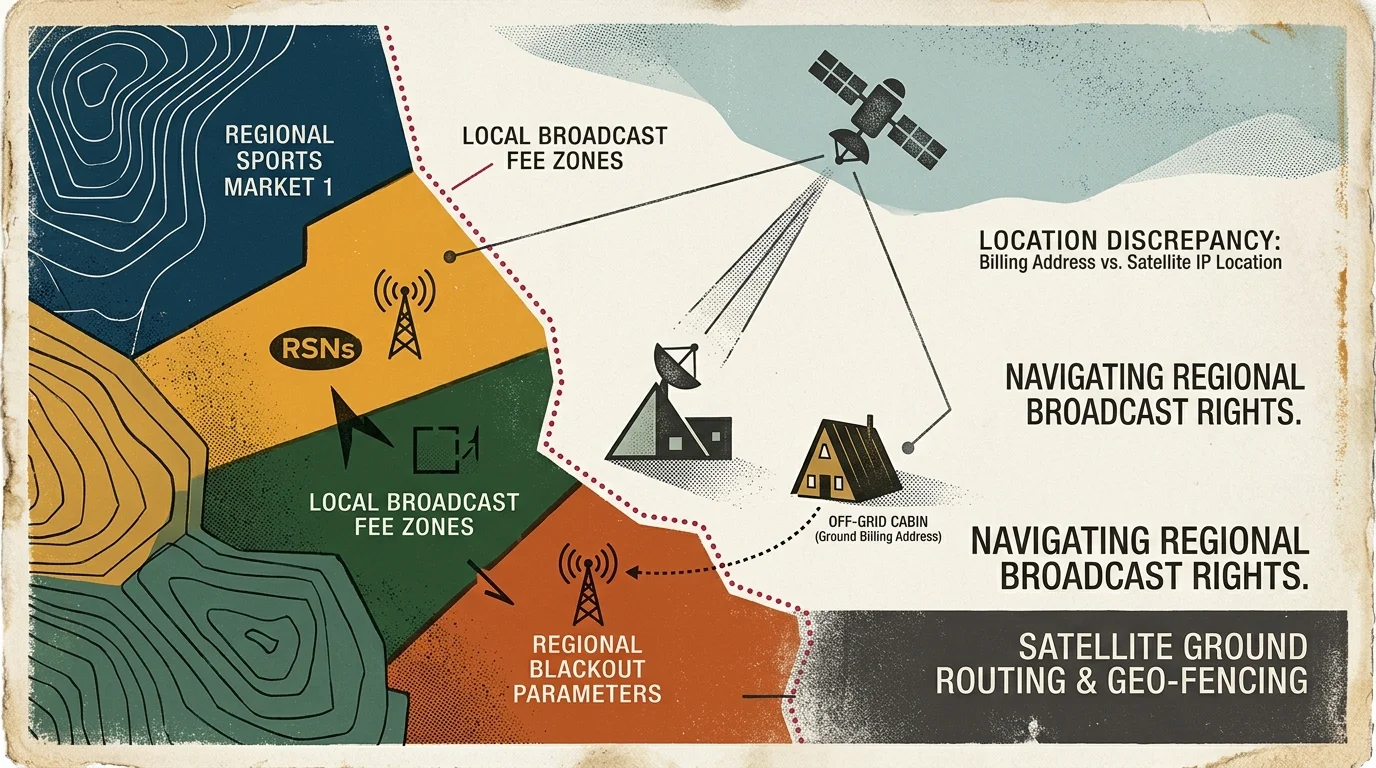
Starlink routes cabin traffic through distant regional ground stations, which can disrupt local channel assignments. Travelers must also monitor geolocation lockouts on Starlink when accounts demand home network check-ins.
Open your mobile phone browser on a cellular connection rather than Starlink Wi-Fi. Enter your cabin zip code into the provider channel lookup tool to verify local network availability.
Open your streaming device settings and verify that device location services are switched on. Confirm that the regional affiliates on your live guide match your actual physical area before tuning in.
YouTube TV Broadcast Delay Reconfiguration
Launch the YouTube TV application on your television and select your live sports broadcast. Broadcasters often trim latency so viewers do not receive scoring alerts on their phones before seeing the play.
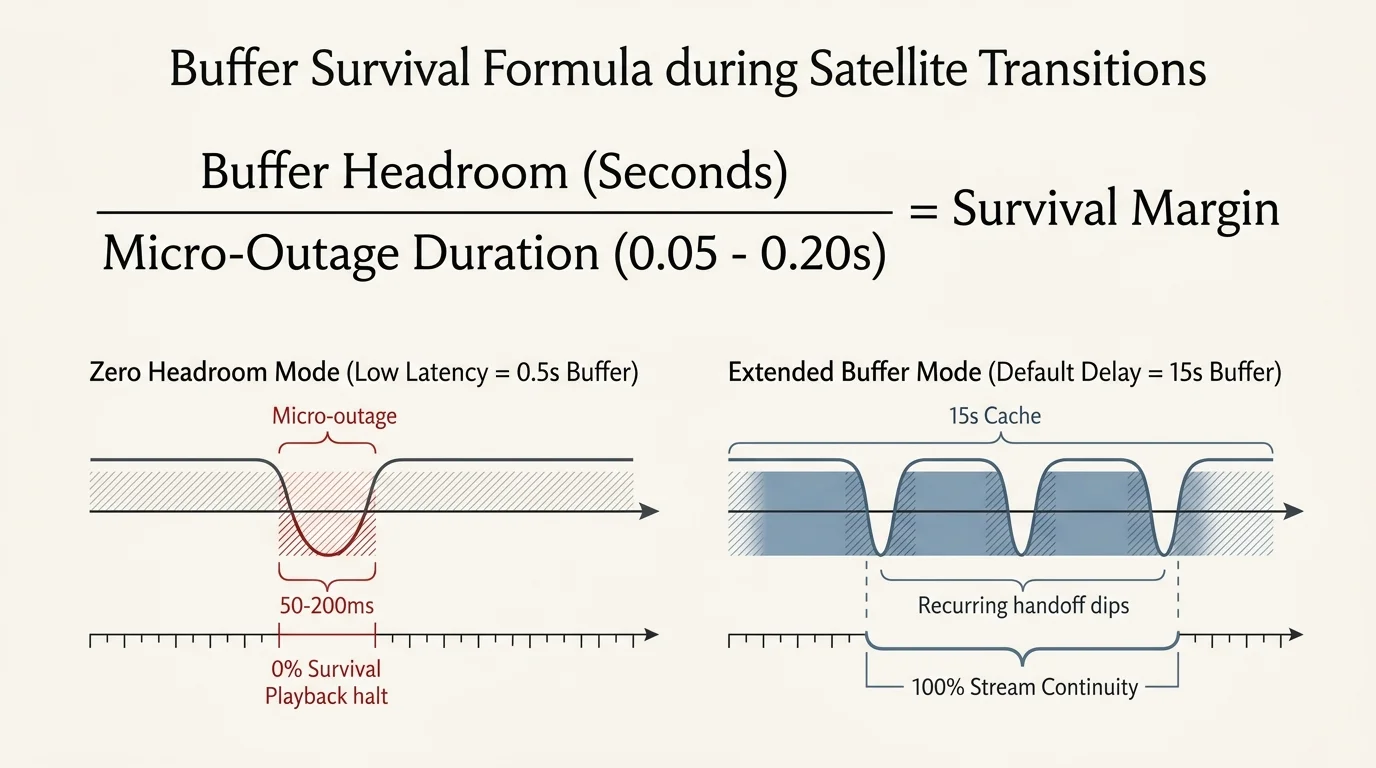
Low Earth Orbit satellites travel at roughly 17,000 miles per hour, forcing Starlink dishes to hand off connections roughly every 15 seconds. Each transition introduces a micro-outage lasting between 50 and 200 milliseconds.
Press down on your streaming remote control while the game plays to display the on-screen playback overlay. Navigate to the left side of the controls and click the three vertical dots labeled More.
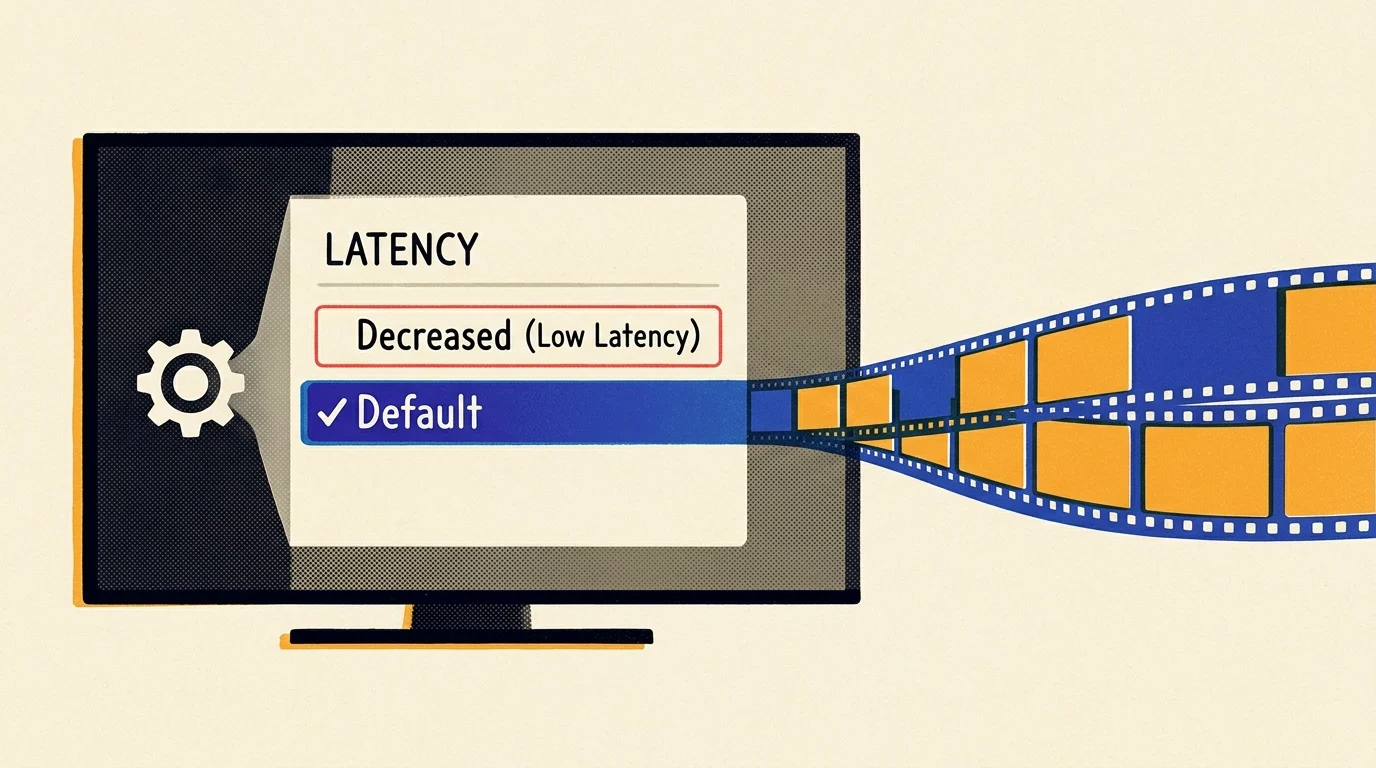
Select Broadcast Delay from the menu items that appear on screen. The interface presents options for Decreased and Default delay targets.
The Decreased setting minimizes delay to 10 to 15 seconds but leaves a fragile 2-second buffer. Switch the setting to Default to establish an extended 30-second local video cushion.
If adjusting playback delay shifts game commentary out of sync, reference our steps on fixing Starlink audio-sync jitter. Check the screen as video pauses for half a second while the expanded buffer fills.
Sling TV Bitrate Caps and Manual Cache Priming
If you use Sling TV, the app lacks a dedicated delay toggle and relies on aggressive adaptive bitrate algorithms. During satellite handoffs, latency spikes from 35 ms to 95 ms can crash its video player.
Open Sling TV on your streaming player and navigate to the Settings gear icon. Choose Connection, then adjust your streaming quality from No Limit to High or Medium.
Setting connection quality to High caps stream throughput at 2.8 Mbps at 720p resolution. Selecting Medium limits consumption to 1.5 Mbps, providing stable delivery through severe storms.
Return to your live broadcast to initialize manual buffer caching. Immediately press the pause button on your remote control as soon as the video feed begins playing.
Keep the stream paused for 60 to 90 seconds while your device downloads video into its local memory. Press play once that holding window expires.
Look at the timeline progress bar to verify that the playhead sits comfortably behind the live broadcast edge. Your streaming box will maintain that artificial 90-second reserve throughout the remainder of the event.
Buffer Headroom Verification and Cloud DVR Backup
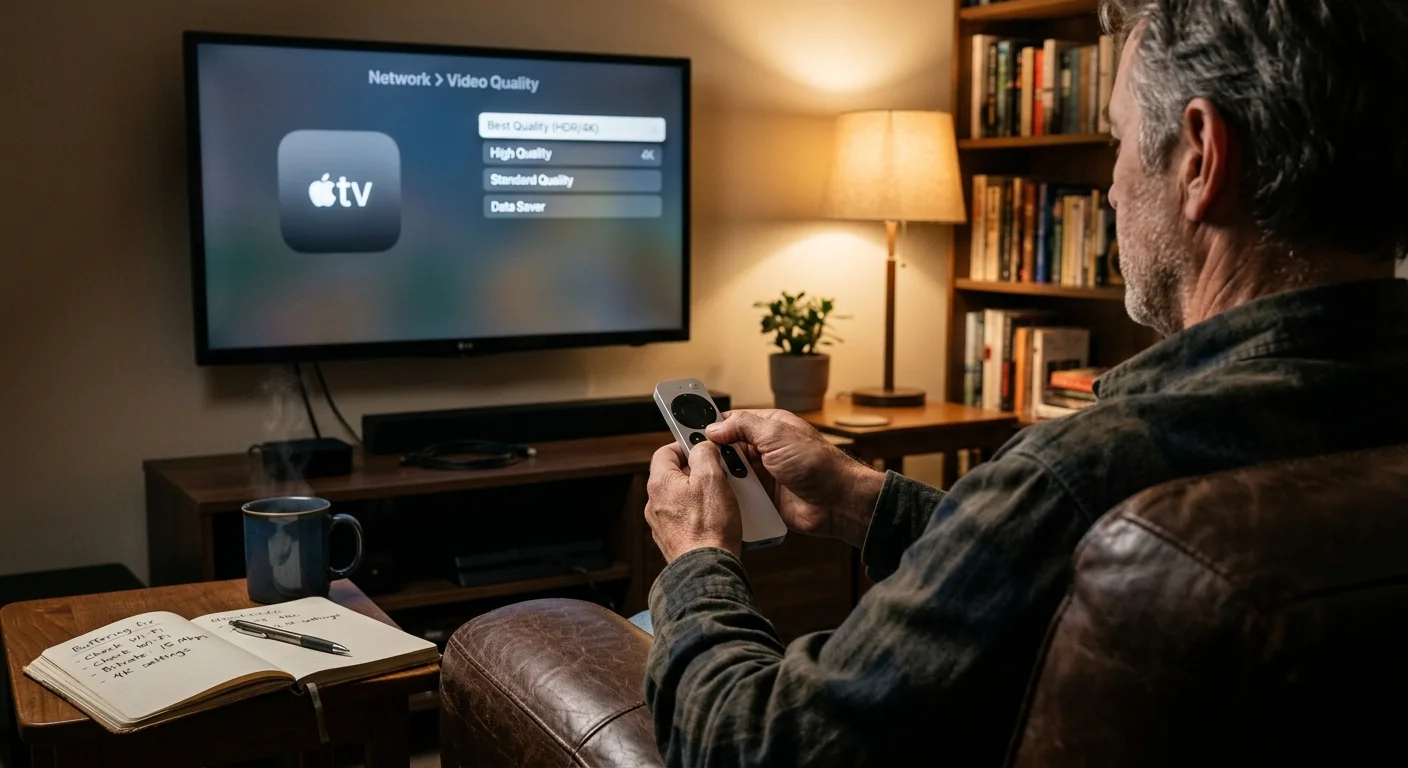
A standard 1080p stream at 60 frames per second requires 12 Mbps, which transfers 1.5 megabytes (MB) of data per second. Verifying your buffer depth ensures your player survives recurrent satellite shifts.
A razor-thin 2.0-second cushion holds only 3.0 MB of cached video data. When satellite transitions or beam switches disrupt data delivery for over two seconds, the cache empties completely and triggers a freeze.
In contrast, a 25-second buffer retains 37.5 MB of local data. Hand-off micro-outages drain only a tiny fraction of that cache, leaving decoded footage completely intact on screen.
You can also bypass live satellite variability by scheduling a cloud recording. A cloud DVR allows you to record games and watch them later without live transmission pressure.
As documented in CNET streaming evaluations, recording features vary across subscription tiers. YouTube TV, Hulu + Live TV, Fubo, and DirecTV Stream provide unlimited storage with 9-month expiration, while Philo offers unlimited storage for one year.
Sling TV includes 50 hours of cloud storage in its base tiers. Start your recording and begin playing the game 10 minutes after kickoff to ensure continuous, seamless caching.

Frequently Asked Questions
Why does my Starlink speed test show 150 Mbps, but live sports still freeze?
Speed tests measure your peak data throughput over an extended transfer window. Live sports streams fail because millisecond packet drops during satellite handoffs drain shallow player caches, regardless of total bandwidth capacity.
How much bandwidth does a 1080p 60fps live sports stream actually need?
A standard 1080p stream running at 60 frames per second requires a sustained connection of 10 to 15 Mbps. Starlink easily supplies this bandwidth, proving that stream stability depends on buffer retention rather than raw download speeds.
Does heavy rain or snow affect Starlink streaming buffer performance?
Severe weather causes rain fade, which absorbs high-frequency satellite signals and increases packet loss. Expanding your streaming buffer to 30 or 60 seconds allows your player to bridge these environmental signal dips without halting playback.
Can I watch 4K live sports reliably over a Starlink connection?
Yes, provided you establish adequate buffer reserves. A 4K live broadcast demands an uninterrupted download rate of 25 to 35 Mbps, which Starlink handles comfortably when paired with a wired Ethernet connection and SQM router optimization.
Disclaimer: Live TV streaming prices and channel lineups change frequently. Local channel availability varies by location. Always use a free trial when available to verify your local channels are included before committing. Sports blackout rules may affect some live events.