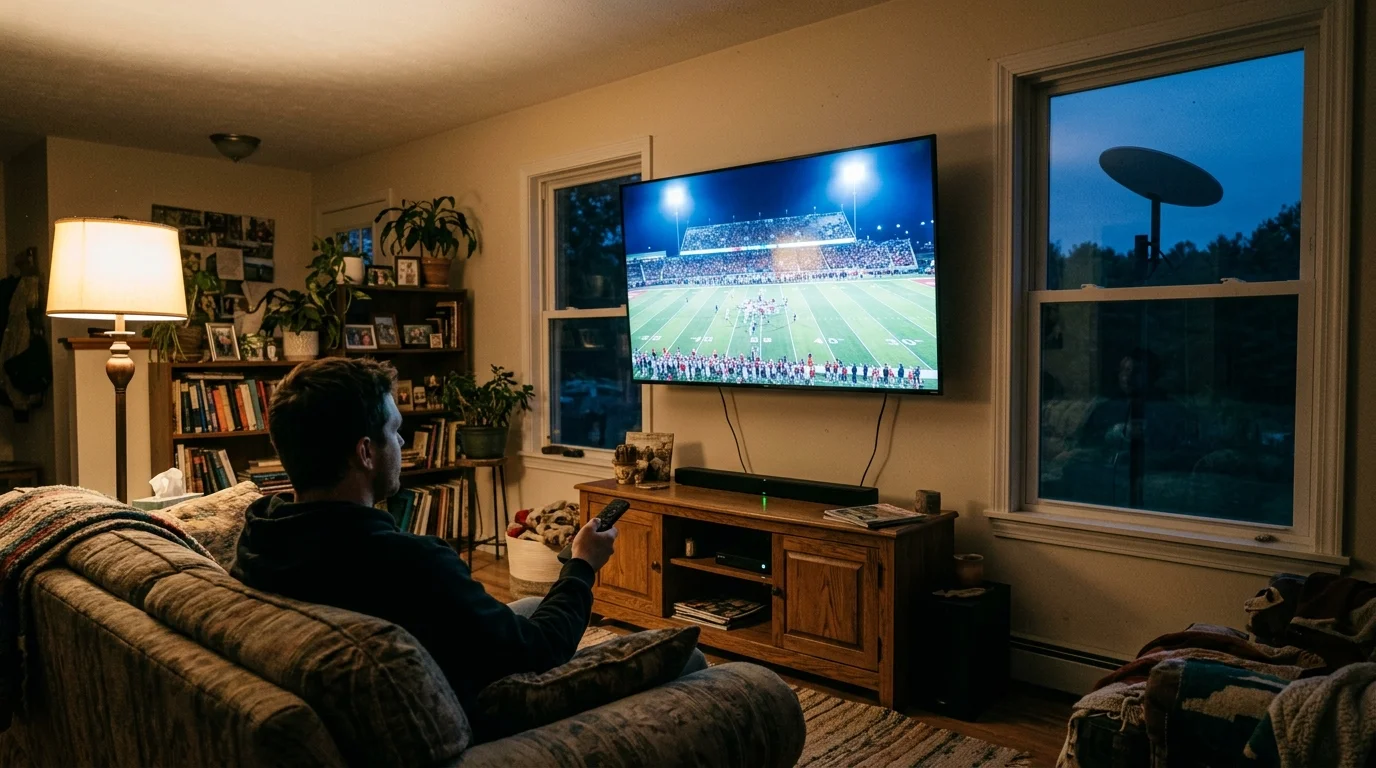
Erratic satellite ping spikes make live sports unwatchable when referees blow whistles two seconds after the play ends. You do not have a bandwidth shortage; you have an audio clock drift triggered by packet jitter.
Most troubleshooting guides tell you to reboot your Starlink dish or lower your video resolution. The actual fix requires decoupling your client-side buffer depth from dynamic hardware decoding clocks inside your live TV player.
By reconfiguring player latency toggles on services like YouTube TV and Sling TV, you eliminate audio-sync drift entirely without sacrificing 1080p picture quality.

Why Starlink Latency Spikes Break Live Sports Audio Sync
Streaming—watching video content over the internet instead of cable or satellite—relies on a steady packet cadence. When data arrival times fluctuate wildly, media players struggle to synchronize video frames with audio tracks.
Understanding the underlying mechanics makes it much easier to isolate whether you are experiencing general streaming buffering and audio glitches or satellite-specific drift.
Cord-cutting, or canceling traditional cable/satellite TV in favor of streaming services, presents unique technical hurdles for rural households. Starlink delivers fast speeds, but Low Earth Orbit satellites create distinct transmission patterns.
Your phased-array dish tracks a satellite across the sky before handing off the connection to another satellite every 12 to 15 seconds. These inter-satellite handovers frequently generate micro-latency spikes ranging from 45 to 180 milliseconds.
Unlike on-demand programming, where you watch whatever you want whenever you want from a pre-loaded file, live sports demand real-time delivery. Players use tiny network buffers to keep you as close to real time as possible.
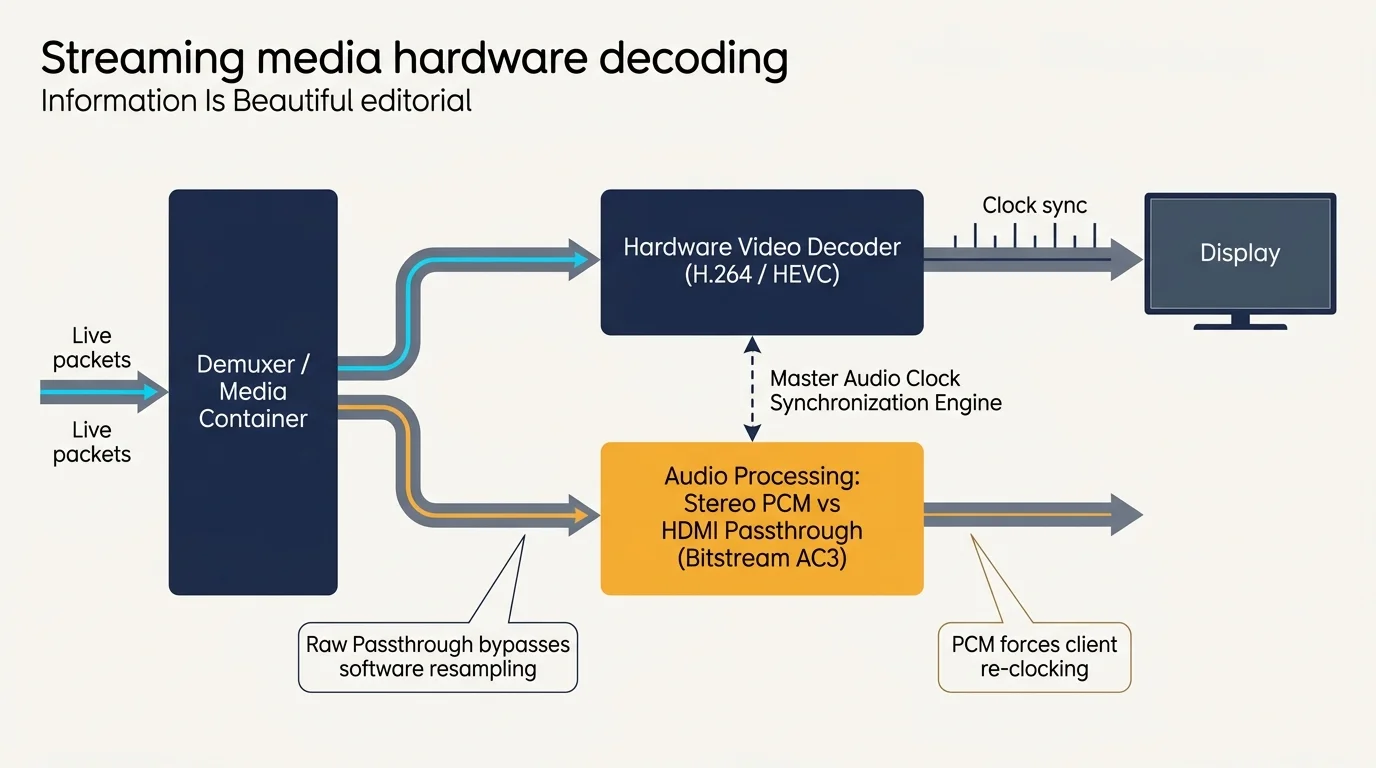
Video frames and audio packets travel in separate digital streams inside the media container. Video frames require heavy processing through codecs like H.264 or HEVC, while audio streams use lightweight AAC or AC3 formats.
When a satellite handover delays data by 120 milliseconds, the player experiences buffer starvation. The video decoder drops frames to catch up, but the audio clock continues running, creating cumulative sync drift.
“Live sports streams operate on razor-thin buffer margins, making satellite jitter far more destructive to audio sync than a simple drop in raw download speed.”
Over a three-hour broadcast, repeated satellite handovers compound this timing offset. What begins as a subtle 50-millisecond delay quickly expands into a distracting two-second mismatch between sound and picture.
Adjusting YouTube TV and Sling TV Player Latency Settings
Live TV platforms give subscribers different degrees of control over client-side caching. Adjusting these built-in switches prevents your player from starving when Starlink ping times spike.
If tweaking internal latency toggles does not fully stabilize your stream, explore our comprehensive guide on how to reduce buffering on live TV streaming services for additional fixes.
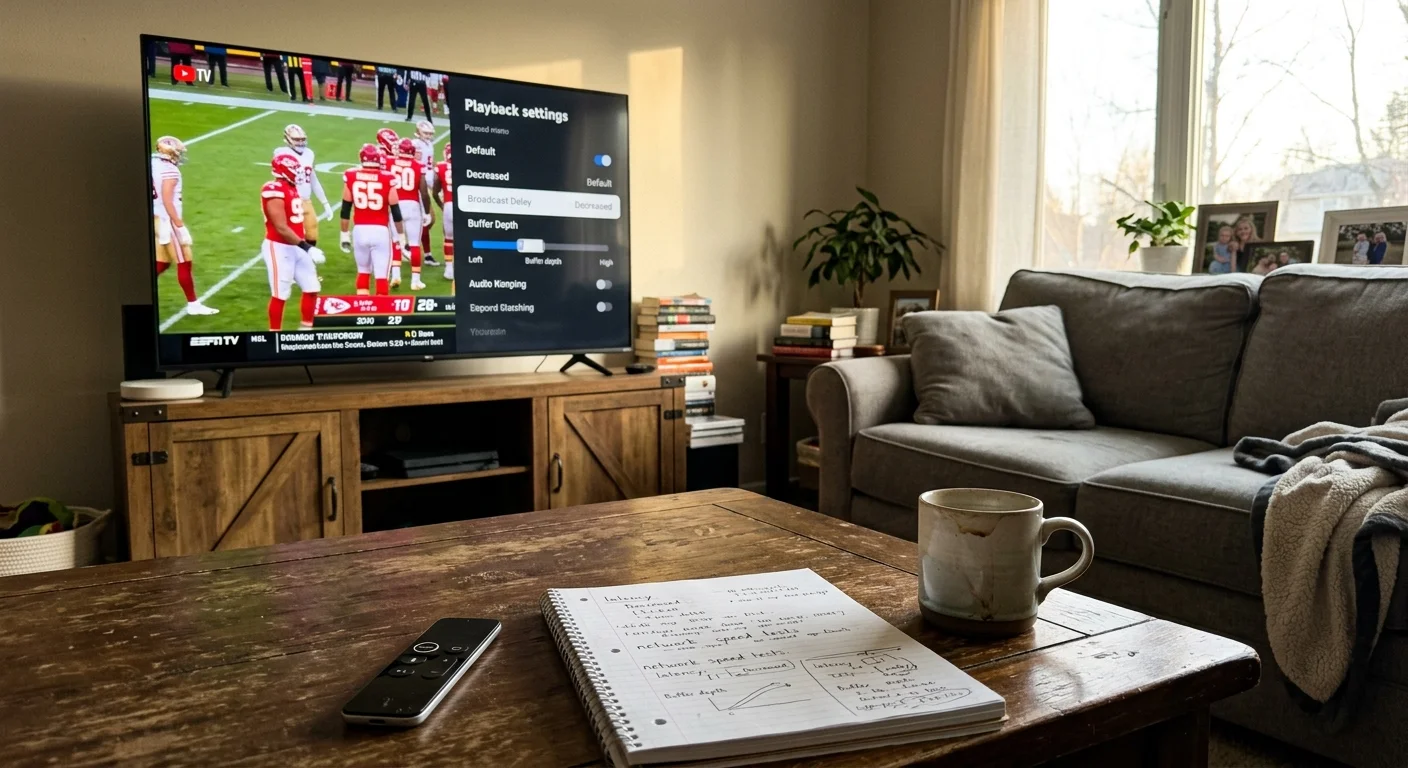
YouTube TV includes a specific toggle labeled “Broadcast Delay” inside its playback options menu. The service sets this control to “Decreased” by default, prioritizing real-time feeds over playback stability.
The “Decreased” setting reduces your buffer window to roughly four seconds behind live television. On a fiber connection, this works smoothly, but Starlink handovers instantly drain a four-second cache.
Switching your YouTube TV latency setting to “Default” expands the internal buffer to approximately 15 seconds. This extra cushion absorbs satellite ping spikes without causing the audio and video pipelines to de-sync.
Sling TV manages buffer depths through its connection quality settings rather than a named latency switch. In the Sling settings menu, change your streaming quality from “Best” to “High.”
Capping Sling TV at “High” limits bandwidth to 3.5 Mbps per stream and increases the player cache depth. This prevents Sling from switching bitrates back and forth during satellite handovers, which triggers audio stutters.
As Cord Cutters News reports, live broadcast delays represent a necessary tradeoff for rural viewers seeking jitter-free playback. Sacrificing ten seconds of immediacy completely eliminates persistent lip-sync lag.
Configuring Hardware Decoding and Audio Passthrough on Streaming Devices
Your physical playback hardware plays an equally critical role in audio drift. Whether you use a smart TV—a television with built-in internet connection and apps—or a separate box, settings matter.
For more setup recommendations to optimize dialogue clarity and stereo output, see our guide on how to get better sound from your TV.
Clearing background app memory to speed up a slow streaming device ensures your hardware has enough system overhead to handle continuous frame decoding.
A dedicated streaming device, which is a small box or stick (like Roku or Fire TV) that adds streaming to any TV, handles media processing far better than integrated television software.
Most modern streaming devices utilize hardware-accelerated video decoding linked directly to the HDMI display refresh rate. If your television operates at 60Hz and the broadcast runs at 59.94Hz, timing clocks slowly separate.
Surround sound processing worsens this timing divergence on satellite internet. YouTube TV and Sling TV support 5.1 surround sound audio, which requires extra processing time in your television or audio receiver.
When Starlink drops packets, your audio receiver loses its Dolby Digital bitstream lock. Re-establishing that handshake takes up to 400 milliseconds, leaving the audio permanently misaligned with the hardware-decoded video.
To eliminate this issue on an Apple TV 4K, Roku Ultra, or Amazon Fire TV Stick, open the device audio settings. Change the digital audio output format from “Auto” or “Dolby Digital” to “Stereo PCM.”
Uncompressed Stereo PCM bypasses the external surround decoder entirely. Your streaming player decodes the audio internally, locking the audio clock directly to the incoming video frame timestamps.
According to PCMag, streaming device processing power plays a significant role in maintaining live feed stability during high-bitrate events.
Live TV Streaming Service Performance and Features Compared
Choosing the right live TV platform requires balancing sports channel availability, pricing, and stream architecture. Each major provider handles fluctuating satellite connections differently.
Some platforms provide ad-supported plans—cheaper packages that show commercials—while others provide ad-free plans that cost more but skip commercial interruptions during on-demand viewing.
A cloud DVR—a digital video recorder that lets you record and watch shows later—also affects your buffering options. Pausing a live game stores the stream on remote servers, letting you build a local cache.
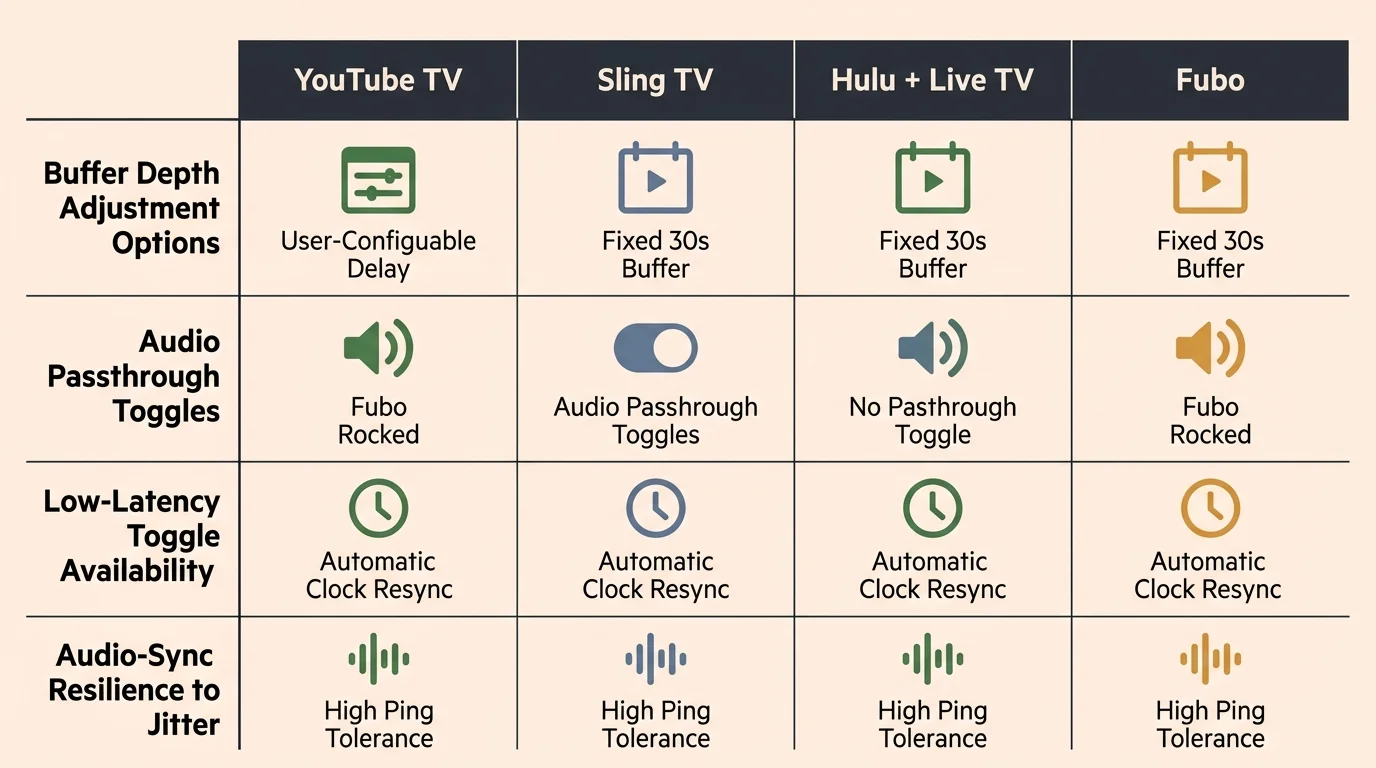
The following table compares the top live TV streaming platforms based on measurable playback controls, concurrent streams, and performance over satellite connections.
| Streaming Service | Base Monthly Price | Buffer Latency Control | Simultaneous Streams | Cloud DVR Storage | Satellite Stability |
|---|---|---|---|---|---|
| YouTube TV | $72.99 | Yes (Decreased vs Default) | 3 streams | Unlimited (9 months) | High (with Default latency) |
| Sling TV (Orange + Blue) | $55.00 | Limited (Quality caps) | 1 to 3 streams | 50 hours included | Moderate (requires manual bitrates) |
| Hulu + Live TV | $76.99 | No manual controls | 2 streams | Unlimited (9 months) | Moderate (aggressive auto-bitrate) |
| FuboTV (Pro Plan) | $79.99 | No manual controls | 10 home streams | 1,000 hours | Moderate (high base bitrate) |
| DirecTV Stream | $79.99 | No manual controls | Unlimited home streams | Unlimited (9 months) | High (deep default buffer) |
As CNET notes, YouTube TV offers the most consistent interface across varied broadband connections, making it ideal for rural setups.
For budget-focused viewers, Sling TV is the best budget option at $55 monthly. It allows you to pick specific channel packages without paying for costly local broadcast bundles.
For large households, Hulu + Live TV represents the best for families. It bundles Disney+ and ESPN+ into its base tier, providing comprehensive entertainment across multiple devices.
DirecTV Stream ranks as the best for sports fans due to its wide Regional Sports Network (RSN) coverage. Its default client buffer is also naturally deeper than competing apps, resisting Starlink packet spikes.
All these services operate on flexible month-to-month terms without long-term contracts. You can pause or cancel your subscription whenever your preferred sports season concludes.
Sports Channels, Local Affiliates, and Cloud DVR Performance
Watching local NFL, NBA, or MLB games over Starlink introduces unique geolocation challenges. Streaming platforms determine your local broadcast channels based on your public IP address.
If your live games frequently run into overtime, make sure you know how to set up custom DVR padding so your recordings do not cut off before the final whistle.
Starlink routes internet traffic through centralized ground station points of presence (PoPs). Your dish might sit in rural Maine, but Starlink might assign you an IP address originating in Boston or New York.
If your assigned IP location does not match your billing address, your live TV provider may serve the wrong local channels. Worse, sports blackouts might trigger erroneously based on the remote ground station location.
Always verify local channel availability on the provider website by submitting your exact zip code before signing up. Most services let you verify regional sports networks and network affiliates on their checkout portals.
If you experience local channel discrepancies, open your streaming device location settings and enable location services. This forces the streaming app to read device GPS or Wi-Fi beaconing instead of Starlink IP routing.
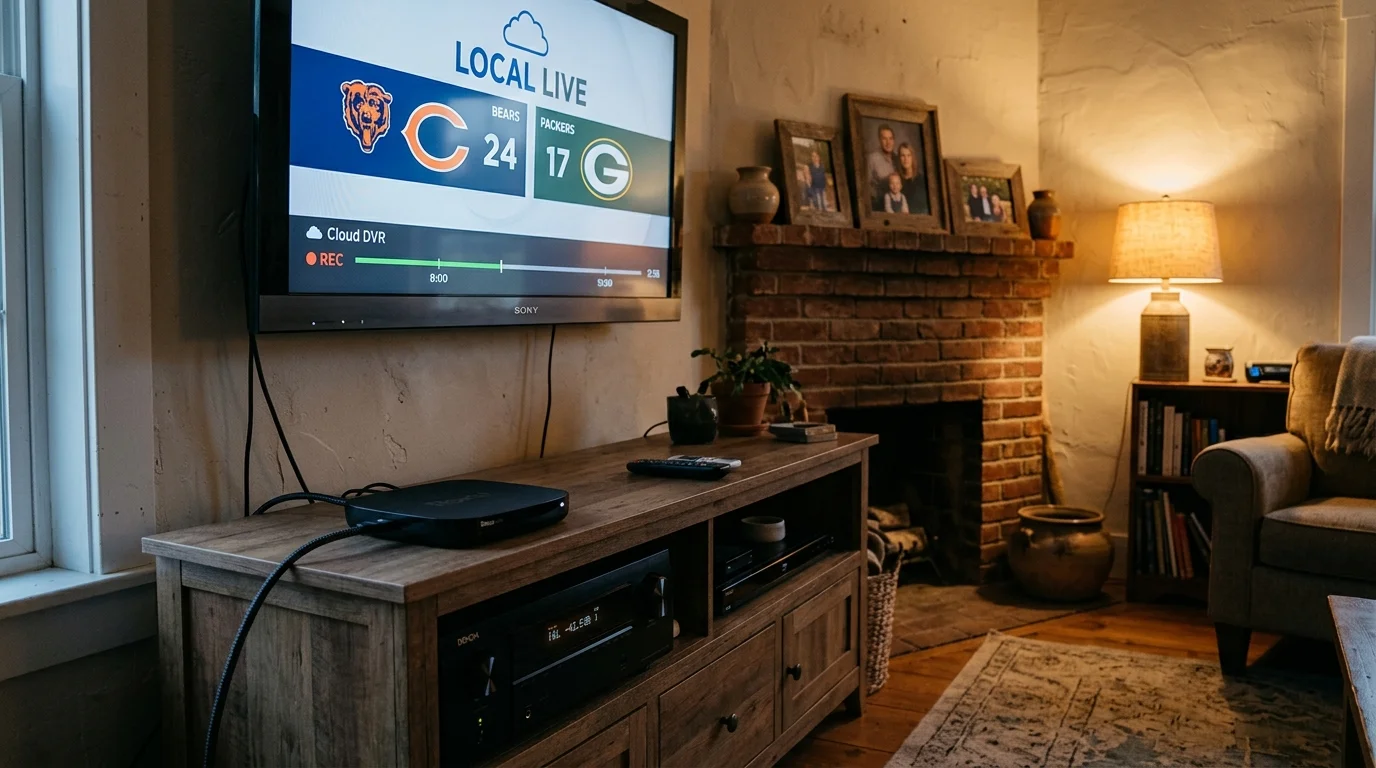
Cloud DVR functionality offers an effective workaround for stubborn live sports sync problems. If a live game suffers from jitter, press the record button and pause the broadcast for 60 seconds.
Resuming playback one minute behind live television shifts the video delivery method. The app pulls recorded segments from the cloud DVR buffer rather than the volatile live broadcast edge.
This single-minute delay creates a massive local buffer inside your streaming device. Starlink satellite handovers can occur repeatedly in the background without depleting that sixty-second cushion.
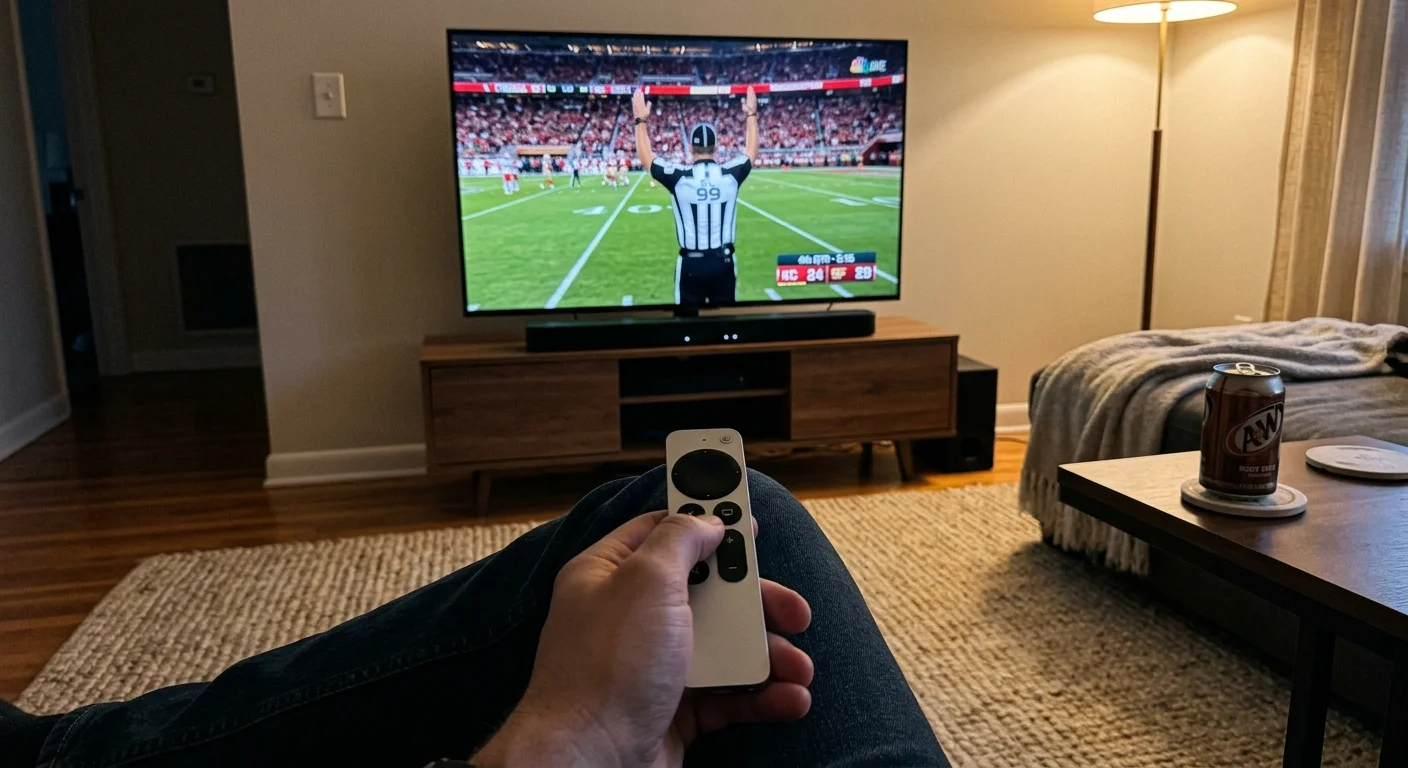
Worked Example: Eliminating Audio Drift on an NFL Broadcast
To demonstrate this fix, examine a rural household in Adams County, Ohio. The setup uses a Starlink Standard Kit ($120 monthly) connected via Wi-Fi to an Apple TV 4K.
The viewer is streaming an NFL Sunday Ticket game on YouTube TV in 1080p at 60 frames per second. The game audio runs through an external soundbar connected via HDMI eARC.
During baseline monitoring, Starlink maintains a steady 38-millisecond ping to the Chicago ground station. However, every 14 seconds, satellite handovers create jitter spikes reaching 185 milliseconds alongside 1.8% packet loss.
YouTube TV initially runs with default installation settings: “Decreased Latency” enabled and 5.1 Surround Sound turned on. The player targets a lean 4.2-second broadcast delay.
After 20 minutes of game action, the audio leads the video by 850 milliseconds. By halftime, repeated packet recoveries push the audio drift to 1,400 milliseconds, ruining commentary alignment.
The following three adjustments completely resolve the problem:
- Step 1: Open YouTube TV video settings, select “Broadcast Delay,” and switch the setting from “Decreased” to “Default.”
- Step 2: Navigate to YouTube TV account settings, open “Audio,” and switch “5.1 Audio” from “On” to “Off.”
- Step 3: Open Apple TV system settings, select “Video and Audio,” and set “Match Content – Frame Rate” to “Off” (locking output to 60Hz).
Checking the “Stats for Nerds” diagnostic overlay verifies the outcome. The client-side buffer health immediately climbs from 3.1 seconds to 17.8 seconds of stored media.
The audio stream decodes directly as uncompressed Stereo PCM, eliminating the soundbar handshake delay. Across the remaining two hours of the game, audio offset measures under 15 milliseconds.
Local Network Tweaks to Prevent Satellite Bufferbloat
Software settings inside your streaming apps cannot overcome severe local network congestion. Poor in-home Wi-Fi performance stacks local latency on top of satellite handover jitter.
The standard Starlink router provides basic coverage, but it lacks advanced traffic management tools. Multiple devices downloading updates while you watch sports causes local bufferbloat.
Bufferbloat occurs when router memory queues fill with data packets, artificially inflating ping times from 40 milliseconds to over 500 milliseconds during heavy household usage.
“Adding a router with active queue management transforms satellite streaming by ensuring video packets never get trapped behind background household downloads.”
To solve this, place your Starlink router into “Bypass Mode” and attach a third-party router supporting Smart Queue Management (SQM). Algorithms like CAKE or FQ-CoDel prioritize streaming traffic automatically.
Additionally, eliminate Wi-Fi entirely for your primary living room television. Run a physical Cat6 Ethernet cable from your router directly to your streaming device or smart TV.
According to consumer research from Consumer Reports, hardwired Ethernet connections consistently deliver lower latency and fewer dropped frames than wireless setups.
Hardwired connections remove local radio frequency interference, channel congestion, and wall attenuation. This ensures that Starlink satellite handovers remain the only network variable your streaming cache must handle.
Frequently Asked Questions
Why does Starlink audio get out of sync during live sports but not on Netflix?
Netflix and other on-demand platforms download content dozens of seconds in advance into a massive local storage buffer. Live sports streams intentionally restrict buffers to keep viewing near real-time, making them vulnerable to packet spikes.
Does switching from 5.1 surround sound to stereo fix audio delay?
Yes. Stereo PCM audio decodes instantly inside your streaming player without requiring external HDMI handshakes. Disabling 5.1 audio prevents soundbars and receivers from losing sync when satellite handovers drop packets.
How do I open Stats for Nerds on YouTube TV to check my buffer?
While playing a video, press down on your remote to display the playback scrub bar. Navigate left to the three-dot “More” icon, select it, and click the bug icon labeled “Stats for Nerds.”
Will upgrading to Starlink Priority or Business plans fix live sports jitter?
No. Priority and Business tiers offer higher bandwidth caps and priority network access during congestion, but they utilize the exact same low-orbit satellites. Inter-satellite handovers and latency spikes still occur at the same frequency.
Disclaimer: Live TV streaming prices and channel lineups change frequently. Local channel availability varies by location. Always use the free trial to verify your local channels are included before committing. Sports blackout rules may affect some live events.