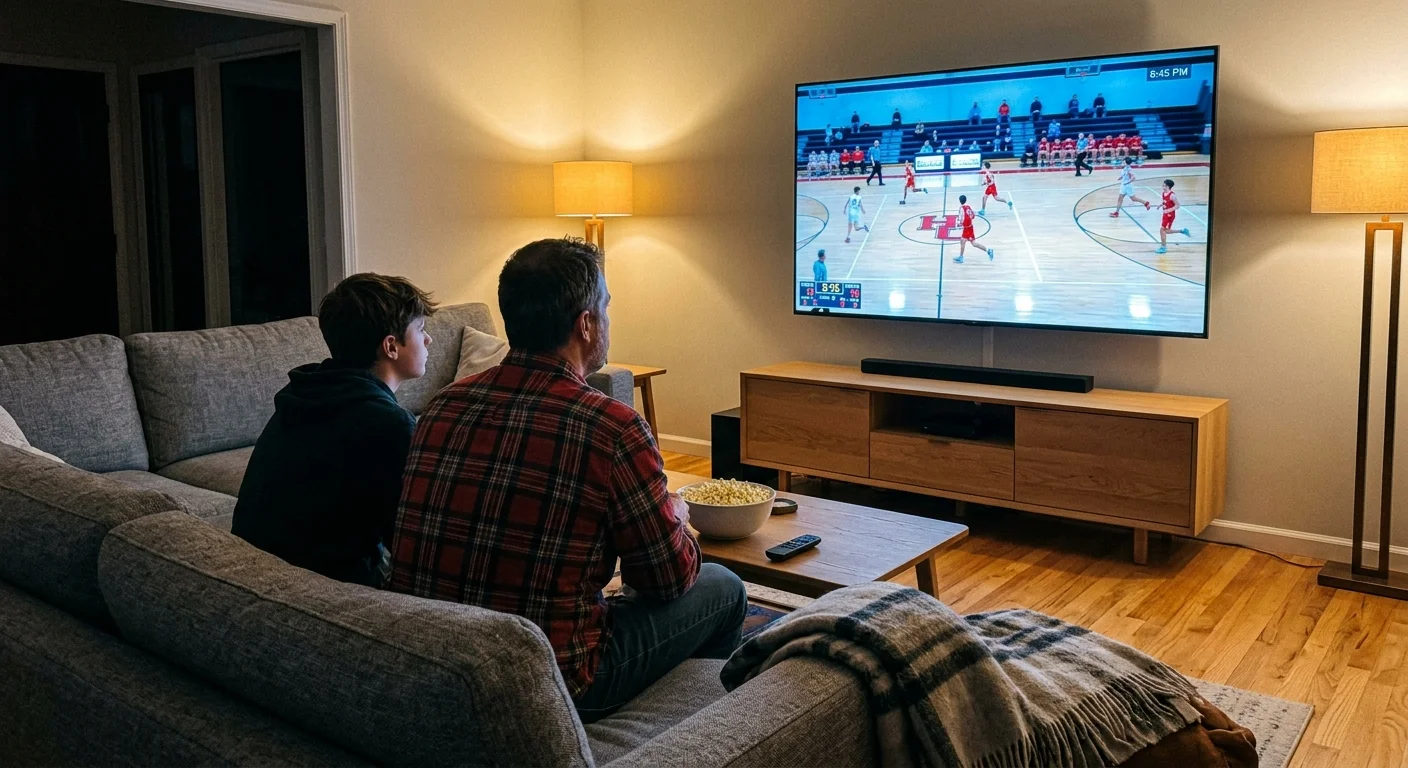
You can watch your teenager’s high school athletic events live on your living room television instead of squinting at a five-inch phone screen. Getting high school feeds onto a big screen requires bypassing browser blackouts and configuring dedicated hardware.
Unlike commercial sports networks that stream through standard smart TV browsers, platforms like Hudl TV explicitly block Samsung Tizen and LG webOS web browsers. Attempting to use built-in television browsers leaves you staring at blank error screens.
Bypassing these platform limitations requires installing dedicated media apps or routing mobile video streams through specific casting protocols. This guide provides exact setup steps, hardware recommendations, and subscription cost calculations for prep sports parents.
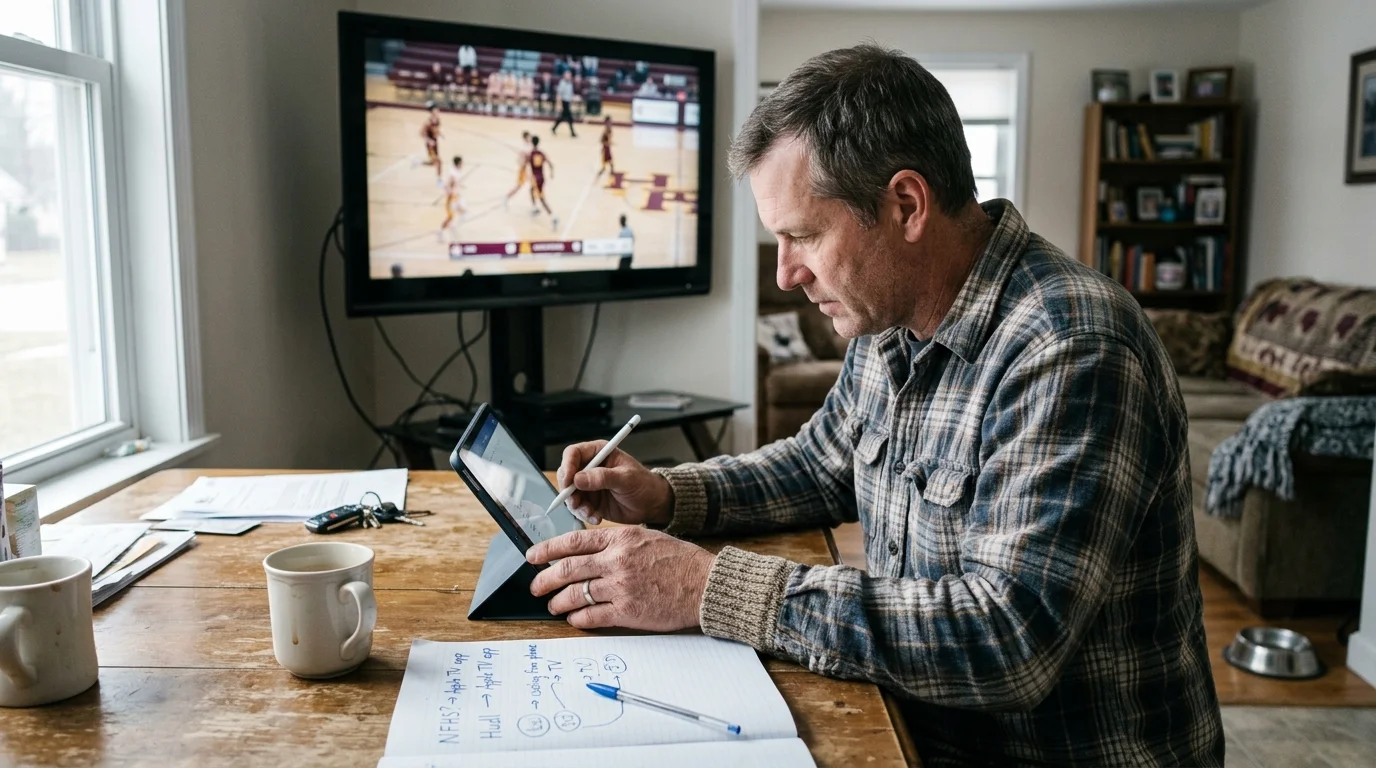
Understanding the High School Sports Streaming Landscape
Watching prep athletics from home has undergone a dramatic transformation over the past five years. Traditional cable public-access channels have yielded almost entirely to specialized online platforms.
Be cautious of suspicious social media links claiming to show game broadcasts, as streaming sports from unofficial sites poses significant privacy and malware risks.
If your home follows both high school athletes and professional teams, comparing options like FuboTV vs YouTube TV for multi-sport households can help you plan your overall seasonal budget.
Balancing amateur broadcasts with major league subscriptions is a core part of building a comprehensive sports streaming setup without cable.
Today, streaming—watching video content over the internet instead of cable or satellite—powers nearly all amateur athletic broadcasting. This shift provides greater convenience but requires households to rethink their television configurations.
Many families participate in cord-cutting, canceling traditional cable or satellite TV in favor of streaming services. However, prep sports exist completely outside mainstream bundles like YouTube TV, Hulu + Live TV, or Sling TV.
Instead, local school districts contract with two primary platforms to deliver live event feeds: the NFHS Network and Hudl TV. Understanding which platform your school uses determines how you configure your living room equipment.
The NFHS Network operates through a joint venture between PlayOn! Sports and the National Federation of State High School Associations. It provides centralized event access for thousands of participating high schools across America.
NFHS venues typically rely on automated Pixellot camera systems mounted permanently at stadium press boxes and gymnasium ceilings. These cameras track the ball automatically using algorithmic motion tracking without requiring human camera operators.
Hudl TV approaches prep broadcasting from an athletic coaching background. Hudl Focus cameras capture multi-angle game film for tactical analysis while simultaneously feeding a broadcast signal to school supporters.
Unlike the centralized NFHS ecosystem, Hudl TV grants individual athletic departments autonomous control over their game broadcasts. Athletic directors determine whether their streams remain free or sit behind school-specific paywalls.
As industry analysts at Cord Cutters News observe, hyper-local prep sports coverage represents one of the fastest-growing niches in grassroots digital video. Navigating these regional platforms requires knowing how your hardware communicates with their software.
A smart TV is a television with built-in internet connection and apps, such as sets running Samsung Tizen, LG webOS, or Vizio SmartCast. While these sets run commercial video services easily, their built-in web browsers cannot parse prep sports players.
A dedicated streaming device is a small box or stick, like a Roku Streaming Stick 4K or Amazon Fire TV Stick, that adds advanced streaming capabilities to any television via an HDMI port. These dedicated players are essential for stable prep sports streaming.
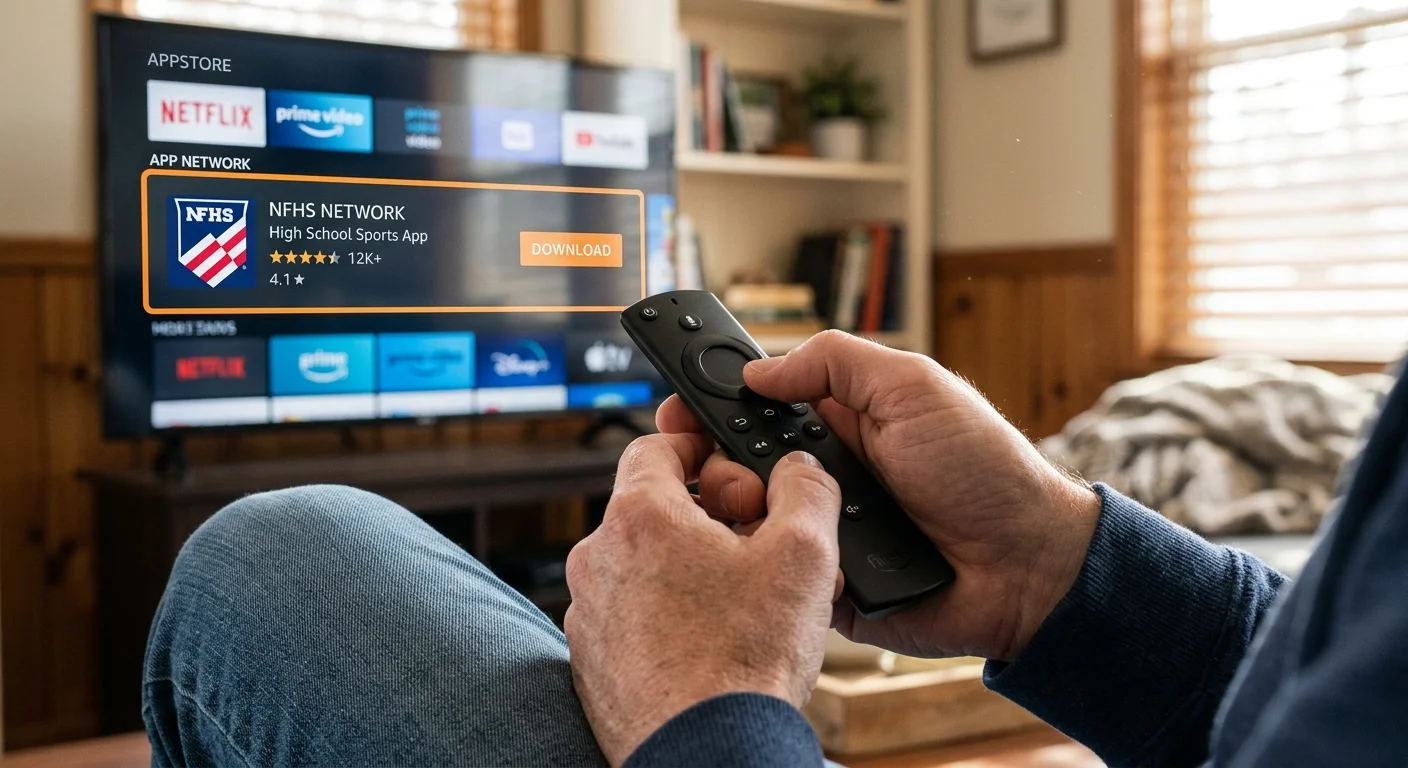
How to Install and Configure NFHS Network on Roku, Fire TV, and Apple TV
The NFHS Network provides official native applications across all major retail television operating systems. Installing the dedicated application ensures reliable live stream decoding and removes the need for mobile device screen sharing.
Once Friday night games wrap up, fans looking forward to Saturday matchups can check out our guide on streaming college football without cable.
If you want to watch the nfhs network on roku, begin on your Roku home screen by pressing the Home button on your Roku remote control. Scroll down the left navigation menu and select Streaming Store.
Choose Search Channels and type NFHS Network into the on-screen keyboard. When the app tile appears, select Add Channel to begin the installation process.
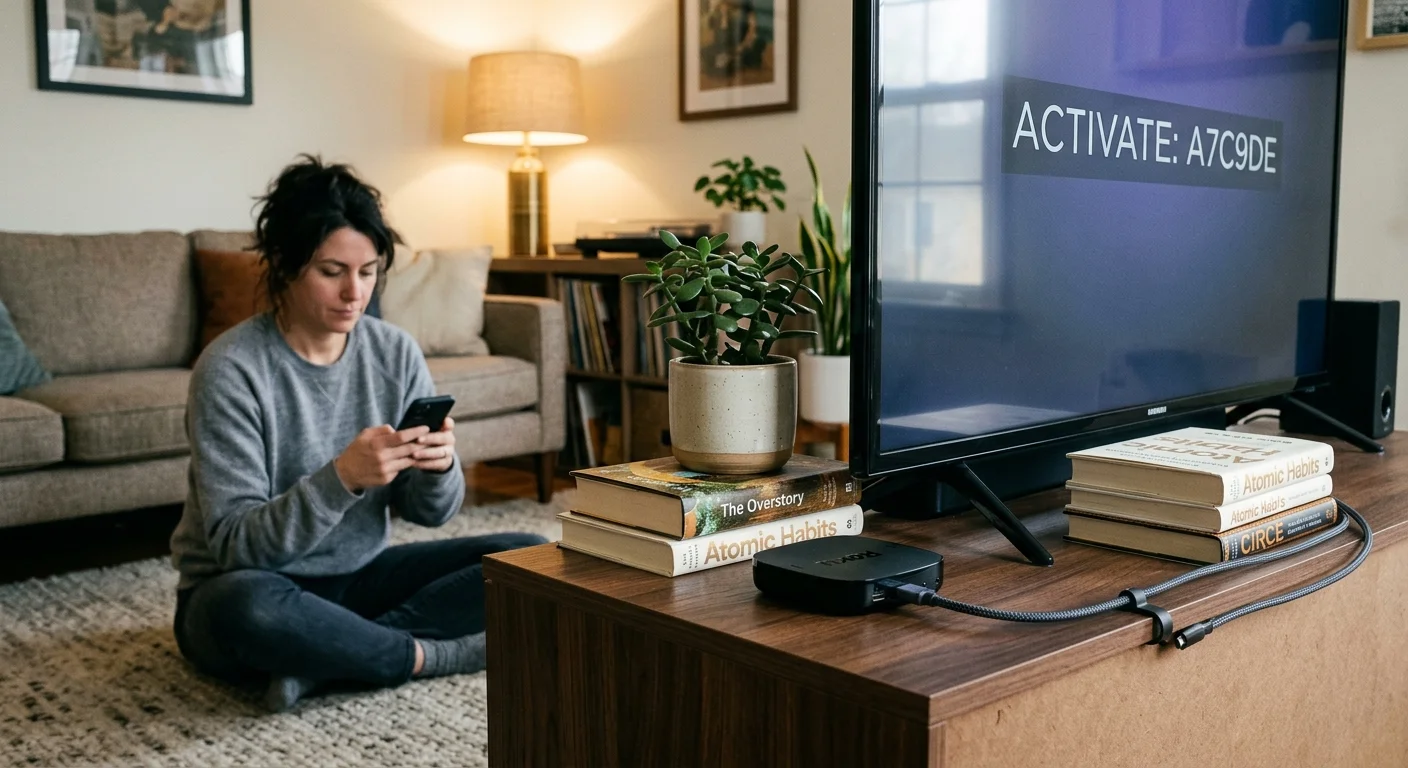
Once downloaded, open the application and select Sign In from the top menu. The screen presents an activation code alongside a web address.
Open a web browser on your smartphone or computer, navigate to the listed URL, and sign into your active NFHS account. Enter the activation code displayed on your television screen to link your television directly.
To watch high school sports on fire stick hardware, navigate to the Find icon on your Amazon Fire TV home dashboard. Select the Search bar and type NFHS Network.
Highlight the official app tile displaying the blue and green NFHS logo, then press the center Select button on your remote. Select Get or Download to initiate the app download.
Launch the Fire TV app, select Log In, and authenticate your account using either the on-screen QR code or by typing your registered email address and password directly into the app interface.
On Apple TV devices running tvOS, open the native App Store. Navigate to Search, input NFHS Network, and download the software by clicking the Get cloud icon.
Once inside the NFHS app on any platform, use the search tool to locate your high school by name, city, and state. Select the Favorite or Follow button beside your school’s athletic department.
Favoriting your school pins upcoming varsity, junior varsity, and freshman games directly to your home screen carousel. This eliminates manual searching every Friday evening before kickoff.
Setting Up Hudl Fan on Living Room Streaming Devices
Hudl separates its athletic coaching analysis platform from its public viewing services. Parents must install the dedicated Hudl Fan application rather than the standard Hudl coaching software.
For secondary screens in basements or garages, picking one of the best streaming devices for older TVs makes adding Hudl Fan simple without replacing your television.
The Hudl Fan app is officially available on Roku, Amazon Fire TV, Apple TV, and Android TV or Google TV platforms. You will not find Hudl Fan in app stores on proprietary smart television operating systems.
Attempting to open Hudl game links inside Samsung Tizen or LG webOS integrated web browsers causes persistent stream failure. These built-in browsers lack the media extensions and authentication handlers required to decode Hudl HLS video feeds.
To configure your equipment properly, connect a supported streaming stick to your television. On a Roku device, open Streaming Channels, search for Hudl Fan, and select Add Channel.
On Amazon Fire TV equipment, navigate to the Amazon Appstore, search for Hudl Fan, and install the free channel package. Fire OS natively parses Hudl video streams without dropped frame buffers.
After launching Hudl Fan, select the Search tab indicated by the magnifying glass icon. Type the exact name of your high school or athletic conference into the search bar.
Hudl Fan lets you save your chosen school as a favorite organization. Once selected, the school’s broadcast channels—covering gymnasium, football stadium, and soccer complex feeds—display prominently whenever you launch the app.
Unlike the NFHS Network, Hudl TV does not maintain an all-inclusive national platform subscription. Schools manage monetization independently, creating unique viewing procedures for ticketed broadcasts.
If your athletic department charges a pay-per-view fee for a specific contest, you cannot execute the financial transaction inside the TV app interface. TV app stores prohibit third-party billing mechanisms without charging heavy platform surcharges.
You must purchase access on a smartphone or computer web browser through the school’s public Hudl Fan URL. Once purchased, the web receipt provides a six-digit alphanumeric access code.
Return to your television’s Hudl Fan application, select the ticketed event, choose Enter Passcode, and enter your receipt code using your remote control. The video player immediately unlocks the live stream.
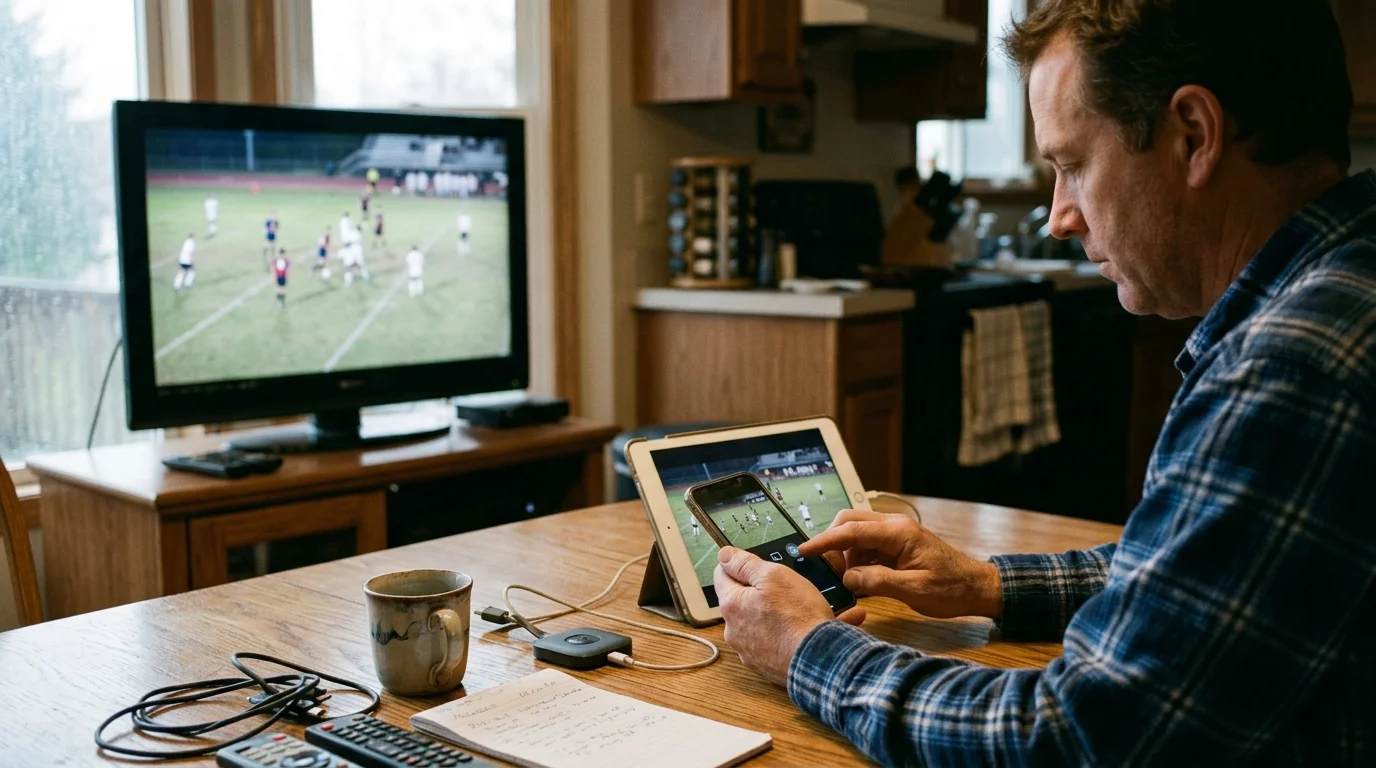
How to Cast Hudl and Regional Streams from Mobile Devices
If your television lacks a supported streaming player or you encounter an away-game broadcast on an obscure independent web host, mobile casting offers an immediate solution. Casting transmits audio and video wirelessly from a phone or computer to your display.
While regional restrictions function differently in prep leagues than pros, learning how streaming blackouts work helps clarify why certain away games may be geo-restricted.
When you cast hudl to smart tv hardware, both devices must connect to the identical local Wi-Fi network. If your mobile phone sits on a 5 GHz band while your smart TV connects to a 2.4 GHz guest network, the broadcast stream will fail to hand off.
To transmit from an Apple iPhone or iPad, verify that your target television supports Apple AirPlay 2. Major manufacturers including Sony, LG, Samsung, and Vizio integrate AirPlay receiver protocols into their modern 4K displays.
Launch the game stream inside the Hudl Fan mobile application or mobile Safari browser on your iOS device. Tap the video display once to reveal playback overlays, then select the rectangular AirPlay icon containing a solid triangle.
Select your television from the drop-down menu that populates on your phone screen. If prompted, input the four-digit AirPlay pairing PIN that appears on your living room display.
For Android smartphones and tablets, casting relies on Google Cast technology. This protocol works natively with Google TV interfaces, Sony displays, and external Chromecast media players.
Within the Android mobile browser or compatible prep streaming application, tap the Cast icon shaped like a television with radio waves in the lower-left corner. Choose your target living room television to transfer the feed.
If an athletic department hosts a live stream on an independent YouTube channel or proprietary school website, laptop casting provides superior stability over smartphone mirroring. Open the Google Chrome desktop browser on a PC or Mac.
Navigate to the live game page, click the three vertical dots in the upper-right corner of Chrome, and select Cast, Save, and Share. Choose Cast Tab and select your living room television.
Avoid using full-screen display mirroring when casting athletic contests. Display mirroring forces your laptop or phone graphics processor to encode your active desktop, which introduces stuttering and motion blur on high-speed sports action.
Tab casting instead offloads the raw web video stream directly to your television’s hardware decoder. This preserves 60-frames-per-second fluidity during fast basketball transitions and deep football passes.
Subscription Costs, Pay-Per-View Models, and Real-World Budget Scenarios
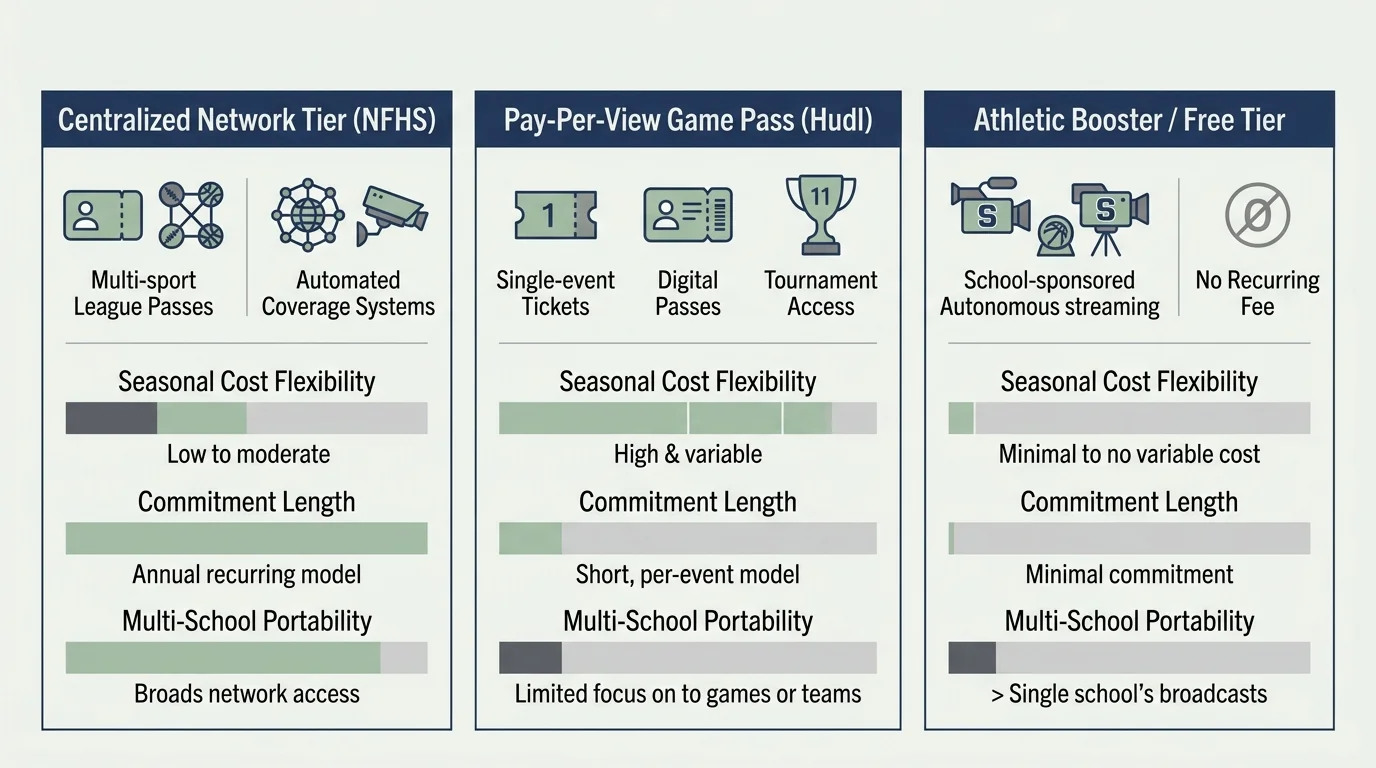
Budgeting for prep sports coverage requires navigating multi-tiered subscriptions alongside decentralized school pay-per-view fees. Costs accumulate rapidly when a student plays across multiple sports seasons.
If your household also watches college or professional events, compare streaming packages for multi-sport families to avoid overpaying across multiple services.
The NFHS Network offers three standardized subscription tiers for consumers. The Basic Plan costs $13.99 per month or $79.99 per year, granting access to a single designated school, up to three selected sports, and one active stream.
The Family Plan costs $14.99 per month or $89.99 per year. This tier unlocks access to all sports programs at your selected school and permits up to six simultaneous household member profiles.
The All-Access Plan costs $19.99 per month or $99.99 per year. It provides nationwide access to every school and tournament broadcast across the NFHS ecosystem with six simultaneous household streams.
Subscribers who maintained active accounts before the multi-tier plan rollout retain a grandfathered rate. These accounts enjoy unlimited nationwide school and sport access at the legacy price of $13.99 per month or $79.99 per year.
Crucially, the NFHS Network does not offer a standalone single-game pass or single-day ticket. If you only want to watch a single rivalry game or playoff contest, you must purchase a monthly pass and manually disable automatic renewal inside your account settings.
Hudl TV uses an entirely decentralized pricing model managed by individual school athletic departments and regional athletic conferences. Game access falls into one of three monetization frameworks:
- Free-to-View: Schools underwrite camera operational costs via local sponsors, offering 100% free streams to all community members.
- Single-Game Pay-Per-View: Schools charge a one-time gate fee, typically ranging between $5.00 and $15.00 per event.
- Seasonal or Monthly School Passes: Athletic departments bundle entire athletic calendars, charging $25.00 to $50.00 for monthly passes or $75.00 to $120.00 for annual all-sport passes.
Consider a practical budget scenario for a parent whose child plays varsity football from August 25 through November 15, then plays basketball from December 1 through February 28. The school streams home games on the NFHS Network, while cross-town rivals host their away contests on Hudl TV.
If you purchase the NFHS Network Basic Plan on a month-to-month schedule, you need six consecutive billing cycles spanning late August to late February. At $13.99 per month, your total expenditure reaches $83.94.
Alternatively, buying an NFHS Basic Annual Pass upfront requires a single payment of $79.99. This produces an immediate cash savings of $3.95 while extending coverage through spring track, baseball, and summer scrimmages.
Now factor in away games hosted on Hudl TV pay-per-view. If the schedule includes four regional away games charging $8.00 per game pass, you incur an additional $32.00 in broadcast fees.
Your combined seasonal streaming budget across both platforms totals $111.99. Planning your subscription purchases around specific athletic calendars prevents paying recurring monthly fees through inactive holiday weeks and off-season breaks.
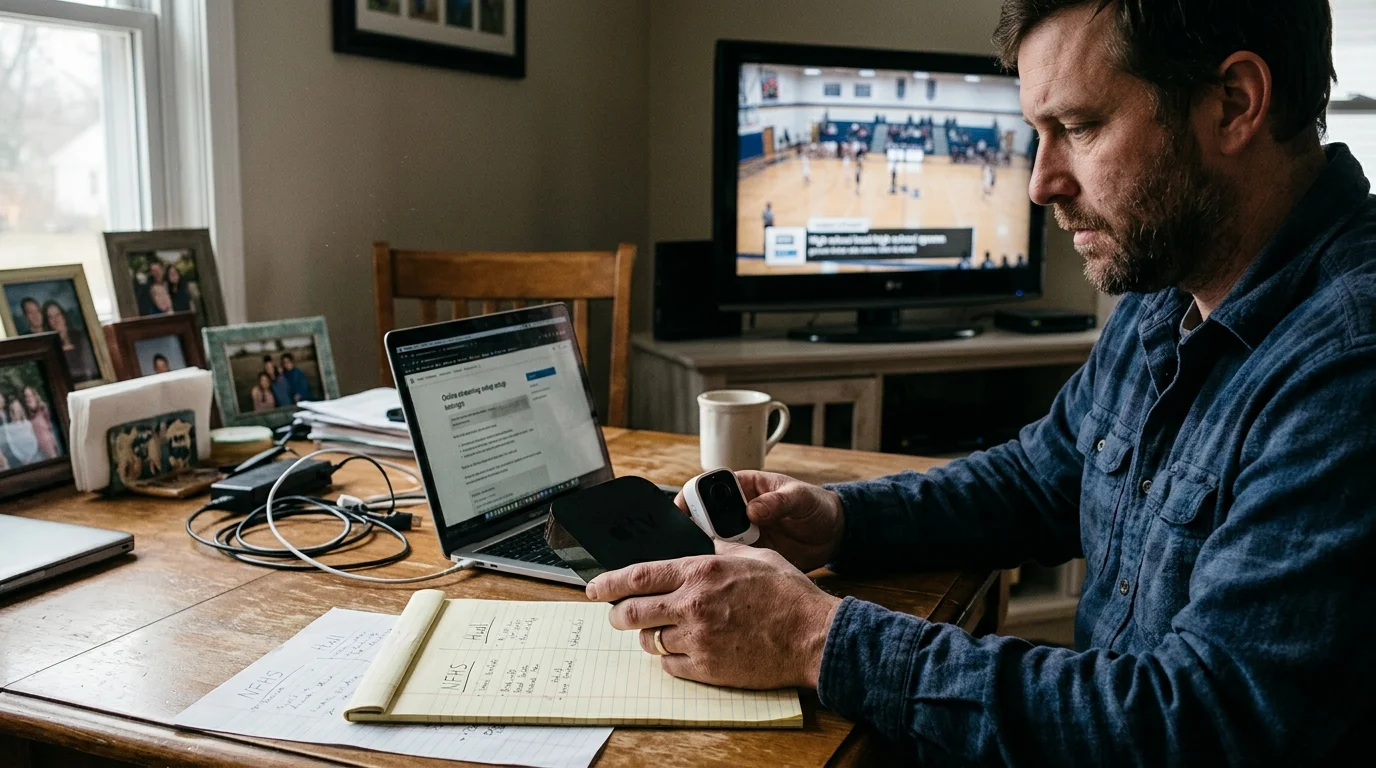
NFHS Network vs. Hudl Fan: Feature and Hardware Comparison
Evaluating high school streaming platforms requires balancing platform access against household streaming equipment. The following comparison outlines the technical and financial specifications of both primary prep networks.
| Feature / Metric | NFHS Network (Basic / Family) | Hudl Fan (Hudl TV Platform) | Commercial Live TV Services |
|---|---|---|---|
| Base Subscription Price | $13.99/mo (Basic) or $14.99/mo (Family) | Varies ($0.00 free to $15.00/game PPV) | $40.00/mo to $85.00+/mo |
| Annual Cost Option | $79.99/yr (Basic) or $89.99/yr (Family) | School dependent ($75.00 – $120.00/yr) | Rarely offered; month-to-month |
| Living Room TV Apps | Roku, Fire TV, Apple TV, Google TV | Roku, Fire TV, Apple TV, Google TV | Universal smart TV support |
| Smart TV Web Browser Playback | Unsupported / Unstable | Strictly Unsupported (Blackout) | Not applicable (native apps used) |
| Simultaneous Stream Allowance | 1 stream (Basic); 6 streams (Family) | 1 device per purchase receipt/code | 2 to unlimited streams |
| Production Quality | Automated Pixellot motion tracking | Hudl Focus tracking or student crew | Professional multi-camera broadcast |
| Minimum Internet Bandwidth | 5 Mbps sustained download | 10 Mbps sustained download | 8 to 25 Mbps sustained download |
When selecting viewing options, distinct recommendations emerge based on viewing habits and family structures. Independent hardware reviews from Tom’s Guide confirm that dedicated streaming devices deliver far better high-motion sports rendering than entry-level smart TV chipsets.
Best for Multi-Sport Families: The NFHS Network Family Plan ($89.99/year) represents the top option. It provides simultaneous coverage across six active household devices, allowing parents to watch basketball in the living room while grandparents stream wrestling from another city.
Best Budget Option: Hudl Fan accounts linked to free-to-view school organizations cost nothing. If your local school district funds production costs through local business sponsorships, you access home games without recurring credit card charges.
Best for Remote Relatives: The NFHS Network All-Access Plan ($19.99/month) works best for extended family. It lets out-of-state relatives follow away tournaments and state championship brackets across multiple state athletic associations on a single login.
Content formats across both services remain predominantly ad-free—plans that cost more but don’t show commercials—regarding traditional programmatic network advertisements. However, most schools overlay localized sponsorship banners and static sponsor slides during half-time breaks.
Traditional commercial services offer ad-supported plans—free or cheaper plans that show commercials—to offset costs. Prep sports networks instead rely directly on viewer subscriptions, pay-per-view access fees, and community athletic booster donations to maintain stream hardware.
“The best prep sports streaming setup relies on dedicated external media hardware; integrated television processors simply lack the buffer capacity required to maintain volatile automated high school video feeds.” — Sports Streaming Specialist
How to Record High School Games: On-Demand and Digital Video Recorder Options
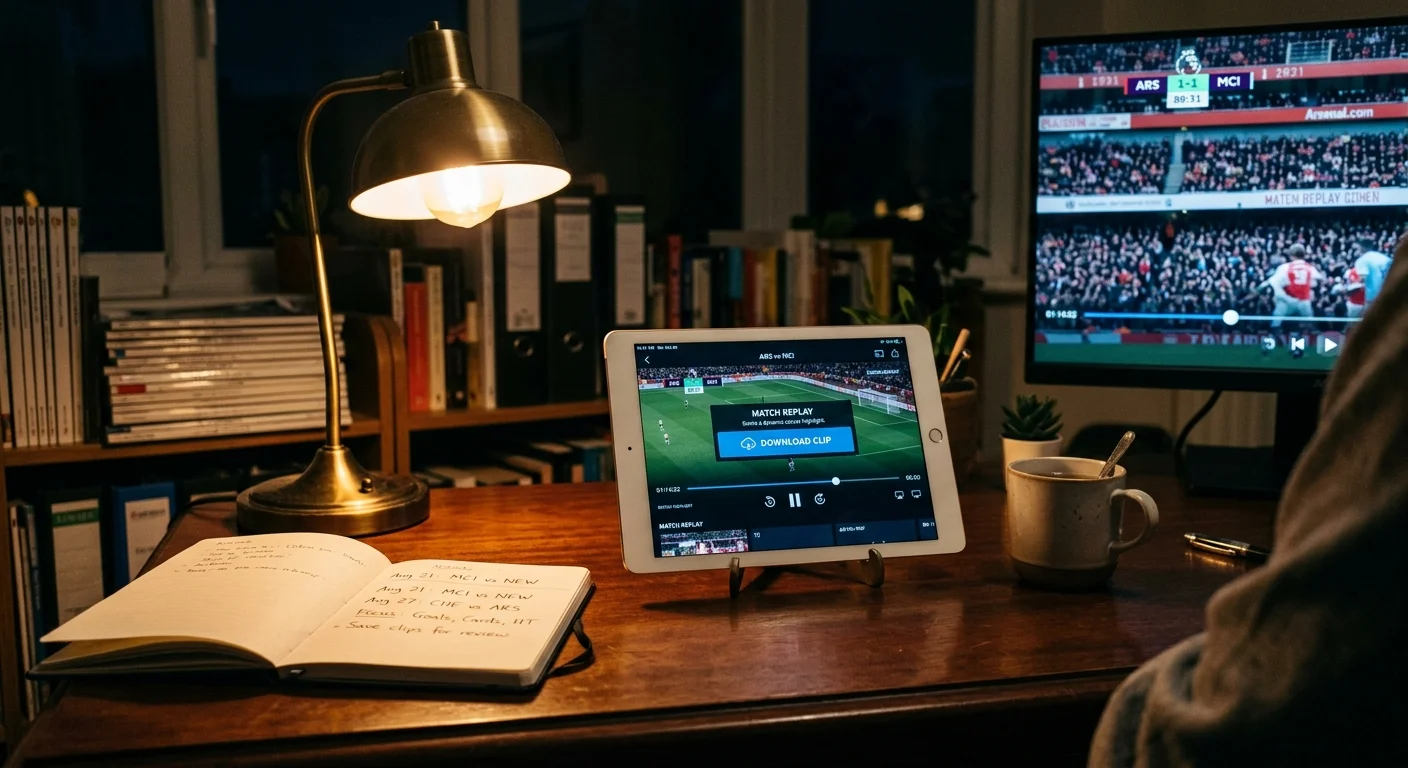
Capturing high school game footage allows student-athletes to review performance and preserve athletic memories. However, recording prep sports feeds works differently than traditional commercial broadcasting.
A DVR is a digital video recorder that lets you record and watch shows later. Mainstream television services provide cloud DVR storage that saves programming at the click of a remote control button.
Neither the NFHS Network nor Hudl Fan offers a consumer cloud DVR function inside their television applications. You cannot press a record button on your Roku remote control to schedule an automated recording of Friday’s game.
Instead, these networks rely on on-demand archives—features that let you watch whatever you want, whenever you want, after the initial live broadcast concludes. Understanding archive policies ensures you do not miss critical game film.
On the NFHS Network, live broadcasts automatically transfer to on-demand status shortly after the final whistle blows. Feeds processed through automated Pixellot camera systems populate the on-demand library within one to three hours.
Games produced manually by student media crews or local television partners may require 24 to 48 hours for server transcoding. Once archived, an active NFHS subscription allows unlimited replays throughout the school year.
The NFHS Network also sells hard-copy video downloads. Subscribers can purchase digital MP4 file downloads or physical commemorative DVDs of specific contests through their desktop web portal, typically priced between $19.95 and $24.95 per game.
Hudl Fan archival policies vary significantly because school coaching staffs control broadcast accessibility. Coaches frequently unpublish regular season game recordings to prevent upcoming playoff opponents from scouting team formations and play designs.
If your student-athlete plays in a competitive athletic conference, do not expect game replays to remain accessible indefinitely on Hudl Fan. If a coach restricts public replay access, the video link disappears from the Hudl Fan app immediately.
Parents seeking to preserve permanent video copies often connect external hardware capture cards, such as an Elgato HD60, between a computer and a display. Software such as OBS Studio can record output feeds for personal family highlight reels.
Verify that your family archival recordings comply with state high school athletic association copyright terms. State associations permit personal home archiving but strictly prohibit re-uploading full game feeds to public YouTube accounts or commercial social media channels.
Troubleshooting Buffering, Network Speeds, and Broadcast Blackouts
Nothing frustrates a sports parent more than an unhandled spinning buffer wheel during the final two minutes of a tied basketball game. Resolving playback errors requires isolating internet bottlenecks, hardware processing limits, and venue-side broadcast failures.
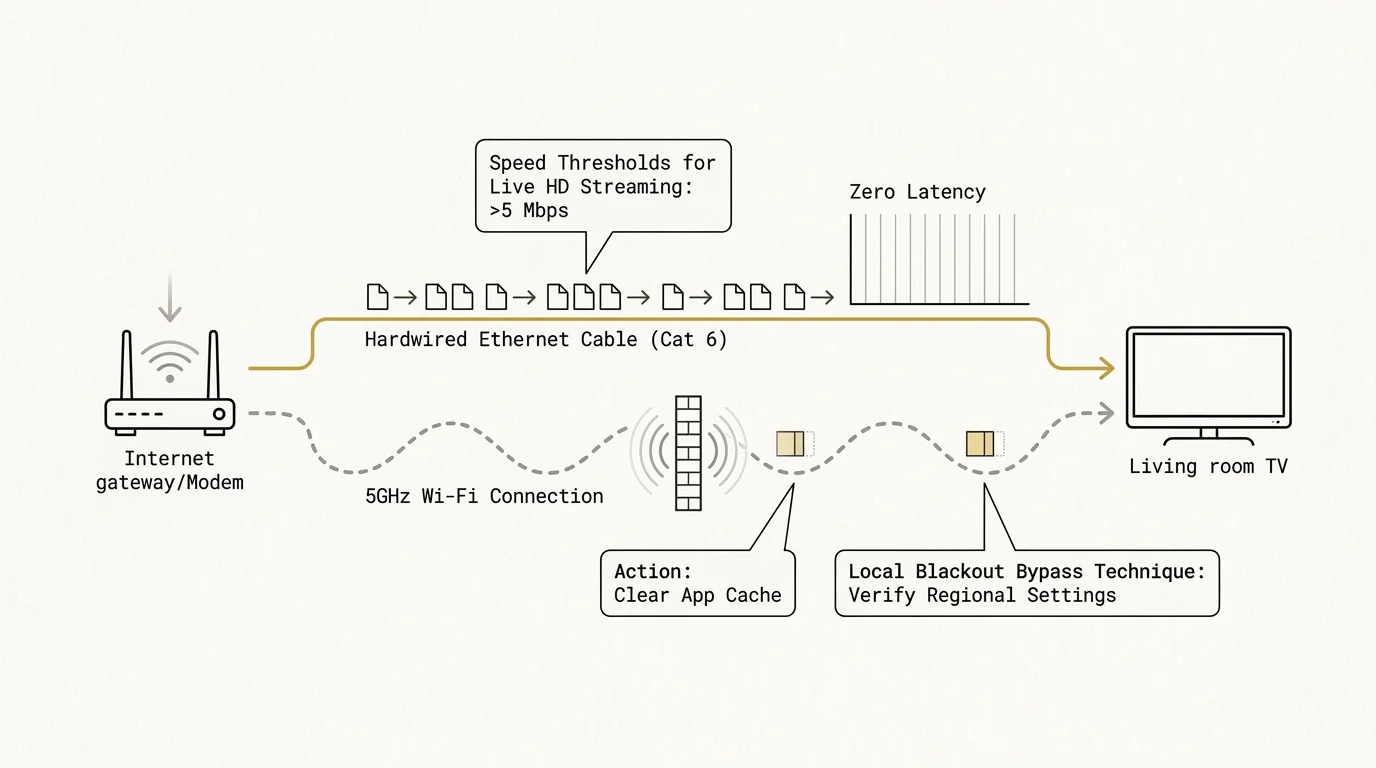
Bandwidth availability serves as your first performance checkpoint. Hudl TV specifies a minimum sustained internet connection download speed of 10 Mbps to maintain seamless video playback.
According to home network performance research published by Consumer Reports, household Wi-Fi networks suffer severe speed drops when multiple devices compete for local router airtime. A connection speed test measuring 100 Mbps in your home office may deliver less than 8 Mbps to a living room TV across the house.
To eliminate local wireless interference, connect streaming sticks directly to your router’s 5 GHz Wi-Fi band rather than the crowded 2.4 GHz band. The 5 GHz frequency delivers superior throughput speeds and eliminates dropped frames during live sports broadcasts.
If your television rests inside an entertainment center with poor wireless reception, purchase an inexpensive micro-USB or USB-C Ethernet adapter for your streaming stick. Hardwiring your streaming hardware with an Ethernet cable prevents stream degradation during high-traffic evening hours.
Distinguish between home reception problems and venue-side broadcast issues. High school gymnasiums and press boxes frequently suffer from unstable rural cellular backhauls or congested municipal school networks.
If an on-screen broadcast stutters while the game clock freezes, check the score overlay graphics. If the graphic scoreboard and audio commentary continue smoothly while the video freezes, the physical camera at the school has lost its video ingest uplink.
Automated Pixellot cameras on the NFHS Network present unique operational quirks. These multi-lens systems track ball motion automatically using computer vision algorithms without a human camera operator in the press box.
Occasionally, an automated camera mistakenly tracks a referee running along the sideline, a bright penalty flag, or high-contrast shadows across a football field instead of the ball carrier. This behavior represents a camera calibration error at the venue, not a flaw in your television hardware.
When Pixellot tracking fails, rebooting your home television app will not fix the issue. You must wait for the algorithm to re-acquire the cluster of players at the line of scrimmage.
Finally, understand prep sports broadcast blackout restrictions. State athletic associations frequently enforce exclusive broadcast windows during regional semifinals and state championship tournaments.
When a regional sports network or statewide commercial broadcaster purchases exclusive television rights for state finals, regular NFHS Network and Hudl TV camera feeds are legally blacked out. In these cases, you must access the game through the rights-holder’s dedicated cable channel or independent subscription portal.
Frequently Asked Questions
Can I watch high school sports on a smart TV without buying extra hardware?
You can watch without extra hardware only if your smart TV natively runs Roku TV, Fire TV, or Google TV operating systems. TVs running Samsung Tizen or LG webOS lack native apps and actively block browser playback, requiring you to cast from a mobile device or install an external streaming stick.
Does the NFHS Network offer a single-game ticket?
No, the NFHS Network does not sell standalone single-event or day passes. To view one contest, you must purchase a monthly pass for $13.99 and immediately cancel the recurring subscription in your profile billing settings to prevent future renewals.
Why does my Hudl Fan app show an error when attempting to pay for a game?
Hudl Fan living room television apps do not support direct credit card payment processing. You must purchase pay-per-view access on a smartphone or computer web browser first, then enter the provided alphanumeric receipt code into the television app to unlock the video stream.
How much internet speed do I need to stream prep sports without buffering?
Hudl TV requires a sustained minimum download speed of 10 Mbps per active stream to maintain stability. The NFHS Network functions at 5 Mbps, but connecting your streaming device to a stable 5 GHz Wi-Fi frequency or wired Ethernet connection provides optimal results.
Disclaimer: Live TV streaming prices and channel lineups change frequently. Local channel availability varies by location. Always use the free trial to verify your local channels are included before committing. Sports blackout rules may affect some live events.