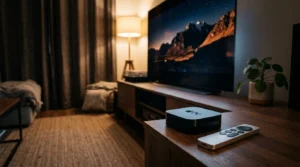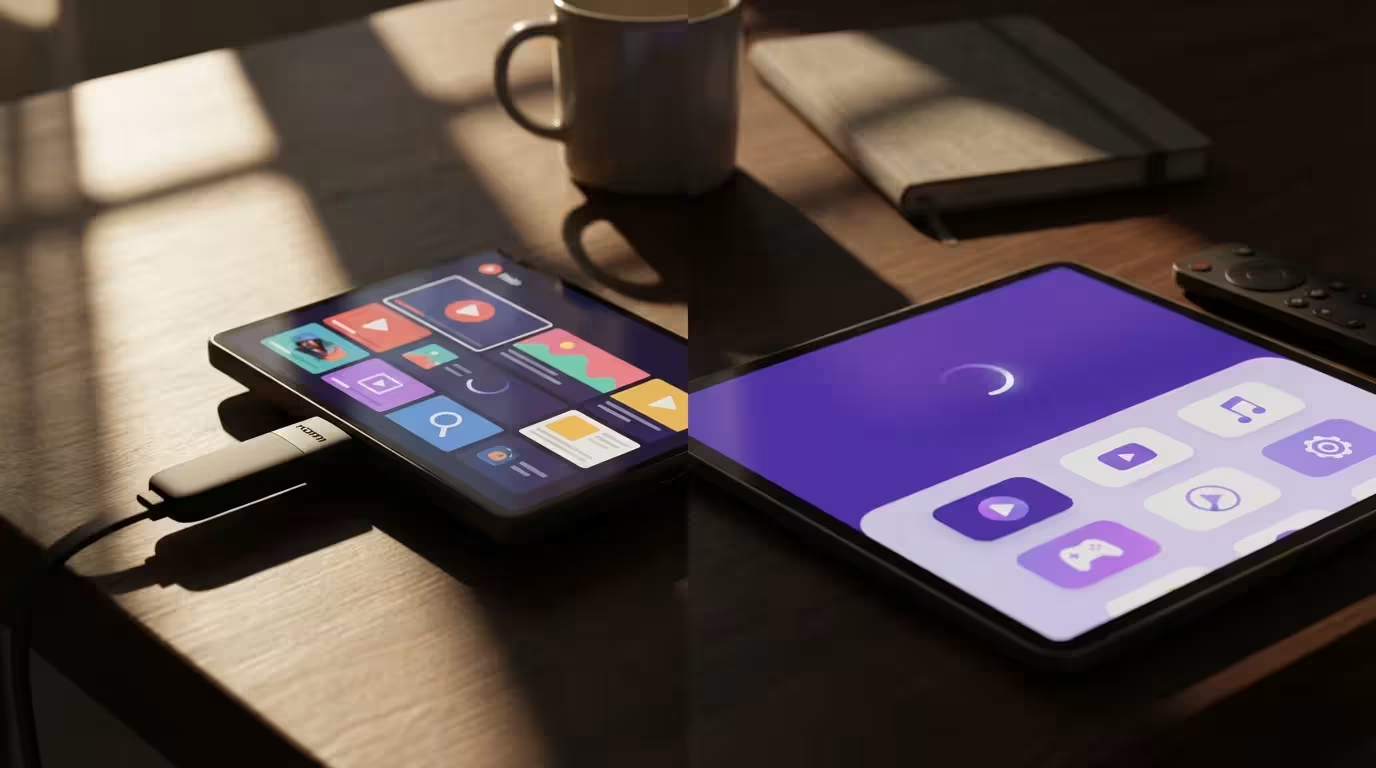
You have canceled cable—or you are thinking about it—and now you face the hardware question. To get streaming apps like Netflix, Hulu, and Disney+ onto your TV, you generally need a streaming device. While many televisions come with built-in “smart” software, standalone devices almost always offer faster performance, better updates, and a wider app selection.
If this is your first time ditching cable, follow our guide on how to set up your first streaming device to get started quickly.
Before diving into the specifics of these two brands, you may want to see how they stack up in our broader streaming device comparison featuring Apple TV and Chromecast.
The two titans of this industry are Roku and Amazon Fire TV. Together, they dominate the living room. Both offer affordable sticks that hide behind your TV, and both offer premium boxes for high-end home theaters. On paper, they look nearly identical. They stream the same shows, cost roughly the same, and support the same resolutions.
However, the daily experience of using them is vastly different. One prioritizes simplicity and neutrality; the other prioritizes a rich, immersive ecosystem integrated with a massive retail giant. This guide compares the Fire Stick and Roku platform across user interface, speed, features, and privacy to help you decide which remote belongs on your coffee table.
The Hardware Lineup: Comparing Price Tiers
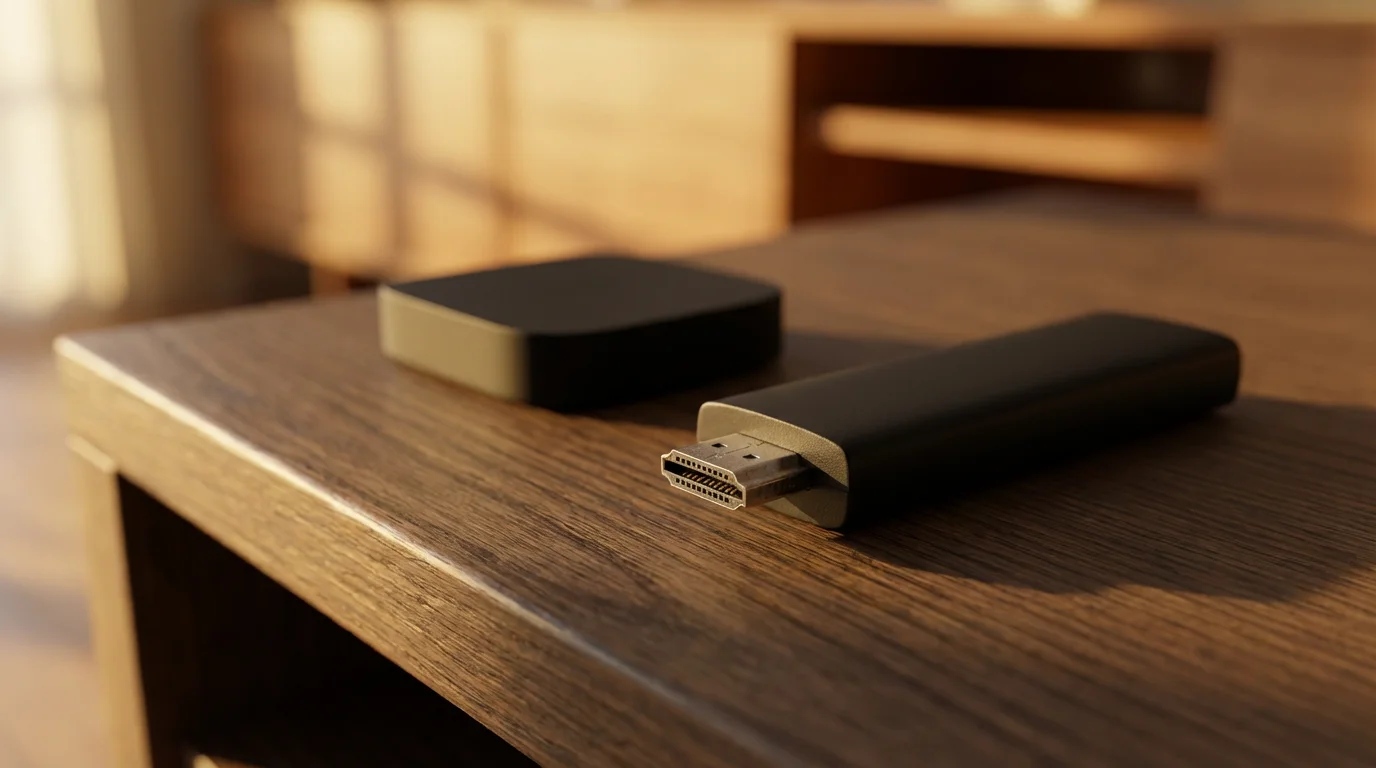
Before analyzing the software, you need to understand the hardware. Both companies structure their product lines similarly: an entry-level HD stick, a mid-range 4K stick, and a high-end powerhouse.
Roku offers the Roku Express (a small box that adheres to your TV), the Streaming Stick 4K (the most popular option), and the Ultra (a larger box with Ethernet and USB ports).
Amazon offers the Fire TV Stick Lite (basic HD), the Fire TV Stick 4K and 4K Max (faster processors), and the Fire TV Cube (a hybrid smart speaker and streamer).
For most cost-conscious viewers, the battle is really between the Roku Streaming Stick 4K and the Amazon Fire TV Stick 4K. These devices typically sit in the $40–$50 range and offer the best balance of longevity and price.
| Feature | Roku Streaming Stick 4K | Amazon Fire TV Stick 4K |
|---|---|---|
| Typical Price | $49.99 | $49.99 |
| Form Factor | HDMI Stick (Plugs directly into TV) | HDMI Stick (Plugs directly into TV) |
| Resolution | Up to 4K at 60fps | Up to 4K at 60fps |
| Voice Assistant | Roku Voice (Basic) | Alexa (Advanced) |
| Wi-Fi | Long-range receiver (802.11ac) | Wi-Fi 6 (on newer models) |
User Interface: Grid vs. Content-Forward
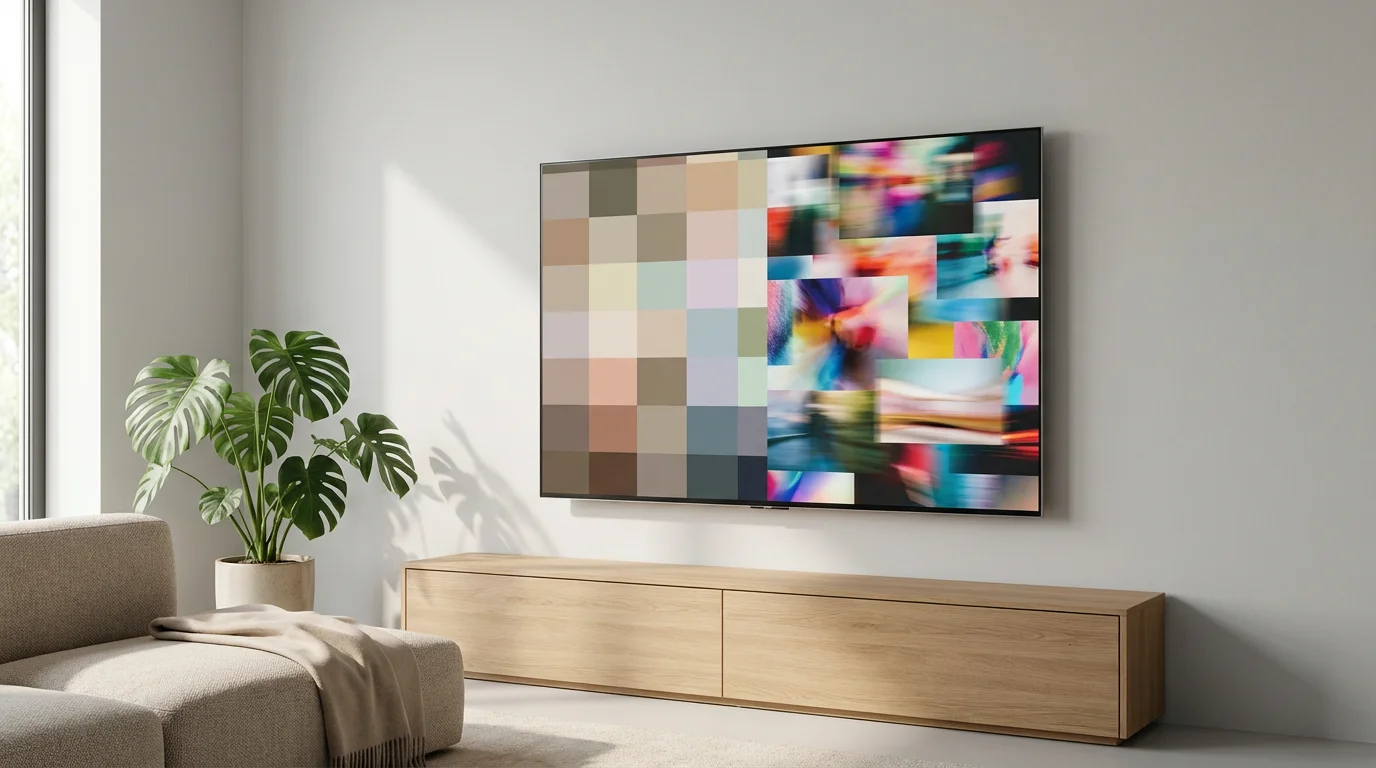
This is the most critical difference between the two platforms. When you turn on your TV, what do you want to see? Do you want a simple list of your apps, or do you want the device to suggest movies and shows you might like?
Roku: The “App-First” Approach
Roku’s operating system (OS) looks dated to some, but incredibly intuitive to others. The home screen is a simple grid of apps (Roku calls them “Channels”). You can arrange them in any order you like. If you put Netflix, YouTube, and Sling TV in the top row, they stay there.
Roku does display ads, but they are typically confined to a static box on the right side of the screen. They do not interrupt your navigation flow. This simplicity makes Roku the preferred choice for family members who are less tech-savvy. It works exactly how you expect it to.
“The best streaming interface is the one that gets out of your way and lets you watch your show. For pure simplicity, Roku remains the king.”
Fire TV: The “Content-First” Approach
Amazon’s interface is visually richer, more modern, and significantly busier. When you boot up a Fire Stick, you are greeted with a “Feature Rotator”—a large banner at the top promoting new shows or movies. Below that, you find a “Recent” row, and then your apps.
Fire TV is designed to help you discover content. It aggregates shows from various services right on the home screen. However, it is heavily biased toward the Amazon ecosystem. You will frequently see recommendations for Amazon Prime Video content or movies available to rent through Amazon.
Furthermore, the ads on Fire TV are more intrusive. The top banner often auto-plays trailers. If you dislike visual clutter, the Fire TV interface can feel overwhelming.
[INFOGRAPHIC PLACEHOLDER]
Visual Description: A split-screen comparison of the home screens. The left side shows the Roku UI: Clean grid of square icons, simple purple background, one ad on the right. The right side shows Fire TV UI: Large cinematic banner at the top, smaller app icons, rows of suggested content (“Recently Watched,” “Action Movies”), and dark background. Text overlay highlights: “Roku: App-Centric” vs. “Fire TV: Content-Centric”.
Speed and Performance
Speed in streaming devices refers to two things: how fast the device boots up and navigates menus, and how quickly it loads video content.
Navigation Speed
Because Roku’s operating system is lightweight and simple, it feels snappy even on older hardware. You press the button, and the cursor moves instantly. There are fewer graphics to load, so the system rarely hangs.
Fire TV runs on a modified version of Android. It is a heavier operating system. On the cheaper “Lite” or older standard sticks, you may notice lag as the device tries to load all the thumbnails, trailers, and menus on the home screen. However, if you purchase the Fire TV Stick 4K Max or the Fire TV Cube, the performance is blistering fast—often faster than Roku’s top-tier models due to more powerful processors.
According to Wirecutter, the Roku Streaming Stick 4K is generally fast enough for most users, but higher-end Fire TV models can offer a slight edge in raw processing power for app loading.
Video Loading
Once you are inside an app like Netflix, both devices perform similarly. The speed at which a video buffers depends more on your internet connection and Wi-Fi signal than the device itself. Both Roku (in the Stick 4K and Ultra) and Amazon (in the Stick 4K Max) offer long-range Wi-Fi receivers to help maintain a stable connection through walls.
Video and Audio Specs: 4K, HDR, and Atmos
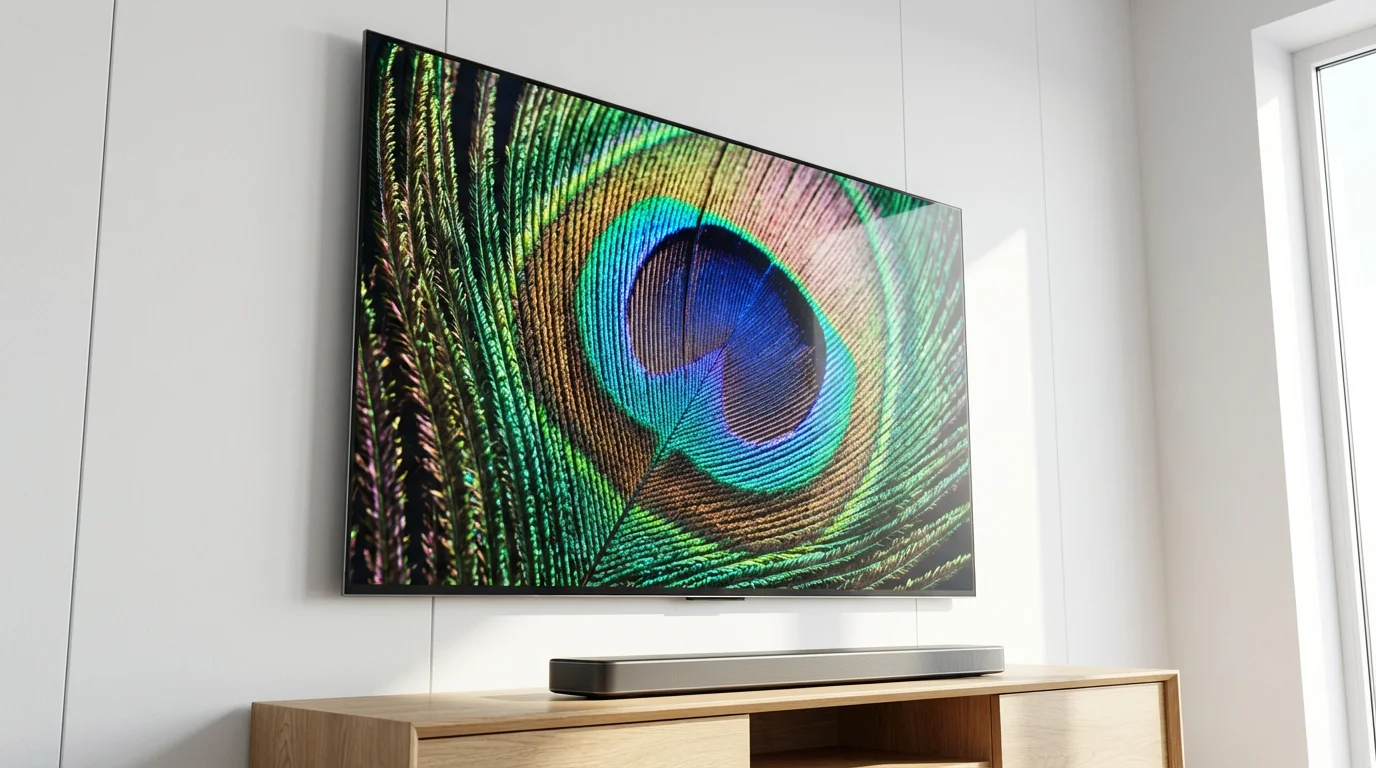
If you own a modern 4K TV, you need to ensure your streaming device supports the latest video and audio standards to get the picture quality you paid for. Let’s break down the jargon.
- 4K (Ultra HD): Both platforms support this on their mid-tier and high-end devices. This provides four times the detail of standard HD.
- HDR (High Dynamic Range): This allows for brighter whites, deeper blacks, and more vibrant colors. Both Roku and Fire TV support standard HDR10.
- Dolby Vision: This is a premium version of HDR used by Netflix and Disney+. It adjusts the picture scene-by-scene. The Fire TV Stick 4K and Roku Streaming Stick 4K both support Dolby Vision.
- Dolby Atmos: This is an immersive audio format that adds height to surround sound. Both platforms support pass-through of Dolby Atmos to your soundbar or receiver.
Historically, Roku lagged slightly behind in supporting Dolby Vision on mid-range devices, but they have corrected this with their latest lineups. Today, both ecosystems are practically tied regarding audiovisual standards at the $50 price point.
The Remotes and Voice Control
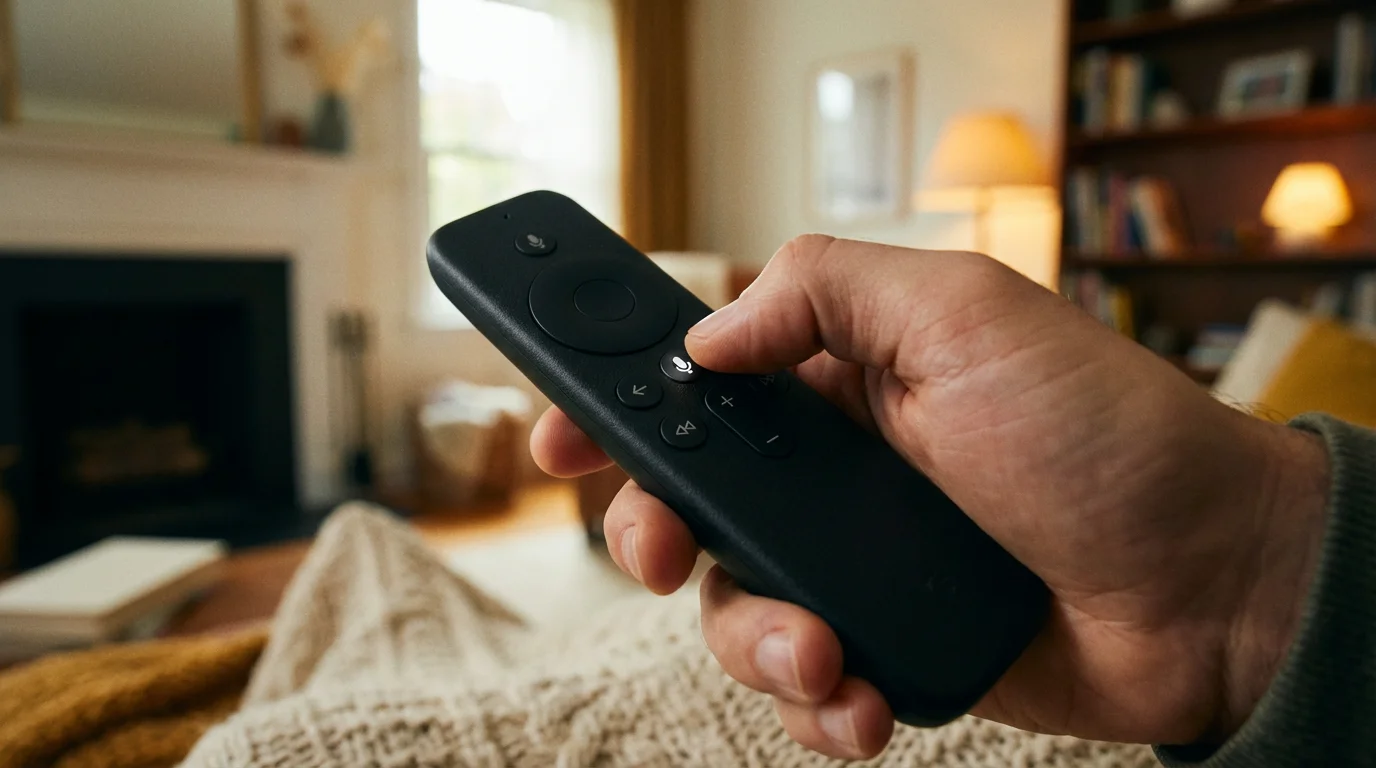
The remote is the one part of the device you physically interact with every day. The ergonomics matter.
If you frequently lose your controller, you can also learn how to use your phone as a streaming remote for both platforms.
The Roku Remote
The Roku remote is famous for its chunkiness and simplicity. It features a prominent directional pad, playback controls, and four dedicated shortcut buttons for services like Netflix or Disney+. (Note: You usually cannot reprogram these shortcut buttons).
One of Roku’s best features is Remote Finder (available on the Ultra and Voice Remote Pro), which makes the remote beep if you lose it in the couch cushions. The “Pro” remote is also rechargeable via USB, saving you money on batteries.
The Fire TV Remote
The Alexa Voice Remote is slimmer and more curved. It generally feels a bit more “premium” in the hand. Like Roku, it includes TV controls (power and volume) so you don’t need to juggle two remotes. CNET highlights that Amazon’s integration of Alexa is superior to Roku’s voice command system.
Voice Control: Alexa vs. Roku Voice
This is where Amazon wins easily. The Fire TV remote is essentially an Amazon Echo in your hand. You can press the button and say, “Show me sci-fi movies from the 90s,” “What’s the weather?” or “Turn off the living room lights.” It integrates seamlessly with your smart home.
Roku Voice is functional but limited. You can use it to search for movies (“Find Tom Cruise movies”) or open apps (“Launch Hulu”), but it lacks the intelligence and smart home control of Alexa.
Advanced Features: Sideloading and Private Listening
Here is where specific user needs will dictate the winner. Each platform has a “killer feature” the other lacks.
While Amazon allows for deep customization through sideloading, Roku enthusiasts can access the Roku secret menu to reveal hidden technical settings.
Fire TV’s Superpower: Sideloading
Because Fire TV is based on Android, tech-savvy users can “sideload” apps that aren’t available in the official Amazon Appstore. This is popular for installing Kodi, specialized VPNs, or third-party streaming utilities. If you like to tinker with your tech, the Fire Stick is the only choice. Roku runs a closed operating system (Linux-based but proprietary) that does not allow sideloading.
Roku’s Superpower: Private Listening
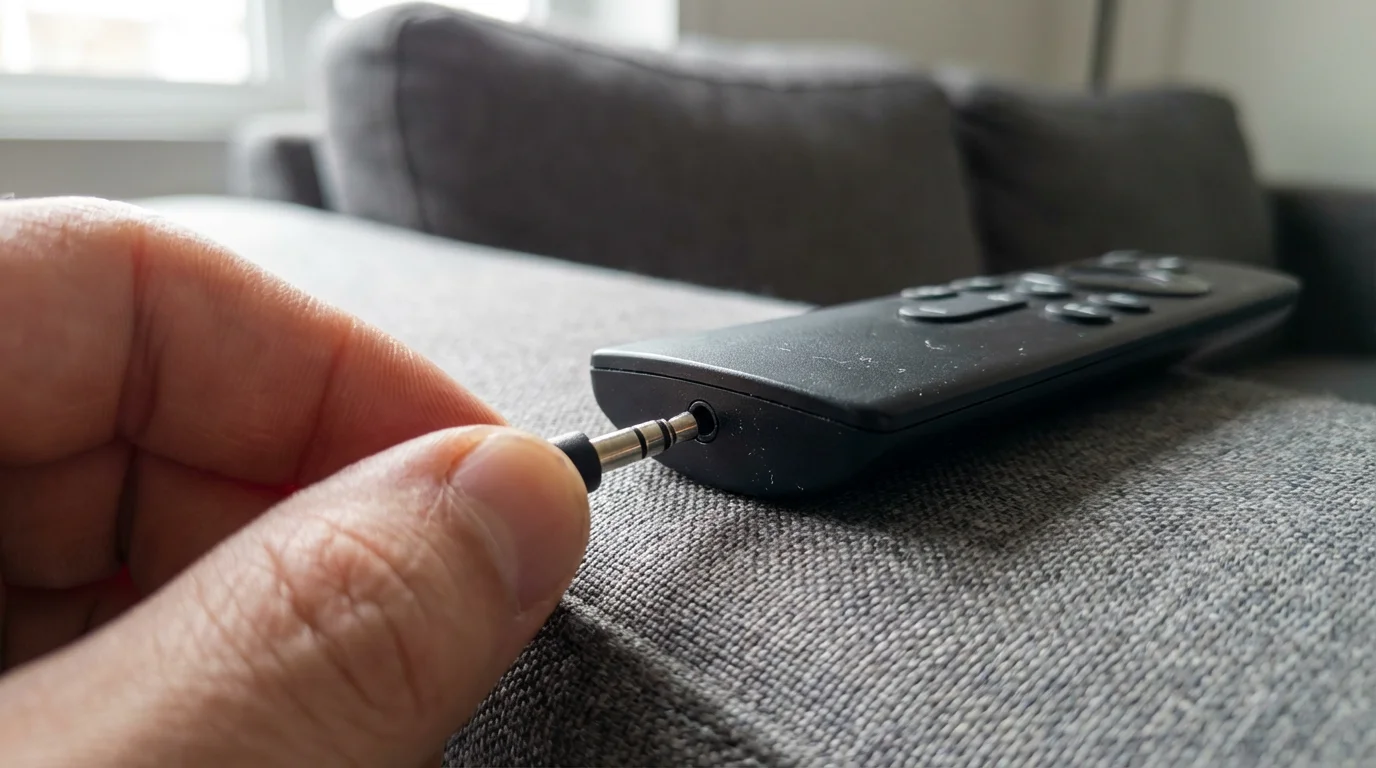
Roku offers a brilliant feature called “Private Listening.” You can plug headphones into the Roku remote (on select models) or use the free Roku mobile app on your smartphone to route the TV’s audio to your phone’s headphones. This is perfect for watching movies late at night without waking up the house. Fire TV offers similar functionality via Bluetooth pairing, but Roku’s app-based integration is generally smoother and easier to set up.
Which Device Should You Buy?
The “best” device depends entirely on who you are and what you value most.
Buy a Roku if:
- You want simplicity: The interface is foolproof. It is the best choice for seniors, kids, or anyone who hates navigating complex menus.
- You hate aggressive ads: While Roku has ads, they are static and less intrusive than Amazon’s auto-playing banners.
- You use diverse services: Roku is a neutral platform. It doesn’t care if you watch Netflix, Peacock, or Vudu; it treats them all equally.
- You want Private Listening: The mobile app feature is reliable and incredibly useful.
Buy a Fire TV Stick if:
- You are an Amazon Prime member: The interface is built to showcase Prime Video content, making it easy to find free movies included with your subscription.
- You use Alexa: If you already have Echo dots in your house, the Fire Stick integrates perfectly into your smart home ecosystem.
- You are a tech enthusiast: If you want to sideload apps like Kodi or customize your device’s capabilities, Fire TV is the only option.
- You want the best specs for the money: Amazon frequently discounts their 4K sticks to $25 or $30, offering incredible processing power at a budget price.
Frequently Asked Questions
Do I need a smart TV to use a Roku or Fire Stick?
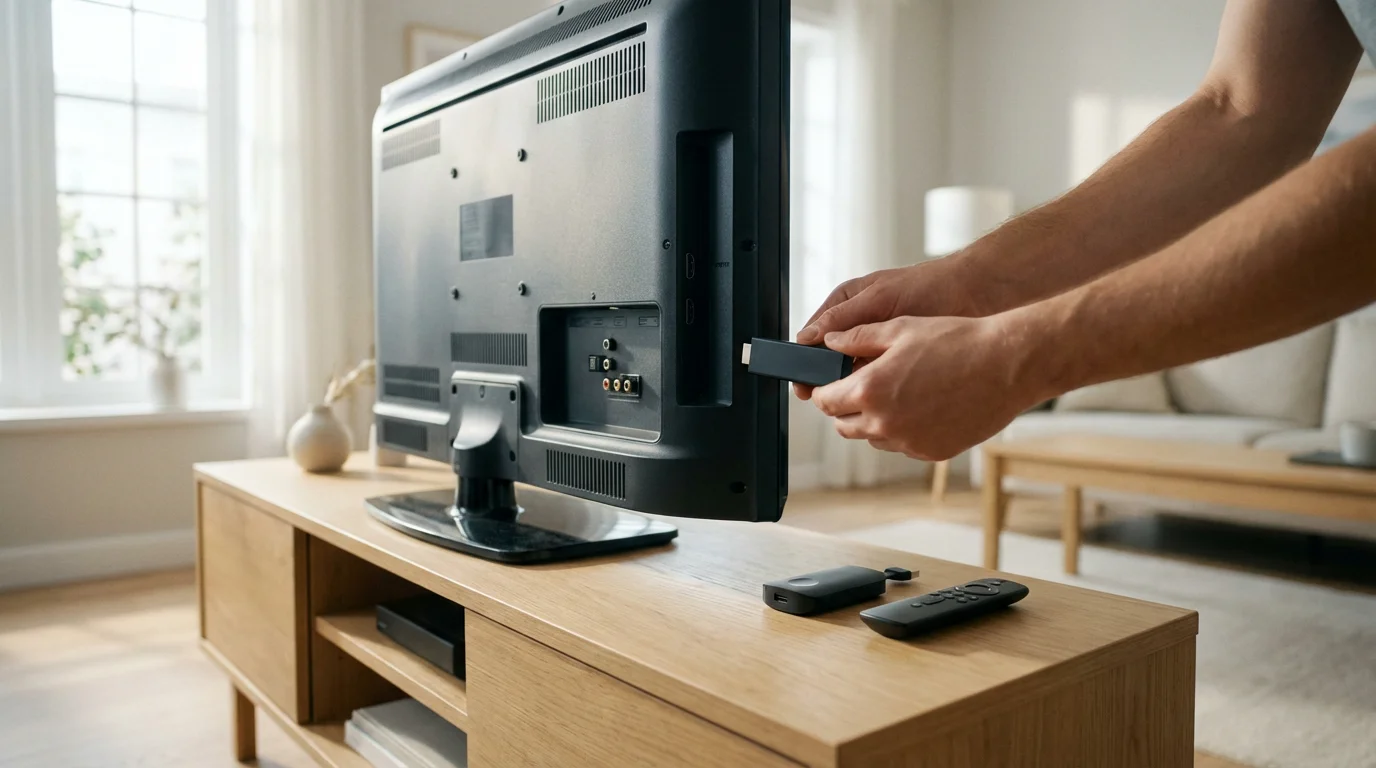
No, you do not need a smart TV. You only need a TV with an HDMI port. In fact, connecting a Roku or Fire Stick to an older “dumb” TV effectively turns it into a smart TV, often with better speed and more apps than a new budget smart TV would have.
Is there a monthly fee for using Roku or Fire TV?
There is no monthly rental fee for the device itself. Once you buy the stick or box, you own it. However, you still have to pay for individual subscription services like Netflix, Hulu, or Sling TV. Both platforms also offer plenty of free, ad-supported apps like Tubi and Pluto TV.
Which device has more free channels?
Both devices have access to almost all the same major free streaming services (Tubi, Pluto TV, Crackle, Freevee). Roku has “The Roku Channel,” which aggregates free content, while Amazon pushes “Freevee.” In terms of sheer volume, the libraries are very similar, though Roku’s “The Roku Channel” is often praised for its ease of navigation.
Disclaimer: Device prices and features may change. New models are released regularly, so check for the latest versions before purchasing. The “best” device depends on your specific needs, existing ecosystem (Apple, Google, Amazon), and budget.