You can stop spending hours on speakerphone trying to guide your elderly parents through confusing television menus. Setting up an off-site maintenance workflow lets you restart frozen hardware and clear unresponsive apps without stressing your family.
While streaming platforms lack consumer web dashboards for off-site maintenance, pairing an inexpensive smart plug with background network tools bypasses manual remote codes entirely.
This guide details the exact hardware and software configurations required to diagnose, power-cycle, and purge memory bloat on your parents’ devices from another state.
Why Streaming Devices Freeze and Fail for Remote Seniors
Many older adults embrace cord-cutting—canceling traditional cable/satellite TV in favor of streaming services—to save money on rising utility bills. However, modern entertainment systems demand regular maintenance that confuses non-technical users.
Most living rooms feature either a smart TV—a television with built-in internet connection and apps—or a standalone streaming device, which is a small box or stick (like Roku or Fire TV) that adds streaming to any TV.
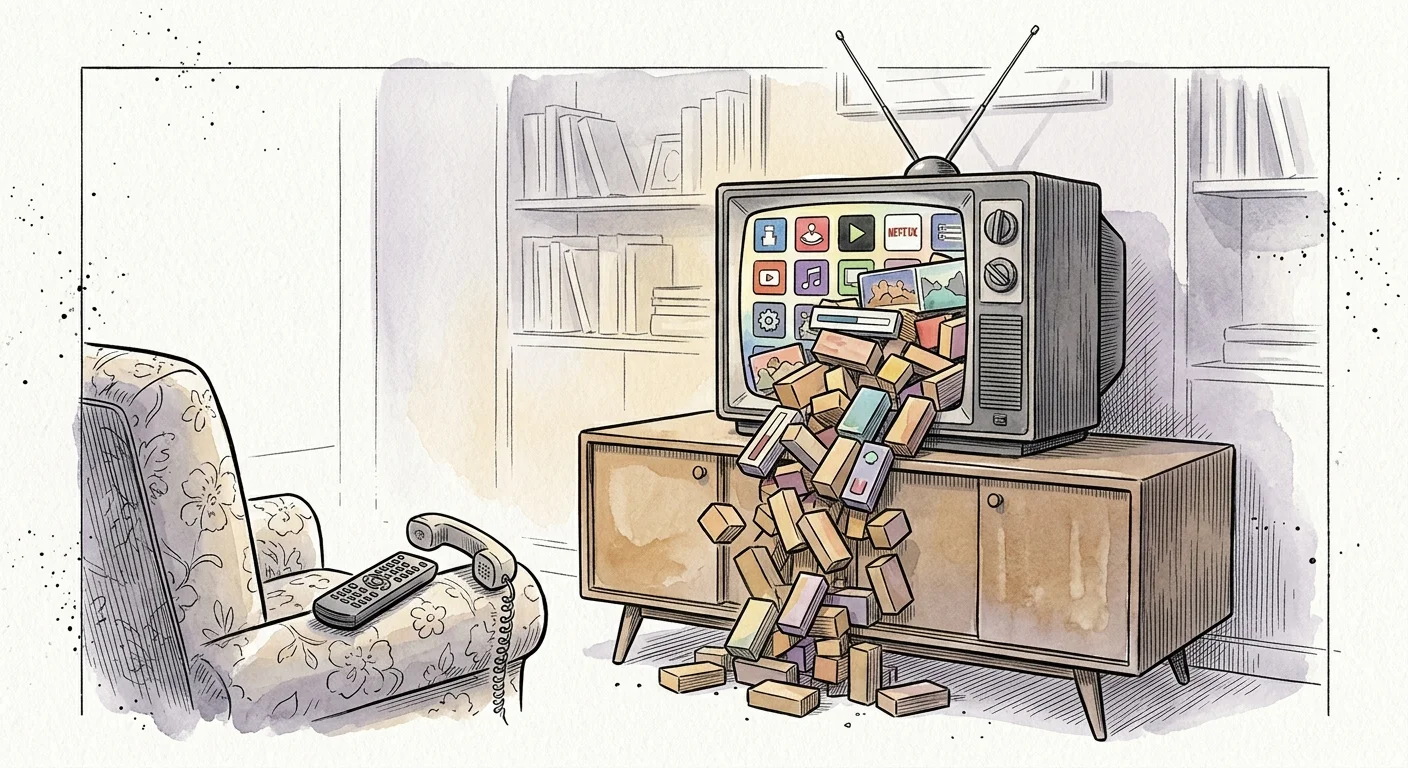
Unlike old cable boxes that received passive broadcast signals, streaming—watching video content over the internet instead of cable or satellite—requires active local processing. Every channel stores cached video thumbnails, advertising trackers, and user state tokens in physical memory.
According to Wirecutter, compact streaming sticks pack entry-level system processors with modest dynamic RAM, making them prone to sluggish behavior under continuous operation.
When seniors switch channels rapidly, apps fail to close cleanly. Memory leaks accumulate over weeks of standby usage, eventually causing the entire interface to lock up completely.
Trying to explain a multi-step remote control sequence over long-distance phone calls causes immense frustration on both ends. You need hands-off access that solves the problem without requiring their direct physical intervention.
The Smart Plug Solution: Hardware Power Cycling from Anywhere
A Wi-Fi smart plug provides the most reliable way to fix a locked entertainment unit from hundreds of miles away. It gives you independent hardware-level control regardless of the operating system’s internal state.
Streaming sticks receive power via standard USB wall adapters. When you plug that adapter into a smart outlet, you can remotely cut electricity to force a clean reboot.
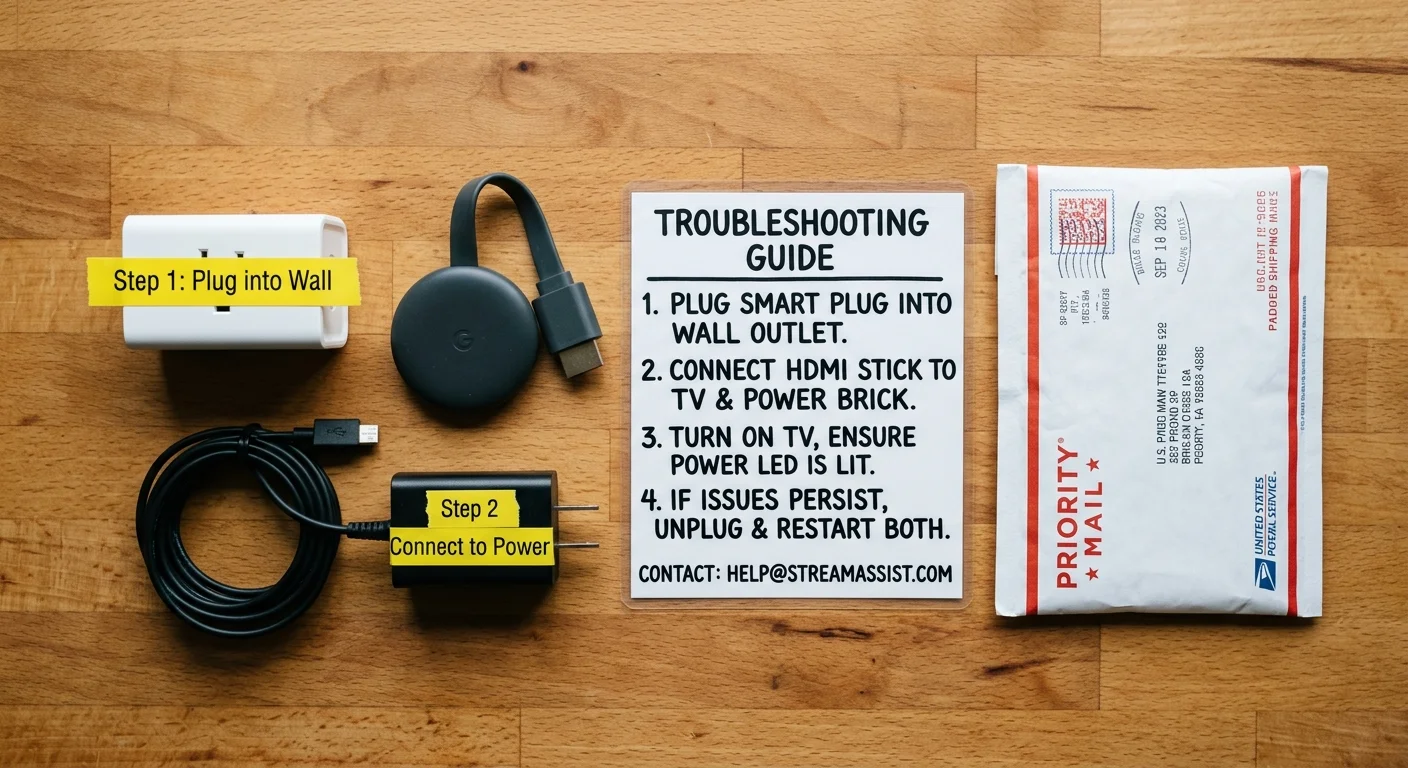
Buy a dependable 2.4 GHz Wi-Fi outlet, such as the Kasa Smart Plug Mini by TP-Link ($12.99). Configure the device using your own smartphone and mobile app credentials before mailing it to your parents.
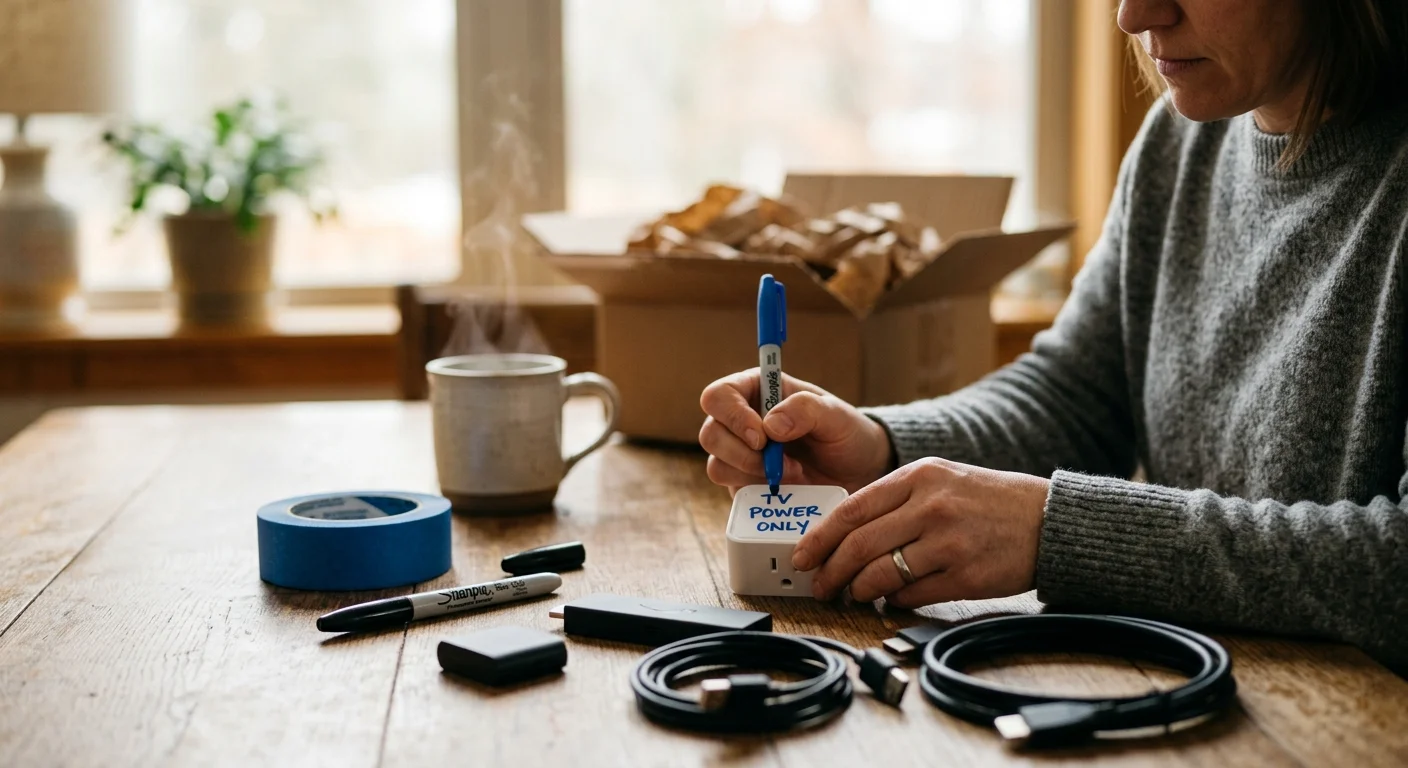
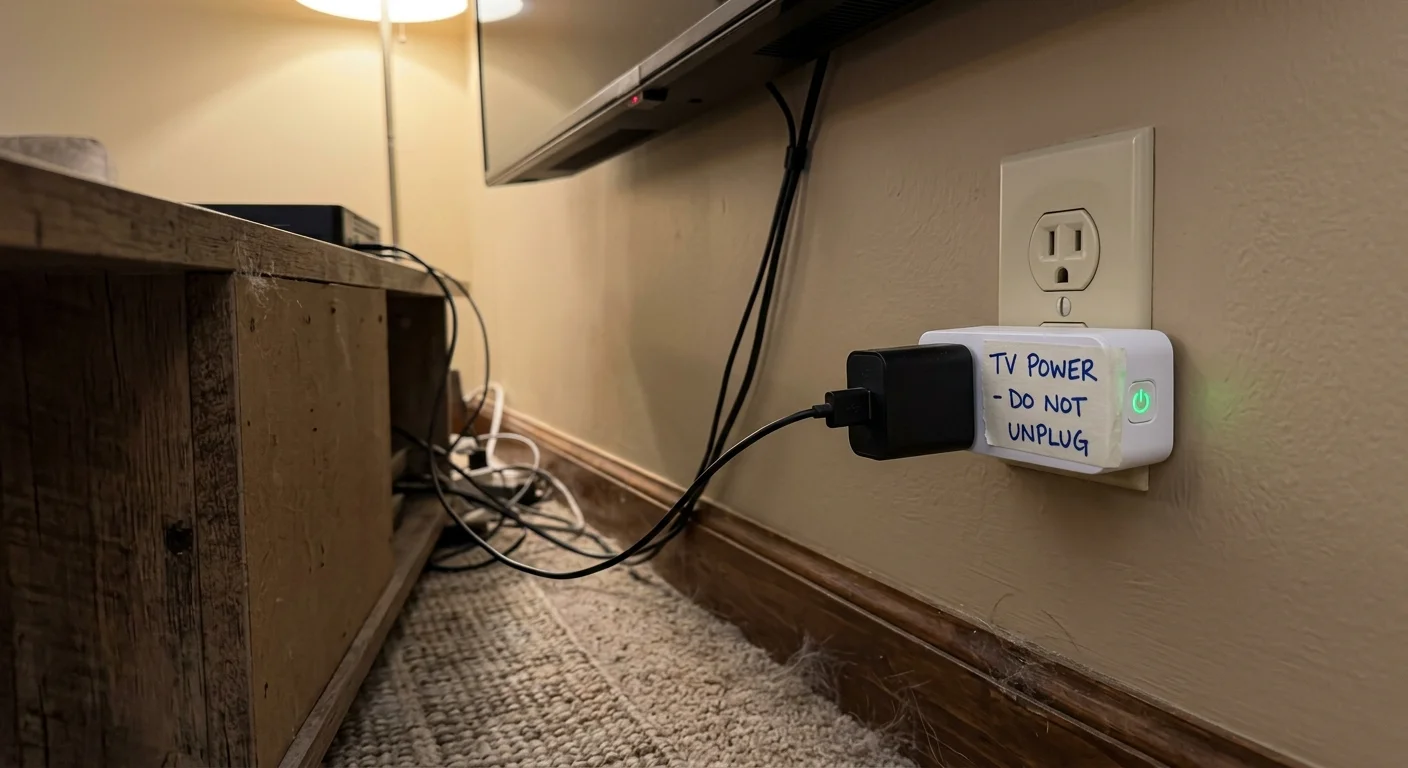
Label the plug clearly with a physical marker so your family knows which outlet powers their television hardware. Instruct them simply to plug their media stick’s power adapter into your labeled unit.
Whenever an app crashes or freezes the screen, open the smart plug application on your phone. Toggle the outlet switch off, wait thirty seconds for capacitors to drain, and switch power back on.
A full cold reboot purges volatile RAM completely. It wipes corrupted runtime logs, terminates frozen processes, and restores normal function without requiring your parents to navigate complex settings.
A hard electrical power cycle clears temporary hardware memory registers that soft software restarts often leave untouched.
Remotely Managing Fire TV and Android TV: Clearing Cache via Network Tools
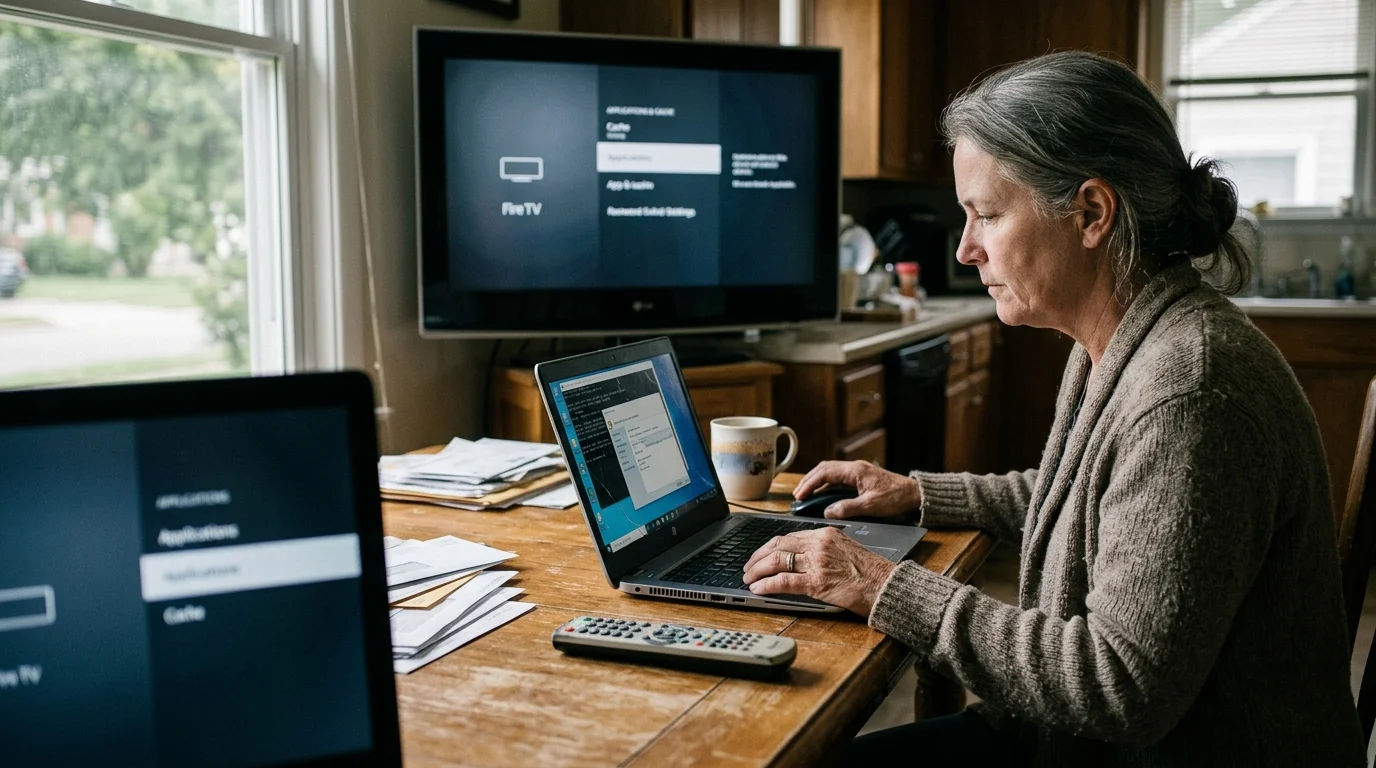
Amazon Fire TV and Google TV platforms operate on modified Android software. These devices let you inspect internal system storage and clear app caches directly over a network connection.
Every on-demand service—which lets viewers watch whatever they want, whenever they want—stores media catalogs locally. Over months, platforms like Netflix, Prime Video, and HBO Max generate gigabytes of stale cache files.
According to Consumer Reports, managing software storage and deleting unused application data helps maintain responsive system performance across connected smart devices.
To clear app cache or restart a Fire TV Stick locally, go to Settings > Applications > Manage Installed Applications (or hold Select + Play/Pause for 5 seconds to reboot); to enable remote ADB access via a mesh VPN, install Tailscale on your home computer and manually sideload the APK on Fire OS 7/8 devices (Tailscale is not a cache cleaner or reboot utility, was removed from the Amazon Appstore, and is unsupported on Fire OS 5/6 and Vega OS Fire TV models). Tailscale builds an encrypted mesh network connecting both devices without complex router port forwarding.
Enable Developer Options and ADB Debugging on your parents’ media stick during your next in-person visit. Note the static local or mesh IP address assigned to their hardware.
Open a terminal on your computer from across the country and connect using Android Debug Bridge. Issue the command adb connect [Parents-Stick-IP]:5555 to establish an administrative link.
Run adb reboot to execute an immediate, graceful software restart. To purge problematic local storage without resetting user logins, run adb shell pm trim-caches 1000M directly through the console.
If a single video provider crashes constantly, issue adb shell pm clear com.netflix.ninja. Note that clearing full app data logs the user out, whereas trimming caches preserves saved account credentials.
Managing Roku Devices Remotely: App Management and Memory Purging
Roku utilizes a proprietary closed operating system called Roku OS. Unlike Android-based media sticks, Roku does not permit remote ADB connections or direct command-line cache clearing.
You cannot remote troubleshoot parents’ Roku units via a public web terminal, but you can leverage account-level cloud synchronization. Link their device directly to an administrative Roku account that you control.
Visit your parents’ account dashboard at Roku’s official website from your computer. You can view all linked smart televisions, install missing channels, and remove buggy software remotely.
When a specific channel corrupts its local storage partition, delete the app from your online dashboard. Wait two minutes for the device to sync, and then reinstall the channel via the web portal.
This remote cycle wipes the corrupted channel cache files entirely. However, your parents may need to sign back into their viewing account once the clean install finishes.
If you set up an encrypted home VPN on their domestic Wi-Fi router, you can connect the official Roku mobile app to their television. This unlocks an interactive virtual remote on your smartphone from any geographic location.
With virtual remote access, you can enter Roku’s manual system reset combination: press Home five times, Up once, Rewind twice, and Fast Forward twice. The device clears its memory cache and reboots automatically.
Worked Example: A Full Out-of-State Streaming Maintenance Setup
Consider a practical scenario: an adult child in Chicago managing an entertainment system for elderly parents living in Fort Myers, Florida. The parents subscribe to a regional sports package and basic streaming channels on a 4K streaming stick.
The parents call on a Saturday evening because their television shows a black screen with frozen audio. The system has operated continuously for 42 days without a restart, exhausting its 1.5 GB memory reserve.
The total investment for the remote maintenance configuration was minimal:
- One Kasa Smart Plug Mini: $12.99
- Shipping pre-configured hardware to Florida: $8.50
- Tailscale VPN mesh software: $0.00 (Free tier)
- Total out-of-pocket setup expense: $21.49
Instead of enduring a 45-minute phone call trying to locate tiny buttons behind the television, the adult child launches the Kasa app in Chicago. A single screen tap cuts power to the outlet.
After a 20-second pause, the child taps the screen again to restore electrical current. The streaming stick undergoes a cold boot, resetting its system kernel and unloading memory leaks.
Next, the child opens a terminal window, connects over the mesh network via ADB, and executes a memory trim command. The entire resolution process concludes in 3 minutes and 15 seconds without the parents touching a single wire.
This reliable approach eliminates expensive third-party tech support home visits that routinely cost $75 to $125 per diagnostic service call.
Comparing Remote Management Methods for Streaming Sticks
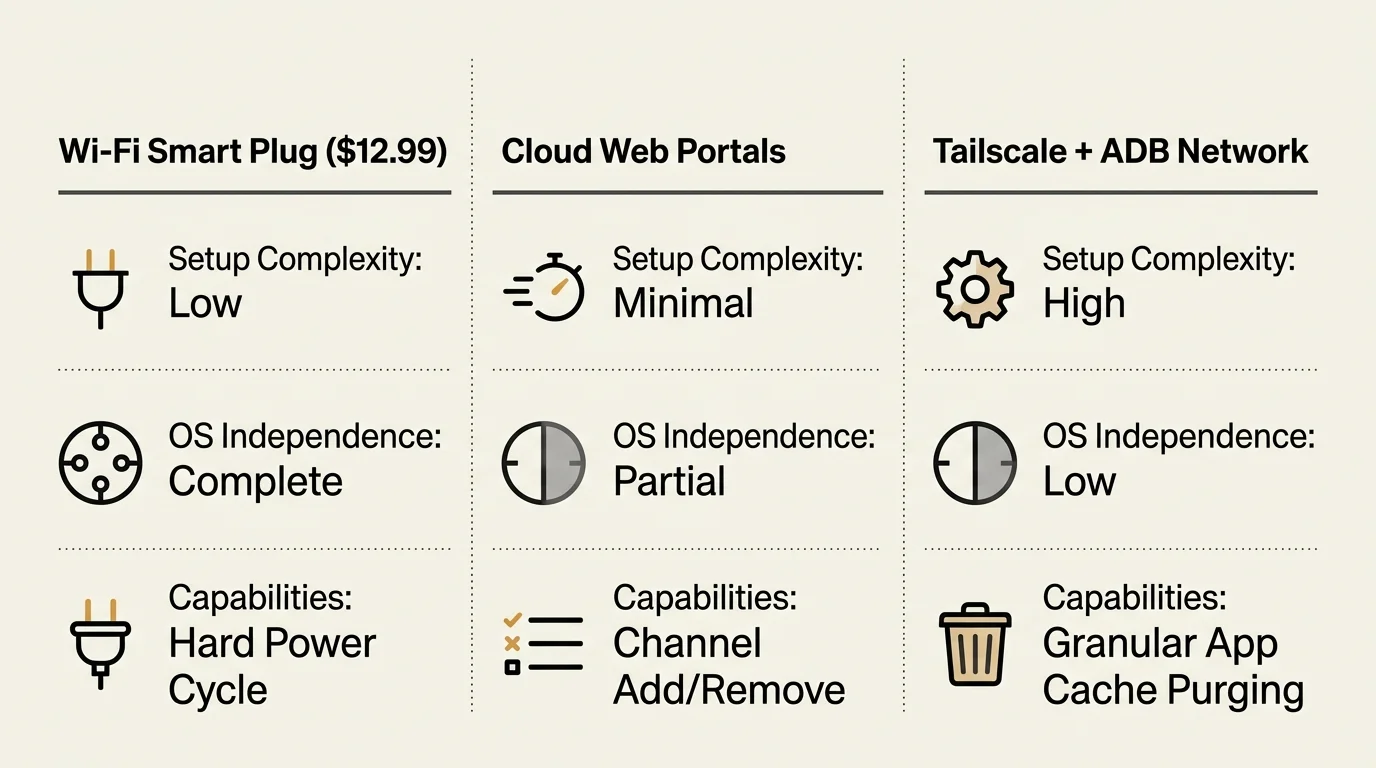
Selecting the right administrative technique depends entirely on the operating system powering your parents’ television. Review measurable attributes before implementing your maintenance strategy.
As Tom’s Guide notes, hardware power cycles fix the vast majority of streaming stability and audio synchronization issues. However, deep app storage cleanups occasionally require platform-specific software tools.
| Management Method | Hardware Cost | Setup Time | Reboot Reliability | Cache Wipe Depth |
|---|---|---|---|---|
| Wi-Fi Smart Plug (Universal) | $12.99 | 10 minutes | 100% (Hardware cut) | RAM only (No flash wipe) |
| Fire TV via ADB / Tailscale | $0.00 | 35 minutes | 85% (Requires OS response) | Deep (Individual app data) |
| Google TV / Android Remote Shell | $0.00 | 30 minutes | 85% (Requires OS response) | Deep (Individual app data) |
| Roku Cloud Account Management | $0.00 | 15 minutes | 0% (Cannot remote reboot) | Full (Uninstall/Reinstall) |
A smart plug remains the foundational baseline for all setups. Software-level tools provide surgical cache control, but only physical power cycles recover an operating system suffering from a kernel panic.
Preventative Maintenance: Managing Subscriptions and Memory Bloat
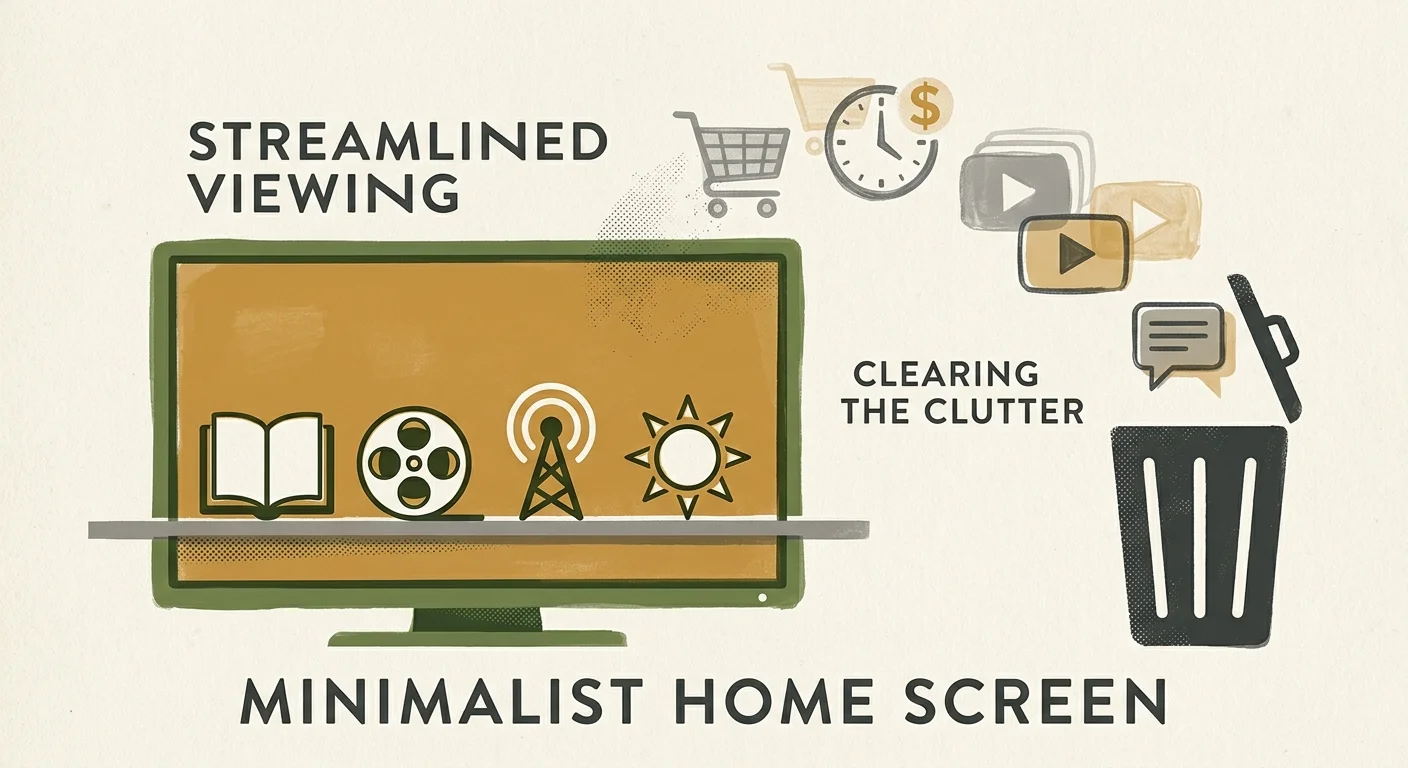
Hardware maintenance represents only half the battle; bloatware and unnecessary subscriptions also degrade device performance. Streamlining your parents’ media catalog protects their hardware resources and their retirement budget.
Many seniors sign up for services they rarely watch, leading to severe subscription creep. Implement a subscription rotation strategy by activating platforms only when specific favorite programs air.
Rotating through HBO Max, Netflix, and Starz on alternating three-month schedules saves approximately $360 every calendar year. Fewer installed applications also directly reduces background process memory load on budget hardware.
Decide whether ad-supported tiers—free or cheaper plans that show commercials—or ad-free tiers—plans that cost more but don’t show commercials—suit their cognitive comfort. Ad-supported tiers insert dynamic commercial streams that often cause buffer stalls on older sticks.
If your parents watch local news and classic television, an antenna paired with an over-the-air DVR—a digital video recorder that lets users record and watch shows later—saves substantial monthly network fees.
Consolidate billing using reputable bundle packages, such as the ad-supported Disney+, Hulu, and ESPN Select bundle ($21.99/month), to streamline recurring expenses under a single managed family profile.
Watch out for malicious activation scams targeting older adults setting up replacement hardware. The Better Business Bureau warns consumers against third-party scammers demanding activation fees for streaming equipment.
Roku, Amazon, and Google never charge fees to activate consumer streaming hardware. Pre-configuring devices before handing them to your parents ensures that predatory billing services never compromise their personal accounts.
Frequently Asked Questions
Can I clear individual app caches on a Roku stick remotely?
No, Roku OS does not support remote command-line tools or web-based cache clearing. You must remotely uninstall and reinstall the specific channel using the web portal at account.roku.com to clear its flash storage.
Will turning off a smart plug damage my parents’ streaming stick?
While flash-based streaming devices have no moving parts to crash when idle, sudden power loss during an active data write or background firmware update can corrupt storage and brick the device—never toggle power during system updates.
How do I remotely access a Fire TV without asking my parents for confirmation codes?
Set up Tailscale on the Fire TV alongside ADB debugging, and check the permanent authorization prompt box during your initial local setup. This establishes permanent off-site terminal access that requires no on-screen senior approval.
Can I manage multiple streaming sticks on a single smart plug app?
Yes, consumer smart home applications like TP-Link Kasa or Tapo let you manage dozens of outlets across multiple properties from a single smartphone account. You can label each outlet by room for instant troubleshooting.
Disclaimer: Streaming service terms and pricing change frequently. Always review current terms of service before implementing any money-saving strategies. Some tips may not work with all services or in all regions.