
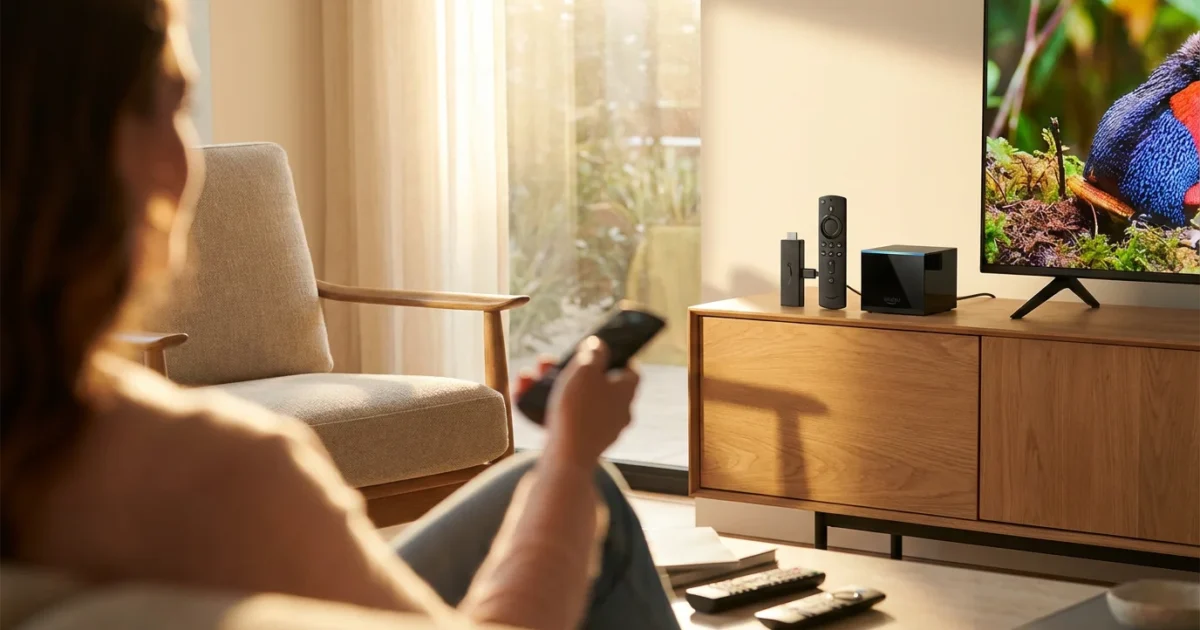
You want to cut the cord from expensive cable or upgrade your streaming experience, but Amazon’s Fire TV lineup presents a confusing array of options. Do you need the basic Fire TV Stick, the enhanced Fire TV Stick 4K, or the powerful Fire TV Cube? Understanding the differences helps you make a smart, cost-effective decision that fits your household’s entertainment needs.
This comprehensive guide breaks down each device, comparing features, performance, and value. We help you navigate the jargon, understand the technical specifications, and ultimately choose the best Fire TV streaming device for your living room and your budget.
Understanding Amazon’s Fire TV Ecosystem: A Core Comparison
Amazon’s Fire TV devices transform any television with an HDMI port into a smart TV, allowing you to access a vast library of movies, TV shows, music, and games through applications. This process is called streaming, watching video content over the internet instead of traditional cable or satellite. Many people use these devices for cord-cutting, canceling traditional cable or satellite TV in favor of streaming services. Fire TV devices typically run on Amazon’s Fire OS, an Android-based operating system, giving you access to popular services like Netflix, Hulu, Disney+, Max, and of course, Amazon Prime Video.
The core lineup consists of several Fire TV Stick models and the Fire TV Cube. Each iteration offers a step up in performance, resolution capabilities, and additional features, but they all share the fundamental goal of delivering streaming entertainment. Understanding the nuances between them helps you avoid overspending on features you do not need, or under-buying a device that frustrates you with slow performance.
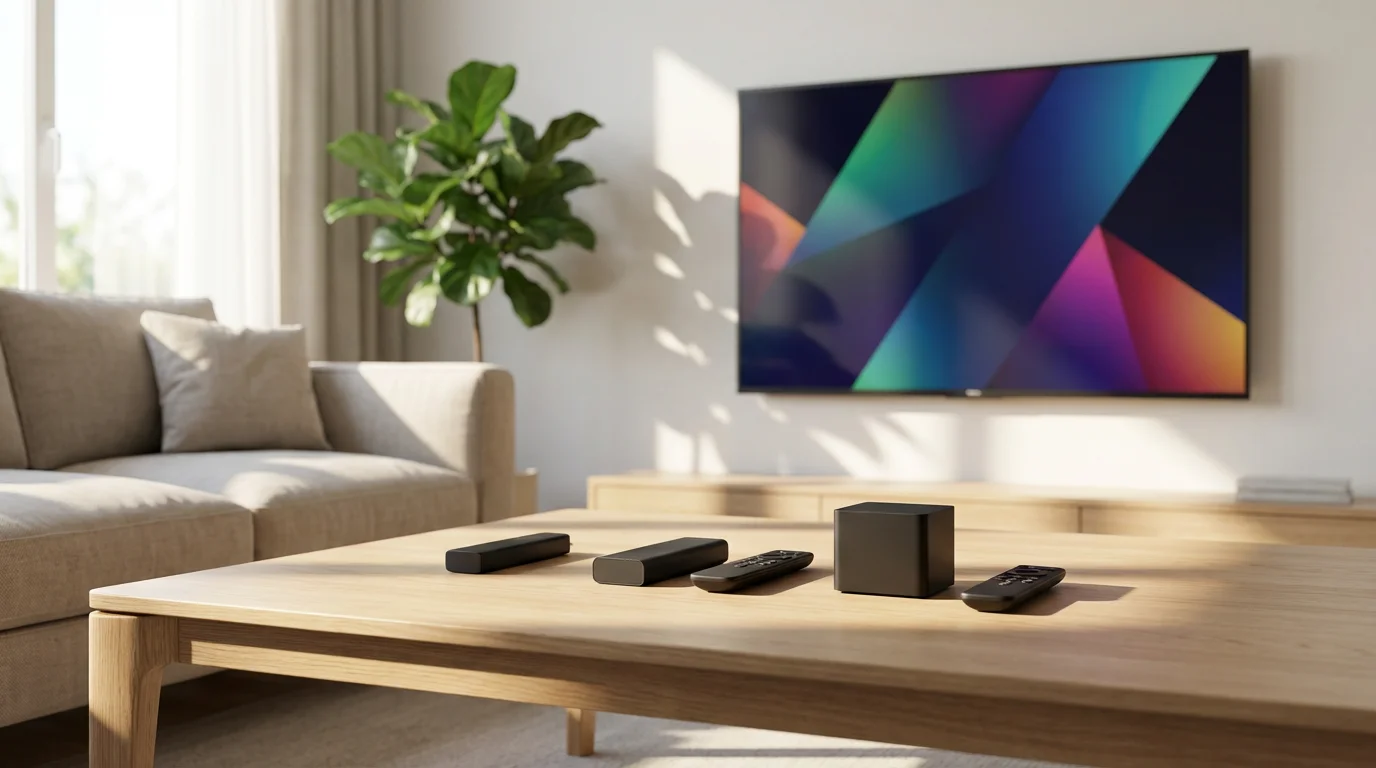
Breaking Down the Fire TV Lineup: Specs and Features Compared
Let us dive into the specifics of Amazon’s popular Fire TV streaming device options. A streaming device is a small box or stick, like a Roku or Fire TV, that adds streaming capabilities to any TV. From the entry-level options to the premium hub, each device targets a specific user and budget. The key differentiators often involve resolution support, advanced audio and video formats, processing power, and connectivity.
Fire TV Stick Lite (2020)
The Fire TV Stick Lite serves as Amazon’s most affordable entry into the streaming world. It offers a straightforward experience for users who primarily need access to basic streaming services.
- Resolution: Streams content up to 1080p Full HD. It does not support 4K resolution.
- HDR Support: Supports HDR10 and HDR10+, but not Dolby Vision. HDR (High Dynamic Range) enhances contrast and color, making scenes look more vibrant and realistic.
- Audio: Supports Dolby Digital Plus for surround sound.
- Processor: Quad-core 1.7 GHz.
- Connectivity: WiFi 5 (802.11ac).
- Remote: Alexa Voice Remote Lite. This remote allows voice commands to Alexa for content search and playback, but lacks TV power and volume controls.
This device is ideal for secondary TVs, older non-smart TVs, or for individuals with standard HD televisions and internet speeds.
Fire TV Stick (3rd Gen, 2020)
The standard Fire TV Stick offers a slight upgrade from the Lite, primarily in its remote capabilities. It remains a 1080p device but provides a more convenient user experience for many.
- Resolution: Streams content up to 1080p Full HD.
- HDR Support: Supports HDR10, HDR10+, but not Dolby Vision.
- Audio: Supports Dolby Digital Plus.
- Processor: Quad-core 1.7 GHz, identical to the Lite.
- Connectivity: WiFi 5 (802.11ac).
- Remote: Alexa Voice Remote (3rd Gen). This remote includes dedicated power, volume, and mute buttons for your TV and soundbar, eliminating the need for multiple remotes.
Choose this if you need integrated TV controls and primarily watch HD content.
Fire TV Stick 4K (2018)
The Fire TV Stick 4K significantly elevates your viewing experience by introducing support for Ultra HD. 4K, also known as Ultra HD, refers to a display resolution of roughly 4,000 pixels horizontally, offering four times the detail of 1080p HD. This device was a groundbreaking addition, making 4K streaming accessible at a reasonable price point.
- Resolution: Streams content up to 4K Ultra HD at up to 60 frames per second.
- HDR Support: Supports HDR10, HDR10+, and crucially, Dolby Vision. Dolby Vision is an advanced form of HDR that dynamically adjusts picture settings scene-by-scene for optimal contrast and color.
- Audio: Supports Dolby Digital Plus and Dolby Atmos. Dolby Atmos provides immersive, three-dimensional sound by allowing sound engineers to place specific sounds in a 3D space, moving around you.
- Processor: Quad-core 1.7 GHz.
- Connectivity: WiFi 5 (802.11ac).
- Remote: Alexa Voice Remote (3rd Gen), with TV controls.
This device is an excellent choice for anyone with a 4K TV who wants to experience enhanced picture and sound quality without breaking the bank. Wirecutter, an expert review site from The New York Times, often recommends the Fire TV Stick 4K for its balance of features and value, noting its comprehensive format support. According to Wirecutter’s streaming device reviews, devices like the Fire TV Stick 4K deliver excellent performance for most users at a competitive price.
Fire TV Stick 4K Max (2021)
The Fire TV Stick 4K Max builds upon the success of the Fire TV Stick 4K, offering a performance boost and next-generation connectivity. It is Amazon’s fastest stick streamer.
- Resolution: Streams content up to 4K Ultra HD at up to 60 frames per second.
- HDR Support: Supports HDR10, HDR10+, and Dolby Vision.
- Audio: Supports Dolby Digital Plus and Dolby Atmos.
- Processor: Quad-core 1.8 GHz. This faster processor translates to quicker app loading and smoother navigation.
- Connectivity: WiFi 6 (802.11ax). WiFi 6 offers faster speeds and better performance in congested network environments, especially if you have a compatible router.
- Remote: Alexa Voice Remote (3rd Gen) with TV controls.
If you own a WiFi 6 router or simply want the snappiest 4K stick experience, the 4K Max is a noticeable upgrade in responsiveness. This is particularly beneficial for heavy users who switch between apps frequently or have fast internet connections.
Fire TV Cube (2nd Gen, 2019 / 3rd Gen, 2022)
The Fire TV Cube stands as Amazon’s premium streaming device, functioning not only as a powerful streamer but also as a smart home hub. It integrates far-field Alexa voice control, allowing you to control your TV and other smart home devices with voice commands without needing to press a button on the remote.
- Resolution: Streams content up to 4K Ultra HD at up to 60 frames per second. The 3rd Gen Cube also supports 8K upscaling, though native 8K content is still rare.
- HDR Support: Supports HDR10, HDR10+, and Dolby Vision.
- Audio: Supports Dolby Digital Plus and Dolby Atmos.
- Processor: Hexa-core (2nd Gen) or Octa-core (3rd Gen), significantly faster than any Fire TV Stick. This provides the fastest streaming experience and smoothest UI navigation across the Fire TV lineup.
- Connectivity: WiFi 6 (3rd Gen), Ethernet port built-in (both gens). An integrated Ethernet port provides a stable, wired internet connection, which often proves more reliable than Wi-Fi for 4K streaming.
- Remote: Alexa Voice Remote (3rd Gen) with TV controls. The Cube itself also features far-field microphones, making its voice assistant functionality a primary differentiator.
- Additional Features: Built-in speaker for Alexa responses, IR blaster for controlling other home theater equipment. The 3rd Gen Cube also includes an HDMI input, letting you connect another device (like a cable box) and control it via Alexa.
The Fire TV Cube targets power users, smart home enthusiasts, and those who demand the absolute best performance and voice control integration. Its price reflects these premium features.
Comparative Specifications Table
This table summarizes the key technical specifications across the current Amazon Fire TV lineup, helping you compare models at a glance.
| Feature | Fire TV Stick Lite | Fire TV Stick (3rd Gen) | Fire TV Stick 4K | Fire TV Stick 4K Max | Fire TV Cube (3rd Gen) |
|---|---|---|---|---|---|
| Max Resolution | 1080p HD | 1080p HD | 4K UHD @ 60fps | 4K UHD @ 60fps | 4K UHD @ 60fps (8K upscaling) |
| HDR Formats | HDR10, HDR10+ | HDR10, HDR10+ | HDR10, HDR10+, Dolby Vision | HDR10, HDR10+, Dolby Vision | HDR10, HDR10+, Dolby Vision |
| Audio Formats | Dolby Digital Plus | Dolby Digital Plus | Dolby Digital Plus, Dolby Atmos | Dolby Digital Plus, Dolby Atmos | Dolby Digital Plus, Dolby Atmos |
| Processor | Quad-core 1.7 GHz | Quad-core 1.7 GHz | Quad-core 1.7 GHz | Quad-core 1.8 GHz | Octa-core 2.0 GHz |
| Wi-Fi Support | Wi-Fi 5 (ac) | Wi-Fi 5 (ac) | Wi-Fi 5 (ac) | Wi-Fi 6 (ax) | Wi-Fi 6 (ax) |
| Ethernet Port | No (adapter needed) | No (adapter needed) | No (adapter needed) | No (adapter needed) | Yes (built-in) |
| Remote | Alexa Voice Remote Lite | Alexa Voice Remote (TV controls) | Alexa Voice Remote (TV controls) | Alexa Voice Remote (TV controls) | Alexa Voice Remote (TV controls), Far-field Alexa |
| Hands-Free Alexa | No | No | No | No | Yes |
| HDMI Input | No | No | No | No | Yes (3rd Gen) |
| Storage | 8 GB | 8 GB | 8 GB | 8 GB | 16 GB |

Beyond the Basics: Performance, Remote, and Connectivity
A streaming device is more than its listed specs. How it feels to use, how you control it, and how reliably it connects to your network greatly influence your satisfaction.
Processor Speed and Responsiveness
The processor is the “brain” of your Fire TV device. A faster processor translates directly to quicker app loading times, smoother navigation through menus, and more responsive voice commands.
- Fire TV Stick Lite and 3rd Gen: These models offer adequate performance for casual streaming. You might notice slight delays when opening apps or navigating complex interfaces, especially if you compare them to higher-end models.
- Fire TV Stick 4K: The 4K model offers similar processor speed to the basic sticks but manages 4K content effectively thanks to optimized hardware.
- Fire TV Stick 4K Max: Its faster 1.8 GHz processor provides a noticeable boost. Apps launch more quickly, and menu scrolling feels snappier. This makes a difference if you are impatient with lag or frequently switch between many applications.
- Fire TV Cube: With its hexa-core or octa-core processor, the Fire TV Cube delivers the fastest performance in the lineup. If you prioritize speed and seamless multitasking, the Cube truly excels. Gamers or those who use many applications simultaneously will appreciate this significant performance advantage.
Remote Controls and Voice Assistant Integration
The remote is your primary interface with the Fire TV, and Amazon offers different versions:
- Alexa Voice Remote Lite: Included with the Fire TV Stick Lite. You get voice control, but it lacks dedicated buttons for TV power and volume. This means you still need your TV’s remote for basic functions, which some users find inconvenient.
- Alexa Voice Remote (3rd Gen): Bundled with the Fire TV Stick (3rd Gen), Fire TV Stick 4K, and Fire TV Stick 4K Max. This is the sweet spot for many users. It includes dedicated power, volume, and mute buttons that control your TV or soundbar, simplifying your entertainment setup. You can program it to work with most popular brands.
- Fire TV Cube Remote and Far-Field Alexa: The Fire TV Cube includes the Alexa Voice Remote, but its standout feature is hands-free Alexa. The Cube itself has built-in microphones. You can say “Alexa, open Netflix” or “Alexa, turn on the TV” from across the room, even if your TV is off. This capability truly integrates your TV with your smart home ecosystem. CNET’s experts highlight the Fire TV Cube’s unique ability to control your TV and other AV equipment with just your voice. According to CNET’s guide to streaming devices, the Fire TV Cube provides unparalleled voice control integration for home entertainment.
Connectivity: Wi-Fi 5, Wi-Fi 6, and Ethernet
Your internet connection quality directly impacts your streaming experience.
- Wi-Fi 5 (802.11ac): Standard on the Fire TV Stick Lite, 3rd Gen, and 4K. This provides reliable wireless performance for HD and 4K streaming for most households.
- Wi-Fi 6 (802.11ax): Available on the Fire TV Stick 4K Max and Fire TV Cube. If you have a Wi-Fi 6 router, these devices can benefit from faster speeds and better network efficiency, reducing buffering and improving performance, especially in homes with many connected devices.
- Ethernet: The Fire TV Cube comes with a built-in Ethernet port, allowing for a direct wired connection to your router. This is the most stable and reliable connection for high-bandwidth activities like 4K streaming or online gaming, eliminating potential Wi-Fi interference. For other Fire TV Sticks, you can purchase an optional Ethernet adapter to achieve a wired connection.
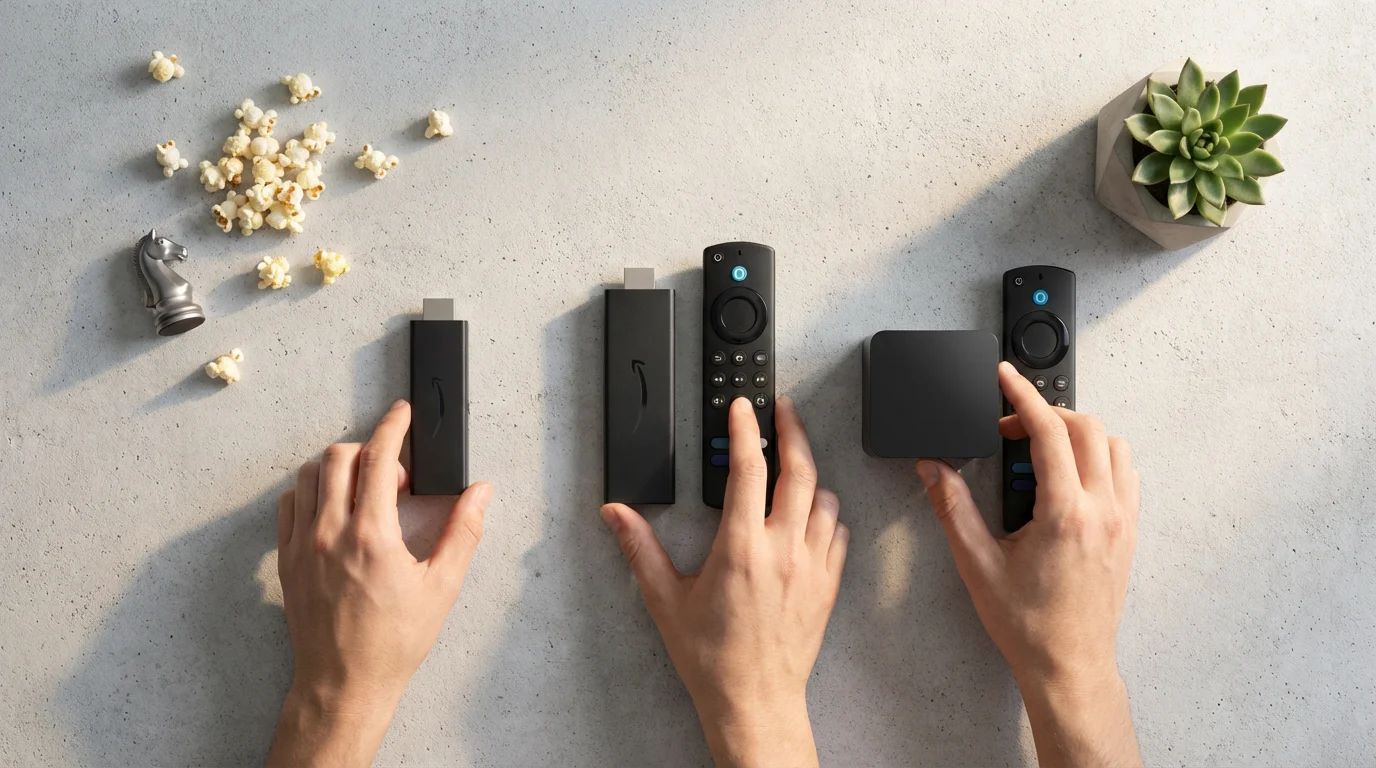
The User Experience: Interface, Apps, and Potential Trade-offs
Every Fire TV device runs on Amazon’s Fire OS, providing a consistent user interface across the lineup. However, your device’s processing power influences how smoothly you navigate that interface. Understanding the app availability and potential trade-offs, like advertising, helps you set realistic expectations.
The Fire OS Interface
The Fire OS home screen prominently features recommended content from Amazon Prime Video, along with your recently used apps. You will also see rows of content from other popular services you subscribe to. The interface is generally easy to use, focusing on content discovery. You can customize your app row to quickly access your favorite streaming services. While generally fluid, the amount of promotional content and ads for Amazon’s own services can sometimes feel overwhelming for new users. Unlike some other platforms, Fire TV’s interface tends to prioritize Amazon content first.
App Availability
Amazon’s Appstore for Fire TV offers a vast selection of streaming applications. You will find all the major players:
- Video Streaming: Netflix, Hulu, Disney+, Max, Apple TV+, Paramount+, Peacock, YouTube, Sling TV, YouTube TV, FuboTV, Plex, Kodi, and many more.
- Music Streaming: Spotify, Apple Music, Pandora, Amazon Music.
- Live TV: Many cable alternative services offer live TV streaming, providing a full replacement for traditional television. You can also find numerous free, ad-supported channels, meaning they show commercials, often integrated into the Fire TV Live tab.
The availability of apps is rarely an issue for Fire TV users. If a major streaming service exists, it is almost certainly available on Fire TV. Some apps offer ad-free versions for a higher subscription fee, allowing you to watch without interruptions.
“Your streaming device should fade into the background, letting the content shine. A smooth interface and reliable access to your favorite apps are paramount for a great viewing experience.” — Streaming Life Expert
Privacy Concerns
Amazon, like other major tech companies, collects data on your viewing habits and interactions with Alexa to personalize recommendations and improve its services. If privacy is a significant concern for you, be aware of the data collection practices inherent in the Amazon ecosystem. While you can adjust some privacy settings, Fire TV devices are deeply integrated with Amazon’s services. Other platforms, like Roku or Apple TV, have different privacy policies, which might appeal more to those prioritizing data minimization. Understanding these data practices is a crucial part of making an informed decision about your entertainment choices.
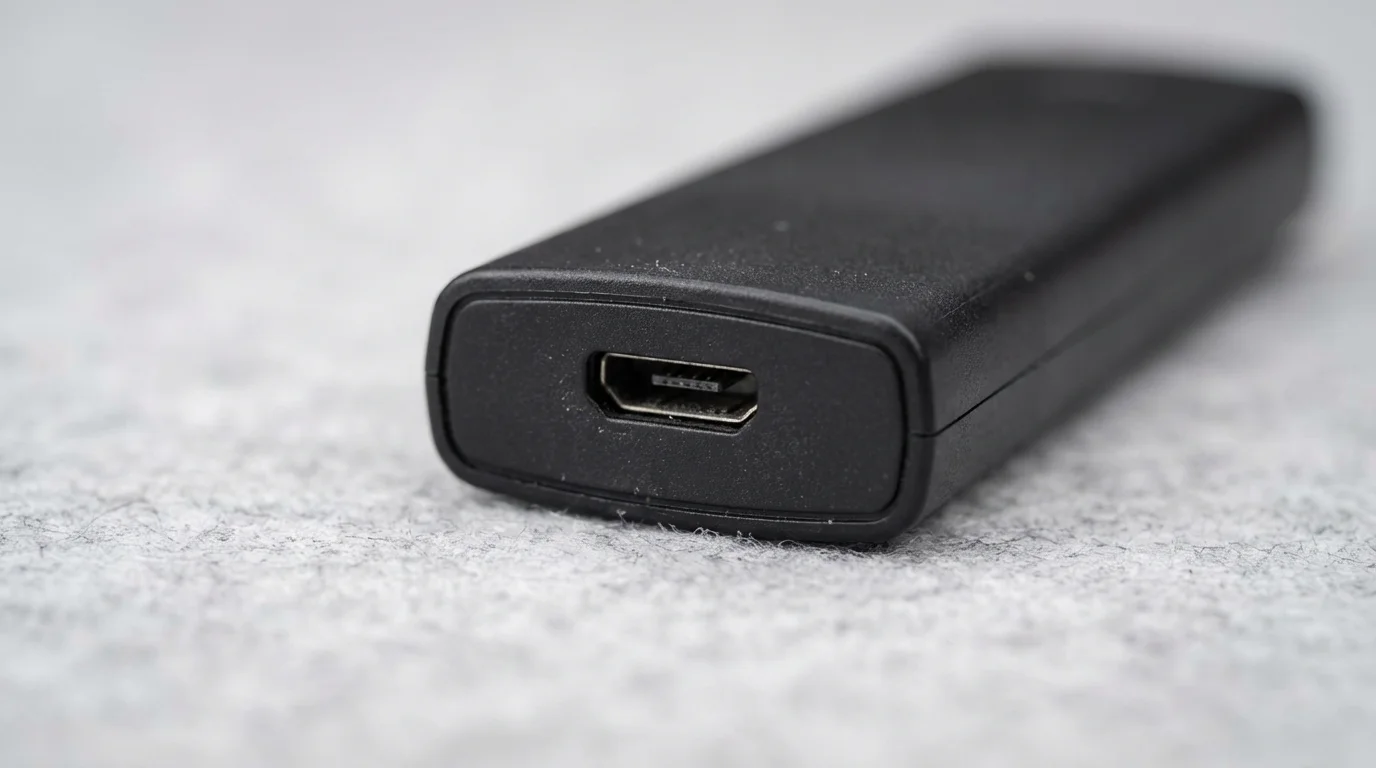
Price-to-Value Analysis: Finding the Right Fire TV for Your Budget
Your budget plays a significant role in which Fire TV device you choose. Amazon structures its pricing to offer options at various tiers, often with sales, especially during holiday periods like Prime Day or Black Friday. Always check current prices before making a purchase, as they fluctuate.
Under $30: The Budget-Conscious Cord-Cutter
In this price range, you usually find the **Fire TV Stick Lite** or the **Fire TV Stick (3rd Gen)**, especially during sales.
- Value: Excellent for entry-level streaming. If you have an older TV, only subscribe to HD services, or simply want the cheapest way to get smart TV functionality, these devices deliver. The Lite is perfect for a guest room or secondary TV where TV control on the remote is not essential.
- Considerations: You sacrifice 4K capabilities, advanced HDR (Dolby Vision), and the fastest performance. The Lite’s remote may require you to juggle two remotes.
$30-$50: The Standard 4K Streaming Zone
This tier typically includes the **Fire TV Stick 4K** and often the **Fire TV Stick 4K Max** during sales.
- Value: The Fire TV Stick 4K offers incredible value for its features. It unlocks 4K, Dolby Vision, and Dolby Atmos, which are critical for modern TV owners. The 4K Max is worth the slight premium for its faster processor and Wi-Fi 6 support if your budget allows and you have a compatible network. For most users with a 4K TV, this is the sweet spot. Tom’s Guide consistently rates devices in this category highly for their performance-to-price ratio. As Tom’s Guide reports, the mid-range Fire TV Sticks often provide the best bang for your buck, offering premium features without the premium price tag.
- Considerations: While powerful, these are still stick-form devices. They require a separate Ethernet adapter for a wired connection.
$100-$150+: The Premium Smart Home Hub
This price point brings you to the **Fire TV Cube (3rd Gen)**.
- Value: This is a premium device for those who demand the best performance, smart home integration, and hands-free Alexa. The built-in Ethernet port, faster processor, and HDMI input (3rd Gen) make it a powerful centerpiece for your home theater. If you already have a smart home ecosystem or plan to build one, the Cube streamlines control over your entire entertainment setup.
- Considerations: It is significantly more expensive than the sticks. You might not need all its advanced features if you only stream casually or do not plan to use hands-free voice control extensively. Ensure your smart home setup benefits from its integrated hub capabilities to justify the cost.
When to Upgrade: Device vs. Smart TV Apps
Modern televisions are often marketed as smart TVs, meaning they have built-in internet connections and apps. You might wonder if you even need a separate streaming device. The answer depends on several factors:
To help you decide if an external player is necessary, read our analysis on Smart TV vs streaming device advantages.
When Your Smart TV Apps Are “Good Enough”
For casual viewers, the built-in apps on your smart TV might suffice if:
- Performance is acceptable: Apps load quickly, and navigation feels smooth.
- You find all your desired apps: Your TV’s app store includes Netflix, Hulu, YouTube, etc.
- Updates are consistent: Your TV manufacturer regularly updates the operating system and apps, ensuring security and compatibility.
- You use a newer TV: Recent smart TVs from reputable brands (Samsung, LG, Sony) often have good processors and a full suite of apps, potentially eliminating the need for an external device.
When a Dedicated Fire TV Device Is a Better Choice
You should consider a dedicated Fire TV device if:
- Your Smart TV is Old or Slow: Older smart TVs often have sluggish processors, outdated app versions, or stop receiving updates entirely. A Fire TV Stick breathes new life into such a TV.
- Interface Preference: You prefer the Fire OS interface and its consistent experience across all your TVs. Smart TV interfaces vary wildly by brand.
- Enhanced Performance: You want faster app loading, smoother navigation, and no buffering for 4K content. The processors in Fire TV devices often outperform those in mid-range or budget smart TVs.
- Advanced Features: You need Dolby Vision, Dolby Atmos, or Wi-Fi 6 support, and your TV’s built-in apps do not fully support these. Many smart TVs, while 4K, might lack certain HDR or audio formats.
- Smart Home Integration: You want hands-free Alexa control for your TV and smart home devices, which the Fire TV Cube offers.
- Consistent Updates: Dedicated streaming devices generally receive more frequent software updates and security patches than smart TVs, ensuring your device remains compatible with the latest streaming technologies and services for longer.
Ultimately, a dedicated streaming device often offers a more refined, consistent, and updated streaming experience than all but the highest-end smart TVs. It also allows you to upgrade your streaming capabilities without replacing your entire television set.
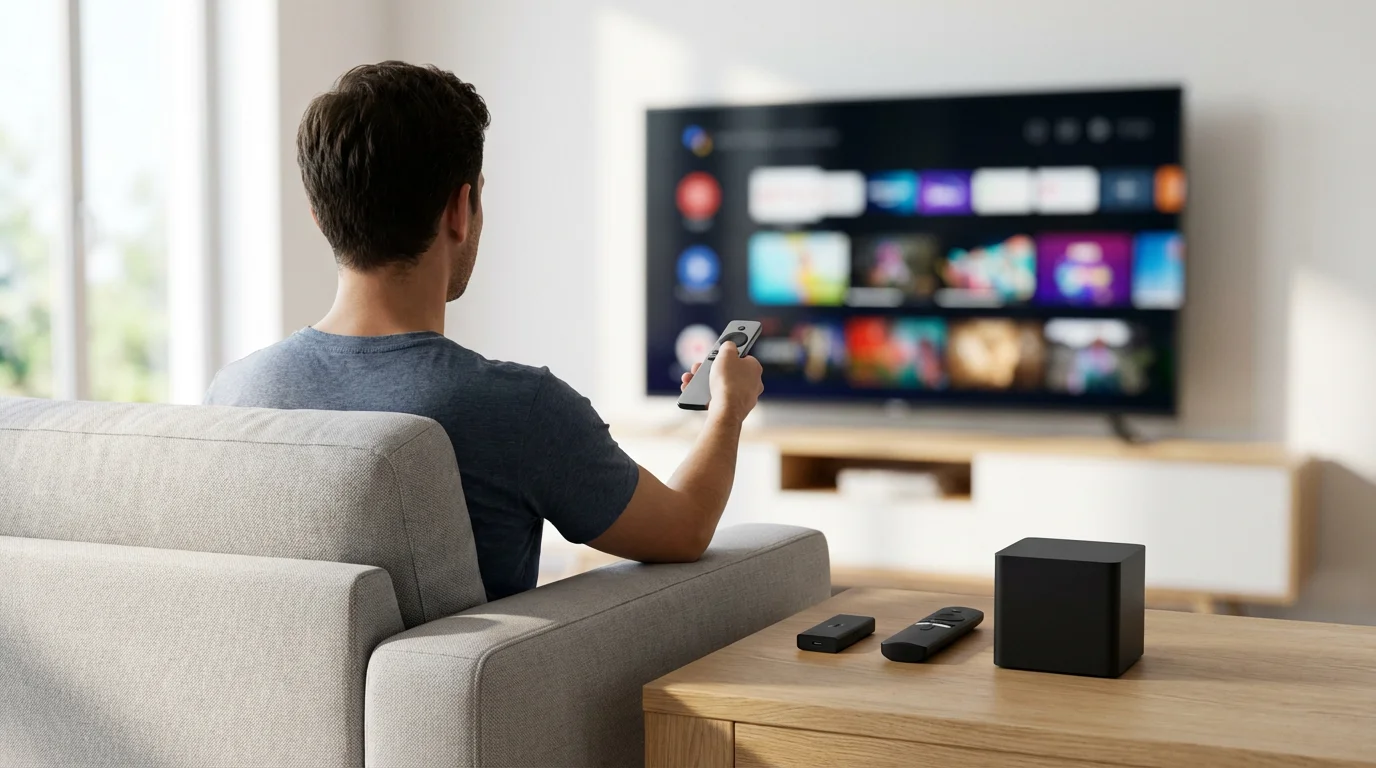
Choosing Your Ideal Fire TV: Use Cases and Recommendations
The “best” Fire TV device is the one that best suits your specific needs and budget. Consider these common scenarios:
Best for Budget Buyers and Secondary TVs: Fire TV Stick Lite or Fire TV Stick (3rd Gen)
If you want the absolute cheapest way to stream, already own an HD TV, or need a device for a guest room or kitchen TV, the Fire TV Stick Lite is an excellent, no-frills option. For a few dollars more, the Fire TV Stick (3rd Gen) adds integrated TV controls, making it a more convenient choice for most.
Best for Most 4K TV Owners: Fire TV Stick 4K or Fire TV Stick 4K Max
If you own a 4K TV, invest in a 4K-capable Fire TV Stick. The Fire TV Stick 4K offers outstanding value by supporting 4K, Dolby Vision, and Dolby Atmos. The Fire TV Stick 4K Max provides a noticeable performance boost and Wi-Fi 6, which justifies the small price difference for many. It is the go-to recommendation for the vast majority of 4K TV owners.
Best for Power Users, Smart Home Enthusiasts, and Fastest Performance: Fire TV Cube (3rd Gen)
The Fire TV Cube is for you if:
- You want the fastest, snappiest streaming experience possible.
- You use Alexa extensively and want hands-free voice control for your TV, soundbar, and other devices.
- You prefer a wired internet connection for stability and maximum bandwidth.
- You plan to use the HDMI input for other devices (3rd Gen Cube).
It is a premium device for a premium experience, consolidating control over your entire home entertainment system.
Best for Sports Fans: Fire TV Stick 4K Max or Fire TV Cube
Live sports streaming demands consistent performance and a stable internet connection. The faster processors in the Fire TV Stick 4K Max and Fire TV Cube help ensure smooth navigation through live TV apps (like YouTube TV, Sling TV, or FuboTV). The Cube’s built-in Ethernet port provides the most reliable connection, minimizing buffering during crucial moments. For DVR functionality, which lets you record and watch shows later, you will rely on the features of your chosen live TV streaming service, not the Fire TV device itself.
Best for Apple Households: Consider Alternatives, but Fire TV Works
While Fire TV devices primarily integrate with Amazon’s ecosystem, they fully support apps like Apple TV+ and Apple Music. However, if you are deeply embedded in the Apple ecosystem with iPhones, iPads, and Mac computers, an Apple TV 4K device offers superior integration, including AirPlay for casting content, HomeKit integration for smart home, and shared family purchases. Fire TV devices do not offer these specific Apple ecosystem benefits, though they remain excellent universal streamers. For those prioritizing seamless integration with Apple services, you might find the Apple TV 4K a more natural fit for your needs.
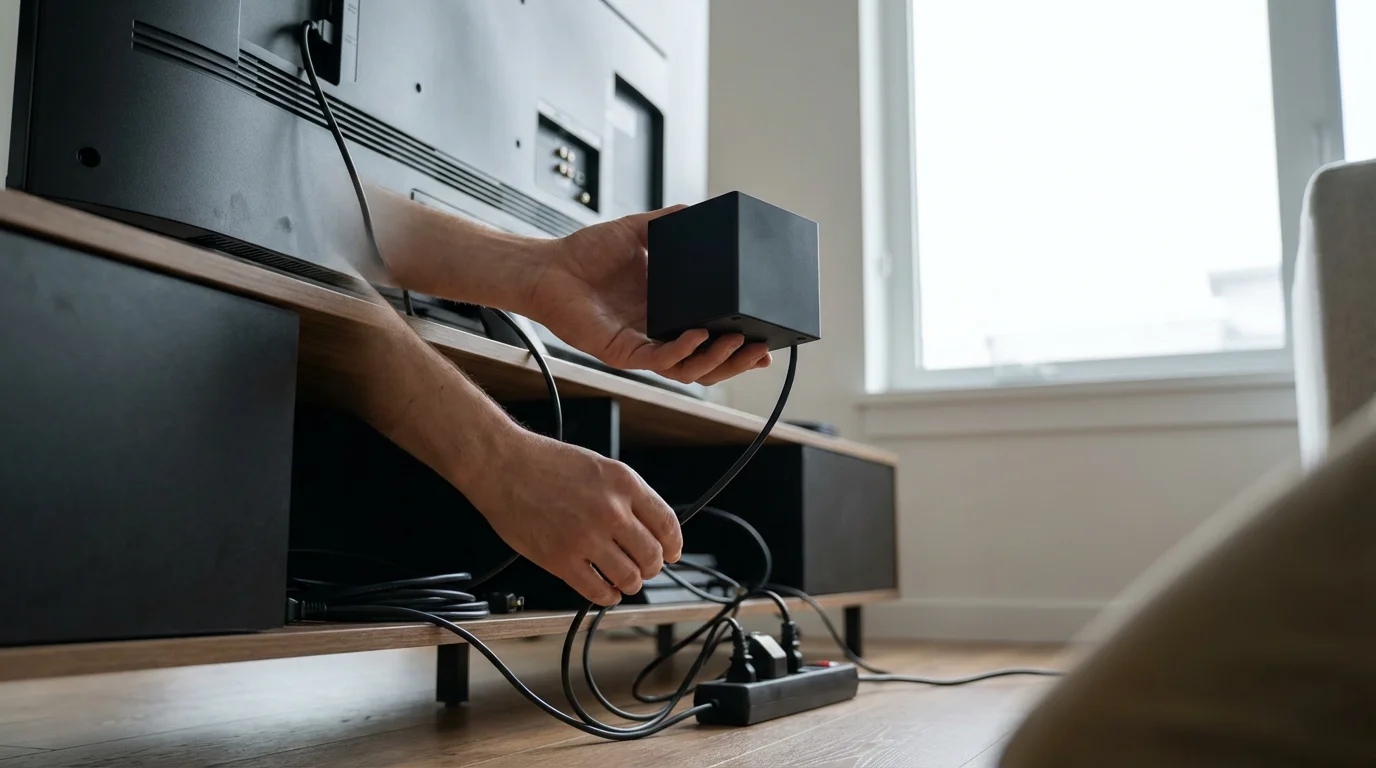
Common Fire TV Setup and Troubleshooting Tips
Setting up your Fire TV device is generally straightforward, but knowing a few tips can enhance your experience and quickly resolve common issues.
If you are new to these gadgets, our complete beginner’s guide to setting up a streaming device will walk you through the entire process.
Initial Setup
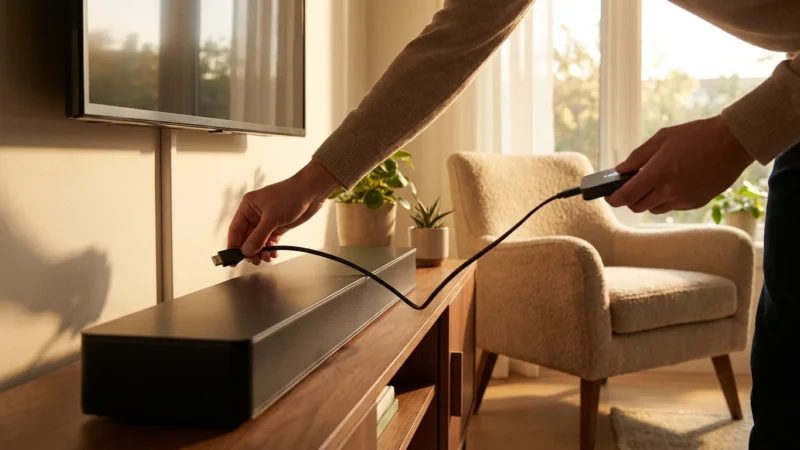
- Plug It In: Connect the Fire TV Stick directly to an HDMI port on your TV. For the Fire TV Cube, connect it via HDMI and plug in the power adapter.
- Power Up: Use the included power adapter and cable. Do not rely on your TV’s USB port for power, as it may not provide enough amperage for stable operation, especially for 4K devices.
- Connect to Wi-Fi: Follow the on-screen instructions to select your Wi-Fi network and enter your password. For the Fire TV Cube, consider connecting an Ethernet cable for optimal stability.
- Log In to Amazon: Enter your Amazon account credentials. If you bought it directly from Amazon, it might come pre-registered.
- Install Apps: Browse the Appstore and download your favorite streaming services.
Troubleshooting Common Issues
- Buffering or Slow Performance:
- Check Internet Speed: Ensure your internet plan meets the recommended speeds for 4K streaming (typically 25 Mbps or higher).
- Restart Device and Router: Unplug both your Fire TV and Wi-Fi router for 30 seconds, then plug them back in.
- Improve Wi-Fi Signal: Move the Fire TV closer to your router, reduce interference from other electronics, or consider using an Ethernet adapter for Sticks or the Cube’s built-in port.
- Clear Cache: Go to Settings > Applications > Manage Installed Applications, select the problematic app, and choose “Clear Cache.”
- Remote Not Working:
- Replace Batteries: This is the most common fix.
- Re-Pair Remote: Press and hold the Home button for 10-15 seconds until the remote pairs.
- Obstructions: Ensure a clear line of sight to the Fire TV Stick if it is tucked behind the TV.
- No Sound or Picture:
- Check HDMI Connection: Ensure the Fire TV is firmly plugged into an HDMI port. Try a different port.
- Restart Devices: Power cycle your TV, soundbar (if applicable), and Fire TV.
- Check TV Input: Make sure your TV is on the correct HDMI input for the Fire TV.
- Updates: Ensure your Fire TV software is up to date by going to Settings > My Fire TV > About > Check for Updates.
Many streaming problems stem from network issues, so always start by checking your internet connection and restarting your equipment.
Frequently Asked Questions
Is it worth buying a Fire TV Stick 4K if I do not have a 4K TV?
You can use a Fire TV Stick 4K on an HD TV, and it will still stream content in 1080p. While you will not benefit from the 4K resolution, you will still gain support for advanced HDR formats like Dolby Vision and immersive audio like Dolby Atmos, assuming your TV and sound system support them. The Fire TV Stick 4K also often has a slightly faster processor than the standard HD sticks. If you plan to upgrade to a 4K TV in the near future, buying the 4K version now makes good sense, future-proofing your purchase. However, if you have no plans for a 4K TV, a standard Fire TV Stick (3rd Gen) may offer better immediate value.
Do Fire TV devices require an Amazon Prime membership?
No, you do not need an Amazon Prime membership to use a Fire TV device. You need a free Amazon account to set up and register the device, download apps, and make purchases. While a Prime membership gives you access to Amazon Prime Video, Prime Music, and other benefits, you can still download and use other streaming apps like Netflix, Hulu, YouTube, and Max without it. However, if you already subscribe to Prime, your Fire TV device provides seamless access to all your Prime content.
Can I use my Fire TV Stick for gaming?
Yes, you can use your Fire TV Stick for casual gaming, but do not expect a console-like experience. The Fire TV devices support many simple games available in the Appstore. The Fire TV Stick 4K Max and especially the Fire TV Cube offer better performance due to their faster processors, leading to smoother gameplay. You can connect Bluetooth game controllers to any Fire TV device for an improved gaming experience over using the remote. For more demanding games or extensive gaming sessions, a dedicated gaming console or a PC remains the superior choice.
What is the difference between an ad-supported and an ad-free plan for streaming?
Ad-supported streaming plans typically cost less, or are even free, but include commercial breaks during playback, similar to traditional broadcast television. Services like Peacock and Hulu offer ad-supported tiers. Ad-free plans, by contrast, are usually more expensive but provide an uninterrupted viewing experience without commercials. Many services, including Netflix, Max, and Disney+, offer ad-free options. The choice depends on your budget and tolerance for advertisements.
Disclaimer: Device prices and features may change. New models are released regularly, so check for the latest versions before purchasing. The “best” device depends on your specific needs, existing ecosystem (Apple, Google, Amazon), and budget.
For a broader look at high-resolution hardware, see our guide on the best streaming device for 4K and HDR content.
If your current hardware is lagging during navigation, you can follow our tips on how to speed up a slow streaming device.
If you find physical remotes cumbersome, you can also learn how to use your phone as a streaming remote for easier typing and navigation.

Leave a Reply