
You invest in your streaming services and your internet connection, so you deserve the absolute best viewing experience. Nothing detracts from a movie night or an eagerly anticipated series more than a blurry image, distracting pixelation, or frustrating buffering. Optimizing your streaming quality involves more than just flipping a single switch. It requires a thoughtful approach, combining the strength of your internet connection, the efficiency of your WiFi setup, the capabilities of your streaming device and television, and the specific “video settings” within each streaming application. This comprehensive guide empowers you to understand every factor affecting your picture and provides clear, actionable steps to achieve stunning clarity and smooth playback, making every viewing session a pleasure.
Understanding Streaming Quality: The Essential Basics
To effectively improve your picture, you first need a solid grasp of the different quality levels available for your entertainment. When we discuss “streaming,” we refer to watching video content over the internet instead of traditional cable or satellite. These varying resolutions dictate how sharp, clear, and detailed your picture appears, directly impacting the amount of data your internet connection needs to deliver. Think of resolution as the number of tiny dots, or pixels, that make up your screen’s image. More pixels generally mean more detail.
Here are the common resolutions you will encounter and what they mean for your viewing:
- Standard Definition (SD): This typically translates to 480p (meaning 480 horizontal lines of pixels). SD represents the lowest common video quality and uses the least data. You will primarily see SD for older content, on very slow internet connections, or if you intentionally select it to conserve data. While watchable, the image often appears soft or blurry on larger, modern TVs.
- High Definition (HD): HD encompasses 720p and 1080p resolutions. 720p offers a noticeable improvement over SD, while 1080p, often called Full HD, delivers a significantly sharper and more detailed image. The majority of modern content and “streaming device” options, which are small boxes or sticks like Roku or Fire TV that add streaming to any television, fully support 1080p. Most internet plans and hardware configurations comfortably handle 1080p streaming.
- Ultra High Definition (UHD) / 4K: This is the pinnacle of consumer streaming resolution, typically 2160p. “4K streaming” offers four times the total pixels of 1080p, resulting in an incredible level of detail, clarity, and immersion. For true 4K content, you need a 4K compatible TV, a 4K-capable streaming device, and a streaming service that explicitly offers content in 4K.
- High Dynamic Range (HDR): Often confused with 4K, HDR is a separate but complementary technology. While 4K focuses on more pixels (resolution), HDR focuses on better pixels, specifically improving color accuracy, contrast, and brightness. HDR content displays a wider range of colors, from deeper blacks to brighter whites and more vibrant hues. Common HDR formats include HDR10, Dolby Vision, and HDR10+. When combined with 4K, HDR provides a truly stunning and lifelike picture.
The higher the resolution and the presence of HDR, the more internet bandwidth it requires. For example, a single 4K HDR stream can consume upwards of 25-30 Mbps, while an HD (1080p) stream typically needs 5-8 Mbps. Knowing these fundamental differences helps you set realistic expectations for your current setup and determine where to focus your optimization efforts.
Your Internet Connection: The Undeniable Foundation of Quality
Your internet speed forms the bedrock of excellent “streaming quality.” Even if you possess the most advanced TV and streaming device, a slow, inconsistent, or congested connection limits your picture to a lower resolution, often resulting in buffering or pixelation. Think of your internet connection as a multi-lane highway; the wider the highway (higher bandwidth), the more data (cars) can travel at once, resulting in a smoother, higher-quality stream. Internet speed is measured in megabits per second (Mbps), indicating how much data your connection can download per second.
If your connection isn’t fast enough for high-quality playback, consider learning how to download shows for offline viewing to watch without any interruptions.
Recommended Speeds for Optimal Streaming
The minimum speed you need depends directly on the quality you desire and, crucially, the number of devices streaming simultaneously in your household. Here is a general guideline for single streams:
- Standard Definition (SD): 3-5 Mbps per stream
- High Definition (HD) 1080p: 5-8 Mbps per stream
- 4K Ultra HD with HDR: 25-30 Mbps or more per stream
If you have multiple people watching different shows, or if someone is engaging in online gaming, video calls, or large file downloads while another streams, you must account for these parallel activities. For instance, a household with two concurrent 4K streamers, one HD streamer, and a person browsing the web would ideally want an internet plan offering at least 60-70 Mbps (25-30 + 25-30 + 8 + small buffer). Many internet service providers (ISPs) now offer plans ranging from 100 Mbps to 1 Gigabit (1000 Mbps), which typically covers most household needs, but assessing your specific usage helps prevent overpaying for unnecessary speed.
Your download speed is the most important metric for streaming; upload speed primarily affects activities like video conferencing or sharing large files, not consuming streaming content.
“Your internet speed is the most critical factor for consistent streaming quality. Investing in a robust plan prevents buffering and ensures you see every pixel your TV offers.”
Check Your Current Speed and Address Issues
You can easily test your current internet speed using widely available online tools such as Speedtest.net or Fast.com (a Netflix-owned tool, which is particularly good for streaming speed assessment). Run the test on a device connected to your home network, ideally near your main streaming setup and, if possible, on the streaming device itself (many have built-in speed tests). Compare the results to your ISP’s advertised speeds and the recommendations above. If your actual speeds are consistently lower than what you pay for, contact your ISP. They might need to troubleshoot your connection, replace aging equipment, or investigate potential throttling during peak hours.
According to CNET, a reliable internet connection is paramount for enjoying modern streaming services without frustrating interruptions. They often recommend testing your speed at various times of the day to get a true picture of your network’s performance, as network congestion can impact speeds during evenings.
Consider the times you stream most often. If your internet slows significantly during prime time (evenings), this indicates network congestion. A faster plan might mitigate this, or optimizing your home network can help make the most of your existing bandwidth.
Optimizing Your WiFi Network for Superior Streaming
Even with a fast internet plan, a poorly optimized WiFi network can bottleneck your “streaming quality” and cause frustrating stutters or drops in resolution. Wireless signals are susceptible to degradation due to distance, physical obstacles, and electronic interference. Understanding how to set up and manage your WiFi network significantly improves your picture quality and overall streaming experience.
A strong network also makes it easier to cast or mirror your phone to your TV when you want to share content from mobile devices on the big screen.
Router Placement: The Foundation of Good WiFi
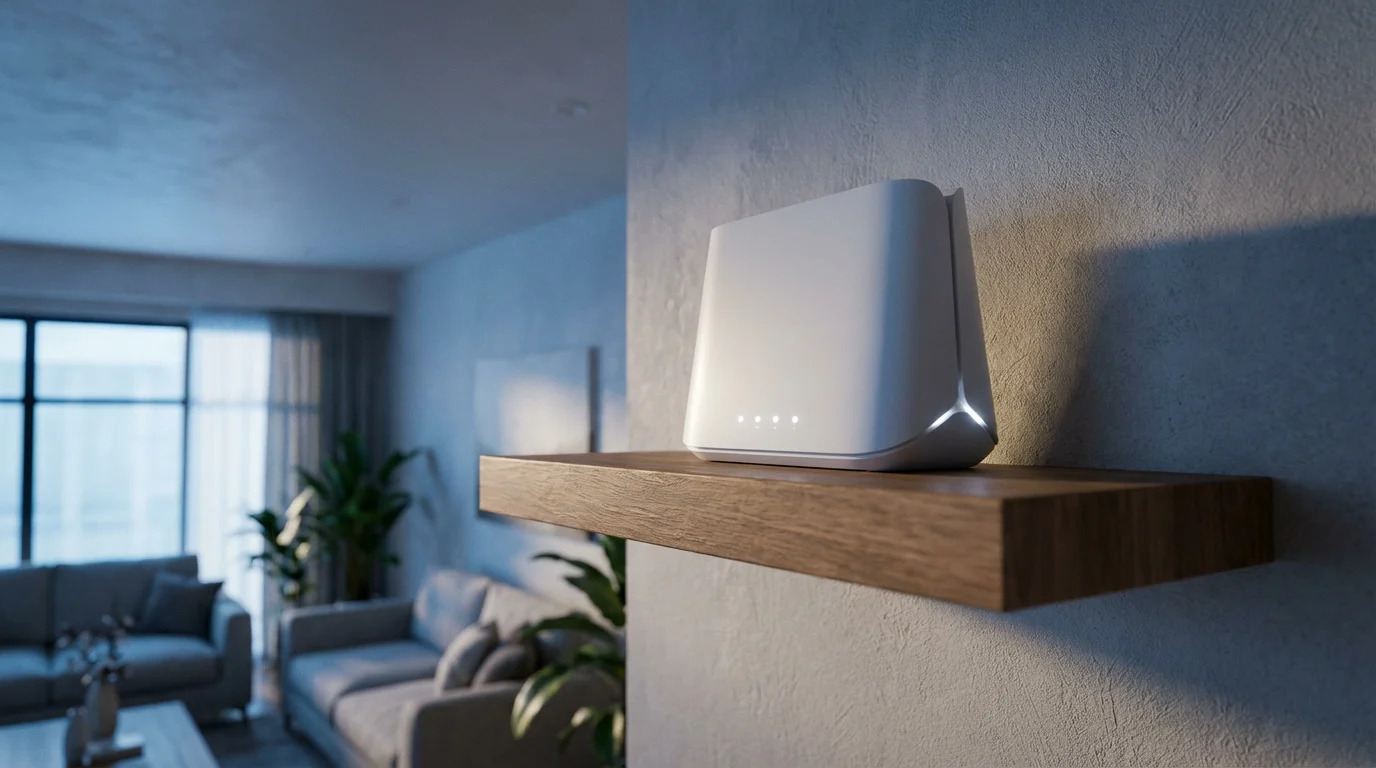
The physical location of your WiFi router is paramount. Position it in a central location within your home, preferably elevated and in an open area, away from thick walls, large metal objects, and major appliances (like microwaves, refrigerators, or washing machines) that emit electromagnetic interference. Avoid placing it in closets, basements, or directly behind your TV. The closer your primary streaming devices are to the router, the stronger, faster, and more stable their connection will be, which is crucial for high-bandwidth “4K streaming.”
Go Wired: The Ultimate Stability with Ethernet
For the absolute best stability, speed, and consistency, connect your primary streaming device directly to your router using an Ethernet cable. A wired connection completely bypasses potential WiFi interference, signal degradation, and congestion, providing a consistent, full-speed data flow. This is especially beneficial for demanding applications like 4K HDR streaming or competitive online gaming. Most modern “smart TVs,” which are televisions with built-in internet connections and apps, and high-end “streaming devices” like Apple TV 4K, NVIDIA Shield TV, and Roku Ultra, include an Ethernet port. A direct connection ensures your device receives the full bandwidth available from your router without compromise.
Understand WiFi Bands: 2.4 GHz vs. 5 GHz
Most modern routers are dual-band, meaning they broadcast on two frequencies: 2.4 GHz and 5 GHz.
- 2.4 GHz Band: Offers a wider range and better penetration through walls and obstacles. However, it is slower and more prone to interference from other household devices (cordless phones, microwaves, Bluetooth).
- 5 GHz Band: Provides significantly faster speeds and less interference, but its range is shorter and it struggles more with obstacles.
For streaming, especially 4K, connect your devices to the 5 GHz band if they are in the same room or close proximity to your router. For devices further away, the 2.4 GHz band might provide a more stable, albeit slower, connection. You can often manage which band devices connect to through your router’s settings or by creating separate network names for each band.
Update Your Router: Modernize Your Network
Older routers may not support the latest WiFi standards (such as Wi-Fi 5, also known as 802.11ac, or Wi-Fi 6, 802.11ax) or efficiently handle multiple high-bandwidth devices. Upgrading to a newer router significantly improves network performance, range, and capacity. Wi-Fi 6 (or Wi-Fi 6E for even faster speeds) routers are particularly adept at managing multiple devices simultaneously, ensuring each gets its fair share of bandwidth without slowing others down, a technology known as OFDMA and MU-MIMO. Newer routers often have better processors and antennas, making for a more robust network.
Consider a Mesh WiFi System for Larger Homes
For larger homes, multi-story residences, or areas with persistent WiFi dead zones, a mesh WiFi system often provides the best solution. These systems create a unified network with multiple access points (nodes) distributed throughout your home, eliminating patchy coverage. Mesh systems extend reliable WiFi throughout your entire home, ensuring your streaming devices receive a strong signal no matter where they are located. This often provides a superior experience compared to using a single router with basic range extenders, which can sometimes halve your bandwidth and introduce latency.
“A strong WiFi signal is as crucial as fast internet. Strategically placing your router or upgrading to a mesh system can solve more buffering issues than a speed upgrade alone.”
Utilize Quality of Service (QoS) Settings
Many modern routers include Quality of Service (QoS) settings. This feature allows you to prioritize internet traffic for specific devices or applications. You can set your main streaming device or streaming apps to have priority over other activities like downloads or gaming, ensuring that your movie stream gets the bandwidth it needs, even when others are online. Consult your router’s manual or manufacturer’s website for instructions on how to access and configure QoS settings.
Device Compatibility Matters: TV, Player, and Cable Selection
Your hardware plays an absolutely crucial role in achieving the “best streaming quality settings.” Even if your internet is blazing fast, outdated or incompatible equipment limits what you see. Ensuring your entire entertainment chain supports the resolution and features you desire is non-negotiable for an optimal viewing experience.
While focusing on visuals is key, you should also ensure you are getting better sound from your TV shows to complete the cinematic experience.
Your Television: The Display of Your Content
For 4K content, you definitively need a 4K-compatible TV, often labeled as a UHD TV. These televisions, whether “smart TVs” with built-in internet and apps or older models, must specifically list 3840×2160 resolution as their native capability. If your TV only supports 1080p, it cannot display 4K content, regardless of how powerful your streaming service or device is; it will simply downscale the content to 1080p. Always check your TV’s specifications, usually found in the manual, on the manufacturer’s website, or sometimes directly in the TV’s system information menu.
Your Streaming Device: The Content Gateway
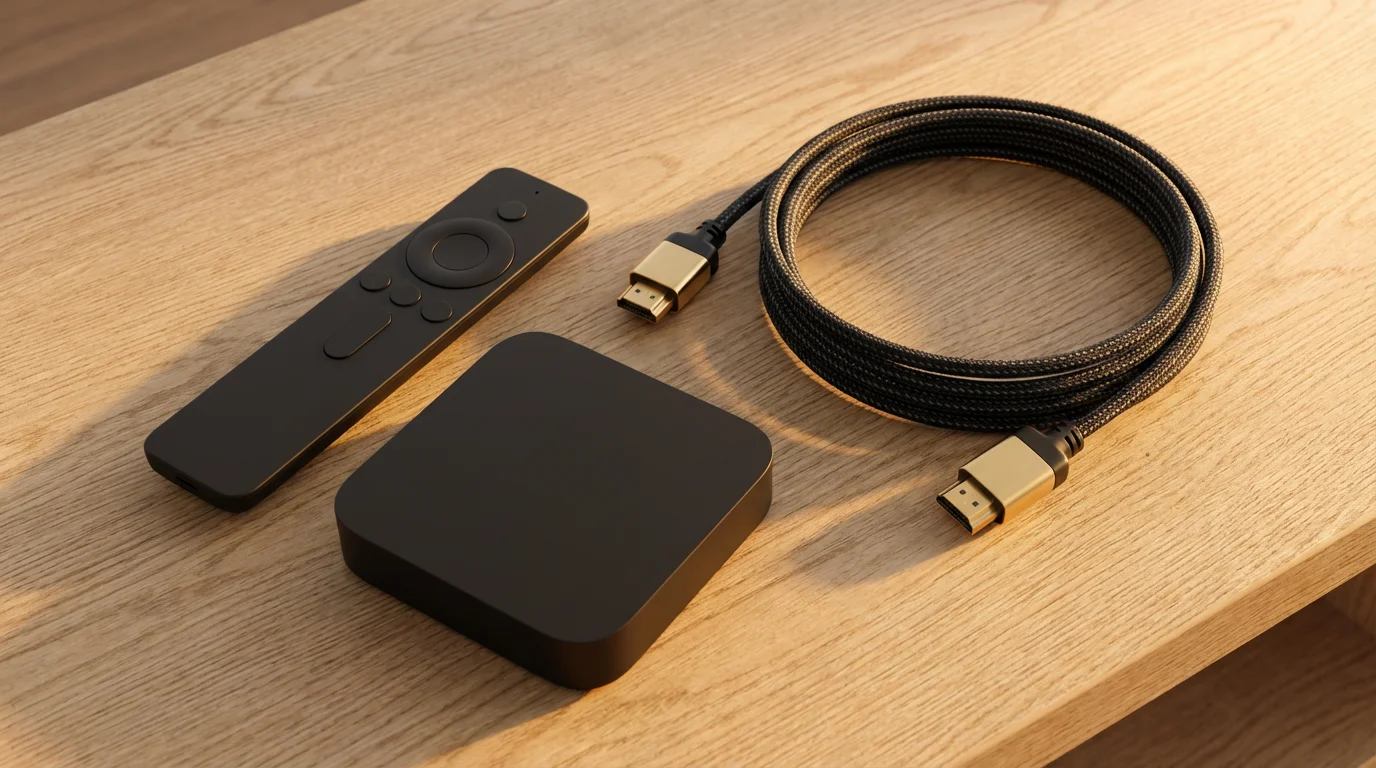
A “streaming device” is a dedicated piece of hardware that allows you to access streaming services on your television. For “4K streaming” with HDR, you need a streaming device specifically advertised as “4K compatible” and often “HDR compatible” (e.g., Roku Ultra, Amazon Fire TV Stick 4K Max, Apple TV 4K, NVIDIA Shield TV Pro). Older devices are likely limited to 1080p or even 720p. Connect your 4K streaming device directly to an HDMI port on your TV that supports 4K resolution and HDCP 2.2 (High-bandwidth Digital Content Protection), which is a copy protection standard essential for 4K content. Most newer TVs explicitly label these compatible HDMI ports (e.g., “HDMI 1 (4K/HDCP 2.2)”).
HDMI Cables: More Important Than You Think
While often overlooked, your HDMI cables can indeed impact 4K and HDR streaming quality. Older HDMI cables, often labeled “Standard” or “High Speed,” work fine for HD content. However, for reliable “4K streaming” at 60 frames per second and with HDR, you need “Premium High-Speed HDMI” or “Ultra High-Speed HDMI” cables. These cables have the necessary bandwidth (18 Gbps for Premium High Speed, 48 Gbps for Ultra High Speed) to transmit the massive amounts of data required for high-resolution video and advanced audio formats. You do not need to spend a fortune; certified high-speed cables from reputable brands perform just as well as expensive ones. Look for the official HDMI certification logo.
AV Receivers and Soundbars: Ensuring Passthrough
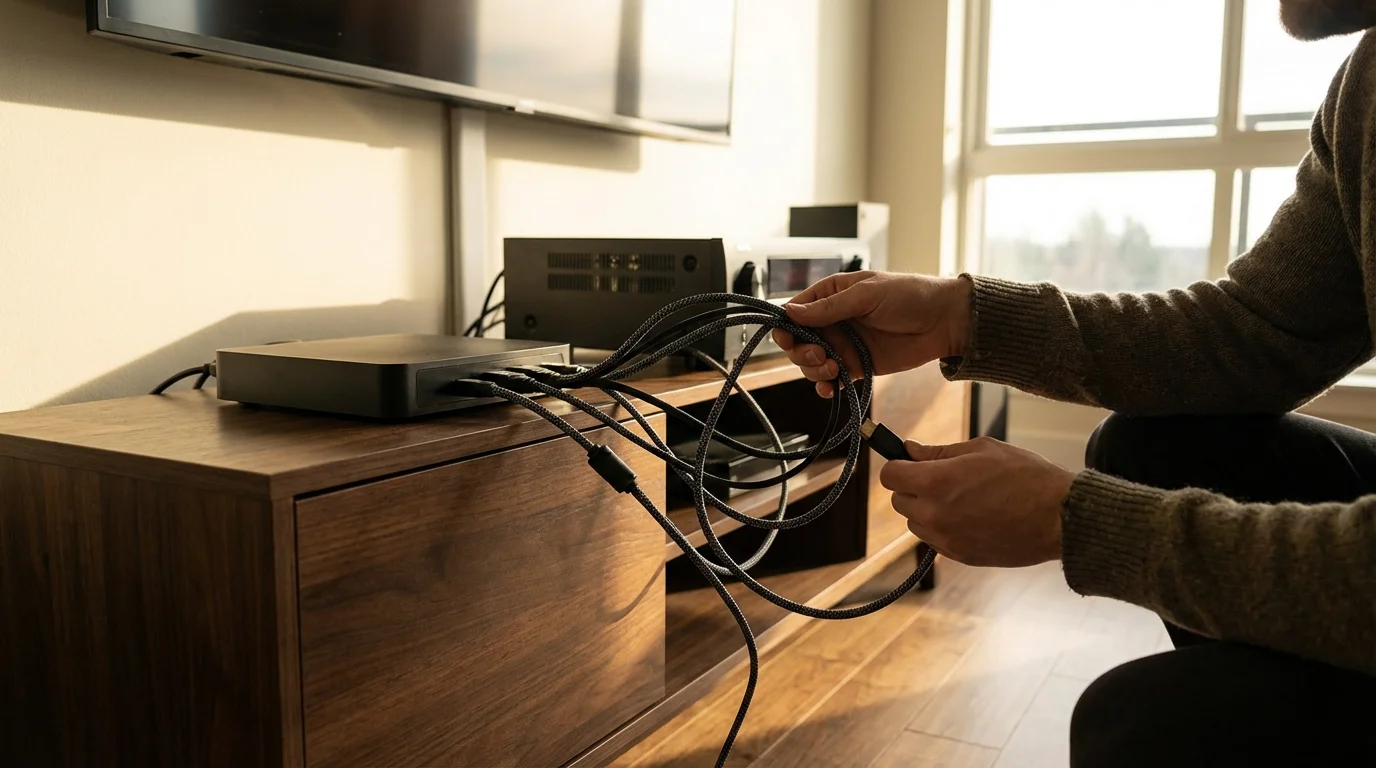
If you route your streaming device through an AV receiver or soundbar for enhanced audio, ensure that component also supports 4K passthrough with HDCP 2.2. Older receivers may only pass through 1080p, even if your TV and streaming device are fully 4K compatible, thus creating a bottleneck. Connect your streaming device to an HDMI input on the receiver/soundbar, and then connect the receiver/soundbar’s HDMI output to your TV’s compatible HDMI input. Always check the specifications of your audio equipment for 4K, HDR, and HDCP 2.2 compatibility.
Streaming Service Settings: Take Direct Control of Your View
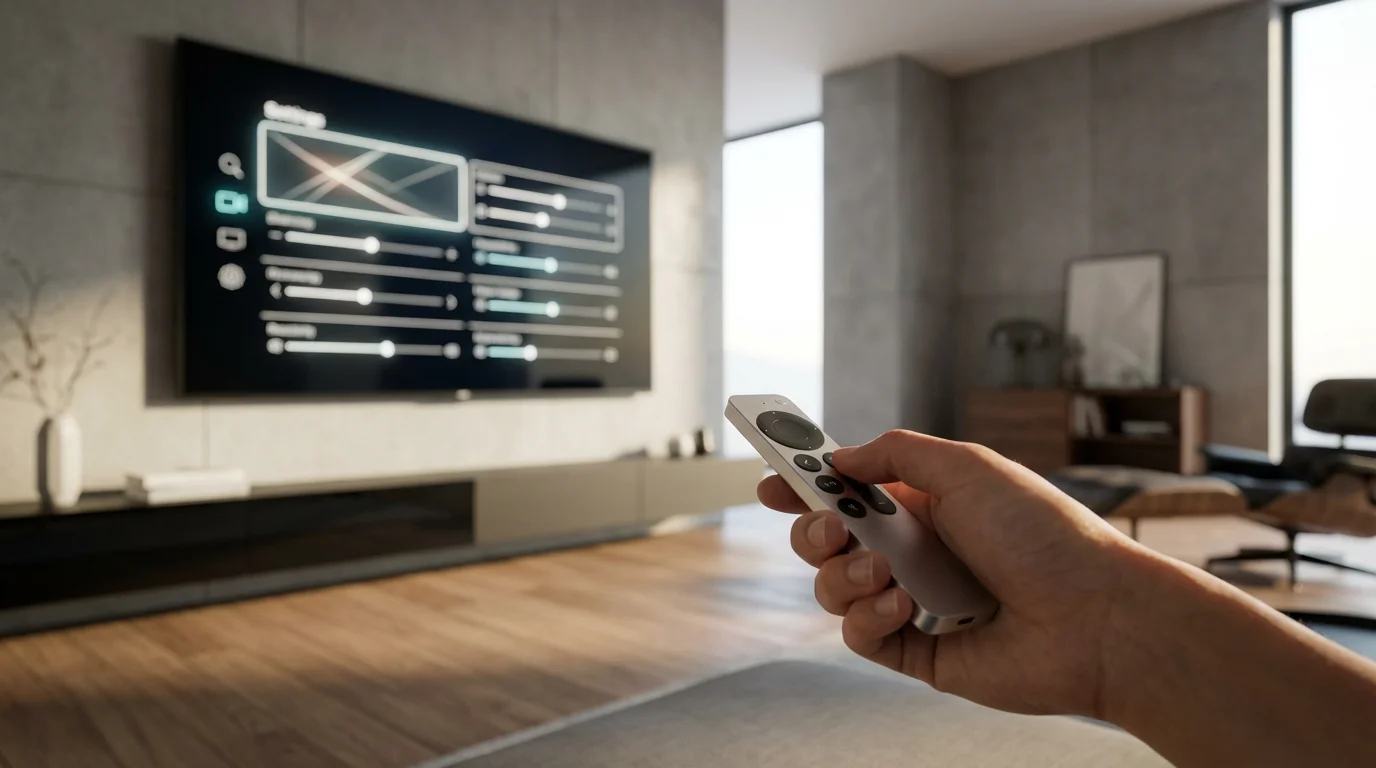
Even with top-tier hardware and a lightning-fast internet connection, you must properly configure your streaming services to unlock the “best streaming quality settings.” Most services offer options to manage video quality, often found within your account settings, profile preferences, or directly in the player during playback.
Account-Wide Playback Settings
Many popular services, including Netflix, Hulu, Disney+, and Max, allow you to set a default playback quality preference for each user profile. You typically locate these critical settings under sections like “Account,” “Profile & Parental Controls,” “Playback Settings,” or “App Settings.”
| Streaming Service | Typical Path to Quality Settings | Notes on Quality Options |
|---|---|---|
| Netflix | Profile > Playback Settings > Data Usage per screen | Choose from Auto, Low, Medium (SD), High (HD/4K). Selecting “High” is crucial for maximum quality. |
| Hulu | Account > Profiles > Playback Settings or App Settings | Often auto-adjusts based on connection, but ensure “Data Saver” or “Bandwidth Saver” is disabled if you desire the highest quality. |
| Disney+ | Profile > App Settings > Video Playback > Data Usage | Options include Automatic, Moderate, Save Data. “Automatic” typically delivers the best quality your connection can handle. |
| Max (HBO Max) | Profile > Settings > Video Playback Options | Usually offers “Best Available” or data-saving options. Always select “Best Available” for peak quality. |
| Amazon Prime Video | Settings (on web or app) > Playback & Download Quality | Options like “Best,” “Good,” “Better.” Ensure it is set to “Best” for streaming. |
| YouTube/YouTube TV | Gear icon (during playback) > Quality | Can manually select resolution (e.g., 1080p, 4K) or leave on “Auto.” |
Always select the highest quality option available for your profile, such as “High,” “Best Available,” or “Automatic.” The “Automatic” setting typically adjusts to the best quality your connection can handle at any given moment, which is often ideal unless you have strict data caps or specifically want to conserve mobile data. If you continuously experience buffering on “Automatic,” consider manually setting it one step lower (e.g., from 4K to 1080p) to maintain smooth playback.
Content-Specific Quality and Availability
It is important to remember that not all content is available in 4K, HDR, or even full HD. Older movies or classic TV shows may only exist in Standard Definition. Even on services that boast a large 4K library, only specific titles will actually have that resolution. Always look for badges or labels like “4K UHD,” “HDR,” “Dolby Vision,” or “IMAX Enhanced” on the content details page or within the streaming player to confirm its available quality before you start watching. If a title lacks these labels, it likely streams in HD or SD.
Getting the Most from Ad-Supported Tiers
Many services now offer “ad-supported” tiers, which are free or cheaper plans that include commercials. “Ad-free” plans, conversely, cost more but do not show commercials. Generally, ad-supported tiers still provide access to HD content, and sometimes even 4K, if your device and internet support it. The quality settings within these tiers typically mirror their premium counterparts. Ensure you have the highest quality option selected in your profile settings, just as you would with an ad-free plan. The ads themselves usually play at a standard HD resolution regardless of the content’s quality. Some services might limit ad-supported tiers to HD, reserving 4K for premium subscriptions, so always check the specific plan details.
Advanced Picture Settings on Your TV: Beyond the Defaults
Beyond resolution, your “smart TV’s” built-in picture settings significantly impact the visual quality you perceive. Many TVs come with default settings that are aggressively optimized for bright retail environments, rather than the nuanced viewing conditions of a home. Taking a few minutes to intelligently adjust these settings can dramatically transform your viewing experience, making colors more accurate, blacks deeper, and motion smoother.
Understanding Picture Modes
Most modern smart TVs offer a variety of predefined picture modes, such as Standard, Vivid, Cinema (or Movie), Game, and Sports. Choosing the right starting point is crucial:
- Cinema (or Movie) Mode: This mode is almost always the best starting point for watching movies and TV shows in a dimly lit or dark room. It aims for color accuracy, appropriate brightness, and often disables or significantly reduces motion smoothing effects, preserving the director’s artistic intent.
- Standard Mode: This is a common default, offering a generally balanced picture, but it can often be a bit too bright or oversaturated for ideal home viewing.
- Vivid Mode (or Dynamic): Avoid this mode for critical viewing. It typically boosts brightness, contrast, and color to unnatural, exaggerated levels, making images appear cartoonish, fatiguing to the eyes, and inaccurate.
- Game Mode: Designed to reduce input lag (the delay between your controller input and on-screen action) for gaming. It is irrelevant for streaming and may even disable some picture processing, resulting in a less refined image for movies.
Always begin by switching your TV to its Cinema or Movie mode, then make fine-tune adjustments from there.
Essential Calibration: Brightness, Contrast, and Color
These are the fundamental adjustments that define your picture’s core:
- Brightness (or Black Level): This setting controls the depth of black levels on your screen. If too high, blacks appear gray and washed out. If too low, you lose crucial detail in dark scenes. Adjust until dark details are visible without the overall image looking hazy or desaturated. Use a scene with both very dark and moderately dark elements to find the sweet spot.
- Contrast (or White Level): This controls the intensity of white levels and the overall dynamic range. Too high, and bright areas will “clip,” losing detail (e.g., clouds become a uniform white blob). Too low, and the picture looks flat and lacks pop. Set it to make whites bright without crushing subtle details.
- Color/Saturation: Adjusts the intensity of all colors. Aim for natural-looking skin tones and vibrant but not oversaturated colors. Test with content featuring people to ensure their faces look realistic, not overly red or green.
- Tint: This typically adjusts the balance between green and magenta. For most modern TVs, leave this setting at its default center position unless your whites appear noticeably green or magenta, indicating a severe calibration issue.
- Color Temperature: This refers to the “warmth” or “coolness” of the white balance. Options usually include Cool, Standard, and Warm. Most professionals recommend “Warm1” or “Warm2” settings for the most accurate, film-like picture, as cooler settings tend to give whites a bluish tint.
Advanced Settings to Consider Adjusting
- Sharpness: Often set too high by default on new TVs. High sharpness settings do not actually make the picture sharper; they introduce artificial edges, halos, and noise, making the image look unnatural. Reduce it significantly, usually to a setting near zero or 10-20% of the maximum, to avoid these artifacts.
- Motion Smoothing (Motion Interpolation): This feature goes by various names, such as “TruMotion” (LG), “MotionFlow” (Sony), “Auto Motion Plus” (Samsung), or “Motion Xcelerator” (Samsung). It attempts to make motion appear smoother by inserting artificial frames between actual video frames, creating the infamous “soap opera effect” (SOE). Most film and TV experts recommend turning this OFF for movies and cinematic TV shows to preserve the director’s intended look, as it can make films look like cheap video productions. You might leave it on for sports or live TV if you prefer the effect.
- Backlight (or OLED Pixel Brightness): This controls the overall light output of the TV panel. Adjust it to suit your room’s ambient light. For dark rooms, lower settings are usually better for eye comfort and better black levels. For bright rooms, you may need a higher setting.
- Local Dimming (for LED/LCD TVs): This feature improves contrast by dimming specific backlight zones behind the screen, resulting in deeper blacks. Enable this for better black levels and dynamic range, but be aware that aggressive settings can sometimes cause “blooming” (light halos around bright objects on dark backgrounds). Adjust its intensity to find a balance you like.
- Dynamic Contrast/Enhancement: These features dynamically adjust contrast and brightness based on the content being displayed. While they sound beneficial, they often make the picture look unnatural or inconsistent, as the image constantly changes. Often, these are best left off, relying instead on your manual brightness and contrast settings.
- Gamma: This controls the progression from black to white, affecting mid-tone brightness. A higher gamma value (e.g., 2.4) deepens shadows and creates a more dramatic, cinematic look, best for dark rooms. A lower value (e.g., 2.2) brightens mid-tones, better for brighter rooms.
For even more detailed calibration, resources such as RTINGS.com offer specific settings recommendations for hundreds of TV models. You can often find a good starting point by searching for your TV model and “best picture settings” online.
According to Wirecutter, many factory TV settings are aggressively configured for bright retail environments and are far from ideal for home viewing. They strongly advise switching to “Movie” or “Cinema” mode as a foundational step toward achieving a more accurate and pleasing picture.
Troubleshooting Common Quality Issues
Even after meticulously optimizing every setting, you might still encounter occasional issues with your “streaming quality.” Here is a systematic guide to diagnose and fix common “how to improve streaming video quality” problems, ensuring you spend less time frustrated and more time enjoying your entertainment.
Persistent Buffering and Pixelation
- Check Internet Speed Immediately: Run a speed test (Fast.com is excellent). If your speeds are significantly lower than expected, restart your modem and router. Unplug them both for 30 seconds, then plug the modem back in, wait for it to fully connect, and then plug in the router. If low speeds persist, contact your ISP.
- Reduce Network Congestion: If multiple devices are heavily utilizing your network (e.g., large downloads, online gaming, multiple 4K streams), consider reducing this load. Pause downloads, disconnect unused devices, or try streaming during off-peak hours when fewer neighbors use the internet.
- Improve WiFi Signal: Move your streaming device closer to your router, or conversely, move your router to a more central location. If possible, switch your device from the 2.4 GHz band to the faster 5 GHz band. For critical devices, use an Ethernet cable for a wired connection.
- Restart Streaming Device: A simple reboot often clears temporary glitches in your streaming device’s memory or software. Unplug it from power for 10-15 seconds, then plug it back in.
- Update App/Device Software: Ensure both your streaming app and the operating system of your streaming device (Roku OS, Fire TV OS, Apple TV OS, Android TV) are fully up to date. Outdated software can lead to performance issues.
Blurry or Consistently Low-Resolution Content (Not 4K/HD)
- Verify Content Availability: Is the specific show or movie you are watching actually available in HD or 4K? Many older titles, even on premium services, may only be offered in SD or 720p. Check the content description for “4K UHD” or “HDR” badges.
- Review Service Quality Settings: Double-check that your account-wide playback settings within the streaming app are set to “High,” “Best Available,” or “Automatic” (if “Automatic” typically delivers desired quality). Some apps default to data-saving modes.
- Confirm Hardware Compatibility: Ensure your entire setup (TV, streaming device, and HDMI cable) is compatible with and configured for the desired resolution (e.g., 4K). Check HDMI port labels on your TV for 4K/HDCP 2.2 support.
- Try a Different HDMI Port: Sometimes, one HDMI port on a TV performs better than another, especially for higher resolutions or HDR content.
Inaccurate Colors or Poor Contrast
- Revisit TV Picture Settings: Go back into your TV’s picture mode (e.g., Cinema or Movie), brightness, contrast, color, and color temperature settings. Factory defaults are often too vibrant or too cool. Resetting to a “Movie” mode and making subtle adjustments is key.
- Check HDMI Cable: A faulty or uncertified HDMI cable can sometimes cause color distortion, flickering, or even a loss of signal. Try swapping it out for a known good, certified high-speed cable.
- Test with Another Source: Connect a different streaming app, a Blu-ray player, or another device to your TV. If the problem persists across all sources, it is likely a TV setting or hardware issue. If it is confined to one source, the issue lies with that specific device or app.
Audio Sync Problems (Lip-Sync Issues)
If the audio and video do not match, creating a distracting delay:
- Restart All Devices: Power cycle your streaming device, TV, and any connected audio equipment (soundbar, AV receiver). This often resolves minor, temporary sync issues.
- Check TV/Sound System Settings: Many TVs and audio systems have a dedicated audio delay or lip-sync adjustment setting. Access these menus and subtly increase or decrease the delay until the audio aligns with the video.
- Bypass Receiver/Soundbar: To isolate the problem, try connecting your streaming device directly to your TV. If the sync issue disappears, your receiver or soundbar is the likely culprit, and you will need to adjust its settings or update its firmware.
- Disable Audio Processing: On your TV or audio system, try disabling any advanced audio processing features like surround sound virtualization or “sound enhancements,” as these can sometimes introduce delay.

Balancing Quality, Cost, and Data Usage
Achieving the “best streaming quality settings” often comes with important considerations for both financial cost and internet data usage. While you naturally desire a pristine picture, optimizing your setup also involves making smart financial and data choices to avoid overspending or unexpected fees.
Beyond data costs, it is also important to manage multiple streaming subscriptions effectively to keep your monthly entertainment budget in check.
Internet Plan Cost vs. Your Quality Needs
Do you genuinely need a 1 Gigabit (1000 Mbps) internet plan if you only stream in HD on a single device, or perhaps two 4K streams concurrently? Probably not. A 200-300 Mbps plan often suffices for most households streaming 4K on a couple of devices simultaneously while also handling general browsing and light gaming. Review your household’s actual usage patterns and adjust your internet plan to avoid overpaying for unnecessary speed. If your family streams exclusively in 4K on three or more separate devices, or if you have multiple users simultaneously gaming and working from home, a higher-tier plan (500 Mbps+) may be justified. Always check with your ISP for potential savings, bundled deals, or suitable upgrades.
According to a report by Consumer Reports, many consumers inadvertently overpay for internet speeds they do not fully utilize, underscoring the importance of matching your plan to your genuine needs rather than subscribing to the fastest option available.
Navigating Data Caps and Mobile Streaming
Many internet providers, especially for fixed wireless or satellite internet services, impose monthly data caps. “4K streaming” consumes significantly more data than HD streaming. Be acutely mindful of this if your internet plan has a cap, as exceeding it can lead to hefty overage fees. For example, a single hour of 4K streaming can consume 7-10 GB of data, while HD might use 3 GB. This quickly adds up over a month. On mobile devices, streaming in high quality quickly depletes your cellular data plan. Most mobile streaming apps offer specific settings to reduce quality when on cellular data, such as “Stream on Wi-Fi Only” or “Data Saver Mode.” Activating these settings is essential to avoid unexpected charges on your mobile bill.
Smart Subscription Strategies: Rotation and Annual Plans
While not directly related to picture settings, these money-saving strategies can help you afford services that offer the quality you want without breaking your budget. “Cord-cutting,” the act of canceling traditional cable or satellite TV in favor of streaming services, saves you money in the long run. Instead of subscribing to five or more services monthly, consider a “subscription rotation” strategy. If you primarily binge-watch specific shows or movies, subscribe to one service for a month or two, enjoy the desired content in its highest available quality, and then cancel. Then, move on to another service. This dramatically reduces your overall monthly spend while allowing you to enjoy specific content in its highest available quality when you do subscribe.
For services you use consistently year-round, investigate annual plans. Many streaming providers offer a substantial discount for paying annually compared to monthly subscriptions. For instance, paying for a year of Paramount+ often saves you about 16% compared to 12 monthly payments, providing consistent access to their 4K library for a lower effective cost. Also, keep an eye out for “free trials” or bundles, such as the Disney Bundle (Disney+, Hulu, ESPN+) or Paramount+ often included with Walmart+ subscriptions. These can provide premium content and quality at a reduced rate or for free for a limited time, allowing you to sample 4K content before committing to a full subscription.
Frequently Asked Questions
What is the difference between 4K and HDR?
4K refers to the resolution, meaning the sheer number of pixels on the screen, specifically 3840×2160 pixels. HDR, or High Dynamic Range, refers to the color and contrast capabilities of the image. HDR content displays a wider range of colors, features brighter highlights, and delivers deeper, more nuanced shadows, creating a significantly more realistic and vibrant picture. You frequently find 4K and HDR content together, as they complement each other to provide a superior overall visual experience. You need both a TV and a streaming device that support both technologies to fully enjoy them.
Why does my 4K TV sometimes show content in lower quality?
Several factors can cause your 4K TV to display content in a lower resolution. First, the specific content itself might not be available in 4K. Second, your internet speed might be insufficient or inconsistent, causing the streaming service to automatically downscale the quality to prevent buffering. Third, your streaming device, HDMI cable, or even your TV’s “video settings” might not be correctly configured for 4K. Always check your internet speed, verify the “streaming quality” settings within your streaming app, and ensure all your hardware components support 4K and are connected correctly using appropriate HDMI cables.
Will a faster internet speed guarantee better streaming quality?
While a faster internet speed significantly improves your chances of obtaining and maintaining better “streaming quality,” it does not guarantee it as the sole factor. A robust connection certainly prevents buffering and allows for higher resolutions. However, your streaming device’s capabilities, your TV’s native resolution, the efficiency of your WiFi network, and the specific “streaming quality settings” within your apps also play critical roles. If you possess a 500 Mbps internet plan but stream on an older 1080p TV with an outdated streaming stick, you will still only see content at a maximum of 1080p, regardless of your internet speed.
Can I improve streaming quality without upgrading my internet plan?
Yes, absolutely. You can significantly improve “how to improve streaming video quality” even without a speed upgrade by focusing on your home network and device settings. Optimize your WiFi network by strategically moving your router, utilizing an Ethernet cable for primary devices, or investing in a mesh system. Ensure your TV and streaming device settings are correctly configured for the highest available quality. Close unnecessary background apps on your streaming device to free up resources. These steps often make a noticeable difference by ensuring your current internet bandwidth is used as efficiently and effectively as possible.
Disclaimer: Streaming service terms and pricing change frequently. Always review current terms of service before implementing any money-saving strategies. Some tips may not work with all services or in all regions.
Once your display is configured, you can focus on finding what to watch across all your apps more efficiently using specialized tools.
After you have chosen your player, don’t forget to set up multiple user profiles so every member of the family has their own custom recommendations.



Leave a Reply