

Streaming video content over the internet has replaced traditional cable and satellite for millions of households, offering unparalleled on-demand entertainment. This shift, often called “cord-cutting,” gives you vast libraries of movies, TV shows, and live events at your fingertips. However, this convenience sometimes comes with frustrating technical glitches like buffering, audio sync problems, and inconsistent video quality. As your expert guide, we provide practical, actionable solutions to troubleshoot common streaming problems, ensuring you enjoy a smooth, high-quality entertainment experience without unnecessary frustration or expense.
Beyond fixing technical glitches, you can enhance your overall experience by mastering a few streaming hacks that optimize how you watch TV.

Understanding and Eliminating Buffering
Buffering, a common frustration for many streamers, occurs when your device pauses playback to download more data. It is essentially your internet connection struggling to keep up with the demands of the video stream. You can address buffering by systematically checking various points in your streaming chain.
Check Your Internet Speed
Your internet connection is the backbone of your streaming experience. Inadequate speed is a primary culprit for buffering. Services like Netflix recommend a minimum of 3 Mbps for standard definition, 5 Mbps for HD, and 15-25 Mbps for 4K Ultra HD. If multiple devices stream simultaneously, you need even higher speeds. Use an online speed test tool, easily found by searching “internet speed test,” to measure your current download speed. If your speed consistently falls below recommendations for your desired quality, contact your Internet Service Provider (ISP) to discuss upgrading your plan.
“Your internet speed is the fundamental limit for your streaming quality. A faster plan directly translates to a smoother, higher-resolution experience.”
Optimize Your WiFi Network
Even with a fast internet plan, a poorly optimized WiFi network can bottleneck your streaming. Consider these improvements:
- Router Placement: Place your WiFi router in a central location, away from walls, large furniture, and other electronics that can cause interference. Higher placement often improves signal distribution.
- Interference: Cordless phones, microwaves, and even neighbors’ WiFi networks can interfere with your signal. Try changing your router’s WiFi channel. Most routers have settings that allow you to select less congested channels.
- Band Selection: Most modern routers offer two frequency bands: 2.4 GHz and 5 GHz. The 2.4 GHz band offers wider coverage but slower speeds, while the 5 GHz band provides faster speeds over shorter distances. Connect your streaming device to the 5 GHz band if it is close enough to the router for optimal performance.
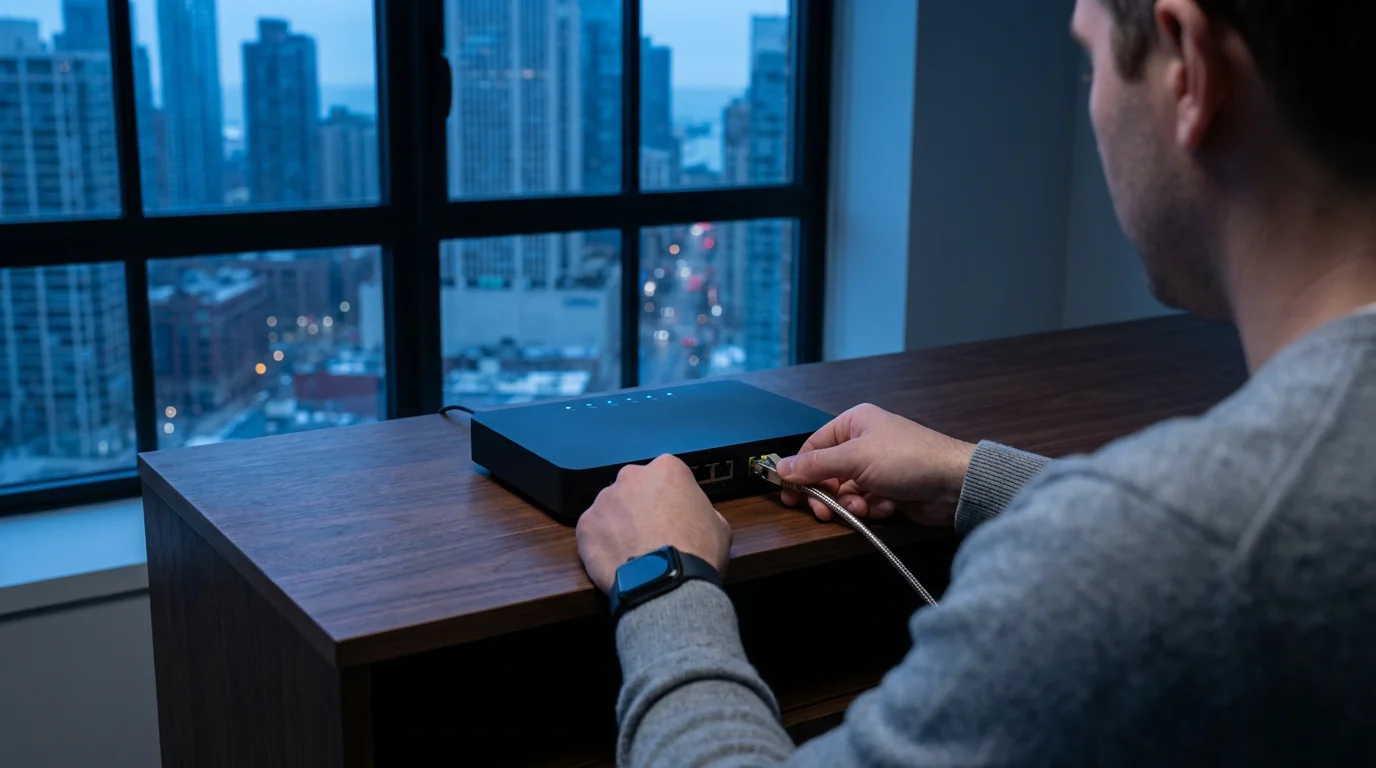
- Wired Connection: For the most stable and fastest connection, use an Ethernet cable to directly connect your streaming device to your router. This eliminates WiFi interference and provides a dedicated data path. According to CNET, a wired connection can significantly improve streaming reliability, especially for 4K content.
- Mesh WiFi Systems: If you live in a large home or have dead zones, a mesh WiFi system can extend strong, consistent coverage throughout your house, eliminating signal drops that cause buffering.
Address Device and App Issues
Sometimes, the problem lies with your streaming device or the app itself. A “smart TV” is a television with built-in internet connectivity and apps, while a “streaming device” is a small box or stick, like a Roku or Fire TV, that adds streaming capabilities to any TV.
- Restart Everything: A simple restart often resolves temporary glitches. Power cycle your router, modem, and streaming device. Unplug each device, wait 30 seconds, and then plug them back in.
- Update Firmware and Apps: Outdated software can cause performance issues. Ensure your streaming device’s firmware and all streaming apps are up to date. Check your device’s settings for system updates and each app’s menu for app updates.
- Clear App Cache: Over time, streaming apps accumulate cached data, which can slow them down. Go into your device’s app settings and clear the cache for problematic streaming apps. This does not delete your login information.
- Close Background Apps: Some smart TVs and streaming devices allow apps to run in the background, consuming bandwidth and processing power. Close any apps you are not actively using.
- Consider Device Age: Older streaming devices may struggle to process high-resolution streams efficiently, especially with newer codecs. If your device is several years old and you consistently experience buffering despite good internet, consider upgrading to a newer model.
Resolving Audio Sync and Quality Issues
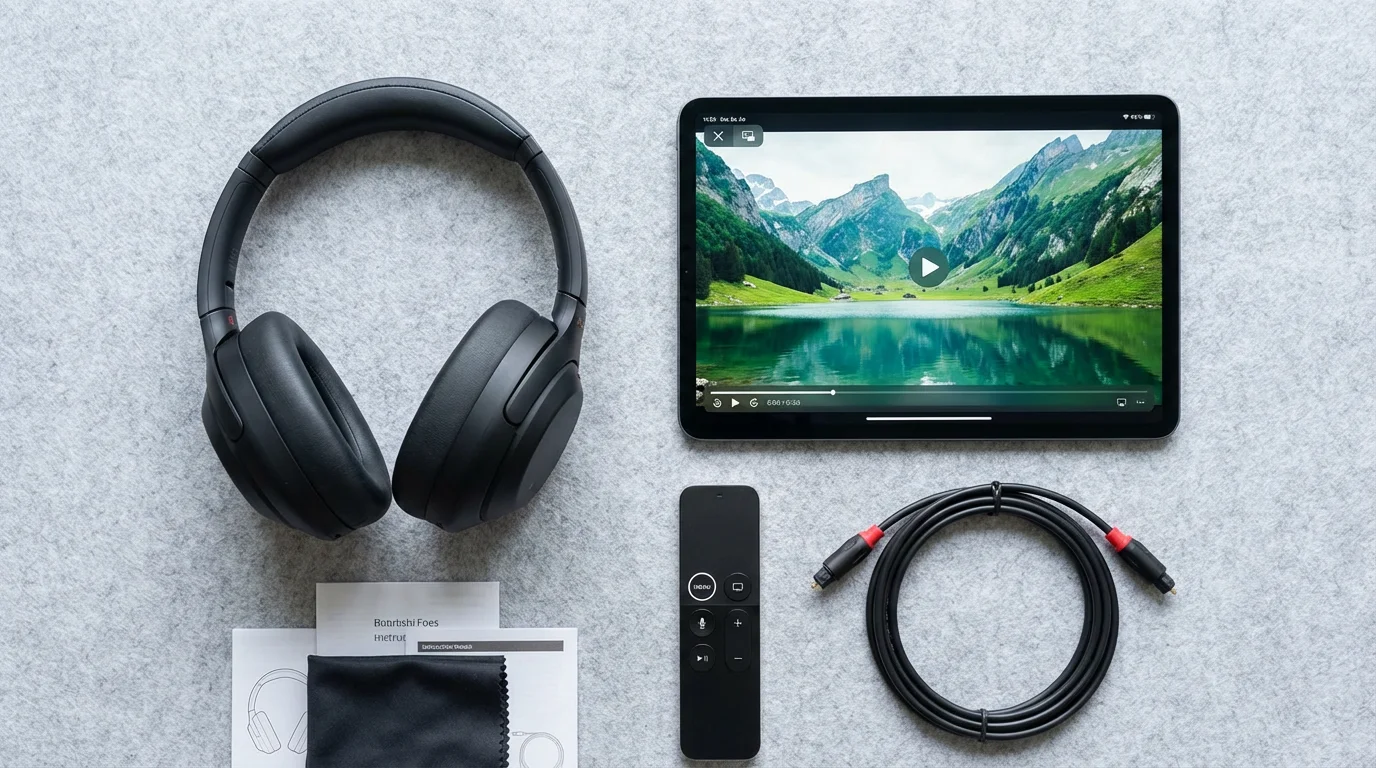
Audio sync issues, where the sound does not match the video, and poor audio quality can ruin your viewing experience. You can often fix these problems with a few adjustments.
Check Device and TV Settings
Audio processing can vary between devices, leading to delays. If you notice a sound delay, perform these checks:
- HDMI Handshake: Ensure your HDMI cables are securely connected. Disconnect and reconnect all HDMI cables between your streaming device, TV, and any soundbars or AV receivers.
- Audio Output Format: Your streaming device and TV or sound system might be sending or receiving audio in incompatible formats. Access the audio settings on your streaming device and TV. Experiment with different audio output formats, such as Stereo, Dolby Digital, or DTS. Sometimes, switching to a simpler format resolves sync issues.
- TV/Sound System Delay Settings: Many TVs and AV receivers have an “audio delay” or “lip sync” adjustment in their sound settings. You can often increase or decrease this delay in milliseconds to perfectly align the audio with the video.
- Firmware Updates: Just like with buffering, ensure your TV, soundbar, or AV receiver has the latest firmware updates. Manufacturers frequently release updates to fix bugs, including audio sync problems.
Address App-Specific Issues
Sometimes, the problem is isolated to a single app:
- Reinstall the App: If audio issues only occur on one streaming app, try uninstalling and then reinstalling it. This can clear corrupted data or an improperly installed update.
- Check App Audio Settings: Some apps have their own audio settings. Look within the app’s playback settings for options related to audio tracks or formats.
Cable and Hardware Inspection
Faulty cables or hardware can cause sound problems:
- HDMI Cables: Older or damaged HDMI cables might not transmit audio data correctly. Try swapping out your HDMI cable for a new, high-quality one, especially if you are watching 4K content. For optimal performance, use HDMI 2.0 or higher.
- External Speakers: If you use a soundbar or external speakers, ensure they are properly connected and powered on. Test your TV’s built-in speakers to rule out an issue with your external audio system.

Tackling Video Quality and Resolution Problems
Beyond buffering, you might encounter issues like blurry images, pixelation, or an inability to achieve high-definition or 4K resolution. These problems often stem from your internet connection, device capabilities, or subscription tier.
Internet Speed and Data Usage
Your internet speed directly dictates the maximum video quality you can reliably stream. If your connection is insufficient for 4K content, for example, your streaming service will automatically lower the resolution to avoid buffering, resulting in a less crisp image. Some streaming apps also have data usage settings. You might accidentally set an app to a “data saver” or “standard definition” mode, which reduces quality to conserve bandwidth. Check the playback settings within the app itself to ensure it is set to “high quality” or “auto” resolution.
Device and Display Compatibility
To experience 4K Ultra HD, you need a complete 4K setup:
- 4K Capable TV: Your television must support 4K resolution.
- 4K Streaming Device: Your streaming device, whether a smart TV with 4K capabilities or an external streaming device, must be 4K compatible.
- HDMI 2.0+ Cable: Use an HDMI cable rated 2.0 or higher. Older HDMI cables may not support the bandwidth required for 4K video.
- HDCP 2.2: Ensure all devices in your chain (TV, receiver, streaming device) support HDCP 2.2, a copy protection standard required for 4K content.
Subscription Tier Limitations
Many streaming services offer different subscription tiers, and resolution is a common differentiator. For instance, a basic ad-supported plan might limit you to HD, while a premium, “ad-free” plan could unlock 4K HDR. “Ad-supported” means free or cheaper plans that show commercials, whereas “ad-free” plans cost more but do not show commercials. Review your subscription details to confirm your plan supports the desired resolution.
Optimizing Your Internet Setup for Best Streaming Performance
A robust and reliable internet connection is crucial for seamless streaming. Beyond just speed, factors like router quality, WiFi interference, and proper network configuration play a significant role.
Upgrading Your Router and Modem
Your ISP-provided router might not be sufficient for a demanding streaming household. Consider upgrading to a newer, more powerful router, especially one with WiFi 6 (802.11ax) or WiFi 6E support. These technologies offer faster speeds, lower latency, and better performance in congested environments. A dedicated modem, separate from your router, often provides more reliable service than a combined modem/router unit. Consult Wirecutter’s router recommendations for guidance on choosing reliable hardware.
Understanding Quality of Service (QoS)
Many modern routers include Quality of Service (QoS) settings. QoS allows you to prioritize network traffic, ensuring your streaming device receives preferential bandwidth over less critical tasks like background downloads or email syncing. Log into your router’s administration panel, usually via a web browser, and look for QoS settings. Prioritize your primary streaming devices to allocate more bandwidth where it matters most.
Regular Network Maintenance
Treat your home network like any other piece of technology, requiring occasional maintenance:
- Regular Restarts: Power cycling your modem and router once a month can clear temporary glitches and refresh network connections, improving stability.
- Firmware Updates: Router manufacturers frequently release firmware updates to improve performance, enhance security, and fix bugs. Check your router’s administration panel or the manufacturer’s website for available updates.
- Clear Old Devices: Remove unused or old devices from your WiFi network. Each connected device consumes a small amount of bandwidth and can contribute to network congestion.

Managing Multiple Streaming Subscriptions Effectively
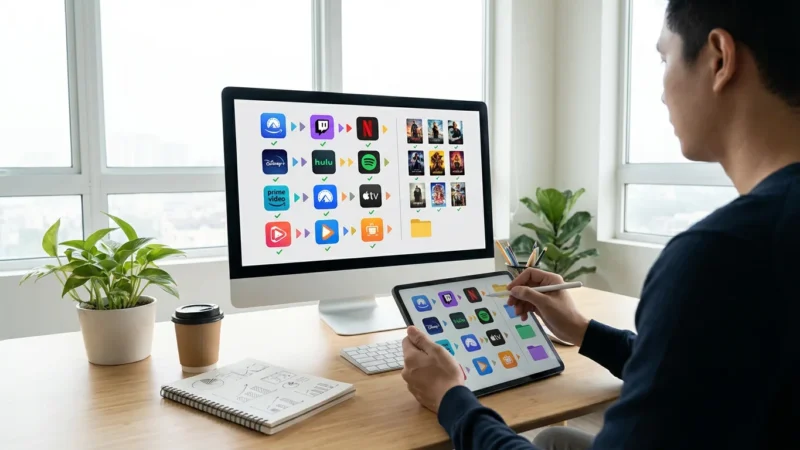
The proliferation of streaming services leads to “subscription creep,” where monthly costs accumulate, sometimes exceeding the price of a traditional cable package. You can implement several strategies to combat this and save money.
The Subscription Rotation Strategy
This strategy is ideal for “binge-watchers” or those who follow specific shows. Instead of subscribing to every service year-round, you subscribe to one or two services, binge the content you want to watch, then cancel. You then subscribe to a different service for a month or two. This rotation allows you to access a wide range of content over a year for a fraction of the cost of simultaneous subscriptions. For example, if you pay for three services at $15 each per month, that is $45 monthly, or $540 annually. By rotating, you might only pay for one or two at a time, cutting your annual cost significantly.
Leverage Annual Plans for Savings
Most streaming services offer discounts for paying annually instead of monthly. While it is a larger upfront cost, the savings can be substantial. Here is a simplified comparison:
| Service Example | Monthly Cost (Estimated) | Annual Cost (Monthly Payments) | Annual Cost (Upfront) | Annual Savings |
|---|---|---|---|---|
| Service A | $10.00 | $120.00 | $100.00 | $20.00 |
| Service B | $15.00 | $180.00 | $150.00 | $30.00 |
| Service C | $7.00 | $84.00 | $70.00 | $14.00 |
These are illustrative numbers, but they demonstrate that annual plans often save you between 10-20% compared to monthly billing. Always check current pricing on the service’s website.
Explore Bundle Deals and Free Trials
Bundles combine multiple services at a reduced price. The Disney Bundle, for example, often includes Disney+, Hulu, and ESPN+ for less than subscribing to each individually. Other services, like Paramount+, sometimes offer deals with retail memberships such as Walmart+. These bundles offer significant savings if you use all the included services. Also, make the most of free trials. Many services offer 7-day or 30-day free trials. Sign up, explore the content, and set a calendar reminder to cancel before the trial ends if you decide not to keep the service. This lets you sample content without commitment.
Utilize Discounts
Check for student, military, or senior discounts. Many streaming services partner with verification platforms to offer reduced rates for eligible individuals. Always check the “Help” or “FAQ” section of a streaming service’s website for information on these special offers.

Unlocking Hidden Features and Optimizing Settings
Streaming services are packed with features designed to enhance your viewing, but many remain undiscovered. Take control of your experience by exploring these settings.
Personalize Playback and Subtitles
- Playback Speed Controls: Most services, including YouTube, Netflix, and Disney+, offer playback speed options. You can speed up content to finish a show faster or slow it down to catch every detail. Look for a gear icon or “Settings” during playback.
- Customizable Subtitles/Captions: If you use subtitles, you can often customize their appearance. Change the font size, color, background, and even position. This is especially helpful for accessibility or simply making text easier to read. Look in your account settings or directly within the player options.
- Offline Downloads: Many services allow you to download movies and shows to your device for offline viewing. This is perfect for travel or areas with unreliable internet. Look for a download icon next to titles in the app.
Implement Robust Parental Controls
Protecting younger viewers from inappropriate content is crucial. Most streaming services offer comprehensive parental control features:
- Create Kid-Friendly Profiles: Set up separate profiles specifically for children. These profiles often have content filtered automatically to age-appropriate ratings.
- Set PIN Protection: Require a PIN to access adult profiles or to play content above a certain rating. This prevents children from circumventing kid profiles.
- Manage Content Ratings: Within your account settings, you can often specify content ratings (e.g., G, PG, TV-Y) that a particular profile can access.
- Review Viewing History: Periodically check the viewing history on kid profiles to ensure appropriate content consumption.
Maximizing Ad-Supported Tiers
Ad-supported tiers, where you watch commercials for a lower price or free, are growing in popularity. To get the most from these plans:
- Understand Ad Loads: Familiarize yourself with how often and for how long ads play. Some services have more frequent, shorter breaks, while others have fewer, longer commercial breaks.
- Plan Around Ads: If you know when ads typically occur, you can plan bathroom breaks or quick chores around them, minimizing interruption to your viewing flow.
- Compare Value: Evaluate if the savings on an ad-supported plan truly outweigh the annoyance of commercials for you. If a $5 monthly saving leads to significant frustration, the ad-free tier might be worth the extra cost.
Legal Account Sharing and Avoiding Scams
Understanding the rules for sharing your streaming accounts and recognizing potential scams protects both your wallet and your personal information.
Understanding Account Sharing Policies
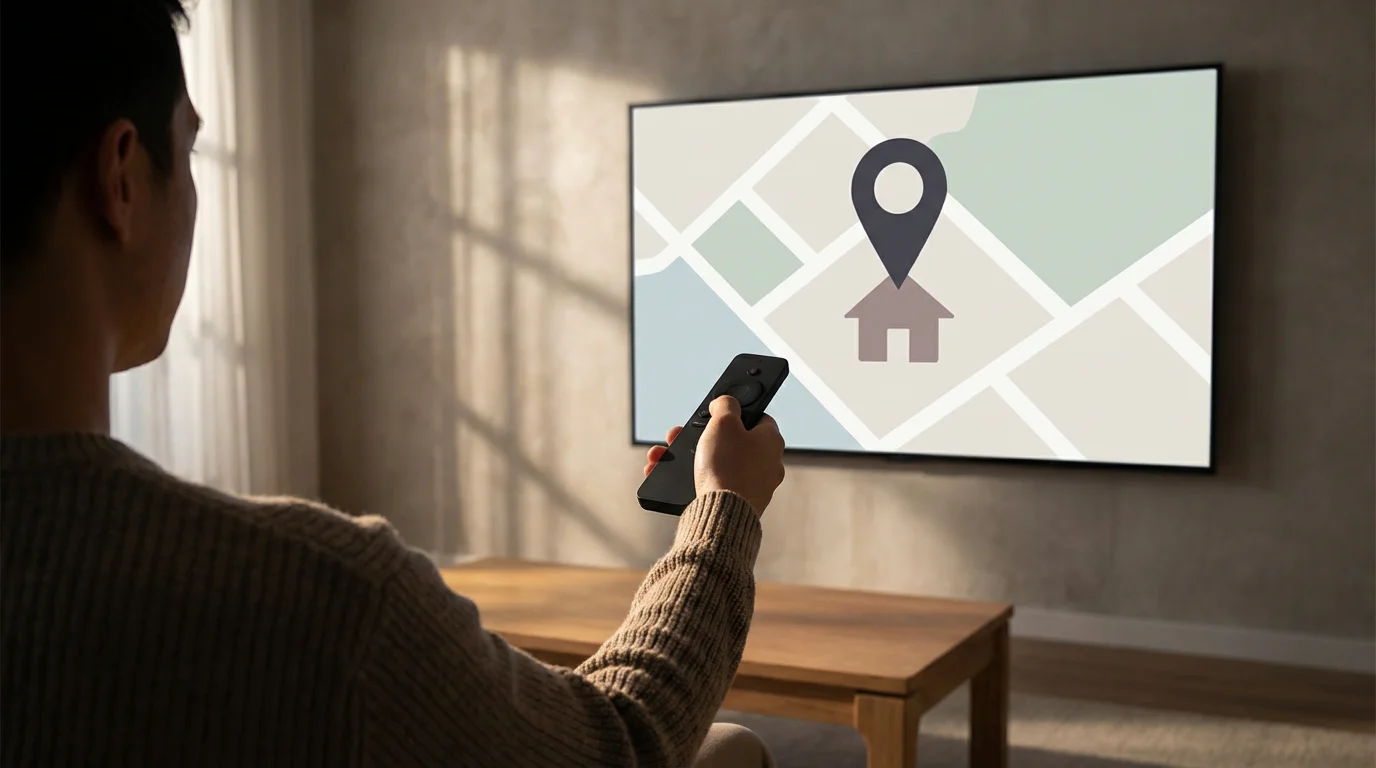
Streaming services define “household” differently. Most services permit sharing within the same physical household, meaning people living at the same address. Recent policy changes, notably by Netflix, have cracked down on sharing outside the primary household, often requiring users to set a “primary location” for the account. Sharing with individuals outside your household typically violates the terms of service and can lead to account suspension or additional fees. Always review the specific service’s terms of service regarding simultaneous streams and household definitions to avoid issues.
Best Practices for Household Sharing
- Use User Profiles: Encourage each household member to use their own profile for personalized recommendations and viewing history.
- Strong Passwords: Use a strong, unique password for your streaming accounts.
- Monitor Account Activity: Regularly check your account’s “recent activity” or “devices” section to ensure only authorized users are accessing your account.
Spotting and Avoiding Streaming Scams
Scammers frequently target streaming users with various deceptive tactics. Protect yourself by recognizing common red flags:
- Phishing Emails: Be wary of emails claiming to be from your streaming service asking you to “verify” your account, update payment information, or offering unbelievable deals. These emails often contain suspicious links. Always navigate directly to the service’s official website to log in and manage your account.
- Fake Subscription Offers: If an offer seems too good to be true, it likely is. Scammers create fake websites or ads for incredibly cheap lifetime subscriptions that simply steal your payment information.
- Unauthorized Charges: Regularly review your bank and credit card statements for unfamiliar charges. If you spot one, contact your bank and the streaming service immediately. The Better Business Bureau provides extensive resources on identifying and reporting online scams.
- “Free” Streaming Sites: Be extremely cautious of websites offering free access to premium content. These sites often host malware, viruses, or phishing attempts.
Frequently Asked Questions
What internet speed do I need for 4K streaming without buffering?
For a single 4K stream, most services recommend a consistent download speed of at least 15-25 Mbps. If multiple devices stream simultaneously in your household, or if you use other internet-intensive applications, aim for a plan with 50 Mbps or more to ensure a smooth 4K experience for everyone.
Is it legal to share my streaming account with someone who lives at a different address?
Generally, no. Most streaming services explicitly state in their terms of service that account sharing is limited to individuals within the same physical household. Sharing outside your household violates these terms and may lead to account suspension or additional charges. Always check the specific service’s terms for clarity.
How can I stop buffering on my old streaming device?
While an older device might struggle with newer, higher-quality streams, you can still improve performance. First, ensure your internet speed meets the requirements for the content you are watching. Connect your device to your router via an Ethernet cable if possible. Regularly restart your device, clear app caches, and ensure all firmware and apps are updated. If buffering persists, consider upgrading to a newer streaming device, as they have more powerful processors and better WiFi capabilities.
Can I really save money by rotating my streaming subscriptions?
Absolutely. By strategically subscribing to services only when you actively want to watch their content and then canceling, you can significantly reduce your annual entertainment costs. This method works best for viewers who binge-watch shows or have specific content they want to see at certain times of the year, avoiding continuous monthly payments for services they do not use regularly.
Disclaimer: Streaming service terms and pricing change frequently. Always review current terms of service before implementing any money-saving strategies. Some tips may not work with all services or in all regions.
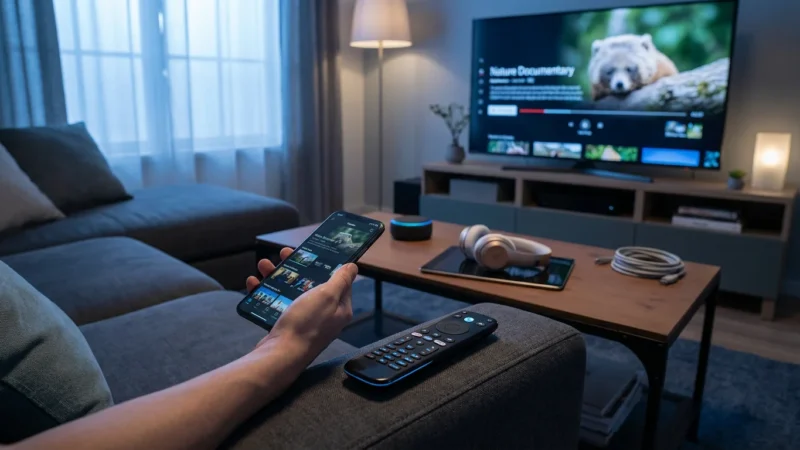
If your older device lacks modern apps, you can often cast or mirror your phone to the TV as a temporary workaround for better performance.





Leave a Reply