
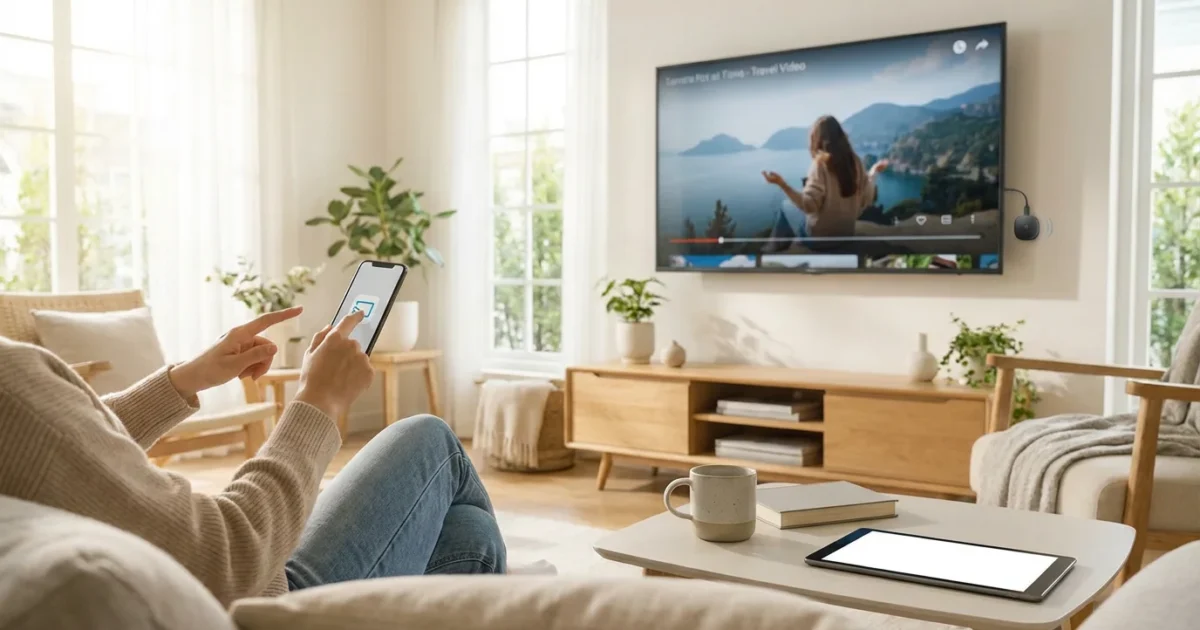
Watching content on your phone offers convenience, but for a truly immersive experience, nothing beats the big screen of your television. If you want to share videos, photos, or even your entire phone screen with family and friends, knowing how to cast or mirror your phone to your TV is an essential skill. This guide empowers you to connect your mobile device to your television, transforming your viewing habits and unlocking new possibilities for your existing streaming services. We break down the most popular methods, offering practical, step-by-step instructions to ensure you make smart decisions about how you enjoy your entertainment.
Understanding Casting Versus Screen Mirroring
Before we dive into the how-to, it is crucial to understand the difference between casting and screen mirroring. While both display content from your phone to your TV, they operate differently.
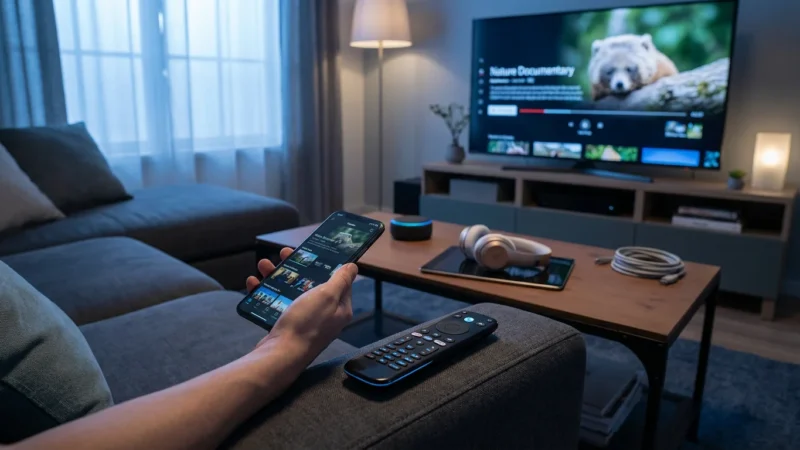
* Casting: When you “cast to TV,” your phone acts as a remote control, telling your smart TV or a dedicated “streaming device” like a Chromecast or Roku stick to stream content directly from the internet. Your phone is then free to perform other tasks, such as making calls, sending texts, or browsing social media, without interrupting the video on your TV. This method is highly efficient, conserving your phone’s battery life and processing power. It typically offers a higher quality, more stable stream since the TV or streaming device pulls the data directly. Many popular “streaming” apps, which let you watch video content over the internet instead of cable or satellite, support casting.
* Screen Mirroring: “Screen mirror” projects your phone’s entire display, including its interface, notifications, and anything else visible on your screen, onto your TV. Your phone remains actively engaged in sending the signal, meaning any activity on your phone’s screen, such as switching apps or receiving a text, also appears on the TV. This method is ideal for sharing photos, presentations, or apps that do not have a built-in casting function. However, it can drain your phone’s battery faster and may experience more latency, which is a delay in the video or audio signal.
Choosing between casting and mirroring depends on your specific needs. For dedicated video playback, casting offers a superior experience. For sharing specific app interfaces or visual content directly from your phone’s display, mirroring is your best bet.
Why Cast or Mirror Your Phone to Your TV?
Connecting your phone to your TV offers numerous practical advantages, especially for “cord-cutting” viewers, meaning those who cancel traditional cable or satellite TV in favor of “streaming services.”
- Larger Viewing Experience: Transform your small phone screen into a cinema-like experience. This is perfect for movies, TV shows, and sporting events.
- Content Sharing: Easily share photos, videos, and presentations from your phone with a group, eliminating the need to huddle around a small screen.
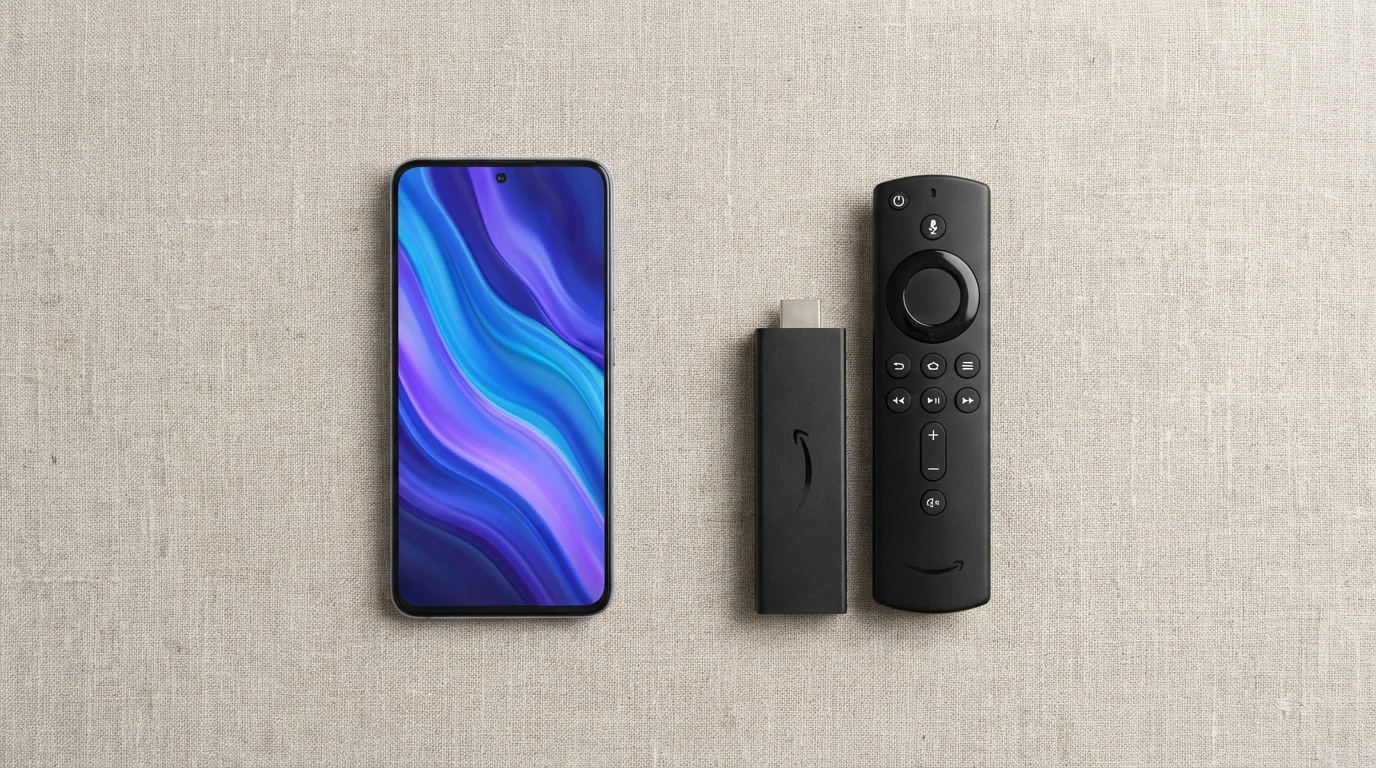
- Maximize Existing Devices: Get more value from your phone and your existing TV. You do not need to buy a new “smart TV” , a television with built-in internet connection and apps, for every room to enjoy streaming content. You can use an older TV with a simple “streaming device”, a small box or stick like a Roku or Fire TV, combined with your phone.
- Guest-Friendly Streaming: Guests can easily cast their favorite content from their phones to your TV without needing to log into your personal streaming accounts on your TV.
- Gaming on the Big Screen: Some mobile games support casting or mirroring, allowing for a more immersive gaming experience.
- Accessibility: For individuals with visual impairments, mirroring a phone with accessibility features can make content easier to see on a larger display.
Casting is just one of many streaming hacks that can fundamentally improve your cord-cutting experience.
Casting with Google Chromecast and Android Devices
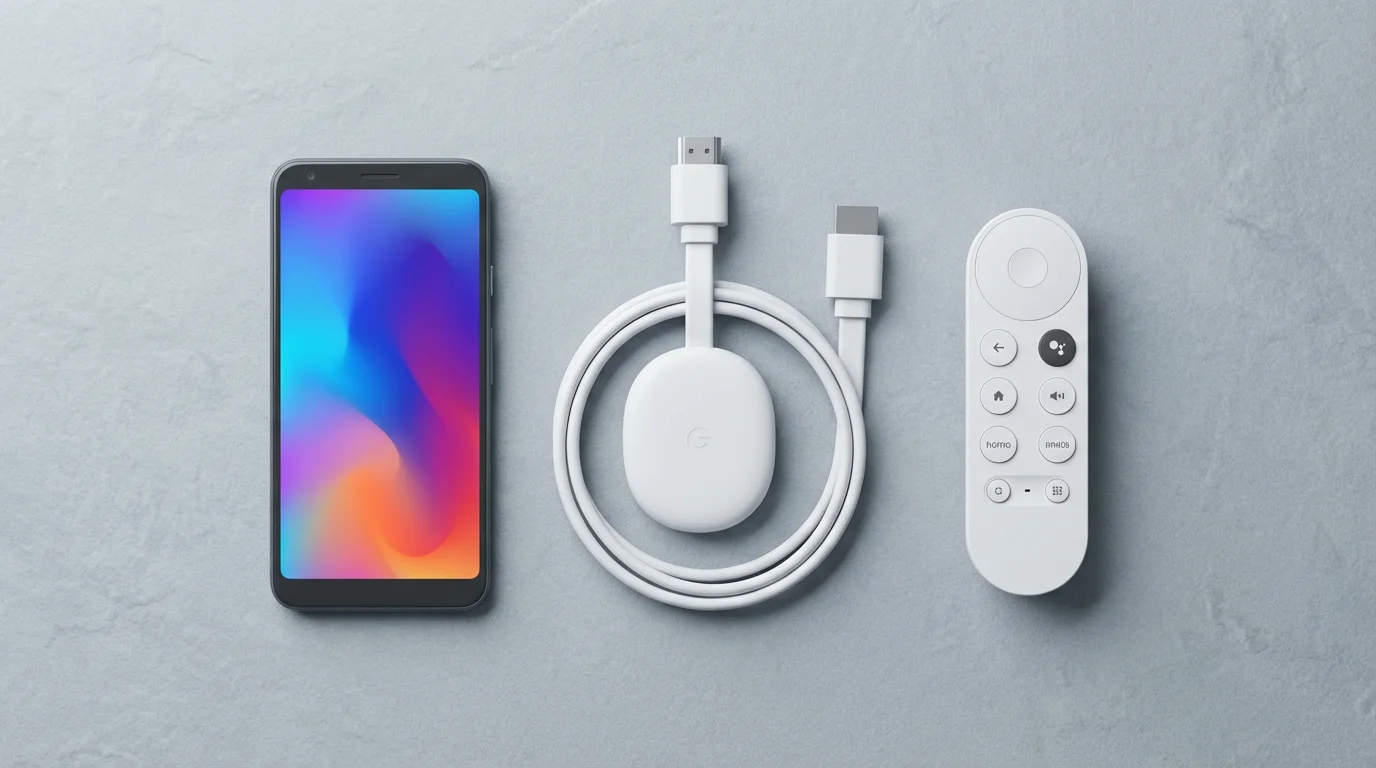
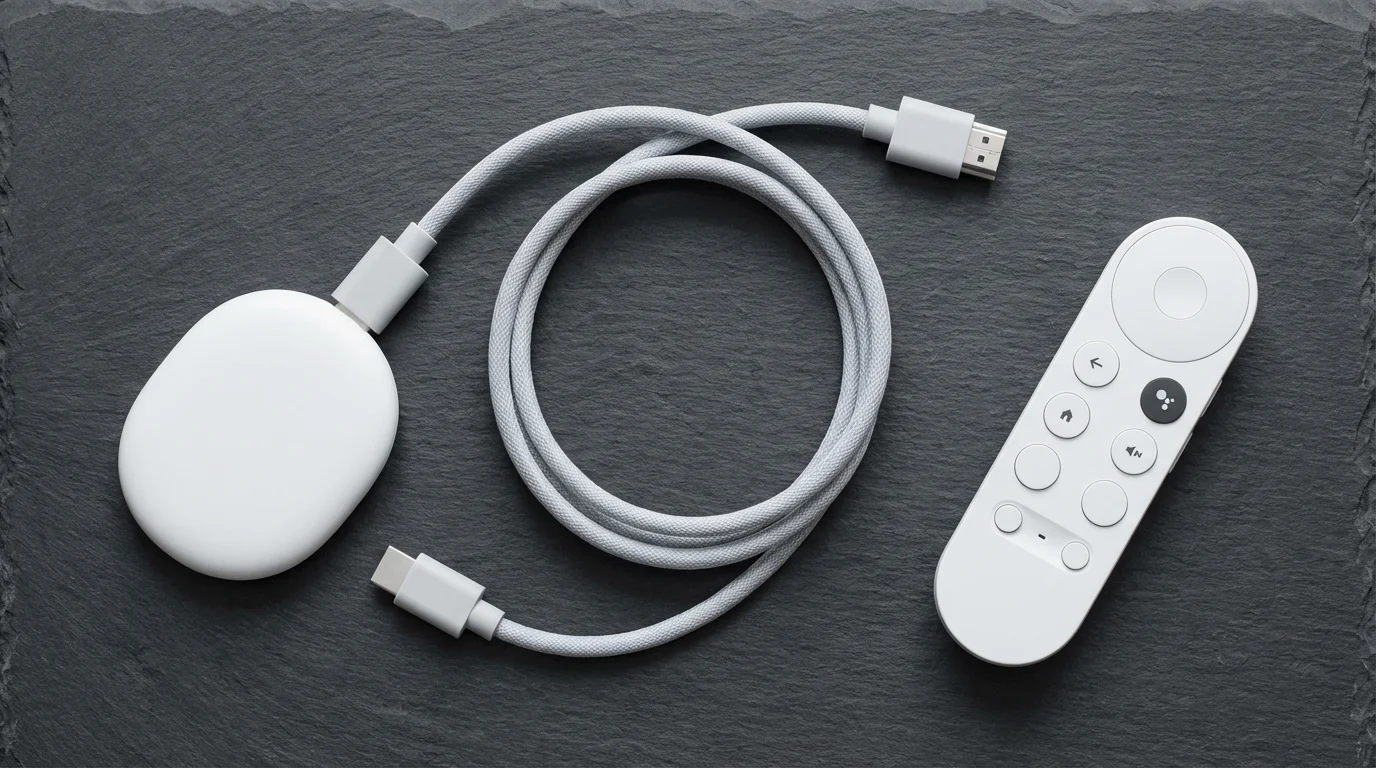
Google Chromecast is one of the most popular and affordable ways to cast content from your Android phone, iPhone, or computer to your TV. A Chromecast is a small “streaming device” that plugs into your TV’s HDMI port.
How Chromecast Works
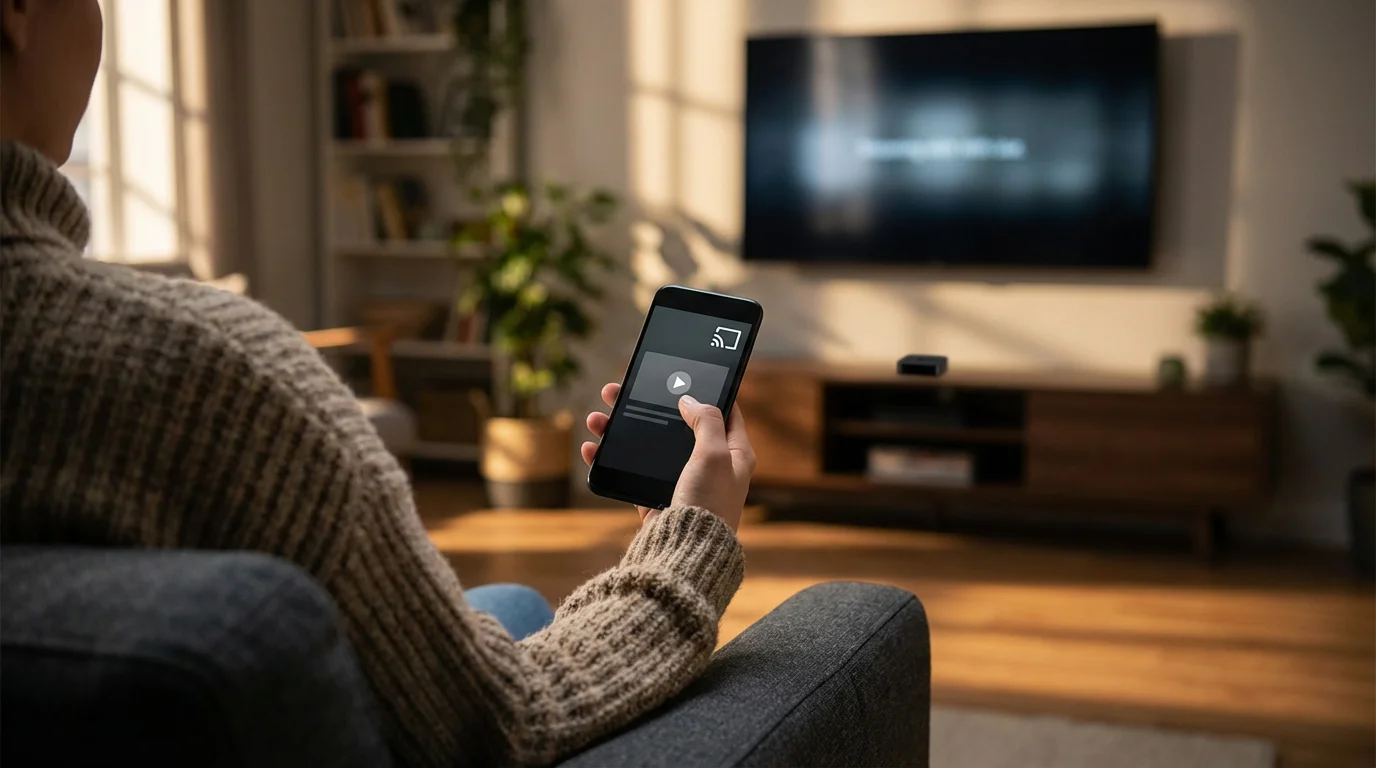
When you tap the Cast icon in a compatible app on your phone, your phone tells the Chromecast device to open that app and stream the content directly from the internet. Your phone then acts as a remote.
Step-by-Step Casting from Android Apps
Most major “streaming” apps, including YouTube, Netflix, Disney+, Hulu, and Max, integrate Chromecast support directly.
- Connect Devices: Ensure your Google Chromecast device is plugged into your TV and powered on. Both your phone and the Chromecast must be connected to the same Wi-Fi network.
- Open a Casting-Enabled App: Launch an app on your Android phone that supports casting, such as YouTube or Netflix.
- Find the Cast Icon: Look for the Cast icon within the app. It typically looks like a rectangle with a Wi-Fi signal in the bottom left corner. It might appear in the top right corner of the video player or general app interface.
- Select Your Chromecast: Tap the Cast icon, and a list of available Chromecast devices on your network will appear. Select the name of your Chromecast.
- Start Playing Content: Once connected, choose the video or audio you wish to play. It will automatically begin playing on your TV. Your phone can now be used for other tasks without interrupting the TV playback.
Casting Your Entire Android Screen (Screen Mirroring)
You can also mirror your entire Android phone’s screen to your TV via Chromecast. This is useful for apps that do not have built-in casting support or for sharing photos and presentations.
- Open Google Home App: Download and open the Google Home app on your Android phone if you do not already have it.
- Select Your Chromecast: On the main screen of the Google Home app, locate and tap on your Chromecast device.
- Initiate Screen Cast: Tap the “Cast my screen” button at the bottom of the device card. Confirm your choice by tapping “Cast screen” again.
- Stop Mirroring: To stop mirroring, open the Google Home app, tap your Chromecast device, and select “Stop casting” at the bottom. You can also typically find a persistent notification on your phone’s notification shade to stop casting.
Pros and Cons of Chromecast
| Pros | Cons |
|---|---|
| Affordable entry point for casting. | Requires a Google account and the Google Home app for setup. |
| Wide app compatibility on Android and iOS. | Full screen mirroring can have slight latency. |
| Phone is free to use during casting. | Relies heavily on a strong Wi-Fi network. |
| Supports high-resolution video, including 4K with newer models. | Some older TVs may require an external power source for the Chromecast. |
Mirroring and AirPlay with Apple Devices
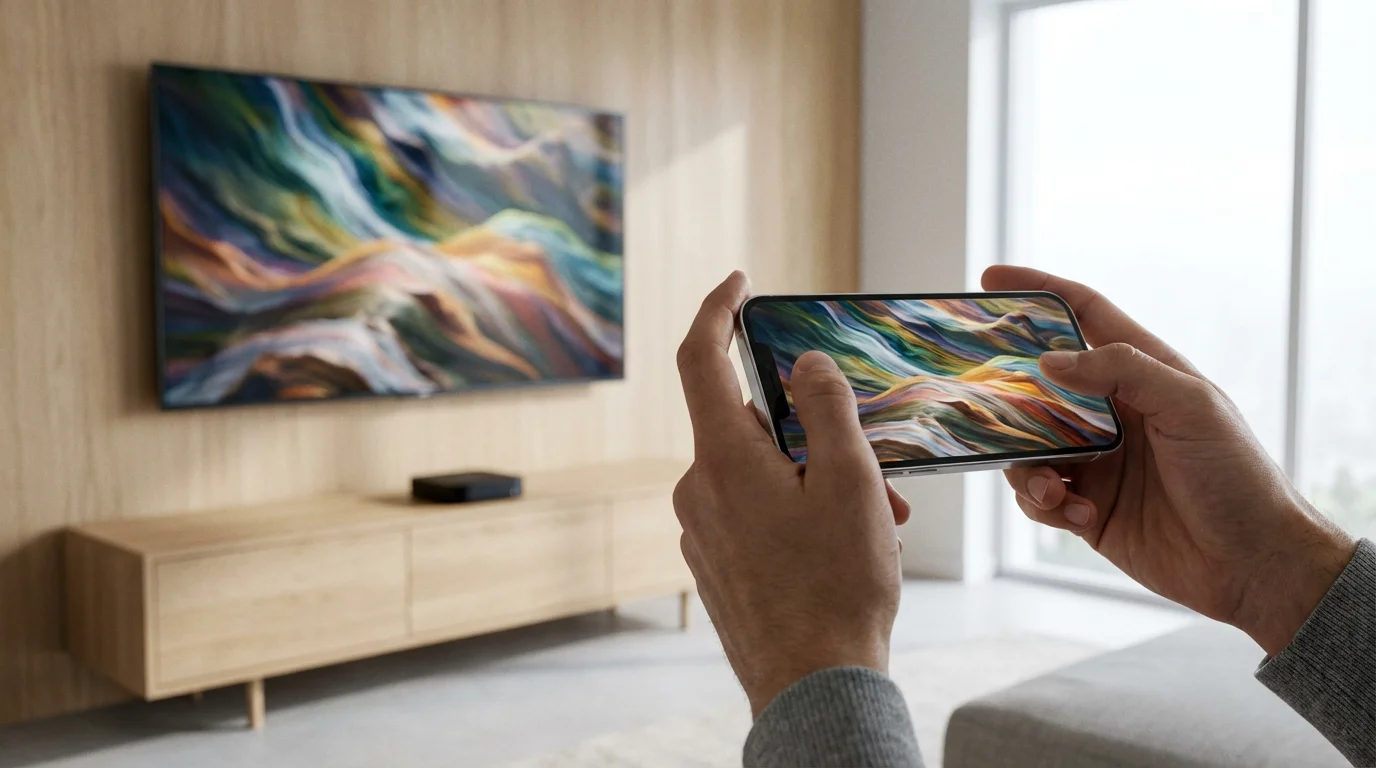
Apple’s AirPlay technology allows users to stream audio, video, and photos from Apple devices like iPhones, iPads, and Mac computers to compatible “smart TVs” or Apple TV “streaming devices.” AirPlay focuses heavily on a seamless Apple ecosystem experience.
How AirPlay Works
As you start casting more often, it helps to know how to manage multiple streaming subscriptions to stay organized and within budget.
AirPlay either casts content directly from an app (similar to Chromecast) or mirrors your device’s entire screen, depending on the function you choose. Many modern “smart TVs” from brands like Samsung, LG, Sony, and Vizio now include built-in AirPlay 2 support, eliminating the need for an Apple TV box.
Step-by-Step AirPlay from iOS Apps
Most video and audio apps on iOS support AirPlay, allowing you to stream content while freeing up your phone.
- Connect Devices: Ensure your iPhone or iPad and the AirPlay-compatible TV or Apple TV are connected to the same Wi-Fi network.
- Open an AirPlay-Enabled App: Launch an app like YouTube, Photos, Apple TV app, or another “streaming” service.
- Find the AirPlay Icon: Look for the AirPlay icon, which usually looks like a rectangle with an upward-pointing arrow originating from its base. It is often found within the video player controls or sharing options.
- Select Your TV: Tap the AirPlay icon, and a list of available AirPlay devices will appear. Select your Apple TV or AirPlay-compatible smart TV.
- Start Playing Content: The content will start playing on your TV. You can continue to use your iPhone for other tasks.
Screen Mirroring Your Entire iOS/macOS Screen
To display your entire iPhone or iPad screen on your TV, you use the “Screen Mirroring” feature.
- Access Control Center: On an iPhone X or later, swipe down from the top-right corner of the screen. On older iPhones or iPads, swipe up from the bottom edge of the screen. This opens the Control Center.
- Tap Screen Mirroring: Look for the “Screen Mirroring” button. It has two overlapping rectangles.
- Choose Your TV: A list of available AirPlay devices will appear. Select your Apple TV or AirPlay-compatible smart TV.
- Enter Passcode (if prompted): If a passcode appears on your TV screen, enter it on your iPhone or iPad.
- Stop Mirroring: To stop, open Control Center again, tap “Screen Mirroring,” then tap “Stop Mirroring.”
Pros and Cons of AirPlay
| Pros | Cons |
|---|---|
| Seamless integration within the Apple ecosystem. | Primarily designed for Apple devices. |
| Supports both content casting and full screen mirroring. | Smart TV compatibility may vary by model and age. |
| High-quality video and audio transmission. | Apple TV streaming device costs more than a Chromecast. |
| AirPlay 2 allows multi-room audio with compatible speakers. | Some older apps may not fully support AirPlay. |
“Apple’s AirPlay 2 dramatically improved multi-room audio capabilities, allowing users to stream the same music to multiple speakers simultaneously, which is a significant upgrade for home entertainment setups.” — CNET.com on AirPlay 2’s capabilities. CNET often reviews these advancements.
Using Miracast for Screen Mirroring
Miracast is an industry standard for wireless display that allows you to “screen mirror” your device’s display to a compatible TV or receiver without needing a Wi-Fi network or external device in some cases. It creates a direct, peer-to-peer connection between your phone and your TV.
How Miracast Works
Miracast essentially acts like an HDMI cable, but wirelessly. It duplicates your phone’s screen onto your TV. Many Android phones and Windows PCs support Miracast, and many “smart TVs” have Miracast or “Wireless Display” built-in. Some older TVs may require a Miracast adapter or dongle.
Step-by-Step Miracast Setup (Android to Compatible TV)
The exact steps can vary slightly depending on your Android phone’s manufacturer and your TV model, but the general process is as follows:
- Enable Miracast on TV: On your TV, navigate to the input or settings menu and look for “Screen Mirroring,” “Wireless Display,” “Miracast,” or “Smart View.” Activate this feature to make your TV discoverable.
- Access Screen Mirroring on Android: On your Android phone, swipe down from the top of the screen to open the Quick Settings panel. Look for an icon or label such as “Smart View,” “Screen Cast,” “Cast,” “Wireless Display,” or “MirrorShare.” The exact name depends on your phone’s brand.
- Select Your TV: Tap the appropriate icon. Your phone will scan for nearby Miracast-enabled devices. Select your TV from the list that appears.
- Confirm Connection: Your TV may ask for confirmation to connect. Accept the connection.
- Stop Mirroring: To disconnect, typically you can swipe down on your phone’s notification panel and tap the “Disconnect” or “Stop Mirroring” option from the ongoing notification.
Pros and Cons of Miracast
| Pros | Cons |
|---|---|
| Often built into many Android phones and Windows devices. | Can be less reliable than Chromecast or AirPlay. |
| Does not always require a Wi-Fi network, creates a direct connection. | Compatibility issues can arise between different device manufacturers. |
| Good for sharing presentations or web pages directly. | Often exhibits higher latency, making it less ideal for fast-paced gaming. |
| No extra hardware needed if both devices are compatible. | Your phone is completely occupied while mirroring. |
“While Miracast offers a convenient direct connection, its inconsistent performance across devices and tendency for higher latency often lead users to prefer more robust solutions like Chromecast or AirPlay for dedicated streaming.” — Expert observation from Tom’s Guide reviews. For more on streaming technologies, check Tom’s Guide.
Casting and Mirroring Without Dedicated Devices: Smart TVs and Built-in Features
Many modern “smart TVs” now come equipped with built-in casting and mirroring capabilities, reducing the need for separate “streaming devices.” This is a significant convenience for viewers seeking to consolidate their entertainment setup.
Smart TVs with Integrated Technologies
- Google Cast Built-in: Many Android TVs and Google TVs from brands like Sony, TCL, Hisense, and Philips have Chromecast technology built directly into the television. This means you can cast from any compatible app on your phone to your TV just as you would with a physical Chromecast device, using the same steps outlined earlier for Google Chromecast.
- AirPlay 2 Built-in: As mentioned, numerous “smart TV” brands, including Samsung, LG, Sony, and Vizio, have integrated AirPlay 2 support. This allows iPhone and iPad users to cast or mirror directly to their TV without an Apple TV “streaming device.”
- Roku and Fire TV Built-in: Some TVs come with Roku OS or Fire TV OS built-in, essentially making the TV a large Roku or Fire TV “streaming device.” These platforms have their own casting and mirroring protocols.
- Roku TVs: You can typically cast from compatible apps to a Roku TV. For full screen mirroring from an Android device or Windows PC, you can use the “Screen Mirroring” feature found in Roku’s settings, which utilizes a Miracast-like protocol. The Roku mobile app also allows you to cast photos and videos stored on your phone to the TV.
- Fire TV Edition TVs: Similar to Roku, Fire TV Edition TVs allow casting from compatible apps. They also support mirroring from Android devices and Windows PCs. You can initiate mirroring from your Android device or by selecting the “Mirroring” option from the Fire TV menu.
- Brand-Specific Mirroring: Many manufacturers offer their own proprietary mirroring solutions. For example, Samsung’s Smart View, LG’s Screen Share, or Sony’s TV Connect. These often work best with phones from the same brand but can sometimes connect to other Android devices using Miracast.
Benefits of Built-in Features
* Less Clutter: You have fewer cables and fewer “streaming devices” connected to your TV, resulting in a cleaner entertainment setup.
* Cost Savings: You do not need to purchase an additional Chromecast or Apple TV dongle if your TV already has these capabilities built-in. This is a direct money-saving advantage.
* Simplicity: The integration often leads to a more streamlined user experience, as the TV and phone can communicate more directly.
Always check your TV’s specifications or manual to confirm its built-in casting and mirroring capabilities. This research helps you make informed choices about any additional “streaming devices” you might consider.
Optimizing Your Casting and Mirroring Experience
A smooth casting or mirroring experience depends on several factors beyond just having the right equipment. Optimizing your home network and device settings can significantly improve performance and reduce frustrating interruptions.
Internet Speed and Wi-Fi Placement
If you experience stuttering or lag while connecting, follow these tips to fix common streaming problems like buffering.
* Internet Speed: While casting primarily relies on your TV’s internet connection, a faster overall internet connection (the speed coming into your home) ensures all devices, including your phone, have sufficient bandwidth. For HD streaming, aim for at least 5-8 Mbps per stream. For 4K, target 25 Mbps or higher. According to Consumer Reports, a robust internet plan is fundamental for reliable streaming.
* Router Placement: Place your Wi-Fi router in a central location in your home, ideally close to your TV and the device you are casting from. Obstacles like thick walls, large appliances, or furniture can weaken Wi-Fi signals.
* Frequency Bands: Most modern routers offer both 2.4 GHz and 5 GHz Wi-Fi bands. The 5 GHz band is faster but has a shorter range and penetrates obstacles less effectively. The 2.4 GHz band has better range but is slower and more prone to interference. For casting, if your devices are close to the router, use the 5 GHz band for better performance. If your TV or “streaming device” is further away, the 2.4 GHz band might provide a more stable, albeit slower, connection.
* Reduce Interference: Other electronic devices, such as cordless phones, microwaves, and even neighbors’ Wi-Fi networks, can cause interference. Try changing your router’s Wi-Fi channel in its settings to find a less congested one.
Device Settings and Maintenance
* Keep Software Updated: Ensure your phone’s operating system, the casting app, your “streaming device” firmware (Chromecast, Apple TV), and your “smart TV” software are all up to date. Updates often include performance improvements and bug fixes.
* Restart Devices: A simple restart of your phone, “streaming device,” TV, and especially your Wi-Fi router can resolve many connection issues. This clears temporary glitches and refreshes network connections.
* Disable Power Saving Modes: On your phone, power-saving modes can sometimes restrict background processes or Wi-Fi performance, which might affect casting stability. Temporarily disable these modes if you encounter issues.
* Close Background Apps: Close unnecessary apps running on your phone. This frees up RAM and processing power, ensuring your phone can dedicate more resources to casting or mirroring.
* Minimize Network Congestion: If multiple devices in your home are simultaneously performing bandwidth-intensive tasks, such as online gaming or large downloads, your casting performance might suffer. Try to reduce simultaneous usage during critical streaming.
Troubleshooting Common Issues
* Devices Not Appearing: Double-check that all devices are on the *same* Wi-Fi network. Sometimes, routers create separate guest networks; ensure your phone and TV are on the main network.
* Lag or Stuttering: This often points to a weak Wi-Fi signal or network congestion. Try moving closer to the router, switching to the 5 GHz band, or reducing other network usage.
* No Audio: Check the volume levels on both your phone and your TV. Also, ensure your TV’s audio output settings are correct. Sometimes, disconnecting and reconnecting the cast can resolve audio sync issues.
* Connection Dropping: A dropping connection could be due to Wi-Fi interference, an overloaded router, or a device going into a power-saving mode. Implement the optimization tips above.
Understanding Streaming Quality and Performance
The quality of your streamed content, whether cast or mirrored, significantly impacts your viewing satisfaction. Understanding the factors that influence “streaming” quality empowers you to troubleshoot and enhance your experience.
Resolution Implications
To ensure your casted content looks as crisp as possible, you should also adjust your streaming quality settings for the best picture.
* Source Content: The quality of the original video content is paramount. If a video is only available in 720p resolution, casting it to a 4K TV will not magically make it 4K. Your TV will upscale it, but the original detail remains the same.
* Device Capabilities: Your “streaming device” or “smart TV” must support the desired resolution. Most modern Chromecasts and Apple TVs support 1080p HD, and many newer models support 4K Ultra HD. Ensure your TV also supports these resolutions.
* Bandwidth: Higher resolutions like 4K require significantly more internet bandwidth than standard definition (SD) or high definition (HD). Insufficient bandwidth will lead to buffering, lower resolution, or a dropped connection.
* SD (480p): ~3 Mbps
* HD (720p/1080p): ~5-8 Mbps
* 4K Ultra HD: ~25 Mbps or more
Latency and Responsiveness
* Casting vs. Mirroring: Casting generally exhibits lower latency because the “streaming device” or TV directly accesses the internet content. Mirroring, which sends the entire phone screen as a video stream, tends to have higher latency. This means a slight delay between an action on your phone and its appearance on the TV.
* Network Latency: Your overall internet connection’s latency (ping) also plays a role. A high ping means more delay in data transmission, affecting responsiveness.
* Device Processing Power: The processor in your phone, “streaming device,” or “smart TV” influences how quickly it can encode, decode, and display video. Older or less powerful devices might introduce more latency.
Impact of Connection Type
* Wi-Fi Quality: The strength and stability of your Wi-Fi signal are critical. A weak signal will lead to reduced bandwidth, buffering, and lower “streaming” quality. As previously mentioned, placing your router strategically and choosing the right Wi-Fi band (2.4 GHz or 5 GHz) helps.
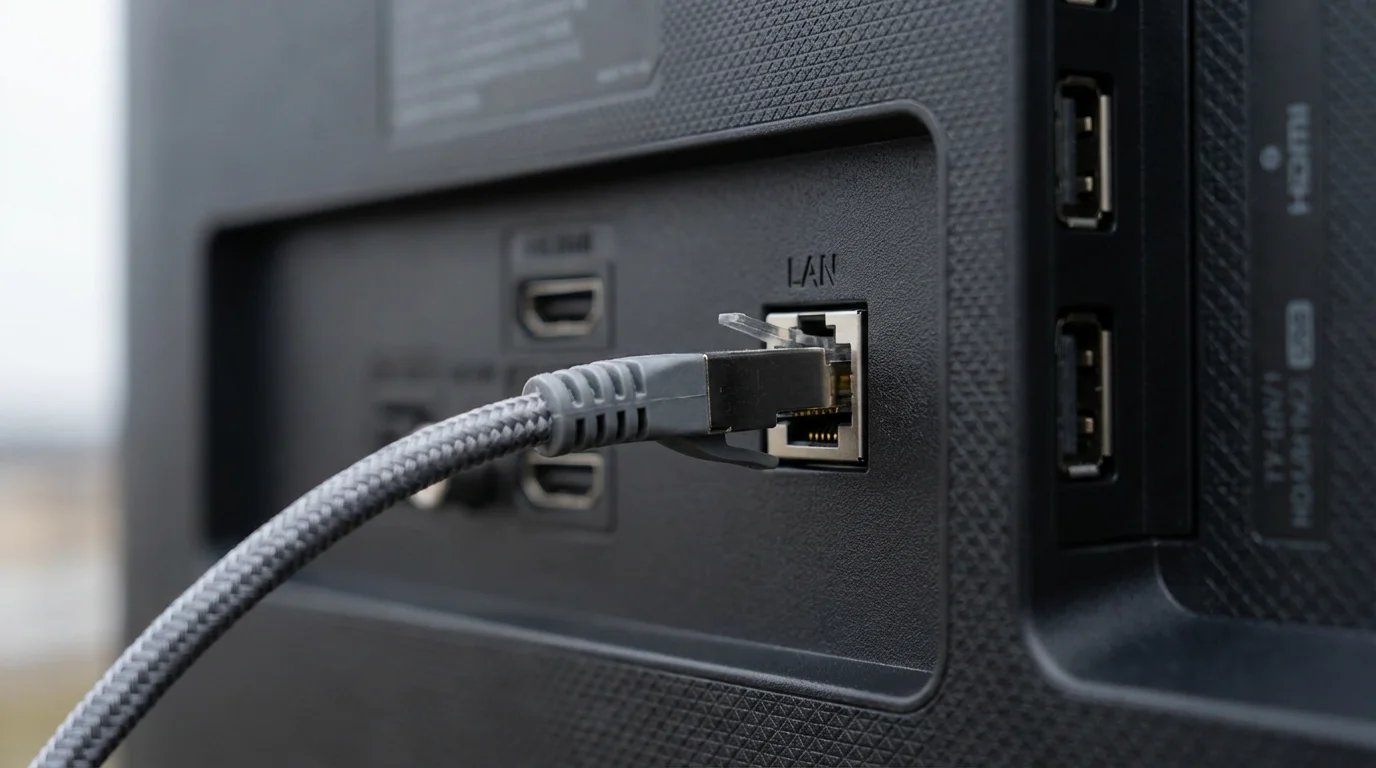
* Ethernet (Wired) Connection: For “streaming devices” or “smart TVs” that have an Ethernet port, a wired connection offers the most stable and fastest connection. If your “streaming device” supports an Ethernet adapter (like some Chromecast models), consider using it for the best possible “streaming” quality, especially for 4K content. Wired connections virtually eliminate Wi-Fi interference and provide consistent speeds.
By understanding these technical aspects, you can better diagnose performance issues and apply the optimization strategies discussed. This ensures you enjoy your entertainment with the clarity and responsiveness it deserves.
Frequently Asked Questions
Can I cast to a non-smart TV?
Yes, you can. You will need a “streaming device” like a Google Chromecast, an Apple TV, or an Amazon Fire TV Stick. These devices plug into your non-smart TV’s HDMI port and provide the smart capabilities needed to receive cast signals from your phone.
Do I need an internet connection to cast or mirror?
For casting content from apps (like Netflix or YouTube), your TV or “streaming device” needs an active internet connection to pull the content. Your phone and the casting device must also be on the same Wi-Fi network. For “screen mirror” using Miracast, you often do not need an active internet connection, as it creates a direct device-to-device connection, but Wi-Fi is still typically involved for the local connection.
Will casting drain my phone’s battery?
Casting generally has minimal impact on your phone’s battery because your phone acts primarily as a remote control, sending a command to your “streaming device” or TV to fetch content directly. Screen mirroring, however, can drain your phone’s battery more quickly because your phone is actively processing and transmitting its entire screen display as a video stream.
Can I cast content from my web browser?
Yes. If you are using Google Chrome as your web browser on an Android phone or computer, you can typically cast an entire tab or your entire desktop/phone screen to a Chromecast device. For iPhones and iPads, you can use the screen mirroring feature to display your Safari browser content on an AirPlay-compatible TV or Apple TV.
Disclaimer: Streaming service terms and pricing change frequently. Always review current terms of service before implementing any money-saving strategies. Some tips may not work with all services or in all regions.

Leave a Reply