
Your streaming remote control often feels essential, but what happens when it vanishes into the couch cushions, runs out of batteries, or simply lacks the features you need? Many cord-cutters, those viewers who cancel traditional cable or satellite TV in favor of watching video content over the internet, discover a powerful alternative: their smartphone. Using your phone as a streaming remote provides a convenient, feature-rich, and often superior way to control your favorite streaming device or smart TV, which is a television with built-in internet connection and apps.
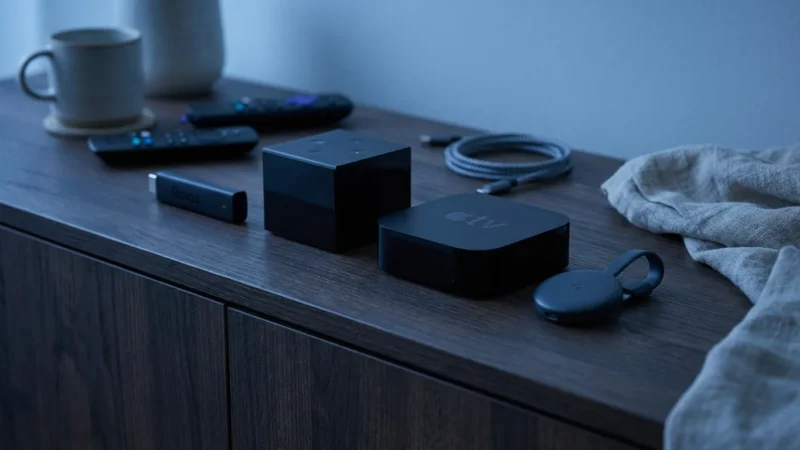
Before diving into the apps, it helps to understand the hardware; check our comparison of Roku vs Fire TV vs Apple TV vs Chromecast to see how these ecosystems differ.
This guide empowers you to transform your smartphone into the ultimate control center for your entertainment. We will walk you through the process for popular streaming devices like Roku, Amazon Fire TV, Apple TV, and Chromecast, along with general advice for various smart TVs. You will learn how to set up the necessary apps, troubleshoot common issues, and unlock advanced features that enhance your streaming experience, saving you money on replacement remotes and frustration over lost ones.
Why Your Phone Makes the Ultimate Streaming Remote
Many users initially rely on the physical remote that comes with their streaming device or smart TV. While functional, these remotes often have limitations. Your phone, however, offers a host of benefits that make it an exceptional streaming remote.
- Never Lose It (Almost): Your phone is usually close by, unlike a dedicated remote that might disappear into couch cushions or under furniture. You always know where to find it.
- Superior Text Entry: Typing search queries or passwords with a traditional remote’s on-screen keyboard is slow and frustrating. Your phone’s full QWERTY keyboard dramatically speeds up text input, allowing you to find content faster.
- Enhanced Voice Control: Many phone remote apps leverage your phone’s microphone for more accurate and responsive voice commands than what a tiny physical remote might offer. This helps you quickly search for specific movies, shows, or even actors across multiple streaming services.
- Private Listening: A standout feature on some platforms, like Roku, allows you to plug headphones into your phone. The audio from your TV then streams directly to your headphones, letting you watch loud action movies late at night without disturbing others in your home.
- Universal Control: With multiple streaming devices and smart TVs in your home, you might juggle several remotes. Your phone, with the right apps, can consolidate control for all of them into a single device.
- Accessibility: For users with specific needs, phone apps often provide more robust accessibility features, such as larger text, haptic feedback, or integration with screen readers.
“Using your phone as a remote isn’t just a backup option. It often unlocks features and convenience that dedicated remotes simply cannot match, especially for text entry and private listening.”
Getting Started: Essential Steps for All Devices
Regardless of your streaming device, a few fundamental steps apply to setting up your phone as a remote. Follow these prerequisites to ensure a smooth connection.
If you are setting up your hardware for the first time, our complete beginner’s guide to streaming devices can help you get online quickly.
- Connect to the Same Wi-Fi Network: This is the most critical step. Your phone and your streaming device or smart TV must be connected to the exact same Wi-Fi network. If your home has multiple networks (e.g., 2.4 GHz and 5 GHz bands with different names), ensure both devices are on the same one. For example, if your Roku is on “MyHome_5G”, your phone must also be on “MyHome_5G”.
- Download the Official App: Each major streaming platform and smart TV brand offers its own dedicated remote app. Avoid third-party or generic “universal” remote apps, as they often lack functionality, reliability, and can even pose security risks. Always download the official app from your phone’s app store (Apple App Store for iOS, Google Play Store for Android).
- Power On Your Streaming Device/Smart TV: Ensure your device is turned on and actively connected to your TV and the internet. The app needs to “see” an active device on the network.
- Open the App and Scan for Devices: Once installed, open the app on your phone. Most apps will automatically scan your local network for compatible streaming devices. You might need to grant the app local network permissions during setup.
- Select Your Device: From the list of found devices, tap to select the one you want to control.
- Follow On-Screen Prompts: Some devices might require a quick confirmation on your TV screen to pair your phone, enhancing security.
If you encounter issues, a quick restart of both your phone and the streaming device, along with verifying your Wi-Fi connection, resolves many common problems.
Roku Remote App: Seamless Control and Unique Features
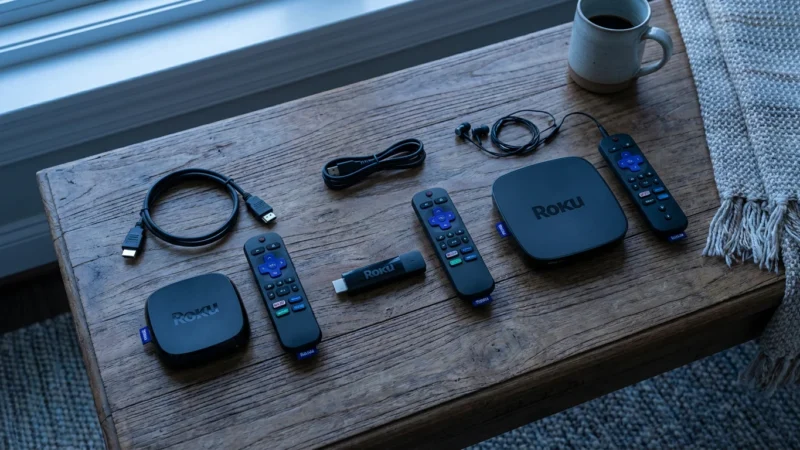
Roku devices are among the most popular streaming devices in the USA, known for their simplicity and vast content library. The Roku mobile app extends this user-friendly experience to your smartphone, making it a powerful remote control.
The app works across the entire lineup, from the Roku Express to the Roku Ultra, providing a consistent interface for every user.
Key Features of the Roku App:
- Full Remote Functionality: Navigate menus, select content, play/pause, fast forward/rewind, and adjust volume, all from your phone.
- Keyboard Input: Use your phone’s keyboard to quickly type in search terms for movies, shows, or app names. This is a game-changer for finding content quickly.
- Voice Search: Tap the microphone icon in the app and speak your commands. The Roku app uses voice search to find content across multiple streaming services, a significant time-saver.
- Private Listening: This is one of Roku’s most beloved features. Plug any headphones into your phone, tap the headphone icon in the app, and listen to your TV’s audio privately. This feature is invaluable for late-night viewing or when others in the household need quiet.
- Casting: You can cast photos, videos, and music stored on your phone directly to your Roku device for viewing on your TV.
- Channel Launcher: Easily browse and launch channels directly from the app. You can even rearrange your channel order.
How to Set Up the Roku App:
- Download the App: Search for “Roku” in your phone’s app store and install the official Roku Mobile App.
- Connect to Wi-Fi: Ensure your phone is on the same Wi-Fi network as your Roku device.
- Open the App: Launch the Roku app. It will automatically search for Roku devices on your network.
- Select Your Roku: From the list of discovered devices, tap on your Roku player or Roku TV.
- Start Streaming: The app will display a virtual remote. You are now ready to control your Roku.
The Roku app’s private listening feature alone makes it a compelling reason to use your phone as a remote, especially for households with varying schedules or noise sensitivities. According to Wirecutter’s review of streaming devices, Roku remains a top choice for its ease of use and value, a quality that extends to its excellent mobile app.
Amazon Fire TV Remote App: Alexa Integration and Keyboard Ease
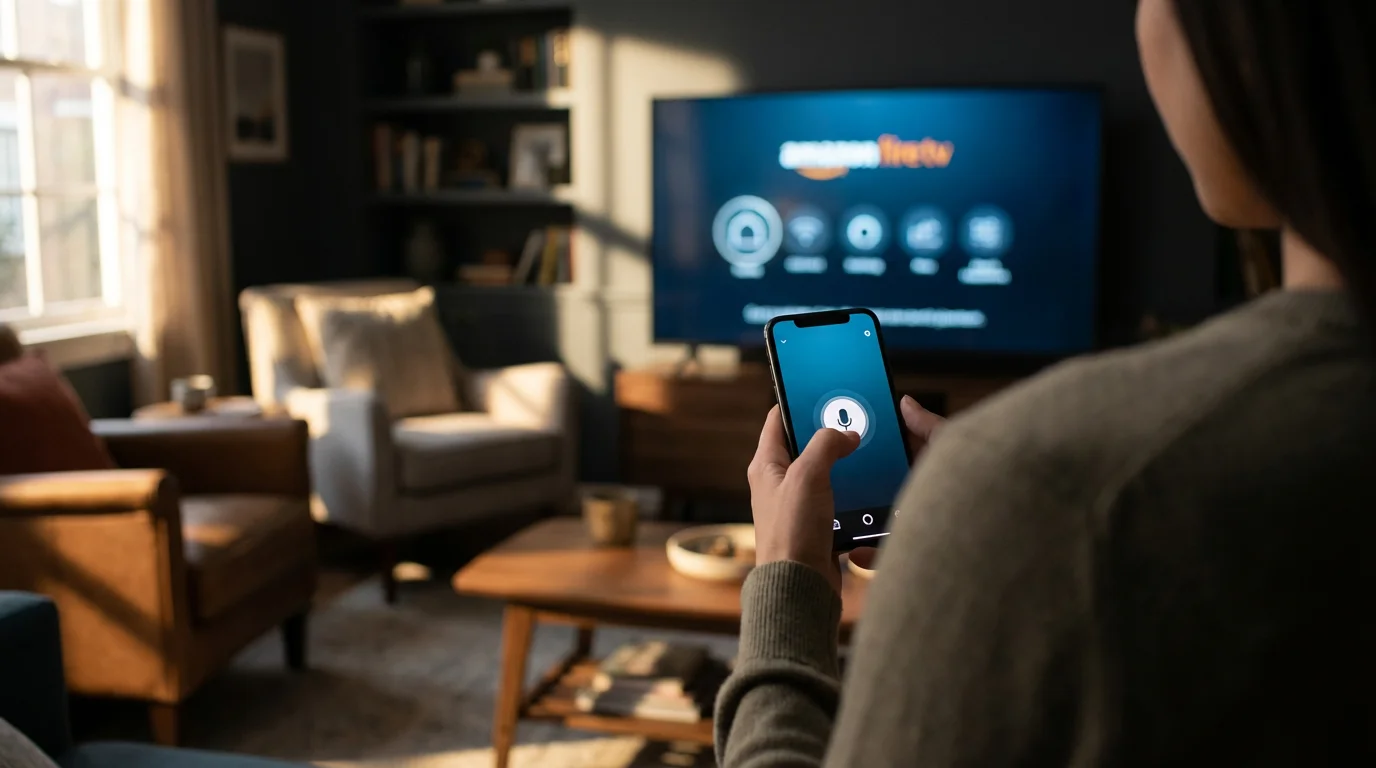
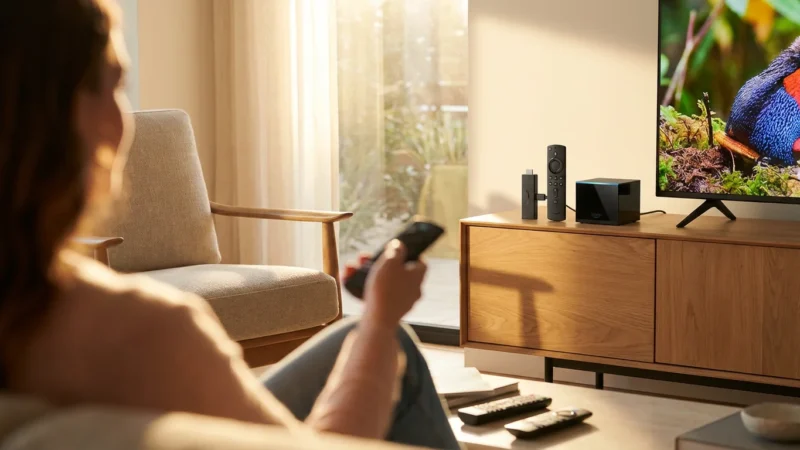
Amazon’s Fire TV devices, including Fire TV Stick and Fire TV Cube, are highly popular, especially among Amazon Prime subscribers. The Amazon Fire TV mobile app leverages the power of Amazon’s ecosystem, bringing Alexa voice control and a user-friendly interface to your phone.
Key Features of the Fire TV App:
- Intuitive Navigation: The app features a D-pad (directional pad) for easy navigation, along with dedicated buttons for home, back, menu, play/pause, and fast forward/rewind.
- Voice Search with Alexa: Tap the microphone icon to activate Alexa. You can use natural language to search for content, launch apps, get weather updates, or control smart home devices connected to Alexa. This integration makes finding content across Amazon Prime Video, Netflix, and other services incredibly efficient.
- Keyboard Input: Just like with Roku, typing usernames, passwords, and search terms on your phone’s keyboard is significantly faster and less error-prone than using an on-screen keyboard controlled by the physical remote.
- App and Game Launcher: Quickly browse through your installed apps and games directly from your phone. Launching your favorite services like Hulu or Disney+ takes just a tap.
- Private Listening (Limited): While not as universal as Roku’s, some content and apps on Fire TV might offer private listening options, though it’s less a core feature of the Fire TV app itself and more dependent on the specific app you are using.
How to Set Up the Amazon Fire TV App:
- Download the App: Search for “Amazon Fire TV” in your phone’s app store and install the official app.
- Connect to Wi-Fi: Ensure your phone is on the identical Wi-Fi network as your Fire TV device.
- Open the App: Launch the Fire TV app. It will scan for available Fire TV devices.
- Select Your Device: Choose your Fire TV device from the list.
- Enter On-Screen Code: For security, your Fire TV will display a four-digit code on your TV screen. Enter this code into your phone app to complete the pairing process.
- Start Controlling: Your phone is now ready to serve as your Fire TV remote.
The seamless Alexa integration makes the Fire TV app particularly powerful for users already embedded in the Amazon ecosystem. If you frequently use Alexa for other tasks, extending that control to your TV feels very natural.
Apple TV Remote App: Simplicity for Your Apple Ecosystem
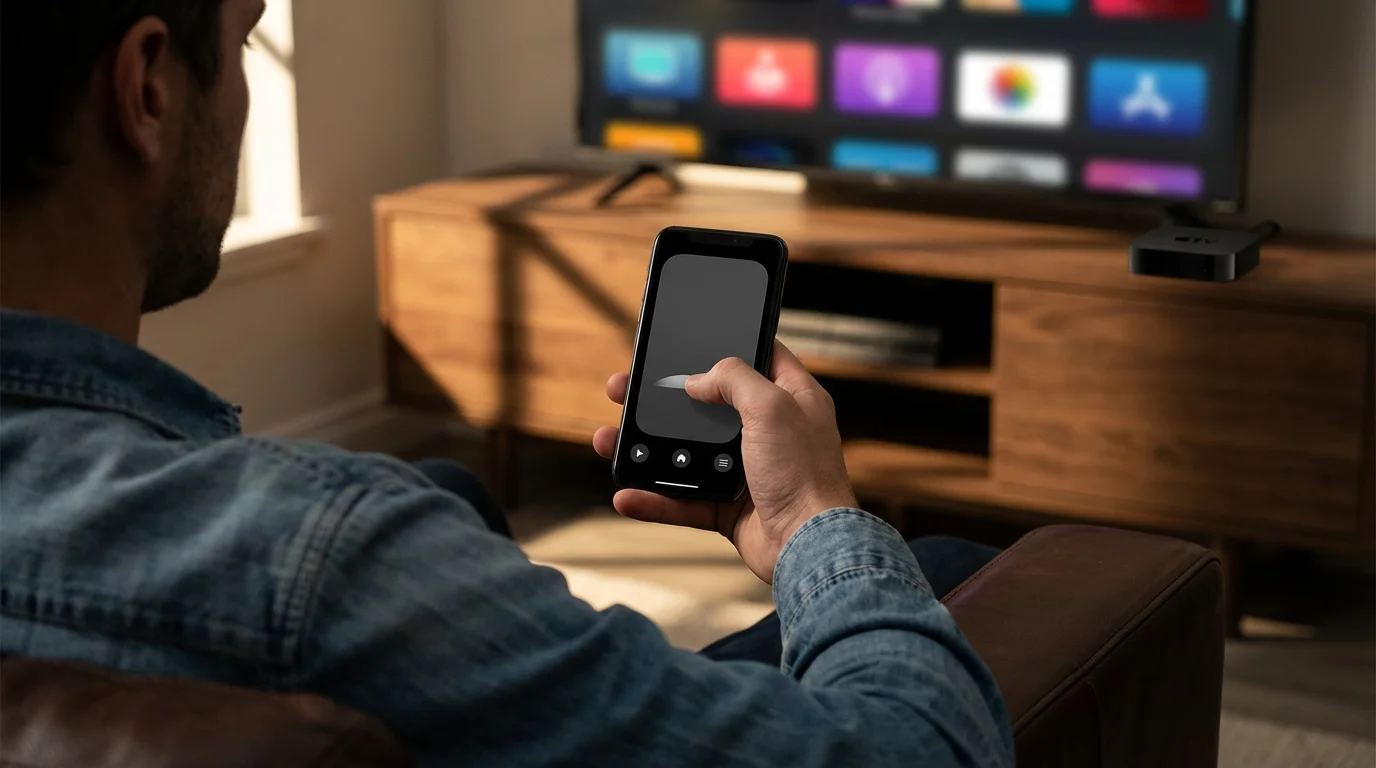
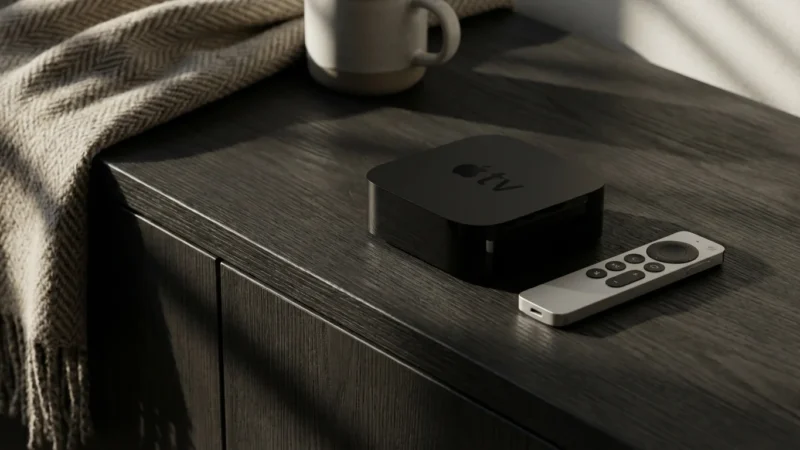
For those within the Apple ecosystem, the Apple TV remote experience is tightly integrated with iOS. iPhones and iPads effectively become powerful controllers for your Apple TV, whether it’s an older generation or the latest 4K model, which supports advanced features like Dolby Vision and Dolby Atmos audio.
While the app is free, the hardware is a premium investment; read our Apple TV 4K review to see if it’s worth the cost.
Key Features of the Apple TV App:
- Built-in Functionality: On modern iPhones, the Apple TV Remote is often directly accessible from the Control Center, making it incredibly convenient. You do not always need to launch a separate app.
- Touch Surface Control: The app mimics the trackpad-like navigation of the physical Apple TV remote, allowing for smooth, intuitive gestures to swipe through menus and content.
- Full Playback Control: Control playback, pause, fast forward, rewind, and adjust volume with on-screen buttons.
- Siri Voice Commands: Use your phone’s microphone to issue Siri commands. This allows you to search for content, open apps, control smart home devices, and more, all with your voice.
- Keyboard Input: When the Apple TV requires text entry, a keyboard automatically appears on your iPhone or iPad, simplifying password entry and search queries immensely.
- Game Controller Mode: For some Apple Arcade games, your iPhone can function as a basic game controller, though a dedicated controller offers a superior experience.
How to Set Up the Apple TV Remote (iOS):
- Ensure Wi-Fi and Bluetooth are On: Both your iPhone/iPad and Apple TV need to be on the same Wi-Fi network. Bluetooth also helps with initial discovery.
- Add to Control Center (Recommended):
- Go to your iPhone/iPad Settings.
- Tap Control Center.
- Scroll down and tap the green “plus” icon next to Apple TV Remote to add it.
- Access from Control Center: Swipe down from the top-right corner of your screen (or up from the bottom for older iPhones) to open Control Center. Tap the Apple TV Remote icon.
- Select Your Apple TV: The remote interface will appear. Tap the Apple TV icon at the top to select your specific Apple TV device from the list.
- Pairing (if necessary): If this is your first time, your Apple TV might display a four-digit code. Enter this code into your phone.
- Start Controlling: You now have full control over your Apple TV.
For Android users, a third-party app that supports Apple TV’s remote protocol might be available, but it often lacks the tight integration and reliability of the native iOS experience. The Apple TV app exemplifies streamlined control within a cohesive ecosystem.
Google TV and Chromecast Remote: Unified Control for Google Users
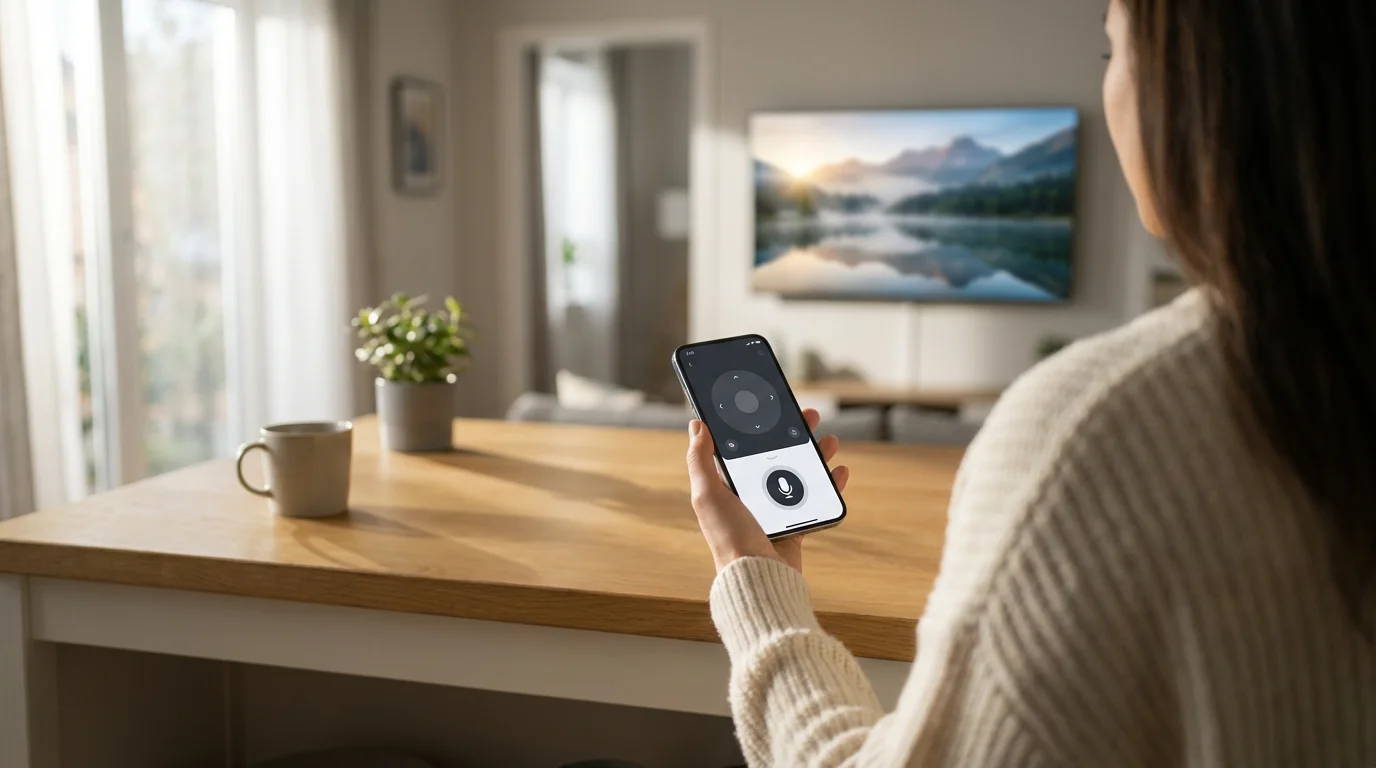
Google’s streaming ecosystem encompasses Chromecast devices, Google TV, and Android TV-based smart TVs. The Google Home app and the dedicated Google TV app serve as the primary phone remotes, offering robust control and integration with Google Assistant.
Key Features of the Google TV / Google Home Apps:
- Universal Remote for Google Devices: The Google TV app works for Chromecast with Google TV, Google TV devices, and Android TV smart TVs. The Google Home app can also control basic functions of Chromecast devices.
- Navigational Controls: A clean interface provides directional pad controls, back, home, and play/pause buttons.
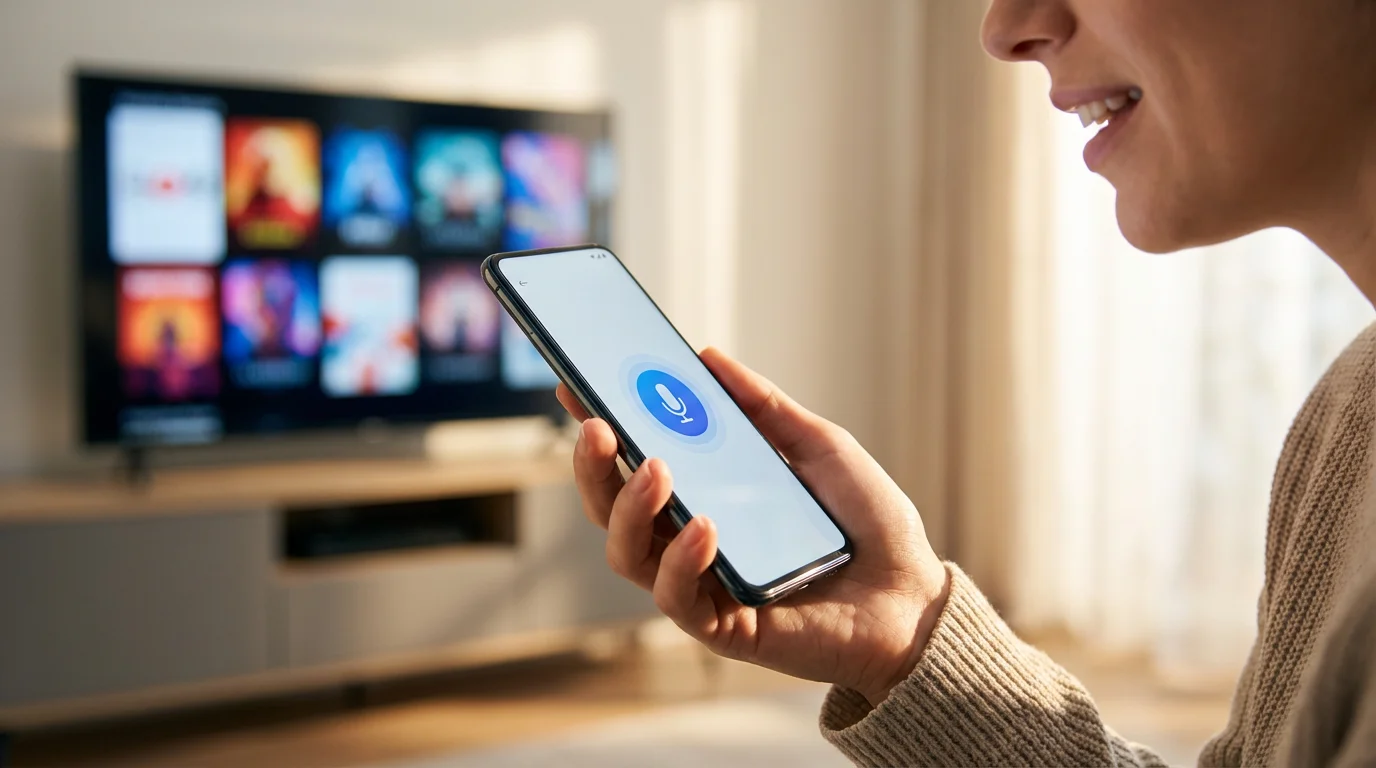
- Google Assistant Voice Search: Tap the microphone icon to activate Google Assistant. Search for content, ask questions, or control smart home devices, all through voice commands. This is particularly useful for Google TV’s extensive content discovery features.
- Keyboard Input: Text entry for searches, usernames, and passwords is significantly faster using your phone’s keyboard.
- Touchpad Mode: Some versions of the app offer a touchpad for gesture-based navigation, similar to a laptop trackpad.
- Content Discovery: The Google TV app itself is a hub for content discovery, allowing you to browse movies and shows and then cast them to your TV, effectively using your phone as both a remote and a content browser.
How to Set Up the Google TV App:
- Download the App: Search for “Google TV” in your phone’s app store and install the official app. (For basic Chromecast control, the Google Home app also works).
- Connect to Wi-Fi: Ensure your phone is on the same Wi-Fi network as your Google TV or Chromecast device.
- Open the App: Launch the Google TV app.
- Connect to TV: At the bottom right of the screen, tap the “TV remote” icon.
- Select Device: The app will scan for devices. Choose your Google TV or Chromecast device from the list.
- Enter On-Screen Code: Your TV will display a six-digit code. Enter this code into your phone to pair.
- Start Controlling: Your phone is now ready to control your Google TV or Chromecast.
For users who rely heavily on Google Assistant for daily tasks, the integrated voice control within these apps offers a familiar and powerful way to manage their streaming experience. CNET’s recommendations for streaming devices often highlight Google’s offerings for their robust smart home integration, which is directly enhanced by their mobile remote apps.
Smart TV Remote Apps: Brand-Specific Control
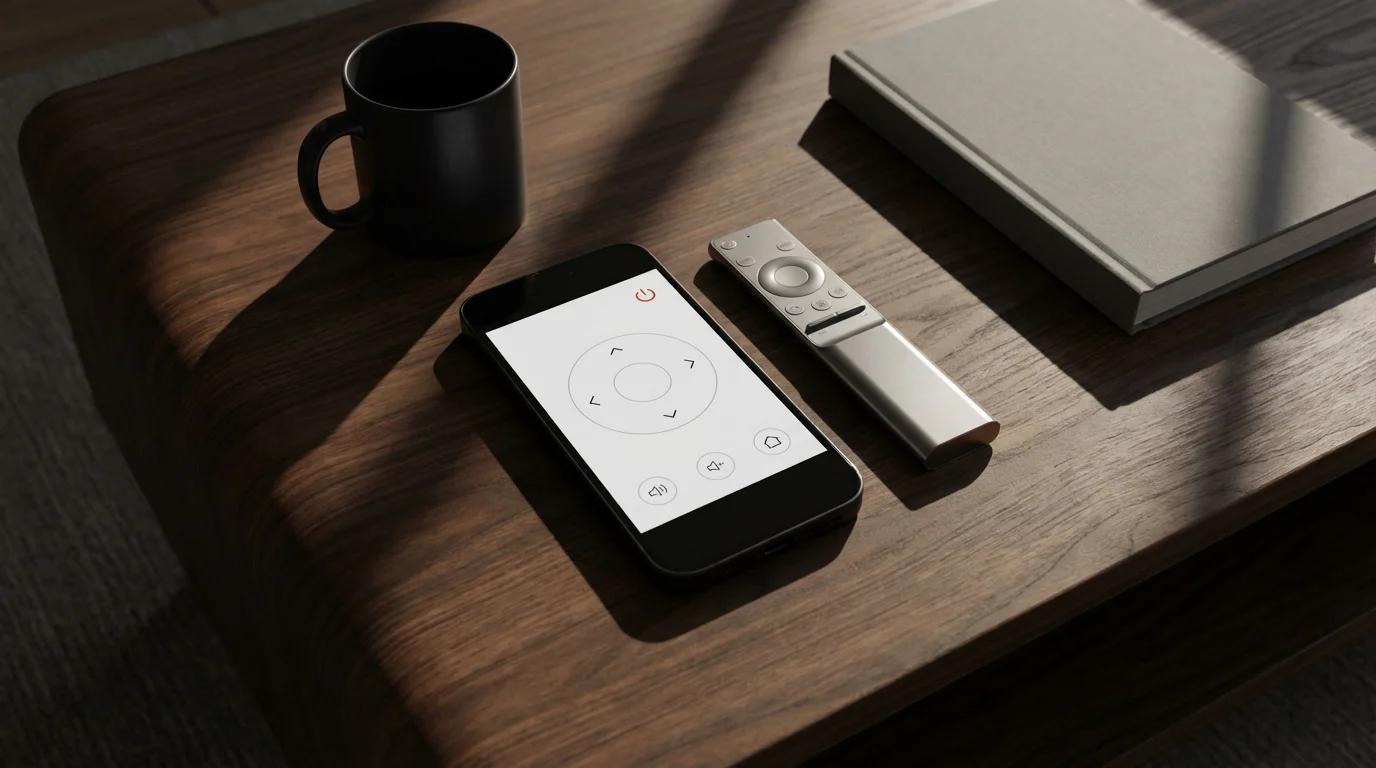
Many smart TVs, such as those from Samsung, LG, Sony, and Vizio, come with their own dedicated mobile remote apps. While their features can vary, they generally offer similar benefits to those of standalone streaming devices.
General Features You Can Expect:
- Full TV Control: Power on/off, volume, channel change (for antenna/cable inputs), input selection, and smart hub navigation.
- Keyboard Input: Essential for typing into smart TV apps like Netflix or YouTube.
- Voice Control: Many smart TV apps integrate with the TV’s built-in voice assistant (e.g., Samsung Bixby, LG ThinQ AI, Google Assistant for Android TVs).
- Media Casting: Stream photos, videos, or music from your phone to your smart TV.
- Second Screen Functionality: Some apps allow you to browse content on your phone while something plays on the TV, or even mirror your phone’s screen to the TV.
How to Set Up Smart TV Remote Apps (General Steps):
- Identify Your TV Brand: Note the manufacturer of your smart TV.
- Download the Official App: Search your phone’s app store for “[TV Brand Name] Remote” or “[TV Brand Name] Smart TV” (e.g., “Samsung SmartThings”, “LG ThinQ”, “Sony TV SideView” or “Google TV” for Android TVs).
- Connect to Wi-Fi: Ensure both your phone and smart TV are on the same Wi-Fi network.
- Open the App and Pair: Launch the app. It will usually scan for compatible TVs. Select your TV from the list. You might need to confirm the connection on your TV screen with a code or prompt.
- Explore Features: Once paired, experiment with the different controls and features offered by your specific TV’s app.
Using your smart TV’s built-in apps can be “good enough” for many users, especially if their TV supports 4K, HDR10, or Dolby Vision. However, a dedicated streaming device often receives more frequent updates and offers a smoother, faster interface for streaming. Even if your smart TV has great apps, its dedicated remote app can enhance the experience with keyboard input and voice control.
Troubleshooting Common Phone Remote Issues
While phone remote apps are incredibly convenient, you might occasionally encounter connection problems or glitches. Here are practical steps to diagnose and resolve common issues, preventing frustration and getting you back to your streaming.
- “Device Not Found” or Connectivity Problems:
- Verify Wi-Fi: Double-check that both your phone and streaming device/smart TV are connected to the exact same Wi-Fi network. Remember, if you have 2.4 GHz and 5 GHz networks, they must be identical.
- Restart Everything: The classic IT solution often works. Restart your phone, your streaming device/smart TV, and critically, your Wi-Fi router. A fresh network connection can resolve many discovery issues.
- Check Network Isolation: Some routers have “client isolation” or “guest network” settings that prevent devices on the same network from communicating with each other. Ensure these settings are off for your main home network.
- Update Apps and Firmware: Make sure your phone’s remote app is updated to the latest version. Also, check for firmware updates on your streaming device or smart TV, as these can include bug fixes for network communication.
- Laggy or Unresponsive Controls:
- Network Congestion: If many devices are using your Wi-Fi simultaneously, it can cause lag. Try reducing other network activities.
- Signal Strength: Ensure your phone and streaming device have good Wi-Fi signal strength. Weak signals lead to slow communication.
- Clear App Cache: On Android, you can try clearing the cache for the remote app in your phone’s settings. For iOS, force-closing and reopening the app often suffices.
- Voice Control Not Working:
- Grant Microphone Permissions: Ensure you have granted the remote app permission to access your phone’s microphone in your phone’s privacy settings.
- App Specific Issue: Test voice control with your physical remote or directly on the streaming device to see if the issue is with the app or the device itself.
- Volume Control Not Working:
- HDMI-CEC: For some devices, volume control via the app relies on HDMI-CEC (Consumer Electronics Control) being enabled on your TV. Check your TV’s settings for HDMI-CEC (sometimes called “AnyNet+” for Samsung, “Bravia Sync” for Sony, “SimpLink” for LG).
- Device-Specific Limitation: Some older streaming devices or smart TVs might not fully support volume control through their mobile apps.
Systematic troubleshooting, starting with the basics like Wi-Fi and device restarts, will typically resolve most phone remote issues. Persistence pays off when you want to take full control of your entertainment.
Advanced Features: Beyond Basic Navigation
Beyond simply replacing your lost remote, phone remote apps offer powerful advanced features that significantly enhance your streaming experience. These are the functionalities that truly distinguish a phone remote from a basic physical remote.
Voice Search and Assistant Integration:
As discussed, voice search is a major advantage. Platforms like Roku, Fire TV with Alexa, Apple TV with Siri, and Google TV with Google Assistant allow you to:
- Search Across Services: Instead of opening Netflix, then Hulu, then Prime Video to find a show, simply say “Find The Crown” and your device will show you where it’s available and often at what cost (e.g., part of a subscription, rent, or buy). This saves immense time and reduces decision fatigue.
- Launch Apps: “Open YouTube,” “Launch Disney Plus,” these commands streamline your access to content.
- Control Playback: “Pause,” “Fast forward five minutes,” “Skip episode,” all without lifting a finger to tap.
- Information Retrieval: “Who stars in this movie?” “What’s the weather like?” “Show me funny cat videos on YouTube.” Your streaming device becomes a smart assistant integrated with your TV.
Private Listening for Immersive Audio:
Roku’s private listening feature, where you plug headphones into your phone to hear TV audio, is a prime example of an advanced feature. This is not ad-supported, but a premium function built into the app. It’s perfect for:
- Late-Night Viewing: Enjoy movies or shows at full volume without waking housemates.
- Personalized Audio: Adjust volume to your preference without affecting others in the room.
- Enhanced Clarity: Sometimes, dialogue is clearer through headphones, especially if your TV’s speakers are weak.
Casting and Screen Mirroring:
Many phone remote apps integrate casting capabilities, allowing you to:
- Display Phone Content: Share photos, videos, or music from your phone’s local storage directly to your TV. This is invaluable for sharing vacation photos or home videos with family.
- Web Casting: Some apps and browser extensions allow you to cast web pages or specific browser tabs to your TV.
- Screen Mirroring: While not strictly a remote app feature, many phones offer native screen mirroring (e.g., Apple AirPlay, Android’s Smart View/Cast). This lets you display your phone’s entire screen on your TV, useful for presentations or showing apps not natively available on your streaming device.
Game Controller Functionality:
While not for serious gamers, some platforms, particularly Apple TV, allow your phone to act as a basic game controller for casual games. This transforms your phone into a multi-purpose entertainment tool.
By exploring and utilizing these advanced features, you move beyond mere navigation and truly leverage your smartphone’s capabilities to create a more personalized, convenient, and often richer streaming experience.
Choosing the Best Phone Remote App for Your Setup
The “best” phone remote app is intrinsically linked to the streaming device or smart TV you own. You must use the app designed for your specific hardware. However, some apps stand out for their feature sets and overall user experience.
Feature Comparison of Popular Phone Remote Apps:
| Feature | Roku App | Amazon Fire TV App | Apple TV Remote (iOS) | Google TV App | Generic Smart TV Apps (e.g., Samsung, LG) |
|---|---|---|---|---|---|
| Full Navigation Control | Yes | Yes | Yes | Yes | Yes |
| Keyboard Input | Excellent | Excellent | Excellent | Excellent | Good to Excellent |
| Voice Search | Yes (Roku Voice) | Yes (Alexa) | Yes (Siri) | Yes (Google Assistant) | Varies, often with TV’s AI |
| Private Listening | Yes (Primary Feature) | Limited/App-dependent | No (Uses AirPlay for audio) | No | Varies by brand/model |
| Casting Phone Content | Yes | Yes | Yes (AirPlay) | Yes | Varies, often good |
| Dedicated Gaming Mode | No | No | Basic (for some games) | No | No |
| App Launcher/Browsing | Yes | Yes | Yes | Yes (with Google TV UI) | Varies, often with Smart Hub access |
| Accessibility Features | Good | Good | Excellent (iOS integration) | Good | Varies |
Recommendations by Use Case:
- For Sports Fans: While not directly related to sports content, an app with excellent voice search (like Fire TV with Alexa or Google TV with Assistant) helps you quickly find live games across various sports streaming apps without fumbling through menus.
- For Apple Households: The Apple TV Remote, especially integrated into iOS Control Center, offers unparalleled convenience and seamless integration for those already using iPhones and iPads.
- For Budget Buyers (who want extra features): If you own a Roku device, its app’s private listening feature delivers premium functionality without additional cost, making it an excellent value addition to an already budget-friendly device. For roughly $30-$50, you can get a Roku Express 4K+ or a Fire TV Stick Lite, and their respective apps significantly enhance the experience.
- When you prioritize privacy: While all tech companies collect some data, Apple and Roku generally have a stronger reputation for user privacy compared to Amazon and Google, who heavily rely on data for advertising. Consider this if data collection is a major concern for you.
Your streaming device choice often dictates your remote app. For example, if you purchased a Fire TV Stick 4K Max for its support of 4K, HDR, and Dolby Vision, its remote app, with its powerful Alexa integration, helps you discover and enjoy that high-quality content more efficiently. Similarly, if you choose a Roku Streaming Stick 4K for its WiFi 6 support and smooth performance, the Roku app’s private listening feature truly differentiates your audio experience.
Frequently Asked Questions
Can I use my phone remote app if my home internet goes out?
No, your phone remote app relies on your home Wi-Fi network to communicate with your streaming device or smart TV. If your internet service is down, the Wi-Fi network itself might still be active, allowing local communication for some basic functions, but many apps require an active internet connection to fully function, especially for features like voice search or browsing. You will not be able to stream content without an internet connection regardless.
Do I need to keep the remote app open on my phone for it to work?
Most phone remote apps do not need to be constantly open on your screen. You can switch to other apps, and when you return to the remote app, it should quickly reconnect to your device. Some features, like private listening on Roku, will continue to function in the background as long as the app remains active and not entirely closed.
Can I control multiple streaming devices with one phone app?
Yes, most official remote apps allow you to switch between multiple compatible devices. For example, the Roku app lets you select from all the Roku players and Roku TVs on your network. The Google TV app works for various Google TV and Chromecast devices. However, you cannot control a Roku with the Fire TV app, or an Apple TV with the Google TV app; each app is specific to its own ecosystem.
Is it safe to use my phone as a remote? Are there privacy concerns?
Using official phone remote apps from reputable brands (Roku, Amazon, Apple, Google, TV manufacturers) is generally safe. These apps use your local network, and pairing often requires a code from your TV for security. Regarding privacy, these companies do collect data on your viewing habits and app usage, which they use for recommendations and advertising. This data collection occurs whether you use the physical remote or the phone app. Apple and Roku are often perceived as having stronger privacy stances compared to Amazon and Google, but all platforms track usage to some degree. You can review the privacy policies of each service for detailed information.
My physical remote has voice control. Why should I use my phone’s voice control?
While many physical remotes have voice buttons, your phone’s microphone is often superior for clarity and accuracy. It also integrates directly with your phone’s native voice assistant (Siri, Google Assistant, Alexa), allowing for a more robust and familiar voice interaction experience, including dictation for text input. Moreover, you are less likely to lose your phone than a small physical remote, ensuring you always have voice control readily available.
Disclaimer: Device prices and features may change. New models are released regularly, so check for the latest versions before purchasing. The “best” device depends on your specific needs, existing ecosystem (Apple, Google, Amazon), and budget.
Leave a Reply