
You love your Roku for its simplicity. It organizes all your favorite streaming services in a clean, easy-to-navigate grid. But beneath that user-friendly surface lies a network of hidden menus, diagnostic screens, and developer settings designed for engineers and power users. These are the Roku “Secret Menus.”
If you are experiencing buffering issues, struggling with HDMI handshakes, or simply want to nerd out on technical data about your network connection, these menus hold the answers. However, they aren’t listed in the standard “Settings” tab. You have to know the secret codes—specific combinations of button presses on your remote—to unlock them.
In this guide, we will walk you through how to access these hidden features, what they do, and which ones can actually help improve your streaming experience. Whether you have a budget Roku Express or a high-end Roku Ultra, these tips will help you master your device.
What Are Roku Secret Menus and Why Use Them?
Before you start pressing buttons, it is important to understand what you are accessing. A streaming device like a Roku is essentially a specialized computer. Like any computer, it has administrative tools that developers use to test hardware and software.
These menus are not intended for the average user, which is why Roku hides them. However, they can be incredibly useful for troubleshooting. For example, if your 4K TV is flickering, the standard settings might not offer enough granular control to fix the HDMI communication error. The hidden menus often do.
“With great power comes great responsibility. While these menus offer advanced control, changing settings you don’t understand can cause your device to behave erratically.”
Use these menus primarily for information gathering. If you decide to change a setting, make sure you remember what the default was so you can revert it if something goes wrong.
The Universal Key: Mastering the Remote Codes
Accessing these menus requires precise timing. You don’t need to be a speedrunner, but you cannot take long pauses between button presses. Think of it like dialing a phone number; you need a steady, consistent rhythm.
Here is a legend for the buttons we will reference in this guide:
- Home: The button with the house icon.
- FF: Fast Forward.
- RW: Rewind.
- Play: The Play/Pause button.
- OK: The center selection button.
- Arrows: Up, Down, Left, Right directional pad buttons.
If a code doesn’t work the first time, return to the standard Home screen and try again, tapping the buttons slightly faster.
The Main Secret Menu: System Info and Factory Resets
This is the gateway to the most critical internal data of your Roku. It is often called the “System Operations Menu.” This screen provides a snapshot of your system version, uptime, and network details, but it also contains powerful tools like the System Reboot and Factory Reset options.
The Code
From the Home screen, press the following buttons in order:
| Button | Number of Presses |
|---|---|
| Home | 5 times |
| Fast Forward (FF) | 3 times |
| Rewind (RW) | 2 times |
What You Will See
Once entered, a retro-looking screen appears with several options. Here are the most relevant ones:
- System Info: This displays technical details like your software build and serial number. It is useful if you are chatting with Roku support and they ask for specifics.
- Network Info: This goes deeper than the standard network check. It can help you identify if your router is assigning an IP address correctly.
- Factory Reset: This wipes the device clean. Only use this if you are selling the device or if it is completely corrupted.
- USB Test: If your Roku has a USB port (like the Roku Ultra) and it isn’t reading your thumb drive, this test helps determine if the port hardware is failing.
According to CNET, knowing how to access these diagnostic tools can sometimes save you from needing to buy a new device by helping you identify that a problem is software-related rather than a hardware failure.
The Wireless Secret Menu: Optimizing Your Wi-Fi
Buffering is the enemy of streaming. If your video keeps pausing to load, the issue is often Wi-Fi interference, not just internet speed. Your Roku might be fighting for signal space with your neighbor’s router or your microwave.
The Wireless Secret Menu allows you to see real-time signal strength and antenna data that the standard “Good/Fair/Poor” connection status doesn’t show you.
The Code
| Button | Number of Presses |
|---|---|
| Home | 5 times |
| Up | 1 time |
| Down | 1 time |
| Up | 1 time |
| Down | 1 time |
| Up | 1 time |
How to Use This Data
You will see a screen detailing “Signal Strength” (measured in dBm) and “Glitch Rate.”
- Signal Strength: You want this number to be high. Note that in dBm, closer to 0 is better. -40 dBm is excellent; -80 dBm is barely usable.
- Glitch/Antenna Rate: If you see a high number of glitches, try moving your Roku. Sometimes using a simple HDMI extender cable to move the Roku stick away from the back of the TV (which acts as a metal shield blocking Wi-Fi) can drastically improve these numbers.
If you find your signal is consistently weak despite having a fast internet plan, consider upgrading your router or looking into a mesh system. As Tom’s Guide notes in their reviews, a streaming device is only as good as the network connection feeding it.
The HDMI Secret Menu: Fixing Resolution and Refresh Rates
Have you ever plugged a Roku into a 4K TV and found the colors looked washed out, or the screen flickered to black intermittently? This is often a “handshake” issue—the Roku and the TV aren’t agreeing on the correct format.
The HDMI secret menu allows you to force specific settings rather than relying on “Auto-Detect.”
The Code
| Button | Number of Presses |
|---|---|
| Home | 5 times |
| Down | 1 time |
| Left | 1 time |
| Up | 3 times |
Practical Applications
This menu shows you what the Roku detects about your TV capabilities (e.g., does it support 4K at 60Hz? Does it support HDCP 2.2?).
If you are experiencing the “purple screen of death” (an HDCP error), checking this menu can confirm if the Roku is failing to validate the copyright protection chain. Often, this requires replacing your HDMI cable with a certified high-speed cable.
The Bitrate Override Menu: Managing Data Usage
Note: Roku has removed or disabled this feature on many newer models running the latest Roku OS (OS 11, 12, and 13). However, it may still work on older devices or Roku TVs, so it is worth trying if you have a strict data cap.
In the past, this was the “Holy Grail” for users with data caps. It allowed you to manually limit the bandwidth the Roku used. For example, you could force the Roku to stream at 3.5 Mbps (good HD quality) rather than letting it jump to 15 Mbps (4K quality), saving gigabytes of data.
The Code
| Button | Number of Presses |
|---|---|
| Home | 5 times |
| Rewind (RW) | 3 times |
| Fast Forward (FF) | 2 times |
Why Doesn’t It Work Anymore?
Modern streaming apps (like Netflix and Disney+) use “Adaptive Bitrate Streaming.” The app constantly talks to the server to adjust quality based on your immediate internet speed. These apps essentially override the system-level settings Roku used to provide. If this menu doesn’t appear for you, the best way to manage data is now through the settings menu inside each individual app (e.g., setting Netflix to “Medium” quality in your account profile).
Platform Secrets: Temperature and CPU Speed
This menu is for the hardware enthusiasts. It gives you a dashboard of your Roku’s physical health, including the internal temperature and the processor speed.
The Code
| Button | Number of Presses |
|---|---|
| Home | 5 times |
| Fast Forward (FF) | 1 time |
| Play | 1 time |
| Rewind (RW) | 1 time |
| Play | 1 time |
| Fast Forward (FF) | 1 time |
Why Check Temperature?
Streaming sticks plug directly into the back of TVs, which generate heat. If your Roku Stick is overheating, it will slow down, buffer, or shut off to protect itself. This menu lets you see the actual operating temperature. If it is consistently running very hot, consider using the HDMI extender (often provided free by Roku) to move the stick away from the heat source of the TV panel.
The Emergency Reboot Sequence
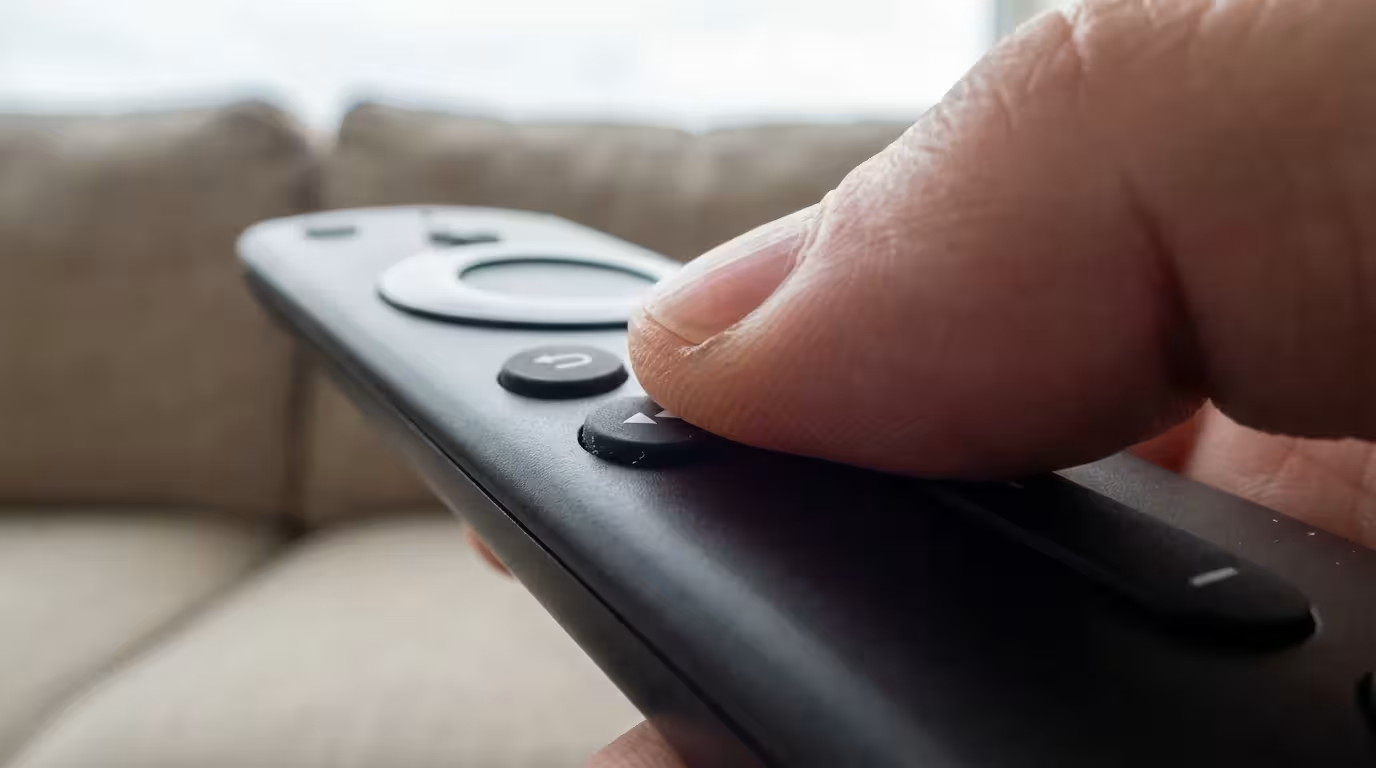
Sometimes your Roku freezes completely. The remote moves the cursor, but no apps will open, or the screen is stuck. If you don’t want to get up and physically unplug the power cable (or if your setup makes the plug hard to reach), use this remote sequence to force a system restart.
The Code
| Button | Number of Presses |
|---|---|
| Home | 5 times |
| Up | 1 time |
| Rewind (RW) | 2 times |
| Fast Forward (FF) | 2 times |
After entering this, the Roku might freeze for a few seconds, then the screen will go black, and the “Dancing letters” Roku logo will appear as it boots back up. This clears the system cache and often fixes sluggish performance.
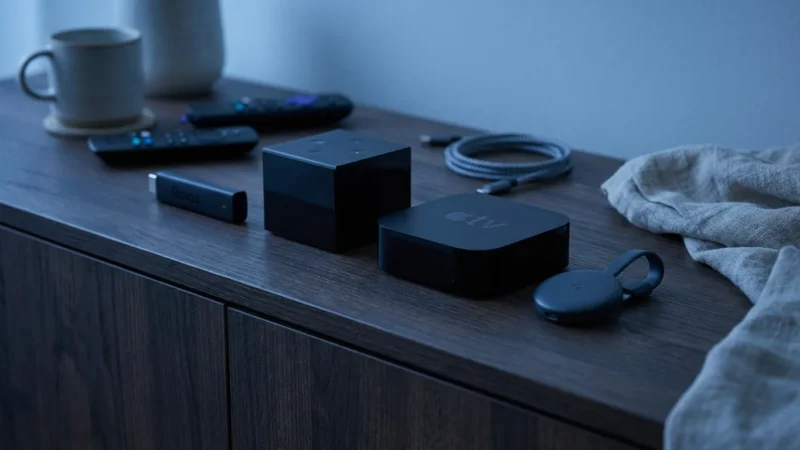
Roku vs. The Competition: Do Fire TV and Apple TV Have Secrets?
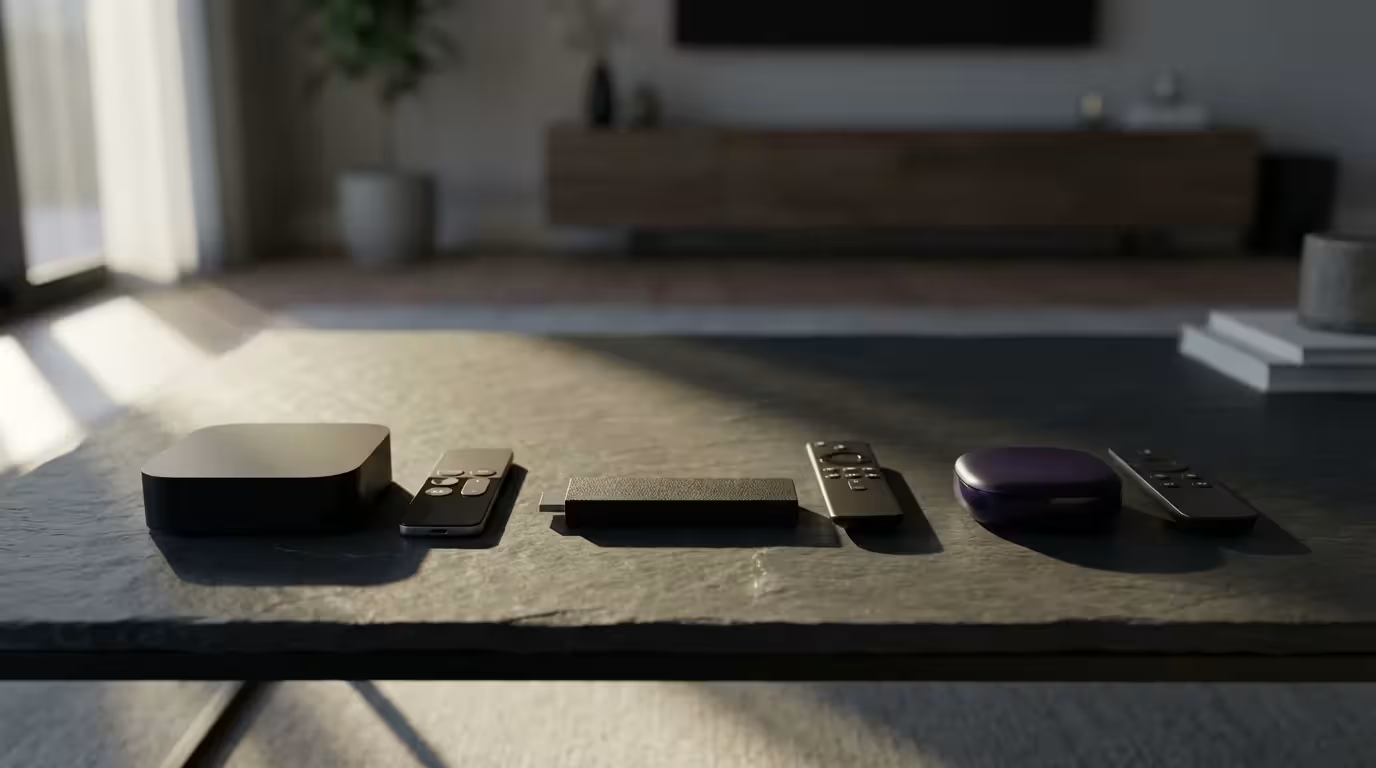
If you are deciding between devices or have a mixed household, you might wonder if other platforms offer similar hidden control.
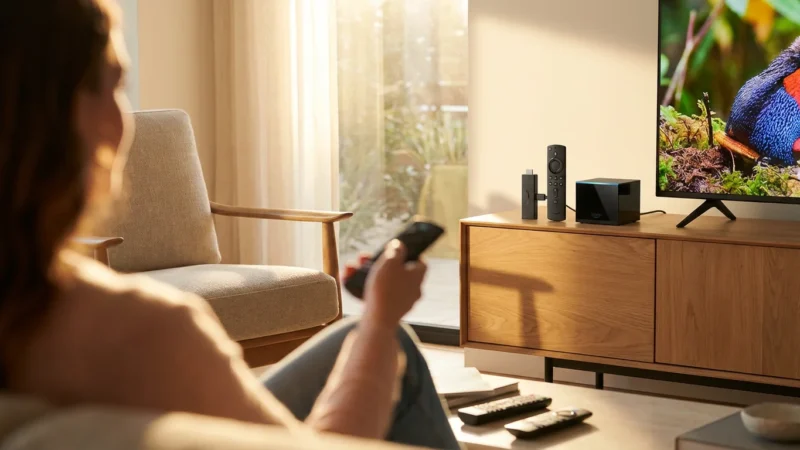
- Amazon Fire TV: Fire TV runs on Android, which is highly customizable. It has a “Developer Tools Menu” (usually accessed by holding the Center and Down buttons simultaneously for 5 seconds, then pressing Menu). This activates the “X-Ray” feature, an overlay showing CPU usage, memory, and resolution in real-time. It is generally more technical and visual than Roku’s menus.
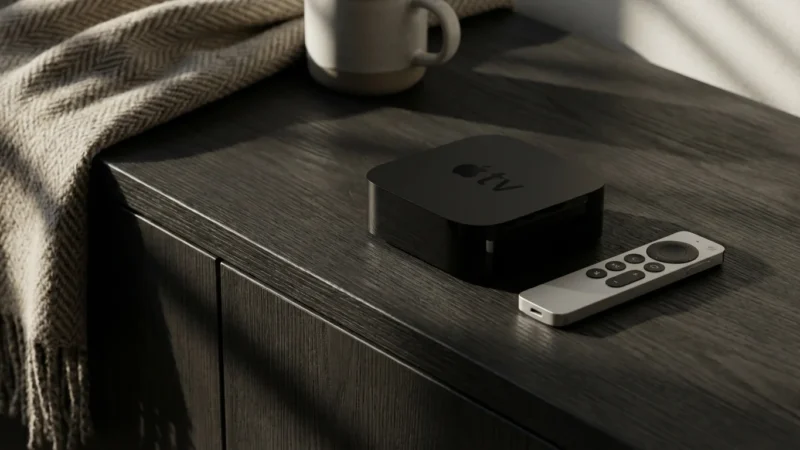
- Apple TV: As you might expect, Apple keeps its ecosystem locked down. There are very few user-accessible diagnostic menus on the Apple TV compared to Roku or Fire TV. It is designed to “just work,” but that means troubleshooting is harder when it doesn’t.
- Google Chromecast (Google TV): Like Fire TV, this is Android-based. You can enable “Developer Options” by going to Settings > System > About and clicking the “Android TV OS Build” button 7 times. This unlocks animation speed controls and USB debugging.
If you enjoy tinkering and optimizing, Roku and Fire TV offer more flexibility. If you want a hands-off experience, Apple TV is the way to go. For a deeper dive into how these devices compare on standard features, check out TechRadar’s breakdown of the best media streamers.
Frequently Asked Questions
Can I brick my Roku by using these secret menus?
It is difficult to permanently “brick” (break) a Roku just by looking at these menus, but you can mess up your settings enough to require a factory reset. Avoid changing settings in the “Developer” or “Registry” screens unless you are following a specific guide.
Do these codes work on Roku TVs (TCL, Hisense, etc.)?
Yes, these codes generally work on Roku TVs just as they do on streaming sticks and boxes. However, Roku TVs may have additional menus specifically for picture calibration that external streaming sticks do not have.
My Roku remote doesn’t have a mute button, can I still access menus?
None of the secret menus described in this guide require a mute button. They rely on the navigation pad (Up, Down, Left, Right), Home, Rewind, Play, and Fast Forward buttons, which are present on all Roku remotes.
Why won’t the code work when I press the buttons?
Timing is everything. If you press the buttons too slowly, the Roku just registers them as normal commands. Try entering the sequence faster and with a steady rhythm. Also, ensure you are on the main Home screen before starting the sequence.
Will accessing these menus void my warranty?
Simply accessing the menus and viewing information will not void your warranty. However, making changes that result in hardware failure (like forcing unsupported display modes that could theoretically damage a connected display, though rare) might complicate support claims.
Disclaimer: Device prices and features may change. New models are released regularly, so check for the latest versions before purchasing. The “best” device depends on your specific needs, existing ecosystem (Apple, Google, Amazon), and budget.
Leave a Reply