
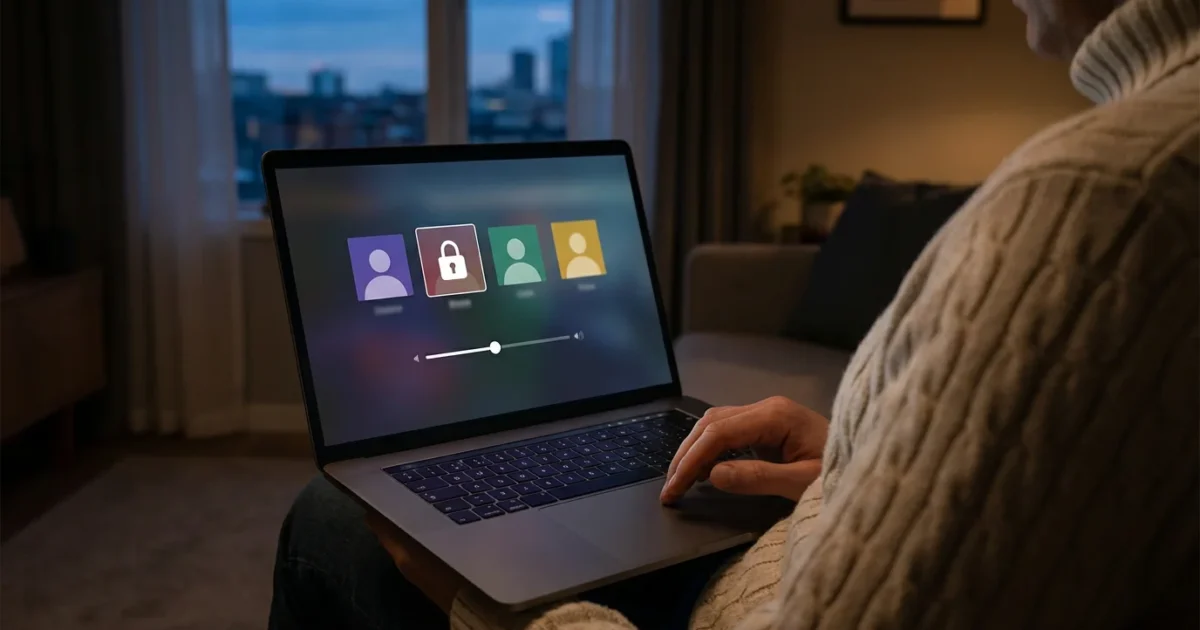
Streaming services offer an unparalleled universe of entertainment, but with great choice comes the responsibility to manage what your family can access. For parents, this means mastering parental controls, ensuring your children navigate a safe and age-appropriate viewing experience. The sheer volume of content available today, from educational shows to mature dramas, makes setting up these safeguards more crucial than ever. You protect your children offline, and establishing strong digital boundaries is equally important in your home.
Once you have your family’s safety secured, you can explore other streaming hacks to improve your overall viewing experience.
This comprehensive guide empowers you to implement effective parental controls across the most popular streaming platforms. We deliver practical, step-by-step instructions so you can confidently set up and manage content restrictions, create kid-friendly profiles, and establish PINs to prevent unauthorized access. You will learn how to customize settings to fit your family’s unique needs, making your streaming experience secure and enjoyable for everyone.

Why Parental Controls Are Essential for Modern Families
The transition from traditional cable TV to streaming, which means watching video content over the internet instead of cable or satellite, offers unprecedented choice. This shift, often called cord-cutting, or canceling traditional cable/satellite TV in favor of streaming services, means your family has access to thousands of titles at their fingertips through smart TVs (televisions with built-in internet connection and apps) or streaming devices (small boxes or sticks like Roku or Fire TV that add streaming to any TV). This convenience, however, carries a significant risk: exposure to inappropriate content.
As you add more services for your family, knowing how to manage multiple streaming subscriptions can help you stay organized and within budget.
Without proper safeguards, a curious child can stumble upon shows meant for mature audiences, or even adult content. Services offer various tiers, including ad-supported, which are free or cheaper plans that show commercials, and ad-free, which are plans that cost more but do not show commercials. Even ad-supported tiers can pose risks if ads are not adequately filtered for children. Parental controls allow you to tailor the viewing experience, ensuring your children only see what you deem appropriate for their age and maturity level. This is not about restricting enjoyment, it is about creating a safe digital environment for your family.
“Establishing clear digital boundaries for your children is as important as setting physical ones. Parental controls provide the tools to enforce these boundaries in the vast world of streaming.”

Understanding Content Ratings and Systems
Before you dive into settings, understanding content rating systems is crucial. These ratings provide a universal guideline for content suitability. In the USA, you will encounter ratings from the Motion Picture Association (MPA) for movies and the TV Parental Guidelines Monitoring Board for television shows. Most streaming services integrate these ratings into their parental control options.
| Rating System | Rating | Description | Common Equivalents |
|---|---|---|---|
| MPA (Movies) | G | General Audiences – All ages admitted. Nothing that would offend parents for viewing by children. | TV-Y, TV-G |
| MPA (Movies) | PG | Parental Guidance Suggested – Some material may not be suitable for pre-teenagers. | TV-PG |
| MPA (Movies) | PG-13 | Parents Strongly Cautioned – Some material may be inappropriate for children under 13. | TV-14 |
| MPA (Movies) | R | Restricted – Under 17 requires accompanying parent or adult guardian. Contains some adult material. | TV-MA |
| TV Parental Guidelines | TV-Y | All Children – Designed to be appropriate for all children. | G |
| TV Parental Guidelines | TV-G | General Audiences – Most parents would find this program suitable for all ages. | G |
| TV Parental Guidelines | TV-PG | Parental Guidance Suggested – May contain some material parents might find unsuitable for young children. | PG |
| TV Parental Guidelines | TV-14 | Parents Strongly Cautioned – May contain some material parents might find unsuitable for children under 14. | PG-13 |
| TV Parental Guidelines | TV-MA | Mature Audiences Only – May be unsuitable for children under 17. | R, NC-17 |
When you set parental controls, you typically select the highest rating level you deem acceptable for a specific profile. For example, setting a profile to TV-PG will restrict access to TV-14 and TV-MA content, but allow TV-Y, TV-G, and TV-PG shows. Always consider your child’s individual maturity when choosing a rating.

General Steps to Implement Parental Controls
While each streaming service has its own interface, a few common actions apply across most platforms. Follow these general steps to establish a robust foundation for family safety:
- Create Individual Profiles: Most services allow you to create separate profiles for each user. This is your first line of defense. Create a “Kids Profile” or specific profiles for each child.
- Set Profile PINs/Passwords: Protect your adult profile with a PIN or password. This prevents children from switching to an unrestricted profile. Some services also allow PINs on individual kid profiles to lock in their settings.
- Define Content Restrictions by Profile: Within each child’s profile, set the maximum content rating allowed (e.g., TV-Y, TV-G, PG). This filters out inappropriate shows and movies automatically.
- Restrict Specific Titles: Some services offer options to block specific movies or shows, even if they fall within the allowed content rating. This can be useful for content you particularly want to avoid.
- Disable or Restrict Purchases: Most platforms allow in-app purchases or rentals. Ensure you set a PIN or password for these transactions to prevent unexpected charges.
- Review Viewing History: Regularly check what your children watch. This helps you understand their interests and identify any content that might be slipping through your filters.

Setting Up Parental Controls on Netflix
Netflix provides comprehensive parental controls accessible through a web browser, not directly from the app on your TV. You apply these settings to individual profiles, ensuring a customized experience for each family member.
When traveling, remember that you can still download shows for offline viewing directly from within these restricted profiles.
Step-by-Step Guide:
- Access Your Account Settings: Open a web browser, go to Netflix.com, and sign in to your main account.
- Navigate to Profile & Parental Controls: In the top right corner, hover over your profile icon, then select “Account.” Scroll down to the “Profile & Parental Controls” section.
- Select a Profile to Manage: Click the down arrow next to the profile you want to adjust (e.g., your child’s profile).
- Set Viewing Restrictions: Under “Viewing Restrictions,” click “Change.” You will need to enter your Netflix account password.
- Title Restrictions for [Profile Name]: Here, you select the maturity rating you want to allow for this profile (e.g., “7+,” “13+,” “Teen,” “Adult”). This will block all content rated higher than your selection. Netflix ratings generally align with TV Parental Guidelines.
- Title Restrictions: You can also manually add specific titles to restrict access to them, even if they fall within the selected maturity rating.
- Set a Profile Lock (Optional but Recommended): Back in the “Profile & Parental Controls” section for that profile, select “Profile Lock.” This allows you to set a 4-digit PIN that someone must enter to access that specific profile. This is crucial for preventing children from switching to an unrestricted adult profile.
- Review Restricted Titles (Account-Wide): Under your main account settings, you can also view a list of all titles that have been restricted across all profiles.
Remember that changes made on the Netflix website apply instantly across all devices where Netflix is used, from your smart TV to a tablet or smartphone. You should periodically review these settings as your children grow or as new content becomes available.

Implementing Parental Controls on Disney+
Disney+ is known for its family-friendly content, but it also hosts a library of mature shows and movies (Star content). Fortunately, Disney+ provides robust parental controls to manage access.
If you experience lag while navigating these menus, our guide on how to fix common streaming problems can help resolve buffering or app issues.
Step-by-Step Guide:
- Access Your Profile Settings: Open the Disney+ app or website and select your main profile.
- Go to Edit Profiles: From the profile selection screen, or by hovering over your profile icon and selecting “Edit Profiles.”
- Select a Profile to Edit: Choose the profile you want to modify (e.g., your child’s profile).
- Set Content Rating: Under the “Parental Controls” section for that profile, select “Content Rating.” You will need to enter your account password. Choose the highest rating level permitted for that profile (e.g., TV-G, PG, TV-PG, TV-14, TV-MA). Selecting a lower rating will restrict access to content with higher ratings.
- Enable Profile PIN (Strongly Recommended): Still within the profile settings, select “Profile PIN.” This allows you to create a 4-digit PIN for that specific profile. This prevents children from accessing other profiles with higher content ratings.
- Manage Autoplay and Background Video: While not a parental control, you can also manage “Autoplay” and “Background Video” settings for each profile, which can help manage screen time or distractions.
- Create a Kids Profile (Alternative): Instead of adjusting an existing profile, you can create a dedicated “Kids Profile.” When creating a new profile, simply toggle on “Kids Profile.” This automatically limits content to TV-G and G ratings, and provides a simplified interface. You can then further adjust the content rating for this Kids Profile if you want to allow slightly older content (e.g., TV-PG) within the Kids Profile interface.
Disney+ also offers a “Kid-Proof Exit” feature if you choose not to set a Profile PIN. This requires users to answer a simple question to exit a Kids Profile, providing a minor barrier to switching profiles.

Managing Parental Controls on Hulu
Hulu, with its wide range of TV shows and movies, including live TV options, offers a flexible parental control system focused on individual user profiles. You control who sees what through profile-specific restrictions and PINs.
Using the right tools to find what to watch can help you curate a safe and engaging watchlist for your children’s profiles.
Step-by-Step Guide:
- Access Your Account: Open the Hulu app or website and log in to your main account.
- Go to Profiles: From the home screen, navigate to the profile icon (usually top right), then select “Manage Profiles.”
- Select a Profile to Edit: Choose the profile you want to adjust. If you have not created individual profiles, you should do so now for each family member.
- Enable Kid-Friendly Content (Optional): For younger children, toggle on the “Kid-Friendly” option within their profile settings. This restricts content to the TV-Y, TV-Y7, G, and PG ratings and simplifies the interface.
- Set Content Restrictions for a Standard Profile: If you do not use the Kid-Friendly toggle, you can set “Content Restrictions.” This allows you to choose the highest maturity rating for the profile (e.g., TV-PG, TV-14, TV-MA). Content above this rating will be blocked. You will need to enter your account password to save changes.
- Set a Profile PIN: In the “Manage Profiles” section, select the profile you want to secure, then choose “Parental Controls” or “Profile PIN.” You can set a 4-digit PIN that is required to enter that specific profile. This is essential for preventing children from accessing adult profiles.
- Restrict Live TV Access (Hulu + Live TV Subscribers): If you subscribe to Hulu + Live TV, you can also set restrictions for live TV channels. This is typically done within the general “Parental Controls” section of your main account, allowing you to block channels based on their content ratings.
Hulu’s parental controls are robust. You can effectively filter content and prevent children from accessing shows beyond their age limits. Ensure you use the Profile PIN feature, as it acts as the primary barrier against children switching to unrestricted profiles.

Parental Controls for Max (Formerly HBO Max)
Max offers a broad library spanning from Looney Tunes to mature HBO Originals. Their parental control system is designed to provide granular control over what each profile can access.
While adjusting settings, you can also optimize your streaming audio to ensure clear dialogue for the whole family.
Step-by-Step Guide:
- Access Your Account: Open the Max app or website and sign in.
- Go to Profile Management: Select your profile icon (usually top right), then choose “Switch Profiles,” and then “Manage Profiles.”
- Create or Edit a Kids Profile:
- To create: Select “Add Profile,” enter a name, then toggle on “Kid’s Profile.” When creating a Kid’s Profile, you will immediately be prompted to set the “Content Ratings” for Movies and TV Shows. Choose the highest rating allowed (e.g., G, PG, TV-G, TV-PG).
- To edit: Select an existing Kid’s Profile, then choose “Content Ratings” to adjust.
- Set a Profile PIN (for Adults and Kids): For any profile, including adult ones, you can set a “Profile PIN.” This is a 4-digit PIN that prevents unauthorized access to that specific profile. This is crucial for keeping kids out of adult profiles and for locking in the settings of their own profiles.
- Set up a Parental PIN (Account-Wide): Max also allows you to set a 4-digit “Parental PIN” for your entire account. This PIN is required to make any changes to parental control settings or to bypass profile restrictions. You can find this under your main profile’s settings, usually in a “Parental Controls” or “Account” section.
- Restrict Specific Titles: While Max focuses on rating-based restrictions, creating specific Kid’s Profiles with carefully chosen content ratings often suffices.
The combination of content ratings on Kids Profiles and Profile PINs for all profiles provides a strong defense on Max. You can fine-tune what each child sees, preventing them from stumbling upon content meant for older audiences, and block them from switching to unrestricted profiles.

Configuring Parental Controls on Amazon Prime Video
Amazon Prime Video’s parental controls are managed through your Amazon account settings, impacting all devices linked to that account. This means settings you apply on the website will reflect on your Fire TV Stick, smart TV, or mobile app.
Step-by-Step Guide:
- Access Prime Video Settings: Open a web browser and go to Amazon.com. Sign in to your Amazon account. Hover over “Account & Lists” and select “Prime Video.” From the Prime Video home page, click the gear icon (Settings) in the top right corner, then choose “Settings.”
- Go to Parental Controls: On the settings page, select “Parental Controls” from the menu.
- Create a Prime Video PIN: If you have not already, create a 5-digit Prime Video PIN. This PIN is essential for applying restrictions, overriding them, and preventing unauthorized purchases.
- Set Viewing Restrictions:
- Viewing Restrictions: Under this section, you can set the maturity rating for content that requires the PIN to watch. For example, if you set it to “PG,” all content rated PG, PG-13, R, and NC-17 will require the PIN to play. Content rated G, TV-Y, and TV-G will play without a PIN.
- Apply Restrictions To: You can choose which devices these viewing restrictions apply to. You can apply them to “All Devices” or select specific registered devices.
- Restrict Purchases: Under “Purchase Restrictions,” ensure this is turned “On” and “Require PIN for purchases” is enabled. This prevents anyone from buying or renting content without entering your Prime Video PIN, avoiding unexpected charges.
- Manage Amazon Kids+ (Optional): For younger children, consider subscribing to Amazon Kids+ (formerly FreeTime Unlimited). This separate service offers a curated, ad-free library of kid-friendly content with additional screen time and educational controls, working seamlessly with Fire tablets. While a separate subscription, it provides a very controlled environment.
Unlike some services that rely on profiles, Amazon Prime Video uses an account-wide PIN and device-specific application. This means you must apply viewing restrictions carefully, as they affect all content unless overridden with the PIN. Always protect your Prime Video PIN.

Parental Controls for YouTube and YouTube TV
YouTube and YouTube TV are distinct services requiring different approaches to parental controls. YouTube, with its user-generated content, presents unique challenges, while YouTube TV, a DVR (digital video recorder) live TV streaming service, offers more traditional channel and rating controls.
YouTube (User-Generated Content)
YouTube’s vast library of videos comes from individual creators, making content filtering more complex. You have two primary tools:
- YouTube Kids: For young children (under 13), YouTube Kids is the safest and most recommended option. This is a separate app and website with a curated library of kid-appropriate videos.
- Setting up YouTube Kids: Download the YouTube Kids app or visit kids.youtube.com. You will set up a profile for your child, select their age group (Preschool, Younger, Older), and can further customize settings through your YouTube account.
- Parental Controls in YouTube Kids: As a parent, you can sign in to YouTube Kids, access settings, and approve specific content, block channels, pause watch history, or even turn off search.
- Restricted Mode on Main YouTube: For older children (teenagers), “Restricted Mode” on the main YouTube app/website can filter out potentially mature content.
- Enabling Restricted Mode:
- On a Computer: Go to YouTube.com, click your profile icon (top right), and select “Restricted Mode: Off” to toggle it “On.” You can then click “Lock Restricted Mode on this browser” to prevent others from turning it off without your Google account password.
- On Mobile Devices: Open the YouTube app, tap your profile icon, go to “Settings,” then “General,” and toggle “Restricted Mode” on. Note that on mobile, Restricted Mode is device-specific unless you lock it via your Google Family Link account.
- Enabling Restricted Mode:
Important Note: Restricted Mode is not 100% foolproof; some inappropriate content can still slip through. Active supervision and open communication with your teens about online safety remain crucial. You can also monitor your child’s viewing history through your Google account activity.
YouTube TV (Live TV Streaming Service)
YouTube TV provides a more traditional set of parental controls, similar to cable TV, where you can restrict content based on ratings and block specific channels.
- Family Sharing and Profiles: YouTube TV allows you to create a family group with individual profiles. Each family member gets their own library, recommendations, and viewing history.
- Content Restrictions by Profile:
- As the family manager, you can access the YouTube TV app or website, go to “Settings,” then “Family,” and select a family member.
- You can then set “Content Restrictions” for their profile, choosing the maximum TV and movie ratings allowed. This will block any content, live or on-demand (watch whatever you want, whenever you want), with a higher rating.
- Block Specific Channels: Within the family member’s content restrictions, you can also specifically block individual channels. This is useful if a particular channel, even if within the general rating, shows content you find unsuitable.
- Purchase Approvals: While YouTube TV subscriptions are typically managed by the family manager, ensure any additional content purchases or rentals require your approval or password through your Google account settings.
Using YouTube Kids for younger children and leveraging Restricted Mode or Google Family Link for older kids, combined with YouTube TV’s profile-based restrictions, offers a comprehensive approach to managing your family’s YouTube viewing.

Beyond the Basics: Advanced Tips for Family Streaming Safety
Setting up parental controls is an excellent first step, but true family streaming safety involves a combination of technical safeguards and practical parenting strategies. Consider these advanced tips to create a truly secure and healthy digital environment:
- Implement Device-Level Controls: Many smart TVs, streaming devices (like Roku, Fire TV, Apple TV), and gaming consoles offer their own system-wide parental controls. These can sometimes override or complement app-specific settings. Explore your device’s settings to set content restrictions, purchase PINs, or even screen time limits directly on the hardware. This provides an additional layer of protection.
- Monitor Viewing Habits Regularly: Periodically check the viewing history of your children’s profiles. This gives you insight into what they are watching and helps you identify any content that might be inappropriate or slipping through your filters. Use this information to adjust settings or engage in conversations.
- Open Communication with Your Children: The most effective parental control is a trusting relationship. Talk to your children about online safety, why certain content is restricted, and what they should do if they encounter something uncomfortable. Empowering them with knowledge helps them make better choices, even when unsupervised.
- Schedule Screen Time: Beyond content, manage the quantity of screen time. Many devices and even some streaming services (via third-party apps) allow you to set daily limits. Alternatively, establish household rules for when and how long children can stream. According to Better Business Bureau, consistent rules help children develop healthy digital habits.
- Protect Your Account Credentials: Always use strong, unique passwords for your main streaming accounts and never share your primary login details with children. The Profile PINs on individual services are designed to allow safe profile switching, but your main account password should remain private to you.
- Review Settings Periodically: As streaming services update their interfaces or content, and as your children grow, revisit your parental control settings. What was appropriate for a 7-year-old might need adjustment for a 10-year-old.
By combining robust technical controls with ongoing communication and supervision, you can create a safe, educational, and entertaining streaming experience for your entire family. You maintain control over their digital world, allowing them to explore and enjoy content appropriate for their age.
Frequently Asked Questions
What is the difference between a Profile PIN and a Parental PIN?
A Profile PIN typically locks access to a specific user profile, preventing unauthorized access to that profile’s content. A Parental PIN (or account PIN) is often an overarching PIN that secures account settings, such as changing content restrictions or making purchases, and may be required to bypass any viewing restrictions.
Can parental controls block specific shows or movies?
Yes, many streaming services, such as Netflix, allow you to block specific titles by adding them to a restricted list within the profile settings, regardless of their general content rating. This gives you granular control over particular pieces of content you wish to exclude.
Do parental controls apply across all devices automatically?
For most major streaming services like Netflix, Disney+, Hulu, and Max, parental control settings (like content ratings and profile PINs) are linked to your account and apply across all devices where you log in. However, YouTube’s Restricted Mode may need to be enabled on each device or browser individually unless locked with a Google Family Link account.
What if my child figures out my PIN?
If your child discovers your PIN, change it immediately. You should choose PINs that are not easily guessable, avoiding birthdates or simple sequences. Regularly changing PINs and reinforcing the importance of content restrictions through open discussions are good practices.
Are parental controls the same for ad-supported and ad-free tiers?
The core parental control features for content restrictions (ratings, profile PINs) generally remain consistent across ad-supported and ad-free tiers of the same service. However, with ad-supported tiers, children may still be exposed to commercials that are not fully filtered for age appropriateness, even if the main program content is restricted. While streaming services strive to serve relevant ads, 100% kid-safe ad content cannot always be guaranteed.
Disclaimer: Streaming service terms and pricing change frequently. Always review current terms of service before implementing any money-saving strategies. Some tips may not work with all services or in all regions.







Leave a Reply