

You probably enjoy the freedom of streaming your favorite movies and shows from a vast library, watching what you want, when you want. This flexibility is a core benefit of streaming, which means watching video content over the internet instead of traditional cable or satellite. However, what happens when your internet connection is unreliable, you face data caps, or you plan a long flight without Wi-Fi? This is where offline streaming becomes invaluable. Learning how to download shows and movies for offline viewing saves you money, data, and frustration. It guarantees uninterrupted entertainment, whether you are on a remote trip, commuting, or simply experiencing a home internet outage.
If you are traveling internationally, it is also essential to know how to use a VPN with streaming services to maintain access to your home library.

Why Offline Streaming is Your Smartest Viewing Choice
You often find yourself in situations where internet access is either nonexistent or prohibitively expensive, such as during air travel, on road trips through rural areas, or even just daily commutes on public transportation. Offline streaming offers a simple solution. By downloading content ahead of time, you eliminate dependence on a live internet connection, making your entertainment truly portable. This capability also benefits your budget and data plan. Using a Wi-Fi connection to download content saves cellular data, avoiding costly overage charges if your mobile plan has limits. For example, downloading a 1.5-hour movie in standard definition might use around 700 MB of data. Doing this over a cellular connection frequently can quickly consume a limited data plan, potentially costing you extra fees. Downloading over Wi-Fi prevents these unexpected expenses.
Taking your shows on the go is just one of many streaming hacks that can significantly upgrade your digital entertainment experience.
Furthermore, offline viewing provides a buffer against inconsistent Wi-Fi at home or in hotels. You experience smooth, buffer-free playback, regardless of network congestion or spotty signals. This ensures a premium viewing experience, letting you enjoy your chosen content without frustrating interruptions. As Tom’s Guide points out, having your favorite shows downloaded on your device provides “peace of mind that your entertainment is always ready, even when the internet isn’t.”
“Downloading content for offline viewing transforms your device into a personal entertainment hub, impervious to slow Wi-Fi, data limits, and dead zones. It’s an essential strategy for any smart streamer.”
Understanding Offline Streaming: What You Need to Know
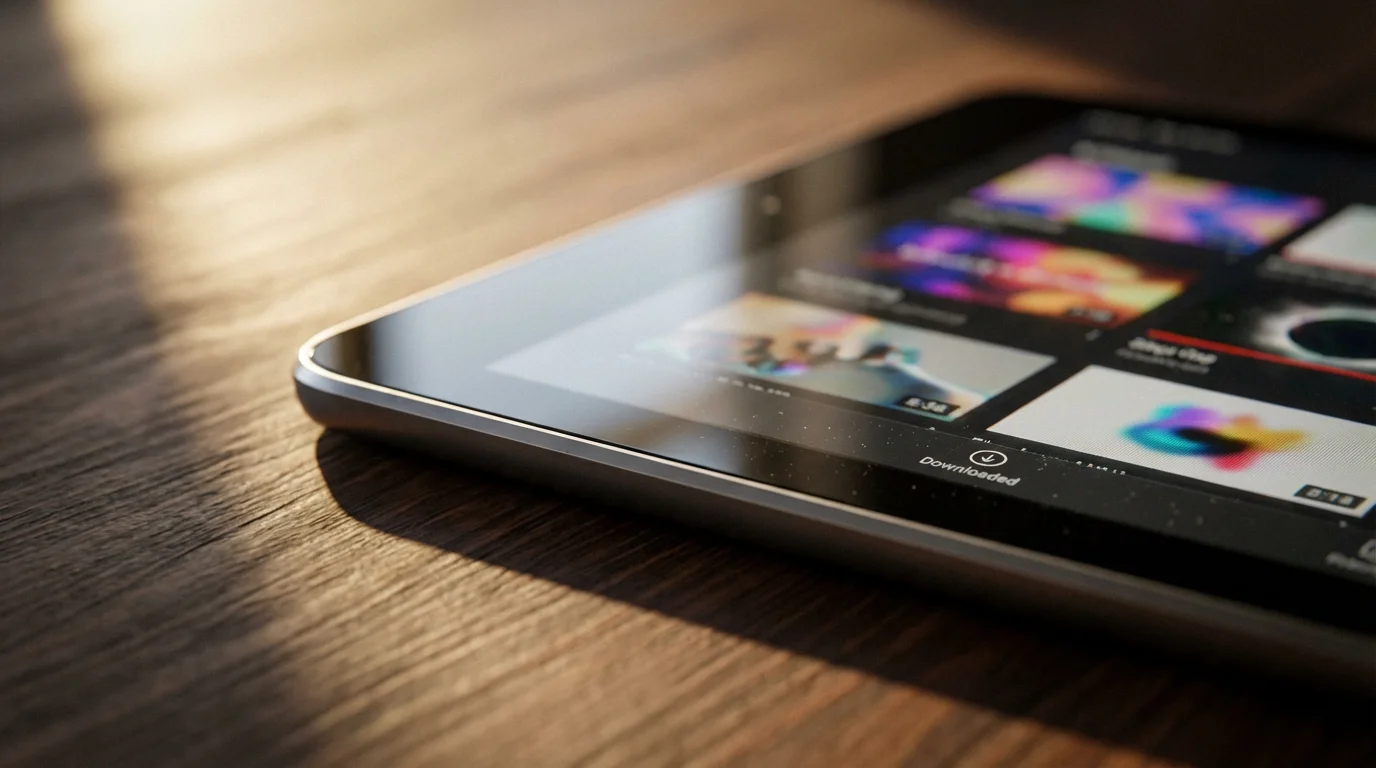
Offline streaming allows you to temporarily save movies and TV shows from specific streaming services directly to your device, like a smartphone, tablet, or sometimes a laptop. This differs from traditional streaming, where you watch content live over an internet connection. When you download shows, the files reside on your device, letting you watch them without an active internet connection.
While you prepare your video files, don’t forget to optimize your streaming audio to ensure you have the best sound quality for your trip.
Device Compatibility and Storage
Most streaming services offer offline download features through their mobile apps, compatible with iOS (iPhones, iPads) and Android devices. Some also extend this functionality to Windows 10/11 computers via dedicated desktop apps. You typically cannot download content directly to streaming devices like Roku or Fire TV sticks, or to smart TVs, as these platforms are designed for live internet streaming. Your device’s available storage space is a critical factor. A single movie can consume anywhere from 500 MB to 3 GB, depending on its length and the download quality you select. For instance, an hour-long episode downloaded in high definition might use about 1.5 GB of storage. Always check your device’s storage before a large download session.
Subscription Requirements and Download Limitations
Not all subscription tiers offer offline downloads. Many services reserve this feature for their ad-free plans or higher-tier subscriptions. For example, some ad-supported tiers, which are cheaper plans showing commercials, do not permit downloads. Always verify your specific plan’s features. Services also impose limits on downloads, which include:
- Maximum Number of Downloads: A cap on the total number of titles you can have downloaded at one time across all registered devices. For instance, Netflix allows up to 100 active downloads per device at a time.
- Number of Devices: A limit on how many devices you can concurrently use for downloads under one account.
- Expiration Period: Downloads do not last forever. They often expire after a certain number of days (e.g., 30 days from download or 48 hours after you start watching). You usually need to connect to the internet periodically to “renew” the download license.
- Content Availability: Not every title in a service’s library is available for download due to licensing restrictions.
Understanding these specifics helps you plan your offline viewing effectively, maximizing your entertainment options while respecting service terms.

How to Download on Netflix for Offline Viewing
Netflix pioneered offline viewing, making it a cornerstone feature for its subscribers. Most Netflix plans support downloads, excluding their “Standard with Ads” plan. You need the Netflix app on an iOS, Android, or Windows 10/11 device.
Step-by-Step Netflix Download Guide:
- Open the Netflix App: Launch the Netflix app on your smartphone, tablet, or Windows computer.
- Find Downloadable Content: You can find titles available for download in a few ways:
- Look for the download icon (a downward arrow with a line underneath) next to a title’s description.
- Tap “My Netflix” (or the three horizontal lines menu) and select “Available for Download” to browse a curated list.
- Select Your Content: Tap on the show or movie you wish to download.
- Initiate Download:
- For movies, tap the download icon directly.
- For TV series, tap the download icon next to each episode you want.
- Monitor Download Progress: A progress circle or bar indicates your download status. You can view all active and completed downloads in the “My Netflix” section under “Downloads.”
Managing Netflix Download Quality:
Netflix allows you to adjust download quality, which impacts storage space. Go to “My Netflix” > “Menu” (three lines or profile icon) > “App Settings” > “Video Quality.” You typically have options like “Standard” (uses less storage) and “Higher” (better quality, more storage). Choosing “Standard” can save significant space on your device, allowing more episodes to fit. For example, a 60-minute episode might use 0.5 GB in standard quality versus 1.5 GB in high quality.
Netflix Smart Downloads:
Netflix offers a “Smart Downloads” feature that simplifies managing downloaded series. When enabled, it automatically deletes watched episodes and downloads the next one in the series when you connect to Wi-Fi. This feature keeps your device storage optimized while ensuring you always have the next episode ready. You enable this in “App Settings” under “Smart Downloads.”

Downloading Content on Disney+
Disney+ offers an extensive library of family-friendly content, and thankfully, it fully supports offline downloads for most of its catalog on all ad-free plans. This makes it a fantastic option for entertaining kids on long journeys. You can download titles using the Disney+ app on iOS and Android devices.
Step-by-Step Disney+ Download Guide:
- Open the Disney+ App: Launch the app on your mobile device.
- Browse or Search: Navigate to the movie or show you want to download. Most content is available for download.
- Initiate Download:
- For movies, tap the download icon (downward arrow).
- For series, select the season and then tap the download icon next to each individual episode. You might also find an option to “Download Season” for specific shows.
- Access Downloads: Find your downloaded content by tapping the download icon in the bottom navigation bar of the app.
Disney+ Download Quality and Management:
Disney+ also provides options to control download quality. Access this by tapping your profile icon > “App Settings” > “Video Quality for Downloads.” You typically choose between “Standard,” “Medium,” and “High,” which directly affects file size and storage usage. Downloading in “Standard” quality saves device space, allowing you to store more content, which is particularly useful if you are downloading many episodes for children.
Downloaded content on Disney+ generally remains on your device as long as your subscription is active and you connect to the internet at least once every 30 days. This connection refreshes the license. If you start watching a downloaded title, it typically expires 48 hours after playback begins, requiring a re-download if you do not finish it within that timeframe.

Max: Your Guide to Offline Entertainment
Max, the streaming service formerly known as HBO Max, offers a rich catalog of premium movies and series. Similar to other major services, Max supports offline downloads, but specifically for subscribers on its ad-free plans (Max Ad-Free and Max Ultimate Ad-Free). The cheaper “Max With Ads” plan does not include this feature, a key consideration for cost-conscious viewers.
Step-by-Step Max Download Guide:
- Open the Max App: Launch the Max app on your iOS or Android phone or tablet.
- Find Downloadable Content: Look for the download icon (downward arrow) on movie or series detail pages. Not all content is downloadable due to licensing, but most originals and popular titles are.
- Select and Download:
- For movies, tap the download icon next to the title.
- For TV episodes, navigate to the episode you want and tap its download icon.
- Locate Downloads: Access your downloaded videos by tapping the “Downloads” icon at the bottom of the screen.
Max Download Limits and Expiry:
Max implements certain download limitations:
- You can download up to 30 titles at a time per profile.
- Downloaded content generally remains available for 30 days from the download date, or 48 hours once you start watching.
- You must connect your device to the internet at least once every 30 days to re-authenticate your subscription and renew download licenses.
Consider these limits when planning longer trips, ensuring your downloaded content remains accessible for the duration of your offline period. You cannot adjust download quality within the Max app; the service determines the quality automatically based on content and device capabilities.

Hulu’s Offline Viewing Features
Hulu, known for its extensive current TV library, also provides offline downloading, but with a significant caveat: it is exclusive to the “Hulu (No Ads)” and “Hulu (No Ads) + Live TV” plans. If you subscribe to the standard ad-supported Hulu plan, you will not have access to this feature, which is an important distinction when considering your subscription choices.
Step-by-Step Hulu Download Guide:
- Open the Hulu App: Use the Hulu app on your iOS or Android device.
- Identify Downloadable Content: Hulu makes it easy to find what is downloadable. Tap the “Downloads” icon at the bottom of the screen, then select “See What’s Downloadable.”
- Select Content: Browse the available titles. When you find a movie or episode, tap its title.
- Initiate Download: Tap the download icon (downward arrow). For series, you download individual episodes.
- Access Downloads: Return to the “Downloads” section to manage and watch your saved content.
Hulu Download Limitations:
Hulu places restrictions on its download feature:
| Feature | Detail |
|---|---|
| Number of Titles | Up to 25 titles across 5 registered devices. |
| Expiration | Downloads expire 30 days after being downloaded or 2 days after you start watching. |
| Internet Check | You must connect to the internet once every 30 days to maintain access to downloads. |
| Content Availability | Only select titles from Hulu’s streaming library are available for download. Live TV recordings cannot be downloaded. |
Hulu also does not offer user-selectable download quality options, simplifying the process but giving you less control over storage usage. Knowing these limits helps you plan your offline viewing around your travel or connectivity needs, especially if you rely on Hulu for your primary entertainment.

Amazon Prime Video: Taking Your Content On The Go
Amazon Prime Video is unique because access to its library often comes bundled with an Amazon Prime membership, which includes shipping and other benefits. Prime Video offers widespread download capabilities, making it a highly convenient option for offline viewing. Most content included with your Prime membership, along with titles you have purchased or rented, are available for download on iOS, Android, and Fire devices.
Step-by-Step Amazon Prime Video Download Guide:
- Open the Prime Video App: Launch the Amazon Prime Video app on your mobile device or Fire tablet.
- Find Downloadable Content: Navigate to the movie or TV show you want to download. Look for the download icon (downward arrow).
- Select Download Quality: Before downloading, Prime Video often prompts you to choose a quality setting: “Good,” “Better,” or “Best.” This directly impacts file size. Choose “Good” for maximum storage efficiency, typically using around 0.2GB for a 30-minute show, or “Best” for higher quality, consuming closer to 0.7GB for the same show.
- Initiate Download: Tap the download icon. For TV series, you download individual episodes.
- Access Downloads: Tap the “Downloads” icon in the bottom navigation bar to find your downloaded content.
Prime Video Download Specifics:
- Rental/Purchase Downloads: You can download titles you have rented or purchased, and these generally follow similar expiration rules as subscription content. Rented titles typically expire 30 days after download or 48 hours after you start watching.
- Number of Devices: You can download content to up to two devices at a time under the same account.
- Content Limitations: While most Prime-included content is downloadable, some licensed titles may have restrictions.
The ability to select download quality is a major advantage for Prime Video, giving you granular control over how much storage your offline library consumes. This feature is particularly useful when you have limited space on your device or plan to download many hours of content.
Apple TV+ and YouTube Premium: Offline Options
Beyond the major players, other popular services also provide offline viewing capabilities, each with its own nuances.
Apple TV+ Downloads:
Apple TV+ offers all its original content, which is always available for download. You need an active Apple TV+ subscription and the Apple TV app on an iOS device or Mac. The process is straightforward:
- Open the Apple TV App: Launch the app on your iPhone, iPad, or Mac.
- Find Your Content: Navigate to the show or movie you want to download.
- Initiate Download: Tap the download icon (cloud with a downward arrow). For series, you download individual episodes.
- Access Downloads: Go to the “Library” tab, then “Downloaded” to view and play your content offline.
Apple TV+ downloads remain available as long as your subscription is active, and you periodically connect to the internet to verify your subscription. You cannot typically adjust download quality directly, as Apple optimizes downloads for its ecosystem.
YouTube Premium Downloads:
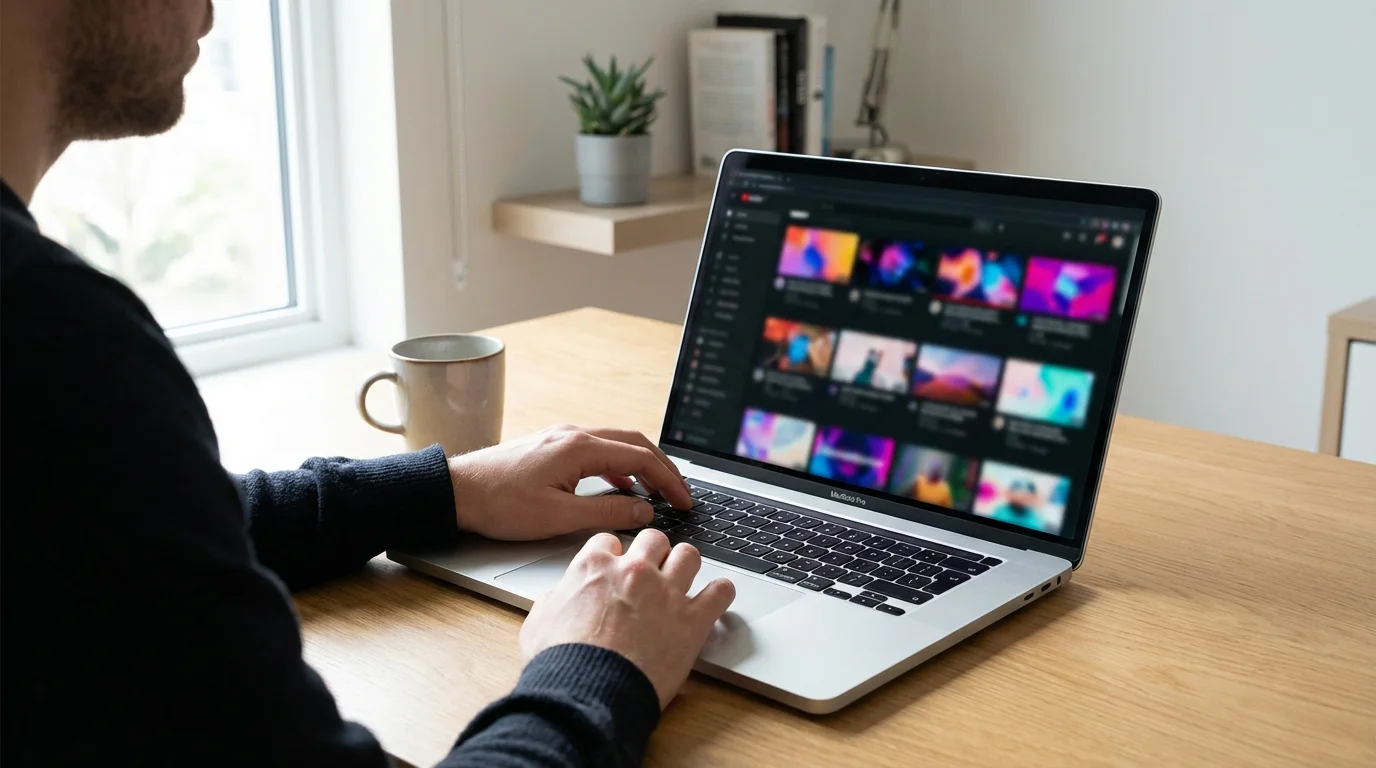
YouTube Premium, the ad-free version of YouTube, extends its benefits beyond skipping commercials to include offline downloads. This is invaluable for saving music videos, tutorials, or documentaries for later viewing without an internet connection or cellular data.
- Open the YouTube App: Ensure you are signed in with your YouTube Premium account on your iOS or Android device.
- Select Video: Browse or search for any video you wish to download. Most videos are available for download.
- Initiate Download: Under the video player, tap the “Download” button (downward arrow).
- Choose Quality: YouTube often prompts you to select download quality, ranging from 144p to 1080p. Higher quality consumes more storage and data during the initial download.
- Access Downloads: Find your downloaded videos in the “Library” tab under “Downloads.”
YouTube Premium downloads typically remain on your device for up to 30 days, provided you connect to the internet at least once during that period. This feature is a significant benefit for anyone who frequently watches YouTube content and wants to avoid data usage or buffering issues.
Managing Your Downloads and Device Storage
While downloading content provides immense convenience, it also consumes valuable storage space on your device. Effective management ensures you always have room for new content and your device operates smoothly.
Monitoring and Deleting Downloads:
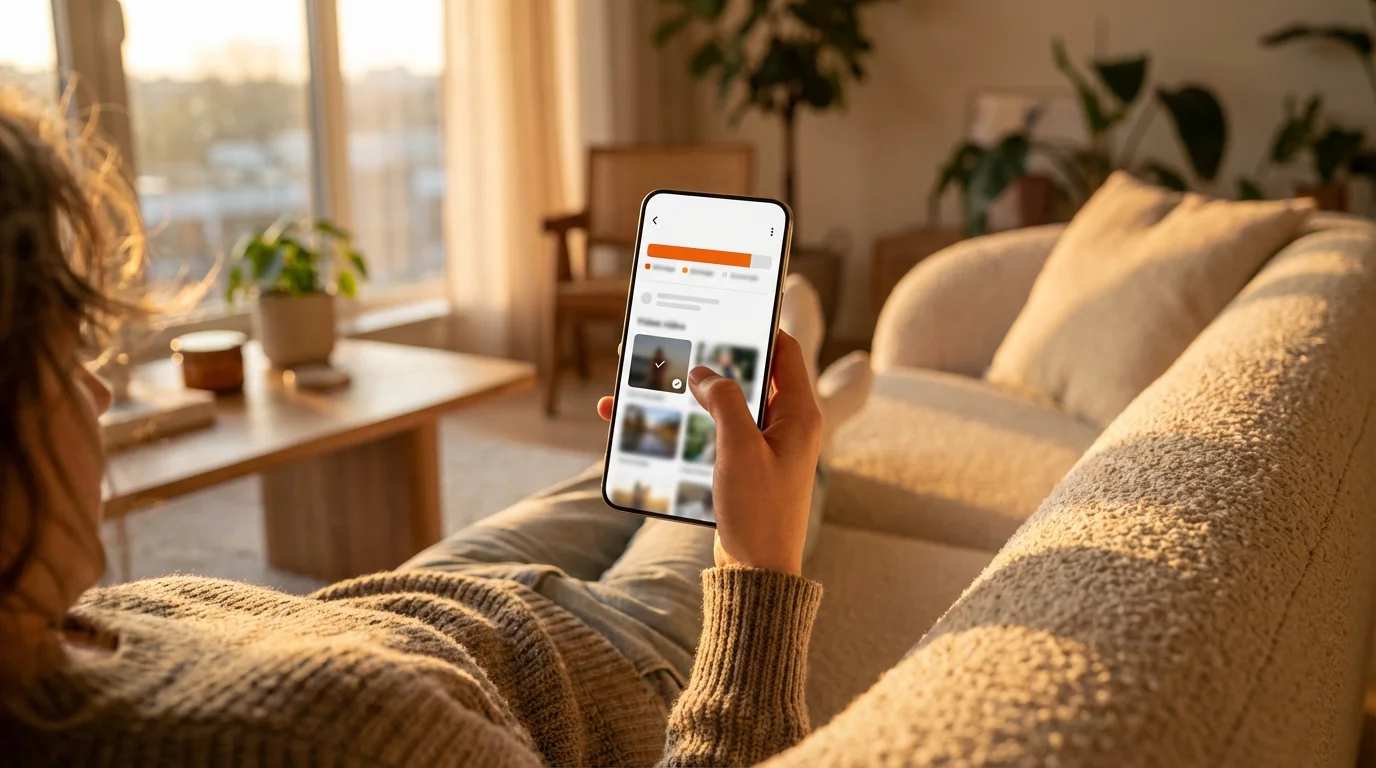
All streaming apps provide a dedicated “Downloads” section where you can view your saved content. This is your command center for managing your offline library. Periodically review this section to:
- Identify Watched Content: Delete shows and movies you have already watched. This is the quickest way to free up space. Most apps allow you to swipe left on a title or tap an “Edit” button to remove it.
- Check Expiration Dates: Note any titles approaching their expiration. If you still want to watch them, you will need to re-download them or connect to the internet to refresh their license.
- Review Storage Usage: Most apps show you how much space your downloads occupy. For instance, Netflix’s “App Settings” under “Downloads” gives you a clear indication of storage usage.
You can also check your device’s overall storage settings (e.g., “Settings” > “General” > “iPhone Storage” on iOS or “Settings” > “Storage” on Android) to see how much space individual streaming apps are using. If an app takes up too much space, you might need to delete some downloads directly from within the app.
Optimizing Download Quality:
As previously mentioned, several services like Netflix and Amazon Prime Video let you choose the download quality. Always consider this setting, especially if your device has limited storage. Opting for “Standard” or “Good” quality significantly reduces file sizes, allowing you to store more hours of entertainment. For example:
- A 90-minute movie in High Definition (HD) might use 1.5-2 GB.
- The same movie in Standard Definition (SD) could be 500-700 MB.
Making this small adjustment can be the difference between downloading two movies or five, providing a much larger selection for your offline viewing needs. According to a CNET guide on saving phone storage, managing download quality is a “simple yet powerful way to maximize your device’s capacity for media content without constant deletion.”
When to Download:
Always download content when you have access to a fast, unlimited Wi-Fi connection. This prevents using up your cellular data plan and ensures a quick download process. Plan your downloads ahead of time, especially before long trips, flights, or periods where you anticipate poor internet connectivity.
Frequently Asked Questions
What is offline streaming?
Offline streaming lets you temporarily download movies and TV shows from specific streaming services directly to your device, such as a smartphone or tablet. This means you can watch these downloaded titles later without an active internet connection, ideal for travel or areas with poor Wi-Fi.
Do all streaming services offer offline downloading?
No, not all streaming services offer offline downloading, and among those that do, it is often restricted to ad-free or premium subscription tiers. For example, Netflix, Disney+, Max (ad-free plans), Hulu (ad-free plans), Amazon Prime Video, Apple TV+, and YouTube Premium all support this feature, but cheaper ad-supported plans typically do not.
How much storage space do downloaded shows take?
The storage space required for downloaded shows varies significantly based on the content’s length and the selected download quality. A 30-minute episode in standard definition might use around 500 MB, while a 2-hour movie in high definition could consume 2-3 GB. Many apps allow you to choose a lower download quality to save space.
Do downloaded shows expire?
Yes, downloaded shows usually have an expiration period. Most services allow downloads to remain on your device for 30 days from the download date or 48 hours once you start watching. You usually need to connect your device to the internet periodically (e.g., every 30 days) to refresh the download licenses and keep them active.
Can I download shows to my smart TV or streaming stick?
Generally, you cannot download shows to a smart TV or a dedicated streaming device like a Roku, Fire TV Stick, or Apple TV. These devices are designed for continuous internet streaming. Offline download features are almost exclusively available on mobile devices (smartphones, tablets) and sometimes on desktop computers via dedicated apps.
Disclaimer: Streaming service terms and pricing change frequently. Always review current terms of service before implementing any money-saving strategies. Some tips may not work with all services or in all regions.
Since you may need specific tiers for downloads, it helps to learn how to manage multiple streaming subscriptions to keep your costs under control.


Leave a Reply