
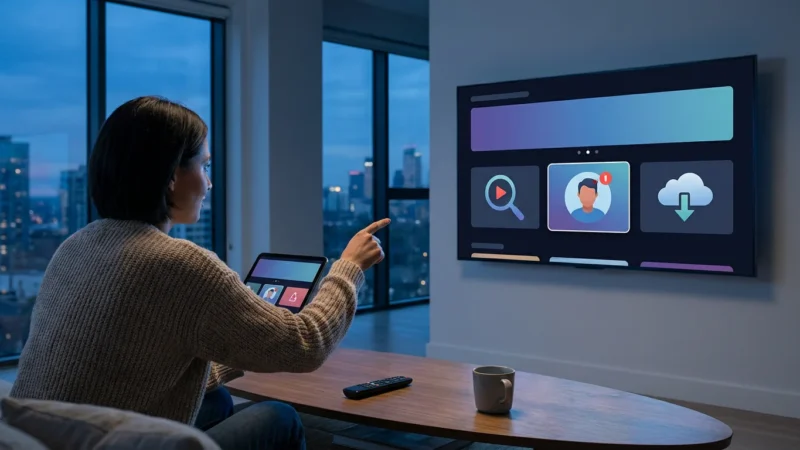
Staying current with streaming technology can feel like a full-time job. Every few months, your favorite streaming devices, like Roku and Amazon Fire TV, receive significant software updates. These device updates introduce new features, improve performance, and sometimes even change how you interact with your content. For cost-conscious viewers who want to save money on entertainment, understanding these changes is crucial. We help you navigate the latest streaming device updates and explain how they impact your viewing experience and your wallet.
It is also worth noting that streaming service app updates often roll out alongside these firmware changes to provide a cohesive experience.
Why Streaming Device Updates Matter for Your Wallet and Experience
Regular software updates to your streaming device, such as a Roku update or a Fire TV update, offer much more than just bug fixes. They often introduce new functionalities that directly affect how you discover content, manage your subscriptions, and even save money. Imagine improved search tools that help you find shows across multiple services, preventing unnecessary subscriptions. Consider enhanced personalization that surfaces content you actually want to watch, reducing the time you spend scrolling aimlessly.
For someone trying to cut the cord, which means canceling traditional cable or satellite TV in favor of streaming services, these updates are particularly important. A streaming device, a small box or stick like a Roku or Fire TV that adds streaming to any television, serves as your gateway to all digital entertainment. Its software determines its capabilities. Updates often bring better integration with voice assistants, more intuitive user interfaces, and even features designed to highlight free ad-supported content, which directly benefits your budget.
For example, a new feature might allow you to easily compare prices for renting a movie across different platforms before you commit, ensuring you get the best deal. Another update could streamline the process of moving between ad-supported plans, which are free or cheaper plans that show commercials, and ad-free options, plans that cost more but do not show commercials. These improvements empower you to make smarter decisions about your entertainment choices, ultimately saving you money and enhancing your viewing experience.
Roku’s Latest Innovations: OS 12.5 and Beyond
Roku consistently rolls out device updates, with OS 12.5 and subsequent minor updates shaping the user experience in 2024. These latest streaming device updates introduce several user-centric features, improving content discovery, accessibility, and overall performance across Roku streaming players and Roku-powered smart TVs, which are televisions with built-in internet connection and apps.
One significant enhancement in recent Roku updates is the expansion of its ‘Continue Watching’ row. This feature now includes more content from a wider array of streaming channels directly on the home screen. This means you spend less time jumping between apps to resume a show, making it easier to pick up where you left off. This convenience helps you maximize the value of your existing subscriptions.
Roku also improved its ‘Sports’ experience. This dedicated section provides a centralized hub for live and upcoming sports events, making it easier for sports fans to find their games without endless searching. The ‘Sports’ feature integrates with various live TV streaming services and sports-specific apps, offering a comprehensive view of available content. While not directly a money-saving feature, it optimizes the utility of your sports subscriptions.
Accessibility also received an upgrade. Roku introduced visual enhancements for its text input keyboard, providing larger, easier-to-read characters. This small change makes a big difference for many users, improving the overall usability of the device for everyone.
Furthermore, Roku continues to refine its voice assistant capabilities, allowing for more natural language commands to search for content, launch apps, and control playback. These voice commands simplify navigation, especially for those who prefer not to type.
“Roku’s commitment to simplifying the streaming experience with features like the expanded ‘Continue Watching’ row directly benefits cost-conscious users by making their existing subscriptions more accessible and valuable.” — Streaming Expert
For users who want to make the most of their Roku device, ensure your device updates automatically. You can manually check for a Roku update by going to Settings > System > Software update on your device. Keeping your device updated guarantees access to the latest features and security improvements.
Amazon Fire TV’s Evolution: Fire OS 8 and New Features
Amazon’s Fire TV platform also sees continuous development, with Fire OS 8 and subsequent firmware updates introducing a host of new features aimed at enhancing discovery, personalizing the experience, and integrating more seamlessly with the broader Amazon ecosystem. These Fire TV updates are crucial for anyone using a Fire TV Stick, Fire TV Cube, or an Amazon Fire TV Edition smart TV.
A key focus of recent Fire TV updates is improved user personalization. The interface now better adapts to your viewing habits, recommending content based on your watch history and preferences across various streaming services. This reduces decision fatigue and helps you discover new content efficiently, potentially uncovering shows on services you already subscribe to but rarely use.
Fire TV also enhanced its ‘Live TV’ integration, making it simpler to find live channels from services like Sling TV, Hulu + Live TV, and even free ad-supported channels through apps like Pluto TV or Amazon’s own Freevee. This aggregation of live content is a boon for cord-cutters who still desire a traditional TV experience without the hefty cable bill.
The latest updates also bring more robust smart home controls directly to your Fire TV interface. You can now use your Fire TV remote or voice commands via Alexa to control compatible smart home devices, such as lights or thermostats, without interrupting your viewing. This creates a more integrated and convenient home entertainment hub.
Regarding privacy and security, Fire OS 8 includes updated permissions and controls, giving you greater transparency and management over app access to your data. Understanding these controls helps you maintain a secure streaming environment.
To ensure your Fire TV device operates optimally and benefits from these new features, check for the latest Fire TV update regularly. Go to Settings > My Fire TV > About > Check for Updates. Amazon often rolls out updates incrementally, so staying vigilant ensures you receive them promptly.
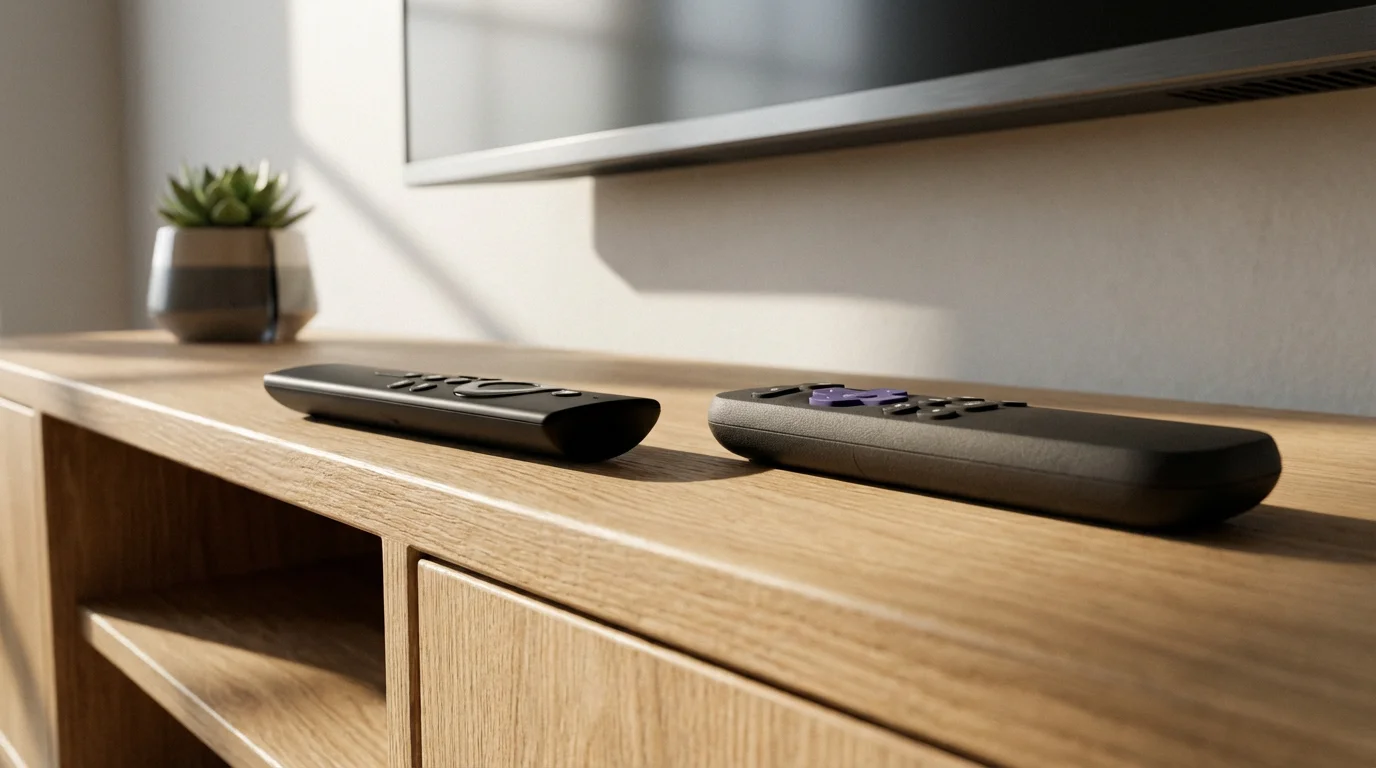
Key Feature Showdown: Roku vs. Fire TV Updates 2024
Both Roku and Fire TV offer compelling experiences, and their latest device updates underscore their respective strengths. Understanding these differences helps you decide which ecosystem best suits your needs, especially when considering a new purchase or optimizing your current setup. Below, we compare some of the key updates and features introduced in 2024.
| Feature Category | Roku Update Highlights (OS 12.5+) | Fire TV Update Highlights (Fire OS 8+) |
|---|---|---|
| Content Discovery | Expanded “Continue Watching” row; improved “Sports” hub. Centralized content search across apps. | Enhanced personalization and recommendation engine; improved “Live TV” integration from multiple sources. |
| User Interface & Navigation | Cleaner, more intuitive home screen; visual enhancements for on-screen keyboard. | More customizable home screen; streamlined navigation for accessing favorite apps and content. |
| Voice Control | Improved natural language processing for search and control. | Deeper Alexa integration for content, smart home, and general queries. |
| Accessibility | Visual improvements for text input; general performance enhancements. | New accessibility settings; improved integration with third-party accessibility tools. |
| Ecosystem Integration | Strong focus on content neutrality across all streaming services. | Deep integration with Amazon Prime Video, Audible, and Alexa smart home devices. |
| Monetization/Free Content | Prominent Roku Channel integration, highlighting free ad-supported streaming. | Prominent Freevee (Amazon’s free ad-supported service) integration; easier access to other free apps. |
As CNET often highlights, the choice between Roku and Fire TV often comes down to personal preference for their respective interfaces and ecosystem integrations. If you prioritize simplicity and an open platform that doesn’t push its own content heavily, Roku might appeal more. If you are deeply invested in the Amazon ecosystem with Alexa devices and Prime subscriptions, Fire TV offers a more seamless, integrated experience. Both platforms continuously evolve, so regularly checking for the latest streaming device updates ensures you get the most from your investment.
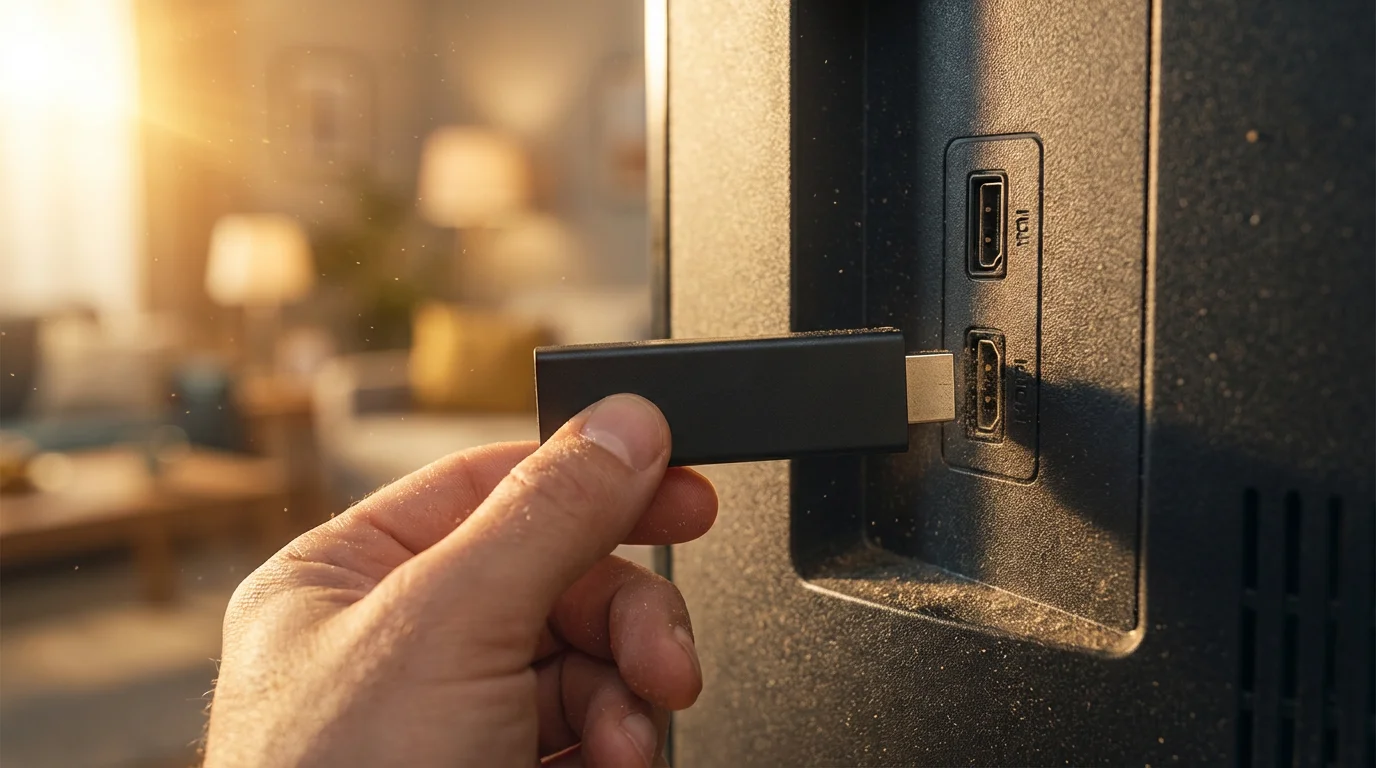
Policy Changes Affecting Device Use: Ad Tiers and Smart Integrations
Beyond the new features, broader industry policy changes also impact your streaming device experience. Two significant trends affecting viewers are the proliferation of ad-supported tiers and the increasing integration of smart TV functionalities.
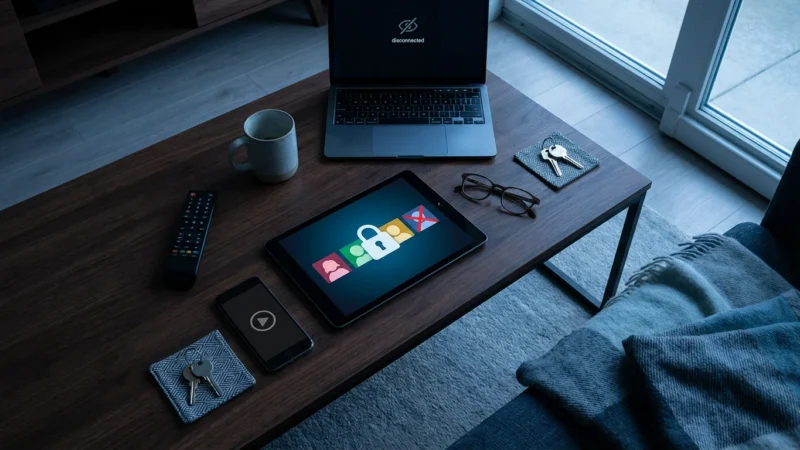
Along with firmware updates, viewers must navigate new restrictions, such as which streaming services are cracking down on password sharing.
The Rise of Ad-Supported Streaming Tiers
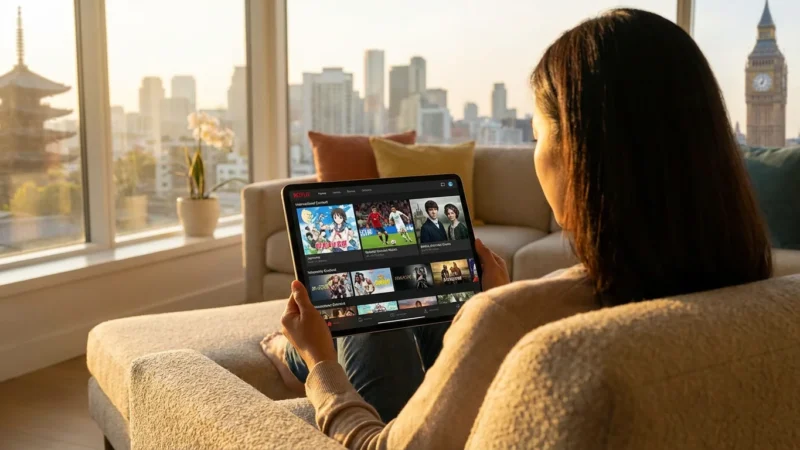
Many major streaming services, including Netflix, Disney+, and Max, have introduced cheaper ad-supported plans. These plans allow you to watch content for a lower monthly fee, or sometimes even for free, in exchange for viewing commercials. This policy shift directly affects your device because the ad-serving technology must be seamlessly integrated into the streaming app, which relies on the device’s firmware.
Your Roku or Fire TV update ensures that these ad tiers function correctly, minimizing buffering during ad breaks and delivering a smooth viewing experience. For cost-conscious viewers, these ad-supported options represent a significant opportunity to save money on entertainment. Instead of paying the full price for an ad-free subscription, you can opt for the cheaper tier and tolerate a few commercials. Your streaming device’s ability to handle these different tiers efficiently directly impacts your potential savings.
For example, you can switch from Netflix’s Standard plan to its Standard with Ads plan and save several dollars per month. Your device’s updated apps manage the transition seamlessly. As Cord Cutters News reports, these ad tiers are becoming the norm, making device compatibility critical for accessing these budget-friendly options.
Smart TV Integration and Data Policies
The line between a dedicated streaming device and a smart TV has blurred significantly. Modern smart TVs come with built-in internet connection and apps, often powered by Roku, Fire TV, or Google TV operating systems. These integrated platforms receive the same device updates as their standalone counterparts, bringing similar new features and performance improvements.
However, this integration also brings policy implications, especially regarding data collection and privacy. Smart TVs and streaming devices collect data on your viewing habits to personalize recommendations and serve targeted ads. Recent policy updates from device manufacturers and content providers often include revised privacy agreements outlining how your data gets used. While beneficial for personalized content, understanding these policies helps you make informed choices about your data.
Action Item: Regularly review the privacy settings on your Roku or Fire TV device. Both platforms offer options to limit ad tracking and manage data collection. Taking a few minutes to adjust these settings gives you greater control over your personal information.

Optimizing Your Device: Actionable Tips for Performance and Savings
Keeping your streaming device updated is just the first step. You can implement several practical strategies to maximize performance and ensure you continue to save money on entertainment.
- Enable Automatic Updates: Both Roku and Fire TV devices allow you to enable automatic software updates. This ensures you always run the latest firmware, which often includes performance improvements, security patches, and access to new features. Go into your device’s system settings to confirm this option is active.
- Clear App Caches Regularly: Just like a computer or smartphone, streaming apps accumulate cache data over time, which can slow down performance. Periodically clearing the cache for individual apps or even restarting your device can significantly improve speed and responsiveness. On Fire TV, go to Settings > Applications > Manage Installed Applications, select an app, and choose “Clear cache.” Roku devices often benefit from a simple system restart (Settings > System > System restart).
- Manage Your Apps: Uninstall apps you no longer use. Unnecessary apps consume storage space and background resources, potentially slowing down your device. Regularly review your installed apps and remove those you do not watch. This is particularly useful for maximizing your streaming device’s efficiency.
- Optimize Your Network Connection: A fast and stable internet connection is paramount for quality streaming. Position your Wi-Fi router optimally, away from obstructions, and consider using a wired Ethernet connection for devices that support it, like some Roku Ultra or Fire TV Cube models. A strong connection prevents buffering and allows for higher quality video playback.
- Utilize Free Streaming Options: Many device updates highlight or improve access to free ad-supported streaming services like Tubi, Pluto TV, Freevee, and The Roku Channel. These services offer a vast library of movies and TV shows at no cost, allowing you to cut down on paid subscriptions. Actively explore these options to save money.
- Monitor Your Subscriptions: Use tools provided by your device or third-party apps to track your active streaming subscriptions. Some Roku and Fire TV interfaces now offer consolidated views of your subscriptions, helping you identify services you might be paying for but rarely using. Canceling unused subscriptions is one of the quickest ways to save money.
- Adjust Video Quality Settings: If you have a slower internet connection or are concerned about data usage (if you have a data cap), adjust the video quality settings within individual streaming apps. While high definition is great, sometimes standard definition offers a perfectly acceptable viewing experience while using less bandwidth.
By actively managing your device and subscriptions, you gain greater control over your entertainment spending. These practices, combined with staying informed about the latest streaming device updates, empower you to make intelligent decisions for your streaming life.
Frequently Asked Questions
How often do Roku and Fire TV devices receive updates?
Both Roku and Fire TV devices typically receive major software updates once or twice a year, with smaller bug fixes and performance enhancements rolled out more frequently. Amazon and Roku push these updates automatically, but you can always manually check for a new update in your device’s system settings.
Do I need to pay for streaming device updates?
No, all software and firmware updates for Roku and Fire TV streaming devices are free. These updates are part of the ongoing support provided by the manufacturers to improve your device’s functionality and security.
Can a device update slow down my streaming device?
While updates generally improve performance, sometimes a major update might initially cause minor slowdowns or glitches as the system adapts. If you notice a persistent slowdown after an update, try restarting your device, clearing app caches, or performing a factory reset as a last resort. Ensure you also have a stable internet connection.
How do device updates help me save money?
Device updates save you money in several ways. They introduce better content discovery tools that help you find shows across your existing subscriptions, preventing you from subscribing to new services unnecessarily. They also improve access to free ad-supported content and make it easier to manage your subscriptions or switch to cheaper ad-supported tiers, directly reducing your monthly entertainment costs.
What should I do if my streaming device won’t update?
First, ensure your device connects to the internet. Disconnect and reconnect your Wi-Fi, or try another network. Next, restart your device by unplugging it for 30 seconds and plugging it back in. If the issue persists, check the manufacturer’s support website for specific troubleshooting steps for your model. Sometimes, a temporary server issue prevents updates, so trying again later can also work.
Disclaimer: Streaming industry news changes rapidly. This article reflects information available at the time of publication. Check official service announcements for the most current information.




Leave a Reply