
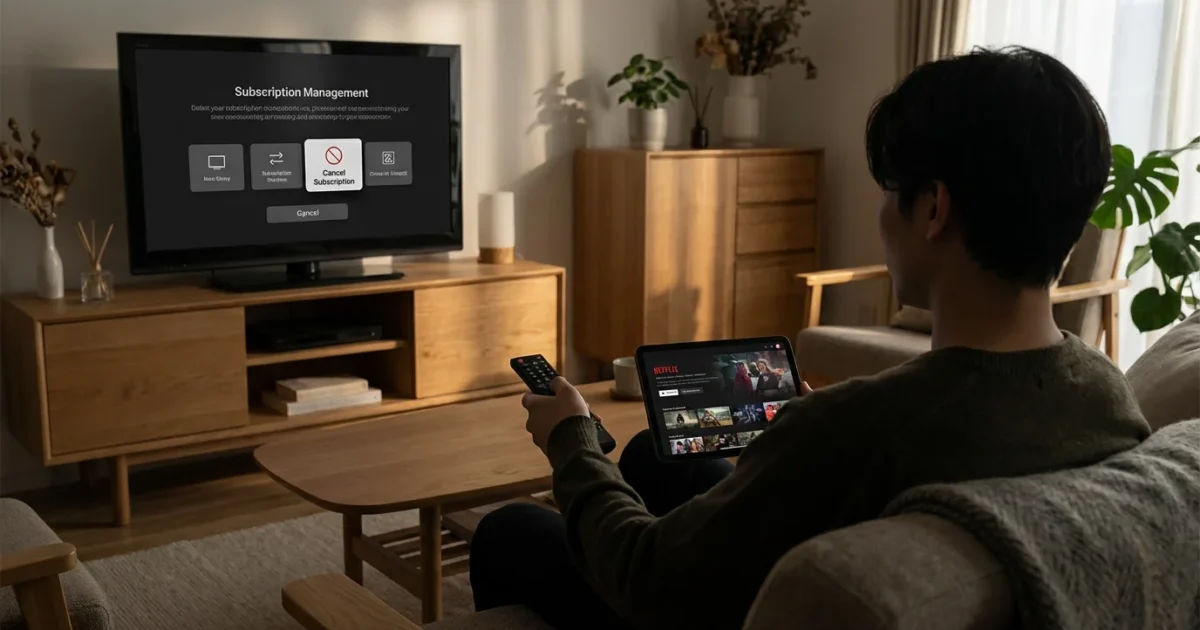
You’ve embraced streaming, watching video content over the internet instead of traditional cable or satellite. You’ve successfully joined the ranks of cord-cutting households, canceling traditional TV in favor of flexible, on-demand entertainment. However, the sheer volume of services and their constantly changing libraries often lead to subscription overload and unexpected monthly charges. If you are struggling to manage numerous services and want to know how to cancel streaming subscriptions easily, you are not alone. This guide provides actionable steps to help you stop subscription creep and unsubscribe from services without falling for common tricks.
In addition to mastering cancellations, learning a few clever streaming hacks can significantly improve your overall cord-cutting experience.

Understanding Streaming Subscriptions and Auto-Renewal
Most streaming services operate on a subscription model, charging you automatically each month or year until you actively cancel. This “auto-renewal” feature is designed for convenience, but it also means you pay for services you might no longer use. Understanding how to cancel streaming services involves recognizing this fundamental aspect. Your billing cycle typically begins on the day you first subscribe, and canceling mid-cycle usually means you retain access until the end of that paid period. Very rarely do services offer pro-rata refunds, so timing your cancellation toward the end of your billing cycle maximizes your value.
“Never assume a free trial automatically expires without requiring cancellation. Always mark your calendar or set a reminder to cancel before the trial ends to avoid unexpected charges.”
Services like Netflix, Hulu, Disney+, Max, and Paramount+ all use this recurring billing model. For example, if you subscribe to Netflix on January 10th, your billing date will typically be the 10th of each month. If you cancel on January 20th, you will likely still have access until February 9th, and you won’t receive a partial refund for the remaining days of January.

The Universal First Step: Knowing Where You Subscribed
Before you even think about finding a “cancel” button, identify how you initially subscribed to the service. This is the single most important factor determining your cancellation path. You typically subscribe in one of three ways:
- Directly through the service’s website: This is the most common method for platforms like Netflix, Hulu, or HBO Max. You enter your credit card information directly on their site.
- Through a third-party app store or device: You might have subscribed via Apple’s App Store, Google Play, Amazon Appstore (on a Fire TV Stick), or even through your cable provider if it offered bundles.
- As part of a bundle deal: Sometimes services like Paramount+ come bundled with Walmart+ memberships, or you get free trials with phone plans.
Attempting to cancel a subscription managed by Apple directly on the streaming service’s website will lead to frustration, as the service itself cannot control third-party billing. Knowing your subscription origin saves you time and ensures you follow the correct procedure to stop subscription.

Step-by-Step Guide: Canceling Through Service Websites
This method applies when you subscribed directly on the streaming service’s official website. This is often the most straightforward way to unsubscribe.
- Log In to Your Account: Go to the official website of the streaming service you wish to cancel. Do not try to cancel through your smart TV or streaming device apps, as they often lack full account management features. Use a web browser on a computer or mobile device.
- Navigate to Account Settings or Profile: Look for sections labeled “Account,” “Profile,” “Settings,” “Manage Subscription,” or “Billing.” These are usually found by clicking on your profile icon (often a small circle with your initial or picture) in the top-right corner of the page.
- Find the Cancellation Option: Within the account settings, search for options related to “Subscription,” “Membership,” “Billing,” or “Cancel Membership/Subscription.” The exact wording varies. Services typically do not make this button the most prominent feature on the page. You might need to click through a few menus, such as “Change Plan” or “Membership & Billing.”
- Follow On-Screen Prompts: Once you locate the cancellation option, the service usually presents a series of questions or prompts. They might ask why you are canceling, offer a discount to stay, or try to downgrade you to a cheaper, ad-supported tier. Stick to your decision to cancel. Keep clicking “Continue to Cancel” or similar phrases.
- Confirm the Cancellation: The final step requires explicit confirmation. Look for a button like “Confirm Cancellation,” “End Membership,” or “Cancel Anyway.” This is crucial. Many users stop short of this final step, thinking they have canceled, only to find themselves charged again.
- Look for a Confirmation Email: Immediately after successfully canceling, the service should send you an email confirming your cancellation. This email usually states that your subscription will end at the close of your current billing cycle. Save this email as proof.
Here’s a simplified visual representation of a typical cancellation flow on a service’s website:
[DIAGRAM: A flowchart showing a user’s journey to cancel.
Start: “Streaming Service Website” -> “Log In” -> “Click Profile Icon/Account” -> “Select ‘Account’ or ‘Manage Subscription’” -> “Find ‘Cancel Membership/Subscription’ Link/Button” -> “Navigate Through Retention Offers (e.g., ‘Keep Watching?’, ‘Offer Discount’)” -> “Click ‘Continue to Cancel’ or ‘Cancel Anyway’” -> “Receive Confirmation Email/Screen.” ]

Canceling Via Third-Party Billing (Apple, Google, Amazon)
If you subscribed through an app store or a device manufacturer, you must cancel through their respective platforms. Trying to cancel a Netflix Hulu guide subscription paid via Apple on the Netflix website will not work. These platforms manage the billing, not the streaming service itself.
Apple App Store (iPhone, iPad, Apple TV)
- On an iPhone or iPad: Open the “Settings” app. Tap your name at the top. Tap “Subscriptions.” Locate the streaming service you want to cancel. Tap “Cancel Subscription” and then “Confirm.”
- On a Mac: Open the App Store app. Click your name in the sidebar. Click “Account Settings” (you might need to sign in). Scroll to “Subscriptions” and click “Manage.” Find the service and click “Edit,” then “Cancel Subscription.”
- On an Apple TV: Go to “Settings” > “Users and Accounts” > “[Your Name]” > “Subscriptions.” Select the app and “Cancel Subscription.”
Google Play Store (Android, Google TV)
- On an Android device: Open the Google Play Store app. Tap your profile icon (top right). Tap “Payments & subscriptions” > “Subscriptions.” Find the streaming service. Tap “Cancel subscription” and follow the prompts.
- On a Web Browser: Go to play.google.com/store/account/subscriptions. Log in with your Google account. Find the subscription and click “Manage,” then “Cancel Subscription.”
Amazon (Fire TV, Amazon Prime Video Channels)
- Via Amazon Website: Go to Amazon.com. Hover over “Account & Lists” and click “Memberships & Subscriptions.” Find the service you wish to cancel (e.g., a Prime Video Channel like Paramount+ or a third-party app subscription). Click “Manage subscription” and follow the prompts to cancel.
- On a Fire TV Device: Go to “Settings” > “Account & Profile Settings” > “Your Subscriptions.” Select the subscription and follow the cancellation steps.
Dealing with Retention Offers and Sticky Buttons
Streaming services often employ tactics to prevent you from canceling your streaming subscription easily. These are called retention offers or “dark patterns” in user interface design. Be prepared for:
- Multiple Confirmation Screens: You might click “Cancel” only to be presented with “Are you sure?” screens, testimonials from happy customers, or lists of content you will miss. Keep clicking through these.
- Downgrade Options: Many services will offer a cheaper, ad-supported plan or an annual plan discount as an alternative to full cancellation. If you truly want to stop subscription, politely decline.
- “Pause” Options: Some services, like Hulu or Spotify, offer to “pause” your subscription for a few months. This can be useful for seasonal viewing, but remember it will auto-resume. If you want a clean break, opt for full cancellation.
- Subtle or Hidden Buttons: The “Cancel” button might be grayed out, small, or placed in an unintuitive location, while “Keep Subscription” or “Resubscribe” buttons are prominent. Read carefully and locate the true cancellation path.
- Customer Service Obstacles: If you call or chat with support to cancel (which is rarely necessary for most services), be firm. Customer service representatives often have scripts to try and keep you as a subscriber.
As the Better Business Bureau advises, always be wary of businesses that make it difficult to cancel recurring services. Document your cancellation attempts if you encounter excessive friction, including screenshots or chat logs.

The “Subscription Rotation” Strategy for Smart Savers
Once you master how to cancel streaming services, you unlock significant savings through a strategy called “subscription rotation” or “binge-and-cancel.” This involves subscribing to a service, watching all the content you want to see, and then canceling until a new season or show arrives. This approach is highly effective for cost-conscious viewers who want to optimize their entertainment spending.
Understanding the best time to subscribe and cancel each year can help you plan your rotation around major series premieres.
Consider this example: a typical streamer might subscribe to Netflix, Hulu (ad-free), Disney+, and Max all year. Let’s look at potential annual costs:
| Service | Monthly Cost (Ad-Free Est.) | Annual Cost (Continuous) |
|---|---|---|
| Netflix Standard | $15.49 | $185.88 |
| Hulu (No Ads) | $17.99 | $215.88 |
| Disney+ Premium | $13.99 | $167.88 |
| Max (Ad-Free) | $16.99 | $203.88 |
| TOTAL Annual Cost | $64.46 | $773.52 |
By rotating, you might subscribe to Netflix for 3 months to catch up on new releases, then cancel. Next, you subscribe to Hulu for 2 months, then cancel. You then activate Disney+ for 1 month, and so on. If you average 2-3 active subscriptions at any given time, you could cut your annual spending by hundreds of dollars. For instance, if you maintain two active subscriptions on average, your monthly cost would be roughly $30-35, leading to an annual cost of $360-$420, representing savings of $350-400 compared to continuous subscriptions to all four.
This strategy works best if you plan your viewing. Keep a watch list, and when a service has enough new content to justify a month or two of subscription, reactivate it. Remember, most services allow you to pick up exactly where you left off when you re-subscribe.
You can also leverage free trials to further optimize. For example, sign up for a 7-day or 30-day free trial of a new service to binge-watch a specific show, then cancel immediately before the trial converts to a paid subscription. Ensure you use a reminder system to cancel free trials on time.

Why Confirming Your Cancellation is Critical
Many users have experienced being charged again after thinking they canceled a service. This usually stems from not completing the final confirmation step or from the service’s systems failing to process the request properly. To truly stop subscription, always verify.
- Save the Confirmation Email: As mentioned, this is your primary proof. It typically states the date your access will end and that no further charges will be applied.
- Check Your Account Status: After receiving the email, log back into the service’s website (not the app) a day or two later. Navigate to your account or subscription settings. It should clearly state that your subscription is canceled and will end on a specific date, or that you no longer have an active subscription.
- Monitor Your Bank or Credit Card Statements: For the next billing cycle, carefully review your financial statements. Ensure the canceled streaming service does not appear as a charge. If it does, immediately contact both the streaming service’s support and your bank or credit card company to dispute the charge, providing your cancellation confirmation email as evidence.
This diligence ensures you genuinely cancel streaming services and avoid accidental re-billing, especially for services like a cancel Netflix Hulu guide where you might have multiple accounts over time.

What Happens After You Cancel? Data, Profiles, and Re-subscribing
When you cancel a streaming service, several things occur regarding your account and access:
- Continued Access: In most cases, you retain access to the service until the end of your current paid billing period. If you paid for a month and canceled halfway through, you can still watch for the remaining two weeks.
- Profile and Watch History: Most services (like Netflix, Hulu, Disney+) preserve your profiles, watch history, and recommendations for a significant period after you cancel, sometimes indefinitely. This makes re-subscribing seamless; you simply log back in, choose a plan, and pick up where you left off. This is a key feature that supports the subscription rotation strategy.
- Download Content: Any content you downloaded to watch offline will likely become inaccessible once your subscription period officially ends.
- No Automatic Refunds: As previously noted, services typically do not offer pro-rata refunds for partial months. You pay for the full billing cycle, even if you cancel early.
Re-subscribing is usually as simple as logging back into your account on the service’s website and selecting a plan. The process often takes just a few clicks, making the “binge and cancel” method very practical.
“For many users, the ‘best’ streaming setup involves a rotating cast of services, keeping only one or two active at a time to maximize content exposure while minimizing cost. It requires a little planning, but the savings are substantial.” — Wirecutter
Frequently Asked Questions
Can I get a refund if I cancel early?
Typically, no. Most streaming services do not offer pro-rata refunds if you cancel mid-billing cycle. You retain access until the end of the period you have already paid for. Refunds are usually only issued in specific cases, such as unauthorized charges or if required by consumer protection laws in certain regions.
Will I lose my watch history and profiles if I cancel?
Most major streaming services preserve your profiles, watch history, and personalized recommendations for a significant period, often many months or even years, after you cancel. This means if you decide to re-subscribe later, your account will largely be as you left it, allowing for a seamless return.
Is it better to pause or cancel a subscription?
A “pause” option can be convenient if you know you will return to the service within a few months, for example, if a new season of a favorite show is coming soon. However, pausing means you must remember to unpause or let it automatically resume. If you are unsure when you will return, or want a clean break, a full cancellation is generally better. You can always re-subscribe easily.
What if I can’t find the cancel button?
First, ensure you are trying to cancel on the correct platform (service website vs. third-party app store). If you are on the correct platform and still cannot find it, search the service’s help center for “cancel subscription” instructions. If all else fails, contact their customer support directly via chat or phone, but be prepared for retention attempts.
Can I cancel a free trial without being charged?
Yes, absolutely. The entire point of a free trial is to try the service without commitment. You must cancel before the trial period ends to avoid being charged. Set a reminder on your calendar or phone. The cancellation process for free trials is the same as for paid subscriptions.
Disclaimer: Streaming service terms and pricing change frequently. Always review current terms of service before implementing any money-saving strategies. Some tips may not work with all services or in all regions.






Leave a Reply