
Disclaimer: Device prices and features may change. New models are released regularly, so check for the latest versions before purchasing. The “best” device depends on your specific needs, existing ecosystem (Apple, Google, Amazon), and budget.
To see how the major platforms compare head-to-head, you can explore our detailed breakdown of Roku vs Fire TV vs Apple TV vs Chromecast.
Navigating the world of streaming entertainment can feel overwhelming, especially with so many devices and services available. You want to cut the cord from expensive cable, save money, and enjoy your favorite shows without a confusing setup. Many viewers, particularly seniors, seek a solution that prioritizes simplicity and ease of use above all else. This guide helps you identify the ideal streaming device, making your entertainment choices straightforward and enjoyable.
Understanding Streaming Devices: Your Gateway to Entertainment
You have heard about “streaming” and “cord-cutting,” but what do these terms truly mean? Streaming refers to watching video content over the internet instead of through traditional cable or satellite TV. This lets you access a vast library of movies, TV shows, and live events on demand, often at a lower cost than a cable subscription. Cord-cutting means canceling your traditional cable or satellite TV service in favor of streaming options. It is a popular way to save money on your monthly entertainment bills.
A streaming device is a small gadget, typically a stick or a box, that plugs into your television. It connects to your home internet, giving your TV access to streaming apps like Netflix, Hulu, or YouTube. Even if you own a smart TV, which is a television with built-in internet connectivity and apps, a dedicated streaming device often offers a faster, more reliable, and easier-to-navigate experience. These devices frequently receive more frequent software updates and support a wider range of apps than many older or budget smart TVs.
Many streaming services offer different pricing tiers. Ad-supported plans are either free or cost less, but they include commercials during your viewing. Ad-free plans cost more, but they provide uninterrupted viewing. You also hear about on-demand content, which means you can watch whatever you want, whenever you want, directly from the service’s library. Some live TV streaming services offer a DVR, a digital video recorder, allowing you to record live shows and watch them later, similar to a traditional cable box DVR.
Key Features for Seniors: Prioritizing Simplicity and Ease of Use
When selecting a streaming device for seniors, ease of use is paramount. Forget the complex menus and tiny buttons. Focus on these critical features:
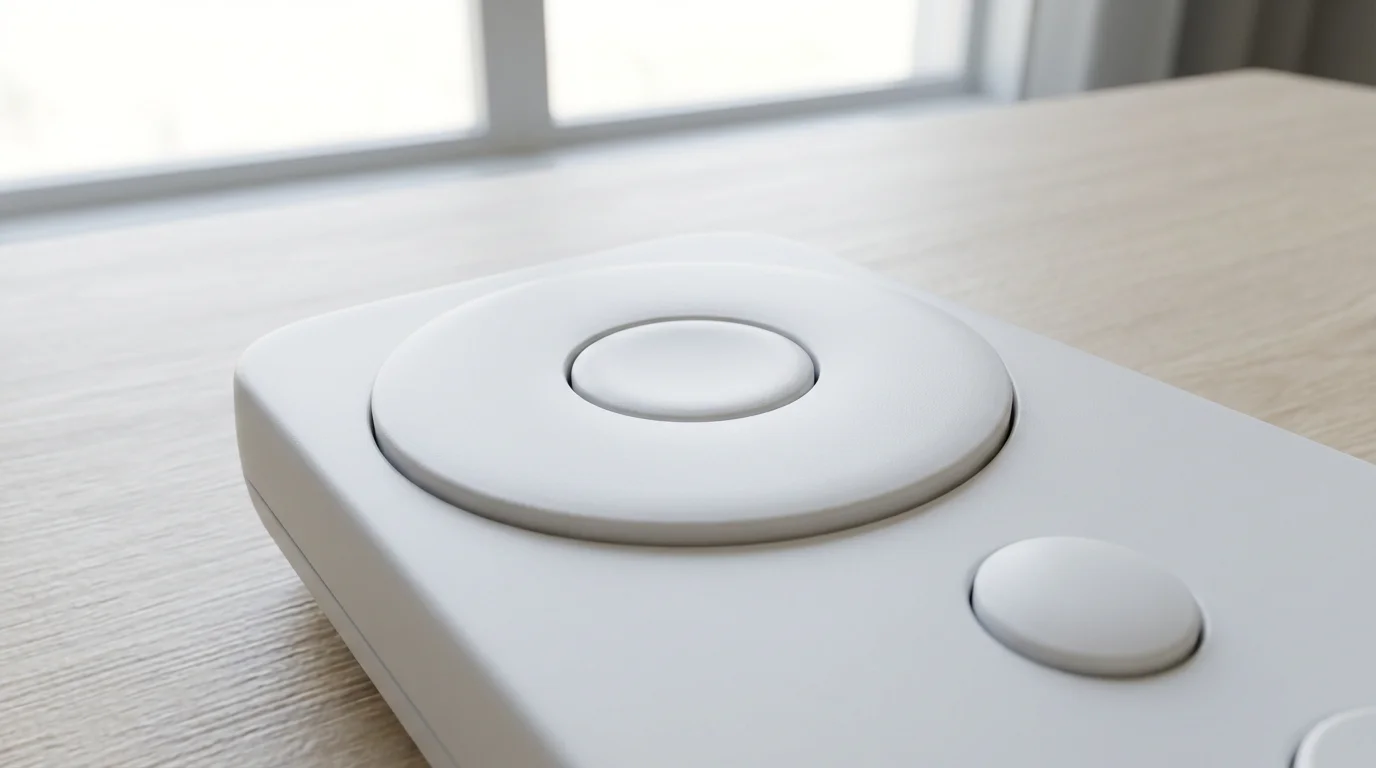
- Simple Remote Control: The remote is your primary interface. It should have large, well-spaced buttons, clear labels, and minimal clutter. Dedicated app buttons for frequently used services like Netflix or Disney+ are a bonus.
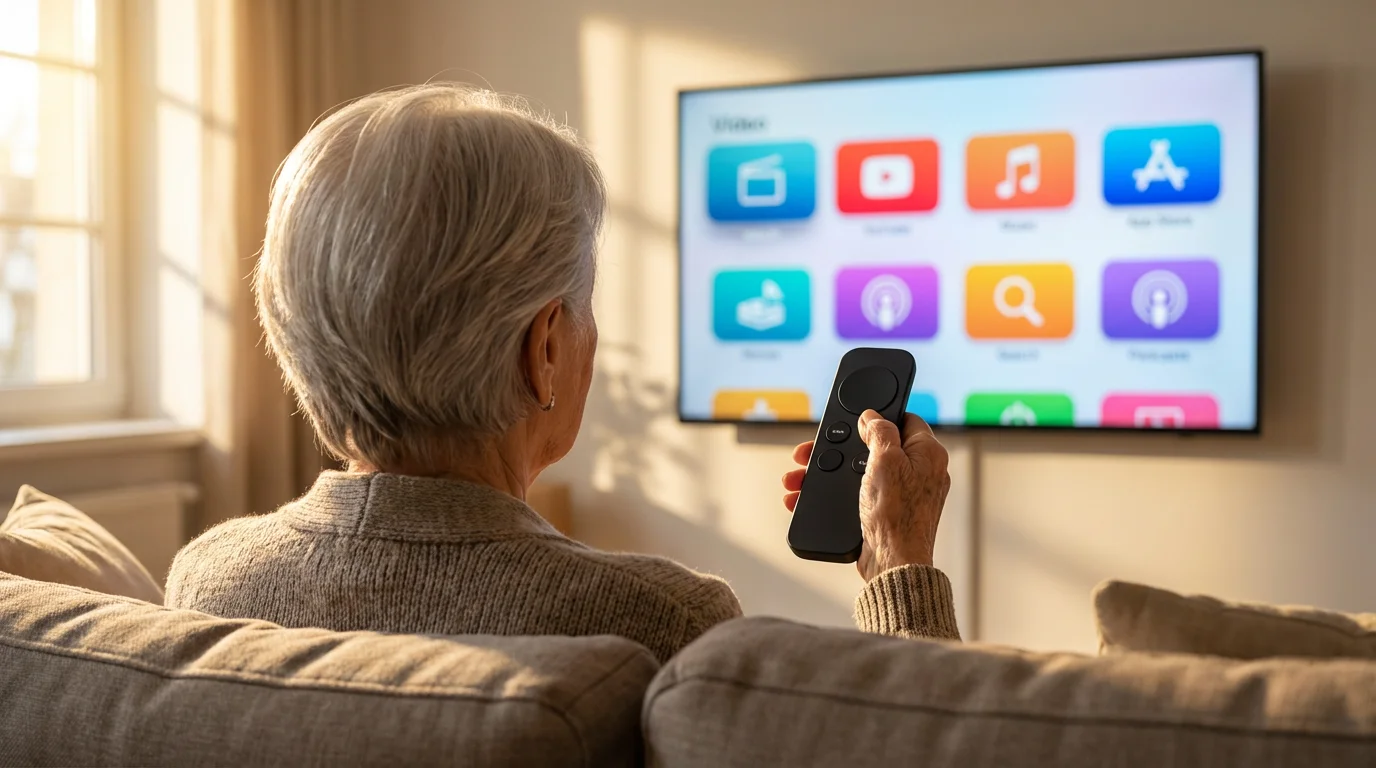
- Intuitive User Interface: The on-screen menu should be easy to read and navigate. Large icons, clear text, and a logical layout reduce frustration. You want a system that makes finding your favorite show effortless.
- Voice Control: While some seniors might initially resist voice commands, many find them incredibly helpful for searching for specific titles or genres without typing. A good voice remote can simplify navigation significantly.
- Accessibility Features: Look for devices that offer closed captions, audio descriptions, and options to enlarge text or adjust contrast. These features enhance the viewing experience for everyone.
- Reliable Performance: A slow, laggy device causes frustration. Choose a device known for smooth navigation and quick app loading.
- Ease of Setup: The initial setup process should be straightforward, ideally requiring just a few steps to get up and running.
Advanced features like 4K (ultra-high definition video), HDR (High Dynamic Range, for brighter, more colorful images), Dolby Vision (an advanced form of HDR), and Dolby Atmos (immersive surround sound) enhance picture and audio quality. While impressive, these features are secondary considerations for seniors prioritizing simplicity. Your TV must also support these technologies to benefit from them. If you have an older TV, these high-end features may not be a factor.
Roku: The Champion of Simplicity
Roku devices consistently rank high for their user-friendliness, making them an excellent choice for seniors seeking an easy streaming experience. Roku’s interface is straightforward: a grid of large, clearly labeled app icons. You navigate with a simple directional pad and a few dedicated function buttons.
Recommended Roku Models for Seniors:
- Roku Express (HD): This is Roku’s most affordable option, usually around $30. It delivers excellent high-definition (HD) streaming. The remote is basic, with channel shortcut buttons and a directional pad. This device is perfect if you have an older TV or do not require 4K resolution. Setup is very easy.
- Roku Express 4K (and 4K+): Priced around $40, this model offers 4K and HDR support for compatible TVs. The 4K+ version typically adds a voice remote with TV controls, which can simplify your setup by letting you control power and volume with one remote. This provides a significant upgrade in video quality without a steep price increase or added complexity.
- Roku Streaming Stick 4K: Available for about $50, this stick hides neatly behind your TV. It supports 4K, HDR, and Dolby Vision, and it includes a voice remote with TV controls. Its performance is slightly snappier than the Express models, and its long-range Wi-Fi receiver provides a more stable connection, which is beneficial if your Wi-Fi router is far from your TV.
Pros of Roku for Seniors:
- Extremely Simple Interface: Large app icons, easy to navigate.
- Intuitive Remote: Minimal buttons, dedicated service shortcuts.
- Wide App Availability: Access to virtually every major streaming service.
- Affordable Options: Excellent value for money, especially the Express models.
- Private Listening: Some models and the Roku app offer a private listening mode using headphones, helpful for those with hearing impairments or for not disturbing others.
Cons of Roku for Seniors:
- Ad-supported Home Screen: The home screen displays some advertisements, though they do not interfere with app usage.
- Voice Remote Not Standard on Cheapest Models: You may need to upgrade to a slightly more expensive model for voice control.
- Less Integrated with Smart Home: Roku’s smart home integration is less extensive than Amazon or Google devices.
“Roku excels in offering a straightforward streaming experience. Its intuitive remote and clear interface make it an ideal choice for anyone who wants to just sit down and watch their favorite shows without fuss.” — Streaming Expert
According to Wirecutter’s streaming device reviews, Roku devices are consistently praised for their simplicity and broad app support, making them a top recommendation for most users, including seniors.
Amazon Fire TV: Voice Control and Familiarity
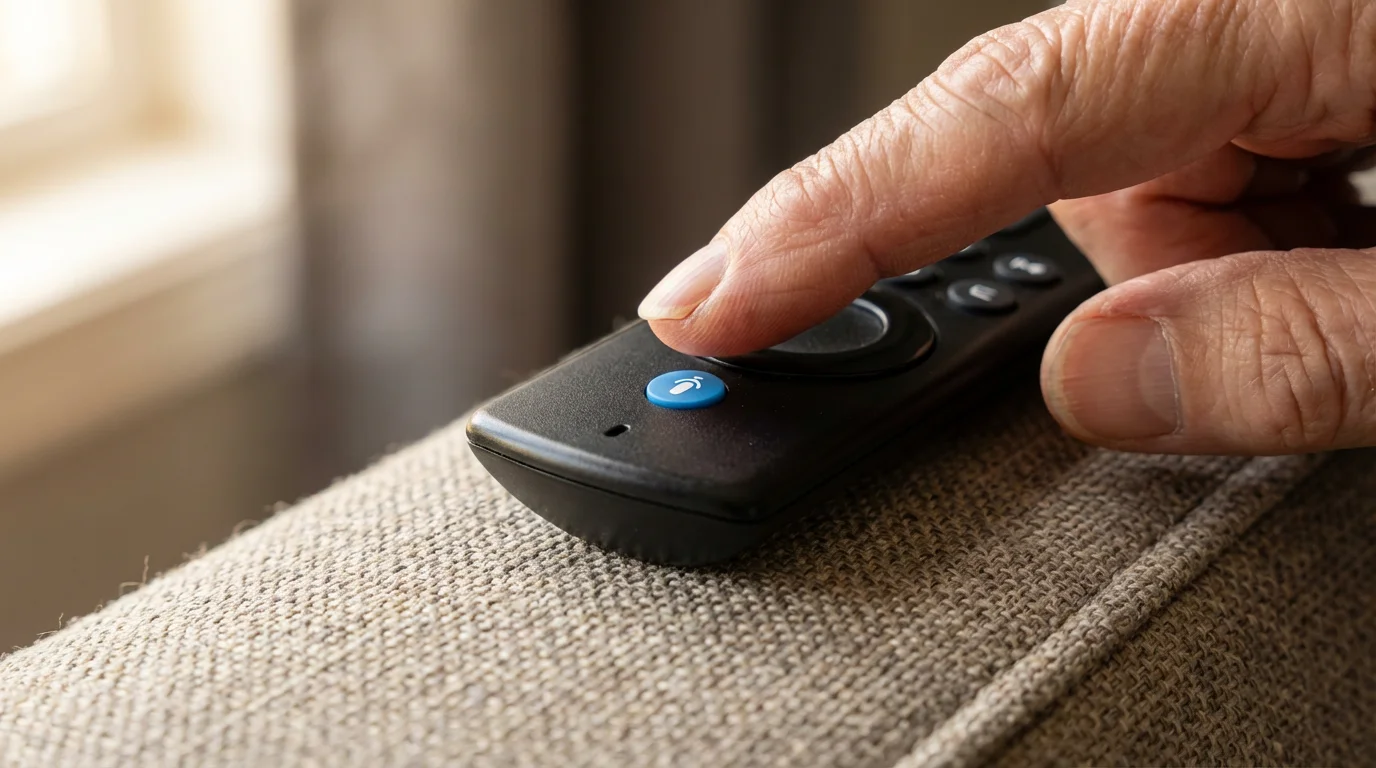
Amazon Fire TV devices, particularly the Fire TV Sticks, offer a user-friendly experience centered around Amazon’s Alexa voice assistant. If you or your household members are already comfortable with Alexa, a Fire TV device might feel quite familiar. The interface prioritizes content discovery and features Amazon’s Prime Video prominently, alongside other apps.
Recommended Amazon Fire TV Models for Seniors:
- Amazon Fire TV Stick Lite: Priced around $30, this HD-only stick comes with an Alexa Voice Remote Lite. This remote lets you use voice commands to find content and launch apps, but it does not control your TV’s power or volume. It is a very budget-friendly entry point for Alexa-powered streaming.
- Amazon Fire TV Stick (3rd Gen): For about $40, this model also offers HD streaming but includes the full Alexa Voice Remote. This remote adds TV power and volume controls, simplifying your remote situation considerably. It provides a good balance of features and affordability.
- Amazon Fire TV Stick 4K Max: At roughly $55, this is a more powerful option, supporting 4K, HDR, and Dolby Vision. It also includes Wi-Fi 6 support for faster wireless speeds if you have a compatible router. Its enhanced performance means faster app loading and smoother navigation.
Pros of Amazon Fire TV for Seniors:
- Excellent Voice Control with Alexa: Easy to search for content, launch apps, and even get weather updates using just your voice.
- Integrated TV Controls: Many remotes control TV power and volume, reducing remote clutter.
- Robust App Selection: Access to all major streaming services.
- Familiar Ecosystem for Amazon Users: If you use other Amazon services, this integration feels natural.
Cons of Amazon Fire TV for Seniors:
- Content-Heavy Interface: The home screen promotes a lot of content, which can feel overwhelming to some users compared to Roku’s simpler grid.
- Amazon-Centric: Heavily promotes Amazon Prime Video content, which might be a downside if you do not subscribe to it.
- Data Collection: Like other Google and Amazon devices, these devices collect some user data for personalization and advertising.
Apple TV: Premium Experience for Apple Households
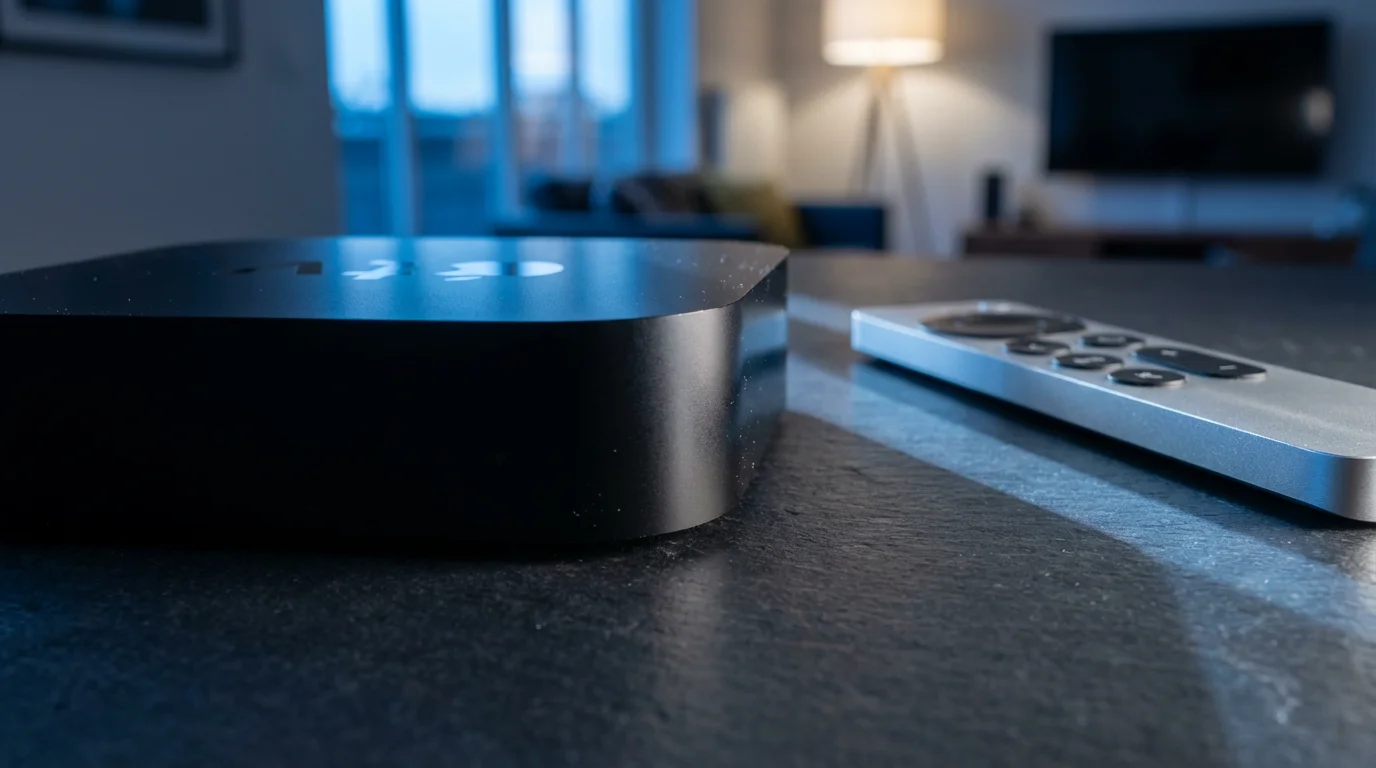
Apple TV devices sit at the higher end of the price spectrum, starting around $129. They offer a premium streaming experience, particularly appealing if you already use Apple products like iPhones or iPads. The interface is clean, fast, and integrates seamlessly with other Apple services, including Apple Arcade and Apple Fitness+.
Recommended Apple TV Model for Seniors:
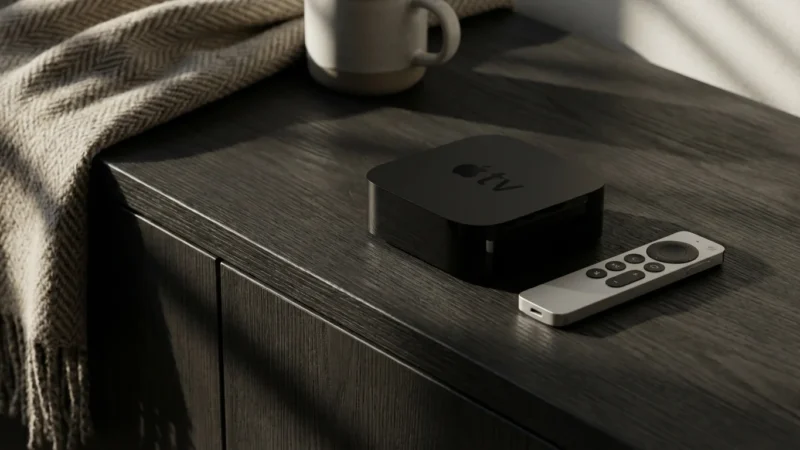
- Apple TV 4K: This is Apple’s primary streaming device, offering top-tier performance, 4K, HDR, and Dolby Vision. The Siri Remote is sleek and includes a touch-enabled clickpad, which some seniors find intuitive, but others might prefer physical buttons. Its voice control with Siri is excellent.
Pros of Apple TV for Seniors:
- Clean, Fast, and Intuitive Interface: Known for its polished design and smooth performance.
- Excellent Integration with Apple Ecosystem: Seamlessly works with iPhones, iPads, and other Apple services.
- Robust Siri Voice Control: Very effective for content search and device control.
- Strong Privacy Focus: Apple generally collects less user data compared to Amazon or Google.
- Customizable Accessibility Features: Offers numerous options for text enlargement, audio descriptions, and more.
Cons of Apple TV for Seniors:
- High Price Point: Significantly more expensive than Roku or Fire TV options, which may not align with a cost-conscious budget.
- Siri Remote Can Be Tricky: The touch-sensitive clickpad can be overly sensitive for some users. While it has physical buttons, the navigation is primarily touch-based.
- Less Budget-Friendly Entry: There are no lower-cost, simpler models like the Roku Express.
As reported by CNET’s expert reviews, the Apple TV 4K excels in performance and user experience, but its premium price tag is a key consideration.
Chromecast with Google TV: Smart Search, Less Simple Interface
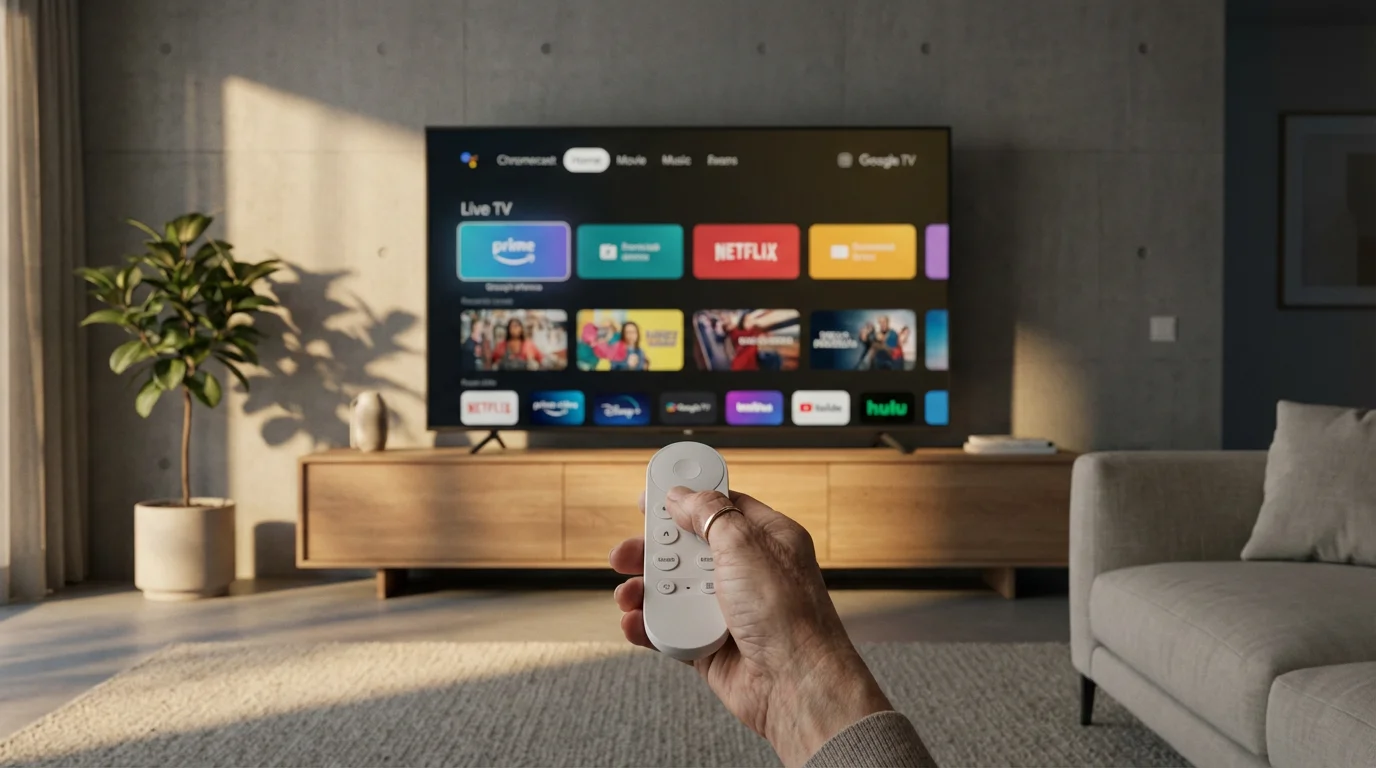
Chromecast devices were initially designed for “casting” content from your phone or computer to your TV. The latest version, Chromecast with Google TV, adds a full remote and an on-screen interface, transforming it into a complete streaming device. Its strength lies in its Google-powered search capabilities and personalized recommendations.
Recommended Chromecast Model for Seniors:
- Chromecast with Google TV (4K): This device, typically around $50, offers 4K, HDR, and Dolby Vision support. It comes with a compact remote that includes a Google Assistant voice button and programmable TV controls. The interface is highly personalized, suggesting content based on your viewing habits across various services.
- Chromecast with Google TV (HD): A newer, more affordable version at about $30, offering similar features but limited to HD resolution. This is a good budget option if 4K is not a priority.
Pros of Chromecast with Google TV for Seniors:
- Excellent Google Assistant Voice Control: Very powerful for searching across all your subscribed services.
- Personalized Recommendations: The Google TV interface learns your preferences and suggests content.
- TV Controls on Remote: The remote can control your TV’s power and volume.
- Casting Functionality: Still retains the ability to cast content directly from phones and tablets.
Cons of Chromecast with Google TV for Seniors:
- Interface Can Be Overwhelming: The content-focused, recommendation-heavy interface might feel cluttered compared to Roku’s simpler grid.
- Requires Google Account: You need a Google account to use the device.
- Data Collection: Like Amazon, Google collects user data for personalization.
Smart TVs: Convenience or Complication?
Many modern televisions come pre-loaded with smart features, acting as a built-in streaming device. This can seem convenient, eliminating the need for an extra box or stick. However, several factors determine if your smart TV’s built-in apps are “good enough” for your needs, or if a dedicated streaming device offers a better experience.
We dive deeper into the pros and cons of this choice in our guide on whether a Smart TV vs Streaming Device is best for your specific needs.
When Your Smart TV’s Built-in Apps Might Be Good Enough:
- Newer, Mid-to-High-End TV: Newer smart TVs often have faster processors and better software optimization, making their apps run smoothly.
- Limited App Use: If you only use one or two streaming services (e.g., Netflix and YouTube), the built-in apps might suffice.
- You Value Simplicity Above All Else: Having fewer devices and remotes might be a priority for you.
When a Dedicated Streaming Device is Better:
- Older or Budget Smart TV: Many older or less expensive smart TVs have slower processors, leading to sluggish app performance, crashes, and long loading times. Their interfaces can also be clunky.
- Outdated Software: Smart TVs, especially older models, may stop receiving software updates, leaving you without access to new apps or security patches.
- Limited App Selection: Some smart TV platforms do not support every major streaming app, or they may take longer to get new apps.
- Improved Remote Control: Dedicated streaming devices often come with remotes specifically designed for streaming, featuring voice control and app shortcuts that are superior to a generic TV remote.
- Enhanced Features: Dedicated devices often offer better Wi-Fi performance, more powerful processors, and support for the latest video and audio formats (like advanced HDR and Dolby Atmos) more consistently than built-in TV apps.
- Consistent User Experience: If you have multiple TVs, using the same brand of streaming device on all of them provides a uniform experience, making it easier to switch between rooms.
For most seniors prioritizing ease of use and reliability, a dedicated streaming device is often the superior choice. It ensures a consistent, responsive experience that typically outperforms built-in smart TV apps, especially over time.
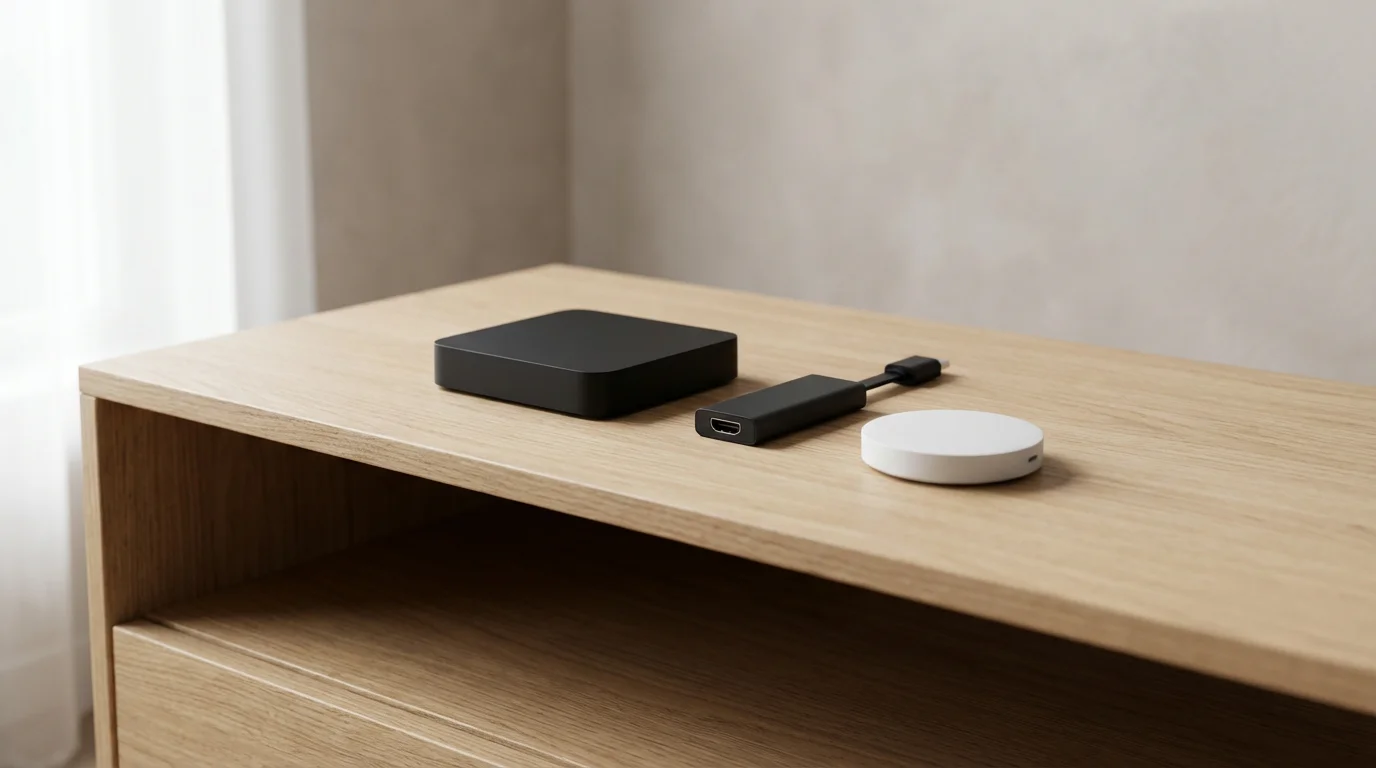
Comparing the Best Streaming Devices for Seniors
Here is a comparison of key features for popular streaming devices, focusing on what matters most for seniors. Prices are approximate and subject to change.
| Device | Approx. Price Range | Remote Simplicity | Voice Control | Interface Ease of Use | Accessibility Features | Key Benefit for Seniors |
|---|---|---|---|---|---|---|
| Roku Express (HD) | $30-$40 | Very Simple, Basic Buttons | No (on basic model) | Excellent (Grid of Icons) | Good (Captions, Audio Guide) | Absolute best for simplicity and budget. |
| Roku Express 4K / Streaming Stick 4K | $40-$50 | Simple, Voice Button, TV Controls | Yes (Roku Voice) | Excellent (Grid of Icons) | Good (Captions, Audio Guide) | Great balance of simplicity, performance, and features. |
| Amazon Fire TV Stick Lite / (3rd Gen) | $30-$40 | Simple, Voice Button (Lite), TV Controls (3rd Gen) | Yes (Alexa) | Good (Content-focused, can be busy) | Good (Captions, Audio Descriptions) | Excellent voice control, good for existing Alexa users. |
| Chromecast with Google TV (HD/4K) | $30-$50 | Compact, Voice Button, TV Controls | Yes (Google Assistant) | Moderate (Recommendation-heavy, can be busy) | Good (Captions, Audio Descriptions) | Strong search, good if familiar with Google Assistant. |
| Apple TV 4K | $129-$149+ | Sleek, Touchpad (can be sensitive) | Yes (Siri) | Excellent (Clean, Fast) | Excellent (Extensive options) | Premium experience, best for Apple ecosystem, strong privacy. |
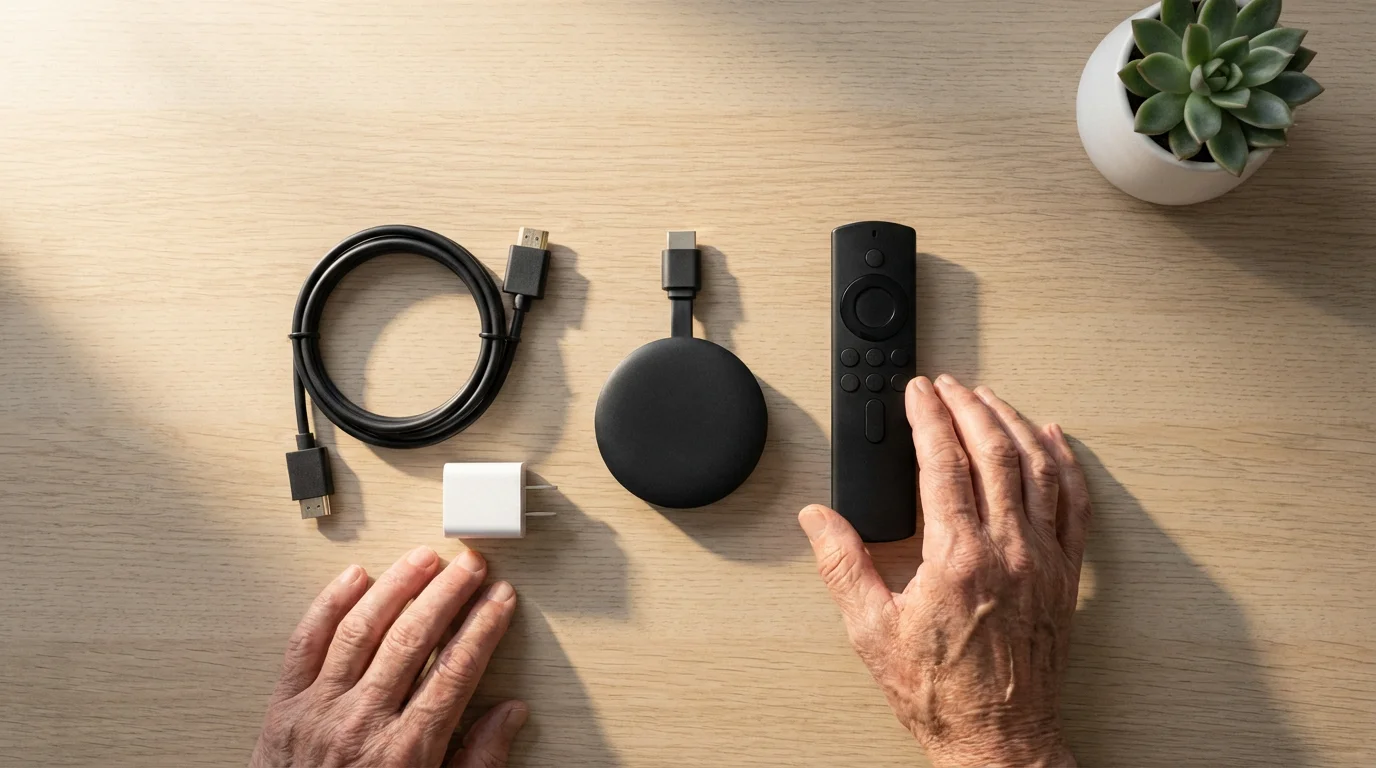
Setup and Troubleshooting: Getting Started with Ease
Setting up a new streaming device does not need to be intimidating. Follow these general steps, which apply to most popular devices:
Initial Setup Guide:
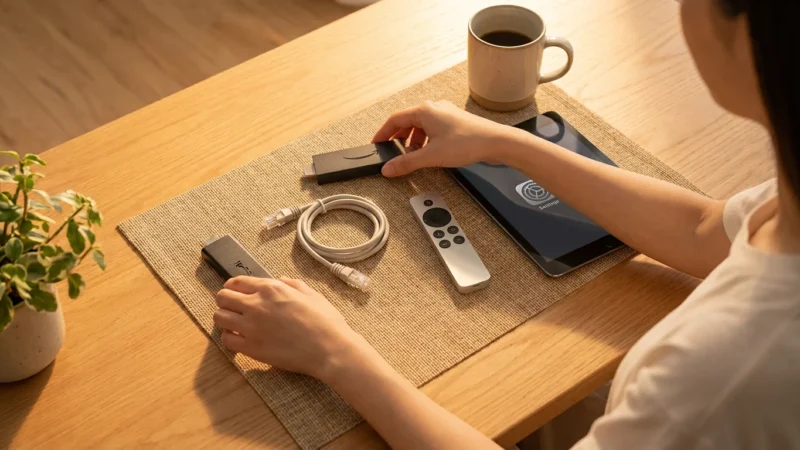
- Unbox Your Device: Take everything out of the box: the streaming stick or box, remote, power adapter, and HDMI cable (if it is a box).
- Plug It In:
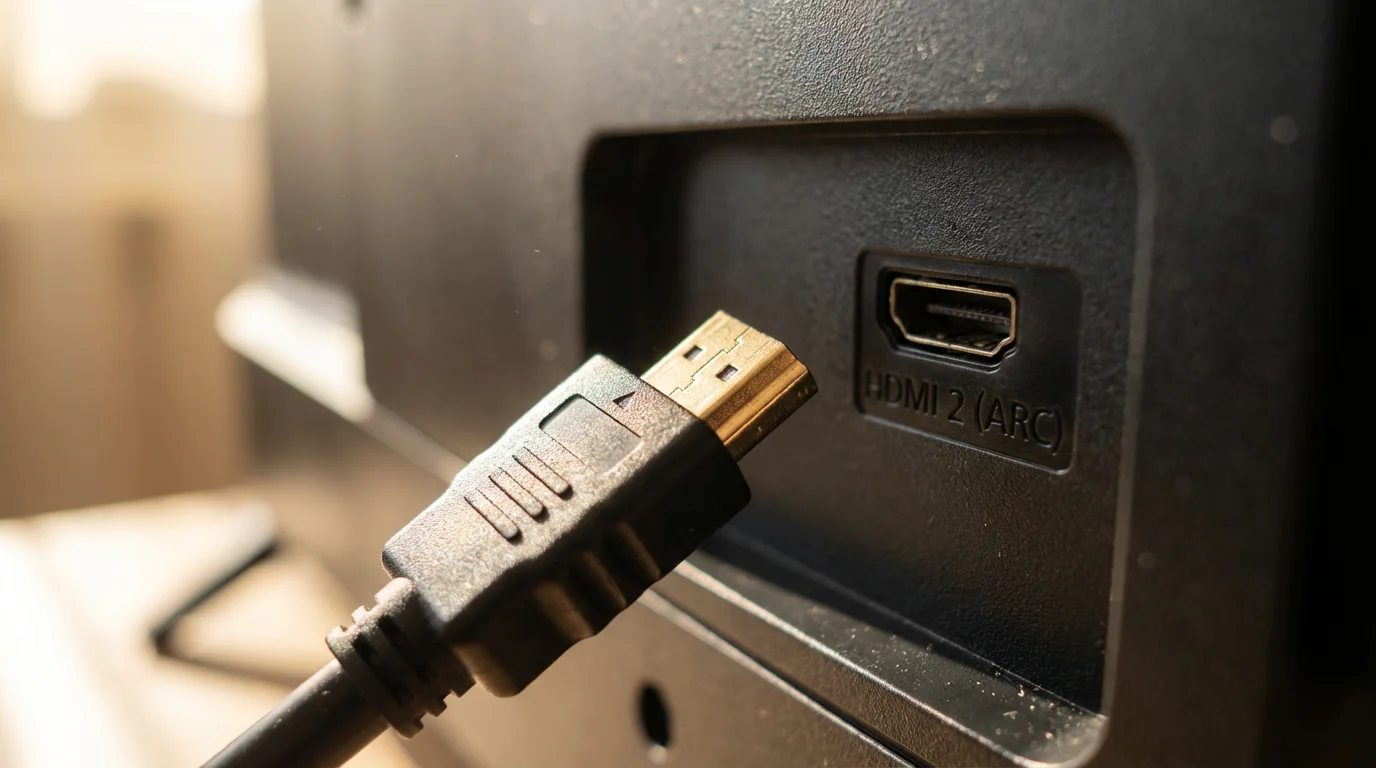
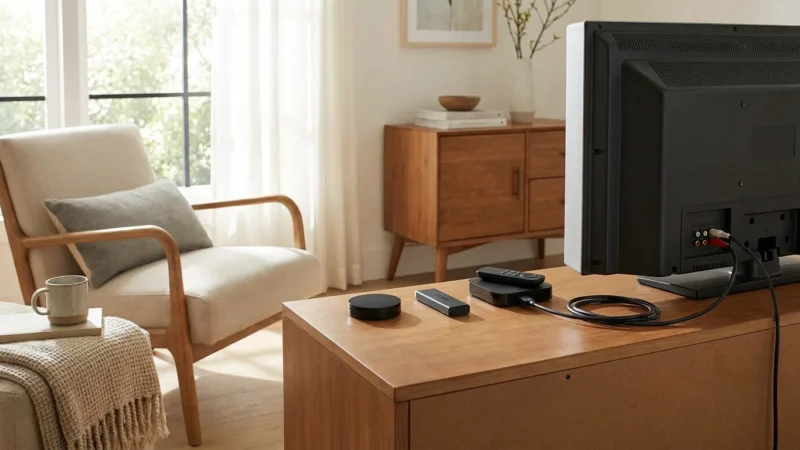
- Connect the streaming device to an available HDMI port on your TV. HDMI ports are usually on the back or side of your TV, labeled “HDMI 1,” “HDMI 2,” etc.
- Plug the power adapter into the streaming device, and then plug the adapter into a wall outlet or power strip.
- Insert Remote Batteries: Open the back of your remote control and insert the included batteries.
- Turn on Your TV and Select Input: Use your TV remote to turn on the TV. Then, press the “Input,” “Source,” or “HDMI” button on your TV remote to cycle through inputs until you see the streaming device’s welcome screen.
- Follow On-Screen Prompts:
- Your streaming device will guide you through connecting to your home Wi-Fi network. You will need your Wi-Fi network name and password.
- It will also prompt you to create or log in to an account for that platform (Roku account, Amazon account, Google account, Apple ID).
- The device may also ask if you want to set up TV controls for power and volume, if your remote supports it.
- Download Your Favorite Apps: Once set up, navigate to the app store or channel store on your device and download the streaming apps you want, such as Netflix, Hulu, YouTube, or Disney+. You will need to log in to each app with your existing subscription credentials.
Common Troubleshooting Tips:
- No Picture/Signal:
- Ensure the HDMI cable is securely plugged into both the device and the TV.
- Make sure the TV input/source is set to the correct HDMI port where the device is plugged in.
- Try a different HDMI port on your TV.
- Wi-Fi Connection Issues:
- Check if your Wi-Fi router is on and working. You can test it with your phone or computer.
- Restart your streaming device by unplugging it from power for 30 seconds, then plugging it back in.
- Move the streaming device closer to your Wi-Fi router if possible, or consider a Wi-Fi extender.
- Remote Not Working:
- Replace the batteries.
- Ensure no obstructions block the line of sight between the remote and the device (for infrared remotes). Most modern streaming remotes use Bluetooth, which does not require line of sight.
- Try re-pairing the remote if the device has a pairing button.
- App Not Loading/Crashing:
- Restart the streaming device.
- Check for system updates on your device.
- Delete and reinstall the problematic app.
- Poor Picture Quality:
- Ensure your internet speed is adequate for streaming. Fast.com or Speedtest.net can help you check your speed.
- Verify that your streaming service subscription supports HD or 4K resolution.
- Check your device’s display settings to ensure it is set to the highest resolution your TV supports.
Most streaming devices offer customer support through their websites, with helpful guides and forums for more specific issues. Do not hesitate to check these resources if you encounter persistent problems.
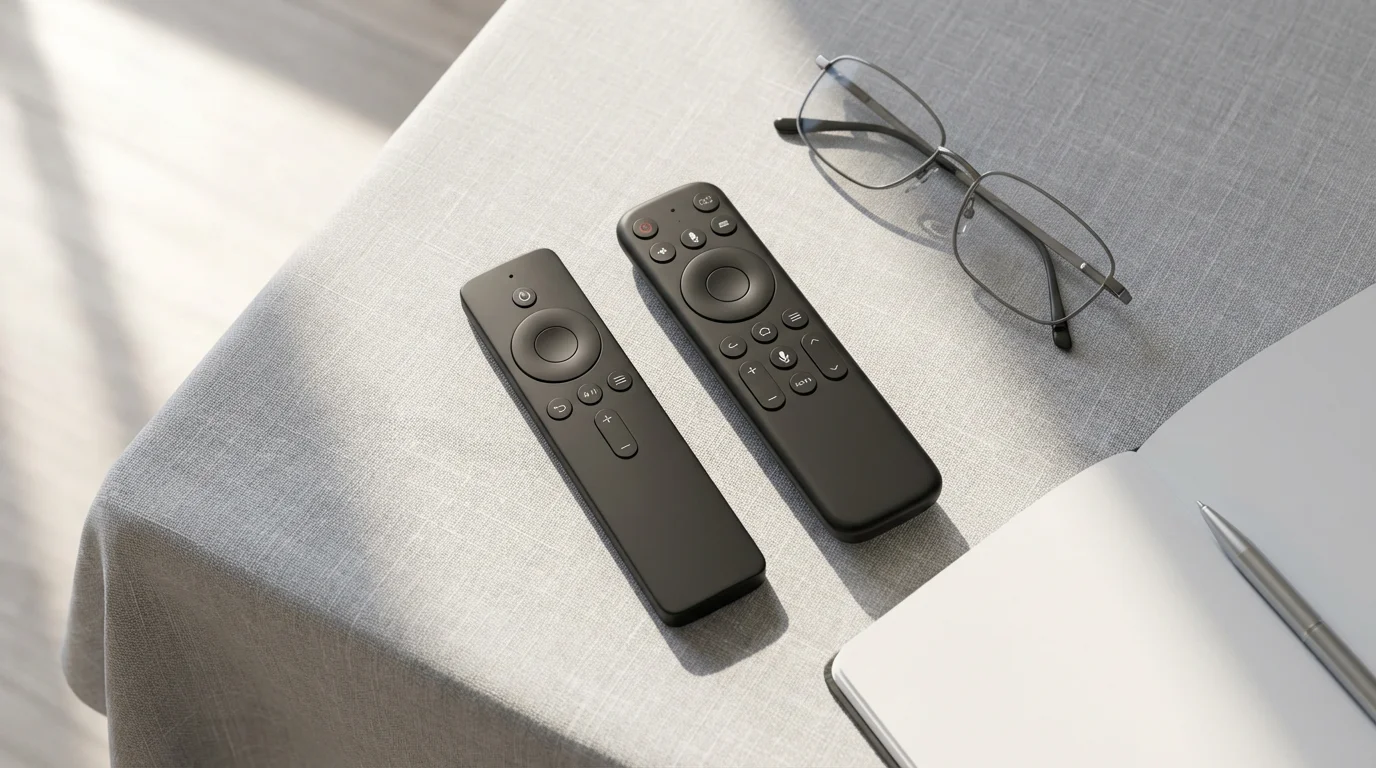
Choosing Your Perfect Device: Recommendations by Budget and Need
The “best” streaming device for you depends on your specific priorities and budget. Here are tailored recommendations:
Best for Absolute Simplicity and Ease of Use:
- Roku Express (HD) or Roku Express 4K: These devices offer the simplest interface and remote on the market. If you want minimal buttons and a clear grid of apps, Roku is your top choice. The Express 4K adds voice control and better performance for a few dollars more, which is a worthwhile upgrade.
Best for Budget-Conscious Buyers ($30-$50):
- Roku Express (HD/4K) or Amazon Fire TV Stick Lite/3rd Gen: You get excellent value here. The Roku Express provides simplicity, while the Fire TV Stick Lite introduces voice control with Alexa at a similar price point. The Fire TV Stick (3rd Gen) offers TV controls on the remote, which simplifies your setup by eliminating the need for your TV’s original remote for basic functions.
Best for Existing Apple Households:
- Apple TV 4K: If you already own iPhones, iPads, or use other Apple services, the Apple TV 4K provides a seamless, integrated, and high-performance experience. Its premium price is justified by its speed, polished interface, and strong privacy features, especially if you are comfortable with the Siri Remote’s touch interface.
Best for Voice Control and Alexa Integration:
- Amazon Fire TV Stick (3rd Gen) or 4K Max: If you use Alexa for smart home commands or want powerful voice search capabilities, the Fire TV line excels. The 3rd Gen Stick provides great value, while the 4K Max offers top-tier performance and Wi-Fi 6. The integrated TV controls on the remote also add convenience.
Best for Google Assistant Users and Personalized Recommendations:
- Chromecast with Google TV (HD/4K): If you are comfortable with Google Assistant and enjoy personalized content suggestions, this device offers a robust experience. Its ability to search across all your services effectively is a significant advantage. However, be aware the interface can feel denser than Roku’s.
No single device suits everyone. Consider which features matter most to you, whether it is remote simplicity, voice control, budget, or integration with your existing technology. By focusing on these priorities, you can make an informed decision that enhances your streaming life.
Frequently Asked Questions
What is the easiest streaming device to use for seniors?
The Roku Express or Roku Express 4K are generally considered the easiest streaming devices for seniors. They feature an exceptionally simple interface with large app icons and a very straightforward remote control, often with dedicated buttons for popular streaming services. This minimizes confusion and makes finding content quick and easy.
Can I use a streaming device if I do not have a smart TV?
Yes, absolutely. Streaming devices like Roku, Fire TV, or Apple TV plug into any TV with an HDMI port, which includes most televisions made in the last 15-20 years. They effectively “upgrade” your older TV into a smart TV, allowing you to access streaming services without needing to buy a new television.
Do I need an internet connection for a streaming device?
Yes, all streaming devices require a reliable home internet connection, typically Wi-Fi, to access content. Without an internet connection, the device cannot download or play videos from streaming services. Ensure you have a stable Wi-Fi network with sufficient speed for streaming, generally at least 25 Mbps for HD quality and higher for 4K.
Will a streaming device save me money?
Yes, a streaming device can significantly save you money if you use it to “cut the cord” from traditional cable or satellite TV. Instead of paying for a large bundle of channels you do not watch, you pay for individual streaming services that you actually use. The initial cost of the device is often quickly offset by the monthly savings compared to a cable bill.
What if I am not tech-savvy? Can I still set up a streaming device?
Yes, most modern streaming devices are designed for easy setup. They typically involve plugging a few cables in, connecting to your Wi-Fi, and following simple on-screen instructions. Many companies, such as Roku, offer step-by-step video guides and customer support to help you through the process. Focus on devices known for their simplicity, such as Roku, to make the setup as smooth as possible.

Leave a Reply