

Millions of Americans cut the cord from traditional cable and satellite TV every year, embracing streaming to save money and customize their entertainment. Streaming means watching video content over the internet, giving you freedom from rigid channel lineups. However, the world of streaming devices can feel overwhelming. You face choices from major players like Roku, Amazon, Apple, and Google, each offering various models at different price points. As your guide, we simplify this landscape, helping you find the perfect streaming device for your budget and viewing habits in 2024. We focus on practical, actionable advice, ensuring you make a smart, cost-effective decision.
Understanding Streaming Devices and Your Needs
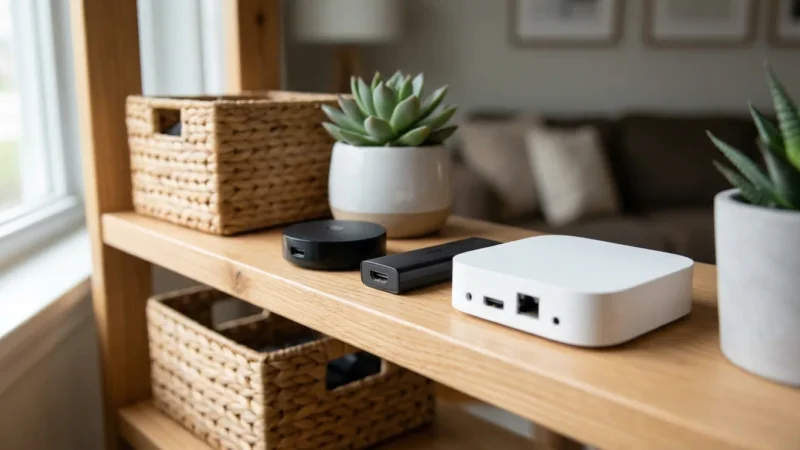
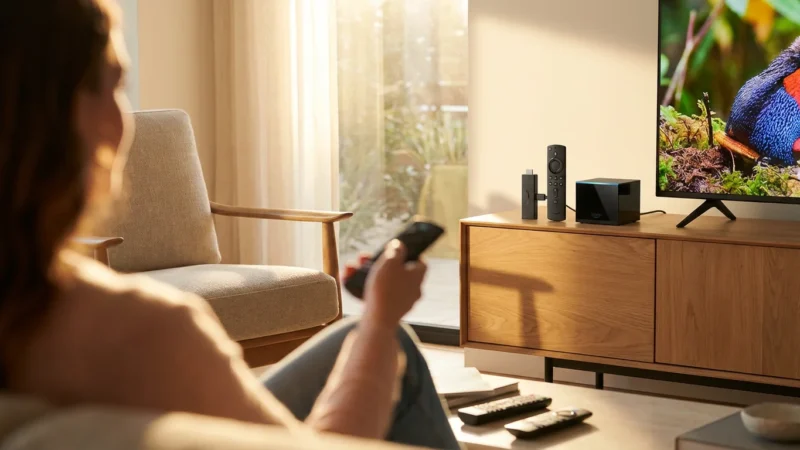
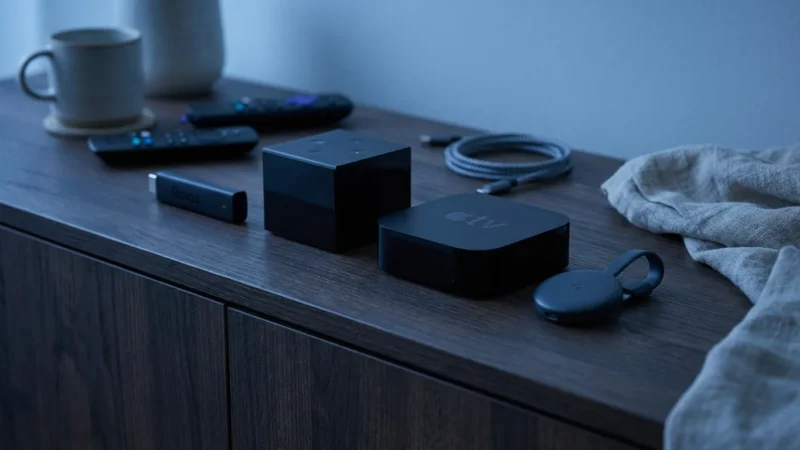
A streaming device is a small piece of hardware, often a stick or a box, that connects to your TV and allows you to access popular streaming services like Netflix, Hulu, Disney+, and YouTube TV. These devices bring the internet directly to your television, transforming any non-smart TV into a smart one, or upgrading the experience of an older smart TV. For many, this is the first step in cord-cutting, the process of canceling traditional cable or satellite TV in favor of streaming services.
Before you dive into specific models, evaluate your current setup and viewing habits. Do you own a 4K TV? Do you care about the latest audio formats like Dolby Atmos? Are you already heavily invested in the Apple or Amazon ecosystem? Your answers guide you toward the best value.
Key Features to Consider When Buying
Comparing streaming devices involves more than just price. Look at these essential features to determine which device truly offers the best value for your specific requirements.
Resolution: 4K, HDR, and Dolby Vision
- 4K (Ultra HD): This offers four times the resolution of standard 1080p Full HD. If you have a 4K TV, a 4K streaming device ensures you see content in its sharpest form. Without a 4K TV, a 4K device provides no visual benefit, making a cheaper 1080p model a better budget choice.
- HDR (High Dynamic Range): HDR enhances contrast and color, making bright areas brighter and dark areas deeper, displaying a wider range of colors. HDR10 is the most common open standard.
- Dolby Vision: This is a premium, proprietary HDR format. It often delivers a superior image because it optimizes HDR scene by scene. If your TV supports Dolby Vision, choose a device that also supports it for the best picture quality.
Audio Quality: Dolby Atmos
Dolby Atmos is an immersive audio format that creates a three-dimensional sound experience. Sound moves around you, even overhead, when paired with a compatible sound system. If you have a soundbar or home theater system supporting Dolby Atmos, a device with Atmos passthrough capability significantly enhances your audio experience.
WiFi 6 Support
WiFi 6 is the latest wireless standard, offering faster speeds and better performance, especially in congested network environments. If you have a WiFi 6 router, a streaming device with WiFi 6 provides a more stable and efficient connection, which translates to less buffering and smoother streaming, particularly for 4K content.
Voice Assistants and Remote Controls
Each major platform integrates its own voice assistant. Roku uses its own voice assistant, Amazon Fire TV uses Alexa, Apple TV uses Siri, and Chromecast with Google TV uses Google Assistant. Consider which ecosystem you prefer or already use. Remotes also vary significantly. Some offer simple button layouts, while others include programmable buttons, headphone jacks for private listening, or find-my-remote features. A good remote enhances daily usability.
App Selection and User Interface
Most major streaming services are available on all popular platforms. However, niche apps or specific regional content might have availability differences. The user interface also impacts your experience. Roku provides a simple, grid-based menu. Fire TV emphasizes Amazon content and offers a more content-forward, sometimes busy, interface. Apple TV features a polished, minimalist interface. Google TV prioritizes personalized recommendations across services.
Privacy Concerns
Data collection practices differ among platforms. Amazon and Google devices integrate deeply with their respective ecosystems, collecting data to personalize ads and services. Apple generally emphasizes user privacy more, although its devices are more expensive. Roku’s data collection primarily focuses on advertising on its platform. Consider your comfort level with data collection when choosing a device.
“The most important factor in choosing a streaming device is matching it to your television, your internet speed, and your personal app preferences. Don’t overspend on features you will not use.” – CNET Streaming Device Review
Streaming Devices by Budget Tier: What to Expect
We break down the market by common price points. This helps you understand the features available within different budget constraints.
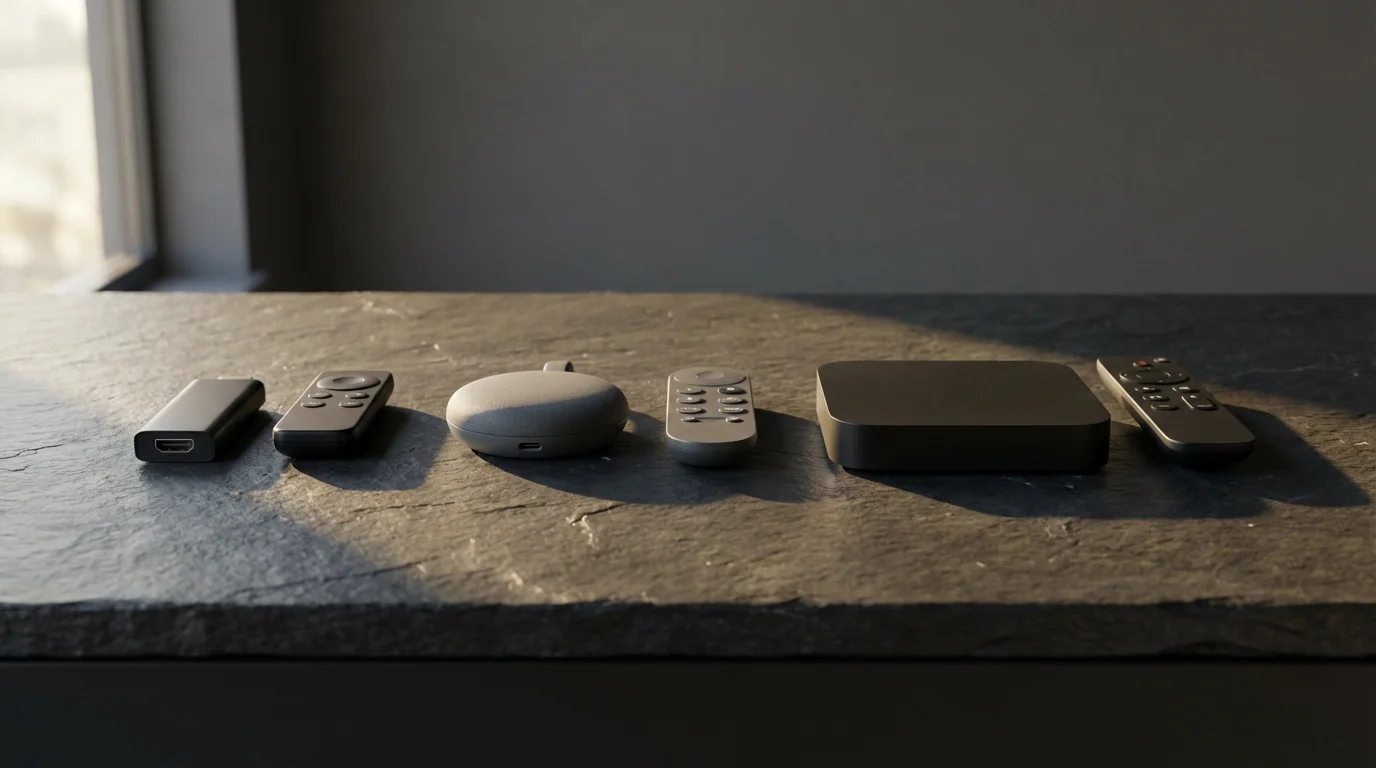
Here is an infographic summarizing key features and prices across popular streaming devices. This visual guide helps you quickly compare options based on your priorities.
[INFOGRAPHIC: Side-by-side comparison infographic of Roku Streaming Stick 4K vs Amazon Fire TV Stick 4K Max vs Chromecast with Google TV vs Apple TV 4K (3rd Gen). Four columns showing: Price, Resolution, HDR Support (HDR10, Dolby Vision), Dolby Atmos Support, WiFi 6 Support, Voice Assistant, App Selection highlights, Best for. Clean product photography style, easy to compare at a glance.]
Price-to-Value Analysis for Different Budgets
- Under $30 (Entry-Level): These devices typically offer 1080p resolution and basic streaming capabilities. They are ideal for secondary TVs, older non-4K TVs, or users on the tightest budgets who need access to core streaming apps. You will find older generation streaming sticks here.
- $30-$50 (Mid-Range Value): This tier represents the sweet spot for many budget-conscious buyers. You gain 4K resolution, HDR support (often HDR10), and faster processors for smoother navigation. This is where most modern streaming sticks land.
- $50-$100 (Enhanced Performance): In this range, you begin to see premium features like Dolby Vision, Dolby Atmos, and sometimes WiFi 6. Devices offer even faster performance, more robust remote controls, and sometimes additional storage. These are excellent choices for main living room TVs.
- $100-$150+ (Premium Experience): This category includes devices with the fastest processors, maximum storage, advanced gaming capabilities, and the most comprehensive support for all major HDR and audio formats. Apple TV is the primary player in this tier, offering a premium, integrated experience.
Best Streaming Devices for Under $50
This price point offers excellent value, bringing 4K streaming to almost any TV without breaking the bank. These devices are perfect for upgrading an older TV or adding streaming capabilities to a secondary display.
Roku Express 4K+ (around $40)
The Roku Express 4K+ provides a straightforward, easy-to-use streaming experience. It offers 4K resolution, HDR10, and HDR10+ support. Its strength lies in its simplicity and neutral platform. Roku doesn’t push its own content, giving you unbiased access to all major apps.
- Pros: Affordable 4K, extensive app library, incredibly user-friendly interface, simple remote.
- Cons: Lacks Dolby Vision and Dolby Atmos, remote is basic without TV controls, no WiFi 6.
- Best For: First-time streamers, users who prioritize simplicity and affordability, non-Apple households, secondary TVs.
Amazon Fire TV Stick 4K (around $50)
The Fire TV Stick 4K gives you 4K, HDR10, HDR10+, and Dolby Vision support, along with Dolby Atmos. It integrates deeply with Alexa, allowing voice control for streaming and smart home devices. Its interface prioritizes Amazon content, but you access all major services. As Tom’s Guide notes, this device is a strong contender for its feature set at its price.
- Pros: Comprehensive HDR support including Dolby Vision, Dolby Atmos audio, Alexa voice integration, TV controls on remote.
- Cons: Interface can feel busy and pushes Amazon content heavily, some privacy concerns with data collection.
- Best For: Amazon Prime members, Alexa users, those who want Dolby Vision and Atmos on a budget.
Top Streaming Devices from $50 to $100
This tier boosts performance and introduces more advanced features, offering a noticeable upgrade in speed and user experience for your main living room TV.
Roku Streaming Stick 4K (around $50)
Often considered the best all-around streaming stick, the Roku Streaming Stick 4K improves upon the Express 4K+ with a faster processor, a long-range WiFi receiver, and Dolby Vision support. It retains Roku’s celebrated ease of use.
- Pros: Excellent WiFi performance, Dolby Vision, simple interface, TV controls on remote, private listening via app.
- Cons: Still no Dolby Atmos, processor is good but not the fastest available.
- Best For: Users wanting a balanced device with strong WiFi and Dolby Vision, those who value simplicity over deep ecosystem integration.
Amazon Fire TV Stick 4K Max (around $60)
The Fire TV Stick 4K Max upgrades the standard 4K stick with a faster processor and WiFi 6 support. This translates to quicker app loading, smoother navigation, and better streaming performance, especially if you have a WiFi 6 router. It maintains Dolby Vision and Dolby Atmos support.
- Pros: Faster performance than standard 4K stick, WiFi 6 support, comprehensive HDR and audio formats, enhanced Alexa features.
- Cons: Amazon-centric interface persists, potential for intrusive ads.
- Best For: Power users in the Amazon ecosystem, those with WiFi 6 routers, budget-conscious users prioritizing speed and advanced formats.
Chromecast with Google TV (4K) (around $50)
Chromecast with Google TV offers a content-first interface that personalizes recommendations across all your streaming services. It supports 4K, HDR10, HDR10+, and Dolby Vision, plus Dolby Atmos. The remote includes Google Assistant for voice control and specific buttons for YouTube and Netflix. Its strength lies in content discovery.
- Pros: Excellent content aggregation and personalization, comprehensive HDR and audio support, seamless Google Assistant integration, clean remote.
- Cons: Google’s data collection for personalization, performance can occasionally feel less snappy than competitors.
- Best For: Android users, those invested in the Google ecosystem, viewers who want personalized recommendations and a content-centric interface.
Premium Streaming Experience: Devices Over $100
For those willing to invest more, these devices deliver top-tier performance, superior build quality, and advanced features, particularly appealing to Apple users or demanding enthusiasts.
Apple TV 4K (3rd Gen) (starting around $129)
The Apple TV 4K is undeniably the most expensive option, but it offers a premium experience, particularly for Apple users. It features the powerful A15 Bionic chip, ensuring incredibly smooth performance, quick app launches, and high-quality gaming. It supports 4K, HDR10, HDR10+, and Dolby Vision, alongside Dolby Atmos. Its integration with Apple services (Apple Arcade, Apple Fitness+, HomeKit) is seamless. Its privacy features also stand out.
- Pros: Blazing-fast performance, superior app quality, best-in-class gaming, tight integration with Apple ecosystem, robust privacy features, Siri remote is high quality.
- Cons: High price point, less open ecosystem compared to Roku or Fire TV, not ideal for non-Apple users.
- Best For: Dedicated Apple users, gamers, users who prioritize speed and a polished, ad-free experience, those willing to pay a premium for quality and privacy.

When Your Smart TV is Enough, and When It Isn’t
Many modern televisions are smart TVs, meaning they have built-in internet connectivity and pre-installed streaming apps. For some users, these built-in apps are perfectly adequate, eliminating the need for an external streaming device.
Before deciding, it helps to understand the core differences in the smart TV vs streaming device debate.
When Your Smart TV is “Good Enough”
- Newer TVs: If you purchased your smart TV in the last year or two, its built-in processor might be fast enough, and its app selection robust enough, to provide a smooth streaming experience.
- Casual Viewers: If you only use a couple of major streaming services, and you don’t mind occasional sluggishness or a less intuitive interface, your smart TV’s apps might suffice.
- Budget Constraints: If every dollar counts, avoiding an extra device purchase frees up funds for more streaming subscriptions.
When a Dedicated Streaming Device is Better
Despite the convenience of smart TV apps, a dedicated streaming device often provides a superior experience in several ways:
- Speed and Performance: Streaming devices, especially mid-range to premium models, feature faster processors than most smart TVs. This results in quicker app loading, smoother navigation, and less buffering.
- Consistent Updates: Streaming device manufacturers (Roku, Amazon, Apple) regularly update their software, ensuring compatibility with the latest app versions and security patches. Smart TV manufacturers often lag on updates or stop supporting older models entirely.
- Better User Interface: Dedicated devices offer more polished, user-friendly, and less ad-filled interfaces compared to many smart TVs, which sometimes prioritize their own content or ad placements.
- Advanced Features: You often find better support for cutting-edge technologies like Dolby Vision, Dolby Atmos, and WiFi 6 on dedicated devices, even on less expensive models. Smart TV hardware might not always keep up.
- Longevity: A streaming device extends the life of an older, non-smart, or slow smart TV. If your TV’s picture quality is still good but its smart features are obsolete, a streaming stick brings it up to current standards for a fraction of the cost of a new TV.
- Privacy: Some smart TV platforms collect extensive data on your viewing habits. A dedicated device, particularly one from a privacy-focused company, might offer more control over your data.
Setup Tips and Common Troubleshooting
Setting up your new streaming device is usually straightforward, but a few tips and troubleshooting steps ensure a smooth experience.
If you are new to this process, check out our comprehensive guide on how to set up your first streaming device.
Setup Guide
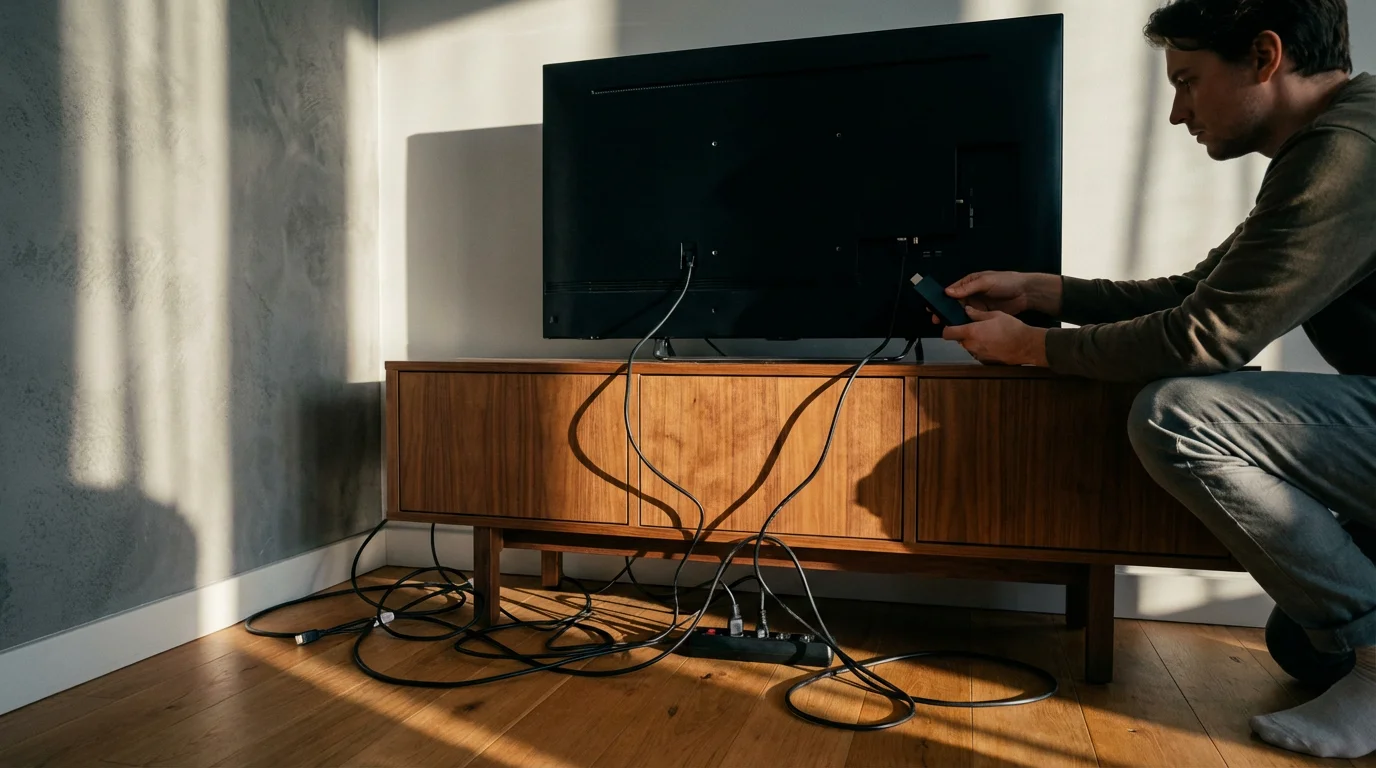
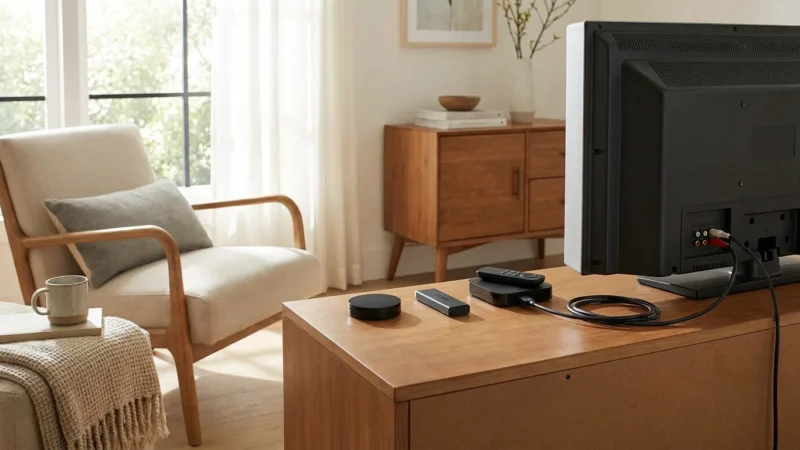
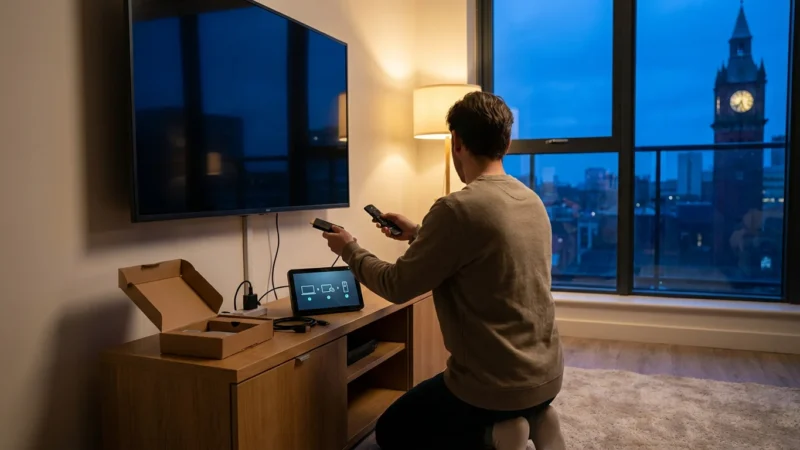
- Unpack and Connect: Plug your streaming stick or box into an available HDMI port on your TV. If your device requires external power, plug the USB cable into a power adapter (usually included) and into a wall outlet. Avoid using your TV’s USB port for power, as it may not provide enough consistent power, leading to performance issues.
- Insert Batteries into Remote: Most remotes come with batteries; install them as indicated.
- Select HDMI Input: Turn on your TV and use your TV remote to select the correct HDMI input for your streaming device.
- On-Screen Walkthrough: The device will guide you through connecting to your home WiFi network. You will need your WiFi network name (SSID) and password.
- Account Creation/Login: You usually need to create an account for the streaming platform (Roku, Amazon, Google, Apple) or log into an existing one. This links your device to your purchased content and preferences.
- Install Apps: Browse the app store on your device to install your favorite streaming services. You will log into each service separately.
Common Troubleshooting Issues
| Problem | Solution |
|---|---|
| Device Not Powering On | Ensure the power adapter is securely plugged into a wall outlet, not just a TV USB port. Try a different outlet or USB power adapter. Check HDMI connection. |
| No Picture/Black Screen | Verify the TV is on the correct HDMI input. Try a different HDMI port on your TV. Restart the streaming device by unplugging it for 30 seconds and plugging it back in. |
| Buffering/Poor Video Quality | Check your internet speed (a minimum of 25 Mbps is recommended for 4K streaming). Move the device closer to your WiFi router, or consider a WiFi extender. Ensure no other devices are hogging bandwidth. If possible, use an Ethernet adapter (available for some devices). |
| Remote Not Responding | Replace remote batteries. For Bluetooth remotes, you might need to re-pair it with the device (check device’s settings menu for pairing instructions). Make sure there are no obstructions between the remote and the device (for IR remotes). |
| App Crashes/Slow Performance | Restart the device. Clear the cache for the problematic app (settings vary by platform). Delete and reinstall the app. Ensure the device’s software is up to date. |
Best Device for Your Specific Needs
The “best” streaming device is truly personal. Consider your specific situation for the optimal choice.
- For the Ultimate Budget Buyer (Under $30): The Roku Express (1080p) offers essential streaming with unparalleled simplicity. Look for older generations of Fire TV Stick or Roku Express 4K+ on sale for under $30.
- For the Best Value 4K Experience (Around $50): The Roku Streaming Stick 4K and Amazon Fire TV Stick 4K Max are neck and neck. Choose Roku for simplicity, or Fire TV Stick 4K Max for Dolby Vision, Dolby Atmos, and Alexa integration. Chromecast with Google TV also provides strong competition here, especially for Google users.
- For Apple Households (Over $100): The Apple TV 4K is your clear winner. It integrates flawlessly with your iPhone, iPad, and other Apple devices, offers the best performance for gaming, and prioritizes your privacy.
- For Sports Fans: Any modern 4K streaming device works well. Focus on performance and a stable internet connection. Fast processors like those in the Fire TV Stick 4K Max or Apple TV 4K minimize buffering during live events.
- For Cord-Cutters Who Want Cable TV Replacement: Look for devices with excellent app support for live TV streaming services like YouTube TV, Hulu + Live TV, and Sling TV. All major devices handle these well. Consider the user interface that best organizes live TV options, like Google TV’s integrated live TV guide.
- For Smart Home Enthusiasts: Amazon Fire TV devices excel if you use Alexa and an Amazon-centric smart home. Chromecast with Google TV works best for Google Assistant and Google Home users. Apple TV integrates seamlessly with HomeKit.
- For Traveling: Small, portable sticks like any of the Roku Streaming Sticks or Fire TV Sticks are excellent for hotel rooms, assuming you have access to a WiFi network.
Your journey to better streaming depends on your priorities. Whether you prioritize cost savings, advanced features, or seamless ecosystem integration, a device exists that perfectly fits your needs. Make your choice based on these insights and enjoy a richer, more personalized entertainment experience.
Frequently Asked Questions
Can a streaming device save me money if I already have a smart TV?
Yes, often it can. While your smart TV has built-in apps, a dedicated streaming device usually offers better performance, faster updates, and a more user-friendly interface. This enhanced experience can prevent frustration and extend your TV’s useful life, delaying the need to purchase a new TV when its smart features become obsolete. You invest in a device rather than a new television.
Is it worth buying a 4K streaming device if my TV is not 4K?
No, you will not see any visual benefit from a 4K streaming device on a non-4K TV. The picture will still display at your TV’s maximum resolution, typically 1080p. In this situation, a less expensive 1080p streaming device, such as the Roku Express, offers better value, performing the same function at a lower cost.
What is the difference between HDR10 and Dolby Vision?
Both HDR10 and Dolby Vision are High Dynamic Range formats that improve picture quality with brighter whites, darker blacks, and more vibrant colors. HDR10 is an open standard and the most common. Dolby Vision is a proprietary, advanced HDR format that optimizes content scene by scene, potentially delivering a more refined and dynamic image. If your TV supports Dolby Vision, choose a device that also supports it for the best possible picture.
How much internet speed do I need for streaming?
For standard definition (SD) streaming, you need about 3-5 Mbps. For high definition (HD 1080p), aim for 5-8 Mbps. For 4K Ultra HD streaming, we recommend a minimum of 25 Mbps. If multiple devices stream simultaneously in your household, consider a higher speed, around 50-100 Mbps, to avoid buffering issues.
Do I need a VPN with my streaming device?
A VPN, or Virtual Private Network, encrypts your internet connection and can change your apparent geographic location. Some people use VPNs with streaming devices to access geo-restricted content or to enhance their privacy. Whether you “need” one depends on your specific goals regarding content access and online privacy. It is an optional tool, not a necessity for basic streaming.
Disclaimer: Device prices and features may change. New models are released regularly, so check for the latest versions before purchasing. The “best” device depends on your specific needs, existing ecosystem (Apple, Google, Amazon), and budget.

Leave a Reply