
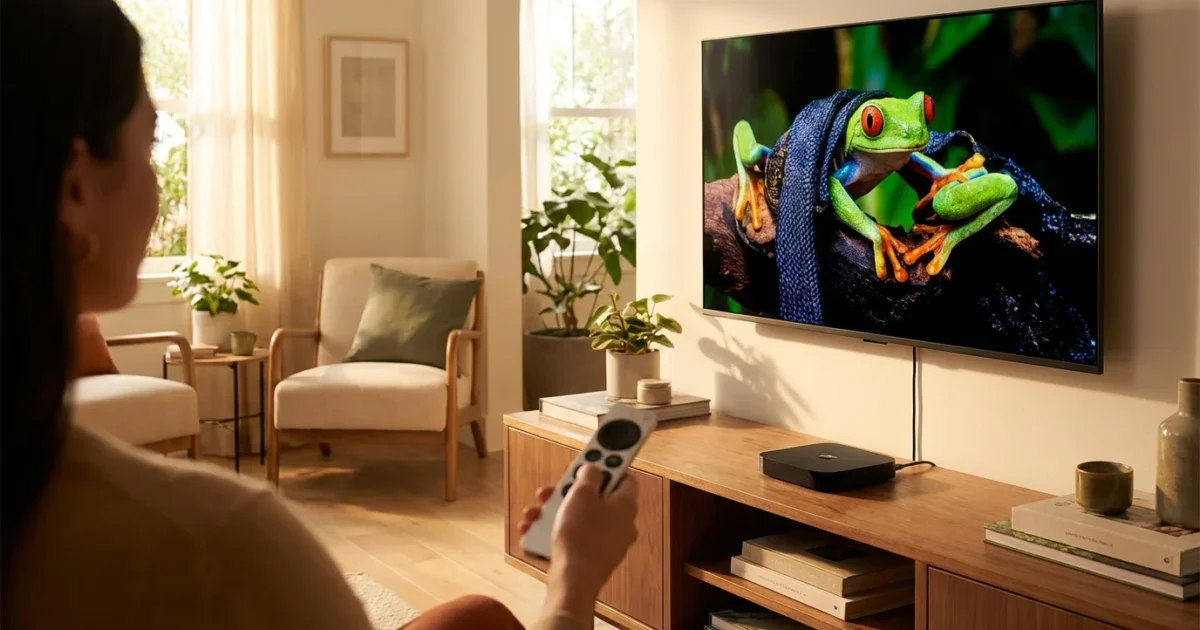
You want to experience stunning picture quality without overspending on entertainment. Cutting the cord from traditional cable or satellite TV, known as “cord-cutting,” opens up a world of content. Many viewers feel overwhelmed by the sheer number of streaming devices on the market. We help you navigate these choices, focusing specifically on finding the best 4K streaming device to unlock the full potential of your high-resolution television and elevate your “streaming,” which means watching video content over the internet instead of cable or satellite.
Understanding 4K and HDR: Why It Matters for Your Entertainment
To choose the best 4K streamer, you first need to understand what 4K and HDR mean for your viewing experience. These technologies represent significant leaps in picture quality over standard high-definition.
4K Resolution: Also known as Ultra HD or UHD, 4K refers to the display resolution. A 4K screen has approximately 4,000 pixels horizontally, specifically 3840 x 2160 pixels. This amounts to four times the pixel count of a Full HD 1080p screen. More pixels translate to sharper images, finer details, and a more immersive picture, especially on larger screens or when you sit closer to your television. Your 4K streaming device must output this resolution to your 4K TV to show these benefits.
HDR (High Dynamic Range): HDR enhances the contrast and color accuracy of your content. It displays a wider range of colors, brighter whites, and deeper blacks than standard dynamic range (SDR). This results in a more lifelike and vibrant image, revealing details often lost in very dark or very bright scenes. Imagine seeing the individual stars in a night sky scene or the subtle variations in a sunset. HDR offers a more impactful visual upgrade than resolution alone for many viewers.
Several HDR formats exist, and understanding them helps you compare devices:
- HDR10: This is the most common and baseline HDR format, widely supported by almost all 4K HDR streaming devices and TVs.
- Dolby Vision: A premium HDR format, Dolby Vision uses “dynamic metadata.” This means it optimizes brightness, contrast, and color on a scene-by-scene or even frame-by-frame basis, often leading to a superior picture compared to HDR10’s static metadata. Many newer streaming devices and TVs support Dolby Vision.
- HDR10+: Samsung developed HDR10+ as an open-source alternative to Dolby Vision, also using dynamic metadata. While less prevalent than Dolby Vision, some devices and content support it.
For the best 4K HDR streaming, your TV, streaming device, and the content you watch must all support these technologies. A device supporting Dolby Vision will only display Dolby Vision if your TV also supports it and the show or movie itself is mastered in Dolby Vision.
Key Features to Look for in a 4K HDR Streaming Device
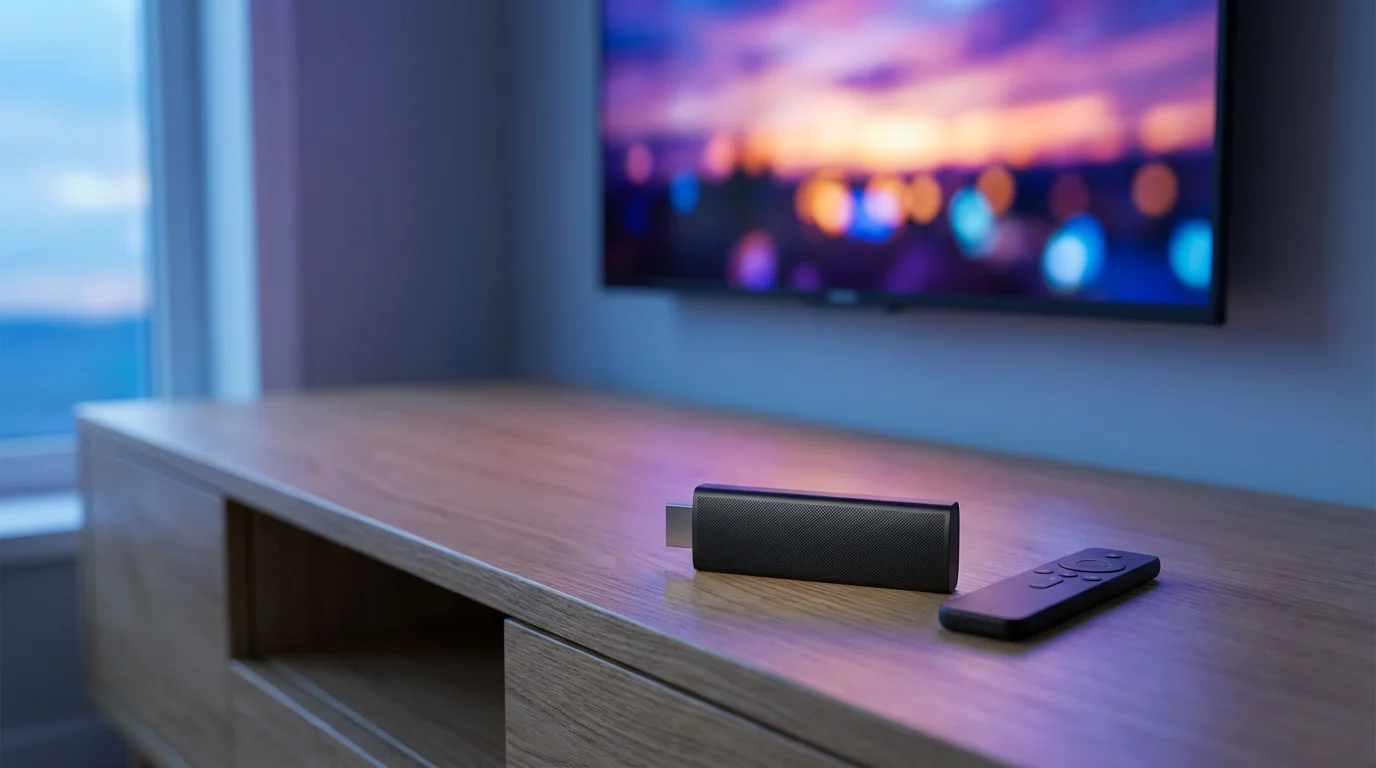
When selecting a 4K streaming device, focus on features that enhance your experience and ensure future compatibility. A device’s processing power, connectivity, and format support all contribute to its performance.
1. HDR Format Support: Confirm the device supports not just HDR10, but ideally Dolby Vision and potentially HDR10+ for maximum compatibility with premium content. Many top-tier 4K HDR streaming sticks offer Dolby Vision.
2. Audio Technologies: For a truly cinematic experience, consider devices that support advanced audio formats. Dolby Atmos is an immersive audio technology that creates a three-dimensional sound experience, making it sound like effects come from above and all around you, provided you have a compatible sound system. Other formats like DTS:X also provide spatial audio.
3. Wi-Fi Connectivity: Wi-Fi 6 support offers faster, more reliable wireless performance, especially in crowded network environments. This is crucial for smooth 4K HDR streaming, which demands significant bandwidth. While Wi-Fi 5 (802.11ac) often suffices, Wi-Fi 6 (802.11ax) provides an edge for demanding users or future-proofing.
4. Processing Power: A faster processor means quicker app loading, smoother navigation, and less buffering. This impacts your daily interaction with the device. More expensive devices often feature more robust processors.
5. User Interface (UI) and Ecosystem: Each brand offers a distinct user interface. Roku focuses on simplicity and neutrality, while Fire TV integrates heavily with Amazon’s ecosystem and Alexa. Google TV prioritizes personalized content recommendations, and Apple TV delivers a polished, premium experience for Apple users. Choose a UI that feels intuitive and aligns with your existing technology. A “smart TV,” for example, is a television with built-in internet connection and apps, offering its own UI.
6. Remote Control and Voice Assistant: Evaluate the remote. Does it feel good in your hand? Does it have dedicated buttons for your favorite apps? Voice control, powered by assistants like Alexa, Google Assistant, or Siri, offers a convenient way to search for content, control playback, and even manage smart home devices. Look for remotes with a dedicated voice button.
7. App Availability: Ensure the device supports all the streaming services you use, such as Netflix, Max, Disney+, Hulu, YouTube TV, and any niche platforms. While major services are universally available, specific apps might be missing on some platforms.
“The processing power and Wi-Fi capabilities of your streaming device directly impact your enjoyment. A device that struggles to load apps or buffer 4K content, regardless of its HDR support, will quickly become frustrating.” — BetterStreamingLife.com Expert Tip
Roku: Simplicity Meets 4K HDR
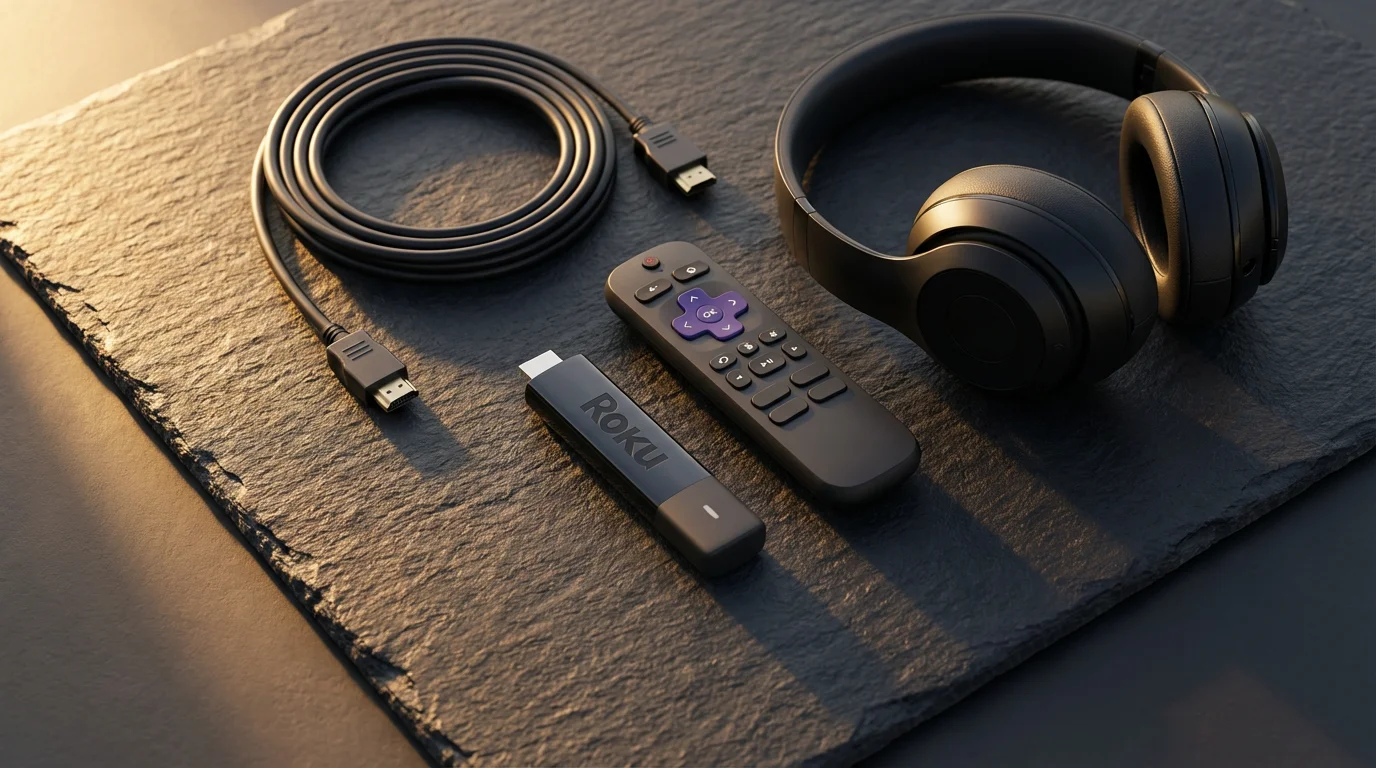
Roku devices are renowned for their straightforward, user-friendly interface. Roku’s platform aggregates content from thousands of channels, making it easy to find what you want without bias towards a specific content provider. Roku offers a strong contender for the best 4K streaming device.
Key Devices for 4K HDR:
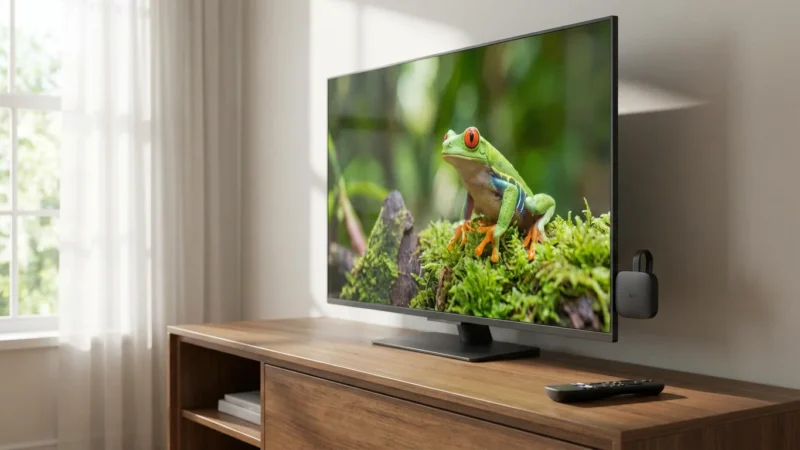
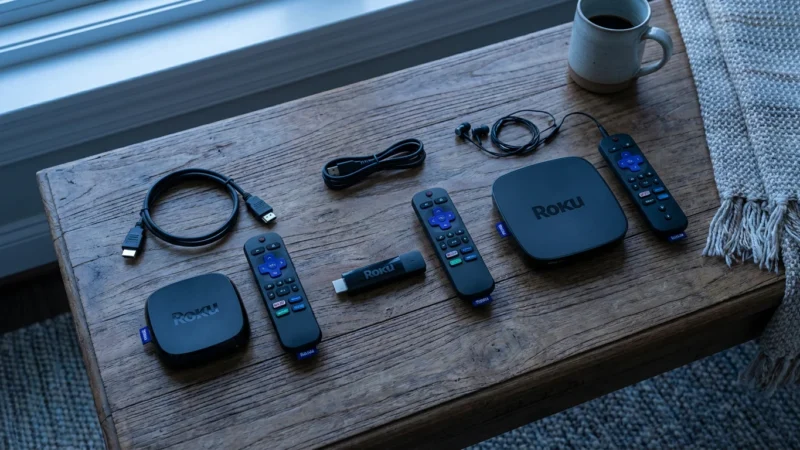
- Roku Streaming Stick 4K / 4K+: These compact devices plug directly into an HDMI port. They support 4K, HDR10, HDR10+, and Dolby Vision. The 4K+ model includes the Roku Voice Remote Pro, which offers a rechargeable battery and a lost remote finder feature. They also include faster Wi-Fi performance compared to older models.
- Roku Ultra: A box-style device, the Ultra delivers the most robust Roku experience. It features an Ethernet port for wired internet, a USB port for local media playback, and the Roku Voice Remote Pro. It supports 4K, HDR10, HDR10+, and Dolby Vision, plus Dolby Atmos audio. This is Roku’s premium offering, designed for performance enthusiasts.
Pros:
- Intuitive Interface: Roku’s grid-based menu is easy to navigate, even for new streamers.
- Broad App Support: Roku boasts an extensive library of streaming channels, covering virtually every major service.
- Platform Neutrality: Roku does not push its own content or heavily favor specific services, offering a truly unbiased search experience.
- Excellent Value: Roku devices consistently offer strong performance for their price, making them a great option for budget-conscious buyers seeking an HDR streaming solution.
Cons:
- Less Advanced Voice Assistant: While functional, Roku’s voice assistant is not as powerful or versatile as Alexa or Google Assistant for general queries or smart home control.
- No USB on Stick Models: The smaller stick devices lack physical ports for local media.
- Remote Design: Some remotes, particularly on lower-end models, can feel basic and include sponsored buttons.
Best for: Viewers prioritizing ease of use, extensive app availability, and a neutral platform. Roku is ideal for those who simply want to watch their shows without navigating complex menus or deep ecosystem integration. According to Wirecutter’s streaming device reviews, Roku devices consistently rank high for their user-friendliness.
Amazon Fire TV: Smart Features and Alexa Integration
Amazon’s Fire TV devices integrate deeply with the Amazon ecosystem, offering strong Alexa voice control and a content-forward interface. If you frequently use Amazon Prime Video, Audible, or other Amazon services, a Fire TV device could be your best streaming device for 4K TV.
Key Devices for 4K HDR:
- Fire TV Stick 4K Max: This is a powerful streaming stick supporting 4K, HDR10, HDR10+, Dolby Vision, and Dolby Atmos audio. It features Wi-Fi 6 support for smooth performance and an Alexa Voice Remote with dedicated buttons. This device offers a compelling combination of features and value.
- Fire TV Cube: The Fire TV Cube is Amazon’s flagship device, combining a Fire TV streamer with a full-fledged Echo smart speaker. It offers hands-free Alexa control, an Ethernet port, and superior processing power for the fastest performance. It supports all major HDR formats and Dolby Atmos.
Pros:
- Seamless Alexa Integration: Use your voice to find content, launch apps, control smart home devices, and ask general questions.
- Strong Performance: Newer Fire TV devices offer fast processing and support for Wi-Fi 6, ensuring smooth 4K HDR playback.
- Gaming Capabilities: The Fire TV Cube, in particular, handles some casual Android gaming well.
- Regular Sales: Amazon frequently discounts Fire TV devices, offering excellent opportunities for savings.
Cons:
- Amazon-Centric Interface: The Fire TV interface prominently features Amazon Prime Video and other Amazon content, which might feel biased if you primarily use other services.
- Data Collection Concerns: As a Google-alternative platform, Amazon collects user data for personalization and advertising, a consideration for privacy-conscious users.
- App Layout: Some users find the content-heavy interface less clean than Roku’s channel grid.
Best for: Amazon Prime subscribers, users heavily invested in the Alexa ecosystem, and those who prioritize robust voice control. The Fire TV Stick 4K Max offers incredible value for a 4K HDR streaming stick comparison.

Apple TV 4K: Premium Experience for the Apple Ecosystem
The Apple TV 4K offers a premium streaming experience, especially for users already deeply integrated into the Apple ecosystem. It delivers a polished interface, powerful performance, and a strong focus on privacy. While it comes at a higher price point, its quality justifies the cost for many.
Key Device for 4K HDR:
- Apple TV 4K (2nd and 3rd Gen): Both generations support 4K, HDR10, HDR10+, and Dolby Vision, plus Dolby Atmos audio. The latest generation offers enhanced performance, Wi-Fi 6, and a Thread radio for smart home integration. It also comes with the redesigned Siri Remote, which features a touch-enabled clickpad.
Pros:
- Seamless Apple Integration: AirPlay content from your Apple devices, easily access your iTunes purchases, and integrate with Apple Fitness+ and Apple Arcade.
- Top-Tier Performance: Powered by Apple’s A-series chips, the Apple TV 4K offers extremely fluid navigation and fast app loading times, even for demanding games.
- Privacy Focused: Apple maintains a stronger stance on user privacy compared to Google or Amazon.
- High-Quality Apps: Developers often prioritize the Apple TV platform, resulting in well-designed and stable applications.
- Color Balance Feature: Use your iPhone to calibrate your TV’s picture settings, improving color accuracy.
Cons:
- High Price: The Apple TV 4K is significantly more expensive than other streaming devices, often costing over $100.
- Less Open Ecosystem: While it supports most major streaming apps, the overall experience is tailored to Apple users.
- Siri Remote Learning Curve: Some users find the touch-enabled clickpad on the Siri Remote takes time to master.
Best for: Apple loyalists, users seeking the fastest and most polished streaming experience, and those who value privacy and seamless integration with their existing Apple devices. If you consider value over raw price, the Apple TV 4K represents the best streaming device for 4K TV in its class.
Google Chromecast with Google TV: Smart Recommendations and Android Power
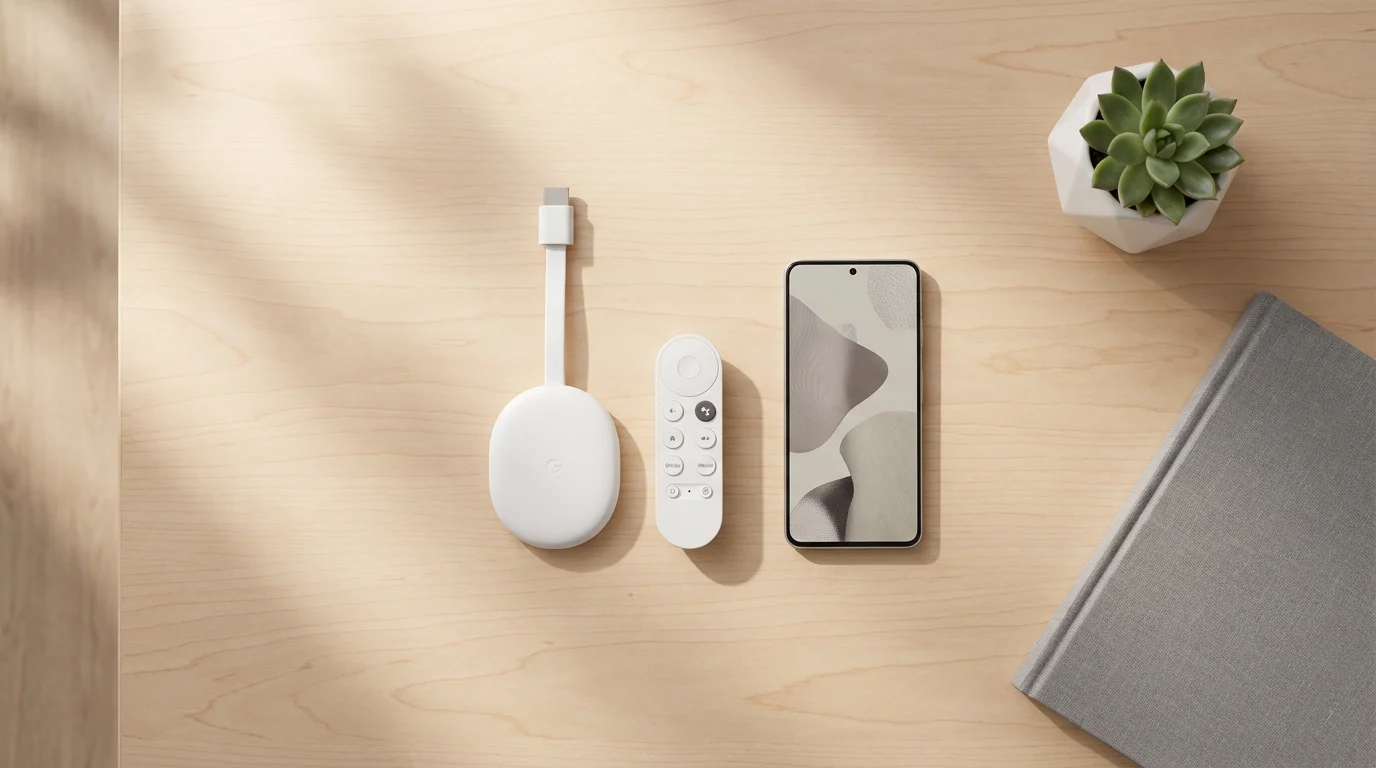
The Chromecast with Google TV combines the cast functionality of traditional Chromecasts with a full-fledged smart TV interface. It prioritizes content discovery through personalized recommendations, driven by Google’s powerful AI. This makes it a compelling 4K streaming device for those who appreciate curated content.
Key Devices for 4K HDR:
- Chromecast with Google TV (4K): This compact device supports 4K, HDR10, HDR10+, Dolby Vision, and Dolby Atmos audio. It features a remote control with dedicated Google Assistant voice button and runs the Google TV operating system, which organizes content from various services into one unified interface.
- Chromecast with Google TV (HD): A more budget-friendly option, this device offers the same Google TV experience but maxes out at 1080p resolution. While not a 4K streaming device, it is excellent for secondary TVs or those without 4K displays.
Pros:
- Google TV Interface: The strength of this device lies in its Google TV operating system, which consolidates content from all your subscribed services into a single, personalized “For You” tab. It simplifies content discovery.
- Google Assistant Integration: Use the remote’s voice button to search for movies, control playback, ask questions, and manage smart home devices.
- Casting Functionality: Maintain the ability to cast content directly from your phone, tablet, or Chrome browser, just like traditional Chromecasts.
- Good Value: The 4K model often sells for around $50, making it an affordable entry into 4K HDR streaming.
Cons:
- Google’s Data Collection: Similar to Amazon, Google collects user data for content recommendations and advertising, which might concern privacy-focused individuals.
- Performance: While generally good, its processor can feel slightly less responsive than the Apple TV 4K or even some Fire TV devices during heavy use.
- Interface Complexity: Some users find the content-rich Google TV interface can feel a bit overwhelming compared to Roku’s simplicity.
Best for: Users who want a content-first experience with personalized recommendations, integration with Google Assistant and Android devices, and solid 4K HDR streaming performance at a reasonable price. This device stands out in a 4K HDR streaming stick comparison for its smart features.
When Your Smart TV is Enough: Built-in Apps vs. Dedicated Devices
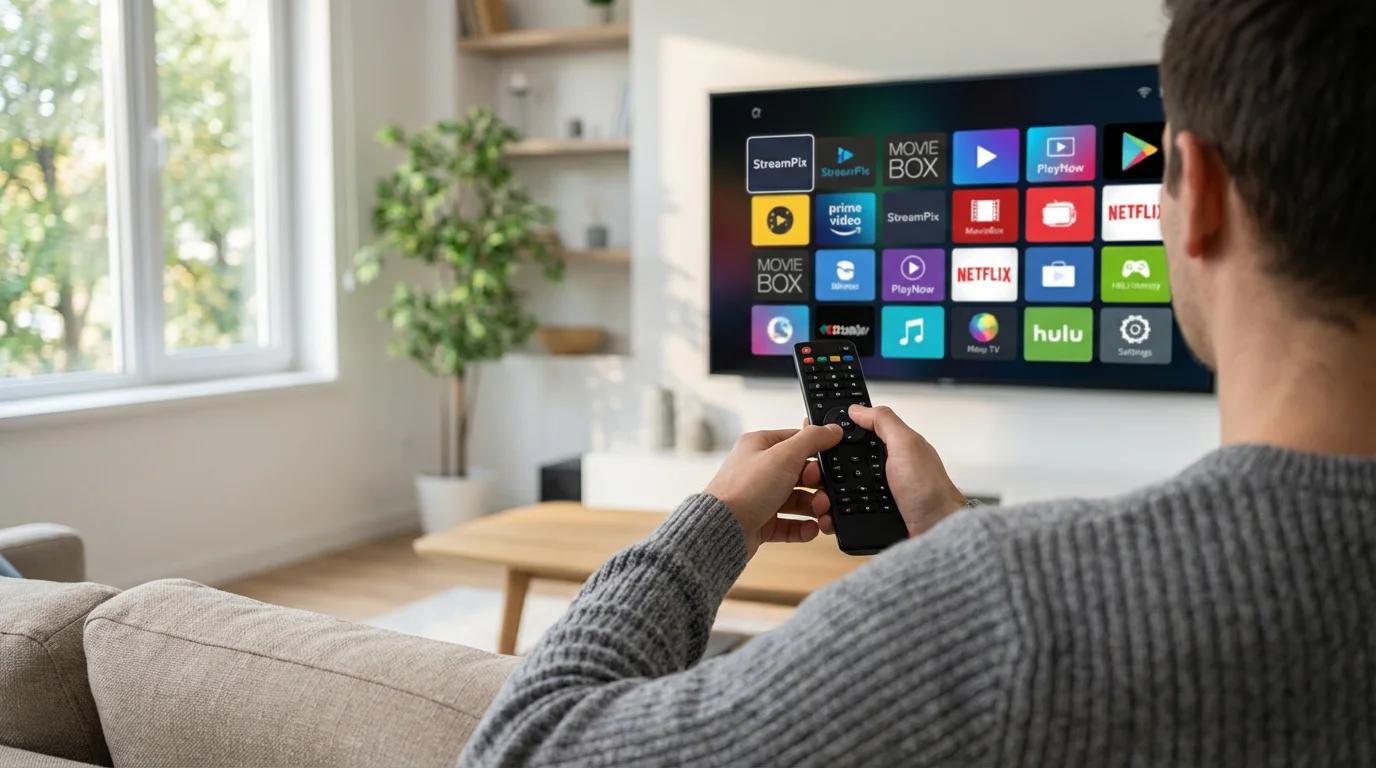
Many modern televisions are “smart TVs,” meaning they include built-in internet connections and streaming apps. You might wonder if you even need a separate streaming device. The answer depends on your TV’s age, performance, and specific needs.
Before purchasing a new box, evaluate whether your smart TV’s built-in apps are sufficient or if an external player is a better investment.
When Your Smart TV’s Built-in Apps are “Good Enough”:
- Newer, High-End Smart TVs: If you own a premium smart TV from brands like LG (webOS), Samsung (Tizen), or Sony (Android TV) manufactured in the last 2-3 years, its built-in apps often offer excellent performance, 4K HDR support, and a smooth user experience. These TVs typically have powerful processors and good Wi-Fi capabilities.
- Limited Streaming Needs: If you only use a couple of major streaming services, and your TV’s apps run them reliably without buffering or crashes, a dedicated device might not offer a significant upgrade for you.
- Seamless Integration: Some smart TV platforms integrate well with specific ecosystems, for instance, Samsung TVs with SmartThings, or Sony TVs with Google Assistant.
When a Dedicated Streaming Device is Superior:
- Older Smart TVs: Smart TVs tend to slow down over time. Their processors become outdated, and app developers sometimes stop optimizing for older TV operating systems. If your TV’s apps are sluggish, crash frequently, or lack support for newer HDR formats like Dolby Vision, a dedicated device will provide a much better experience.
- Performance and Speed: Dedicated streaming devices, especially higher-end models like the Apple TV 4K or Fire TV Cube, often feature more powerful processors than those found in many smart TVs. This translates to faster app loading, smoother navigation, and quicker response times.
- Broader App Support and Updates: Streaming devices often receive more frequent software updates and broader app support than smart TVs. This ensures you always have access to the latest streaming services and features.
- Unified Interface: If you own multiple TVs from different brands, a dedicated streaming device creates a consistent user interface across all your screens, simplifying navigation.
- Advanced Features: Features like Wi-Fi 6, Ethernet ports, more robust voice assistants, or USB ports for local media are more common and often better implemented on dedicated streaming devices.
- Privacy Concerns: If you dislike the data collection practices of certain smart TV manufacturers, a dedicated device from a company with a stronger privacy stance, like Apple or Roku, can be a preferred alternative. As Consumer Reports frequently highlights, privacy settings on smart TVs can be complex.
If your current smart TV apps disappoint you, a dedicated 4K streaming device offers an immediate and significant upgrade to your entertainment experience. Even a relatively inexpensive 4K HDR streaming stick can outperform a struggling smart TV.
Price-to-Value Analysis: Finding the Right 4K HDR Streamer for Your Budget
Your budget significantly influences your choice of the best 4K streaming device. We break down options across different price tiers, considering both initial cost and the features you gain for your investment.
Under $50: Entry-Level 4K HDR
In this price range, you find excellent value and surprising capability. These devices often represent the best 4K streaming stick comparison for budget buyers.
- Amazon Fire TV Stick 4K Max (often $35-$50 on sale): This device consistently offers strong performance for its price. It supports 4K, HDR10, HDR10+, Dolby Vision, and Dolby Atmos, with Wi-Fi 6. It is an outstanding choice for those who want comprehensive HDR support without breaking the bank, especially Amazon Prime users.
- Roku Streaming Stick 4K (often $40-$50): Similar to the Fire TV Stick 4K Max, the Roku Streaming Stick 4K provides 4K, HDR10, HDR10+, and Dolby Vision. It excels in simplicity and broad app availability. If you prefer Roku’s interface and platform neutrality, this is your go-to option.
- Chromecast with Google TV (4K) (often $40-$50): This device offers 4K, HDR10, HDR10+, Dolby Vision, and Dolby Atmos, wrapped in Google’s content-first Google TV interface. Its strength lies in personalized recommendations and Google Assistant integration.
Value Insight: For under $50, you gain full 4K HDR capabilities. The choice primarily comes down to your preferred ecosystem: Amazon/Alexa, Roku’s simplicity, or Google/Google Assistant.
$50-$100: Enhanced Performance and Features
Moving into this tier, you start seeing devices with improved processors, additional connectivity options, and more premium remote controls.
- Roku Ultra (often $80-$100): As a box-style device, the Roku Ultra offers an Ethernet port for reliable wired internet, a USB port for local media, and the advanced Roku Voice Remote Pro. It supports all major HDR formats and Dolby Atmos. This is the top choice for Roku fans who want maximum performance and features.
- NVIDIA Shield TV Stick (occasionally available in this range during sales): While often slightly above $100, if you find it on sale, the NVIDIA Shield TV Stick is a powerful Android TV device known for its AI-upscaling and strong gaming capabilities. It supports 4K HDR.
Value Insight: You invest in wired connectivity, potentially faster performance, and more advanced remote features. This range suits users who want a bit more than the basic stick experience without paying a premium.
$100+: Premium Performance and Ecosystem Integration
This category delivers the best possible streaming experience with cutting-edge processors, advanced features, and deep ecosystem integration.
- Apple TV 4K (2nd Gen $129-$149, 3rd Gen $129-$149 depending on storage): This device offers unparalleled performance, a fluid user interface, and seamless integration for Apple users. It supports all major HDR formats, Dolby Atmos, Wi-Fi 6, and features a privacy-first approach. For the ultimate Apple experience and premium build quality, this is the best 4K streamer.
- Fire TV Cube (often $119-$139): Amazon’s most powerful streamer combines Fire TV with an Echo speaker. It provides hands-free Alexa, superior speed, Ethernet connectivity, and supports all major HDR formats and Dolby Atmos. It is ideal for those who want a central smart home hub with top-tier streaming.
- NVIDIA Shield TV Pro (often $199): The most expensive option, the Shield TV Pro is a powerhouse. It targets gamers, media server enthusiasts (with Plex Media Server capabilities), and users who demand the absolute best performance for Android TV. It offers advanced AI upscaling and comprehensive format support.
Value Insight: You pay for raw power, a superior user experience, advanced audio and video processing, and deep integration into specific ecosystems. These devices represent a long-term investment in your entertainment setup.
Comparison Table: Leading 4K HDR Streaming Devices
This table provides a quick overview of key features for popular 4K streaming devices:
| Device | Typical Price | Max Resolution | HDR Formats | Audio Support | Wi-Fi | Ethernet | Voice Assistant | Best For |
|---|---|---|---|---|---|---|---|---|
| Roku Streaming Stick 4K | $40-$50 | 4K | HDR10, HDR10+, Dolby Vision | Dolby Atmos (passthrough) | Wi-Fi 6 | No | Roku Voice | Simplicity, all-around value |
| Roku Ultra | $80-$100 | 4K | HDR10, HDR10+, Dolby Vision | Dolby Atmos | Wi-Fi 5 | Yes | Roku Voice | Roku fans, wired connection |
| Fire TV Stick 4K Max | $35-$50 | 4K | HDR10, HDR10+, Dolby Vision | Dolby Atmos | Wi-Fi 6 | No (adapter) | Alexa | Alexa users, great value |
| Fire TV Cube | $119-$139 | 4K | HDR10, HDR10+, Dolby Vision | Dolby Atmos | Wi-Fi 6E | Yes | Hands-free Alexa | Alexa power users, speed |
| Apple TV 4K (3rd Gen) | $129-$149 | 4K | HDR10, HDR10+, Dolby Vision | Dolby Atmos | Wi-Fi 6 | Yes (128GB model) | Siri | Apple ecosystem, premium experience |
| Chromecast with Google TV (4K) | $40-$50 | 4K | HDR10, HDR10+, Dolby Vision | Dolby Atmos | Wi-Fi 5 | No (adapter) | Google Assistant | Google users, content discovery |
Setting Up Your 4K HDR Streaming Device and Troubleshooting Tips
Getting your new 4K streaming device up and running is typically straightforward. Most devices follow a similar setup process. Here are general steps and solutions for common issues:
For those new to cord-cutting, we have a complete beginner’s guide to setting up your first streaming device to walk you through every step.
Basic Setup Guide:
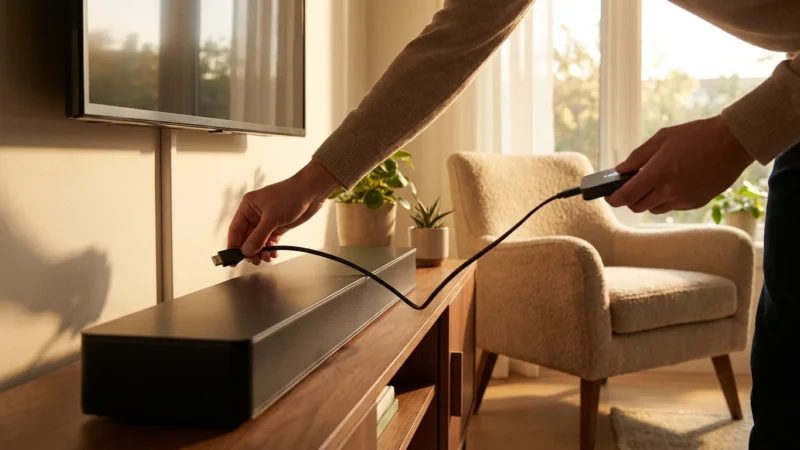
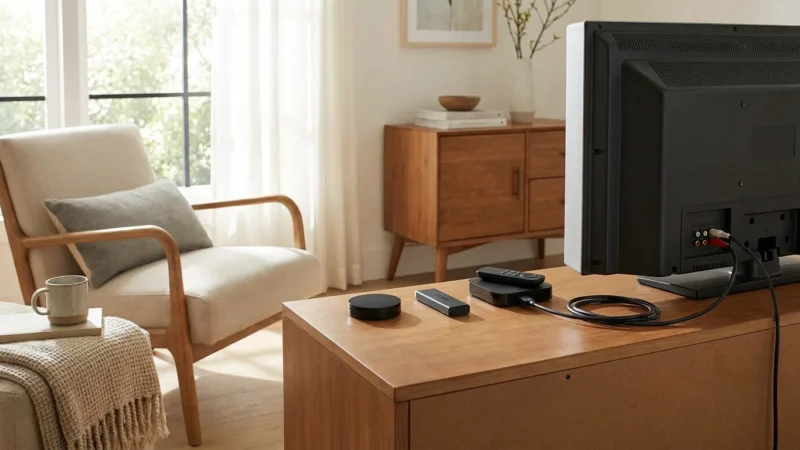
- Unbox and Connect: Plug your streaming device into an available HDMI port on your 4K TV. If it is a stick, it often draws power from a USB port on your TV, or you can use the included power adapter. Box devices always use an external power adapter.
- Power On and Select Input: Turn on your TV and select the correct HDMI input using your TV remote. You should see the streaming device’s initial setup screen.
- Connect to Wi-Fi: The device will prompt you to connect to your home Wi-Fi network. Select your network name (SSID) and enter your Wi-Fi password. For a 4K HDR streaming experience, a strong and stable Wi-Fi signal is crucial.
- Account Setup/Login: You will likely need to log in to an existing account (Roku, Amazon, Apple, Google) or create a new one. This links the device to your personalized settings and purchases.
- App Installation: The device will usually offer to install popular streaming apps automatically. You can also browse the app store to add your preferred services like Netflix, Hulu, Disney+, and Max.
- 4K and HDR Confirmation: Most devices automatically detect your TV’s capabilities and configure settings for 4K and HDR. Check the display settings within the device’s menu to confirm 4K resolution and HDR formats (Dolby Vision, HDR10) are enabled.
Troubleshooting Common Issues:
- No 4K or HDR Detected:
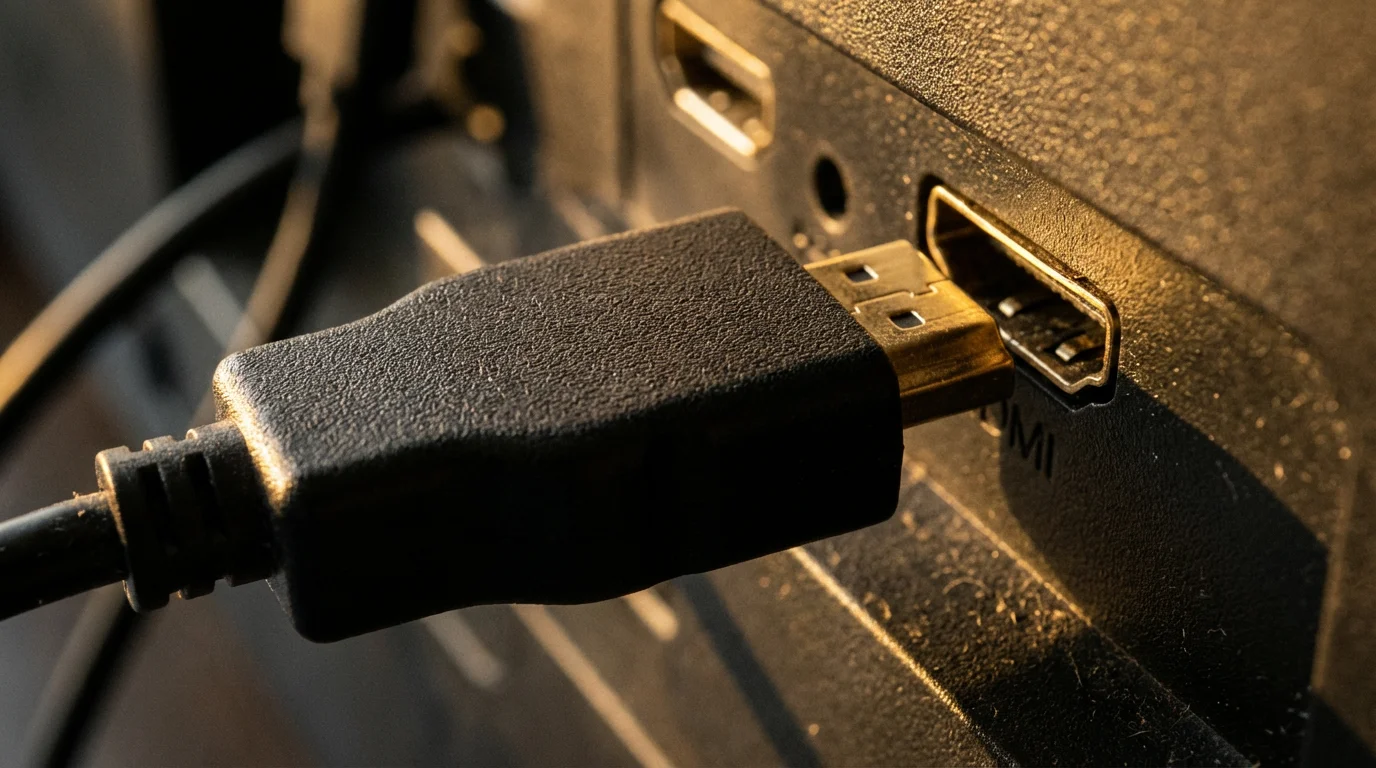
- Check HDMI Port: Ensure you plug the device into an HDMI port on your TV that supports HDCP 2.2 and 4K HDR. Some TVs only have one or two such ports. Refer to your TV manual.
- TV Settings: Many TVs require you to enable “Enhanced HDMI” or “UHD Color” settings for the specific HDMI input you are using to allow 4K HDR passthrough.
- HDMI Cable: Use a high-speed HDMI cable (often labeled “Premium High Speed” or “Ultra High Speed”) that supports 4K and HDR. The cable included with your device is usually sufficient.
- Restart Everything: Power cycle your TV, streaming device, and even your router/modem. This often resolves connectivity glitches.
- Buffering or Poor Video Quality:
- Wi-Fi Signal: Move the streaming device closer to your Wi-Fi router, or consider a Wi-Fi extender. Walls, other electronics, and distance degrade signal strength.
- Ethernet Connection: If your device or TV supports it, use an Ethernet cable for a direct, more stable internet connection. Many streaming sticks can use a USB Ethernet adapter.
- Internet Speed: Ensure your internet service provider (ISP) delivers sufficient speeds for 4K streaming. A minimum of 25 Mbps is recommended for reliable 4K. Test your speed using an online speed test.
- Restart Router: Reboot your home router and modem.
- Remote Control Issues:
- Batteries: Replace remote batteries.
- Pairing: Most remotes require initial pairing. Follow the on-screen instructions or refer to the device’s manual to re-pair the remote.
- Line of Sight: For infrared (IR) remotes, ensure a clear line of sight to the device. Bluetooth remotes do not require this.
- Audio Problems:
- Audio Settings: Check the audio output settings on your streaming device. Ensure it is set to “auto” or the correct format for your sound system (e.g., Dolby Digital, Dolby Atmos).
- Sound System Compatibility: If using a soundbar or AV receiver, ensure it supports the audio format the streaming device outputs.
- Restart: Again, power cycling all components in your audio chain can resolve temporary glitches.
Patient troubleshooting often resolves most issues. If problems persist, consult the device manufacturer’s support website.
Frequently Asked Questions
What is the difference between 4K and HDR?
4K refers to the resolution, meaning the number of pixels on your screen, which is four times that of 1080p. More pixels create a sharper image. HDR, or High Dynamic Range, improves the contrast, brightness, and color accuracy, making the picture more vibrant and lifelike with deeper blacks and brighter whites. You need both a 4K resolution and HDR support on your TV and streaming device for the best visual experience.
Do I need a new TV for a 4K streaming device?
Yes, to fully benefit from a 4K streaming device, you need a 4K compatible television. While a 4K streaming device will still work on an HD TV, it will only display content in 1080p resolution. Your TV must also support HDR formats like HDR10 or Dolby Vision to enjoy the enhanced colors and contrast.
Can I use a streaming device if I do not have Wi-Fi?
No, a streaming device requires an internet connection to access content. Most devices connect wirelessly via Wi-Fi. Some box-style devices, such as the Roku Ultra or Apple TV 4K (128GB model), also offer an Ethernet port for a wired internet connection, which often provides greater stability and speed for 4K streaming.
Is Dolby Vision better than HDR10?
Generally, Dolby Vision offers a potentially superior picture quality compared to standard HDR10. Dolby Vision uses dynamic metadata, meaning it optimizes the picture’s brightness, contrast, and color on a scene-by-scene basis. HDR10 uses static metadata, applying one set of values for the entire show or movie. However, the actual visual difference also depends on your TV’s capabilities and the quality of the content mastering.
What is a “streaming device”?
A “streaming device” is a small box or stick, like a Roku, Amazon Fire TV, or Apple TV, that plugs into your television. It connects to the internet and allows you to watch movies, TV shows, and other video content from streaming services like Netflix, Hulu, and YouTube, essentially turning any TV into a smart TV or enhancing the capabilities of an existing smart TV.
Disclaimer: Device prices and features may change. New models are released regularly, so check for the latest versions before purchasing. The “best” device depends on your specific needs, existing ecosystem (Apple, Google, Amazon), and budget.



Leave a Reply