
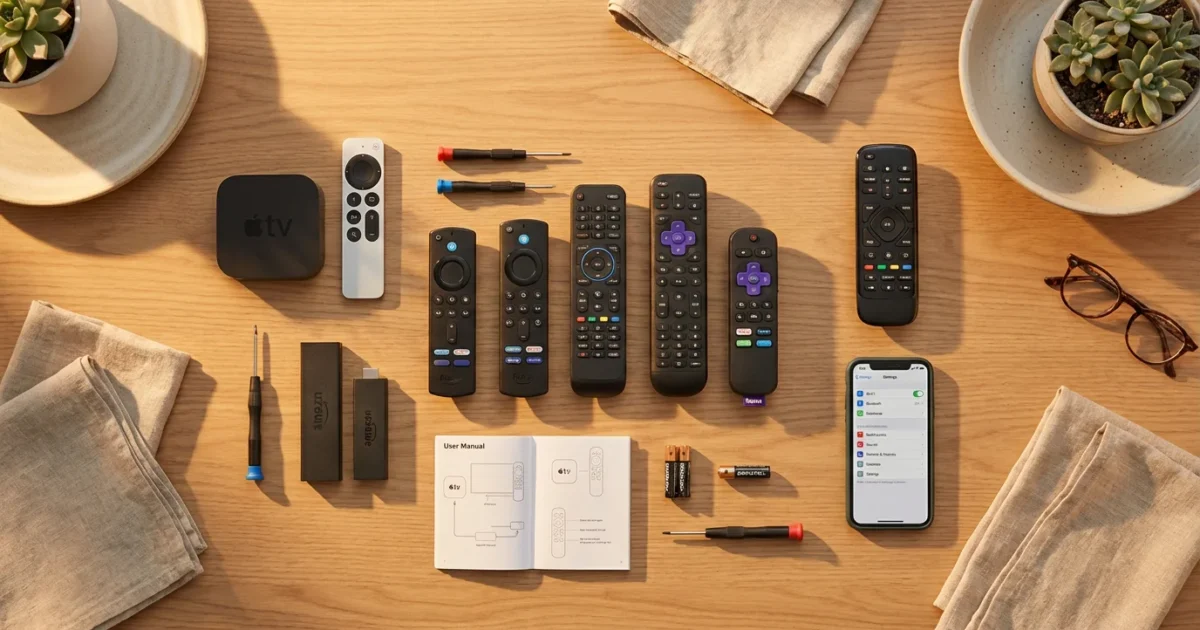
Your streaming remote control is your primary interface with countless hours of entertainment. When it stops working, or you lose it, your entire streaming experience grinds to a halt. This comprehensive guide helps you understand, program, troubleshoot, and replace your streaming device remote, ensuring you maintain seamless control over your favorite shows and movies. We focus on practical, actionable steps for popular streaming devices like Roku, Amazon Fire TV, Apple TV, and Chromecast, along with advice for smart TV remotes.
If you are setting up your system for the first time, our complete beginner’s guide to setting up a streaming device covers everything from hardware connection to account creation.
Millions of cost-conscious viewers across the USA have cut the cord from traditional cable and satellite TV, choosing instead to stream content over the internet. This shift to streaming, which involves watching video content over the internet instead of cable or satellite, offers flexibility and significant savings. A streaming device, a small box or stick, adds streaming capabilities to any television. Smart TVs, televisions with built-in internet connections and apps, also provide streaming directly. Regardless of your setup, a reliable remote is essential.
Understanding Your Streaming Remote
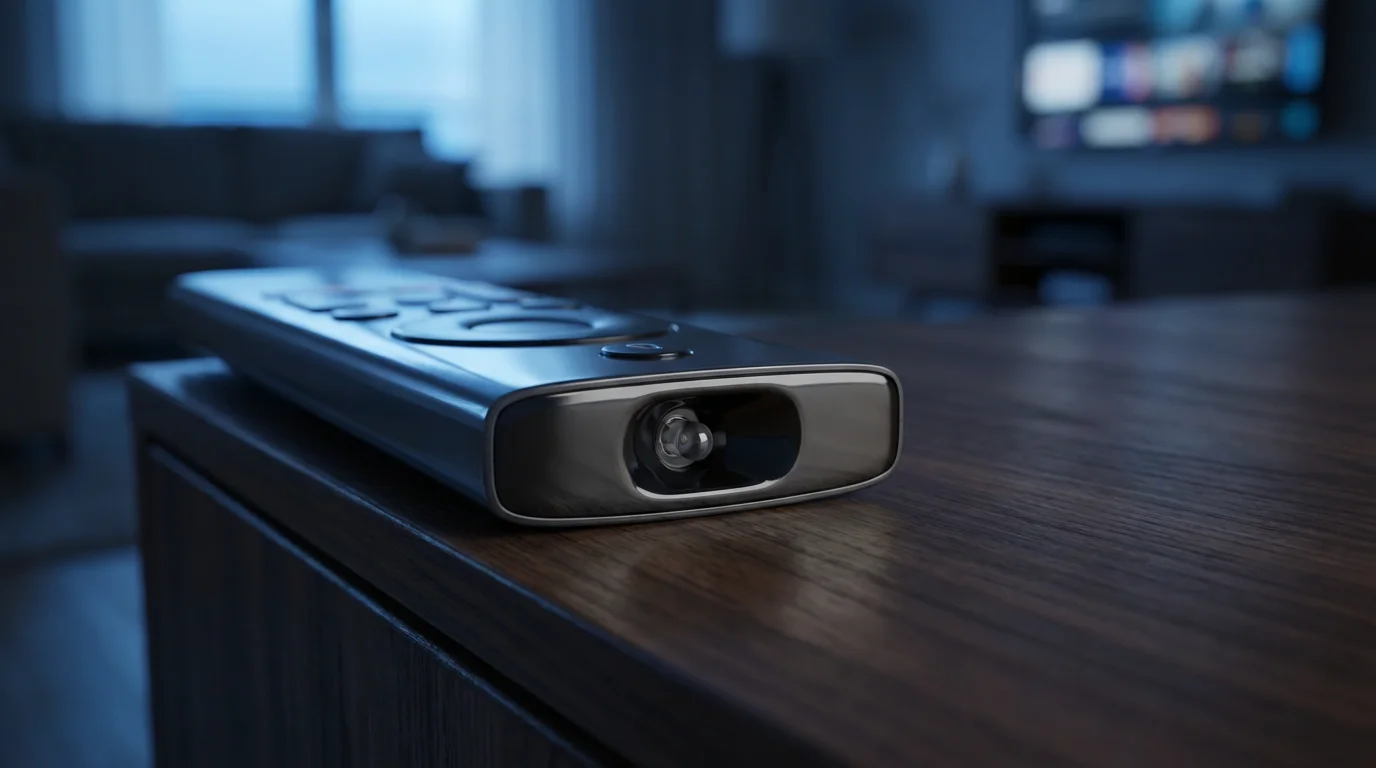
Streaming device remotes come in various forms, each designed for a specific ecosystem. You encounter basic IR (infrared) remotes, more advanced Bluetooth or Wi-Fi Direct remotes, and even universal remotes that consolidate control over multiple devices. Each type offers distinct advantages and presents unique troubleshooting challenges.
Infrared (IR) remotes, the most traditional type, require a direct line of sight to your streaming device. They are simple and widely compatible, but a blocked path prevents control. Bluetooth and Wi-Fi Direct remotes offer greater flexibility. They do not require line of sight, allowing you to hide your streaming device behind your TV or in a cabinet. These advanced remotes also often feature voice control, dedicated app buttons, and headphone jacks for private listening.
When considering your remote, also think about how it manages video and audio formats. Modern streaming offers experiences like 4K, which means four times the resolution of standard HD, providing incredible detail. HDR (High Dynamic Range), including formats like HDR10 and Dolby Vision, delivers a wider range of colors and contrast for a more lifelike image. Dolby Atmos provides immersive, three-dimensional audio. Your remote, while not directly producing these features, facilitates navigation and control within content that utilizes them, often through volume and input selection.
Common Remote Problems and Troubleshooting
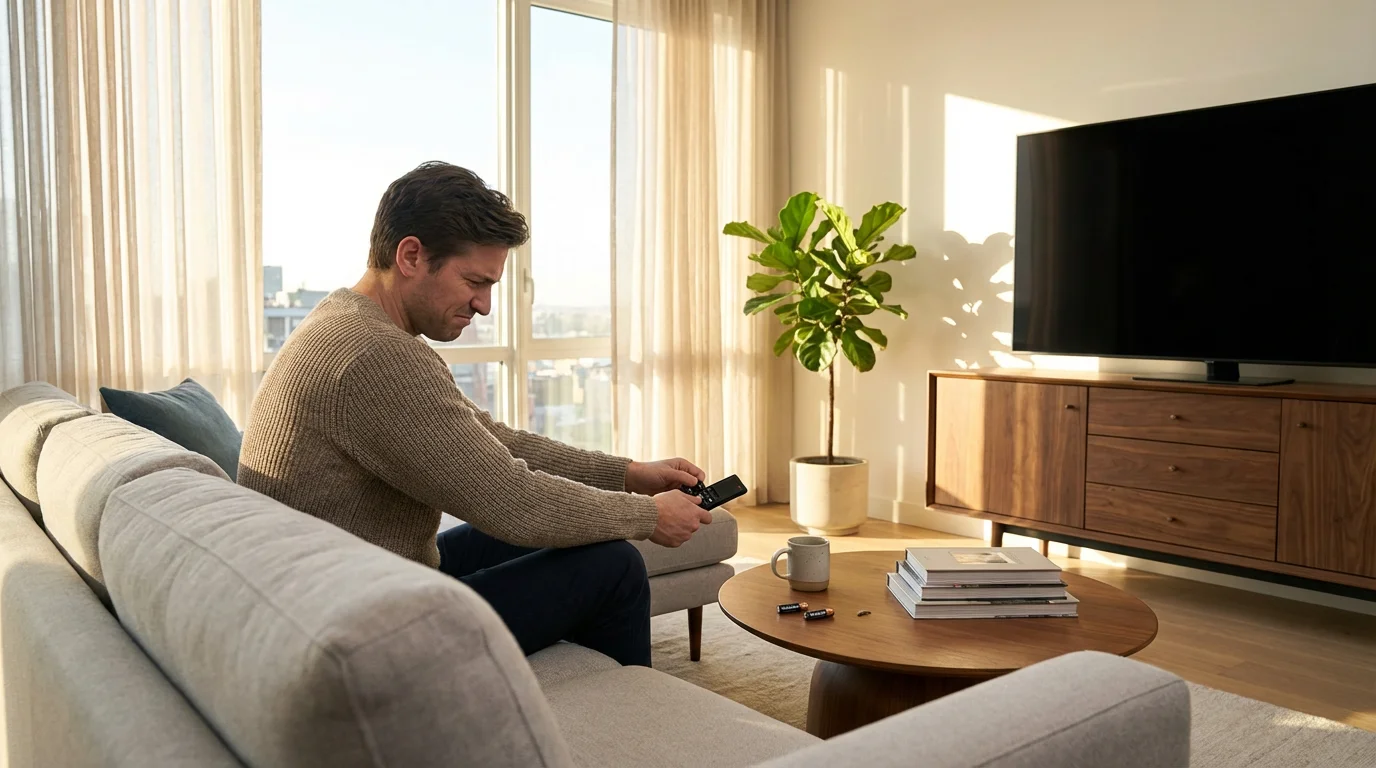
A non-responsive streaming device remote generates significant frustration. Before you consider buying a replacement remote, follow these systematic troubleshooting steps. Many issues stem from simple causes, saving you money and time.
- Check the Batteries: This is the most common culprit. Replace old batteries with fresh ones, ensuring they are inserted with correct polarity. Even if the remote occasionally works, weak batteries cause intermittent issues.
- Remove Obstructions: If you use an IR remote, ensure nothing blocks the path between the remote and the streaming device. Clear any clutter.
- Re-Pair the Remote: Bluetooth and Wi-Fi Direct remotes sometimes lose their connection. Each device has a specific re-pairing process. For most Roku remotes, open the battery compartment, press the pairing button (often near the batteries) for a few seconds, then follow on-screen instructions. Amazon Fire TV remotes usually involve holding the Home button for 10-20 seconds. Apple TV remotes require a specific pairing sequence, often involving holding the Menu and Volume Up buttons.
- Restart Your Device: Unplug your streaming device from power, wait 30 seconds, and plug it back in. A full restart often resolves software glitches that affect remote communication. Do the same for your TV if the remote controls TV functions.
- Test with a Mobile App: Most major streaming platforms (Roku, Fire TV, Apple TV) offer free mobile apps that function as virtual remotes. Download the app to your smartphone or tablet, connect it to the same Wi-Fi network as your streaming device, and test if you can control your device. If the app works, the problem lies with your physical remote, not the streaming device itself.
- Clean the Remote: Dirt, dust, or sticky residue can accumulate under buttons, preventing proper contact. Use a cotton swab lightly dampened with rubbing alcohol to clean around and under buttons. Avoid excessive moisture.
- Factory Reset (Last Resort): Some remotes, particularly advanced ones, can be factory reset. Consult your device’s manual for specific instructions, as this usually clears all settings and pairings.
According to Wirecutter’s guide to streaming devices, a non-working remote is one of the top frustrations users face, emphasizing the need for reliable troubleshooting techniques before resorting to replacements.
Programming Universal Remotes for Streaming Devices
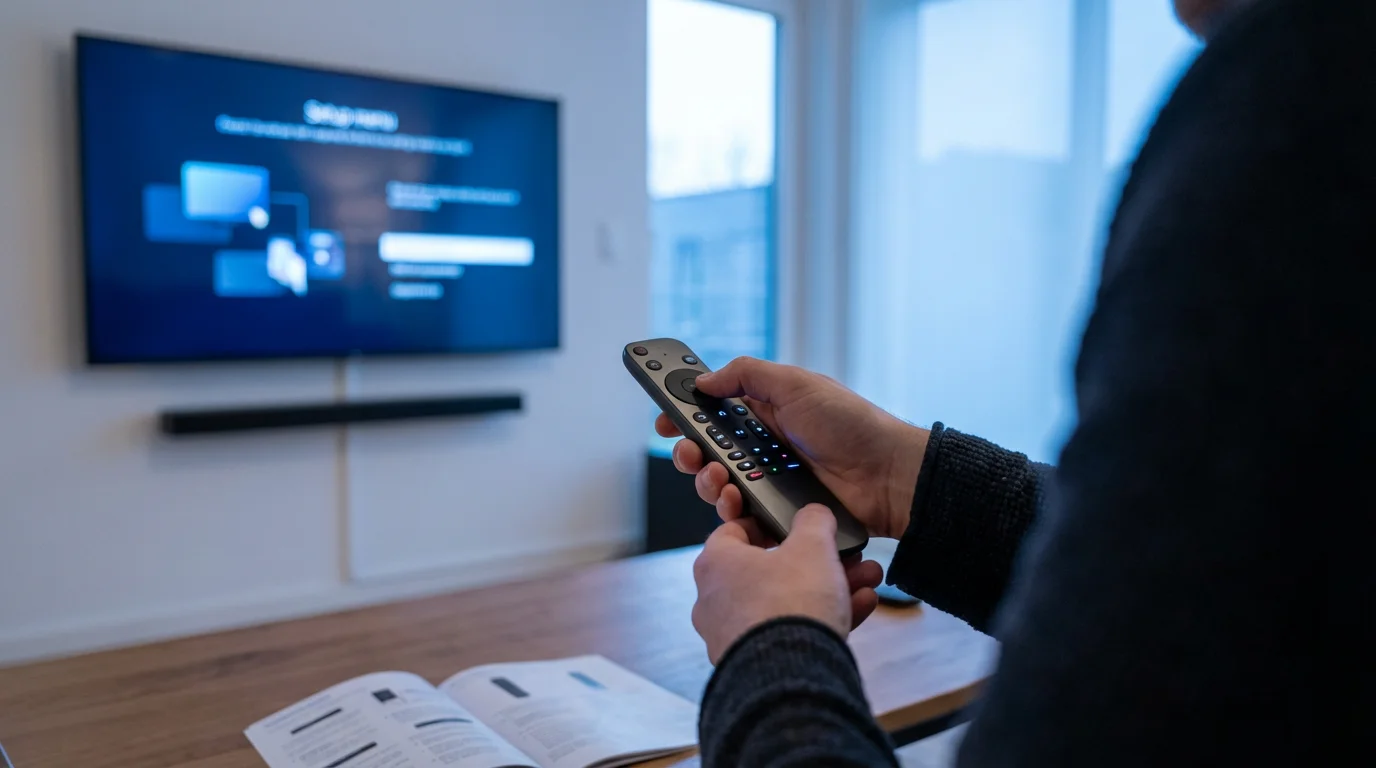
Universal remotes consolidate control of multiple devices, like your TV, soundbar, and streaming device, into one unit. This reduces clutter and simplifies your home entertainment setup. Programming methods vary based on the universal remote’s brand and model.
Consolidating controls is particularly useful if you need to connect your streaming device to a sound bar and want to avoid using three different controllers for one movie.
Most universal remotes offer a few programming options:
- Code Entry: You enter a specific four or five-digit code for your streaming device from a list provided in the universal remote’s manual.
- Auto Code Search: The remote scans through a library of codes until it finds one that operates your device. This often involves pressing and holding a button while the remote cycles through codes.
- Learning Function: More advanced universal remotes can “learn” commands directly from your original remote. You point the original remote at the universal remote and press the corresponding buttons to teach it each function.
For modern streaming devices, check if your universal remote explicitly supports Bluetooth or Wi-Fi Direct control. Many older universal remotes are IR-only, meaning they can only control IR-based streaming sticks or smart TV functions, but not Bluetooth-only remotes like the Apple TV Siri Remote or most advanced Fire TV and Roku remotes. Ensure your universal remote specifically lists support for your streaming device’s communication protocol.
“A common mistake when troubleshooting remote issues is assuming the problem lies with the streaming device itself. Often, a quick battery change or a simple re-pairing process for the remote can restore full functionality, saving you from unnecessary device replacements.”
Replacing a Lost or Broken Streaming Remote
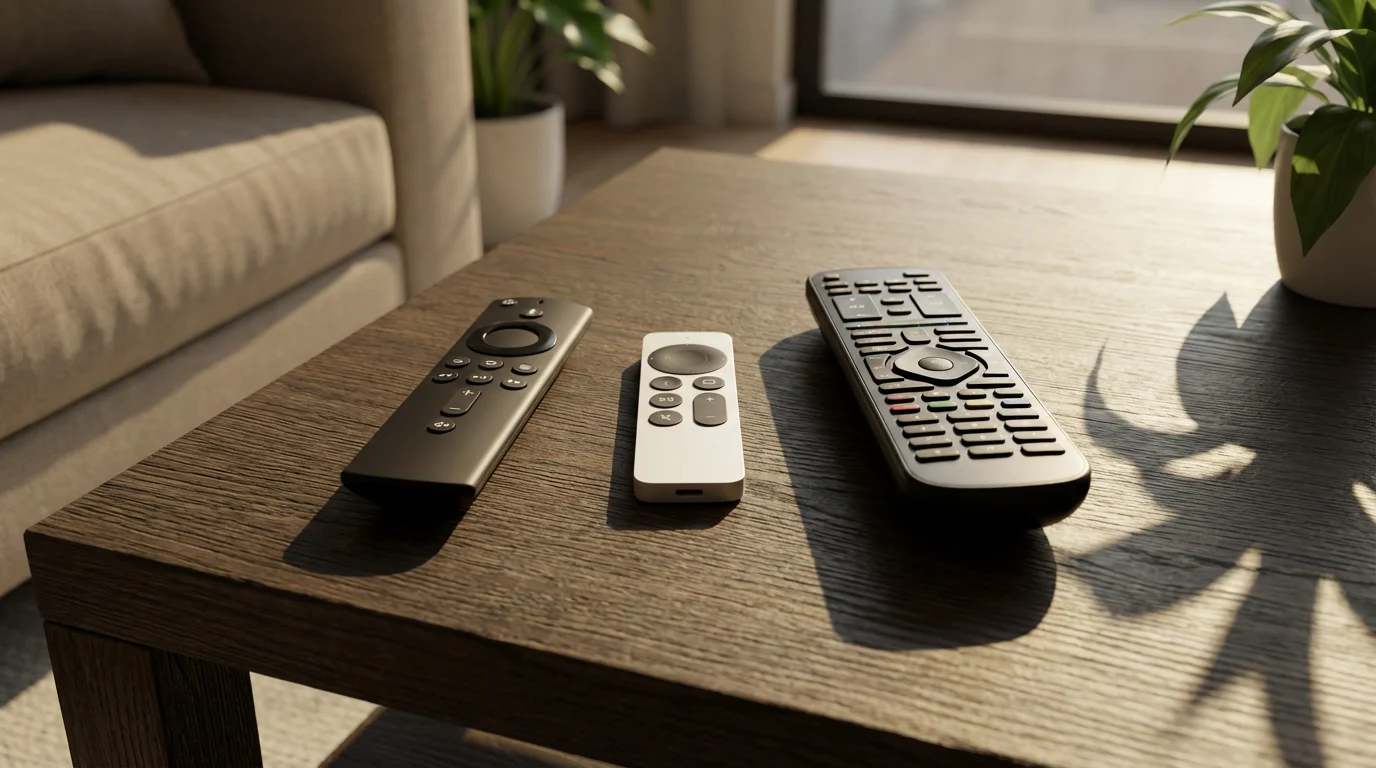
When troubleshooting fails, or your remote is truly lost, purchasing a replacement remote becomes necessary. You have several options: official brand remotes, third-party remotes, and universal remotes. Your budget and desired features guide this decision.
Here is a comparison of different replacement remote options:
| Remote Type | Pros | Cons | Price Range (Approx.) | Best For |
|---|---|---|---|---|
| Official Brand Remote | Guaranteed compatibility, full feature set (voice, special buttons), seamless integration. | Higher cost, specific to one device. | $20 – $60+ | Users who want original features and reliability, those in a specific device ecosystem. |
| Third-Party “Compatible” Remote | Often cheaper than official, may offer similar basic functions. | Variable quality, some features (voice, headphone jack) may not work, potential compatibility issues. | $10 – $30 | Budget buyers needing basic control, those okay with sacrificing advanced features. |
| Universal Remote | Controls multiple devices, reduces clutter. | Setup can be complex, advanced streaming features (voice, app buttons) often not supported, may require specific models for advanced streaming protocols. | $20 – $100+ | Users with many devices (TV, soundbar, streamer) seeking consolidation, those comfortable with setup. |
Consider the specific features you use most. If voice search is critical for your Fire TV or Roku, ensure any replacement remote supports it. If you rely on the headphone jack of a Roku Voice Remote Pro, only an official replacement or a very specific third-party model will suffice.
Roku Remotes: Programming and Replacements
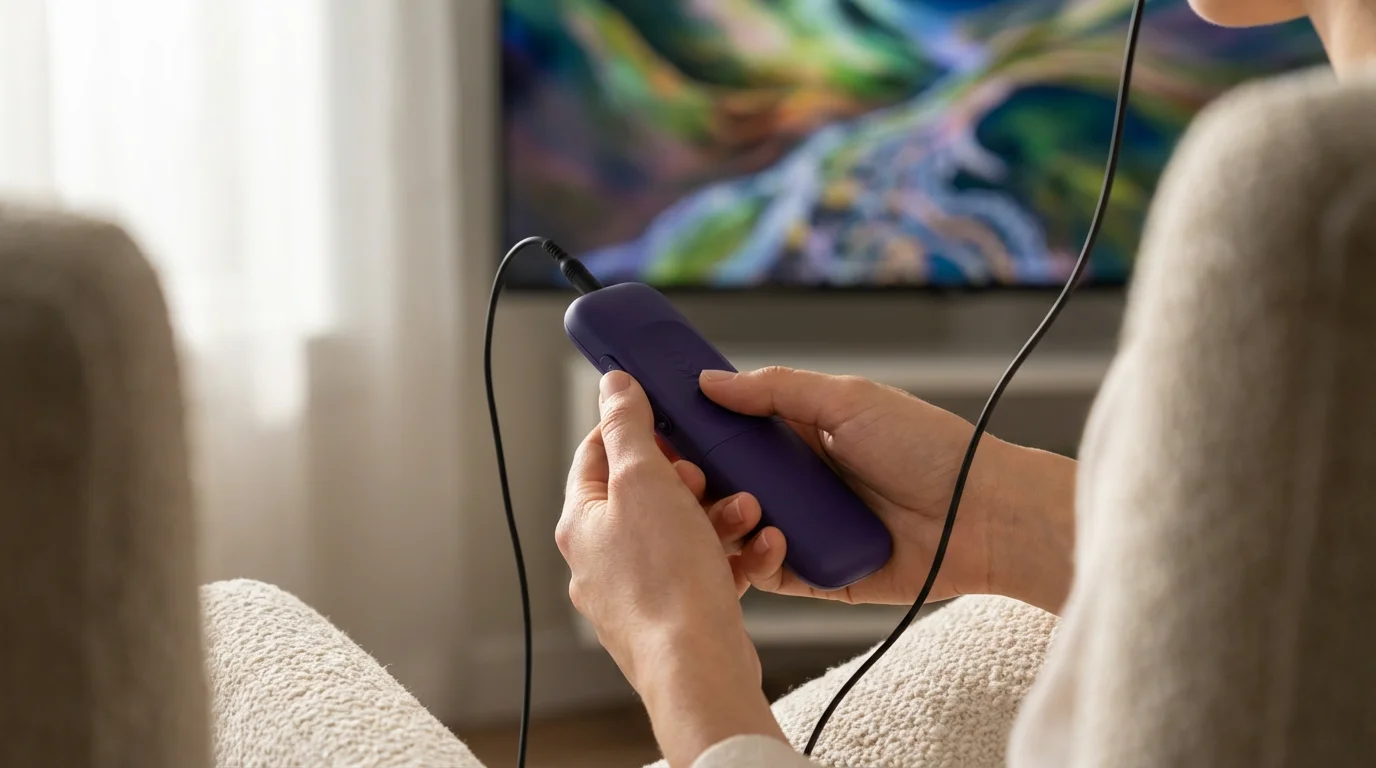
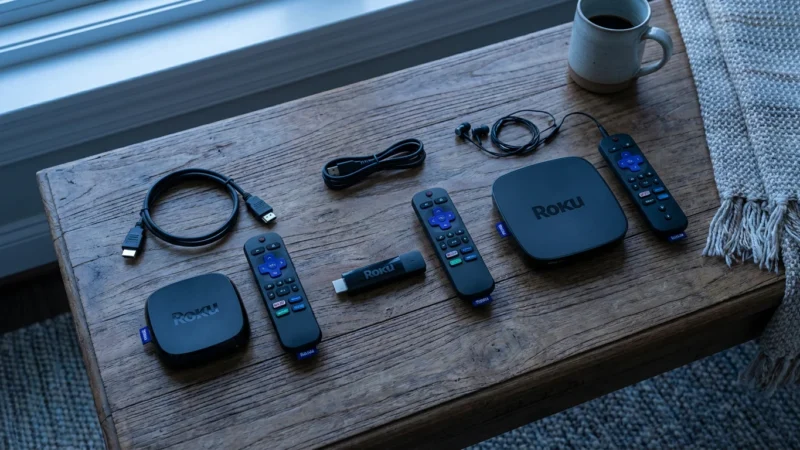
Roku offers several remote types. Basic Roku remotes are IR, while enhanced “Voice Remotes” use Wi-Fi Direct, allowing voice commands and often TV power/volume control. The Roku Voice Remote Pro even includes a rechargeable battery, a headphone jack for private listening, and a customizable shortcut button.
Programming a Roku Voice Remote (Wi-Fi Direct)
If your Roku remote loses pairing or you get a new one, you need to pair it:
- Insert fresh batteries into the remote.
- Ensure your Roku device is powered on and connected to your TV.
- Hold down the pairing button inside the battery compartment (usually a small, indented button) for about 5 seconds.
- The pairing light on the remote will flash.
- Your Roku TV or player will display a pairing message. Follow any on-screen prompts.
To program a Roku Voice Remote to control your TV’s power and volume, navigate to Settings > Remotes & Devices > Remotes > Set up remote for TV control on your Roku device. The Roku system guides you through the process, often using a list of TV brands to find the correct IR codes.
Replacing a Roku Remote
Official Roku remotes are available directly from Roku’s website or major retailers. A standard Roku Voice Remote typically costs around $20-$30, while the Voice Remote Pro might be $30-$40. Third-party compatible Roku remotes are often available on marketplaces like Amazon or eBay for less, but verify their features and compatibility. Many cheaper third-party options are IR-only and will not support voice control or TV power/volume. For reliable performance and full feature access, investing in an official replacement is usually the best approach.
Amazon Fire TV Remotes: Programming and Replacements
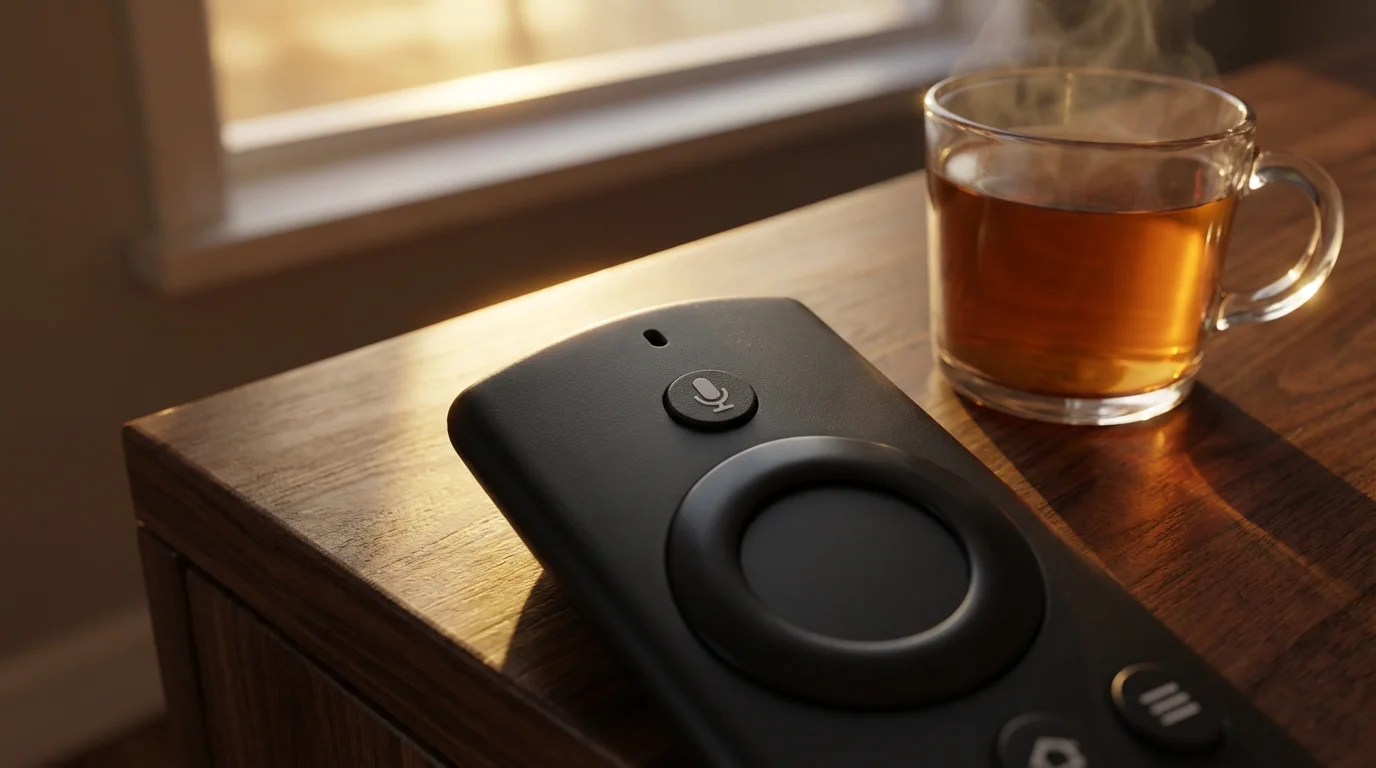
Amazon Fire TV remotes primarily use Bluetooth, offering reliable connection without line of sight. Most Fire TV remotes feature a microphone button for Alexa voice commands, and newer models integrate TV power, volume, and mute controls. The latest Fire TV Stick 4K Max remote includes dedicated app buttons.
Pairing an Amazon Fire TV Remote
To pair a new or unresponsive Fire TV remote:
- Ensure your Fire TV device is powered on.
- Hold the Home button on the remote for approximately 10 seconds.
- The remote’s LED indicator will flash, then turn solid blue once paired.
- Your Fire TV will display an on-screen confirmation.
If your Fire TV remote has lost its pairing, you can often re-pair it using the same method. If you have multiple Fire TV remotes, your device allows up to seven remotes to be paired simultaneously.
Replacing an Amazon Fire TV Remote
Amazon sells official replacement remotes on its website. A standard Alexa Voice Remote costs approximately $30. If you own an older Fire TV device and want to upgrade to a remote with TV controls, you can often buy the newer remote separately, as it is backward compatible with most recent Fire TV models. Third-party options exist but often lack full Alexa voice integration or reliable TV control. Given the tight integration of Alexa, purchasing an official Amazon remote is highly recommended for the best experience.
Apple TV Remotes: Programming and Replacements
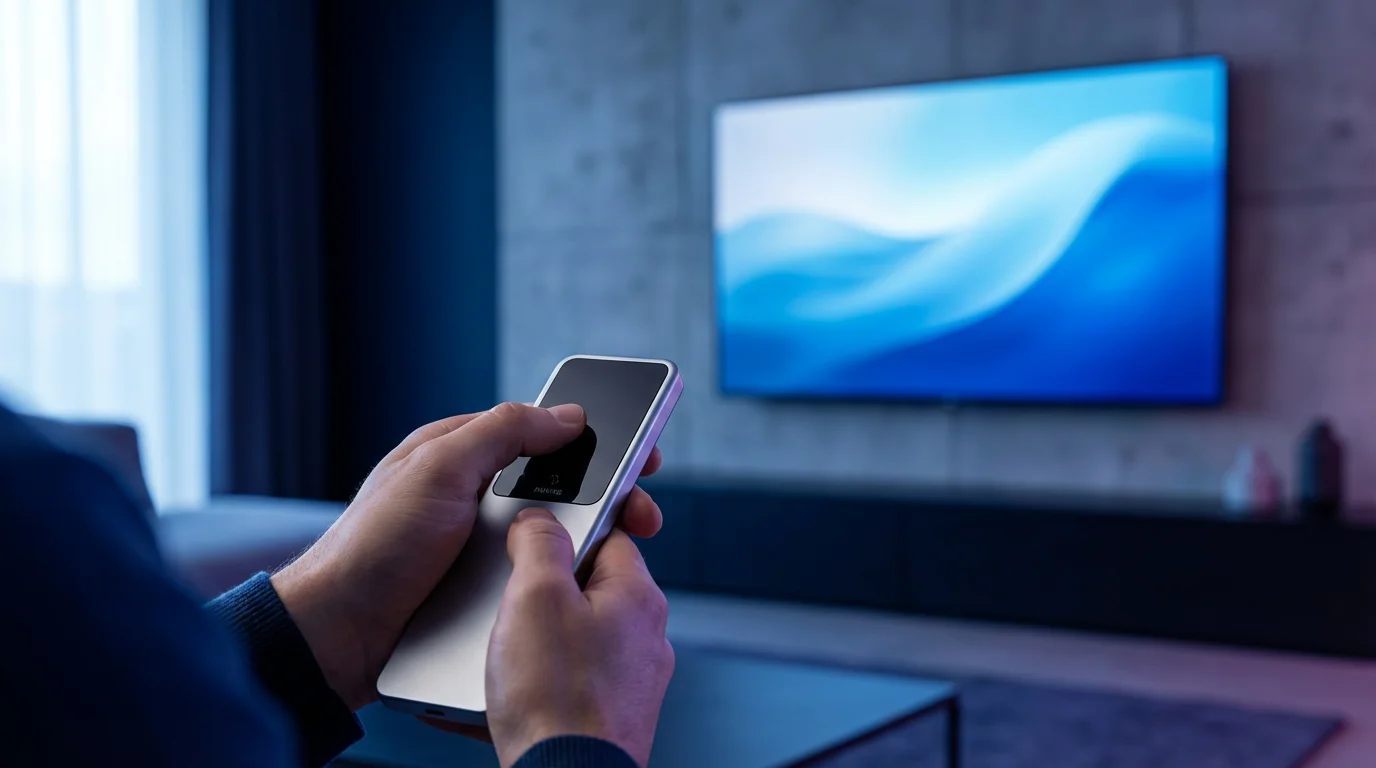
Apple TV devices use the Siri Remote (formerly Apple TV Remote), which features a glass touch surface, dedicated Siri button, and universal TV controls. It communicates via Bluetooth, but the TV control functions use IR. The Siri Remote is known for its minimalist design and precise navigation.
While the remote is a standout feature, you can learn more about the hardware it controls in our Apple TV 4K review.
Pairing the Apple TV Siri Remote
The Siri Remote typically pairs automatically during the initial Apple TV setup. If you need to re-pair it or pair a new remote:
- Bring the remote within three inches of your Apple TV.
- Point the remote at the Apple TV.
- Press and hold the Menu button and the Volume Up button simultaneously for five seconds.
- If prompted, place the remote on top of your Apple TV to complete pairing.
To program the Siri Remote to control your TV or receiver volume, navigate to Settings > Remotes and Devices > Volume Control on your Apple TV. You can choose “Auto” for automatic detection or “Learn New Device” to teach it commands from your original TV remote. This remote integrates well within the Apple ecosystem, offering quick access to Apple Arcade games and other services.
Replacing an Apple TV Remote
Official Siri Remotes are available directly from Apple or authorized retailers. Expect to pay around $59 for a new Siri Remote. Due to its unique touch surface and Siri integration, finding a fully functional third-party replacement is challenging. While basic universal IR remotes can sometimes control the Apple TV for simple navigation (if you configure your Apple TV to accept IR signals), you will lose Siri functionality and the precise touch control. For Apple households, investing in the official remote ensures the full Apple TV experience. Consumer Reports frequently highlights the unique user interface of Apple TV, much of which relies on the Siri Remote’s advanced features, making official replacements vital.
Chromecast and Smart TV Remotes
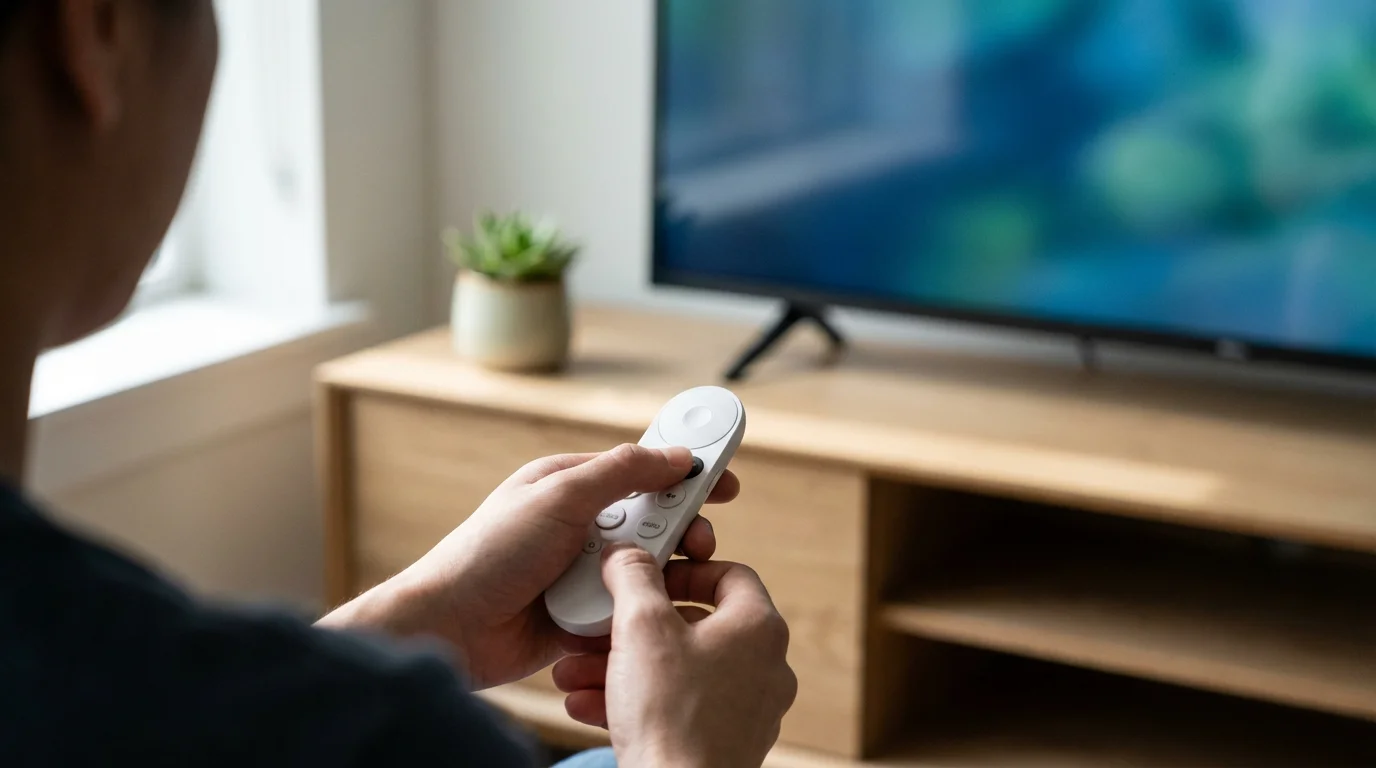
Chromecast devices traditionally relied on smartphone apps for control. However, Chromecast with Google TV introduced a dedicated remote. Smart TVs, by definition, have their own remotes that control both TV functions and built-in streaming apps.
Chromecast with Google TV Remote
This remote connects via Bluetooth and includes a Google Assistant button for voice commands, along with TV power, volume, and input controls. If you need to pair it:
- Go to Settings > Remotes & Accessories > Pair remote or accessory on your Chromecast with Google TV.
- Press and hold the Back button and Home button on the remote simultaneously until a pairing light flashes.
- Select your remote from the list on your TV screen.
Smart TV Remotes
Smart TV remotes are designed to control both the TV’s core functions and its integrated streaming apps. They often feature dedicated buttons for popular services like Netflix, Hulu, or Amazon Prime Video. If your smart TV remote is not working for streaming apps, try these steps:
- Replace batteries: Always the first step.
- Restart TV: Unplug the TV from power for 60 seconds, then plug it back in.
- Check TV settings: Some smart TVs have settings that affect remote responsiveness or pairing.
- Update TV firmware: Ensure your smart TV’s software is up to date, as updates often include remote stability improvements.
When to buy a dedicated streaming device versus use your smart TV’s built-in apps often comes down to performance and features. While a smart TV’s remote controls its built-in apps, a dedicated streaming device like a Roku or Fire TV stick might offer faster performance, more frequent software updates, and specific remote features (like a headphone jack) that your smart TV remote lacks. If your smart TV apps are slow or prone to crashing, a dedicated streaming device with its own remote offers a superior, more consistent experience.
Beyond Physical Remotes: Mobile Apps and Voice Control
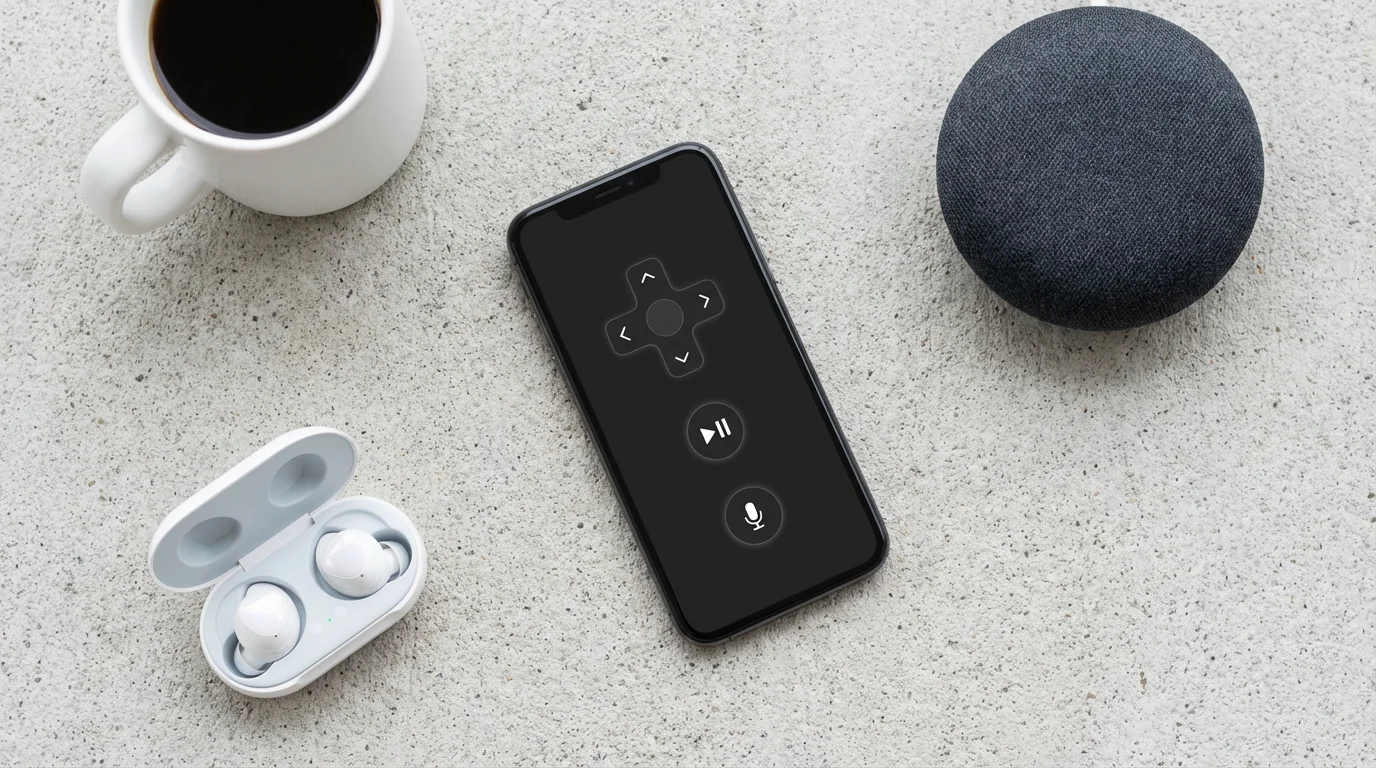
Even with a working physical remote, you have other powerful control options. Mobile apps and voice assistants provide convenient alternatives, especially when your remote goes missing or you need more robust search capabilities.
Mobile Remote Apps
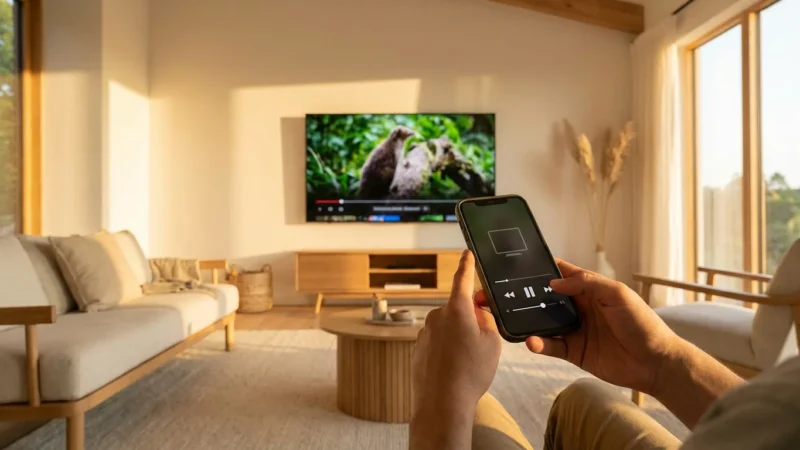
Roku, Amazon Fire TV, and Apple TV all offer excellent, free mobile apps for iOS and Android. These apps function as full-featured remotes, complete with keyboard input for easier searching, voice control (using your phone’s microphone), and even private listening for some Roku models. To use them, your smartphone or tablet must connect to the same Wi-Fi network as your streaming device. This is a crucial tip for anyone who frequently loses their remote. When your physical streaming device remote not working, the mobile app serves as an immediate backup.
Voice Control Integration
Modern streaming remotes heavily feature voice control. Roku’s Voice Remote uses its own built-in microphone, while Amazon’s Alexa Voice Remote leverages Amazon’s Alexa ecosystem. Apple’s Siri Remote integrates with Siri. These voice assistants allow you to:
- Search for movies and TV shows by title, actor, or genre.
- Launch specific apps.
- Control playback (pause, fast forward, rewind).
- Change channels on live TV streaming services.
- Even control smart home devices (with Alexa or Siri integration).
For example, you can say “Alexa, open Netflix” on your Fire TV remote, or “Hey Siri, play Ted Lasso” on your Apple TV remote. This hands-free control vastly improves the user experience and reduces the need for constant button presses.
Choosing the Right Replacement Remote: A Value Analysis
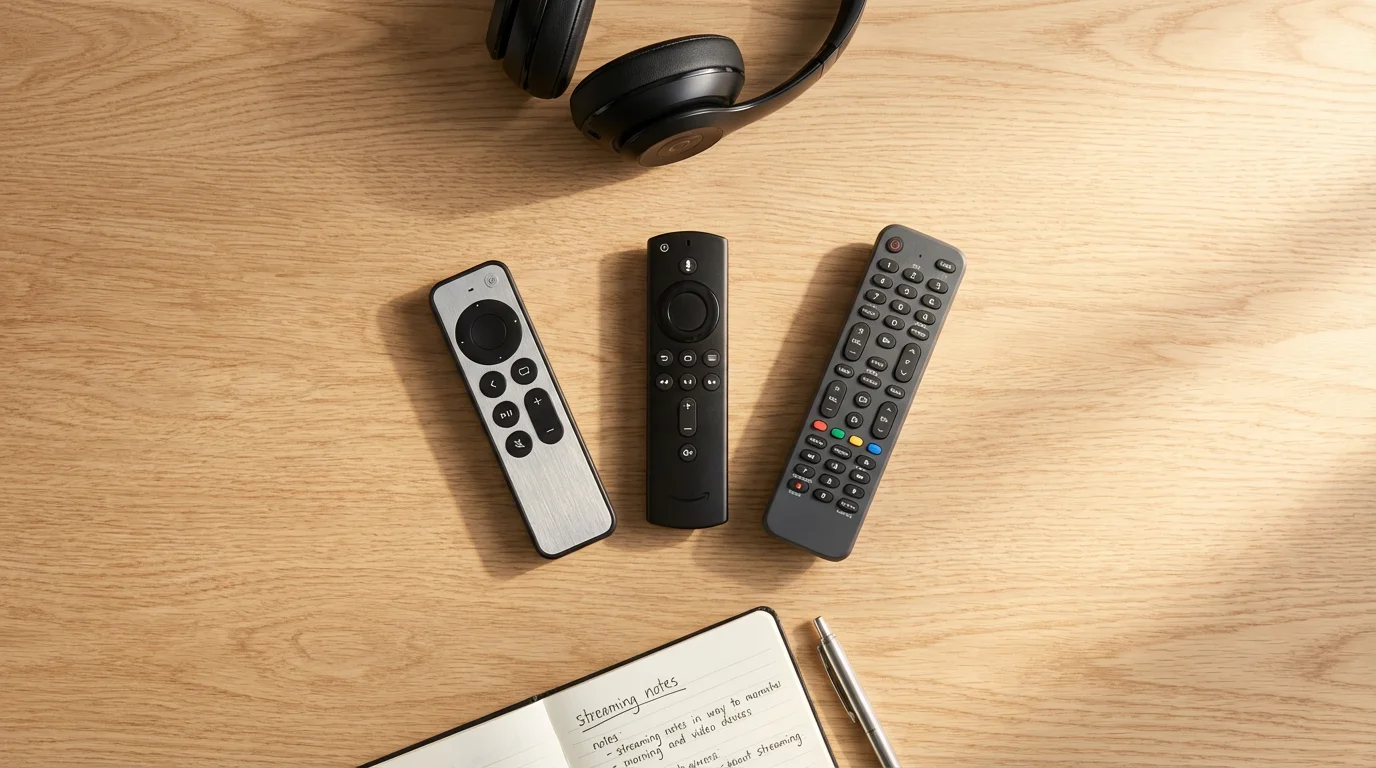
When replacing a lost remote, consider the price-to-value for your budget tier. Replacement remotes range from under $10 for basic third-party options to over $60 for premium official models.
Budget Tiers for Replacement Remotes
- Under $30 (Budget Buyers): At this price point, you primarily find basic IR remotes or very simple third-party “compatible” remotes. These are suitable if you only need essential navigation, and your original remote didn’t have advanced features like voice control or TV power. Be cautious about quality and feature claims. An official basic Roku IR remote sometimes falls into this range.
- $30 – $50 (Mid-Range Value): This tier often covers official voice remotes for Roku and Amazon Fire TV. You get crucial features like voice control, dedicated app buttons, and TV power/volume control. This range offers the best balance of features and reliability for most users.
- $50 – $100+ (Premium/Specialized): This includes the Apple TV Siri Remote, the Roku Voice Remote Pro, or advanced universal remotes. These offer unique features like touchpads, rechargeable batteries, private listening, or multi-device control. If you prioritize specific functionalities or consolidate your setup, these are worthwhile investments.
Your existing ecosystem (Apple, Amazon, Google) also plays a significant role. If you are an Apple household, the Siri Remote offers seamless integration with other Apple services and devices. Amazon Fire TV users benefit greatly from the deep Alexa integration in their official remotes. Prioritize compatibility with your specific device and the features you use daily. According to CNET’s streaming device reviews, the remote is a key component of the overall user experience, directly impacting daily interactions with your chosen streaming platform.

Maintaining Your Streaming Remote for Longevity
Proper care significantly extends the life of your streaming remote, saving you the hassle and cost of replacement. Simple habits make a big difference.
- Use Quality Batteries: Invest in reputable alkaline or rechargeable batteries. Cheap batteries can leak, causing corrosion that permanently damages your remote’s internal components.
- Keep it Clean: Regularly wipe down your remote with a soft, dry cloth. For sticky residues or dirt around buttons, use a cotton swab lightly dampened with rubbing alcohol. Ensure no liquid seeps into the remote.
- Protect from Drops and Spills: Remotes are fragile. Avoid dropping them, especially touch-sensitive Apple TV remotes. Keep drinks away to prevent spills. Consider a protective silicone case for added durability, especially if you have children or are prone to accidental drops.
- Store Properly: When not in use, avoid leaving your remote in direct sunlight or extreme temperatures, which can damage internal circuits or batteries. Some users find a dedicated remote holder or tray helps prevent misplacement and keeps the remote safe.
- Remove Batteries During Long Storage: If you plan not to use your streaming device for an extended period, remove the batteries from the remote to prevent leakage.
By adopting these simple maintenance practices, you ensure your streaming remote remains a reliable gateway to your entertainment, avoiding the common pitfalls of a lost remote or a streaming device remote not working.
Frequently Asked Questions
Can I use my TV remote to control my streaming device?
Many modern smart TVs and streaming devices support HDMI CEC (Consumer Electronics Control). This feature allows your TV remote to send basic commands like power, volume, and even navigation to a connected streaming device via the HDMI cable. Check your TV and streaming device settings for “HDMI CEC” or similarly named options like “Bravia Sync” (Sony), “Anynet+” (Samsung), or “SimpLink” (LG). Enable this feature on both devices to attempt control with a single remote. However, advanced features like voice control or specific app buttons usually remain exclusive to the streaming device’s original remote.
My streaming remote is lost. What are my immediate options?
If you lose your remote, your immediate and best option is to download the official mobile remote app for your streaming device (Roku, Amazon Fire TV, Apple TV) onto your smartphone or tablet. These apps offer full functionality, including voice control and keyboard input. Ensure your mobile device is connected to the same Wi-Fi network as your streaming device. This allows you to control your device immediately while you search for the lost remote or plan for a replacement remote.
How do I know if my remote is IR or Bluetooth/Wi-Fi Direct?
IR (infrared) remotes typically require a direct line of sight to your streaming device to function. They also often have a small, dark plastic “bulb” at the top front where the IR signal is emitted. Bluetooth or Wi-Fi Direct remotes do not require line of sight and often have more advanced features like voice control or headphone jacks. If your remote operates even when pointed away from the device, it likely uses Bluetooth or Wi-Fi Direct. Check your device’s specifications or your remote’s battery compartment for a pairing button, which is characteristic of Bluetooth/Wi-Fi Direct remotes.
Is it worth buying an expensive universal remote for my streaming setup?
The value of an expensive universal remote depends on your specific setup and needs. If you have numerous home theater components (TV, soundbar, AV receiver, gaming console, streaming device) and find yourself juggling multiple remotes, a high-quality universal remote can greatly simplify your experience. However, be aware that many universal remotes, especially older or cheaper models, might not fully support advanced features like voice control for streaming devices, or they may struggle with Bluetooth-only streaming remotes. Research specific universal remote models to ensure they support your exact streaming device and its key features before investing.
Disclaimer: Device prices and features may change. New models are released regularly, so check for the latest versions before purchasing. The “best” device depends on your specific needs, existing ecosystem (Apple, Google, Amazon), and budget.
Leave a Reply