
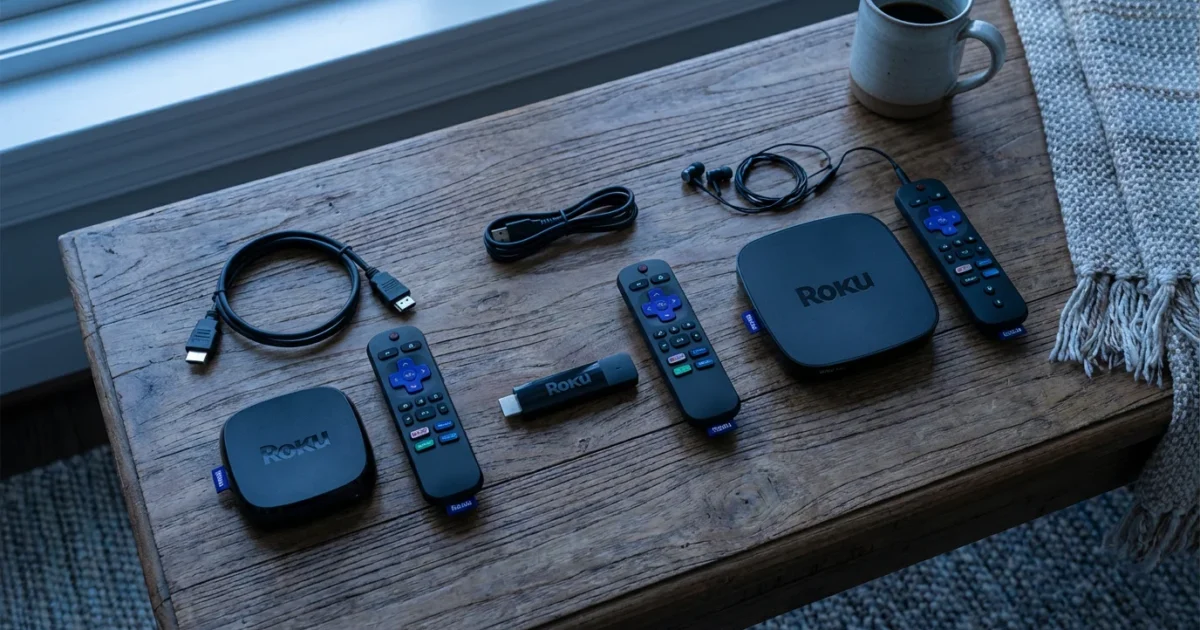
You want to cut the cord from cable, save money, and simplify your entertainment. Streaming devices offer an excellent path to achieving those goals, but the sheer number of options can feel overwhelming. Roku stands as a leader in this space, known for its user-friendly interface and extensive content library. However, Roku itself offers several models, each with distinct features and price points. You need to understand the differences between the Roku Express, Roku Streaming Stick 4K, and Roku Ultra to make the best decision for your home. This guide helps you navigate the options, focusing on value, performance, and specific use cases.
Understanding Roku’s Lineup
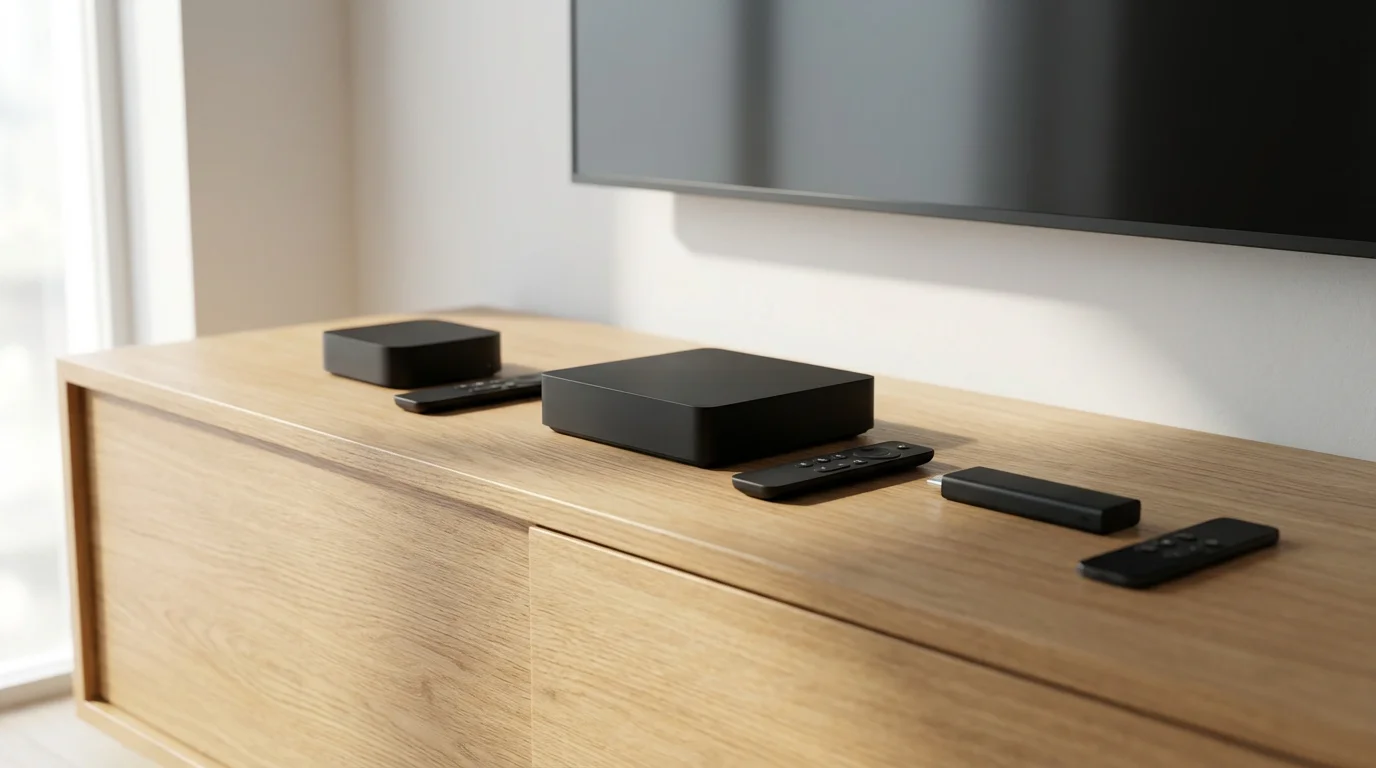
Roku provides a range of streaming devices, small boxes or sticks that add streaming capabilities to any television, making it a “smart TV” even if it lacks built-in internet connectivity and apps. Their devices simplify access to hundreds of streaming services, allowing you to watch video content over the internet instead of traditional cable or satellite. This process, known as cord-cutting, saves many households significant money each month. Roku’s strength lies in its intuitive platform, called the Roku OS, which offers thousands of channels, including popular services like Netflix, Hulu, Disney+, and Max.
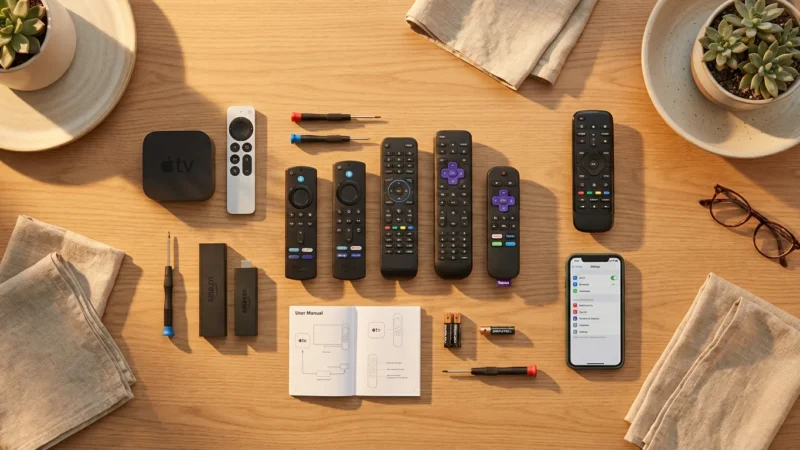
Before diving into the specific Roku models, you might want to see how the platform compares to its competitors in our guide to Roku vs Fire TV vs Apple TV vs Chromecast.
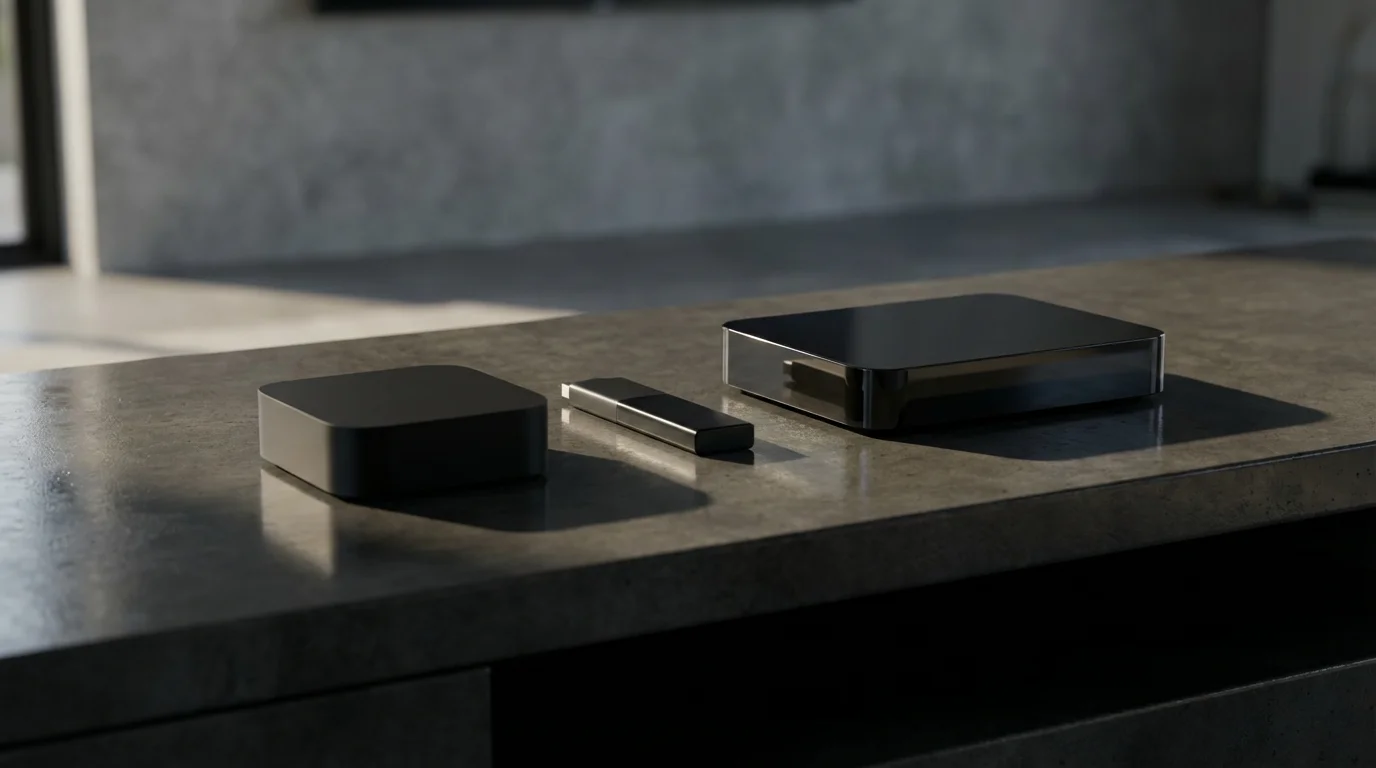
Roku maintains distinct models to cater to different budgets and technical requirements. The Roku Express serves as an entry-level device, offering basic HD streaming at a very accessible price. Stepping up, the Roku Streaming Stick 4K provides enhanced video quality and better wireless performance in a compact form factor. At the top of the line, the Roku Ultra delivers the most robust features, including superior connectivity options and an advanced remote, ideal for dedicated home theater setups.
Roku Express: The Budget Champion
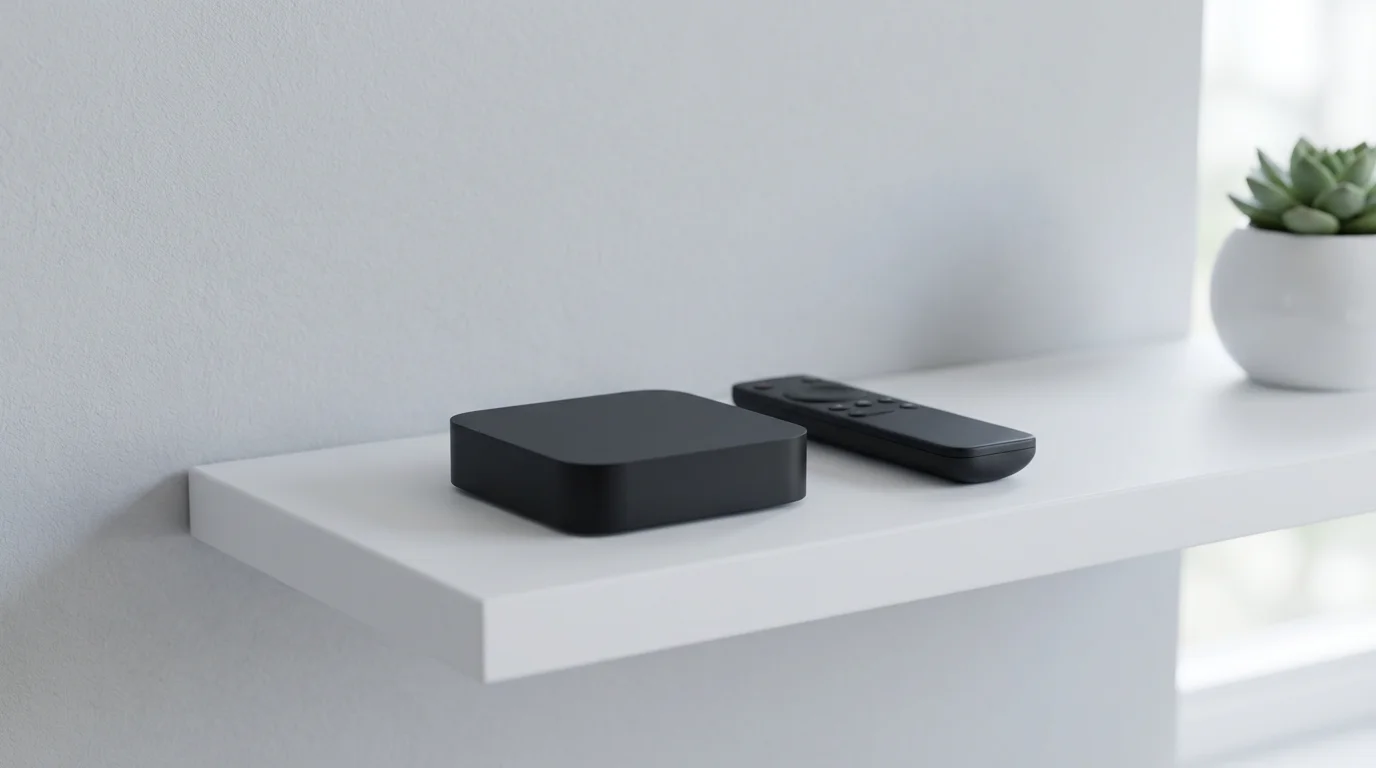
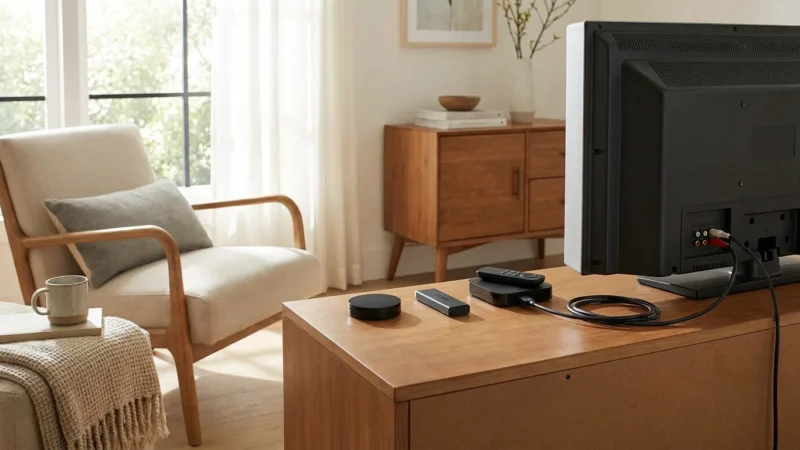
The Roku Express is your gateway into the world of streaming, perfect for budget-conscious viewers or those new to cord-cutting. Priced around $30, it delivers full HD (1080p) resolution, making it suitable for most standard televisions. You connect it to your TV using an HDMI cable and power it via a USB port on your TV or a wall adapter.
If this is your very first piece of hardware, we have a complete beginner’s guide on how to set up your first streaming device to help.
The Express model offers thousands of free and subscription-based channels. Its setup is straightforward: plug it in, connect to your Wi-Fi, and log into your Roku account. It includes a simple infrared remote control, which means you need a clear line of sight to the device to operate it. This simplicity is both its greatest strength and its primary limitation. It handles standard streaming well, loading apps like Netflix and YouTube smoothly enough for casual viewing.
**Pros of Roku Express:**
- Affordable Price: It presents the lowest entry barrier for streaming.
- Ease of Use: The setup process and interface remain incredibly simple.
- Access to Roku’s Ecosystem: You get the same vast library of apps as higher-end models.
**Cons of Roku Express:**
- No 4K or HDR Support: It limits you to 1080p, unsuitable for modern 4K televisions.
- Basic Wi-Fi: It uses older Wi-Fi standards, which can struggle with congestion or weaker signals, potentially leading to buffering.
- Infrared Remote: Requires line of sight, and lacks advanced features like voice control or private listening.
- Slower Performance: App loading and navigation are noticeably slower than on more powerful Roku devices.
The Roku Express works best for secondary TVs, older sets, or anyone prioritizing cost savings above all else. If you own an older HD TV or have a strong, uncongested Wi-Fi network close to the device, the Express offers excellent value.
Roku Streaming Stick 4K: The Mid-Range Powerhouse
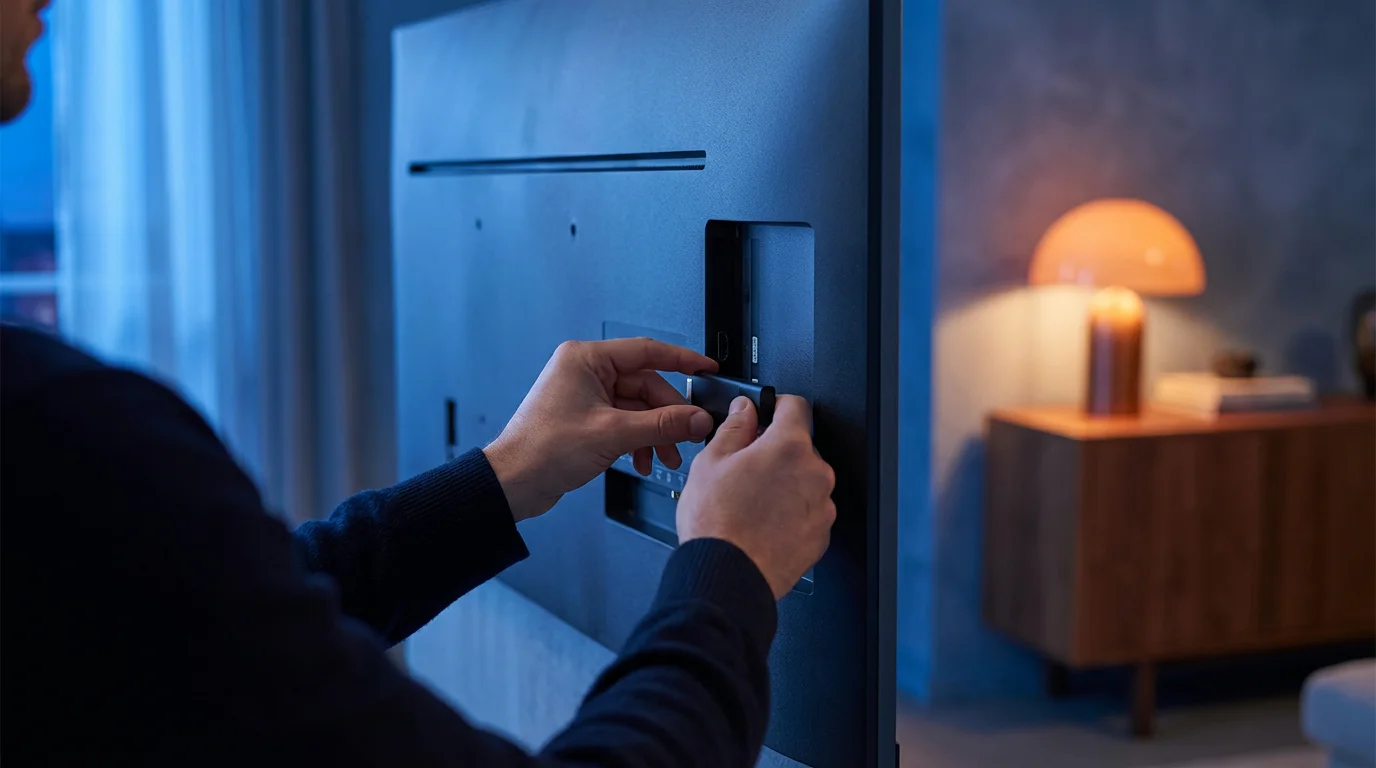
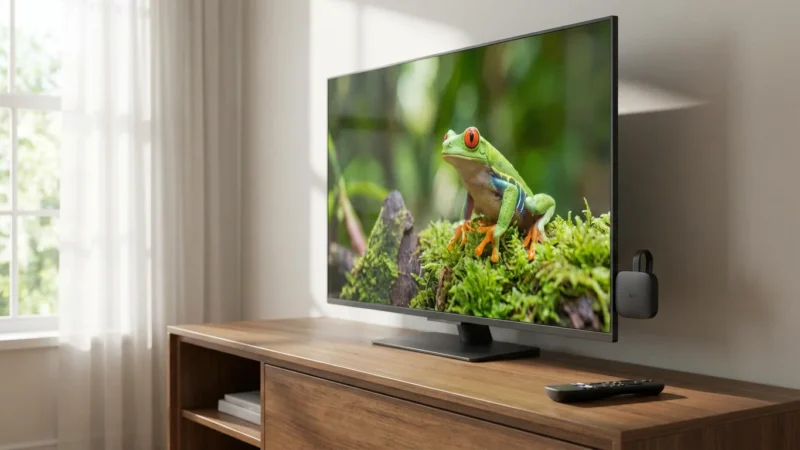
The Roku Streaming Stick 4K, often available for around $50, represents a significant upgrade, especially if you own a modern television. It is a compact, HDMI stick design that plugs directly into an HDMI port on your TV, often hiding discreetly behind it. This device excels in delivering superior video and audio quality.
It supports 4K resolution, which provides four times the pixels of 1080p, resulting in sharper and more detailed images on compatible televisions. Furthermore, it supports High Dynamic Range (HDR) formats, including HDR10 and Dolby Vision. HDR enhances the contrast and color accuracy of content, making bright areas brighter and dark areas deeper, creating a more lifelike picture. Dolby Vision is an advanced HDR format offering scene-by-scene optimization for even greater visual fidelity. The Streaming Stick 4K also handles Dolby Atmos audio, an immersive sound technology that creates a three-dimensional audio experience, provided your sound system supports it.
A key improvement lies in its Wi-Fi performance. The Roku Streaming Stick 4K features a long-range Wi-Fi receiver, often supporting WiFi 6. WiFi 6 offers faster speeds and better performance in congested network environments, ensuring smoother 4K streaming with less buffering, even if your router is further away. According to Wirecutter’s streaming device reviews, the Streaming Stick 4K consistently performs well for its balance of features and price.
**Pros of Roku Streaming Stick 4K:**
- 4K, HDR10, and Dolby Vision Support: Delivers stunning picture quality on compatible TVs.
- Dolby Atmos Audio: Provides immersive sound for home theater systems.
- Enhanced Wi-Fi: Long-range Wi-Fi and WiFi 6 support mean more reliable streaming, even at a distance.
- Voice Remote: Includes a voice remote with TV controls (power, volume) and private listening via the Roku app.
- Compact Design: Plugs directly into your TV’s HDMI port, keeping your entertainment area tidy.
**Cons of Roku Streaming Stick 4K:**
- No Ethernet Port: Relies solely on Wi-Fi, which can be a limitation for some users who prefer wired connections for ultimate stability.
- No USB Port: You cannot play local media files directly from a USB drive.
This device offers excellent value for most households with a 4K TV and a solid Wi-Fi network. It’s the sweet spot for many streamers who want high quality without a premium price tag.

Roku Ultra: The Premium Experience
The Roku Ultra, typically priced around $100 and sometimes higher with special editions, stands as Roku’s flagship streaming device. It caters to discerning users and home theater enthusiasts who demand the best performance, connectivity, and features. The Ultra provides 4K, HDR10, and Dolby Vision support, matching the Streaming Stick 4K’s video quality, and it also handles Dolby Atmos audio for a truly immersive sound experience.
What sets the Ultra apart are its robust connectivity options and advanced remote control. Unlike the stick models, the Ultra features an Ethernet port, allowing you to connect directly to your home network with a cable. This provides the most stable and reliable connection, virtually eliminating buffering due to Wi-Fi interference, which is particularly beneficial for high-bandwidth 4K streaming or live sports. It also includes a USB port, enabling you to play your own media files (videos, photos, music) directly from a USB drive.
The Roku Ultra remote is a standout feature. It is a voice remote with TV power and volume controls, but it also includes two programmable shortcut buttons for your favorite channels and a headphone jack for private listening. Furthermore, the remote has a “lost remote finder” button on the device itself, which makes the remote play an audible tone, a simple yet highly practical addition.
**Pros of Roku Ultra:**
- Superior Connectivity: Includes an Ethernet port for wired internet and WiFi 5 (or sometimes WiFi 6E in newer iterations), offering the most stable streaming experience.
- USB Port: Play local media files directly from a USB drive.
- Advanced Voice Remote: Features a headphone jack for private listening, programmable shortcut buttons, and a lost remote finder.
- Fast Performance: Its powerful processor ensures quick app loading and smooth navigation.
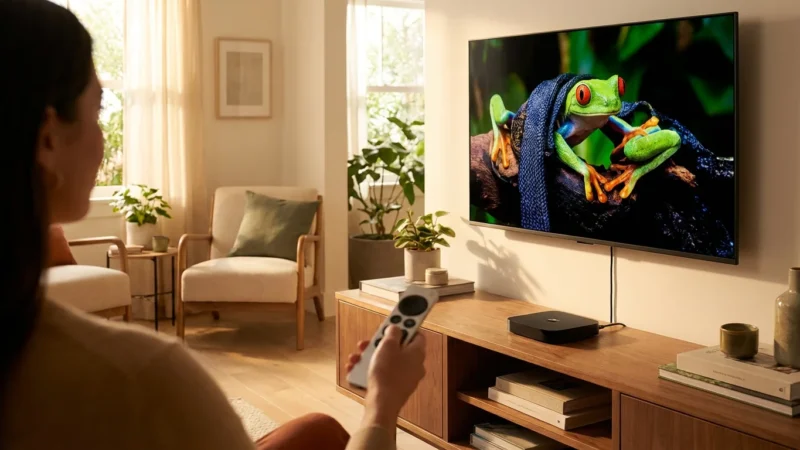
- Robust Build: A small set-top box design that sits under your TV.
**Cons of Roku Ultra:**
- Higher Price Point: It costs significantly more than the Express or Streaming Stick 4K.
- Larger Form Factor: It is not as discreet as the stick models.
- Features may be overkill: Many users do not require the Ethernet port or USB playback.
The Roku Ultra targets users who prioritize a flawless streaming experience, want wired internet stability, or utilize its unique remote features like private listening. If you have a premium home theater setup or struggle with unreliable Wi-Fi, the Ultra offers unmatched reliability and convenience within the Roku ecosystem.
“Choosing a streaming device involves understanding your TV’s capabilities, your home network’s strengths, and the specific features that genuinely enhance your personal viewing experience.”
Feature-by-Feature Roku Comparison
Understanding the key differences side-by-side helps clarify which model aligns with your needs. Here is a detailed comparison of the Roku Express, Roku Streaming Stick 4K, and Roku Ultra.
| Feature | Roku Express | Roku Streaming Stick 4K | Roku Ultra |
|---|---|---|---|
| Price Tier (Approx.) | $30 | $50 | $100+ |
| Max Resolution | 1080p (Full HD) | 4K (UHD) | 4K (UHD) |
| HDR Support | No | HDR10, HDR10+, Dolby Vision | HDR10, HDR10+, Dolby Vision |
| Audio Support | Stereo, DTS Digital Surround | Dolby Atmos, DTS Digital Surround | Dolby Atmos, DTS Digital Surround |
| Connectivity | Wi-Fi (Single-band 802.11n) | Long-range Wi-Fi (Dual-band 802.11ac/ax, WiFi 6 support) | Ethernet, Dual-band Wi-Fi (802.11ac/ax, WiFi 6E in latest models) |
| Remote Type | Standard IR remote | Voice remote with TV controls | Voice remote with TV controls, programmable buttons, headphone jack, lost remote finder |
| Private Listening | Via Roku mobile app | Via Roku mobile app | Via remote control headphone jack or Roku mobile app |
| Ethernet Port | No | No | Yes |
| USB Port | No | No | Yes (for local media playback) |
| Processor Speed | Good for HD streaming | Fast, optimized for 4K/HDR | Fastest, ideal for demanding tasks |
| Form Factor | Small box | HDMI stick | Larger box |
| Power | Micro USB (wall adapter included) | Micro USB (wall adapter included) | Wall adapter |
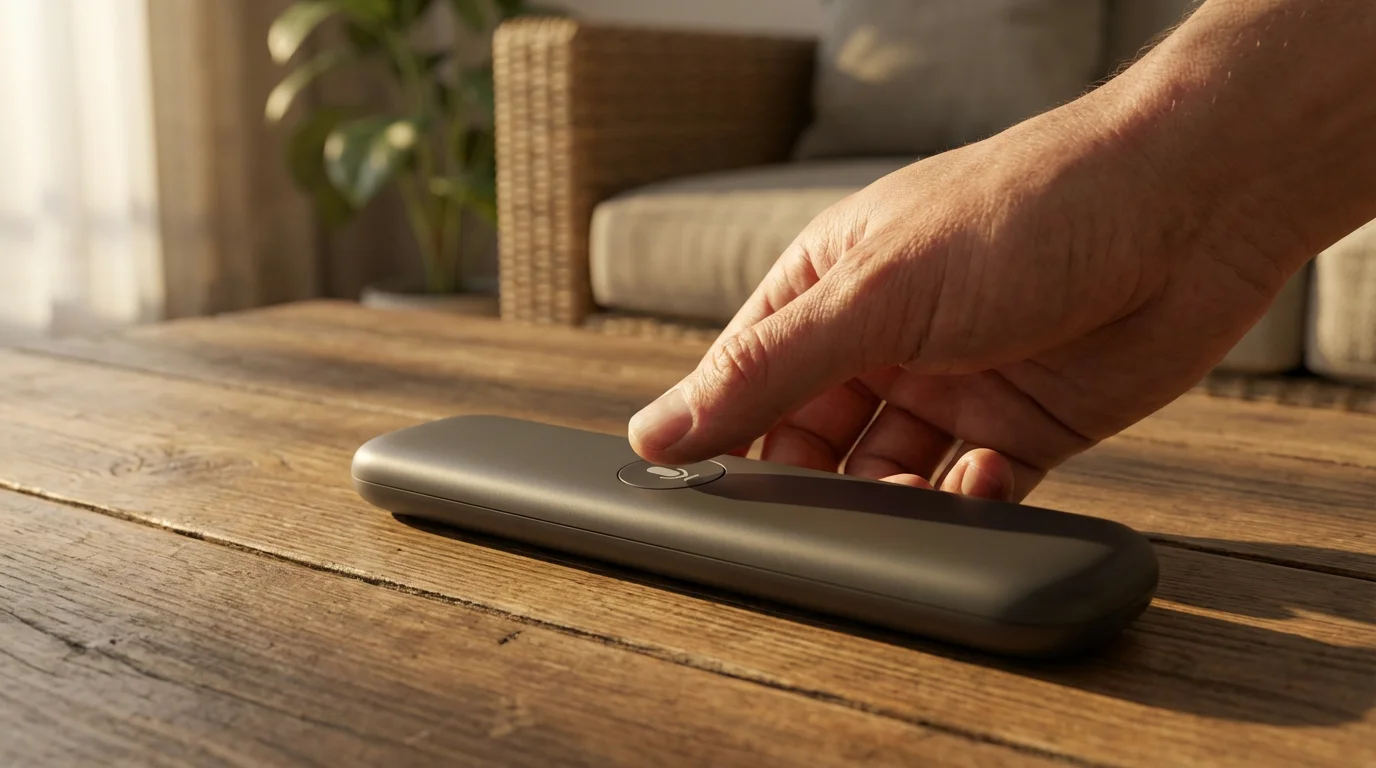
Remote Controls and Voice Assistants Compared
The remote control is your primary interaction point with your Roku device, and the experience varies significantly across models.
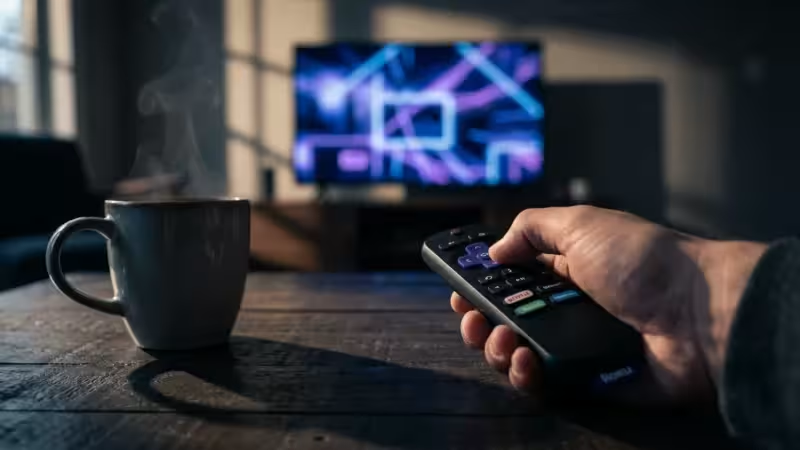
The **Roku Express** uses a simple infrared (IR) remote. This remote is basic: it controls the Roku device itself, but not your TV’s power or volume. You need a direct line of sight to the Express box for it to work. For private listening, you must use the Roku mobile app on your smartphone, connecting headphones to your phone.
The **Roku Streaming Stick 4K** includes a voice remote. This remote offers more convenience by allowing you to control your TV’s power and volume, reducing the number of remotes you need. It also features a microphone button for voice commands, letting you search for content, launch apps, or control playback by speaking into the remote. Similar to the Express, private listening requires the Roku mobile app.
The **Roku Ultra** offers the most advanced remote. It matches the Streaming Stick 4K’s voice control and TV power/volume functions, but adds valuable extras. You find two programmable shortcut buttons, allowing you to quickly jump to your favorite apps. Crucially for many users, it includes a 3.5mm headphone jack directly on the remote, making private listening effortless without needing your phone. Furthermore, a button on the Ultra device itself helps you locate a misplaced remote by making it emit an audible tone. This comprehensive remote enhances the premium user experience.
All Roku devices integrate with voice assistants like Amazon Alexa and Google Assistant through their respective smart speakers, allowing you to use voice commands to control your Roku from across the room. Roku’s own voice assistant, accessed via the voice remotes, focuses specifically on content search and playback within the Roku ecosystem.
When to Use Your Smart TV Apps Versus a Dedicated Roku
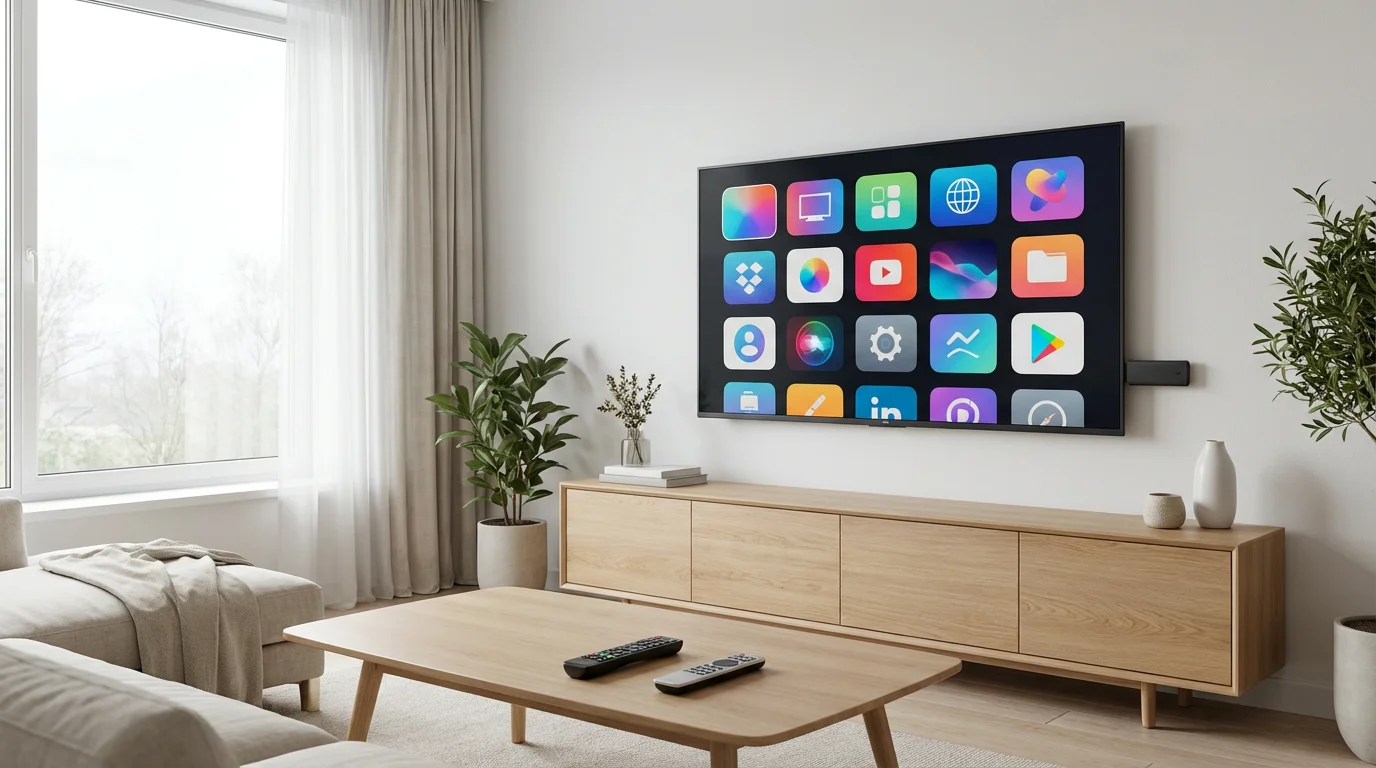
Many modern televisions are “smart TVs,” meaning they come with built-in internet connections and pre-installed apps. You might wonder if you still need a dedicated streaming device. The answer depends on your specific TV and your expectations.
**When Smart TV Apps are “Good Enough”:**
- Newer, High-End Smart TVs: If you have a recent, premium smart TV (especially from brands like LG, Samsung, or Sony), its built-in processor might be powerful enough to run apps smoothly.
- Infrequent Streaming: For occasional use, or if you only use a couple of specific apps, the convenience of built-in apps might suffice.
- Simplicity: Using one remote for everything is appealing to some users.
**When a Dedicated Roku Device is Better:**
- Older Smart TVs: The processors in older smart TVs often become sluggish over time, making app navigation frustratingly slow. A dedicated Roku provides a faster, more responsive experience.
- Outdated Smart TV Software: Manufacturers eventually stop updating older smart TV operating systems, meaning you might lose access to new apps or security updates. A Roku device ensures you always have the latest streaming platform.
- Consistent User Experience: Roku provides a unified interface across all its devices, regardless of your TV brand. This offers a consistent and familiar experience if you have multiple TVs. As CNET reports, dedicated streaming devices often offer superior performance and a wider range of app support compared to built-in smart TV platforms.
- Advanced Features: Features like an Ethernet port (Roku Ultra), private listening (Roku Ultra), or advanced Wi-Fi (Streaming Stick 4K) are often absent or inferior on smart TVs.
- Privacy Concerns: Some users prefer Roku’s platform over the data collection practices associated with certain smart TV brands that push their own content and advertising. While Roku collects data, it generally offers a more focused streaming experience without the added complexities of some smart TV platforms.
Investing in a Roku device, even for a smart TV, often upgrades your streaming experience through improved speed, reliability, and access to the latest features.
Best Roku for Your Budget and Needs
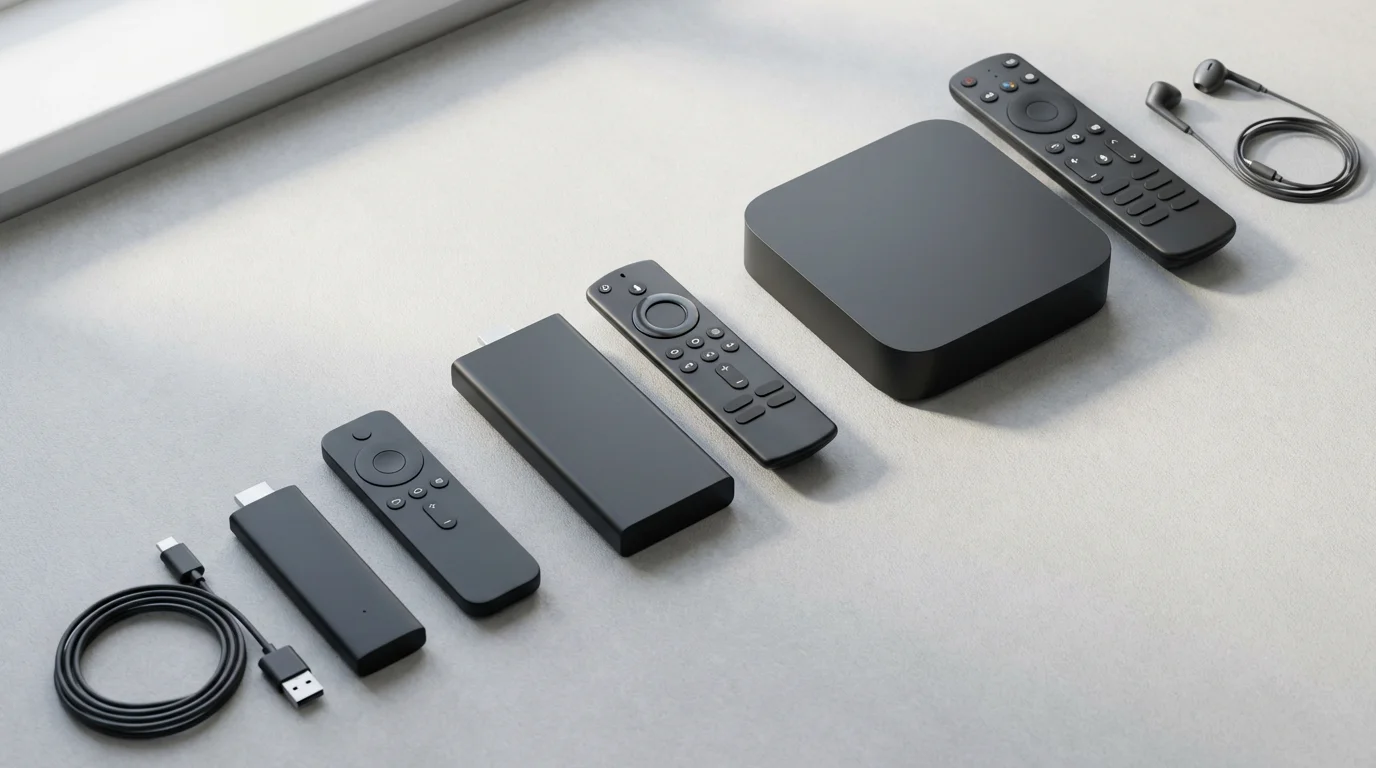
Your ideal Roku depends entirely on your specific circumstances. Consider your budget, the capabilities of your television, and your streaming habits.
Regardless of which model you choose, these options are among the best streaming devices for every budget available this year.
**For Budget Buyers ($30 Tier): Roku Express**
If you have an older HD television, stream occasionally, or simply want the most affordable way to access streaming services, the Roku Express is an excellent choice. It gets the job done without any frills, providing access to the vast Roku channel library. Do not buy this if you have a 4K TV and want to maximize its picture quality.
**For Value Seekers with 4K TVs ($50 Tier): Roku Streaming Stick 4K**
This model hits the sweet spot for most users. If you own a 4K TV and want to enjoy content in stunning resolution with HDR and Dolby Vision, the Streaming Stick 4K offers incredible value. Its improved Wi-Fi ensures smoother streaming, making it a highly reliable choice for the average household. It represents the best balance of features, performance, and price. Many experts, including Tom’s Guide, frequently recommend it as a top streaming device.
**For Power Users & Home Theater Enthusiasts ($100+ Tier): Roku Ultra**
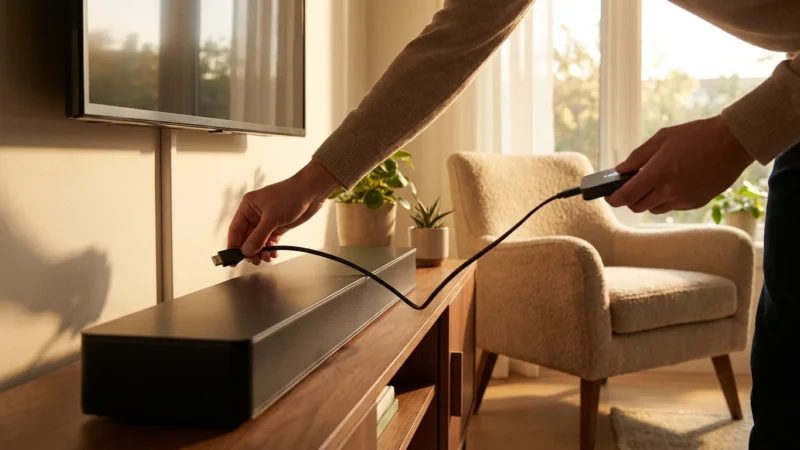
Choose the Roku Ultra if you prioritize the absolute best performance and stability. Its Ethernet port is invaluable for eliminating Wi-Fi-related buffering, especially for demanding 4K content or live sports. The USB port for local media playback and the advanced remote with a headphone jack for private listening are premium features that justify the higher cost for specific users. If you have a dedicated home theater setup with a soundbar or receiver, the Ultra’s robust connectivity and audio support make it a clear winner.
**Best for Specific Use Cases:**
- Sports Fans: The Roku Ultra’s Ethernet port provides the most reliable connection, crucial for live sports where any buffering can be frustrating.
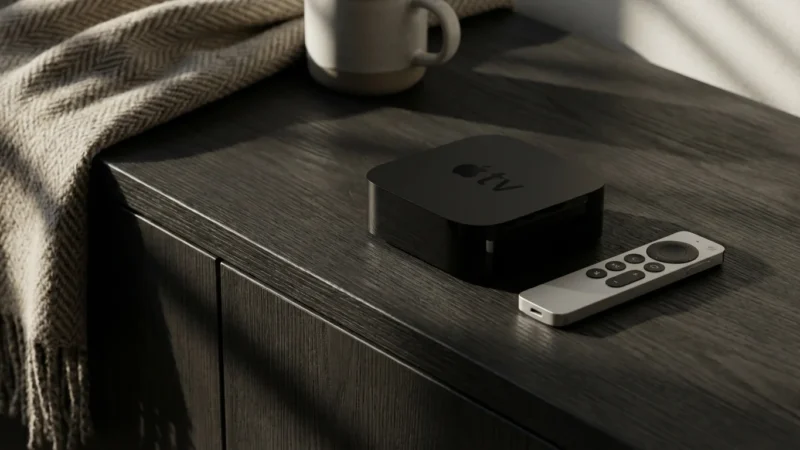
- Apple Households: While Apple TV 4K is the natural choice for Apple users due to seamless integration, Roku devices generally offer AirPlay 2 support, allowing you to stream content from your Apple devices to your Roku. This provides a good bridge if you prefer the Roku interface but still want some Apple ecosystem connectivity.
- Travelers: The compact Roku Streaming Stick 4K is ideal for taking on trips. It easily plugs into hotel room TVs, giving you access to your services on the go.
Ultimately, you need to assess your current equipment and how you plan to use your streaming device. Do not overspend on features you will not use, but also do not compromise your experience by under-buying.
Setup and Troubleshooting Common Roku Issues
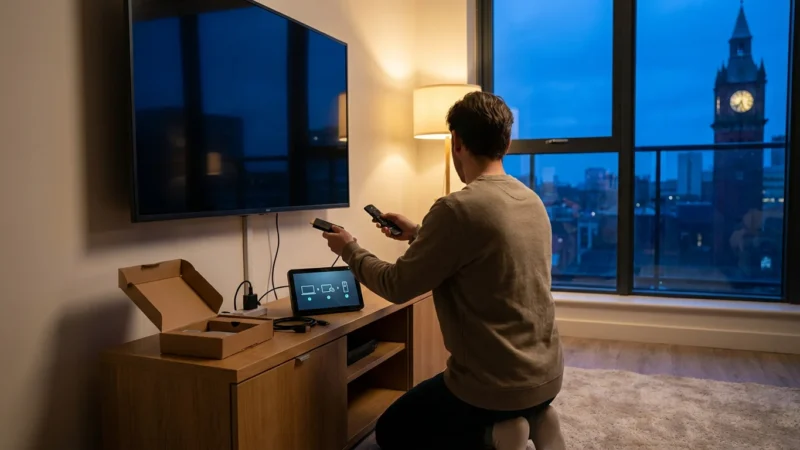
Setting up a Roku device is generally straightforward, designed for user-friendliness.
**Initial Setup Guide:**
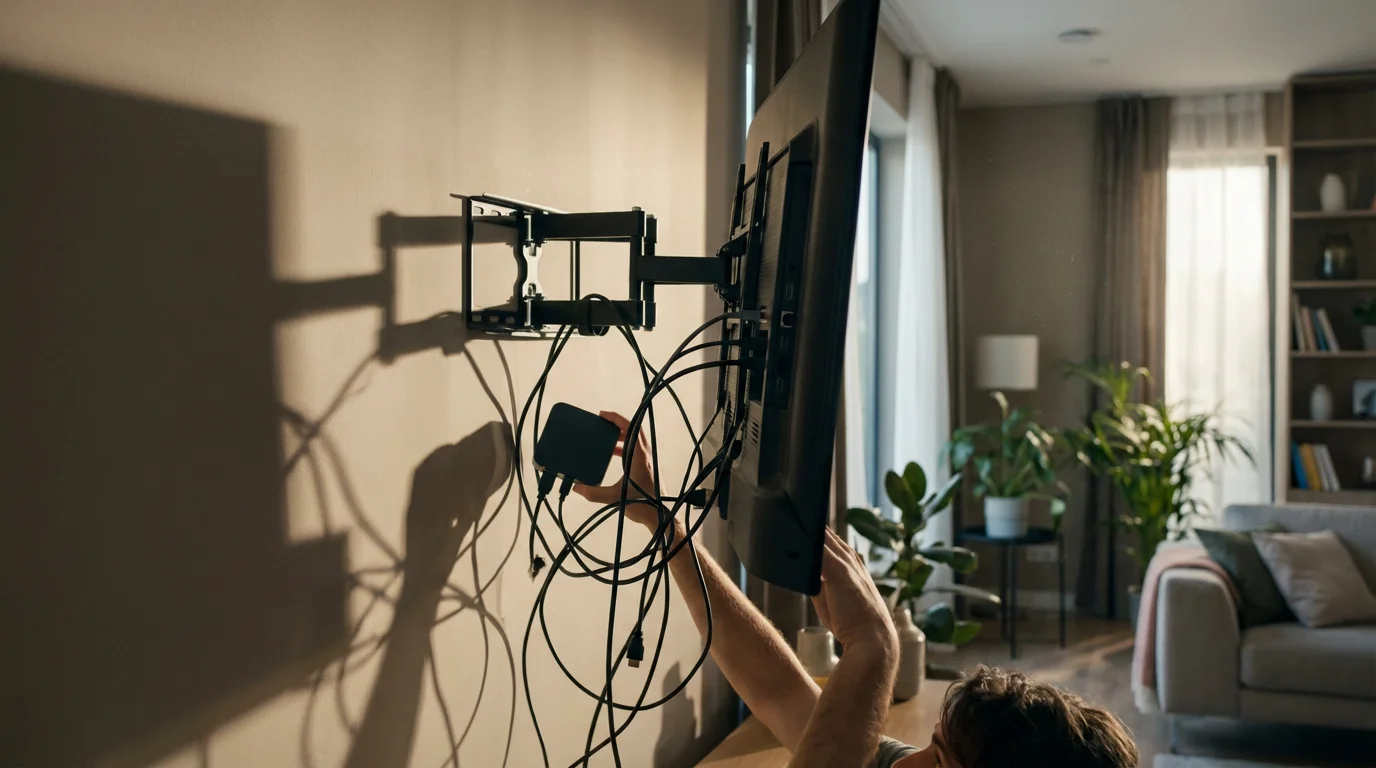
- Unbox and Connect: Plug your Roku device into an available HDMI port on your TV. For the Express or Streaming Stick, connect the USB power cable to your TV’s USB port or the included wall adapter. The Ultra comes with its own power adapter.
- Power On and Select Input: Turn on your TV and select the correct HDMI input using your TV remote.
- Connect to Internet: Follow the on-screen instructions to connect your Roku to your home Wi-Fi network. If you have a Roku Ultra, you can also plug an Ethernet cable directly into the device for a wired connection.
- Link Roku Account: You will see a code on your TV screen. Go to roku.com/link on a computer or smartphone, enter the code, and sign in or create a Roku account.
- Add Channels: Browse the Roku Channel Store to add your favorite streaming apps. You will need to log into each service individually.
**Common Troubleshooting Tips:**
- Device Not Powering On: Ensure the power cable is securely connected, and if using your TV’s USB port, try connecting it to a wall adapter instead. Some TV USB ports do not provide enough power.
- Buffering or Poor Video Quality:
- Move your Roku closer to your Wi-Fi router or reposition your router.
- Restart your router and modem.
- If using a Roku Ultra, use an Ethernet cable for a wired connection.
- Check your internet speed at speedtest.net; you need at least 25 Mbps for reliable 4K streaming.
- Remote Not Responding:
- For IR remotes (Express), ensure a clear line of sight to the device and check the batteries.
- For voice remotes (Streaming Stick 4K, Ultra), ensure the batteries are fresh and try re-pairing the remote by holding the pairing button (often in the battery compartment) for a few seconds.
- App Crashing or Freezing:
- Restart the specific app. Highlight the app icon, press the asterisk button (*) on your remote, and select “Remove channel.” Then, re-add it from the Channel Store.
- Restart your Roku device: Go to Settings > System > Power > System restart.
- No Audio or Video:
- Check all HDMI cable connections. Try a different HDMI port on your TV.
- Ensure your TV’s volume is up and not muted.
- Check your TV’s audio output settings to ensure they match your sound system.
These steps resolve most common Roku issues, getting you back to streaming quickly.
Frequently Asked Questions
Can I use a Roku without an internet connection?
No, all Roku devices require an active internet connection, usually Wi-Fi, to stream content. They are designed to deliver video content over the internet. Without internet, you cannot access streaming services or the Roku Channel Store.
Do I need to pay a monthly fee for Roku?
No, you do not pay a monthly fee just to use the Roku device or its operating system. Roku offers many free ad-supported channels, but you will pay subscription fees for premium services like Netflix, Hulu, or Disney+ if you choose to subscribe to them. Ad-free plans for these services cost more but do not show commercials.
Are Roku devices compatible with all TVs?
Roku devices are compatible with most modern TVs that have an HDMI input. For 4K and HDR content, your TV must also support those specific technologies. The Roku Express works with older HD (1080p) TVs, while the Streaming Stick 4K and Ultra maximize the capabilities of 4K HDR TVs.
What is “private listening” and how does it work on Roku?
Private listening allows you to listen to your TV’s audio through headphones, preventing disruption to others. On Roku Express and Streaming Stick 4K, you achieve this by connecting headphones to your smartphone via the Roku mobile app. The Roku Ultra’s remote control has a built-in headphone jack, offering direct private listening without needing your phone.
Can Roku record live TV like a DVR?
Roku devices themselves do not have built-in digital video recorder (DVR) capabilities. However, several live TV streaming services available on Roku, such as YouTube TV or Hulu + Live TV, offer cloud DVR features. These allow you to record and watch shows later directly through the service’s app.
Disclaimer: Device prices and features may change. New models are released regularly, so check for the latest versions before purchasing. The “best” device depends on your specific needs, existing ecosystem (Apple, Google, Amazon), and budget.
Leave a Reply