
You rely on your streaming device for entertainment, but a slow, buffering experience quickly turns enjoyment into frustration. Many cost-conscious viewers, often new to cord-cutting, struggle with sluggish performance, wondering if they chose the wrong device or if their internet service is to blame. This guide provides practical, actionable steps to diagnose and fix the most common causes of slow streaming, helping you reclaim your seamless viewing experience and avoid unnecessary upgrades.
We understand the overwhelm of endless options and the annoyance of rising entertainment costs. Our goal is to empower you with the knowledge to optimize your current setup or make smart, informed decisions if an upgrade becomes necessary. Let’s make your streaming fast, reliable, and enjoyable again.

Understanding Why Your Streaming Device Slows Down
Your streaming device, whether it’s a dedicated box or stick, or a smart TV‘s built-in apps, works hard to deliver content. When you experience buffering problems, a spinning wheel, or apps that load agonizingly slowly, several factors usually contribute. Understanding these causes helps you pinpoint the slow streaming fix you need.
At its core, streaming involves watching video content over the internet instead of traditional cable or satellite. Your streaming device constantly downloads data from the internet, processes it, and displays it on your screen. Any bottleneck in this process leads to performance issues.
Common Culprits Behind a Slow Streaming Device:
- Network Congestion: Too many devices sharing your Wi-Fi network, or a weak signal, starves your streaming device of bandwidth.
- Outdated Hardware: Older streaming device slow models might lack the processing power or memory for modern high-resolution video like 4K HDR.
- Software Clutter: Too many installed apps, background processes, or full caches consume valuable system resources.
- Firmware Issues: Bugs in your device’s operating system or an outdated version can cause instability and slowdowns.
- Overheating: Devices tucked away in cramped spaces can overheat, leading to performance throttling to protect internal components.
Diagnosing Network Issues: Your First Step to a Faster Stream
Before blaming your streaming device, investigate your internet connection. Most buffering problems originate with the network, not the device itself. A robust, stable internet connection is paramount for a smooth streaming experience.
Check Your Internet Speed
First, test your internet speed. Many streaming services recommend specific download speeds for optimal viewing:
- Standard Definition (SD): 3 Mbps
- High Definition (HD) 720p/1080p: 5-10 Mbps
- Ultra High Definition (4K UHD): 15-25 Mbps (and higher for HDR/Dolby Vision)
Use a speed test on a device connected to your Wi-Fi, ideally in the same room as your streaming device. Many internet service providers offer a speed test tool on their websites. Compare your results to the requirements of the content you watch. If your speeds fall short, contact your internet provider.
Evaluate Your Wi-Fi Signal Strength
A fast internet plan means little if your streaming device receives a weak Wi-Fi signal. Walls, floors, and other electronic devices interfere with Wi-Fi signals. Move your streaming device closer to your router, or try relocating your router to a more central location. Some streaming devices display Wi-Fi signal strength in their network settings, providing a valuable indicator of connection quality.
“A solid internet connection is the backbone of great streaming. Without it, even the most powerful streaming device will struggle to deliver a consistent, high-quality picture.”
Identify Network Congestion
Consider how many devices simultaneously use your Wi-Fi network. If multiple people are gaming, video conferencing, or streaming on other devices, your streaming device competes for limited bandwidth. This competition frequently causes buffering problems. Temporarily disconnect other devices or schedule heavy internet usage outside of peak streaming times.
Optimizing Your Wi-Fi Network for Peak Performance
Once you diagnose potential network issues, implement these fixes to enhance your Wi-Fi performance, ensuring your streaming device slow woes become a thing of the past.
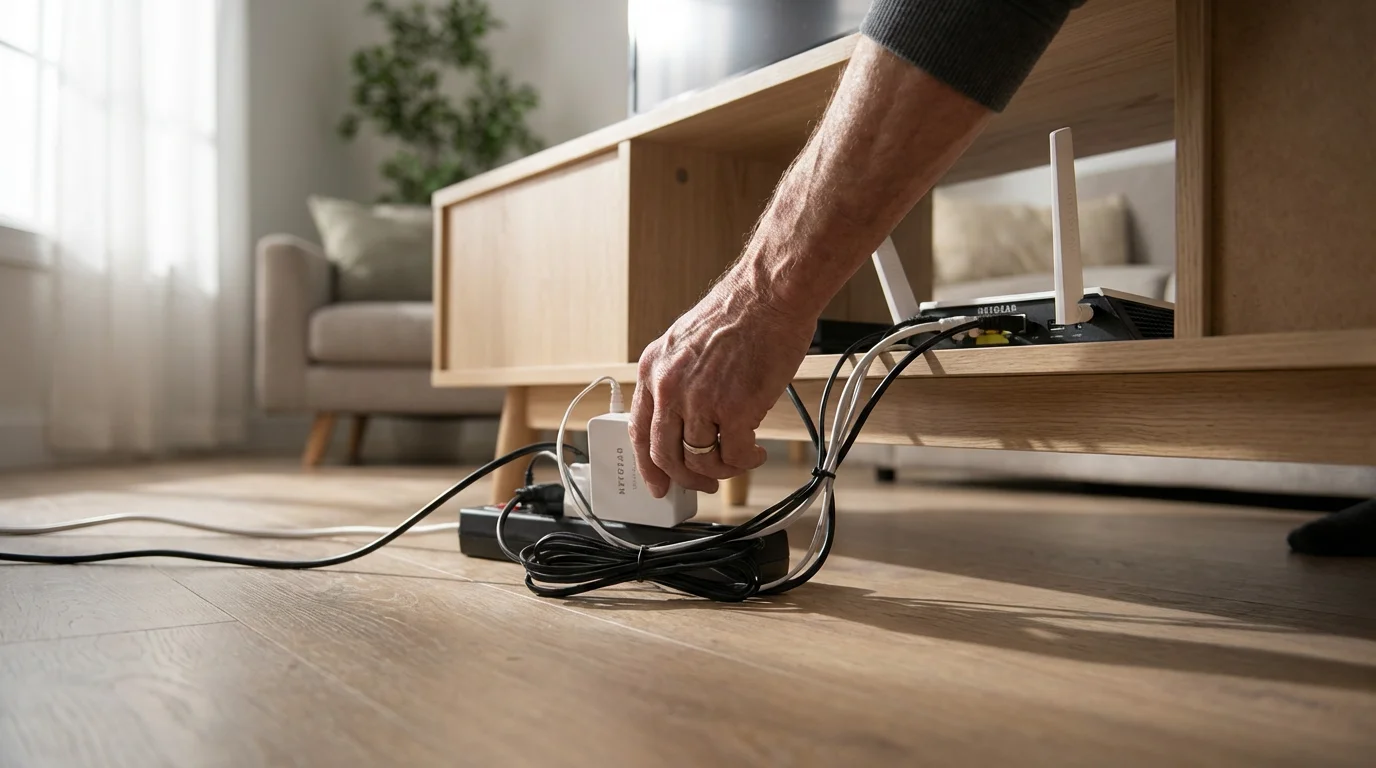
Reboot Your Router and Modem
This simple step resolves a surprising number of connectivity issues. Unplug both your modem and Wi-Fi router from power, wait 30 seconds, then plug the modem back in. Wait for it to fully boot (usually indicated by solid lights), then plug in your router. This clears temporary glitches and refreshes the network connection.
Optimize Router Placement
Place your Wi-Fi router in a central location, elevated, and away from obstructions like large appliances, metal objects, and concrete walls. These materials absorb or block Wi-Fi signals. Keeping the router in an open, high spot ensures a stronger signal reaches your streaming device.
Consider a Wired Connection (Ethernet)
For the most reliable and fastest connection, use an Ethernet cable if your streaming device and router support it. A wired connection eliminates Wi-Fi interference, provides consistent speeds, and significantly reduces buffering problems. Devices like Apple TV 4K, Roku Ultra, and some Fire TV Cube models include Ethernet ports.
Upgrade to a Newer Router (If Necessary)
If your router is several years old, it might not support modern Wi-Fi standards like Wi-Fi 5 (802.11ac) or Wi-Fi 6 (802.11ax), which offer faster speeds and better efficiency, especially in congested environments. A newer router can dramatically improve your network’s ability to handle multiple streaming devices simultaneously.
Adjust Wi-Fi Channels
Your Wi-Fi router operates on specific channels. If your neighbors’ routers use the same channels, it creates interference. Access your router’s administration page (usually via a web browser) to change the Wi-Fi channel. Use a Wi-Fi analyzer app on your phone to identify less congested channels in your area. For 2.4 GHz, channels 1, 6, and 11 are non-overlapping; for 5 GHz, more channels are available.
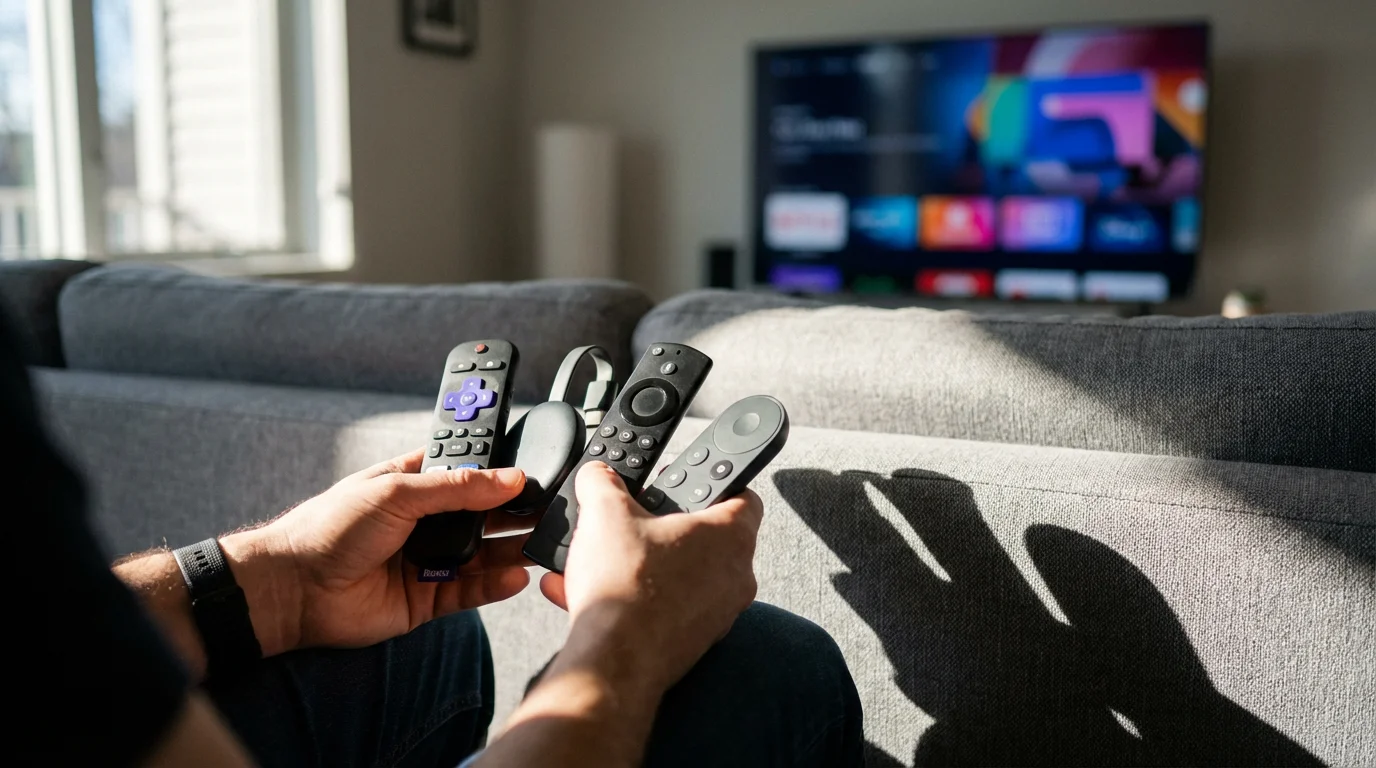
Clearing Out Clutter: Device Management for Roku, Fire TV, and Chromecast
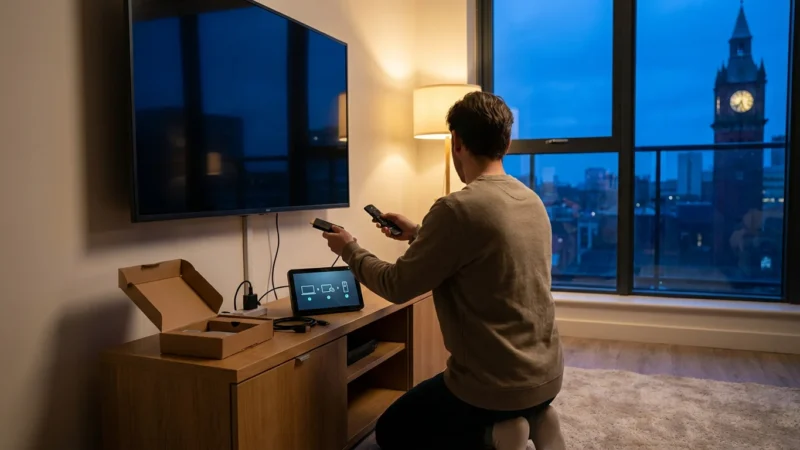
Your streaming device is a mini-computer, and like any computer, it benefits from regular maintenance. Over time, cached data, too many apps, and background processes can consume resources, causing your streaming device slow performance. Here is how to fix slow streaming device issues for popular platforms:
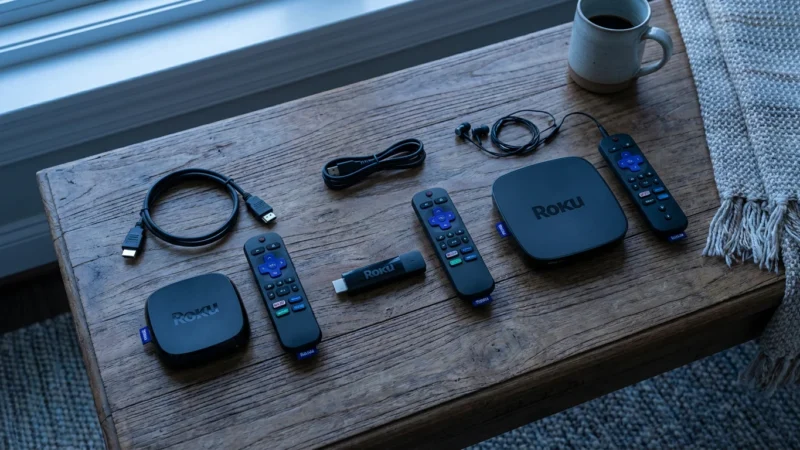
Roku Devices (Roku Express, Streaming Stick, Ultra)
- Restart Your Roku: Go to Settings > System > System Restart. A simple restart often clears temporary glitches and refreshes the system.
- Remove Unused Channels (Apps): Highlight an unused channel, press the asterisk (*) button on your remote, and select “Remove channel.” Fewer channels mean less background activity and less cached data.
- Clear Cache (Indirectly): Roku does not offer a direct cache-clearing option for individual apps. Removing and reinstalling a problematic app often clears its cache. For a system-wide “soft” cache clear, perform a full factory reset (Settings > System > Advanced system settings > Factory reset), but be aware this deletes all your settings and apps.
Amazon Fire TV Devices (Fire TV Stick, Fire TV Cube)
- Restart Your Fire TV: Go to Settings > My Fire TV > Restart.
- Clear App Caches and Data: This is crucial. Navigate to Settings > Applications > Manage Installed Applications. Select a frequently used app (like Netflix or Prime Video) and choose “Clear cache” first. If the problem persists, try “Clear data,” but note this will log you out of the app.
- Uninstall Unused Apps: In the same “Manage Installed Applications” menu, select apps you no longer use and choose “Uninstall.” This frees up valuable storage and RAM.
- Disable Data Monitoring: Some background processes, like data monitoring, can consume resources. Go to Settings > Preferences > Data Monitoring and turn it off if you do not use it.
Chromecast with Google TV
- Restart Your Chromecast: Go to your profile icon (top right) > Settings > System > Restart.
- Clear App Caches and Data: Go to your profile icon > Settings > Apps > See all apps. Select a problematic app, then choose “Clear cache” or “Clear data.”
- Uninstall Unused Apps: From the “See all apps” menu, select an app you don’t use and choose “Uninstall.”
- Disable Background App Refresh: While not a direct setting, limiting background app processes improves performance. Consider disabling notifications for apps you rarely use.
Troubleshooting Apple TV and Smart TV Performance Glitches
Apple TV devices are generally robust, but even premium hardware benefits from maintenance. Smart TVs, which are televisions with built-in internet connections and apps, often come with less powerful processors and limited storage, making them more susceptible to slowdowns.
Apple TV (HD, 4K)
- Restart Your Apple TV: Go to Settings > System > Restart. This is the simplest and often most effective first step.
- Update tvOS: Ensure your Apple TV runs the latest operating system. Go to Settings > System > Software Updates > Update Software. Updates often include performance enhancements and bug fixes.
- Close Unused Apps: Double-click the TV button on your Siri Remote to bring up the app switcher. Swipe up on any app you want to close. This frees up RAM.
- Offload Unused Apps: Apple TV offers an “Offload Unused Apps” feature (Settings > Apps > Offload Unused Apps) that removes the app but keeps its data, saving space. You can also manually delete apps by highlighting them on the home screen, pressing and holding the clickpad, then selecting the “x” icon.
Smart TVs (Samsung, LG, Sony, Vizio, etc.)
Smart TVs typically have less powerful processors and less memory than dedicated streaming devices. This means their built-in apps are often slower, especially for demanding tasks like 4K HDR playback. If your smart TV apps are consistently slow:
- Restart Your Smart TV: Unplug the TV from the wall for 60 seconds, then plug it back in. This performs a hard reset and clears temporary memory.
- Update Firmware: Navigate to your TV’s settings menu (often under Support or About) and check for software updates. Manufacturers regularly release updates that improve performance and fix bugs.
- Clear App Data/Cache: Many smart TVs allow you to manage individual app storage. Look for a setting like “Apps” or “Storage” within your TV’s main settings to clear data and cache for problematic applications.
- Uninstall Unused Apps: Remove any pre-installed apps or downloaded apps you do not use to free up resources.
- Disable Motion Smoothing and Other “Enhancements”: While not directly related to buffering, turning off features like motion smoothing (often called “Soap Opera Effect”) can reduce the processing load on your TV.
- When to Buy a Device vs. Use Your Smart TV’s Built-in Apps: If your smart TV slow issues persist despite these steps, consider a dedicated streaming device. Devices like the Roku Streaming Stick 4K or Fire TV Stick 4K Max offer significantly more processing power, faster Wi-Fi, and better overall performance than most built-in smart TV platforms. They also receive more frequent software updates and support a wider range of modern audio/video formats. A dedicated device becomes a sound investment if you frequently stream 4K content, demand quick app loading, or prefer a unified, responsive interface.
Hardware Health Check: When Your Device Itself is the Problem
Sometimes, no amount of software tweaks or network optimization will fix a fundamentally slow device. Older or budget-tier streaming devices might simply lack the hardware capabilities for today’s demanding content. Here’s how to assess if your device is reaching its limits.
If you determine that your hardware is simply too old, browse our top picks for the best streaming device for every budget in 2024 to find a reliable replacement.
Insufficient Processing Power and RAM
Streaming 4K video, especially with HDR (High Dynamic Range) or Dolby Vision, requires significant processing power and memory. Older models like the original Roku Express or a very early generation Fire TV Stick often have weaker processors and less RAM. They struggle to decode high-resolution video quickly, leading to buffering problems and slow navigation.
Overheating Issues
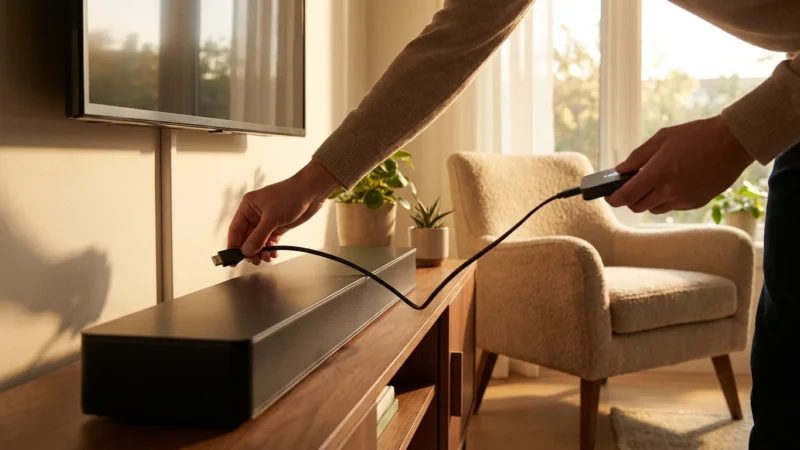
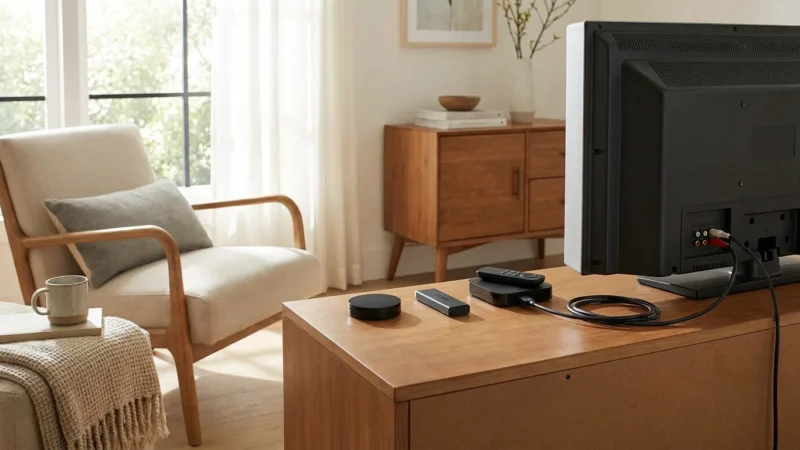
Streaming devices, especially stick models, are compact. If placed in an enclosed cabinet, behind a hot TV, or under direct sunlight, they can overheat. Most devices reduce their performance to prevent damage when they get too hot. Ensure your device has adequate airflow. If it feels unusually warm, try relocating it or using an HDMI extender to move it away from the TV’s heat vents.
Limited Storage
While streaming apps generally use small amounts of storage, devices with very limited internal memory (like 8GB on many sticks) can become sluggish if filled with numerous apps. Even if you “clear cache,” the system itself needs overhead. If your device constantly warns about low storage, it often leads to performance issues.
Age of Device and Supported Standards
Technology evolves rapidly. A device from 5+ years ago likely lacks support for modern Wi-Fi standards (like Wi-Fi 6), advanced video codecs, or the latest audio formats like Dolby Atmos. These missing features can contribute to a perceived slowdown when trying to stream modern content.
Consider the Price-to-Value for Performance
The “best” device for you depends on your budget and needs. A $30 Roku Express is excellent for basic HD streaming but will likely falter with 4K HDR. A $50 Fire TV Stick 4K Max offers solid 4K performance for most users. If you demand premium performance, Dolby Vision, Dolby Atmos, and a fast user interface, spending $100-$150 on an Apple TV 4K or Roku Ultra might offer the best value for your specific requirements. Evaluate if your current device is simply outmatched by your expectations and the content you watch.
Upgrading Your Streaming Hardware: The Best Value Devices for Speed
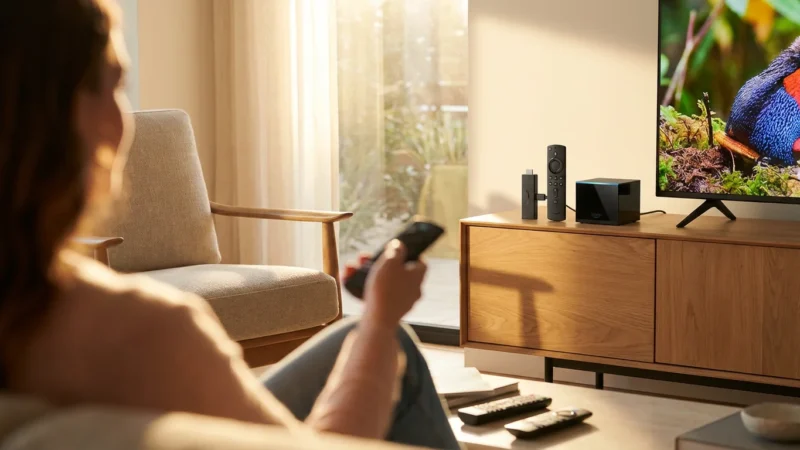
If you have exhausted all troubleshooting steps and your streaming device slow problems persist, an upgrade might be the most effective slow streaming fix. Modern streaming devices offer significantly faster processors, more RAM, and enhanced connectivity, making a dramatic difference in app loading, navigation, and buffering.
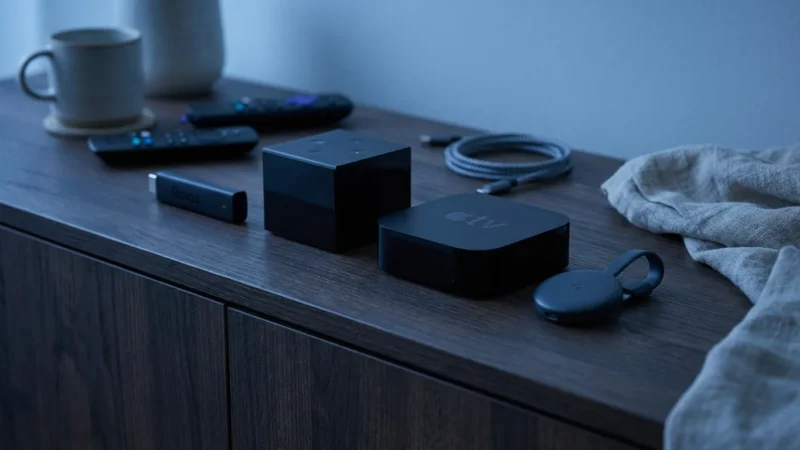
To ensure your new purchase doesn’t suffer from the same lag issues, compare the main platforms in our guide on Roku vs Fire TV vs Apple TV vs Chromecast.
Key Features to Look For in a New Device:
- 4K Resolution: This refers to a display resolution of approximately 3,840 x 2,160 pixels, four times the detail of 1080p HD. Most new TVs are 4K, and many services offer 4K content.
- HDR Support: High Dynamic Range significantly improves picture contrast and color accuracy. Look for support for HDR10 and, ideally, Dolby Vision, which offers scene-by-scene optimization.
- Dolby Atmos: A premium audio format that creates a multi-dimensional sound experience, often described as “sound from all directions.” You need compatible audio equipment to fully utilize it.
- WiFi 6 Support: The latest Wi-Fi standard (802.11ax) offers faster speeds, lower latency, and better performance in congested network environments, especially beneficial if you have a Wi-Fi 6 router.
- Ethernet Port: For the most stable connection, a physical Ethernet port is invaluable.
Here’s a comparison of top streaming devices across different budget tiers, highlighting their speed-relevant features:
| Device | Price Tier | Resolution | HDR Support | Audio Support | Wi-Fi | Ethernet | Key Performance Benefit |
|---|---|---|---|---|---|---|---|
| Roku Express 4K+ | ~$30-40 | 4K | HDR10, HLG | Dolby Audio | Wi-Fi 5 (Dual-band) | No (Optional adapter) | Budget 4K, basic responsiveness |
| Amazon Fire TV Stick 4K Max | ~$50-60 | 4K | HDR10, HDR10+, Dolby Vision, HLG | Dolby Atmos | Wi-Fi 6 | No (Optional adapter) | Fast navigation, Wi-Fi 6, comprehensive HDR |
| Chromecast with Google TV (4K) | ~$50-60 | 4K | HDR10, HDR10+, Dolby Vision, HLG | Dolby Atmos, DTS | Wi-Fi 5 (Dual-band) | No (Optional adapter) | Smooth Google TV interface, good integration |
| Roku Ultra | ~$90-100 | 4K | HDR10, HDR10+, Dolby Vision, HLG | Dolby Atmos, DTS | Wi-Fi 5 (Dual-band) | Yes | Ethernet, faster processor, private listening |
| Apple TV 4K (2nd/3rd Gen) | ~$130-180 | 4K | HDR10, HDR10+, Dolby Vision, HLG | Dolby Atmos, DTS | Wi-Fi 6 (3rd Gen) | Yes | Premium processor, fluid interface, gaming |
INFOGRAPHIC: Side-by-side comparison infographic of Roku Streaming Stick 4K vs Amazon Fire TV Stick 4K Max vs Chromecast with Google TV. Three columns showing: Price, Resolution, HDR Support, Voice Assistant, App Selection, Pros, Cons. Clean product photography style, easy to compare at a glance.
Best Devices for Specific Use Cases:
- Budget Buyers ($30-50): The Roku Express 4K+ delivers solid 4K performance for its price, perfect for general viewers. The Amazon Fire TV Stick 4K Max is an excellent value for those seeking Wi-Fi 6 and Dolby Vision support without breaking the bank. The Chromecast with Google TV (4K) offers a rich, content-forward interface.
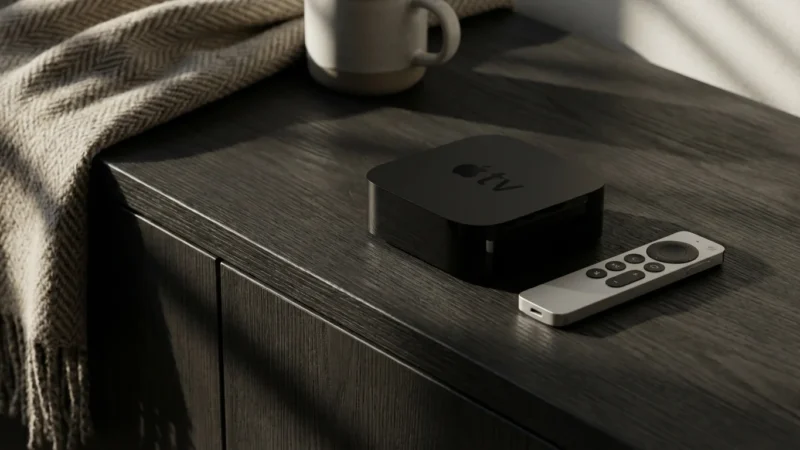
- Apple Households ($150+): The Apple TV 4K integrates seamlessly with Apple’s ecosystem, offers superior gaming performance, and provides the fastest, most fluid user experience. It’s a premium device for those who value performance and a polished interface.
- Sports Fans & Power Users ($90-180): The Roku Ultra with its Ethernet port provides a stable connection, crucial for live sports. Its private listening feature is a bonus. The Apple TV 4K also excels here due to its powerful processor and robust app support for live TV services.
Advanced Tips and Tricks for a Seamless Streaming Experience
For those still experiencing a streaming device slow performance after basic troubleshooting and optimizations, consider these more advanced strategies. These steps require a bit more technical comfort but can significantly improve your streaming setup.
Change Your DNS Settings
Your Domain Name System (DNS) server translates website names (like netflix.com) into IP addresses that computers understand. Your internet provider’s default DNS server might not be the fastest. Switching to a public DNS server, like Google DNS (8.8.8.8 and 8.8.4.4) or Cloudflare (1.1.1.1 and 1.0.0.1), can sometimes speed up the initial connection to streaming services. You typically change DNS settings in your router’s administration panel, which then applies to all connected devices.
Implement Router QoS (Quality of Service) Settings
Many modern Wi-Fi routers include Quality of Service (QoS) features. QoS allows you to prioritize network traffic, ensuring that your streaming device receives preferential bandwidth over other devices or activities, like large downloads or backups. Access your router’s settings, locate the QoS section, and configure it to prioritize your streaming device or common streaming applications. This is particularly useful in busy home networks to avoid buffering problems during peak usage.
Consider a Mesh Wi-Fi System
If you live in a large home or one with many dead spots, a single router might not provide adequate coverage. A mesh Wi-Fi system uses multiple interconnected nodes to create a seamless, strong Wi-Fi network throughout your entire home. This ensures your streaming device always has a robust signal, even far from the main router, and can drastically speed up Roku Fire Stick performance if signal strength is the bottleneck.
Perform a Factory Reset (Last Resort)
If all other steps fail and you suspect deep-seated software corruption or an irresolvable bug, a factory reset is your nuclear option. This returns your streaming device to its original out-of-the-box state, erasing all settings, apps, and personal data. While effective, it means you must set up your device from scratch, reinstalling all your apps and logging back into your services. Only use this as a final resort when every other slow streaming fix proves insufficient.
By systematically addressing potential network, software, and hardware issues, you can significantly improve the performance of your streaming device. Whether it’s a simple reboot or a strategic upgrade, these actionable insights empower you to enjoy uninterrupted, high-quality entertainment.
Frequently Asked Questions
My streaming device is connected to Wi-Fi, but I still get buffering. Why?
A Wi-Fi connection does not guarantee sufficient bandwidth or a strong signal. Other devices on your network might consume bandwidth, your signal could be weak due to distance or interference, or your internet plan’s speed might be too low for the content you’re streaming (e.g., trying to watch 4K with only 10 Mbps). Check your internet speed, optimize router placement, and manage network congestion.
How often should I restart my streaming device and router?
Restarting your streaming device and router once a week or whenever you notice a slowdown is a good practice. This clears temporary memory, refreshes network connections, and resolves minor software glitches, often preventing persistent buffering problems.
Is it better to use a dedicated streaming device or my smart TV’s built-in apps?
For optimal performance, a dedicated streaming device usually outperforms a smart TV’s built-in apps. Dedicated devices often have more powerful processors, more RAM, and receive more frequent software updates, leading to faster navigation, quicker app loading, and smoother playback, especially for 4K HDR content. If your smart TV apps are slow, a dedicated device is a worthwhile upgrade.
Does uninstalling apps really speed up my device, even if I’m not using them?
Yes, uninstalling unused apps frees up internal storage and reduces background processes. Even if an app is not actively running, it can consume a small amount of system resources or cache data, contributing to overall system sluggishness over time. Removing them provides more resources for the apps you actually use, helping to speed up Roku Fire Stick or other devices.
My old streaming device is still slow after all these tips. Should I replace it?
If your device is several years old (e.g., pre-2018 models), or a very low-end budget device, it might genuinely lack the hardware to keep up with modern streaming demands, especially 4K HDR. In this scenario, replacing it with a current-generation device in the $50-$100 range (like a Fire TV Stick 4K Max or Roku Ultra) provides a significant performance boost and is often the most effective slow streaming fix.
Disclaimer: Device prices and features may change. New models are released regularly, so check for the latest versions before purchasing. The “best” device depends on your specific needs, existing ecosystem (Apple, Google, Amazon), and budget.
Leave a Reply