
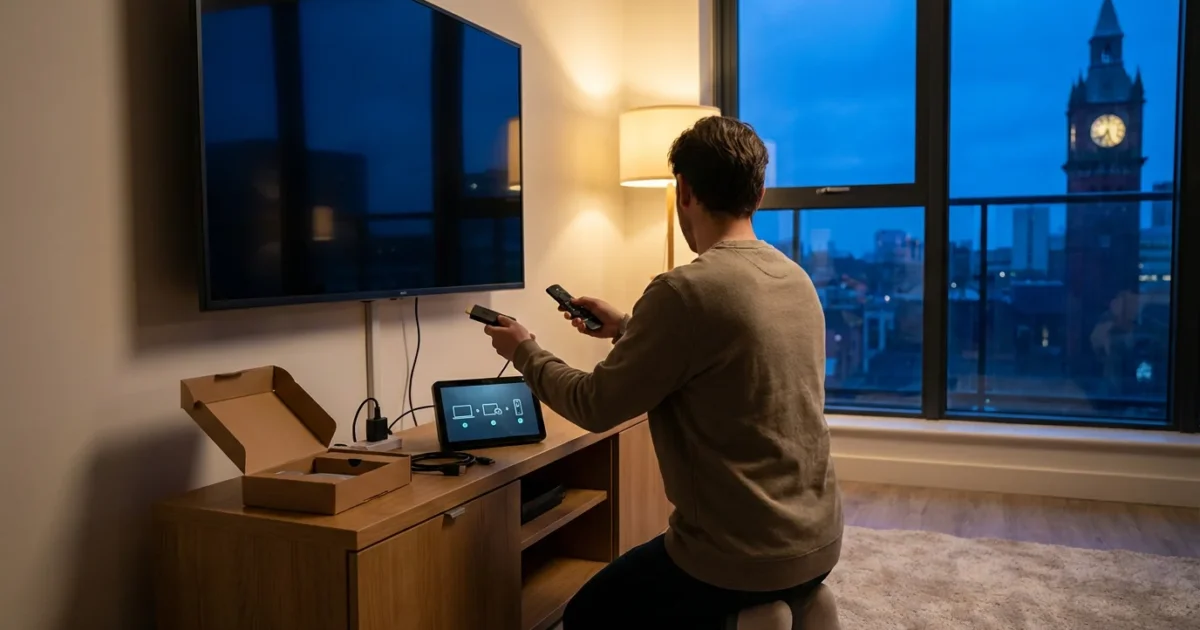
You have decided to explore the world of streaming, leaving behind the rising costs and limited choices of traditional cable or satellite television. This practice, known as cord-cutting, offers significant savings and a vast library of entertainment options. A streaming device is your gateway to this new world, a small box or stick that connects to your television and delivers video content over the internet. This guide provides you with a clear, step-by-step process to set up your first streaming device, ensuring a smooth and enjoyable transition to better entertainment.
Understanding Your Choices: Types of Streaming Devices
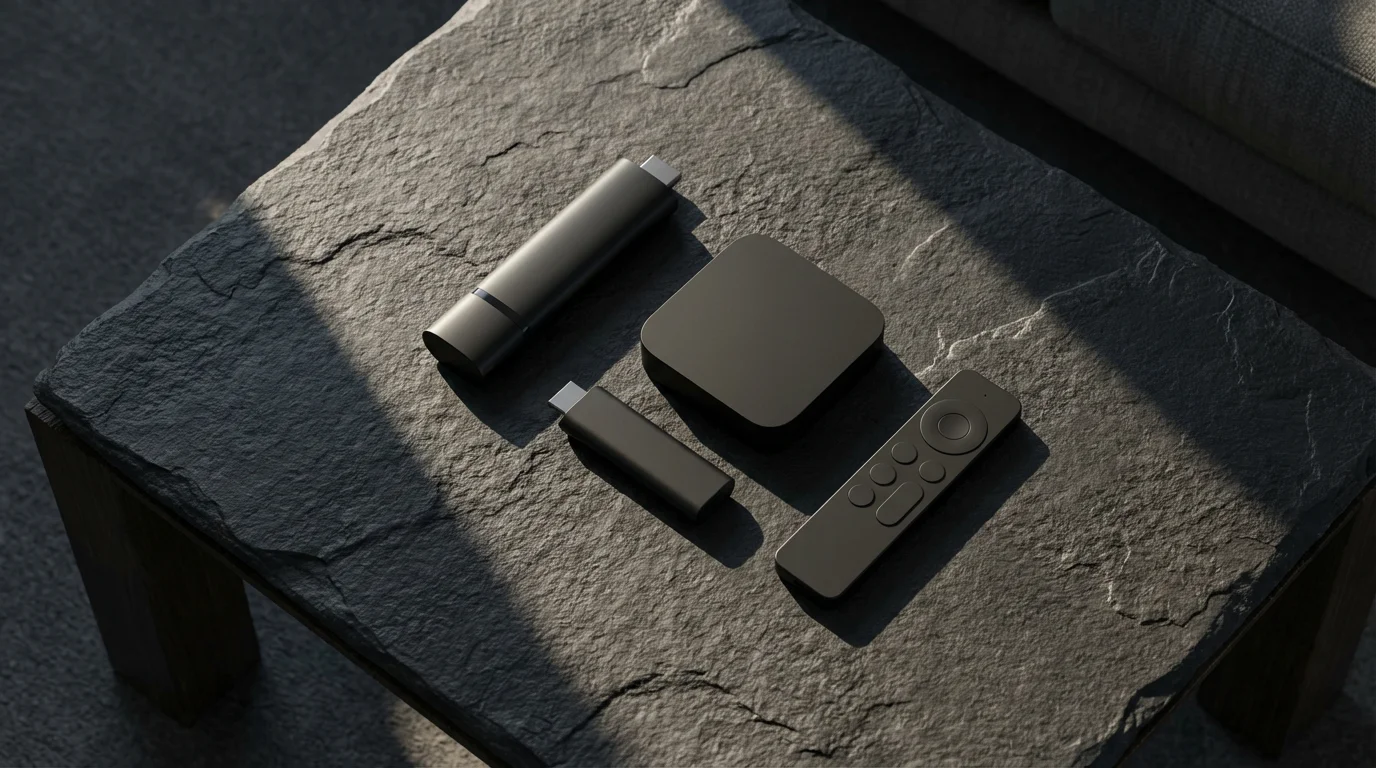
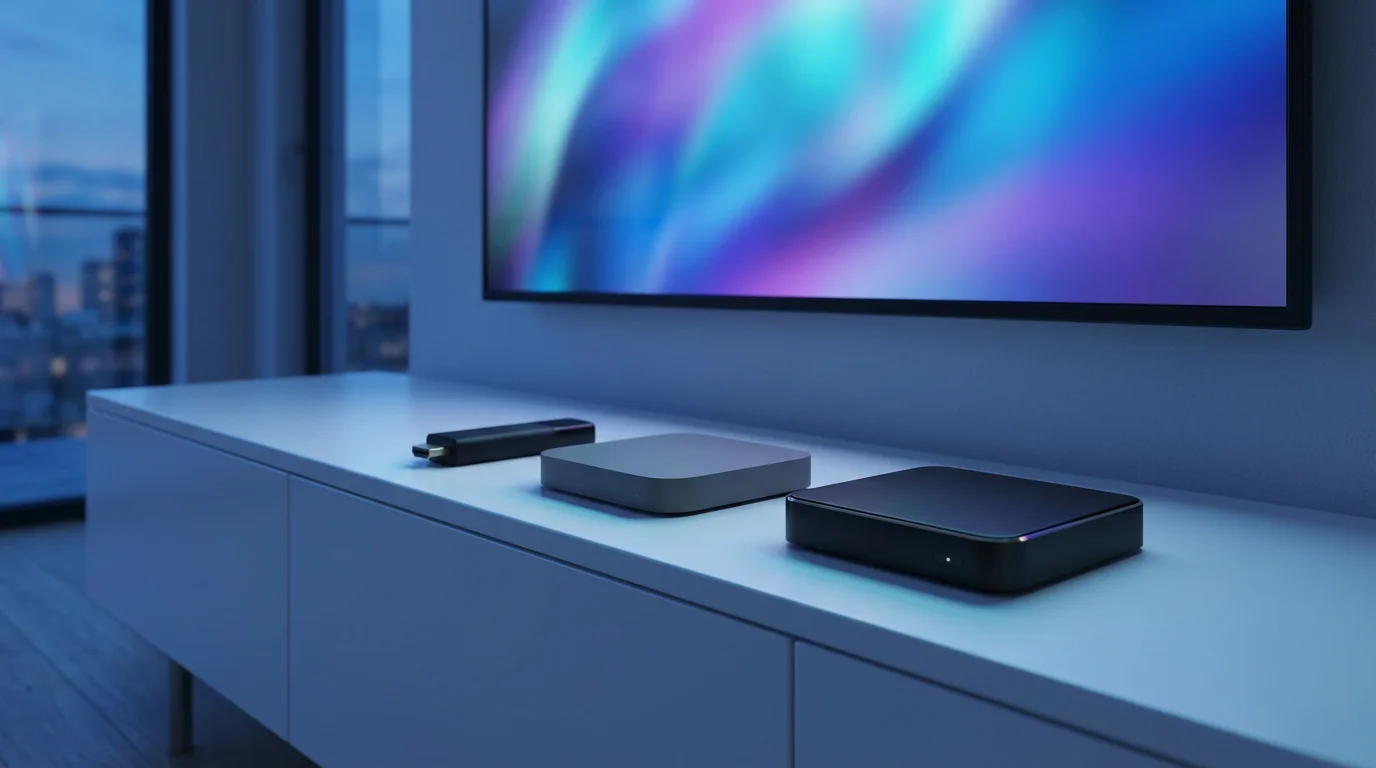
Before you dive into setup, recognize the main types of streaming devices available. Each type offers a slightly different experience, though they all achieve the same goal: bringing internet video to your TV. These devices enable streaming, watching video content over the internet instead of cable or satellite.
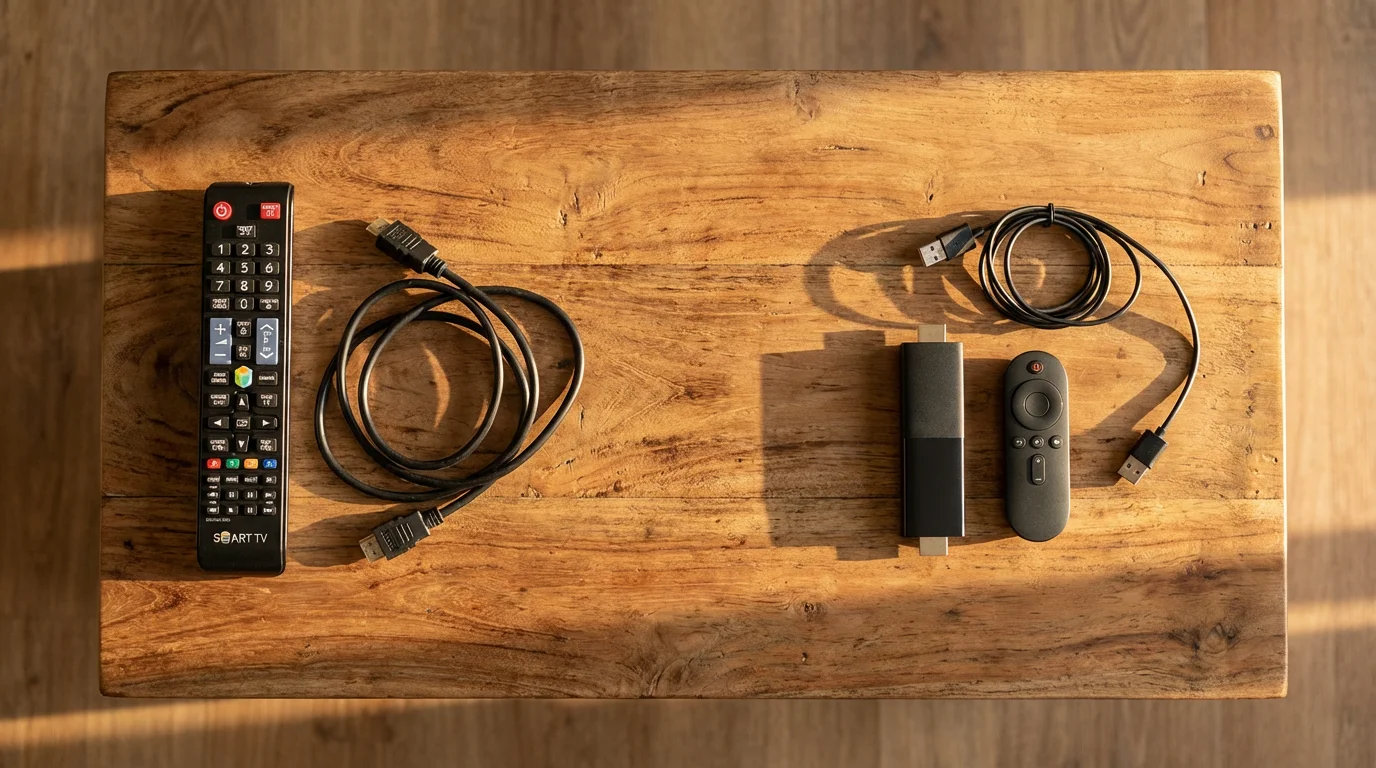
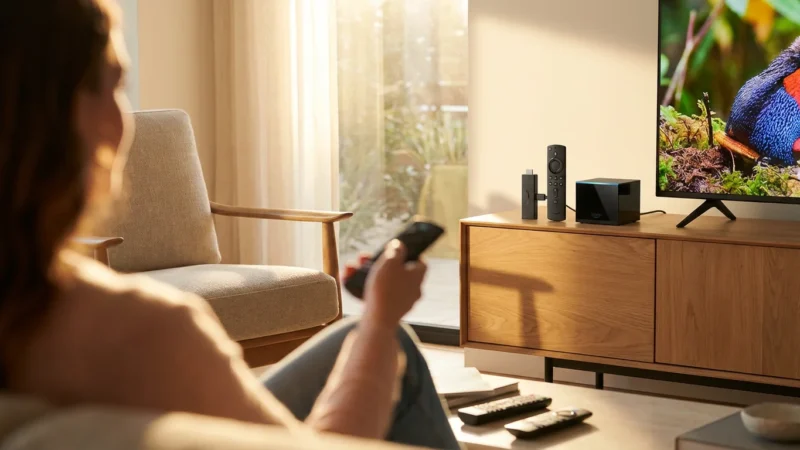
- Streaming Sticks: These compact devices plug directly into an HDMI port on your TV. They are typically budget-friendly and great for travel or secondary TVs. Examples include Roku Streaming Stick 4K and Amazon Fire TV Stick 4K.
- Streaming Boxes: These are slightly larger devices that sit on your entertainment center, connecting to your TV via an HDMI cable. They often offer more processing power, advanced features, and additional ports. Apple TV 4K and Roku Ultra are popular streaming boxes.
- Smart TVs: Many modern televisions are smart TVs, meaning they have built-in internet connections and streaming apps. While convenient, their performance and features can vary significantly compared to dedicated streaming devices.
- Gaming Consoles: PlayStation and Xbox consoles also offer streaming app support, serving as versatile entertainment hubs.
The market offers several leading brands. Roku excels in simplicity and a vast app selection. Amazon Fire TV integrates deeply with Amazon’s ecosystem, including Alexa voice control. Apple TV provides a premium experience, ideal for Apple device owners. Google Chromecast focuses on “casting” content from your phone or computer, while newer Chromecast with Google TV models offer a full app interface. Each brand targets different user preferences, but the core setup process remains similar.
Essential Pre-Setup Checklist
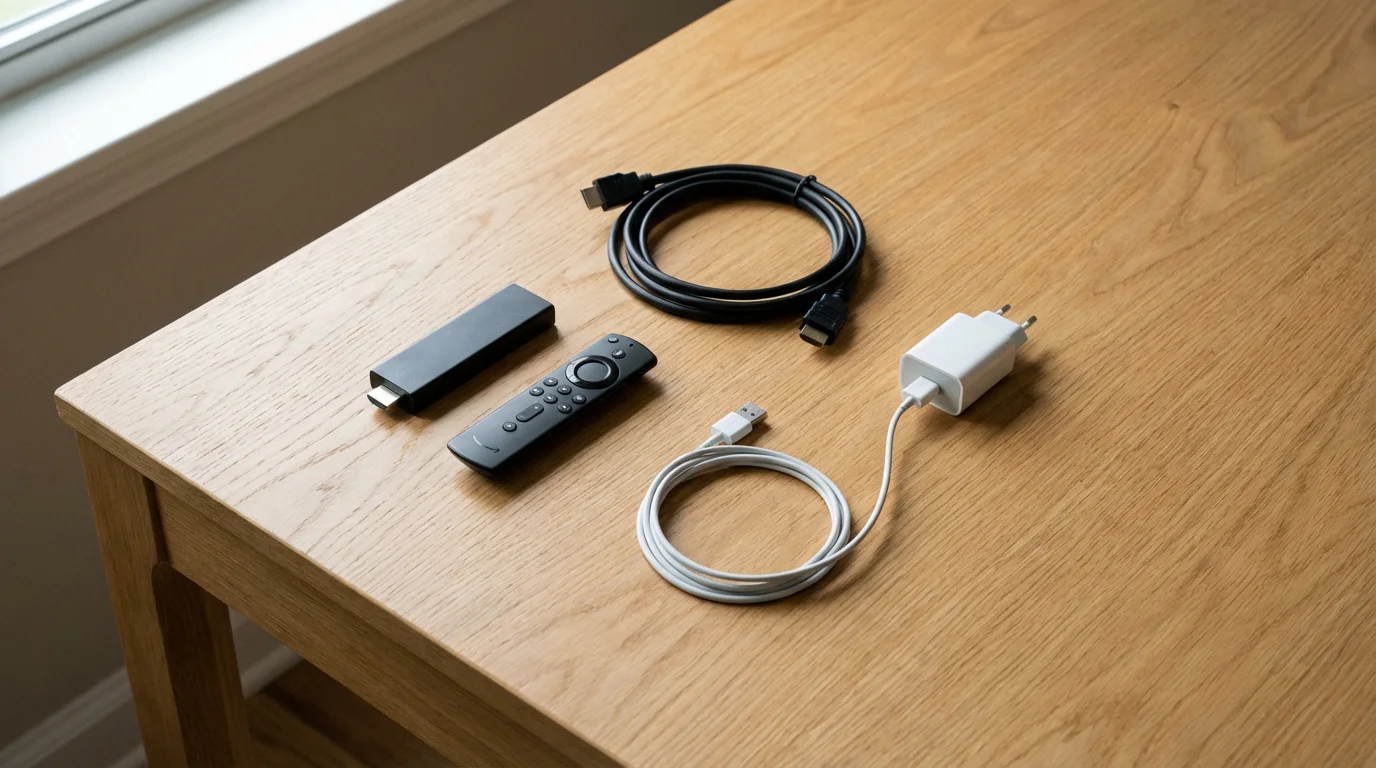
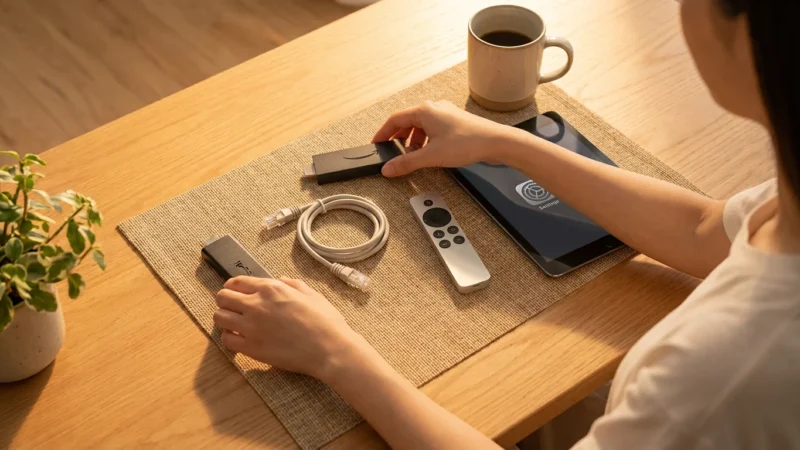
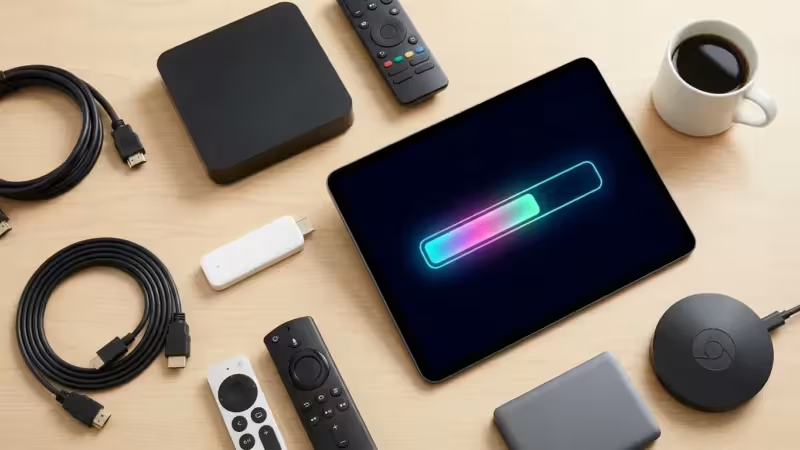
Gathering these items before you begin ensures a smooth installation process:
If you are still in the shopping phase, you may want to consult our breakdown of the best streaming device for every budget in 2024 before proceeding.
- A Television: You need a TV with an available HDMI port. For 4K devices, ensure your TV is 4K compatible.
- High-Speed Internet Connection: Streaming requires a stable internet connection. A minimum of 25 Mbps is recommended for HD streaming, and 50 Mbps or more for reliable 4K streaming.
- Wi-Fi Network: Most streaming devices connect wirelessly to your home Wi-Fi. Have your Wi-Fi network name (SSID) and password ready.
- Power Outlet: Streaming devices require power, typically through a USB cable and a wall adapter. Ensure an available outlet near your TV.
- HDMI Cable (if not a stick): If you chose a streaming box, you will need an HDMI cable to connect it to your TV. Many boxes include one.
- Account Information:
- An account for your chosen streaming device platform (e.g., Roku account, Amazon account, Apple ID, Google account).
- Login credentials for any streaming services you plan to use (e.g., Netflix, Hulu, Max, Disney+).
- A Smartphone or Tablet (Optional but helpful): Some devices, particularly Chromecast, benefit from an initial setup using a mobile app. Even for others, using a phone keyboard to type passwords can be faster.
“Preparation eliminates half the struggle. Having your Wi-Fi password and streaming service logins ready prevents frustrating delays during setup.”
Step-by-Step Setup: General Instructions for All Devices
While specific steps vary slightly by brand, the fundamental process for setting up your first streaming device follows a common pattern. Follow these steps for a successful installation:
-
Unbox Your Device and Connect Hardware:
- Remove the streaming device, remote, power adapter, and any included cables from the packaging.
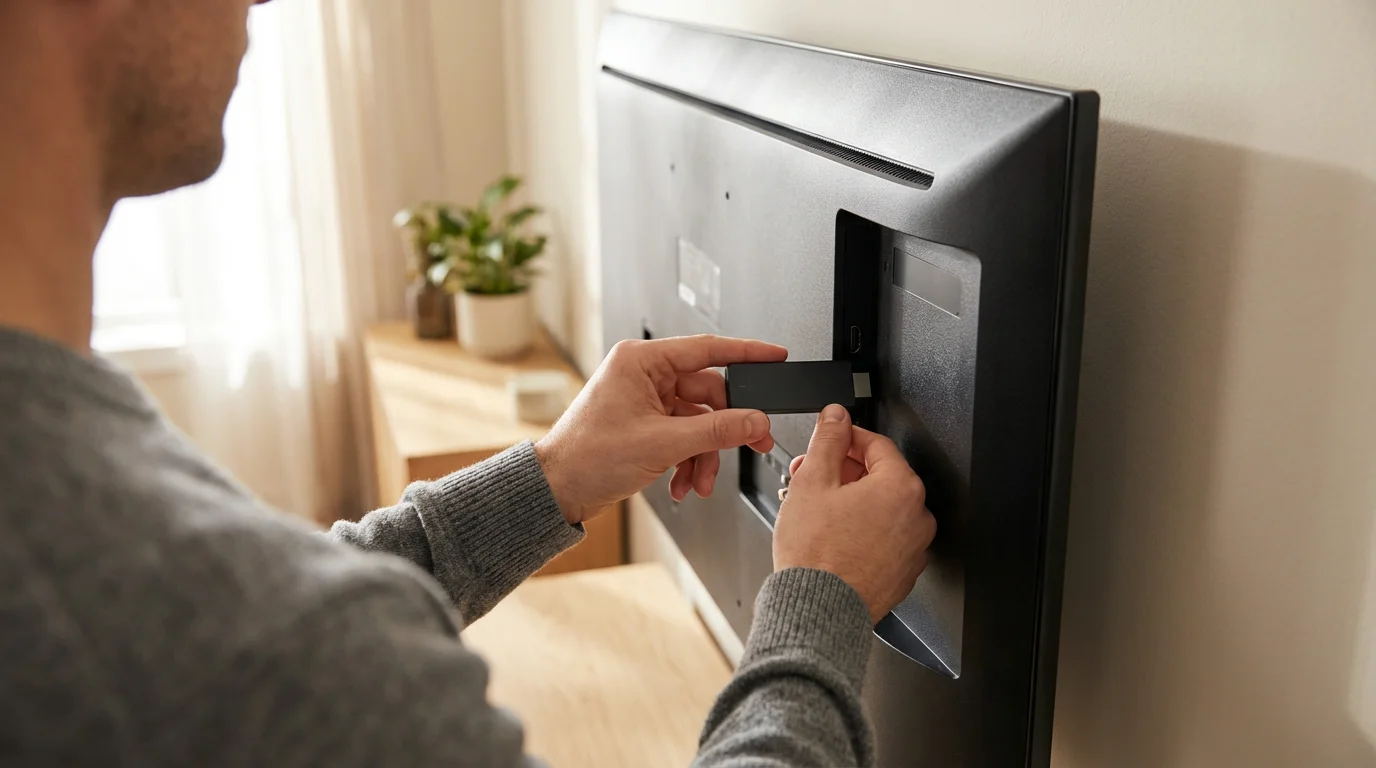
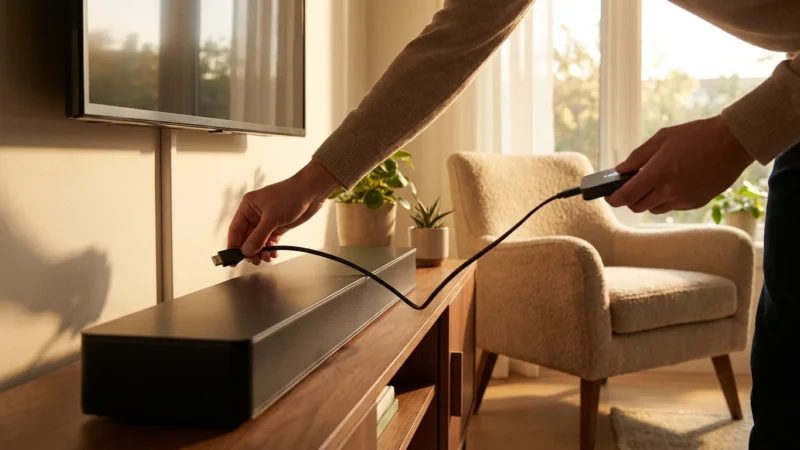
- Plug the streaming stick directly into an available HDMI port on your TV. If you have a streaming box, connect it to your TV’s HDMI port using an HDMI cable.
- Connect the power cable to your streaming device and then plug the adapter into a wall outlet. Some sticks can draw power from a TV’s USB port, but a wall adapter often provides more reliable power.
-
Power On Your TV and Select Input:
- Turn on your television.
- Using your TV remote, select the correct HDMI input where you plugged in your streaming device. This might be labeled “HDMI 1,” “HDMI 2,” or with the name of the port. You should see the streaming device’s logo or a setup screen appear.
-
Pair Your Remote Control:
- Many remotes are pre-paired. If yours is not, the on-screen instructions will guide you. This often involves inserting batteries and pressing a button combination.
- Some remotes include TV controls for power and volume. The setup wizard may prompt you to configure these by testing different codes.
-
Connect to Your Wi-Fi Network:
- The device will scan for available Wi-Fi networks. Select your home network’s name (SSID) from the list.
- Enter your Wi-Fi password carefully. Passwords are case-sensitive.
- Confirm the connection.
-
Update Software:
- Your streaming device likely needs a software update to get the latest features and security patches. Allow the device to download and install any available updates. This process might take several minutes and could involve the device restarting.
-
Sign In or Create an Account:
- Most streaming platforms require you to link the device to an existing account or create a new one. This personalizes your experience and saves your preferences.
- For Roku, you will need a Roku account. For Amazon Fire TV, an Amazon account. For Apple TV, an Apple ID. For Chromecast with Google TV, a Google account.
- You may be prompted to do this directly on the TV screen or via a web browser on a computer or phone, which is often easier for typing.
-
Download Your Favorite Apps:
- Once your account is set up, you can start downloading streaming apps. These might be categorized as ad-supported (free or cheaper plans that show commercials) or ad-free (plans that cost more but do not show commercials).
- Navigate to the app store or channel store on your device (e.g., Roku Channel Store, Fire TV Appstore, App Store on Apple TV, Google Play Store on Chromecast with Google TV).
- Search for popular services like Netflix, Hulu, Disney+, Max, YouTube, or any specific local channels you desire.
- Install the apps. You will need to log into each app with your service-specific credentials.
-
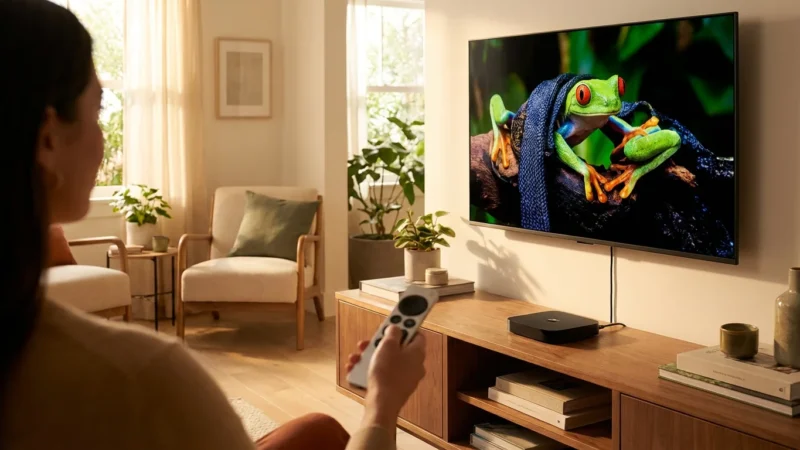
Start Streaming!
- Once you have downloaded and logged into your apps, you can begin watching content. Explore the device’s interface, try out the voice remote, and enjoy your new streaming freedom.
-
Roku:
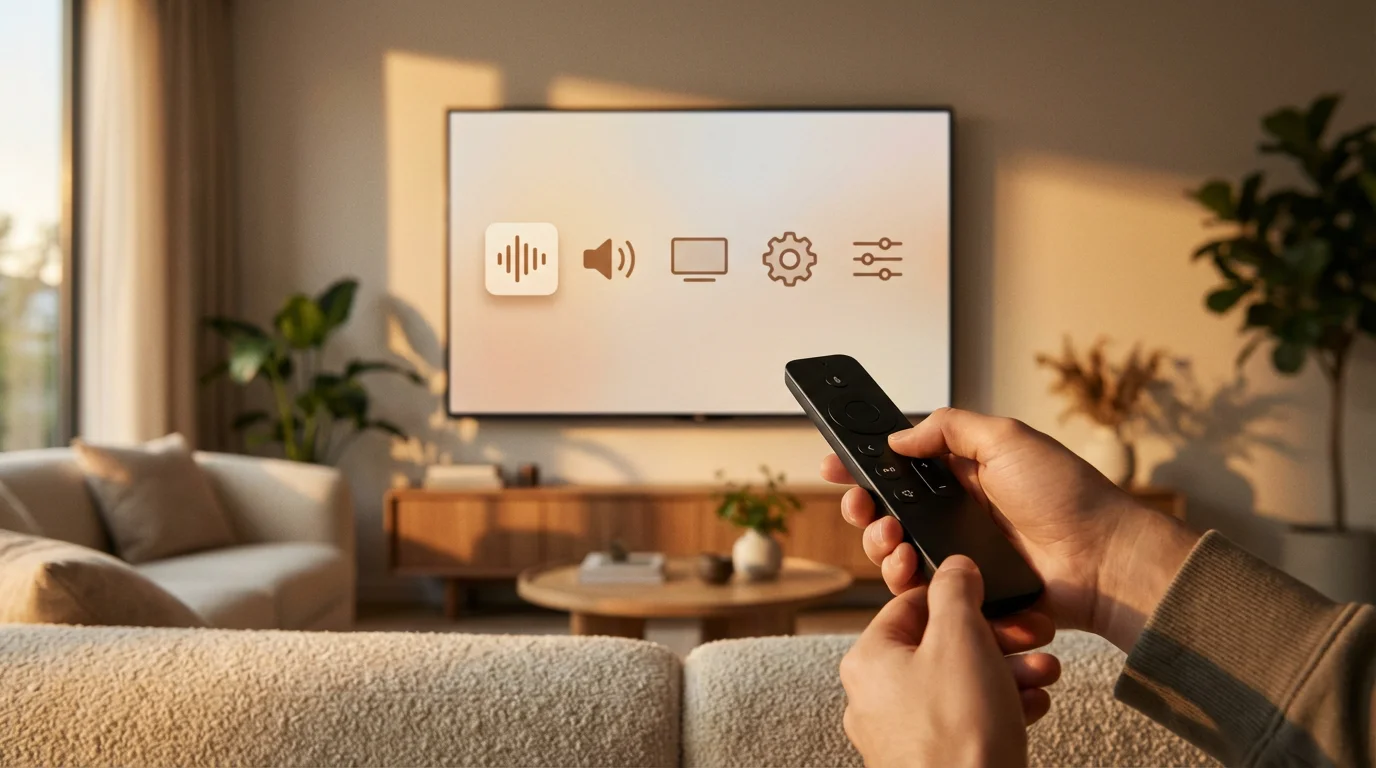
- Simplicity: Roku is renowned for its straightforward interface. Setup often involves linking the device to a Roku account via a web browser, making it easy to type in details.
- Channel Store: Roku’s Channel Store is extensive, offering thousands of free and paid apps.
- Guest Mode: Some Roku devices offer a Guest Mode feature, useful if you have visitors and do not want them logging into your accounts.
-
Amazon Fire TV:
- Amazon Integration: Fire TV devices often come pre-registered to your Amazon account if purchased directly from Amazon, streamlining initial setup.
- Alexa Voice Control: The remote features an Alexa button, allowing you to search for content, control playback, or even manage smart home devices with voice commands.
- Interface: The Fire TV interface heavily promotes Amazon Prime Video content, but you can customize your home screen with other apps.
-
Apple TV:
- Apple Ecosystem: If you own other Apple devices (iPhone, iPad), setup is incredibly quick using “Tap to Set Up.” Your iPhone automatically transfers Wi-Fi settings and Apple ID information.
- App Store: The Apple TV App Store is curated, focusing on high-quality apps and games.
- Siri Remote: The remote features a touch-enabled clickpad and Siri voice assistant for navigation and content search.
- HomeKit Hub: Apple TV can act as a HomeKit hub, enabling remote control of your smart home devices.
-
Chromecast with Google TV:
- Google Account Focus: This device integrates with your Google account, pulling in personalized recommendations from across your subscribed services.
- Google Assistant: The remote has a dedicated Google Assistant button for voice search and smart home control.
- Content-Centric UI: The interface prioritizes content discovery over app icons, offering suggestions based on your viewing history.
- Casting: You can still “cast” content directly from compatible apps on your phone, tablet, or computer, a feature Chromecast is famous for.
- 4K (Ultra HD): This resolution provides four times the pixels of standard HD, resulting in sharper, more detailed images. Ensure your TV, streaming device, and the content itself all support 4K for the best experience.
- HDR (High Dynamic Range): HDR offers a wider range of colors and contrast, making bright areas brighter and dark areas deeper, bringing more realism to the picture. Look for content labeled “HDR10,” which is a common open standard.
- Dolby Vision: An advanced form of HDR, Dolby Vision often provides even greater dynamic range and color accuracy. It uses dynamic metadata, meaning it can adjust picture settings scene-by-scene for optimal quality. Many premium devices and TVs support it.
- A streaming device that supports Dolby Atmos (e.g., Apple TV 4K, Roku Ultra, Fire TV Cube).
- An audio receiver or soundbar that supports Dolby Atmos.
- Speakers configured for Dolby Atmos (often including upward-firing speakers).
- Content encoded with Dolby Atmos.
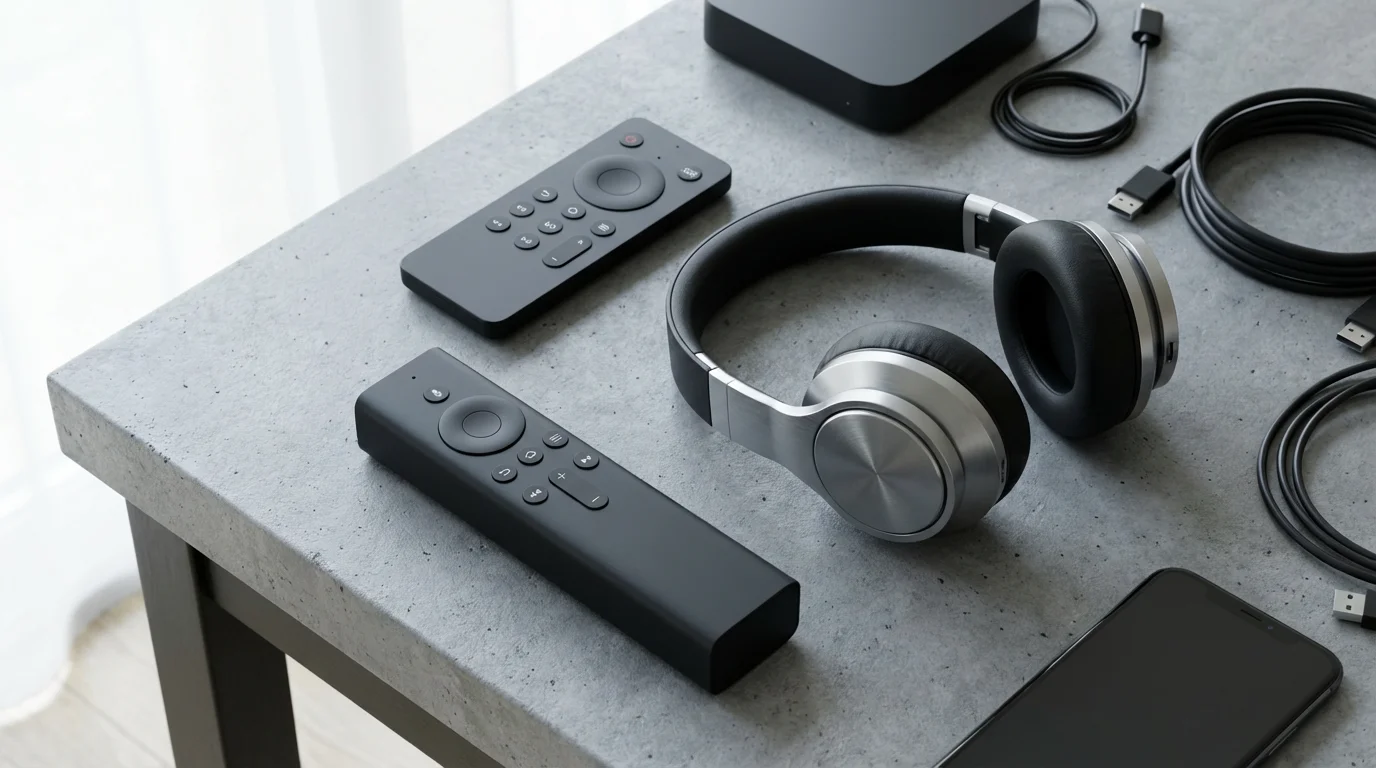
- Roku Voice Remote: Press and hold the microphone button to search for movies, shows, or launch apps.
- Fire TV Alexa Voice Remote: Press and hold the Alexa button to issue commands, ask questions, or control smart home devices.
- Apple TV Siri Remote: Press and hold the Siri button for voice commands, content search, or even asking for sports scores.
- Chromecast with Google TV Remote: Use the Google Assistant button for searches, controlling playback, and interacting with smart home devices.
- No Picture/Black Screen:
- Ensure the HDMI cable is securely connected to both the TV and the device.
- Check that your TV is on the correct HDMI input.
- Unplug the streaming device from power for 30 seconds, then plug it back in. This often resolves minor glitches.
- Wi-Fi Connection Problems:
- Double-check your Wi-Fi password for typos.
- Restart your Wi-Fi router by unplugging it for 30 seconds and plugging it back in.
- Move your streaming device closer to your router or consider a Wi-Fi extender if the signal is weak.
- Ensure your Wi-Fi network is visible and not hidden.
- App Crashing or Freezing:
- Try restarting the app. Most devices allow you to close or force quit an app from their settings menu.
- Restart the streaming device itself (unplug from power, then plug back in).
- Check for app updates. Visit the device’s app store and ensure all your apps are current.
- Ensure your streaming device’s operating system is up to date.
- Remote Control Not Responding:
- Replace the batteries.
- Try re-pairing the remote. The device’s settings menu usually has an option for this.
- Ensure no obstructions block the remote’s line of sight (for IR remotes) or that it is within range (for Bluetooth remotes).
- Poor Picture Quality (Buffering, Low Resolution):
- This often indicates a slow or inconsistent internet connection. Test your internet speed.
- Close other apps or devices on your network that might be consuming bandwidth.
- Consider upgrading your internet plan or moving to a more robust Wi-Fi setup.
- Check the app’s settings. Some apps allow you to manually select streaming quality, but “auto” is usually best.
-
Under $30: Entry-Level Value
At this price point, you find basic HD streaming sticks. These are perfect for secondary TVs, occasional viewing, or if you simply need basic functionality without many bells and whistles. They provide access to most major streaming services. Expect basic remotes, slower performance, and no 4K or HDR.
- Examples: Roku Express, Amazon Fire TV Stick Lite.
- Best For: Budget buyers, upgrading an old TV, guest rooms.
-
$30-$50: The Sweet Spot for 4K and HDR
This is where you get excellent value, offering 4K resolution, HDR (HDR10), and often a voice remote with TV controls. Performance is generally good, suitable for a main living room TV for most users. These devices deliver sharp pictures and a wide range of apps.
- Examples: Roku Streaming Stick 4K, Amazon Fire TV Stick 4K, Chromecast with Google TV (HD or 4K).
- Best For: Most users, anyone wanting 4K streaming without breaking the bank.
-
$50-$100: Enhanced Features and Performance
Devices in this range typically offer faster processors, Wi-Fi 6 support, Dolby Vision, and sometimes Ethernet ports or additional features. They provide a noticeably snappier experience and are better equipped for future-proofing. This tier includes premium sticks and entry-level boxes.
- Examples: Roku Ultra, Amazon Fire TV Stick 4K Max, Chromecast with Google TV (4K), NVIDIA Shield TV Stick.
- Best For: Users who prioritize speed, advanced features, Wi-Fi 6, or more demanding tasks like light gaming.
-
$100-$150+: Premium Experience and Ecosystem Integration
These are the top-tier streaming devices, offering the fastest performance, all major HDR formats (HDR10, Dolby Vision), Dolby Atmos audio, ample storage, and robust ecosystem integration. They cater to users who want the absolute best picture and sound quality, seamless integration with their existing devices, or advanced gaming capabilities.
- Examples: Apple TV 4K, Amazon Fire TV Cube, NVIDIA Shield TV Pro.
- Best For: Apple households, power users, smart home enthusiasts, serious gamers, audiophiles, and videophiles.
-
For Apple Households: Apple TV 4K (Starting around $129)
If you own an iPhone, iPad, or use Apple services, the Apple TV 4K offers unparalleled integration. Features like AirPlay, HomeKit control, and quick setup with an iPhone make it a natural choice. Its premium build and focus on privacy also appeal to Apple users. As CNET’s streaming device recommendations often highlight, the Apple TV offers a very polished user experience.
-
For Budget Buyers: Roku Streaming Stick 4K (Around $49) or Amazon Fire TV Stick 4K (Around $49)
Both offer exceptional value, delivering 4K HDR streaming, reliable performance, and voice remotes. Roku’s interface is simpler, while Fire TV integrates well with Amazon Prime and Alexa. You get full functionality for a low price.
-
For Ease of Use: Roku Express 4K+ or Roku Streaming Stick 4K (Starting around $39-$49)
Roku consistently receives praise for its intuitive interface. The menu is straightforward, app organization is simple, and the search function works across virtually all services. This makes it ideal for beginners or those who prefer a no-fuss experience.
-
For Sports Fans and Live TV Streamers: Roku Ultra or Apple TV 4K (Around $99-$129+)
These devices offer robust performance, which is crucial for the demanding nature of live sports streaming. Their faster processors minimize buffering and provide a smooth experience, especially when navigating quickly between channels in live TV services that act as a DVR, a digital video recorder, allowing you to record and watch shows later, or offer extensive on-demand, watch whatever you want, whenever you want, content libraries. The Roku Ultra’s Ethernet port ensures a stable wired connection, vital for live events. Apple TV 4K offers consistently strong performance and app quality for services like YouTube TV, Sling TV, and FuboTV.
-
For Google Ecosystem Users & Content Discovery: Chromecast with Google TV 4K (Around $49)
If you rely on Google Assistant, YouTube, and other Google services, this device seamlessly integrates. Its content-forward interface, powered by Google’s recommendation engine, helps you discover new shows and movies from all your subscriptions without constantly opening individual apps.
Platform-Specific Setup Nuances
While the general steps apply to all, each major streaming platform has unique elements worth noting:
Optimizing Your Streaming Experience
Once your device is set up, a few adjustments can significantly enhance your viewing and listening pleasure.
Picture Settings: Unlocking 4K, HDR, and Dolby Vision
Modern streaming devices and TVs offer advanced picture technologies. Understanding these helps you get the most from your setup:
To enable these, go to your streaming device’s display settings. It should automatically detect your TV’s capabilities. If not, manually select the highest resolution (e.g., 4K HDR or Dolby Vision) your TV supports. Remember to also check your TV’s picture settings to ensure it is in the correct mode for HDR/Dolby Vision input.
Audio Settings: Embracing Dolby Atmos
High-quality audio transforms your viewing. Dolby Atmos provides an immersive, three-dimensional sound experience, making it sound like effects are coming from all around you, including above. To experience Dolby Atmos, you need:
Navigate to your streaming device’s audio settings. Ensure it is set to “auto” or “Dolby Atmos” if your audio equipment supports it. Connect your streaming device to your soundbar or receiver, then to your TV, for the best audio pass-through.
Mastering Your Remote and Voice Assistants
Your streaming device’s remote is a powerful tool. Learn its layout, especially navigation buttons, playback controls, and dedicated app buttons. Many remotes also feature voice assistant integration:
Voice control significantly speeds up content discovery and reduces typing, making your streaming experience more intuitive.
Managing Storage and App Organization
While streaming sticks typically have limited storage, some devices allow you to manage your app library. If you frequently download apps or games, periodically review and uninstall those you no longer use to free up space and potentially improve performance. Most platforms allow you to rearrange app icons, placing your most frequently used services front and center for quick access.
Troubleshooting Common Issues
Even with careful setup, you might encounter minor hiccups. Here are solutions to common problems:
When to Choose a Dedicated Streaming Device Over Your Smart TV
Many people wonder if their smart TV’s built-in apps are sufficient or if a dedicated streaming device offers a better experience. While smart TVs have improved, dedicated devices often provide significant advantages:
Performance and Speed
Dedicated streaming devices typically feature more powerful processors and more RAM than the chips found in most smart TVs. This translates to faster app loading, smoother navigation, and less buffering, particularly when streaming high-resolution 4K or HDR content. Smart TV interfaces can often feel sluggish or unresponsive compared to a dedicated box or stick.
App Availability and Updates
Streaming device platforms like Roku, Fire TV, and Apple TV are dedicated to streaming, meaning they often receive new apps and updates more quickly. Smart TV manufacturers may not prioritize keeping their built-in app stores as current, leading to missing apps or outdated versions that lack the latest features. According to Wirecutter’s streaming device reviews, dedicated devices consistently offer a more robust and frequently updated app ecosystem.
User Interface and Features
Dedicated devices offer streamlined user interfaces designed purely for streaming. They include advanced features like universal search across multiple services, robust voice control, and deeper integration with specific ecosystems (e.g., Apple HomeKit, Amazon Alexa). Smart TV interfaces vary wildly in quality, and some can feel cluttered with promotional content from the TV manufacturer.
Longevity and Future-Proofing
A smart TV’s built-in software has a shelf life. Over time, it may stop receiving updates, or new technologies (like Wi-Fi 6 or new HDR formats) might emerge that your TV cannot support. A dedicated streaming device can be easily upgraded every few years for a fraction of the cost of a new TV, ensuring you always have access to the latest streaming capabilities.
Privacy Concerns
Some smart TVs collect significant user data for advertising and analytics, which can be a privacy concern. While streaming device manufacturers also collect data, you may find more transparency or control with certain platforms. For instance, Apple TV is generally considered to offer stronger privacy protections compared to devices deeply integrated with advertising-driven ecosystems like Amazon or Google.
Here’s a comparison to help you decide:
| Feature | Smart TV Built-in Apps | Dedicated Streaming Device |
|---|---|---|
| Performance | Often slower, less responsive. | Faster, smoother, more reliable. |
| App Availability | May lack some apps, slower updates. | Extensive app libraries, frequent updates. |
| UI & Features | Varies, potentially cluttered, basic voice control. | Streamlined, universal search, advanced voice assistants. |
| Upgradeability | None, tied to TV’s lifespan. | Easily replaced for latest tech. |
| Portability | None. | Highly portable (especially sticks). |
| Privacy | Can have extensive data collection. | Varies by brand, some offer better privacy. |
| Cost | Included with TV. | Additional upfront cost ($30-$200). |
If you own an older smart TV, a basic smart TV, or simply desire the best performance and features, a dedicated streaming device is a worthwhile investment. Even if you have a newer smart TV, a premium device like the Apple TV 4K or Roku Ultra can offer a superior experience. As Consumer Reports frequently highlights, the user experience gap between integrated smart TV apps and dedicated streaming hardware is often significant.
Choosing the Right Device for Your Needs and Budget
With numerous options available, selecting the “best” streaming device depends entirely on your specific requirements and budget. Here is a breakdown by price tier and use case.
Price-to-Value Analysis for Different Budgets
Best Devices for Specific Use Cases
Key Feature Comparison Table
Here’s a quick look at how major devices stack up on core features:
| Device Model | Resolution | HDR Formats | Audio Support | Wi-Fi 6 | Ethernet Port | Average Price |
|---|---|---|---|---|---|---|
| Roku Express 4K+ | 4K UHD | HDR10, HLG | Dolby Audio | No | No | $39 |
| Roku Streaming Stick 4K | 4K UHD | HDR10, HLG, Dolby Vision | Dolby Audio | Yes | No | $49 |
| Roku Ultra | 4K UHD | HDR10, HLG, Dolby Vision | Dolby Atmos | Yes | Yes | $99 |
| Amazon Fire TV Stick 4K | 4K UHD | HDR10, HLG, Dolby Vision | Dolby Atmos | No | No | $49 |
| Amazon Fire TV Stick 4K Max | 4K UHD | HDR10, HLG, Dolby Vision | Dolby Atmos | Yes | No | $59 |
| Amazon Fire TV Cube | 4K UHD | HDR10, HLG, Dolby Vision | Dolby Atmos | Yes | Yes | $139 |
| Apple TV 4K (2022) | 4K UHD | HDR10+, HLG, Dolby Vision | Dolby Atmos | Yes | Optional | $129-$149 |
| Chromecast with Google TV (4K) | 4K UHD | HDR10, HLG, Dolby Vision | Dolby Atmos | No | No | $49 |
Note: Ethernet port on Apple TV 4K is available only on the 128GB model. Wi-Fi 6 support improves performance on compatible networks, but all devices work with older Wi-Fi standards.
Frequently Asked Questions
What is the difference between a streaming stick and a streaming box?
A streaming stick plugs directly into an HDMI port on your TV, often powered by a USB cable. Streaming boxes are slightly larger and connect to your TV via a separate HDMI cable. Sticks are typically more portable and budget-friendly, while boxes often offer more processing power, additional features like Ethernet ports, or advanced audio/video capabilities.
Do I need to pay for streaming services?
Many popular streaming services, like Netflix, Hulu, and Max, require a paid subscription. However, a growing number of free, ad-supported services exist, such as Tubi, Pluto TV, and Freevee. You can enjoy a vast amount of content without paying a dime if you do not mind commercials. You always pay for your internet connection.
Can I use a streaming device without Wi-Fi?
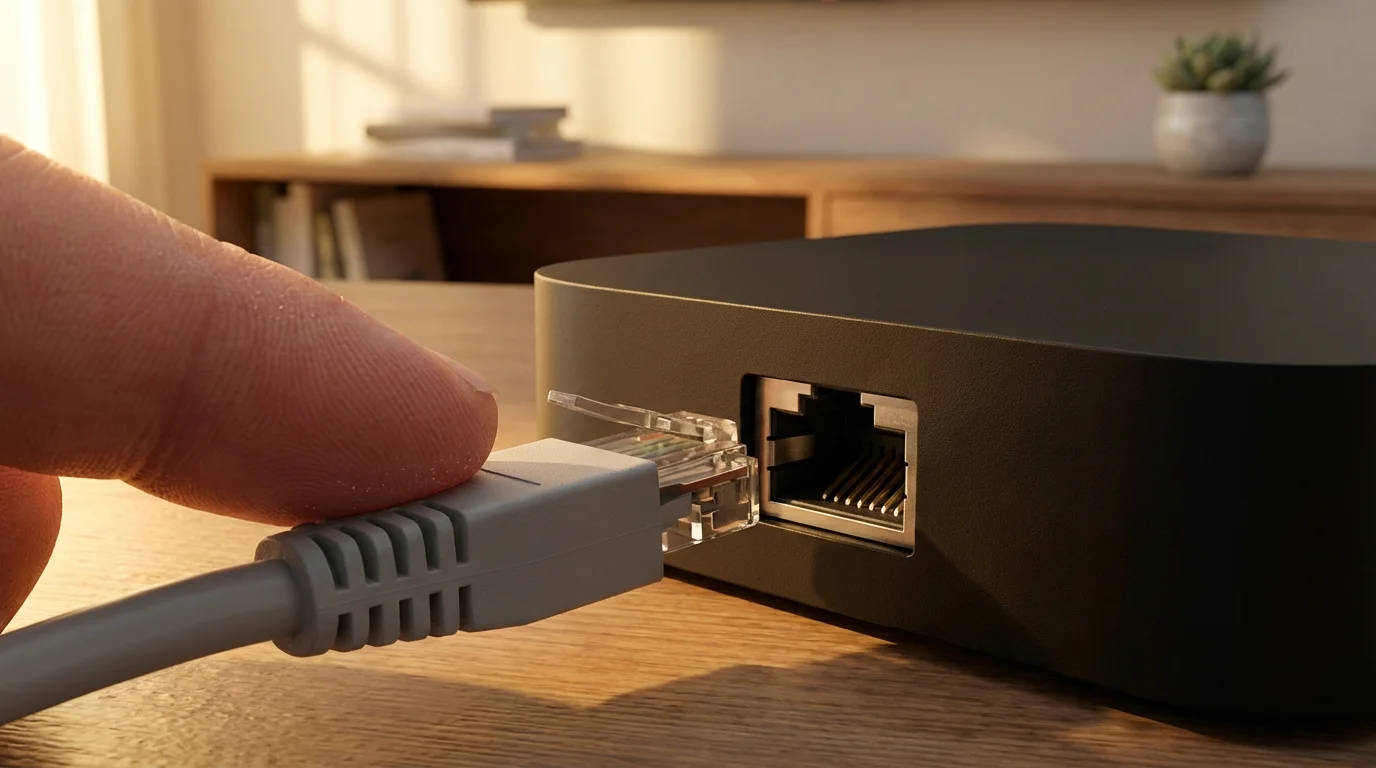
Most streaming devices primarily rely on Wi-Fi for an internet connection. Some streaming boxes, like the Roku Ultra or Apple TV 4K (128GB model), include an Ethernet port, allowing you to connect directly to your router with a cable. This provides a more stable and often faster connection, which is ideal for 4K streaming and live TV.
How do I improve my streaming quality?
To improve streaming quality, ensure you have a high-speed internet connection, preferably 50 Mbps or higher for 4K content. Connect your streaming device to your Wi-Fi router via Ethernet if possible. Position your router centrally, avoid physical obstructions, and ensure your streaming device’s software and apps are up to date. Closing other bandwidth-intensive applications on your network can also help.
Is my smart TV good enough, or do I need a separate streaming device?
If your smart TV is new (within the last 2-3 years) and you primarily use a few major apps, its built-in features might be sufficient. However, a dedicated streaming device often offers better performance, faster updates, a wider selection of apps, and superior long-term support. If your smart TV feels slow, lacks apps, or no longer receives updates, a separate streaming device significantly upgrades your experience.
You now possess the knowledge to confidently set up your first streaming device and optimize your home entertainment. Embracing streaming opens up a world of content, flexibility, and potential savings. Choose the device that aligns with your budget and viewing preferences, and enjoy the freedom of cord-cutting.
Disclaimer: Device prices and features may change. New models are released regularly, so check for the latest versions before purchasing. The “best” device depends on your specific needs, existing ecosystem (Apple, Google, Amazon), and budget.

Leave a Reply