
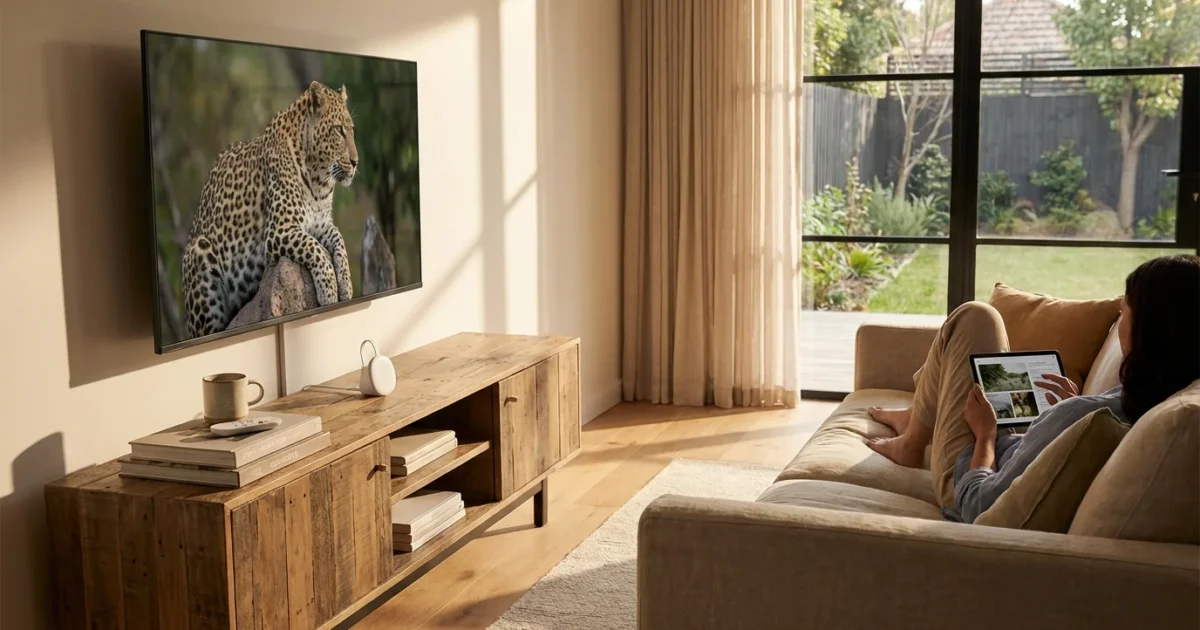
You face a bewildering array of choices when you want to stream your favorite movies, TV shows, and live sports. The landscape of streaming devices constantly evolves, and it often feels overwhelming to pick the right one. You want to save money, cut the cord from expensive cable, and get the best entertainment experience possible without breaking your budget. This guide helps you understand everything about the Chromecast with Google TV, a powerful and affordable streaming device that puts a world of entertainment at your fingertips.
A streaming device is a small box or stick, like the Chromecast with Google TV, that connects to your television and provides access to internet-based video content. This allows you to engage in streaming, which means watching video content over the internet instead of through traditional cable or satellite. Many people use these devices as part of their cord-cutting strategy, canceling traditional cable or satellite TV in favor of streaming services. We delve into how the Chromecast with Google TV stands out, offering practical insights and direct comparisons to help you make an informed decision for your home.
What is Chromecast with Google TV?
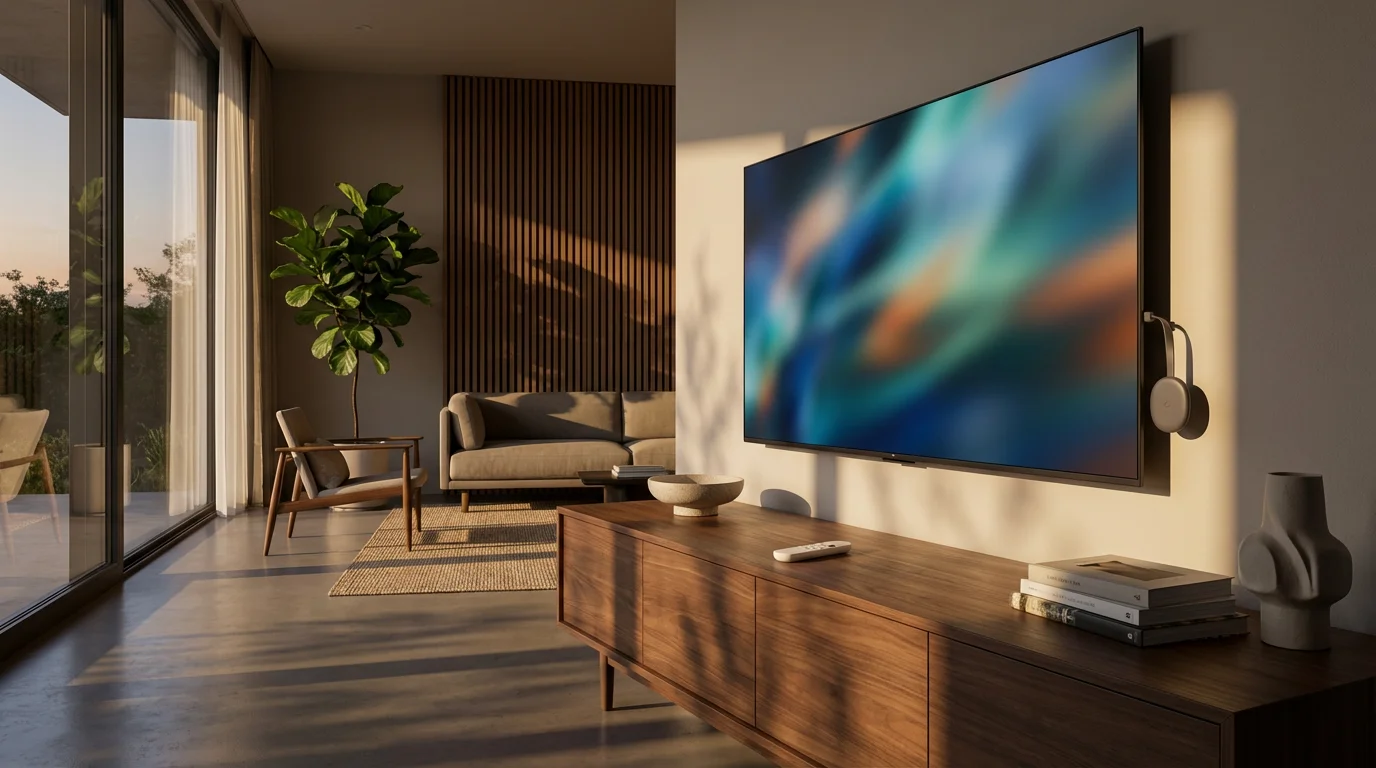
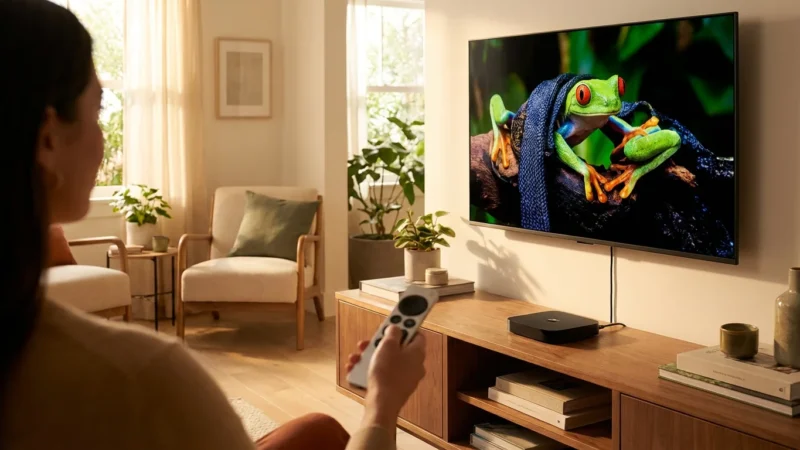
The Chromecast with Google TV represents Google’s evolution in the streaming device market. Unlike its predecessors, which required you to cast content from a phone or computer, the Chromecast with Google TV features a full operating system called Google TV and comes with its own remote control. This transforms your television into a smarter, more integrated entertainment hub, giving you direct access to all your favorite streaming apps.
The Google TV interface prioritizes content, not apps. It aggregates shows and movies from various streaming services you subscribe to, presenting them in a unified, personalized feed. This means you spend less time navigating different apps and more time watching what you love. It comes in two primary versions: an HD model for standard definition televisions and a 4K model for high-resolution displays.
You benefit from robust Google Assistant integration. Use the voice remote to search for content, control your smart home devices, or even ask questions, all without typing. This device simplifies your streaming experience and connects you seamlessly to the broader Google ecosystem.
- Pros: Excellent value, intuitive Google TV interface, broad app support, strong Google Assistant integration, compact design, offers a remote control.
- Cons: Storage can be limited for many apps, some find Google’s content recommendations sometimes favor paid options, requires a Google account.
Chromecast with Google TV Models: HD vs. 4K
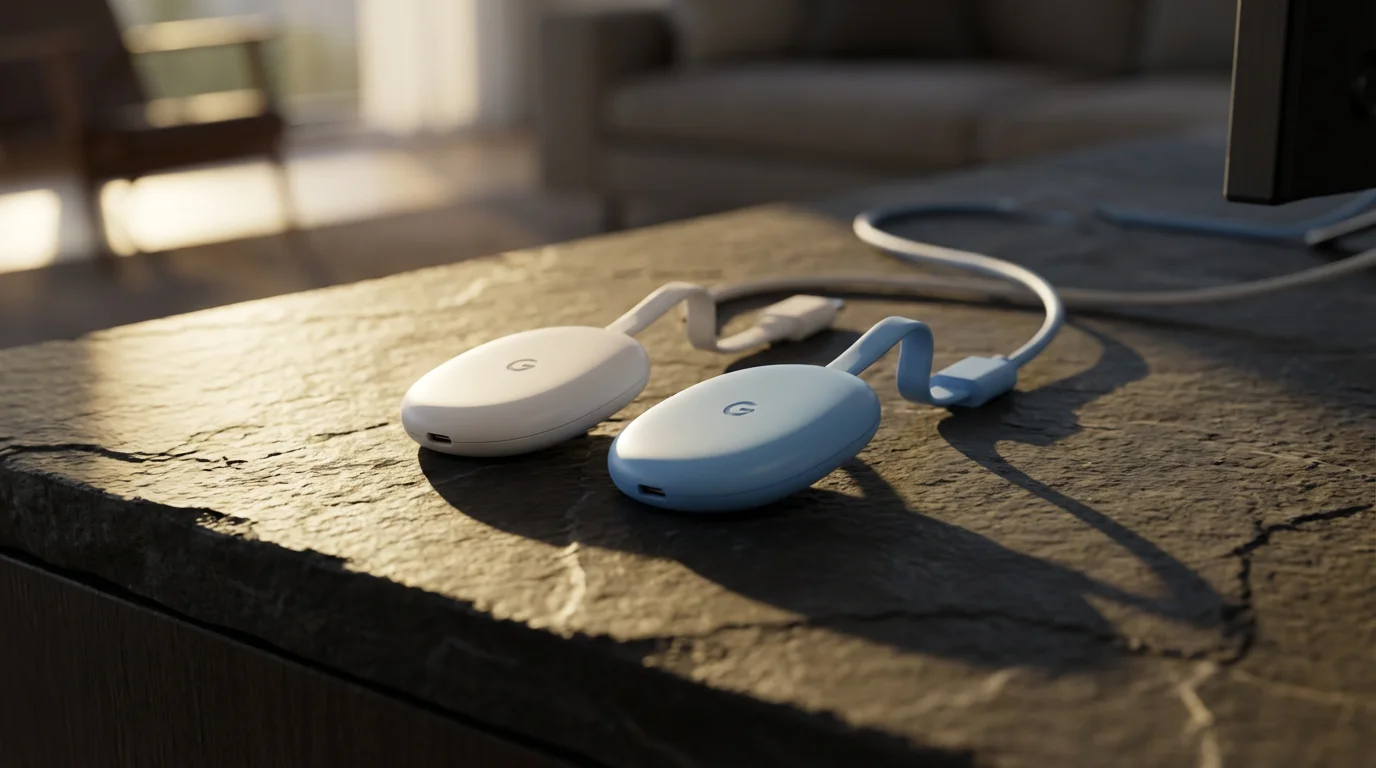
Google offers the Chromecast with Google TV in two main configurations, catering to different display capabilities and budgets. Understanding the distinctions between the HD and 4K models helps you choose the right device for your specific setup.
Chromecast with Google TV (HD)
This model outputs video in 1080p (Full HD) resolution. It costs less than its 4K counterpart, typically around $30. The HD version supports HDR10 and HDR10+, which are High Dynamic Range formats that deliver brighter whites, darker blacks, and a wider range of colors compared to standard dynamic range. It also supports Dolby Digital and Dolby Digital Plus for audio. This device is an excellent choice if you own a 1080p television or if budget is your primary concern. It provides a significant upgrade over a basic smart TV’s performance and interface without a higher price tag.
Chromecast with Google TV (4K)
For those with a 4K television, the 4K model is the superior choice, usually priced around $50. It supports stunning 4K Ultra HD resolution, delivering four times the pixels of 1080p. This results in incredibly sharp, detailed images. Beyond HDR10 and HDR10+, the 4K model also supports Dolby Vision, another premium HDR format that optimizes picture quality scene by scene. For audio, it includes support for Dolby Atmos, an immersive surround sound technology that adds a sense of height to your audio experience, creating a more three-dimensional soundstage. You will need a compatible sound system to fully appreciate Dolby Atmos. The 4K model also offers WiFi 5 support, ensuring smooth streaming for high-bandwidth 4K content.
What do these technical terms mean for you?
- 4K: This refers to the resolution, meaning the number of pixels on your screen. A 4K display has roughly 3,840 x 2,160 pixels. This delivers an incredibly sharp and detailed picture, especially noticeable on larger screens.
- HDR10, HDR10+, Dolby Vision: These are standards for High Dynamic Range. HDR content shows a much wider range of colors, brighter whites, and deeper blacks than standard video. Dolby Vision and HDR10+ often provide dynamic metadata, adjusting picture settings on a scene-by-scene or frame-by-frame basis for optimal viewing.
- Dolby Atmos: This is an advanced audio technology that creates a more immersive sound experience. It allows sound to be precisely placed and moved in a three-dimensional space, including overhead, making you feel more immersed in the action.
Google TV Interface and User Experience
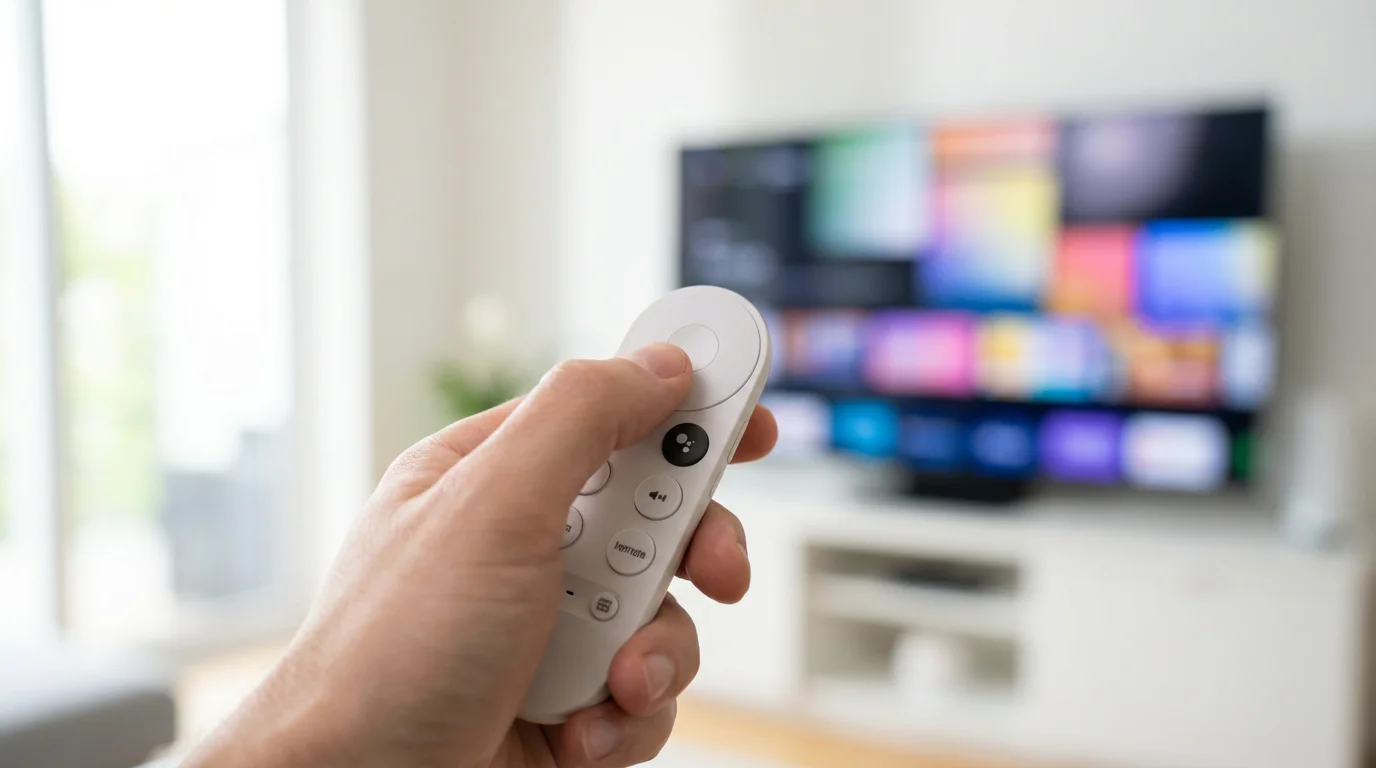
The Google TV interface truly sets the Chromecast with Google TV apart. It offers a centralized, personalized experience that aims to simplify your content discovery. You no longer have to jump in and out of individual apps to find something to watch. Instead, Google TV curates recommendations based on your viewing history and the streaming services you use.
Personalized Recommendations and Watchlist
Google TV learns your preferences. It uses your watched content and ratings to suggest new movies and shows from across all your subscribed services. This means you discover content you might actually want to watch, not just what a specific app promotes. The “For You” tab becomes your personalized content hub. The “Watchlist” feature allows you to save movies and shows you want to watch later, regardless of which service they reside on. This creates a universal queue across all your entertainment platforms.
Google Assistant Integration
The included remote features a dedicated Google Assistant button. Press it and speak your command. You can ask it to “Play The Office on Peacock,” “Find action movies,” or “What’s the weather?” It integrates with your smart home devices as well, allowing you to “Dim the living room lights” or “Show me the front door camera.” This voice control capability enhances convenience and makes navigation effortless, especially when you are tired of typing with an on-screen keyboard.
App Availability and Live TV Integration
The Google TV platform supports virtually every major streaming app. You find Netflix, Hulu, Disney+, Max, Prime Video, Peacock, Paramount+, Apple TV+, and YouTube, among many others. If an app exists for streaming, chances are it is available on Google TV. For those interested in ad-supported free content, services like Pluto TV, Tubi, and Freevee are also readily available. If you choose ad-free subscriptions, you can access those plans directly through their apps. Additionally, Google TV seamlessly integrates live TV options from services like YouTube TV, Sling TV, and Philo directly into its interface, allowing you to browse live channels alongside on-demand content. This makes it a powerful tool for serious cord-cutters.
“The best streaming device melts into the background, letting the content shine through. Google TV’s strength lies in its ability to bring your disparate services into one harmonious content feed.”
Setting Up Your Chromecast with Google TV
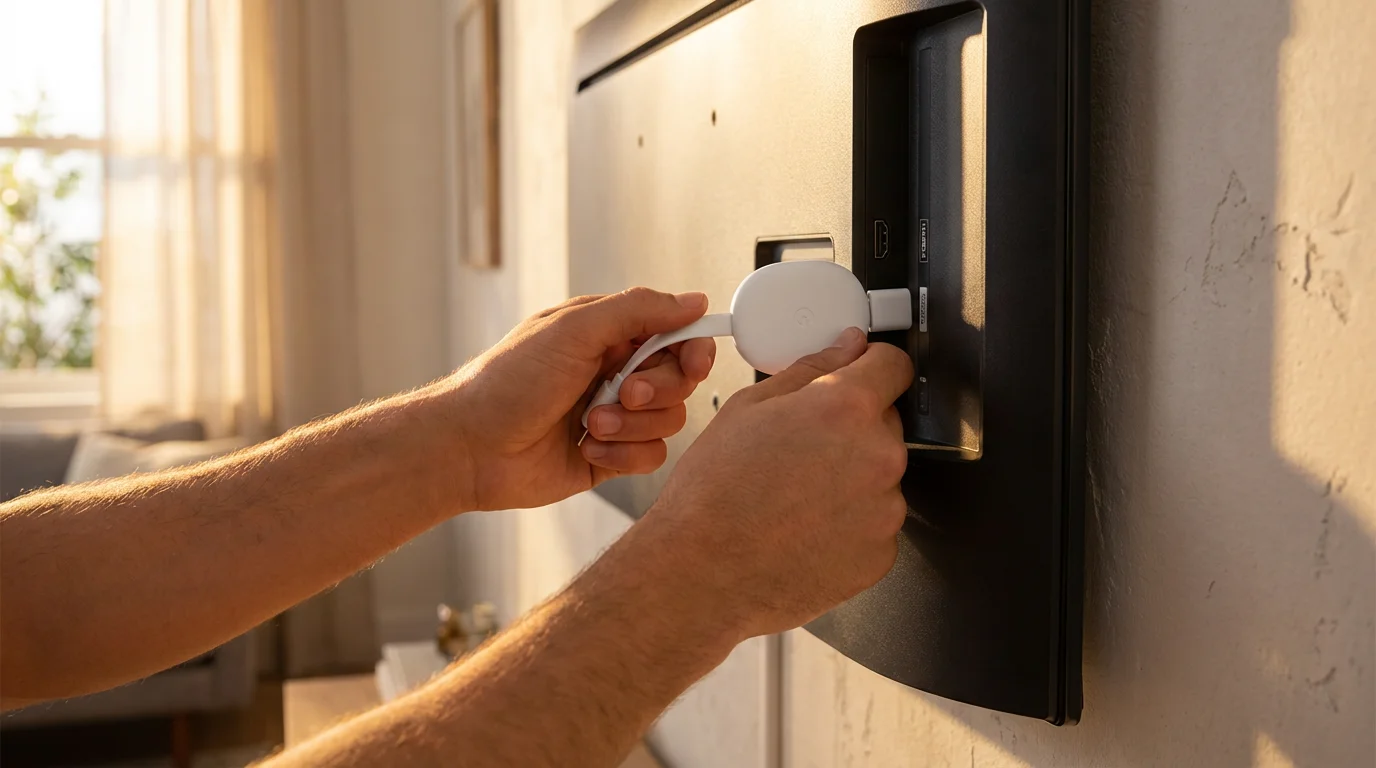
Setting up your Chromecast with Google TV is a straightforward process, designed to get you streaming quickly. Follow these steps to get your device up and running:
- Unbox and Connect:
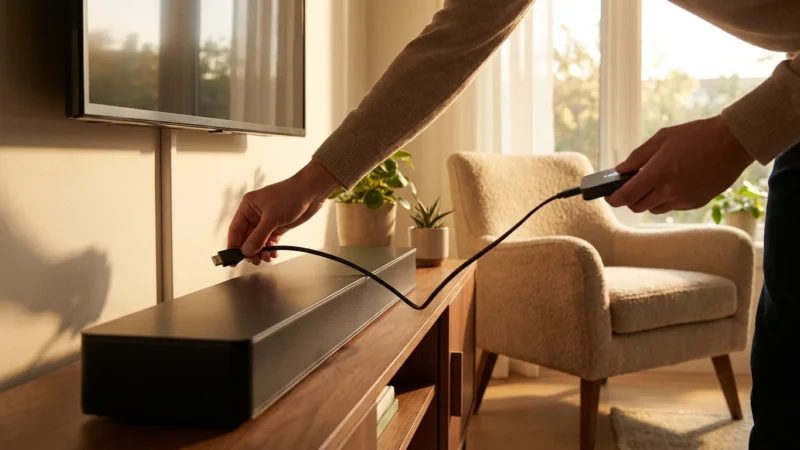
- Plug the Chromecast device into an available HDMI port on your TV.
- Connect the included power adapter to the Chromecast and then to a wall outlet. While some TVs offer USB power, using the wall adapter ensures consistent and reliable power delivery, which is crucial for optimal performance, especially with 4K content.
- Pair the Remote:
- Insert the included batteries into the Chromecast voice remote.
- The remote should automatically pair with your Chromecast. If it does not, press and hold the Back and Home buttons simultaneously until the light on the remote begins to pulse.
- Power On Your TV:
- Switch your TV’s input to the HDMI port where you connected the Chromecast. You should see the Google TV setup screen.
- Follow On-Screen Instructions (Using the Google Home App):
- The setup process guides you to use the Google Home app on your smartphone or tablet. Download the app if you do not have it already.
- Open the Google Home app, tap the ‘+’ icon to add a new device, and select “Set up device.”
- Choose “New device” and follow the prompts to scan the QR code displayed on your TV screen using your phone’s camera. This links your Chromecast to your Google account and simplifies network setup.
- Connect to Wi-Fi:
- Select your home Wi-Fi network from the list and enter your password. The Chromecast will then connect to the internet.
- Sign In to Your Google Account:
- You will be prompted to sign in with your Google account. This links your device to your existing Google services and preferences.
- Customize and Install Apps:
- Google TV asks you to select the streaming services you subscribe to (e.g., Netflix, Hulu, Disney+). This helps tailor your recommendations.
- It also offers to install a selection of popular apps. You can choose which ones you want installed immediately.
- The setup might also prompt you to configure basic TV controls (power, volume) through the Chromecast remote.
- Complete Setup:
- Once all steps are complete, you arrive at the Google TV home screen, ready to start streaming!
Troubleshooting Common Issues
- No Picture/Black Screen: Ensure the Chromecast has power and is securely plugged into both the HDMI port and the power adapter. Confirm your TV is on the correct HDMI input.
- Remote Not Working: Check the batteries. Try re-pairing the remote by holding the Back and Home buttons for a few seconds until the light pulses.
- Wi-Fi Connection Issues: Ensure your Wi-Fi password is correct. Try restarting your Wi-Fi router. Move the Chromecast closer to your router if possible, or consider a Wi-Fi extender.
- Lagging/Buffering: This often indicates a slow internet connection or Wi-Fi interference. Try reducing the streaming quality in the app settings, or ensure other devices on your network are not consuming excessive bandwidth. A wired Ethernet adapter (sold separately) can also significantly improve stability for the 4K model.
Comparing Chromecast with Google TV to Its Rivals
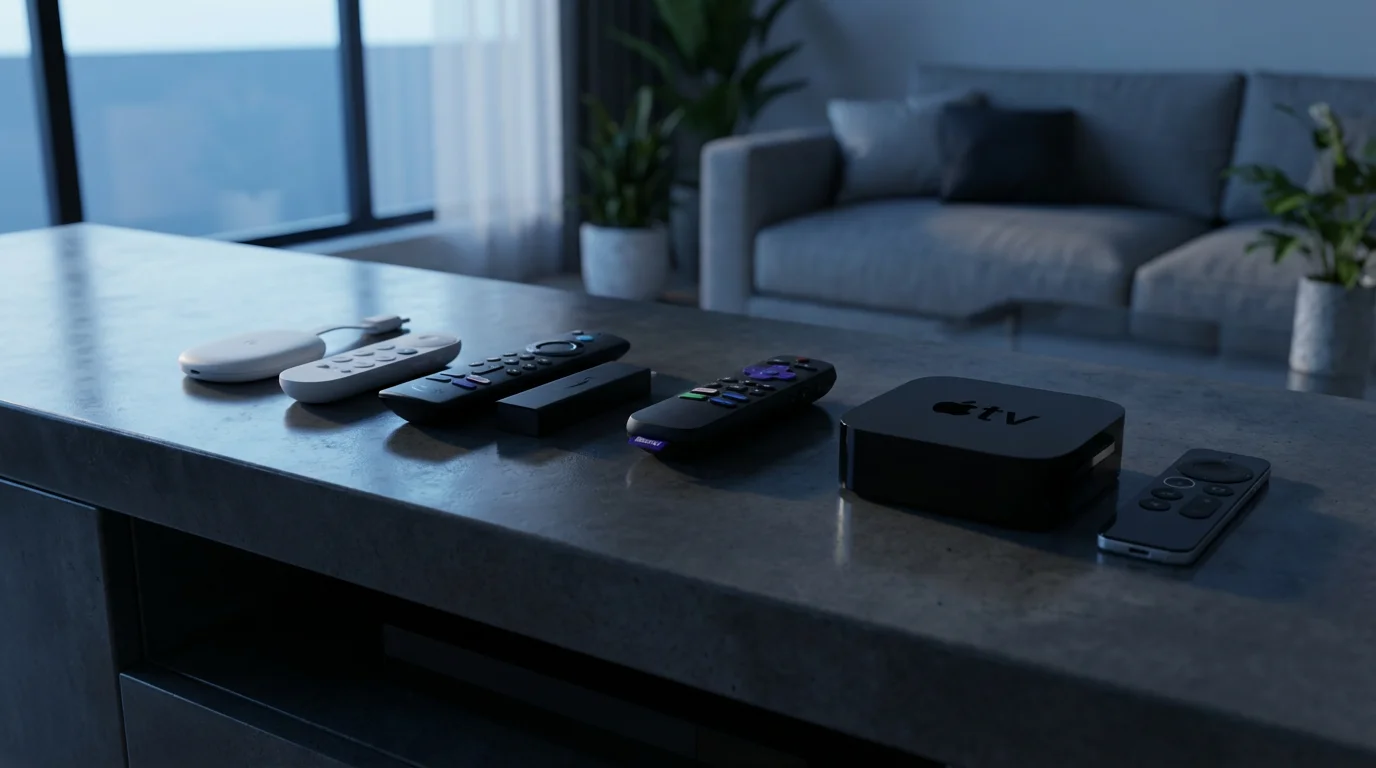
The streaming device market offers several strong contenders. You benefit from understanding how the Chromecast with Google TV stacks up against Roku, Amazon Fire TV, and Apple TV devices, as well as your smart TV’s built-in apps.
Roku Devices
Roku devices are known for their simplicity and neutral platform. They offer an easy-to-navigate interface with a clear grid of app icons. Roku provides a vast selection of apps and a powerful search function that scours nearly every service. Roku focuses solely on streaming, avoiding integration with smart home ecosystems in the same way Google or Amazon do. They offer a range of devices, from the basic Roku Express (HD) to the Roku Streaming Stick 4K and Roku Ultra, covering various budgets and features. According to Wirecutter’s streaming device reviews, Roku devices often stand out for their straightforward user experience.
Amazon Fire TV Devices
Amazon Fire TV devices, such as the Fire TV Stick 4K Max, integrate deeply into the Amazon ecosystem. They feature Alexa voice assistant, making them ideal if you use other Amazon products or services. The interface prioritizes Amazon Prime Video and other Amazon content, which some users find biased. Fire TV devices often provide good value, offering 4K HDR streaming at competitive price points. They also offer a robust app store.
Apple TV 4K
The Apple TV 4K is the premium option in the streaming device market. It offers a sleek interface, robust performance, and tight integration with the Apple ecosystem, including Apple Arcade for gaming, Apple Fitness+, and seamless connectivity with iPhones, iPads, and AirPods. While it carries a higher price tag, it delivers exceptional picture quality, smooth performance, and superior build quality. It is particularly well-suited for Apple households and users who prioritize a premium experience and advanced gaming capabilities.
Smart TV Apps
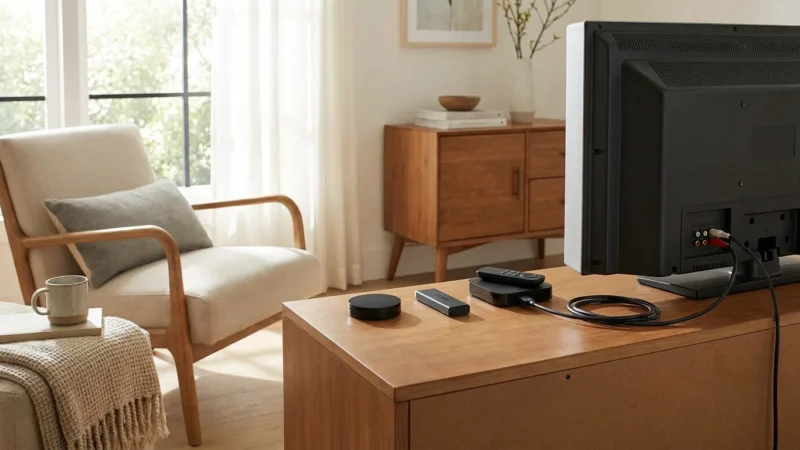
Many modern televisions come with built-in smart TV functionality, offering direct access to streaming apps. While convenient, these built-in systems often fall short in performance, updates, and user experience compared to dedicated streaming devices. We explore this comparison in more detail below.
Here is a comparison table highlighting key features:
| Feature | Chromecast with Google TV (HD) | Chromecast with Google TV (4K) | Roku Streaming Stick 4K (Example) | Amazon Fire TV Stick 4K Max (Example) | Apple TV 4K (Example) |
|---|---|---|---|---|---|
| Typical Price | $30 | $50 | $50 | $55 | $129 – $149 |
| Max Resolution | 1080p | 4K Ultra HD | 4K Ultra HD | 4K Ultra HD | 4K Ultra HD |
| HDR Support | HDR10, HDR10+ | HDR10, HDR10+, Dolby Vision | HDR10, HDR10+, Dolby Vision | HDR10, HDR10+, Dolby Vision | HDR10, HDR10+, Dolby Vision |
| Audio Support | Dolby Digital, Dolby Digital Plus | Dolby Digital, Dolby Digital Plus, Dolby Atmos | Dolby Digital, Dolby Digital Plus, Dolby Atmos | Dolby Digital, Dolby Digital Plus, Dolby Atmos | Dolby Digital, Dolby Digital Plus, Dolby Atmos |
| Voice Assistant | Google Assistant | Google Assistant | Roku Voice | Alexa | Siri |
| Ecosystem Focus | Platform Agnostic | Amazon | Apple | ||
| Remote Complexity | Medium (Voice, TV Controls) | Medium (Voice, TV Controls) | Simple (Voice, TV Controls) | Medium (Voice, TV Controls) | Minimalist (Touchpad, Voice, TV Controls) |
| WiFi Support | WiFi 5 (ac) | WiFi 5 (ac) | WiFi 6 (ax) | WiFi 6 (ax) | WiFi 6 (ax) |
Price-to-Value Analysis for Every Budget
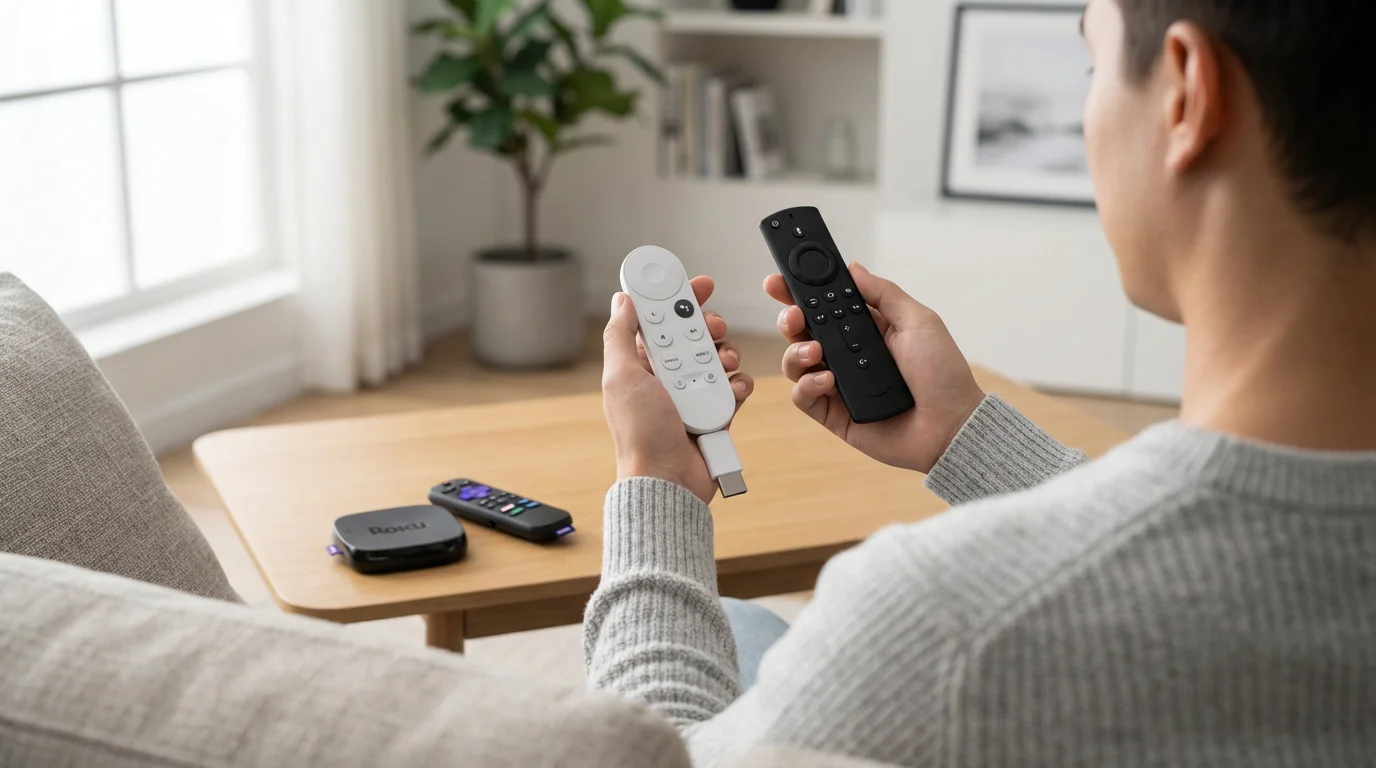
You can find a great streaming device regardless of your budget. The Chromecast with Google TV models fit perfectly into key price tiers, offering excellent value. Understanding these tiers helps you get the most for your money.
Under $30: Entry-Level Streaming
At this budget, your options include the Chromecast with Google TV (HD), the Roku Express, and the Amazon Fire TV Stick Lite. The Chromecast with Google TV (HD) stands out here for its full Google TV interface and remote control, a significant upgrade from older “casting-only” Chromecasts. It delivers reliable 1080p streaming with HDR support, making it an excellent choice for a secondary TV or for those who do not yet own a 4K television. The Roku Express offers a simpler interface, while the Fire TV Stick Lite brings Alexa integration. For a budget-friendly device that feels premium, the Chromecast with Google TV (HD) offers strong competition.
Under $50: The 4K Sweet Spot
This is where the Chromecast with Google TV (4K) shines. For around $50, you gain full 4K Ultra HD resolution, comprehensive HDR support including Dolby Vision, and immersive Dolby Atmos audio. This puts it squarely against the Roku Streaming Stick 4K and the Amazon Fire TV Stick 4K (or 4K Max, often slightly above $50). The Chromecast’s Google TV interface provides excellent content discovery, a major advantage for many users. If you have a 4K TV and want the best blend of features, performance, and price, the Chromecast with Google TV (4K) is a highly competitive option. Tom’s Guide consistently recommends it as a top choice for overall value in this price bracket, as highlighted in their best streaming devices guide.
$100+: Premium Performance and Ecosystem Integration
When your budget extends beyond $100, you enter the realm of premium devices like the Apple TV 4K and NVIDIA Shield TV. These devices offer faster processors, more internal storage, and advanced gaming capabilities. The Apple TV 4K, for instance, provides unparalleled integration with the Apple ecosystem, making it ideal for iPhone users who want the smoothest experience across all their devices. NVIDIA Shield TV caters to power users and gamers, offering Android TV with robust media server capabilities. While the Chromecast with Google TV (4K) offers fantastic value, if you demand top-tier performance, extensive gaming, or deep integration with a specific high-end ecosystem, these premium devices justify their higher cost. However, for most users primarily focused on streaming video, the Chromecast with Google TV (4K) offers virtually all the essential features at a fraction of the price.
Best Use Cases for Chromecast with Google TV
The Chromecast with Google TV excels in several specific scenarios, making it an ideal choice for many different types of streamers.
For Google Ecosystem Users
If you already use Google services extensively—Gmail, Google Photos, Google Calendar, Google Assistant on your phone or smart speakers—the Chromecast with Google TV integrates seamlessly into your digital life. Your Google account automatically syncs, making setup easy. You can cast content from Chrome tabs or Android devices effortlessly, and your Google Assistant queries extend directly to your TV. It feels like a natural extension of your existing technology.
For Budget-Conscious 4K Streamers
You want to experience 4K resolution, HDR, and Dolby Vision without spending a fortune. The Chromecast with Google TV (4K) delivers these premium features for around $50. This makes it one of the most affordable ways to upgrade your viewing experience to current standards, especially compared to more expensive premium streaming boxes. You gain access to stunning visuals and immersive audio technologies at a price point that respects your budget.
For Recommendation Seekers
Are you often overwhelmed by the sheer volume of content available across various streaming services? The Google TV interface is a game-changer here. It aggregates recommendations from your subscribed apps into one personalized feed, helping you discover new shows and movies without endlessly browsing. Its Watchlist feature also allows you to save content from different services in one central location, simplifying your “to-watch” queue. If you value a curated, personalized content experience, Google TV excels.
For Cord-Cutters Who Want Live TV Integration
Many cord-cutting strategies involve subscribing to live TV streaming services like YouTube TV, Sling TV, or Hulu + Live TV. The Google TV interface integrates these services directly into its “Live” tab, allowing you to browse channels and see what is currently airing alongside your on-demand content. This provides a unified experience, bridging the gap between traditional TV viewing and the modern streaming landscape. You get a holistic view of your entertainment options, whether it is a live game or a movie on demand. For those who enjoy recording shows, some live TV streaming services offer cloud-based DVR features, which work perfectly through the Chromecast with Google TV apps.
When to Use a Streaming Device vs. Your Smart TV’s Built-in Apps
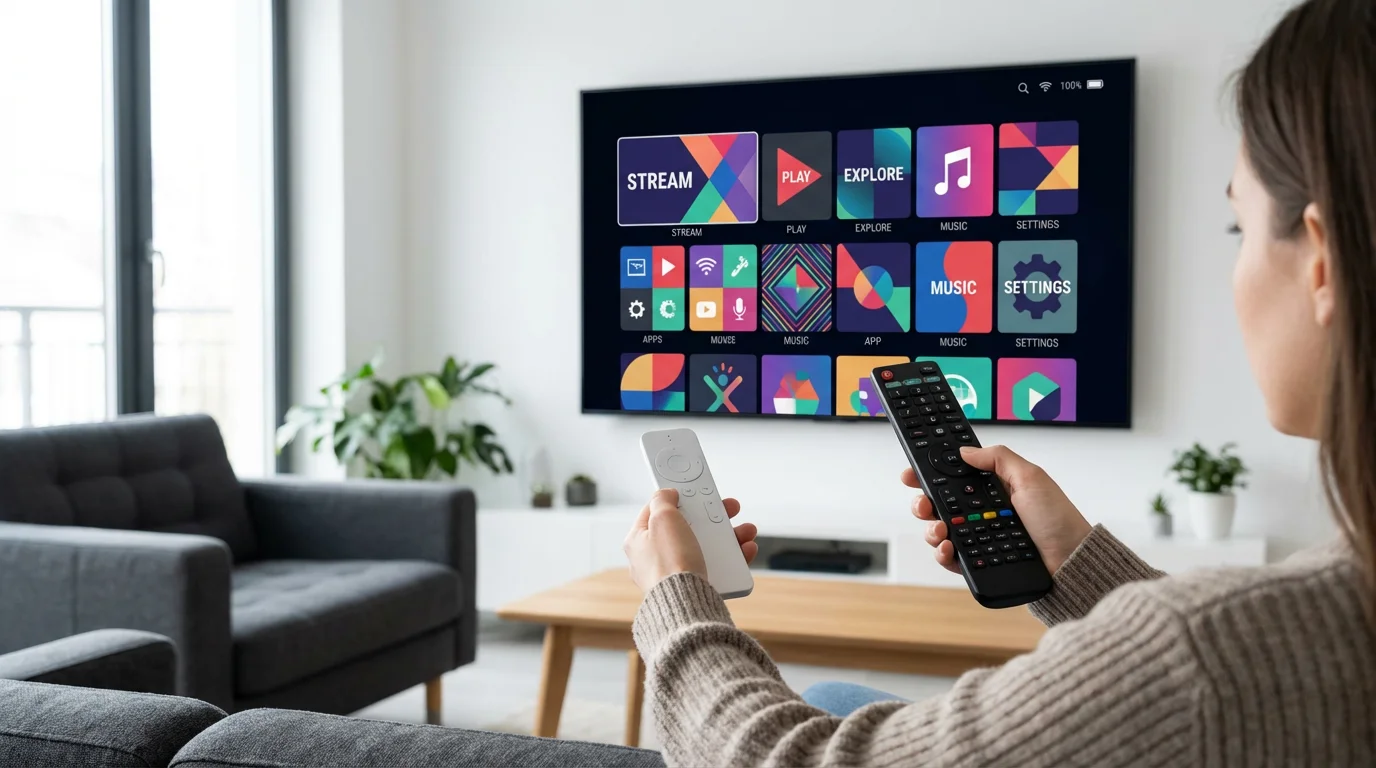
Many smart TVs include built-in apps, leading you to wonder if a dedicated streaming device is truly necessary. While your smart TV’s apps offer convenience, dedicated streaming devices like the Chromecast with Google TV often provide a superior experience.
Advantages of Smart TV Apps (and Their Limitations)
The primary advantage of smart TV apps is simplicity: no extra hardware, no extra remote, and everything is integrated. For a secondary TV that sees only occasional, basic streaming (like Netflix or YouTube), these built-in apps can be “good enough.”
However, smart TV apps often come with significant drawbacks:
- Slower Performance: Smart TV processors are typically less powerful than those in dedicated streaming devices. This leads to slower app loading, sluggish navigation, and frustrating lag.
- Fewer Updates: TV manufacturers often stop updating the smart TV operating system after a few years. This leaves you with outdated interfaces, missing features, and potential security vulnerabilities. Dedicated devices receive more frequent and longer-term software updates.
- Limited App Selection: While major apps are almost always available, smaller or newer streaming services might not appear on your smart TV’s app store. Dedicated devices generally offer a broader and more current selection.
- Outdated Hardware: If you bought your smart TV several years ago, it might not support the latest streaming technologies like WiFi 6, advanced HDR formats (Dolby Vision), or immersive audio (Dolby Atmos). A new streaming device brings these capabilities to an older but still functional TV.
- Privacy Concerns: Many smart TVs collect extensive data on your viewing habits for advertising purposes. While streaming devices also collect data (especially Google and Amazon), you often have more control over settings, and companies like Apple and Roku prioritize user privacy more explicitly. You should always review privacy policies for any connected device.
Why a Dedicated Streaming Device is Better
A dedicated streaming device like the Chromecast with Google TV addresses the limitations of smart TV apps:
- Superior Performance: Dedicated devices feature faster processors and more RAM, resulting in smooth navigation, quick app loading, and buffer-free streaming, even with 4K content.
- Consistent Software Updates: Google, Roku, Amazon, and Apple regularly update their streaming device operating systems, bringing new features, improved performance, and security patches. This extends the lifespan and enhances the usability of your device.
- Wider App Support: You gain access to the latest streaming apps and services as soon as they become available.
- Future-Proofing (to an extent): A new streaming device often supports the latest connectivity standards (like WiFi 6 on some models) and audio/video formats, breathing new life into an older TV that may lack these features. Even if your TV is 4K, an external device can improve the actual visual and audio performance. As CNET’s guide to streaming devices often points out, a dedicated streamer can offer a significantly better experience than relying on built-in TV software.
- Unified Experience: Devices like the Chromecast with Google TV offer a cohesive, content-first interface that pulls recommendations from all your services, something many smart TVs struggle to replicate effectively.
Ultimately, if you stream regularly, value performance, want access to the latest features, or find your smart TV’s interface frustrating, investing in a dedicated streaming device provides a dramatically better and more reliable entertainment experience. The Chromecast with Google TV offers an excellent balance of features and value, making it a smart choice to upgrade almost any smart TV.
Frequently Asked Questions
Can I cast content from my phone to Chromecast with Google TV?
Yes, absolutely. While the Chromecast with Google TV features its own remote and interface, it retains the core casting functionality of previous Chromecast devices. You can cast videos, music, photos, and even your entire screen from compatible apps on your smartphone, tablet, or Chrome web browser directly to your TV. Look for the “Cast” icon within apps like YouTube, Netflix, or Spotify.
Does Chromecast with Google TV have ads?
The Google TV interface itself does display some advertisements and sponsored content, particularly in the “For You” tab, which might promote movies or shows available for purchase or rental. The streaming apps you install on the device, such as Hulu or Peacock, will also show ads if you subscribe to their ad-supported tiers. If you subscribe to ad-free versions of those services, you will not see commercials within those specific apps. Google’s monetization strategy does involve recommending content, some of which are sponsored.
Is Chromecast with Google TV good for gaming?
Chromecast with Google TV handles light gaming well. You can download casual games from the Google Play Store, and it supports Bluetooth controllers for a better experience. However, it is not designed for graphically intensive or competitive gaming. For serious gamers, devices like the Apple TV 4K or NVIDIA Shield TV offer much more powerful hardware and dedicated gaming ecosystems.
What’s the difference between Chromecast and Chromecast with Google TV?
The main difference is the user interface and remote control. Original Chromecast devices were “casting-only,” meaning you needed a phone or computer to initiate streaming. Chromecast with Google TV features a full operating system (Google TV), its own on-screen interface, and a dedicated remote control. This allows you to browse and launch apps directly from your TV, making it a standalone streaming device, while still retaining the casting capabilities.
Disclaimer: Device prices and features may change. New models are released regularly, so check for the latest versions before purchasing. The “best” device depends on your specific needs, existing ecosystem (Apple, Google, Amazon), and budget.
If you want to see how this model compares to other high-resolution hardware, explore our guide to the best streaming device for 4K and HDR content.
If your interface feels sluggish even with a good connection, you may need to learn how to speed up a slow streaming device to optimize performance.


Leave a Reply