
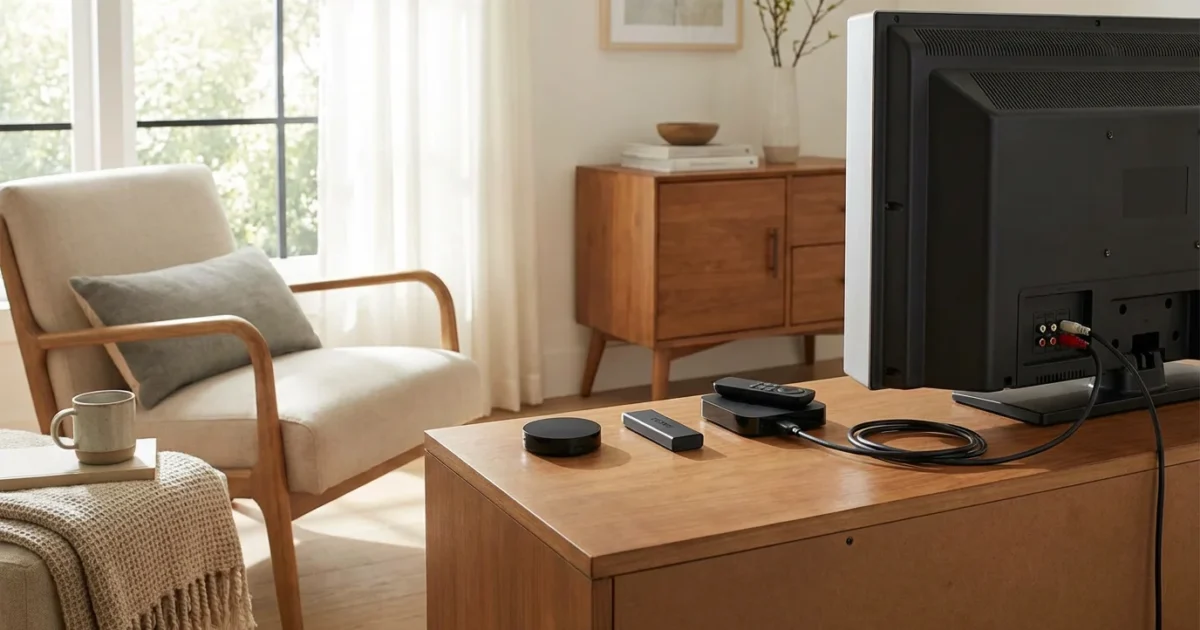
You have an older television, a reliable workhorse that still delivers a great picture, but it lacks the built-in “smart” features of newer models. Perhaps you want to cut the cord from expensive cable, or simply bring your existing TV into the modern era of entertainment. The good news: you do not need to buy a brand-new television. A dedicated streaming device can transform your non-smart TV, giving it access to thousands of apps, movies, and shows over the internet. This guide helps you navigate the options, focusing on practical advice to help you make a smart, budget-friendly decision.
Streaming refers to watching video content over the internet instead of through traditional cable or satellite. This method allows for on-demand access to a vast library of entertainment. Cord-cutting is the act of canceling traditional cable or satellite TV subscriptions in favor of these more flexible and often cheaper streaming services. A streaming device is a small piece of hardware that plugs into your TV, providing the internet connection and software needed to run streaming apps.
Why Your Old TV Needs a Streaming Device
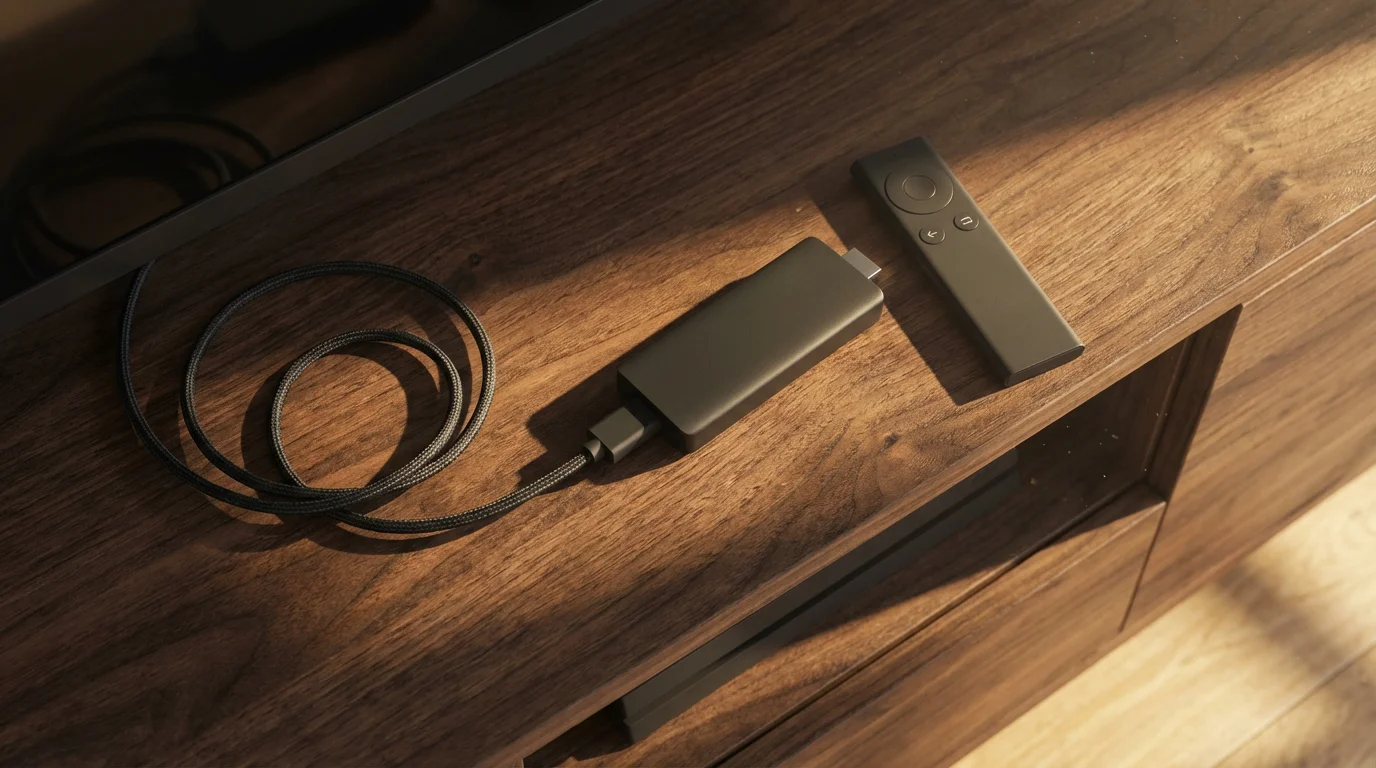
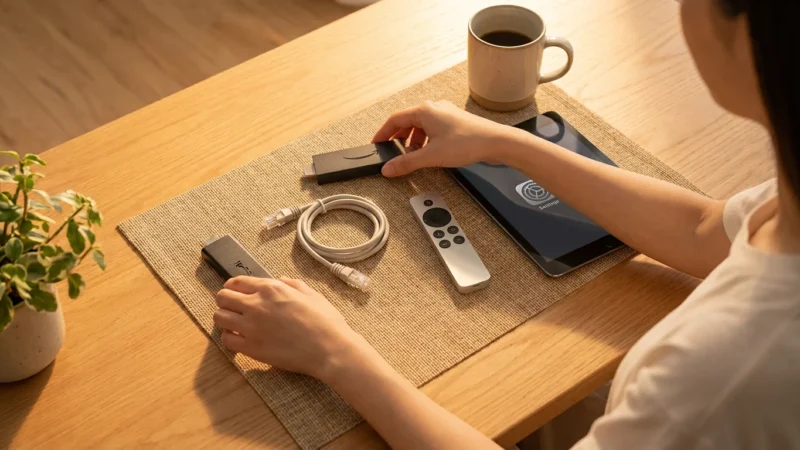
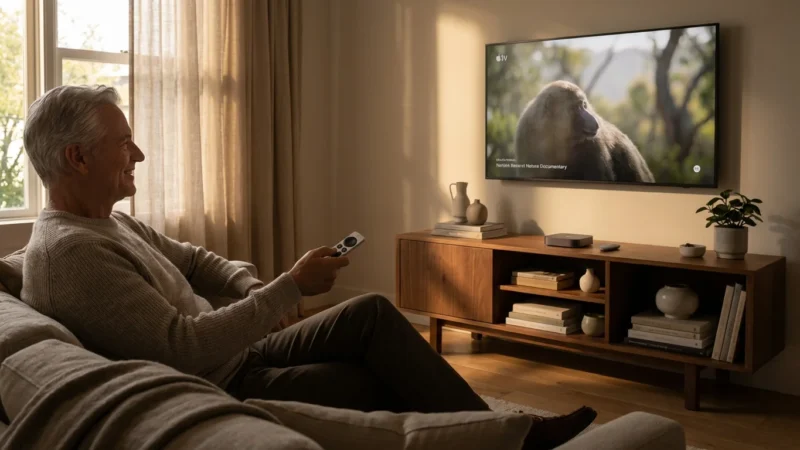
Your older television often lacks the internal hardware and software necessary to connect to the internet and run modern streaming applications. A smart TV comes with an internet connection and pre-installed apps, but your non-smart TV requires an external gadget to bridge this gap. This is where an HDMI streaming device becomes indispensable. You effectively upgrade your TV’s capabilities without replacing the entire unit.
An HDMI streaming device offers several key advantages for your old TV streaming setup:
- Access to All Major Streaming Services: Stream Netflix, Hulu, Disney+, Max, Peacock, Apple TV+, YouTube, and thousands more, instantly transforming your media library.
- Cost Savings: By enabling cord-cutting, you can save significant money each month by replacing expensive cable subscriptions with more affordable streaming services.
- Improved User Interface: Dedicated streaming devices often provide a smoother, faster, and more intuitive user experience compared to some older, sluggish smart TV interfaces or basic cable boxes.
- Future-Proofing: As streaming apps evolve, these external devices receive regular software updates, ensuring compatibility and access to the latest features. Your old TV continues to work with new technology.
- Enhanced Performance: Even if your TV supports some smart features, a dedicated streaming device typically boasts more powerful processors, offering quicker app loading and smoother navigation.
For your non-smart TV, an HDMI streaming device is not just an upgrade; it is the essential component that unlocks a universe of entertainment. According to Wirecutter’s streaming device guide, these gadgets offer an affordable way to modernize any television.
Understanding Key Streaming Features
When selecting a streaming device for your old TV, you encounter various technical terms. Understanding these helps you make an informed decision, even if your current TV cannot display every advanced feature.
- Resolution (4K, HD):
- HD (High Definition, 720p/1080p): This is the standard resolution for most older TVs. A 1080p picture contains 1,920 pixels horizontally by 1,080 pixels vertically.
- 4K (Ultra High Definition, UHD): A 4K picture has 3,840 pixels horizontally by 2,160 pixels vertically, four times the resolution of 1080p. While your old TV might not be 4K, a 4K streaming device can still “downscale” the image to your TV’s native resolution, often providing a slightly sharper image. More importantly, buying a 4K device now future-proofs you for when you eventually upgrade your TV.
- High Dynamic Range (HDR):
- HDR10: A common open-source HDR format that provides greater contrast and a wider range of colors than standard dynamic range (SDR).
- Dolby Vision: A premium, proprietary HDR format. It offers even more precise control over brightness and color on a scene-by-scene or frame-by-frame basis, resulting in a more vivid and realistic picture. Your old TV likely does not support HDR, but like 4K, a device with HDR can pass that information through to a compatible TV in the future.
- Audio Formats (Dolby Atmos, Surround Sound):
- Dolby Atmos: This is an immersive audio technology that adds height channels, creating a three-dimensional sound experience. It requires compatible sound systems and content.
- Surround Sound: Standard 5.1 or 7.1 channel audio, which directs sound to multiple speakers around you. Most streaming devices support these formats. For an old TV, you likely rely on its built-in speakers or a basic soundbar. Still, a device supporting advanced audio ensures you are ready if you upgrade your sound system later.
- WiFi 6 Support: This is the latest generation of Wi-Fi technology, offering faster speeds and better performance in congested network environments. If your home network uses a WiFi 6 router, a compatible streaming device provides the most reliable connection for smooth streaming, especially with higher resolutions. For an old TV, even standard WiFi (802.11ac) is perfectly adequate for HD streaming.
- Voice Control: Most modern streaming devices include remotes with built-in microphones, allowing you to search for content, launch apps, or control playback using your voice. This feature significantly simplifies navigation.
“While your non-smart TV may not display 4K or HDR, investing in a device that supports these features prepares you for a future TV upgrade, ensuring your streaming setup remains relevant.”
Top Streaming Devices for Your Non-Smart TV
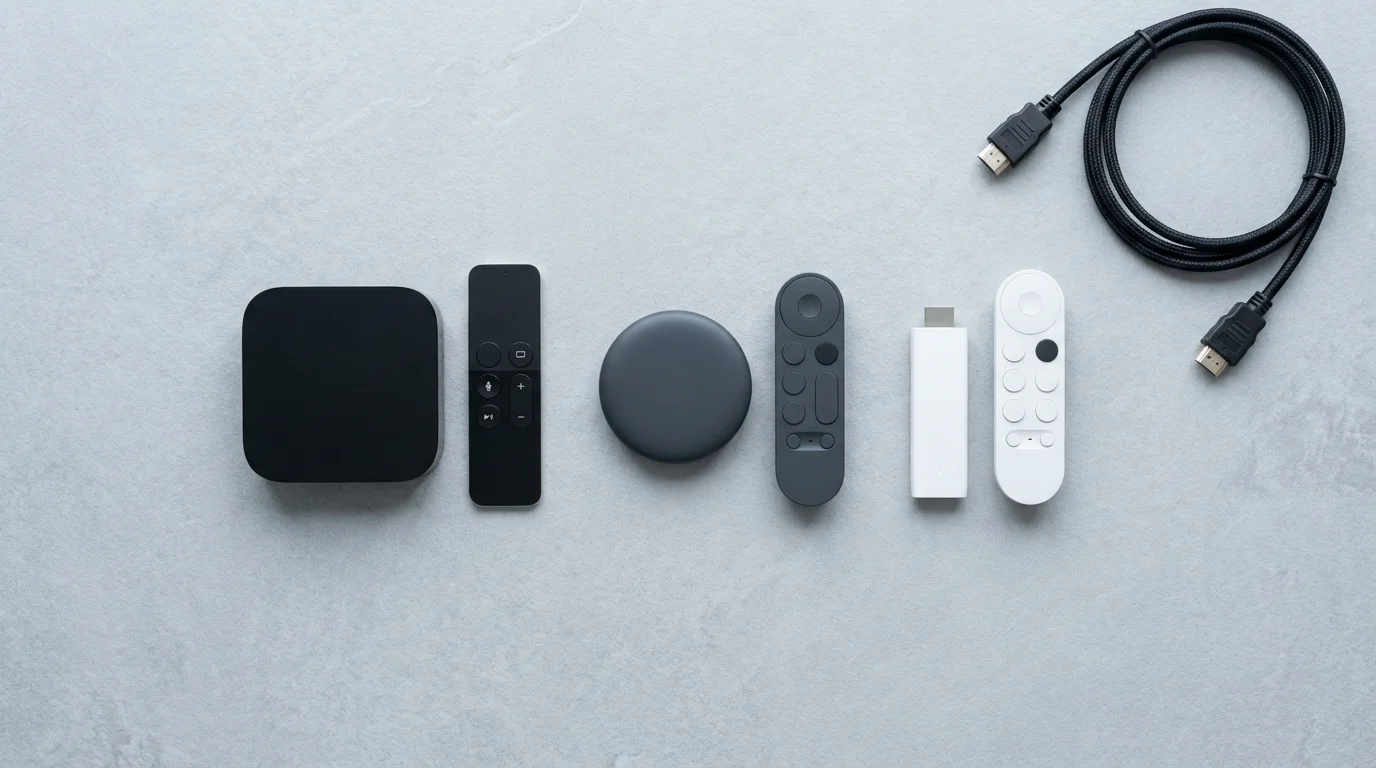
Bringing modern streaming to your old TV means choosing the right device. These options plug into your TV via an HDMI port, transforming it into a full-fledged entertainment hub. We review the leading contenders, considering features, price, and overall value.
Roku Streaming Devices
Roku offers a range of simple, user-friendly devices known for their straightforward interface and extensive app support. They are an excellent choice for first-time streamers or those who prioritize ease of use.
- Roku Express (Starts around $30): The most budget-friendly option, delivering solid HD streaming. It is compact and includes an HDMI cable, making it perfect for your old TV streaming needs. Its simple remote works well.
- Roku Streaming Stick 4K (Starts around $50): This stick-style device hides behind your TV and offers 4K, HDR10+, and Dolby Vision support. It features a faster processor than the Express and a voice remote, providing a smoother experience and future-proofing. Even on an HD TV, you will notice snappier performance.
- Roku Ultra (Starts around $100): A more powerful box-style device with an Ethernet port for wired internet, a lost remote finder, and USB playback. While robust, its advanced features might be overkill for many older TVs.
Amazon Fire TV Devices
Amazon’s Fire TV devices are deeply integrated with the Alexa voice assistant and Amazon’s ecosystem. They offer good performance and are often on sale.
- Amazon Fire TV Stick Lite (Starts around $30): Amazon’s entry-level stick for HD streaming. It includes an Alexa Voice Remote Lite, allowing you to use voice commands to find content and control playback. This is a strong contender for how to add streaming to old TV setups on a tight budget.
- Amazon Fire TV Stick 4K Max (Starts around $55): This powerful stick delivers 4K, HDR10+, and Dolby Vision, along with WiFi 6 support for faster, more reliable streaming. It is significantly faster than the Lite, offering a premium experience that will future-proof your setup.
- Amazon Fire TV Cube (Starts around $140): A top-tier streaming cube that combines a Fire TV streamer with an Echo smart speaker. It offers hands-free Alexa control and exceptional performance, but the higher price point and advanced features might exceed the requirements for most older TVs.
Google Chromecast with Google TV
Google’s current generation of Chromecast combines the simplicity of casting with a full-fledged interface and remote, powered by Google TV. It offers excellent content discovery and deep integration with Google services.
- Chromecast with Google TV (HD) (Starts around $30): A newer HD-only version of the popular Chromecast with Google TV. It provides a full smart TV experience with a remote, ideal for your non-smart TV without breaking the bank. It integrates well with Android phones.
- Chromecast with Google TV (4K) (Starts around $50): The 4K version supports 4K, HDR10, HDR10+, and Dolby Vision. It offers a fast interface and excellent app support. Its strength lies in content aggregation across services, making it easy to find what to watch.
Apple TV 4K
The Apple TV 4K is a premium streaming box, known for its powerful performance, sleek interface, and tight integration with the Apple ecosystem. It comes at a higher price.
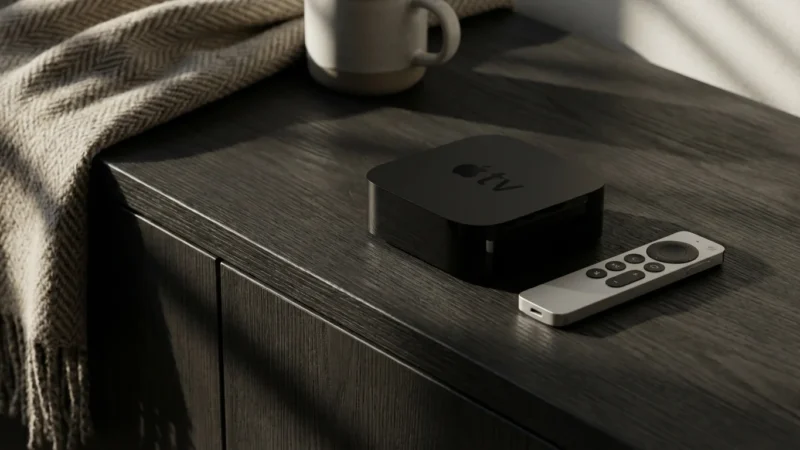
- Apple TV 4K (Starts around $129 for 64GB, $149 for 128GB with Ethernet): This device offers top-tier performance, 4K, HDR10+, Dolby Vision, and Dolby Atmos support. Its A15 Bionic chip delivers lightning-fast navigation. If you have other Apple devices, the integration is seamless. While a powerful option, its higher price and 4K capabilities might be more than your old TV can fully utilize, but it provides unmatched responsiveness and longevity.
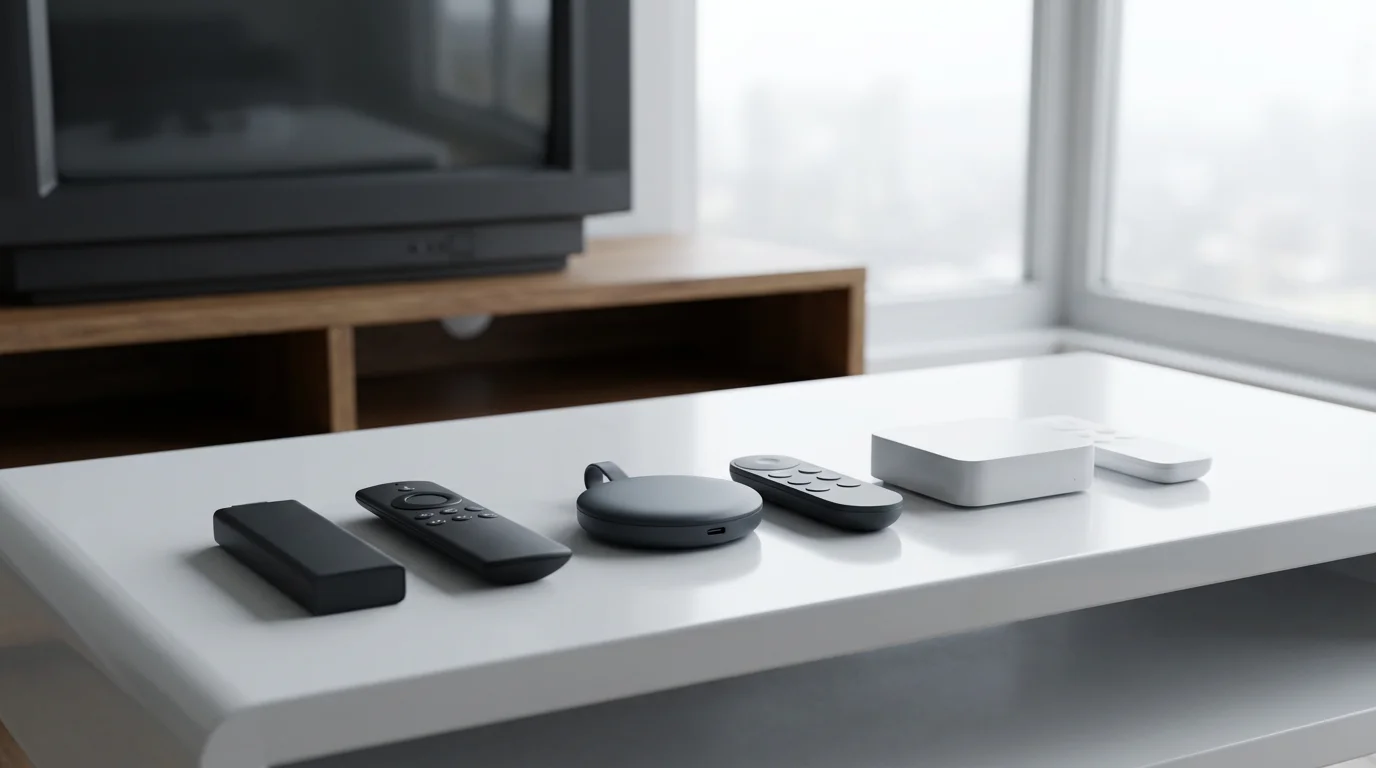
Device Showdown: Features and Value
Comparing streaming devices involves looking at their technical specifications, user experience, and how they stack up in different price tiers. Here is a comparison to help you choose the best streaming device for old TV setups.
| Device Category | Roku Streaming Stick 4K | Amazon Fire TV Stick 4K Max | Chromecast with Google TV (4K) | Apple TV 4K |
|---|---|---|---|---|
| Price Range | $50 | $55 | $50 | $129 – $149 |
| Max Resolution | 4K, HD (Downscales) | 4K, HD (Downscales) | 4K, HD (Downscales) | 4K, HD (Downscales) |
| HDR Support | HDR10, HDR10+, HLG, Dolby Vision | HDR10, HDR10+, HLG, Dolby Vision | HDR10, HDR10+, HLG, Dolby Vision | HDR10, HDR10+, HLG, Dolby Vision |
| Audio Support | Dolby Atmos, DTS Digital Surround | Dolby Atmos, 7.1 Surround Sound | Dolby Atmos, Dolby Digital Plus | Dolby Atmos, 7.1 Surround Sound |
| Voice Assistant | Roku Voice | Alexa | Google Assistant | Siri |
| Wi-Fi Support | 802.11ac dual-band | Wi-Fi 6 (802.11ax) | 802.11ac dual-band | Wi-Fi 6 (802.11ax) |
| Ecosystem Integration | Neutral, Broad App Support | Amazon, Alexa | Google, Android | Apple, iOS, macOS |
| Pros | Simple UI, vast app library, reliable. | Fast, Wi-Fi 6, deep Alexa integration. | Excellent content discovery, casting, Google ecosystem. | Top-tier performance, seamless Apple integration, premium build. |
| Cons | Fewer advanced features than competitors at higher prices. | Amazon-centric interface, some ads. | Interface can feel busy, some Google data collection. | High price, less ideal for non-Apple households. |
This infographic visually compares the top streaming sticks for features like price, resolution, HDR support, and voice assistant. It highlights the subtle differences that can guide your purchase decision.
[INFOGRAPHIC placeholder: Side-by-side comparison infographic of Roku Streaming Stick 4K vs Amazon Fire TV Stick 4K Max vs Chromecast with Google TV (4K). Three columns showing: Price, Resolution, HDR Support, Voice Assistant, App Selection, Pros, Cons. Clean product photography style, easy to compare at a glance.]
Price-to-Value Analysis for Different Budgets
- Under $30: Your best options are the Roku Express, Amazon Fire TV Stick Lite, or Chromecast with Google TV (HD). These devices provide excellent value for basic HD streaming, bringing full smart functionality to your non-smart TV at minimal cost.
- Under $50-$60: The Roku Streaming Stick 4K, Amazon Fire TV Stick 4K Max, and Chromecast with Google TV (4K) offer the best blend of performance, future-proofing (4K, HDR support), and features for a reasonable price. These devices provide a snappier experience even if your TV is not 4K.
- $100+: The Roku Ultra and Apple TV 4K fall into this category. The Apple TV 4K stands out for its raw power and seamless Apple ecosystem integration. While excellent, their premium features, like a powerful processor for games or 4K/Dolby Vision support, may not be fully utilized on an older, non-4K TV. However, they offer the ultimate in responsiveness and longevity.
When considering privacy, Roku and Apple TV generally collect less user data for targeted advertising compared to Amazon and Google, who leverage your viewing habits for their broader service ecosystems. If data privacy is a major concern, Roku and Apple TV often receive higher marks. As Consumer Reports advises, understand the privacy policies before committing to a device.
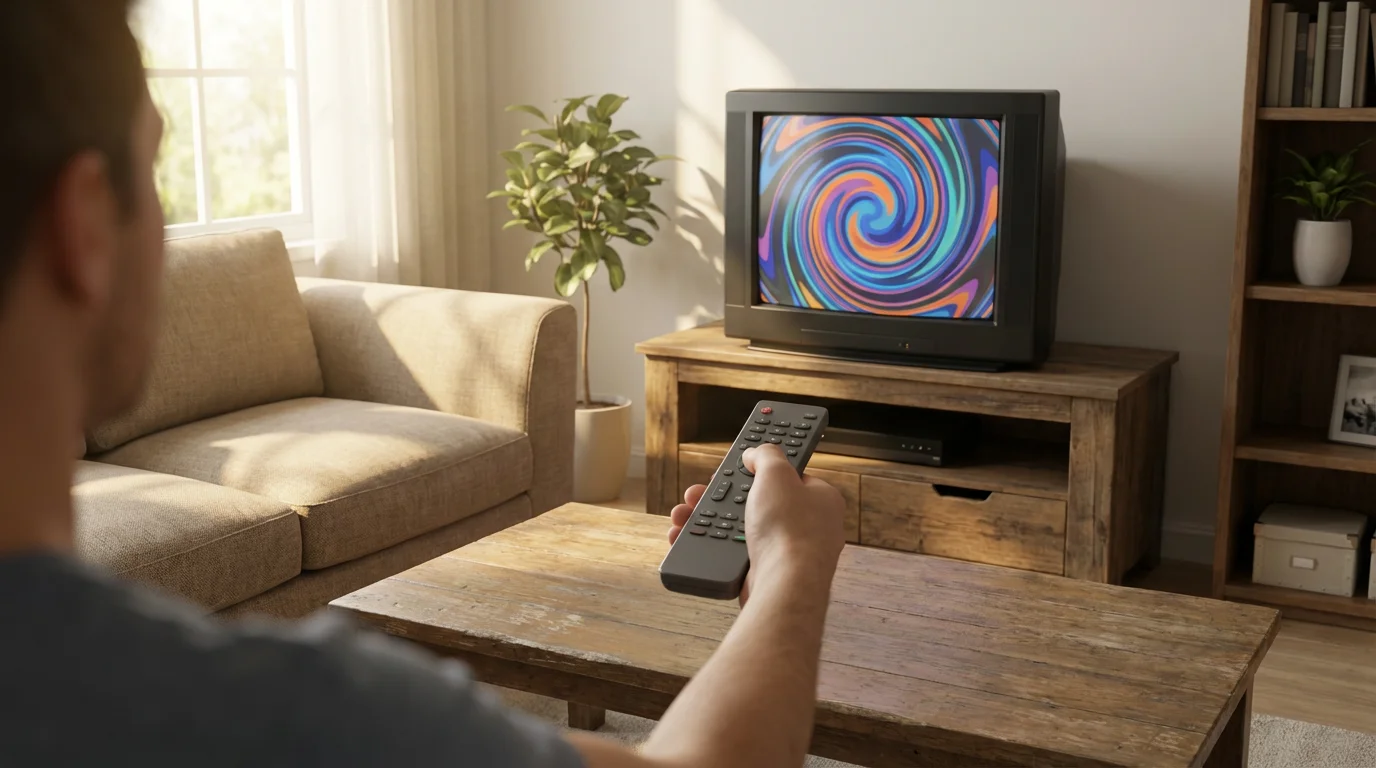
How to Set Up a Streaming Device on Your Old TV
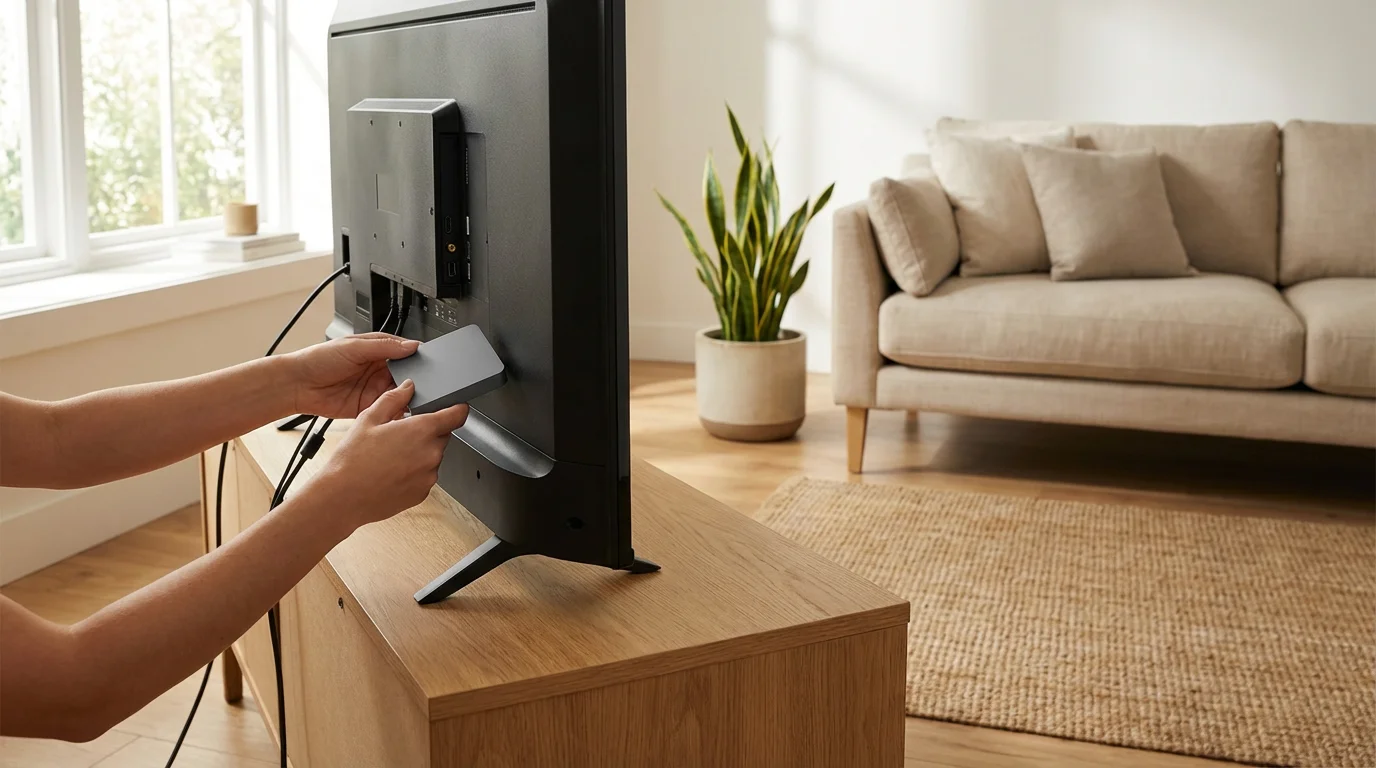
Adding streaming to your old TV is a straightforward process. Most modern streaming devices use an HDMI connection. Here is a general step-by-step guide:
- Locate an Available HDMI Port: Most older TVs have at least one HDMI port. This is where your streaming stick or box will plug in. If your TV lacks HDMI, you will need an HDMI to Composite (RCA) converter, which costs around $15-$25. This converter will downscale the video to standard definition and often results in a lower-quality picture and sound. Ensure you get a converter with a power adapter.
- Plug in the Device:
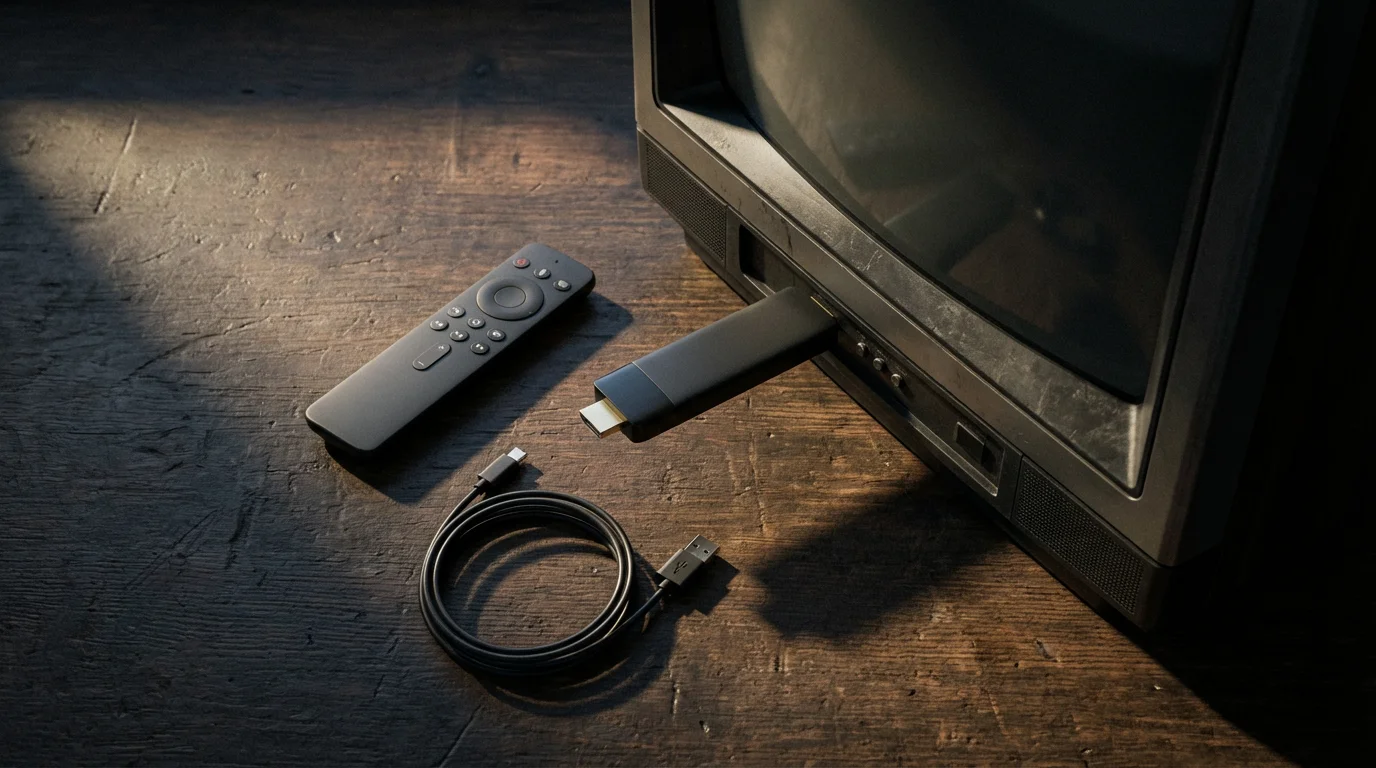
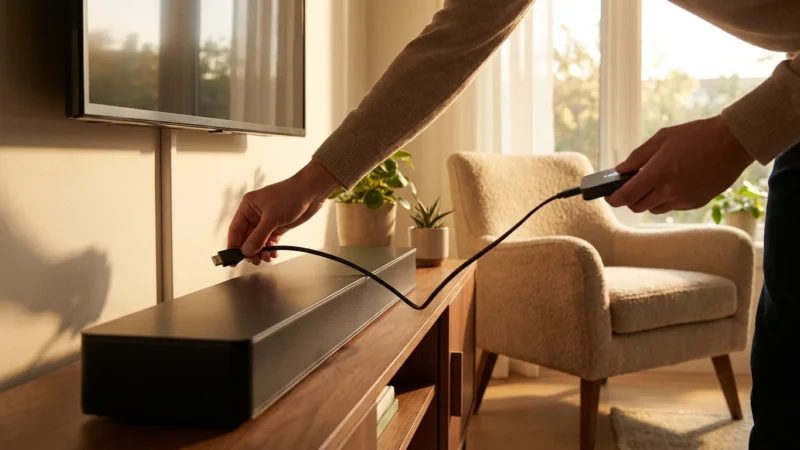
- For a stick-style device (Roku Streaming Stick, Fire TV Stick, Chromecast): Plug the device directly into an open HDMI port on your TV.
- For a box-style device (Roku Express, Roku Ultra, Apple TV 4K, Fire TV Cube): Connect one end of an HDMI cable to the device and the other end to an HDMI port on your TV.
- Connect to Power: All streaming devices require external power. Plug the included USB power cable into the device and then into a wall outlet using the provided power adapter. While some TVs have USB ports, using the wall adapter ensures consistent power and prevents potential performance issues.
- Select the Correct Input on Your TV: Use your TV’s original remote control to change the input or source. Cycle through the inputs (e.g., HDMI 1, HDMI 2, AV) until you see the streaming device’s setup screen.
- Follow On-Screen Setup Instructions:
- Connect to Wi-Fi: The device will prompt you to select your home Wi-Fi network and enter your password.
- Sign In/Create Account: You will need to sign in with an existing account (Roku, Amazon, Google, Apple) or create a new one.
- Install Apps: The device guides you through installing popular streaming apps like Netflix, Hulu, and YouTube.
- Remote Setup: Some devices, like Roku and Fire TV, guide you through setting up their remote to control your TV’s power and volume.
- Start Streaming: Once setup is complete, you can start browsing and watching content.
Troubleshooting Common Issues
- No Picture/Signal: Ensure the device has power, the HDMI cable is securely connected, and your TV is on the correct HDMI input. Try a different HDMI port.
- Buffering/Slow Performance: Check your Wi-Fi signal strength. Move your router closer, or consider a streaming device with Wi-Fi 6 support if your router is compatible. If your TV is far from your router, a wired Ethernet connection (available on some higher-end devices) can help.
- Remote Not Working: Check the batteries. For voice remotes, ensure they are paired correctly with the device. Many devices have companion apps that let you use your smartphone as a remote.
- Apps Crashing: Try restarting the streaming device (unplug it from power for 30 seconds and plug it back in). Ensure the device’s software and individual apps are up to date.
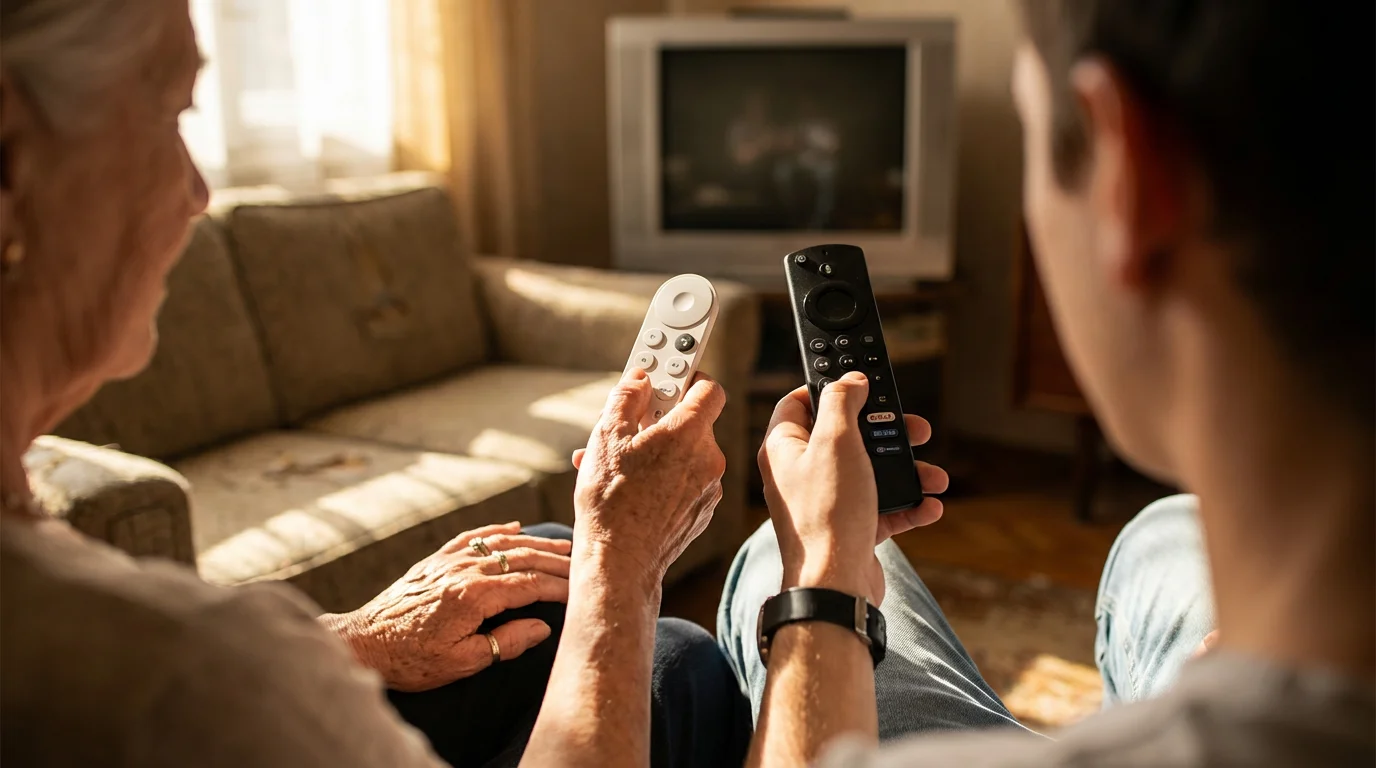
Choosing the Best Device for Your Lifestyle and Budget
The “best” streaming device depends entirely on your specific needs and how you watch content. Consider these use cases when making your choice.
- For the Budget Buyer (Under $30-$50):
- Recommendation: Roku Express, Amazon Fire TV Stick Lite, or Chromecast with Google TV (HD).
- Why: These devices are incredibly affordable and deliver full HD streaming. They provide all essential smart TV features for your non-smart TV, allowing you to access virtually all streaming services without a significant investment. They are perfect for how to add streaming to old TV setups cost-effectively.
- For the Apple Household:
- Recommendation: Apple TV 4K.
- Why: If you use iPhones, iPads, and Macs, the Apple TV 4K offers unparalleled integration. You can AirPlay content effortlessly, share photos, use Apple Fitness+, and enjoy a familiar user experience. Its robust performance means it will last for years, even if you eventually upgrade your TV. The higher price justifies the premium experience and ecosystem benefits.
- For Sports Fans and Live TV Enthusiasts:
- Recommendation: Amazon Fire TV Stick 4K Max or Chromecast with Google TV (4K).
- Why: Live TV streaming services like YouTube TV, Hulu + Live TV, and Sling TV benefit from a fast, responsive interface. The Fire TV Stick 4K Max and Chromecast with Google TV (4K) offer powerful processors and smooth navigation, making channel surfing and quick app switching seamless. They often support better network speeds with Wi-Fi 6, which helps with live content. Many live TV services also include DVR (digital video recorder) functionality, letting you record and watch shows later.
- For Simplicity and Ease of Use:
- Recommendation: Roku Streaming Stick 4K or Roku Express.
- Why: Roku’s interface is renowned for its simplicity. Its grid of app icons is easy to navigate, and the remote is intuitive. This makes it ideal for users who want to avoid complex menus or for families where multiple members need to access content easily.
- For Content Discovery and Google Ecosystem Users:
- Recommendation: Chromecast with Google TV (4K).
- Why: Google TV excels at aggregating content from all your streaming services into one personalized interface. It helps you discover new shows based on your viewing habits. If you use Google Assistant, Google Photos, or other Google services, the integration is very convenient.
- Considering Ad-Supported vs. Ad-Free Streaming:
- Ad-supported plans are free or cheaper streaming options that include commercials, similar to traditional TV. Services like Peacock, Hulu, and Max offer these tiers.
- Ad-free plans cost more but do not interrupt your viewing with commercials. The streaming device itself does not dictate ad-supported or ad-free content, but your subscription choices do.
- Many services also offer on-demand content, which allows you to watch whatever you want, whenever you want, without a fixed schedule.
As Tom’s Guide highlights, the user experience provided by the device’s operating system significantly impacts your daily enjoyment.
When a Dedicated Streaming Device Is Always the Best Choice
For your non-smart TV, the decision is clear: you need an external streaming device to access modern entertainment. But even if your TV has some basic smart features, a dedicated streaming device often provides a superior experience.
- Your TV Lacks Modern Apps: Older smart TVs often stop receiving updates, meaning popular new apps are unavailable or older versions become unusable. A dedicated device keeps your app library current.
- Sluggish Performance: The processors in older smart TVs are frequently underpowered, leading to slow menu navigation, app crashes, and buffering. External devices offer significantly faster performance.
- Poor Interface: Many manufacturers’ built-in smart TV interfaces can be clunky, unintuitive, or filled with ads. Dedicated streaming devices like Roku or Apple TV prioritize a clean, user-friendly experience.
- Limited Features: Your TV might not support key features like modern HDR formats (Dolby Vision), advanced audio (Dolby Atmos), or fast Wi-Fi standards (Wi-Fi 6). A new device brings these capabilities, future-proofing your setup.
- Privacy Concerns: Some smart TV manufacturers collect extensive data on your viewing habits. A streaming device from a company with a stronger privacy stance, like Roku or Apple, can offer more peace of mind.
Therefore, for your old TV streaming needs, a dedicated HDMI streaming device is not just an option, it is a necessity. It is the most effective and affordable way to modernize your entertainment experience and ensure access to all the content you desire.
Frequently Asked Questions
What is the best streaming device for an old TV without smart features?
The “best” device depends on your budget and preferred ecosystem. For overall value and ease of use, the Roku Streaming Stick 4K or Amazon Fire TV Stick 4K Max are excellent choices around $50. If you prioritize budget above all else, the Roku Express or Fire TV Stick Lite (around $30) provide great HD streaming.
Can any old TV use a streaming device?
Almost any old TV can use a streaming device if it has an HDMI port. Most modern streaming devices connect via HDMI. If your TV only has composite (red, white, yellow RCA) inputs, you will need an HDMI to Composite converter, which typically costs $15-$25. This adapter will allow you to connect an HDMI streaming device, though the video quality will be standard definition.
Do I need an HDMI port for a streaming device?
Yes, most popular streaming devices like Roku, Fire TV, Apple TV, and Chromecast require an HDMI port to connect to your television. If your old TV lacks an HDMI port, you must purchase an HDMI to composite (RCA) converter to make it compatible.
Will a streaming device make my old TV look like a 4K TV?
No, a streaming device cannot magically upgrade your old TV’s resolution. If your TV is a 1080p HD or even standard definition model, a 4K streaming device will “downscale” the 4K content to match your TV’s native resolution. While this may result in a slightly cleaner picture than a dedicated HD streamer, it will not transform your TV into a true 4K display. However, buying a 4K device now means it is ready for a future 4K TV upgrade.
How much does it cost to add streaming to an old TV?
You can add streaming to an old TV for as little as $30-$50 for a basic streaming stick like the Roku Express or Fire TV Stick Lite. If your TV requires an HDMI to Composite converter, add another $15-$25. Beyond the device, you will pay monthly subscription fees for streaming services you choose, like Netflix or Hulu.
Disclaimer: Device prices and features may change. New models are released regularly, so check for the latest versions before purchasing. The “best” device depends on your specific needs, existing ecosystem (Apple, Google, Amazon), and budget.
To see how these options compare in detail, check out our guide to Amazon’s Fire TV lineup explained.
Leave a Reply