
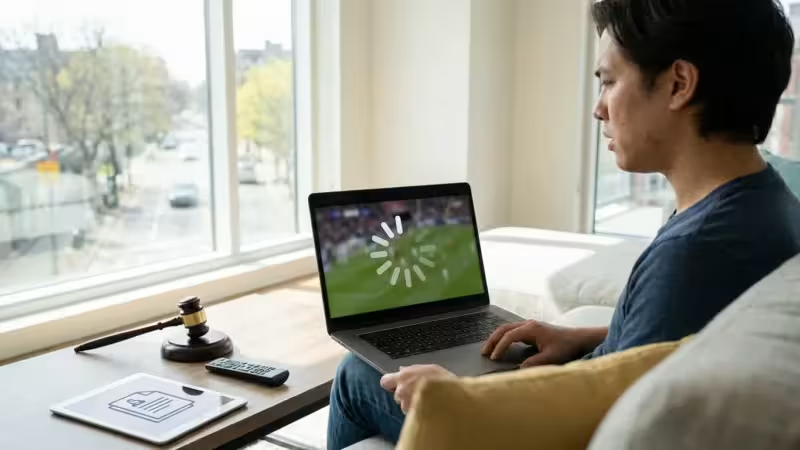
Live TV streaming offers an incredible way to cut the cord and enjoy your favorite shows, sports, and news without the hefty price tag of traditional cable. However, a common frustration for many viewers is buffering, where your video pauses to load, interrupting your viewing experience. This guide provides practical, actionable insights to diagnose and fix live TV buffering, ensuring a smoother, more enjoyable streaming life. We will help you improve streaming quality and reduce streaming lag live TV encounters, transforming your viewing.

Understanding Live TV Buffering and Its Causes
When you watch video content over the internet, a process known as streaming, your device downloads a small portion of the video ahead of time, storing it in a temporary memory buffer. This buffer allows for continuous playback even if your internet connection experiences brief fluctuations. Buffering occurs when your device cannot download data fast enough to keep this buffer full, causing the video to pause.
Once you have addressed your network stability, you can focus on finding the right content, such as learning how to watch local channels through your provider.
Several factors contribute to buffering, impacting your live TV experience:
- Insufficient Internet Speed: Your internet service provider (ISP) delivers a certain amount of bandwidth. If your connection speed is too slow for the quality of the stream you are trying to watch, your device struggles to keep up.
- Weak Wi-Fi Signal: Even with fast internet, a poor Wi-Fi connection between your router and streaming device creates a bottleneck.
- Outdated or Underpowered Streaming Device: Older smart TVs or streaming devices (like Roku or Fire TV sticks) may lack the processing power or memory to efficiently decode high-resolution video, leading to streaming lag.
- Network Congestion: Other devices on your home network consuming bandwidth (e.g., downloads, online gaming, other streaming) compete with your live TV stream.
- Server-Side Issues: The streaming service itself might experience temporary outages or heavy user load, impacting everyone’s experience.
- App Glitches: Software bugs or cached data issues within the streaming application can also cause problems.
Cord-cutting, the act of canceling traditional cable or satellite TV in favor of streaming services, offers flexibility but requires understanding these technical nuances to ensure smooth viewing.
Optimizing Your Internet Connection for Flawless Streaming
Your internet speed is the foundation of a buffer-free streaming experience. Most live TV streaming services recommend a minimum of 25 Mbps (megabits per second) for a single HD stream, with higher speeds needed for 4K content or multiple simultaneous streams. According to PCMag’s guide to live TV streaming services, a robust internet connection is paramount for reliability.
If your current service still struggles after optimization, checking a comparison of YouTube TV, Hulu Live, and Sling TV might help you find a platform better suited for your connection.
Here are actionable steps to improve streaming:
- Upgrade Your Internet Plan: Check your current plan’s speed with your ISP. If you consistently experience buffering, particularly when multiple people stream or use the internet, upgrading to a faster plan (e.g., 100 Mbps or higher) is often the most direct solution.
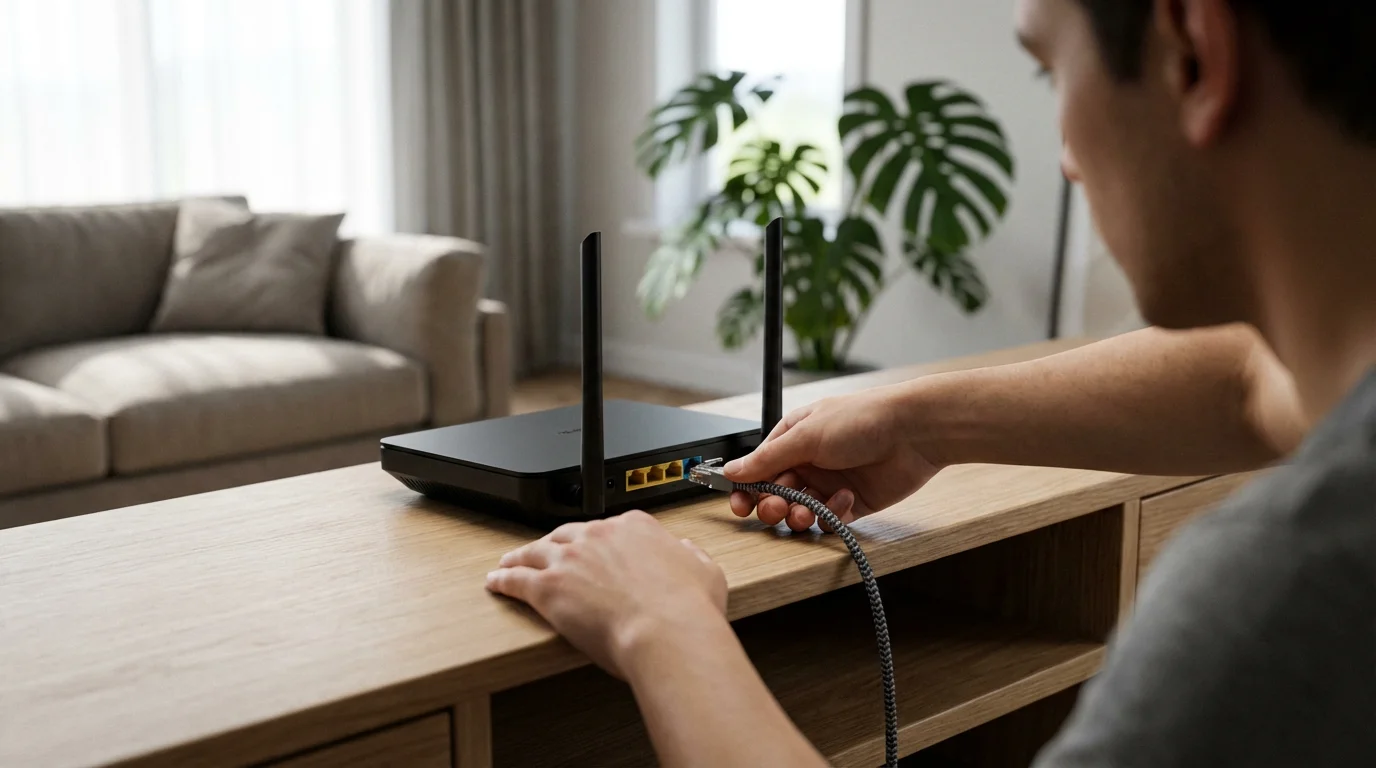
- Use a Wired Connection: Ethernet cables provide a stable, interference-free connection directly from your router to your streaming device or smart TV. This eliminates Wi-Fi signal drops and is often the most effective way to improve streaming performance for your primary viewing setup. For devices like Roku Ultras or NVIDIA Shield TVs, an Ethernet port is standard.
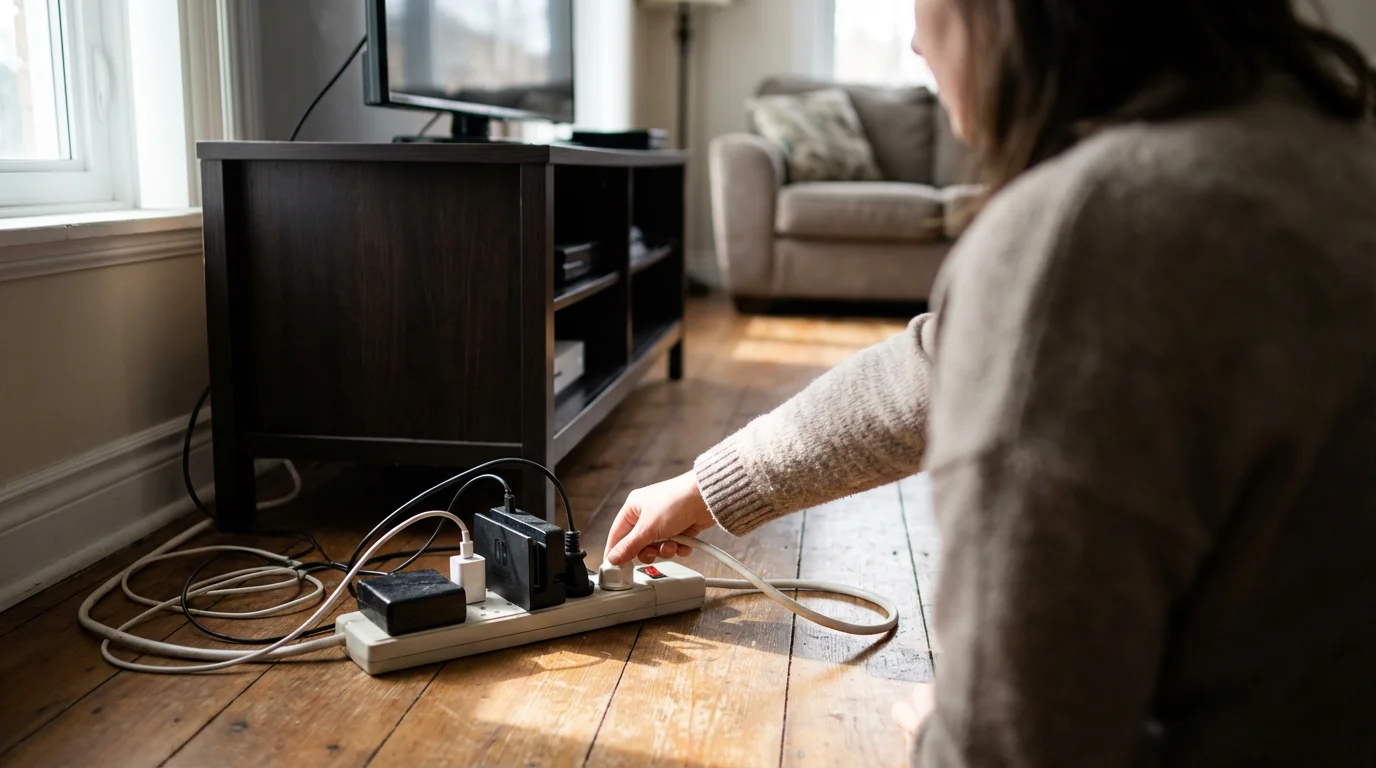
- Restart Your Modem and Router: This simple step clears temporary glitches and refreshes your network connection. Unplug both devices, wait 30 seconds, then plug the modem back in. Once its lights stabilize, plug in the router.
- Test Your Speed: Use online speed test tools (search “internet speed test”) to verify your actual download and upload speeds. Perform tests at different times of the day and when experiencing buffering to pinpoint if your speed dips significantly during peak usage.
| Streaming Activity | Minimum Recommended Speed (Mbps) | Optimal Speed (Mbps) |
|---|---|---|
| Standard Definition (SD) | 3-5 | 5+ |
| High Definition (HD), single stream | 10-15 | 25+ |
| High Definition (HD), multiple streams | 25-50 | 50-100+ |
| 4K Ultra HD (UHD), single stream | 25-40 | 50-100+ |
Enhancing Your Wi-Fi Network Performance
If a wired connection is not feasible, optimizing your Wi-Fi network becomes critical to reduce streaming lag live TV experiences.
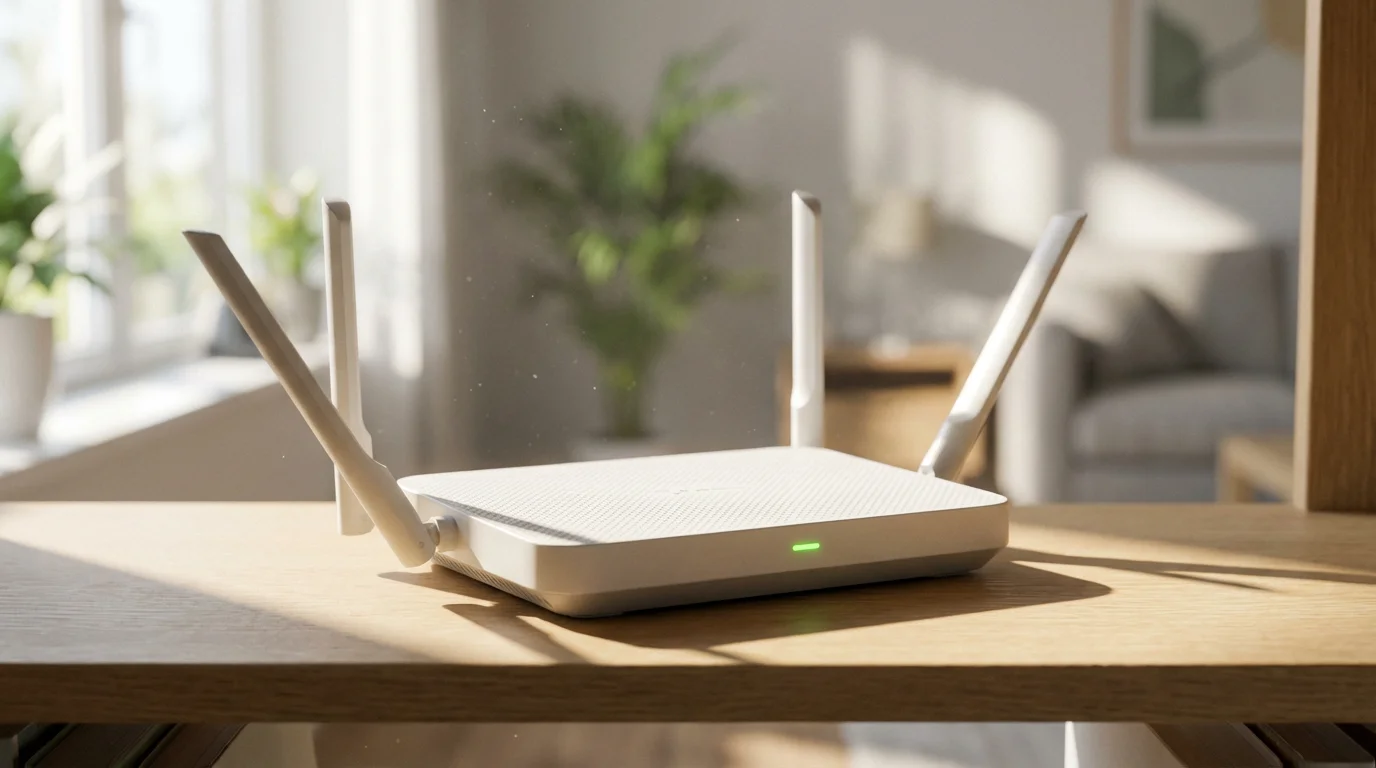
- Router Placement Matters: Position your router centrally and in an open area, away from walls, large appliances, and other electronics that can cause interference. Higher placement often improves signal reach.
- Utilize the 5GHz Band: Modern routers typically offer two frequency bands: 2.4GHz and 5GHz. The 5GHz band provides faster speeds and less interference, ideal for high-bandwidth activities like live TV streaming. However, its range is shorter and it struggles more with obstacles. Connect your primary streaming devices to the 5GHz network if they are close to the router. Use 2.4GHz for devices further away or those that do not require high speeds.
- Update Router Firmware: Router manufacturers regularly release firmware updates to improve performance and security. Check your router’s administration page or manufacturer’s website for updates.
- Consider a Mesh Wi-Fi System: For larger homes or areas with Wi-Fi dead zones, a mesh network uses multiple units to create a seamless, strong Wi-Fi signal throughout your entire home. This significantly improves signal strength and reliability for devices far from the main router.
- Reduce Interference: Cordless phones, microwaves, baby monitors, and even neighbors’ Wi-Fi networks can interfere with your signal. Try changing your Wi-Fi channel on your router’s settings or moving interfering devices.
“A strong Wi-Fi signal is just as important as a fast internet plan. Even with gigabit speeds, a weak wireless connection will still lead to buffering.” — Networking Specialist
Choosing and Optimizing Your Streaming Device
Your streaming device plays a significant role in how smoothly your live TV content streams. An underpowered or outdated device can cause live TV buffering, even with a strong internet connection.
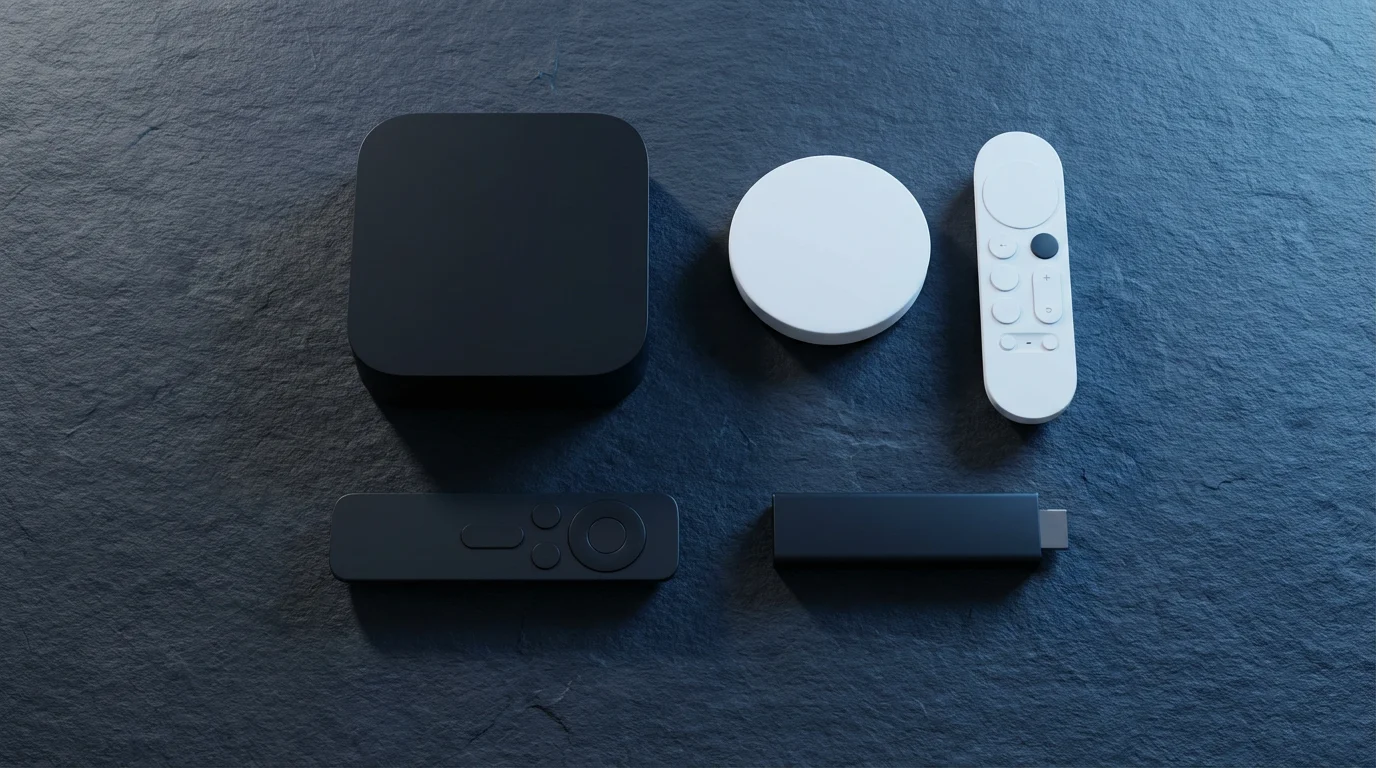
- Upgrade Older Devices: If you use an older streaming device or an integrated smart TV from several years ago, consider upgrading. Newer models feature faster processors, more RAM, and improved Wi-Fi antennas, better equipped to handle high-resolution video and modern streaming apps. For example, a new Roku Ultra or Apple TV 4K offers substantially more horsepower than an older Roku Express or a budget smart TV’s built-in apps.
- Restart Your Device Regularly: Just like your computer, streaming devices benefit from occasional restarts. This clears temporary memory, resolves minor software glitches, and refreshes app processes.
- Close Background Apps: Many smart TVs and streaming devices allow apps to run in the background, consuming resources. Close any applications you are not actively using to free up processing power and memory for your live TV stream.
- Clear Cache: Over time, streaming apps accumulate cached data, which can slow them down. Most devices or individual apps have an option to clear this cache. Consult your device’s settings or the app’s help section for instructions.
- Ensure Adequate Storage: While live TV streaming primarily uses RAM, some devices benefit from having sufficient internal storage, especially if you download many apps. Delete unused apps to free up space.
- Consider Device-Specific Performance: Some services, such as DirecTV Stream, are known to demand more powerful hardware for optimal performance compared to services like Sling TV or Philo. Research device compatibility and user reviews for your chosen service.

Troubleshooting Specific Service and App Issues
Sometimes, the problem lies with the streaming application itself or the service’s infrastructure. These steps help you identify and resolve such issues to how to fix live TV buffering.
For sports fans, selecting the best live TV streaming service for NFL football can often provide a more stable experience during high-traffic game days.
- Check Service Status: Before troubleshooting your home network, check if the streaming service (YouTube TV, Hulu + Live TV, Sling TV, fuboTV, DirecTV Stream, Philo, etc.) is experiencing widespread issues. Websites like DownDetector or the service’s official social media channels often report outages.
- Update the App: Ensure your streaming app is always running the latest version. Developers frequently release updates that include bug fixes and performance improvements. You can typically find update options in your device’s app store or settings.
- Clear App Data/Cache: As mentioned, cached data can lead to performance issues. Go to your device’s app settings, locate the problematic streaming app, and select “Clear Data” or “Clear Cache.” Be aware that “Clear Data” will usually log you out and require you to re-enter your credentials.
- Reinstall the App: If clearing the cache does not work, try uninstalling and then reinstalling the app. This provides a fresh start and often resolves deep-seated software conflicts.
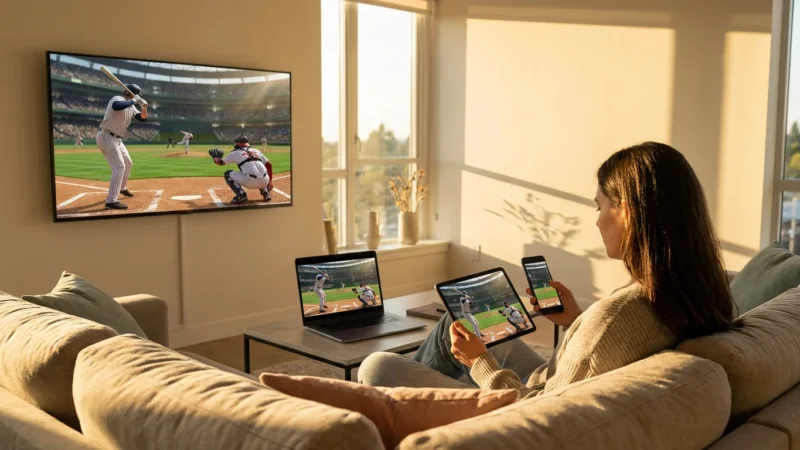
- Test on Another Device: If you experience buffering on one device, try streaming the same live channel on a different device (e.g., a smartphone, tablet, or another streaming stick). If the problem disappears, the issue likely resides with your original device.
- Consider Regional Server Load: During major live events (like the Super Bowl or NBA Finals), even robust services can experience high server load in specific regions. While you cannot fix this, understanding it helps set expectations. For sports fans, prioritizing services known for stable performance during peak events can be crucial.
For those watching sports, understanding regional sports networks (RSNs) and blackout rules is also important. Even with a perfect connection, if an RSN is unavailable in your area or a game is blacked out, you will not be able to watch it live, which is a content restriction, not a buffering issue.
Adjusting Streaming Quality to Reduce Bandwidth
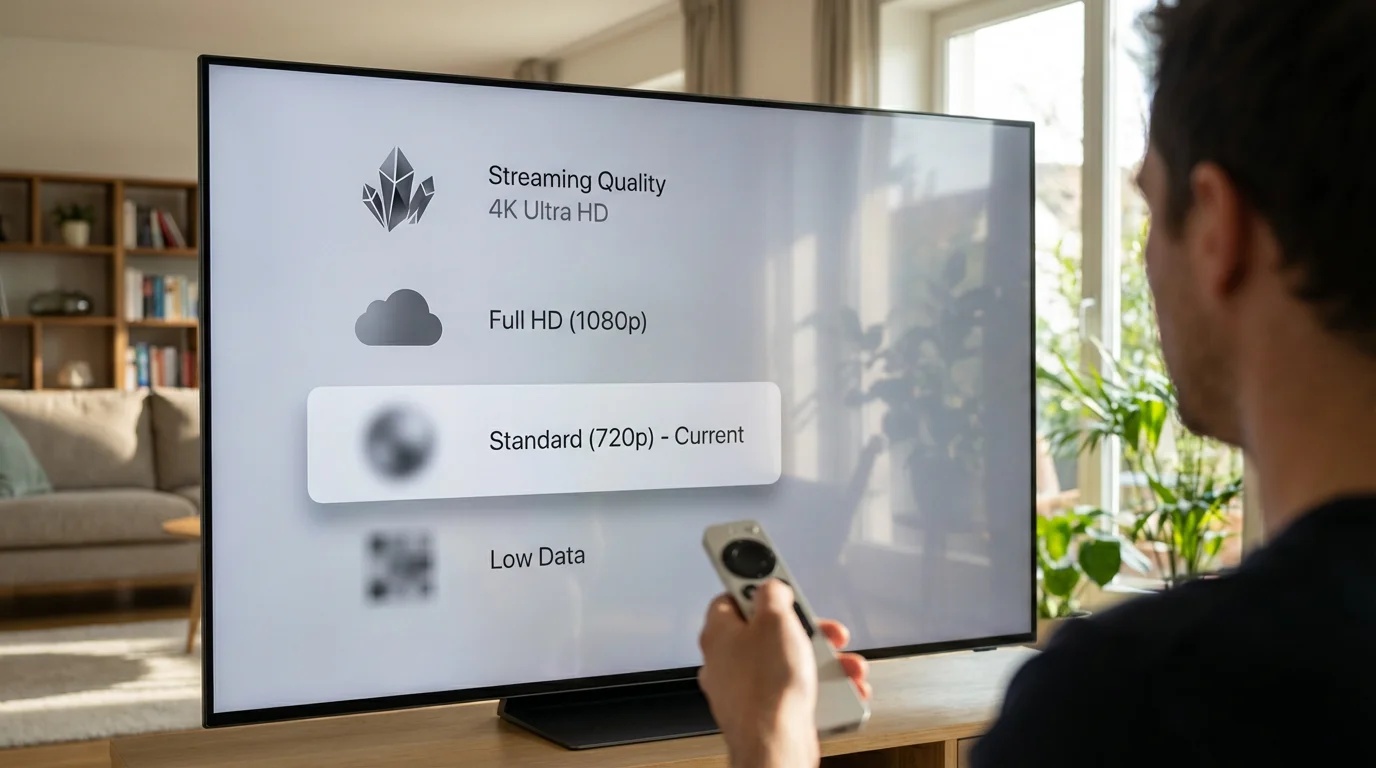
Higher video quality (e.g., 1080p HD or 4K UHD) demands significantly more bandwidth than standard definition (SD). If your internet speed or Wi-Fi signal struggles, reducing the streaming quality can effectively reduce live TV buffering.
- Manual Quality Settings: Many streaming apps offer manual quality settings within their playback controls (often represented by a gear or “settings” icon). Look for options like “Auto,” “High,” “Medium,” or “Low.” Selecting a lower quality setting directly reduces the data stream, making it easier for your connection to keep up.
- Understand the Trade-off: While lowering quality reduces buffering, it also means a less sharp picture. Experiment to find the lowest acceptable quality that eliminates buffering. Sometimes, a slight drop from 1080p to 720p HD is barely noticeable but makes a huge difference in stability.
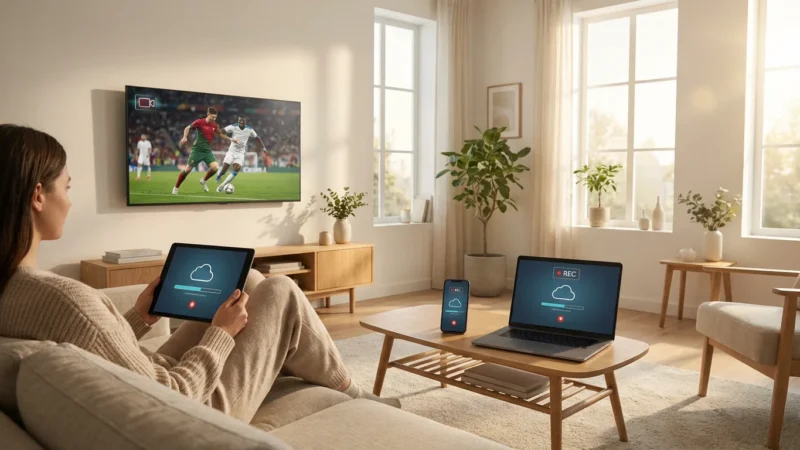
- Impact on DVR and On-Demand: Services often offer on-demand content, which allows you to watch whatever you want, whenever you want. For both live TV and DVR (digital video recorder) recordings, the playback quality settings apply. If you record content with your DVR, the quality of the recording is often determined by the live stream’s quality at the time of recording, so ensure your device and network are ready for it. Cloud DVR storage limits vary greatly between services, for example, YouTube TV offers unlimited cloud DVR, while Sling TV provides 50 hours standard, which you can upgrade.
This approach is particularly useful if you have slower internet, limited data, or when experiencing temporary network congestion.
Minimizing Network Congestion From Other Devices
Your home internet connection is a shared resource. Every device connected to your network that uses bandwidth can impact your live TV stream, contributing to streaming lag.
- Prioritize Streaming Devices (QoS): Many modern routers feature Quality of Service (QoS) settings. QoS allows you to prioritize traffic for specific devices (your streaming stick, smart TV) or applications (video streaming). Enabling QoS for your live TV stream ensures it gets preferential treatment, even when other devices are active. Consult your router’s manual for instructions on setting up QoS.
- Limit Simultaneous Streams: If you have multiple family members watching different shows or playing online games, your bandwidth can quickly become saturated. Most live TV streaming services offer a limited number of simultaneous streams (e.g., Hulu + Live TV includes two, YouTube TV provides three, while DirecTV Stream includes unlimited at home and three on the go). Exceeding these limits can degrade performance for everyone.
- Schedule Large Downloads: If you or other household members download large files (e.g., game updates, software updates), schedule them for off-peak hours when you are not actively streaming live TV.
- Disconnect Unused Devices: Turn off Wi-Fi on smartphones, tablets, and laptops that are not in use. Even idle devices can sometimes consume minor bandwidth for background updates or notifications.
Managing network congestion is a proactive step that can significantly improve streaming without requiring an internet plan upgrade.

Advanced Steps and When to Contact Support
If you have exhausted the common troubleshooting steps and still face persistent live TV buffering, consider these more advanced actions.
- Bypass Your Router (Direct to Modem): For diagnostic purposes, connect your streaming device directly to your modem via an Ethernet cable. If buffering disappears, your router is likely the culprit. This indicates you might need to adjust router settings, update its firmware, or replace it.
- Test with a Different ISP: This is a drastic step, but if you consistently experience issues that your ISP cannot resolve, and you have ruled out all internal network problems, exploring alternative internet providers in your area might be necessary. Some ISPs perform better in specific regions.
- Contact Your ISP: If speed tests consistently show you are not receiving the speeds you pay for, or if your connection frequently drops, contact your internet service provider. They can diagnose line issues, check external network problems, or even replace faulty equipment.
- Contact Streaming Service Support: If buffering only occurs with one specific live TV streaming service (e.g., fuboTV but not YouTube TV), despite your network being robust, reach out to that service’s customer support. They can investigate potential account-specific issues or report broader regional problems. For instance, services like YouTube TV or Hulu + Live TV offer comprehensive channel lineups, but even they can experience intermittent server issues.
Remember that live TV streaming prices and channel lineups change frequently. While optimizing your network helps, always use the free trials offered by services like Sling TV, Philo (often the best budget option), or DirecTV Stream to verify performance, local channel availability by region, and channel lineups before committing. This ensures the service meets your specific needs and performs well on your setup. Some plans are ad-supported, meaning they include commercials, while ad-free plans cost more but remove most ads, though live TV always includes its broadcast commercials.
Frequently Asked Questions
Why does my live TV keep buffering, even with fast internet?
Fast internet speed is crucial, but it is only one part of the equation. Buffering can still occur due to a weak Wi-Fi signal between your router and device, an outdated streaming device, network congestion from other devices, or temporary issues with the streaming service’s servers. A wired connection or optimizing your Wi-Fi network often resolves this.
What is the ideal internet speed to stop live TV buffering?
For reliable high-definition (HD) live TV streaming, aim for at least 25 Mbps download speed per stream. If you have multiple users or stream in 4K Ultra HD, speeds of 50-100 Mbps or higher provide the most stable experience. Always test your actual speeds, as advertised speeds are not always consistently delivered.
Does my streaming device affect buffering?
Absolutely. Older or less powerful streaming devices and smart TVs may struggle to decode high-resolution video quickly enough, leading to buffering. Upgrading to a newer, more powerful streaming device (like an an Apple TV 4K, NVIDIA Shield TV, or a higher-end Roku/Fire TV stick) with a faster processor and more RAM can significantly improve performance and reduce streaming lag.
Can I reduce buffering by lowering video quality?
Yes, lowering the video quality (e.g., from 1080p to 720p or standard definition) requires less bandwidth, making it easier for your internet connection to maintain a steady stream. This is an effective temporary solution, especially if you have a slower internet connection or are experiencing temporary network congestion.
How do DVR features relate to buffering?
While DVR functionality records content for later viewing, the quality of that recording depends on the initial live stream’s quality. When you play back a DVR recording, your device still streams that content. Therefore, a stable internet connection and optimized device are still essential for smooth DVR playback, just as they are for live TV.
Disclaimer: Live TV streaming prices and channel lineups change frequently. Local channel availability varies by location. Always use the free trial to verify your local channels are included before committing. Sports blackout rules may affect some live events.


Leave a Reply