

When you decide to cut the cord, which means canceling traditional cable or satellite TV in favor of streaming services, one of your biggest concerns might be how to keep recording your favorite shows. Your old Digital Video Recorder (DVR) felt indispensable, providing the freedom to watch content on your schedule. However, giving up cable does not mean giving up this convenience. This comprehensive guide shows you exactly how to replace your DVR after cutting the cord, ensuring you do not miss a moment of the entertainment you love.
Disclaimer: Cable and streaming prices vary by location and change frequently. The cost comparisons in this article are estimates based on typical pricing. Your actual savings will depend on your current cable package, internet costs, and which streaming services you choose.
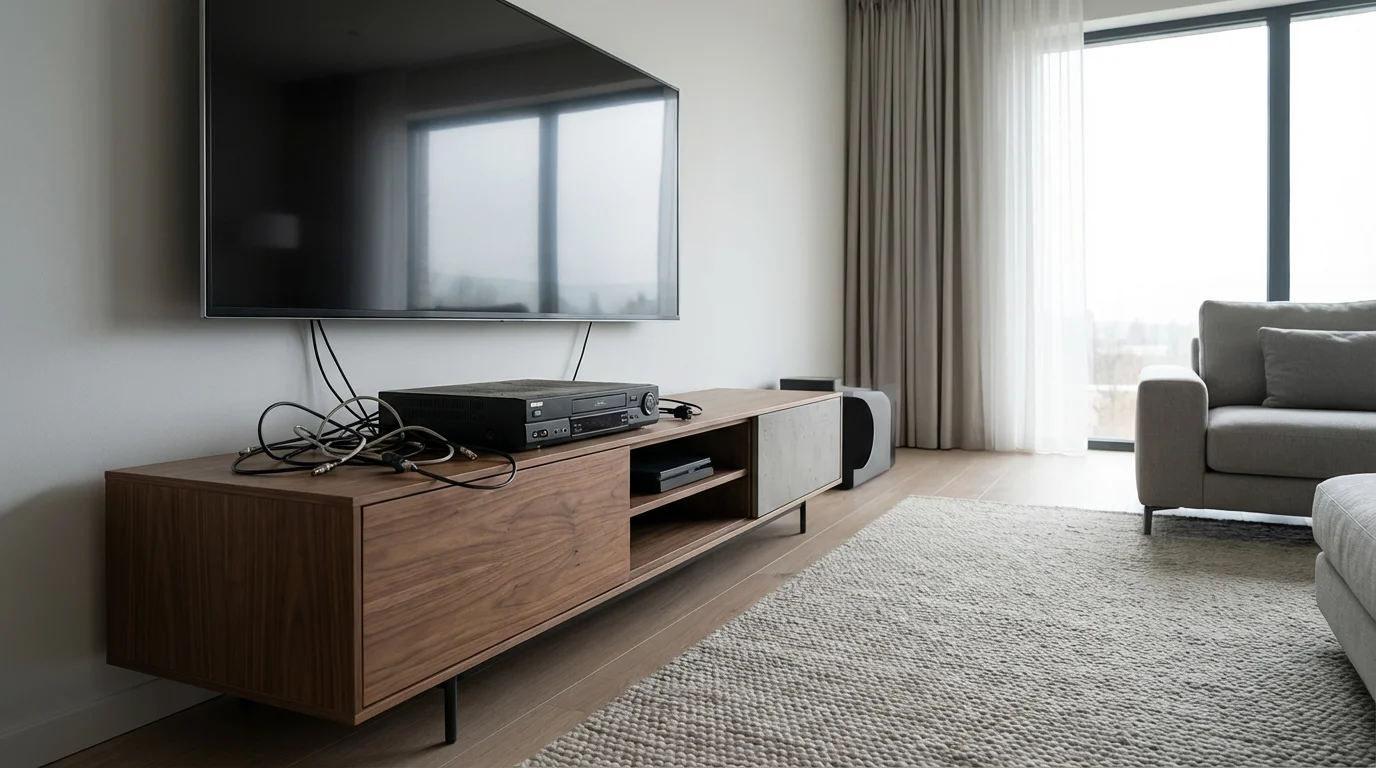
Understanding DVRs and Why You Need a Replacement
A DVR, or digital video recorder, gives you the ability to record live television, pause it, rewind it, and fast-forward through commercials. For years, this device formed the core of many households’ viewing habits, allowing you to consume television on your own schedule instead of being bound by broadcast times. When you cut the cord, this traditional hardware DVR disappears along with your cable box. You need a suitable replacement to maintain that scheduling flexibility. Fortunately, the streaming world offers robust alternatives that often surpass the capabilities of old cable DVRs.
Cord-cutting involves canceling traditional cable or satellite TV in favor of streaming services, which means watching video content over the internet. This shift saves you money, but it also changes how you access and record content. The good news is that replacing your DVR is straightforward with the right tools and understanding.
Cloud DVRs: The Streaming Solution
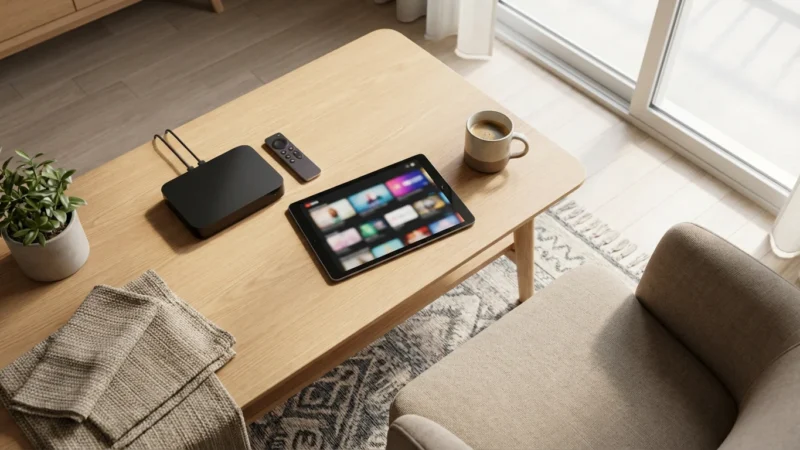
The most direct replacement for a traditional DVR in the streaming era is a cloud DVR. Unlike a physical box in your home, a cloud DVR stores your recordings on remote servers. This means you access your recorded shows from any compatible device, anywhere you have an internet connection. Most live TV streaming services include a cloud DVR feature, often with generous storage limits.
Cloud DVRs offer several advantages:
- Accessibility: Watch recordings on your smart TV (a television with built-in internet connection and apps), streaming device (a small box or stick like Roku or Fire TV that adds streaming to any TV), tablet, phone, or computer.
- No Hardware Required: You do not need to buy or maintain any physical recording equipment.
- No Storage Limits (often): Many services provide unlimited cloud storage, or at least hundreds of hours, eliminating concerns about running out of space.
- Simultaneous Recordings: Record multiple shows at once without conflict, a common limitation of older physical DVRs.
“Cloud DVRs redefine how you watch TV. They remove the physical constraints of old DVRs, giving you unparalleled flexibility to access your recorded content on the go, a key benefit for modern viewers.” — Streaming Expert
Live TV Streaming Services with Cloud DVR Capabilities
When you look to replicate the live TV experience with recording functionality, specific streaming services stand out. These services offer channels similar to cable, live broadcasts, and integrated cloud DVRs. Here are the leading options:
YouTube TV
YouTube TV offers a comprehensive channel lineup, including local broadcast networks (ABC, CBS, FOX, NBC) in most markets, sports channels, and popular entertainment.
- Cloud DVR: Unlimited storage, keeps recordings for nine months.
- Price: Around $72.99 per month.
- Streams: Up to three simultaneous streams.
- Pros: Excellent channel selection, robust unlimited DVR, user-friendly interface.
- Cons: Higher price point compared to some alternatives.
Hulu + Live TV
Hulu + Live TV bundles live television with the extensive Hulu on-demand library, Disney+, and ESPN+.
- Cloud DVR: Unlimited storage, keeps recordings for nine months.
- Price: Starts at $76.99 per month (ad-supported Hulu, Disney+, ESPN+) or $89.99 per month (ad-free Hulu, Disney+, ESPN+). Ad-supported means free or cheaper plans that show commercials; ad-free plans cost more but do not show commercials.
- Streams: Up to two simultaneous streams, upgradeable to unlimited at home.
- Pros: Strong combination of live TV and vast on-demand content, includes other popular services.
- Cons: Base plan is ad-supported for on-demand content, higher price.
Sling TV
Sling TV provides a more à la carte approach with two base packages (Sling Orange and Sling Blue) and various add-ons. It is generally one of the most affordable live TV streaming options.
- Cloud DVR: 50 hours included, expandable to 200 hours for an additional $5 per month. Recordings kept indefinitely if storage is available.
- Price: Starts at $40 per month for Sling Orange or Sling Blue, $55 per month for Sling Orange & Blue.
- Streams: One stream for Orange channels, three streams for Blue channels, four for Orange & Blue.
- Pros: Flexible and affordable, good for specific channel needs.
- Cons: More limited channel selection than premium services, DVR storage is not unlimited in the base package.
FuboTV
FuboTV emphasizes sports content but also offers a strong lineup of entertainment and news channels.
- Cloud DVR: 1,000 hours included. Recordings kept indefinitely.
- Price: Starts at $79.99 per month.
- Streams: 10 simultaneous streams at home, 2 on the go.
- Pros: Excellent for sports enthusiasts, generous DVR storage, high number of simultaneous streams.
- Cons: Higher price, not all major entertainment channels (e.g., TBS, TNT) are included in all packages.
Here is a comparison table summarizing these live TV streaming services:
| Service | Base Price (approx.) | Cloud DVR Storage | Recording Retention | Simultaneous Streams | Key Features |
|---|---|---|---|---|---|
| YouTube TV | $72.99/month | Unlimited | 9 months | 3 | Broad channel lineup, user-friendly |
| Hulu + Live TV | $76.99/month | Unlimited | 9 months | 2 (upgradeable) | Bundled with Hulu, Disney+, ESPN+ |
| Sling TV | $40-$55/month | 50-200 hours | Indefinite (if space allows) | 1-4 (package dependent) | Affordable, customizable |
| FuboTV | $79.99/month | 1,000 hours | Indefinite | 10 (at home) | Sports-focused, high streams |
When choosing, consider which channels are must-haves for your household and how much recording storage you genuinely need.

Over-the-Air (OTA) DVRs: Recording Local Channels
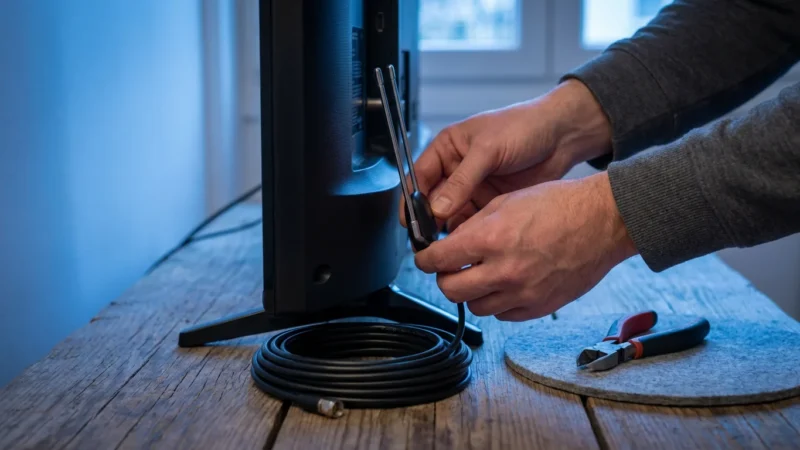
For recording local broadcast channels (ABC, CBS, FOX, NBC, PBS, CW, etc.) without an ongoing subscription, an Over-the-Air (OTA) DVR combined with an antenna is an excellent solution. An antenna picks up free, uncompressed high-definition signals directly from local broadcasters. According to the FCC Consumer Guide, “digital television (DTV) antenna provides crystal-clear picture and sound quality, often better than what you get from cable or satellite.”
Equipment You Need for OTA DVR
- HDTV Antenna: This is crucial for receiving local channels.
- Types: Indoor (flat, tabletop), Attic, or Outdoor (rooftop). Your location relative to broadcast towers dictates the best type.
- Cost: $20 – $150, one-time purchase.
- OTA DVR Device: This hardware connects to your antenna and records shows. Many act as media servers, distributing content to your streaming devices.
- Tablo DVR: Connects to your antenna and home network. Records to an external hard drive (you provide). Access recordings on Roku, Fire TV, Apple TV, etc. Some models require a subscription for guide data, others do not. (Approx. $100-$200 for device, plus hard drive).
- HDHomeRun (by SiliconDust): Acts as a tuner that broadcasts live TV over your home network. Pair it with software like Plex (premium subscription required for DVR) or Channels DVR (one-time app purchase + subscription). (Approx. $100-$200 for tuner, plus hard drive if using Plex, plus software costs).
- TiVo (Edge for Antenna): A dedicated DVR box similar to a cable DVR. Integrates with streaming apps. Requires a subscription for guide data and DVR features. (Approx. $200-$350 for device, plus monthly/lifetime subscription).
- External Hard Drive (for some OTA DVRs): Required if your chosen OTA DVR does not have built-in storage.
- Cost: $50 – $100.
- Streaming Device: To watch recordings on your TV if your OTA DVR streams content over your network.
Approximate OTA DVR Setup Costs
- Antenna: $50 (average)
- OTA DVR Device: $150 (average for Tablo/HDHomeRun)
- External Hard Drive: $75 (average, if needed)
- Optional Guide Data/Software Subscription: $0-$10/month or $50-$200 lifetime.
Total initial cost could range from $125 to $400, providing long-term savings since local channels are free.
On-Demand Content: Is a DVR Always Necessary?
Many cord-cutters find that their need for a DVR significantly decreases once they embrace on-demand content. On-demand means you watch whatever you want, whenever you want, from a library of available shows and movies. Most major networks make their shows available for free on their apps or websites shortly after airing. Subscription streaming services like Netflix, Max, Disney+, and Amazon Prime Video also offer vast on-demand libraries.
Consider these points:
- Network Apps: Apps from CBS, NBC, ABC, FOX, The CW often provide recent episodes of prime-time shows for free or with a TV provider login (which your live TV streaming service counts as).
- Subscription Streaming Services: These services primarily offer on-demand content, reducing the need to record. For example, if your favorite show is on HBO, you can simply watch it on Max.
- Purchase/Rent: Platforms like Amazon Prime Video, Apple TV, and Google Play allow you to buy or rent individual movies and TV show seasons.
Before you invest heavily in a DVR solution, evaluate how much of your viewing truly requires recording live broadcasts. You might discover that most of what you want to watch is already available on-demand.
Internet Speed Requirements for Seamless Streaming
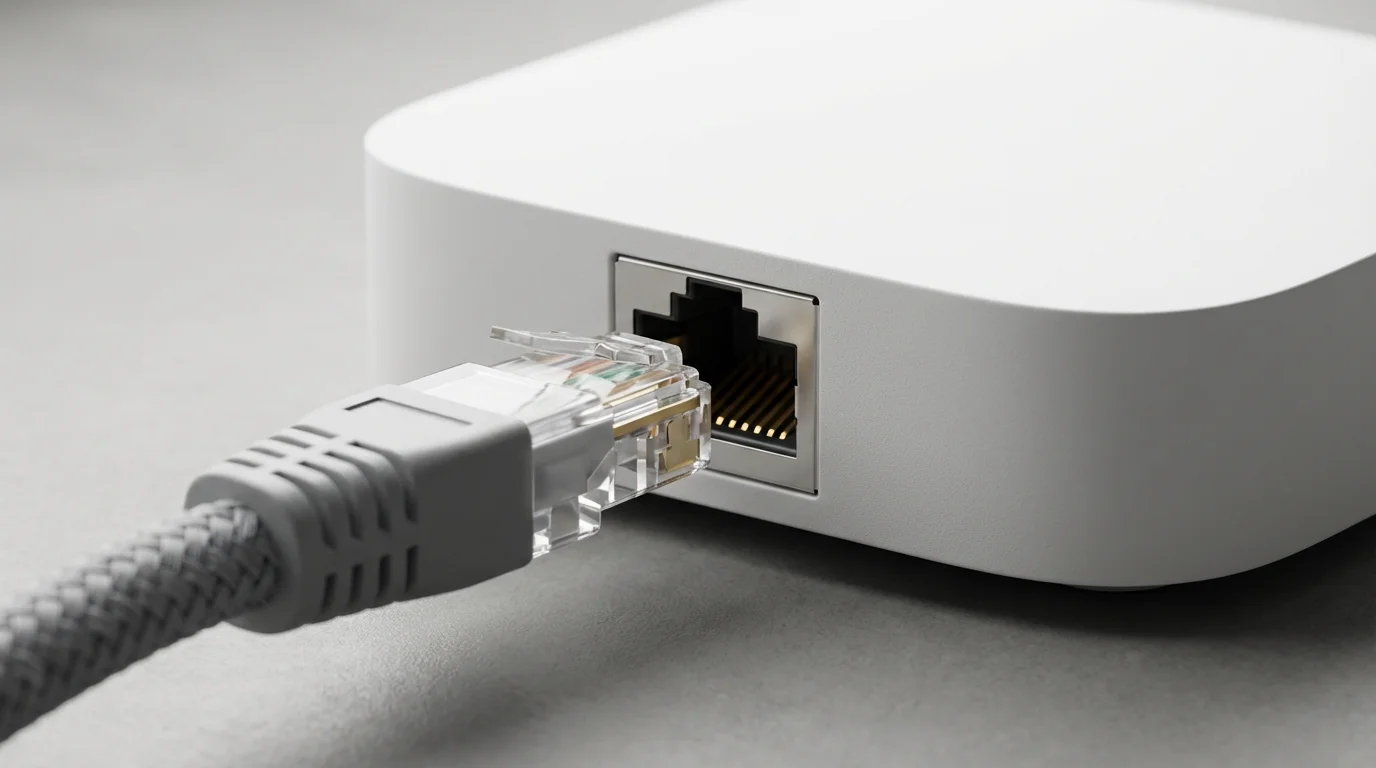
A strong and reliable internet connection is fundamental to successful cord-cutting, especially when relying on cloud DVRs and on-demand streaming. Poor internet speed results in buffering, low-quality video, and a frustrating viewing experience.
Once you determine your bandwidth needs, you can also learn how to negotiate a lower internet bill to keep your monthly streaming expenses as low as possible.
To clarify, “streaming” refers to watching video content over the internet instead of cable or satellite. The Federal Communications Commission (FCC) recommends a minimum of 25 Mbps (megabits per second) download speed for households with multiple internet users and concurrent activities. However, for 4K streaming and multiple devices simultaneously accessing high-definition content, you will need more.
Recommended Internet Speeds:
- Basic HD Streaming (1-2 devices): 25-50 Mbps
- Multiple HD Streams (3+ devices) & Occasional 4K: 50-100 Mbps
- Multiple 4K Streams, Gaming, & Heavy Usage: 100-200+ Mbps
Check your current internet speed using online speed tests. When contacting your internet service provider (ISP), ensure your plan provides sufficient bandwidth for your household’s streaming habits. Remember, your internet bill is now your primary utility for entertainment, so budgeting for adequate speed is essential. For more detailed recommendations, Wirecutter provides a comprehensive guide on how much internet speed you actually need.

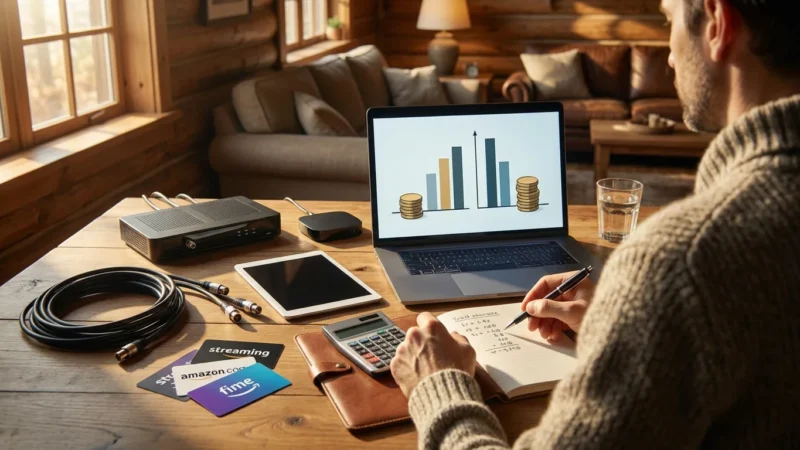
Calculating Your Costs: Cable DVR vs. Streaming Options
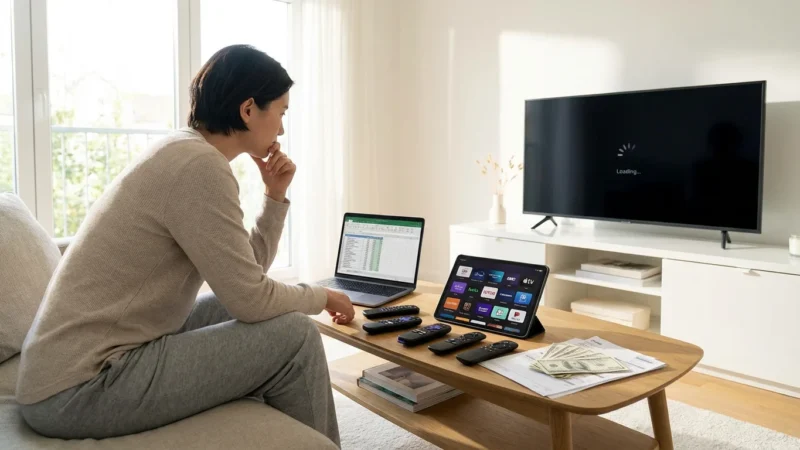
The primary motivation for many people to cut the cord is saving money. Understanding the true cost comparison between your old cable bill and new streaming setup, including DVR replacement, is critical.
To maximize your monthly savings, check out our guide on how to create the perfect streaming bundle while maintaining the DVR features you need.
Typical Cable Bill with DVR (Estimate)
- Base Cable Package: $70 – $100 per month
- DVR Service Fee: $10 – $20 per month
- Cable Box Rental: $10 – $15 per month (for each additional box)
- Broadcast TV Fee: $10 – $20 per month
- Regional Sports Fee: $5 – $15 per month
- Internet: $70 – $90 per month (often bundled, but separate in cord-cutting)
Total Estimated Cable Bill: $175 – $270+ per month, including internet.
Typical Streaming Setup with Cloud DVR (Estimate)
Let us assume you choose a robust live TV streaming service and a couple of on-demand services.
- Internet Service: $70 – $90 per month (essential for streaming)
- Live TV Streaming Service (with Cloud DVR):
- YouTube TV: $72.99 per month
- Hulu + Live TV: $76.99 per month
(We will use YouTube TV for this example)
- On-Demand Services (choose based on your preference):
- Netflix (Standard): $15.49 per month
- Max (Ad-Free): $15.99 per month
- Disney+ Bundle (Hulu, Disney+, ESPN+): $14.99 per month (if not already part of Hulu + Live TV)
(Let us assume Netflix and Max as additional services)
- Optional Equipment (one-time cost):
- Streaming Device (Roku, Fire TV): $30 – $100 per device (e.g., $50 for a Roku Express 4K+)
- OTA Antenna: $50 (if you want local channels without a live TV service)
- OTA DVR: $150 (if you choose OTA for local recordings)
Total Estimated Streaming Bill (Monthly):
- Internet: $80
- YouTube TV: $73
- Netflix: $16
- Max: $16
- Monthly Total: ~$185
This example shows a potential monthly cost similar to, or slightly lower than, a high-end cable package. However, your initial savings come from eliminating all those extra cable fees and box rentals. Furthermore, you gain flexibility. You can cancel and subscribe to services monthly based on your viewing habits, which is impossible with cable. If you choose fewer premium services, your savings increase significantly.
For example, if you replace YouTube TV with Sling TV ($40) and keep Netflix and Max, your monthly bill drops to around $152. This represents substantial savings over time.
Common Mistakes to Avoid When Replacing Your DVR
Cutting the cord and replacing your DVR effectively requires careful planning. Avoid these common pitfalls:
- Underestimating Internet Speed Needs: Streaming, especially with multiple users or 4K content, consumes significant bandwidth. Do not assume your old internet plan is sufficient. Upgrade if necessary to avoid buffering.
- Forgetting Local Channels: Live TV streaming services generally include local channels, but confirm availability in your specific zip code. If not, plan for an OTA antenna.
- Over-Subscribing: The “cable bill creep” can happen with streaming services if you subscribe to too many. Start with a core live TV service (if needed) and one or two on-demand services. Add more only if genuinely necessary, and remember you can rotate subscriptions.
- Ignoring Free Content: Many apps, like Tubi, Pluto TV, and Freevee, offer ad-supported content without a subscription. Network apps often provide recent episodes for free. Explore these options to reduce your paid subscriptions.
- Not Testing Services: Most live TV streaming services offer free trials. Use them. Test the channel lineup, the interface, and crucially, the cloud DVR features before committing.
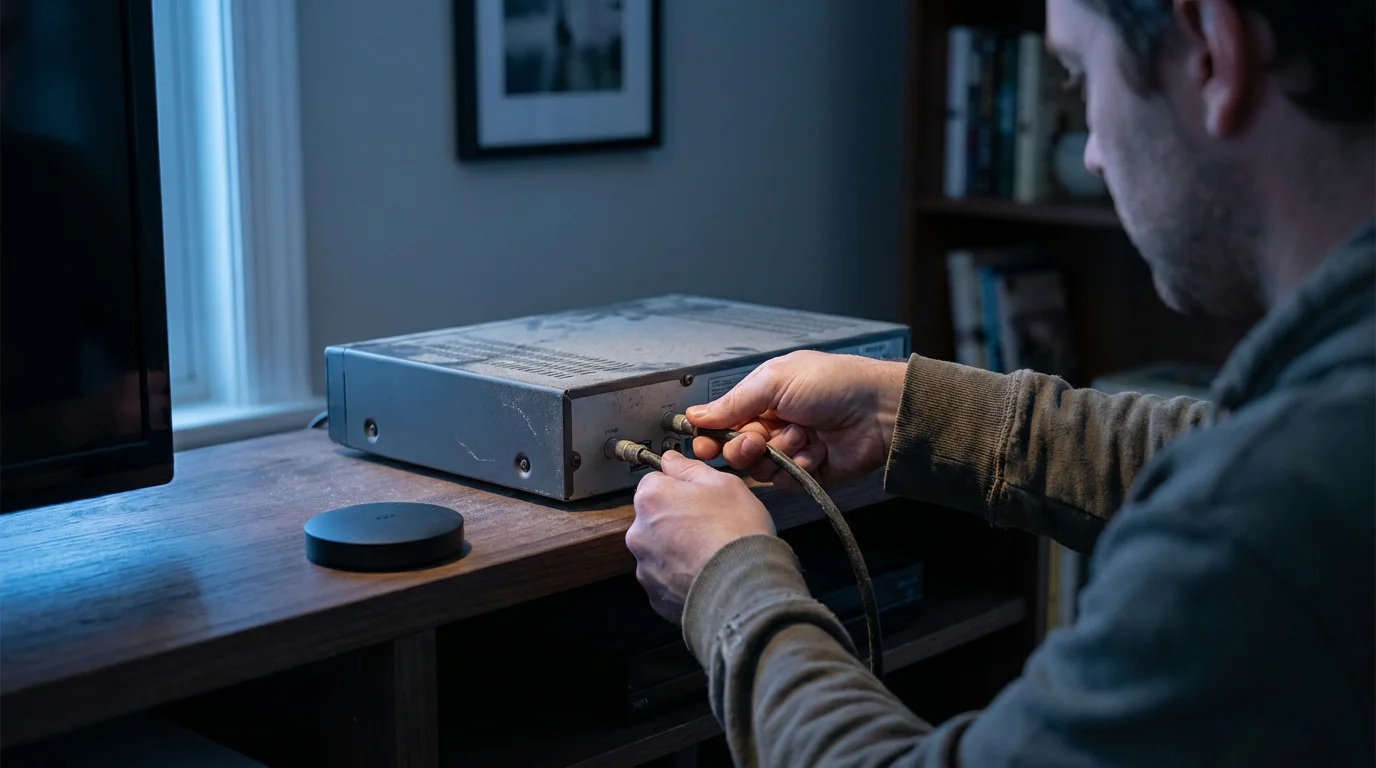
- Holding Onto Old Equipment: After canceling cable, ensure you return all rented equipment (cable boxes, modems, DVRs) to avoid unreturned equipment fees. Check your final bill carefully.
“Do not just swap your cable bill for an equally expensive pile of streaming subscriptions. Strategize your services based on what you actually watch and leverage free trials to avoid costly mistakes.” — Cord Cutters News
Timeline and Checklist for Your DVR Transition
Making the switch efficiently involves a few key steps. Follow this timeline and checklist to smoothly transition from your cable DVR to a streaming solution.
Phase 1: Preparation (2-4 Weeks Before Cancelling Cable)
- Assess Your Viewing Habits:
- List your must-have channels, shows, and sports.
- Identify shows you record regularly on your DVR.
- Determine how much on-demand content you already watch.
- Evaluate Internet Speed:
- Perform a speed test (e.g., Speedtest.net) to determine your current download speed.
- Compare it to recommended speeds (50-100+ Mbps for most households).
- Contact your ISP to upgrade if needed. Factor this cost into your budget.
- Research Streaming Options:
- Explore Live TV streaming services (YouTube TV, Hulu + Live TV, Sling TV, FuboTV) to see which offers your must-have channels and desired cloud DVR features.
- Check OTA antenna options and DVRs if local channels are a priority and not covered by your chosen live TV service, or if you prefer a one-time purchase solution.
- Identify any essential on-demand services (Netflix, Max, etc.).
- Acquire Necessary Equipment:
- Purchase streaming devices for all your TVs (Roku, Fire TV, Apple TV, Chromecast).
- If going the OTA route, buy an antenna and an OTA DVR (e.g., Tablo, HDHomeRun) along with an external hard drive if necessary.
- Set up and familiarize yourself with this new equipment while still having cable.
Phase 2: Trial and Transition (1-2 Weeks Before Cancelling)
- Utilize Free Trials:
- Sign up for free trials of your top 1-2 live TV streaming service choices.
- Test their channel lineups, user interfaces, and critically, their cloud DVR functionality. Record shows, try watching them on different devices.
- Confirm local channel availability.
- Practice Using Your New Setup:
- Start watching your regular shows through your streaming services or OTA DVR.
- Ensure everyone in your household is comfortable with the new interface.
Phase 3: Cancellation and Optimization (Day of Cancellation & Afterward)
- Contact Your Cable Provider:
- Call your cable provider to cancel your TV service. Be prepared for retention offers, but stick to your decision.
- Confirm your internet-only plan (if keeping internet with the same provider).
- Ask about any early termination fees (ETFs). Review your contract to understand these fees before you call.
- Get instructions for returning rented equipment (cable boxes, DVRs, modems if you will use your own). Document the return process with receipts or tracking numbers. This is a critical step, as unreturned equipment fees can be substantial.
- Return Equipment:
- Follow your provider’s instructions carefully. Keep all documentation.
- Finalize Your Streaming Subscriptions:
- Cancel any streaming service trials you do not plan to keep.
- Commit to your chosen live TV and on-demand services.
- Monitor and Adjust:
- Review your first few streaming bills.
- Adjust subscriptions as your viewing habits evolve. You might find you can pause or cancel some services for a few months and reactivate them later, maximizing your savings.
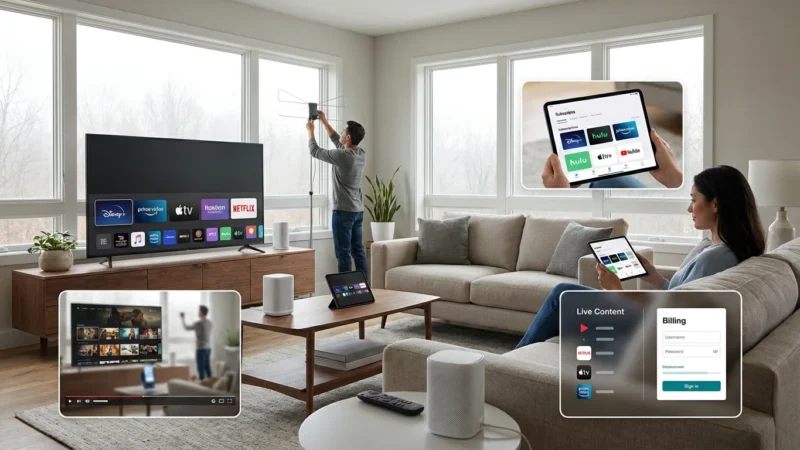
This structured approach minimizes disruption and ensures a smooth transition to a cable-free, DVR-ready streaming life.
Frequently Asked Questions
Can I record shows from Netflix or Max with a cloud DVR?
No, traditional cloud DVRs from live TV streaming services like YouTube TV or Hulu + Live TV only record live broadcast or cable channels offered within their packages. Services like Netflix, Max, Disney+, and Amazon Prime Video are on-demand streaming platforms. They provide their content as part of their subscription library, so you do not need to record from them. You simply select a show or movie and watch it anytime. Some of these services do offer download features for offline viewing, but this is different from recording live broadcasts.
Do I need a separate streaming device for each TV to use a cloud DVR?
Yes, each TV requires a streaming device, such as a Roku, Fire TV Stick, Apple TV, or a smart TV with built-in streaming apps, to access live TV streaming services and their cloud DVRs. The recordings are stored in the cloud, so any device logged into your account can access them. You do not need a dedicated DVR box for each TV, which is a major advantage over cable.
What if my internet goes out? Can I still watch my recorded shows?
If your internet goes out, you cannot access content stored on a cloud DVR or on-demand streaming services, as these rely entirely on an internet connection. However, if you use an Over-the-Air (OTA) DVR like Tablo or HDHomeRun that saves recordings to a local hard drive, you might still be able to watch those recordings on devices within your home network, provided the network itself (your router) is still functioning and distributing the content. Some streaming services also allow you to download content for offline viewing on mobile devices, which can serve as a backup for specific shows.
Are cloud DVRs reliable?
Yes, cloud DVRs are generally very reliable. They record shows on secure servers, meaning you do not have to worry about hardware failures, power outages, or running out of physical storage space. While internet reliability is a factor for playback, the recording process itself is handled by the service provider, ensuring your shows are captured correctly. Most services offer high-quality recordings, and many even include unlimited storage, allowing you to record as much as you want without managing space.
Can I fast-forward through commercials on recorded shows with a cloud DVR?
Most live TV streaming services with cloud DVRs allow you to fast-forward through commercials on recorded content. This feature is a significant benefit, similar to traditional DVRs. However, some specific programs or channels might have restrictions depending on the service and content agreements. For example, some services may force you to watch commercials on certain network content even if recorded, or may only allow fast-forwarding if you pay for an ad-free tier or an enhanced DVR add-on. Always check the specifics of the service you choose during your free trial.

Leave a Reply